Give a finished lesson a new look by switching its theme
Build a two-scene lesson in the Meadow palette, pick one button's colours by hand, then switch the whole lesson to Midnight from Lesson settings. Every scene restyles in one click, your own colours stay, and one Undo brings the old look back.
- Level
- Beginner
- Time
- About 10 min
- Steps
- 9
- Updated
- Oct 12, 2026
An "Animals of the night" lesson that started out in Meadow's pale greens and now wears Midnight's dark scenes and light text, with the amber Meet the owl button you coloured yourself kept exactly as you set it.
Get the finished lesson
Skip straight to the result, or keep it open beside the steps. Add this tutorial's lesson to your account and explore how it works in the studio.
Free to sign up, and you'll come straight back here. I have an account
You picked a palette when you created a lesson, built it, and now it doesn't quite fit: a lesson about nocturnal animals would look better at night, or a lesson you made for second graders needs a calmer look for fifth graders. You don't have to restyle it widget by widget. Switching the lesson's theme repaints every scene, every widget that still wears the old palette's colours, and the lesson's fonts, all at once.
In this tutorial you'll build a short "Animals of the night" lesson in the Meadow palette, give one button colours of your own, and then switch the lesson to Midnight. You'll see what changes, what stays, and how to take it back.
Step 1: Create the lesson in Meadow
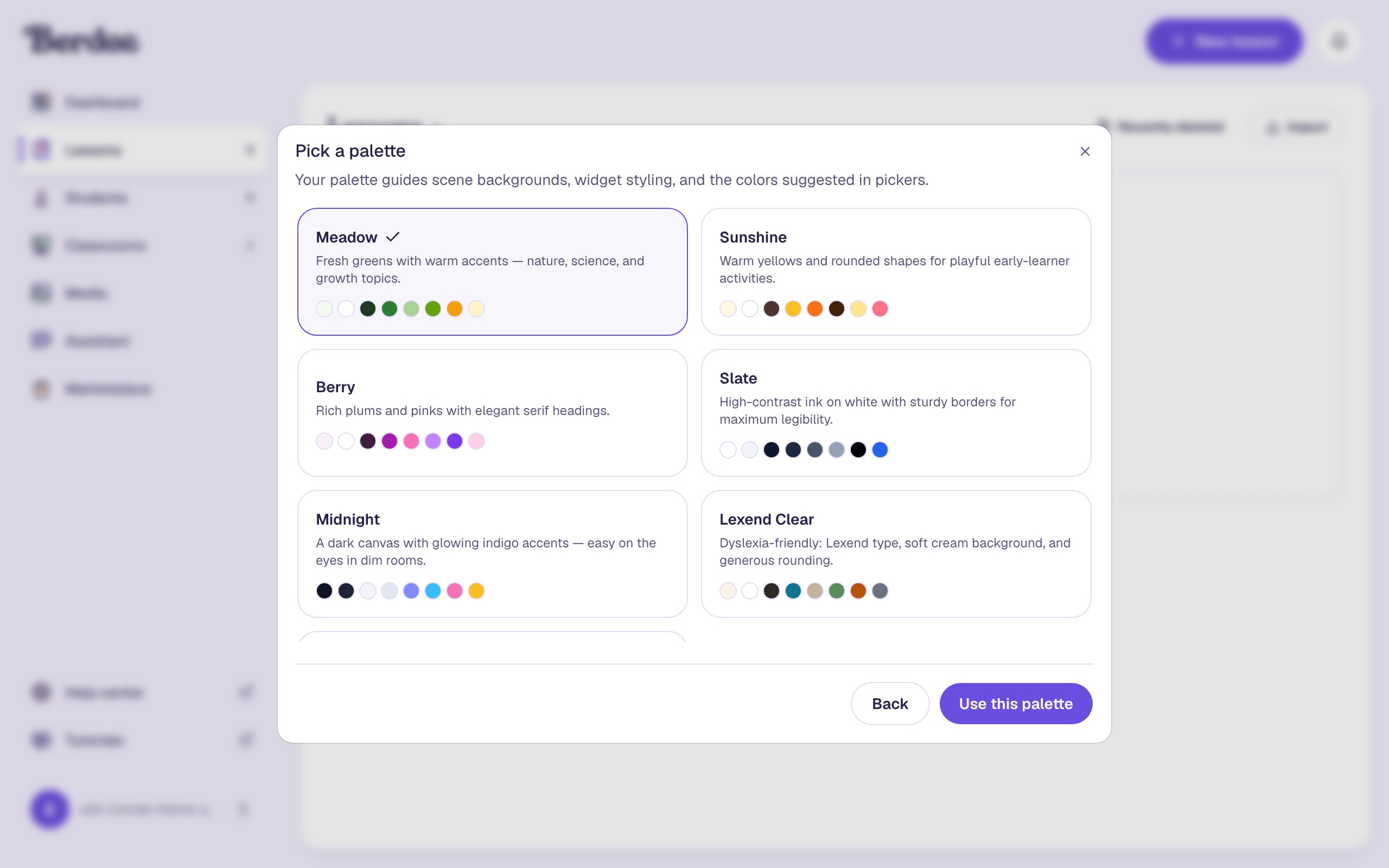
Click New lesson. Under the Start from scratch card, click the link that names the current palette (Classic palette — change). Click Meadow, then Use this palette.
Click Start from scratch. Then click Untitled lesson in the top bar, type Animals of the night as the Name, and click Save changes.
Step 2: Build the title scene
Add four widgets to the Opening Scene:
- A Heading that says
Animals of the night, with Font Size44, at the top left. - A Body that says
Some animals sleep all day and wake up when the sun goes down. Let's meet one of them.Under Style & Layout, choose Fixed width, set Width to430, Font Size to26, and click Align left. Put it under the heading. - An Image on the right. Click Choose image, search the stock photos for
owl, and pick one you like. Under Accessibility, describe it in Alt Text, for exampleA Eurasian eagle-owl with bright orange eyes, perched on a tree stump. - A Button labelled
Meet the owlunder the text. You'll make it go somewhere in Step 3.
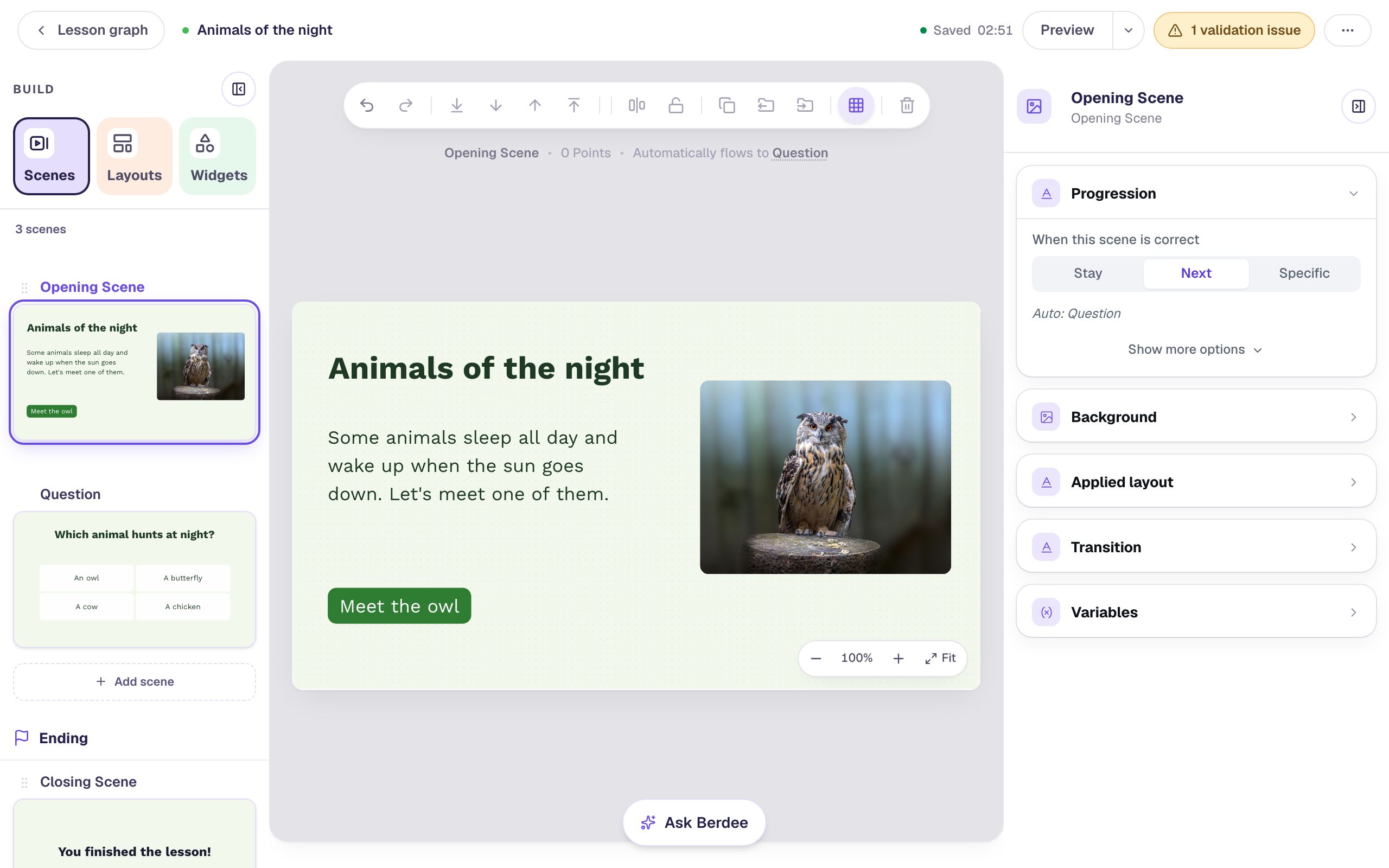
You didn't choose a single colour: the scene's pale green, the dark green text and the green button all came from Meadow. Keep that in mind. They are the colours the theme switch will repaint.
Step 3: Add the question
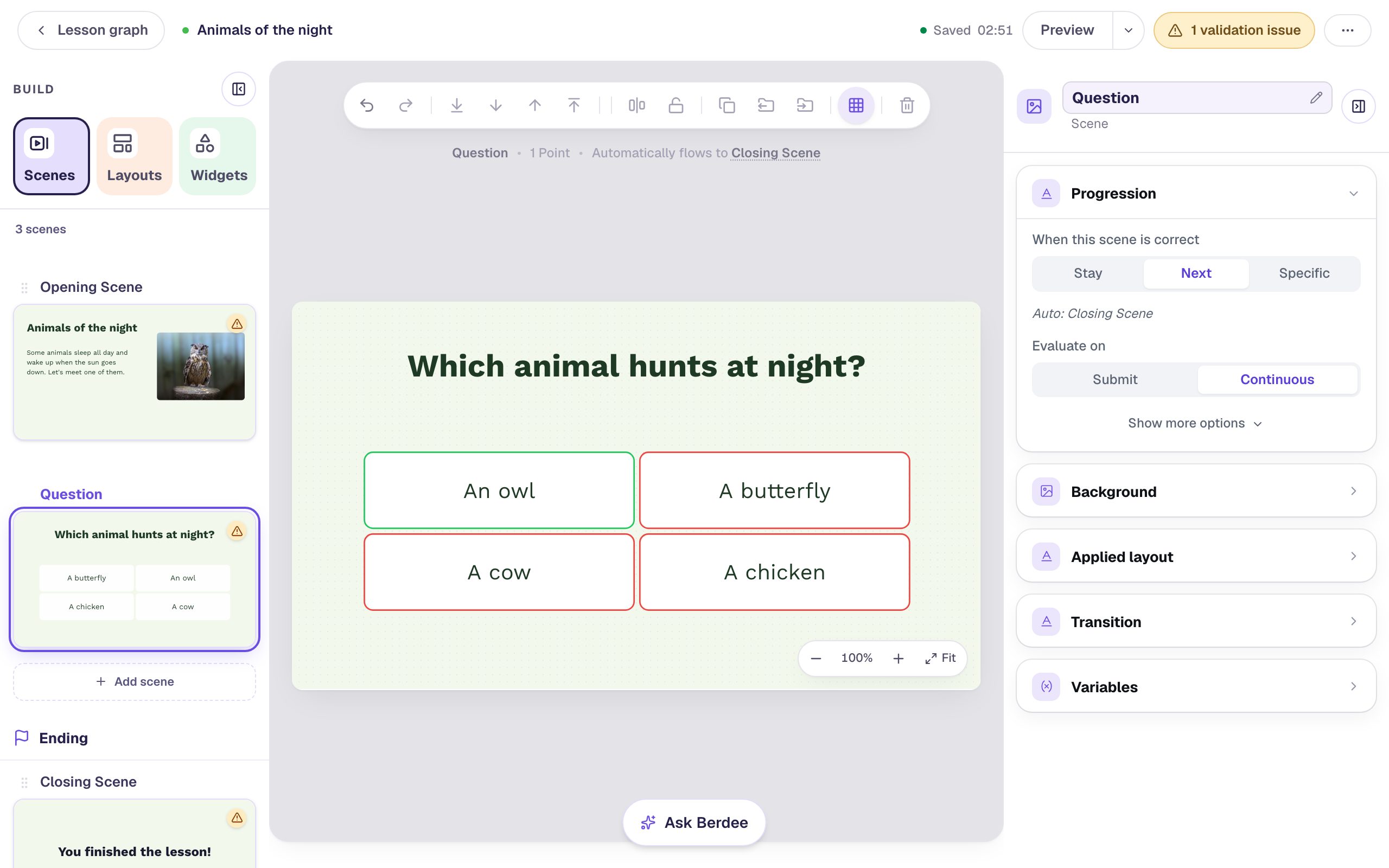
Open the Scenes tab and click Add scene. Rename the new scene Question, then add:
- A Heading that says
Which animal hunts at night?, with Font Size44, near the top. - A Multi Choice question. Click ⚙ Configure, type the answers
An owl,A butterfly,A cowandA chicken, and click Save. The first answer starts marked correct, which is right here. Set its Font Size to30, switch on its first setting so students see right and wrong answers, and make it wide enough for two answers per row.
Go back to the Opening Scene, select the Meet the owl button, click Behaviors in the pill above it, choose Make this a "Next" button, and click Add behavior.
Step 4: Give the button colours of your own
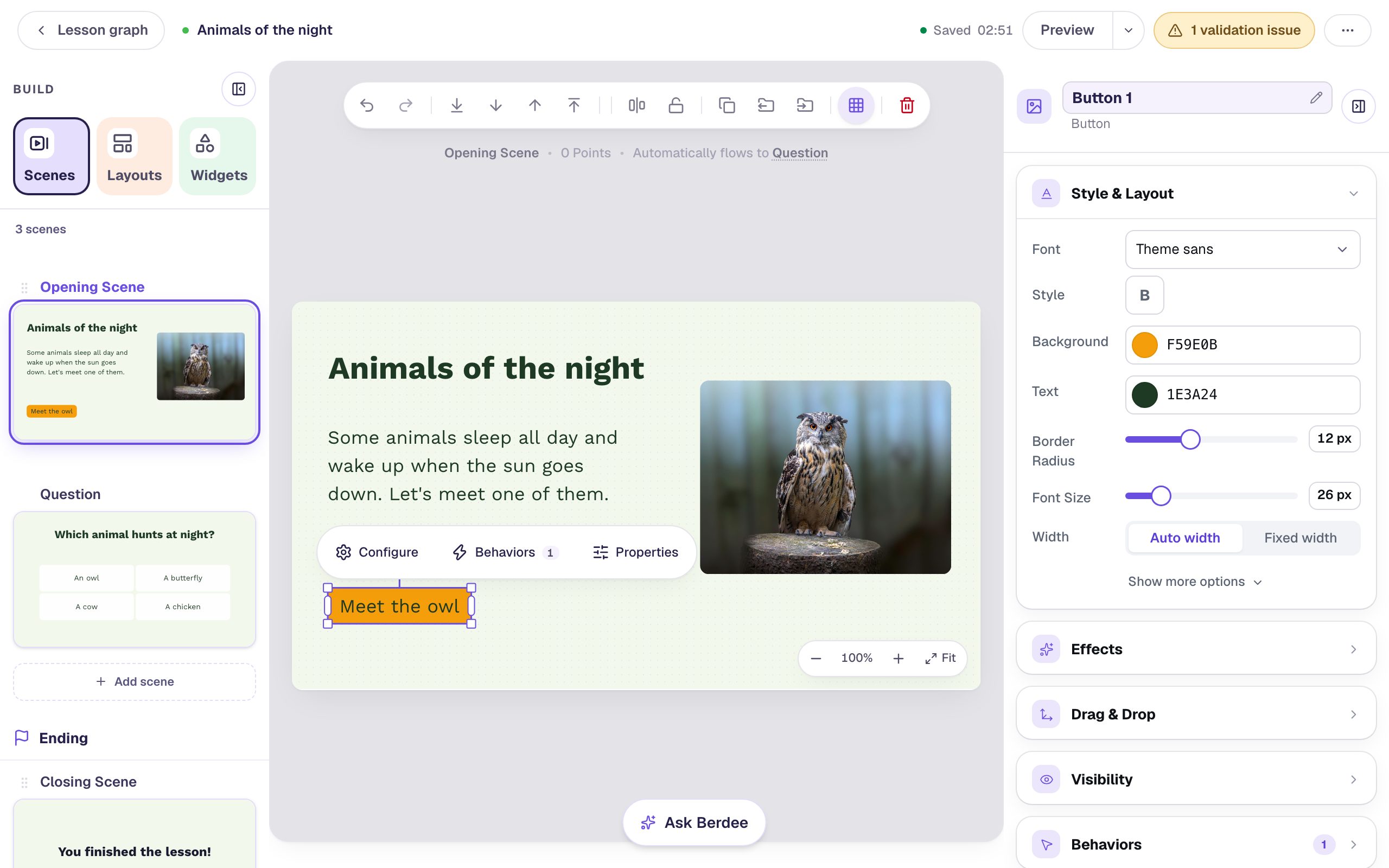
Now pick one thing by hand, so you can watch it survive the switch. Select Meet the owl. Under Style & Layout, click Background and choose the amber swatch (F59E0B). Then click Text and choose the dark green (1E3A24).
Pick the text colour as well as the background. The button's label is still Meadow's white, and white on amber is too faint for students to read.
Step 5: Switch the lesson to Midnight
Click the lesson's name, Animals of the night, in the top bar to open Lesson settings (you can also use ⋯ → Settings). Scroll to Theme. The card with the tick is the lesson's current palette, Meadow. Click Midnight.
The tick moves to Midnight, and the Typography fonts under it change to Midnight's Space Grotesk and Spectral. Click Save changes.
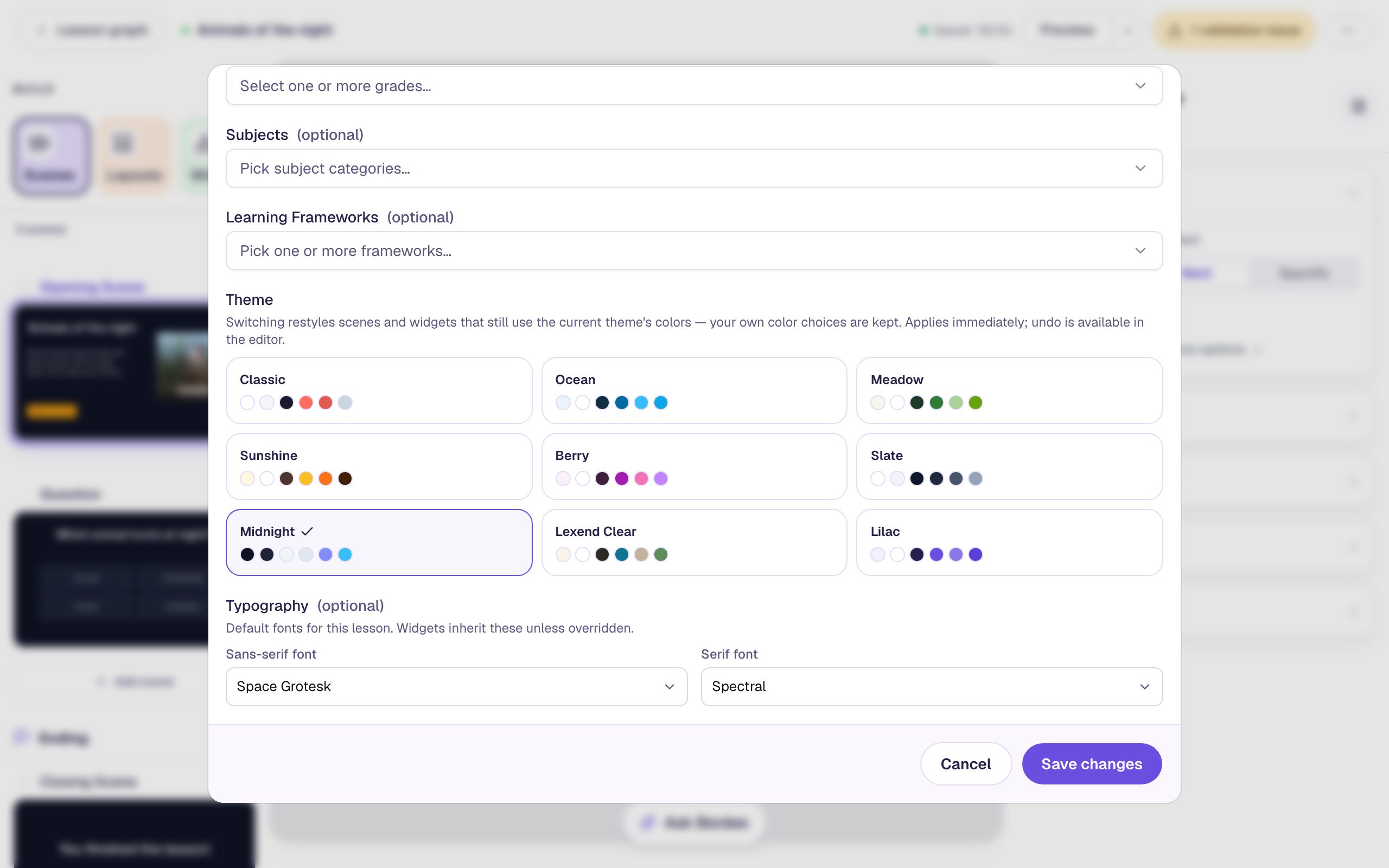
The switch doesn't wait for Save changes: clicking a palette restyles the lesson straight away, so Cancel closes the window without undoing it. To go back, use Undo (Step 7).
Step 6: See what changed, and what stayed
Close the window and look at the title scene:
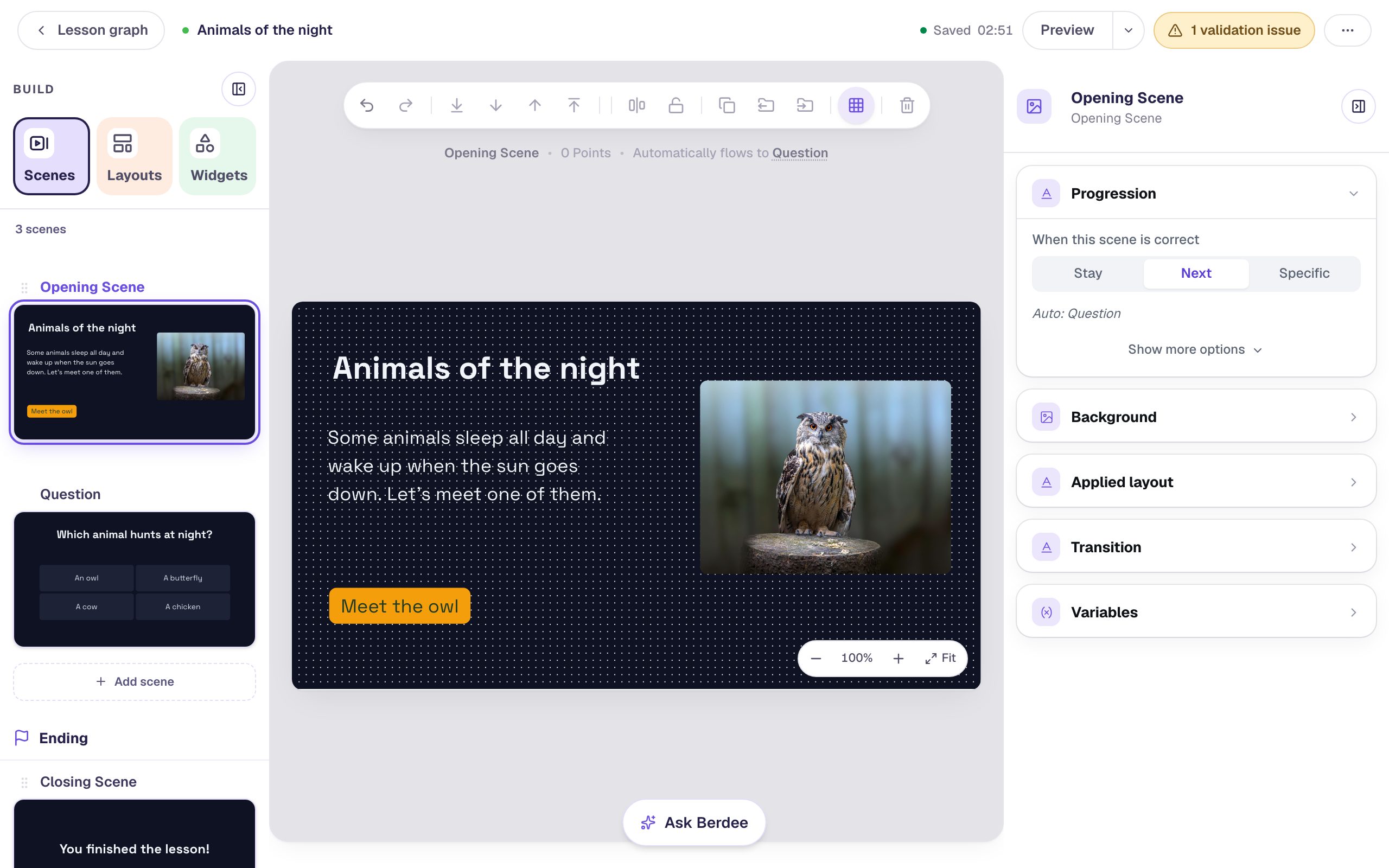
- Changed: the scene background, the heading and text colours, and the font. These were all still Meadow's, so Midnight replaced them with its own.
- Kept: the amber background and dark green label on Meet the owl. You picked those yourself, so the switch leaves them alone. That's what makes it safe to try a theme on a lesson you've already polished.
- Refitted: text and buttons that size themselves grow or shrink to fit the new font, and boxes with a fixed width, like the sentence, keep their width. So what you see in the studio is what students get.
Step 7: Undo the switch, then bring it back
Not sure? Before you do anything else, click Undo, the curved arrow at the left of the toolbar above the canvas (or press ⌘ Z, Ctrl + Z on Windows). The whole switch goes back in one step: Meadow's colours, its fonts and every box size, even though you clicked Save changes. Click Redo next to it to return to Midnight.
Undo goes back one step at a time, and moving to another scene counts as a step. If you've opened other scenes since switching, the first presses of Undo take you back through those scenes before the next one undoes the switch. Keep pressing until the palette changes back.
This makes it cheap to try a few palettes and compare them. Each switch is one step in the studio's history, and ⋯ → History keeps the older versions too.
Step 8: Check the other scenes
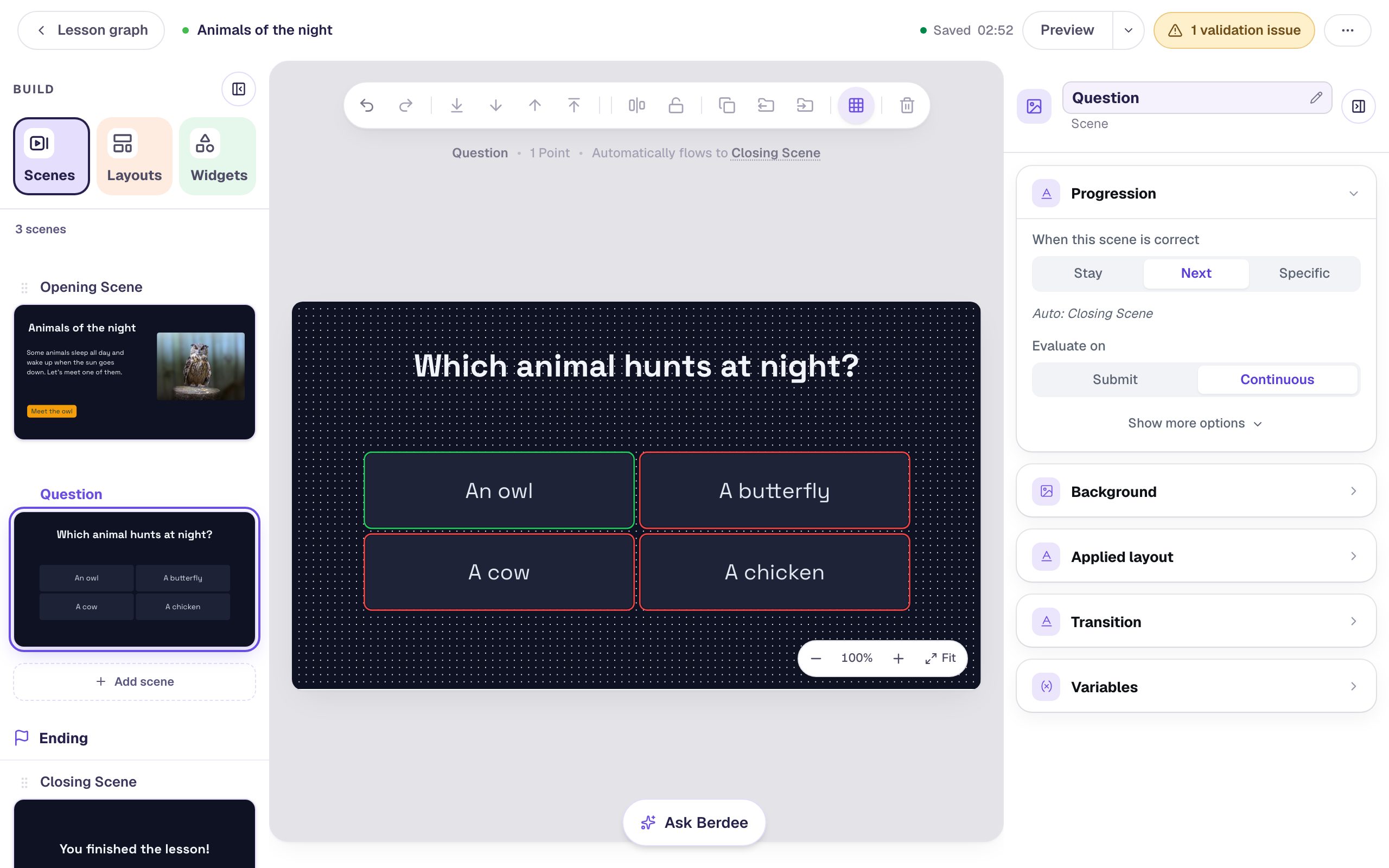
Open the Question scene. You didn't touch it, and it changed too: the scene, the heading and the answer tiles all wear Midnight now. The Closing Scene at the bottom of the Scenes tab has changed as well.
Step 9: Try it as a student
Click Preview. Students see the Midnight version: the dark title scene with the amber button, then the question.
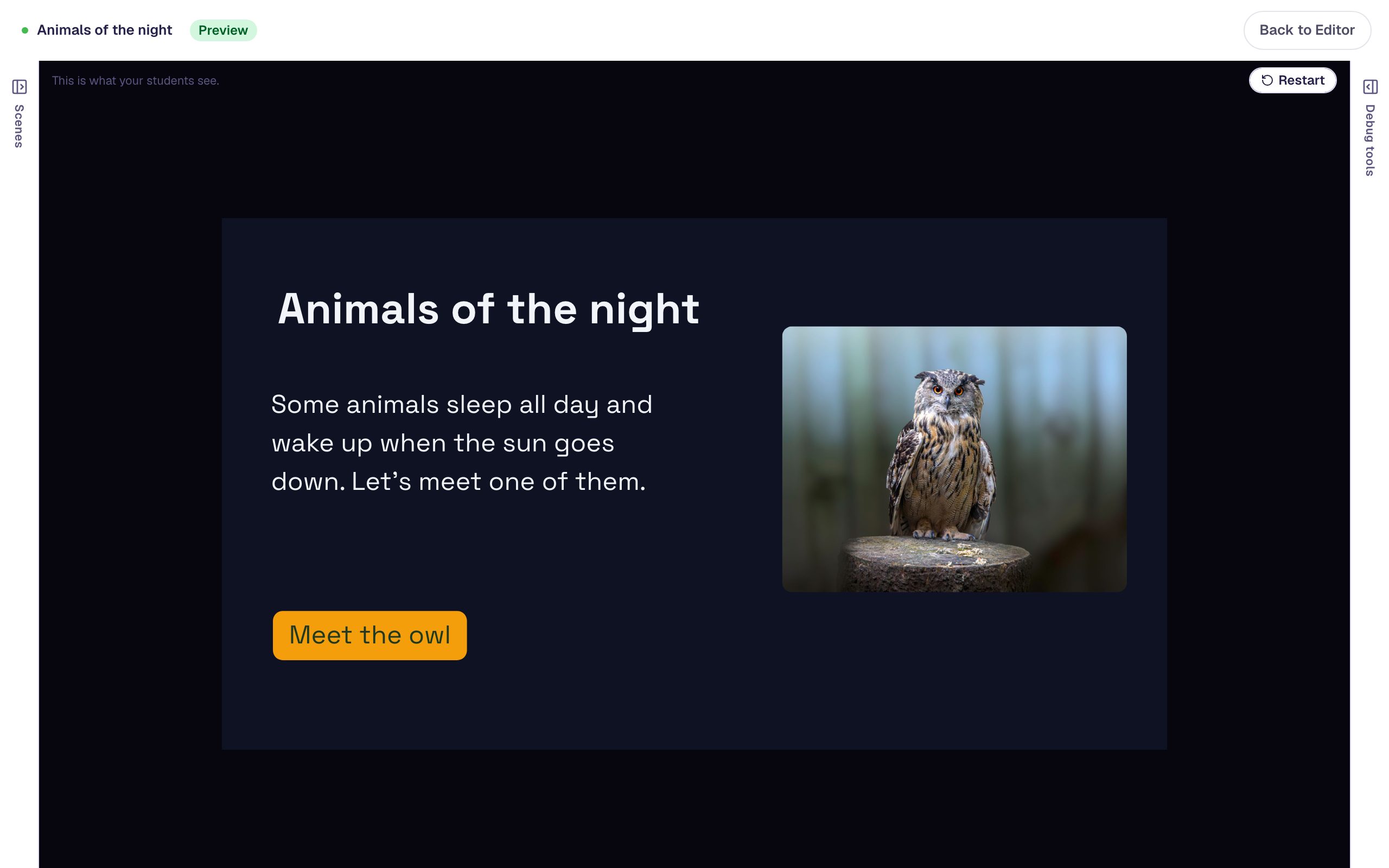
Click Meet the owl and choose a wrong answer. It's outlined in red, on a dark tile that's still easy to read:
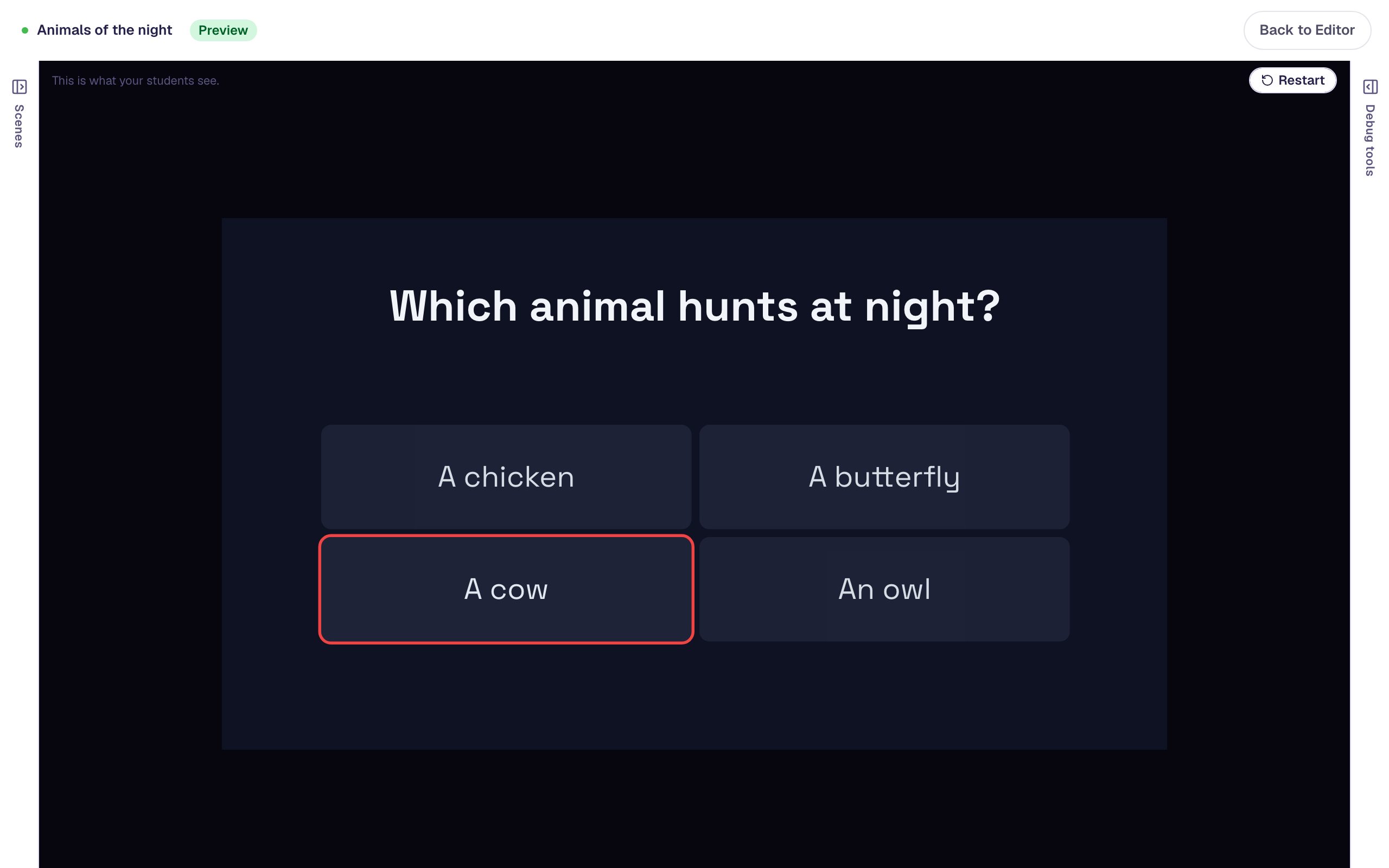
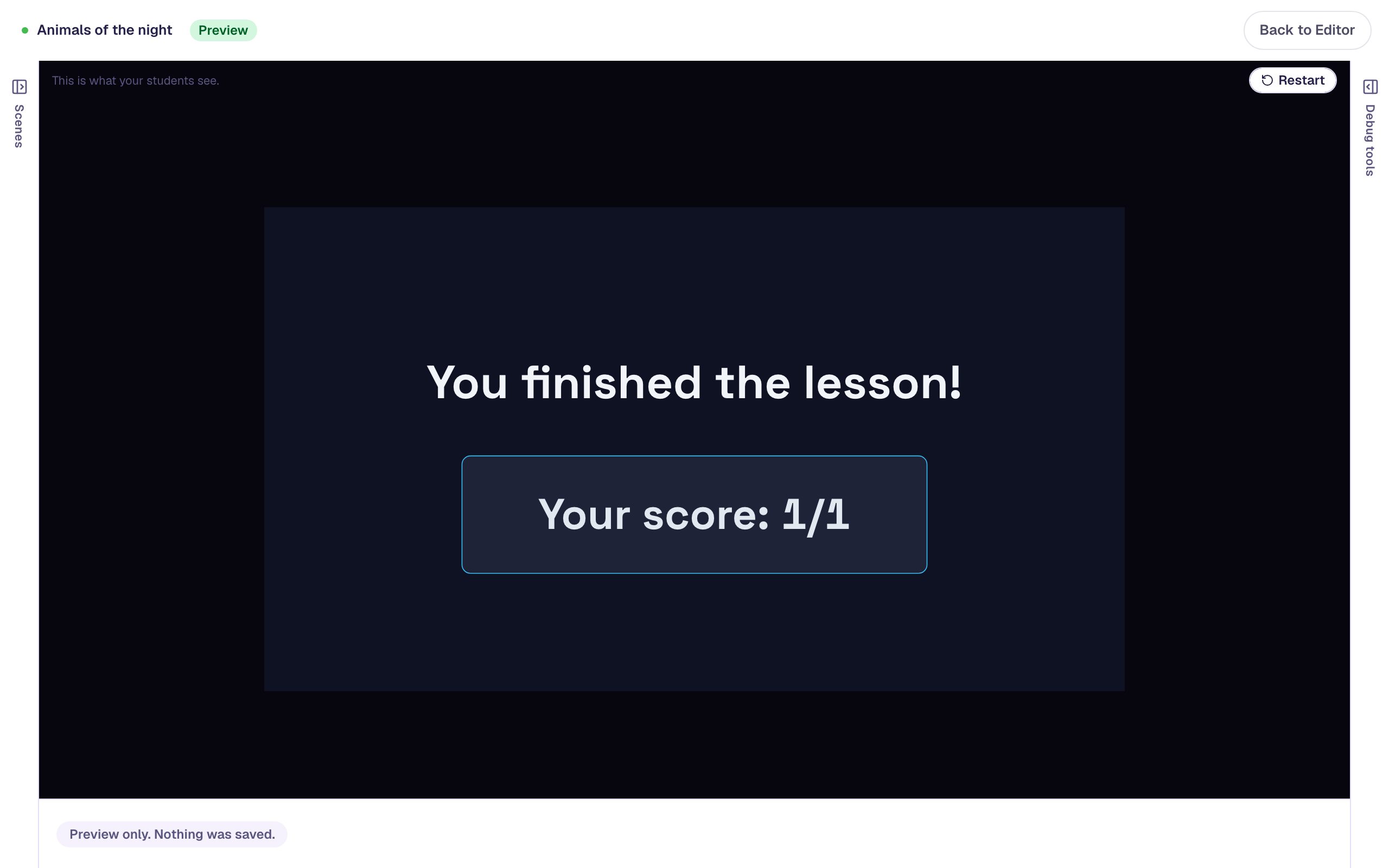
Choose An owl and the lesson moves on to the ending, which is in Midnight too:
What you built
A two-scene "Animals of the night" lesson that changed its whole look in one click:
- built in Meadow, with every colour and font coming from the palette,
- one button given an amber background and a dark label by hand,
- switched to Midnight from Lesson settings → Theme, which repainted every scene and swapped the fonts while keeping the colours you chose,
- and an Undo that takes the whole switch back in one step.
Use the same move whenever you reuse a lesson: switch an old lesson to Lexend Clear for readers who find a dyslexia-friendly font easier, to Slate for a high-contrast look on a projector, or to Sunshine for younger students. If you want a background picture as well as a palette, Style a title scene with a palette, a background, and a display font adds one.
Make this lesson yours
Add the lesson you just watched being built to your account, then change it for your class: your questions, your pictures, your colors.
Free to sign up, and you'll come straight back here. I have an account