Show an explanation when a student gets it wrong
Use the Lesson Graph to send wrong answers to a short explanation scene, while right answers go straight to the ending.
- Level
- Beginner
- Time
- About 10 min
- Steps
- 7
A question that sends students who miss it to an explanation of the right answer, then on to the ending, while students who get it right skip ahead.
Get the finished lesson
Skip straight to the result, or keep it open beside the steps. Add this tutorial's lesson to your account and explore how it works in the studio.
Free to sign up, and you'll come straight back here. I have an account
A wrong answer is a teaching moment. In this tutorial you'll make a lesson that notices when a student misses a question and shows them why the right answer is right before moving on. Students who get it right skip the explanation and go straight to the ending.
You'll do the branching in the Lesson Graph, the map of every path a student can take through your lesson. If you haven't built a question in Berdee before, start with Build your first quiz question: this tutorial moves quickly through the parts it already covers.
Step 1: Build the question
Start a blank lesson (New lesson, then Start from scratch). On the Opening Scene, add:
- A Heading with your question. We'll ask
Which animal is a mammal? - A Multi Choice widget. In Configure, type the answers
Shark,Dolphin,Trout, andOctopus, then click the round check mark beside Dolphin so it's the only answer marked correct (green). Bring the Font Size down to about 36 px so every answer fits. - A Submit Button. In Content, change its Label to
Check my answerand leave Submits on Current scene. This button checks just this question; it's what will decide which way the student goes.
Then click an empty spot on the scene so nothing is selected. The properties panel now shows the scene's own settings. Under Progression, set Evaluate on to Submit.
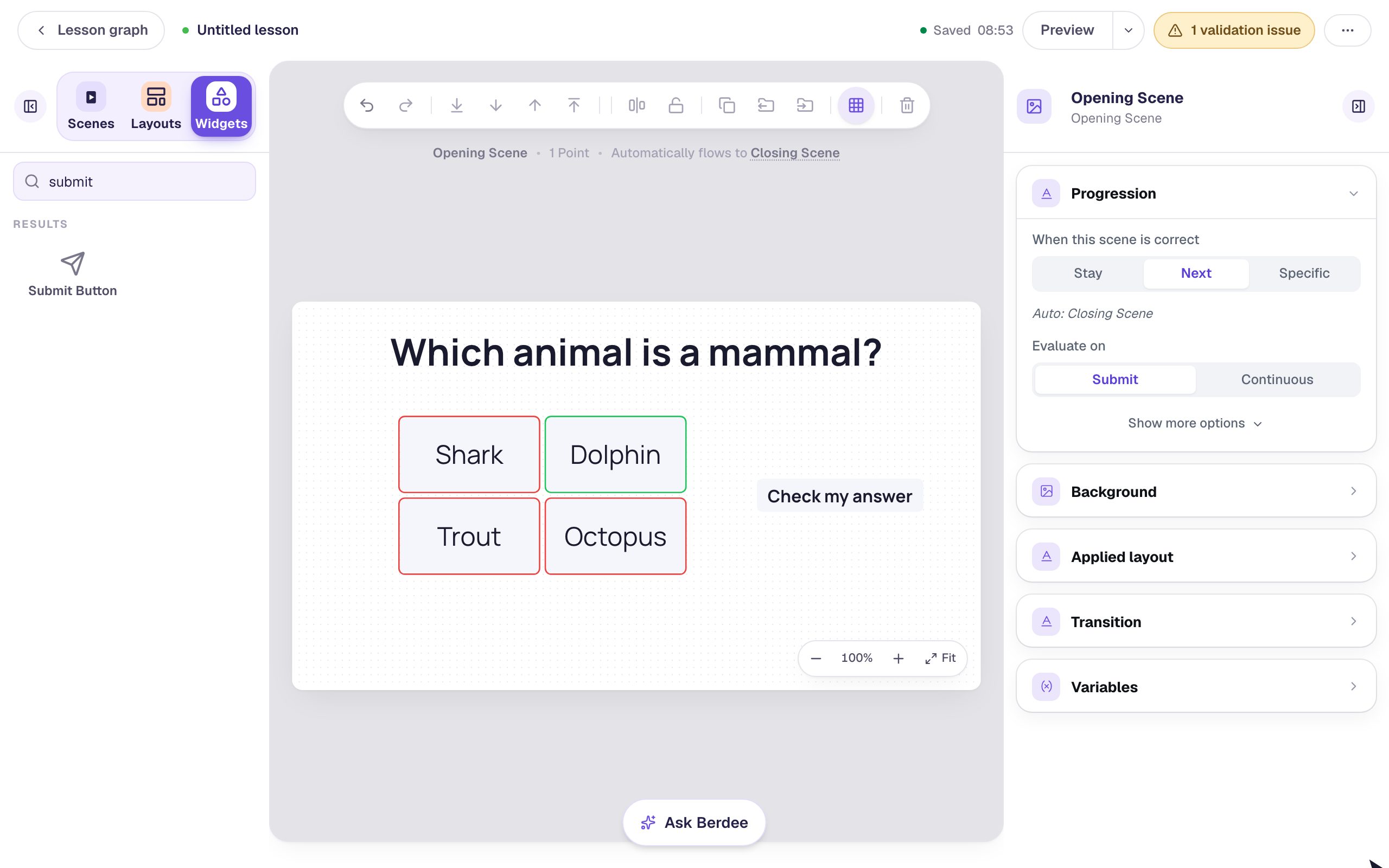
That last setting matters. Normally a scene moves on the moment the answer is right. With Submit, Berdee waits for the student to press Check my answer, so a right answer and a wrong answer are both decided at the same moment, and each can go its own way.
Step 2: Open the Lesson Graph
Click Lesson graph at the top left of the studio. The graph shows each scene as a card, left to right in the order students meet them. Right now there are two: your question and the Closing Scene, which shows the score. The dashed arrow between them, When answered correctly, is the path you already have.
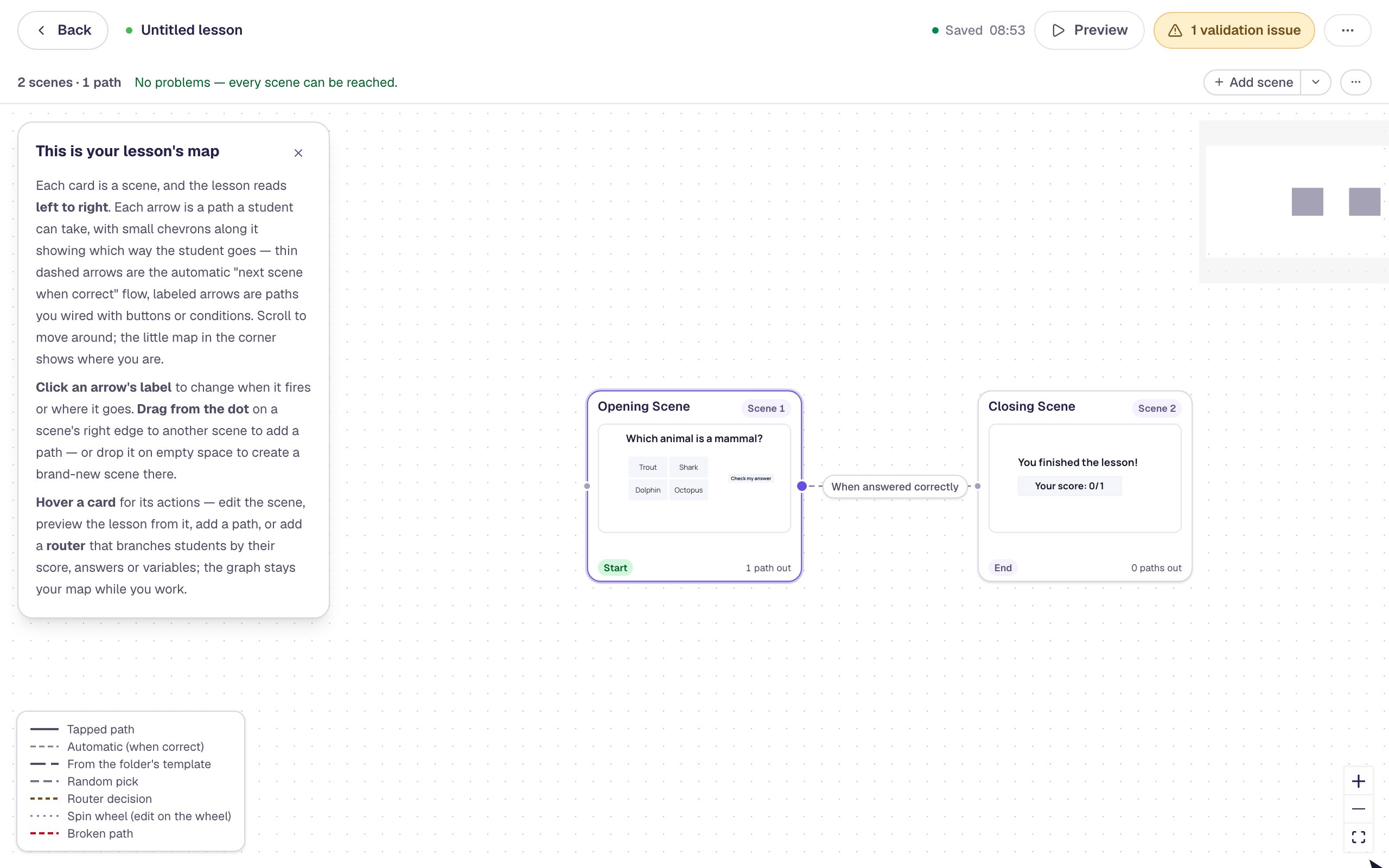
The first time you open the graph, a card on the left explains how to read it. Click the × to close it.
Step 3: Add a scene for wrong answers
Hover over the Opening Scene card and click the dot on its right edge. A short window asks what comes next:
- What do you want to add? Leave A new scene selected and click Next.
- Name the scene
Explanation. - Under Students go there when…, choose They answer wrong. The note underneath confirms it: when they press Submit and haven't passed the scene, Berdee sends them here.
- Click Add scene.
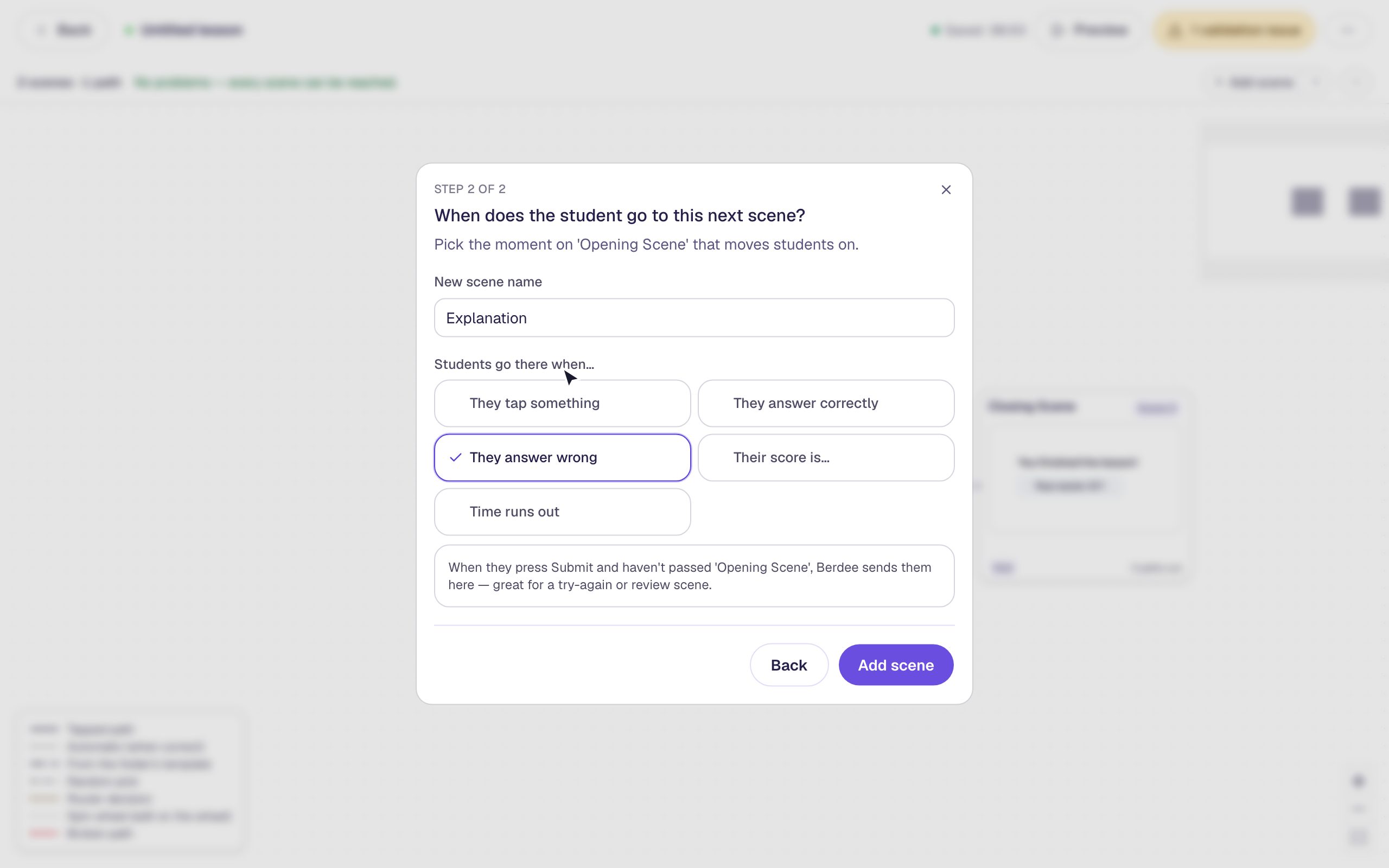
The graph now has three scenes, and the Opening Scene has a new path labelled If this scene is not passed.
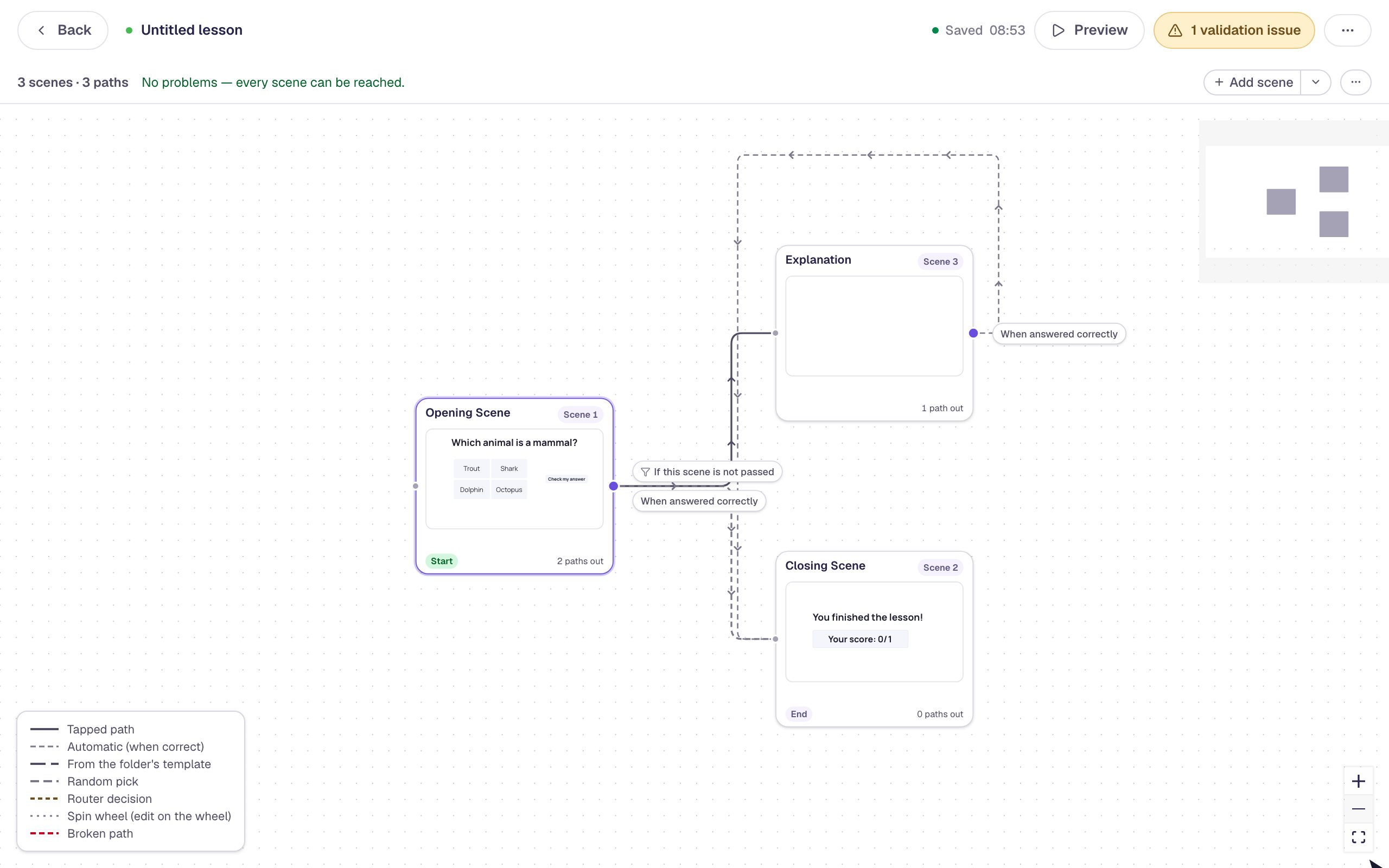
Your question now has two ways out. Wrong answers go to Explanation, and right answers still go where they went before: the When answered correctly path leads straight to the Closing Scene. Hover over its label to check:
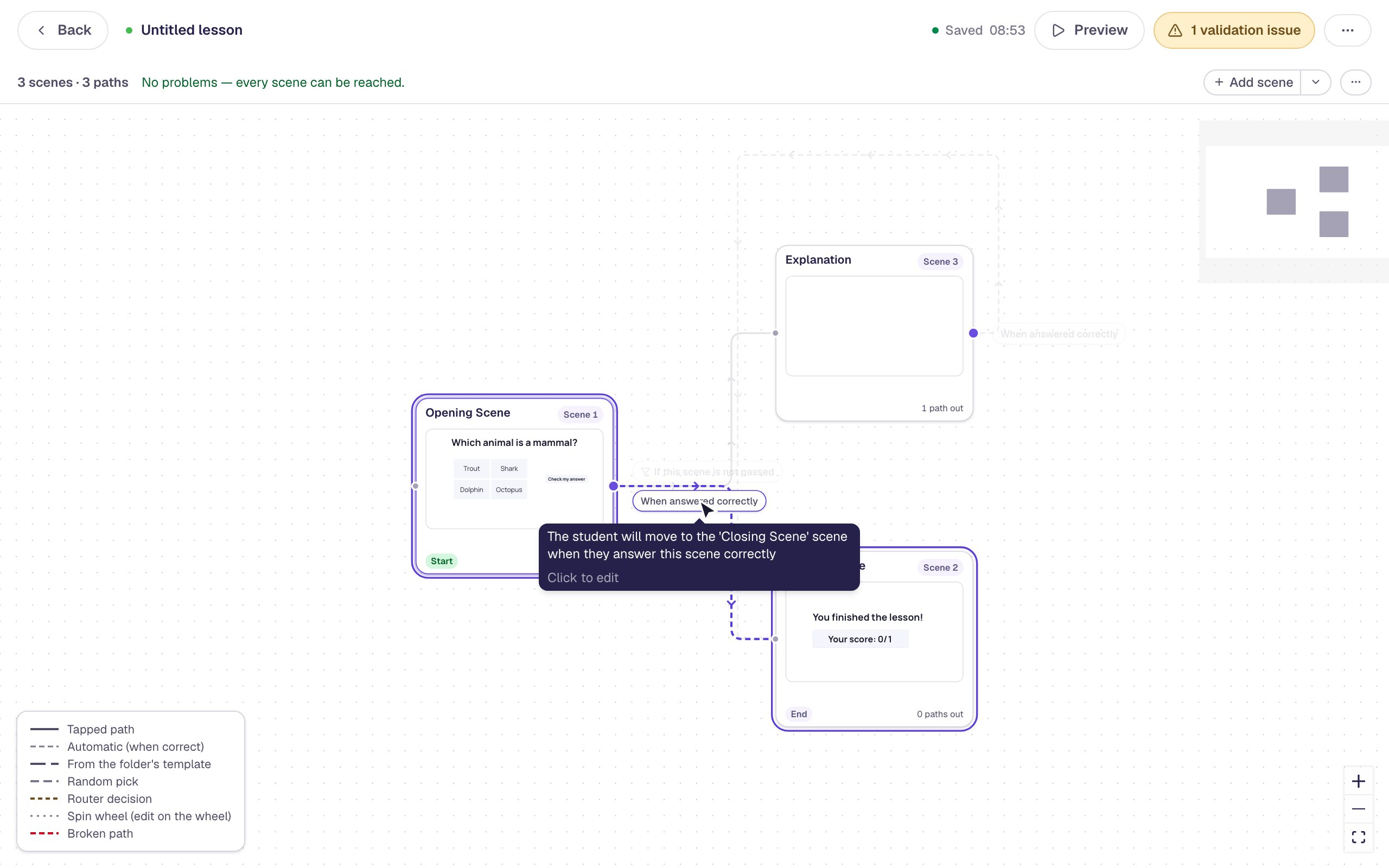
The graph moves the cards around to keep the arrows tidy, so don't worry if yours are arranged differently.
Step 4: Write the explanation
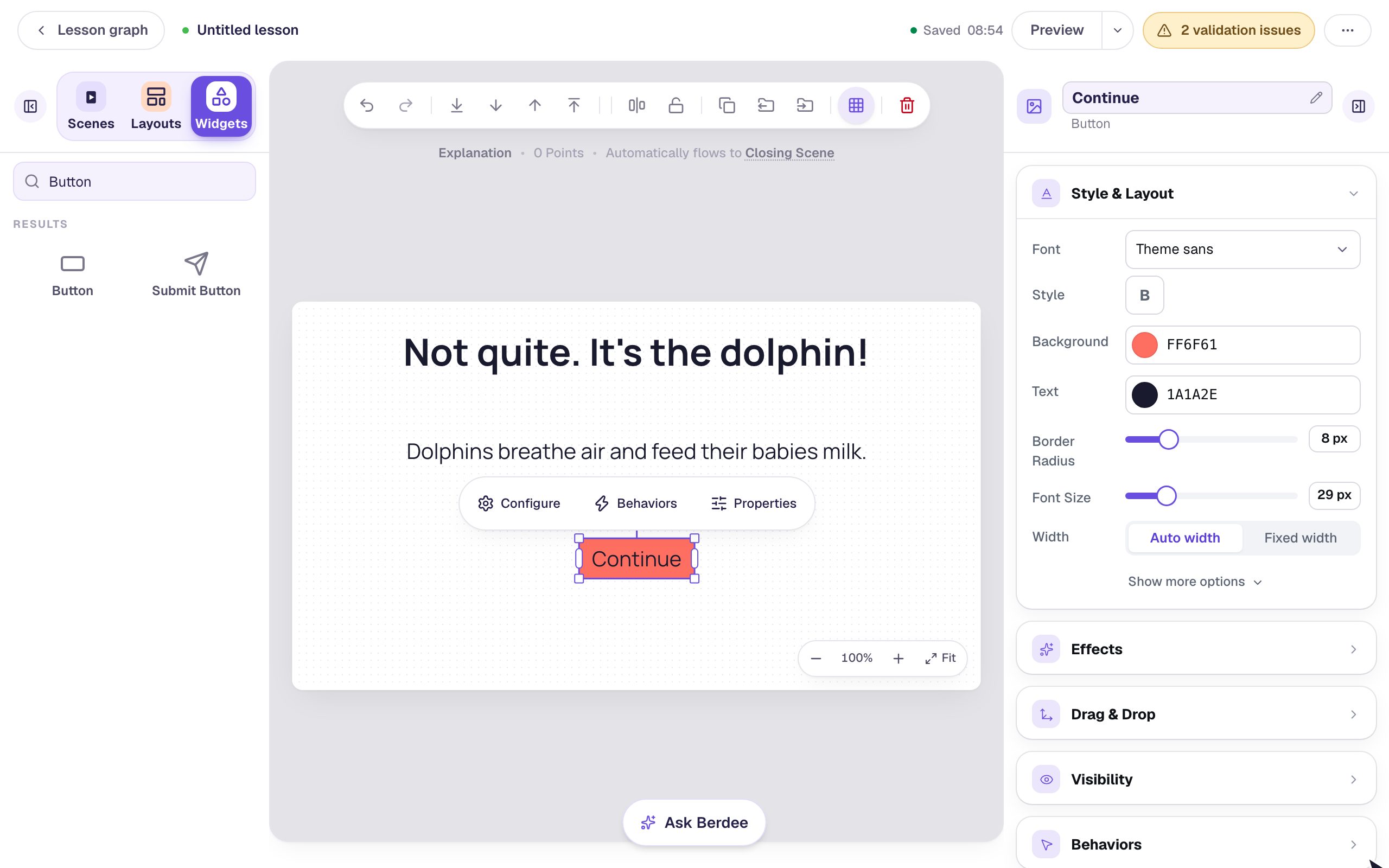
Hover over the Explanation card and click Edit. You're back in the studio, on the new, empty scene. Add:
- A Heading that names the right answer kindly:
Not quite. It's the dolphin! - A Body text that says why:
Dolphins breathe air and feed their babies milk.Turn its Font Size up to about 30 px so it's easy to read. - A Button. Click Configure in the pill above it and change the Label to
Continue.
Then give the button a name you'll recognize in the graph. At the top of the properties panel, click the button's name (Button 1), type Continue, and press Enter.
Step 5: Add the "I'm done" safety net
The yellow pill at the top now says 2 validation issues. Click it to see them:
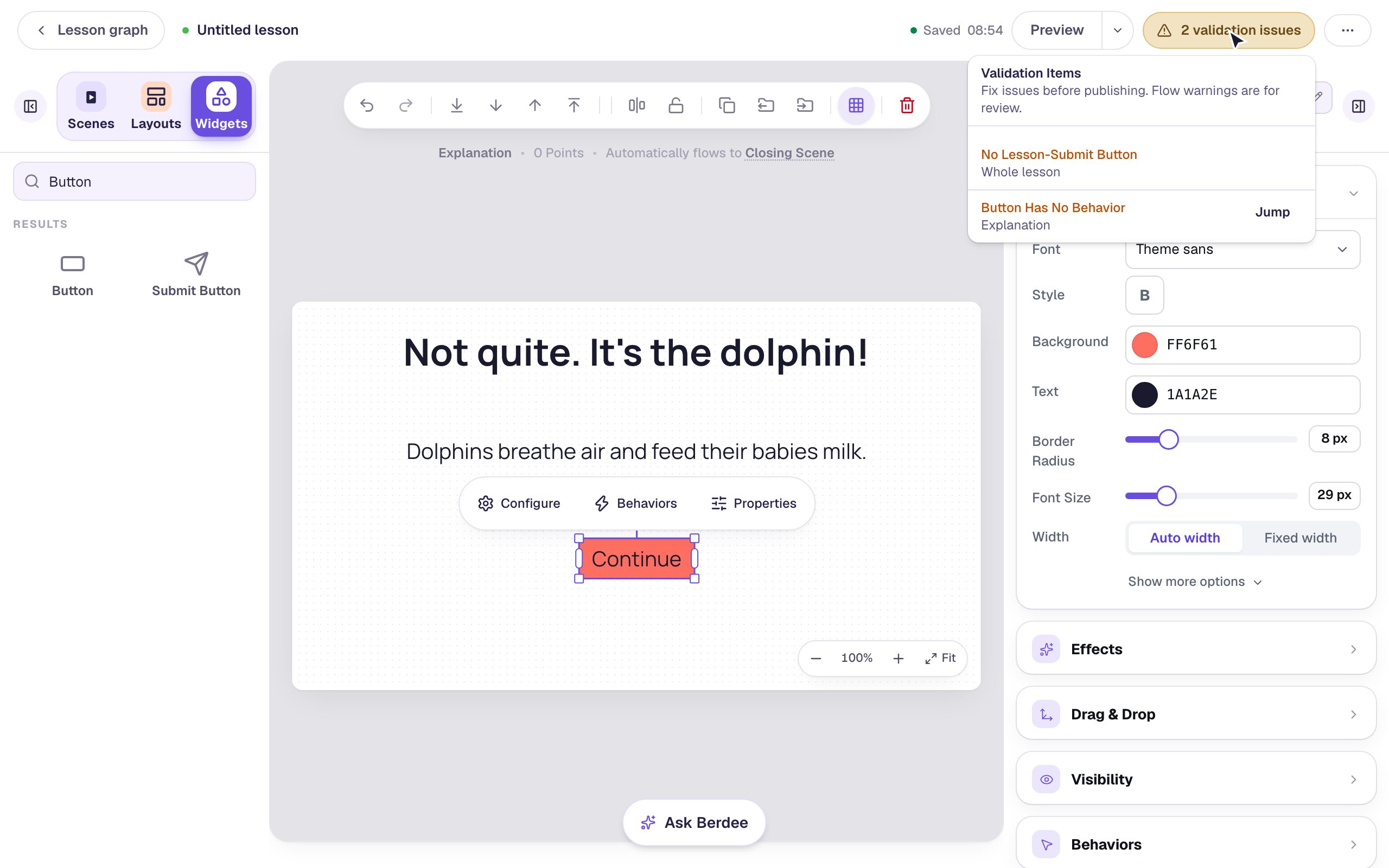
- Button Has No Behavior: the Continue button doesn't go anywhere yet. You'll connect it in Step 6.
- No Lesson-Submit Button: the lesson has no button that lets a student finish early. Berdee asks for one in every lesson, even when the lesson reaches its ending on its own.
A scene can only have one Submit button, and the question scene's is already busy checking the answer, so put this one here on the explanation:
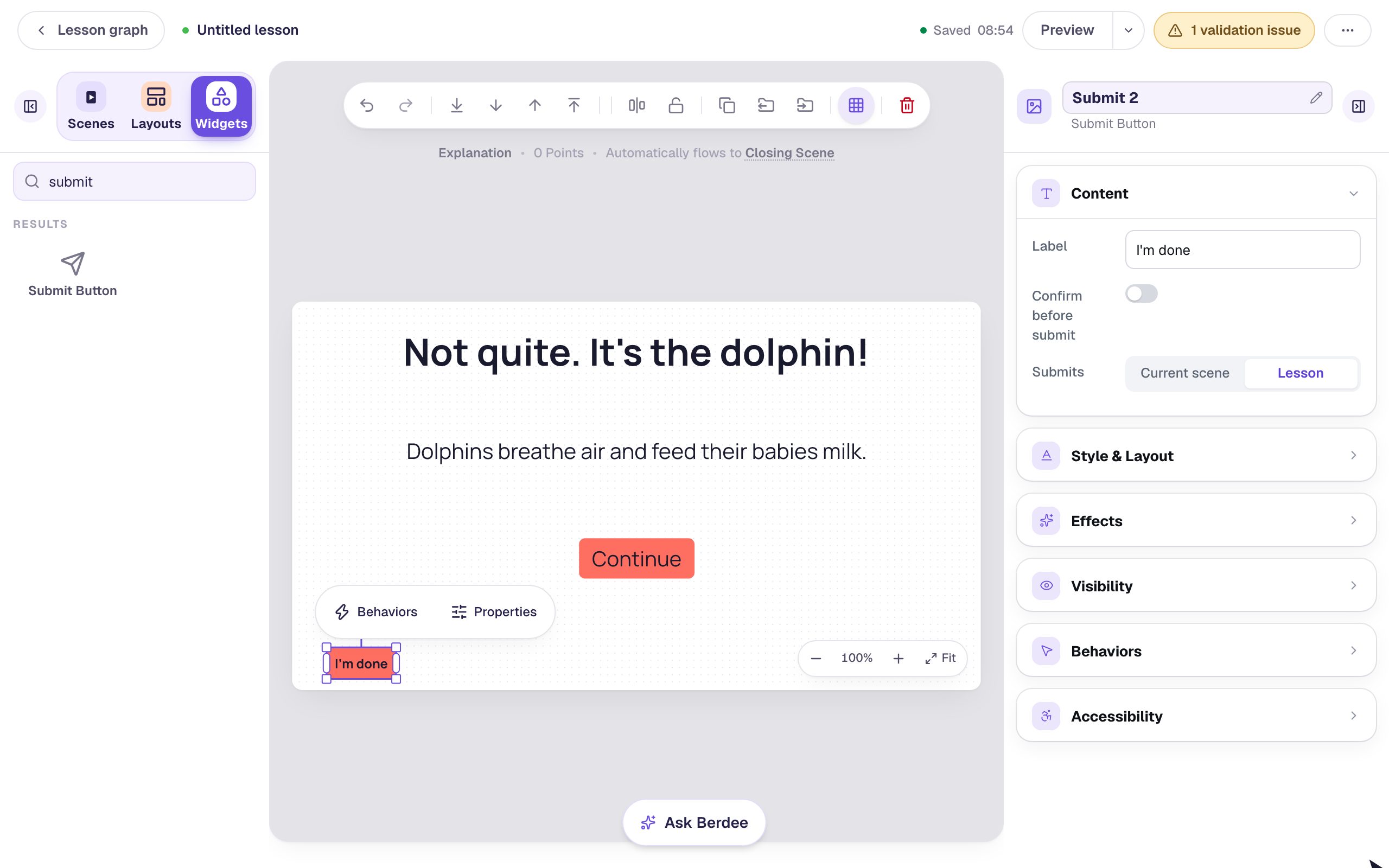
- Add a Submit Button.
- In Content, change the Label to
I'm doneand set Submits to Lesson. - In Style & Layout, bring the Font Size down to about 18 px, and drag it to the bottom-left corner so it doesn't compete with Continue.
Step 6: Send Continue on to the ending
Click Lesson graph to go back to the map. This time, connect the explanation to a scene you already have:
- Hover over the Explanation card and click the dot on its right edge.
- Choose Or connect to a scene or router that's already in the lesson, then click Next.
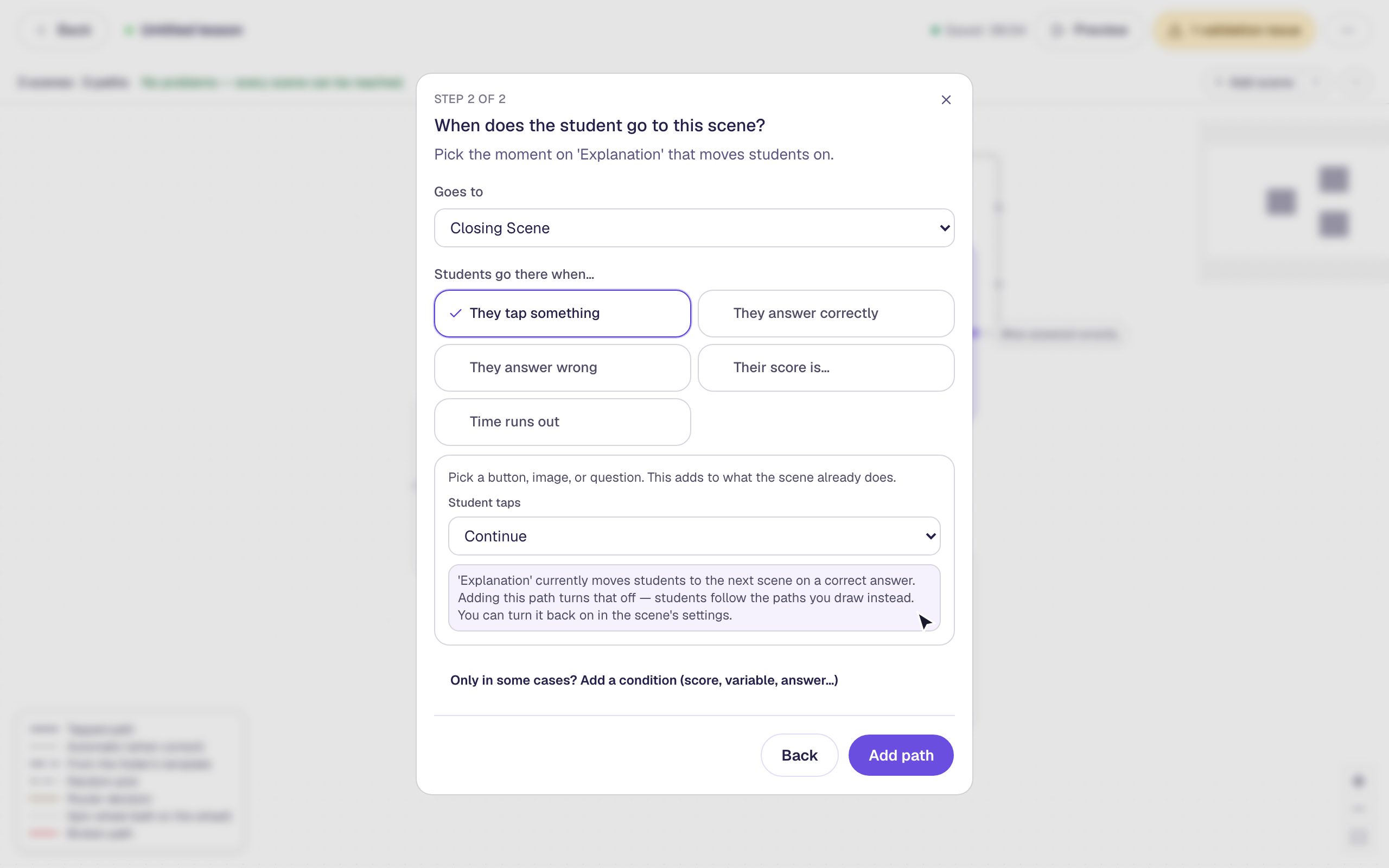
- Set Goes to to Closing Scene.
- Leave They tap something selected, and set Student taps to Continue. This is why you renamed the button.
- Click Add path.
Here's the whole lesson. Every route ends at the Closing Scene, the strip at the top says No problems — every scene can be reached, and the yellow validation pill is gone.
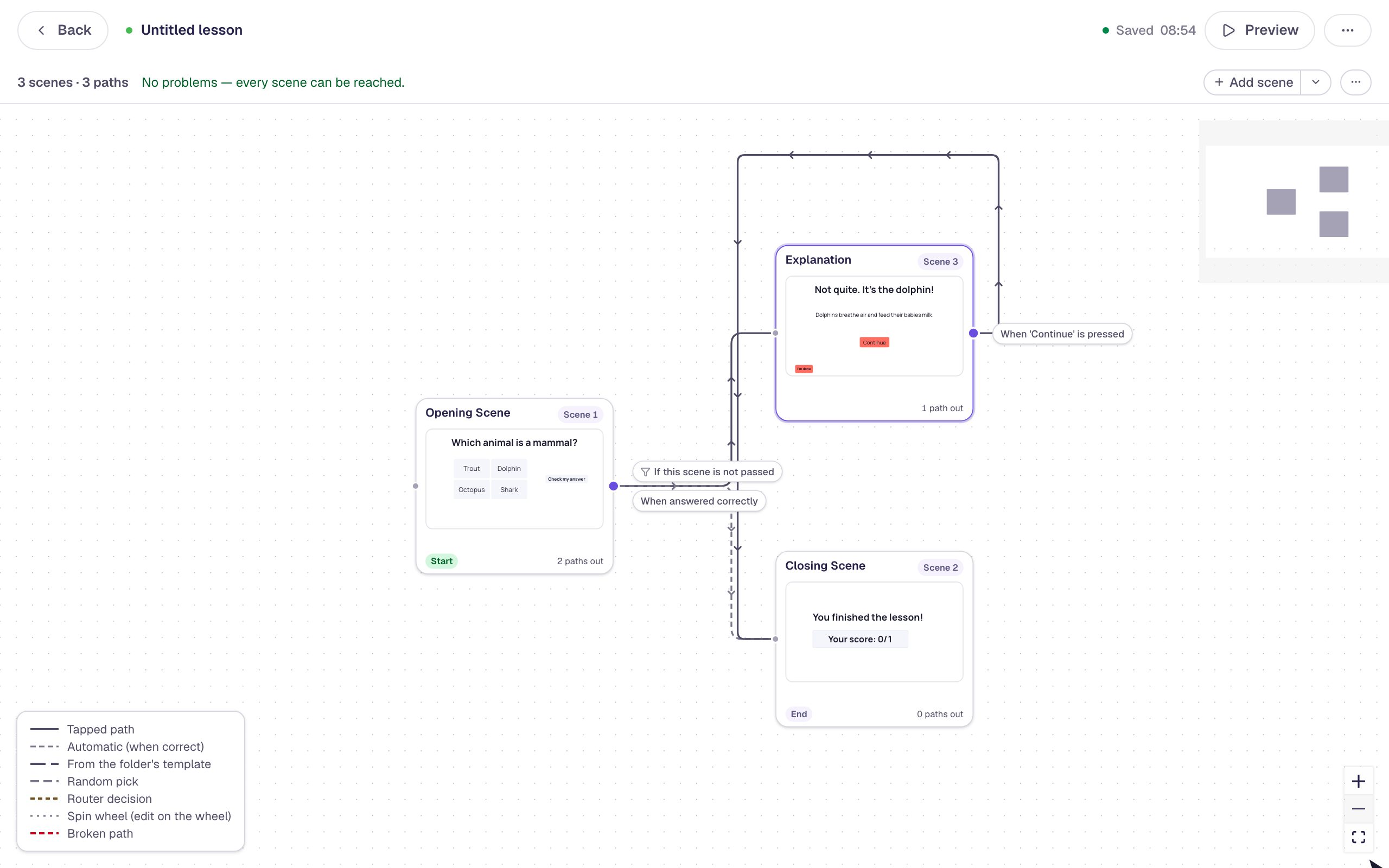
Why not send students back to try the question again? Once a student presses Check my answer, Berdee locks in their answer and grades it. If a path led back to the question, they'd find it locked and couldn't change their answer, so they'd be stuck. Lead the explanation forward, to the ending or to the next question.
Step 7: Try both routes in preview
You're already on the graph, so click Preview at the top. From the graph, preview always starts at the opening scene. Answer wrong first, then restart and answer right:
Pick Shark and press Check my answer. The explanation appears:
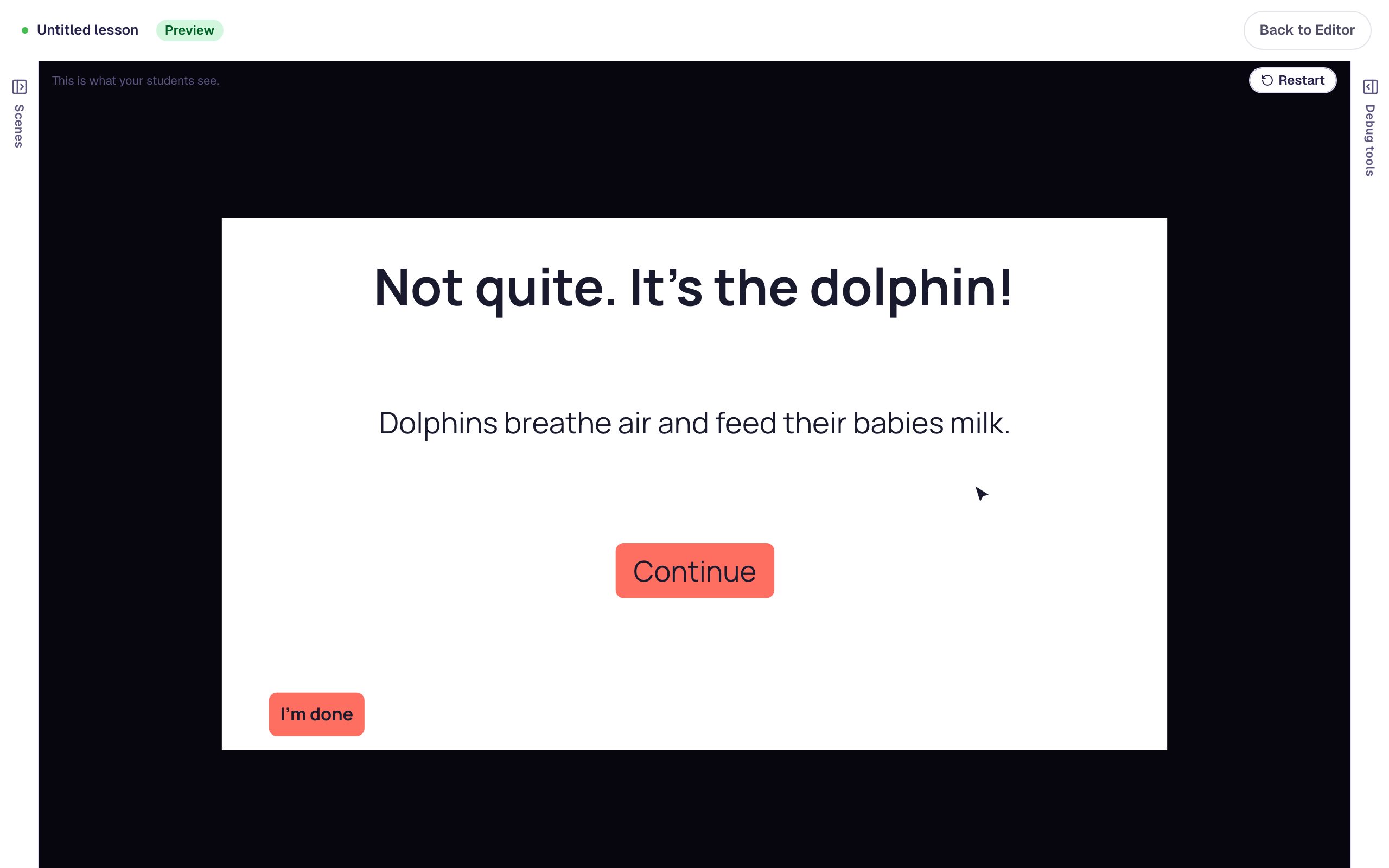
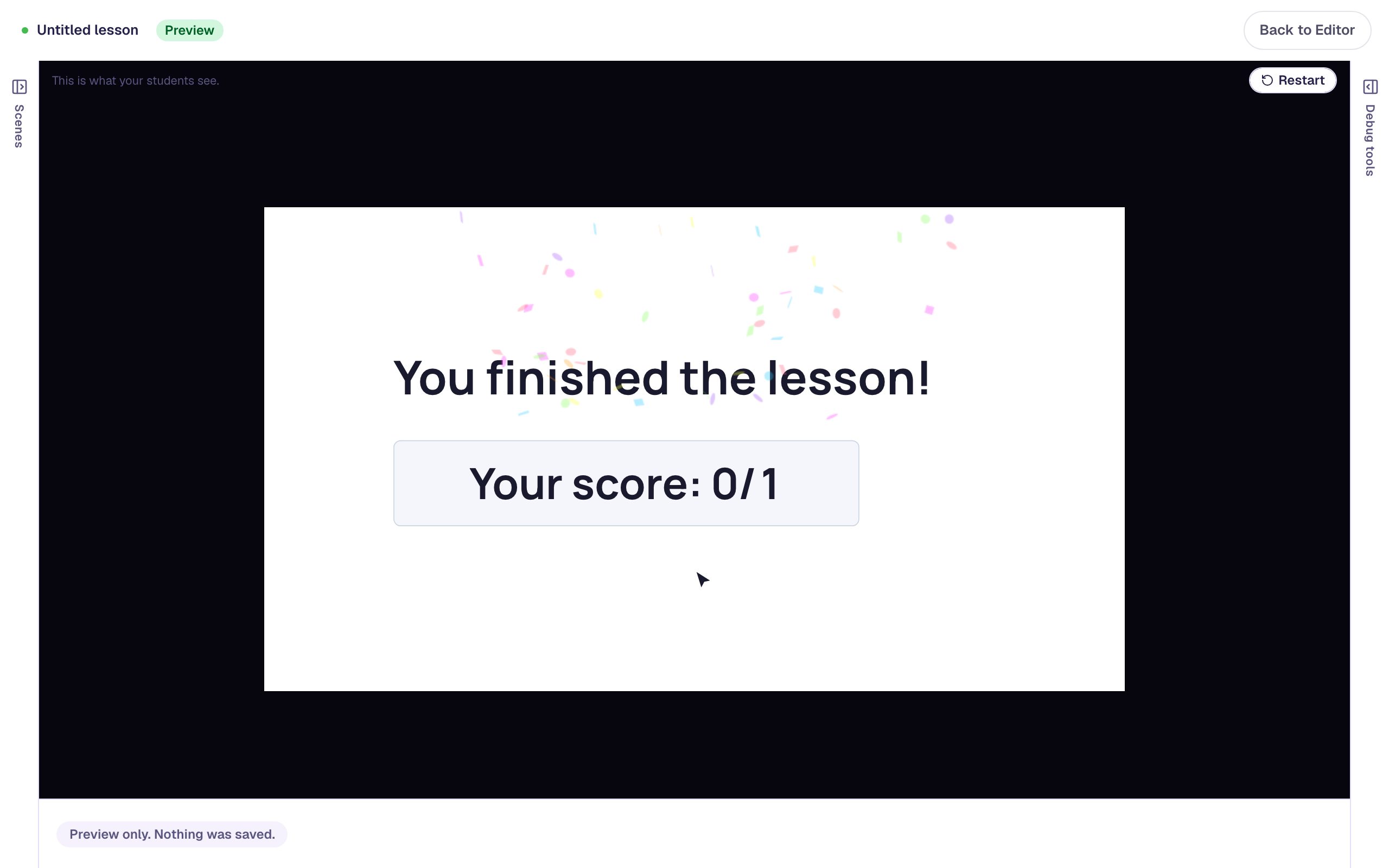
Press Continue and the Closing Scene shows a score of 0 / 1. The explanation teaches; it doesn't change the grade.
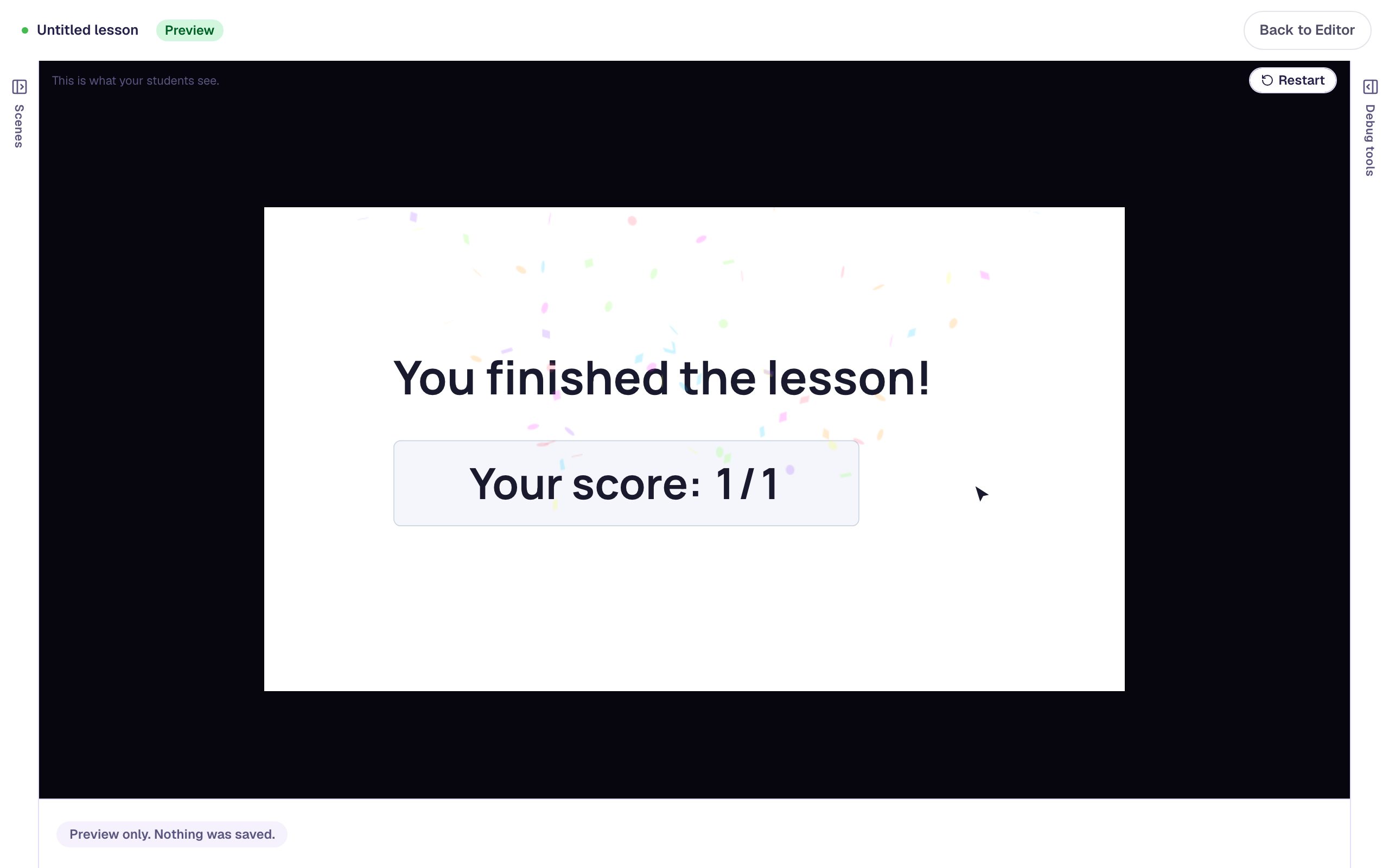
Click Restart, pick Dolphin, and press Check my answer. This time Berdee skips the explanation and goes straight to the ending, with a score of 1 / 1.
What you built
You built a lesson that reacts to how a student answers:
- a question that waits for Check my answer before deciding,
- a They answer wrong path to an Explanation scene,
- a When answered correctly path that still skips straight to the ending,
- a Continue button that carries the student from the explanation to the ending, and
- an I'm done safety net, so the lesson can be published.
For a longer lesson, add a question scene after the explanation instead of going straight to the ending, and give each question its own explanation. To fan students out by how well they did across several questions, see Send students down different paths by their score.
Make this lesson yours
Add the lesson you just watched being built to your account, then change it for your class: your questions, your pictures, your colors.
Free to sign up, and you'll come straight back here. I have an account