Telling time games to the half hour.
Students read an analog clock and tap the time, or turn the hands to show it. Berdee draws the hands exactly, so the hour hand at 4:30 sits halfway to 5, and tells you which mistake a student made, not just that the answer was wrong.
A telling time question in three steps.
Add a Clock
An analog face with an hour hand and a minute hand lands on the scene. Make it big, so students can tap each number on a tablet.
Choose what students do
Read asks them to read the clock and give the time. Set asks them to turn the hands to a time and tap Done. Both are graded. Show and Explore aren't.
Pick the time
Any hour or half hour, turned a half hour at a time or picked from the Hour and Minutes lists. In Read, one click fills in the wrong answers students really give.
What you see in the studio, and what students see.
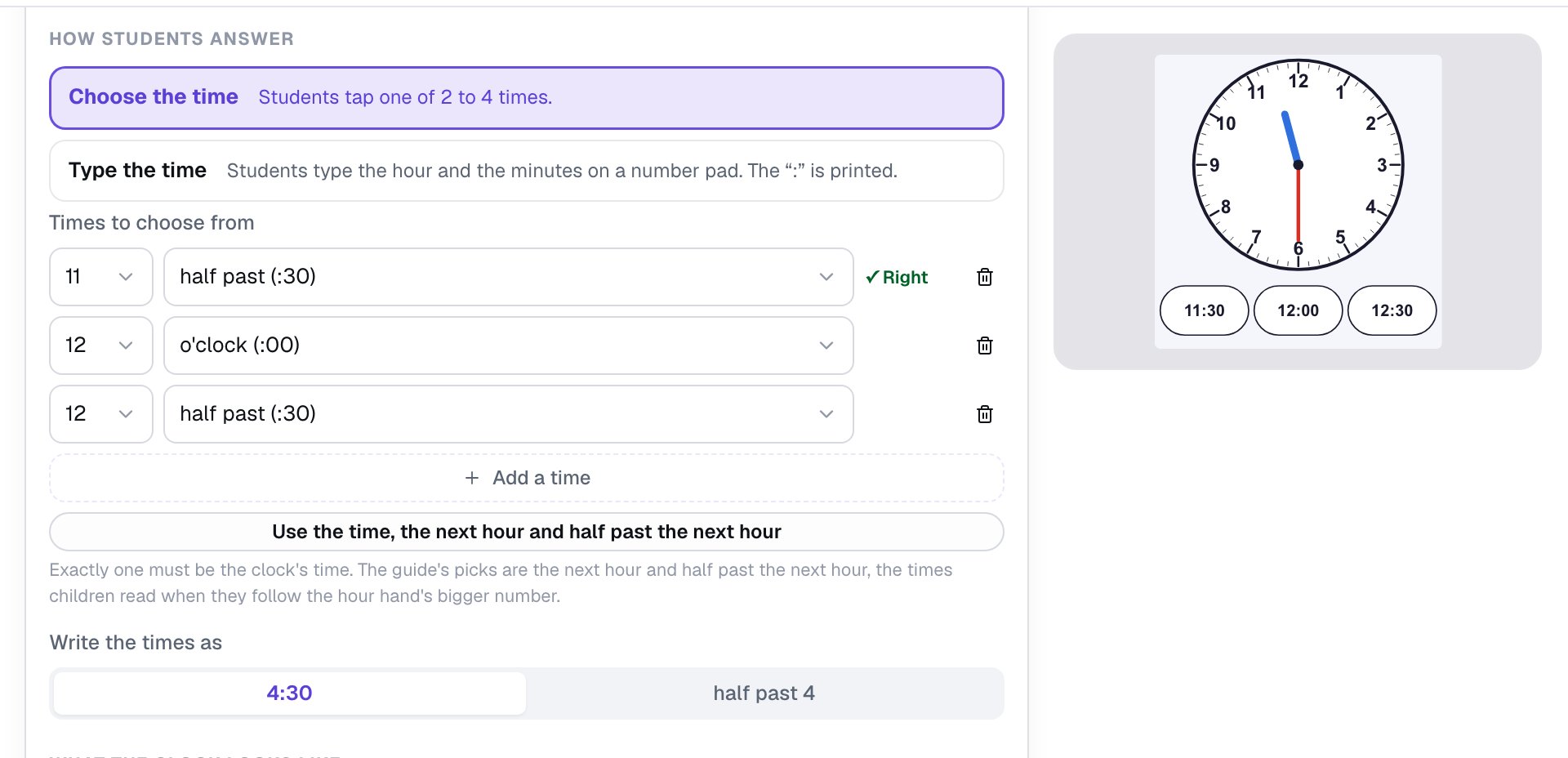
The time, the next hour and half past the next hour, in one click. 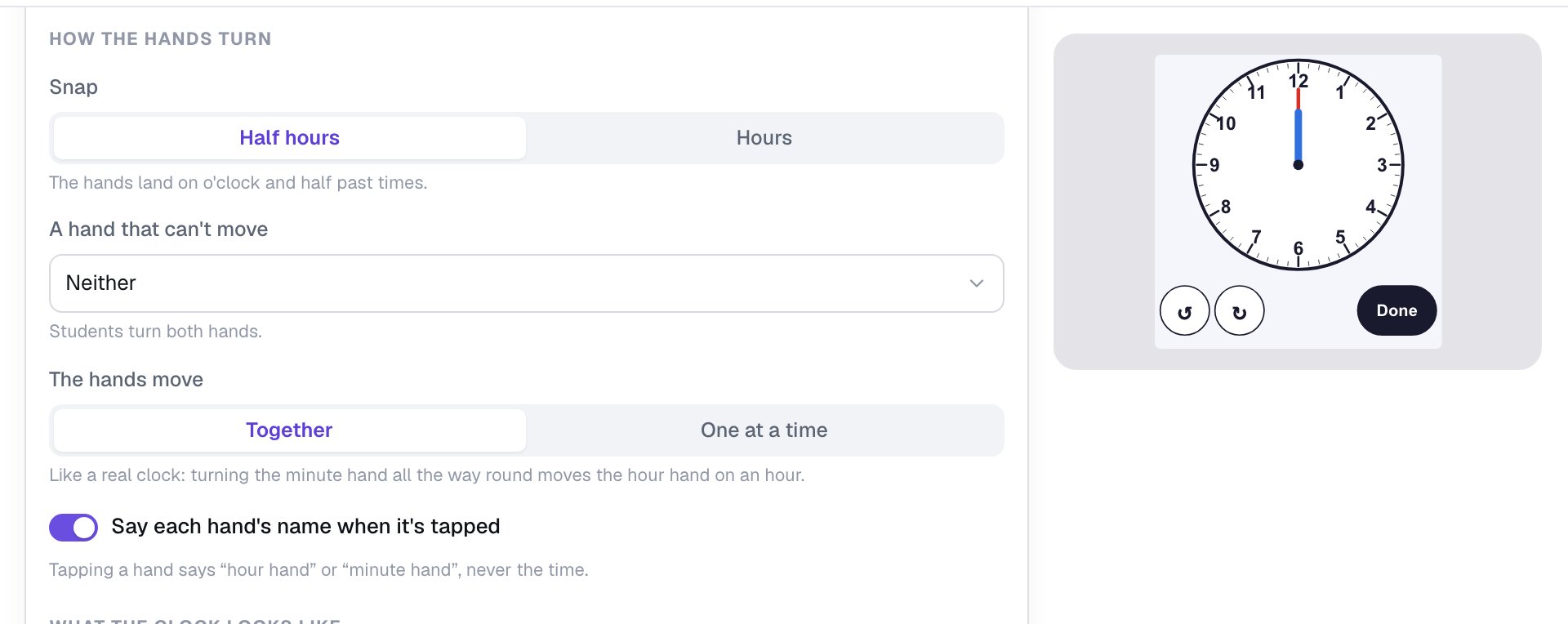
The hands snap to half hours and move together, like a real clock. 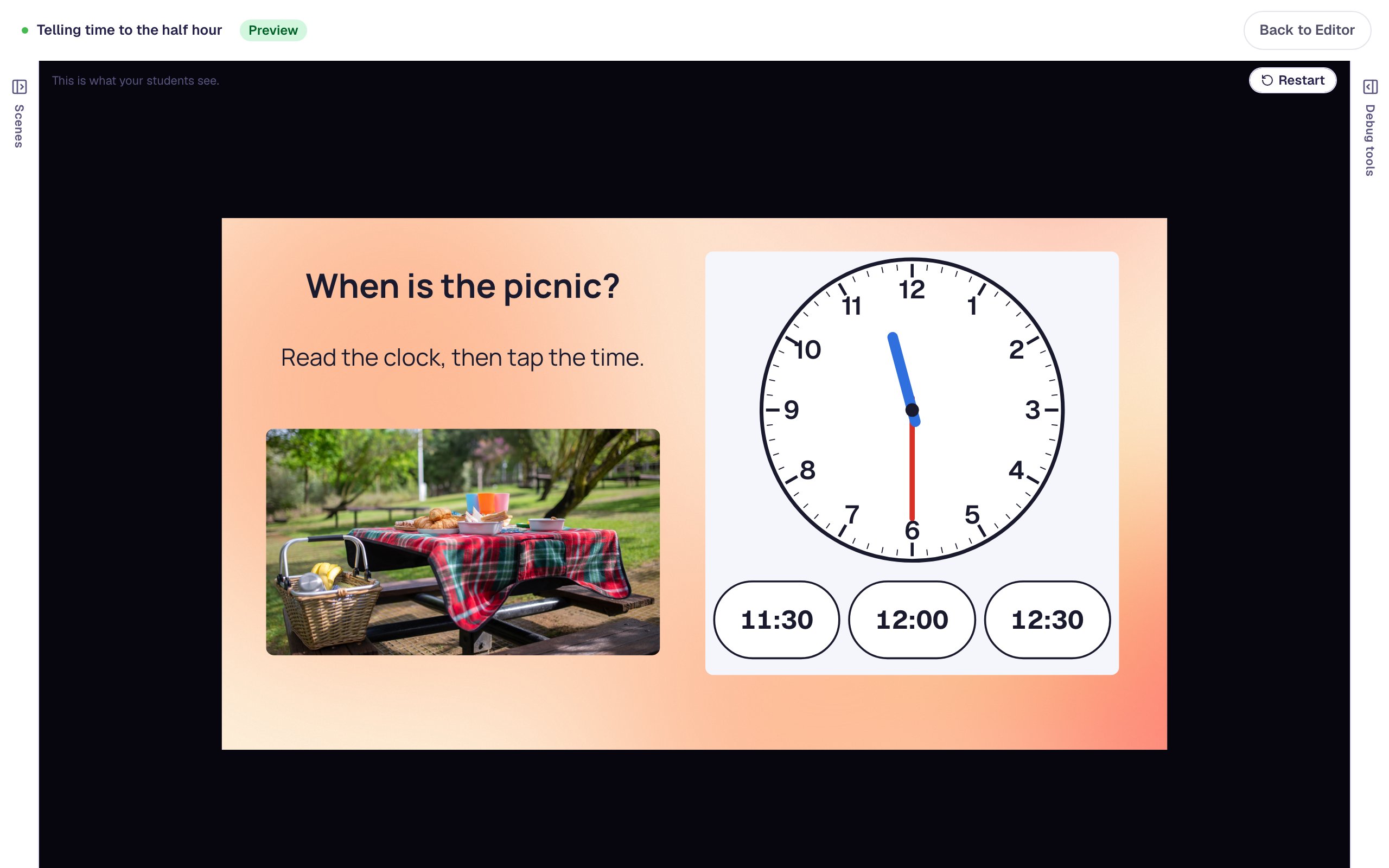
Read: students tap the time the clock shows. 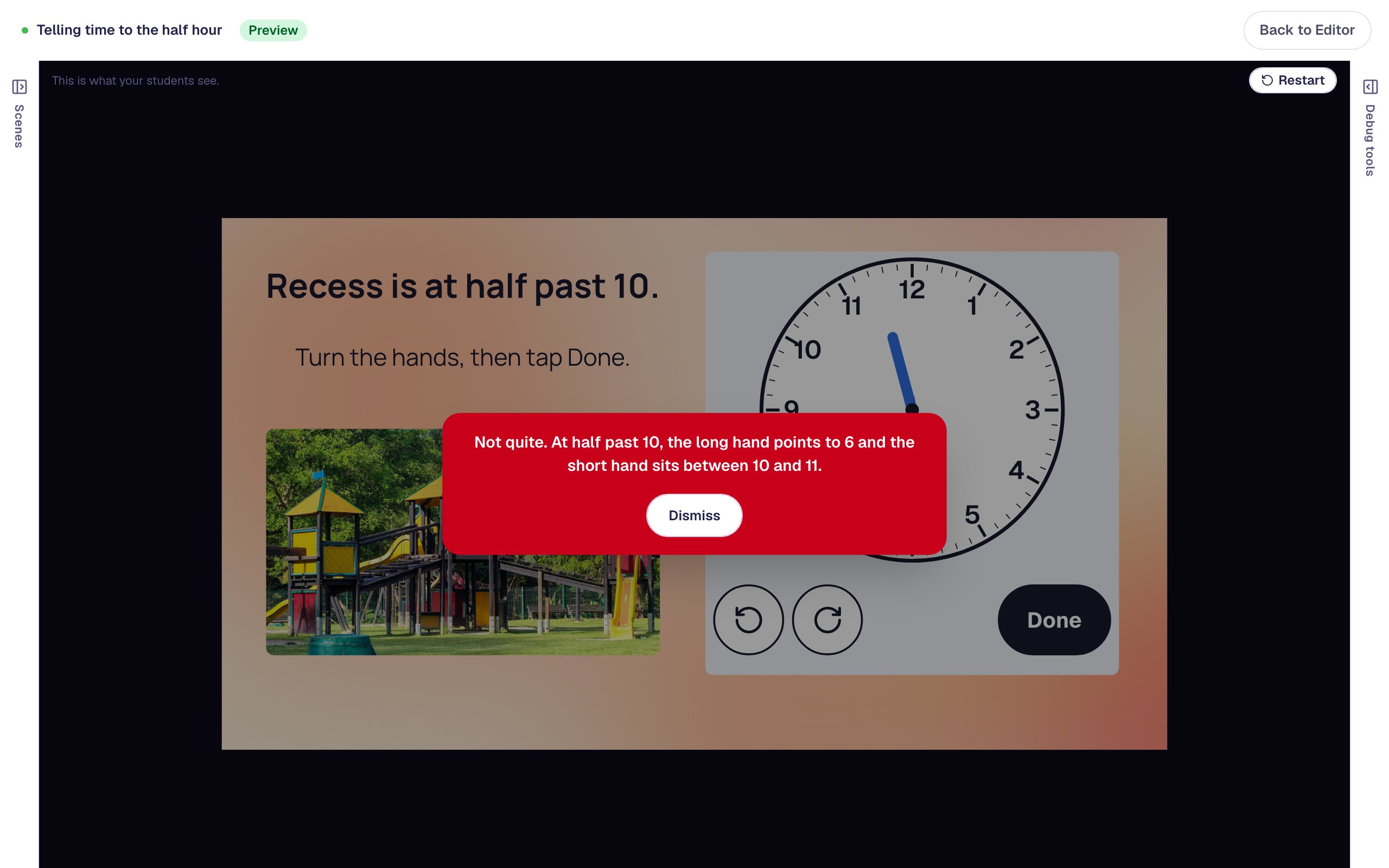
Set: a wrong Done shows your hint, and the hands stay put.
More ways to use a clock.
First steps
“Hour hand only: the hour hand is on the 4. About what time is it?”
O'clock
“Show 7 o'clock. Turn the hands, then tap Done.”
Half past
“Read the clock. Is it half past 2 or half past 3?”
Words
“Choose the time, written as half past 8.”
Typing
“Type the time on a number pad: 9:30.”
One hand
“The hour hand is on the 3. Put the minute hand where it goes for 3 o'clock.”
Any answer
“Show a time when the minute hand is on the 6.”
Daily routine
“Lunch is at 12 o'clock. Is it time for lunch?”
Three ways to use it in class.
An interactive clock to explore
Explore lets students turn the hands freely. With the digital clock on, the digits change as the hands turn, and a screen reader hears each new time. Nothing is graded.
A teaching clock you turn
Put a Show clock beside buttons that run Turn the hands to, and students watch the hands move from 3:00 to half past 3, the hour hand creeping halfway to 4.
A quick check
A Read clock and a Set clock, each worth one point. The attempt page shows every try in order, like “Set 10:30 · showed 11:30 (half past the next hour), then 10:30 ✓”.
The settings that shape the question.
Four modes
Show a time, Read the clock, Set the hands, or Explore. Read and Set are graded; Show and Explore aren't.
How students answer
In Read, students tap one of 2 to 4 times, written as 4:30 or as half past 4, or type the time on a number pad.
Snap and turn
The hands snap to half hours or hours only. They move together like a real clock, or one at a time so students place the hour hand themselves.
A hand that can't move
Fix the hour or the minute hand, so students turn only the other one, and accept this time only or any time that fits.
What the clock looks like
Both hands, the hour hand only, numbers or tick marks alone, shading for the part the minute hand has passed, and a digital clock in Show and Explore.
Hints and logic
On Answer runs each time a student taps Done or a time, so a condition like Hands swapped can play the right hint.
Every setting is explained in the help center: Clock widget.
Build one with us, a screenshot for every step.
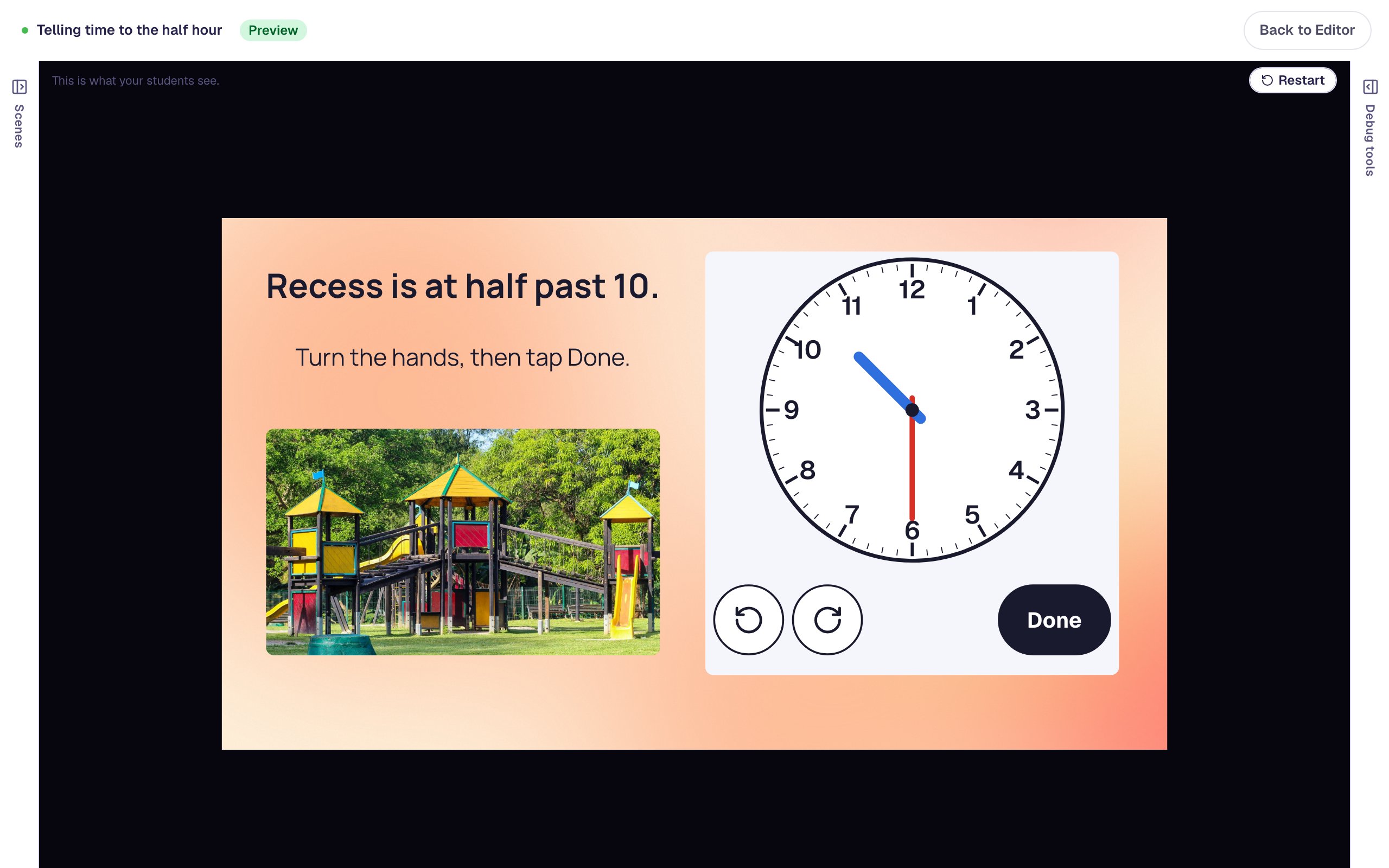 Beginner · 15 min · 7 steps · Updated
Tell time to the half hour with a clock
Build a two-scene activity with the Clock widget. Students read a clock and tap the time, then turn the hands to show a time, with a hint when they get it wrong.
Ready-made activity to add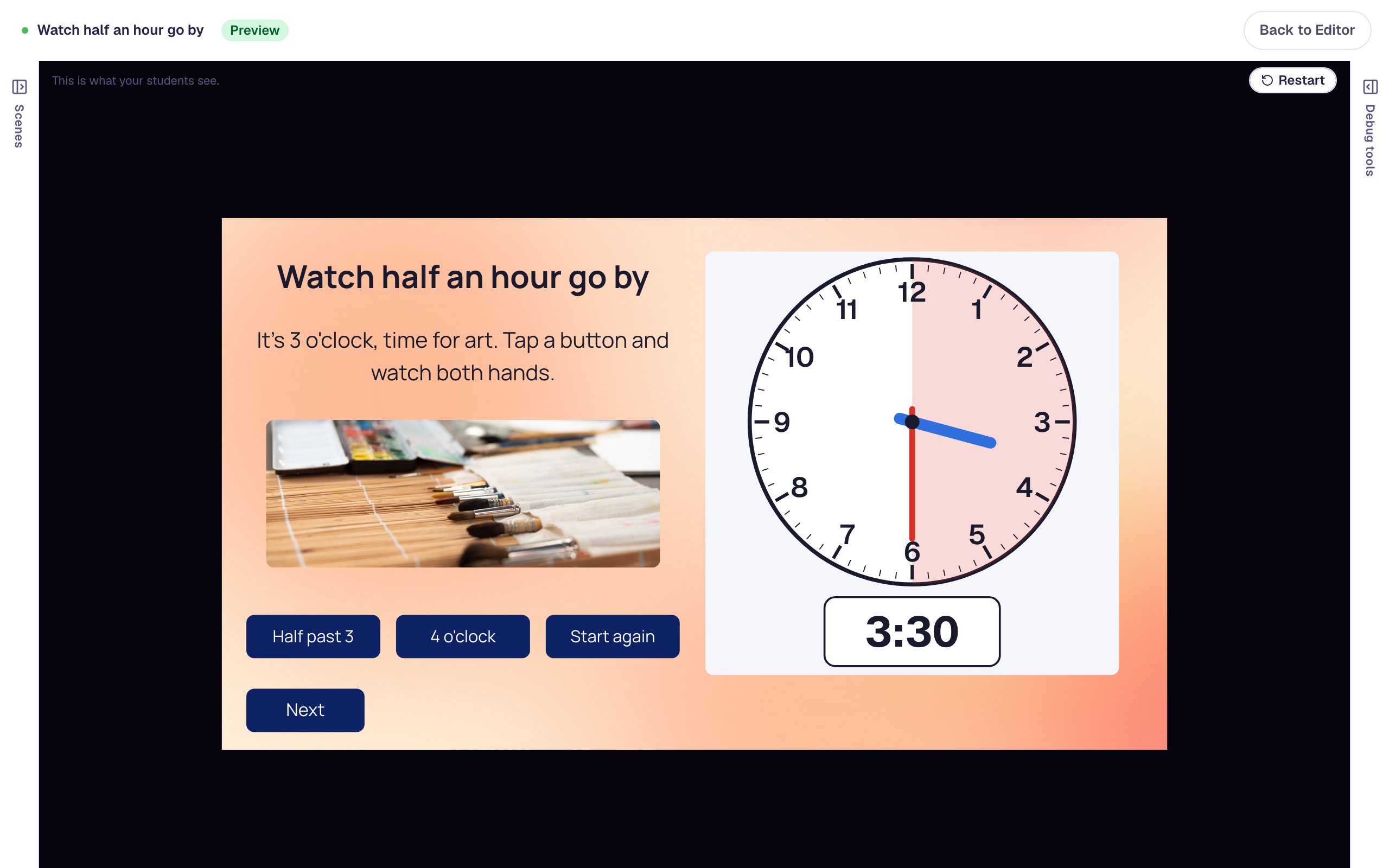 Beginner · 15 min · 7 steps · Updated
Show how a clock's hands move as time passes
Build a worked example with a Clock and three buttons. Each button turns the hands forward or sets them back, so students watch half an hour pass before they read a clock on their own.
Ready-made activity to add
Common questions
More you can make
Students build numbers with two-color counters, and you see exactly what they built.
Children count a collection and say how many, and you see how they counted, not just the answer.
Multiple choice, dropdown, number and short-answer questions, scored your way.
Build your first telling time game today.
Build and preview for free, with no credit card. When you assign it, students play in the browser on a Chromebook, tablet or phone.