Digital task cards that check themselves.
Make a set of question cards students work through on their own. Each card checks the answer as soon as they give it, a wrong answer can lead to a hint or a review, and you see how every student did, card by card.
Three steps to a set of task cards.
Build one card
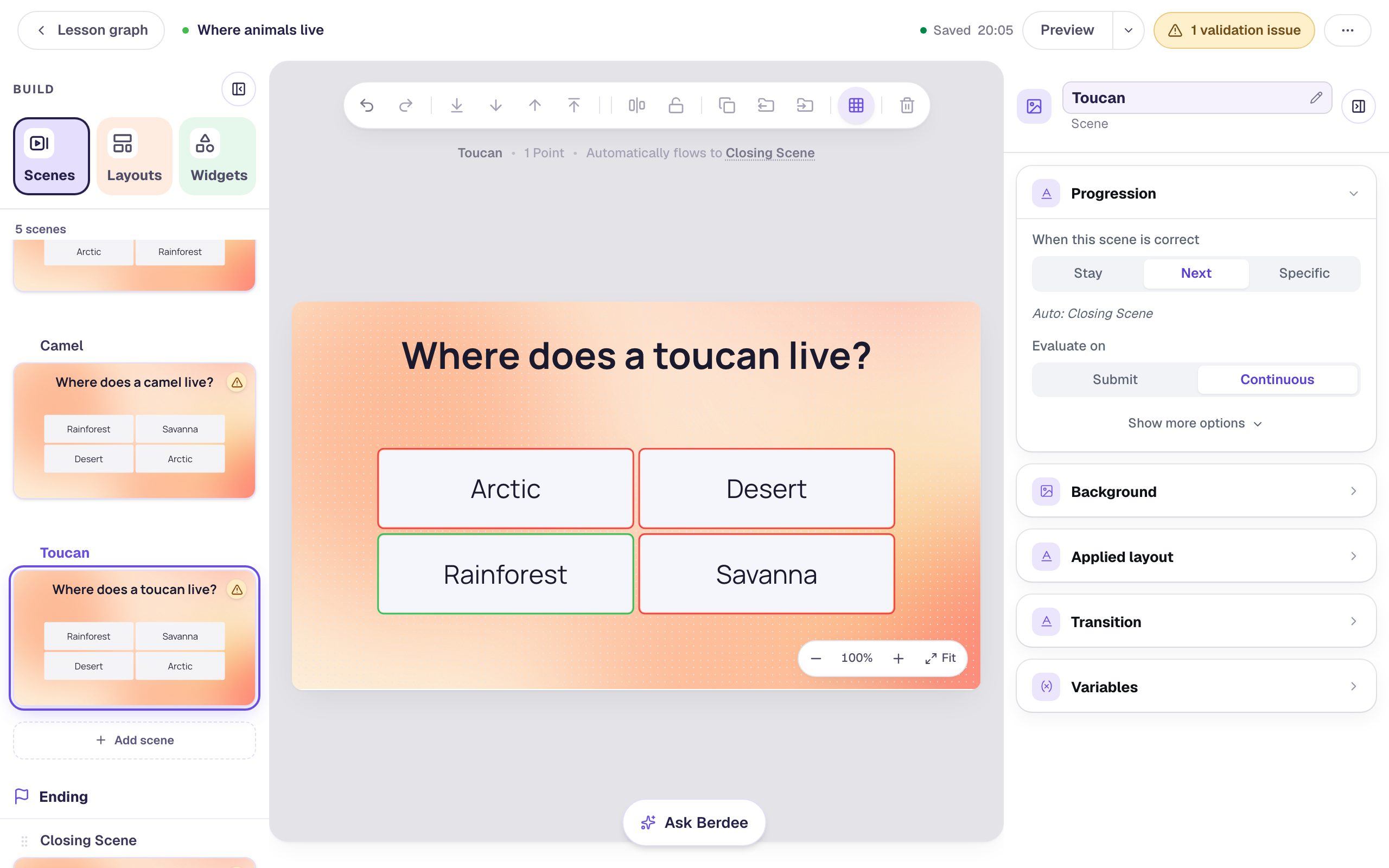
Add a scene with a question and its answers. For a multiple choice card, turn on Show correctness so a wrong pick turns red and the right one green.
Copy it for the rest
Duplicate the scene and change only the question and the right answer. Every card keeps the same look, and you can drag the cards into a new order.
Assign the set
Assign it to a class or a small group. Each student gets their own code, opens the cards at berdee.app/go and works through them at their own pace.
Task cards for centers, review and small groups.
A math center students run themselves
A set of number cards for a station. A card can wait for the right answer before moving on, and a close enough answer can count when you set a tolerance.
Review cards with a second try
A wrong answer goes to a short review card, then a fresh question to try again. A student who misses twice lands on a card that asks them to come and find you.
A game board of cards
Lay the cards out as point tiles on one board. Students pick a tile, answer its question and come back to the board until every tile is played.
What each card can do.
Many kinds of question
Multiple choice, typed words and numbers, matching, fill in the blank, sorting, word search and find in picture, one question or several to a card.
Checks as students go
Show correctness outlines a wrong pick in red and the right one in green. A Check Answers button checks a whole card at once and locks it.
Your words on a wrong answer
Show a message you wrote when a student gets a card wrong, like “Count the tens first.” It stays until they close it.
A path for wrong answers
On the storyboard, send a wrong answer to a review card and a right one straight on, or split students by their score at the end of the set.
Answers in a new order
Randomize Order shuffles the answers on each card, so students can't remember where the right one was.
A record for each student
Each answer, whether it was right, its points, how many tries it took and the time spent on it. Each time a student plays the set again is its own attempt.
Every setting is explained in the help center: Student experience and attempts.
Build one with us, a screenshot for every step.
 Beginner · 12 min · 9 steps · Updated
Build a three-question quiz by duplicating a scene
Build one question scene properly, then duplicate it and change only what's different, so every question in the quiz has the same look and layout. Reorder the questions by dragging and watch the activity follow the new order.
Ready-made activity to add Intermediate · 15 min · 8 steps · Updated
Give students a second try after a review
Send students who miss a question to a short review, then give them a fresh question to try again. Students who miss twice go to a scene that brings in the teacher, and every route ends at the ending.
Ready-made activity to add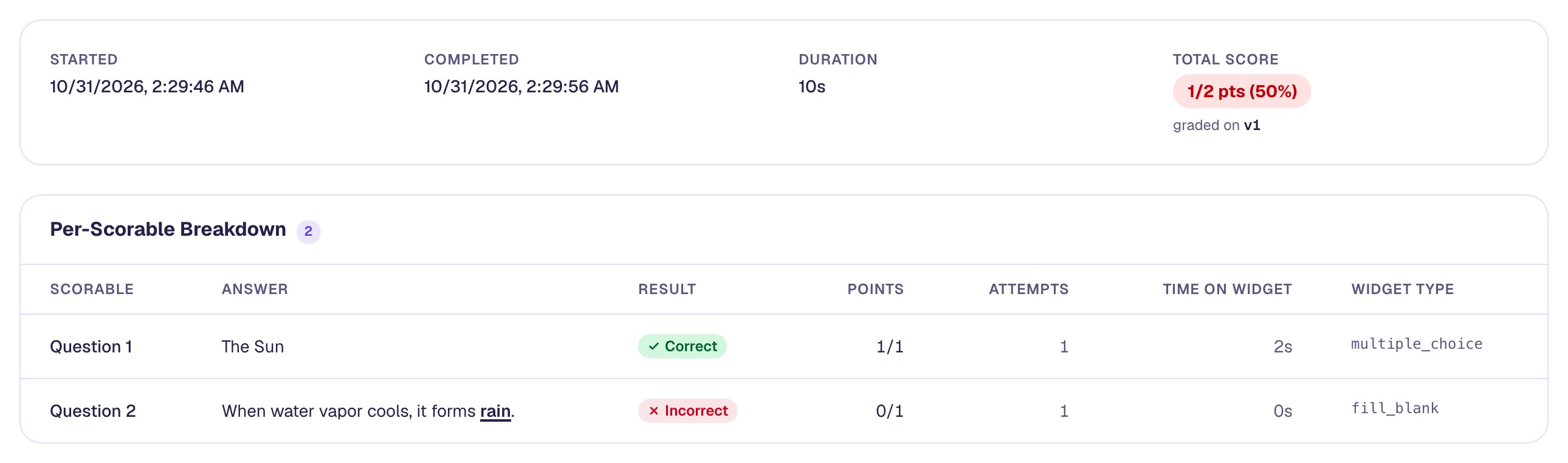 Beginner · 10 min · 7 steps · Updated
Assign an activity and see how a student did
Add a student to your classroom, assign them a finished activity, give them their access code, and then read exactly what they answered, question by question.
Ready-made activity to add
Common questions
Make your first set of task cards today.
Build and preview for free, with no credit card. When you assign it, students play in the browser on a Chromebook, tablet or phone.