Assign a lesson and see how a student did
Add a student to your classroom, assign them a finished lesson, give them their access code, and then read exactly what they answered, question by question.
- Level
- Beginner
- Time
- About 10 min
- Steps
- 7
- Updated
- Oct 31, 2026
A water cycle exit ticket assigned to a student, played with their own code, and their answers on your screen.
Get the finished lesson
Skip straight to the result, or keep it open beside the steps. Add this tutorial's lesson to your account and explore how it works in the studio.
Free to sign up, and you'll come straight back here. I have an account
A lesson only helps once it reaches your students. In this tutorial you'll take a finished lesson all the way there and back: add a student to your classroom, assign the lesson to the class, hand the student their access code, watch what they see, and then open their answers to find the question they missed.
You'll use one pretend student, Maya, but every step is the same for a class of twenty-five. Assigning and reading results work on every plan, Free included.
Step 1: Have a finished lesson ready
You can assign any lesson you've built. This tutorial uses the water cycle exit ticket from Start a lesson from a template: a title card, two graded questions and an ending that shows the score. To follow along with the same one, press Add this lesson to my account on this page.
Open Lessons in the sidebar. Your lesson is in the list.
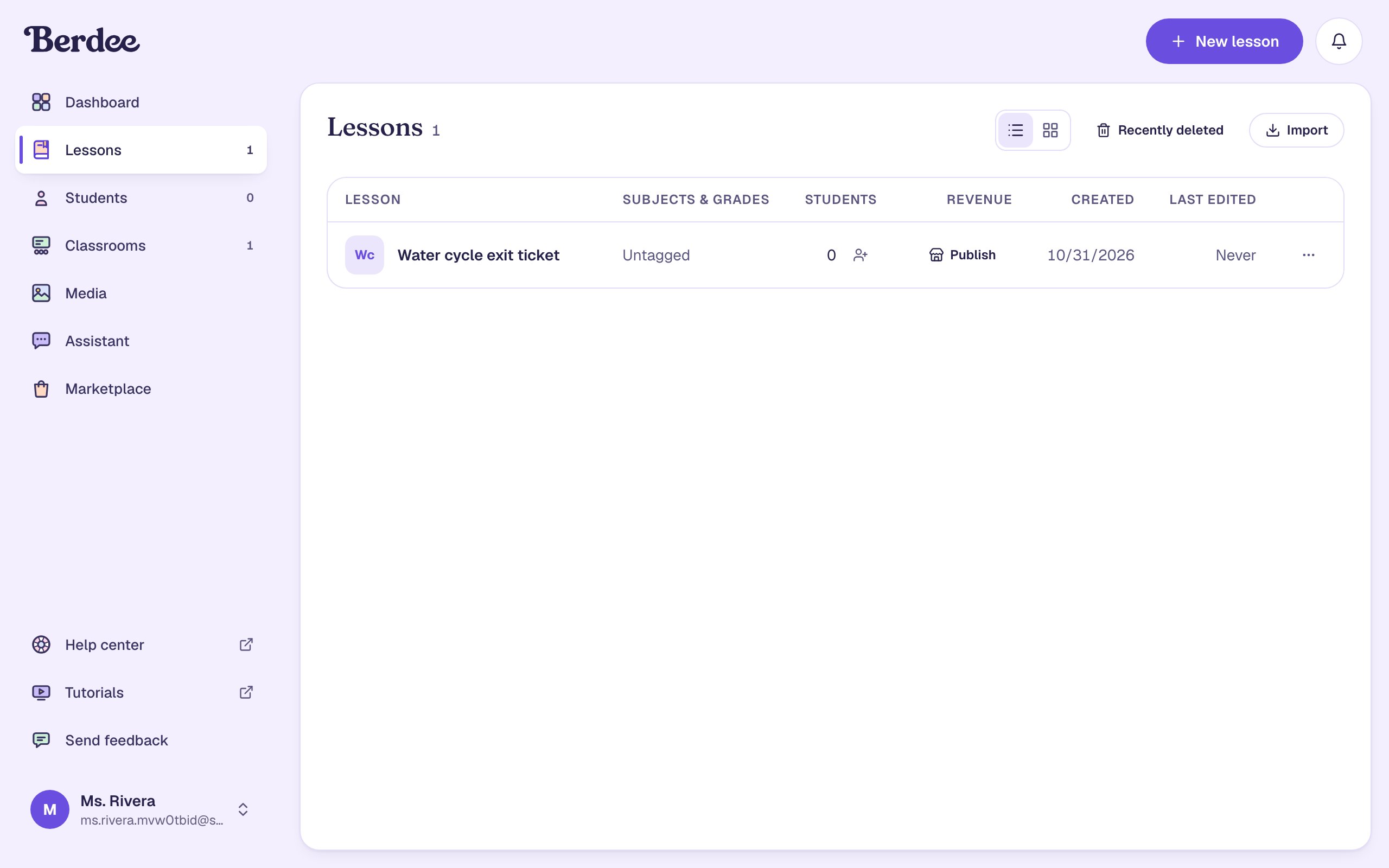
A lesson needs a way to finish before you can assign it: here, the Finish button set to submit the whole lesson. If something is missing, Berdee tells you when you assign, and nothing is assigned until you fix it.
Step 2: Add a student to your classroom
Every account starts with a classroom called My Classroom, so there's nothing to set up first. Open Students in the sidebar and click Add Student.
Type the student's name and their own school email, and leave Classroom on My Classroom. Here that's Maya Chen and maya.chen@school.example.
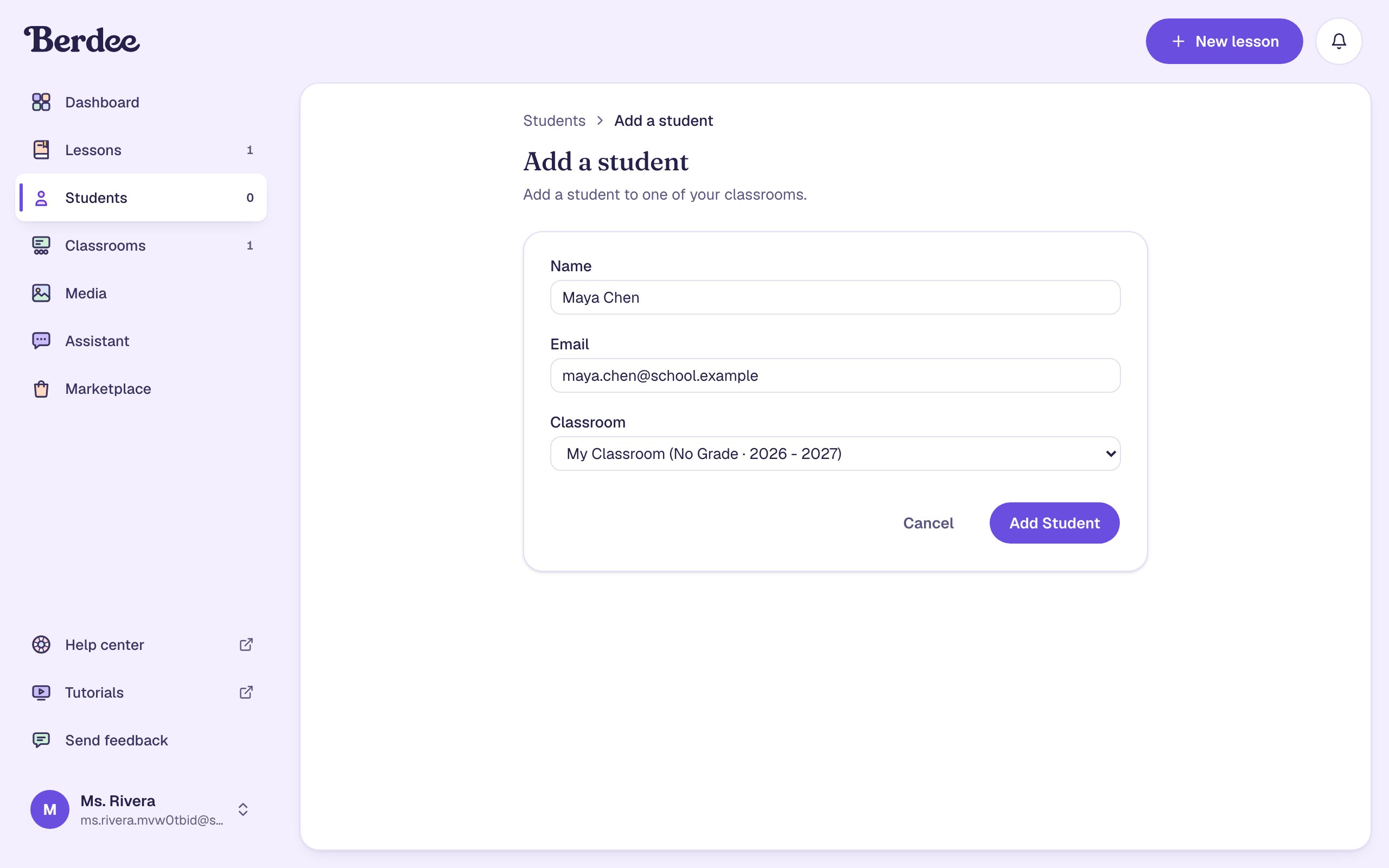
Click Add Student. Maya's card appears on your Students page.
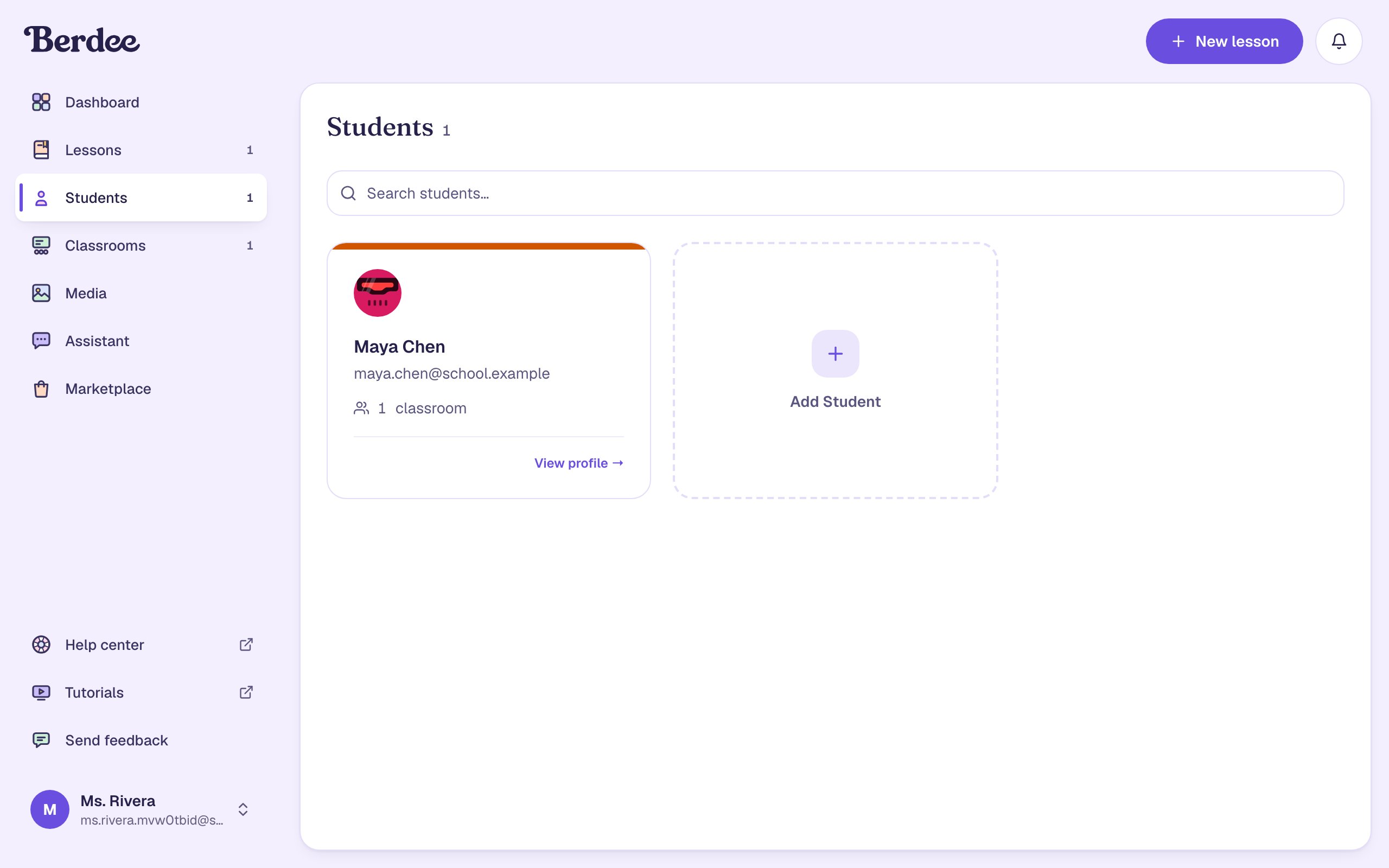
The Free plan has one classroom with room for 5 students; Plus and Studio Pro have more.
Step 3: Assign the lesson to the class
Go back to Lessons and click the person-with-a-plus icon in the lesson's Students column. A dialog asks which classroom gets the lesson. Pick My Classroom and click Assign to Classroom.
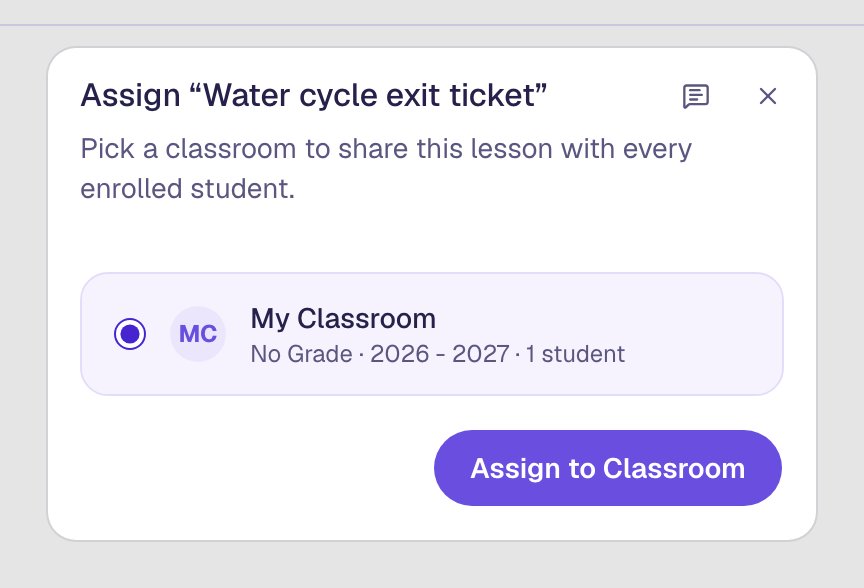
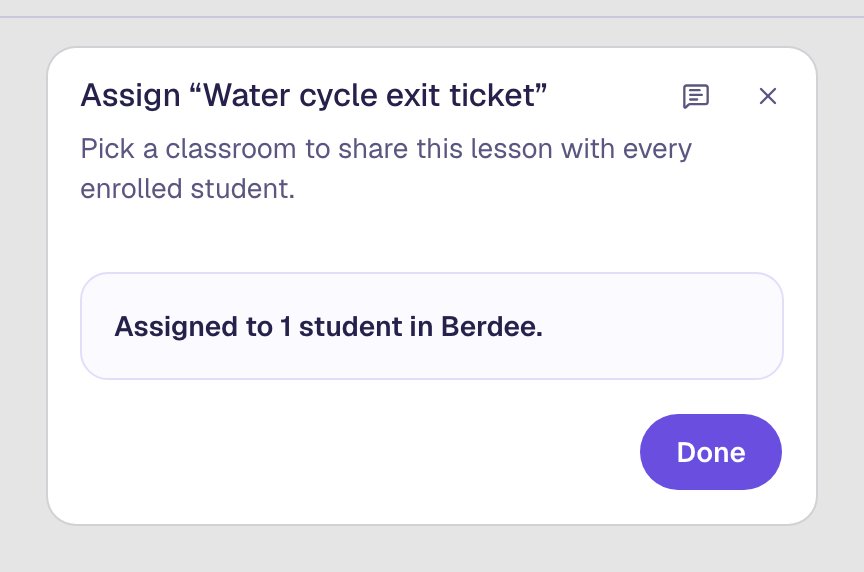
When it's done, the dialog says how many students got the lesson. Click Done.
Students get the version of the lesson you assigned. If you edit it later, they stay on that version until you choose to move them forward, so nobody's grade changes underneath them.
Step 4: Find the student's access code
Each student gets their own code for each lesson, so they can open it without an email or a password. Open Students, then View profile on Maya's card. Under Lesson Assignments, the lesson's row has her code. Click it to copy it.
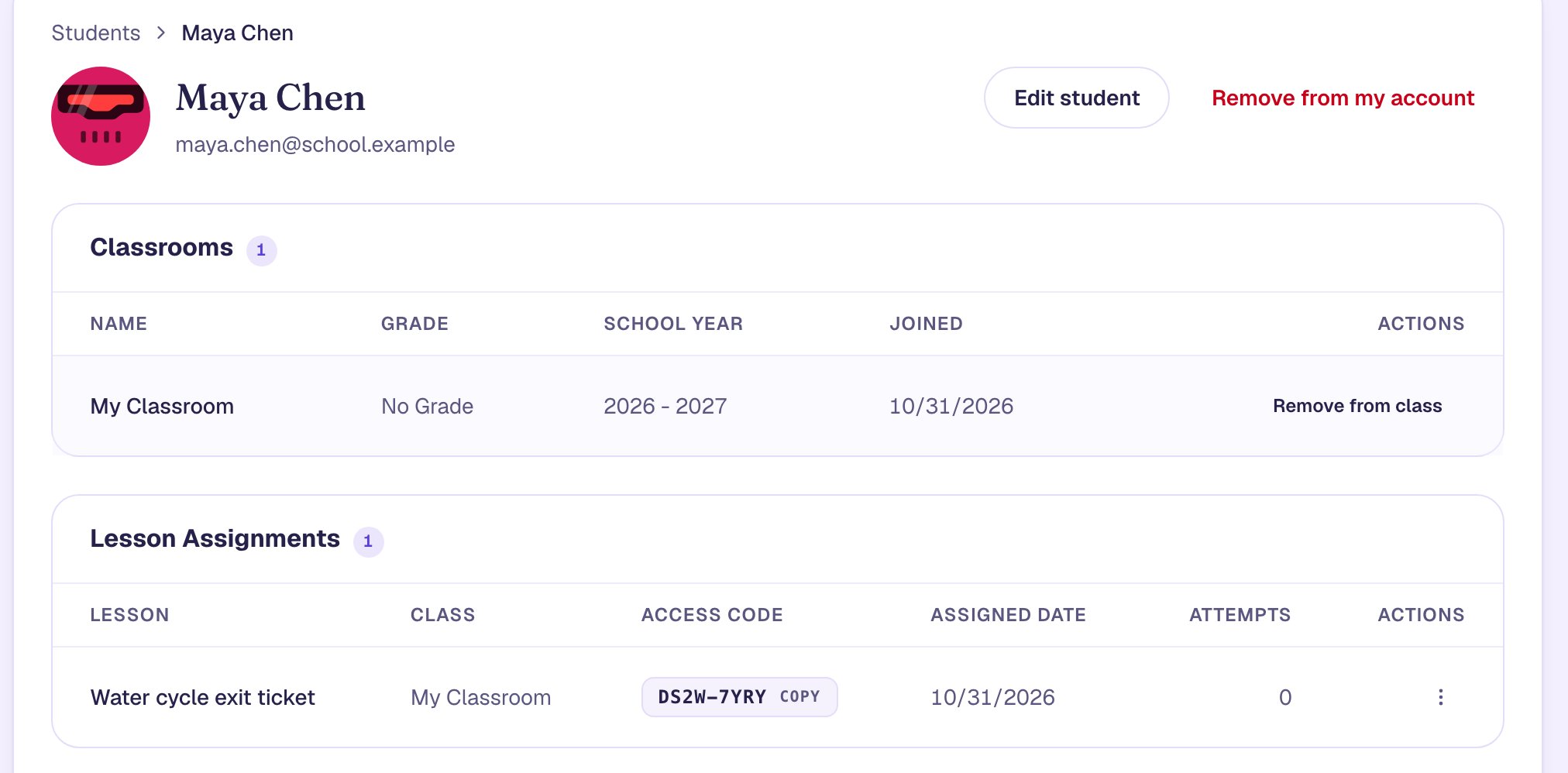
Give each code only to the student it belongs to: on a slip of paper, a sticker on their folder, or a private message. A code signs a student in as themselves, so never put a class's codes on the board, where a classmate could open someone else's work.
Step 5: The student types the code
This is what Maya does, on her own device. She goes to berdee.app/go, types her code and presses Go. Dashes don't matter, and the code never uses letters that look like numbers, so there's nothing to mistype.
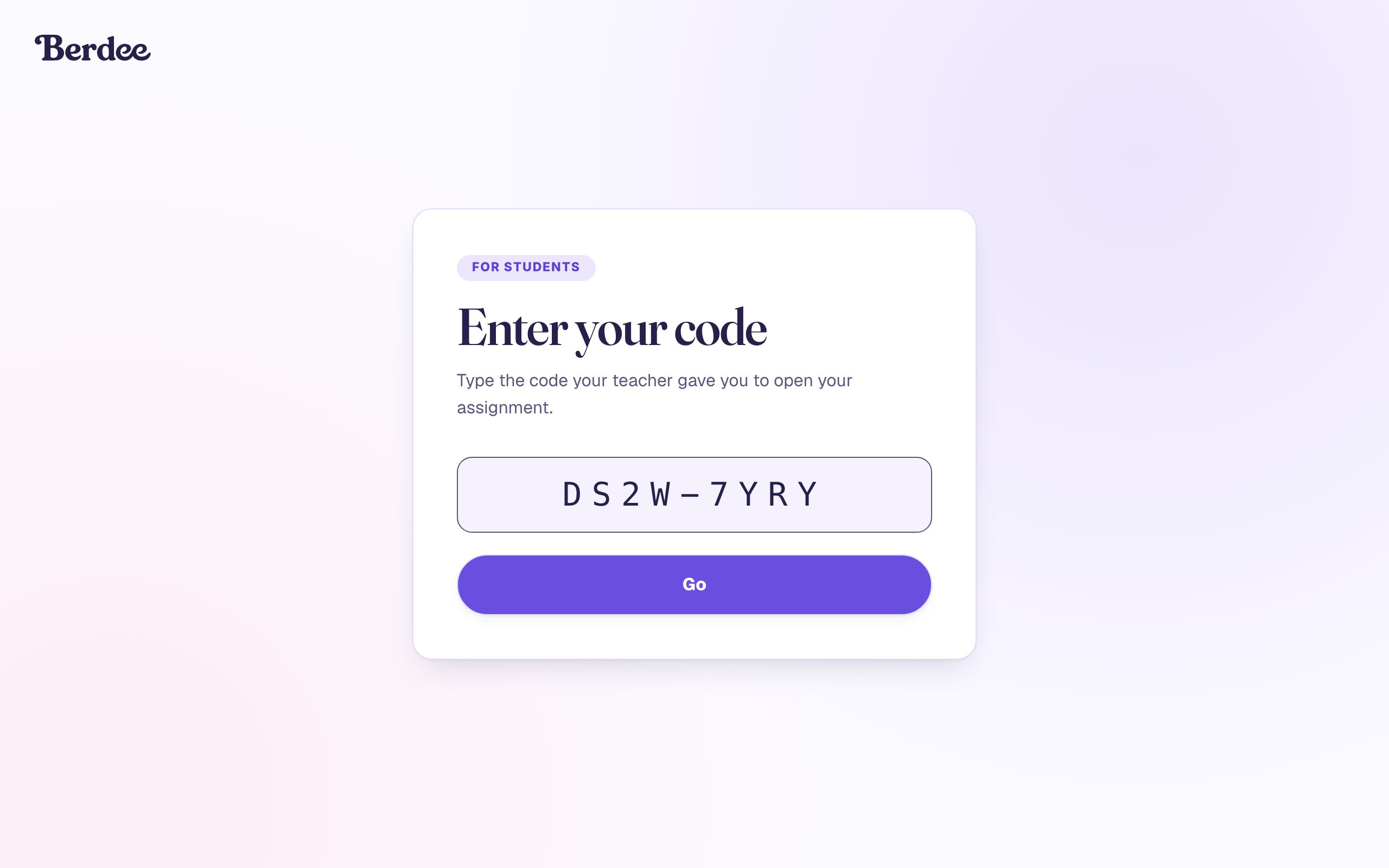
The lesson opens straight away, with her name at the top so she knows it's hers.
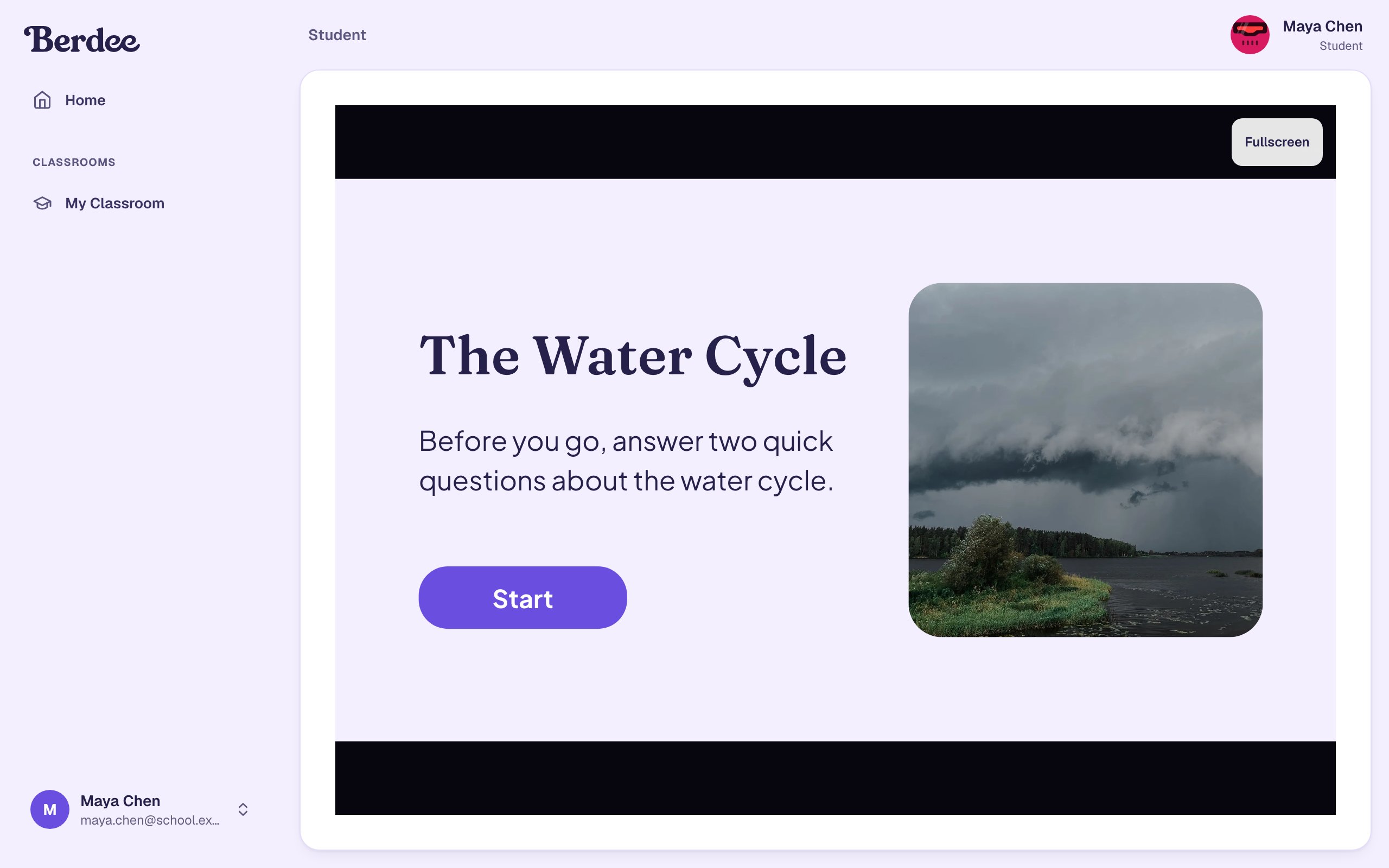
To try this yourself, open the code page in a private browser window, so you stay signed in as yourself in your usual one.
Step 6: The student plays the lesson
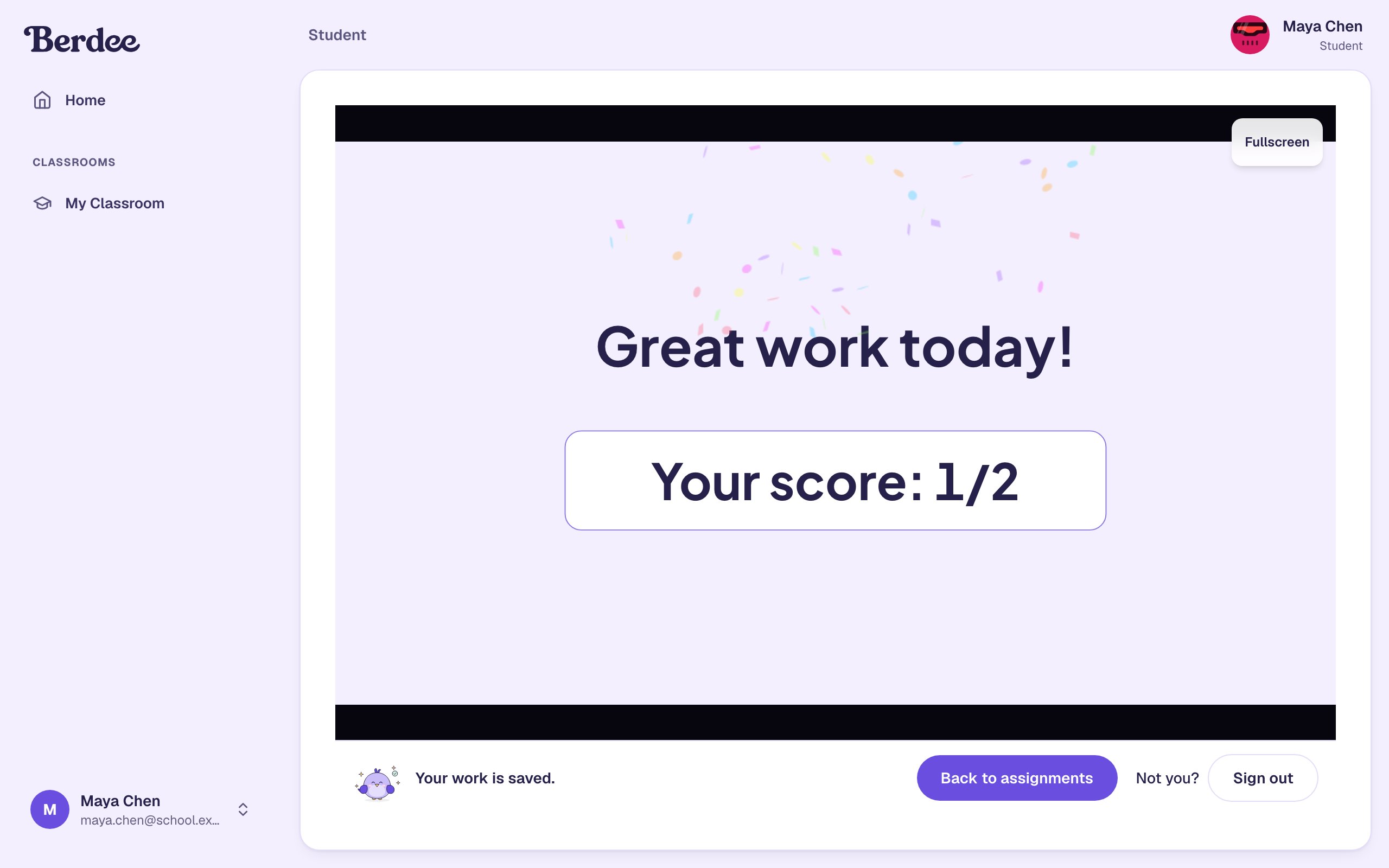
Maya presses Start, picks The Sun for the first question, and types rain in the blank of the second, which isn't right: water vapor forms clouds. She presses Finish. (The answer choices are shuffled, so each student may see them in a different order.)
The ending shows her score, and Your work is saved. At the bottom, Back to assignments takes her to her list of lessons, and Sign out gets a shared computer ready for the next student.
Step 7: See how the student did
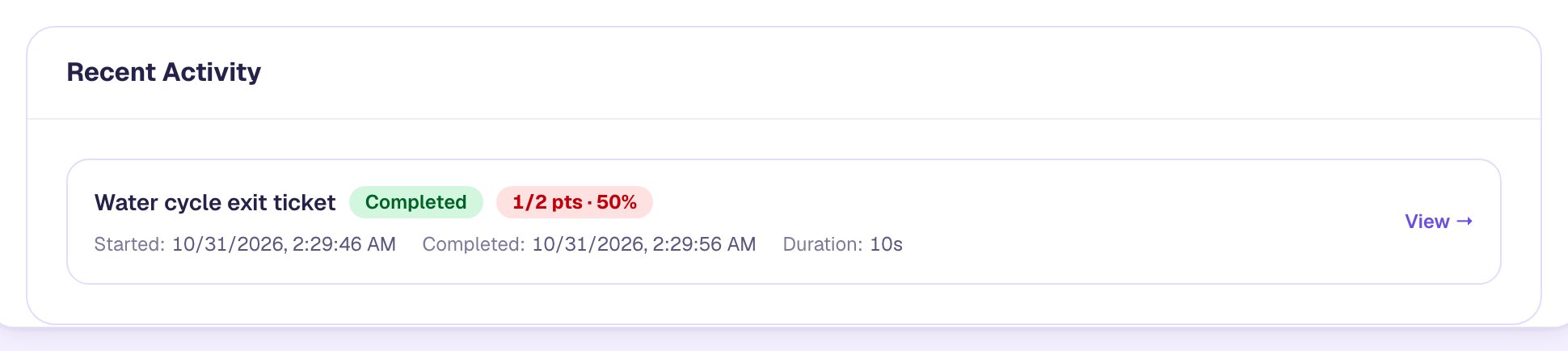
Back in your account, open Maya's profile again. Lesson Assignments now counts 1 attempt, and Recent Activity shows the lesson as Completed with her score.
Click View. The attempt page shows the total score and, in Per-Scorable Breakdown, every graded question with what she answered and whether it was right.
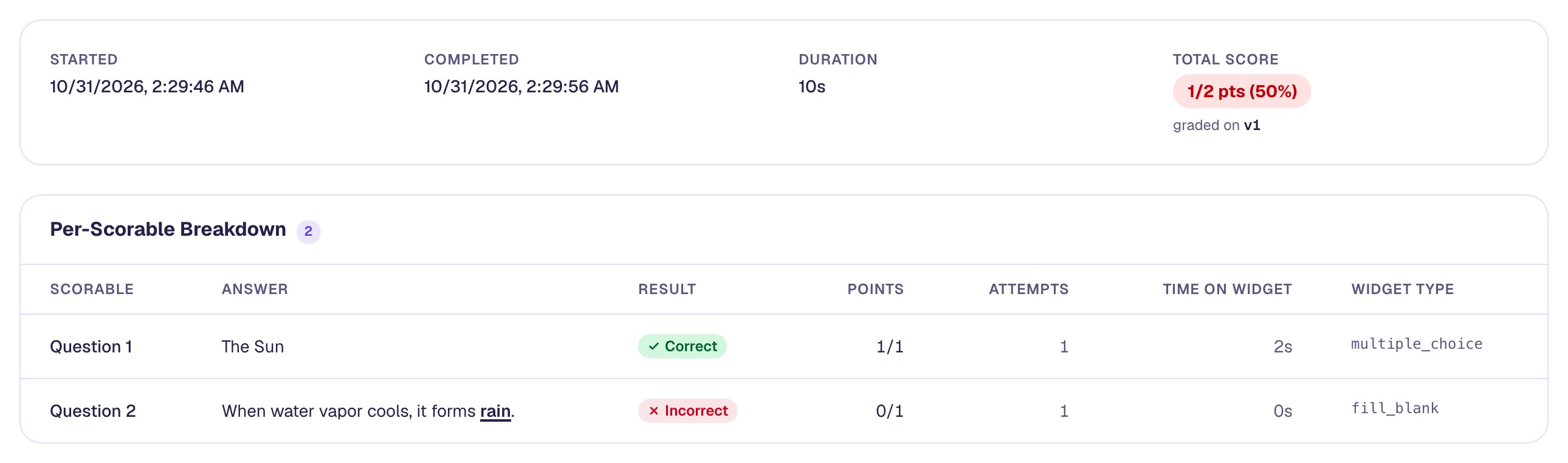
That second row is the useful one. A score of 50% says something went wrong; the answer "rain" says what. She mixed up clouds with what falls from them, which is a two-minute conversation tomorrow.
The questions are listed by their names in the studio (Question 1, Question 2). Give your questions names that say what they check, like Evaporation and Condensation, and this table reads like a skills list.
What you built
A complete trip for one lesson:
- A student in your classroom, added with their own school email.
- The lesson assigned to the class, pinned to the version you assigned.
- A private access code the student types at berdee.app/go, with no email or password.
- Their answers on your screen, question by question, so you see what they misunderstood and not only the score.
Assign the same lesson to more students the same way: add them to My Classroom, then assign again. Students who already have it are skipped, and the new ones get their own codes.
A colleague teaching the same unit can use the lesson too: Share a lesson with a colleague shows how to give them its share code.
Typed a name wrong, or a code slip ended up on the wrong desk? Fix a student's name and replace their code shows both fixes.
Make this lesson yours
Add the lesson you just watched being built to your account, then change it for your class: your questions, your pictures, your colors.
Free to sign up, and you'll come straight back here. I have an account