Share a lesson with a colleague
Give a teammate your lesson's share code so they can add it to their own account and assign it to their class, while you stay the only one who edits it.
- Level
- Beginner
- Time
- About 8 min
- Steps
- 6
- Updated
- Nov 1, 2026
An animal habitats lesson shared by its author, imported by a colleague with its share code, and assigned to the colleague's class.
Get the finished lesson
Skip straight to the result, or keep it open beside the steps. Add this tutorial's lesson to your account and explore how it works in the studio.
Free to sign up, and you'll come straight back here. I have an account
The teacher next door teaches the same unit, and you've built a lesson that works. Instead of rebuilding it, they can use yours. Every lesson has a share code: a short code you give to another educator. They type it into their own account, the lesson appears in their list, and they assign it to their own students.
In this tutorial Ms. Rivera shares her Animal homes sorting lesson with Mr. Okafor, and he assigns it to his class. You'll do both halves, so you know what to tell a colleague when you send them a code.
Sharing isn't copying. You stay the lesson's only author: your colleague can assign it and see their own students' results, but they can't edit it, and every change you make reaches their list too.
Step 1: Describe the lesson before you share it
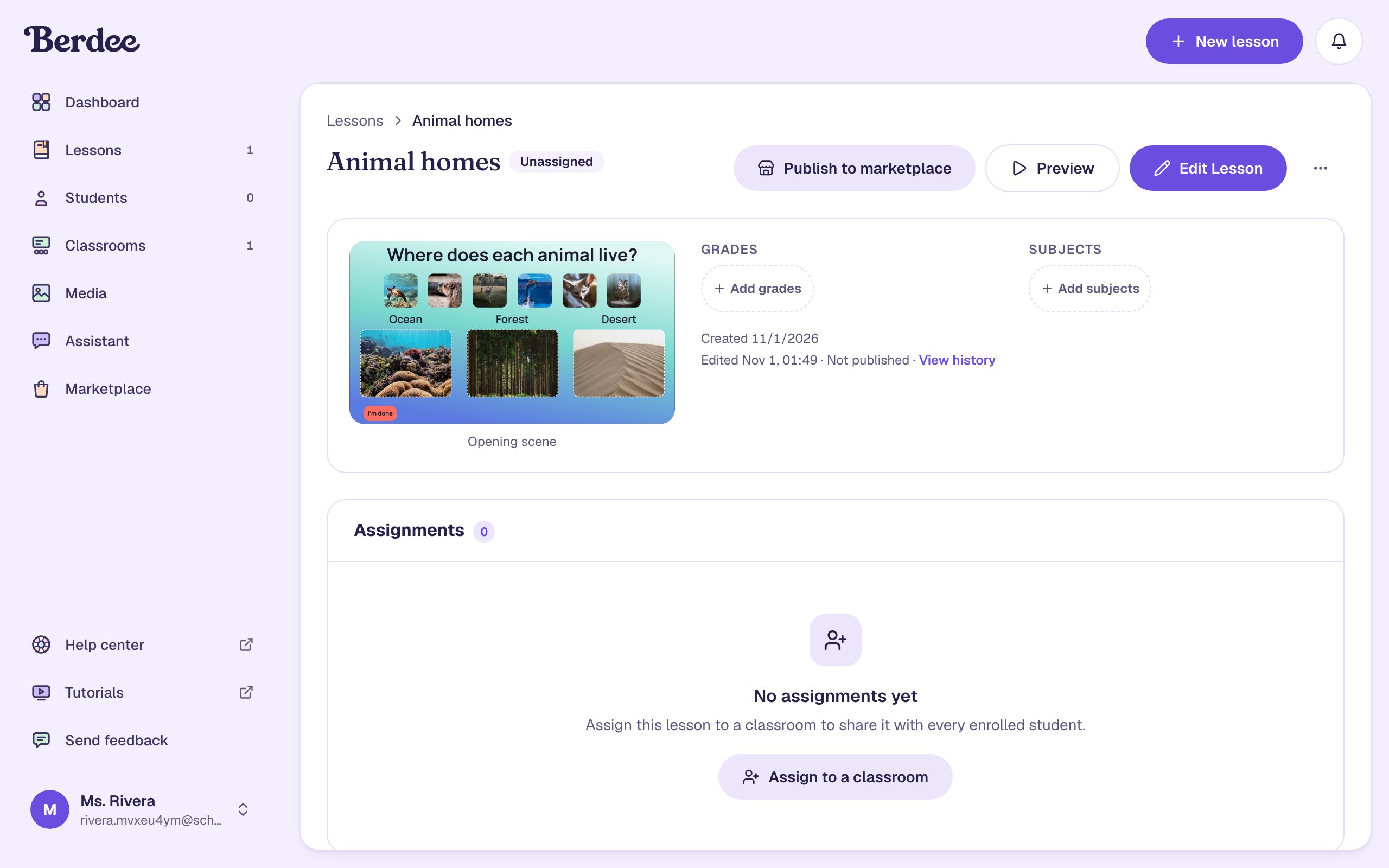
Your colleague decides whether a lesson fits their class from its title, description, and grades, so fill them in first.
- Open Lessons and click the lesson to open its page.
- Click ⋯ (More lesson actions) at the top right, then Settings.
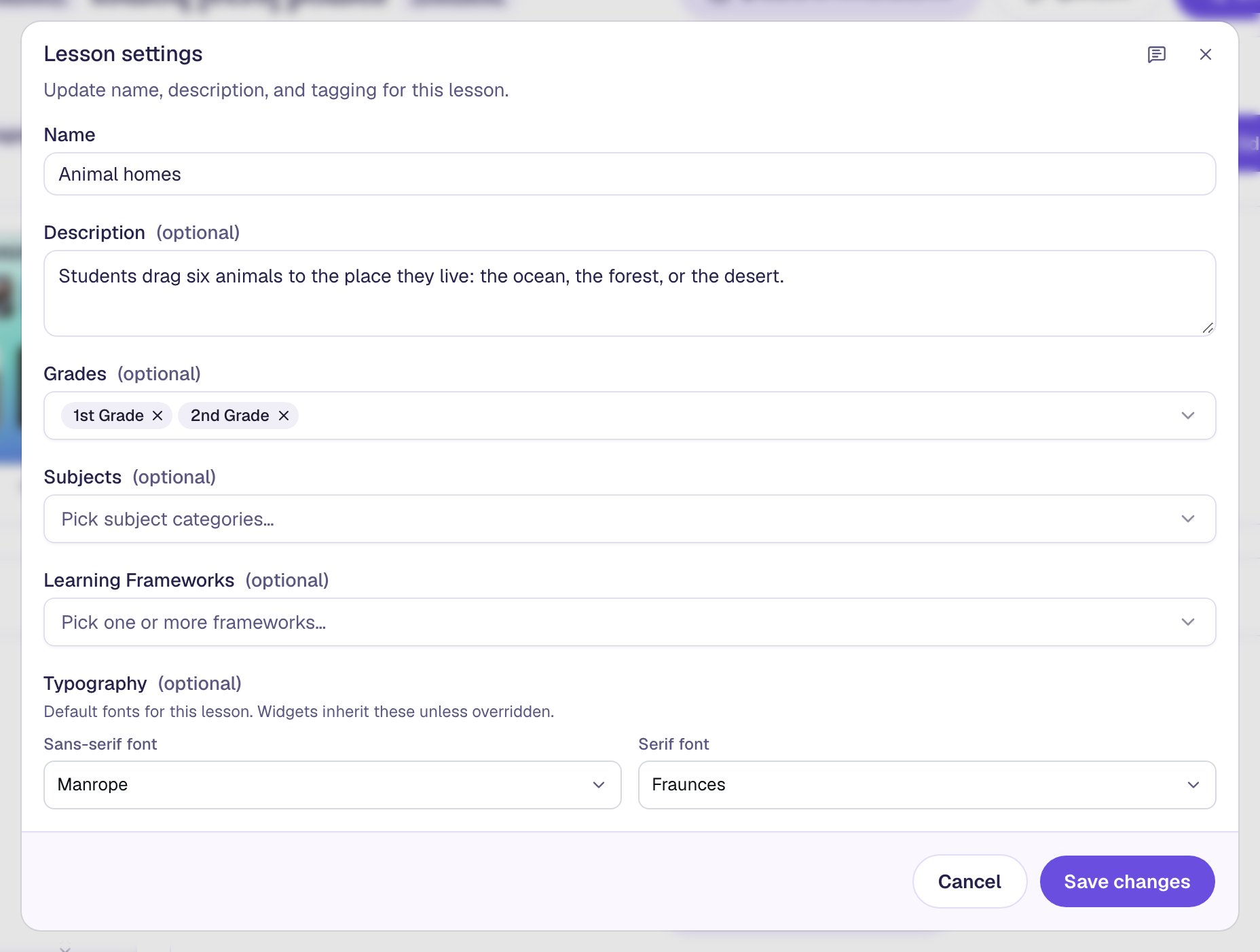
- Under Description, say what students do in one sentence:
Students drag six animals to the place they live: the ocean, the forest, or the desert. - Open Grades and pick 1st Grade and 2nd Grade.
- Click Save changes.
Step 2: Copy the lesson's share code
- Click ⋯ again and choose Share.
- Click Copy next to the code. The button changes to Copied.
- Paste the code into an email or a message to your colleague.
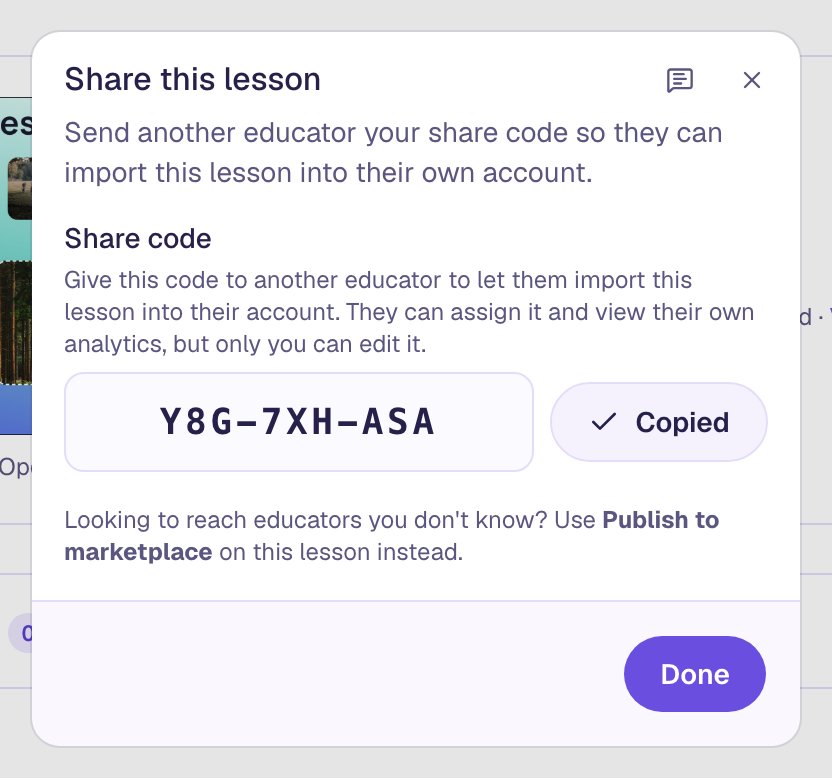
The code belongs to the lesson, so it works for as many colleagues as you give it to. Give it only to people you want to have the lesson. To offer a lesson to teachers you don't know, use Publish to marketplace instead.
Step 3: Your colleague types the code into Import
The rest happens in your colleague's account. Send them these steps with the code.
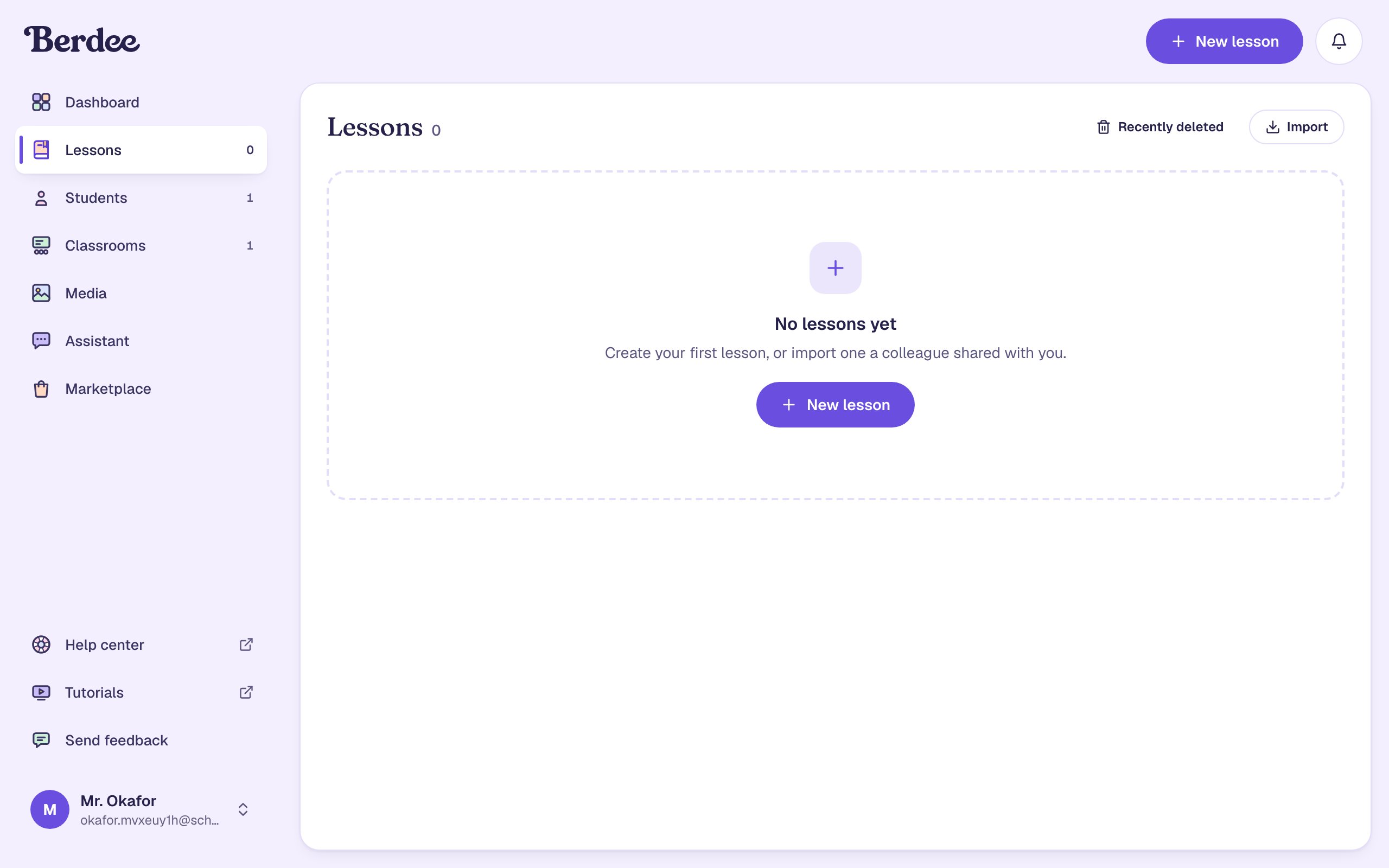
- They open Lessons and click Import at the top right.
- They type or paste the code. Capital letters and dashes don't matter.
- They click Continue.
Step 4: Check the lesson and add it
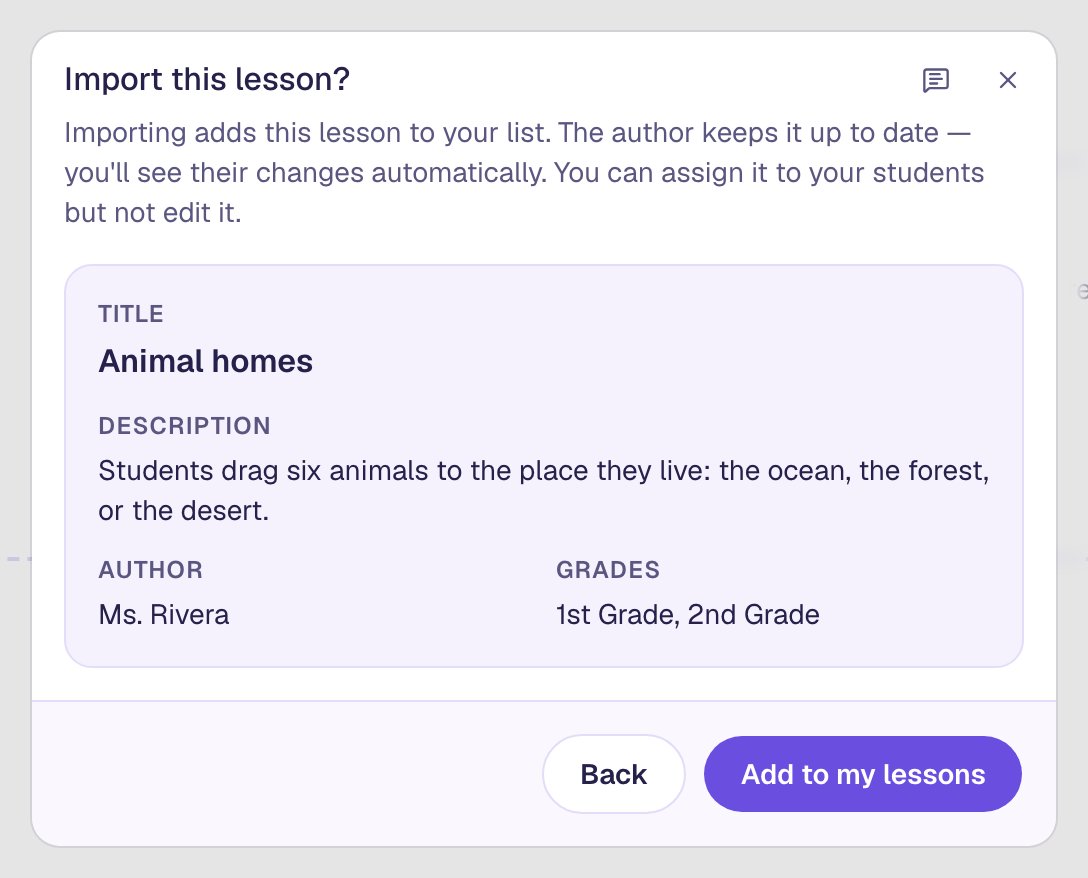
Before anything is added, your colleague sees what the code points to: the title, your description, your name, and the grades. That's why Step 1 matters. If it's the lesson they expected, they click Add to my lessons.
Step 5: Find it in the lessons list
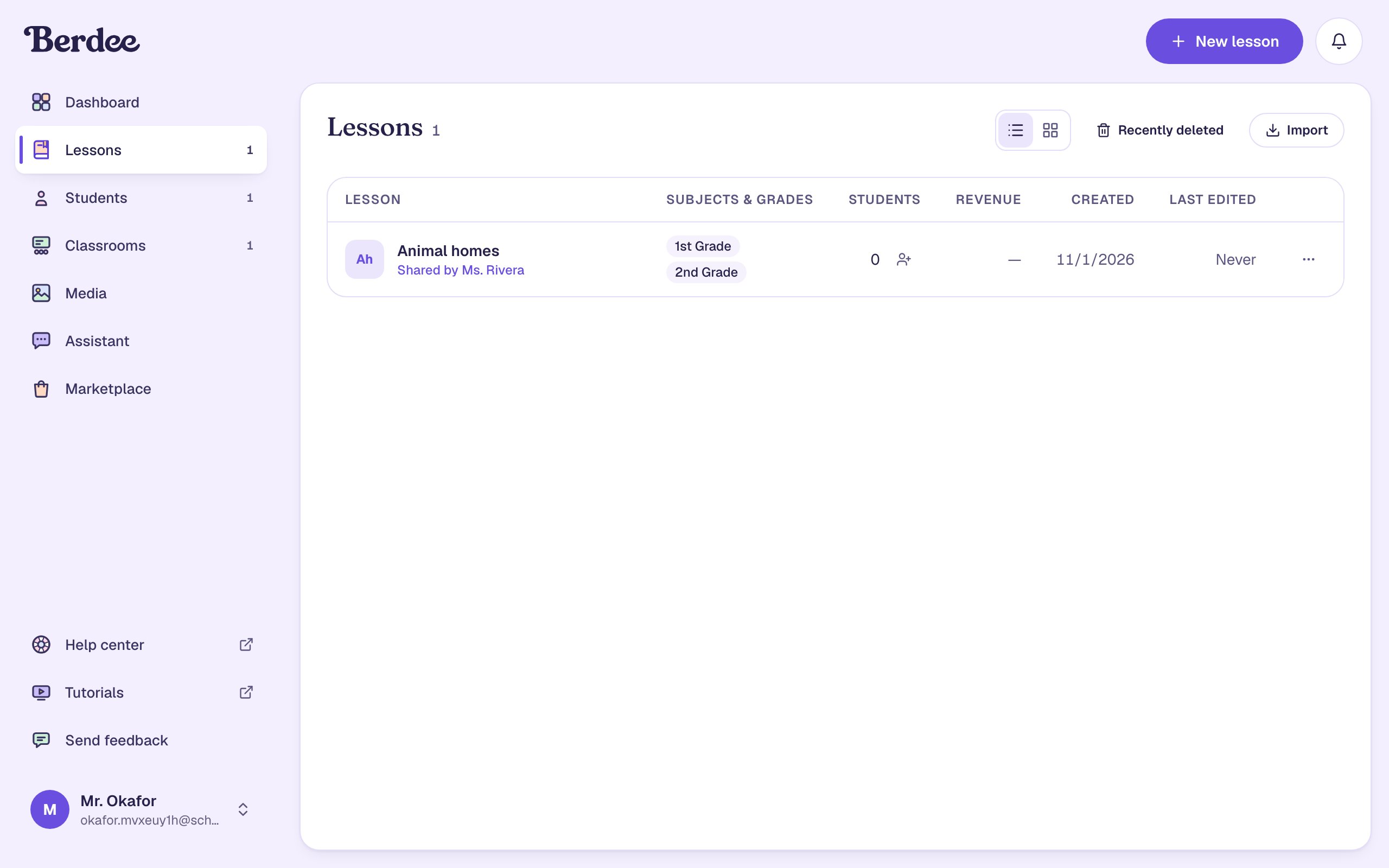
The lesson is now in your colleague's Lessons list, with Shared by Ms. Rivera under its title. Once their list grows, the Shared with me filter shows only lessons other educators shared.
Opening it shows the same Shared by badge and your description. There's no Edit Lesson button: only the author can change a shared lesson.

Your colleague's page doesn't show a picture of the opening scene: a shared lesson's picture appears only after its author publishes it to the marketplace.
Step 6: Your colleague assigns it to their class
A shared lesson is assigned like any other.
- On the lesson's page, they click Assign to a classroom.
- They pick their classroom and click Assign to Classroom.
- They click Done.
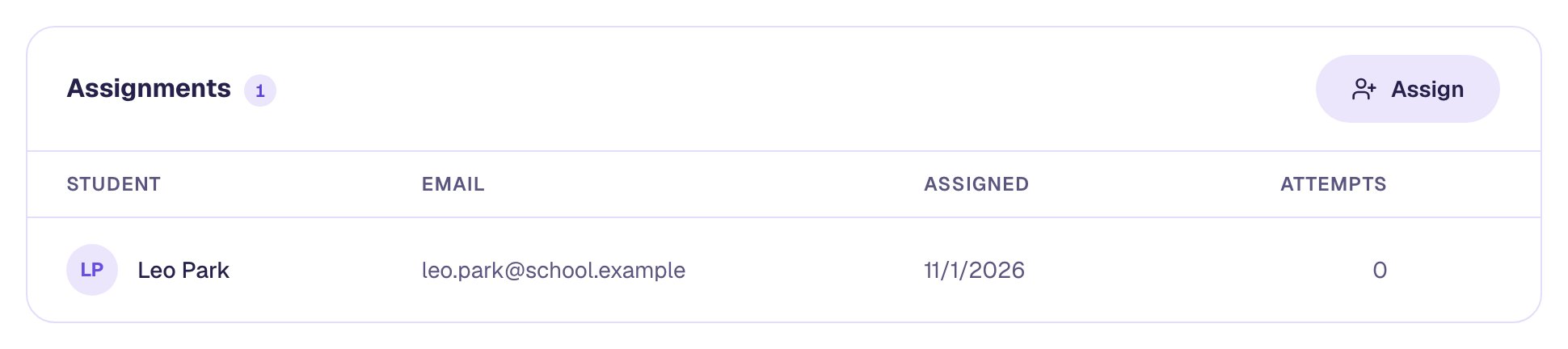
Each teacher sees only their own students. Mr. Okafor's results for this lesson are his, and Ms. Rivera's are hers.
When you improve the lesson later, your colleague's list shows your changes. Students they've already assigned stay on the version they got until your colleague clicks Update students to latest on their classroom's Assignments tab, so nobody's lesson changes mid-attempt.
What you built
A lesson that two teachers use without either of them rebuilding it:
- Ms. Rivera gave the lesson a description and grades, then copied its share code from ⋯ › Share.
- Mr. Okafor typed the code into Lessons › Import, checked the details, and added it. It's marked Shared by Ms. Rivera.
- He assigned it to his own class, and his students' results stay with him.
- Ms. Rivera is still the only one who can edit it.
Next, see how a student plays an assigned lesson and what their answers look like in Assign a lesson and see how a student did.
Make this lesson yours
Add the lesson you just watched being built to your account, then change it for your class: your questions, your pictures, your colors.
Free to sign up, and you'll come straight back here. I have an account