Fix a student's name and replace their code
Correct a typo in a student's name and give them a new access code when the old one reaches the wrong person, without losing anything they've done.
- Level
- Beginner
- Time
- About 5 min
- Steps
- 5
- Updated
- Nov 1, 2026
A student whose name is spelled right everywhere, with a fresh access code that opens their lesson while the old one no longer works.
Get the finished lesson
Skip straight to the result, or keep it open beside the steps. Add this tutorial's lesson to your account and explore how it works in the studio.
Free to sign up, and you'll come straight back here. I have an account
Rosters are never perfect in the first week. A name gets typed in a hurry, and a code slip ends up on the wrong desk. Both are a minute's fix, and you can make them yourself without starting over: the student keeps their classes, their lessons, and everything they've already done.
In this tutorial you'll fix both for one student. Leo was added as Leo Martinz, and his code for the water cycle exit ticket was seen by a classmate. You'll correct his name, give him a new code, and check that the old one stops working.
Step 1: Open the student's page
Open Students in the sidebar and click View profile on the student's card. This tutorial starts where Assign a lesson and see how a student did leaves off: one student in My Classroom, with the water cycle exit ticket assigned. To follow along with the same lesson, press Add this lesson to my account on this page, then add a student and assign it.
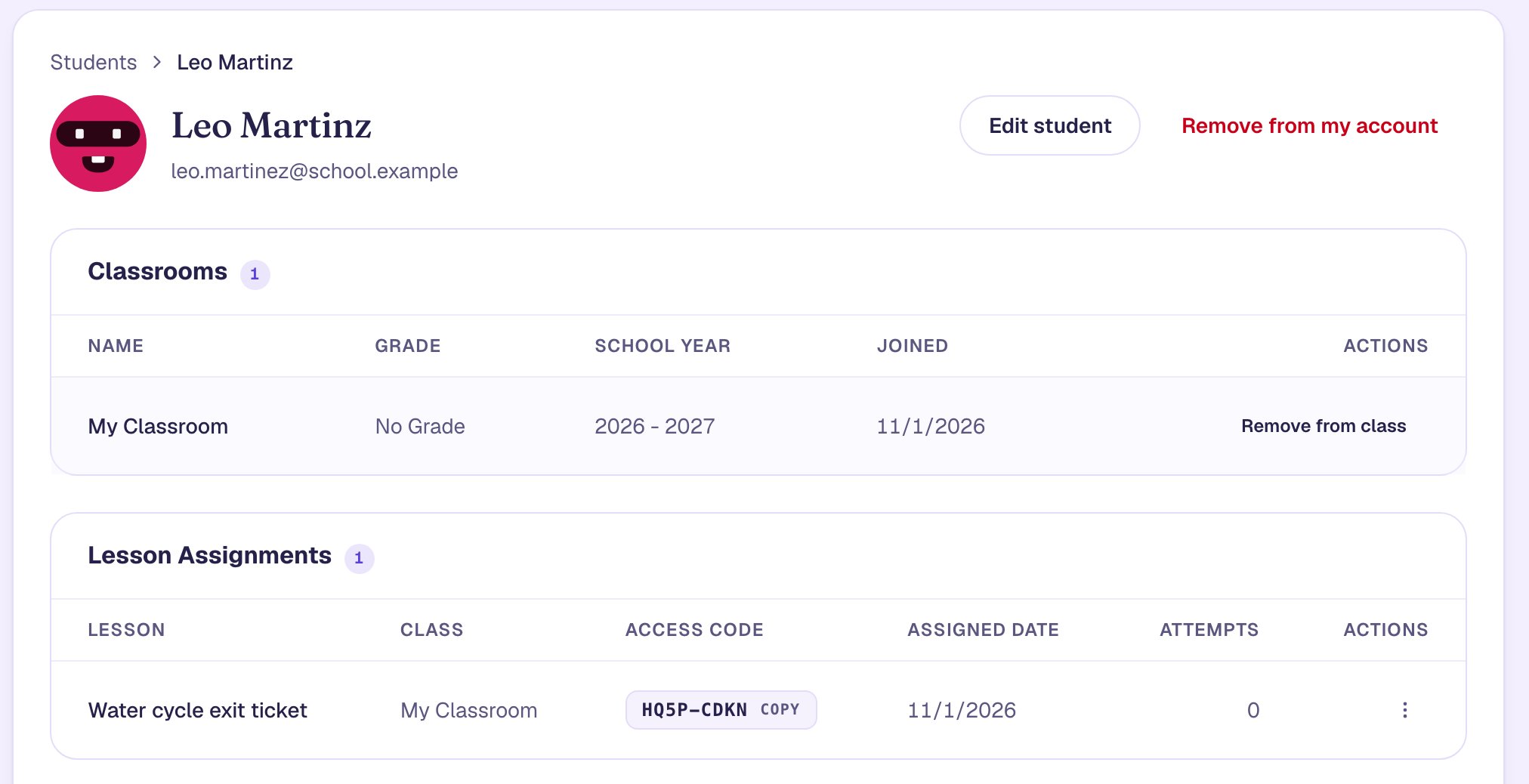
The name at the top is missing an e, and the code in Lesson Assignments is the one a classmate saw.
Step 2: Fix the student's name
Click Edit student. Correct the name to Leo Martinez and click Save.
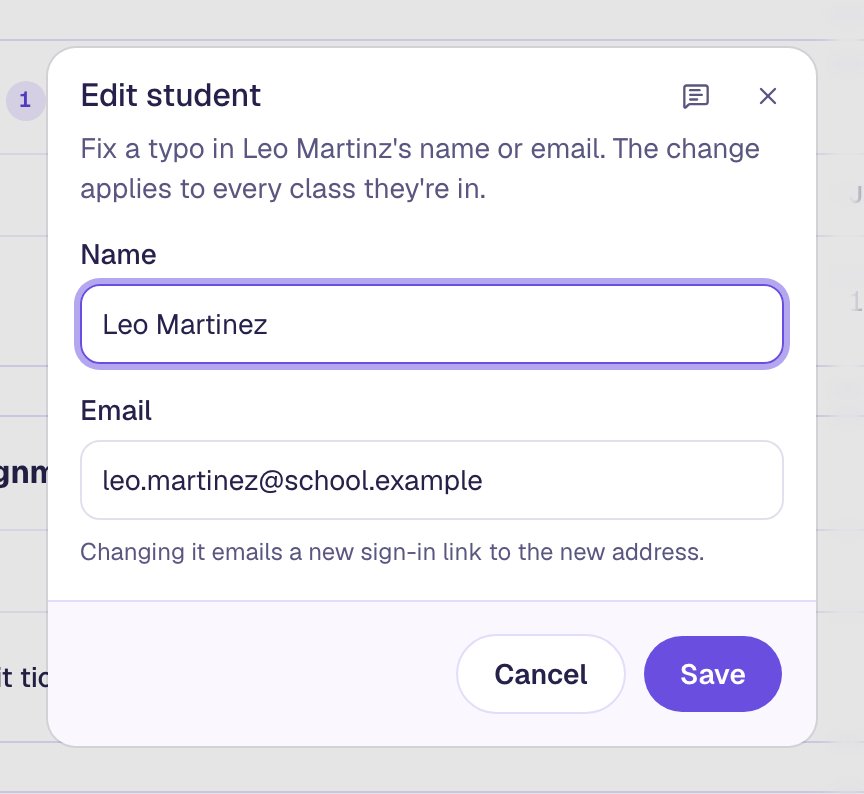
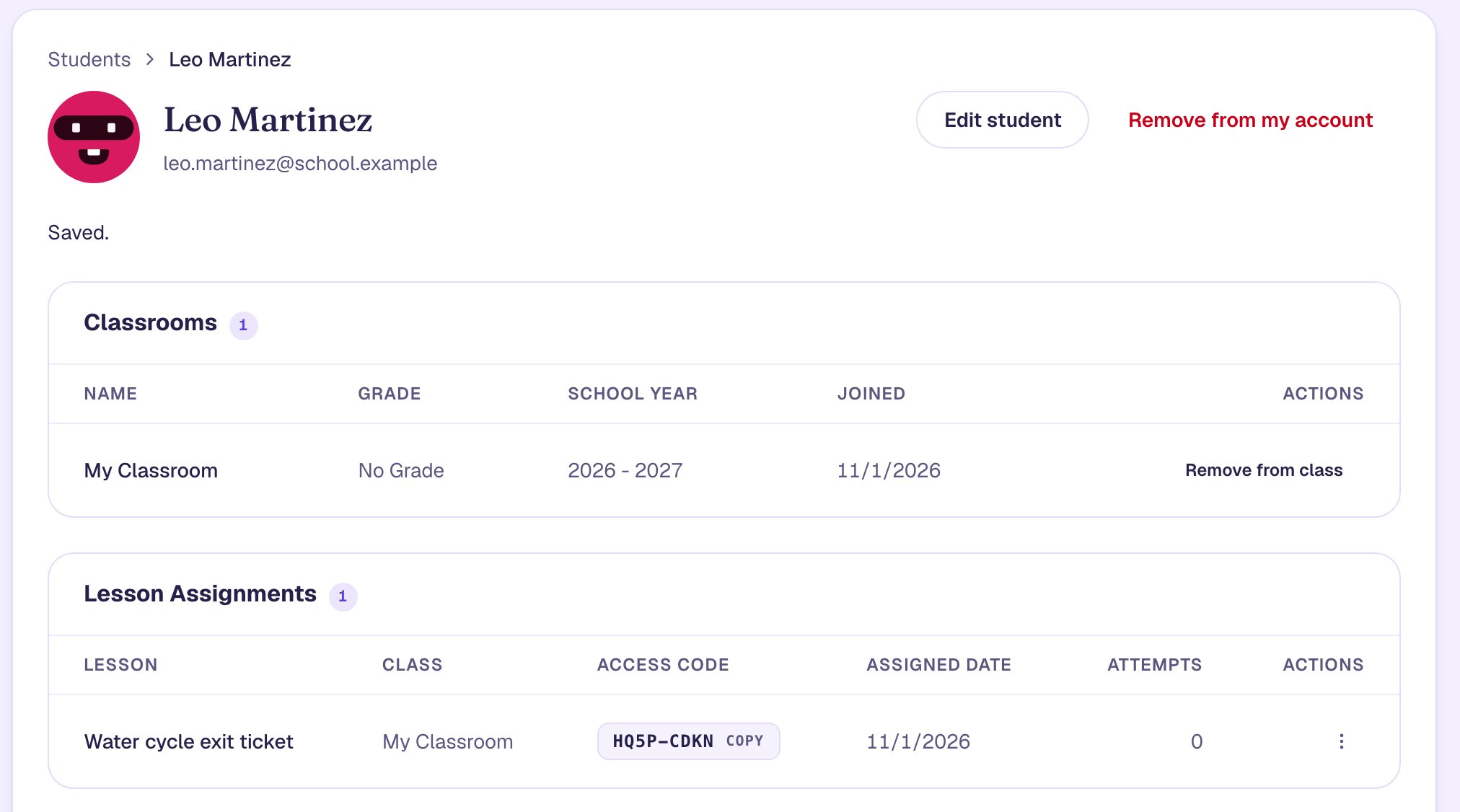
The page now reads Leo Martinez, with Saved. under it. The new name shows in every class he's in with you, and it's the name he sees at the top of his lessons.
Only change Email when the address itself is wrong. Saving a new one signs the student out everywhere and emails them a new sign-in link.
Step 3: Give the student a new access code
A code signs a student in as themselves, so if a classmate saw Leo's, they could open his work. Replace it. In Lesson Assignments, click the ⋮ at the end of the lesson's row and choose New access code. Berdee shows the code that's about to stop working. Click Replace code.
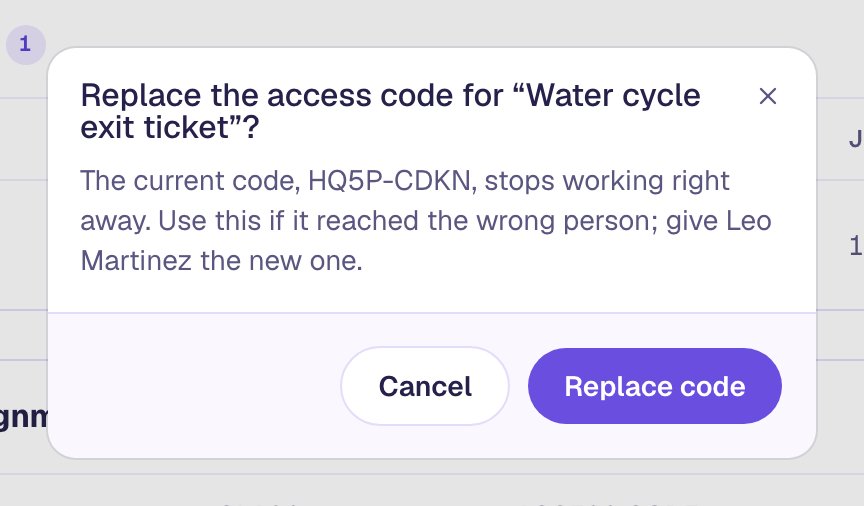
The new code appears in the row, and a line under Leo's name repeats it.
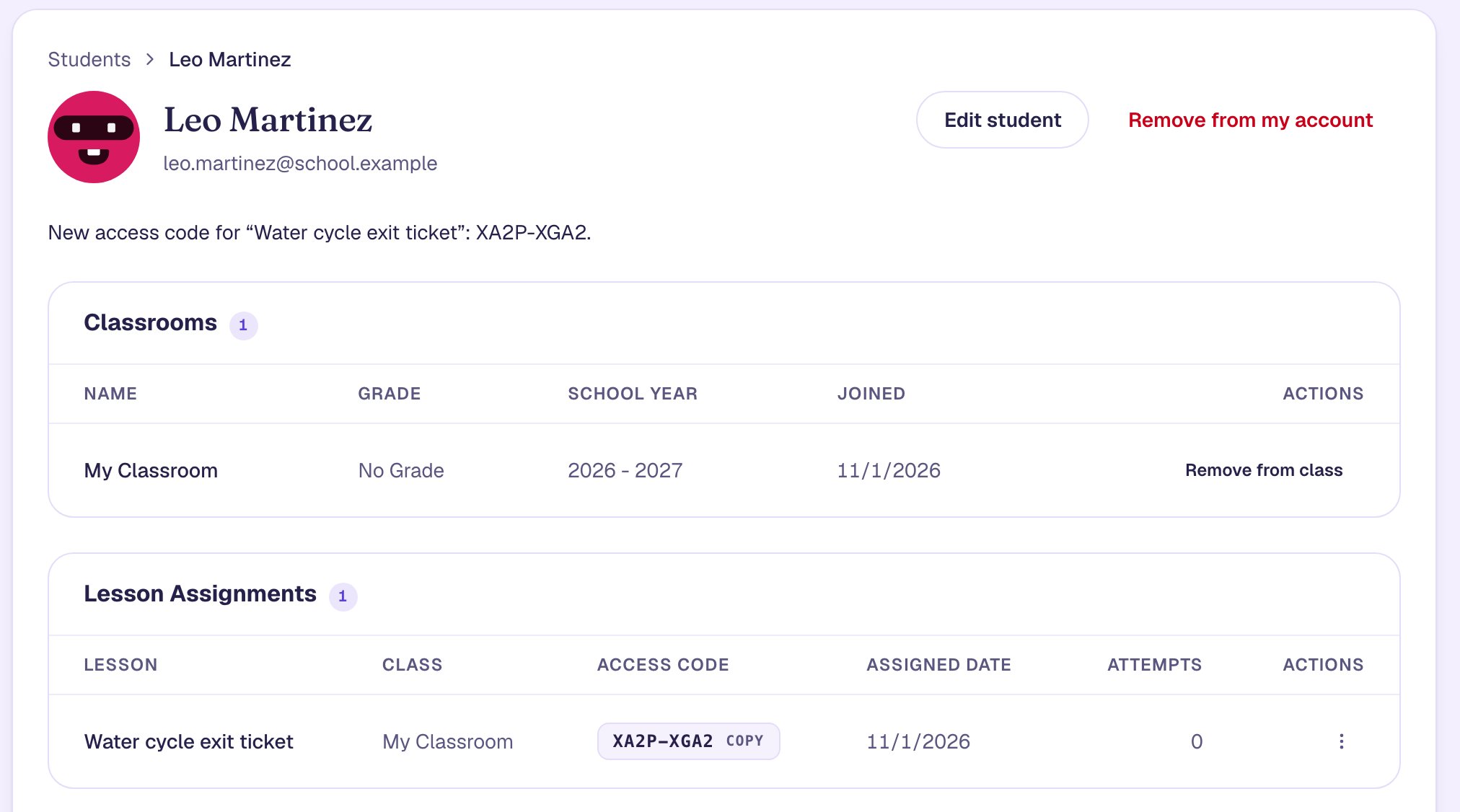
Each code belongs to one student and one lesson, so this changes nothing for anyone else in the class. If the code slip went missing for several lessons, replace each one on its own row.
Step 4: Check the old code no longer works
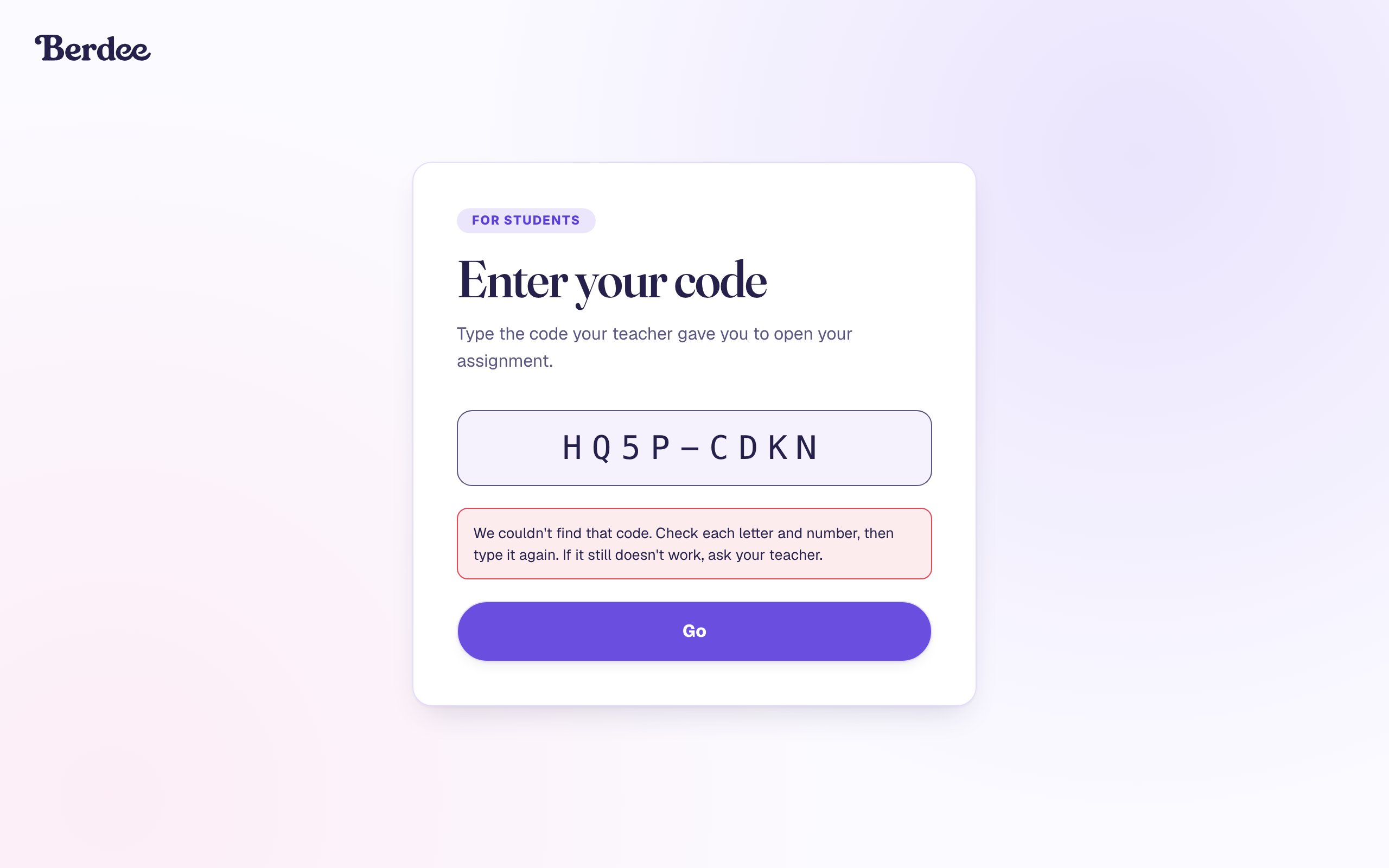
This is what the classmate would see. At berdee.app/go, the old code is refused, with a message to check the code or ask the teacher.
Step 5: The student opens the lesson with the new code
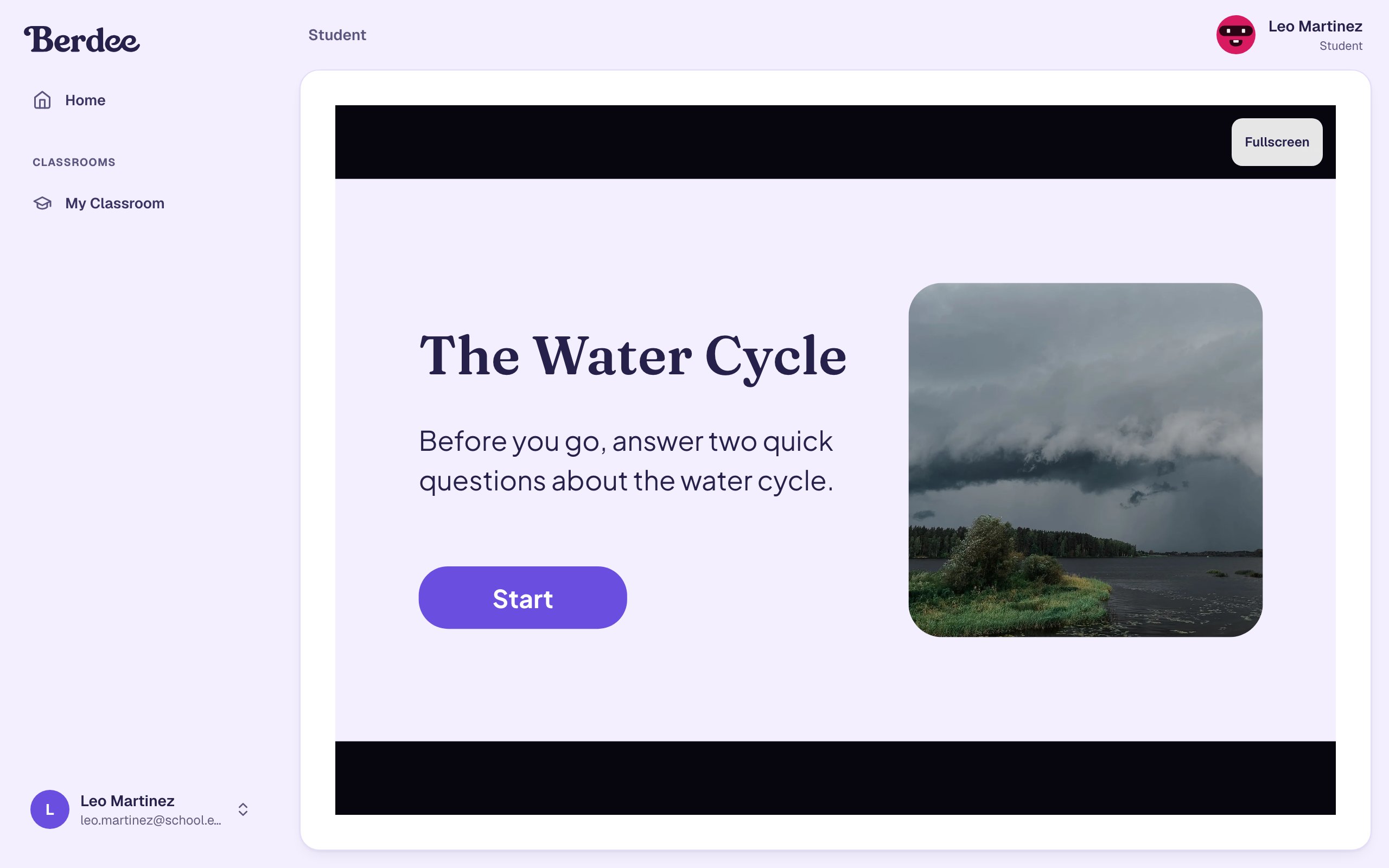
Give Leo his new code. He types it at berdee.app/go and presses Go, and his lesson opens with his name, spelled right, at the top.
To try this yourself, open the code page in a private browser window, so you stay signed in as yourself in your usual one.
What you built
Two quick roster fixes for one student:
- A corrected name, from Edit student, shown in every class and in the student's own lessons.
- A new access code, from the lesson row's ⋮ menu, that works at once while the old one is refused.
Nothing the student did is lost either way: their classes, assignments, attempts and scores stay exactly as they were. When a student leaves a class, or you assigned a lesson by mistake, the same page has Remove from class and Unassign.
Make this lesson yours
Add the lesson you just watched being built to your account, then change it for your class: your questions, your pictures, your colors.
Free to sign up, and you'll come straight back here. I have an account