Interactive ten frames for K–1 math.
Students tap counters into 5-frames and 10-frames, flip them red or yellow, and take them away. Ask for a number, 3 red and 2 yellow, more than 4, or two ways to make 6, and Berdee checks what they built.
A ten frame question in three steps.
Add a Ten Frame
Choose a 5-frame or a 10-frame, and up to six frames. Two 10-frames show numbers up to 20, like 13 as 10 and 3 more.
Choose what to ask
Build asks students to make something: a number, a full frame, 3 red and 2 yellow, more than 4, or the ways to break apart 6. Show displays a number to read. Explore is free play.
Choose how it checks
As soon as it matches grades every change, so the frame is right the moment it matches. When Done is tapped waits for the student to say they're ready.
What you see in the studio, and what students see.
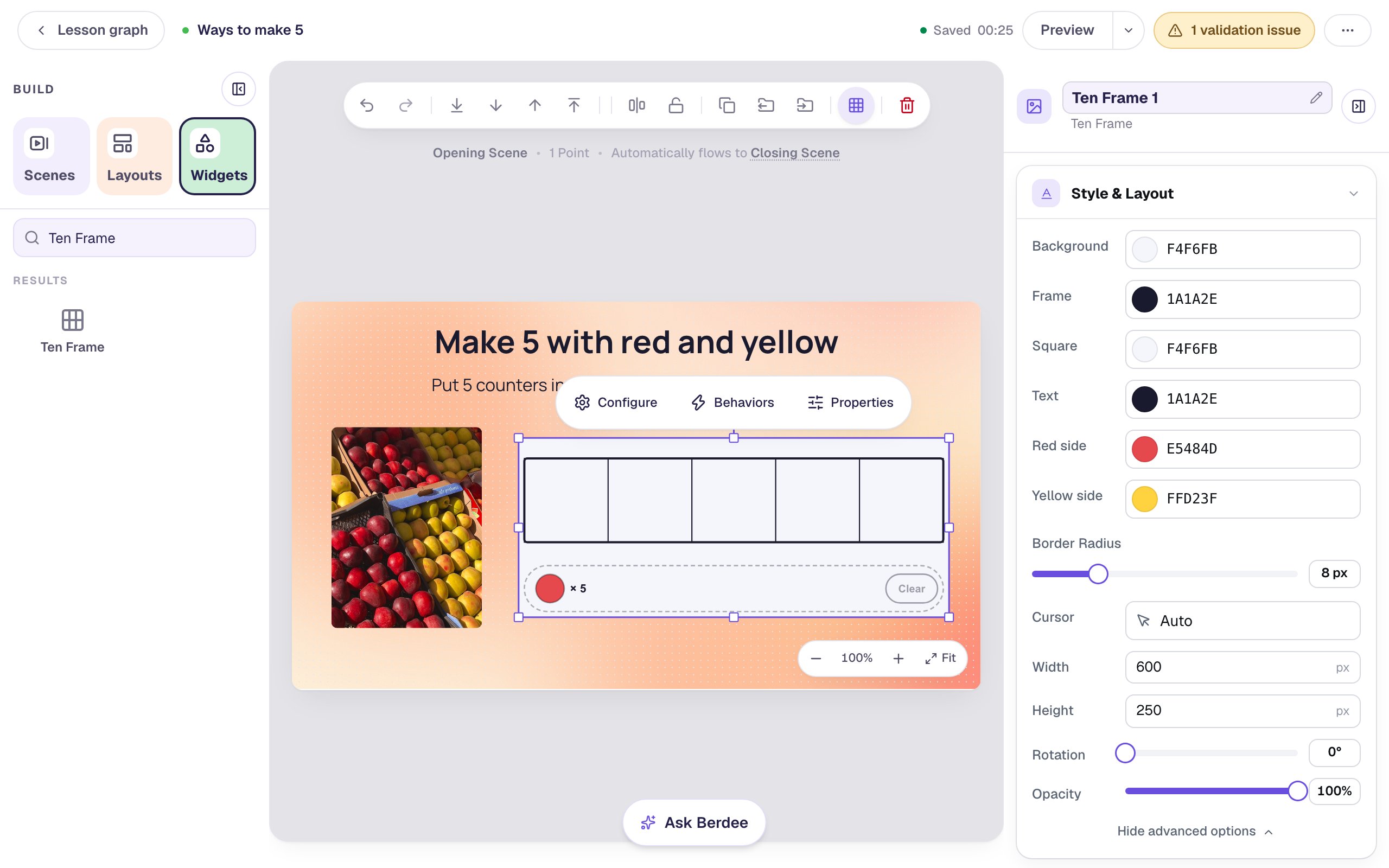
A new Ten Frame: a 5-frame, and a tray of counters. 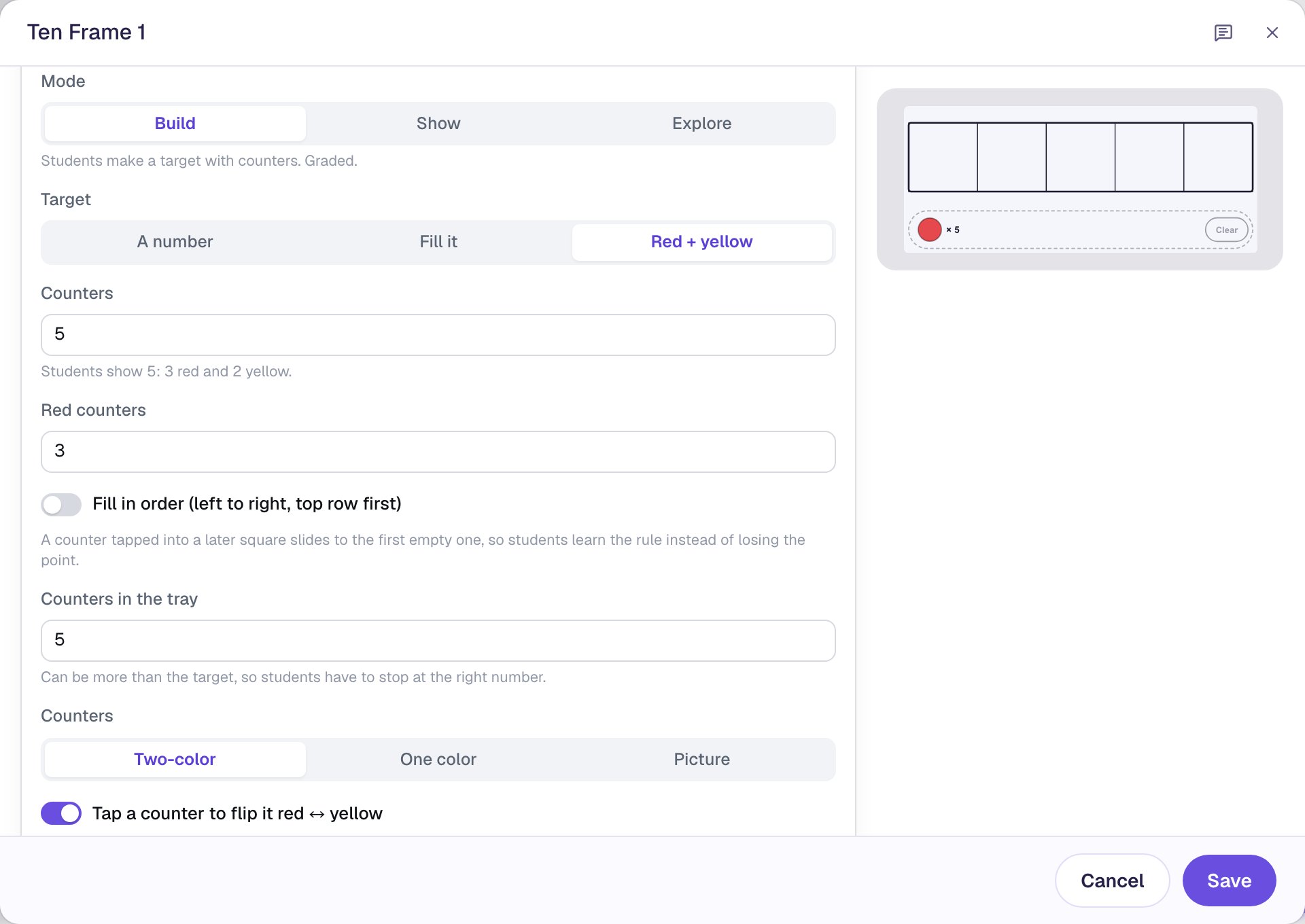
Pick a target, and the window says what students will show. 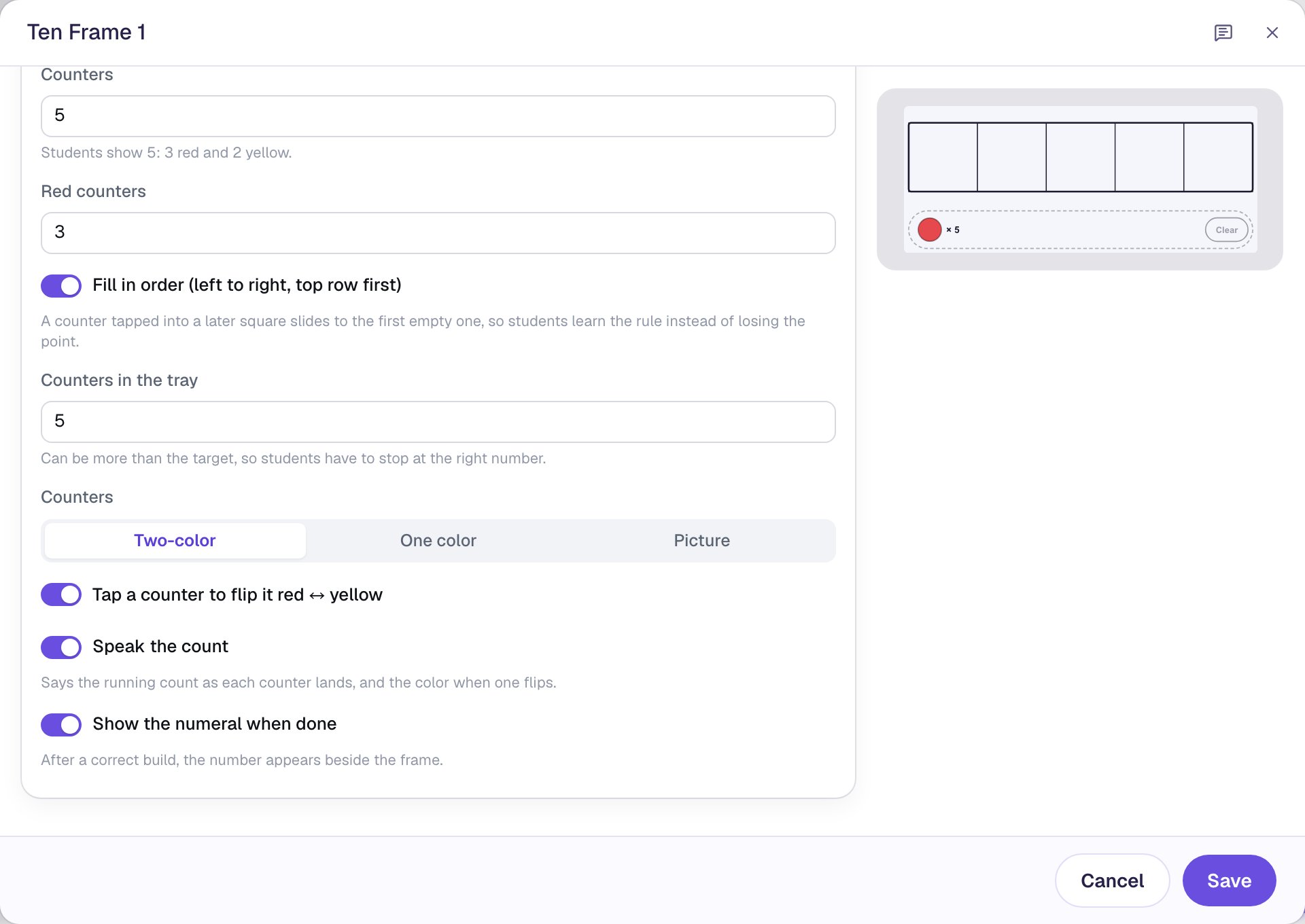
Fill in order, flipping, the spoken count and the numeral. 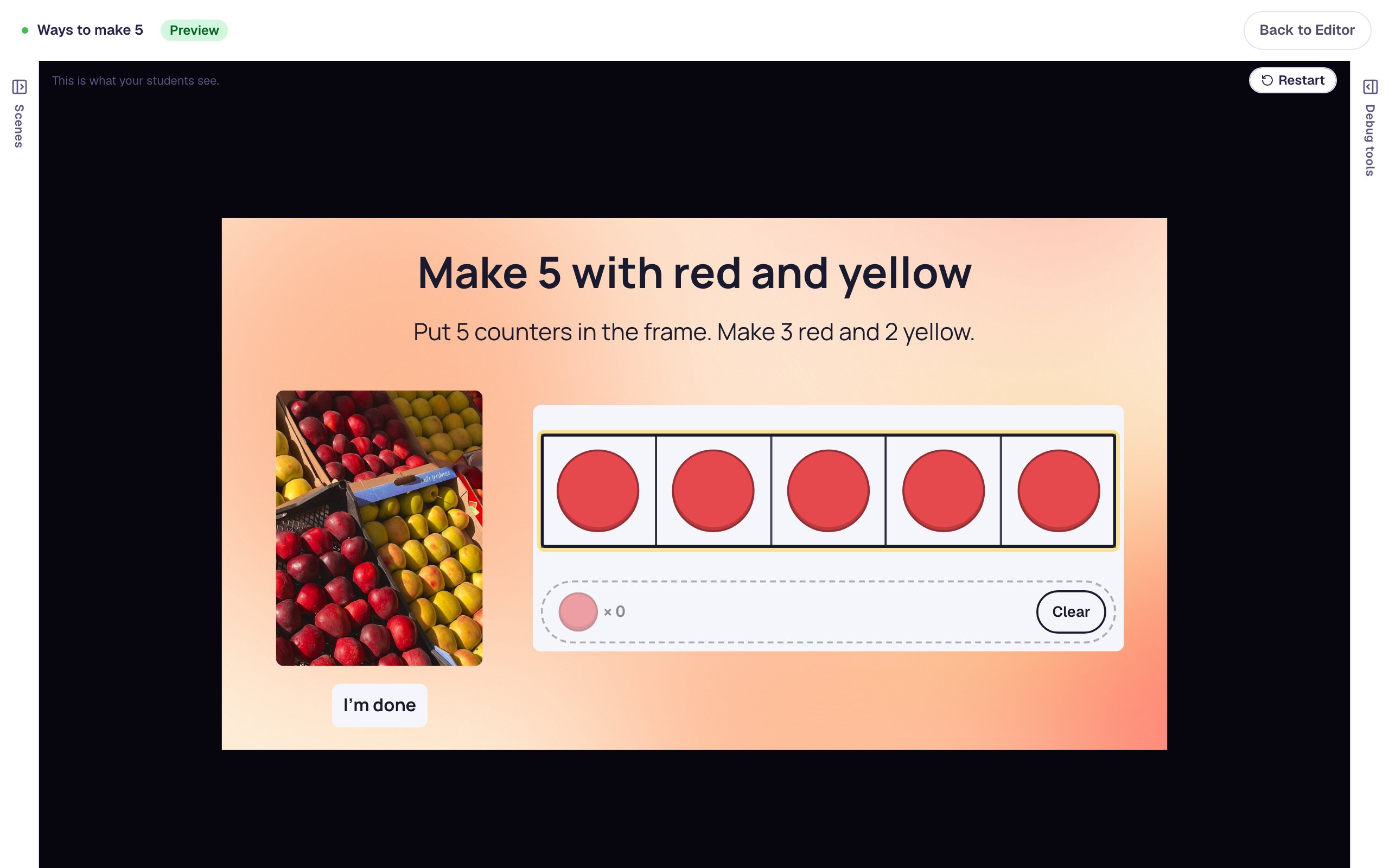
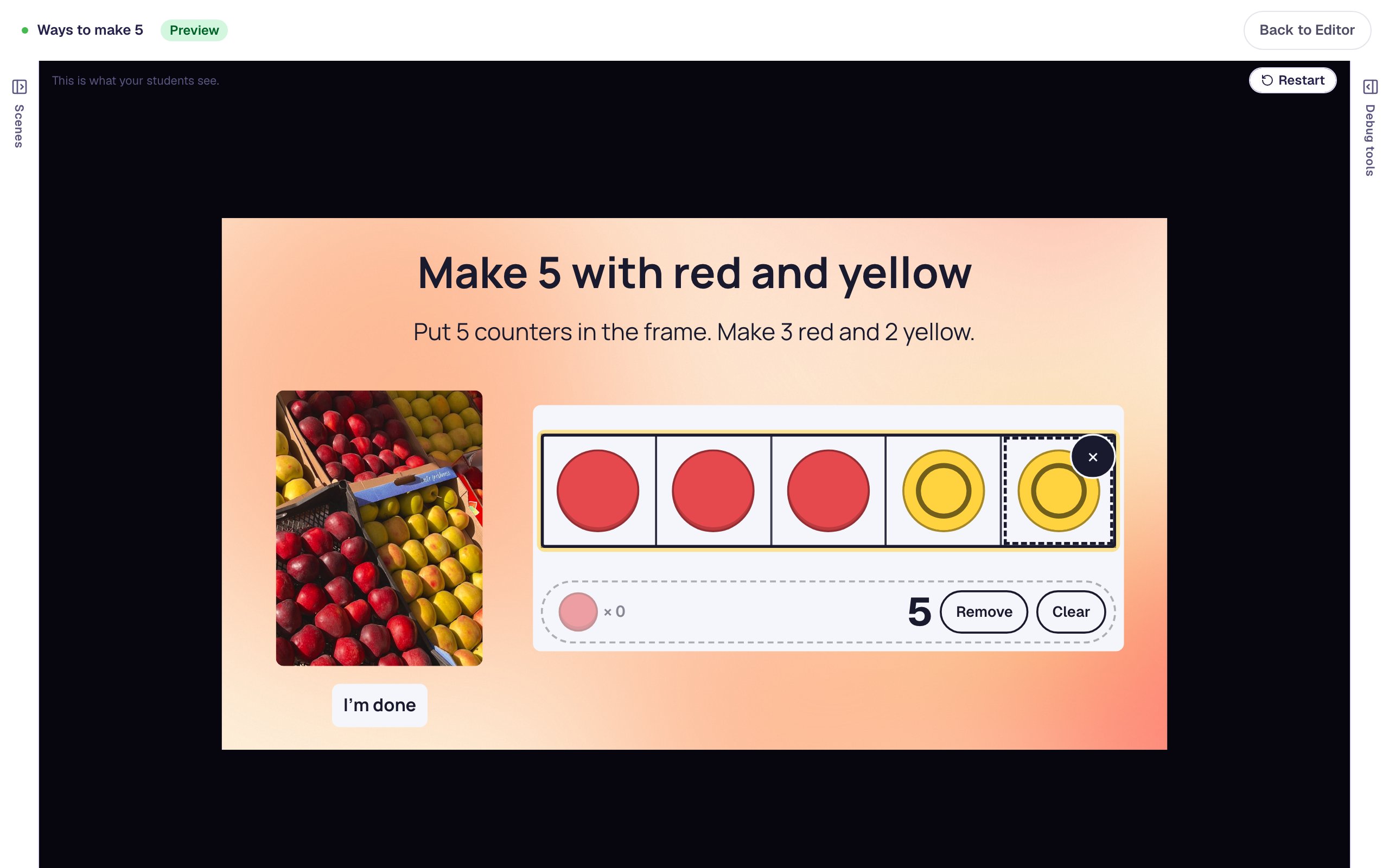
Five red counters fill the frame, but it isn't right until two are yellow.
One frame, a year of number sense.
Each of these is one Ten Frame with a different target. They play the way students see them.
“Show 13”: two 10-frames, the first full of red counters and glowing, the second with 3 counters, and the numeral 13 in the tray. Math · Kindergarten
Teen numbers as ten and some more
Set Frame to 10-frame and Number of frames to 2, and ask for 13. With Fill in order on, the first frame fills before the second, so 13 ends as a full ten and 3 more.
The first frame fills before the second: 13 is 10 and 3.
“8 take away 3”: a 10-frame with 5 red counters left, 3 counters in the Taken away strip under it, and the numeral 5 beside Start over and Done. Math · Kindergarten
Take away
Set Start with to 8 and the frame opens with 8 counters. Students tap 3 away into the Taken away strip, so they see both parts, then tap Done. You see “Started with 8 · took away 3 · 5 left”.
Taken counters move to the strip, so both parts stay in view.
“Make a group with more”: a 5-frame showing 4 counters above a 10-frame where the student built 6, with the numeral 6 beside the Done button. Math · Kindergarten
More, fewer, the same
Put a frame in Show mode with 4 above, and ask for More than 4. Any group from 5 up is right, and it's checked on Done, so a child still building toward 8 isn't graded at 5.
Any group above 4 is right, and it waits for Done.
“Show 2 ways to make 6”: a 10-frame with 4 red and 2 yellow counters, and the ways found strip reading “2 of 2 found” with “5 and 1” and “4 and 2”. Math · Grades K–1
Ways to make a number
Any split asks for different ways to break apart 6 into red and yellow. Each Save this way adds a picture of that way. A way already found pulses instead, and the frame asks for a different one.
Saving a way twice makes its picture pulse.
More ways to use a ten frame.
Counting
“Show 4. Put 4 counters in the frame.”
Make 10
“Fill the 10-frame. How many squares did you fill?”
Quick looks
“How many do you see? Type the number.”
Addition
“Show 5 with 3 red and 2 yellow, then write 3 + 2 = 5.”
Zero
“5 balls, all 5 go inside. How many are left?”
Fewer
“Make a group with fewer than 6.”
Between
“Make a number more than 3 and fewer than 8.”
Picture counters
“9 ducks, 4 swim away. Take away the ducks.”
Three ways to use it in class.
Free play first
Explore mode lets children place, flip and remove counters with nothing graded, a good warm-up before the first question.
A number to read
Show mode displays 7 as a full row and 2 more. Pair it with a number input or a multiple choice question to ask “How many?”.
A quick check
Build, checked on Done, records what each child built, like “5 counters: 3 red, 2 yellow”, and moves on only when it's right.
The settings that shape the question.
Frames
A 5-frame or a 10-frame, and 1 to 6 of them, for numbers to 20 and beyond.
Build, Show or Explore
Build is graded. Show displays a number students can't change. Explore is free play, never graded.
Targets
A number, Fill it, Red + yellow, More than, Fewer than, The same as, Between two numbers, or Any split.
Start with
Open the frame with counters already in it, and students take some away. Zero left is an answer.
Fill in order
Counters fill left to right, top row first. A counter tapped into a later square slides to the first empty one.
Counters, voice and numeral
Two-color, one color or a picture. Speak the count says each number aloud, and the numeral can appear once the frame is right.
Every setting is explained in the help center: Ten Frame widget.
Build one with us, a screenshot for every step.
 Beginner · 10 min · 7 steps · Updated
Build a number on a ten frame
Set up a Ten Frame that asks young learners to make 5 with 3 red and 2 yellow counters, show the numeral when they get it right, and give them a moment to see it before the lesson moves on.
Ready-made lesson to add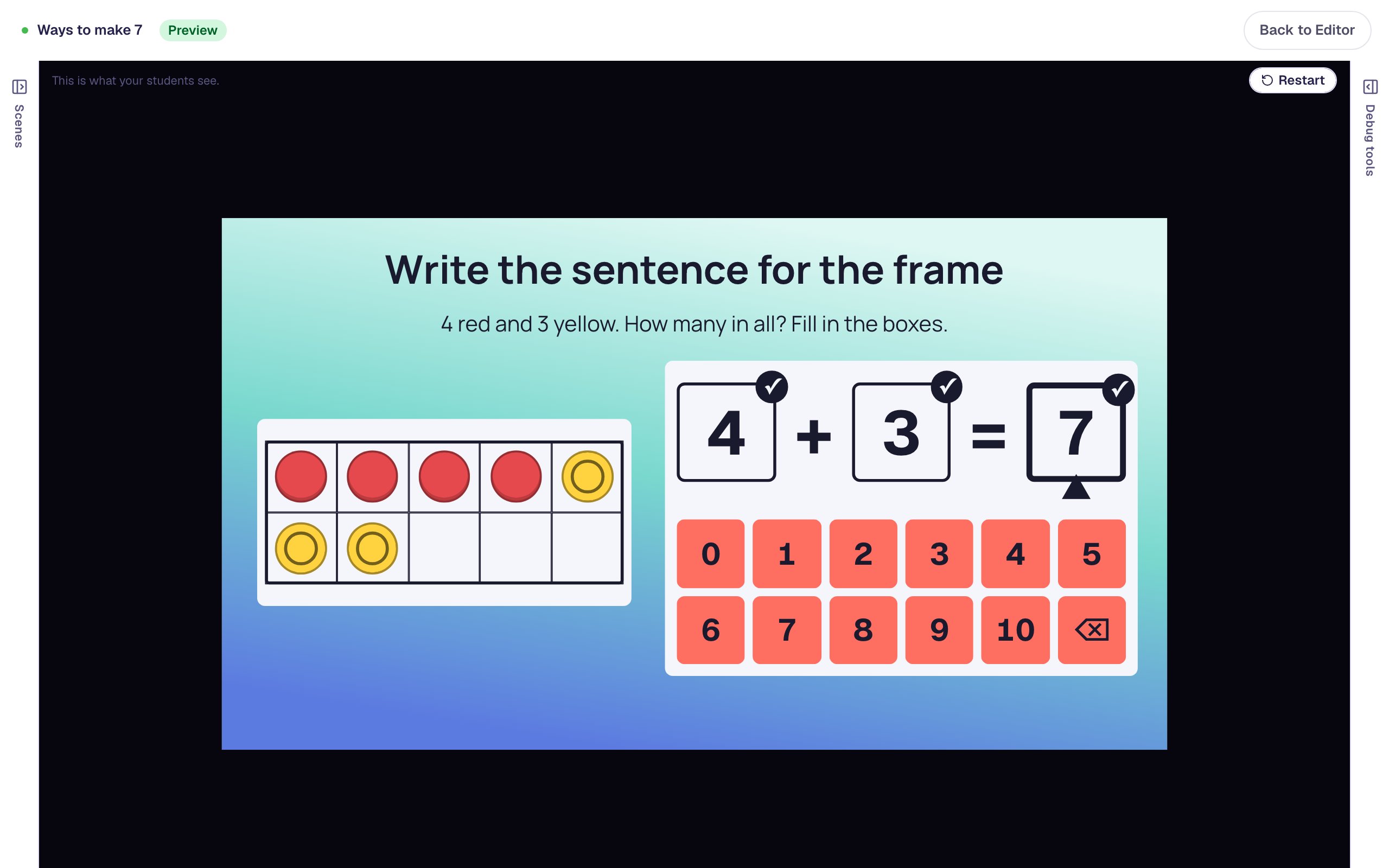 Beginner · 15 min · 9 steps · Updated
Write an addition sentence for a ten frame
Pair a Ten Frame with a Number Sentence so young learners write 4 + 3 = 7 for the counters they see, then accept any true answer when they find their own way to make 7.
Ready-made lesson to add
Common questions
More you can make
Children count a collection and say how many, and you see how they counted, not just the answer.
Students tap every thing you ask for in a picture, and you see what they found and what they mixed up.
Multiple choice, dropdown, number and short-answer questions, scored your way.
Build your first ten frame today.
Build and preview for free, with no credit card. When you assign it, students play in the browser on a Chromebook, tablet or phone.