Write an addition sentence for a ten frame
Pair a Ten Frame with a Number Sentence so young learners write 4 + 3 = 7 for the counters they see, then accept any true answer when they find their own way to make 7.
- Level
- Beginner
- Time
- About 15 min
- Steps
- 9
- Updated
- Oct 16, 2026
A two-scene "Ways to make 7" lesson where students fill in 4 + 3 = 7 for a ten frame, then write any true sentence for 7 = □ + □ and tap Done.
Get the finished lesson
Skip straight to the result, or keep it open beside the steps. Add this tutorial's lesson to your account and explore how it works in the studio.
Free to sign up, and you'll come straight back here. I have an account
Kindergartners and first graders learn addition by looking at a picture and saying what it shows: "4 red and 3 yellow make 7." The next step is writing it down as 4 + 3 = 7. A Number Sentence gives them that sentence with empty boxes and a big on-screen number pad, so they fill it in by tapping. They never need a keyboard.
In this tutorial you'll build a two-scene lesson called Ways to make 7:
- A ten frame shows 4 red and 3 yellow counters. Students fill in
□ + □ = □, and each box gets a ✓ or an ×. - A ten frame shows 7 counters, and students write any true sentence for
7 = □ + □, like 3 + 4 or 5 + 2, then tap Done.
You'll learn both ways a Number Sentence grades: one right answer per box, and any sentence that's true.
Step 1: Set the scene
Start a blank lesson (New lesson, then Start from scratch) and name it Ways to make 7 by clicking Untitled lesson at the top left.
Give the scene a calm background. Click an empty spot on the scene, open Background, click Choose a style, and pick Lagoon gradient. Give the Closing Scene the same background so the ending matches.
Then add what students read first:
- A Heading at the top:
Write the sentence for the frame. Set its Font Size to40. - A Body under it:
4 red and 3 yellow. How many in all? Fill in the boxes.Set it to Fixed width, about760wide, then set its Font Size to22.
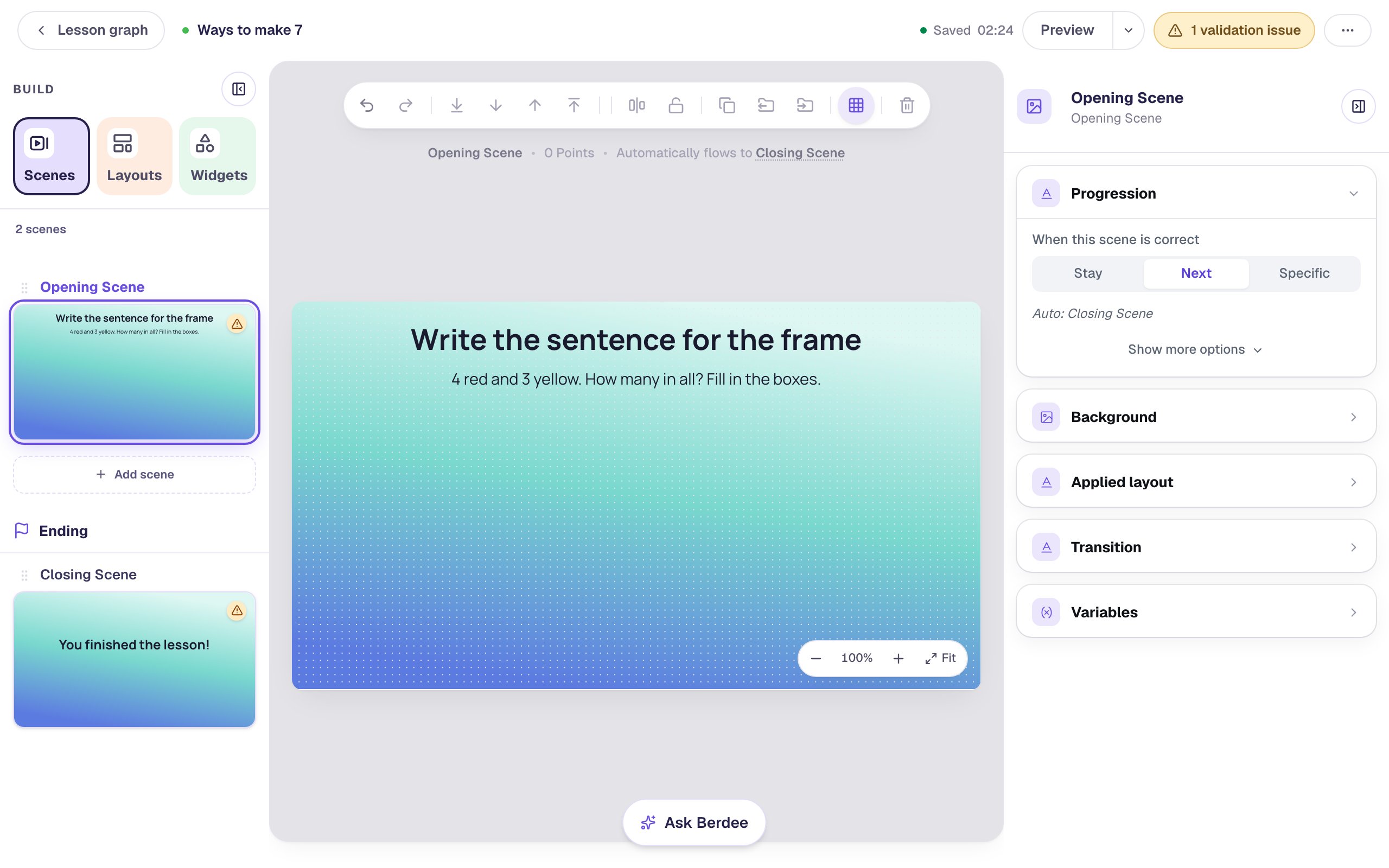
The second line says the colors out loud on purpose: it's the sentence students are about to write, in words.
Step 2: Show 4 red and 3 yellow on a ten frame
Search the Widgets tab for Ten Frame and click it. Under Style & Layout, click Show more options, set Width to 380 and Height to 190, and drag it to the left side of the scene.
A new ten frame asks students to _build_ a number. Here you want it to _show_ one, so students can read it. Click ⚙ Configure in the pill above the frame:
- Under Frame, click 10-frame.
- Under Mode, click Show. Students can't change a frame in Show mode, and it's never graded.
- Set Counters shown to
7. - Set Arrangement to Split by color, then Red counters to
4. The note underneath says The other 3 are yellow.
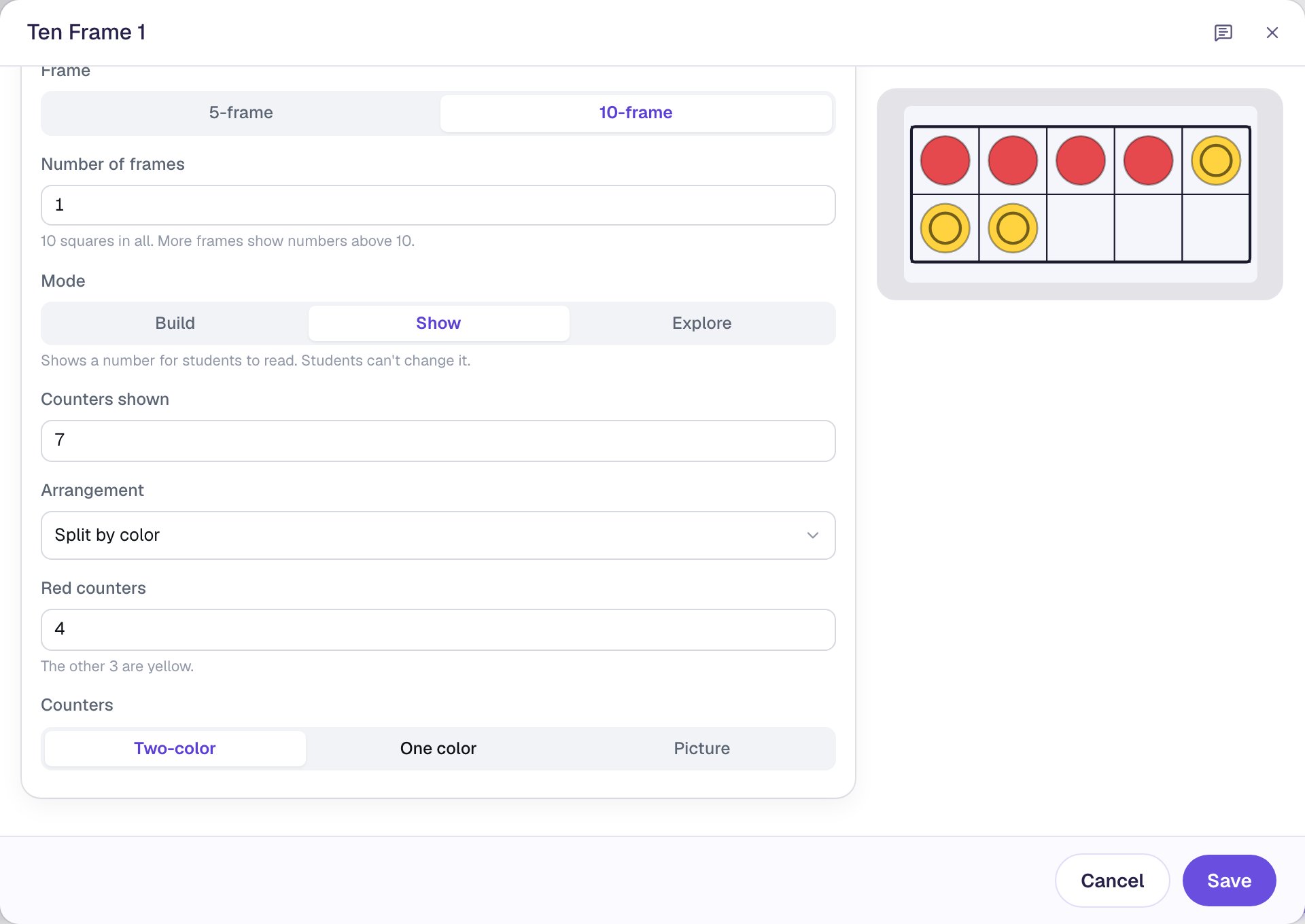
Split by color puts the red counters first and the yellow ones after them, so the two parts of 7 are easy to see. Click Save.
Step 3: Add a Number Sentence
Search the Widgets tab for Number Sentence and click it. Under Style & Layout, set Width to 480 and Height to 320, and drag it to the right of the frame.
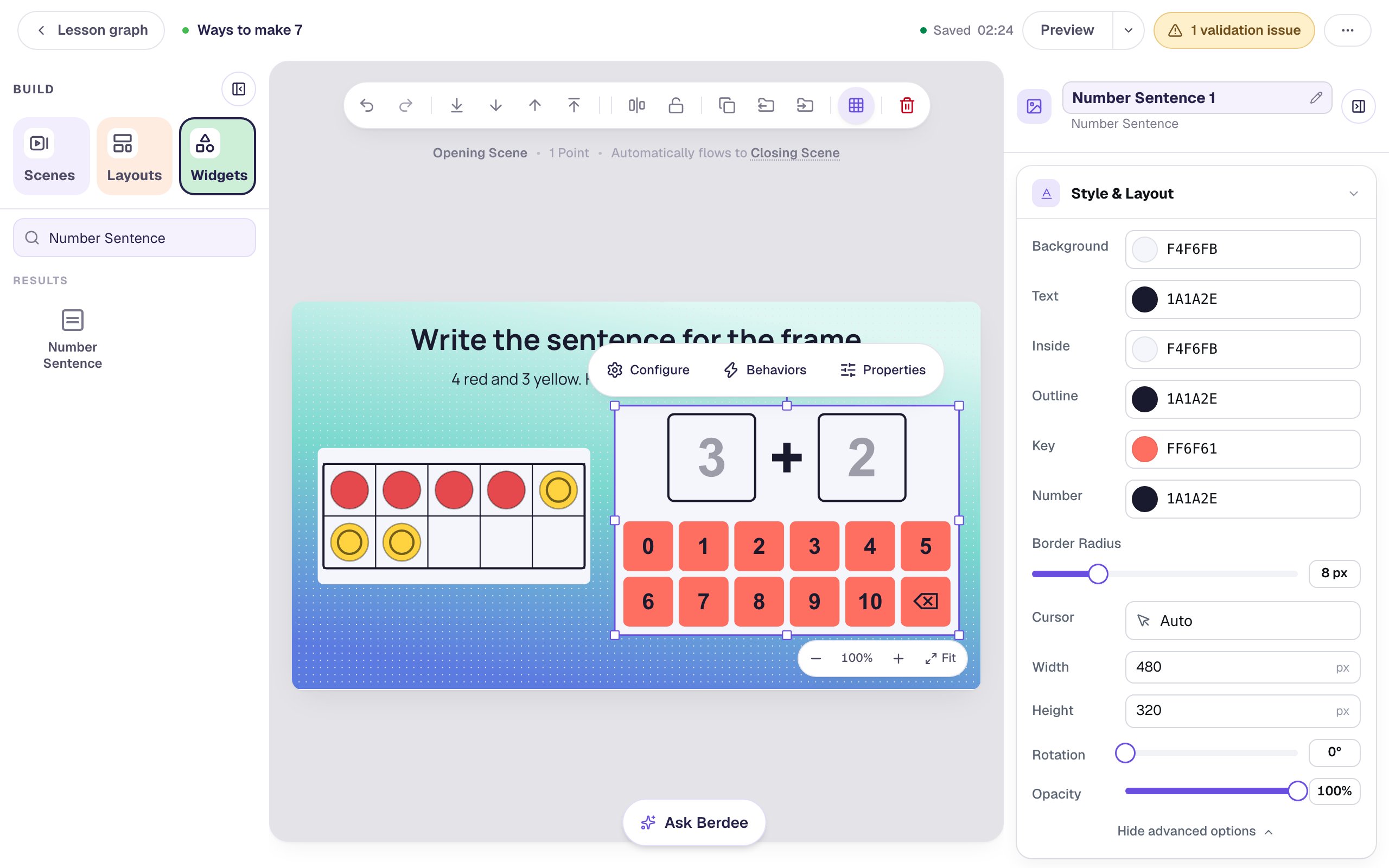
A new one starts as □ + □, keyed to 3 and 2, with a number pad from 0 to 10 underneath. Keep it big: the Configure window warns you if the keys or boxes get smaller than 44 pixels, which is too small for young fingers.
Click ⚙ Configure. In Sentence, select what's there and type □ + □ = □. You can type _ instead of □, or build the sentence with the + Box, +, and = buttons under it.
Step 4: Give each box its answer
Leave Grading on Each box has its answer: every box must hold its own number. Under Box answers:
- Box 1:
4 - Box 2:
3 - Box 3:
7
Then turn on Allow added numbers in either order. A child who writes 3 + 4 = 7 has read the frame just as well, starting from the yellow counters, so that's right too.
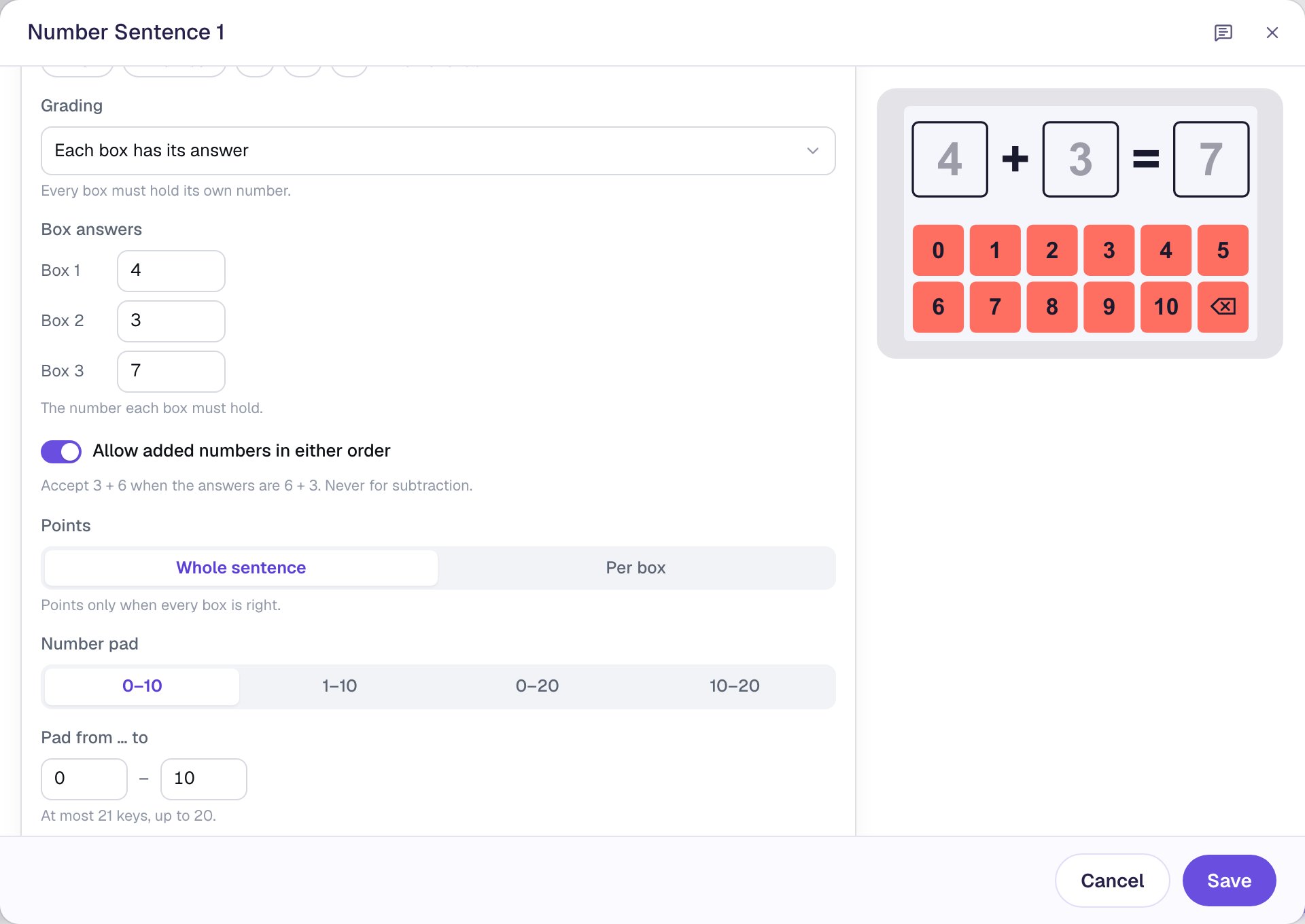
Check stays on When every box is filled: the sentence is checked as soon as the last box has a number, and again after any change. Click Save.
Step 5: Give students time to see the ticks
When the sentence is right, the scene moves on by itself. The line above the canvas says Automatically flows to Closing Scene (it will point at the second scene once you add it). By default it waits only 0.6 seconds, which is too quick for a child to see the three ✓ marks.
Click an empty spot on the scene. In Progression, click Show more options and set Advance delay to 2500 ms.
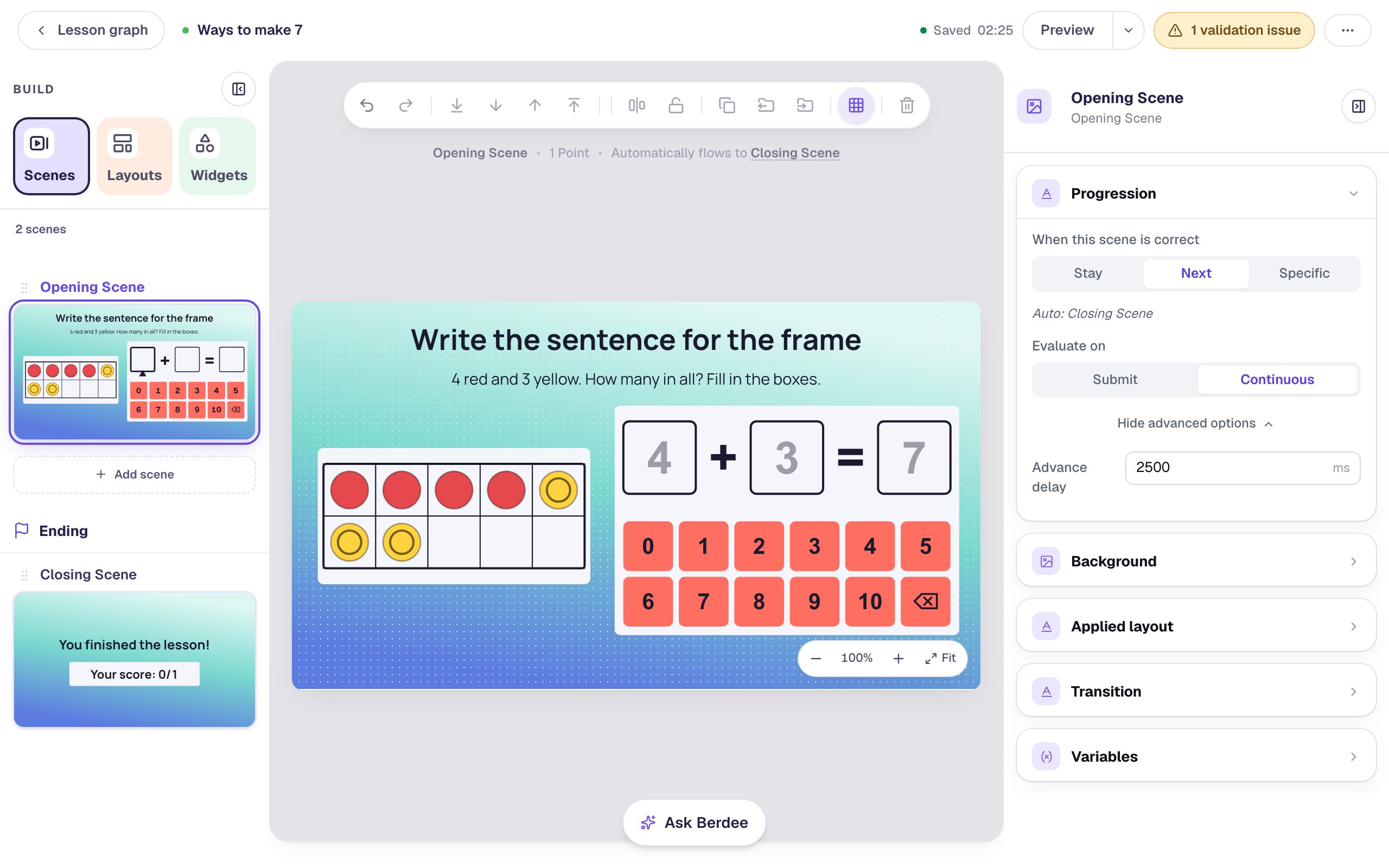
Evaluate on is Continuous, so students never look for a Check button: the scene checks the sentence each time they fill a box.
Step 6: Copy everything to a second scene
The second scene uses the same layout, so copy it instead of building it again.
- In the Scenes panel, click Add scene. The new scene goes just before the ending. Double-click its name and call it
Another way. - Give it the same Lagoon gradient background and the same Advance delay of
2500ms. - Go back to the Opening Scene. Drag a box from an empty corner of the scene across everything, to select all four widgets.
- Click Copy to Scene in the toolbar and choose Another way.
The copies land in the same places on Another way. The line above the canvas now says the Opening Scene Automatically flows to Another way.
Step 7: Accept any true sentence
Open Another way and change the copies:
- Select the heading and change its Text to
Find another way to make 7. Change the instruction toFill in the boxes. Then tap Done. - Select the ten frame and click ⚙ Configure. Set Counters to One color and Arrangement to In order (top row first), then click Save. Seven counters in one color don't suggest any one split, so students choose their own.
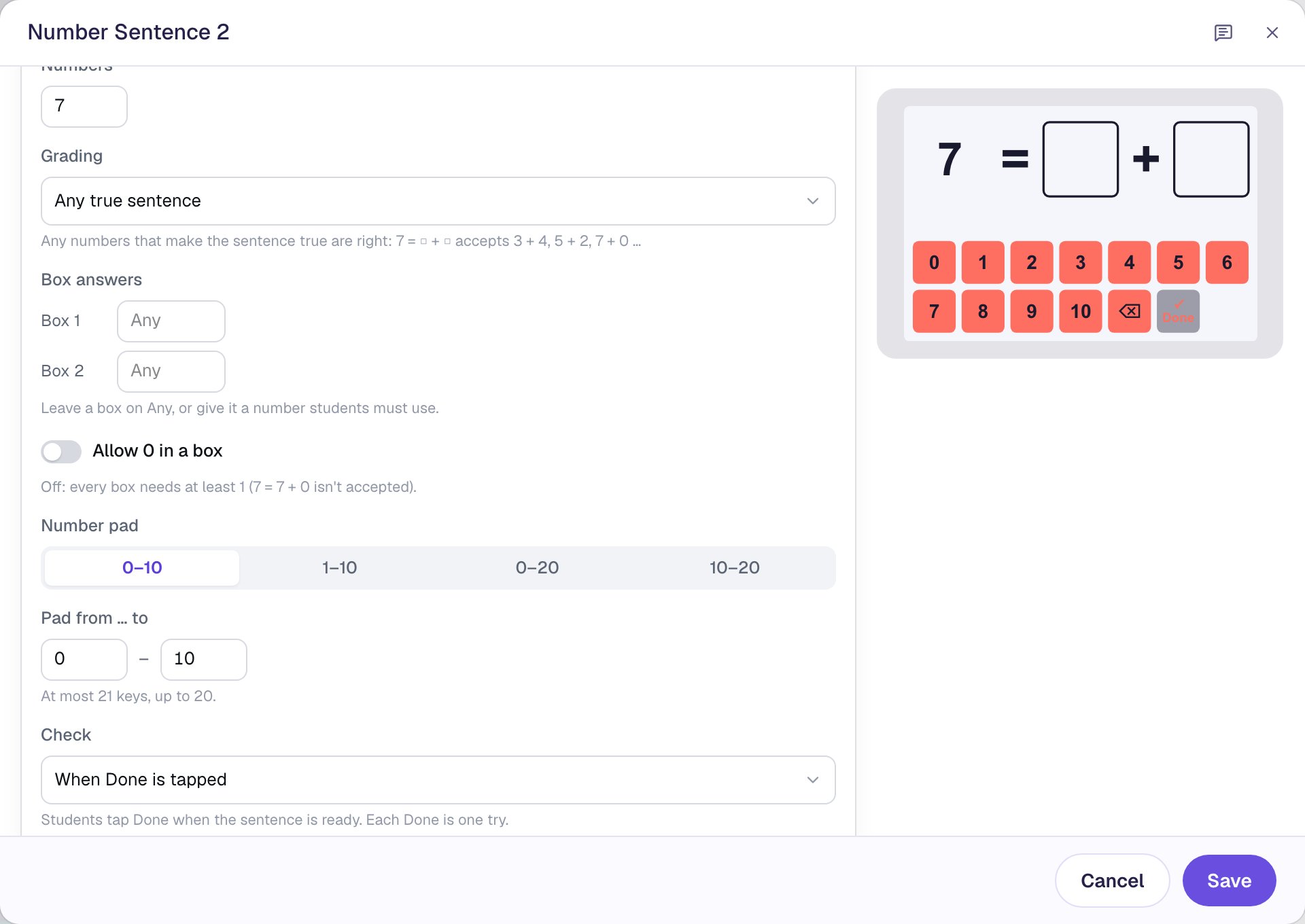
- Select the Number Sentence and click ⚙ Configure. In Sentence, type
7 = □ + □. - Set Grading to Any true sentence.
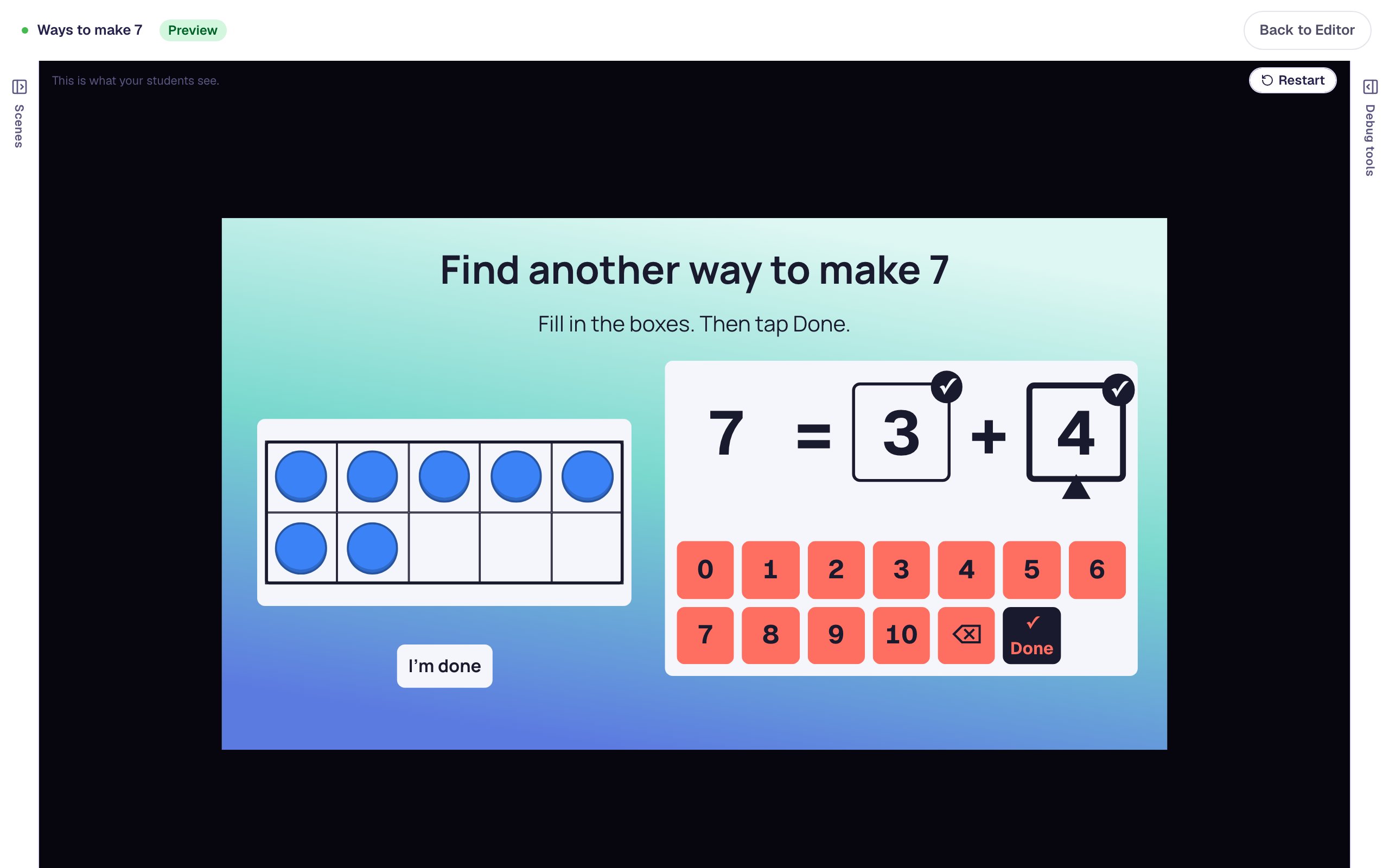
With Any true sentence, any numbers that make the sentence true are right: 3 + 4, 4 + 3, 5 + 2, 6 + 1. Both boxes show Any under Box answers. (To make students use a certain number, type it into that box, like 2 for 7 = 2 + □.)
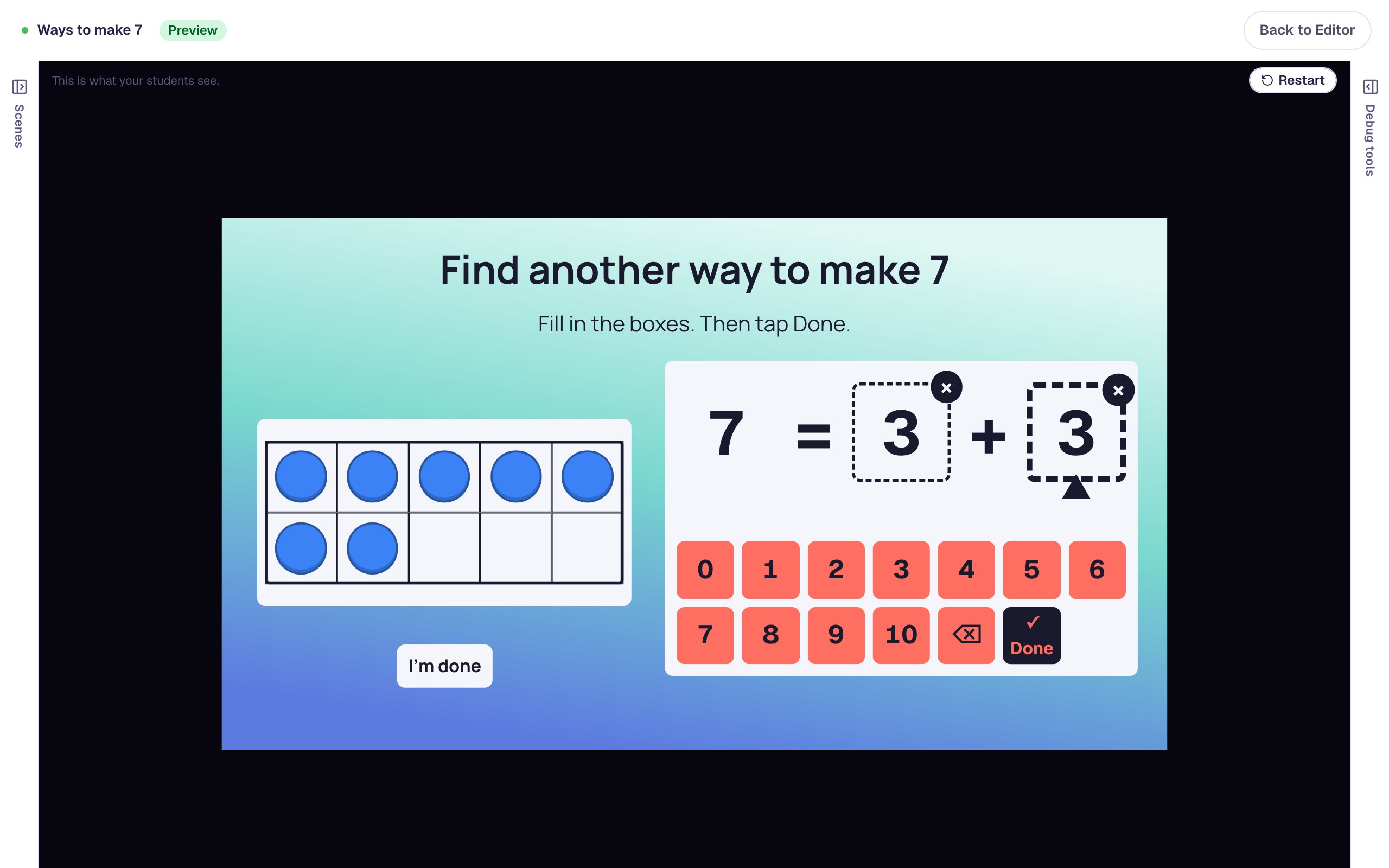
Check switches to When Done is tapped by itself, and the pad gains a ✓ Done key. That matters here: with any true sentence, a half-finished sentence could already be "right" before the child is done thinking, so they say when they're ready.
Finally, turn off Allow 0 in a box, so 7 + 0 doesn't count as another way to make 7. Click Save.
Step 8: Add an "I'm done" button
Every lesson needs one button that lets a student finish. It's also a way out for a student who gets stuck.
- On Another way, search the Widgets tab for
Submit Buttonand click it. - In Content, change Label to
I'm doneand set Submits to Lesson. - Set its Font Size to
18and drag it under the ten frame, away from the number pad.
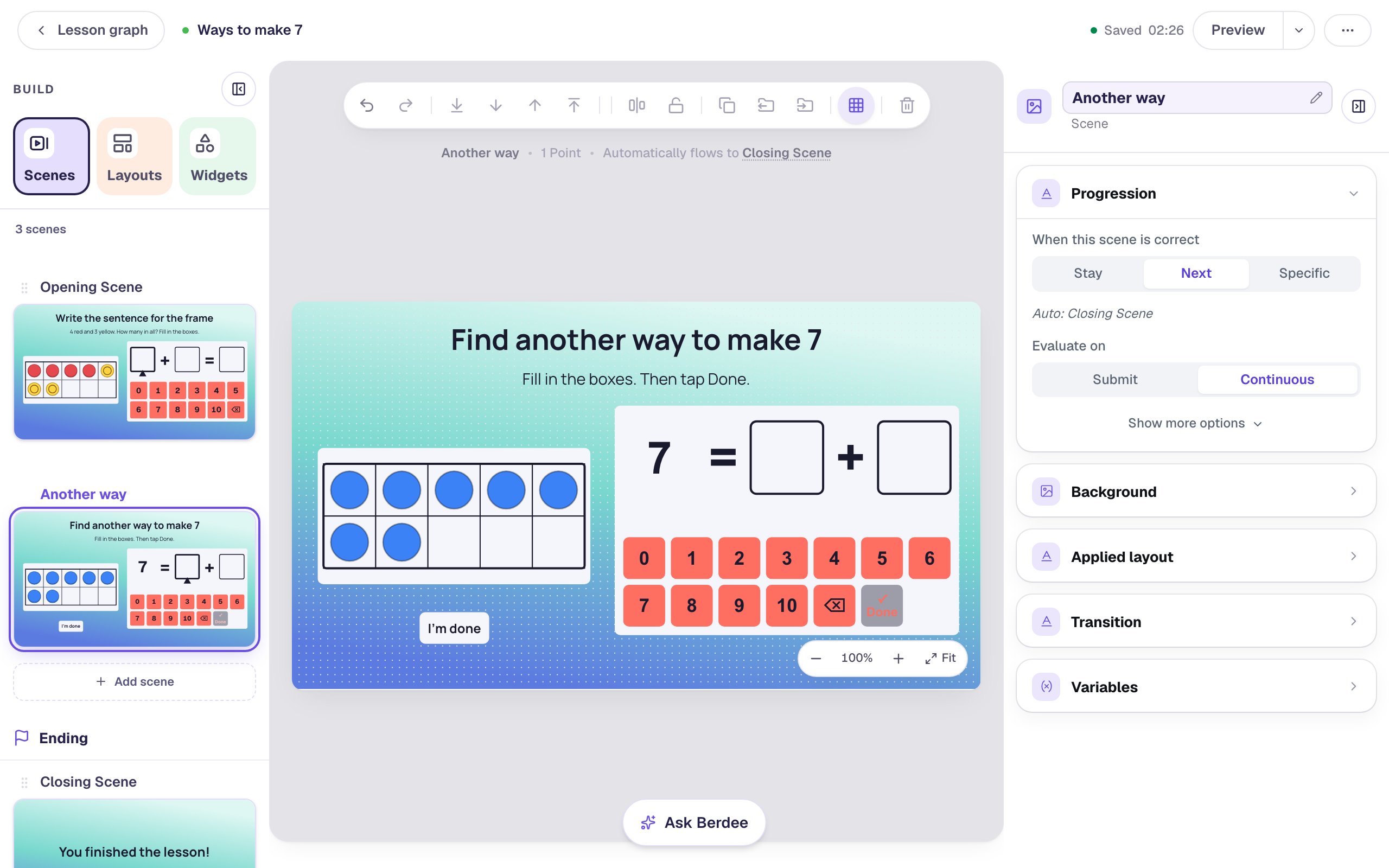
The two Done buttons do different things. The pad's ✓ Done checks the sentence; I'm done ends the lesson.
Step 9: Try it as a student
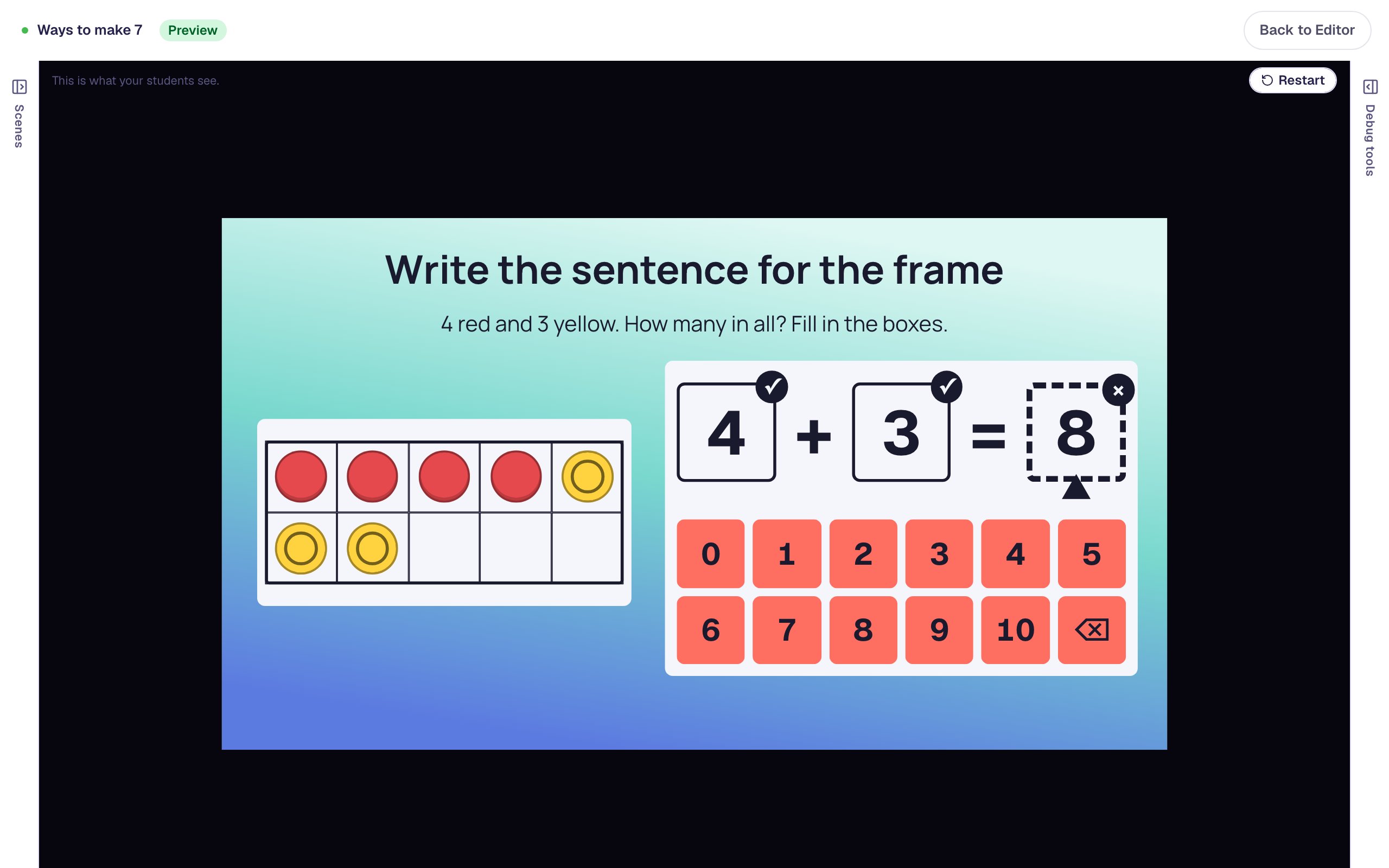
Open the Opening Scene and click Preview. Tap 4, 3, and then a wrong total, 8:
Each number lands in the selected box (the one with the pointer under it), and the next empty box is picked. As soon as all three are full, the sentence is checked. The right boxes keep their numbers and get a ✓. The wrong one gets an × and a dashed outline, so color is never the only clue.
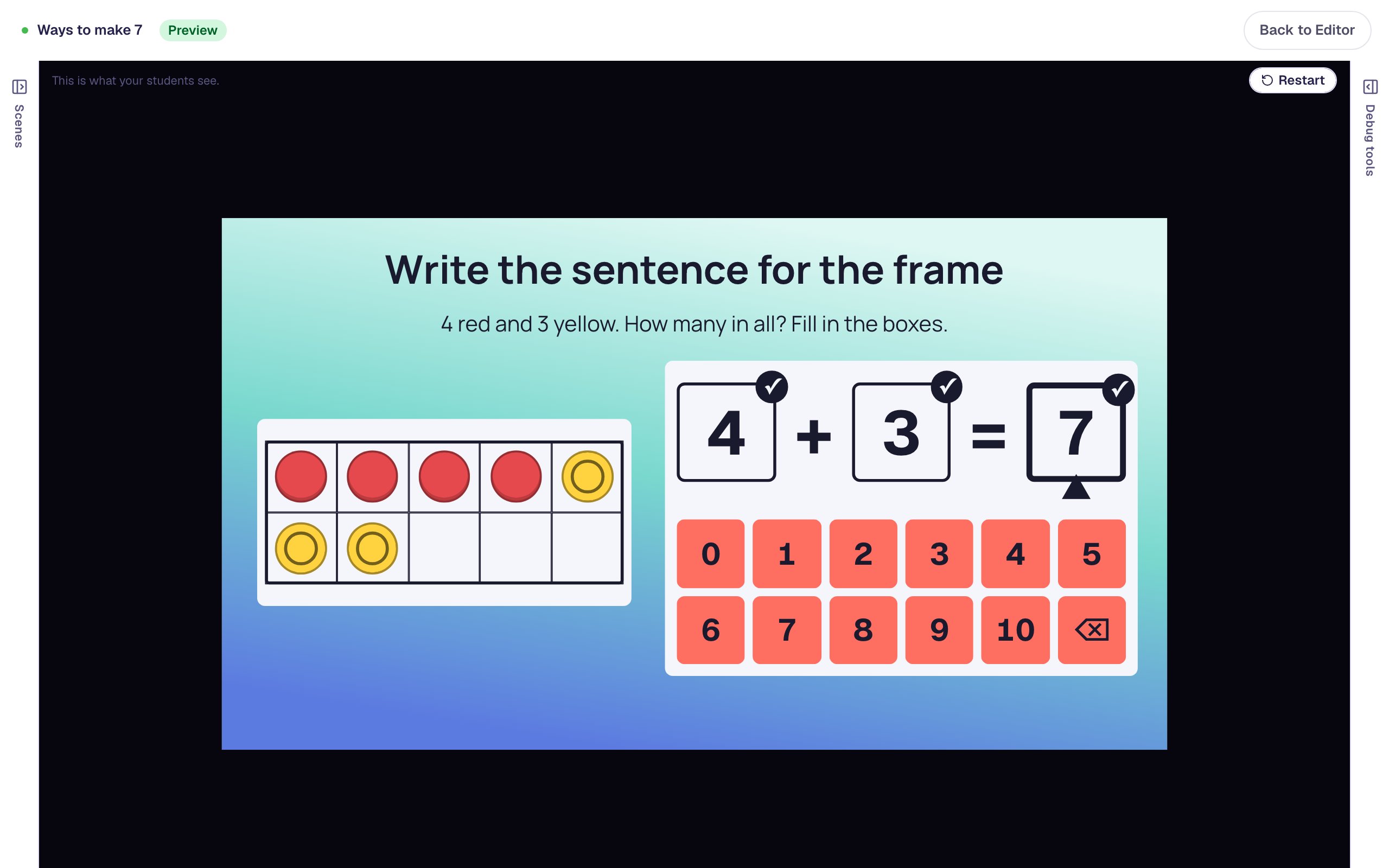
To fix it, tap the 8's box and tap 7. All three boxes get a ✓, and after the delay the lesson moves on.
On Another way, try a sentence that isn't true first: tap 3, 3, then ✓ Done.
Tap the second box, tap 4, and tap ✓ Done again. 7 = 3 + 4 is true, so both boxes get a ✓.
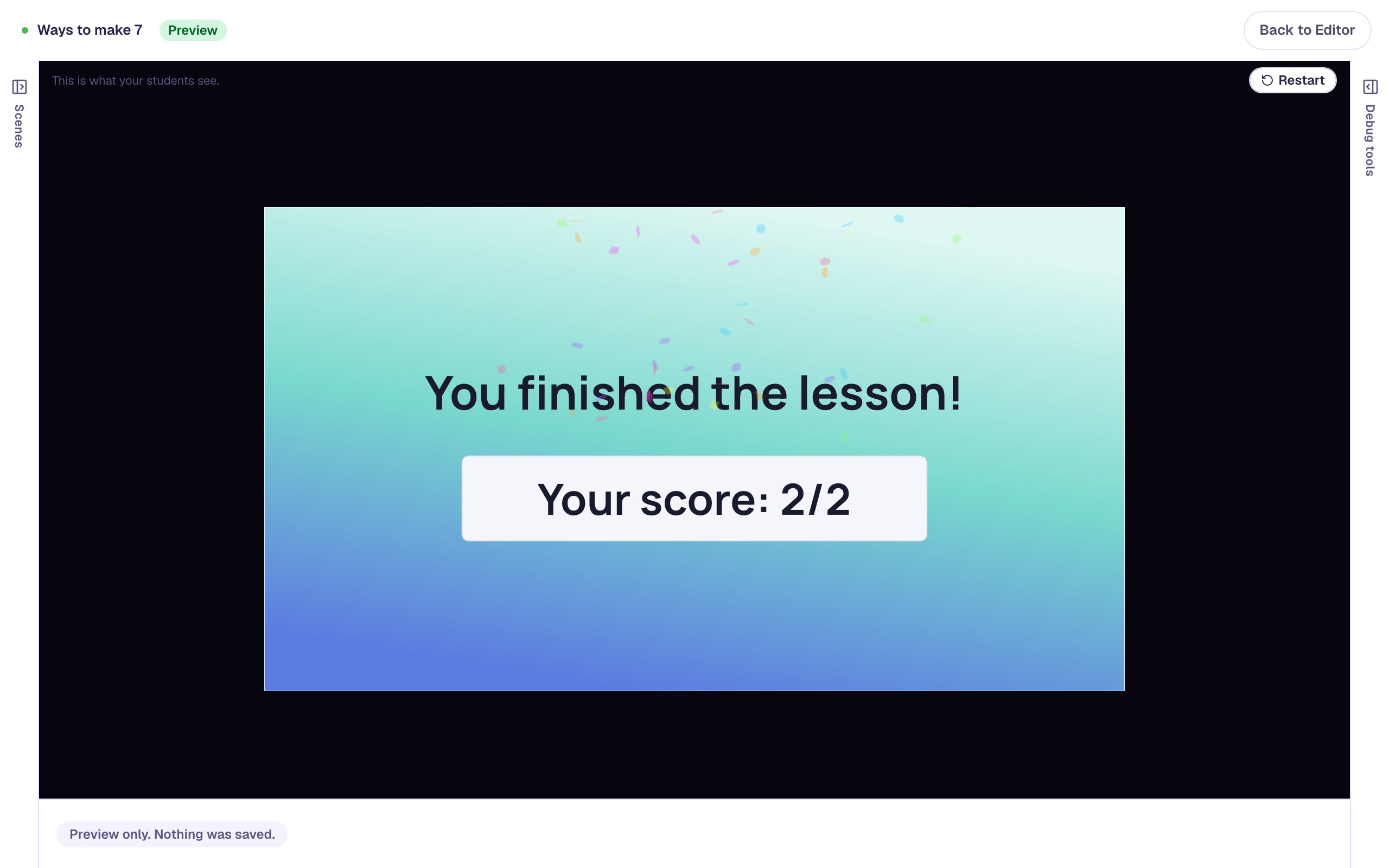
Click Restart and try 5 + 2 or 6 + 1 on the second scene: each one is right. Try 7 + 0 and see that it isn't, because you turned off Allow 0 in a box.
What you built
You built a two-scene math lesson with:
- a Ten Frame in Show mode, split into 4 red and 3 yellow, for students to read,
- a Number Sentence keyed
4 + 3 = 7that also accepts3 + 4 = 7, checked as soon as every box is filled, - a copy of the scene, made with Copy to Scene, that accepts any true sentence for
7 = □ + □when students tap Done, without zeros, - a longer Advance delay so students see their ✓ marks, and an I'm done button as a way out.
To practice subtraction, type 7 - □ = □ in Sentence: either order is never allowed for subtraction, and Berdee never accepts an answer below 0. For teen numbers, set Number pad to 0–20 and show 10 + □ = 16 beside two ten frames. If you haven't built one yet, Build a number on a ten frame shows the other side of the Ten Frame: students make a number themselves.
Make this lesson yours
Add the lesson you just watched being built to your account, then change it for your class: your questions, your pictures, your colors.
Free to sign up, and you'll come straight back here. I have an account