Start a lesson from a template
Pick the Exit Ticket template, then make it yours. Rename it, rewrite the title, both questions and the ending, add a photo, and check it in Preview, all without building a single scene from scratch.
- Level
- Beginner
- Time
- About 10 min
- Steps
- 7
- Updated
- Oct 20, 2026
A two-question water cycle exit ticket with a photo on its title card, graded and ready to assign.
Get the finished lesson
Skip straight to the result, or keep it open beside the steps. Add this tutorial's lesson to your account and explore how it works in the studio.
Free to sign up, and you'll come straight back here. I have an account
A template is a finished lesson you copy and change. It already has a title card with a Start button, questions that are graded, a Finish button, and an ending that shows the score. You keep all of that and swap in your own words, which is often quicker than building from a blank canvas.
In this tutorial you'll turn the Exit Ticket template into a water cycle exit ticket: two quick questions at the end of a lesson, so you can see who has it before the next one. The same steps work for every template.
Step 1: Pick the Exit Ticket template
Click New lesson in the top-right corner of any page in your workspace. Under Start from scratch you'll see Or start from a template, a shelf of ready-made lessons. Each card shows the template's real first scene, so you can see what you'll get.
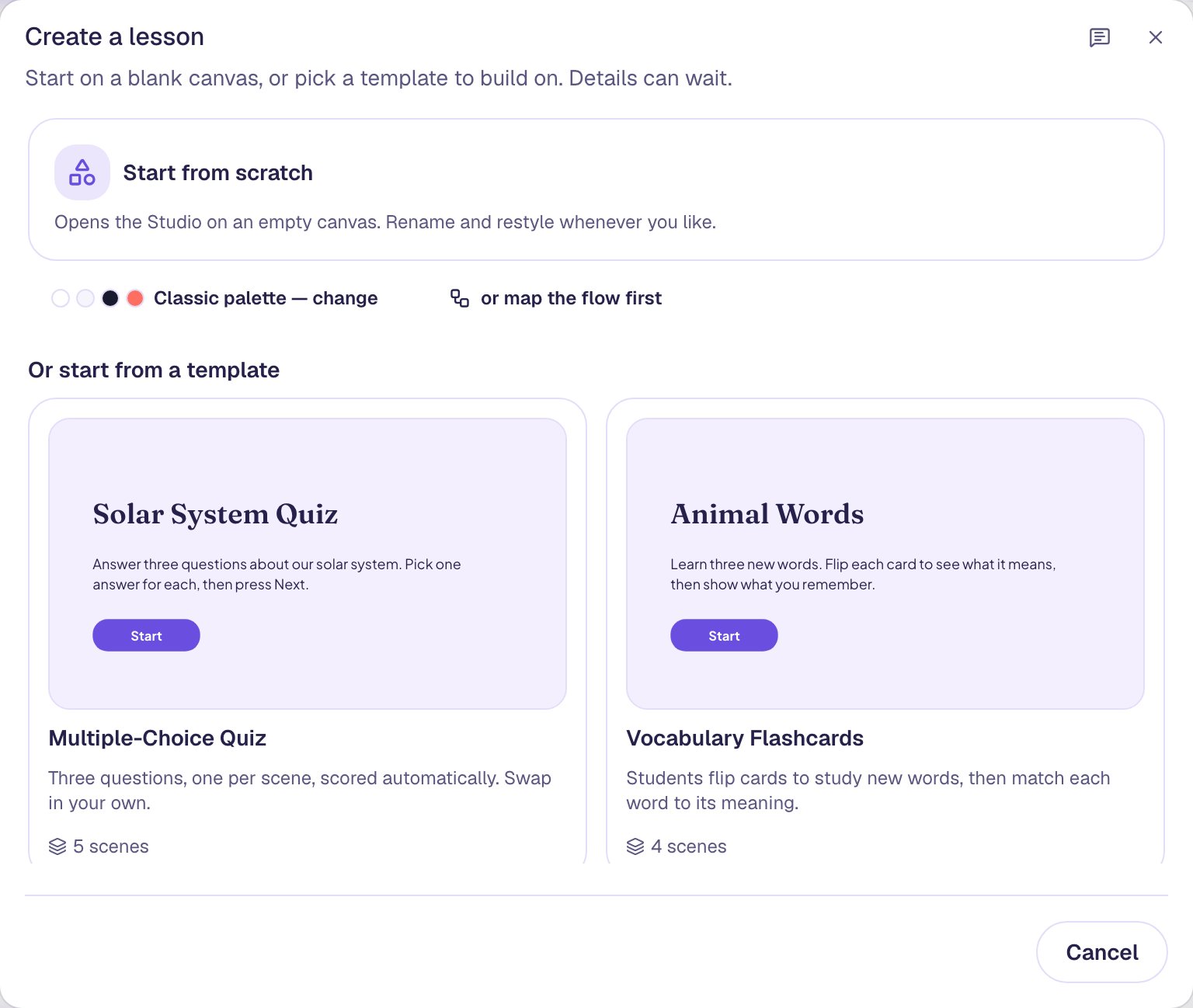
Scroll down to Exit Ticket ("Two quick questions at the end of class to see who has it") and click the card. There's no confirm step: Berdee creates your copy and opens it in the studio.
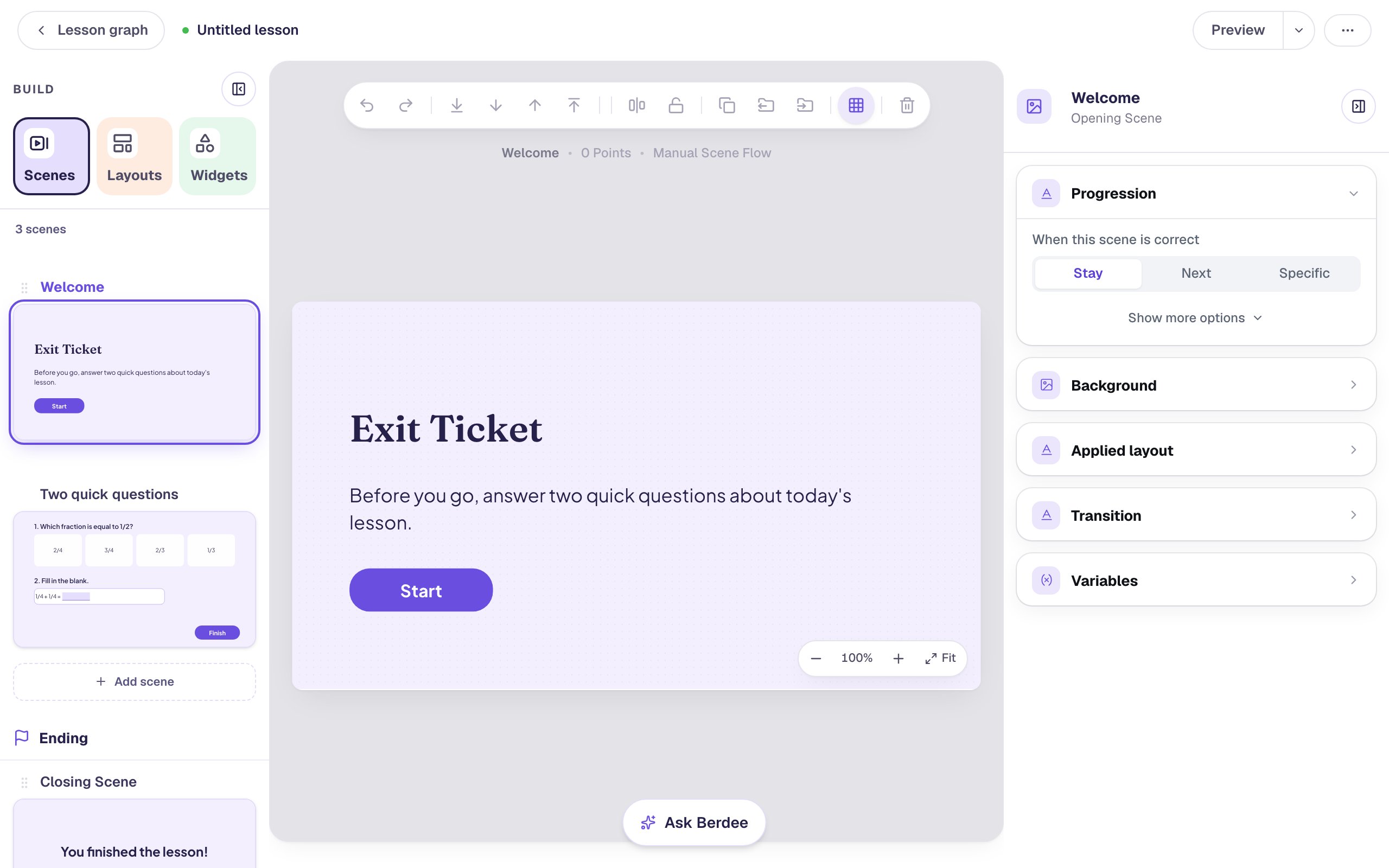
Your copy has three scenes, listed in the Scenes tab on the left:
- Welcome, the title card students see first, with a Start button.
- Two quick questions, a multiple-choice question and a fill-in-the-blank, with a Finish button that ends the lesson.
- Closing Scene, which shows students their score.
Everything is already wired up. Changing the words won't break any of it.
Step 2: Name the lesson and rewrite the title card
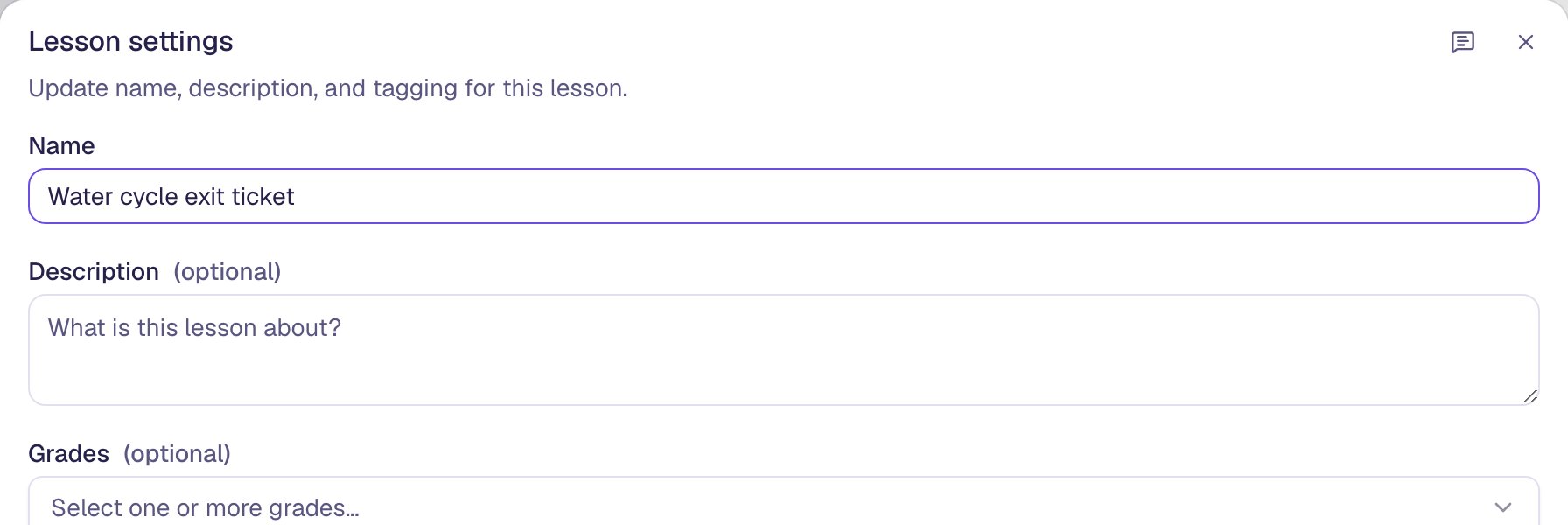
The new lesson is called Untitled lesson, not "Exit Ticket", so name it first. Click Untitled lesson at the top left, type Water cycle exit ticket into Name, and click Save changes.
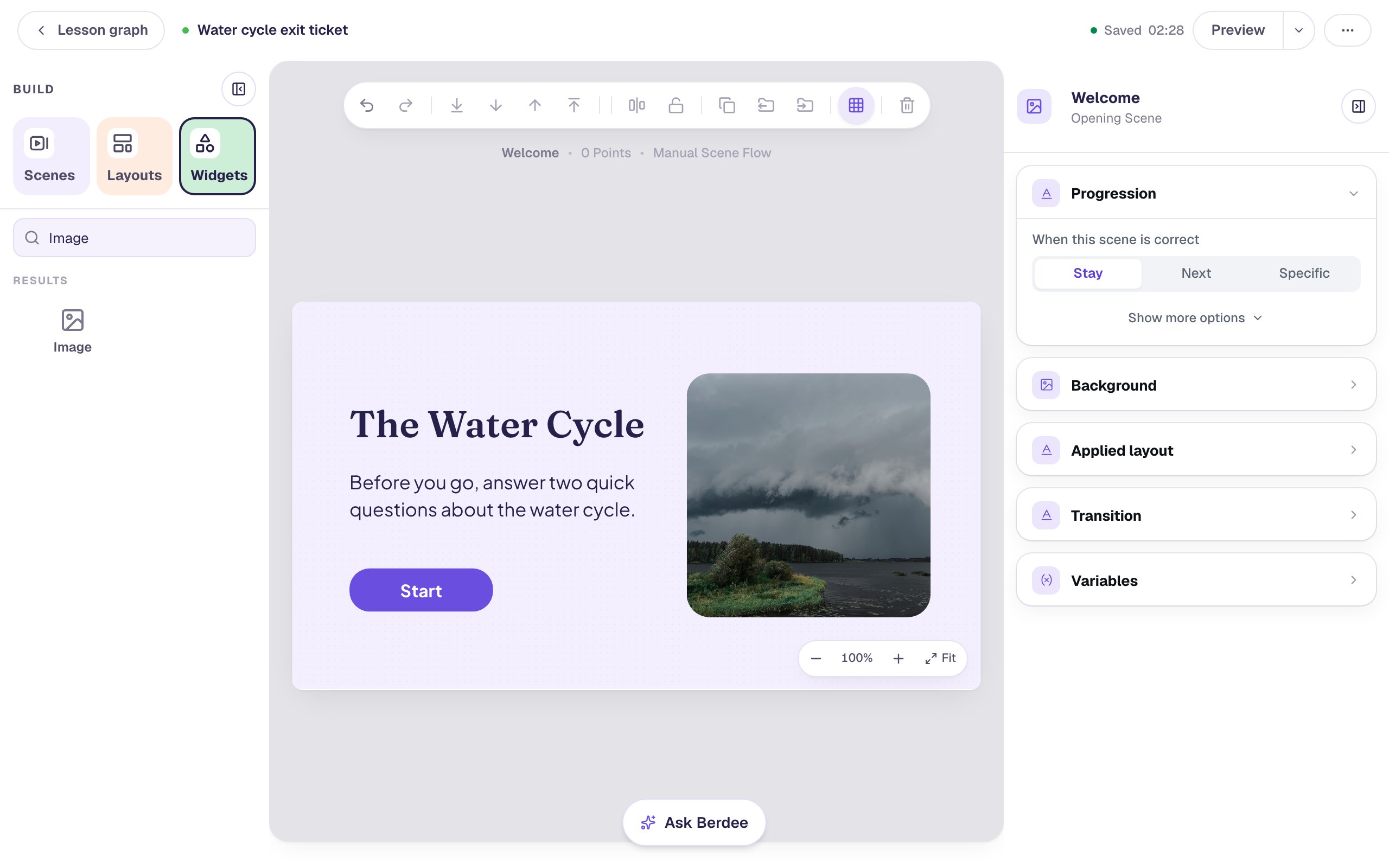
Now change what students read. Double-click the title Exit Ticket on the canvas to edit it, select all of its text, and type The Water Cycle. Click outside to finish. Do the same with the line under it: type Before you go, answer two quick questions about the water cycle.
The template's font, colours and Start button stay as they were, so your words land already styled.
Step 3: Add a photo to the title card
A picture tells students what the lesson is about before they read a word. To make room for one, select the title and set its Width to 480 under Style & Layout, then select the line below it and set its Width to 460.
Then add the photo:
- In the Widgets tab, search for
Imageand click the Image tile. - Under Style & Layout, set Width and Height to
340, and drag the image to the right of the title. - Open Image Source, click Choose image, search the stock photos for
rain clouds over lake, pick one, and click Import & insert. - Back in Style & Layout, set Fit to Cover so the photo fills its square, and drag Border radius up to about
32for soft corners. - Open Accessibility and replace the Alt Text with what the photo shows, like
Dark rain clouds over a lake, with a grassy shore and trees in front. The studio fills it in with the photo's file name, and a student using a screen reader would hear that instead.
Step 4: Rewrite the multiple-choice question
Click Two quick questions in the Scenes tab. Double-click the first question's text and type 1. What heats water so it evaporates?
Then click one of the answers below it to select the question, and click ⚙ Configure in the pill above it. Type over the four fraction answers with The Moon, The Sun, The wind and Fish. Finally, click the round check mark beside The Sun.
The template marked its own right answer, 2/4, which was the first option. Typing over an answer keeps its check mark, so until you moved it, The Moon was marked correct. Students pick one answer here, so marking The Sun moves the mark off The Moon on its own. Always check the green mark after you rewrite a template's answers.
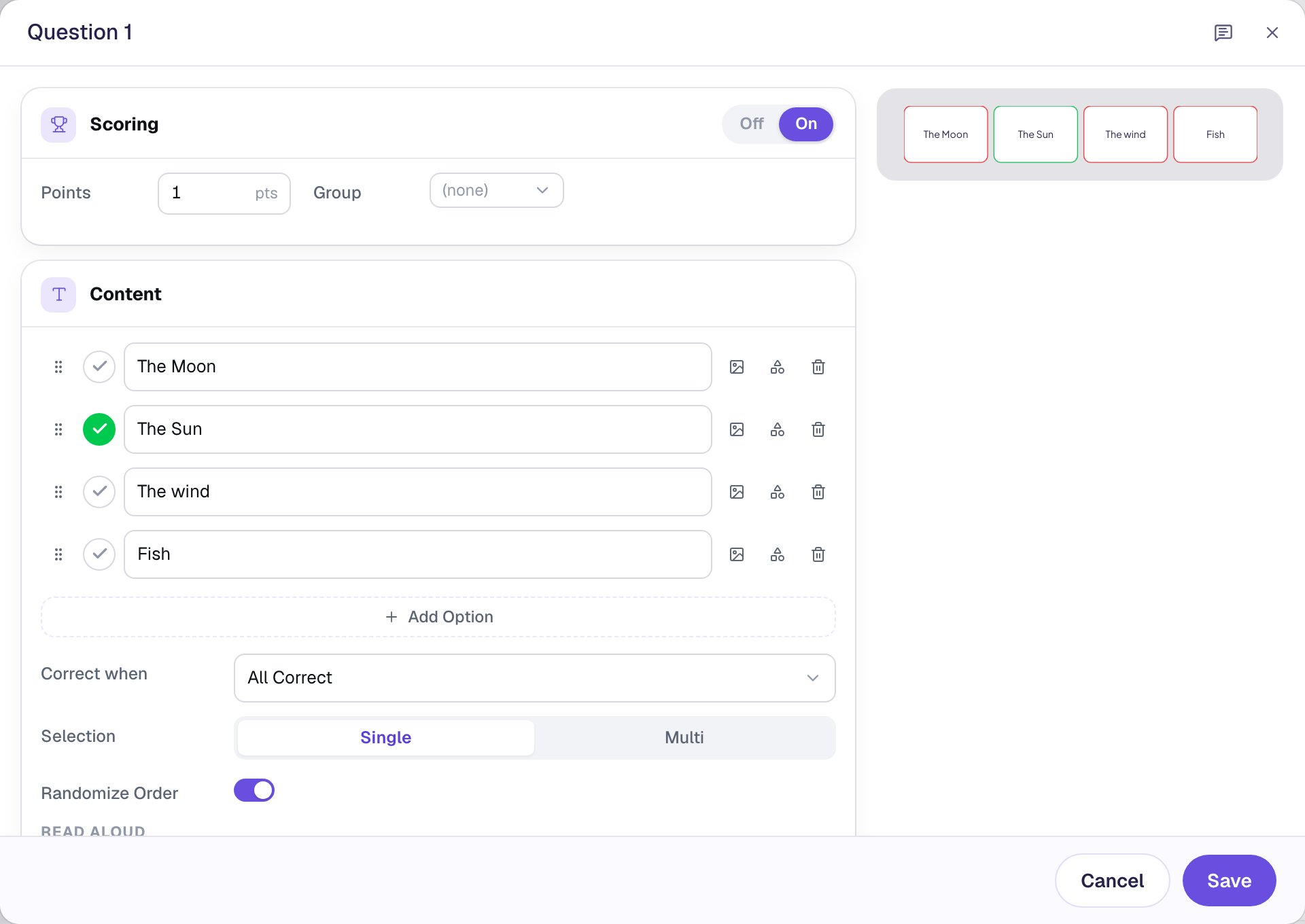
Randomize Order is on, so every student sees the answers in a different order. Click Save.
Step 5: Rewrite the fill-in-the-blank
The second question keeps its heading, 2. Fill in the blank., so only the sentence changes.
- Click the sentence box (
1/4 + 1/4 =) to select it, and click ⚙ Configure. - Click Edit sentence & blanks. Select all of the old sentence, delete it, and type the whole new sentence with the answer in it:
When water vapor cools, it forms clouds. - Double-click
cloudsand click Mark as blank. The word disappears from what students see and becomes the answer they type. - Click Add accepted answer and type
cloud, so a student who writes the singular isn't marked wrong.
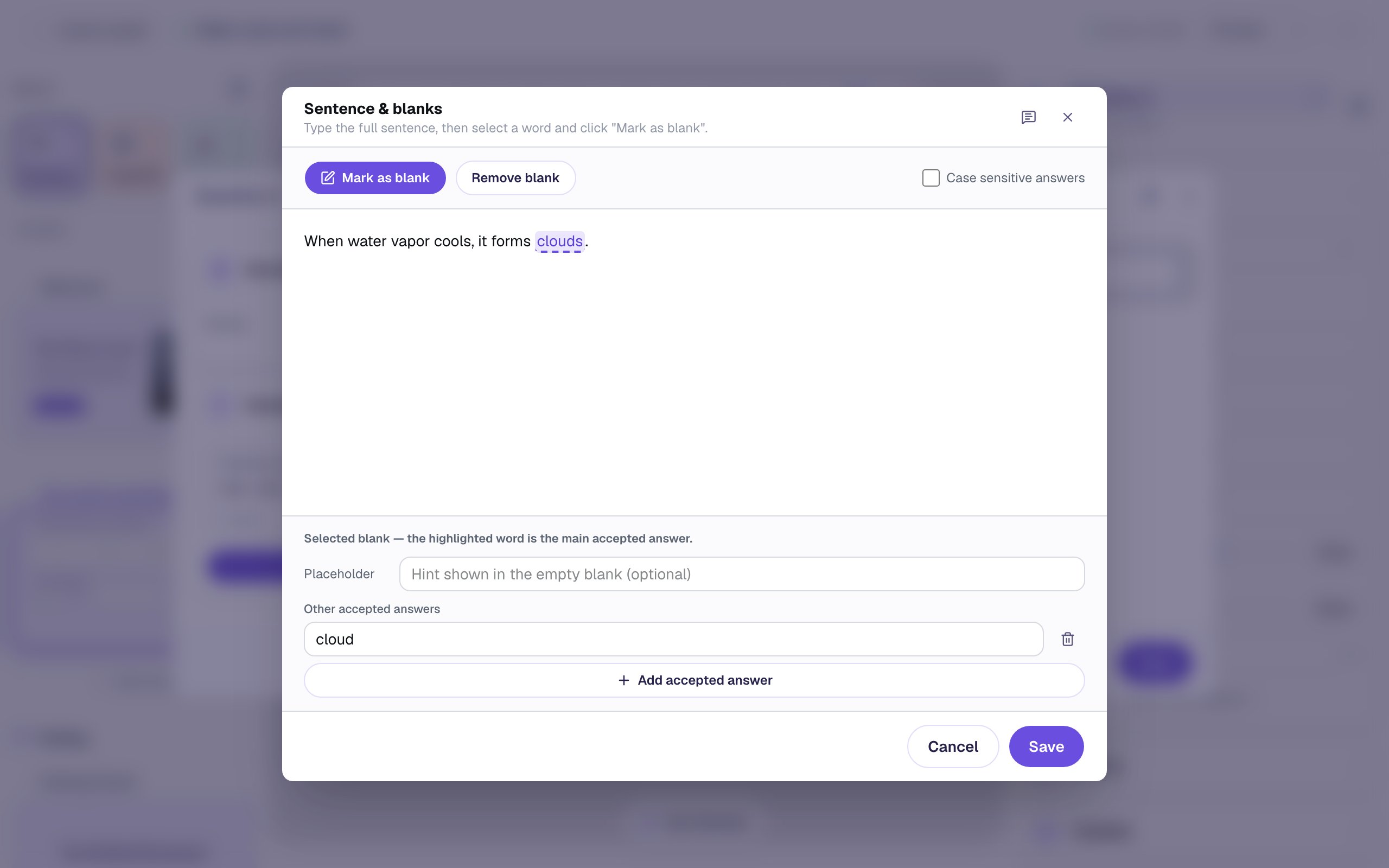
Click Save in both dialogs. The new sentence is longer than the old sum, so give the box room: with it still selected, set its Width to 800 under Style & Layout. Then drag the Finish button up a little, so it sits just under the sentence, where you can reach it without the zoom controls in the corner of the canvas getting in the way.
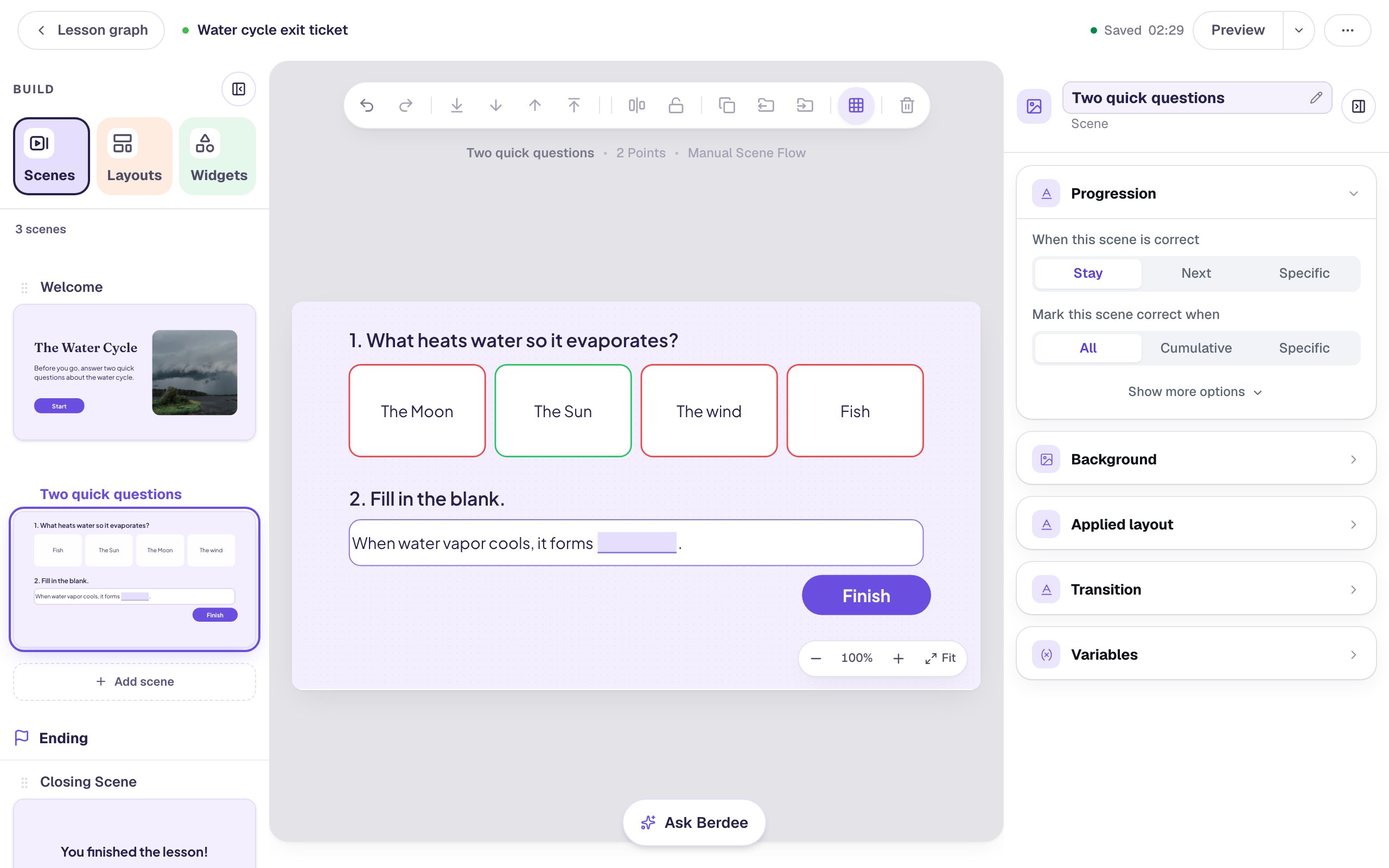
On the canvas, the right answer is outlined in green and the others in red. That's Show correctness, which the template turned on: students see the same colours on the answer they pick.
Step 6: Make the ending your own
Click Closing Scene in the Scenes tab. Double-click the headline You finished the lesson! and type Great work today!. Keep it short: the score box sits right under the headline, and a line that wraps onto two rows runs into it.
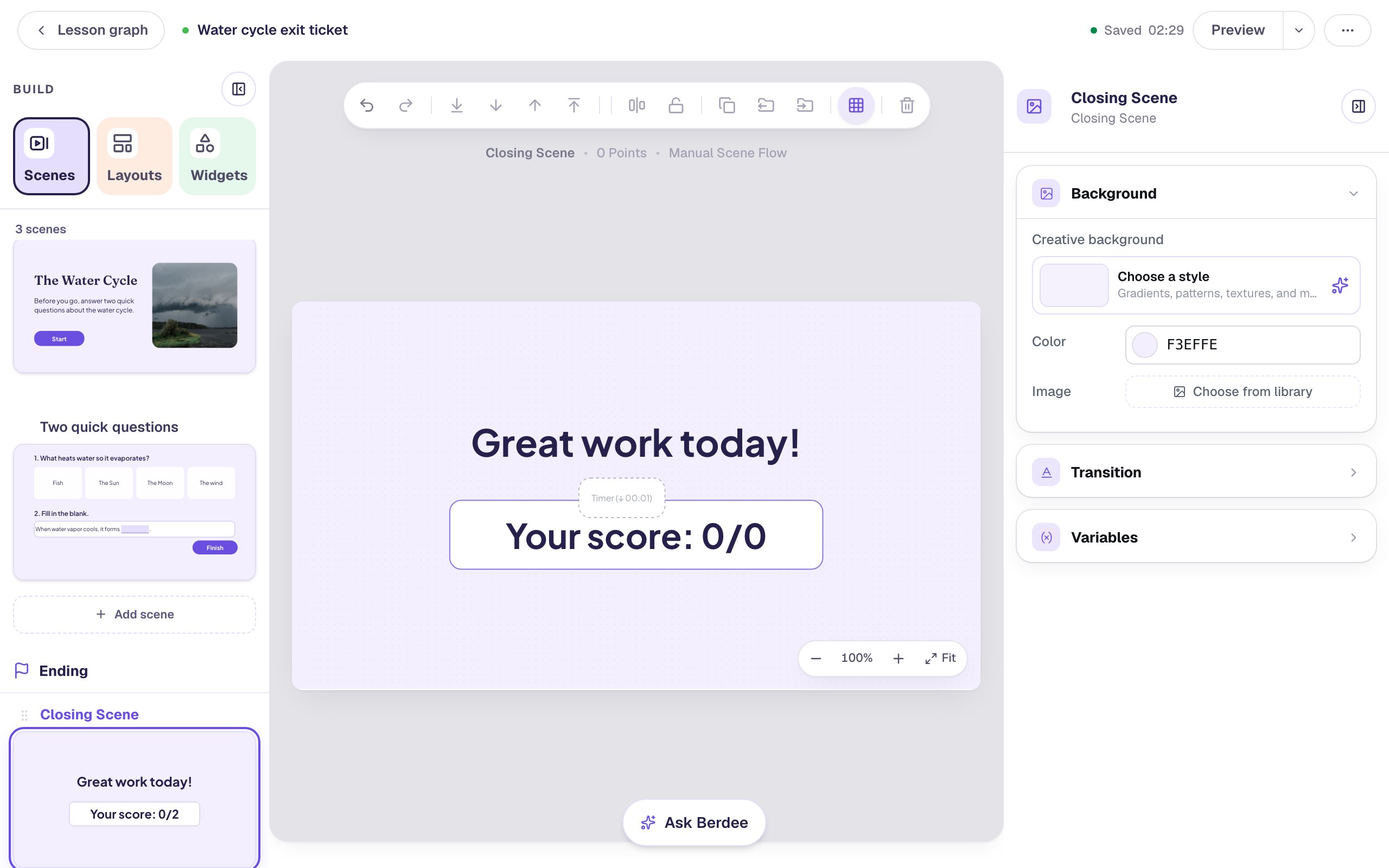
The score box adds up both questions for you, and the template's hidden timer sets off a burst of confetti when the scene opens. Leave both as they are.
Step 7: Try it as a student
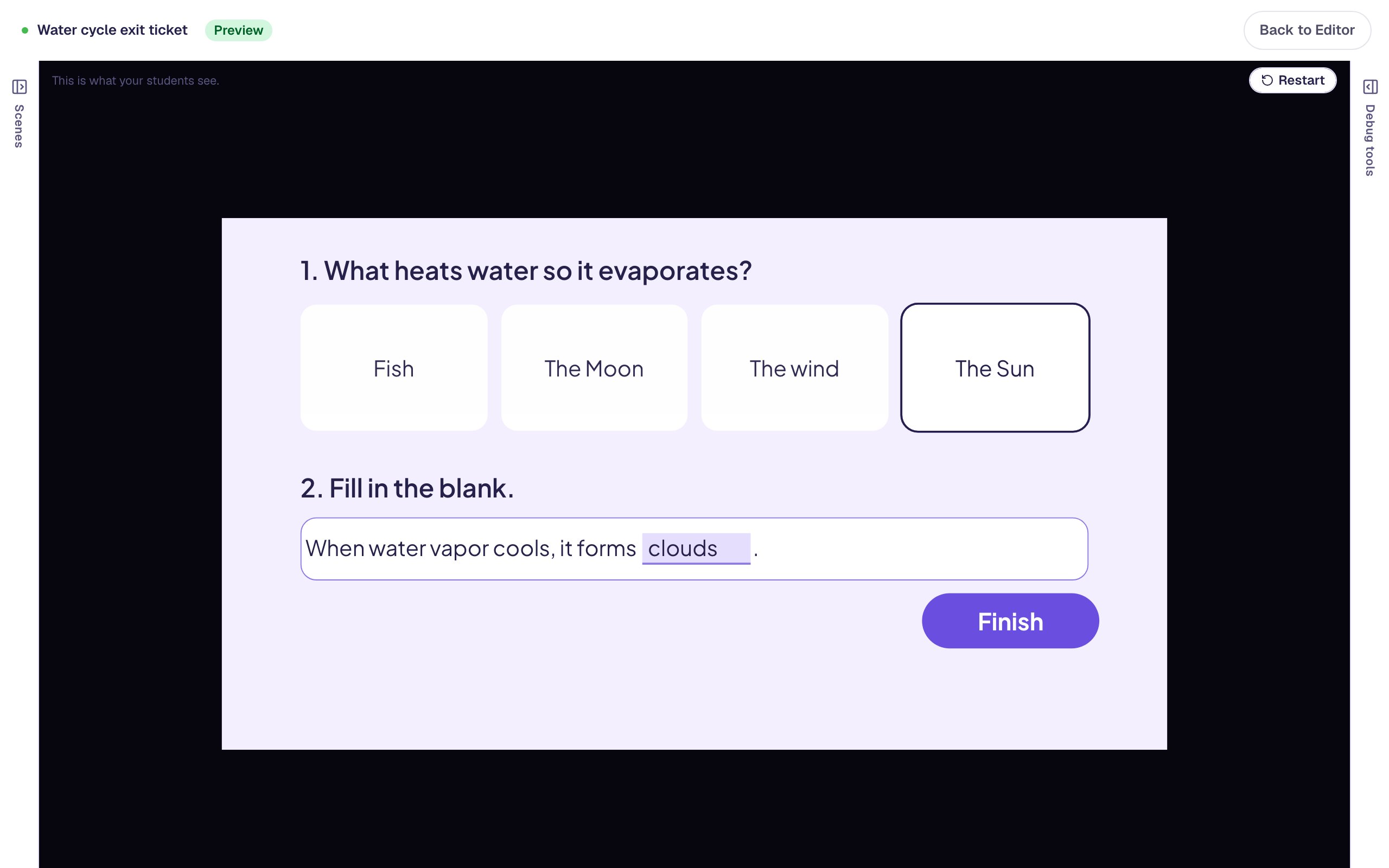
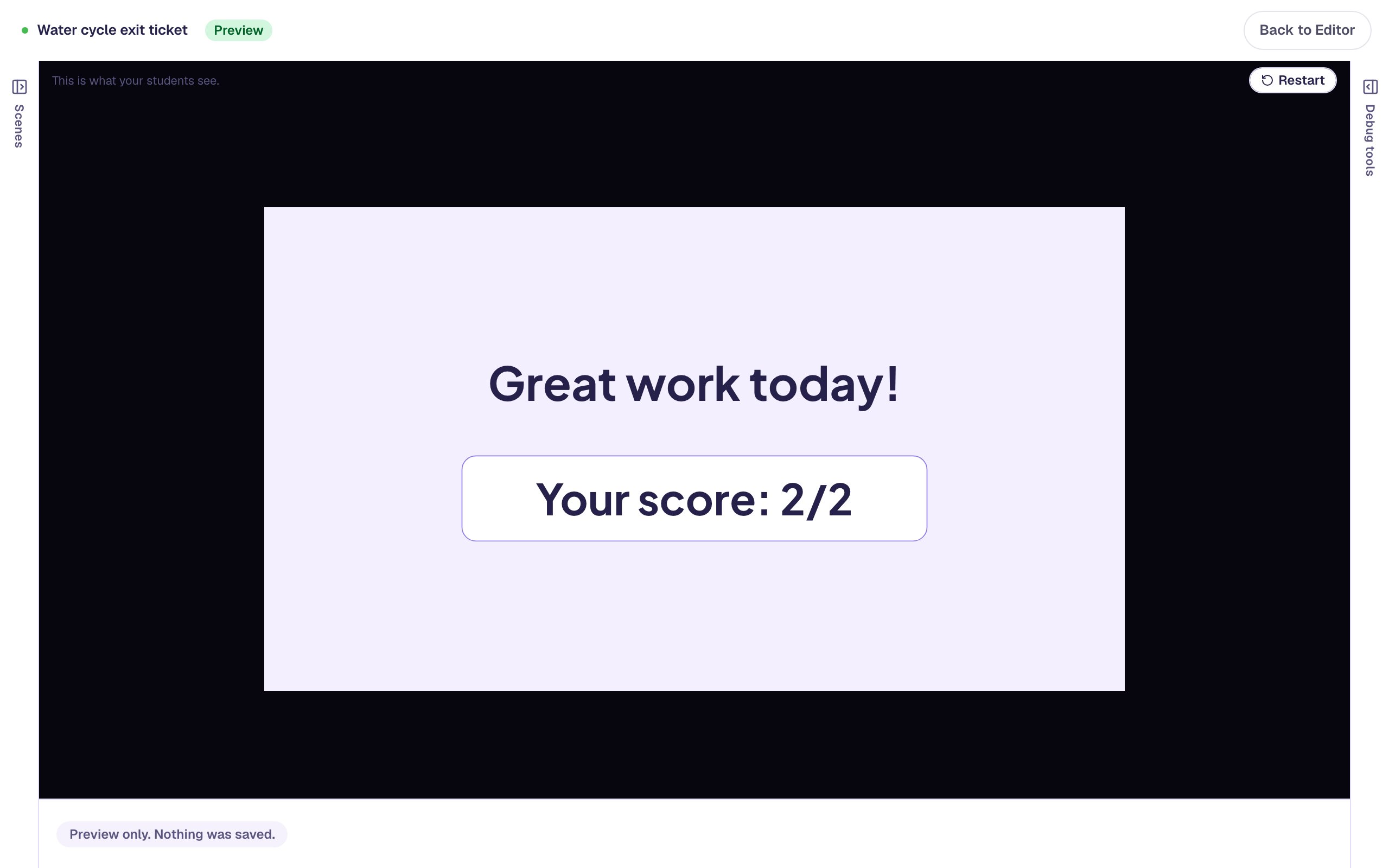
Go back to Welcome and click Preview at the top of the studio. Press Start, then answer like a student who changes their mind: pick The Moon, then The Sun, type clouds in the blank, and press Finish.
Nothing is graded until Finish, so picking The Moon first doesn't count against the student. That suits an exit ticket: students answer at their own pace, then hand it in.
What you built
From one click on a template, you built a finished exit ticket with:
- a title card with your title, your introduction and a photo described for screen readers,
- a multiple-choice question with your four answers and the right one marked,
- a fill-in-the-blank that accepts
cloudsorcloud, - a Finish button that grades both at once, and
- an ending in your words that shows the score.
You didn't set up scoring, the Start button, the Finish button or the score: the template brought them. Every template works the same way, so try the Multiple-Choice Quiz or Vocabulary Flashcards next. To add a third question, see Build a three-question quiz by duplicating a scene. To understand how each piece was built, try Build your first quiz question and Accept more than one answer in a fill-in-the-blank. When you're ready to give it to your class, see Assigning lessons.
Make this lesson yours
Add the lesson you just watched being built to your account, then change it for your class: your questions, your pictures, your colors.
Free to sign up, and you'll come straight back here. I have an account