A flashcard maker with pictures that read aloud.
Put a photo and a word on the front of each card and an answer on the back. Turn on Read the card aloud, and a speaker in the corner says whichever side is showing, so a child who can't read yet can hear the word, flip the card, and hear what it means.
Three steps to a set of talking flashcards.
Make one card
Add a Flashcard, search the stock photos for a picture, and write the word for the front and the answer for the back. Give the back its own colour so students can tell it has flipped.
Turn on Read the card aloud
Generate narration for both sides in the activity's voice, or choose the device's own voice. Type different spoken words for a side if it should say something other than its text.
Copy it for the rest
Duplicate the card, then change its photo and words and make its audio again. Every card keeps the same size, colours and speaker.
Picture cards for early readers, vocabulary and speech practice.
Picture words for pre-readers
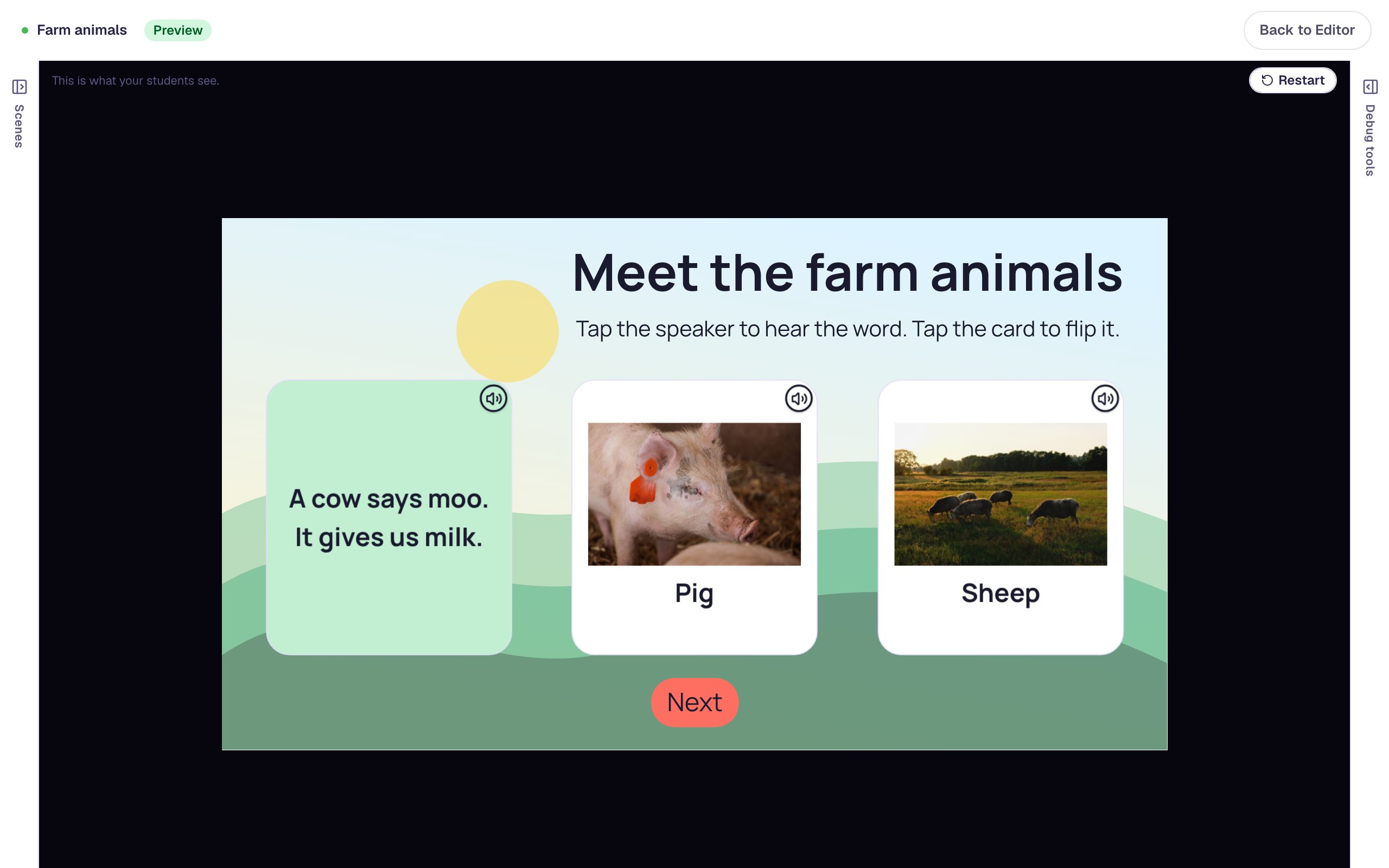
A photo and its name on the front, a short fact on the back. A four-year-old taps the speaker to hear “Cow”, flips the card, and hears what a cow does.
Vocabulary sets for speech and language work
One card for each target word, with a picture to name before the card is flipped. Use spoken words to have a side say a model sentence instead of the label.
Words in another language
The Spanish word on the front and the English word with a picture on the back. Set the activity's voice to Rachel, who reads Spanish and French natively.
What each card can do.
A picture on either side
Add a photo or drawing to the front, the back or both. The whole picture sits above the side's words, without cropping.
A speaker on the card
Tapping the speaker says the side that's showing and never flips the card. Tapping anywhere else flips it.
Words it says, or nothing
Each side says its own text unless you type other spoken words for it. Say nothing keeps one side quiet.
Narration or the device's voice
Narration clips use your plan's text-to-speech allowance, which Plus and Studio Pro include. The device's own voice needs nothing generated and works on every plan.
Wait until every card is flipped
Each card knows whether it has been flipped, so a Next button can stay hidden until a student has turned over every card.
Keyboard and screen reader
Tab to a card, press H to hear the side that's showing, and Space or Enter to flip it. A screen reader reads the side that's showing.
Every setting is explained in the help center: Flashcard widget.
Build one with us, a screenshot for every step.
 Beginner · 15 min · 7 steps · Updated
Make picture flashcards that read aloud
Build farm-animal flashcards with a photo and a word on the front and a short fact on the back, then turn on Read the card aloud so children who can't read yet hear each side from a speaker on the card.
Ready-made activity to add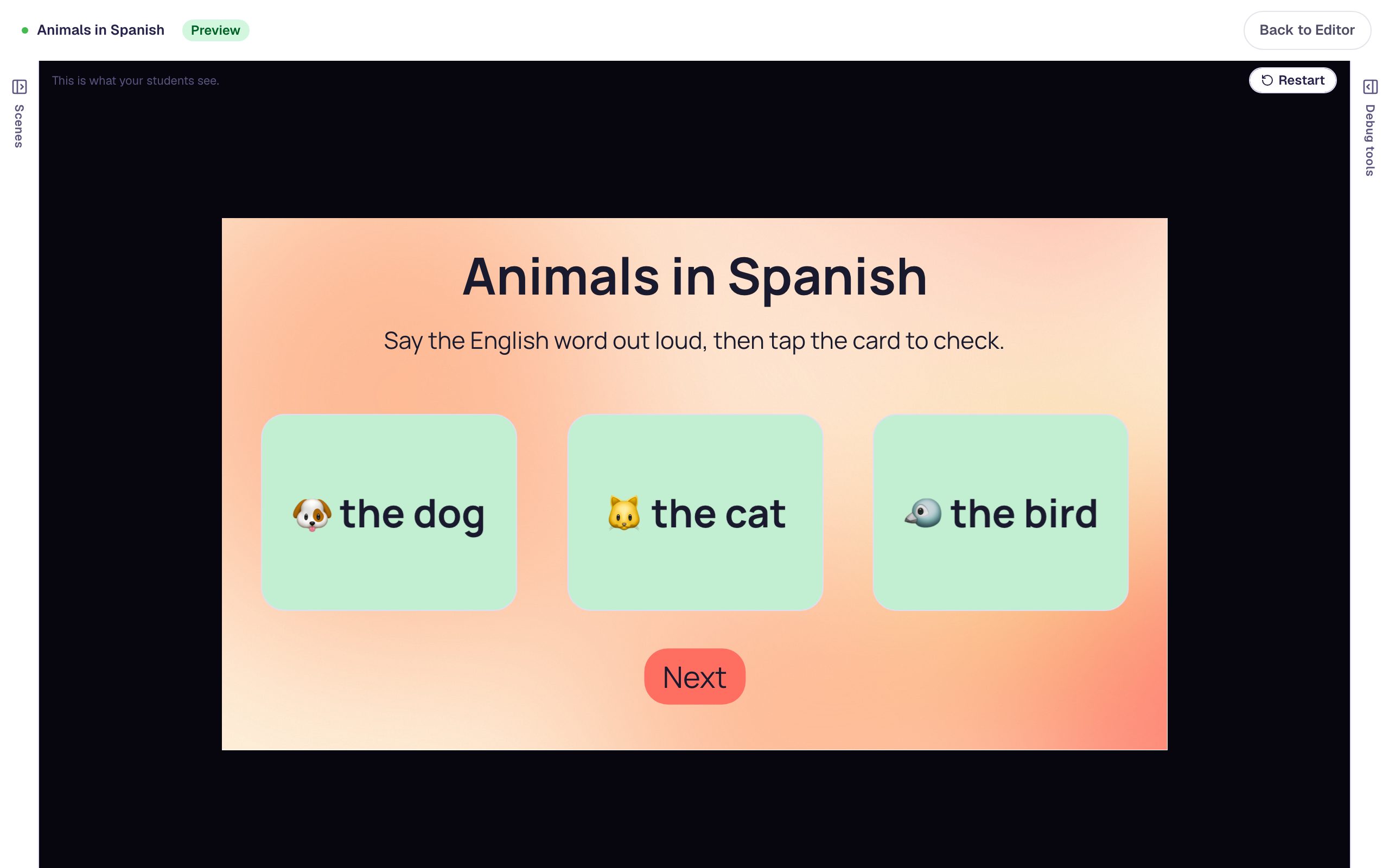 Beginner · 10 min · 7 steps · Updated
Make a deck of vocabulary flashcards
Build a row of Spanish vocabulary flashcards that students tap to flip. Write one card, style it, copy it with ⌘D, and add a Next button that only appears once every card has been turned over.
Ready-made activity to add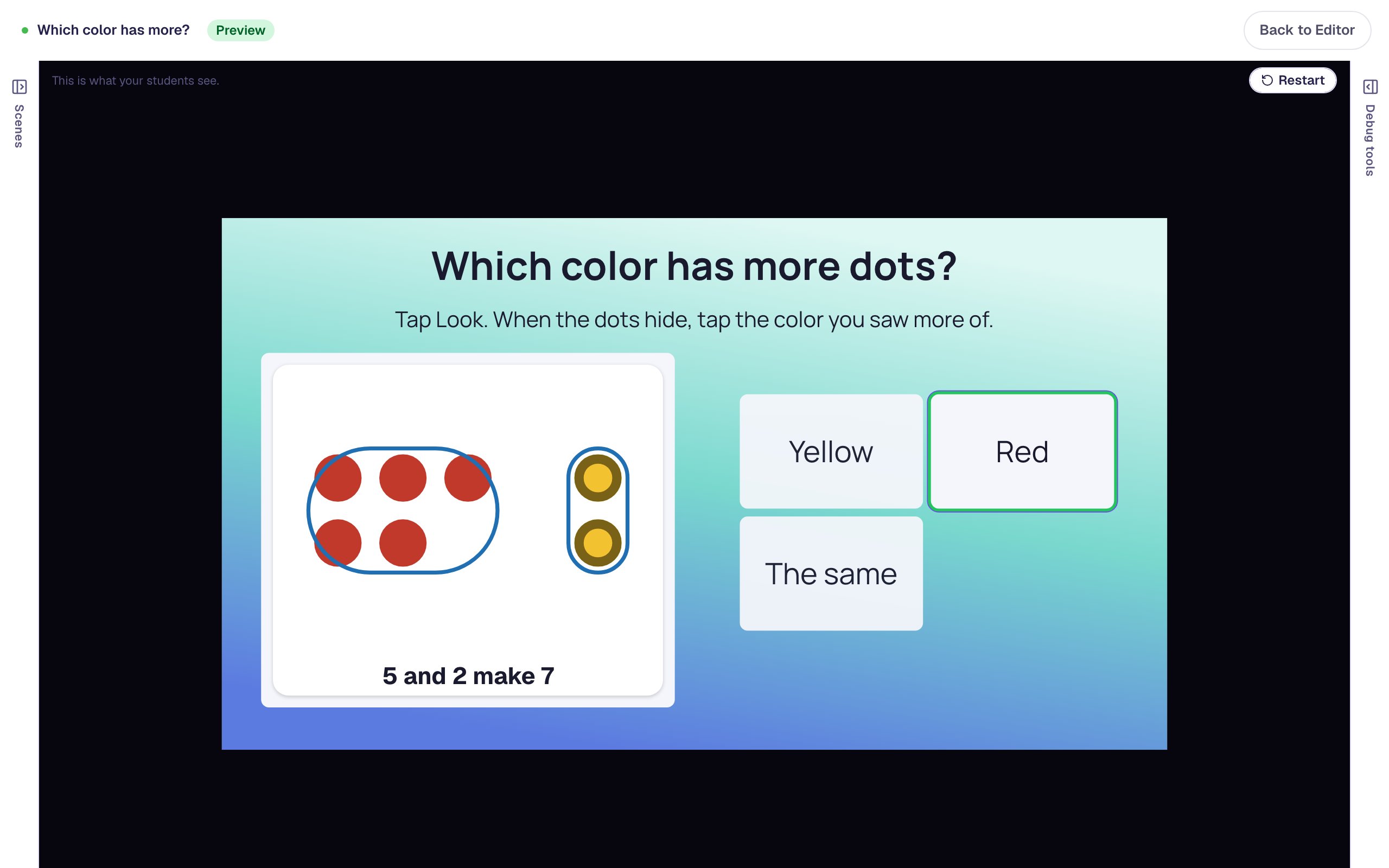 Intermediate · 15 min · 7 steps · Updated
Flash a dot card, then ask your own question
Flash a red-and-yellow dot card with a Quick Look set to Just look, keep a Multiple Choice question hidden until the cover comes down, and bring the card back with rings after a right answer.
Ready-made activity to add
Common questions
More you can make
Students tap every thing you ask for in a picture, and you see what they found and what they mixed up.
Pair words, pictures and definitions, with feedback on every wrong pair.
Multiple choice, dropdown, number and short-answer questions, scored your way.
Make your first picture flashcards today.
Build and preview for free, with no credit card. When you assign it, students play in the browser on a Chromebook, tablet or phone.