Flash a dot card, then ask your own question
Flash a red-and-yellow dot card with a Quick Look set to Just look, keep a Multiple Choice question hidden until the cover comes down, and bring the card back with rings after a right answer.
- Level
- Intermediate
- Time
- About 15 min
- Steps
- 8
- Updated
- Oct 21, 2026
A "Which color has more dots?" warm-up where students glimpse 5 red and 2 yellow dots, answer a question that appears only once the dots are covered, and then see the card again with a ring around each color.
Get the finished lesson
Skip straight to the result, or keep it open beside the steps. Add this tutorial's lesson to your account and explore how it works in the studio.
Free to sign up, and you'll come straight back here. I have an account
A Quick Look flashes a card of dots for two seconds and then covers it, so children have to see the groups instead of counting one by one. On its own it asks one thing: how many dots? Sometimes you want to ask something else about the same glimpse. Which color had more? Were there more than 5? Was it the same as the last card?
You can ask your own question with any question widget. The trick is timing: if the question is on screen while the dots are showing, children answer by looking, not by remembering. So the question stays hidden while the card shows and appears the moment the cover comes down.
In this tutorial you'll build Which color has more?, a one-question warm-up for kindergarten and first grade:
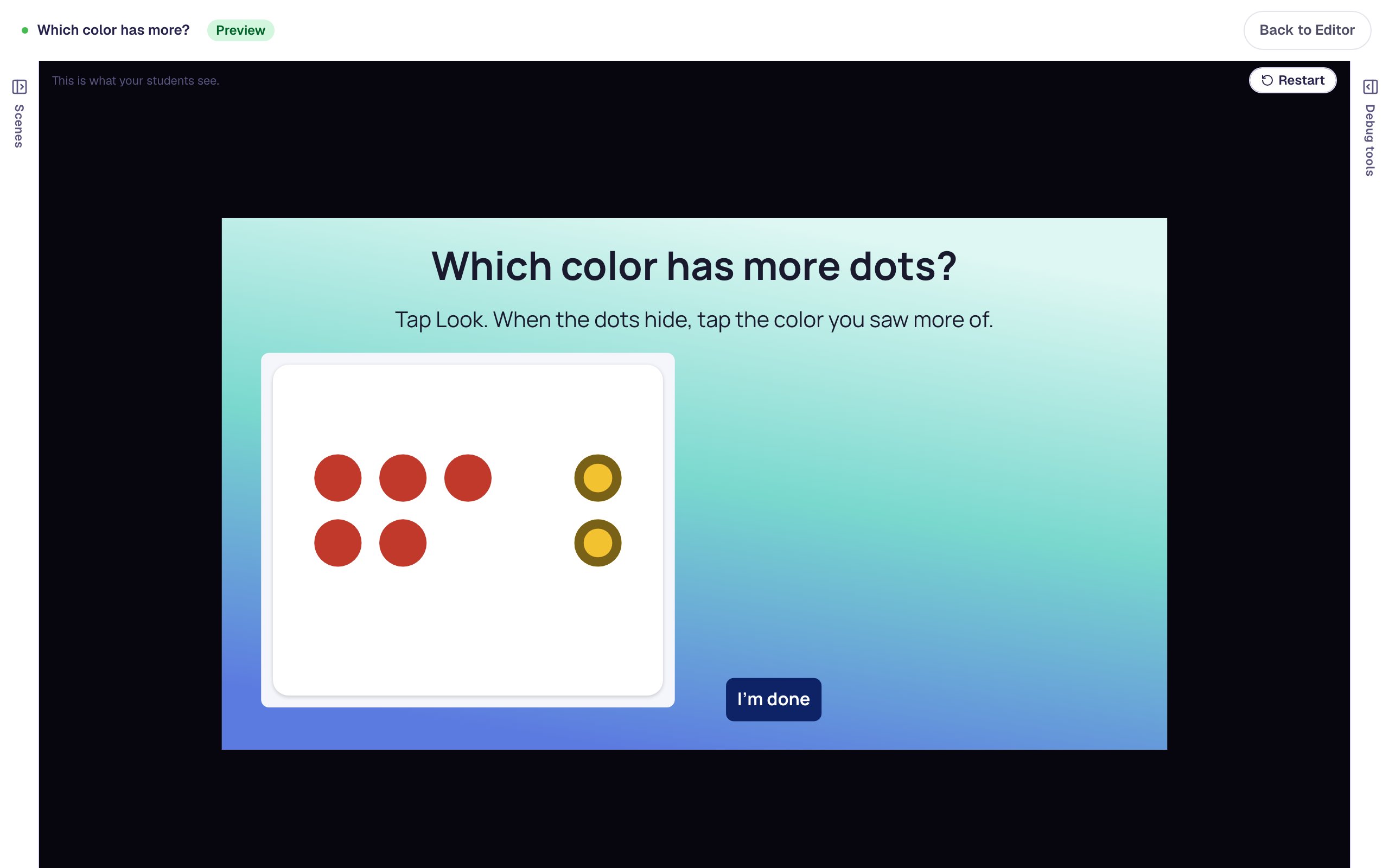
- Students tap Look. Five red dots and two yellow dots flash for two seconds.
- The cover comes down, and a question appears: Red, Yellow or The same?
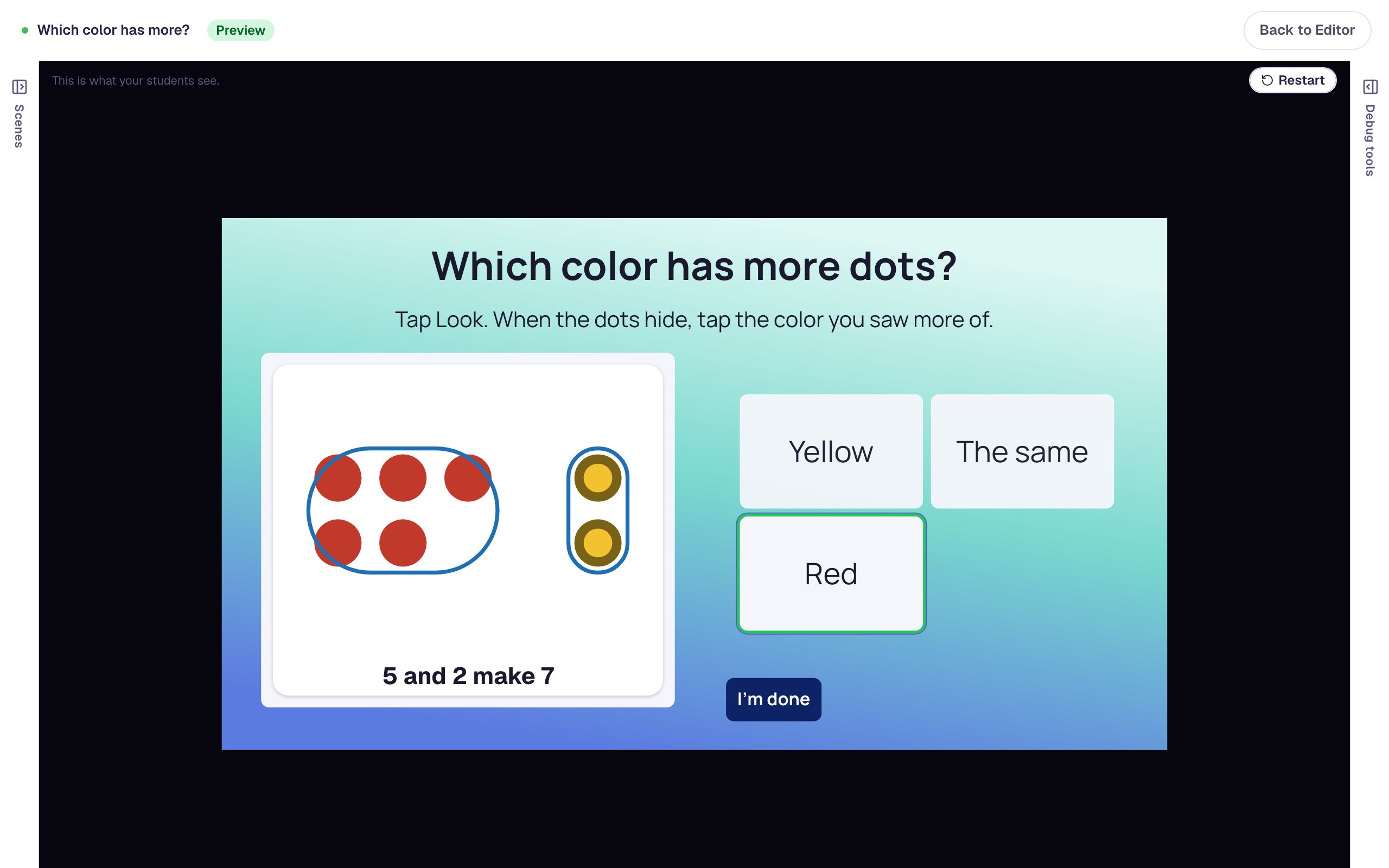
- After a right answer, the card comes back with a ring around each color and the words "5 and 2 make 7".
If you haven't used a Quick Look before, start with Flash a dot card for How Many Do You See?. Behaviors in the properties panel come up in Add a hint students can open when they're stuck, but you don't need that one first.
Step 1: Set the scene
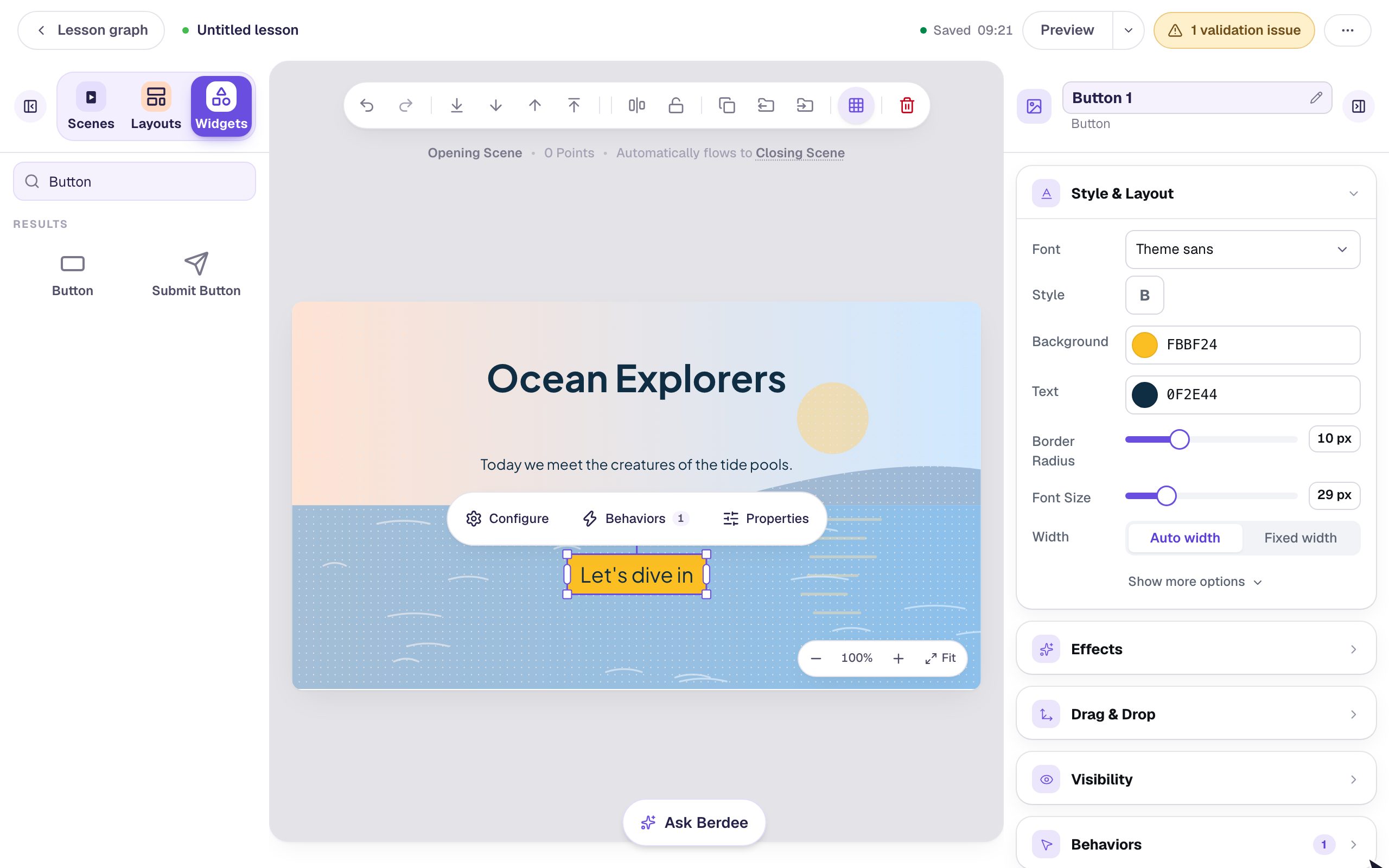
Start a blank lesson (New lesson, then Start from scratch) and name it Which color has more? by clicking Untitled lesson at the top left.
Give the scene a cool background: click an empty spot on the scene, open Background, click Choose a style, and pick Lagoon gradient. For a happy ending, open the Closing Scene and give it Confetti from the Playful styles.
Back on the Opening Scene, add what students read first:
- A Heading at the top:
Which color has more dots?. Set its Font Size to40. - A Body under it:
Tap Look. When the dots hide, tap the color you saw more of.Set it to Fixed width, about800wide, then set its Font Size to22.
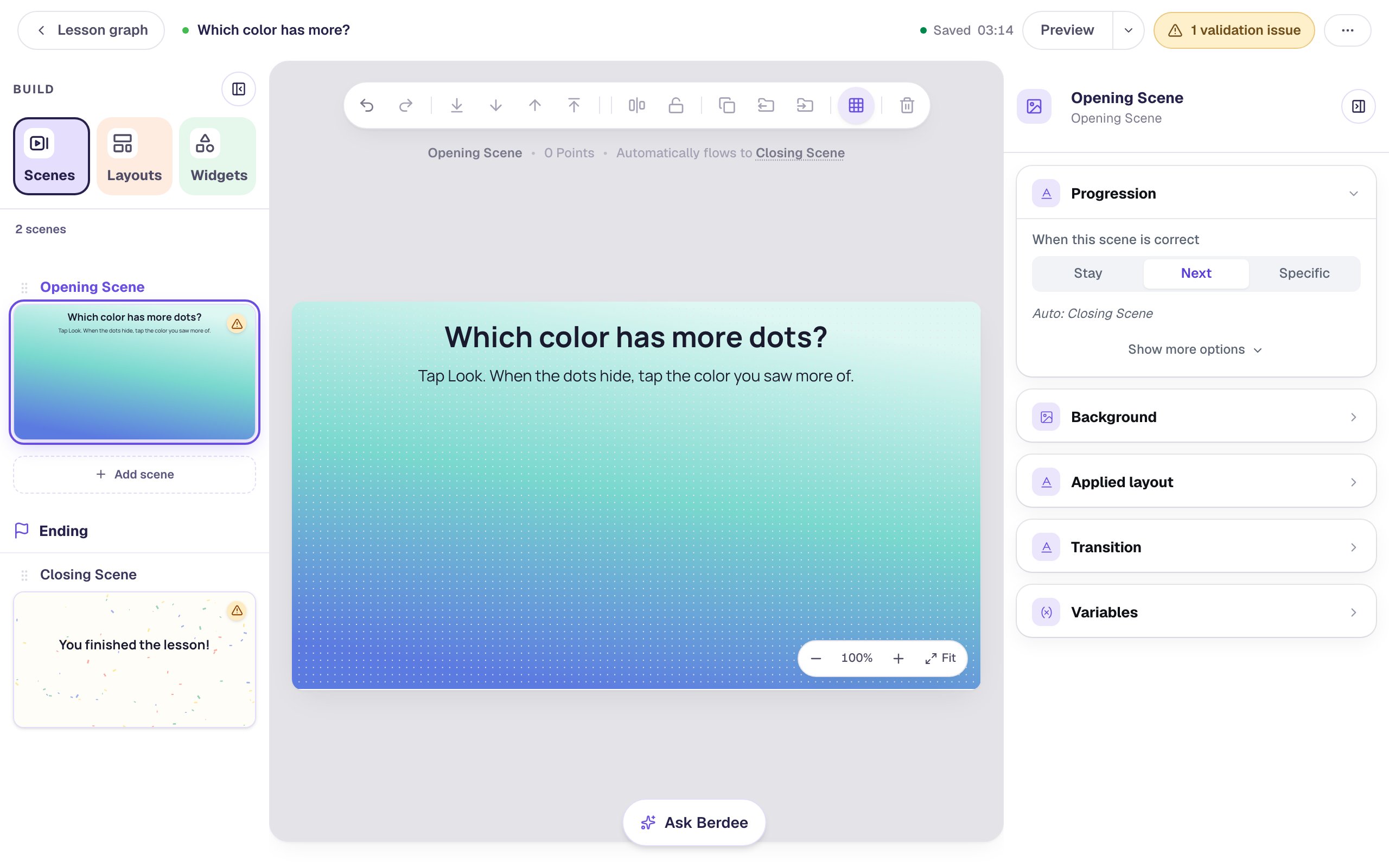
The heading asks the question up front, so children know what to look for before the card flashes.
Step 2: Add a Quick Look that only shows the card
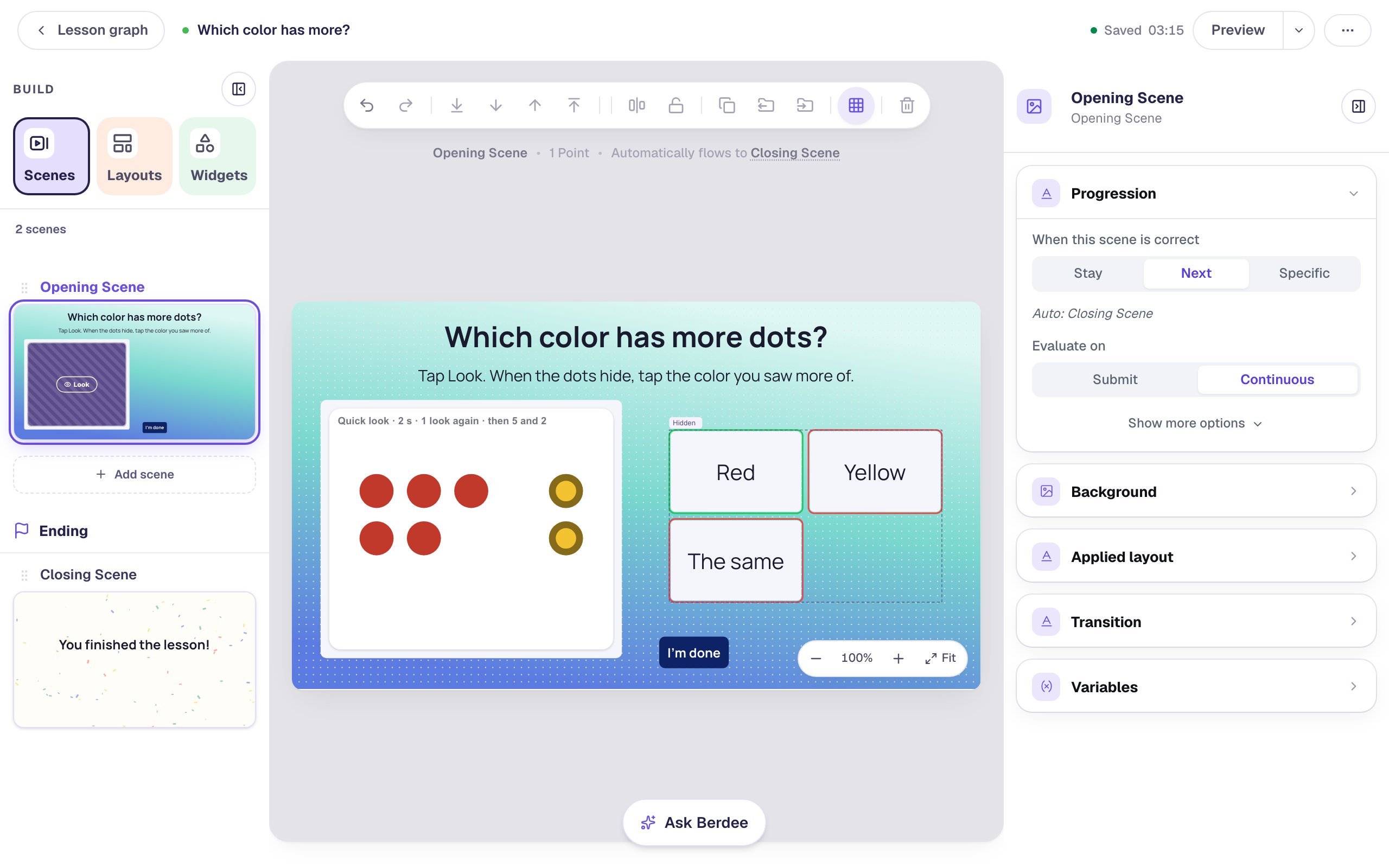
Search the Widgets tab for Quick Look and click it. In Style & Layout, click Show more options and set Width to 420 and Height to 360, then drag it to the left half of the scene, under the instruction. Rename it Dot card by clicking its name at the top of the properties panel. You'll pick it by that name in a later step.
Click the floating ⚙ Configure button and set up the card:
- Under What students do, choose Just look. The tag beside it reads Not graded: the card only shows the dots, and your own question does the asking. The number buttons disappear from the preview.
- Under The card, set Arrangement to Two colors (2–10).
- Set How many dots to
7and Red dots to5. The note under it says the other 2 are yellow.
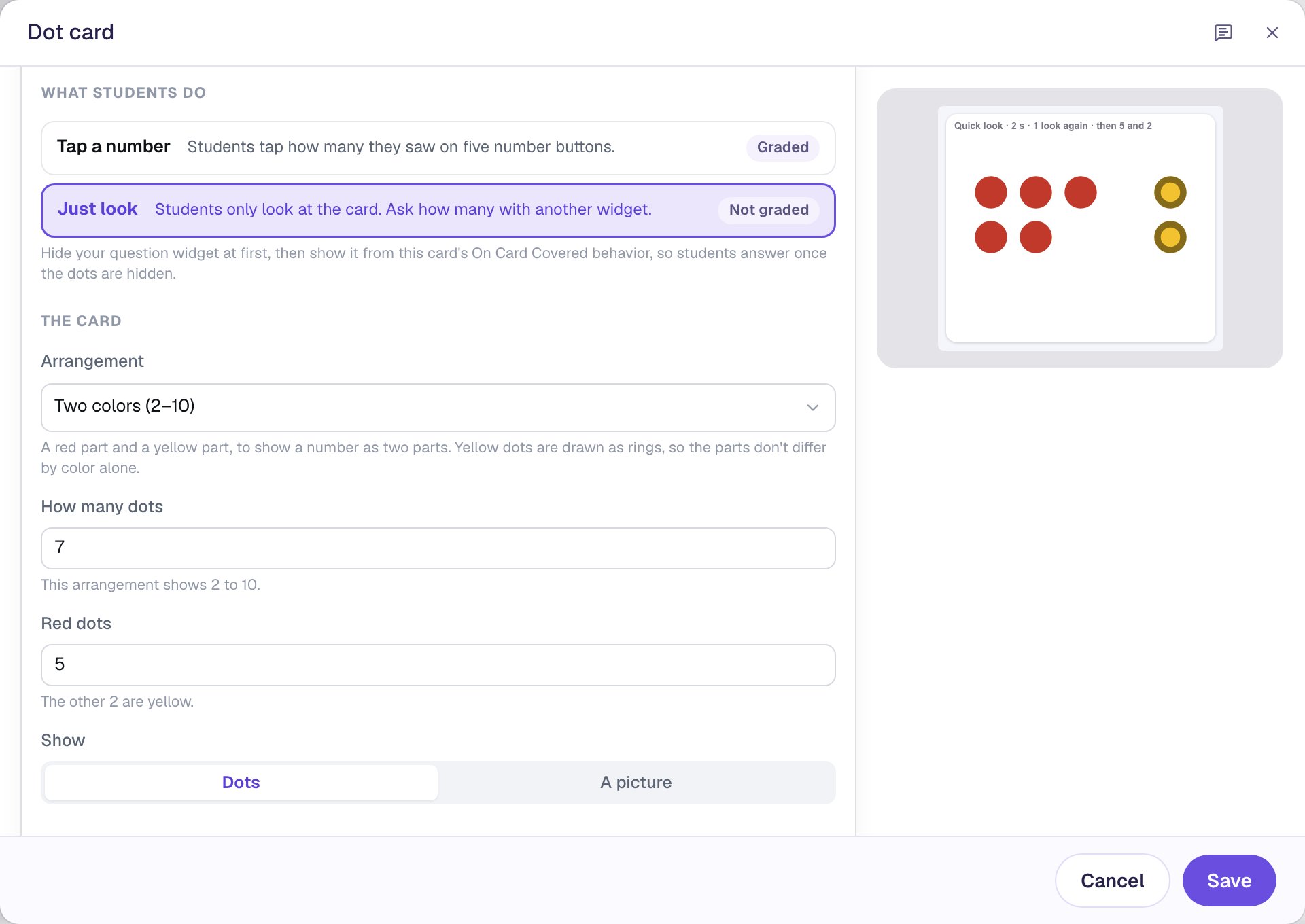
Read the note under Just look: hide your question at first, then show it from the card's On Card Covered behavior. That's exactly what the next steps do.
Scroll down. Under How students see it, keep Quick look and set Show the card for to 2 seconds (recommended). Keep Allow one more look on, so a child who isn't sure can tap Look again once.
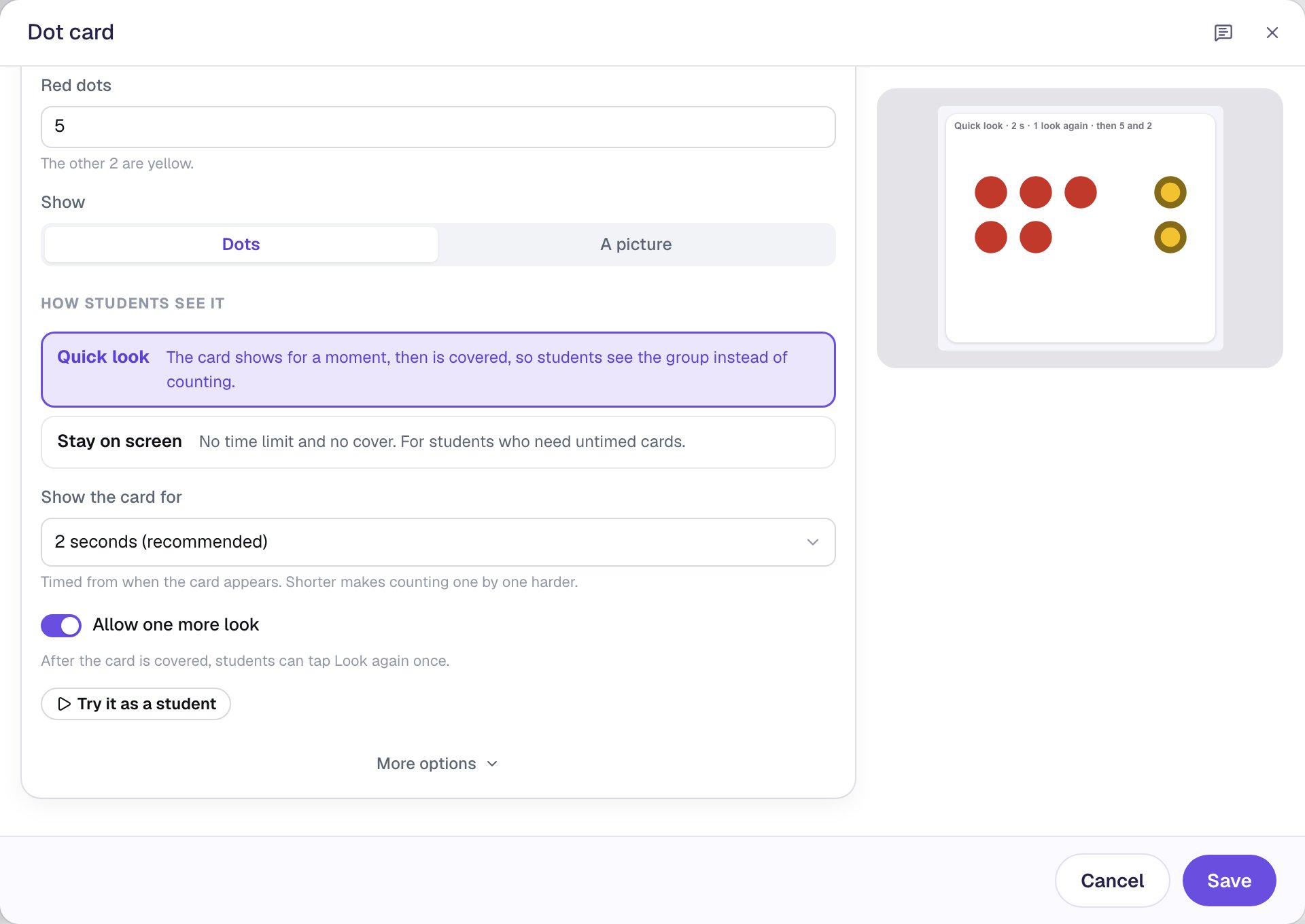
Click Save.
Step 3: Add your question
Search the Widgets tab for Multi Choice and click it. Click ⚙ Configure:
- Type
Red,YellowandThe sameinto the first three answers. - A new question has four answers. Click the trash can beside the fourth to remove it.
- Red is the first answer, and the first answer starts marked correct, so leave its green check as it is.
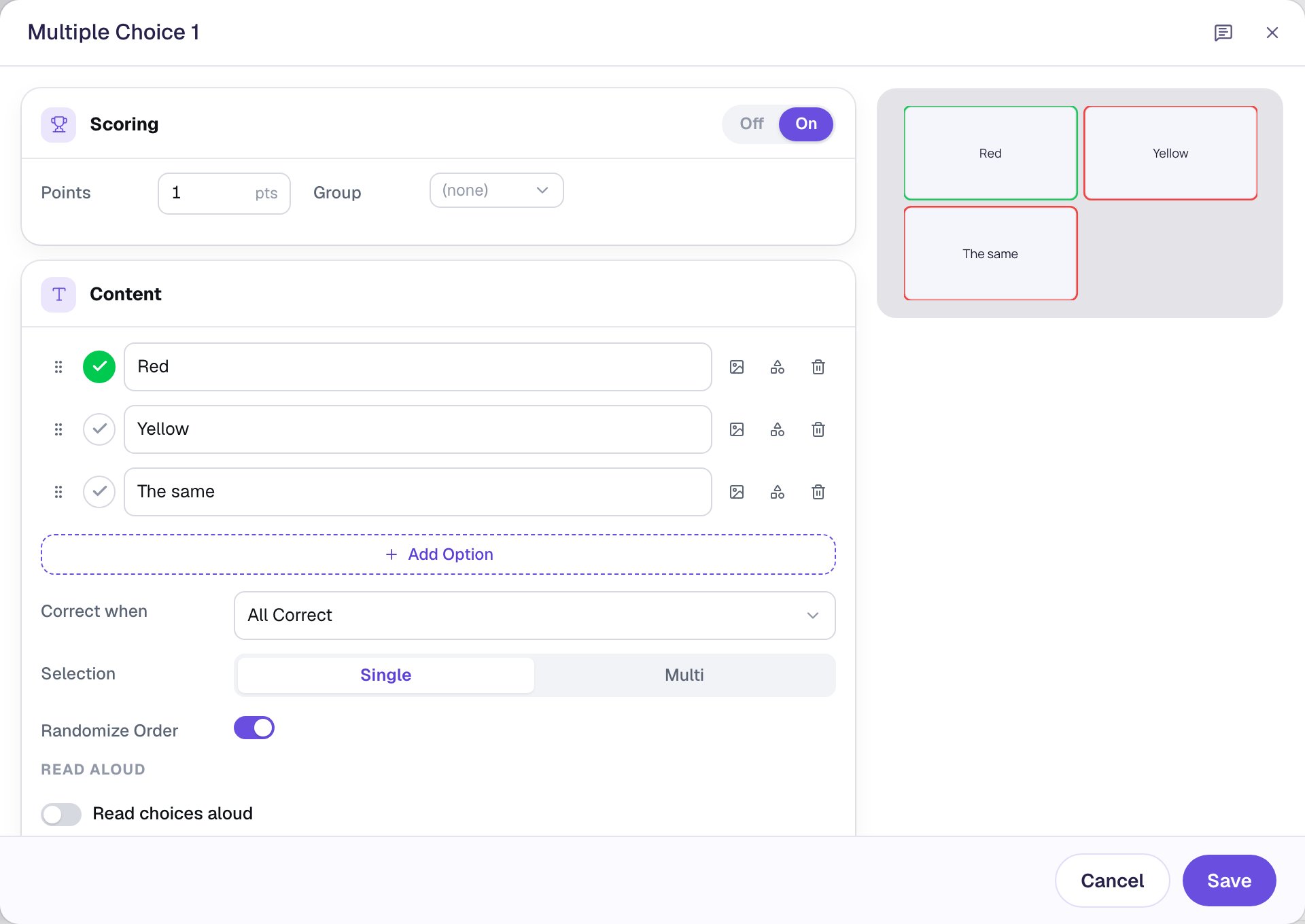
The same isn't right for this card, but keep it. It makes children think about both colors, and it's the right answer the day you copy the scene and flash 3 red and 3 yellow.
Click Save. Then, with the question still selected:
- Set its Font Size to
30, and in Style & Layout set Width to380and Height to240. Drag it to the right of the card. - Rename it
Color question. - In Style & Layout, switch on Show correctness, so a wrong answer turns red and the right one turns green.
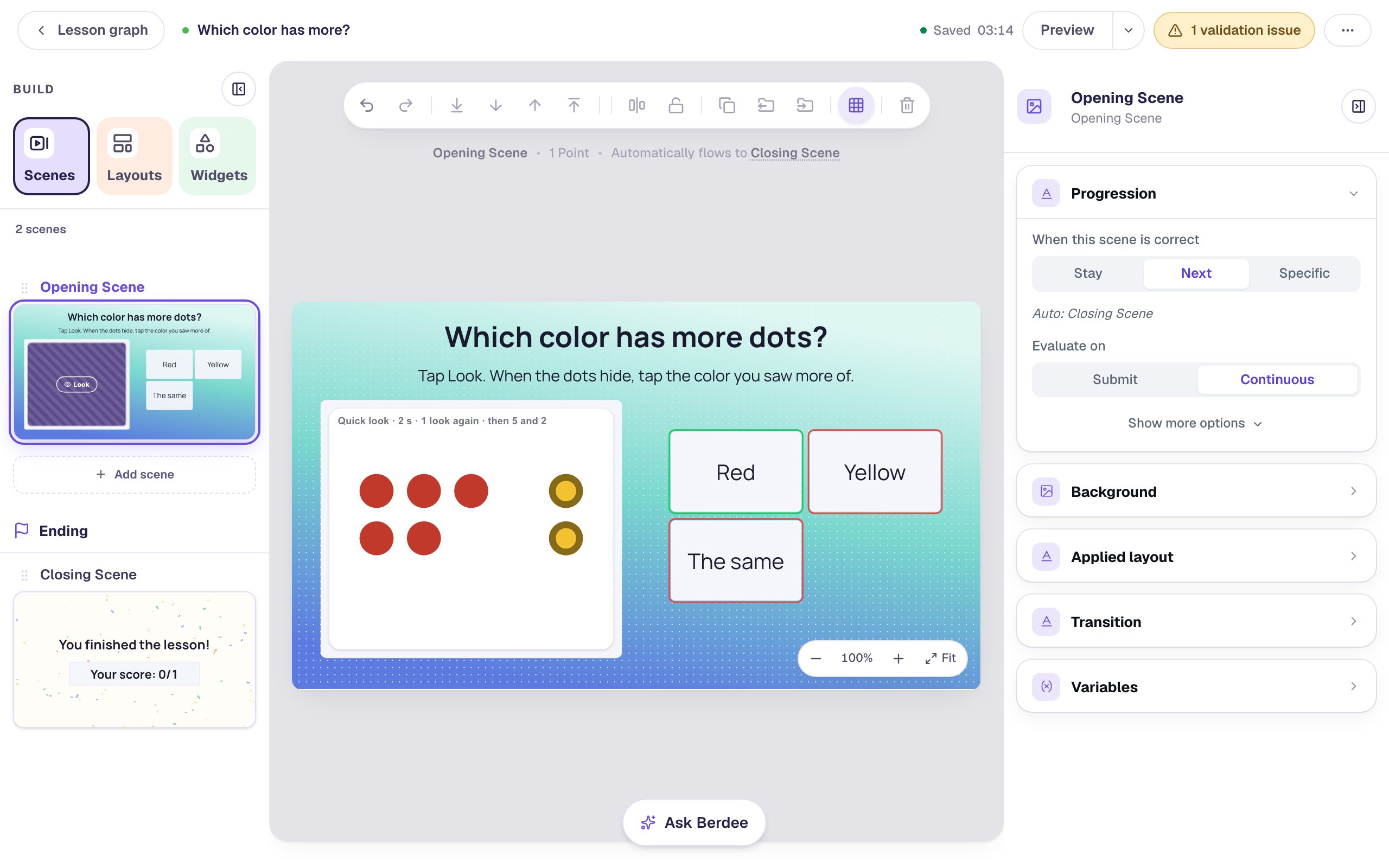
The studio always shows the card face up, so you can see what students will glimpse.
Step 4: Hide the question at first
With Color question selected, open Visibility in the properties panel and set Mode to Hidden.
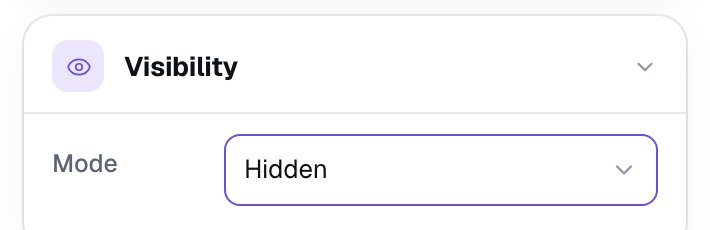
The question stays on your canvas, with a small Hidden tag above it, so you can keep editing it. Students won't see it until something shows it. It still counts toward the score, so a student who presses I'm done without answering gets 0 for it.
Use Hidden here, not Conditional. A conditional rule decides from what's on the scene, and nothing on the scene says "the dots are covered". The card tells you that moment itself, with a behavior.
Step 5: Show the question when the card is covered
Select the Dot card and open Behaviors in the properties panel:
- Click Add Behavior and choose On Card Covered. This runs the moment the cover slides over the dots. A new behavior starts with a Display Message action.
- Change Display Message to Widget Method.
- In the next list, pick Multiple Choice: Color question.
- In the last list, change Toggle Visibility to Show.
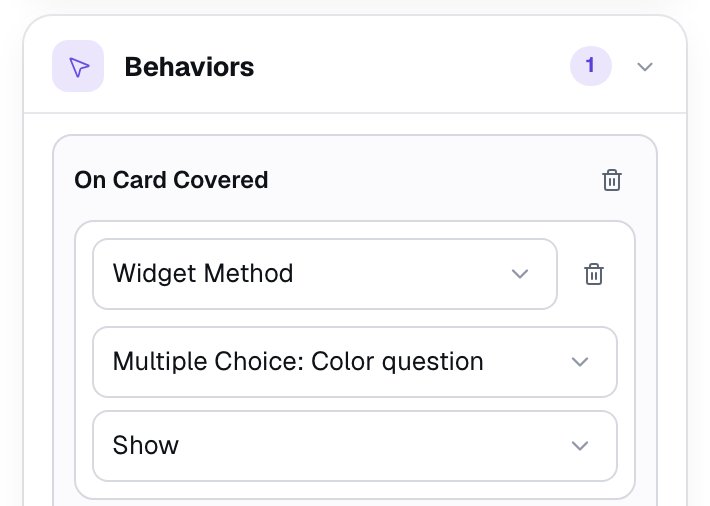
Pick Show, not Toggle Visibility. A child who taps Look again covers the card a second time, and a toggle would hide the question again.
Step 6: Bring the card back after a right answer
After a right answer, show children what they saw: the card again, with a ring around the red part and a ring around the yellow part. The Quick Look can do this itself.
Select Color question, open Behaviors, and:
- Click Add Behavior and choose On Correct.
- Change Display Message to Widget Method.
- Pick Quick Look: Dot card, then Show how I saw it.
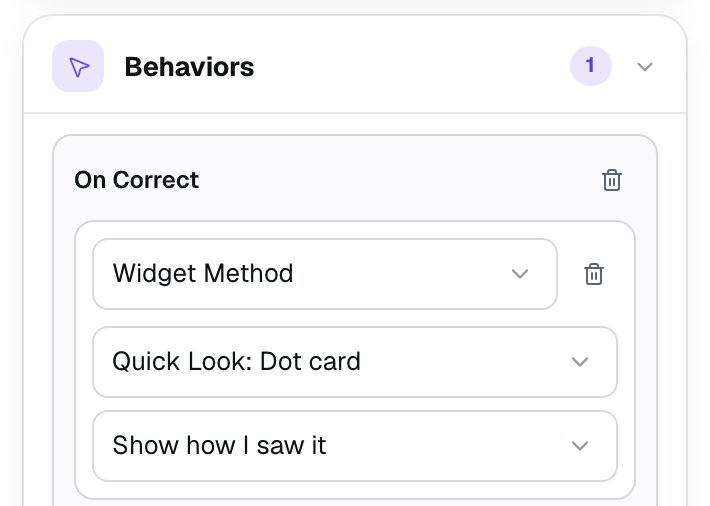
When the question is right, the scene moves on to the ending by itself, but only 0.6 seconds later, which is too fast to see the rings. Click an empty spot on the scene. In Progression, click Show more options and set Advance delay to 3000 ms.
Step 7: Add an "I'm done" button
Every lesson needs a button that lets a student finish, and the yellow validation pill at the top of the studio says so until there is one.
- Search the Widgets tab for
Submit Buttonand click it. - In Content, change Label to
I'm doneand set Submits to Lesson. - Set its Font Size to
18. In Style & Layout, set Background to a dark navy and Text to white. Drag it under the question, clear of the zoom controls.
Step 8: Try it in Preview
Click Preview, then press Look. After "Ready, set, look!", watch what happens to the question:
While the dots show, there's nothing to answer yet:
The moment the cover comes down, the question appears:
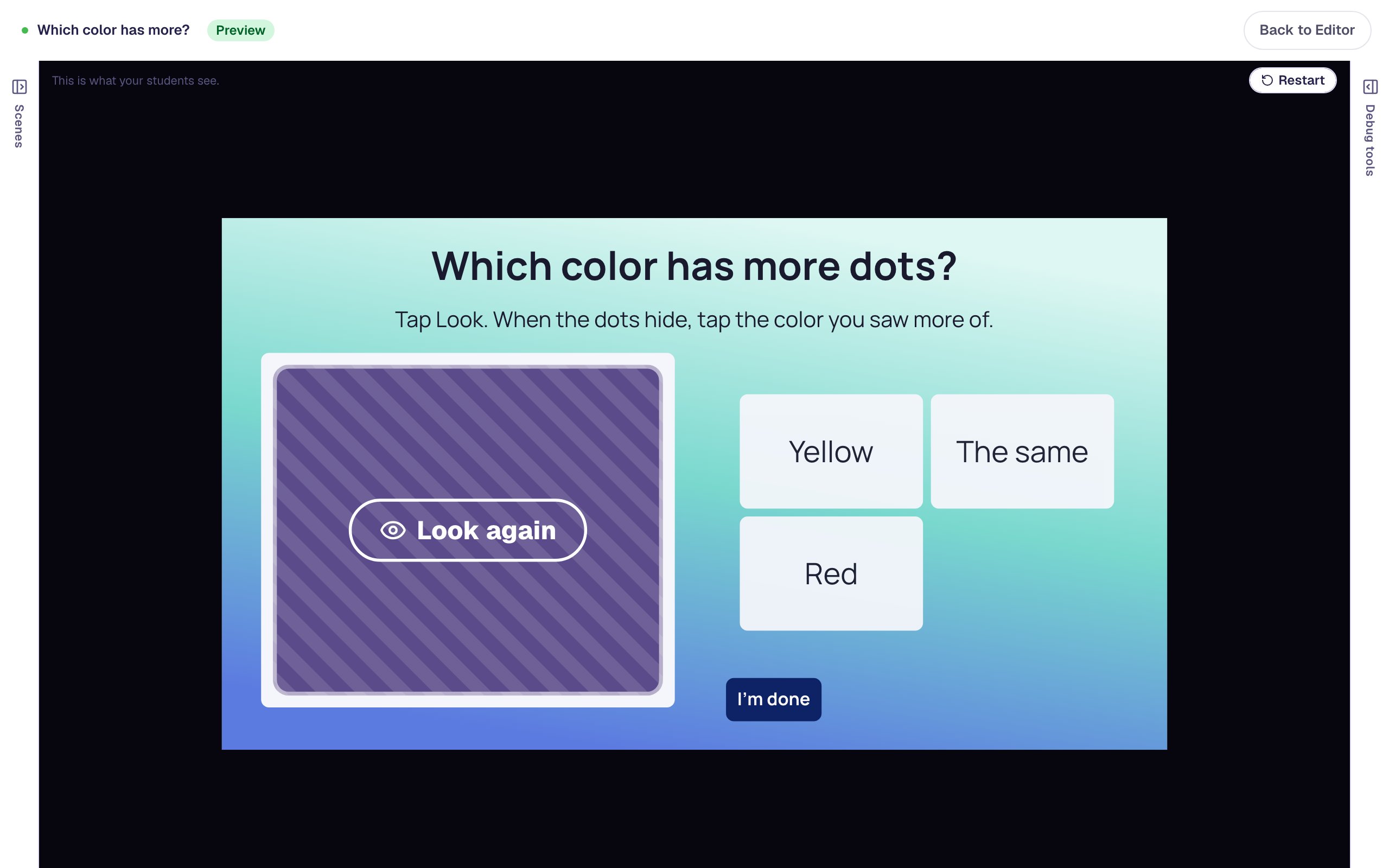
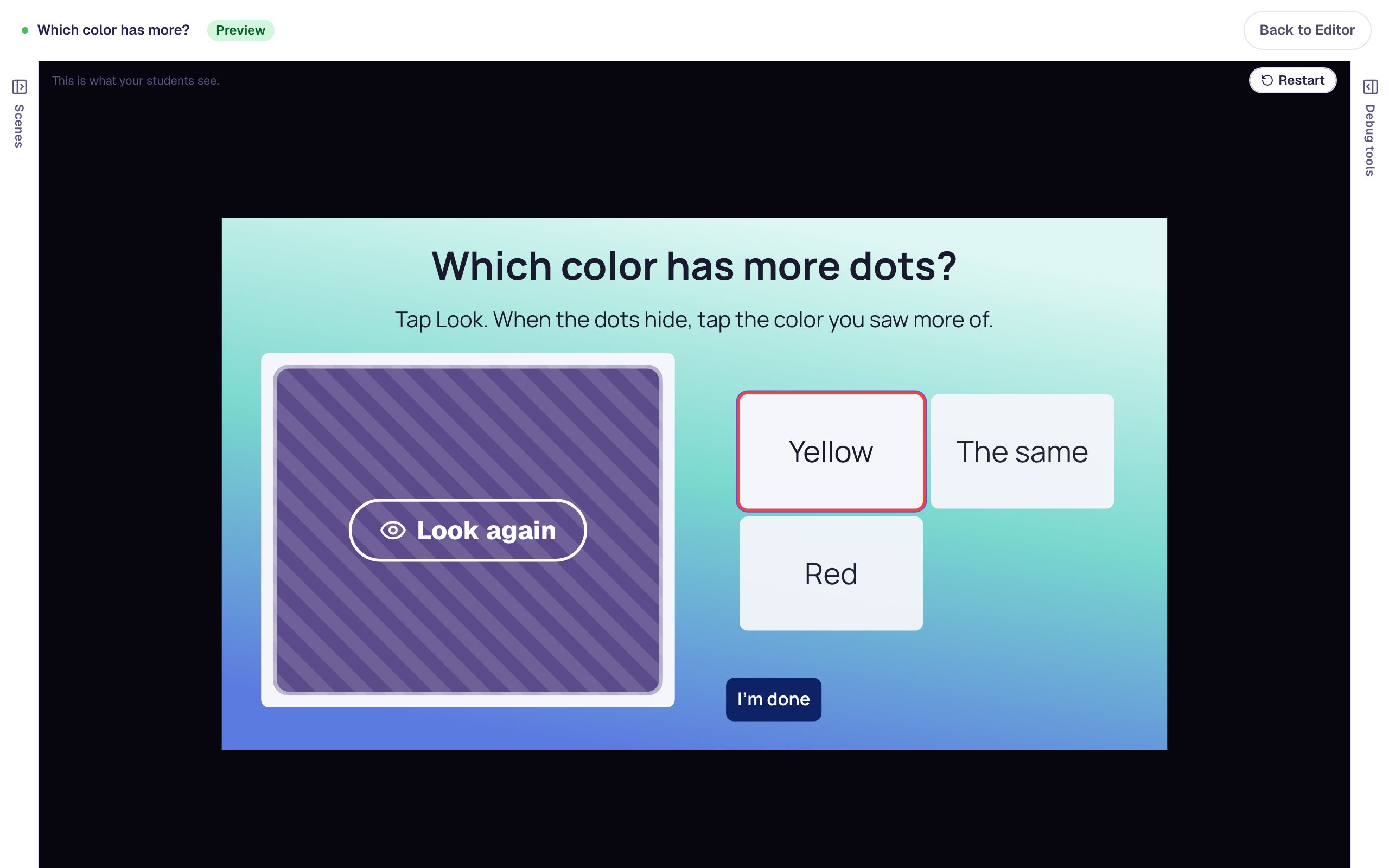
The answers come in a different order each time, because Randomize Order is on for a new question. Tap Yellow. It turns red, and the card stays covered. A child who isn't sure can tap Look again for one more look; the question stays put.
Tap Red. It turns green, and the card comes back with a ring around each color:
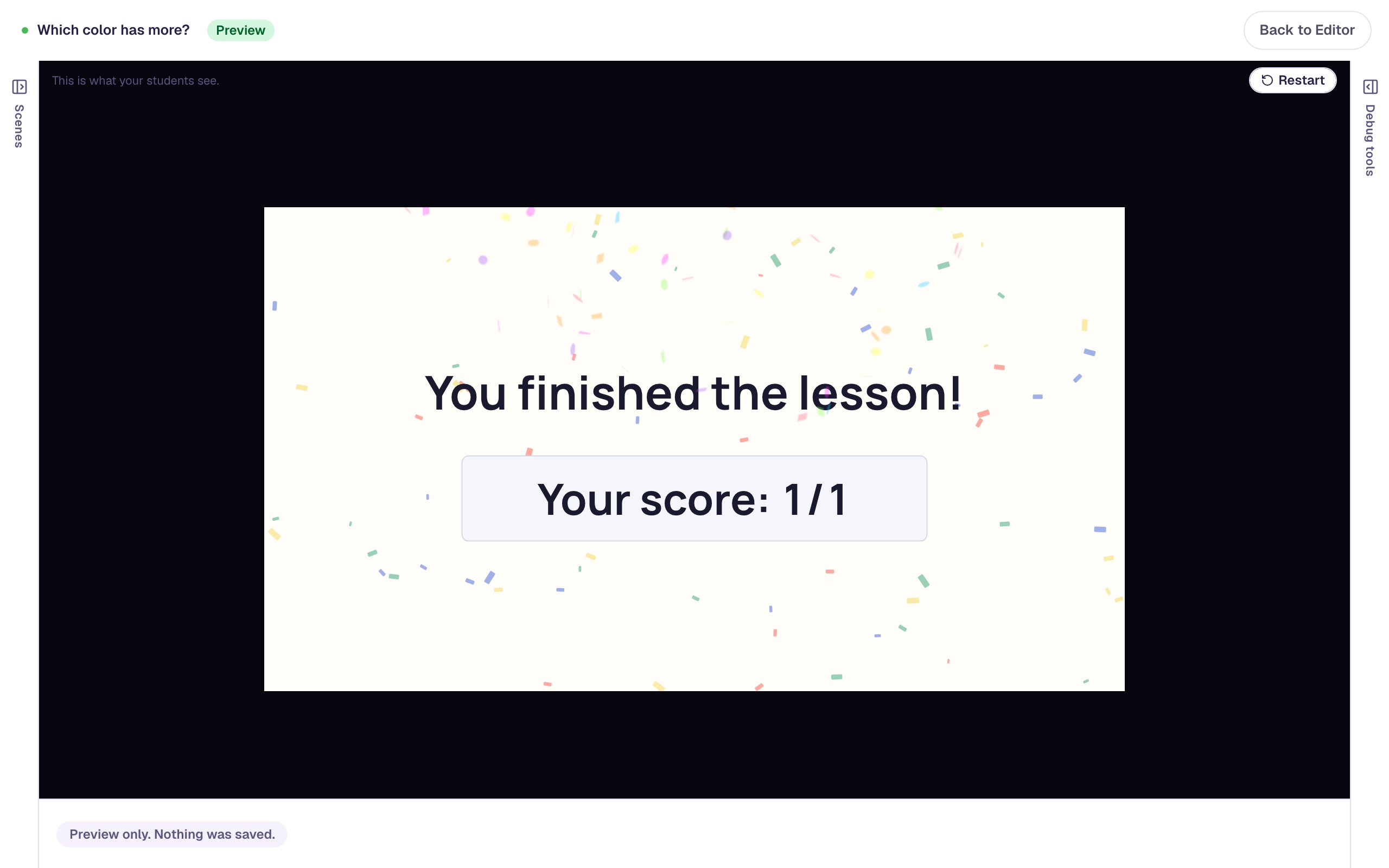
Three seconds later the lesson moves on to the ending:
What you built
A one-question warm-up that asks about a glimpse, not a stare:
- a Quick Look on Just look that flashes 5 red and 2 yellow dots for two seconds, with one more look allowed,
- a Multiple Choice question set to Hidden, which the card's On Card Covered behavior shows with Widget Method → Show,
- an On Correct behavior on the question that calls the card's Show how I saw it, and an Advance delay of 3 seconds so children see the rings, and
- an I'm done button as a way out.
The same pattern works with any question widget. Hide a Number Input and ask how many dots there were in all, or hide a Dropdown and ask "more than 5 or fewer than 5?". For a daily warm-up, duplicate the scene and change the card: 3 red and 3 yellow makes The same the right answer. To have the card ask "how many?" itself, with its own number buttons, see Flash a dot card for How Many Do You See?.
Make this lesson yours
Add the lesson you just watched being built to your account, then change it for your class: your questions, your pictures, your colors.
Free to sign up, and you'll come straight back here. I have an account