Give students a second try after a review
Send students who miss a question to a short review, then give them a fresh question to try again. Students who miss twice go to a scene that brings in the teacher, and every route ends at the ending.
- Level
- Intermediate
- Time
- About 15 min
- Steps
- 8
- Updated
- Oct 13, 2026
A fractions lesson where a wrong answer opens a pizza-slice review and then a second, different question, and a second wrong answer asks the student to practice with the teacher.
Get the finished lesson
Skip straight to the result, or keep it open beside the steps. Add this tutorial's lesson to your account and explore how it works in the studio.
Free to sign up, and you'll come straight back here. I have an account
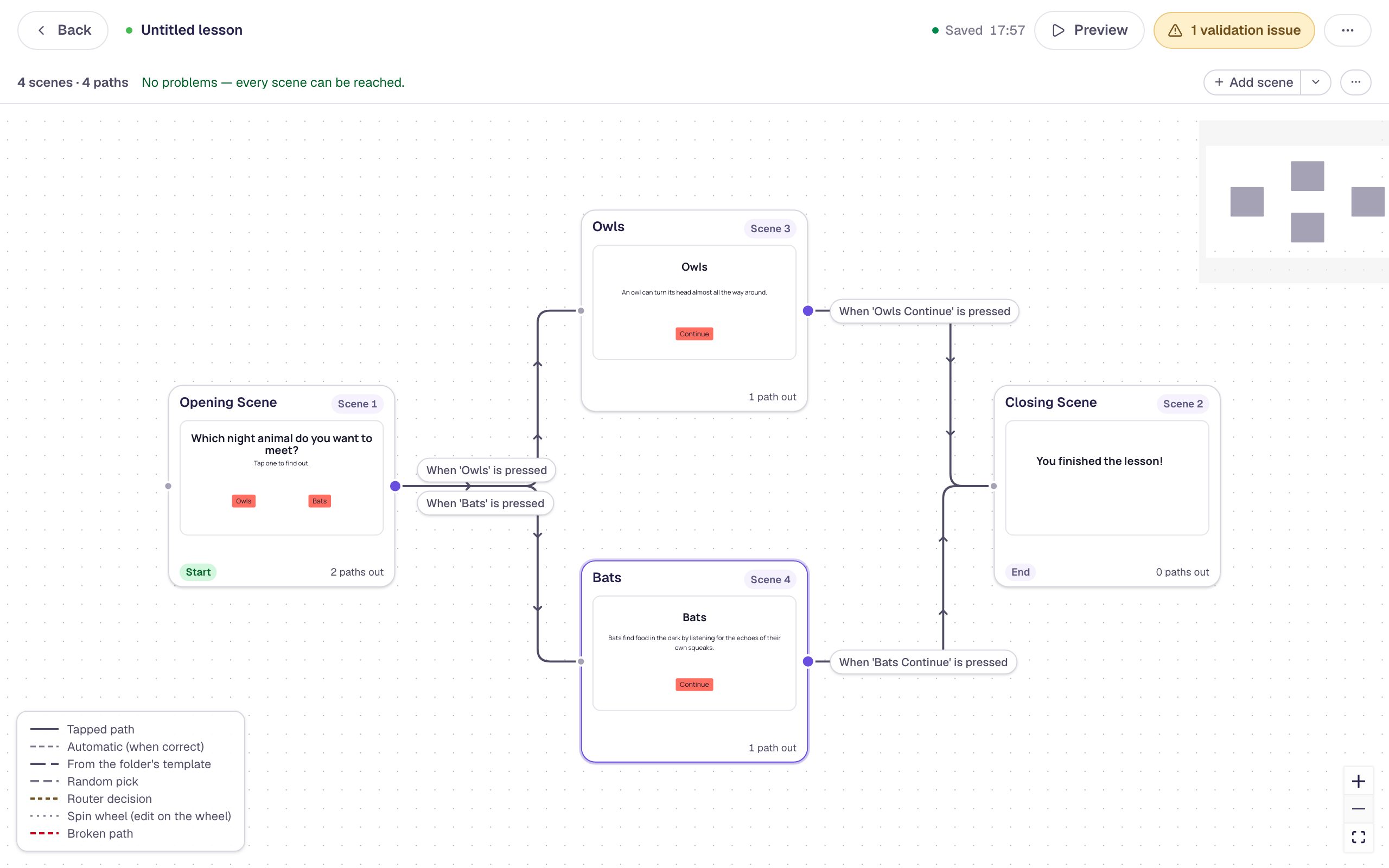
An explanation helps most when students get to use it straight away. In this tutorial you'll build a lesson that does exactly that: a student who misses the question sees a short review, then gets a second, different question to show they've got it. A student who misses that one too is asked to work through it with you, so nobody gets stuck going round in circles. A student who gets it right the first time skips straight to the ending.
All the branching happens in the Lesson Graph. This tutorial picks up where Show an explanation when a student gets it wrong leaves off, and moves quickly through the parts that one covers.
Step 1: Build the first try
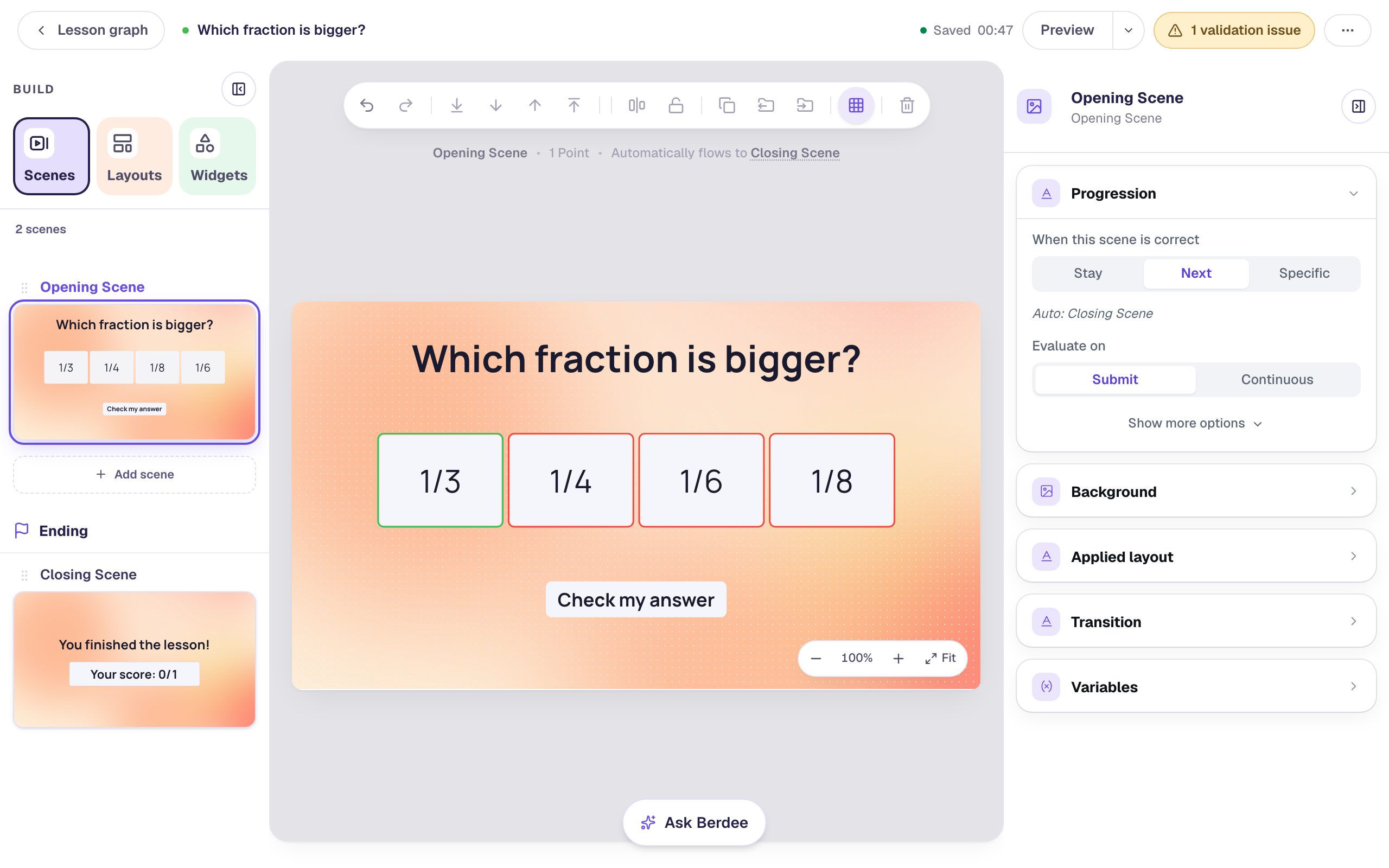
Start a blank lesson (New lesson, then Start from scratch) and name it Which fraction is bigger?. Give the Opening Scene a background you like (we used the Mesh sunrise gradient from Background → Choose a style), then add:
- A Heading:
Which fraction is bigger? - A Multi Choice. In ⚙ Configure, type the answers
1/3,1/4,1/6and1/8, and leave the check mark on1/3, the first answer, so it's the only one marked correct. In Style & Layout, make it about 720 wide and 130 tall so the four answers sit in one row, and raise the Font size to about 44 px. - A Submit Button with the Label
Check my answer, and Submits left on Current scene.
Click an empty spot on the scene so nothing is selected, and under Progression set Evaluate on to Submit. Now a right answer and a wrong answer are both decided when the student presses Check my answer, so each can go its own way.
Give the Closing Scene the same background, so the ending matches.
Step 2: Send wrong answers to a review
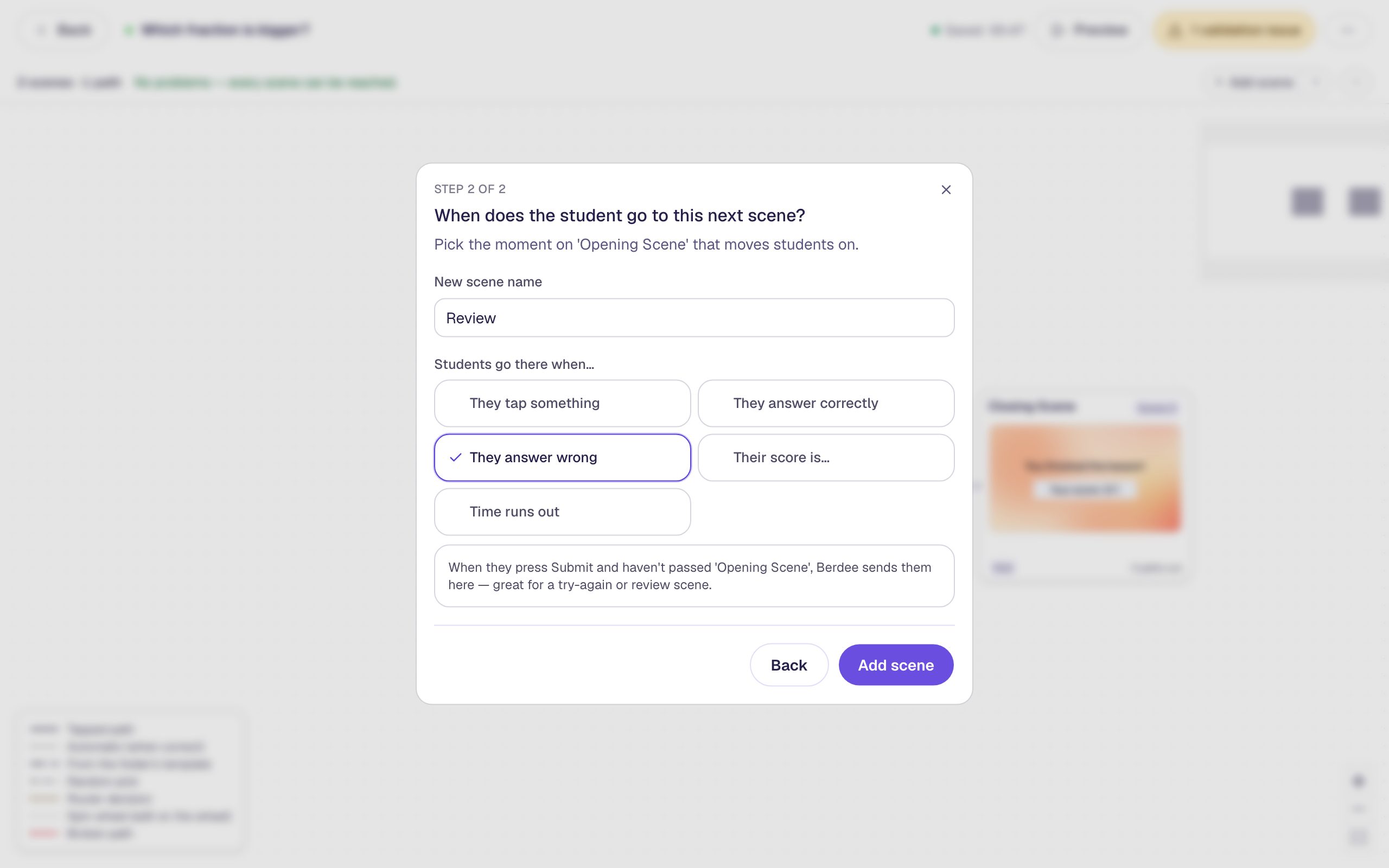
Click Lesson graph at the top left. Hover over the Opening Scene card, click the dot on its right edge, leave A new scene selected and click Next. Name the scene Review, choose They answer wrong, and click Add scene.
The Opening Scene now has two ways out: If this scene is not passed goes to Review, and When answered correctly still goes straight to the Closing Scene. A student who gets it right the first time never sees the review.
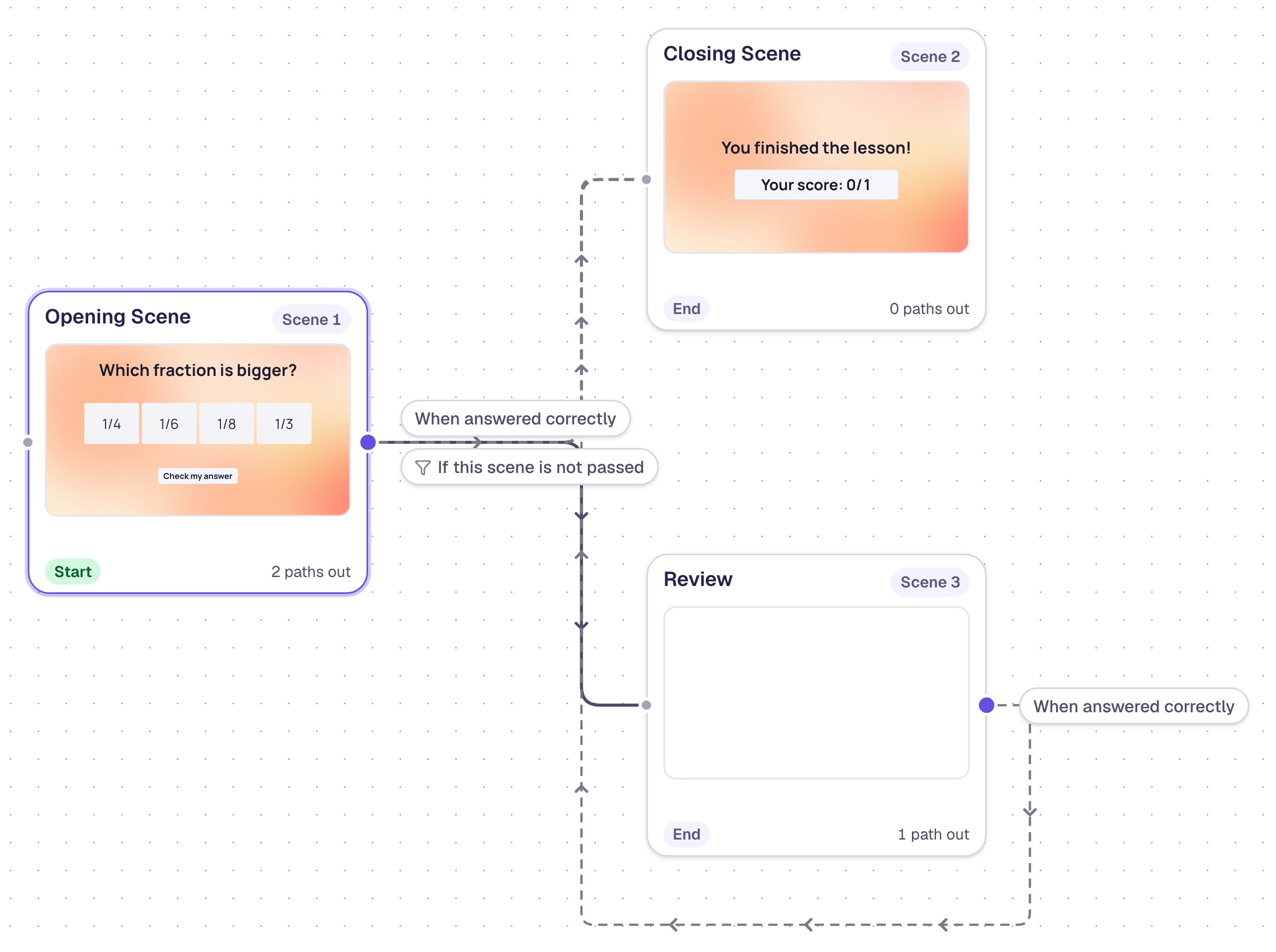
For now, Review also has a dashed When answered correctly arrow to the ending: that's what a new scene does until you give it a way out of its own. Step 4 replaces it. The graph arranges the cards to keep the arrows tidy, so yours may sit in different places.
Step 3: Write the review
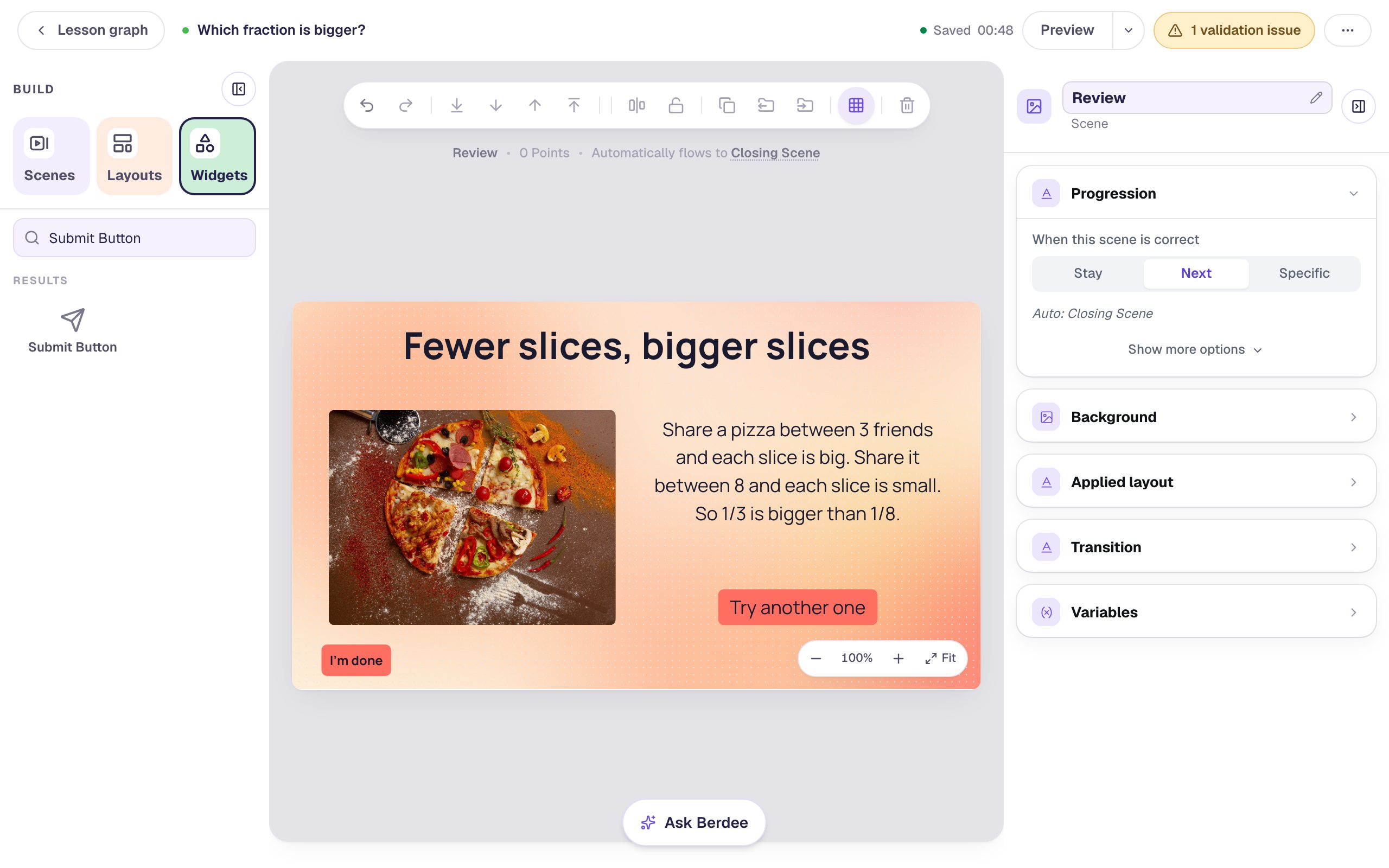
Hover over the Review card and click Edit. Give the scene the same background, then add:
- A Heading that names the idea:
Fewer slices, bigger slices - An Image about 400 × 300, on the left. Click Choose image, search the stock photos for
sliced pizza, and pick a photo of pizza slices. Then open Accessibility and describe the photo in Alt Text, so students using a screen reader get it too. - A Body on the right that explains the answer:
Share a pizza between 3 friends and each slice is big. Share it between 8 and each slice is small. So 1/3 is bigger than 1/8.Set it to Fixed width about 420 wide, with a Font size of about 26 px. - A Button labelled
Try another one. At the top of the properties panel, click its name (Button 1) and rename itTry another, so you can find it in the graph. - A small Submit Button labelled
I'm done, with Submits set to Lesson, in the bottom-left corner. Berdee asks every lesson to have a way to finish early, and the question scenes can't hold it, because each already has its own Submit.
Step 4: Add the second try
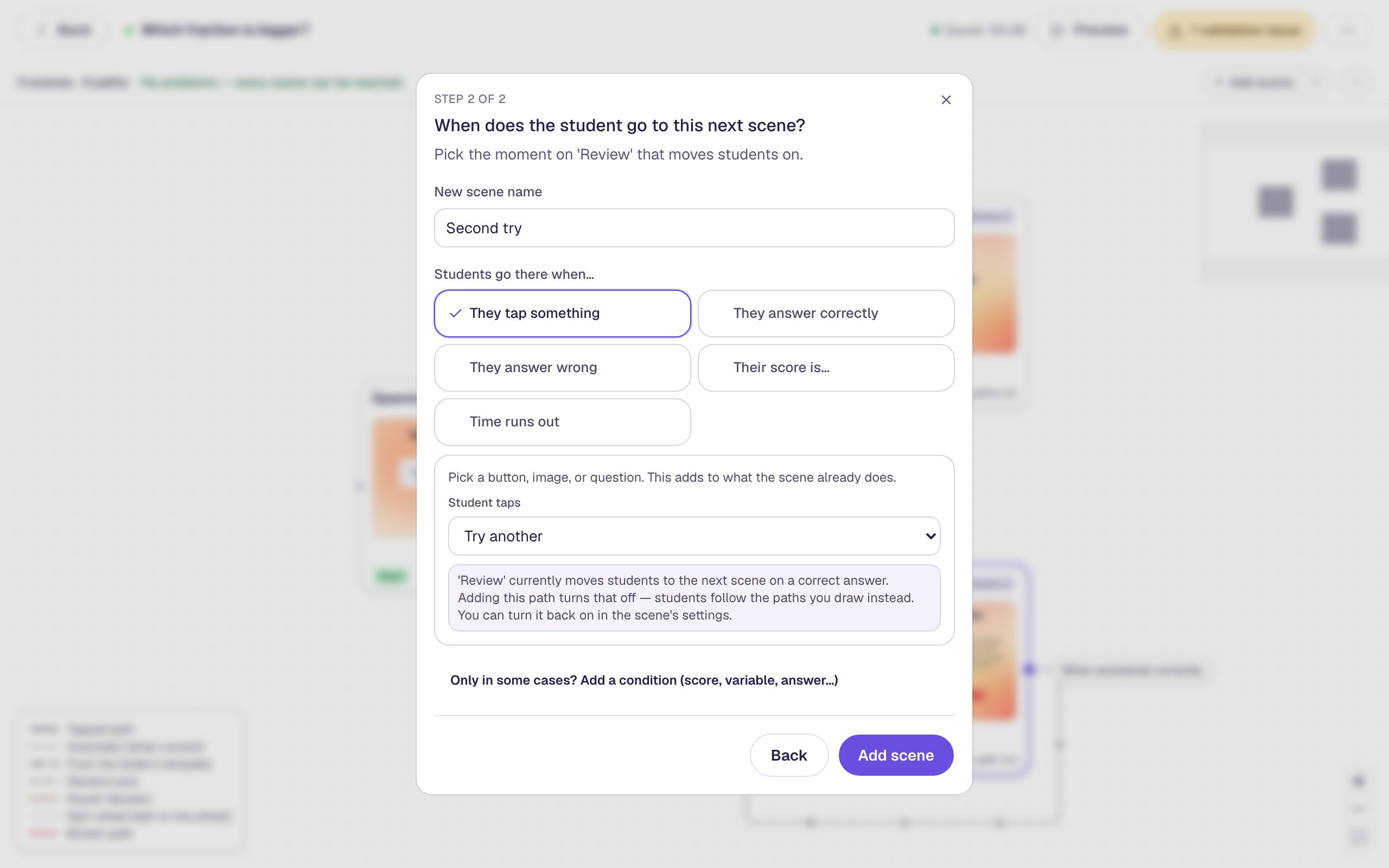
Back on the graph, hover over the Review card and click its dot. Leave A new scene selected, click Next, and name it Second try. Choose They tap something, set Student taps to Try another, and click Add scene.
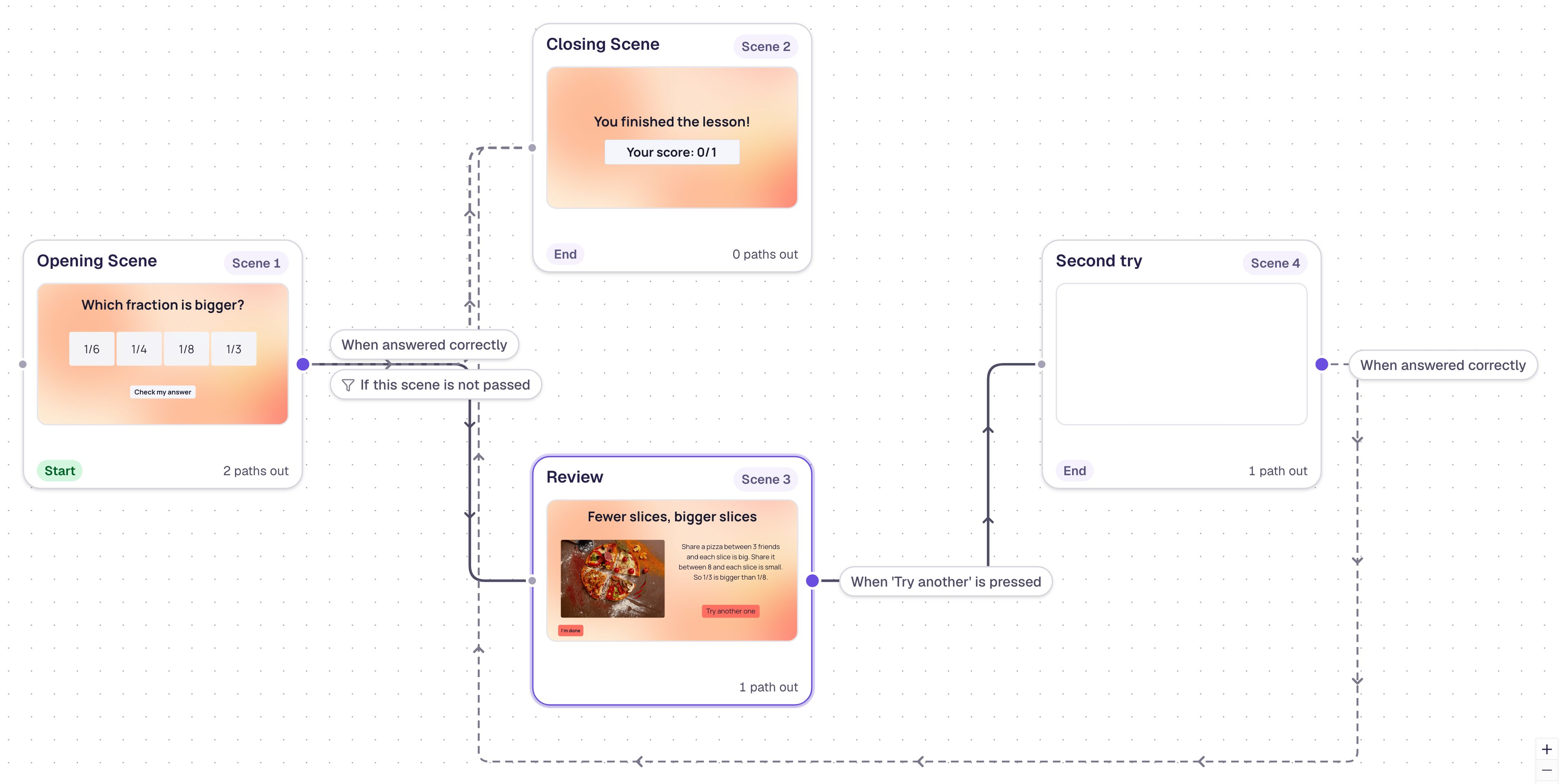
Why a new question instead of sending students back to the first one? Pressing Check my answer locks in a student's answer. A path back to the first question would show it locked, with no way to change the answer. A fresh question gives the review something to do.
Step 5: Copy the question to the second try
The second try should look like the first, with different numbers. Instead of building it again, copy the heading and the answers across:
- Hover over the Opening Scene card and click Edit.
- Drag a box from an empty corner of the scene across the heading and the answers, so both are selected. Leave Check my answer out (see the note below).
- In the toolbar above the canvas, click Copy to Scene and choose Second try.
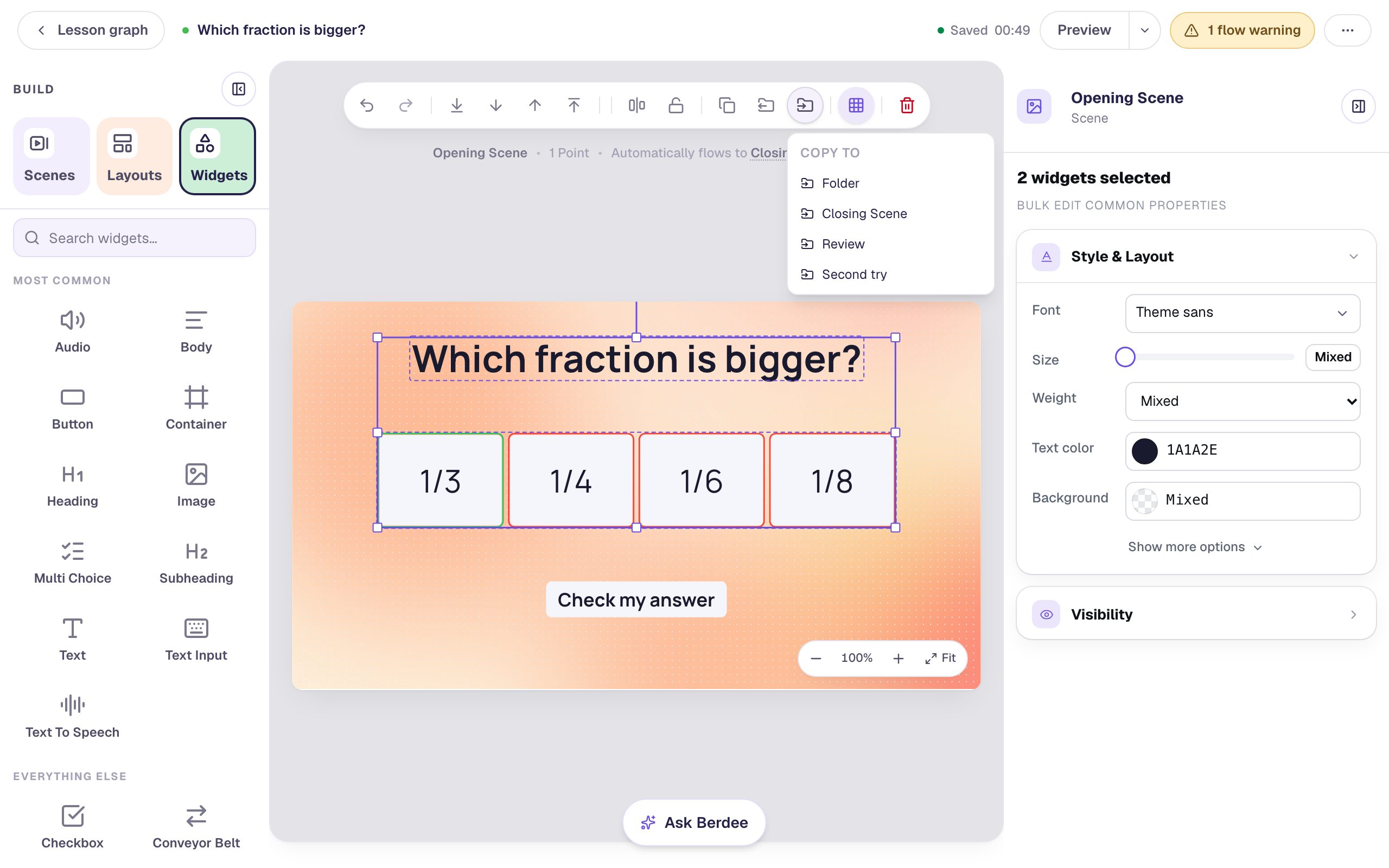
Why not copy Check my answer too? A copied button keeps everything it does, including the path you drew in Step 2, so its copy would send a second wrong answer back to Review. Add a fresh one instead.
Open Second try from the Scenes panel. The copies sit in the same places as the originals. Then:
- Give the scene the same background.
- Select the heading and change its Text to
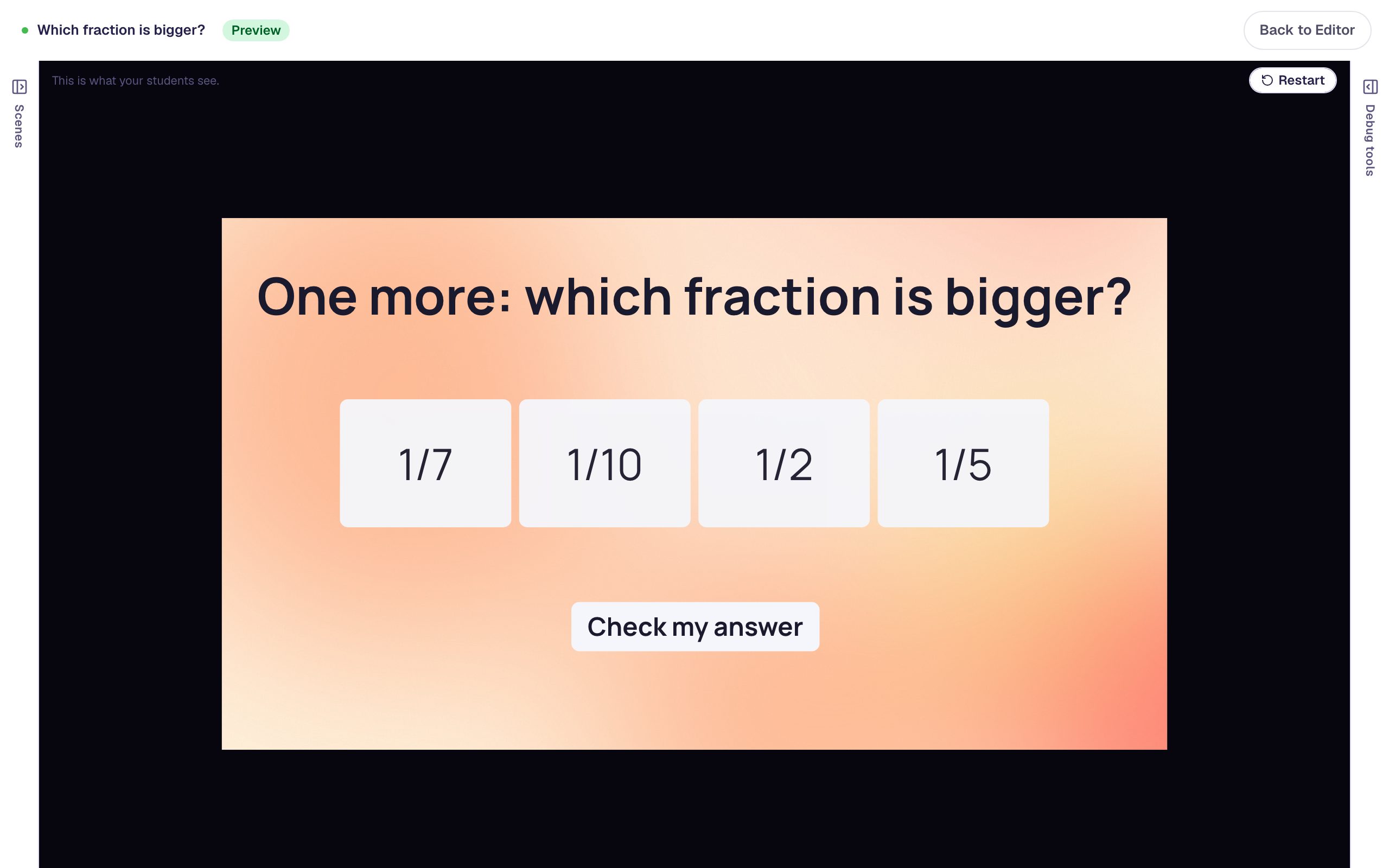
One more: which fraction is bigger? - Select the answers, open ⚙ Configure, and change them to
1/2,1/5,1/7and1/10. The check mark stays on the first answer, which is now1/2. - Add a new Submit Button labelled
Check my answer, with Submits on Current scene. - Click an empty spot and set Evaluate on to Submit, as in Step 1.
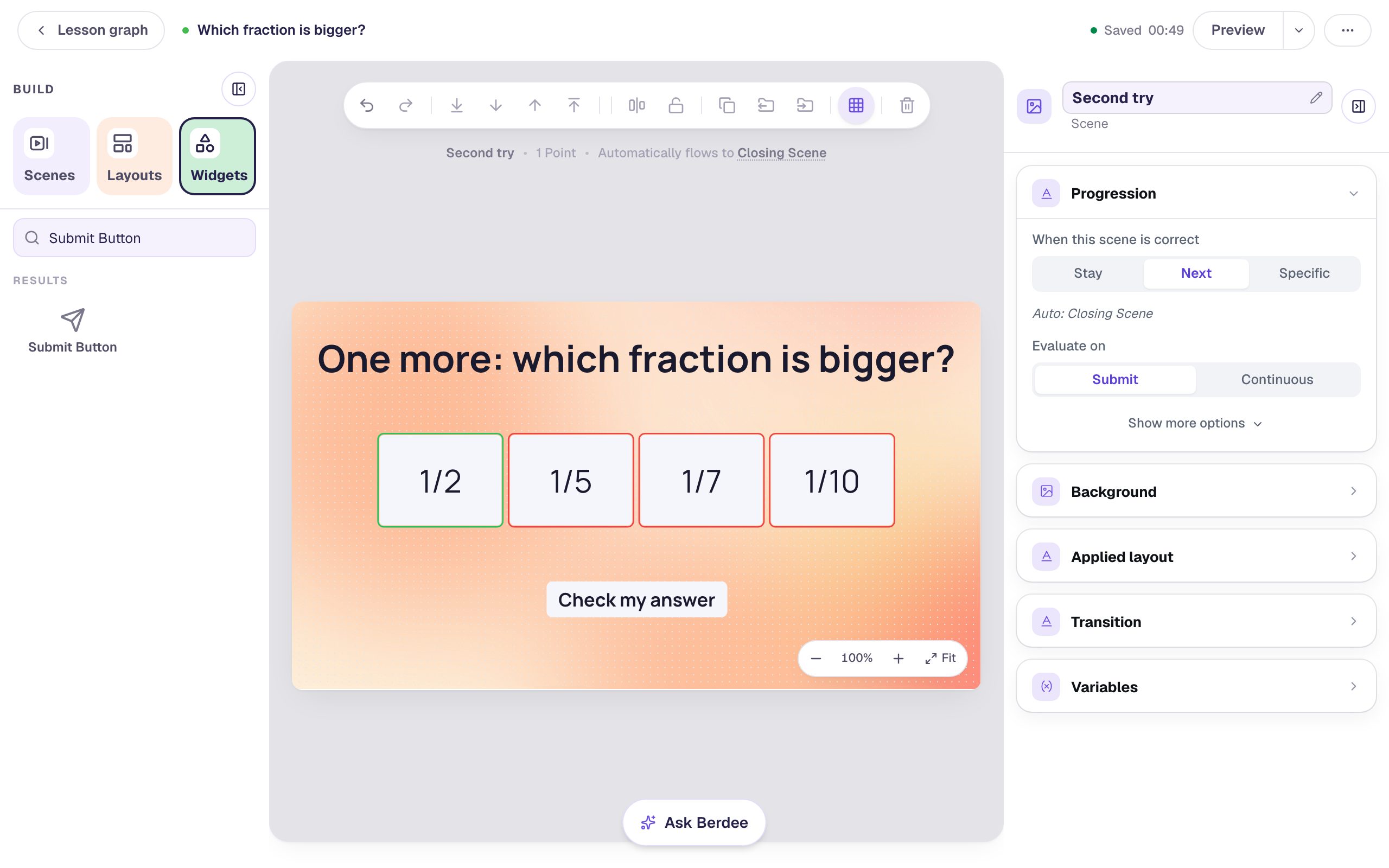
The second try already moves on to the Closing Scene when it's answered correctly, so right answers here are taken care of.
Step 6: Catch a second miss
A student who misses both questions needs a person, not a third screen of the same thing. On the graph, add a scene from the Second try card's dot, exactly as in Step 2: name it Practice together and choose They answer wrong.
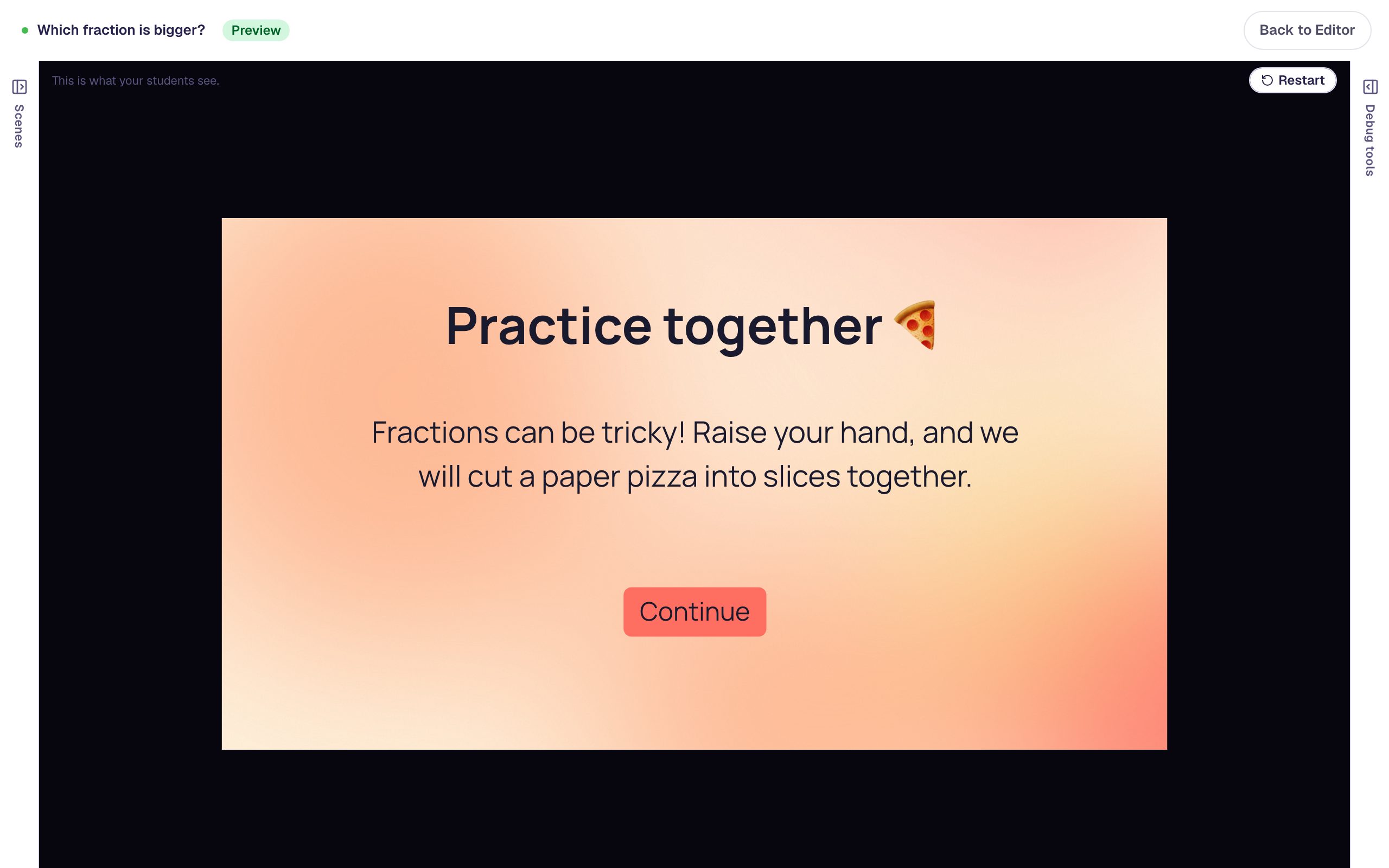
Edit the new scene. Give it the same background, a Heading Practice together 🍕, a Body such as Fractions can be tricky! Raise your hand, and we will cut a paper pizza into slices together., and a Button labelled Continue, renamed Continue.
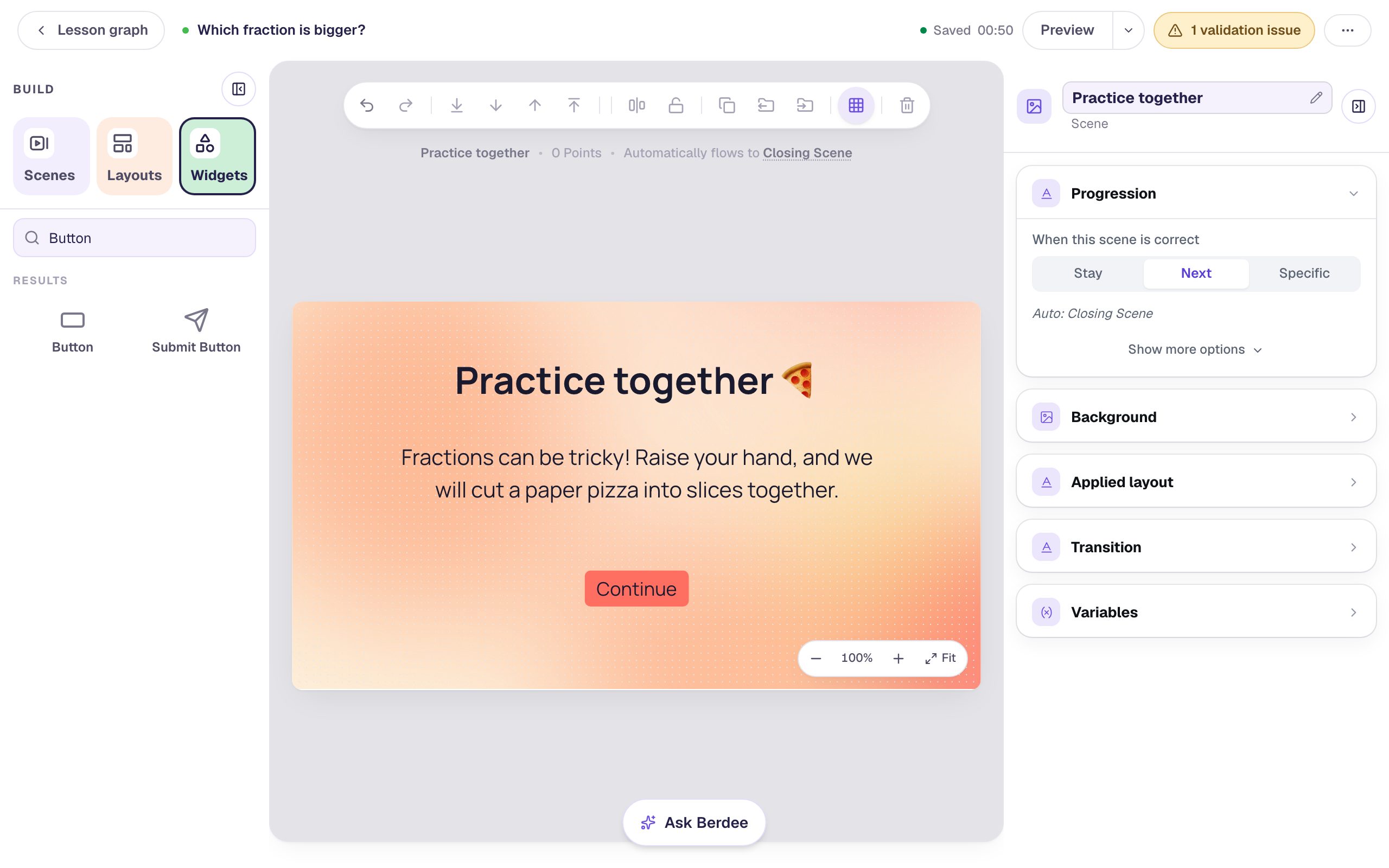
Back on the graph, connect Continue to the ending:
- Hover over the Practice together card and click its dot.
- Choose Or connect to a scene or router that's already in the lesson, then click Next.
- Set Goes to to Closing Scene and Student taps to Continue.
- Click Add path.
Step 7: Check the map
Here's the whole lesson. Every route ends at the Closing Scene, and the strip at the top says No problems — every scene can be reached:
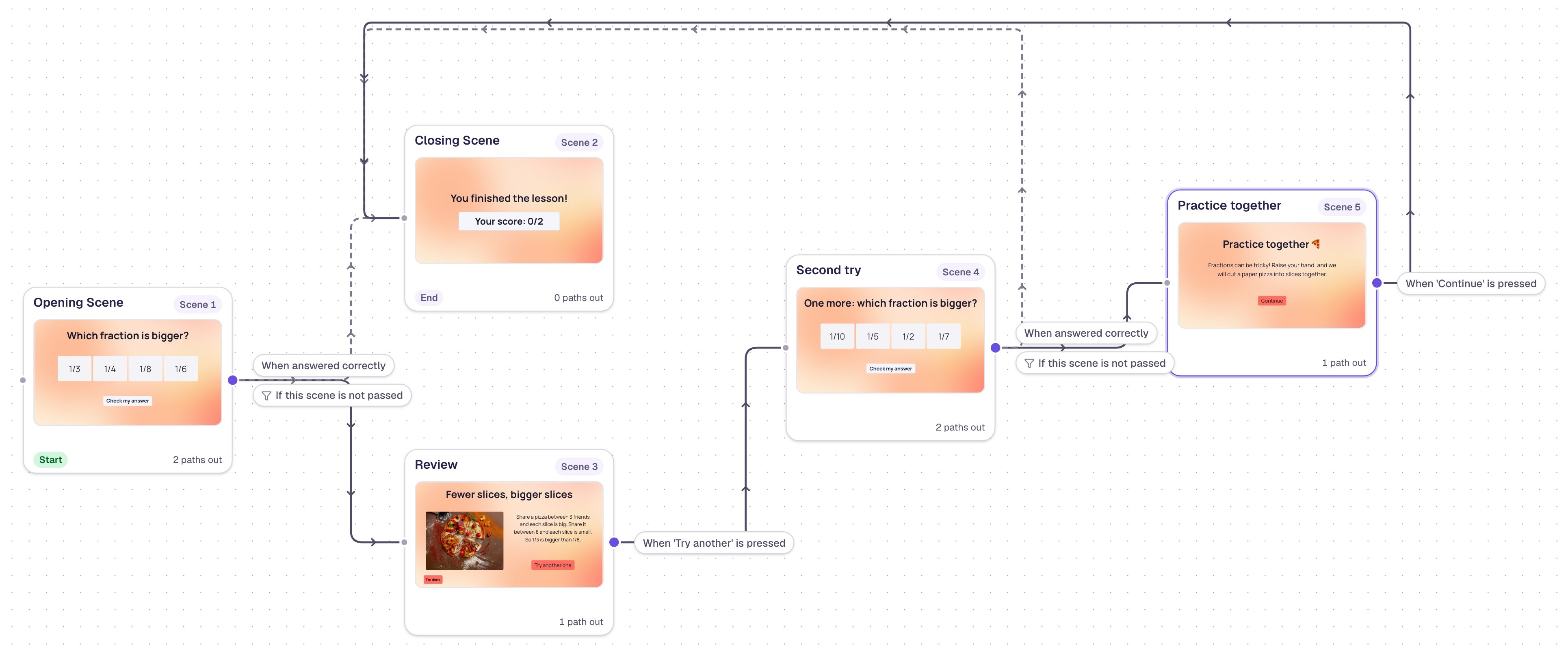
Read it as three routes:
- Right the first time: Opening Scene → Closing Scene.
- Right the second time: Opening Scene → Review → Second try → Closing Scene.
- Wrong both times: Opening Scene → Review → Second try → Practice together → Closing Scene.
Step 8: Try every route in preview
Click Preview at the top of the graph; from the graph, preview always starts at the opening scene. The answers appear in a different order each time, because a Multi Choice shuffles them for students.
First, miss both questions. Pick 1/8 and press Check my answer: the review appears.
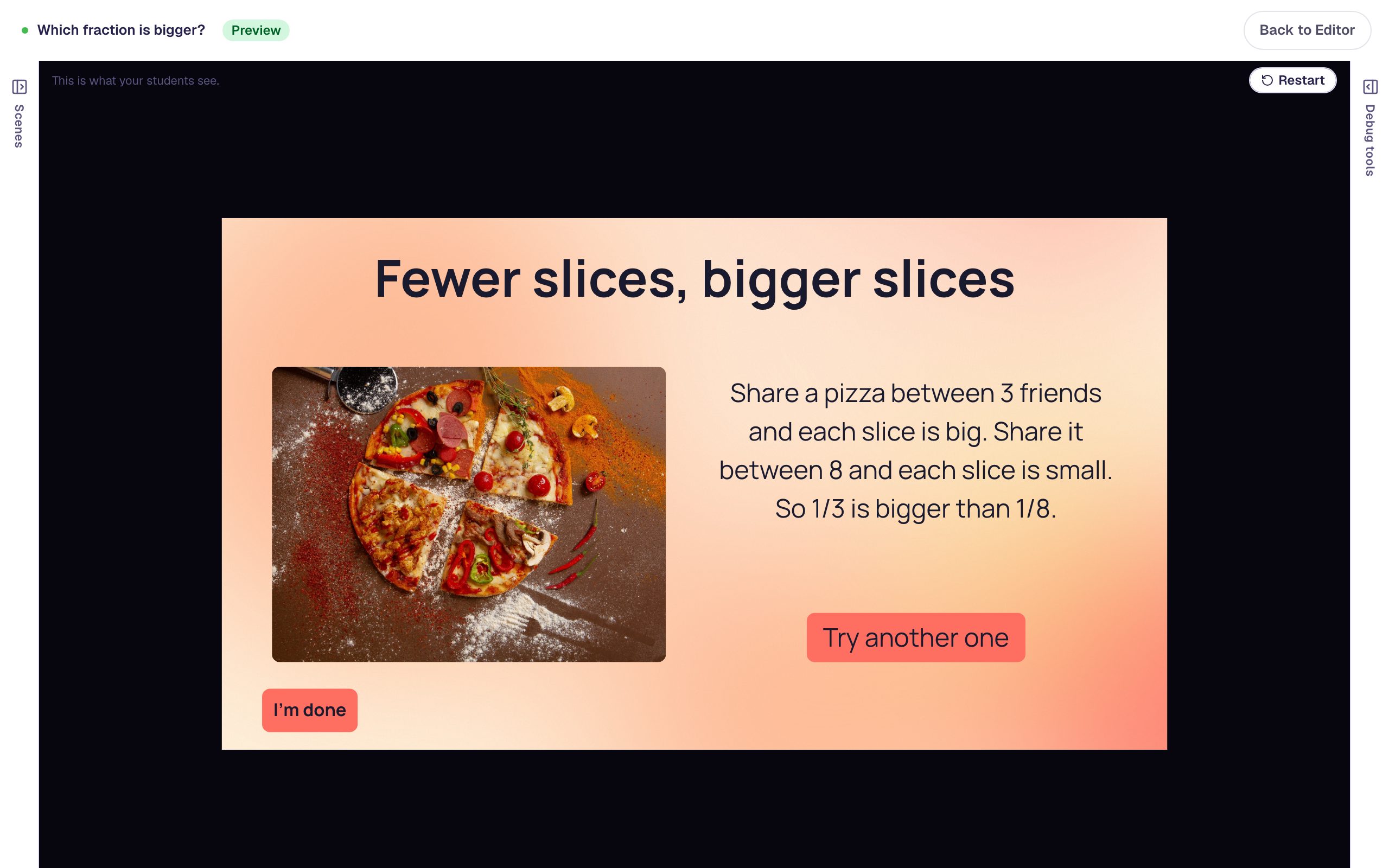
Press Try another one to get the second question:
Pick 1/10 and press Check my answer. This time the lesson asks for help instead of looping:
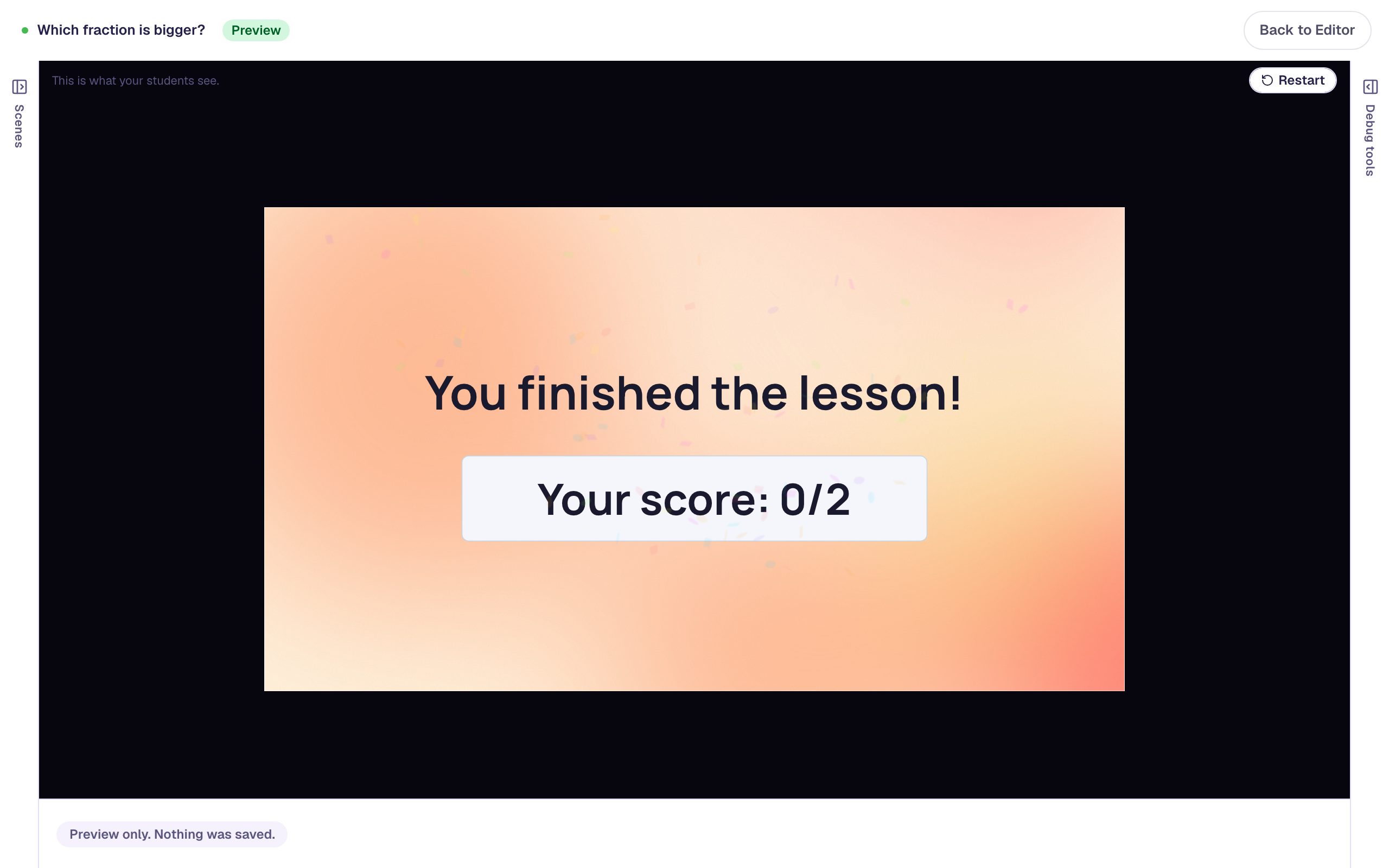
Press Continue. The ending shows 0/2: both questions were reached, and both were missed.
Now click Restart, miss the first question again, press Try another one, and pick 1/2:
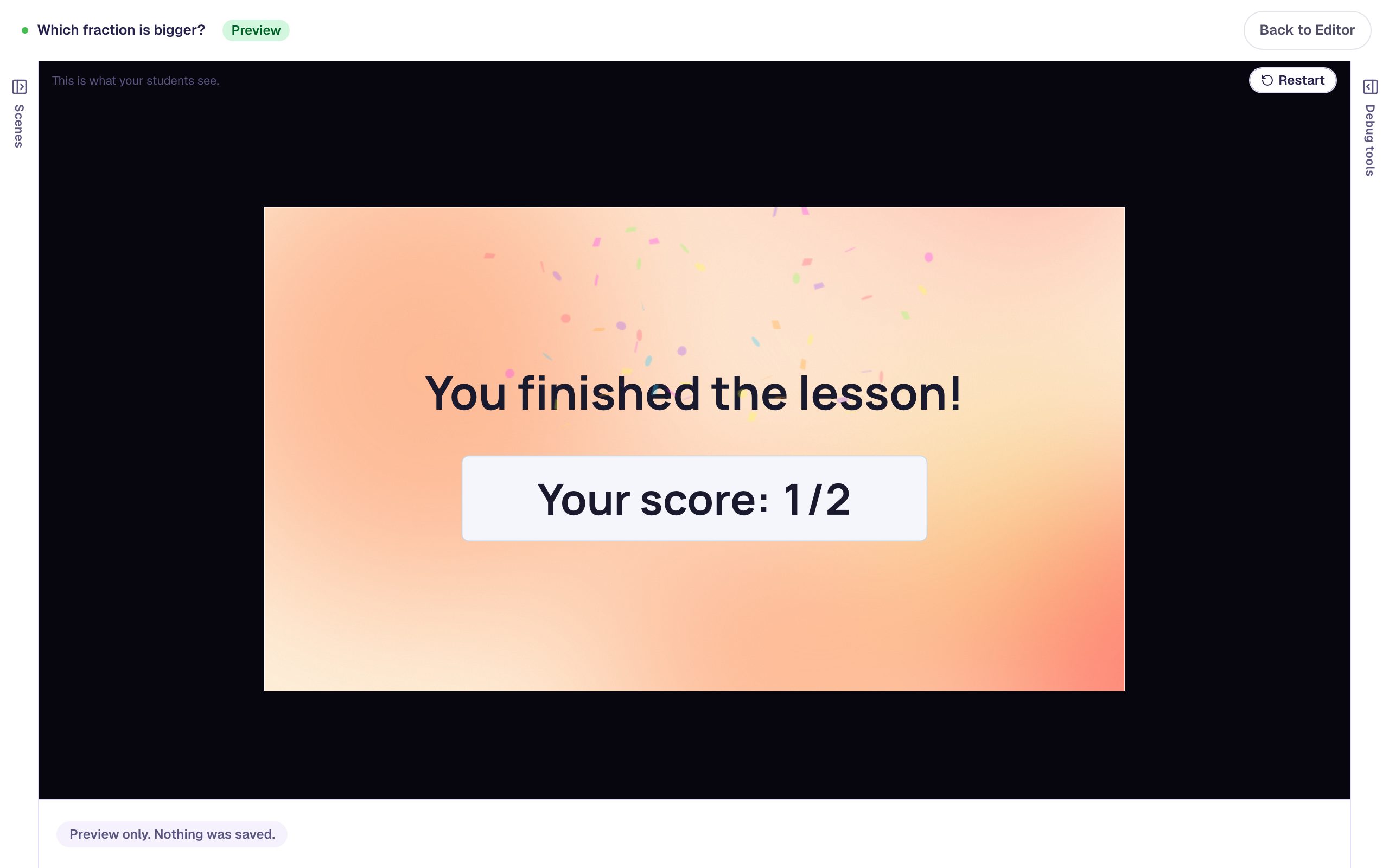
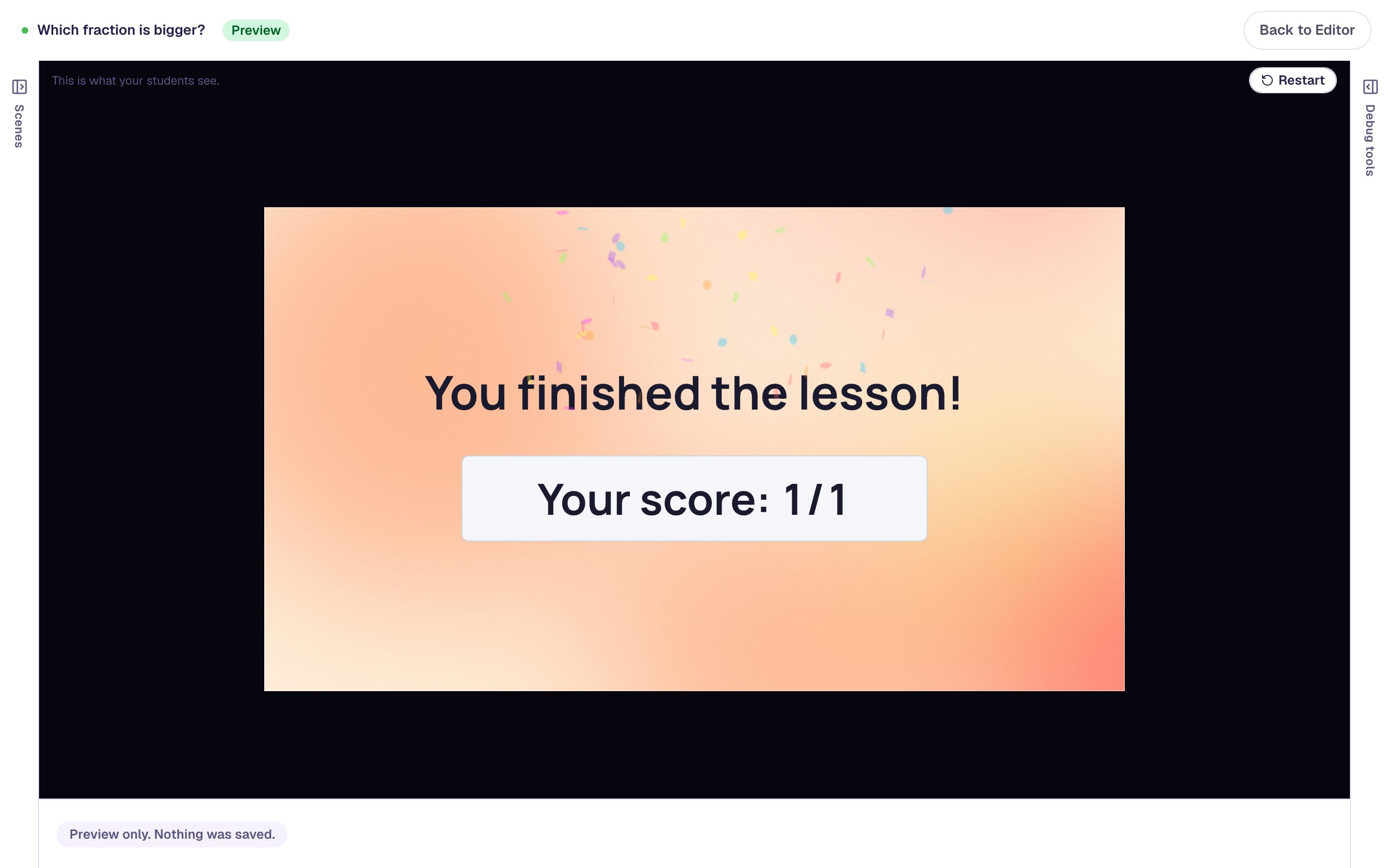
Last, Restart and pick 1/3 on the first try. The student goes straight to the ending with 1/1. The second try isn't counted, because a scene the student never reaches isn't part of their score.
What you built
You built a lesson that gives a struggling student a real second chance:
- a first question that waits for Check my answer, with a They answer wrong path to a Review scene,
- a review with a picture and a plain-language reason, and a Try another one button,
- a Second try scene made with Copy to Scene, so it looks like the first question with new numbers,
- a Practice together scene for a second miss, so nobody loops, and
- three routes that all end at the same ending.
The score keeps the first miss, so a 1/2 tells you which students needed the review. To branch on how a student did across several questions instead of one, see Send students down different paths by their score.
Make this lesson yours
Add the lesson you just watched being built to your account, then change it for your class: your questions, your pictures, your colors.
Free to sign up, and you'll come straight back here. I have an account