Tell time to the half hour with a clock
Build a two-scene lesson with the Clock widget. Students read a clock and tap the time, then turn the hands to show a time, with a hint when they get it wrong.
- Level
- Beginner
- Time
- About 15 min
- Steps
- 7
- Updated
- Oct 31, 2026
A telling-time lesson where students read 11:30 on one clock, set 10:30 on another, and see a hint if they put the hands in the wrong place.
Get the finished lesson
Skip straight to the result, or keep it open beside the steps. Add this tutorial's lesson to your account and explore how it works in the studio.
Free to sign up, and you'll come straight back here. I have an account
Half past is where telling time gets tricky. At 11:30, the short hand has already moved past the 11 toward the 12, so many children read the bigger number and say "half past 12". A picture of a clock can't tell you which mistake a student made, but Berdee's Clock widget can. It draws the hands exactly where they belong, and students answer by tapping a time or by turning the hands themselves.
In this tutorial you'll build a two-scene lesson:
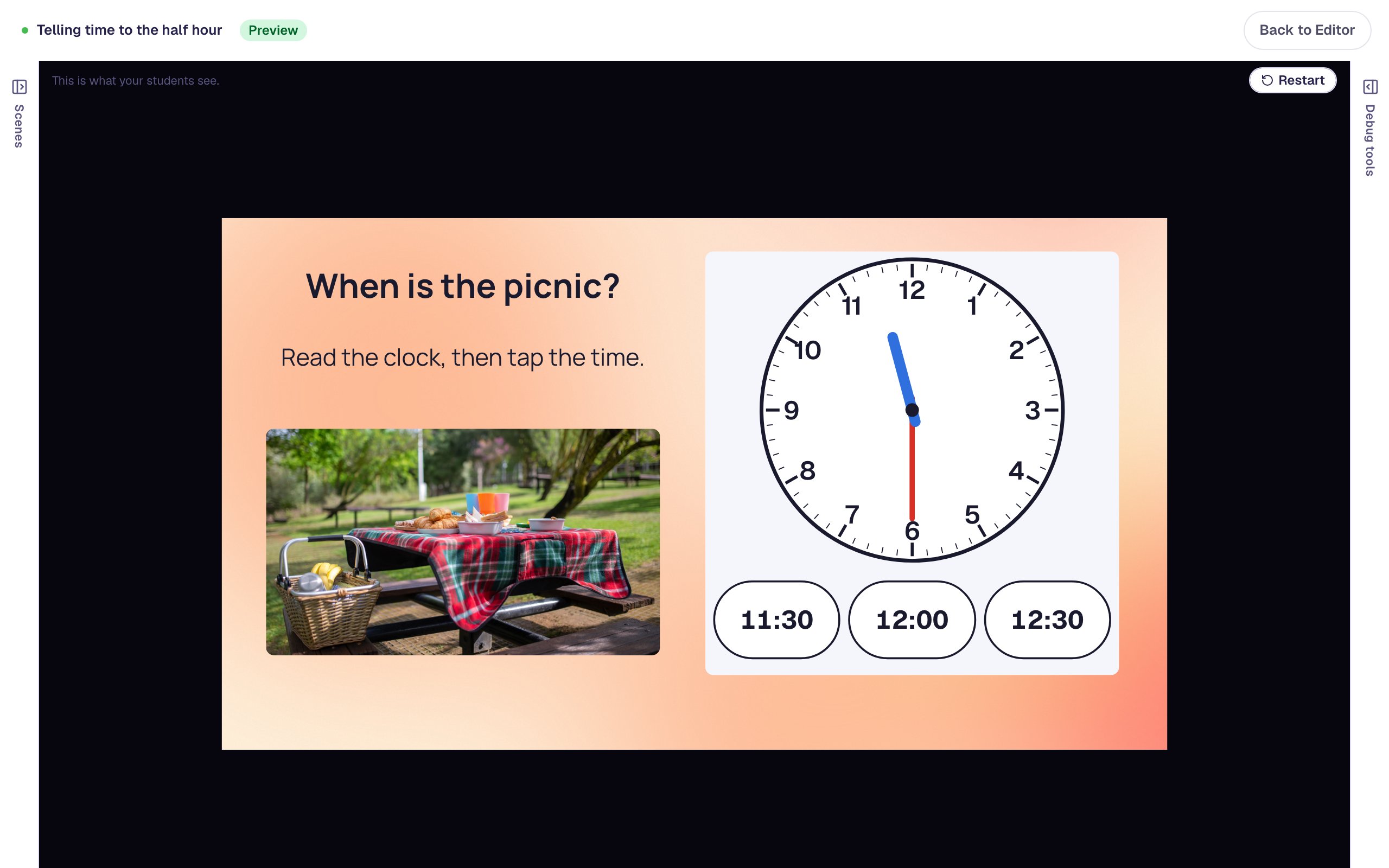
- When is the picnic? Students read a clock showing 11:30 and tap the right time from three choices.
- Recess is at half past 10. Students turn the hands to show 10:30 and tap Done. If they get it wrong, a hint tells them where each hand goes.
Step 1: Set the scene
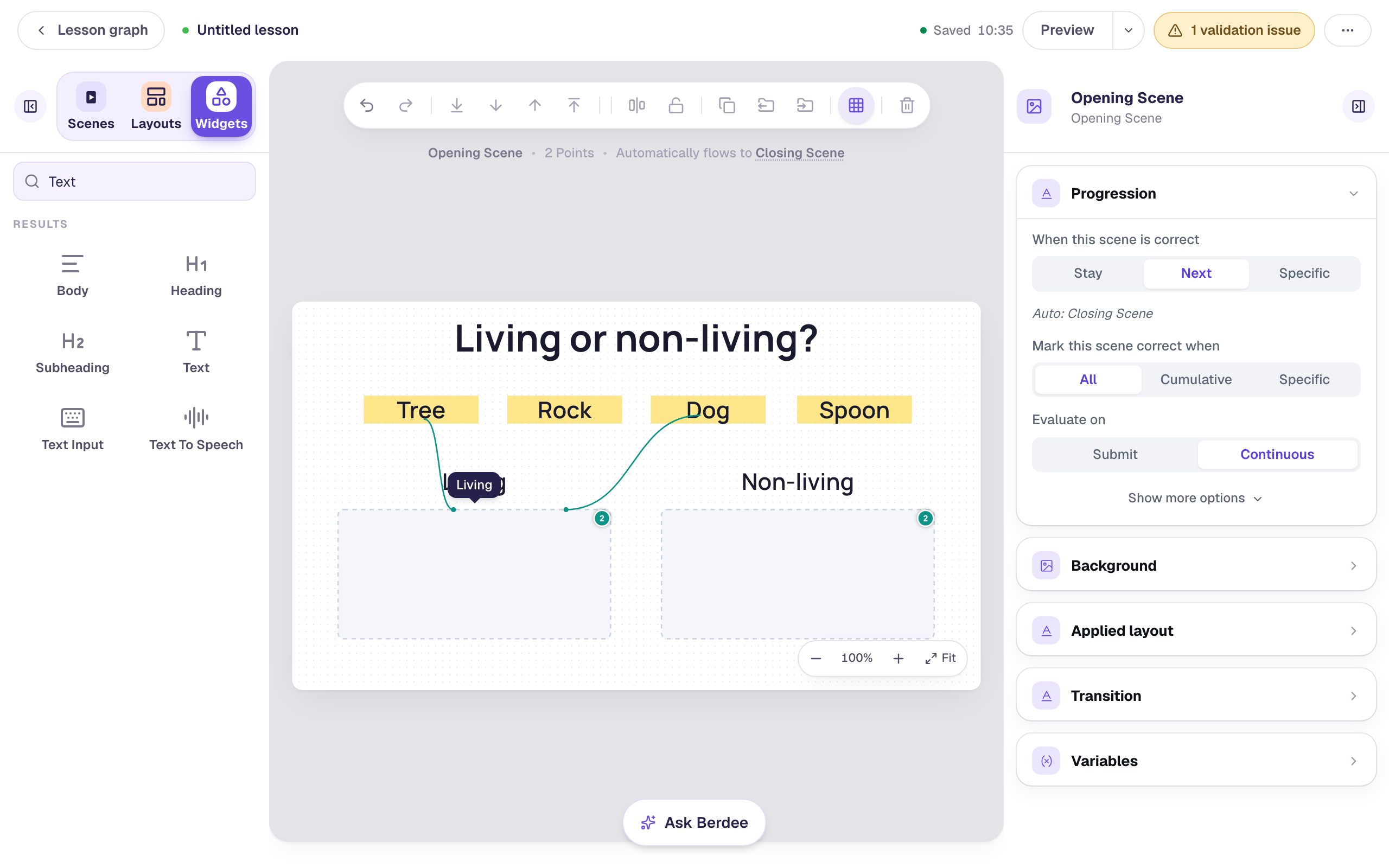
Start a blank lesson (New lesson, then Start from scratch) and name it Telling time to the half hour by clicking Untitled lesson at the top.
With nothing selected, open Background, click Choose a style, then under Gradients pick Mesh sunrise and click Apply background. Do the same on the Closing Scene, so the ending matches.
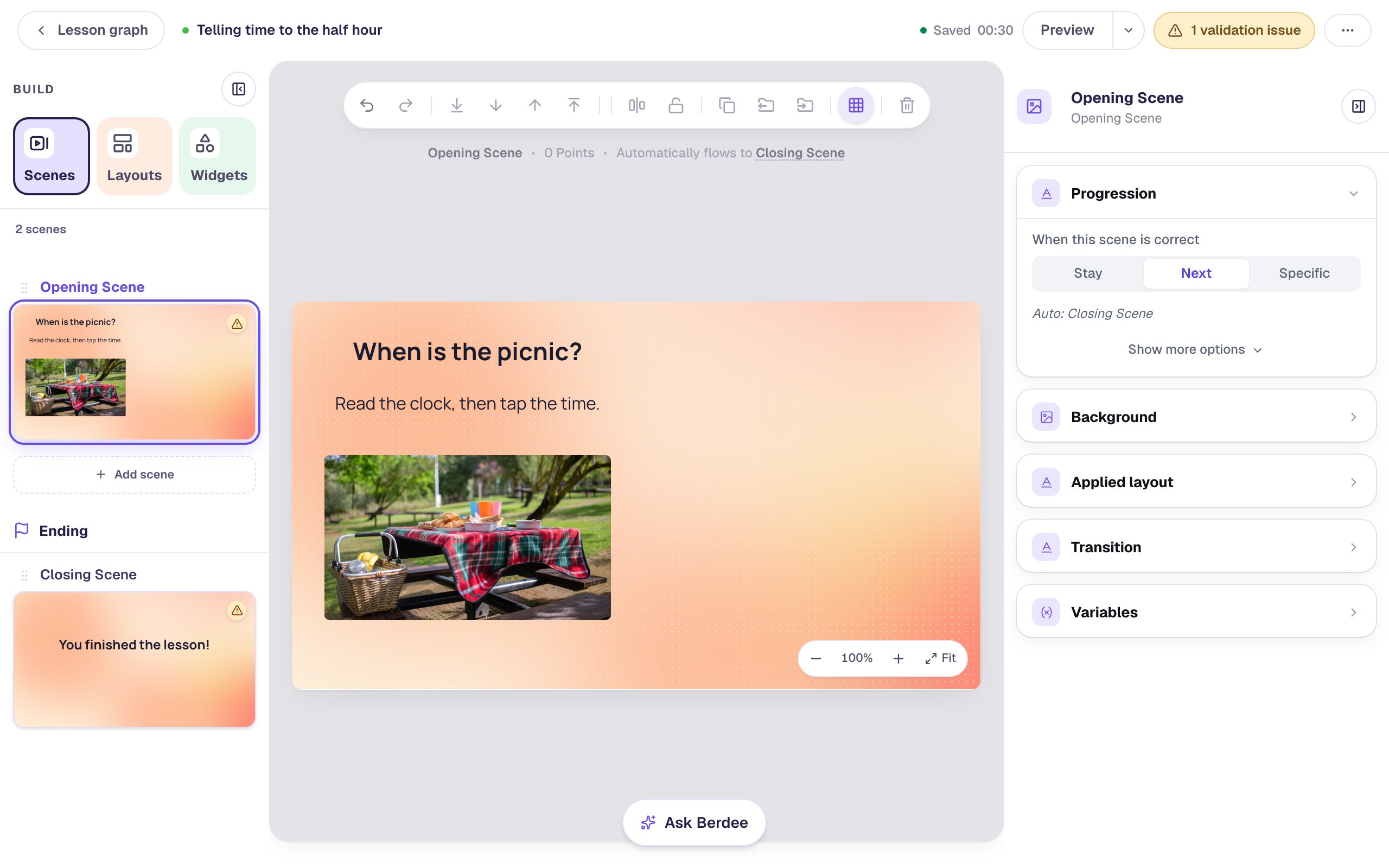
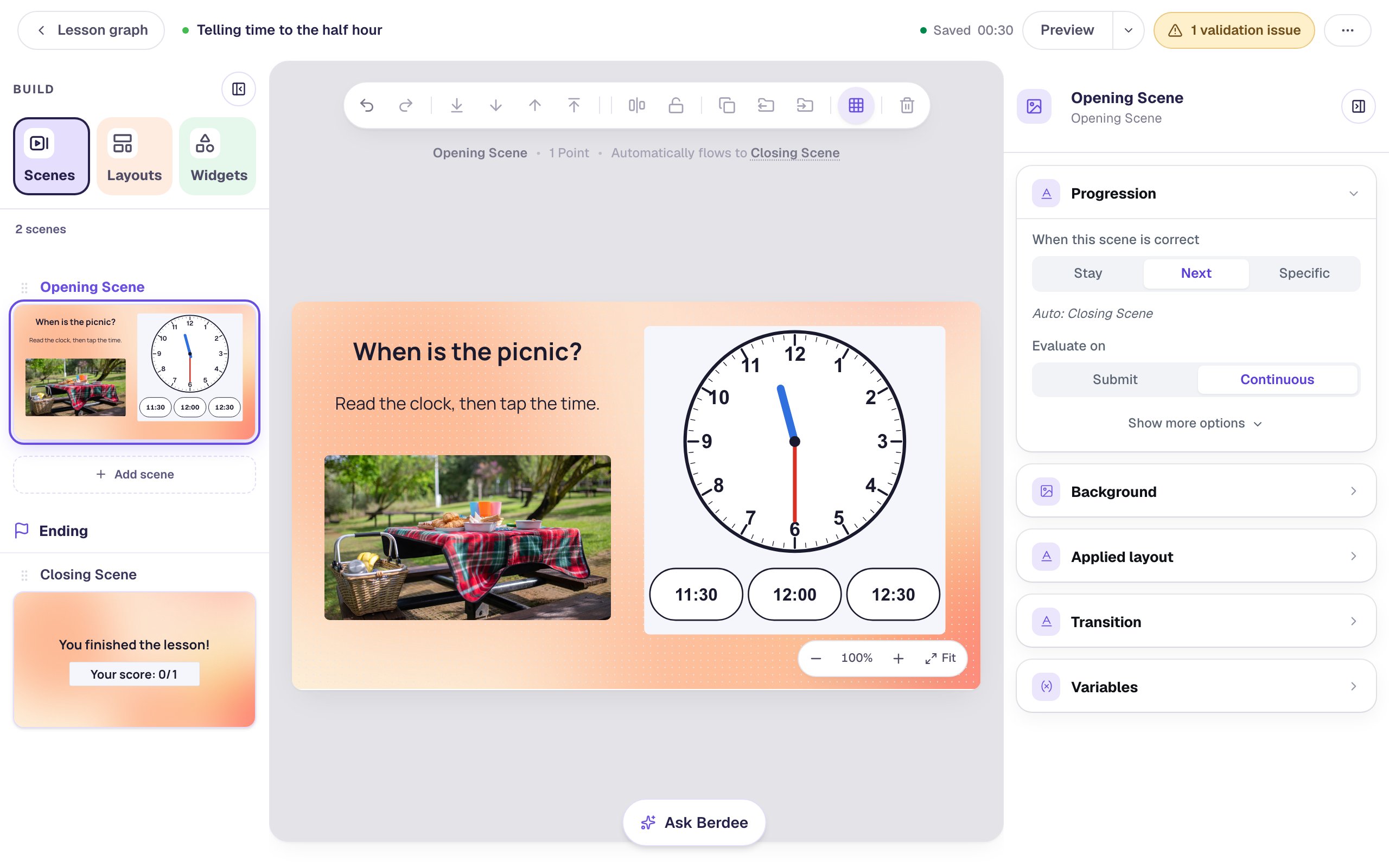
Back on the Opening Scene, keep the left side for the words and a picture, because the clock will go on the right:
- Add a Heading that says
When is the picnic?, set its Font Size to34, and drag it to the top left. - Add a Body under it that says
Read the clock, then tap the time.and set its Font Size to24. - Add an Image, click Choose image, search the stock photos for
picnic basket blanket, and pick a picnic. Set its Width to400and Height to230and drag it under the words. - Open Accessibility and replace the photo's file name in Alt Text with what a student would see, such as
A wicker basket beside a picnic table with a red plaid cloth, food and cups, in a green park.
Step 2: Add a clock
In Widgets, search for Clock and click it. A large clock lands on the scene showing 4:30.
- Click its name at the top of the properties panel and rename it
Picnic clock. A clear name helps later, when you pick it in a condition. - In Style & Layout, click Show more options and set Width to
420and Height to430. - Drag it to the right of the words.
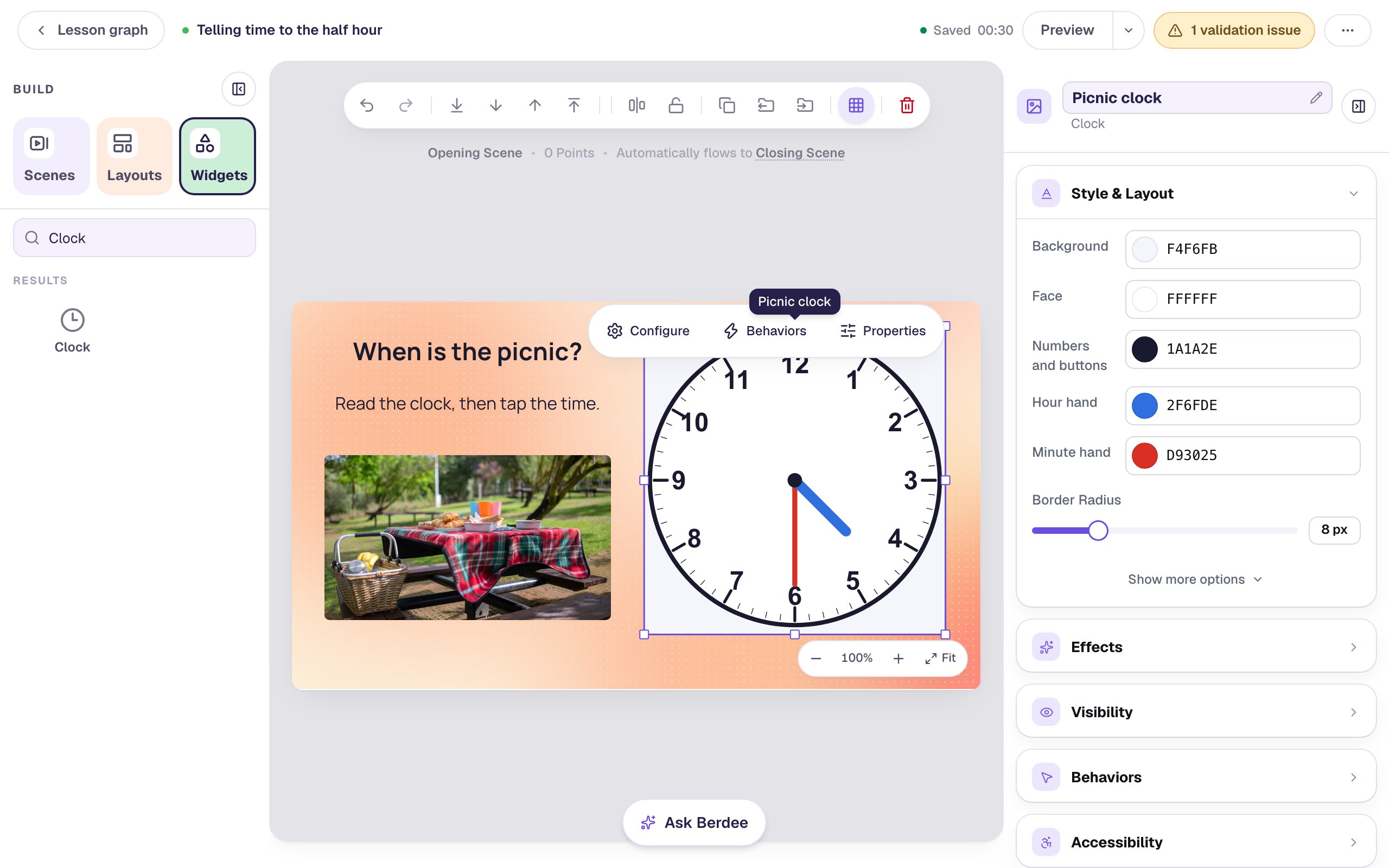
Keep the clock big. Students tap the numbers and the buttons under the face, so a small clock is hard to use on a tablet. If you make it too small, the Configure window warns you.
The colours are in Style & Layout if you want to change them. Keep the two hands different lengths and easy to see against the face: the shape, not the colour, is how a child tells them apart.
Step 3: Make it a question students read
Click ⚙ Configure above the clock. The window asks things in order, starting with What students do:
- Show only shows a time, for a question you ask with another widget.
- Read asks students to read the clock and give the time. It's graded.
- Set asks students to turn the hands to a time. It's graded too.
- Explore lets students turn the hands freely. It isn't graded.
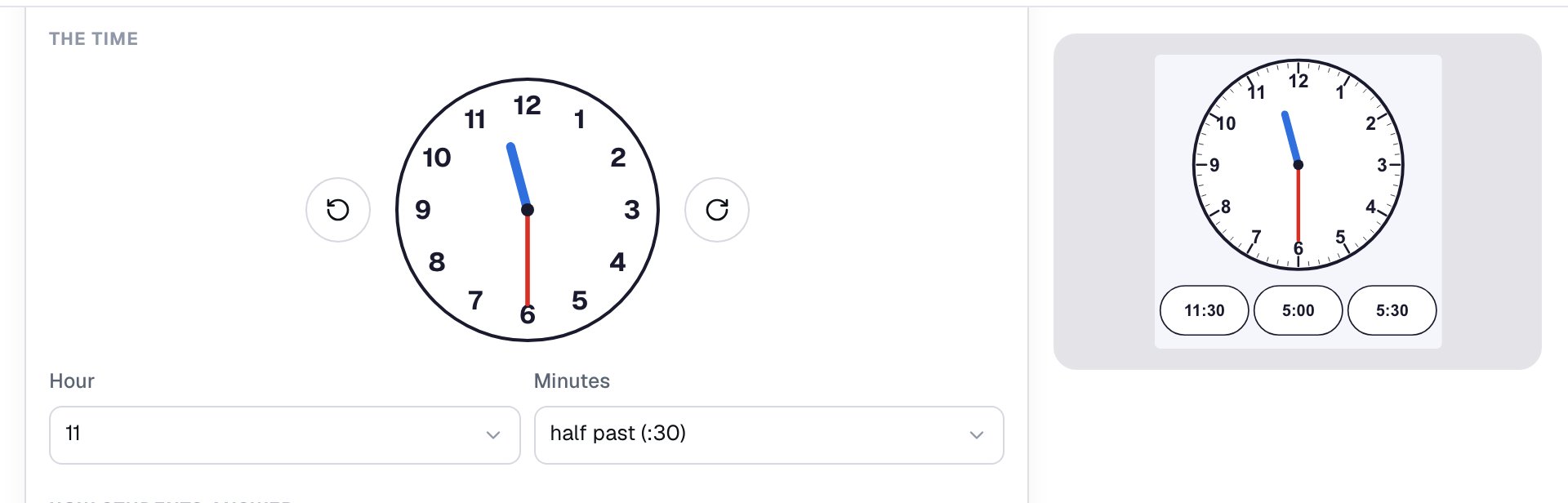
Click Read. Then, under The time, set Hour to 11. Minutes is already half past (:30).
The small clock in the window turns as you change the time. You can also turn it with the arrow buttons on either side of it, a half hour at a time.
Step 4: Choose the wrong answers that teach
Scroll down to How students answer. Choose the time is already picked, so students tap one of the times listed under Times to choose from.
The right time followed the clock to 11:30 and is marked ✓ Right. The other two are still the ones the clock started with, 5:00 and 5:30, which are far too easy to rule out.
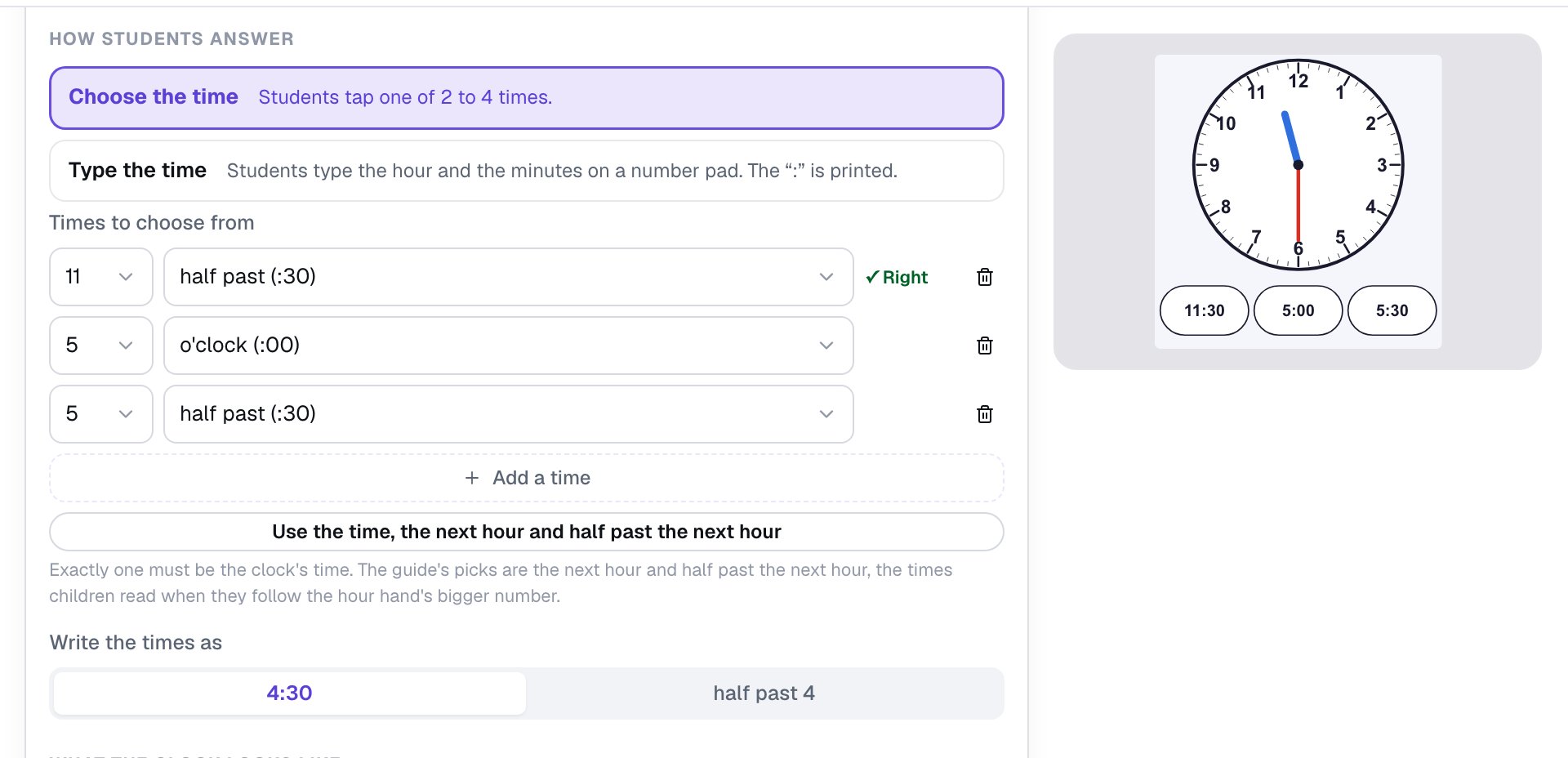
Click Use the time, the next hour and half past the next hour. The choices become 11:30, 12:00 and 12:30.
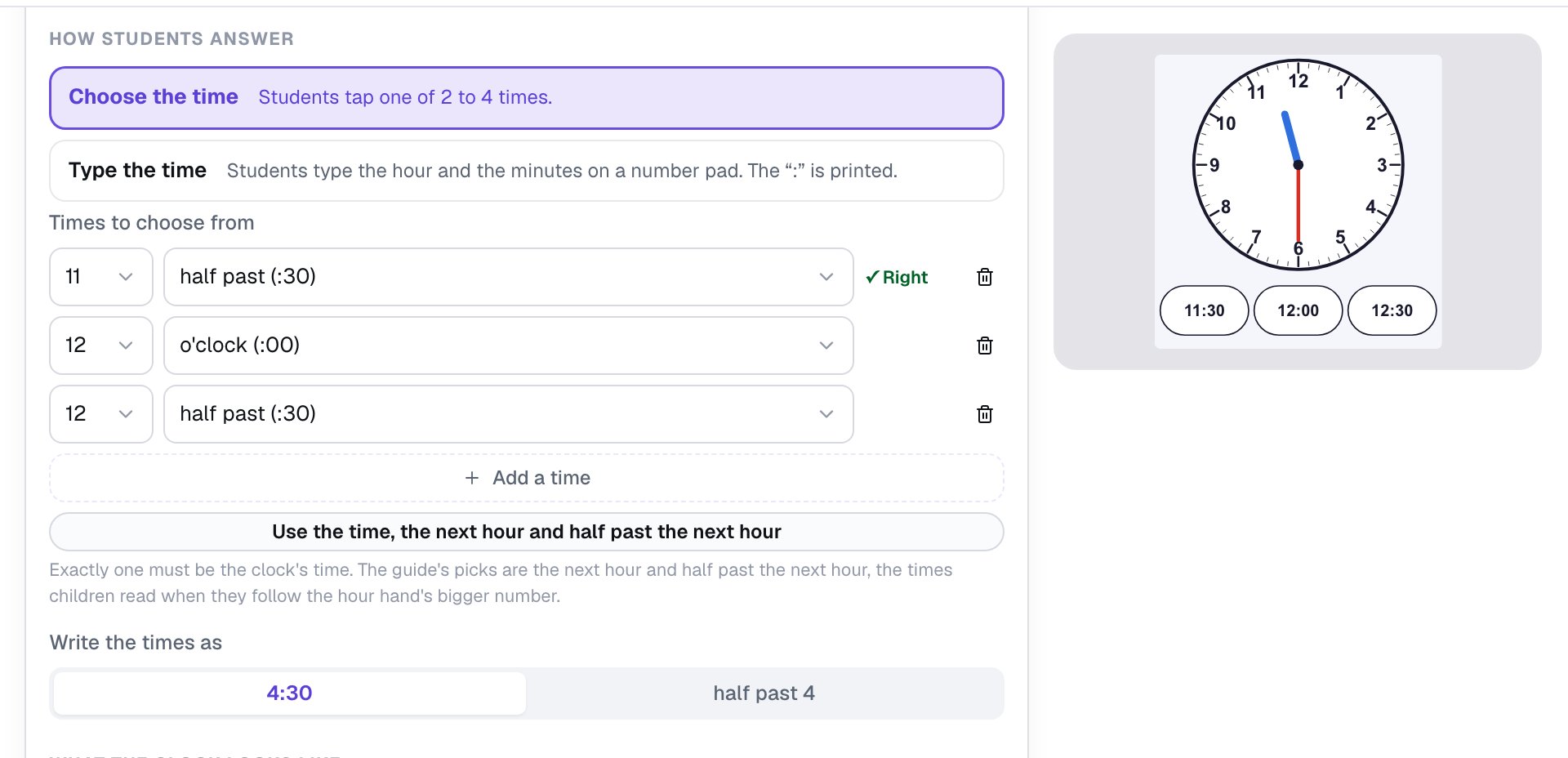
These aren't random. A child who reads the number the short hand is closest to says 12:00, and a child who sees the long hand on the 6 but follows the short hand's bigger number says "half past 12". When a student picks one of them, you learn which mistake they're making, and the attempt page names it for you.
Click Save. The clock now shows 11:30 with the three times under it.
Step 5: Add a scene where students set the clock
Reading a clock is half the skill. Now students show a time themselves.
- In Scenes, click Add scene. Double-click the new scene's name and rename it
Recess. - Give it the same Mesh sunrise background.
- Add a Heading that says
Recess is at half past 10.at Font Size34, a Body that saysTurn the hands, then tap Done.at24, and a photo of a playground (searchcolorful playground) at the same size as the picnic photo. Write its Alt Text too, such asA wooden playground with yellow roofs, red panels and yellow slides among green trees. - Add another Clock, rename it
Recess clock, and give it the same size and place as the first one.
Then click ⚙ Configure, click Set under What students do, and set Hour to 10.
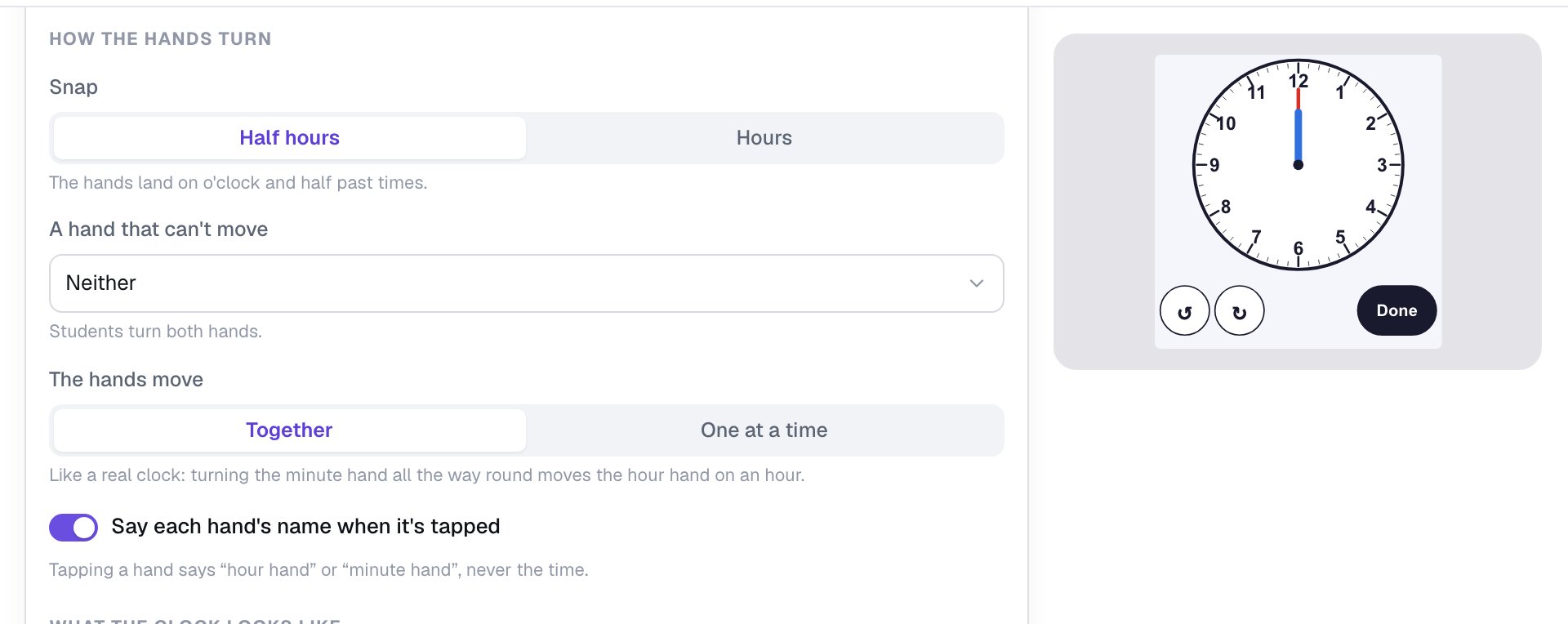
Notice the preview: in Set mode both hands start on 12. The time you chose, 10:30, is the answer students have to reach, so the clock never shows it to them.
Under How the hands turn, leave the settings as they are:
- Snap is Half hours, so a hand a student lets go of lands on an o'clock or half past time.
- The hands move is Together, like a real clock. When the minute hand turns from 12 to 6, the hour hand moves halfway to the next number, so students see why the short hand isn't on the 10 at 10:30.
- Say each hand's name when it's tapped is on, so a tap says "hour hand" or "minute hand". It never says the time.
Click Save.
Berdee needs one button that lets a student finish the lesson before it will publish; that's the 1 validation issue at the top of the studio. Add a Submit Button, and in Content set its Label to I'm done and Submits to Lesson. Set its Font Size to 18, give it a dark navy Background and white Text, and put it in the bottom-left corner, under the photo.
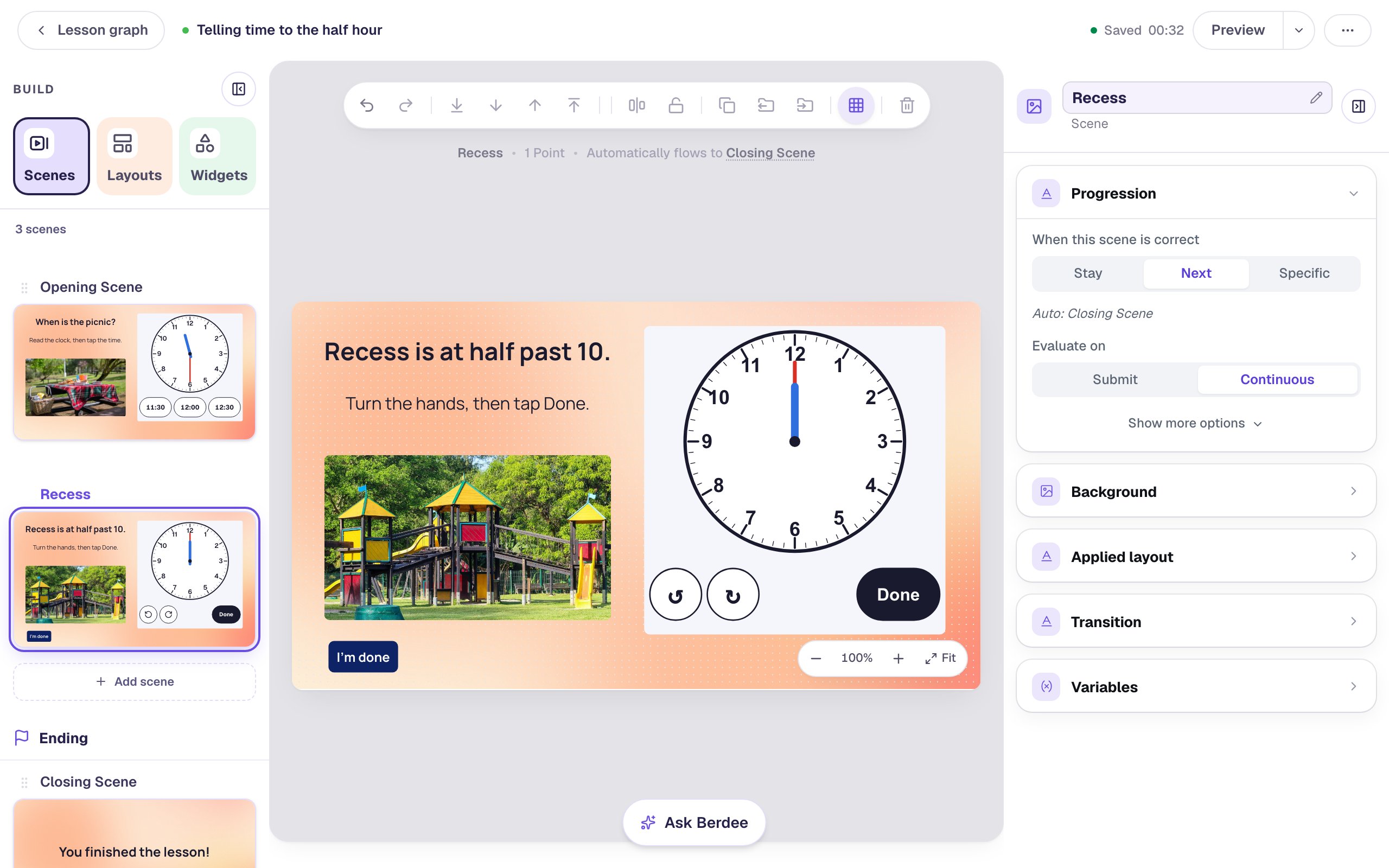
On a tablet, students can turn a hand by dragging it, by tapping a hand and then the number it should point to, or with the two arrow buttons, which move the time a half hour earlier or later. With a keyboard, Tab reaches each hand and the arrow keys turn it.
Step 6: Give a hint on a wrong answer
A wrong Done keeps the hands where the student left them, so they can fix them. A short hint helps them see what to fix.
With Recess clock selected, open Behaviors in the properties panel:
- Click Add Behavior, then On Answer. It runs every time a student taps Done. The new behavior starts with a Display Message action.
- Type the hint:
Not quite. At half past 10, the long hand points to 6 and the short hand sits between 10 and 11. - Change the message style to Failure message.
- Click Add Condition, choose Clock: Recess clock, then Is incorrect.
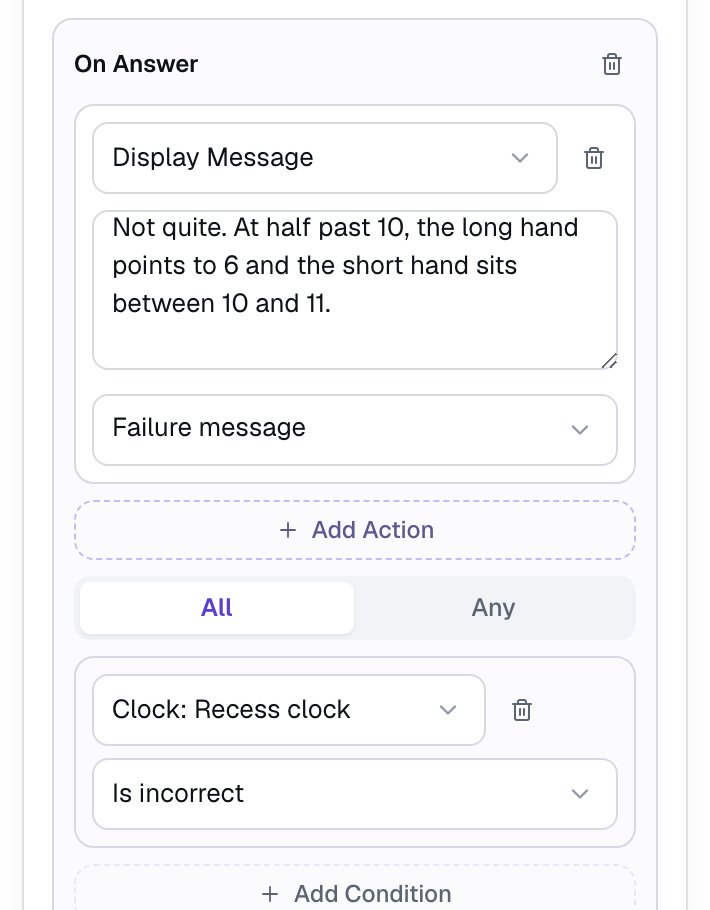
The hint describes where each hand goes rather than giving the student a way round the skill. It also uses "long hand" and "short hand", the words young students use before "minute hand" and "hour hand".
Step 7: Try it as a student
Go back to the Opening Scene and click Preview.
The picnic clock shows 11:30 with three times under it. Tap 11:30. The scene moves on to recess as soon as the answer is right. A wrong tap leaves the student on the scene to try again.
On the Recess scene, both hands start on 12.
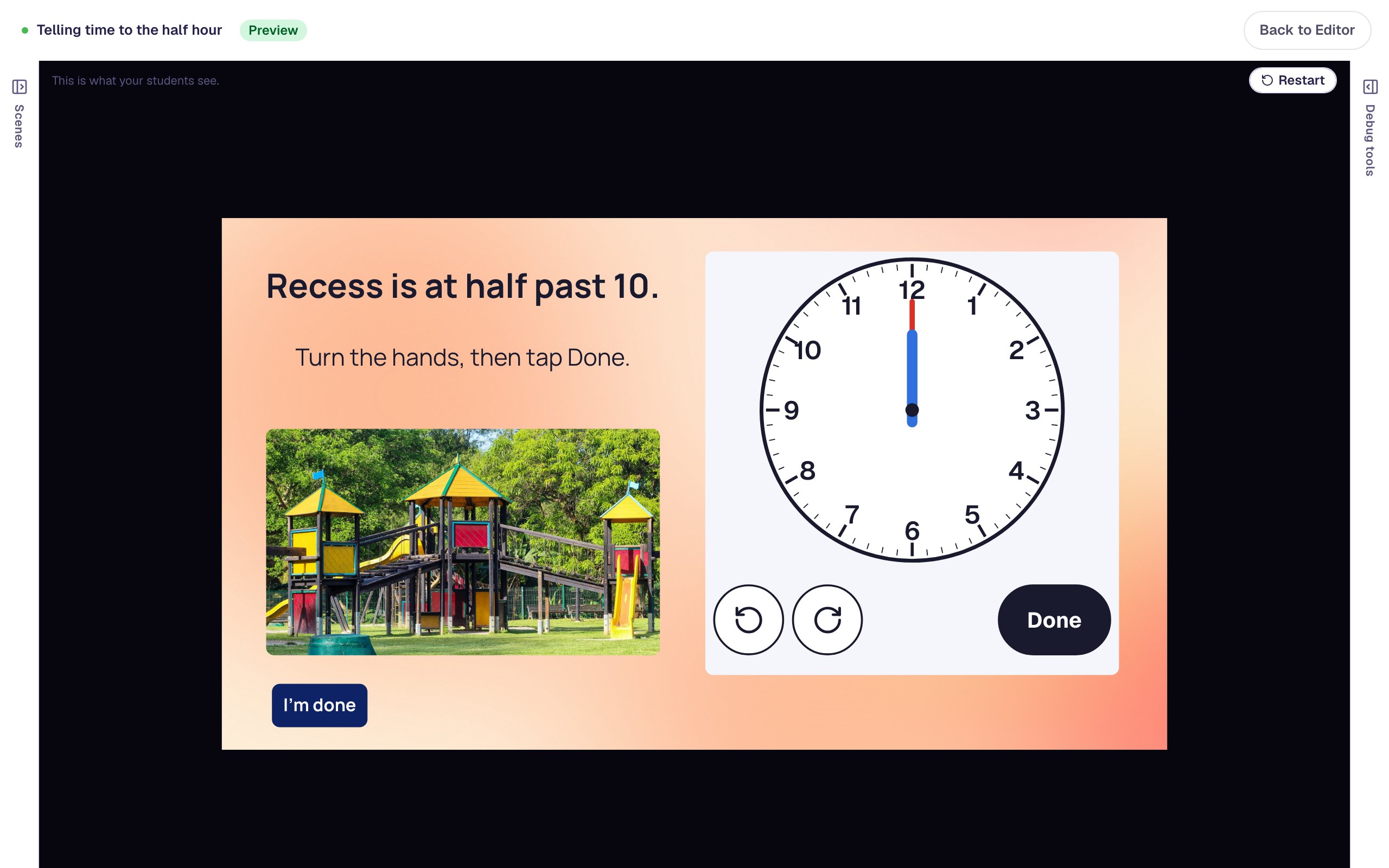
Now make the classic mistake: tap the left arrow once, to 11:30, and tap Done. The hint appears.
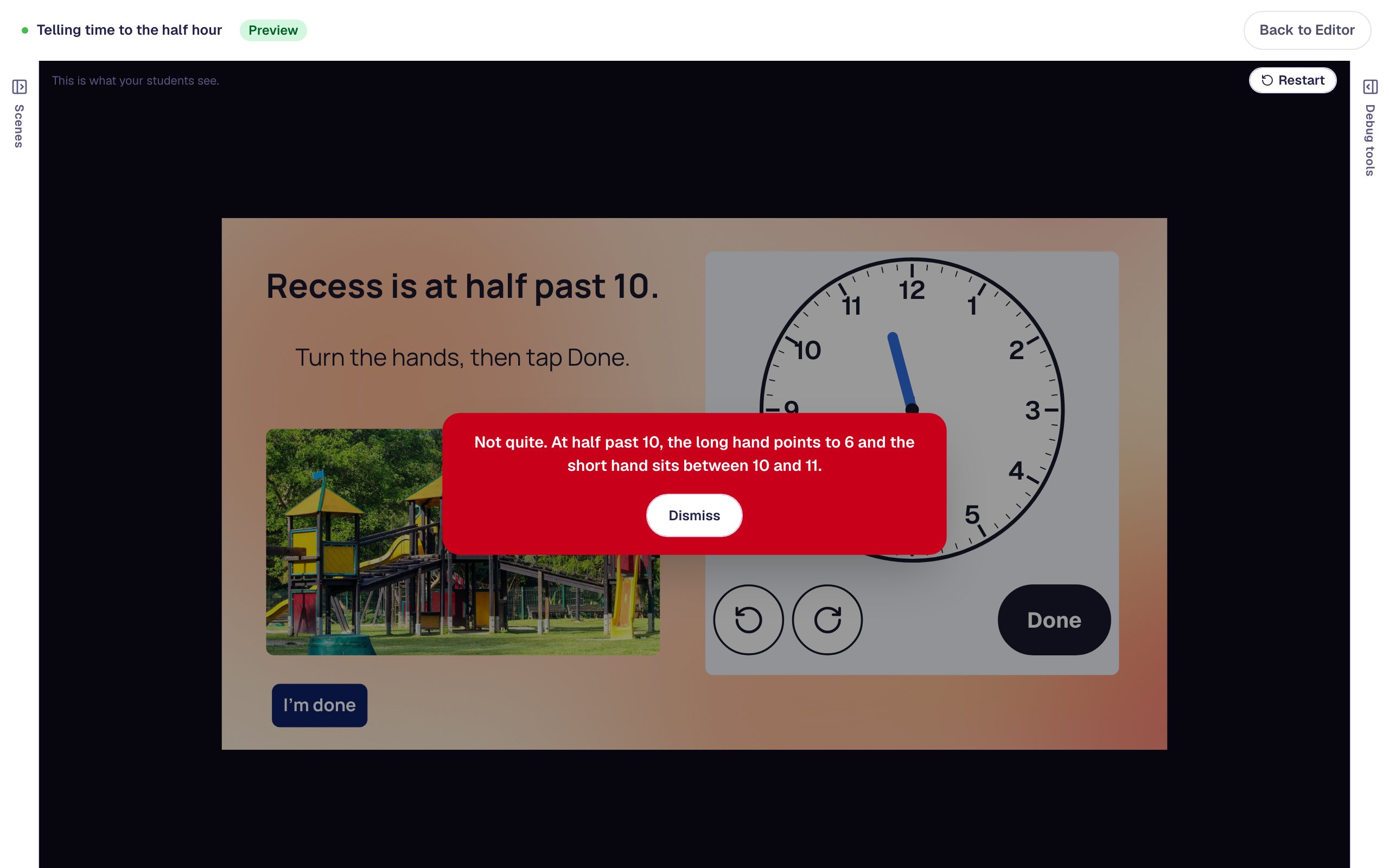
Click Dismiss, tap the left arrow twice more, and look at the clock before you tap Done: the long hand is on the 6, and the short hand sits halfway between the 10 and the 11.
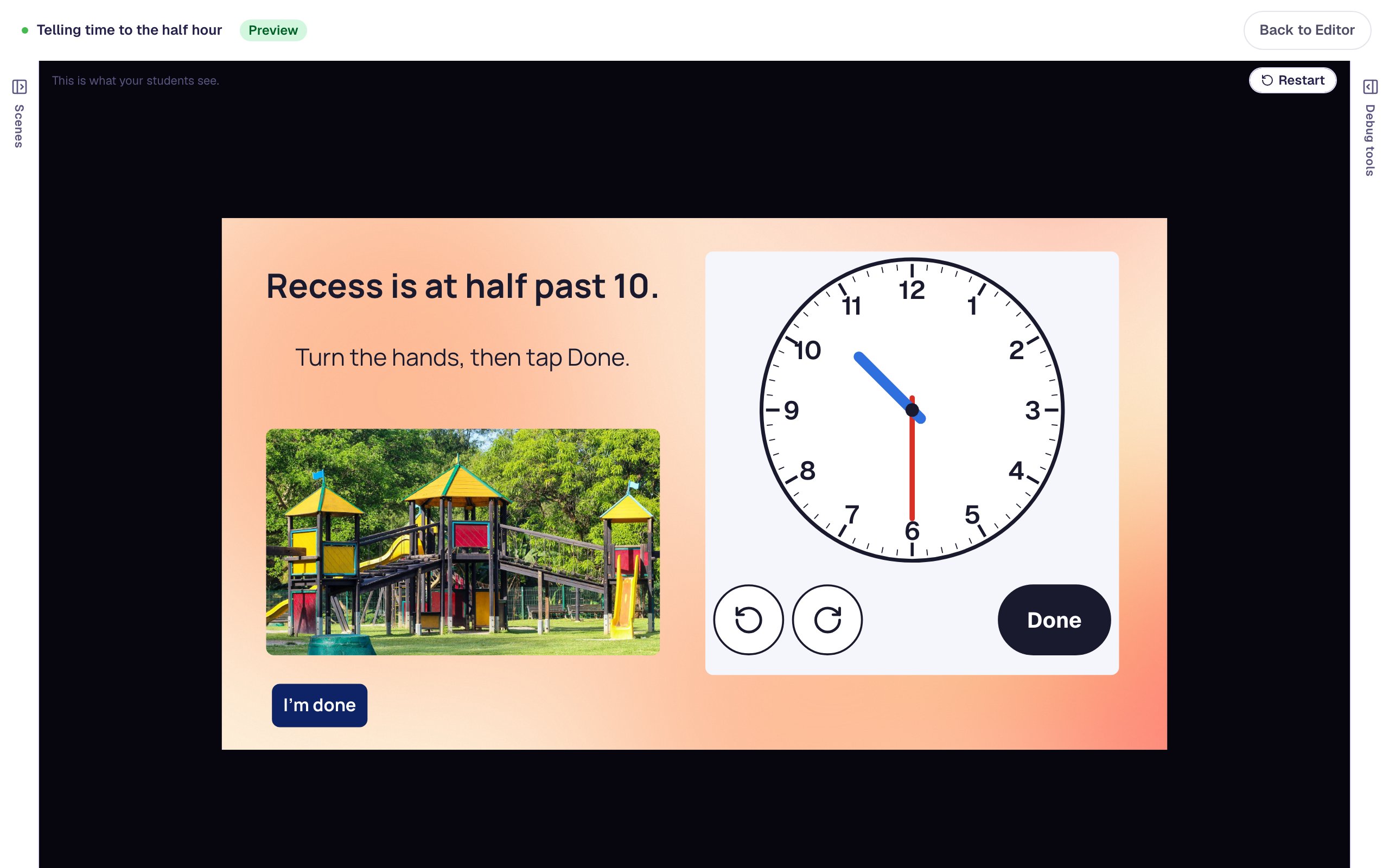
Tap Done, and the lesson moves to the ending.
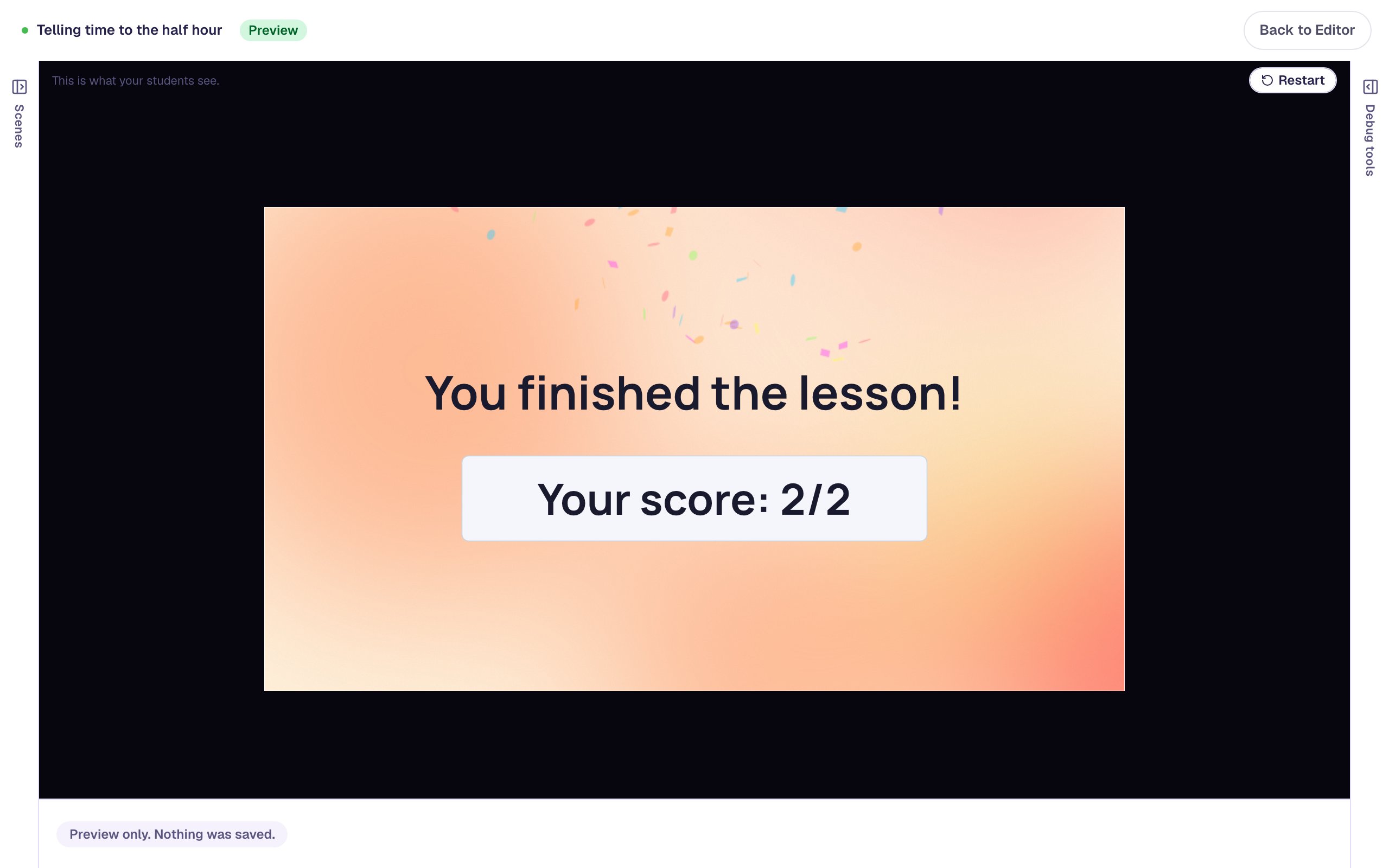
The score counts each clock as one point. In a real lesson, the attempt page shows you more than the score: a small picture of each clock, every try in order, and the name of the mistake, such as "Set 10:30 · showed 11:30 (half past the next hour), then 10:30 ✓".
What you built
A telling-time lesson with two clocks:
- a Read clock at 11:30 whose wrong choices, 12:00 and 12:30, are the mistakes students really make,
- a Set clock where students turn the hands to 10:30, with the hands moving together like a real clock,
- an On Answer hint that appears only when the hands are wrong, and
- photos with alt text that describes them for students using screen readers.
To go further, try Write the times as half past 4 for students who are learning the words, Type the time for a number pad instead of choices, or Hour hand only for the very first lessons, where students say "it's about 4 o'clock". Every setting is in Clock Widget. To write good alt text for your photos, see Describe your pictures for screen-reader users.
Make this lesson yours
Add the lesson you just watched being built to your account, then change it for your class: your questions, your pictures, your colors.
Free to sign up, and you'll come straight back here. I have an account