Describe your pictures for screen-reader users
Write alt text a student's screen reader can say for every photo in a lesson, name a clickable arrow for what it does, leave decoration undescribed, and check it all with the keyboard in Preview.
- Level
- Beginner
- Time
- About 10 min
- Steps
- 7
- Updated
- Oct 26, 2026
A two-page "Meet the toucan" lesson where every photo says what it shows, each orange arrow is announced as "Next page", and the sparkles stay silent.
Get the finished lesson
Skip straight to the result, or keep it open beside the steps. Add this tutorial's lesson to your account and explore how it works in the studio.
Free to sign up, and you'll come straight back here. I have an account
A student who is blind or has low vision hears your lesson through a screen reader, which reads each part of the page out loud. It can read your headings and text as they are, but a photo is just pixels: the screen reader can only say what you wrote for it in Alt Text. Leave that to chance and a student hears a file name, or nothing at all, where the picture should be.
In this tutorial you'll build a two-page lesson, Meet the toucan, and give every picture the right description. You'll rewrite the alt text Berdee fills in for a photo, catch the description that goes stale when you swap a photo, name a clickable arrow for what it does, and leave the decorative sparkles undescribed so screen readers skip them. Then you'll move through the lesson with only the keyboard, the way many screen-reader users do. If you've never added a widget before, start with Build your first quiz question.
Step 1: Build a page with a photo
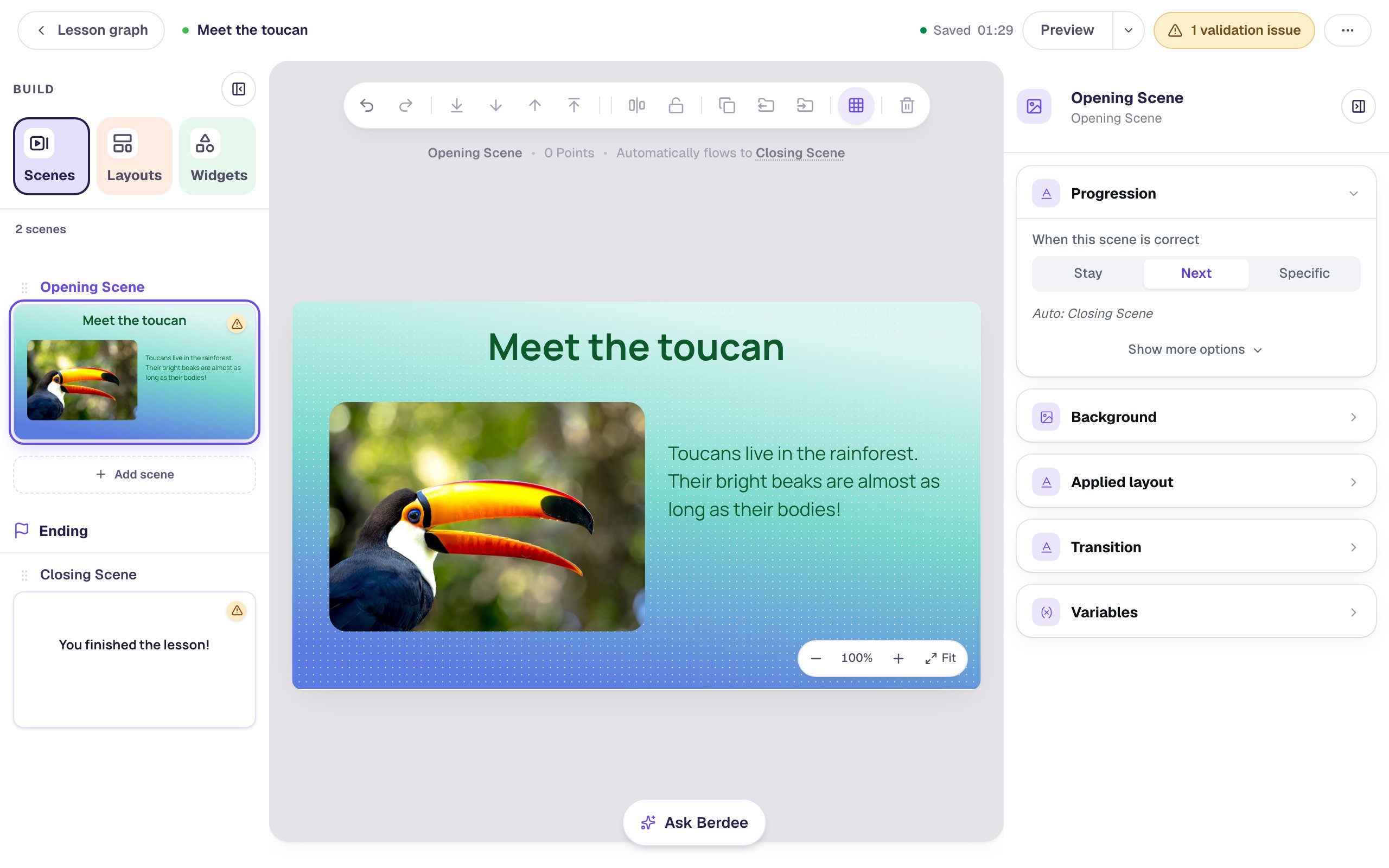
Start a blank lesson and name it (we used Meet the toucan). Click an empty part of the canvas, open Background in the properties panel, click Choose a style, and pick Lagoon gradient from Gradients.
Add a Heading from the Widgets tab, type Meet the toucan, and centre it at the top. Add an Image, click Open Media Library, search the stock photos for toucan, and pick a close-up of a toucan. We set its Fit to Cover and rounded its corners with Border radius 24. Beside it, add a Body that reads Toucans live in the rainforest. Their bright beaks are almost as long as their bodies!
Step 2: See what Berdee wrote for the photo
Click the photo and scroll the properties panel down to Accessibility. Open it, and look at Alt Text.
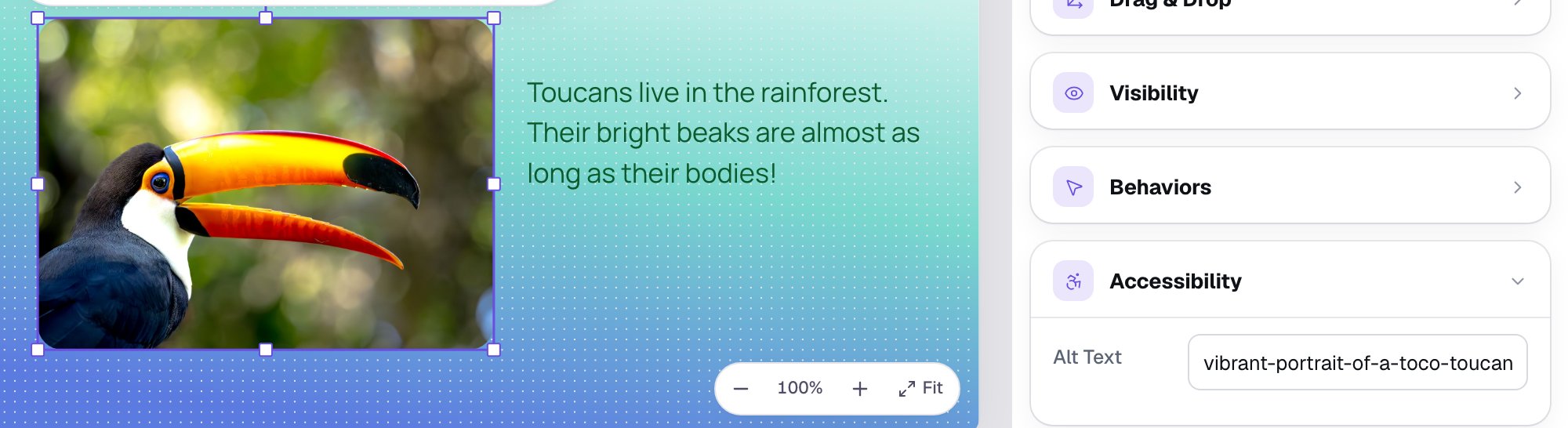
Berdee never leaves it empty: when you pick a picture, it fills Alt Text from the picture's own description, or from its file name when there is none, as here (vibrant-portrait-of-a-toco-toucan-…-blur.jpg). A screen reader would read every word of that, hyphens, ".jpg" and all. Even a good description from a stock site was written by someone who doesn't know your lesson. It's a placeholder, not an answer.
Step 3: Write what a student needs to know
Click into Alt Text, select everything in it, and type your own description. We wrote A toucan with a huge yellow and orange beak, in front of green leaves.
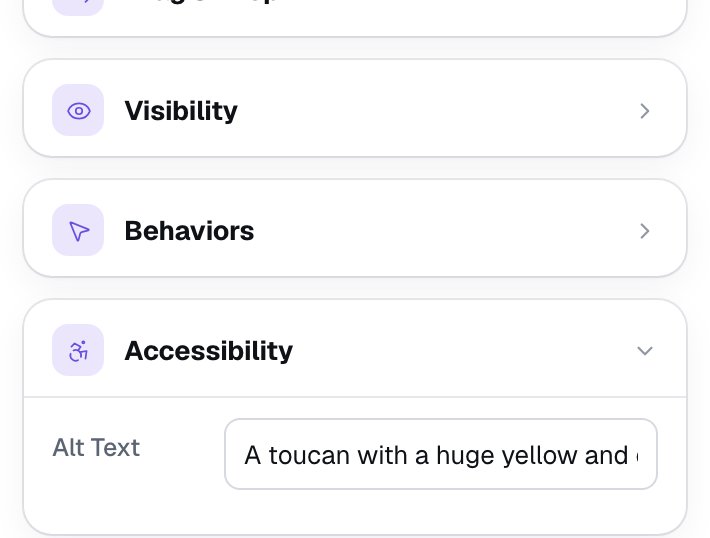
The box shows only the start of a long description, but it keeps all of it. A few rules make alt text work:
- Say what the student would see, for this lesson. The page is about the toucan's beak, so the beak comes first. On a page about rainforest colours, you might write about its black and white feathers instead.
- Keep it to one short sentence. A screen reader can't skim; the student hears every word.
- Don't start with "Image of" or "Picture of". The screen reader already says it's a picture.
- Don't repeat the text beside it. The Body already says toucans live in the rainforest, so the description doesn't need to.
Step 4: Let screen readers skip the decoration
Not every picture needs words. Add a Shape, pick Sparkle from the shape library, make it 56 by 56 and give it a yellow Fill Color. Put one on each side of the heading.
Now look at a sparkle's Accessibility section:
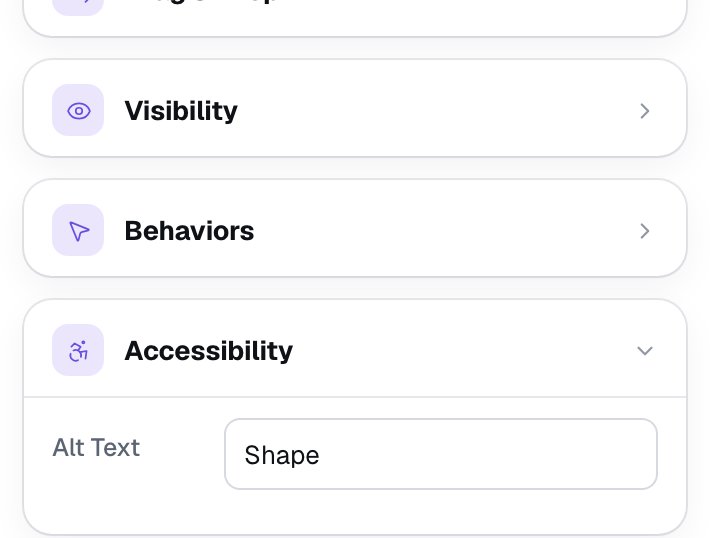
Leave it as Shape. A shape whose alt text is empty or still says Shape, and that students can't press, is treated as decoration: screen readers skip it, so a student isn't told about two sparkles that mean nothing. Only describe a shape when it carries meaning, like an arrow in a diagram that shows what comes next.
Step 5: Swap a photo, then fix its description
Click Add scene in the Scenes tab, rename the new scene Big beaks, and build it like the first page: the same background, a heading What is the beak for?, a toucan photo, and a Body that reads A toucan's long beak reaches fruit at the very end of thin branches, where the bird is too heavy to sit. Write the photo's alt text too: ours was A black toucan with a bright yellow chest, sitting on a branch.
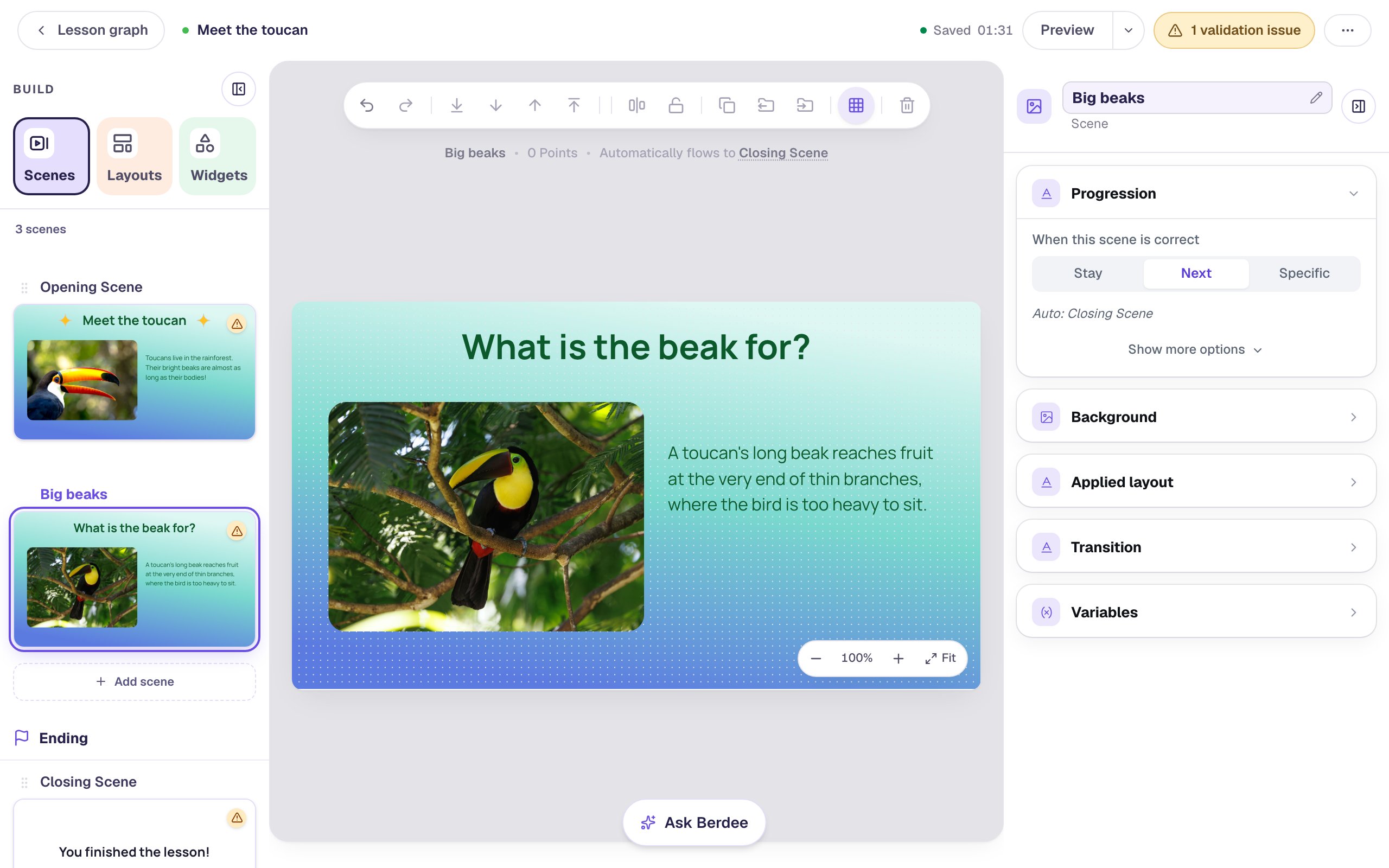
The text is about reaching fruit, and this photo shows a toucan sitting still. A better one would show the beak at work. Click the photo, click Replace image on the canvas, search for toucan berry, and pick a toucan holding a berry.
Now open Accessibility again:
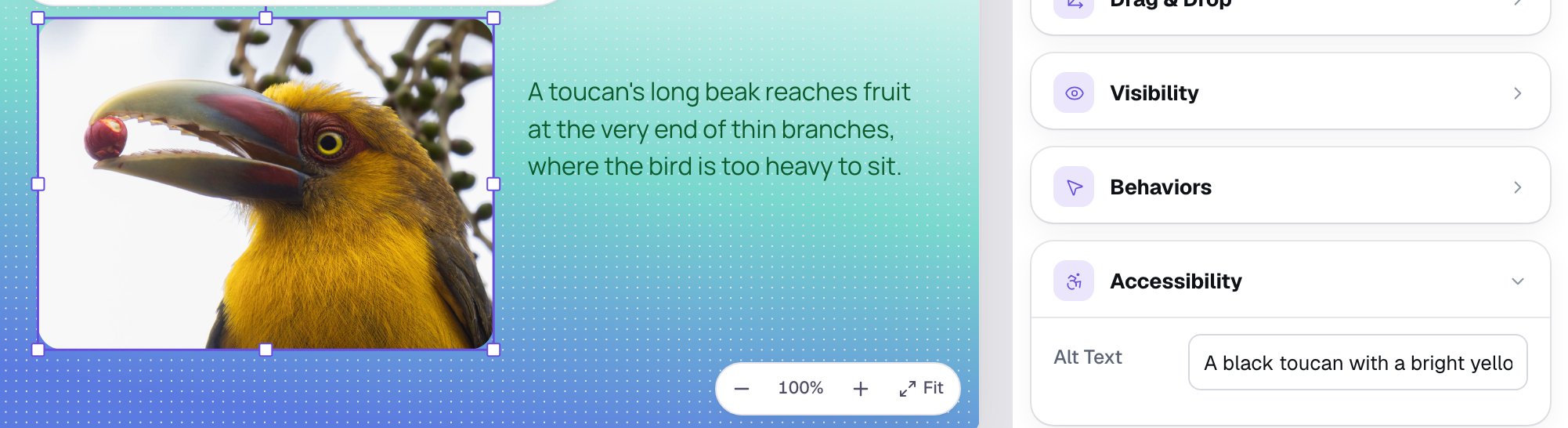
Berdee never overwrites alt text you wrote, so the old description stayed: a screen reader would describe a toucan on a branch while everyone else sees it eating. Whenever you replace a picture, read its alt text again. Here, change it to A yellow toucan holding a small red berry in the tip of its beak.
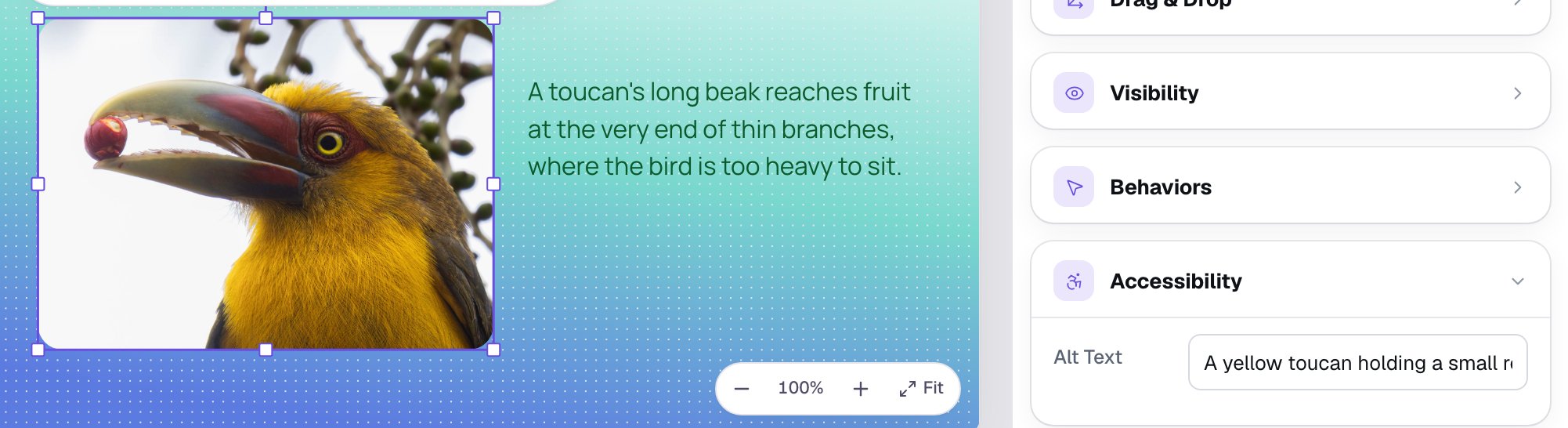
(If you never changed the alt text Berdee filled in, a replace updates it for you, since it described the old picture. Only your own words stay put.)
Step 6: Name the arrow for what it does
Each page needs a way forward. Back on the Opening Scene, add a Shape, pick Arrow right, give it an orange Fill Color, and place it under the text. Open Behaviors in the properties panel and choose Make this a "Next" button: Goes to is already Big beaks, so click Add behavior.
A shape students can press is announced as a button, and a button needs a name that says what it does. Open Accessibility and type Next page in Alt Text.
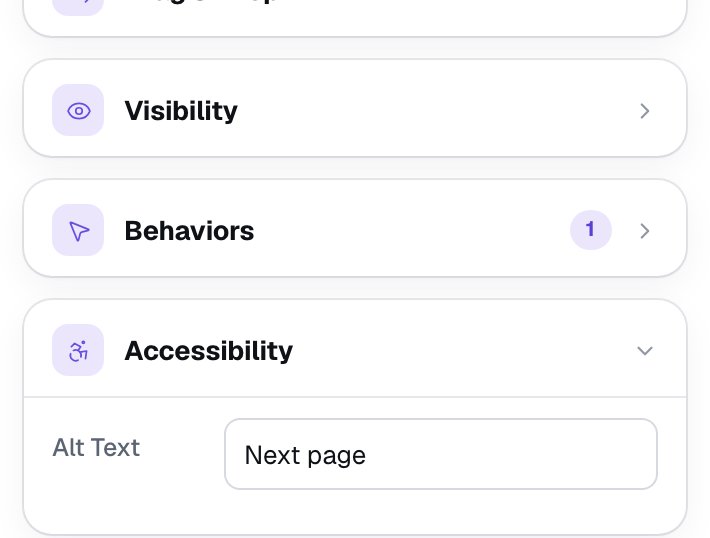
Write what pressing it does, not what it looks like: "Next page", not "Orange arrow". Left as Shape, a screen reader would only say "Block arrow, button", which tells a student nothing about where it goes.
Give the Big beaks page the same arrow: add it the same way, choose Make this a "Next" button (this time it goes to the Closing Scene), and name it Next page too. We also gave the Closing Scene the Lagoon gradient so the ending matches.
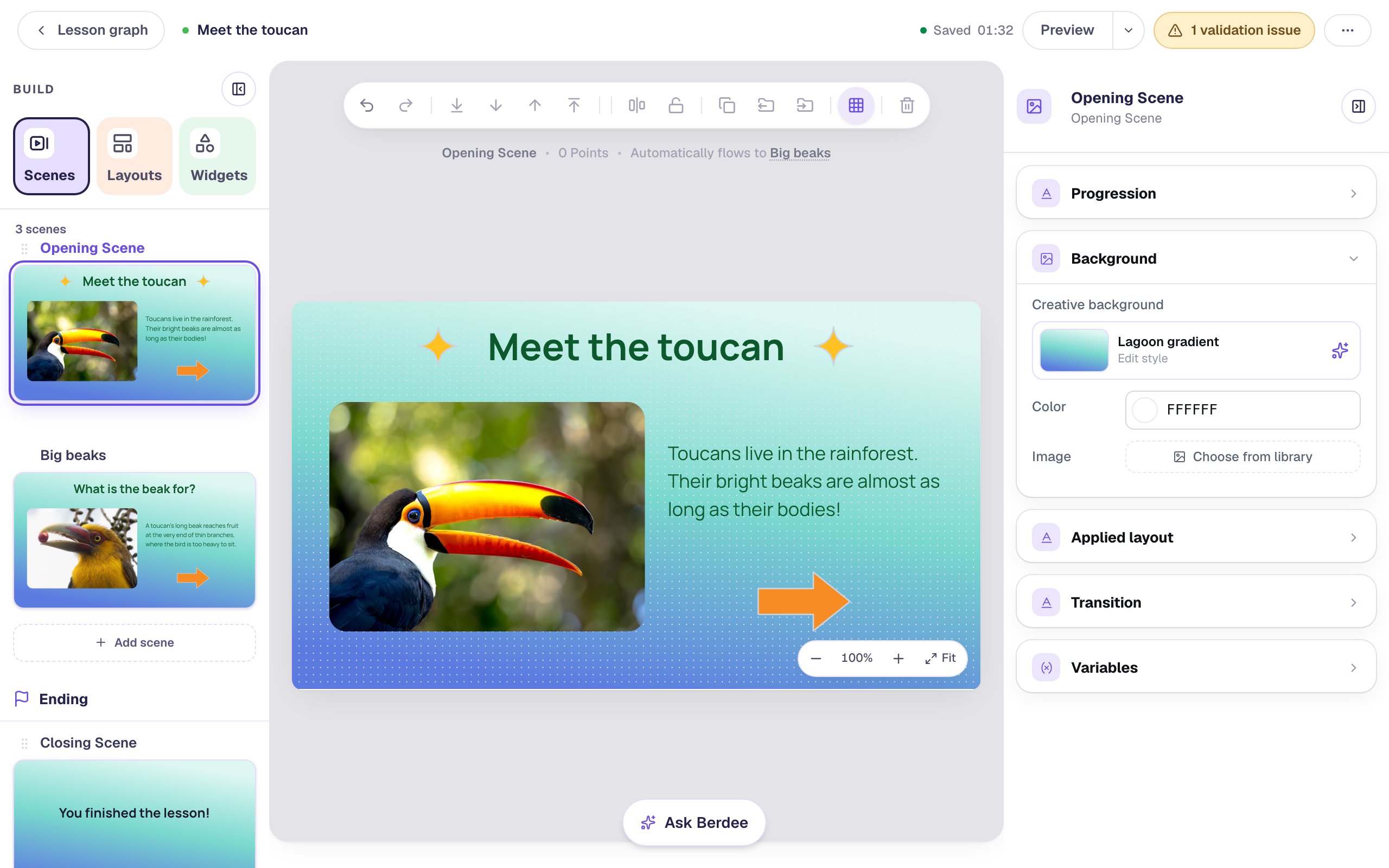
Step 7: Try it with the keyboard in Preview
Many students who use a screen reader, and many who can't use a mouse, move through a lesson with the keyboard: Tab goes to the next thing they can press, and Enter presses it. Click Preview, then put the mouse aside and press Tab until the arrow is outlined.
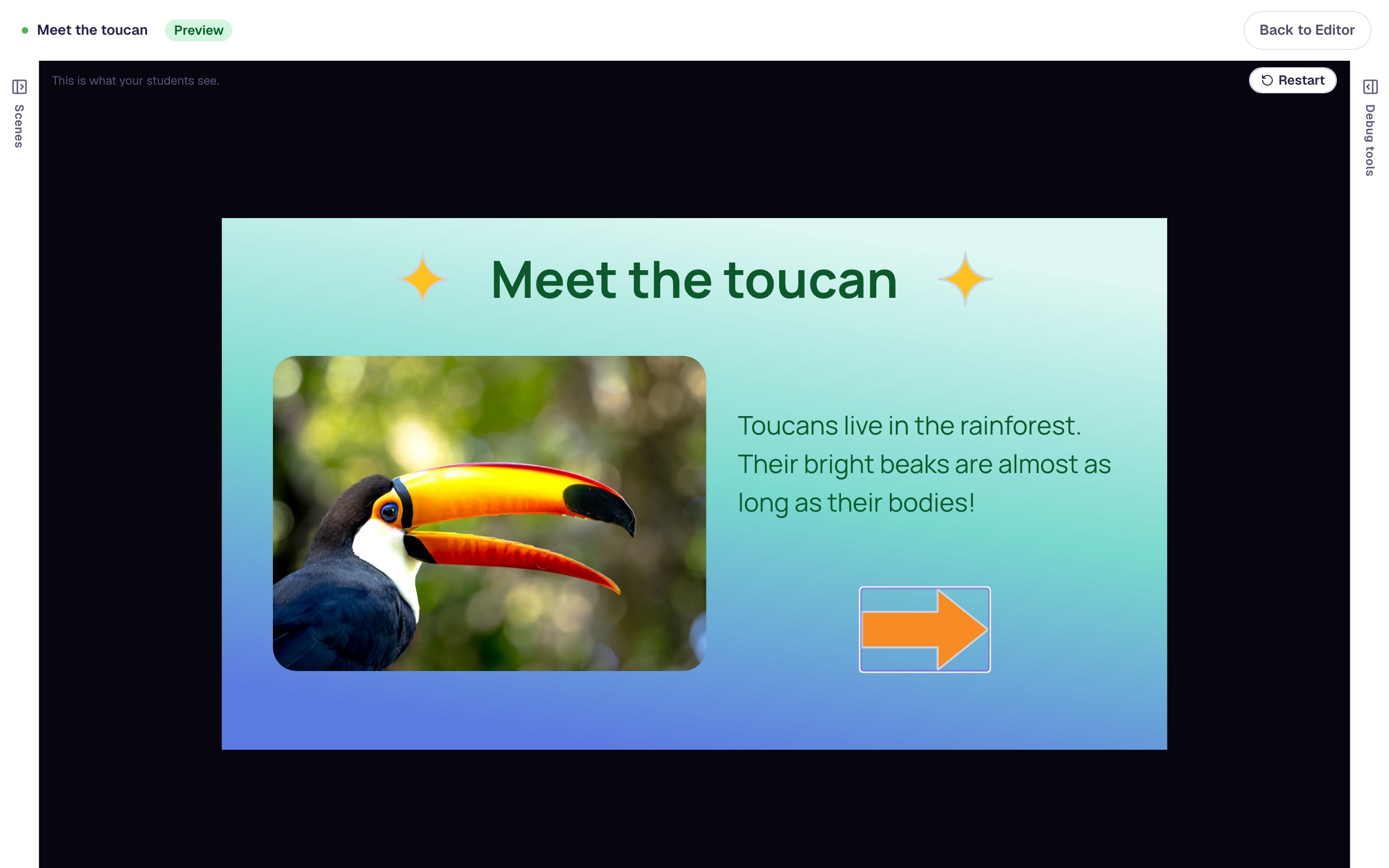
Tab passes over the photo and the sparkles, because there's nothing to press there, and lands on the arrow. Press Enter and you're on Big beaks; Tab and Enter again take you to the ending. A screen reader reads the same page as you go: the heading, "A toucan with a huge yellow and orange beak, in front of green leaves, image", the text, and "Next page, button", with not a word about the sparkles.
What you built
You built a lesson that a student who can't see the pictures gets just as much from:
- Alt Text on each photo replaced a file name with one short sentence about what matters for the lesson,
- Replace image kept your old words, so you read them again and rewrote them for the new photo,
- the decorative sparkles kept
Shapeas their alt text, so screen readers skip them, - each arrow's alt text,
Next page, says what pressing it does, and - Tab and Enter in Preview got all the way to the ending without the mouse.
Pictures used as answers are named a little differently: the text beside each picture is its name. See how in Ask a "select all that apply" question with pictures, or turn a photo into a button students press to hear it in Turn a picture into a play button for listening.
Make this lesson yours
Add the lesson you just watched being built to your account, then change it for your class: your questions, your pictures, your colors.
Free to sign up, and you'll come straight back here. I have an account