Jump to key moments in a video with buttons
Put a time-lapse in a Video widget and add a button for each stage, so one press takes students straight to the moment that matters. Build one button with a Seek action, copy it, and change only the second it jumps to.
- Level
- Intermediate
- Time
- About 15 min
- Steps
- 8
- Updated
- Oct 24, 2026
A two-scene science lesson. Students watch a hibiscus open and close in a 34-second time-lapse, press Bud, Opening, Full bloom or Closing to jump to that stage, then answer a question about the end of the flower's day.
Get the finished lesson
Skip straight to the result, or keep it open beside the steps. Add this tutorial's lesson to your account and explore how it works in the studio.
Free to sign up, and you'll come straight back here. I have an account
A video often has a few moments you want students to look at closely: the step in a demonstration, the line in a speech, the second a chemical changes colour. Dragging the progress bar to find them is fiddly, especially on a tablet. In this tutorial you'll give each moment its own button, so one press takes students straight there.
You'll build A day in the life of a hibiscus, a two-scene science lesson:
- a Video of a red hibiscus that opens and closes again in 34 seconds,
- four buttons, Bud, Opening, Full bloom and Closing, that each jump the video to that stage, and
- a Question scene that asks what the flower does at the end of its day.
The buttons use the video's Seek action, which moves the video to the second you choose. You'll build the first button completely, then copy it three times and change only the second.
If you haven't put a video in a lesson before, start with Unlock a question only after students watch a video: this tutorial moves quickly through uploading the clip.
Step 1: Set the scene
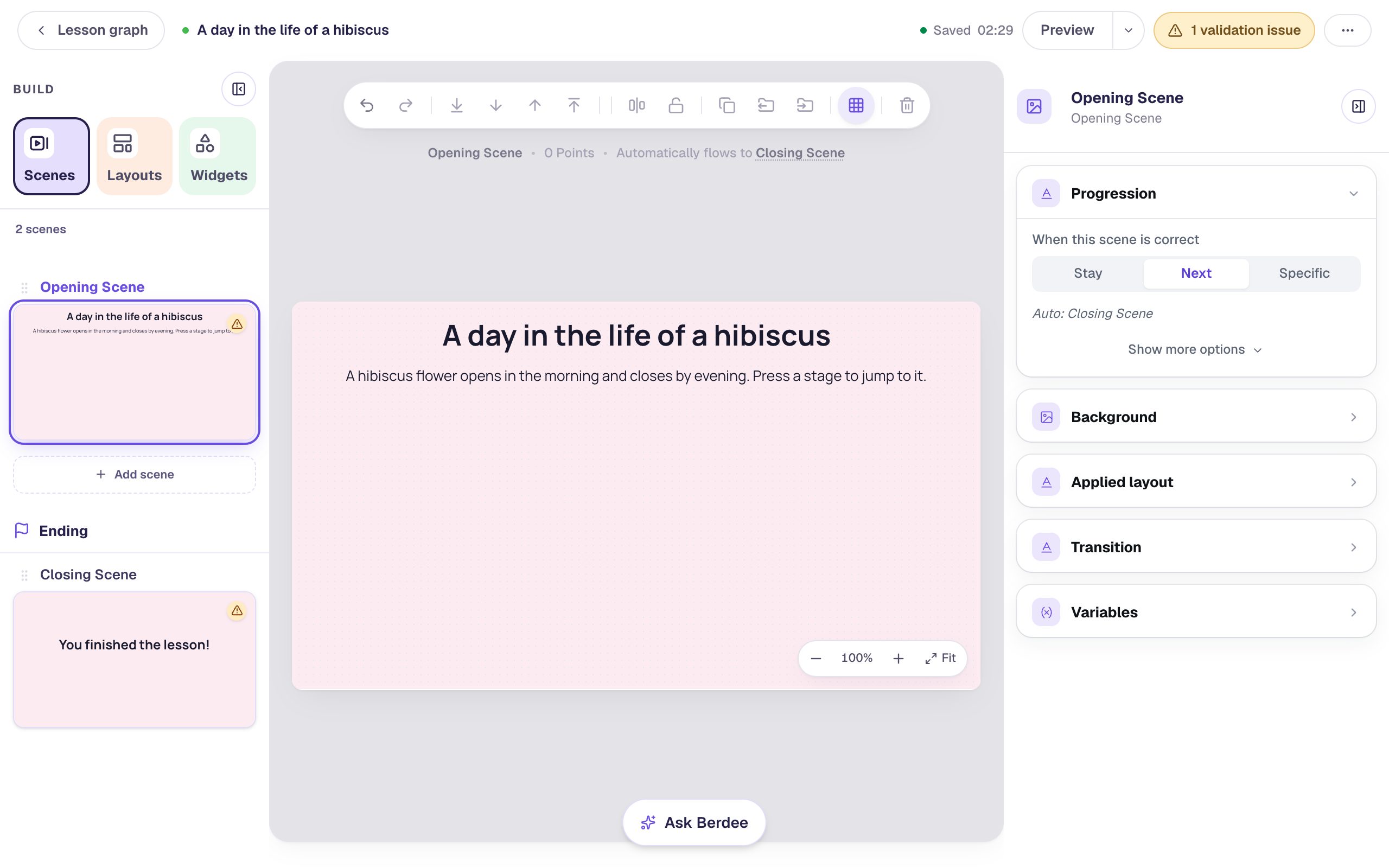
Start a blank lesson (New lesson, then Start from scratch) and name it A day in the life of a hibiscus. On the Opening Scene, open Background and set Color to the blush pink #fdebf2. Do the same on the Closing Scene so the ending matches.
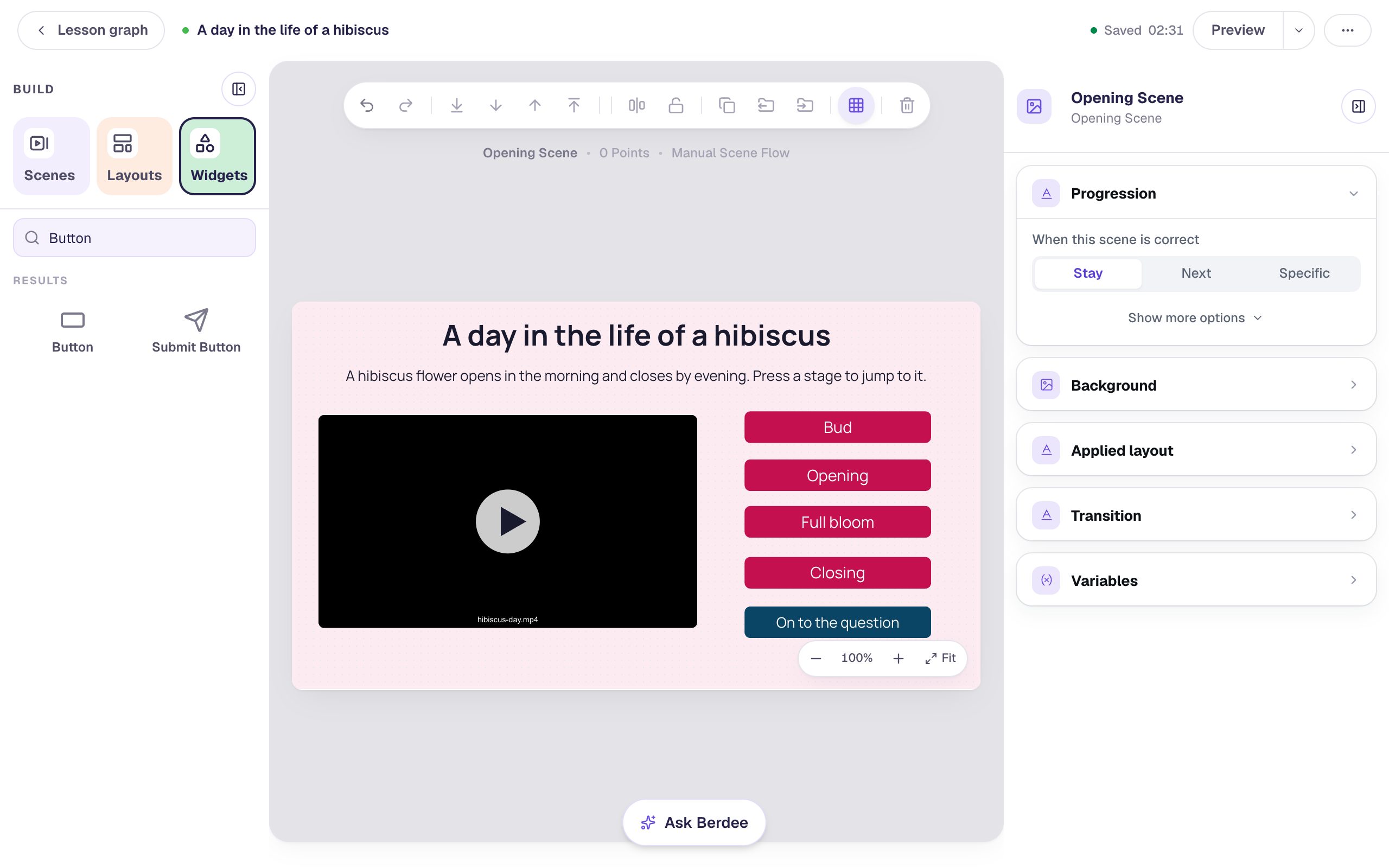
Add a Heading that says A day in the life of a hibiscus at 40 px. Under it, add a Body with the directions: A hibiscus flower opens in the morning and closes by evening. Press a stage to jump to it. Set the Body to Fixed width, 860 wide, at 20 px, so it fits on one line.
Step 2: Add the video
Open Widgets, search for Video and click the Video tile. Rename the widget Hibiscus video (click its name at the top of the properties panel). Each button will pick the video by this name, so a clear name helps.
Click ⚙ Configure, then Open Media Library. Open the Upload tab and choose your clip. The window closes by itself once the upload is done, and the clip's file name appears under Video Source.
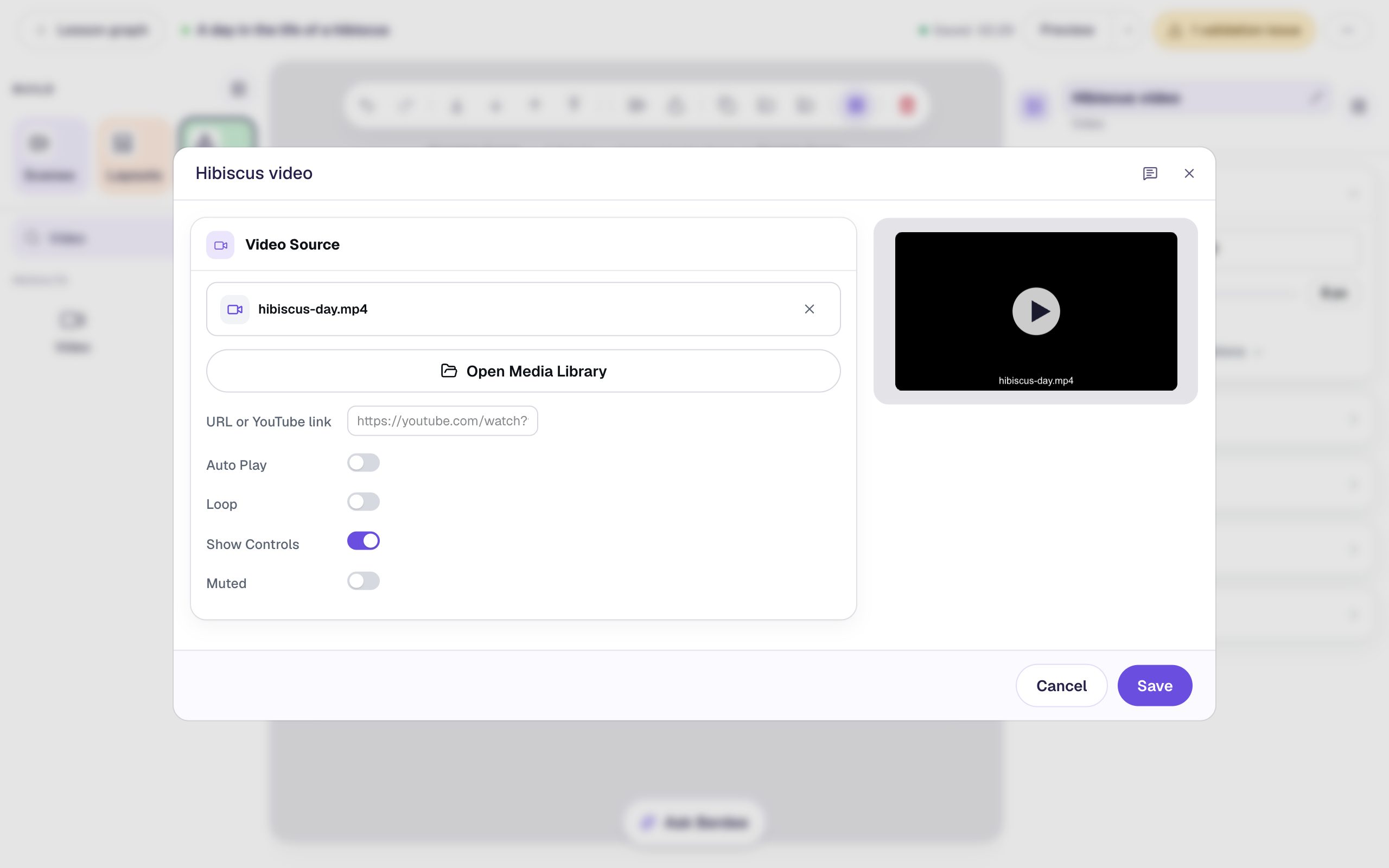
Keep Show Controls on: the buttons move the video to a moment, and students use the play button to watch from there. Click Save.
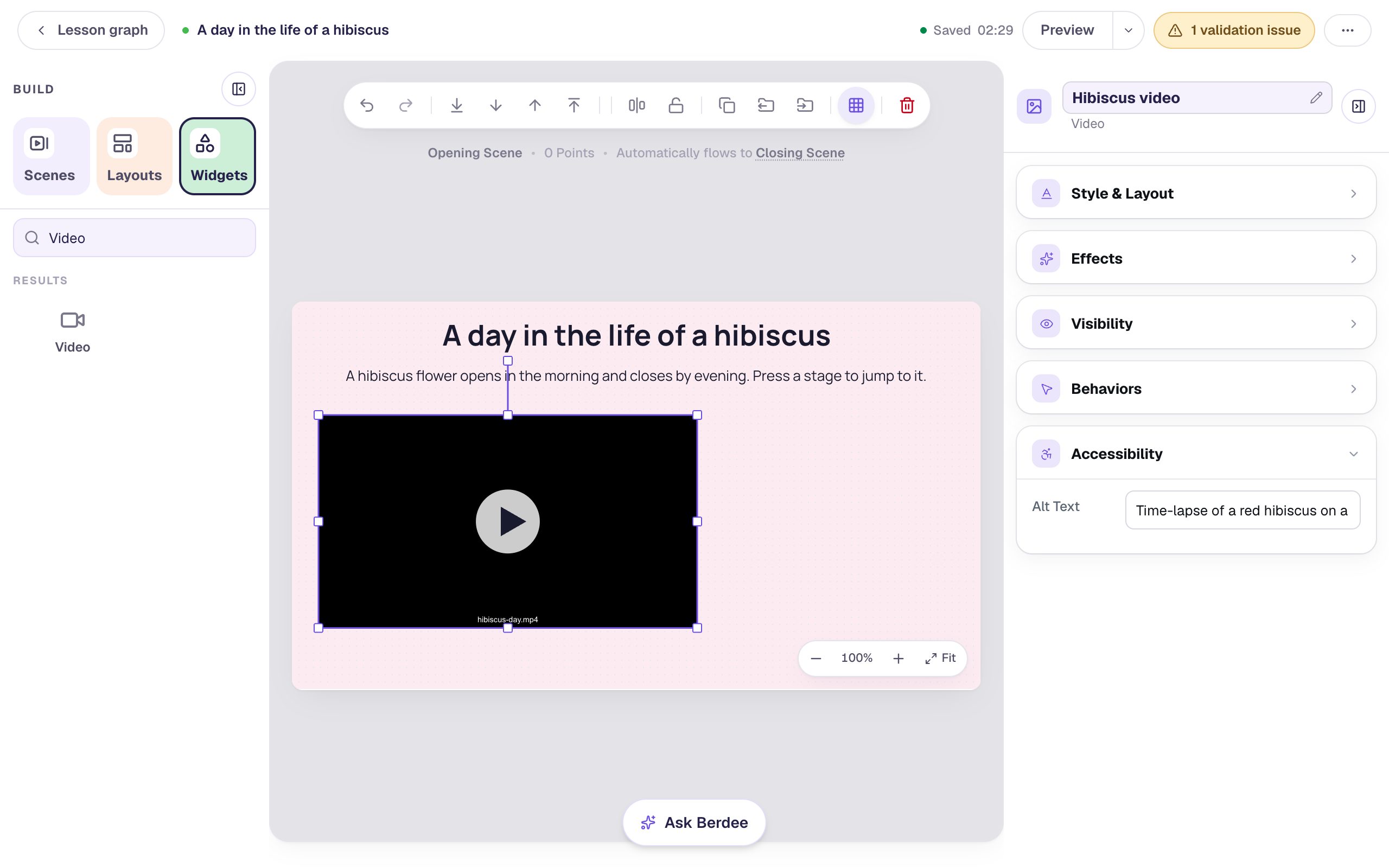
Under Style & Layout, set Width to 528 and Height to 297 and drag the video to the left side of the scene, leaving room for a column of buttons on the right. The clip has no sound, so describe what happens in it: under Accessibility, type Time-lapse of a red hibiscus on a branch against a blue wall: a closed bud swells, opens into a wide red flower, and closes up again. in Alt Text.
Before you build the buttons, play the clip once and note the second each stage starts. For this clip they are:
| Stage | Second |
|---|---|
| Bud | 0 |
| Opening | 6 |
| Full bloom | 12 |
| Closing | 28.5 |
Step 3: Add the first stage button
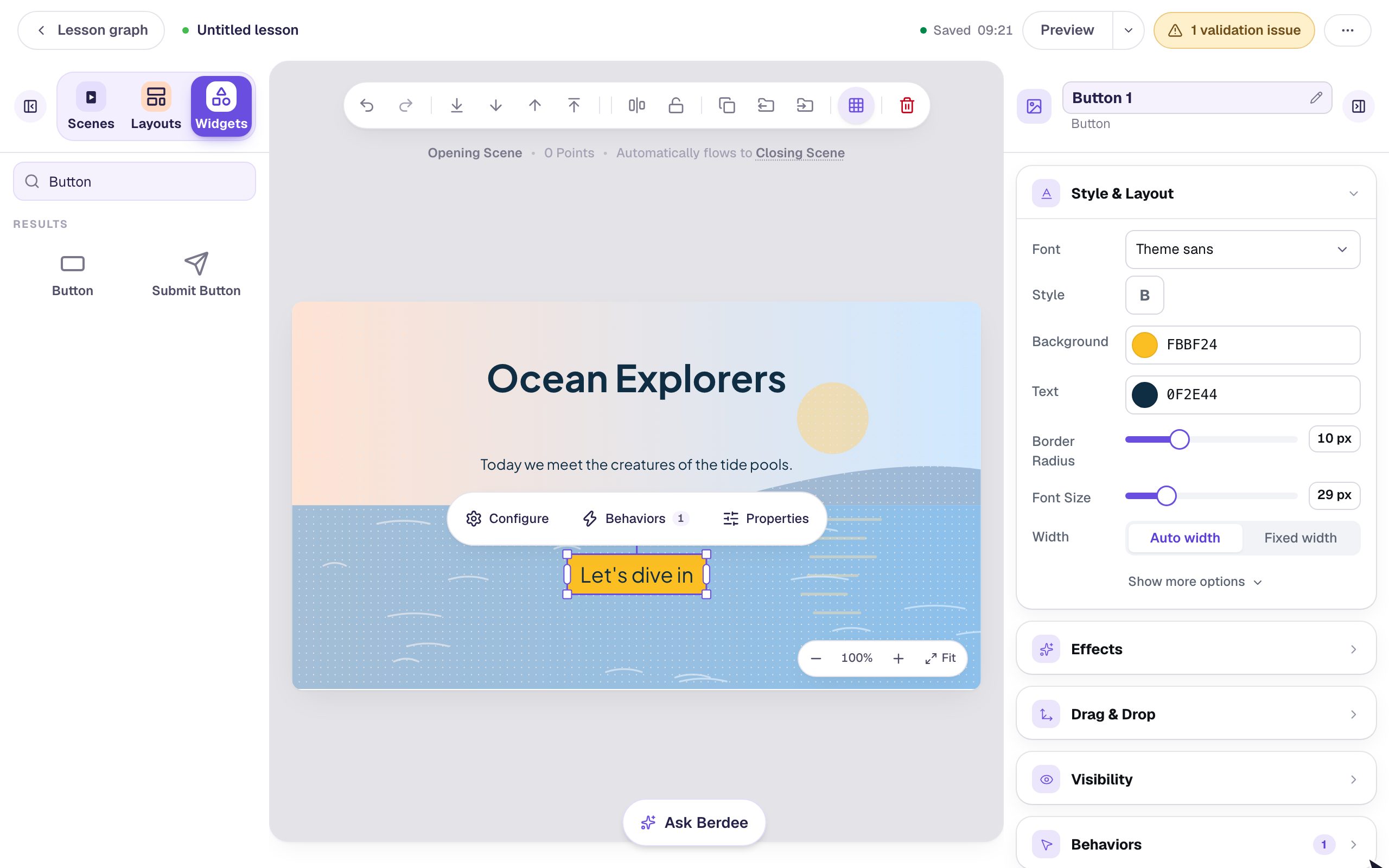
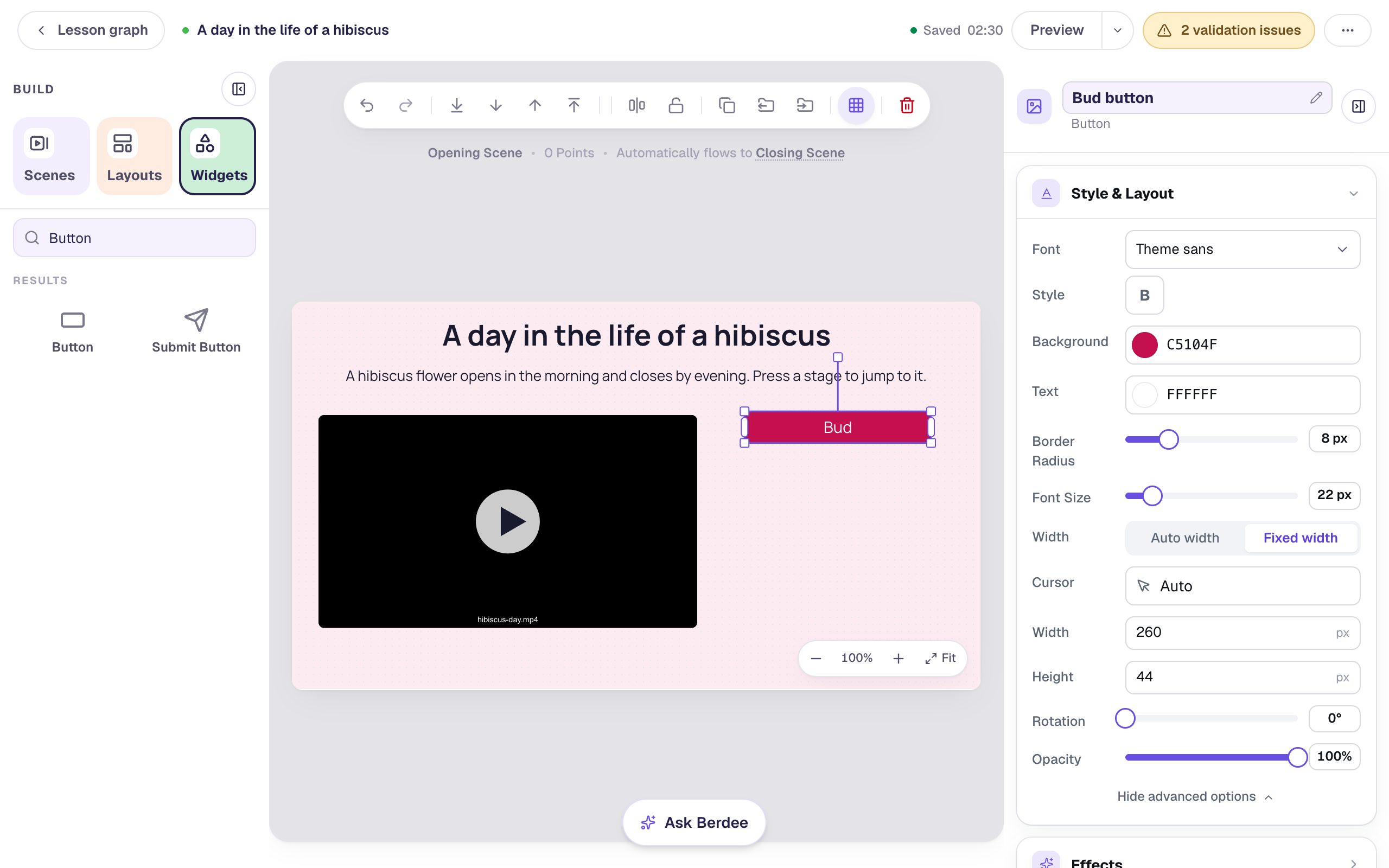
Add a Button, click ⚙ Configure and change its Label to Bud. Rename the widget Bud button.
Style it now, before you copy it, so every copy matches. Under Style & Layout, choose Fixed width and set Width to 260, set Font Size to 22, set Background to the raspberry #c5104f and Text to white #ffffff. Drag it to the right of the video, level with the video's top edge.
Step 4: Make it jump to the bud
With Bud button selected, open Behaviors in the properties panel and click Add Behavior, then On Press. A new behavior starts with a Display Message step. Change it:
- In the first list, choose Widget Method. This step makes another widget do something.
- In the next list, choose Video: Hibiscus video.
- In the next, choose Seek.
- Leave the value source on Static value, and type the second to jump to in the box under it. For the bud that's
0, the very start of the clip.
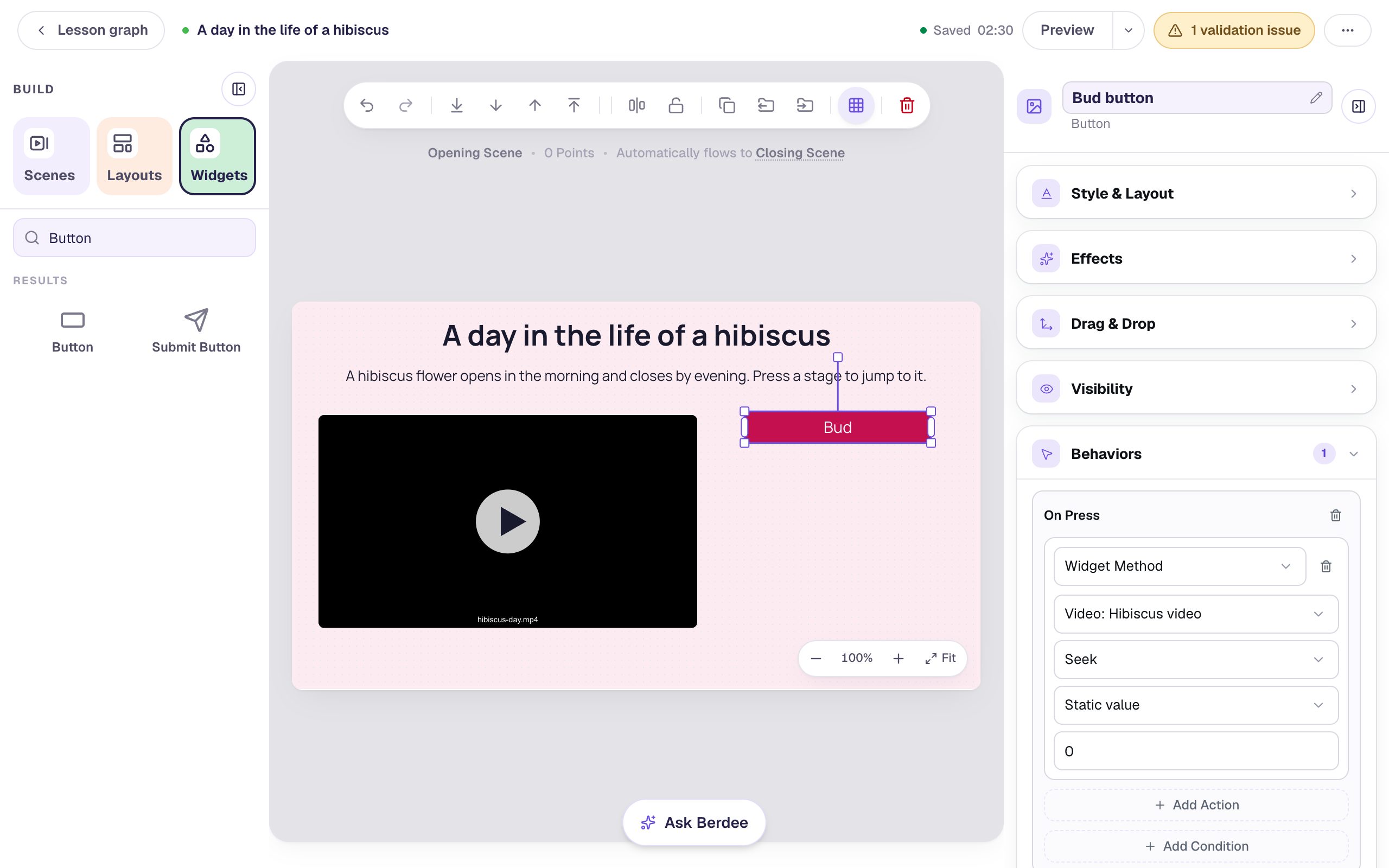
The box for the second has no label of its own: it's the last box in the step, under Static value. Seconds can have a decimal, like
28.5.
Seek only moves the video. If it's paused, students see that moment as a still picture and press play to watch from there. If it's already playing, it carries on playing from the new moment. Either way, students choose when to watch.
Step 5: Copy it for the other three stages
Everything about the other buttons is the same except the label and the second. With Bud button selected, press ⌘ D (Ctrl + D on Windows) and drag the copy under the first. Then:
- Click ⚙ Configure and change the Label to
Opening. - Rename the copy
Opening button. - Open Behaviors and change the second from
0to6.
Do the same twice more: Full bloom at 12 and Closing at 28.5.
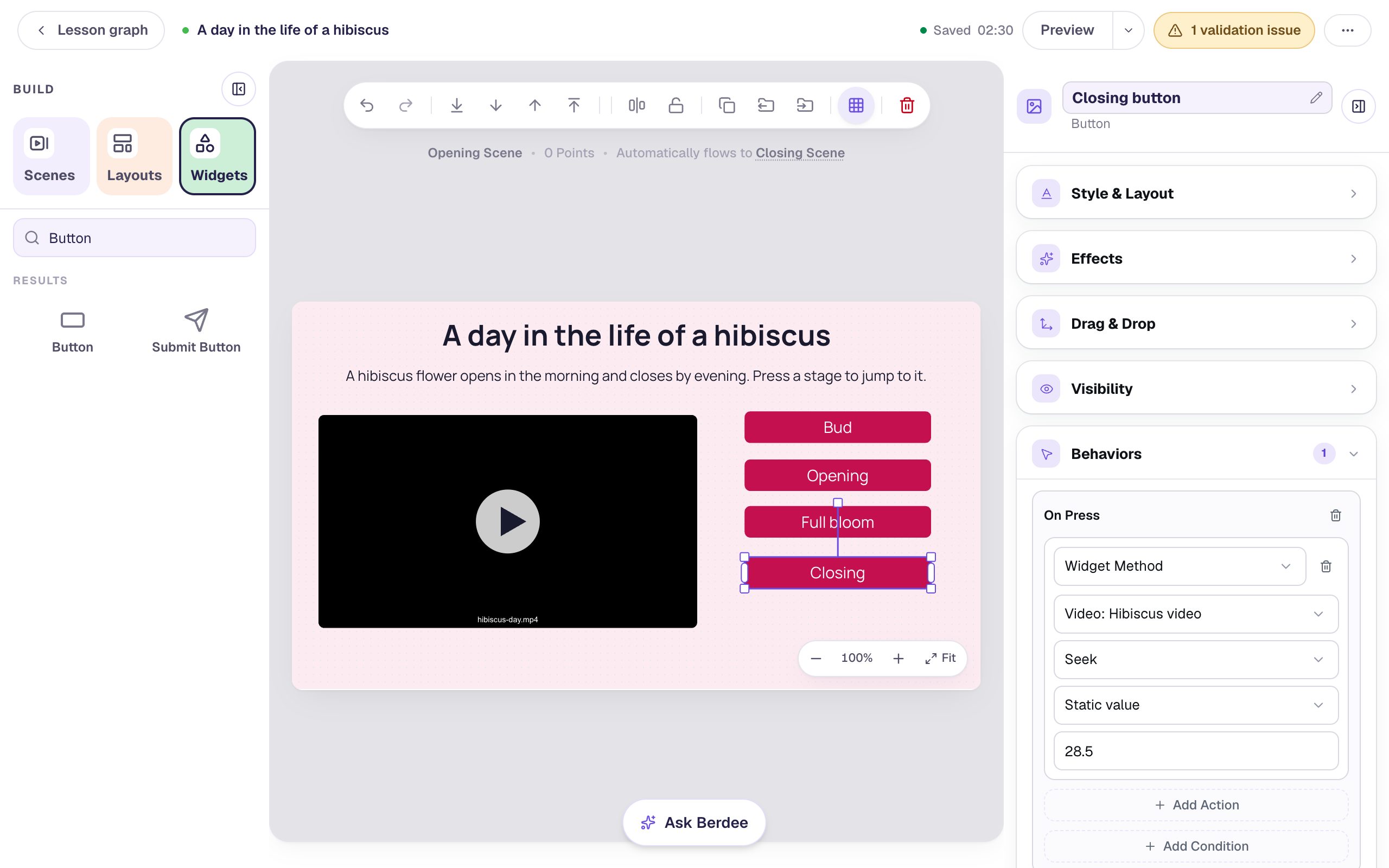
Click an empty spot on the scene to check the column: four buttons, in the order the flower goes through them.
Step 6: Add the question scene
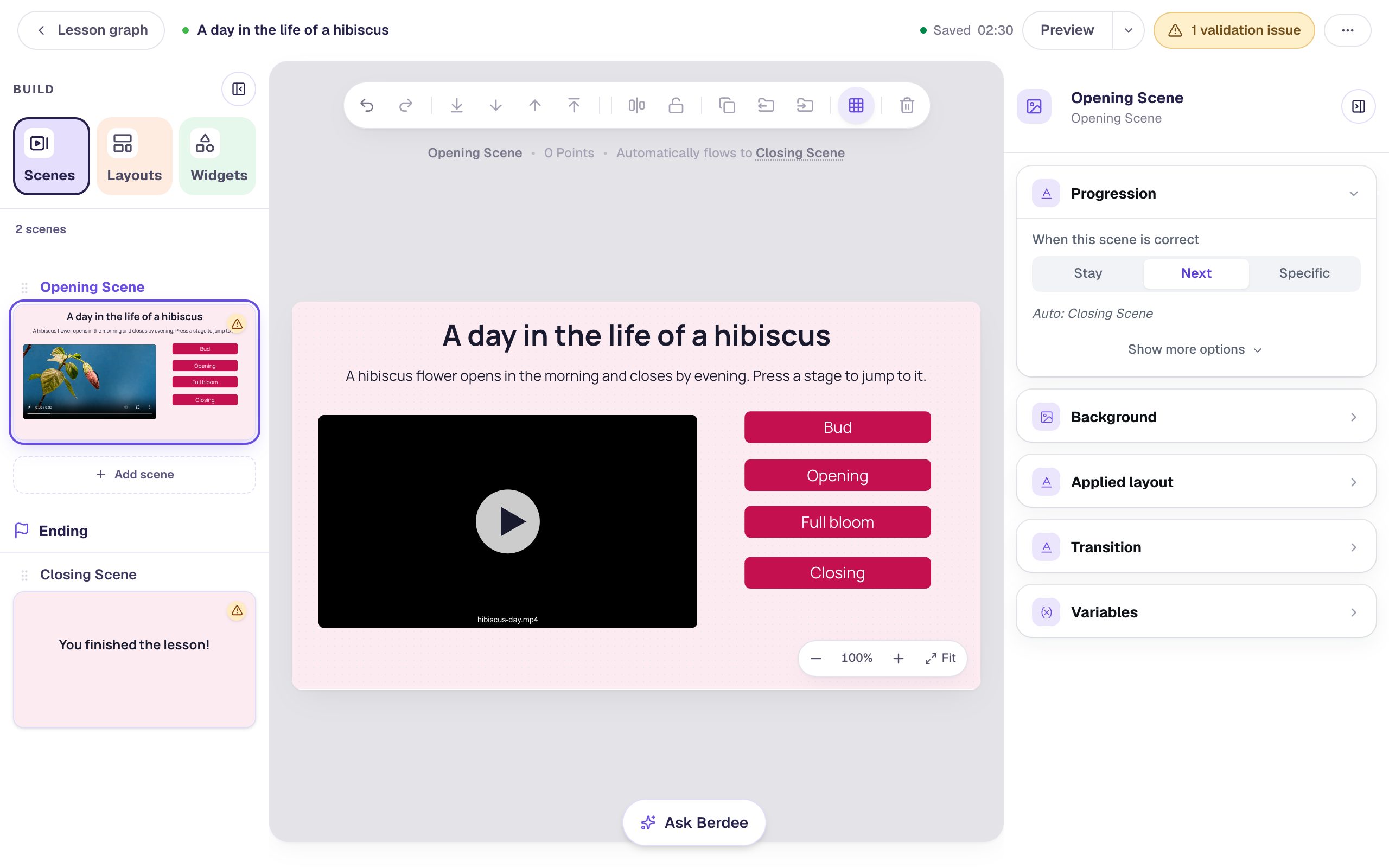
In Scenes, click Add scene and rename the new scene Question. Give it the same blush pink background.
Add a Heading that asks What does the flower do at the end of its day? at 34 px. Add a Multiple Choice with three answers, It closes up (marked correct), It turns yellow and It grows bigger, and set its Font Size to 26. The scene moves on to the ending by itself once the answer is right.
Every lesson needs a button that finishes it before you can publish it. Add a Submit Button, change its Label to I'm done, set Submits to Lesson, make it 16 px and drag it to the bottom-left corner.
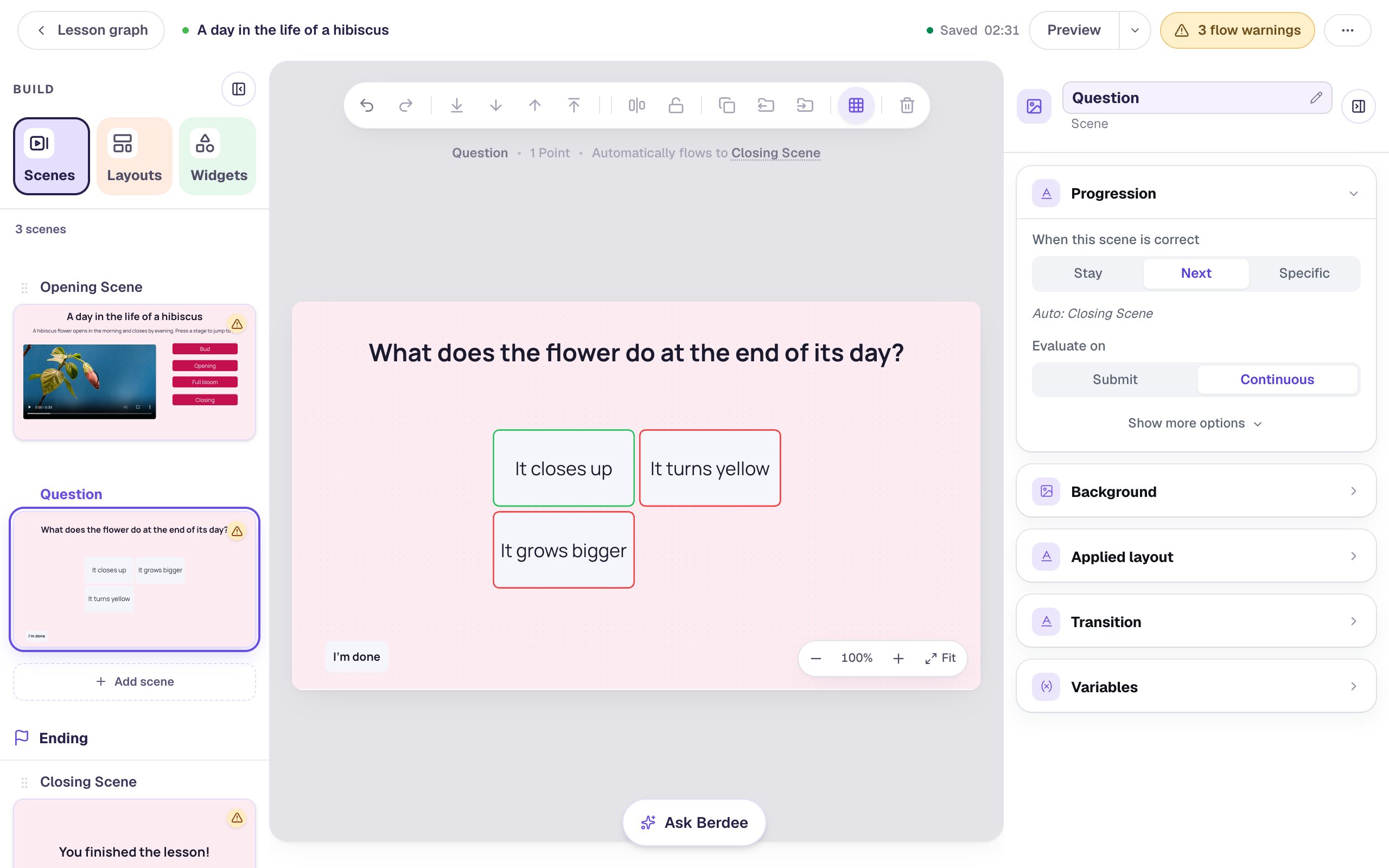
The yellow 3 flow warnings pill at the top right is expected for now: the Opening Scene still moves straight on to the ending, so nothing leads to the Question scene yet. The next step fixes that.
Step 7: Add a Next button
Go back to the Opening Scene. Add one more Button with the label On to the question and rename it Next button. Click Behaviors above it, choose Make this a "Next" button and click Add behavior. Give it the same 260 width, a Font Size of 20 and a dark blue Background (#0b4566) with white Text, so it looks different from the stage buttons, and put it under Closing.
This scene has no question, so tell it not to move on by itself: with nothing selected, set Progression to Stay. The scene now waits for the On to the question button.
Step 8: Try it as a student
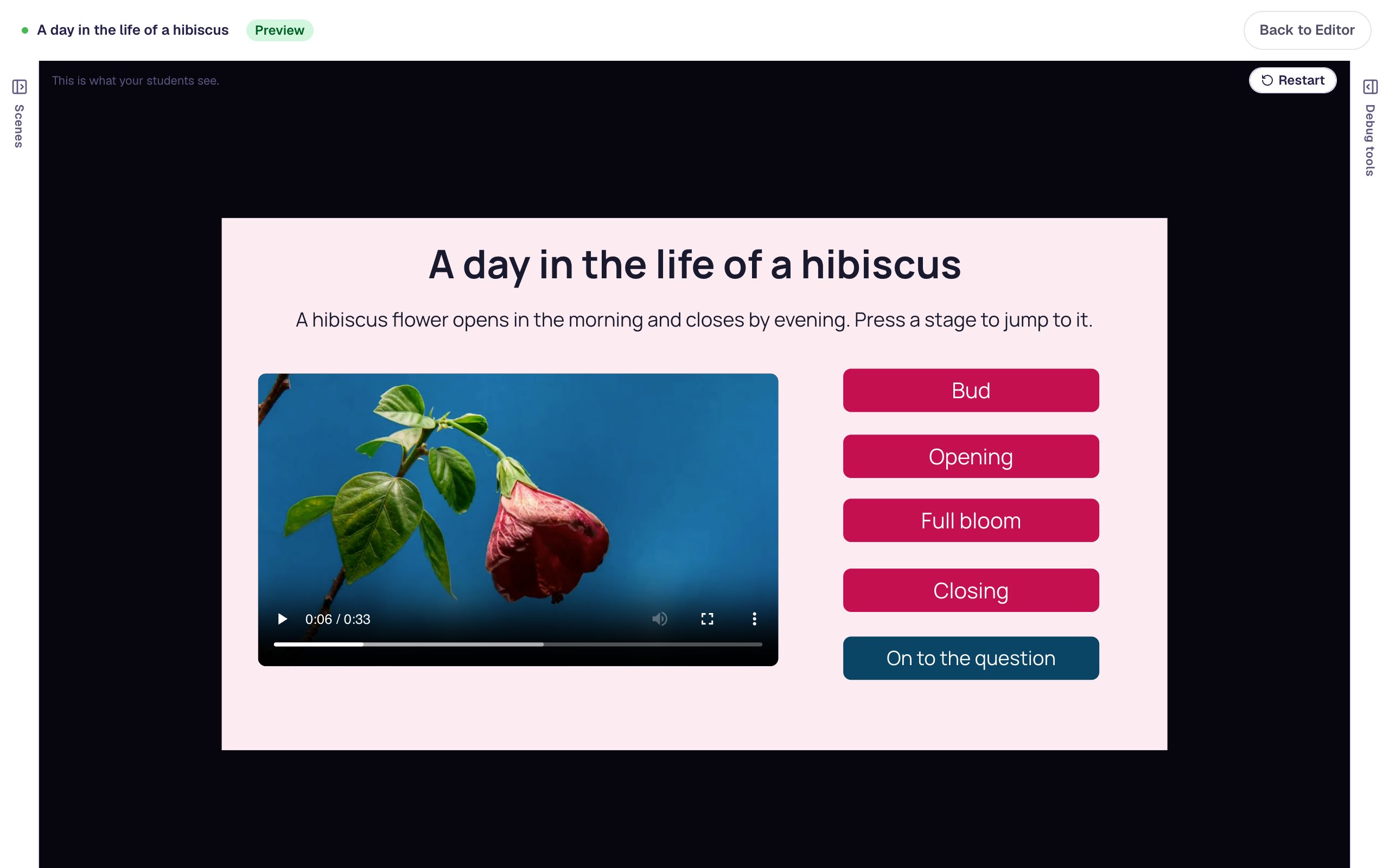
Click Preview. Press Full bloom, then Closing, then Opening. Each press moves the video to that stage, and the time under the video changes to match.
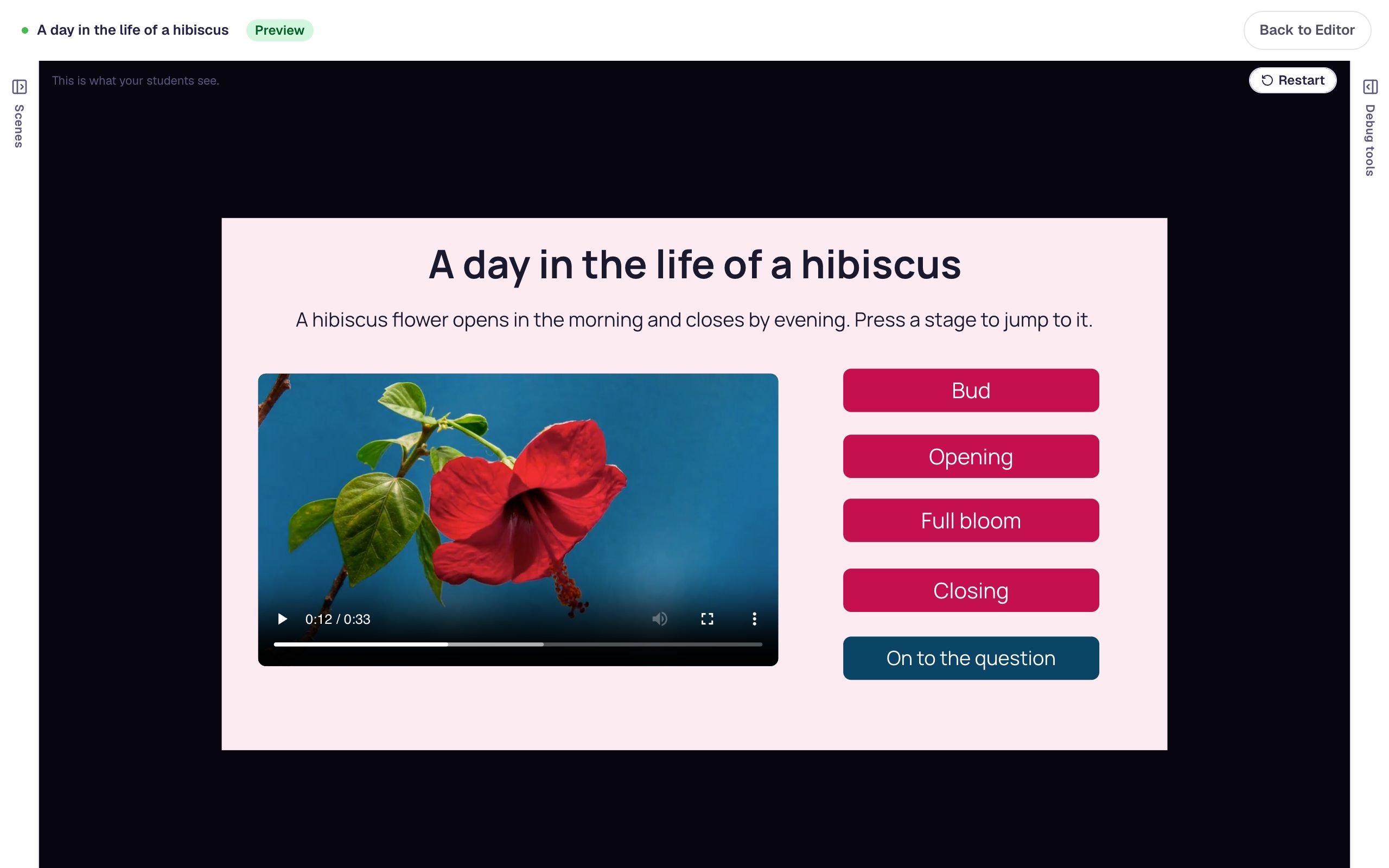
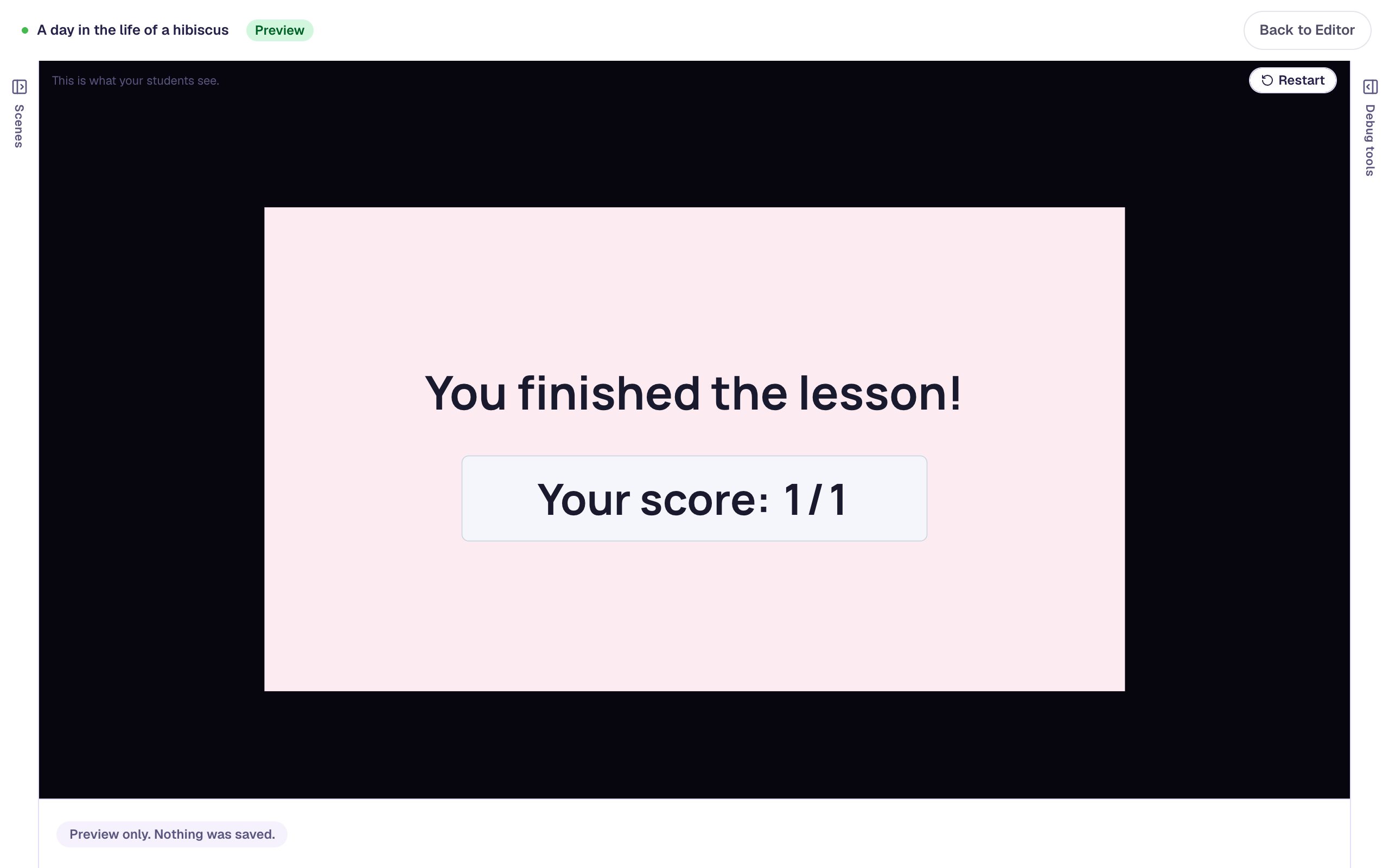
Now press Bud and play the clip from the start. Press On to the question and pick It closes up: the lesson moves on to the ending.
Students who use a keyboard reach the stage buttons with Tab and press them with Enter or Space. Each button's label names its stage, so a screen reader announces "Full bloom, button".
What you built
A video students can explore stage by stage:
- a Video with a clear name and alt text that describes what happens in the silent clip,
- four styled buttons, each with an On Press behavior that runs Widget Method → Video → Seek to a different second,
- a Next button on a scene set to Stay, and
- a Question scene about the last stage, plus an I'm done button that finishes the lesson.
The same build works for any clip with moments worth finding again: the steps of a science demonstration, the verses of a song, the turning points of a story read aloud, or each stroke of a letter being written. Note the seconds once, build one button, and copy it.
To make sure students watch the whole clip before the question appears, combine this with Unlock a question only after students watch a video.
Make this lesson yours
Add the lesson you just watched being built to your account, then change it for your class: your questions, your pictures, your colors.
Free to sign up, and you'll come straight back here. I have an account