Put a plant's life cycle in order with pictures
Turn a Sorting List's cards into photos, so young learners drag a sunflower from seeds to bloom. Give every picture a name a screen reader can say, and let pre-readers tap a card to hear it.
- Level
- Beginner
- Time
- About 10 min
- Steps
- 7
- Updated
- Oct 28, 2026
A "How a sunflower grows" scene where students drag four shuffled photos into order, seeds first, can tap any picture to hear what it shows, and move on to the ending once the order is right.
Get the finished lesson
Skip straight to the result, or keep it open beside the steps. Add this tutorial's lesson to your account and explore how it works in the studio.
Free to sign up, and you'll come straight back here. I have an account
Young learners can often recognize a seed, a sprout and a flower long before they can read those words. A sorting list with picture cards lets them show what they know about a life cycle without reading a single card. In this tutorial you'll build a science scene for the early grades:
Sunflower seeds → a sprout → a sunflower bud → a sunflower in bloom
Students see the four photos shuffled and drag them into order, seeds first. You'll name every picture so a screen reader can say it, and turn on Read choices aloud so a child who can't read yet can tap a card and hear what it shows.
If you haven't used a sorting list before, Put events in order with a sorting list builds one with text cards. This tutorial moves quickly through the parts it covers.
Step 1: Set the scene
Start a blank lesson (New lesson, then Start from scratch) and name it How a sunflower grows by clicking Untitled lesson at the top.
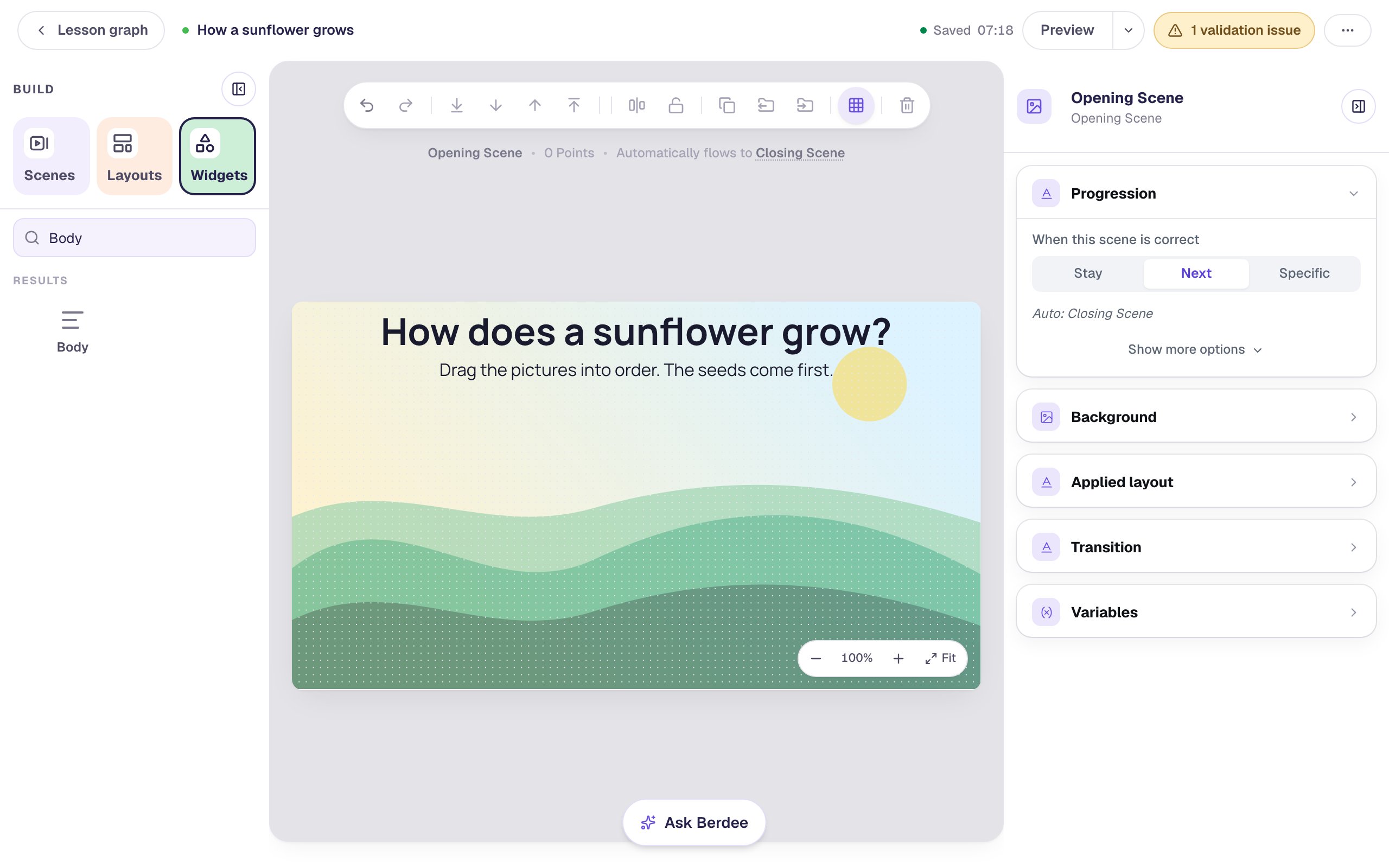
With nothing selected, open Background, click Choose a style, pick Nature, then Rolling hills. Click Randomize composition a few times until the sun sits near a side of the scene, away from where your title will go, then click Apply background. Select the Closing Scene in the Scenes panel and give it the same background, so the ending matches.
Back on the Opening Scene, add a Heading that says How does a sunflower grow? and a Body text under it: Drag the pictures into order. The seeds come first. Set the Body's Font Size to 24.
Step 2: Add a Sorting List
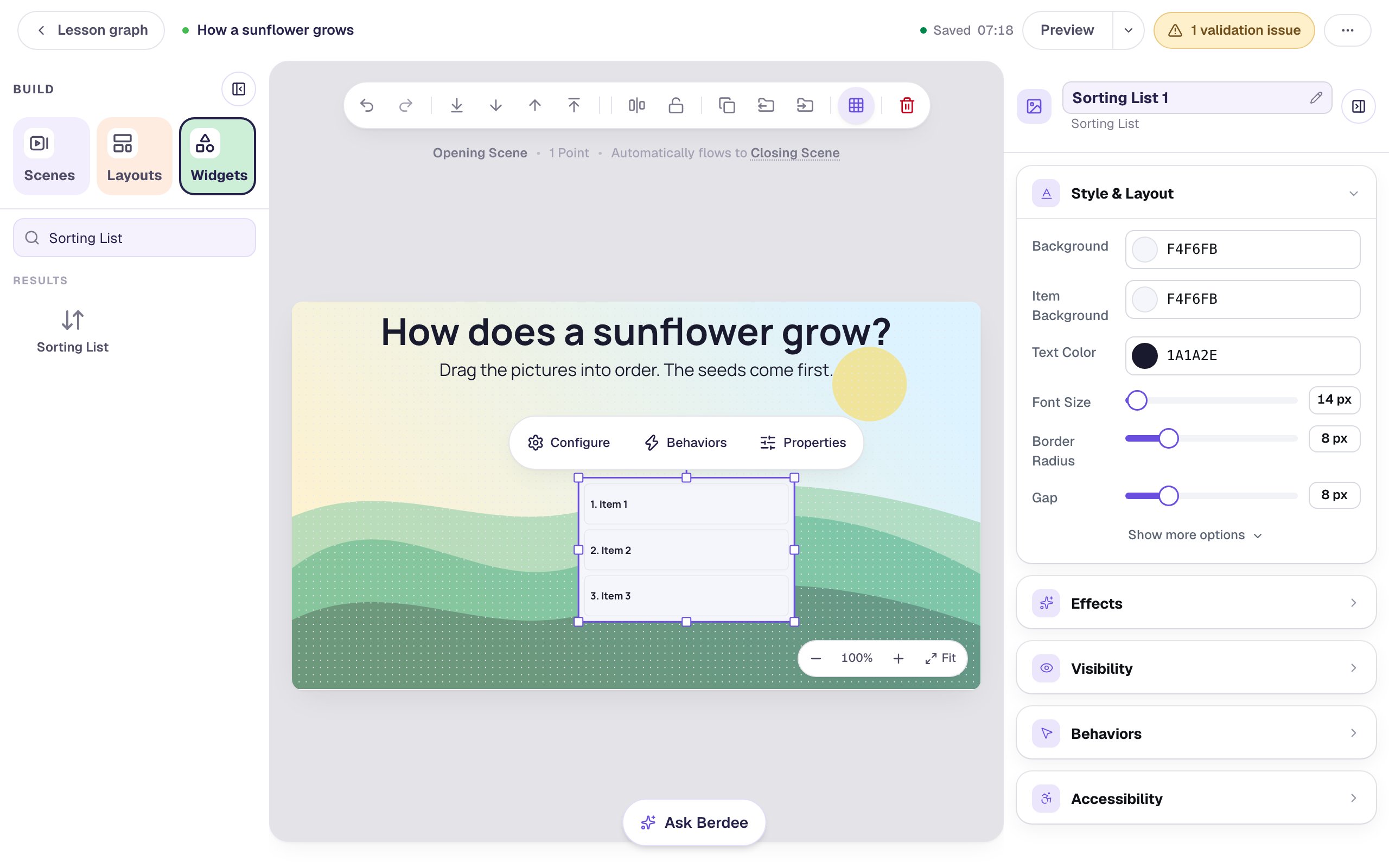
In Widgets, search for Sorting List and click it. The new list has three sample cards, Item 1 to Item 3.
Step 3: Give each card a picture
Click ⚙ Configure above the list and click Add Item, so there are four cards: one for each stage.
On the first row, click the image button beside the name box. In the Choose Image window, search for sunflower seeds, click a photo you like, and click Import & insert. The card now shows the photo instead of its text.
Do the same for the other three rows, in order: search seedling sprout for the second card, young sunflower plant for the third (look for a closed green bud), and sunflower bloom for the fourth.
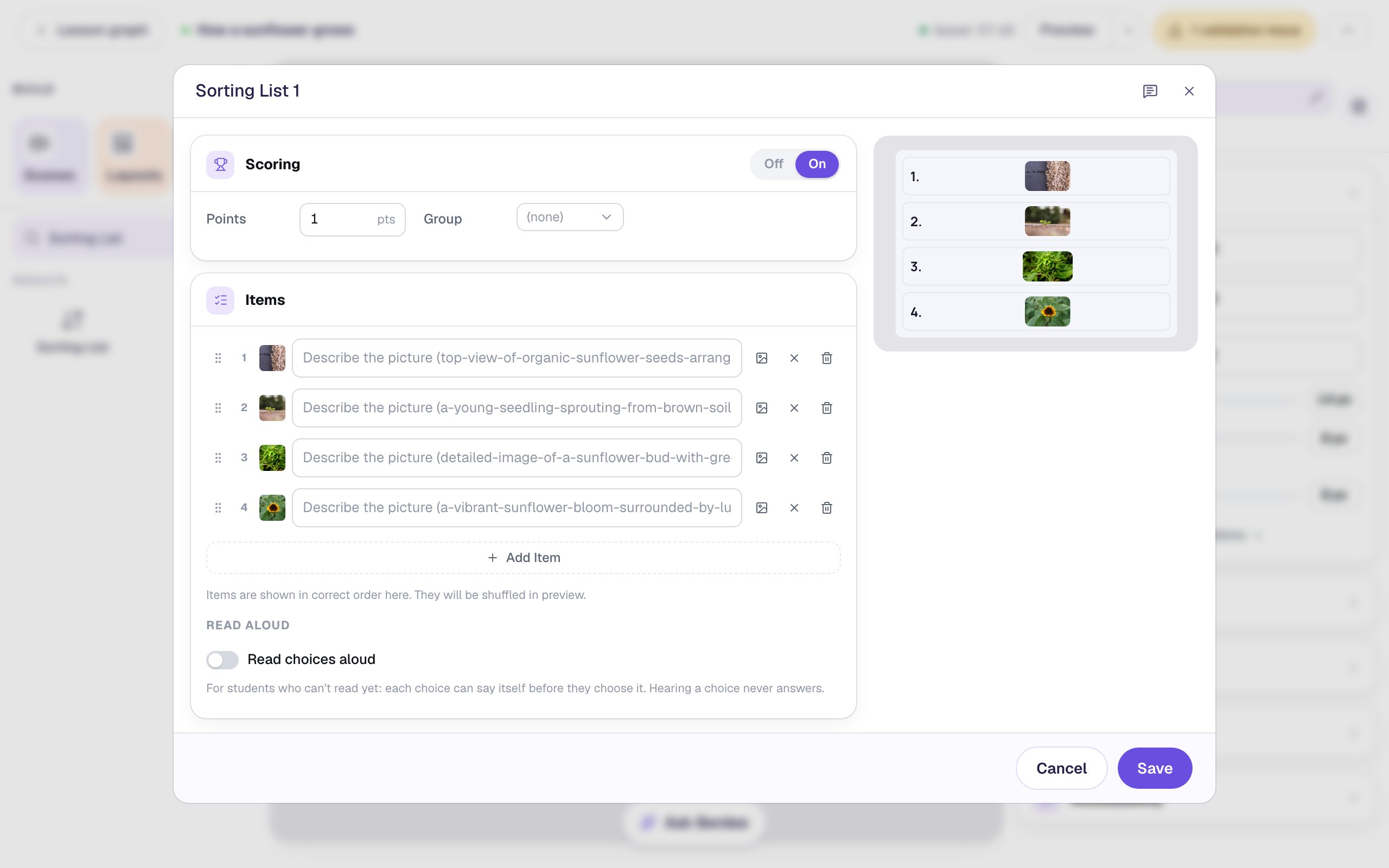
As with text cards, there's no separate answer key: the order of the rows in this window _is_ the right order, and Berdee shuffles the cards for every student. To fix a card that's in the wrong place, drag it by the grip on the left of its row.
Choose wide photos, with the subject filling the frame. A card fits its picture inside without cropping it, so a tall photo turns into a narrow strip.
Step 4: Name every picture
Each name box now shows a grey hint made from the photo's file name. Students never see these names, but a screen reader reads them out for each card, so a student who can't see the pictures can still sort them. Type a short name in each box:
Sunflower seedsA sproutA sunflower budA sunflower in bloom
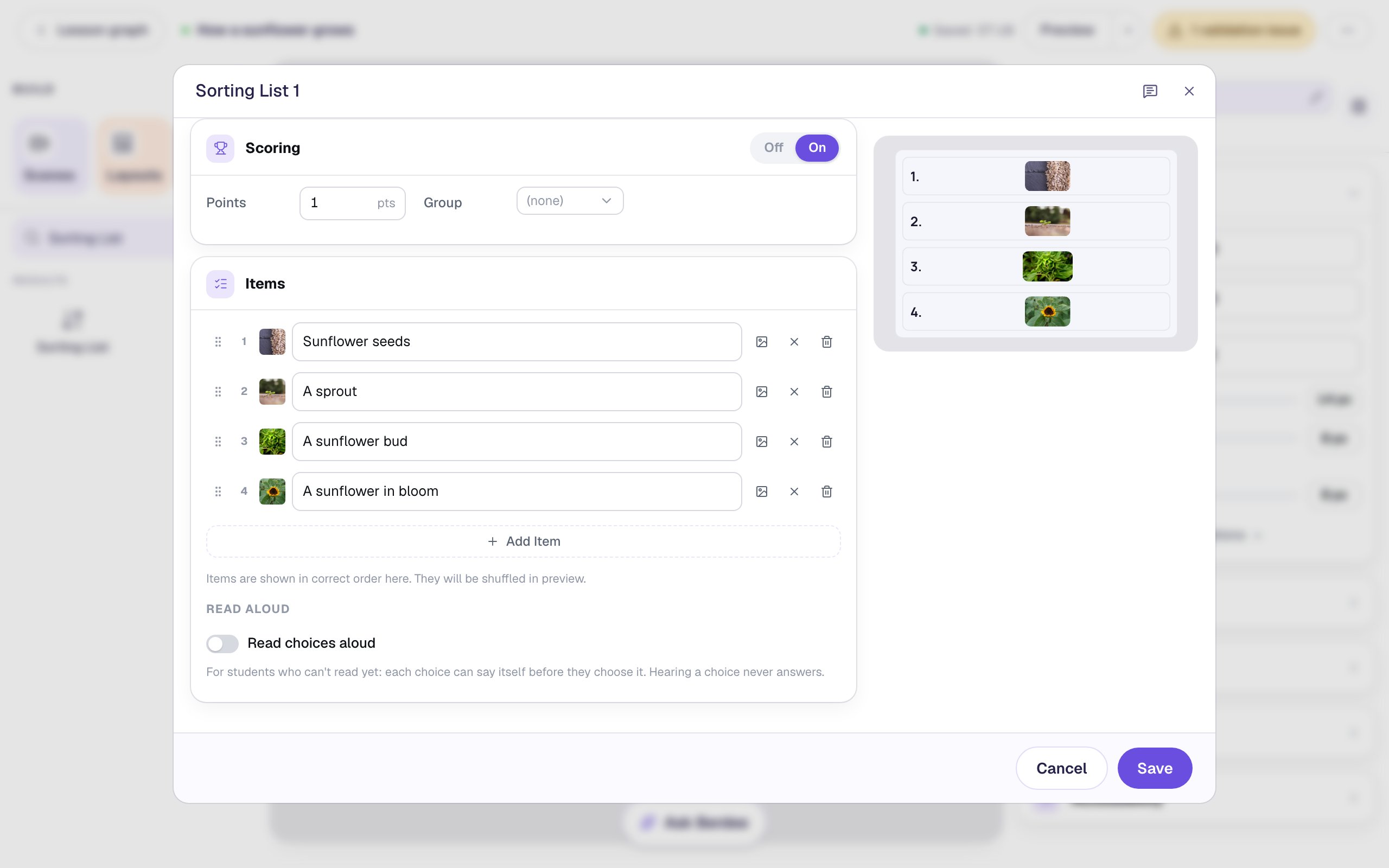
Name what each picture shows, never where it goes. "Step 1" or "First" would hand a screen-reader user the answer.
Step 5: Let pre-readers hear each card
Scroll down the Configure window to Read aloud and switch on Read choices aloud. Then, under Voice, choose Device voice.
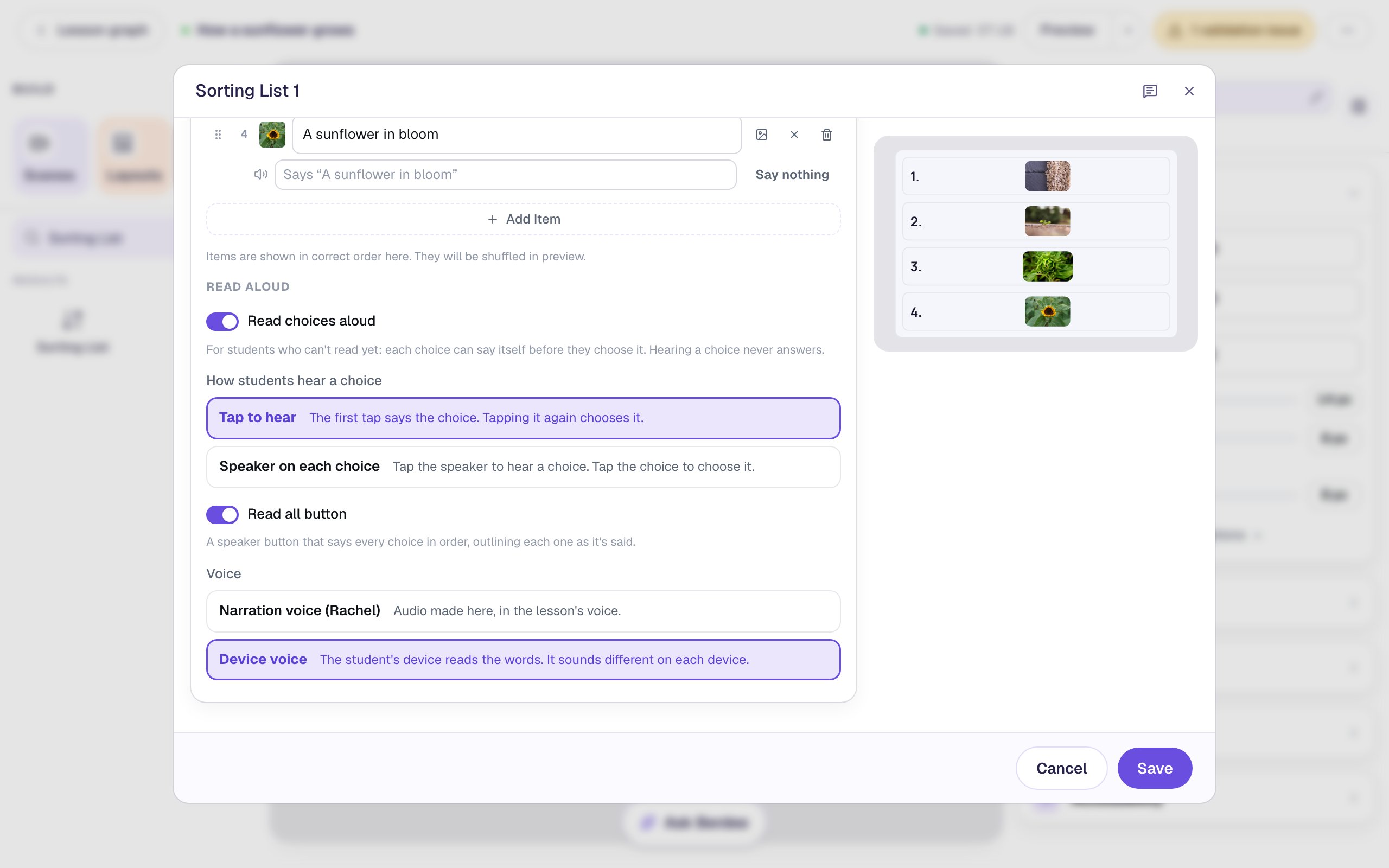
Here's what students get:
- Tap to hear (picked for you). In a sorting list, a plain tap on a card says its name, and dragging moves it, so hearing a card never moves it. The window's note about tapping again to choose is for Multiple Choice questions: a list has nothing to choose.
- Read all button, also on, puts a speaker button on the list's top-right corner that says every card in the order it's in right now.
- Device voice reads the names with the student's own device. It works on every plan, with no audio to make. To use the lesson's narration voice instead, pick Narration voice and press Generate audio for all choices.
Each card says its name unless you type other words in the Says box under it. Click Save. Sorting List Widget has the details.
Step 6: Size it, describe it, and label the ends
Rename the list Sunflower life cycle by clicking its name at the top of the properties panel. Open Style & Layout, click Show more options, and set Width to 260 and Height to 370. The cards share the list's height, so a taller list gives every picture more room. Drag the list under the instructions, leaving a little space above it: the Read all speaker sits on the list's top-right corner.
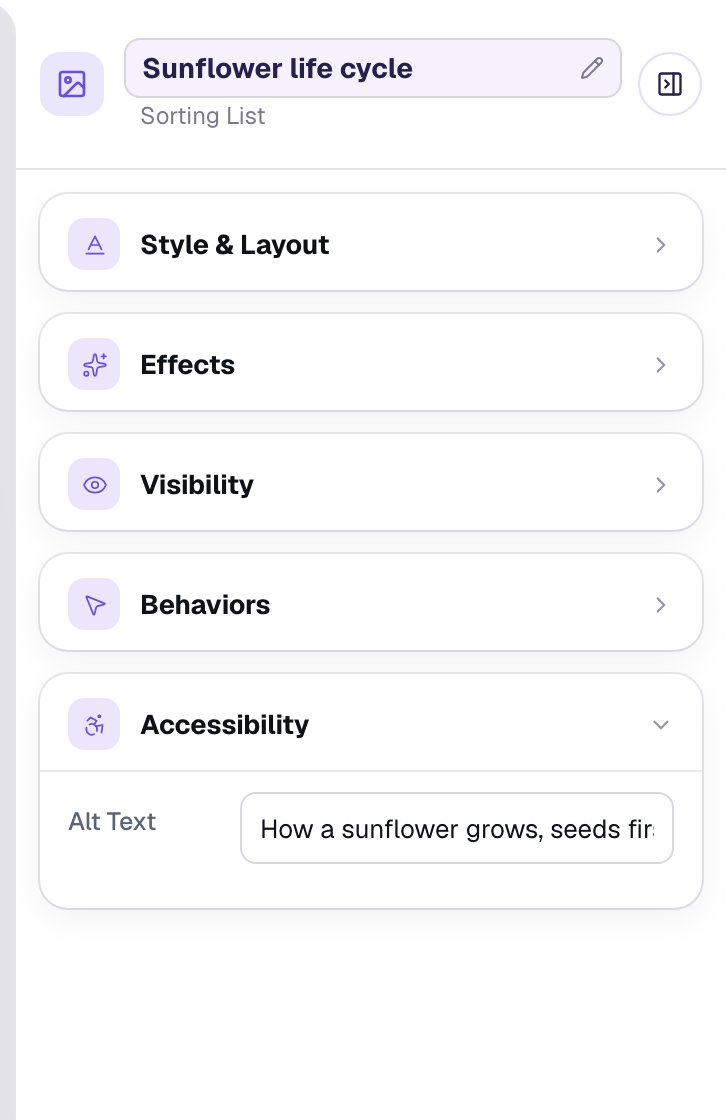
Open Accessibility and set Alt Text to How a sunflower grows, seeds first. A screen reader says this when a student reaches the list, so put the rule in it.
Then add two Subheadings, First and Last, and place them beside the first and last cards, so the rule stays in view while students drag.
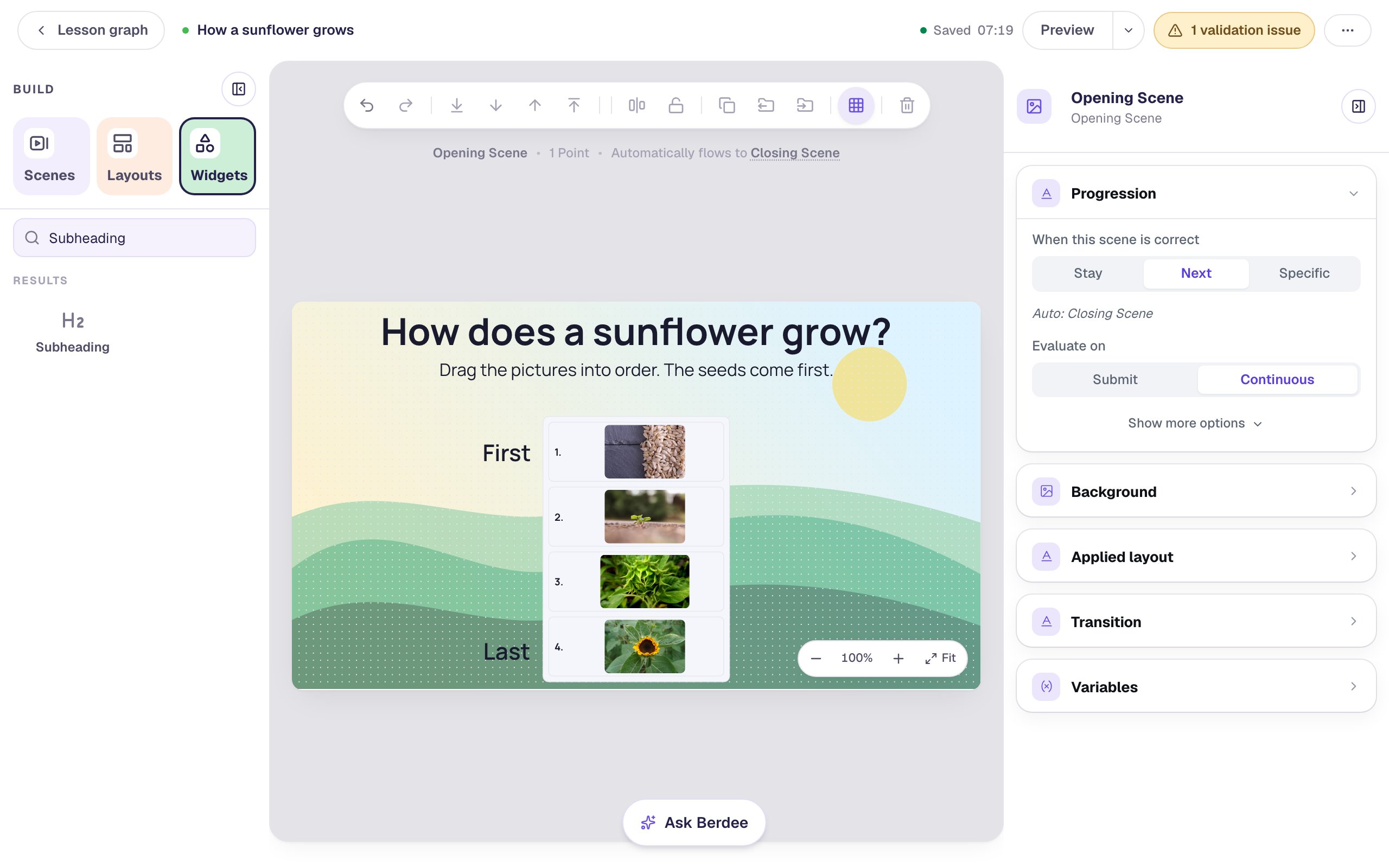
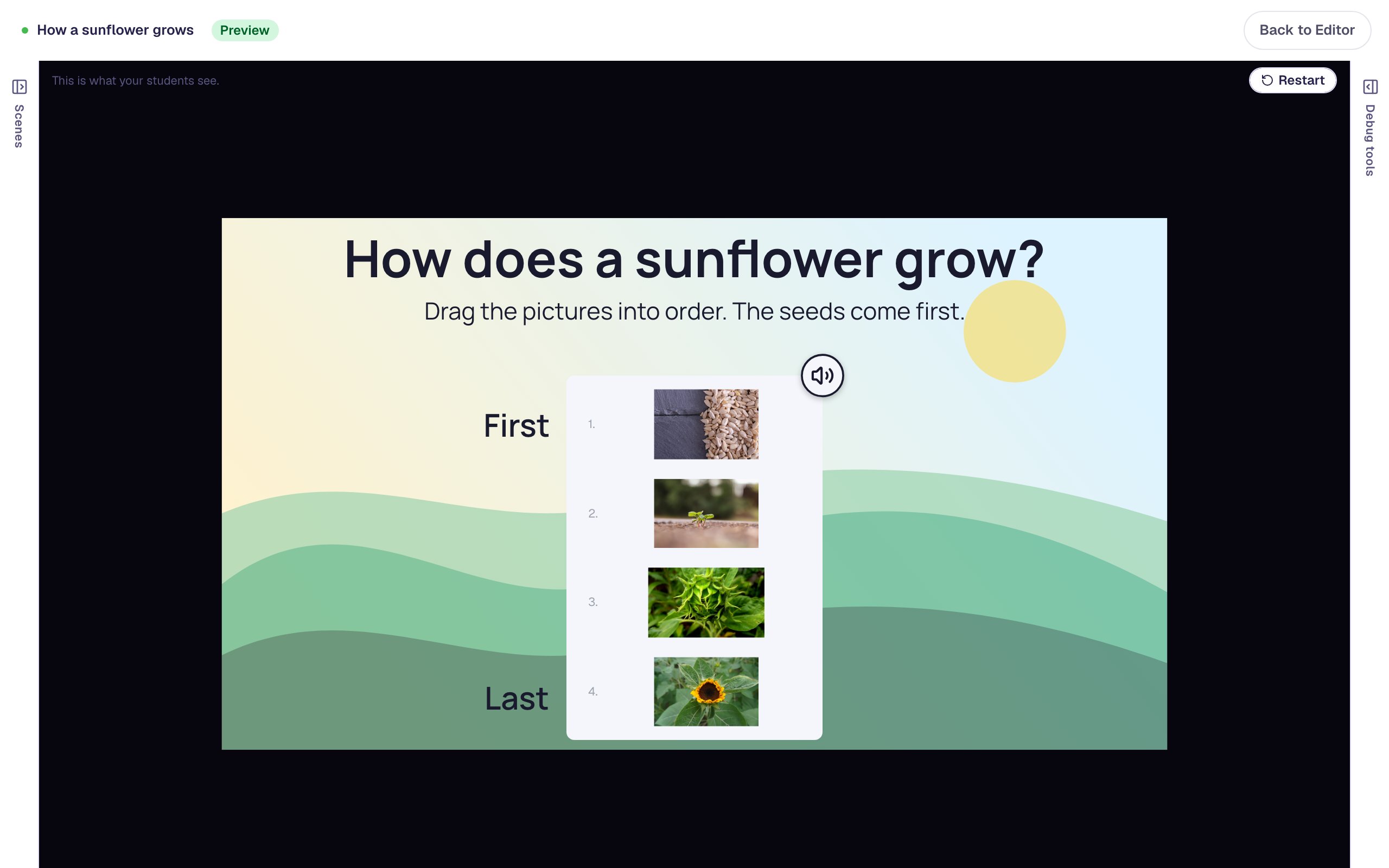
The canvas always shows the cards in the right order, so you can check your answer at a glance. Leave the scene's Progression on Next: once every card is in place, the lesson moves on to the ending by itself.
Step 7: Try it as a student
Click Preview. The cards arrive shuffled, in a different order for every student:
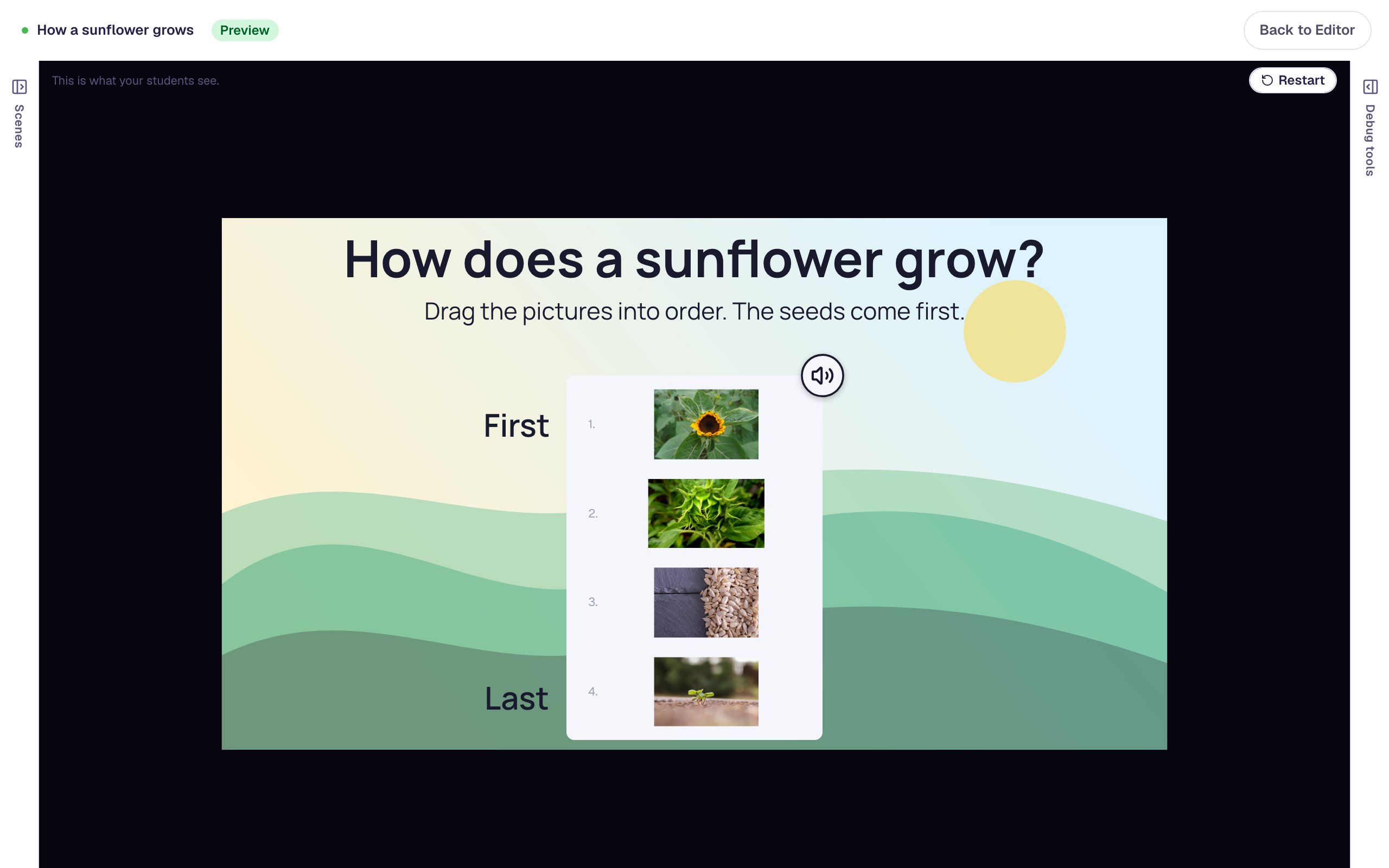
Drag each picture into place, starting with the seeds. A card you drag pushes the others aside to make room. Tap any card first to hear its name.
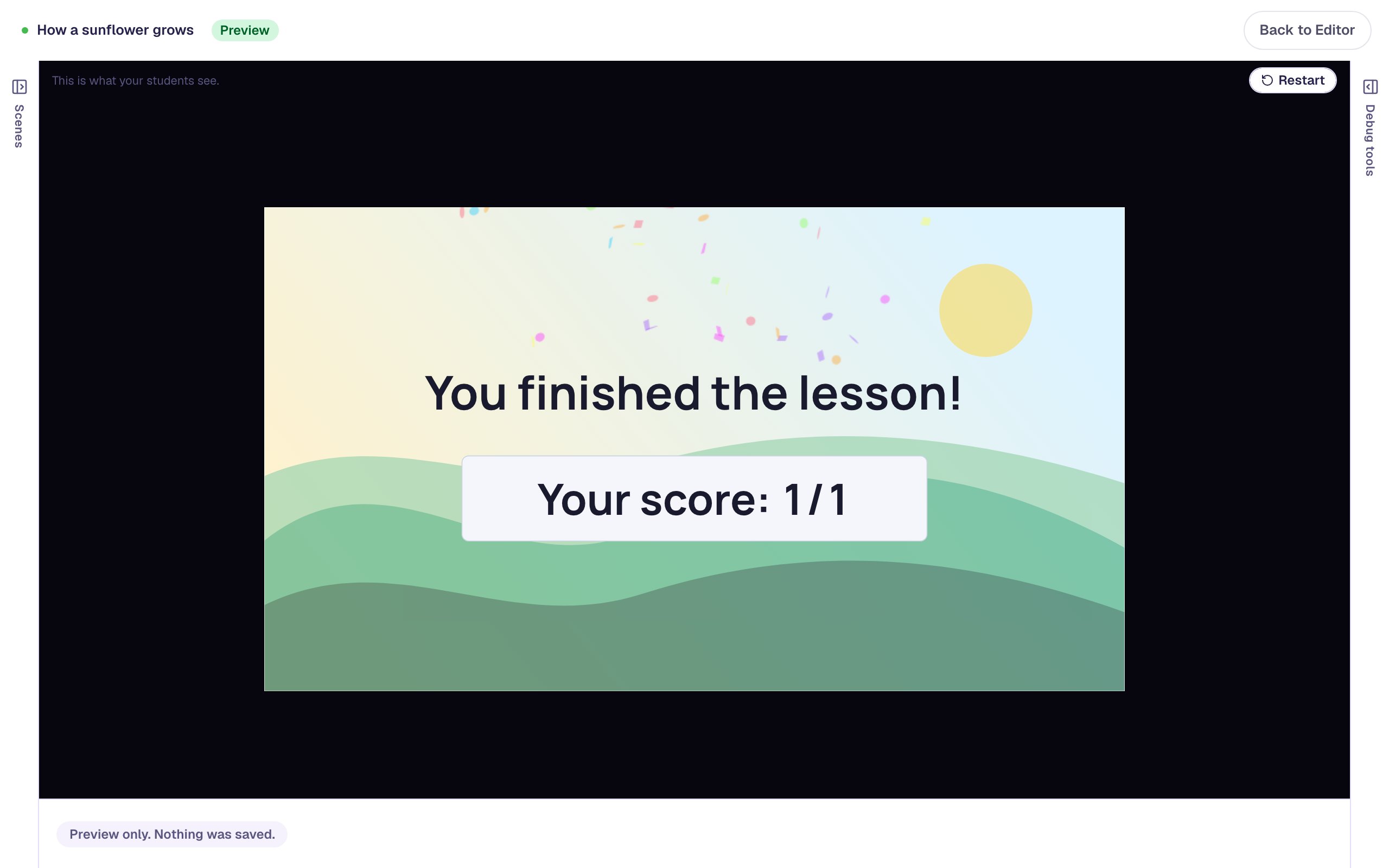
The moment the order is right, the lesson moves on:
The ending shows Your score: 1/1.
Students who'd rather not drag can sort with the keyboard: Tab to a card, press Space to pick it up, move it with the arrow keys, and press Space again to drop it. They can press H to hear the card they're on.
What you built
A life-cycle activity for early learners with:
- four picture cards from the stock library, in the right order, which is the answer key, and shuffled for every student,
- a name on every picture that a screen reader says, which describes the picture without giving away its place,
- Read choices aloud with Tap to hear, a Read all button and the device's voice, so pre-readers can hear every card,
- Alt Text and First / Last labels that keep the rule clear, and
- a scene that moves on to the ending as soon as the order is right.
The same steps work for any sequence that's easier to see than to read: a frog's life cycle, the steps of washing your hands, or the phases of the Moon. To celebrate before moving on, or to add a Shuffle again button, see Put events in order with a sorting list.
Make this lesson yours
Add the lesson you just watched being built to your account, then change it for your class: your questions, your pictures, your colors.
Free to sign up, and you'll come straight back here. I have an account