Make a game board students pick questions from
Build a quiz-show board of point tiles. Each tile opens its own question, every answer comes back to the board, a tile disappears once it's played, a running score adds up the points, and a Finish button appears when the board is clear.
- Level
- Intermediate
- Time
- About 20 min
- Steps
- 9
- Updated
- Oct 26, 2026
A "Science quiz game" board with four tiles in two categories, worth 100 or 200 points each, where students pick tiles in any order, get one try per question, and finish once every tile is gone.
Get the finished lesson
Skip straight to the result, or keep it open beside the steps. Add this tutorial's lesson to your account and explore how it works in the studio.
Free to sign up, and you'll come straight back here. I have an account
A quiz-show board turns review into a game. Students choose a category and a point value, answer the question behind the tile, and watch their score climb. Harder questions are worth more, and nobody has to go through the questions in your order.
In this tutorial you'll build a Science quiz game with two categories, 🐸 Animals and 🚀 Space, and two tiles in each: 100 and 200 points. You'll use five things together:
- Paths on the Lesson Graph that open each tile's question.
- Points on each question, and a Score that adds them up for the whole lesson.
- A Progression setting and one behavior, so any answer returns to the board and the first answer is the one that counts.
- Visibility rules that hide a tile once it's played, and show a Finish button once every question is answered.
If you haven't drawn a path on the Lesson Graph before, Let students choose their own path is a gentler start.
Step 1: Build the board
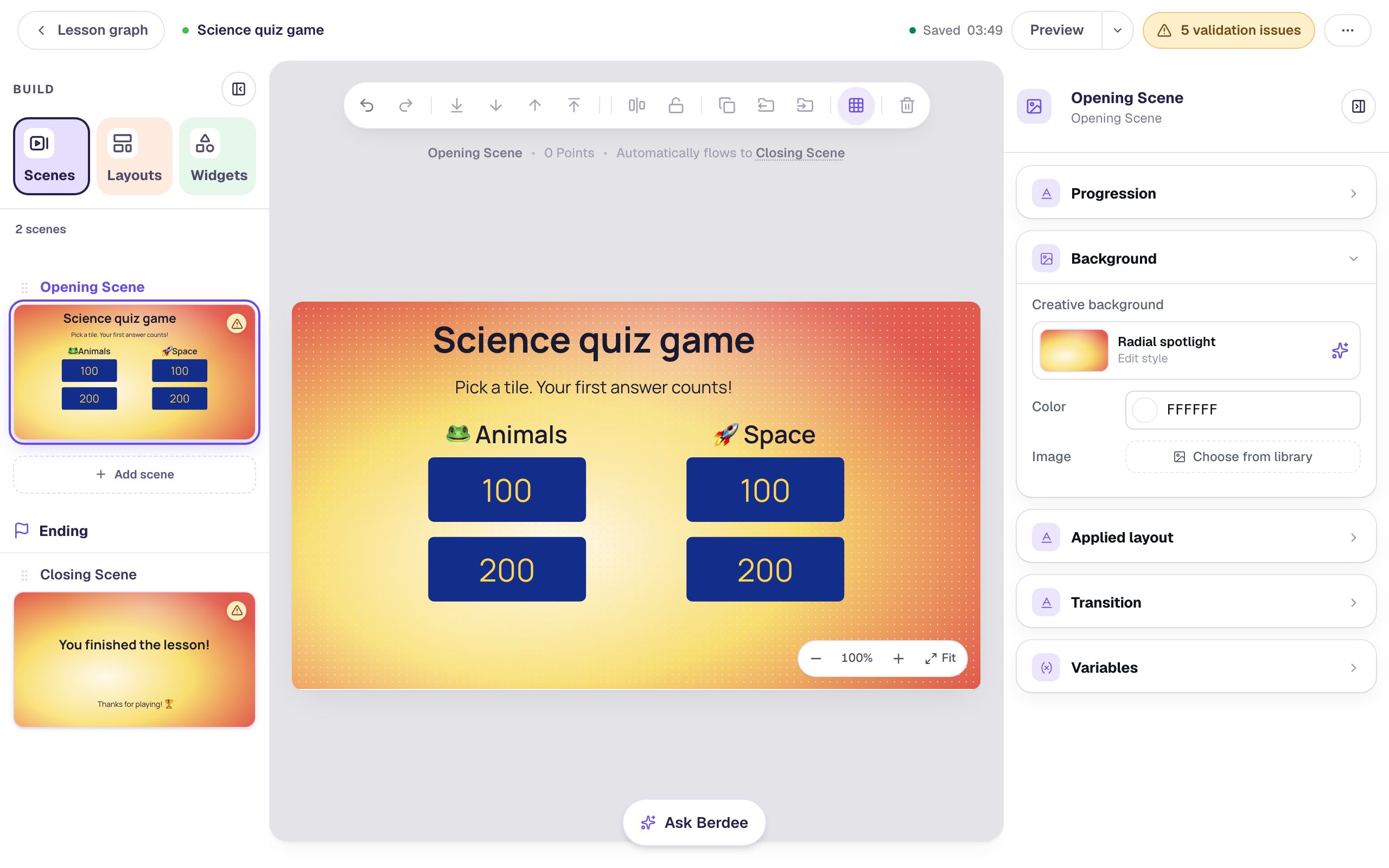
Start a blank lesson (New lesson, then Start from scratch) and name it Science quiz game. The Opening Scene will be the board.
- Give it a background: with nothing selected, open Background, click Choose a style, and pick Radial spotlight under Gradients. It's a warm, game-show glow.
- Add a Heading that says
Science quiz game, and a Body under it:Pick a tile. Your first answer counts!Leave some room in the top-right corner for the score. - Add two Subheadings for the categories,
🐸 Animalson the left and🚀 Spaceon the right. - Add a Button under 🐸 Animals. Click ⚙ Configure, set its Label to
100, and click Save. In Style & Layout, set Font Size to44, choose Fixed width, and make it220wide and90tall. Set its Background to a deep blue and its Text to gold. - Rename the button
Animals 100 tile: click the pencil next to its name at the top of the properties panel, type, and press Enter. - Make three more tiles the same way:
200under Animals (namedAnimals 200 tile), and100and200under Space (namedSpace 100 tileandSpace 200 tile).
The names matter. Students see only the numbers, and two tiles say 100, but the Lesson Graph and the visibility rules list tiles by name.
Give the Closing Scene the same background, and add a Body under its score: Thanks for playing! 🏆.
Step 2: Add a running score
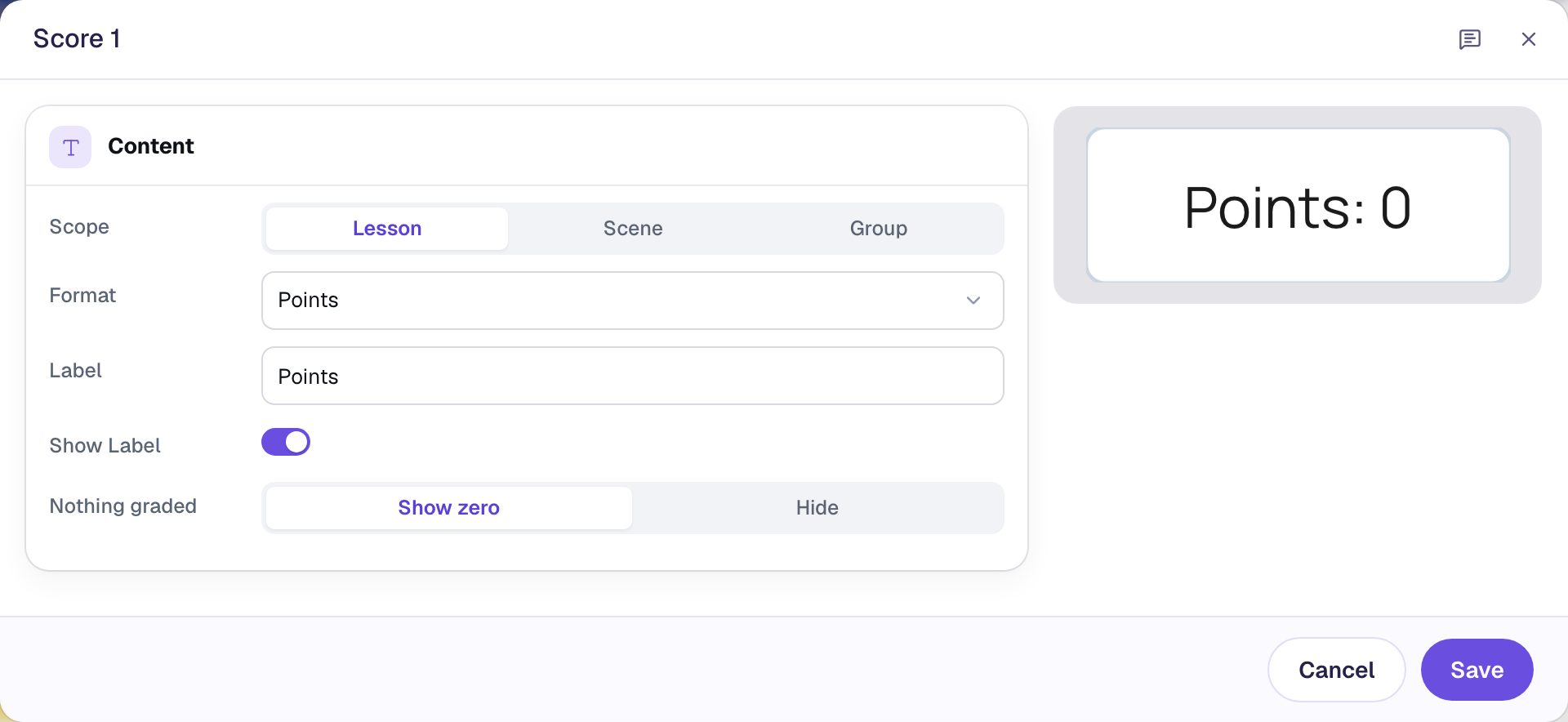
Click an empty spot on the scene, then add a Score widget from Widgets. Click ⚙ Configure and:
- Set Scope to Lesson, so it adds up the questions on every scene, not just this one.
- Set Format to Points.
- Type
Pointsas the Label. Berdee adds the colon. - Leave Nothing graded on Show zero, so the board starts at
Points: 0.
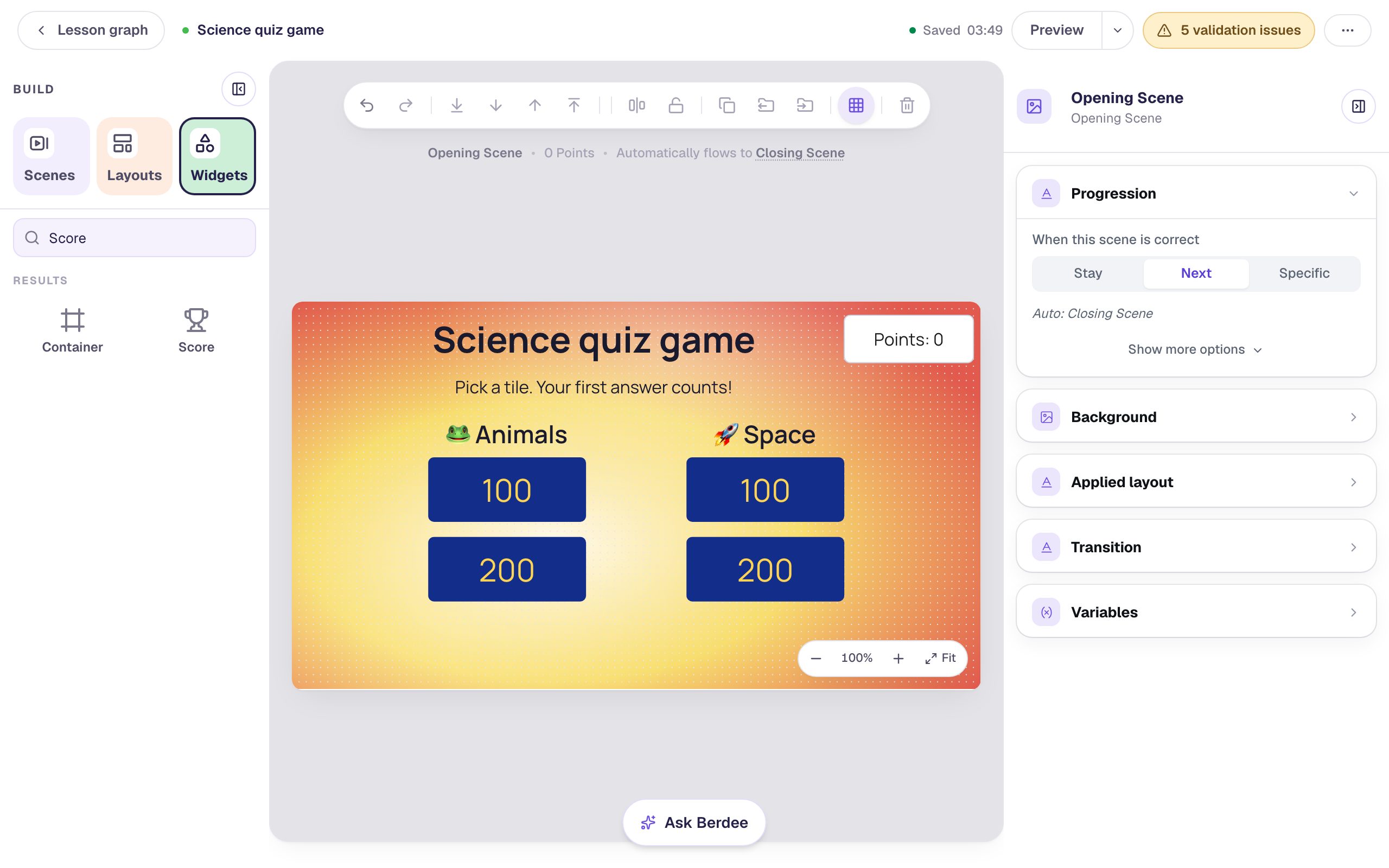
Click Save. In Style & Layout, give it a white Background, and drag it into the top-right corner.
Step 3: Make the first question from its tile
Click Lesson graph at the top left. Hover over the Opening Scene card and click the dot on its right edge:
- Leave A new scene selected and click Next.
- Name the scene
Animals 100. - Choose They tap something, and set Student taps to Animals 100 tile.
- Click Add scene.
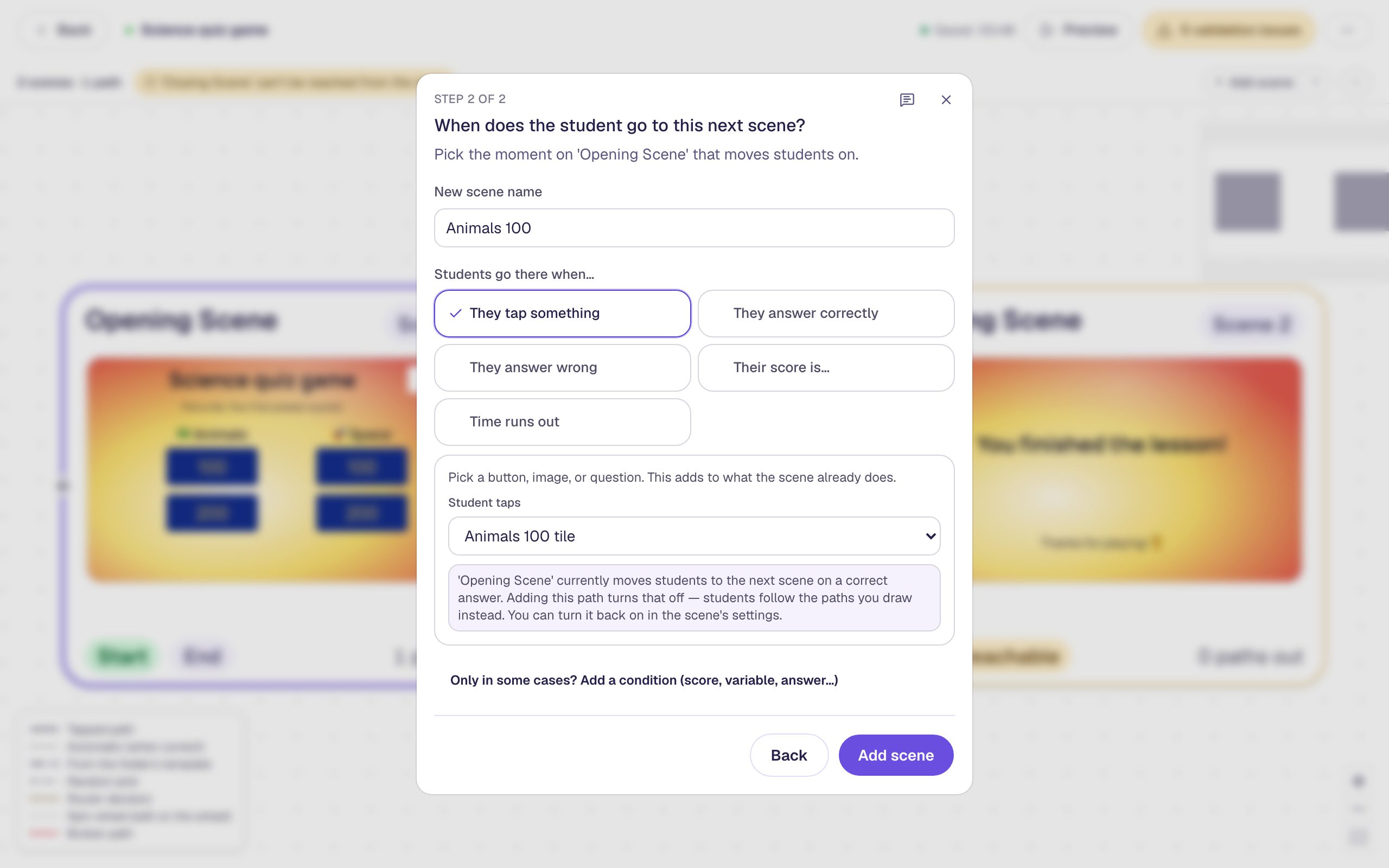
Hover over the new Animals 100 card and click Edit scene. Build the question:
- Give it the Radial spotlight background, like the board.
- Add a Heading:
🐸 Animals for 100. - Add an Image, make it
380×280under Style & Layout, and drag it to the left. Click Choose image and search the stock photos forgreen frog. Under Accessibility, describe the photo in Alt Text, for exampleA green frog sitting on wet, dark stones. - Add a Body to the right of the picture:
A baby frog is called a… - Add a Multi Choice under the question.
Click ⚙ Configure on the Multi Choice. Type the answers Tadpole, Caterpillar and Chick, and remove the fourth option with its trash can. Tadpole is the first option, and a new question starts with its first option marked correct, so it's already right. Then set Points to 100, the value on the tile.
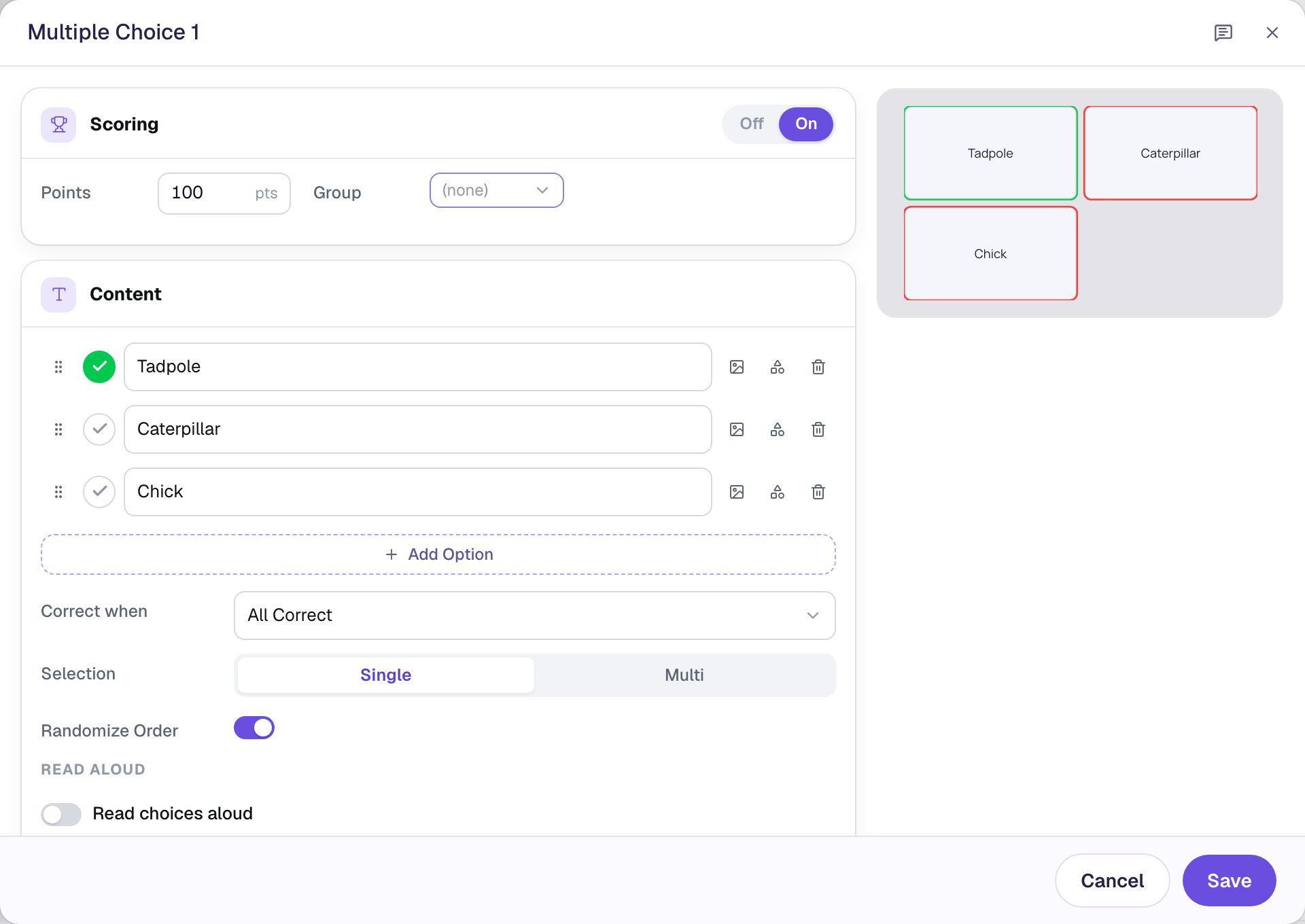
Click Save, and rename the question Animals 100 question. Your board's rules will look for it by this name.
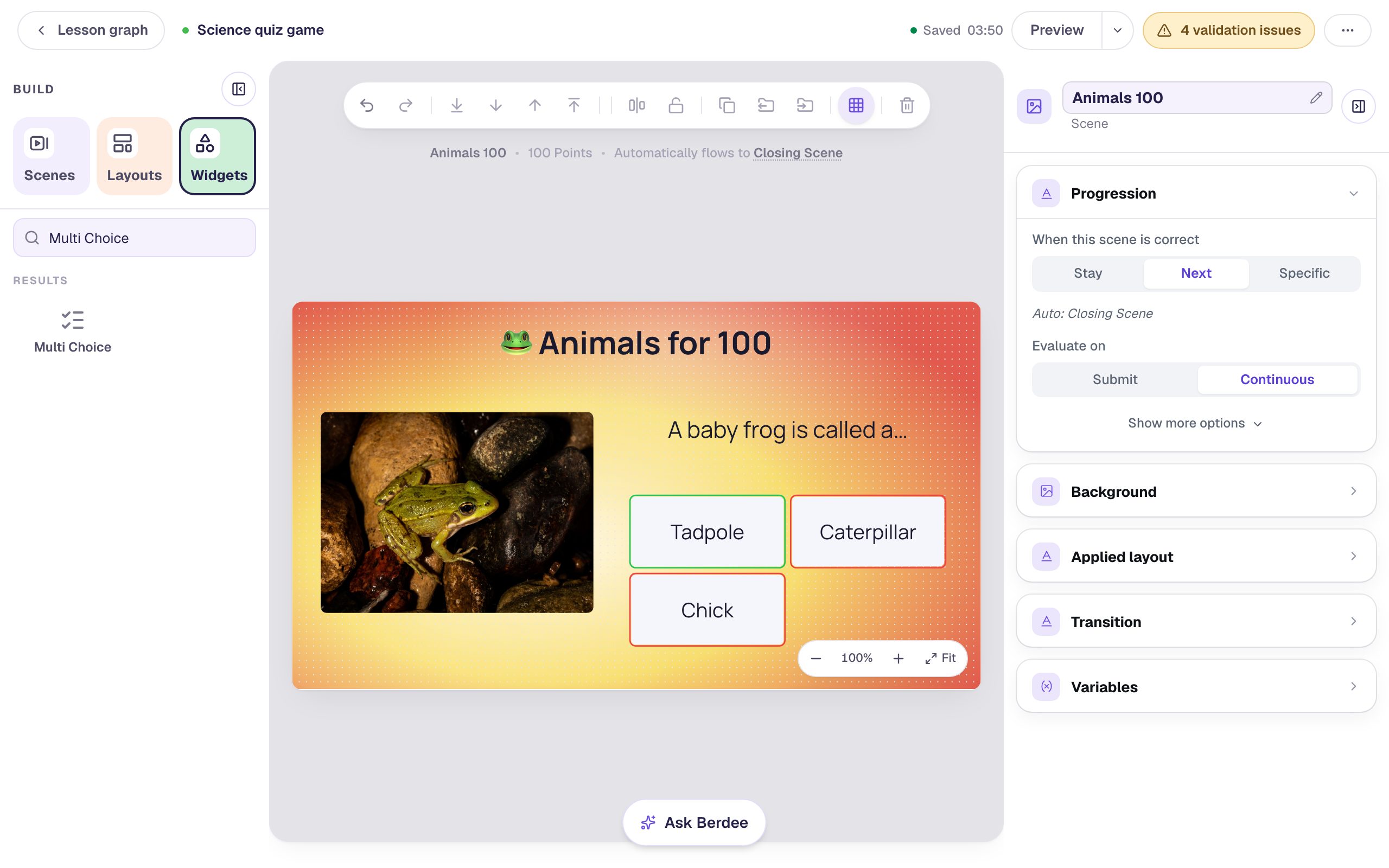
Step 4: Send every answer back to the board
Right now a right answer would move on to the next scene in the list, and a wrong answer would leave the student on the question, free to try again. In a quiz game, every answer should return to the board, and the first answer should count.
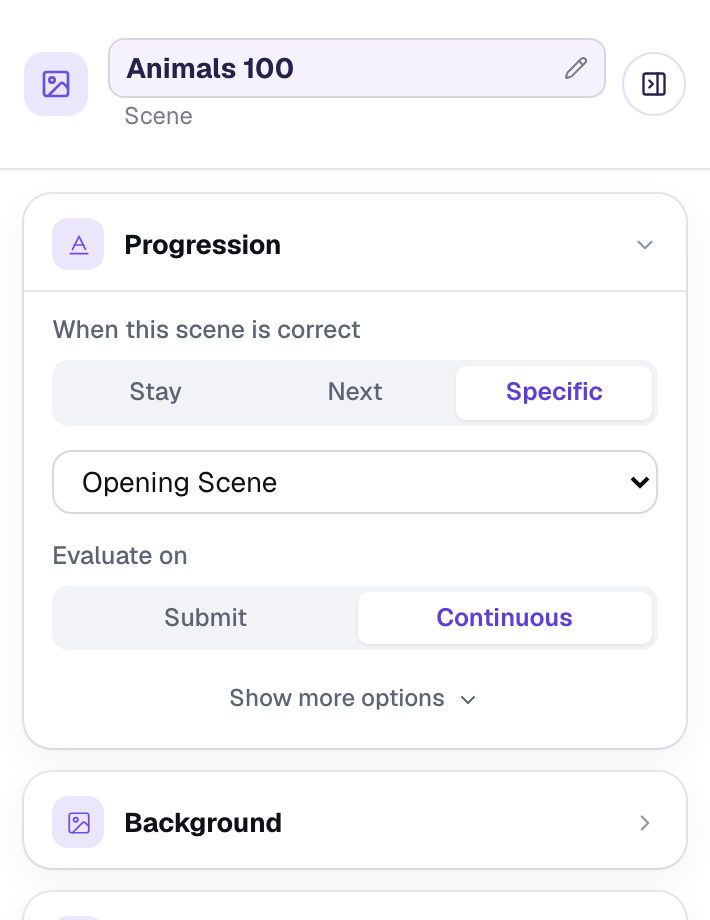
A right answer. Click an empty spot on the scene. In Progression, under When this scene is correct, choose Specific and pick Opening Scene.
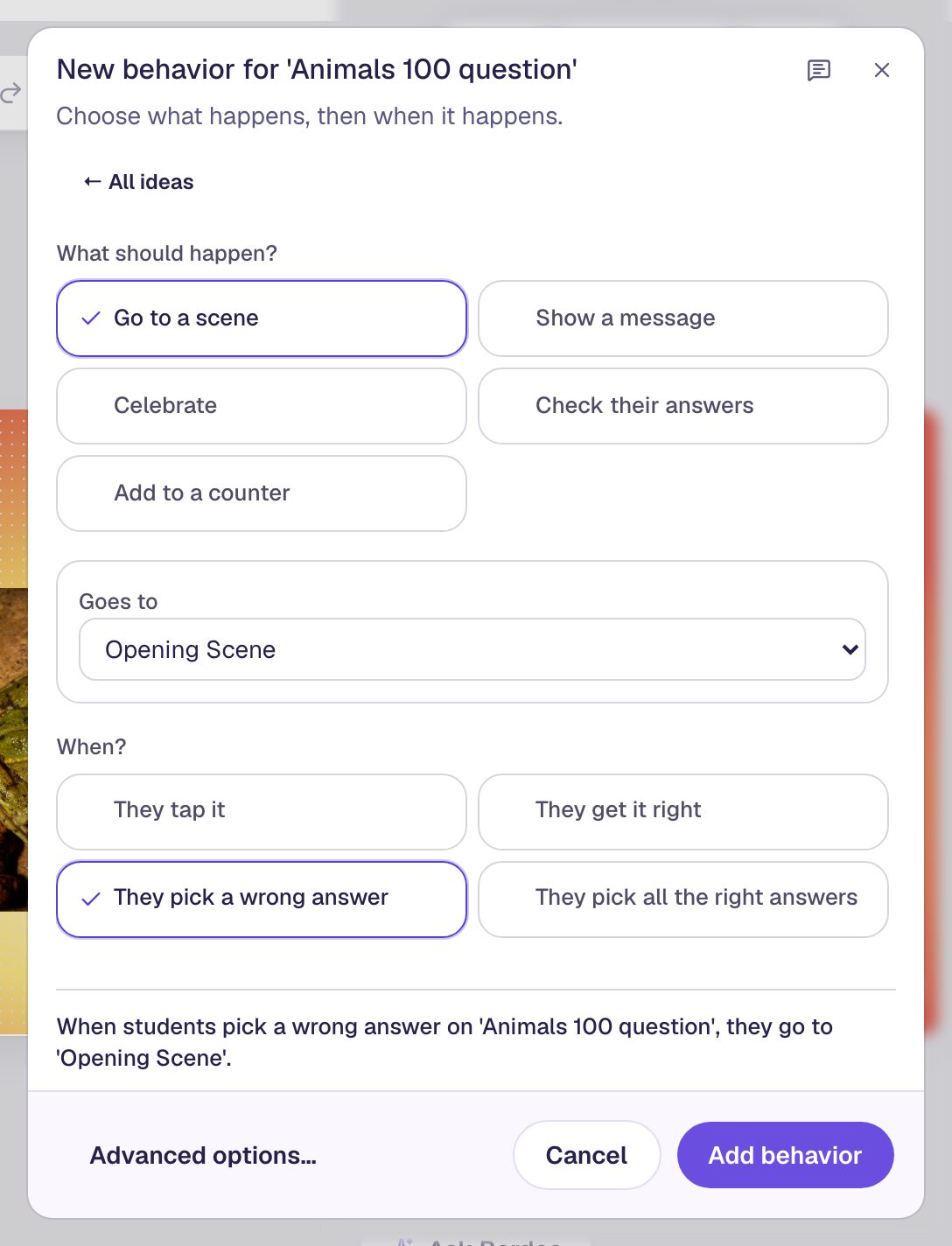
A wrong answer. Select the answers and click Behaviors in the pill above them. Choose Build your own…, then Go to a scene, set Goes to to Opening Scene, pick They pick a wrong answer, and click Add behavior.
Students should know how they did, so add two messages the same way, with Show a message:
Correct! Those points are yours. 🎉, tone Happy 🎉, when They get it right.Not this time. Pick another tile!, tone Neutral, when They pick a wrong answer.
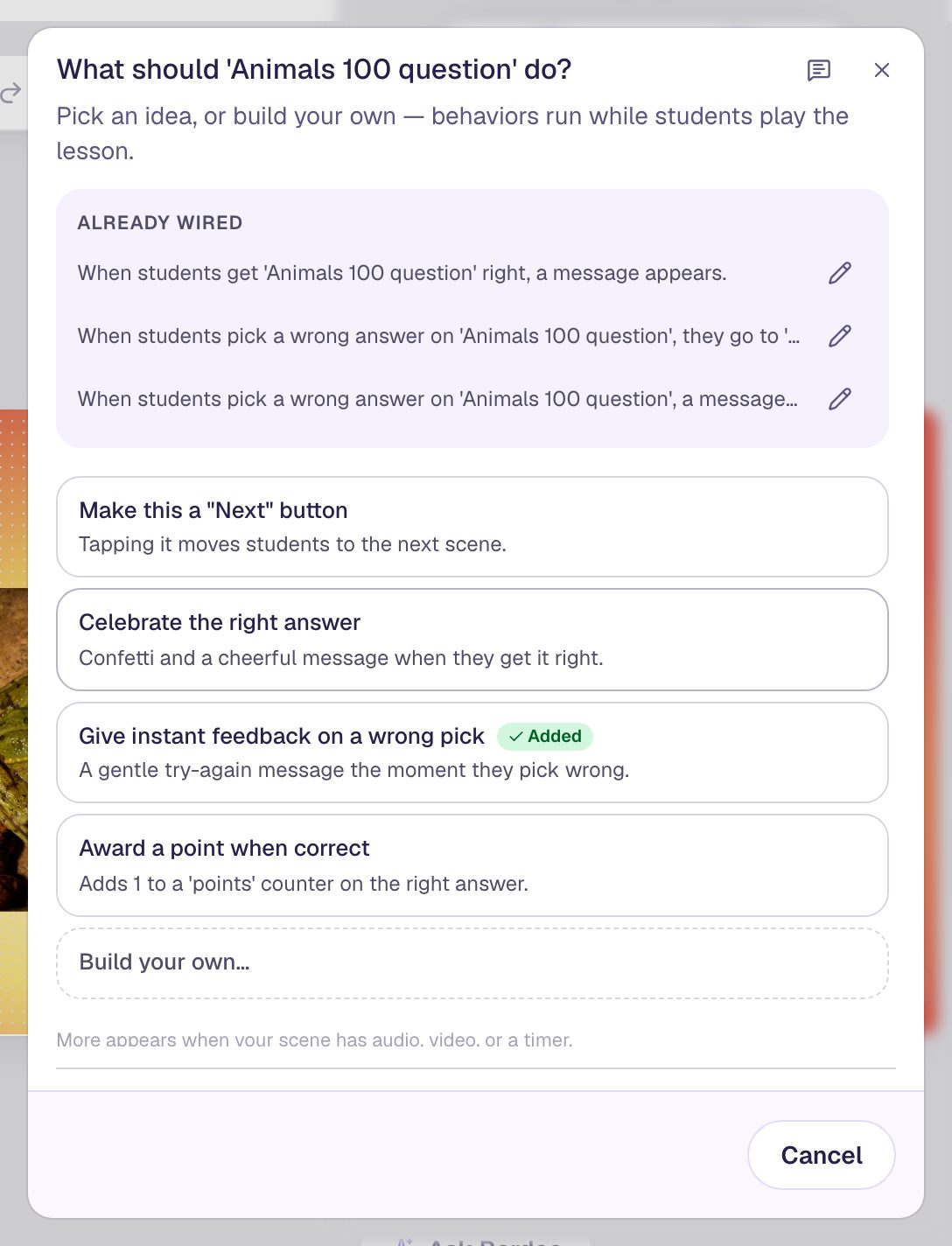
The messages don't name the answer on purpose: you'll copy this scene for the other three questions in the next step, and these messages work on all of them. Open Behaviors again to check that Already wired lists all three.
Step 5: Copy the question for the other three tiles
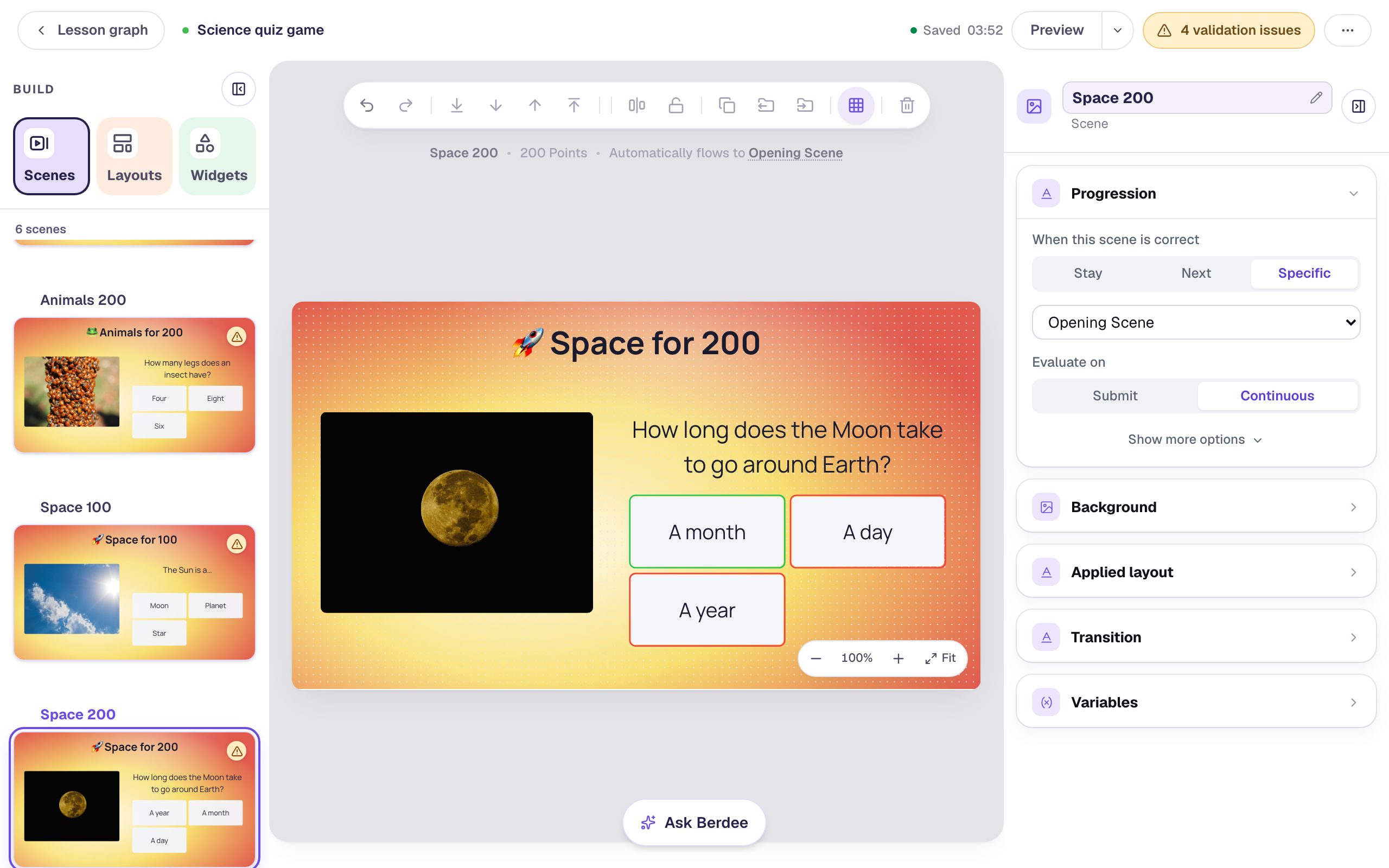
Everything you just set up comes along when you duplicate a scene: the background, the photo frame, the points, the trip back to the board and both messages. Open the Scenes panel, hover over Animals 100, click Duplicate scene, and rename the copy Animals 200. Then duplicate Animals 200 to make Space 100, and Space 100 to make Space 200.
On each copy, change what's different: the heading, the photo (Replace image, then a new Alt Text), the question, and in ⚙ Configure the answers and the Points. Keep the right answer as the first option. Rename each question after its scene:
| Scene | Heading | Photo search | Question | Answers (first is right) | Points | Question name |
|---|---|---|---|---|---|---|
Animals 200 | 🐸 Animals for 200 | ladybug | How many legs does an insect have? | Six, Eight, Four | 200 | Animals 200 question |
Space 100 | 🚀 Space for 100 | sun | The Sun is a… | Star, Planet, Moon | 100 | Space 100 question |
Space 200 | 🚀 Space for 200 | full moon | How long does the Moon take to go around Earth? | A month, A day, A year | 200 | Space 200 question |
Step 6: Connect the other tiles to their questions
The copies aren't on the board yet: only Animals 100 tile opens a scene. Click Lesson graph, hover over the Opening Scene, and click its dot again. This time:
- Click Or connect to a scene or router that's already in the lesson, then Next.
- Set Goes to to Animals 200.
- Leave They tap something selected and set Student taps to Animals 200 tile.
- Click Add path.
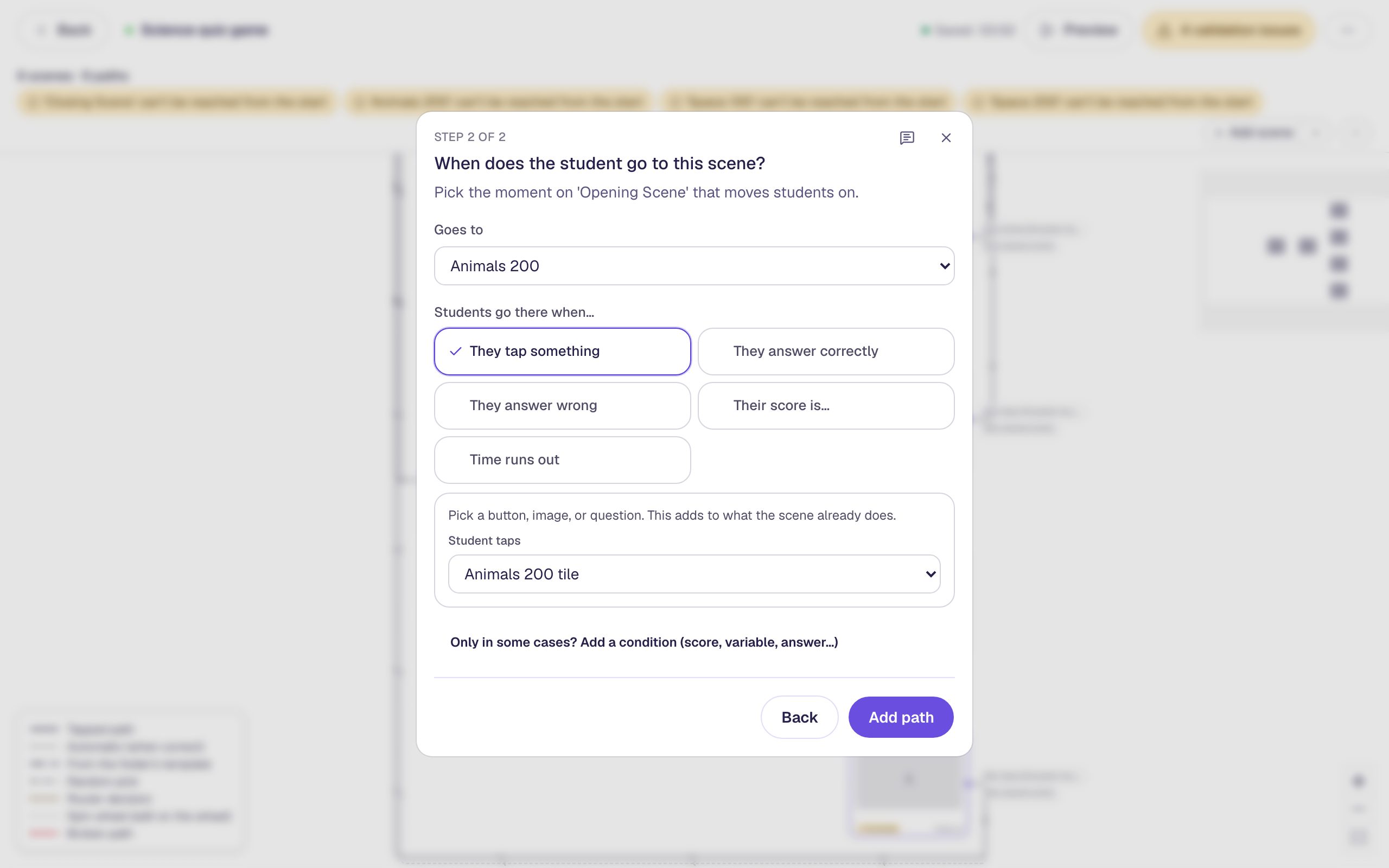
Do the same for Space 100 tile → Space 100 and Space 200 tile → Space 200. The map now has four paths out of the board, one per tile, and each question has its two ways back:
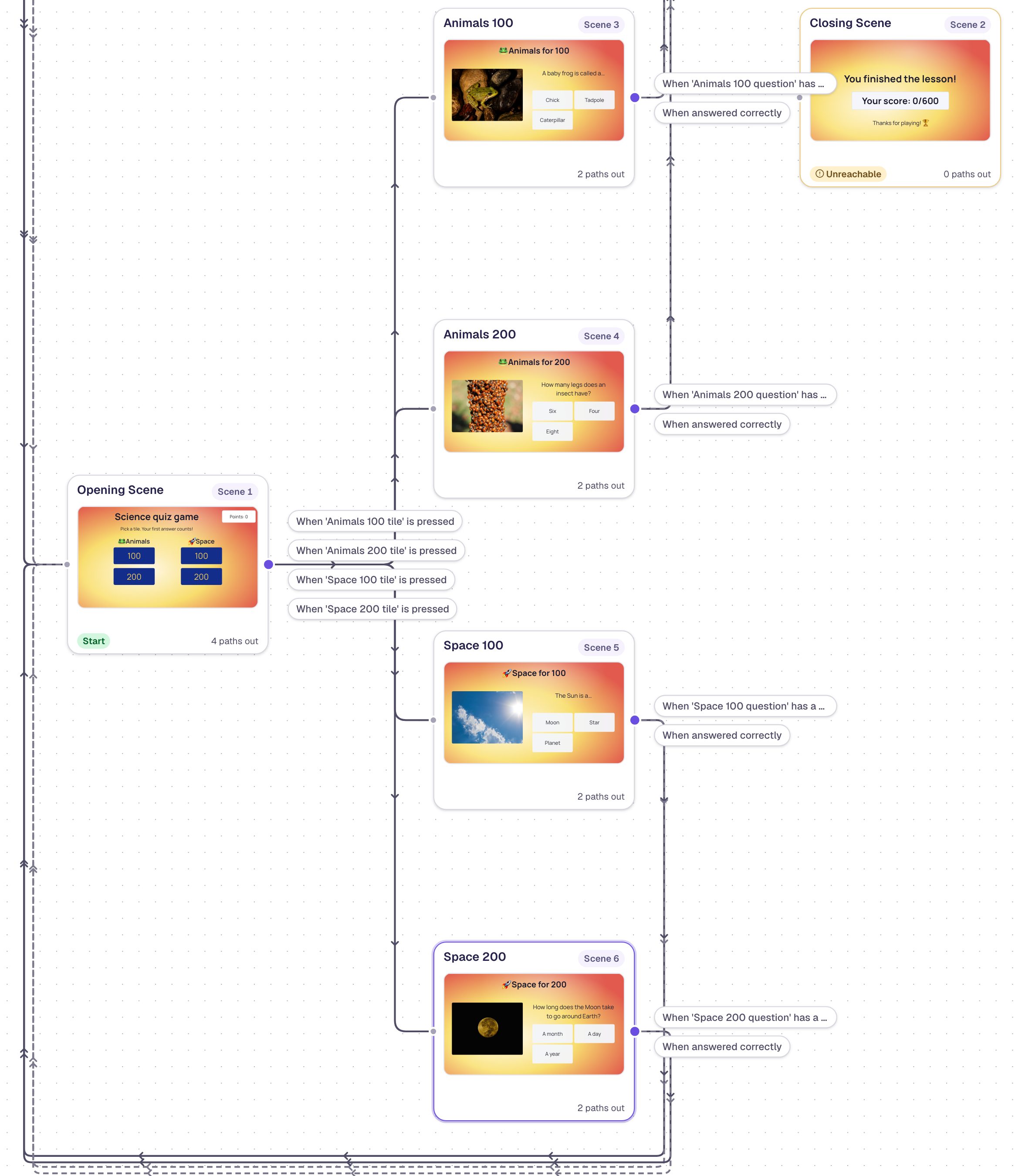
The strip at the top says the Closing Scene can't be reached. That's true for now: the Finish button in Step 8 fixes it.
Step 7: Hide a tile once it's been played
Without this step, a student could tap a tile again and land on a question they've already answered, where a right answer would send them straight back. Hide each tile as soon as its question has an answer.
Hover over the Opening Scene card and click Edit scene. Select the Animals 100 tile and open Visibility:
- Set Mode to Conditional.
- Set Behavior to Hide.
- In the condition, pick Multiple Choice: Animals 100 question, then Is answered.
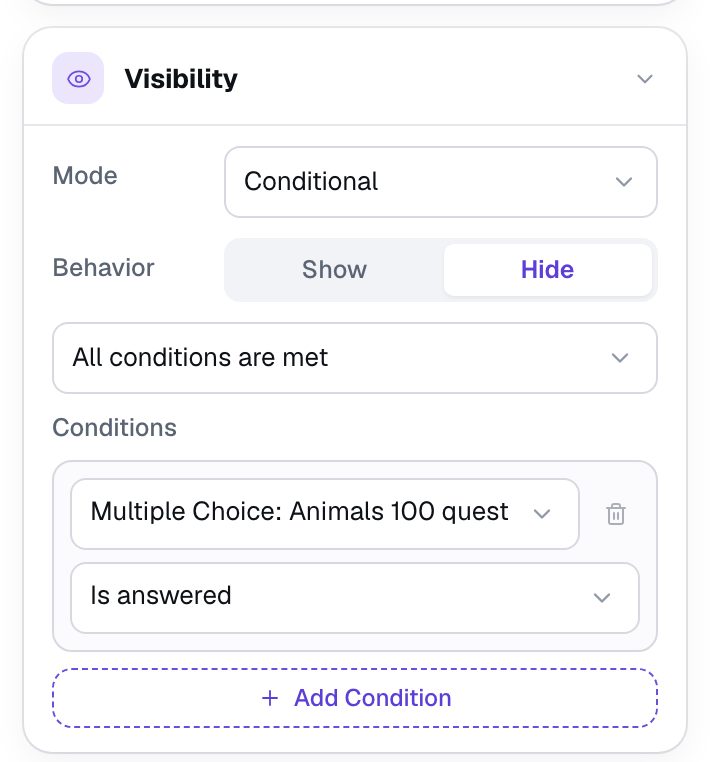
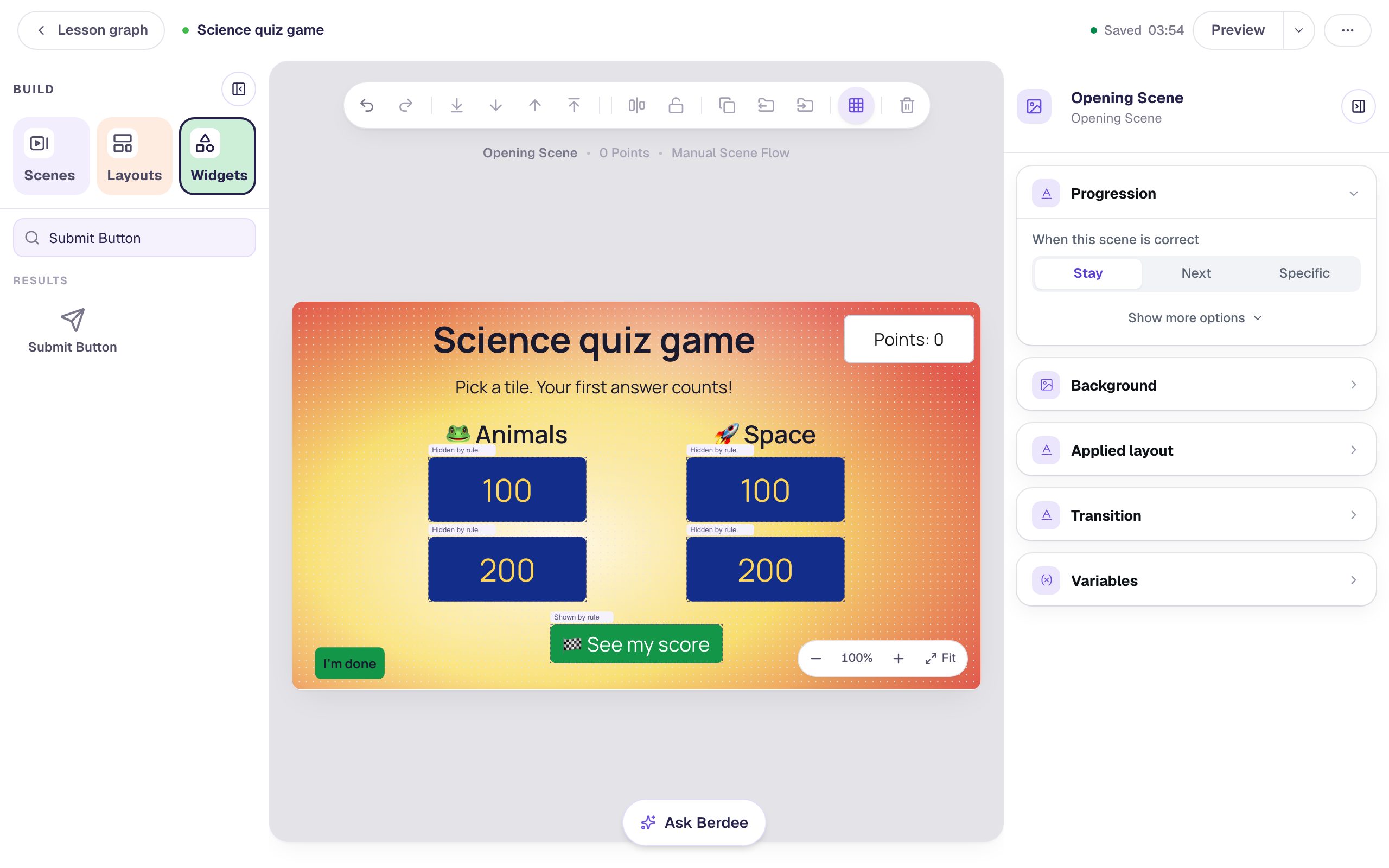
Give the other three tiles the same rule, each with its own question: Animals 200 question, Space 100 question and Space 200 question. In the studio every tile stays on the canvas with a Hidden by rule tag, so you can still edit it.
Step 8: Show a Finish button when the board is clear
Add a Button under the tiles, set its Label to 🏁 See my score, and rename it Finish. Give it a green Background and white Text.
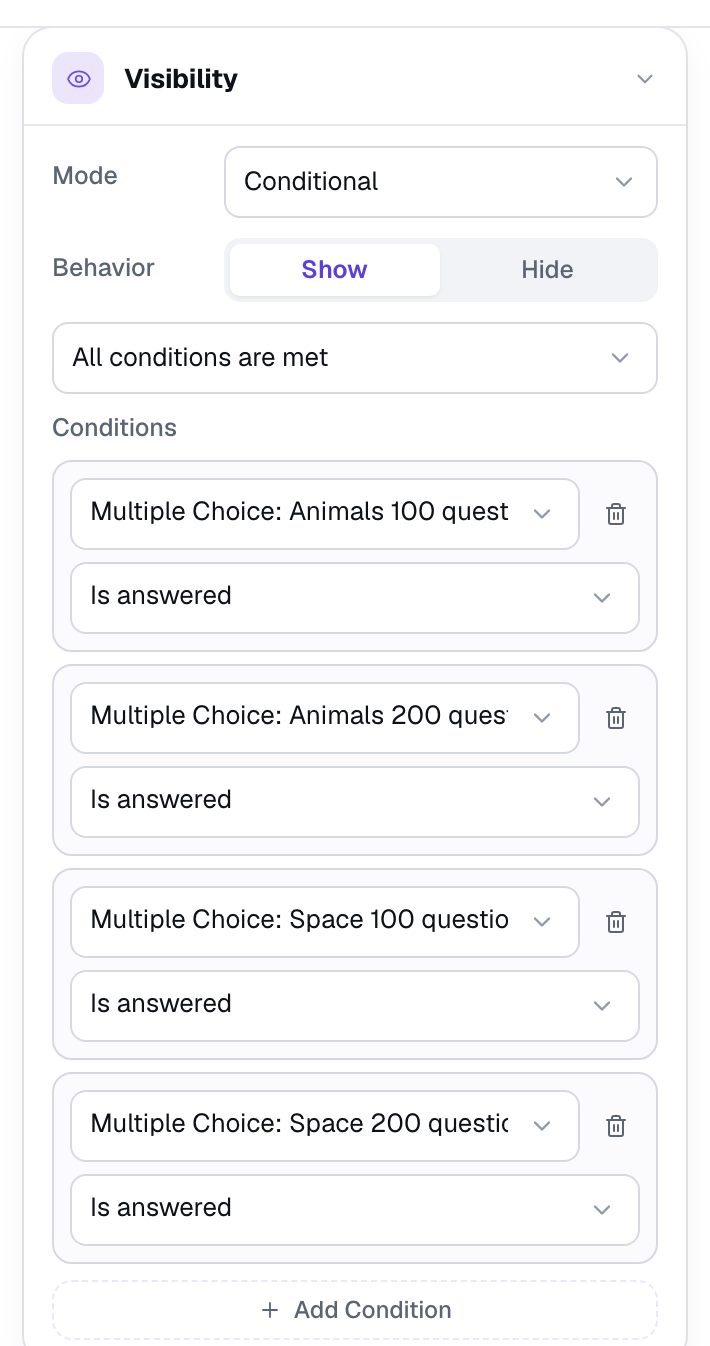
In its Visibility, set Mode to Conditional and leave Behavior on Show. Add four conditions with Add Condition, one per question, each Is answered. The list above them stays on All conditions are met, so the button appears only once every question has an answer.
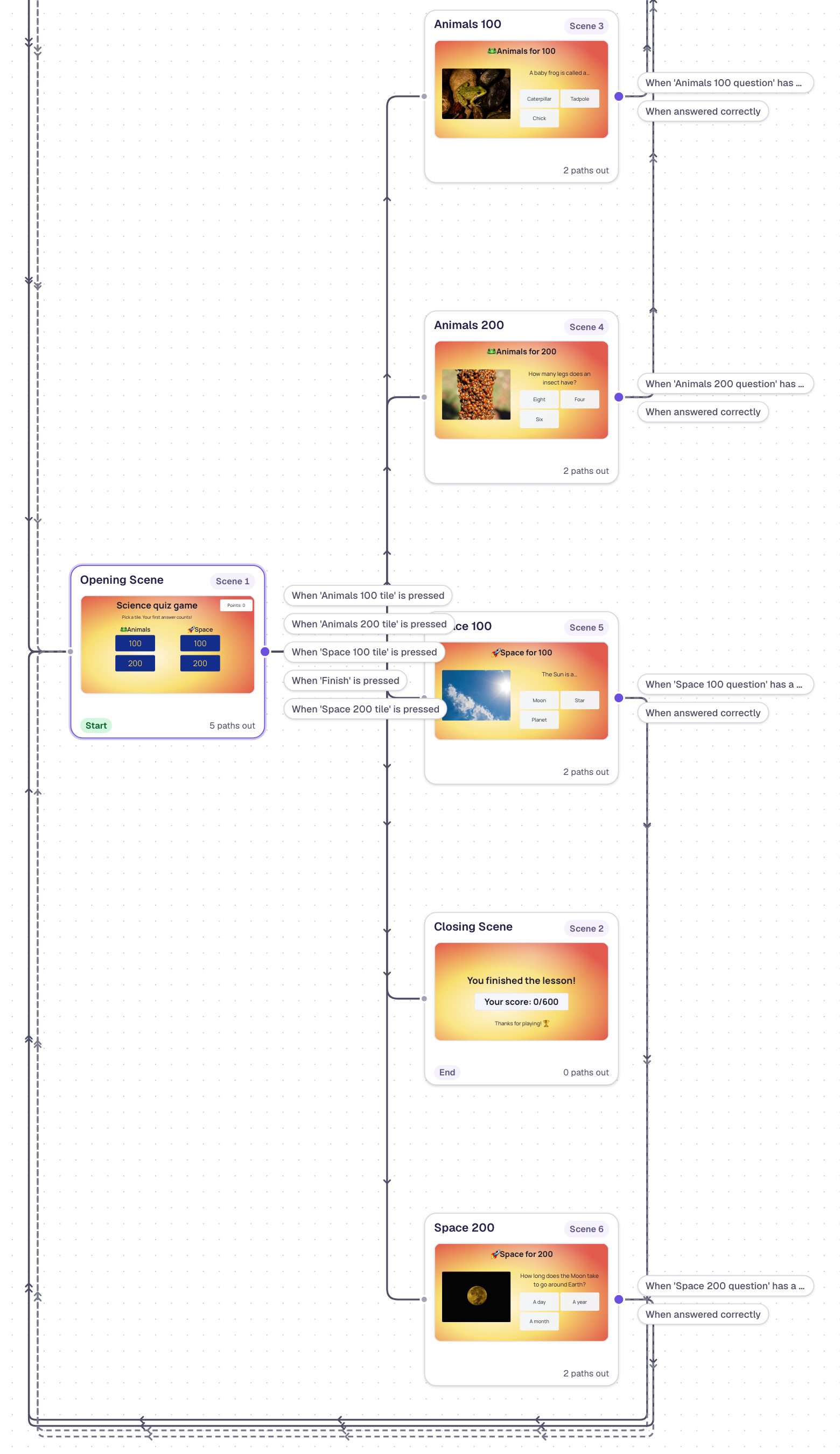
Go back to the Lesson graph, click the Opening Scene's dot, and connect it to the Closing Scene the same way as in Step 6, with Student taps set to Finish. The strip at the top now says every scene can be reached.
Last, the yellow pill at the top asks for a way to finish early (No Lesson-Submit Button). Edit the Opening Scene, add a Submit Button, change its Label to I'm done, set Submits to Lesson, lower its Font Size to about 18 px, and put it in the bottom-left corner of the board. It's a quiet way out for a student who has to stop before the board is clear.
Back on the board, the four tiles carry a Hidden by rule tag and the Finish button a Shown by rule tag:
Step 9: Play the game
Go to the Opening Scene and click Preview. Tap 100 under 🚀 Space and pick Star:
You're back on the board with a message, and the score already reads Points: 100.
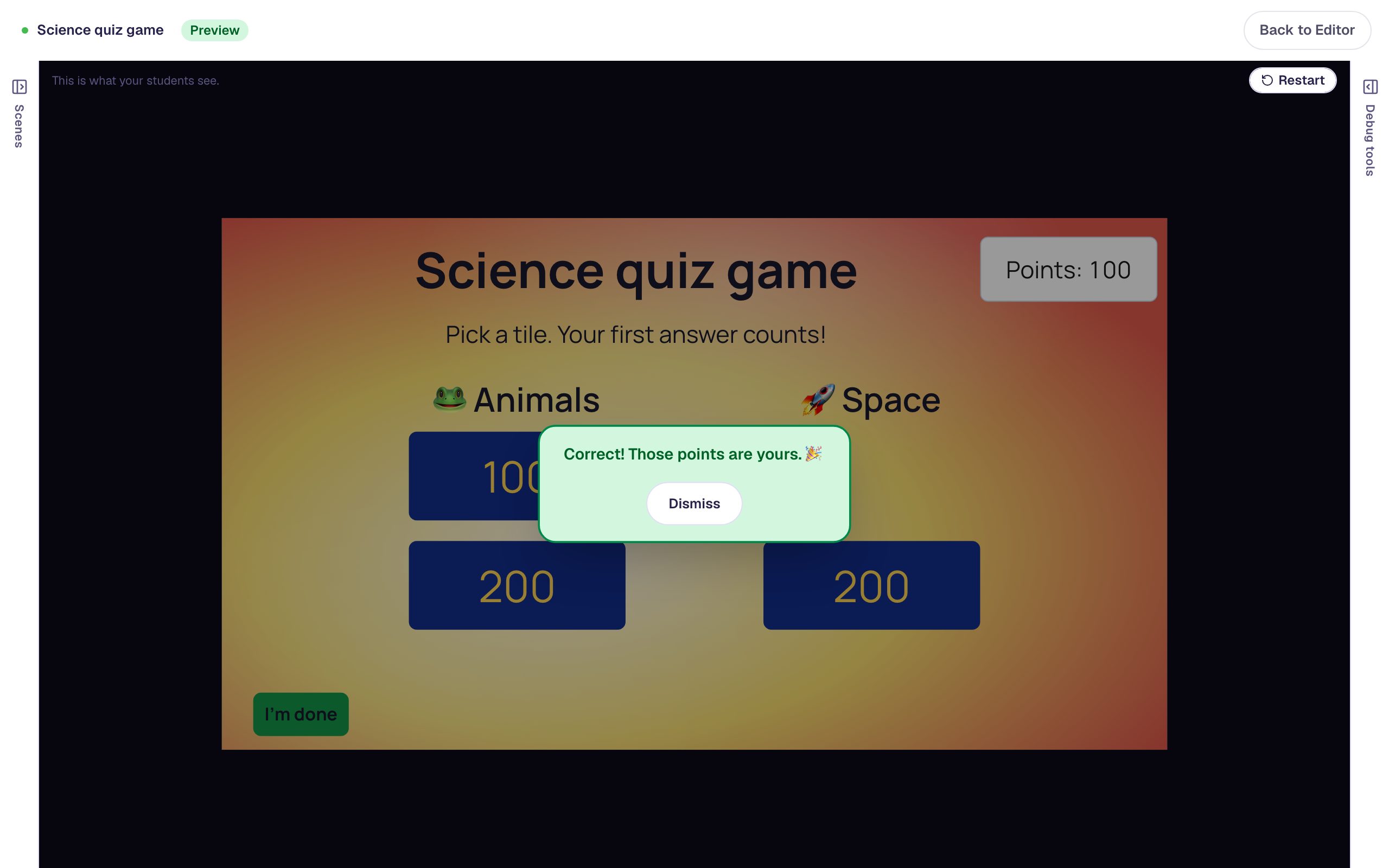
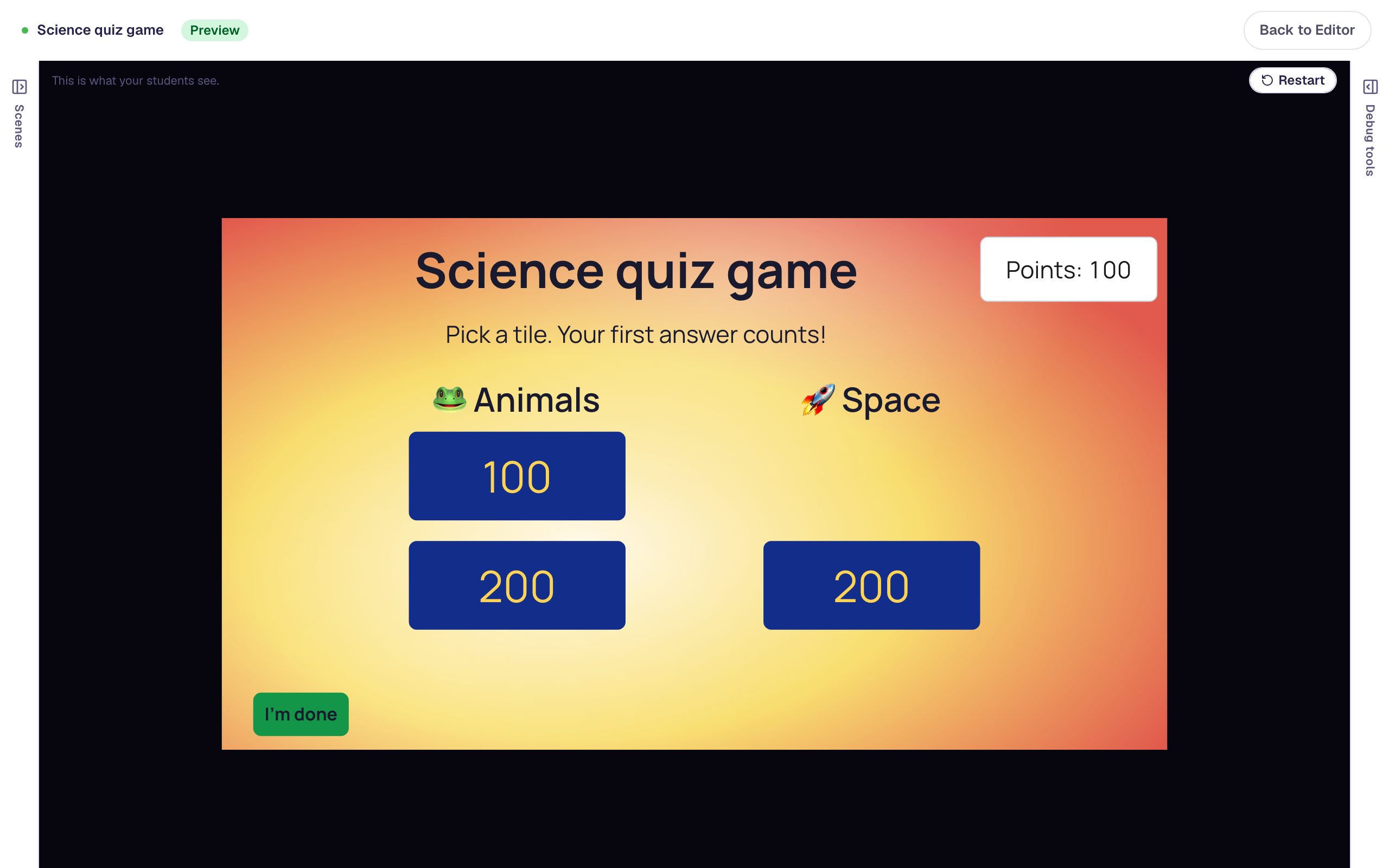
Click Dismiss. The Space 100 tile is gone, so it can't be played twice.
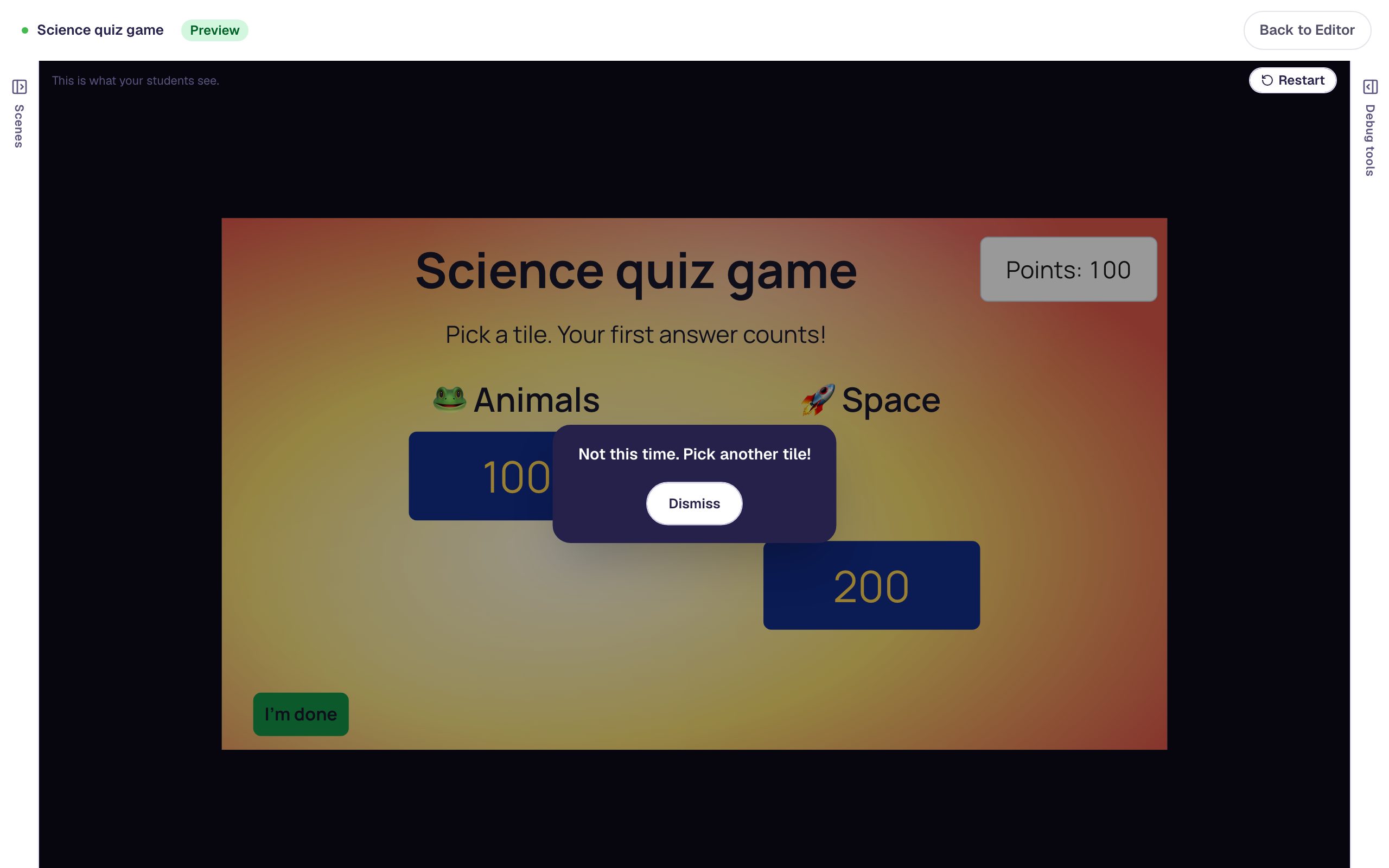
Now tap 200 under 🐸 Animals and pick Eight on purpose. You go straight back to the board with the neutral message, the tile is gone, and the score stays at 100.
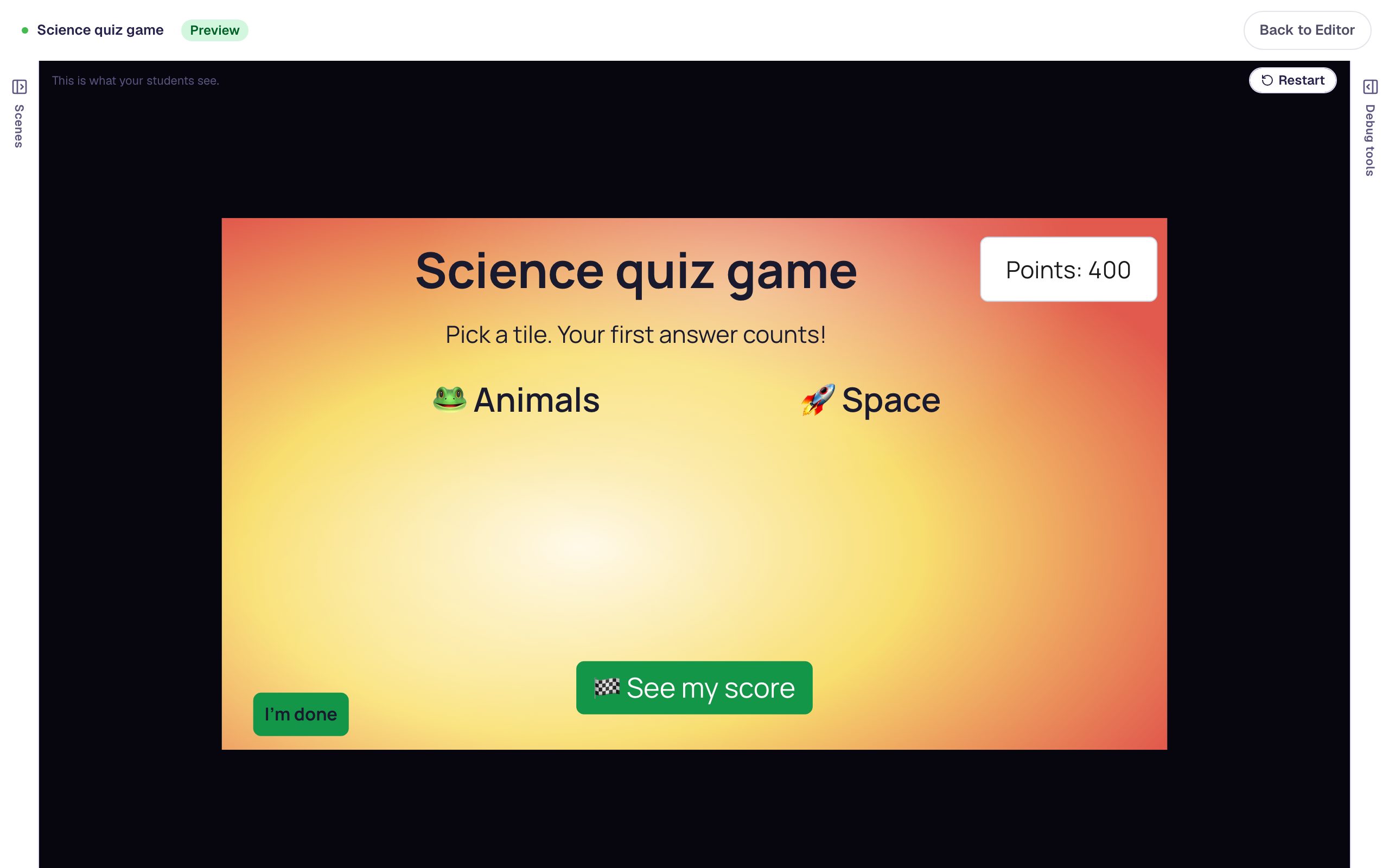
Answer the last two tiles. Once the board is empty, the Finish button appears:
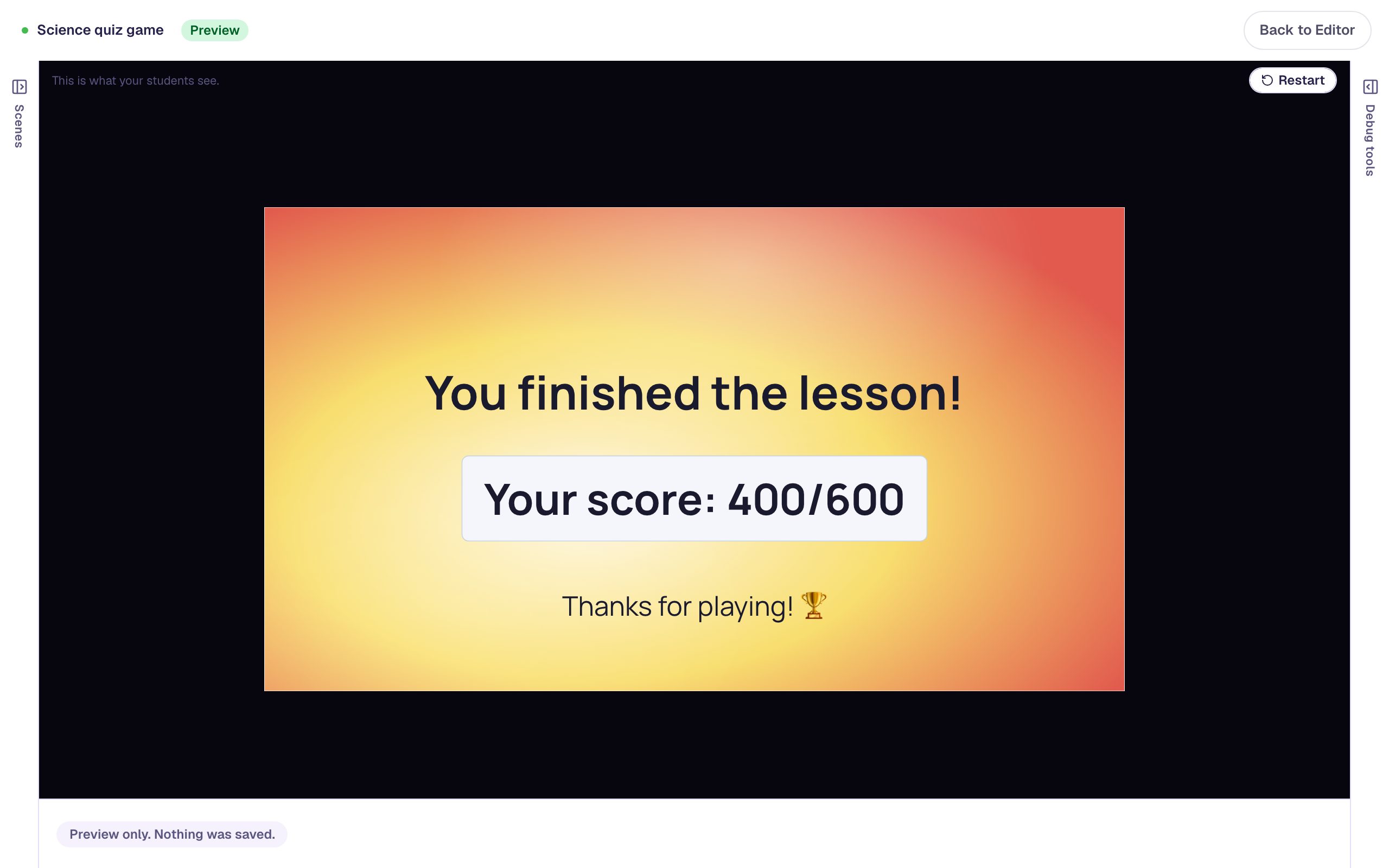
Tap 🏁 See my score to reach the ending:
What you built
A quiz-show board that students play in any order:
- Tiles open questions through tapped paths on the Lesson Graph, so students choose what to answer next.
- Points on each question make harder questions worth more, and a Lesson score on the board adds them up as students play.
- Progression and one wrong-answer behavior send every answer back to the board, so the first answer is the one that counts.
- Visibility rules hide each tile once its question is answered and show Finish once they all are.
To add a category, copy a question scene, add a column of tiles, connect each tile on the graph, give each tile its hide rule, and add the new questions to the Finish button's conditions. For more about the score students see at the end, try Cheer a high score and encourage a low one.
Make this lesson yours
Add the lesson you just watched being built to your account, then change it for your class: your questions, your pictures, your colors.
Free to sign up, and you'll come straight back here. I have an account