Make a quiz game with three hearts
Give students three hearts at the start of a quiz. Every wrong answer takes one away, the hearts in the corner disappear as they go, and losing the last one ends the game early. A number variable, three visibility rules and two behaviors do it all.
- Level
- Intermediate
- Time
- About 20 min
- Steps
- 9
- Updated
- Oct 26, 2026
An "Animal record breakers" quiz with three picture questions, three hearts in the corner that vanish one by one on wrong answers, and an ending that shows the hearts a student kept or says they ran out.
Get the finished lesson
Skip straight to the result, or keep it open beside the steps. Add this tutorial's lesson to your account and explore how it works in the studio.
Free to sign up, and you'll come straight back here. I have an account
Students try harder when a quiz feels like a game. One of the simplest game rules is a row of hearts: you start with three, every wrong answer costs one, and when they're gone the game is over. It makes each answer matter without making any single mistake feel final.
In this tutorial you'll build Animal record breakers, a three-question quiz with picture answers and three hearts in the corner. The pieces:
- a number variable called
heartsthat starts at 3, - three heart shapes, each with a visibility rule that shows it only while enough hearts are left,
- an On Wrong Selected behavior that takes 1 away from
hearts, and a second one that ends the game when the last heart goes, and - an ending that shows the hearts the student kept, or says they ran out.
You build the first question completely, then copy the scene, so the hearts and the rules come along for free. If counting with a variable is new to you, Show a hint after two wrong tries is a gentler start.
Step 1: Make the title scene
Start a blank lesson (New lesson, then Start from scratch) and name it Animal record breakers by clicking Untitled lesson at the top.
With nothing selected, open Background, click Choose a style, pick the Mesh sunrise gradient and click Apply background. Select the Closing Scene in the Scenes panel and give it the same background, so the ending matches.
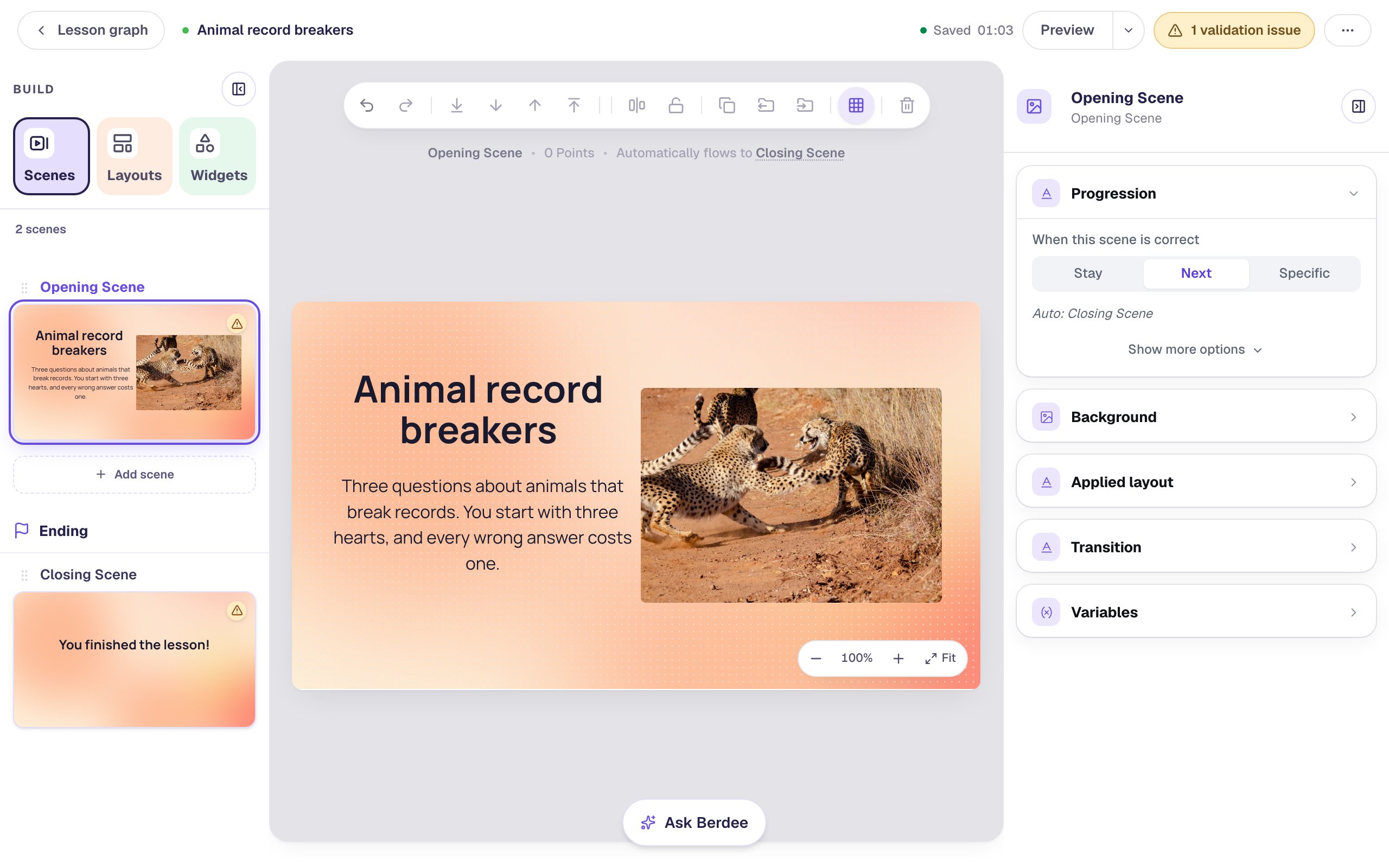
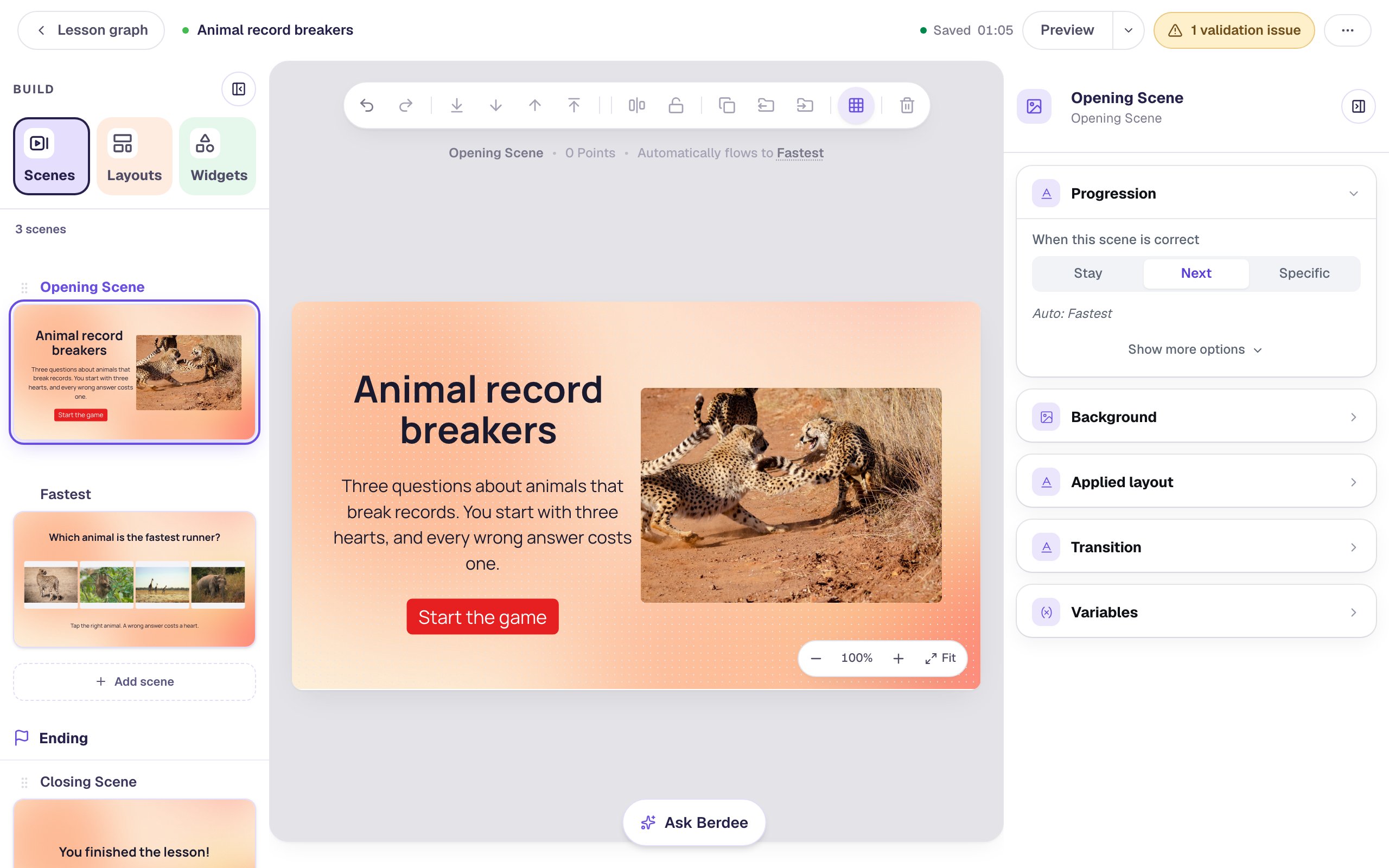
Back on the Opening Scene, build the left half of a title card:
- A Heading:
Animal record breakers. In Style & Layout, choose Fixed width, set Width to440and Font Size to52, so the title sits on two lines. - A Body under it with the rules:
Three questions about animals that break records. You start with three hearts, and every wrong answer costs one.Give it Fixed width440and Font Size24. - An Image on the right. In Image Source, click Open Media Library, search
cheetah runningand pick a photo you like. Set its size to420×300and Fit to Cover. Describe it under Accessibility → Alt Text, for exampleTwo cheetahs play-fighting on a dusty trail beside tall dry grass.
Step 2: Create a variable that holds the hearts
The hearts need to survive from one question to the next, so they live in a variable: one value that belongs to the whole lesson.
- Click ⋯ (More lesson options) at the top right and choose Variables.
- Click New variable, then A number.
- Change the starting number to
3, and typeheartsas the name.
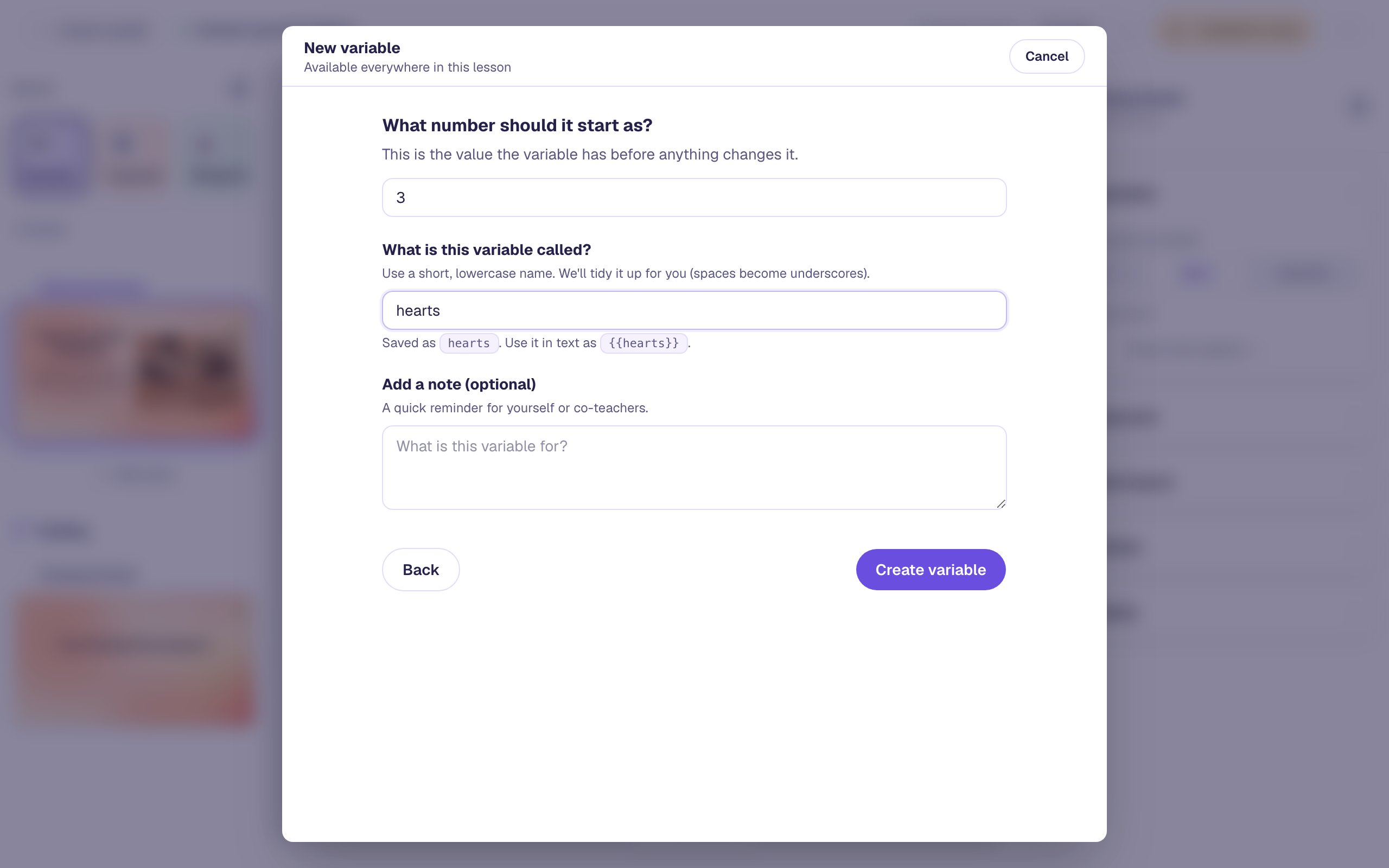
Click Create variable, then close the dialog. Each student who opens the lesson gets their own hearts, starting at 3, and playing again starts fresh.
Step 3: Build the first question
Open the Scenes panel, click Add scene, and rename the new scene Fastest (double-click its name). Give it the Mesh sunrise background too, then add:
- A Heading at the top:
Which animal is the fastest runner?, at Font Size40. - A Body near the bottom:
Tap the right animal. A wrong answer costs a heart. - A Multi Choice. Rename it
Animal, and in Style & Layout set it to880×190so four answers fit in one row.
Now give the question picture answers. Click ⚙ Configure, and for each answer click its picture button and search for the animal: cheetah, giraffe, sloth, elephant. Then type each animal's name in its answer box: Cheetah, Giraffe, Sloth, Elephant. Students don't see these names under the pictures, but screen readers read them aloud, and Preview shows them as each option's name.
Leave Cheetah marked correct (a new question's first answer starts marked) and check no other answer is.
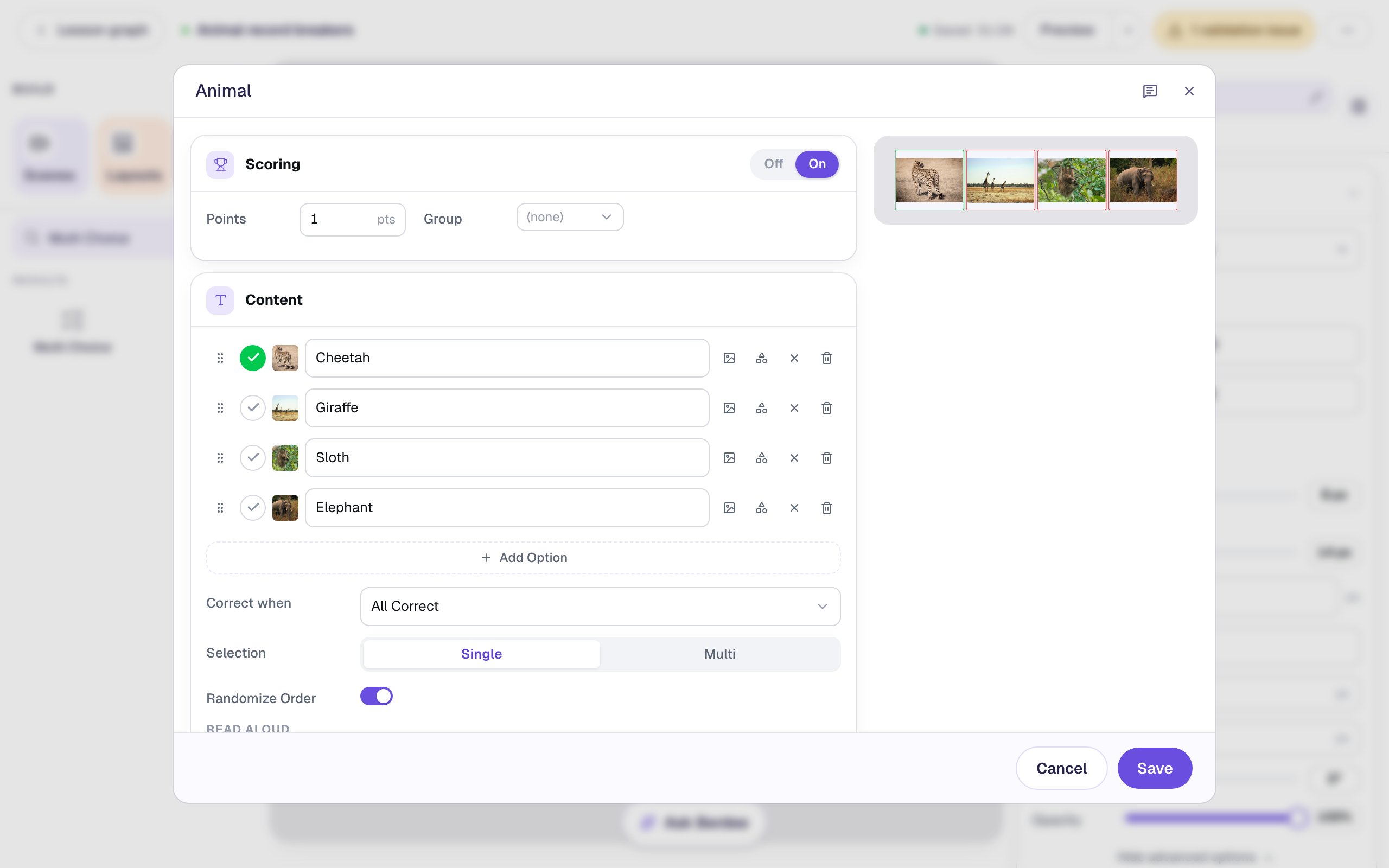
Click Save. Then, in Style & Layout, switch on Show correctness, so a wrong pick turns red at the same moment a heart disappears.
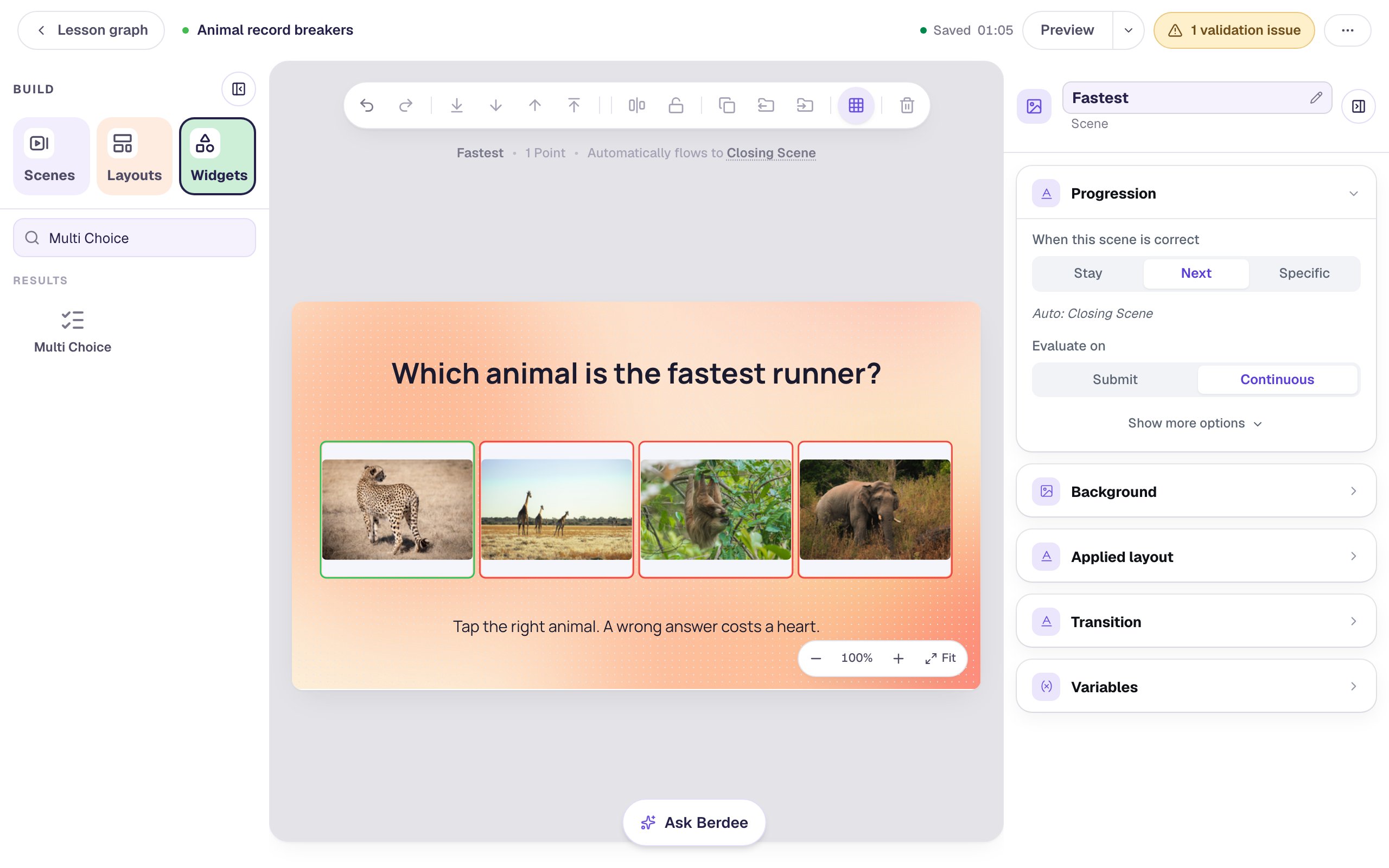
Randomize Order is on, so students see the animals in a different order each time. The scene's Progression is already Next on Continuous: the moment a student taps the cheetah, the lesson moves on.
Go back to the Opening Scene and add a Button under the rules. In ⚙ Configure, set its Label to Start the game. Make it red with white text in Style & Layout, then click Behaviors above it and choose Make this a "Next" button, which sends it to Fastest.
Step 4: Put three hearts in the corner
Open Fastest again. Each heart is a Shape with a visibility rule. Build one, then copy it.
- In Widgets, add a Shape. Its window opens straight away: choose Heart and click Save.
- In Style & Layout, set it to
48×44, and pick a red Fill Color and a darker red Stroke Color. - Drag it to the top-right corner and rename it
Heart 1. - Under Accessibility, type
Heart 1 of 3in Alt Text. A new shape's alt text isShape, which screen readers skip as decoration. These hearts mean something, so name them: a student using a screen reader hears the hearts that are still showing.
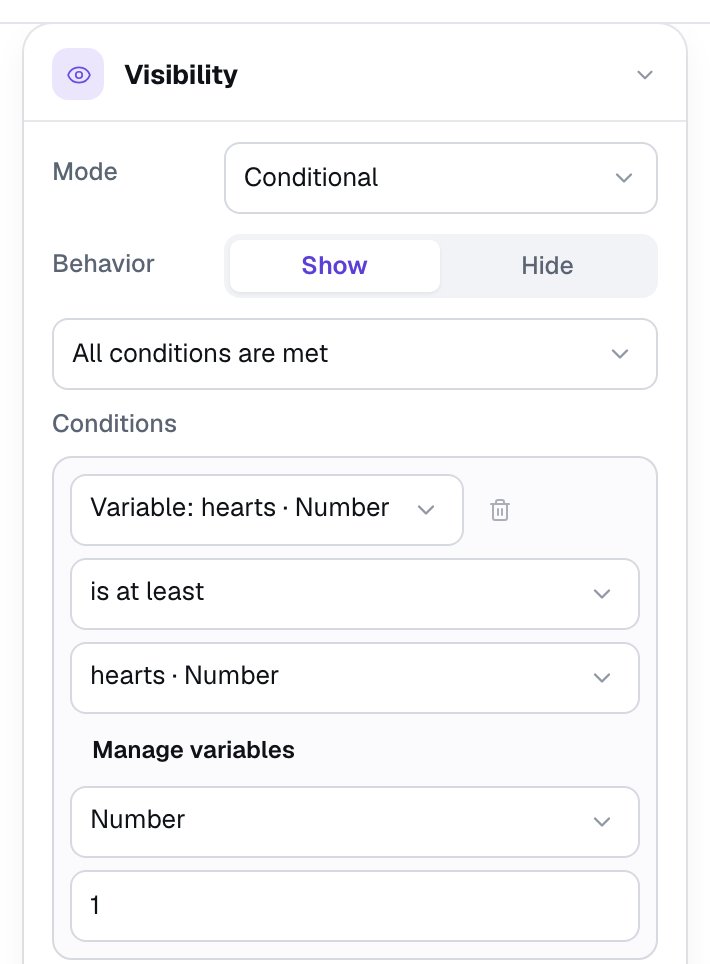
Now the rule. The first heart should stay on screen while the student has at least one heart left:
Open Visibility, change Mode to Conditional, and set the condition to Variable: hearts, is at least. Change the value type from Text to Number and type 1.
Select the heart and press ⌘ D (Ctrl + D on Windows) to copy it. Drag the copy to the right of the first, rename it Heart 2, change its Alt Text to Heart 2 of 3, and change its rule's number to 2. Copy once more for Heart 3, with the alt text Heart 3 of 3 and the number 3.
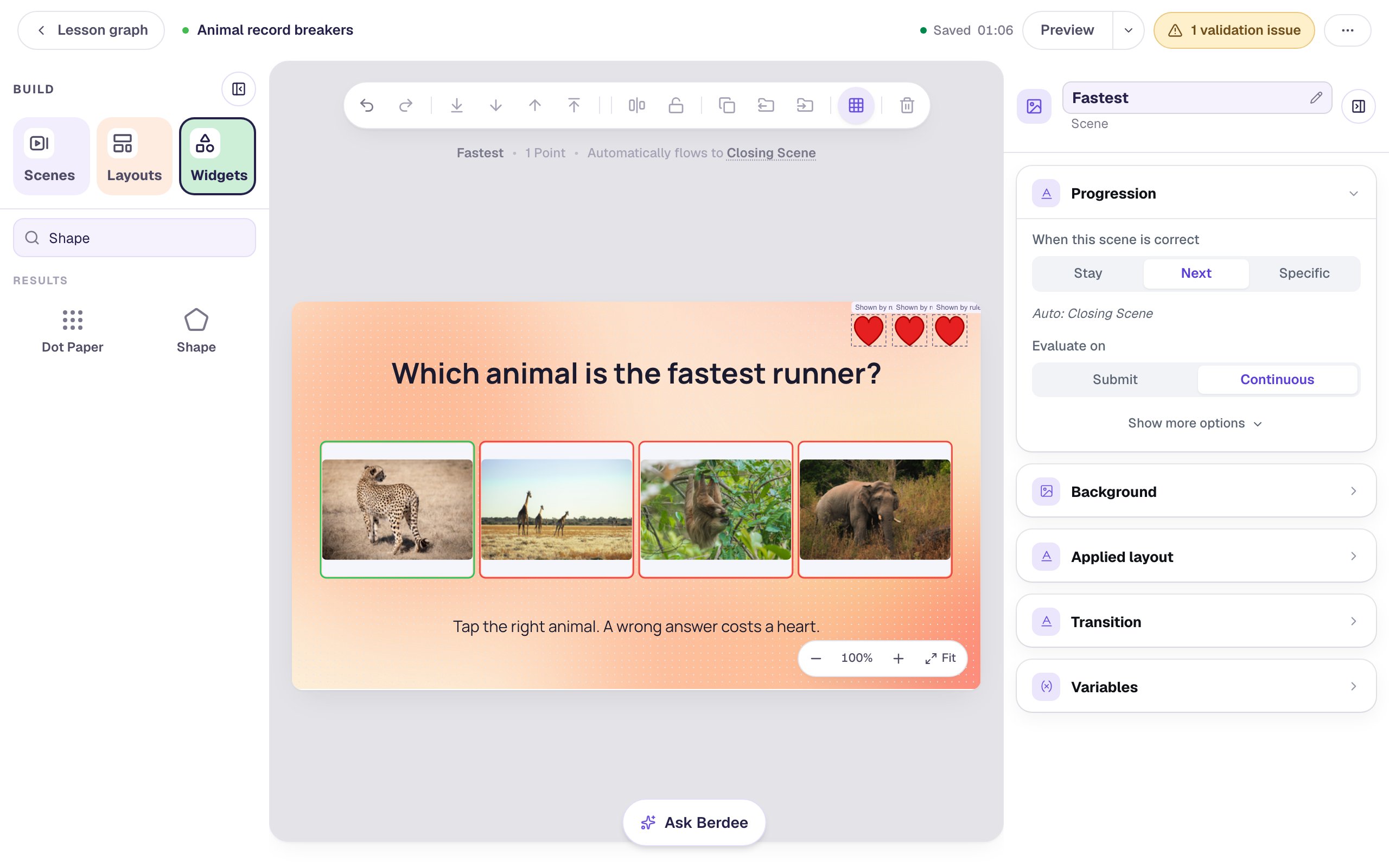
So with 3 hearts left all three show, with 2 the right-hand heart disappears, and with 1 only the first is left. The Shown by rule tags appear only in the studio.
Step 5: Take a heart away for every wrong answer
Select the Animal question and open Behaviors in the properties panel.
- Click Add Behavior and choose On Wrong Selected.
- Change the action from Display Message to Increment Variable and pick hearts · Number.
- Change the amount from
1to-1.
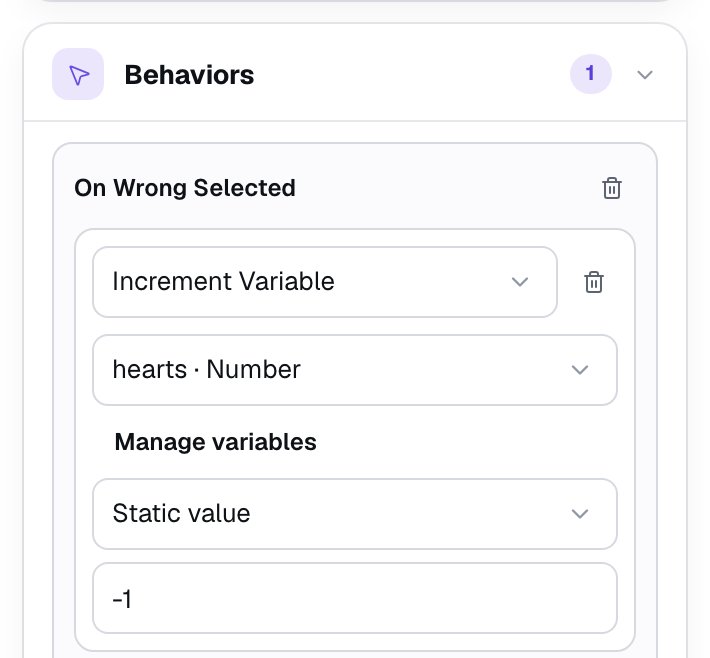
On Wrong Selected runs each time a student picks a _different_ wrong answer. Tapping the same wrong animal twice costs only one heart.
Step 6: End the game when the last heart goes
A student who runs out of hearts should go straight to the ending. That's a second On Wrong Selected behavior, this time with a condition.
- Click Add Behavior again and choose On Wrong Selected. It appears as On Wrong Selected 2.
- Change its action to Navigate to Scene and pick Closing Scene.
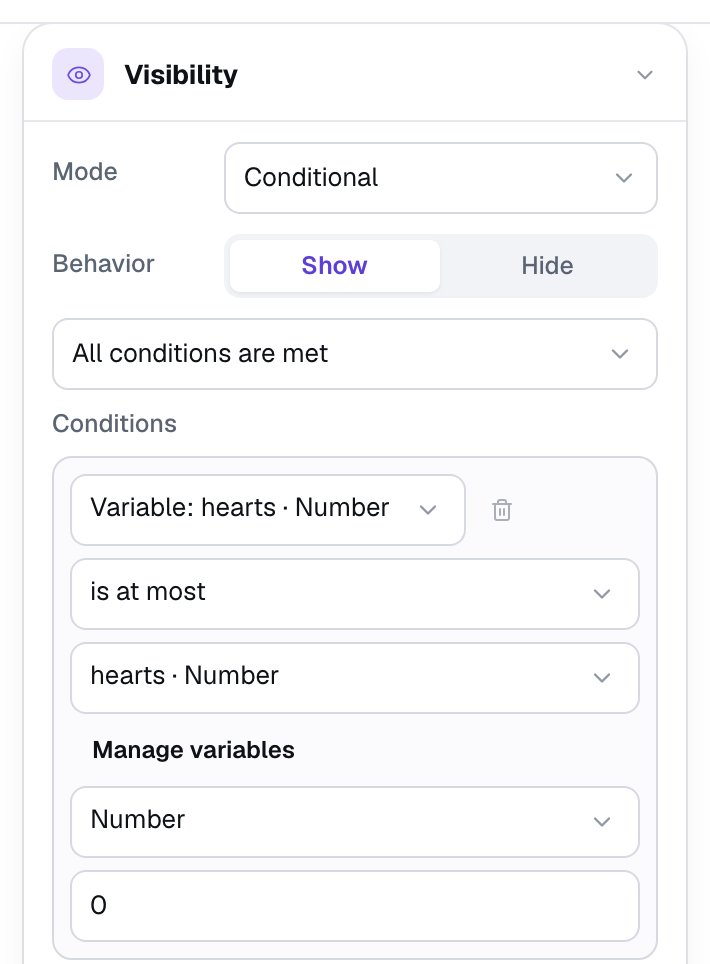
- Click Add Condition in that behavior and set it to Variable: hearts, is at most, Number,
1.
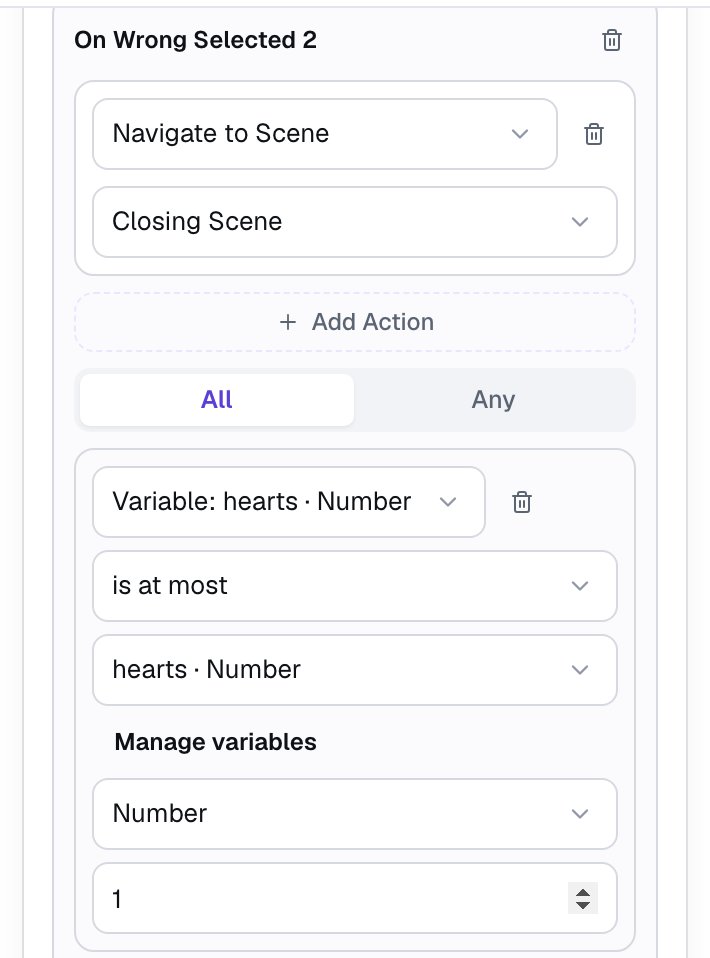
Why 1 and not 0? When a student picks a wrong answer, Berdee checks every behavior's condition first, before any of them runs. So this condition sees the hearts the student had _before_ this wrong answer. "At most 1" means "this wrong answer takes their last heart". With 0, a student would lose their last heart and stay on the question with no hearts left.
Step 7: Copy the question for two more
Everything on Fastest (the hearts, their rules, the question and its two behaviors) works the same for every question. Only the heading and the right answer change, so copy the scene.
- In the Scenes panel, hover Fastest and click Duplicate scene. Rename the copy
Tallest. - On Tallest, change the heading to
Which animal is the tallest?. - Select the question, click ⚙ Configure, clear Cheetah's mark and mark Giraffe instead. Click Save.
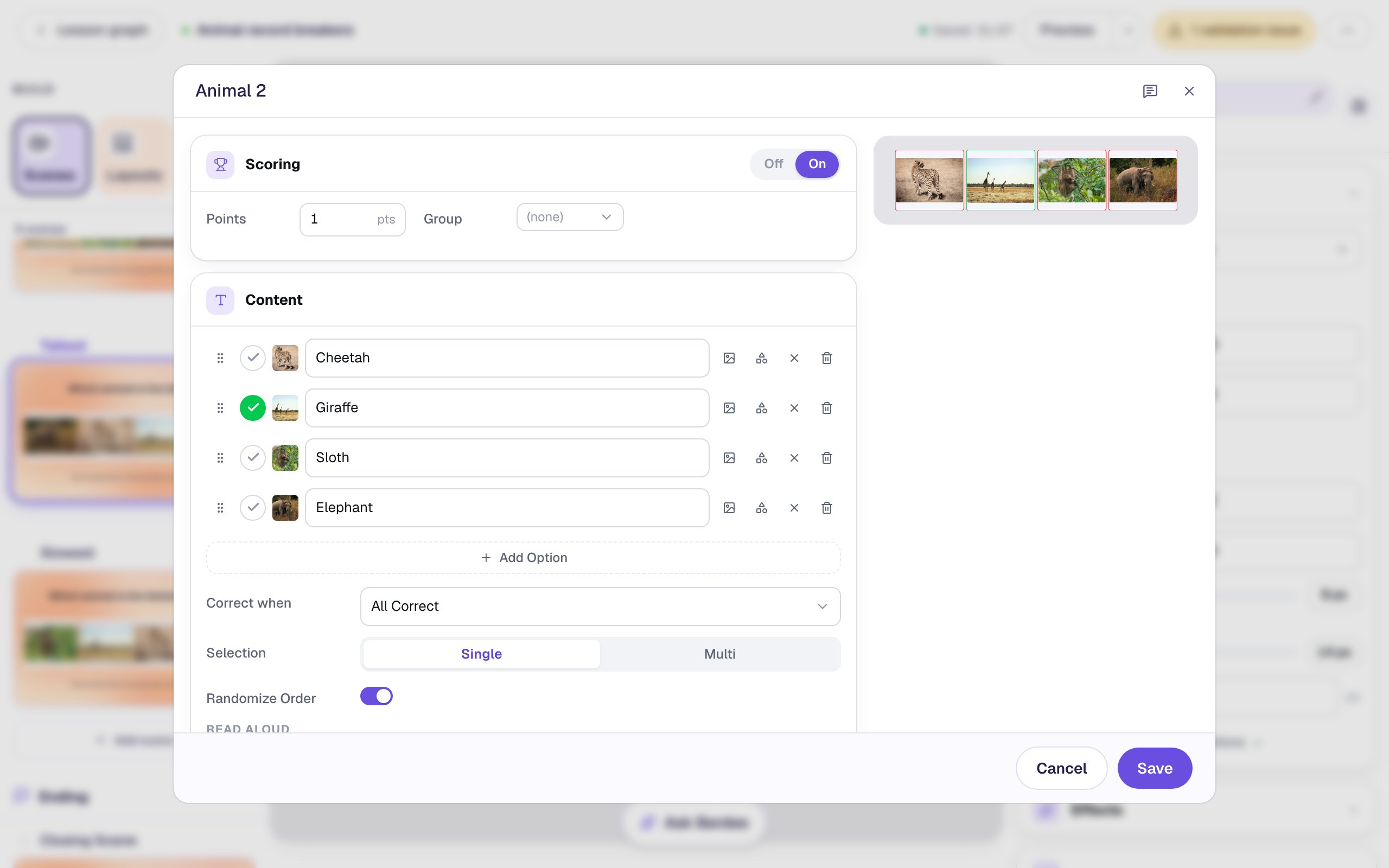
Duplicate Tallest the same way, rename the copy Slowest, change its heading to Which animal is the slowest?, and mark Sloth correct.
A lesson needs a button that finishes it before it can be published. On Slowest, add a small Submit Button in the bottom-left corner: Label I'm done, Submits set to Lesson.
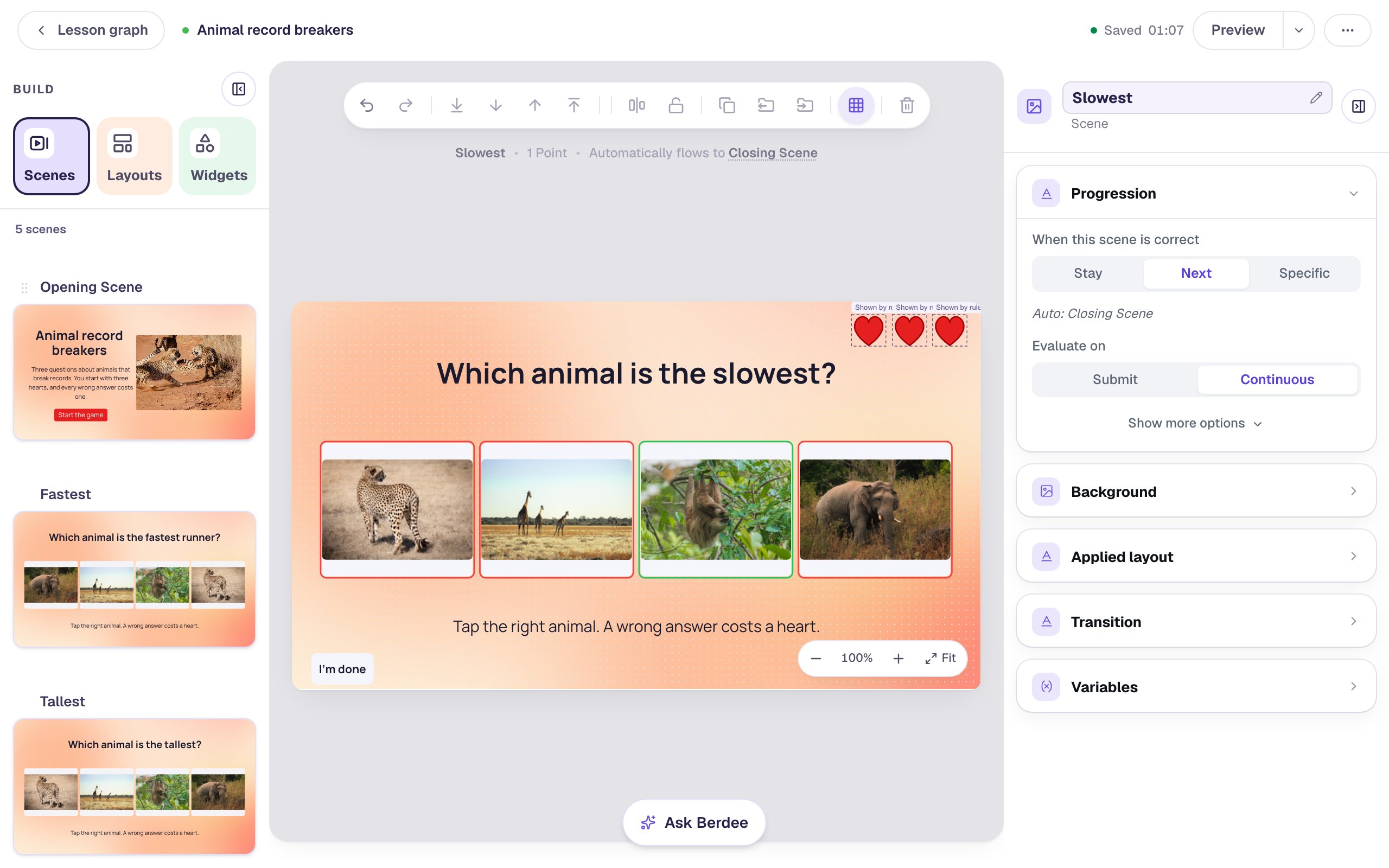
Each copy goes right after the scene it came from, so a right answer on Fastest moves on to Tallest, then Slowest, then the ending.
Step 8: Show the hearts on the ending
The ending can show the hearts too. Because they read the same hearts variable, they show exactly the hearts the student kept.
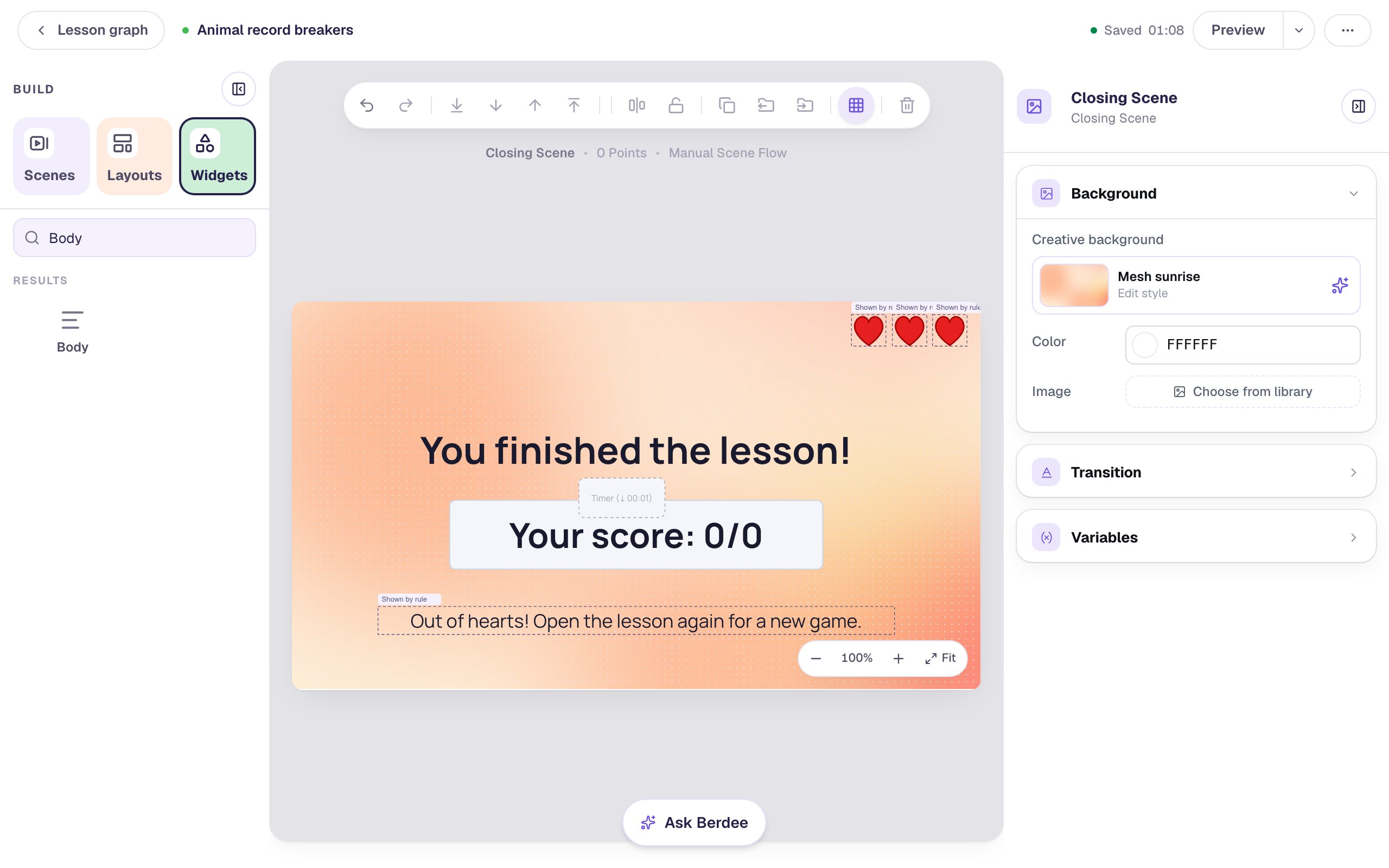
On Fastest, drag a box around the three hearts to select them all, click Copy to Scene in the toolbar and choose Closing Scene. The copies land in the same corner.
Open the Closing Scene and add a Body under the score: Out of hearts! Open the lesson again for a new game. Give it Fixed width 720 and Font Size 26, rename it Out of hearts, and give it its own rule: Visibility → Conditional, Variable: hearts, is at most, Number, 0.
Step 9: Play it as a student
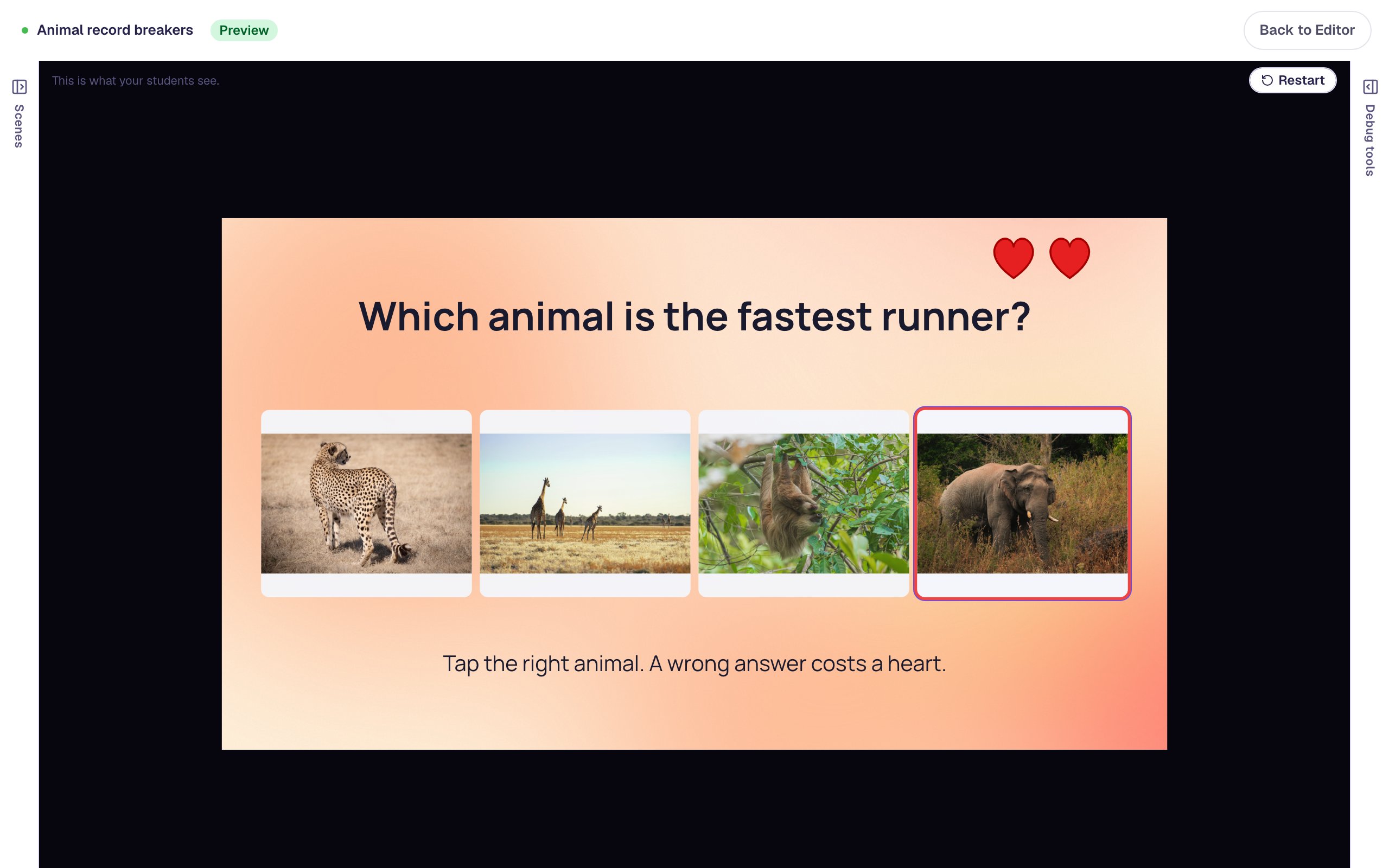
Click Preview on the Opening Scene, press Start the game, and pick a wrong animal on purpose first:
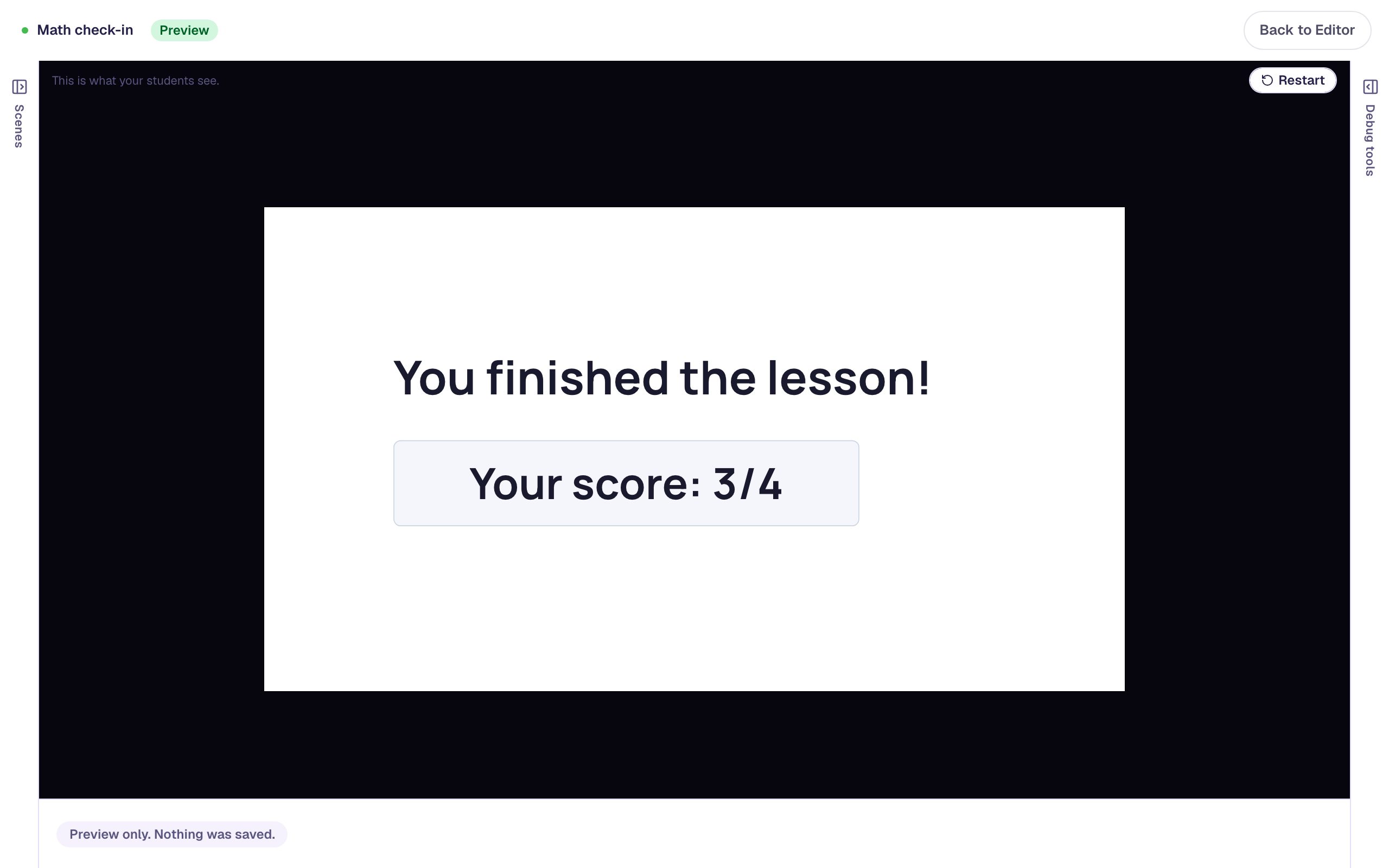
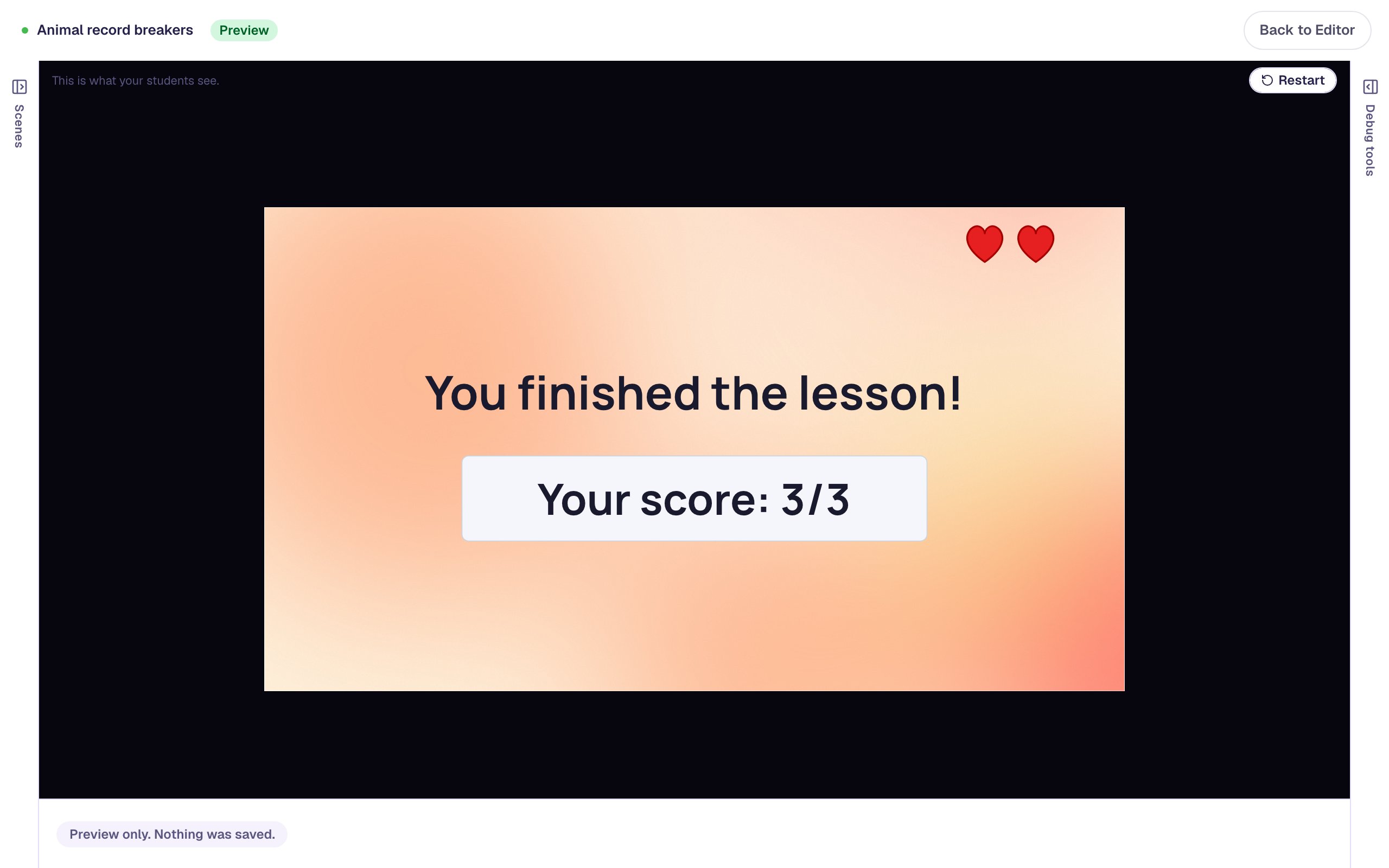
Pick the cheetah, then answer the next two correctly. The ending keeps the two hearts you had left:
Now click Restart and lose them all. Pick three wrong animals on the first question:
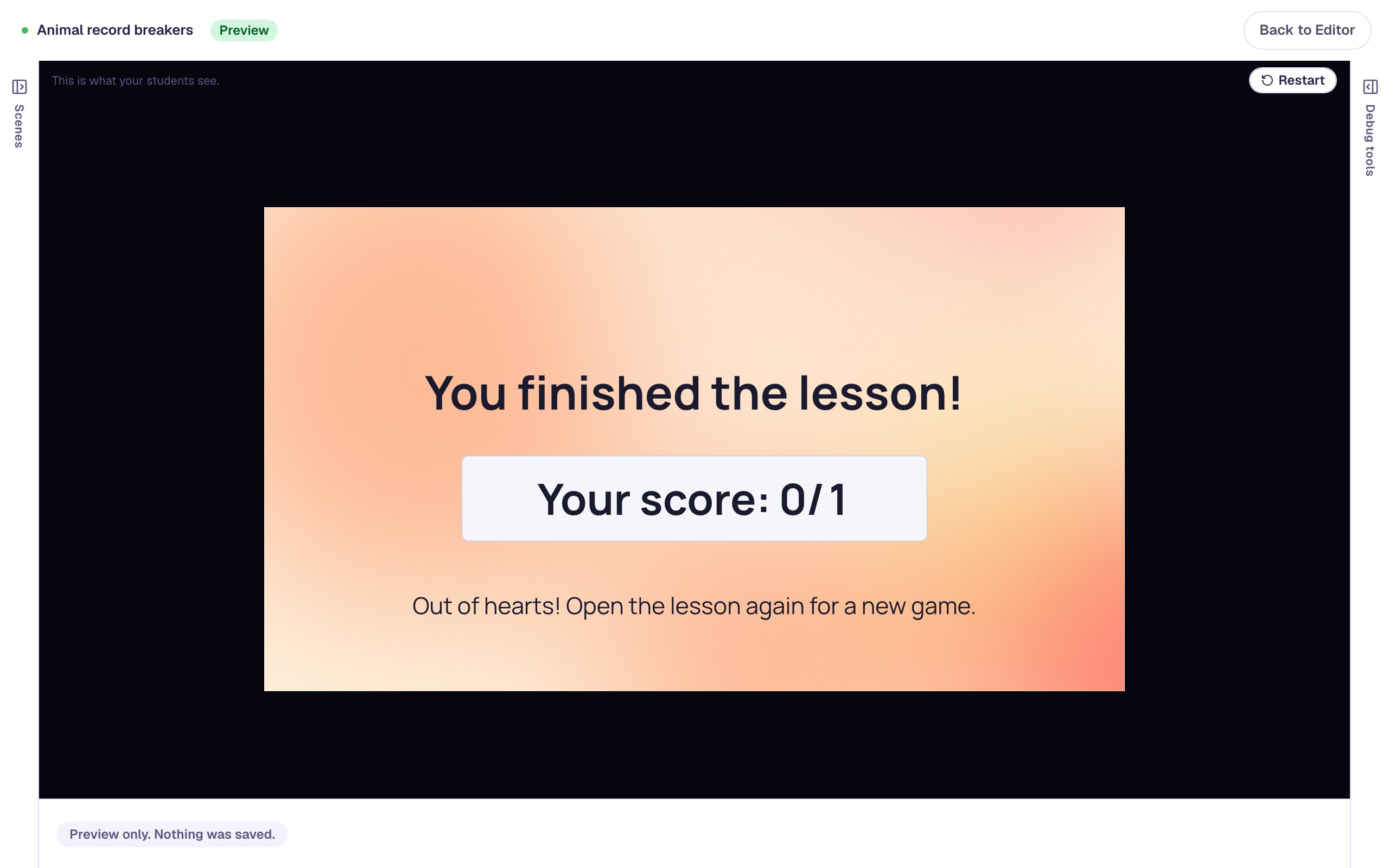
The score reads 0/1: questions a student never reached aren't counted, so it shows how they did on the questions they saw. That's also what you'll see on their attempt.
What you built
A quiz game with lives:
- a
heartsnumber variable that starts at 3, - three heart shapes, each shown while
heartsis at least 1, 2 or 3, - an On Wrong Selected behavior that adds
-1tohearts, and a second that goes to the Closing Scene whenheartsis at most 1, - three question scenes, built once and copied with Duplicate scene, and
- an ending that shows the hearts a student kept, or tells them they ran out.
To make the game harder, start hearts at 2 and delete Heart 3. To make it longer, duplicate a question scene again: the hearts and both behaviors come with it. To cheer a high score on the ending as well, see Cheer a high score and encourage a low one.
Make this lesson yours
Add the lesson you just watched being built to your account, then change it for your class: your questions, your pictures, your colors.
Free to sign up, and you'll come straight back here. I have an account