Show a hint after two wrong tries
Count a student's wrong answers in a number variable, then let a hint appear on its own once they've missed twice, so students try first and get help only when they need it.
- Level
- Intermediate
- Time
- About 15 min
- Steps
- 7
An "Oceans of the world" question that counts every wrong answer and shows a hint the moment a student misses for the second time, with no button to press.
Get the finished lesson
Skip straight to the result, or keep it open beside the steps. Add this tutorial's lesson to your account and explore how it works in the studio.
Free to sign up, and you'll come straight back here. I have an account
A hint that's always on screen gives the answer away before students have had a chance to think. A hint behind a button helps, but some students never press it, and others press it straight away. A third option often works better: the lesson waits, and offers the hint only once a student has missed twice.
In this tutorial you'll build that for one question, "Which ocean is the largest?". Three pieces do the work:
- a number variable called
wrong_tries, which starts at 0, - an On Wrong Selected behavior on the question, which adds 1 to
wrong_triesevery time a student picks a wrong answer, and - a Conditional visibility rule on the hint, which shows it when
wrong_triesis at least 2.
This builds on Remember a student's choice and use it later, where a variable holds a word. Here it holds a number that counts up. If you haven't used the studio before, start with Build your first quiz question.
Step 1: Set up the question
Start a blank lesson (New lesson, then Start from scratch) and name it Oceans of the world by clicking Untitled lesson at the top.
With nothing selected, open Background, click Choose a style, pick Nature, then Ocean horizon. If the sun lands where your question will go, click Randomize composition until it sits off to one side, then click Apply background. Give the Closing Scene the same background, so the ending matches. Creative Backgrounds covers the gallery in more detail.
Back on the Opening Scene:
- Add a Heading that says
Which ocean is the largest?and drag it to the top. - Add a Multi Choice question. Click ⚙ Configure and type the four answers:
Atlantic,Indian,Pacific,Arctic. - Mark Pacific correct. A new question starts with its first answer marked correct, so if Atlantic is still marked, click its mark to clear it. Then click Save.
- Rename the question
Ocean question(click its name at the top of the properties panel), set its Font Size to32in Style & Layout, and drag it under the heading.
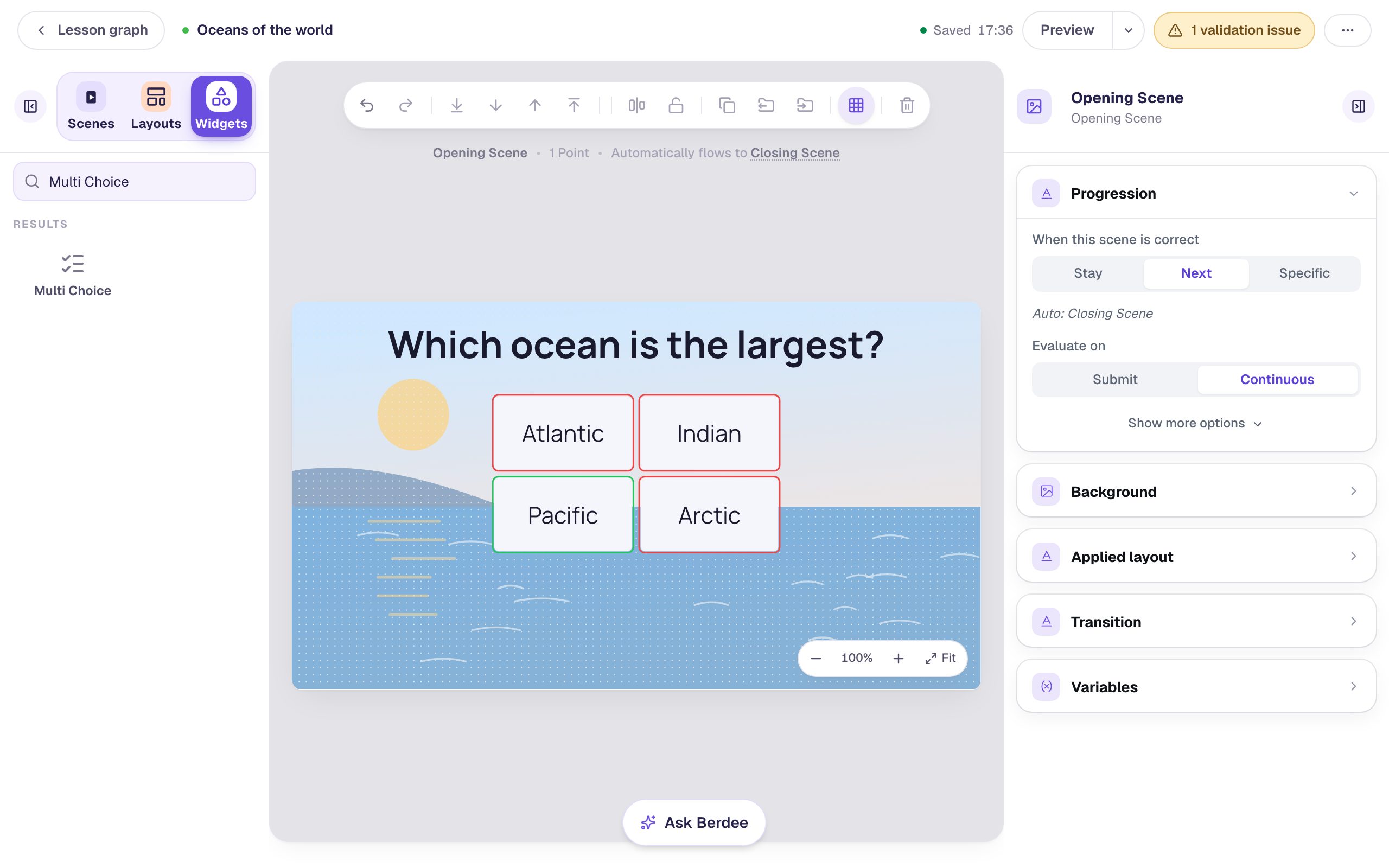
Leave the scene's Progression on Next. A right answer moves the student on to the ending straight away, and a wrong answer keeps them on the question to try again, which is what gives the hint a chance to help.
Step 2: Create a variable that counts
A variable is a named place where the lesson keeps a value while a student works. This one holds a number: how many wrong answers the student has picked so far.
- Click ⋯ (More lesson options) at the top right of the studio and choose Variables.
- Click New variable, then A number.
- Leave What number should it start as? at
0. Every student starts with no wrong answers. - Under What is this variable called?, type
wrong_tries.
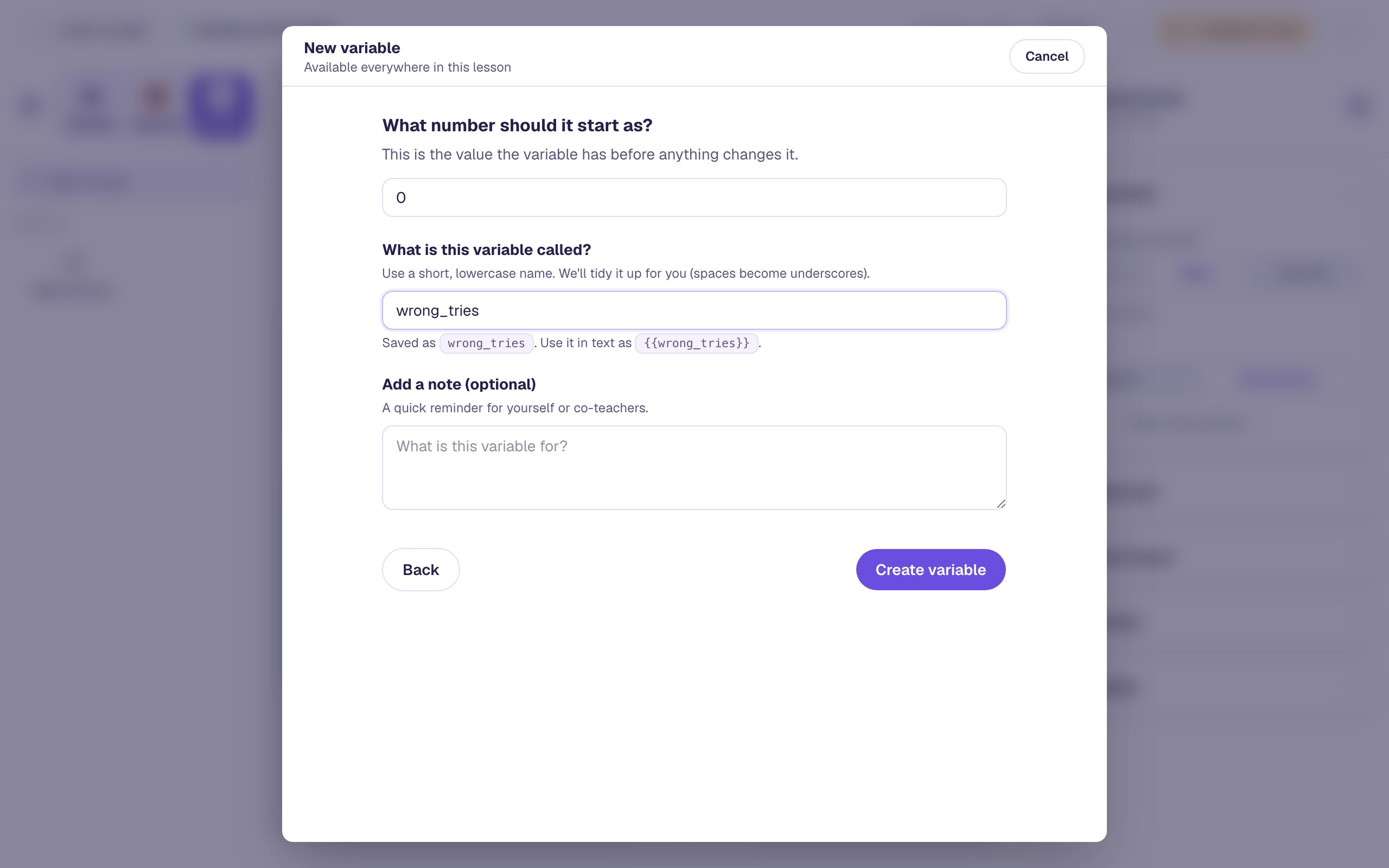
Click Create variable, then close the window with Close.
Step 3: Add 1 for every wrong answer
Now tell the question to count. A Multiple Choice question has a trigger called On Wrong Selected, which runs each time a student picks a wrong answer.
Click the question to select it, and open Behaviors in the properties panel:
- Click Add Behavior and choose On Wrong Selected. A new behavior starts with a Display Message action.
- Change Display Message to Increment Variable.
- In the variable list, pick wrong_tries · Number.
- Leave the amount at
1.
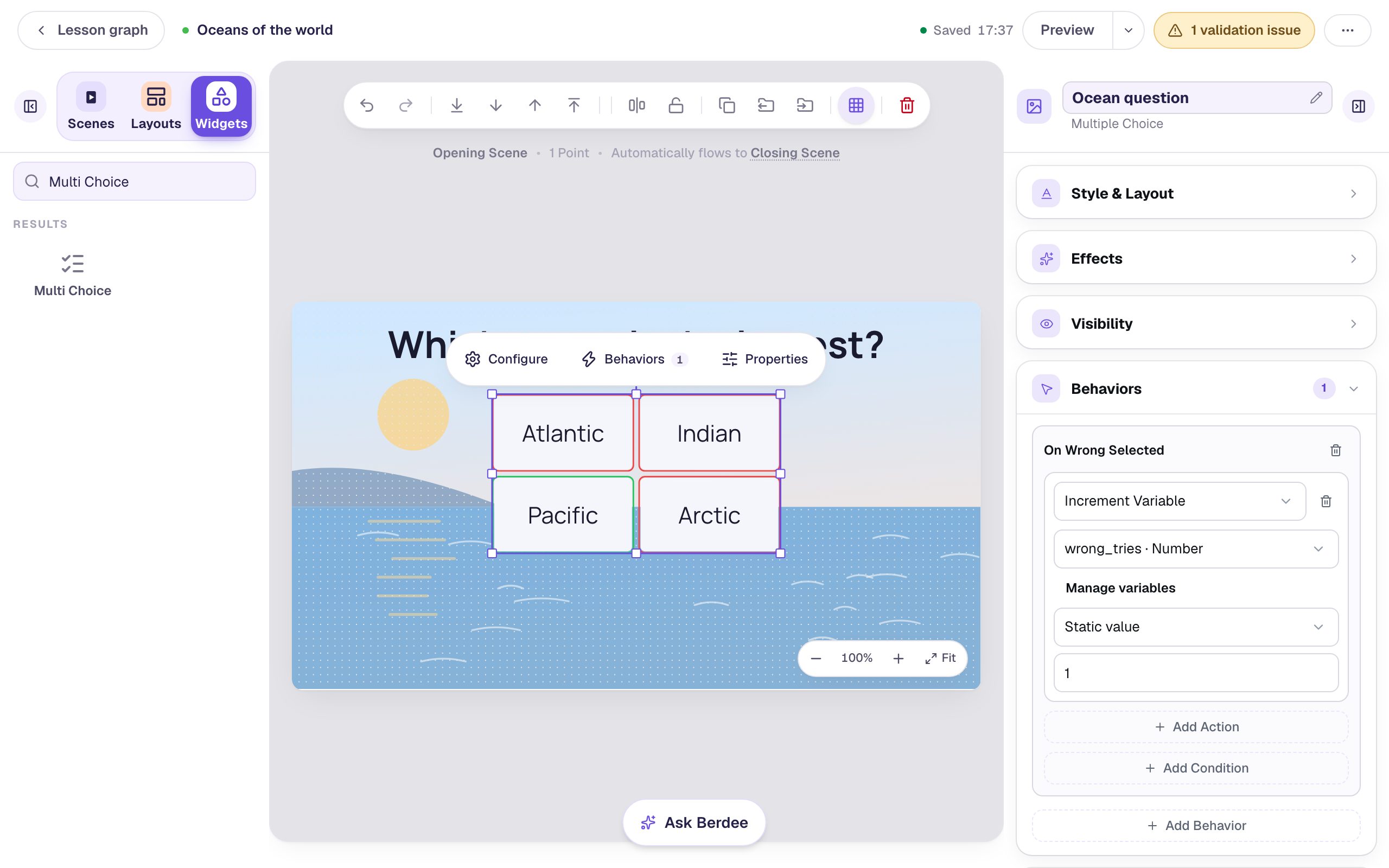
On Wrong Selected counts each _different_ wrong answer. If a student picks Atlantic, then Indian, wrong_tries goes to 2. Tapping Atlantic again after that isn't a new pick, so it doesn't count twice. That's usually what you want: the hint comes after two real guesses, not two taps on the same one.
Step 4: Write the hint
Click an empty spot on the scene to deselect the question, then add a Body text and type:
Hint: This ocean lies between Asia and the Americas. It is bigger than all of Earth's land put together.
Make it look like a sticky note, so students notice it when it appears:
- Rename it
Hint, so it's easy to find in lists. - In Style & Layout, choose Fixed width and set Width to
720, so the hint wraps onto two lines instead of running off the scene. (A new text box is Auto width and has no Width field until you pick Fixed width.) - Set Font Size to
24. - Click Background Color and pick the soft yellow swatch.
- Drag it below the question.
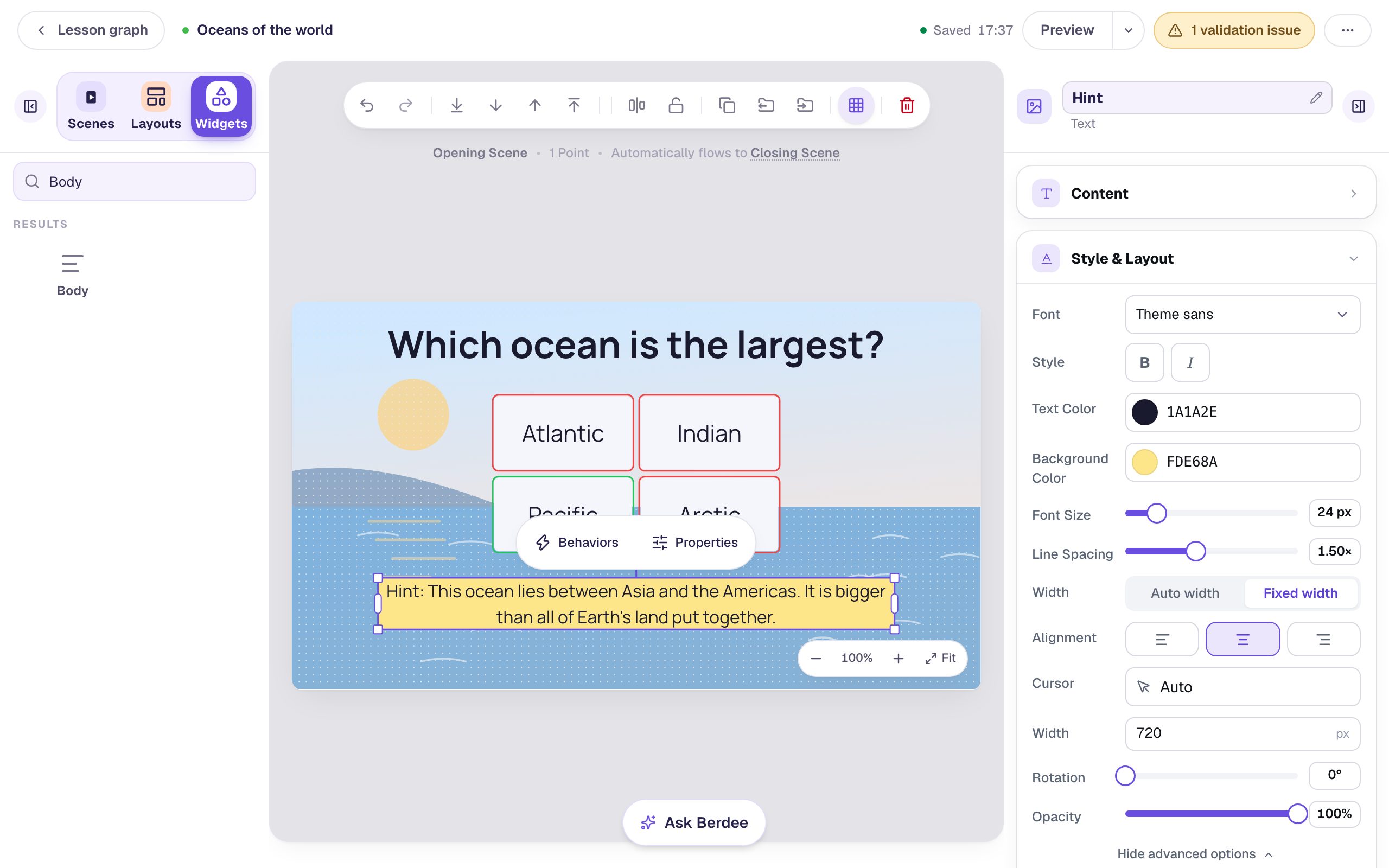
A good hint points the way without giving the answer. This one names where the ocean is and how big it is, so a student still has to make the connection to "Pacific".
Step 5: Show the hint only after two wrong tries
Right now the hint is always on screen. A Conditional visibility rule hides it until a condition is true.
With the hint still selected, open Visibility:
- Change Mode to Conditional. Behavior is already Show, which means "show this when the condition is true, and hide it otherwise".
- In the first condition list, pick Variable: wrong_tries · Number. It's near the bottom of the list, after the widgets.
- Change the comparison to is at least.
- The next list says what kind of value you're comparing to. It starts as Text, even though
wrong_triesis a number, so change it to Number. - Type
2in the value box.
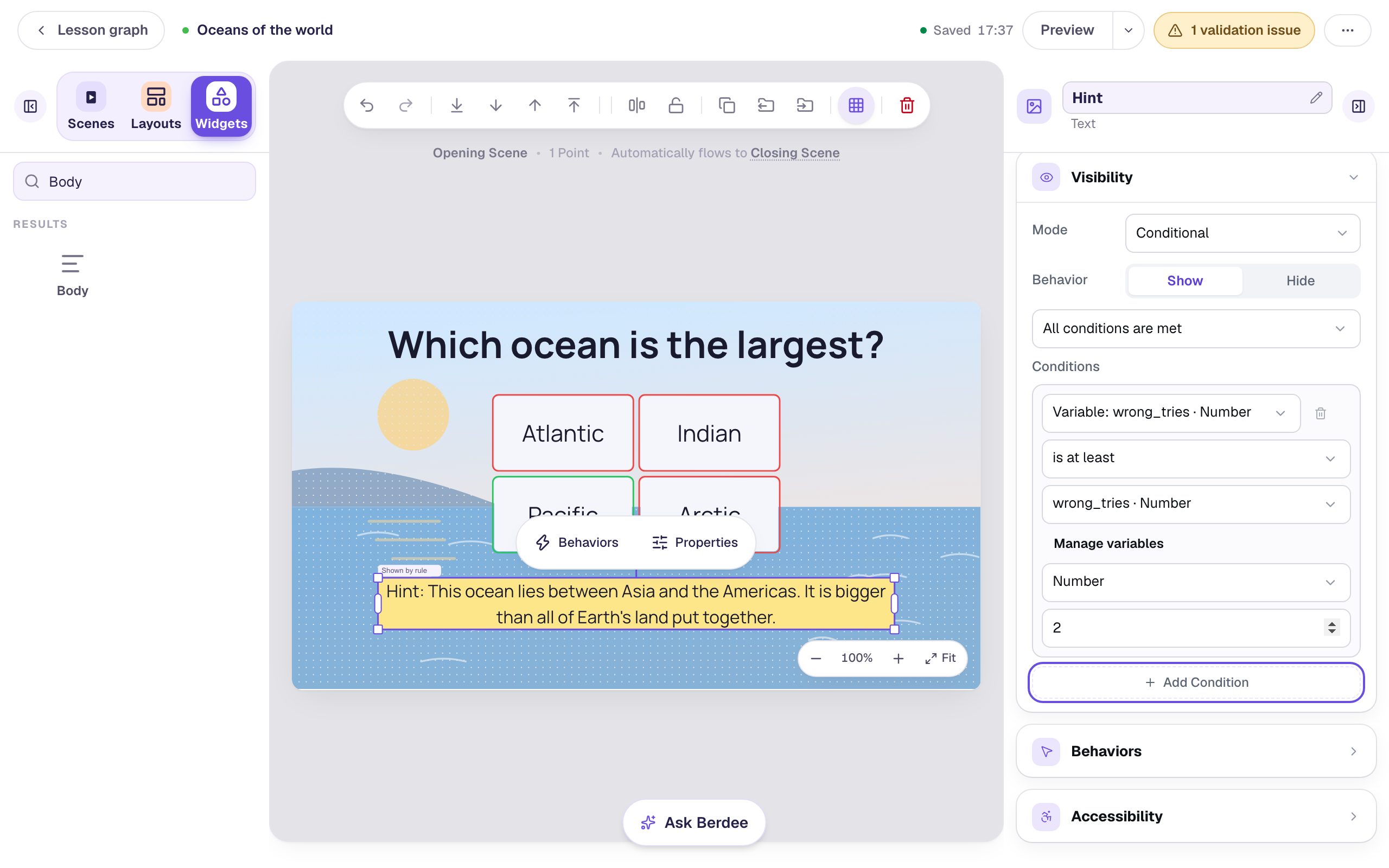
Don't skip the Number step. Compared as text, wrong_tries would never count as "at least" anything, and the hint would never appear.
The hint stays visible on your canvas so you can keep editing it. The small Shown by rule tag above it is your reminder that students only see it when the rule is true.
Why 2? One wrong answer is often a slip. Two in a row usually means the student is stuck. For a harder question you might show the hint after one miss. Change the
2and nothing else needs to change.
Step 6: Let students finish early
Berdee needs a way for students to finish the lesson early before it will publish, and the yellow pill at the top says 1 validation issue until you add one. Click an empty spot on the scene, add a Submit Button, and in Content set its Label to I'm done and Submits to Lesson. Set its Font Size to 16 and tuck it into the bottom-left corner.
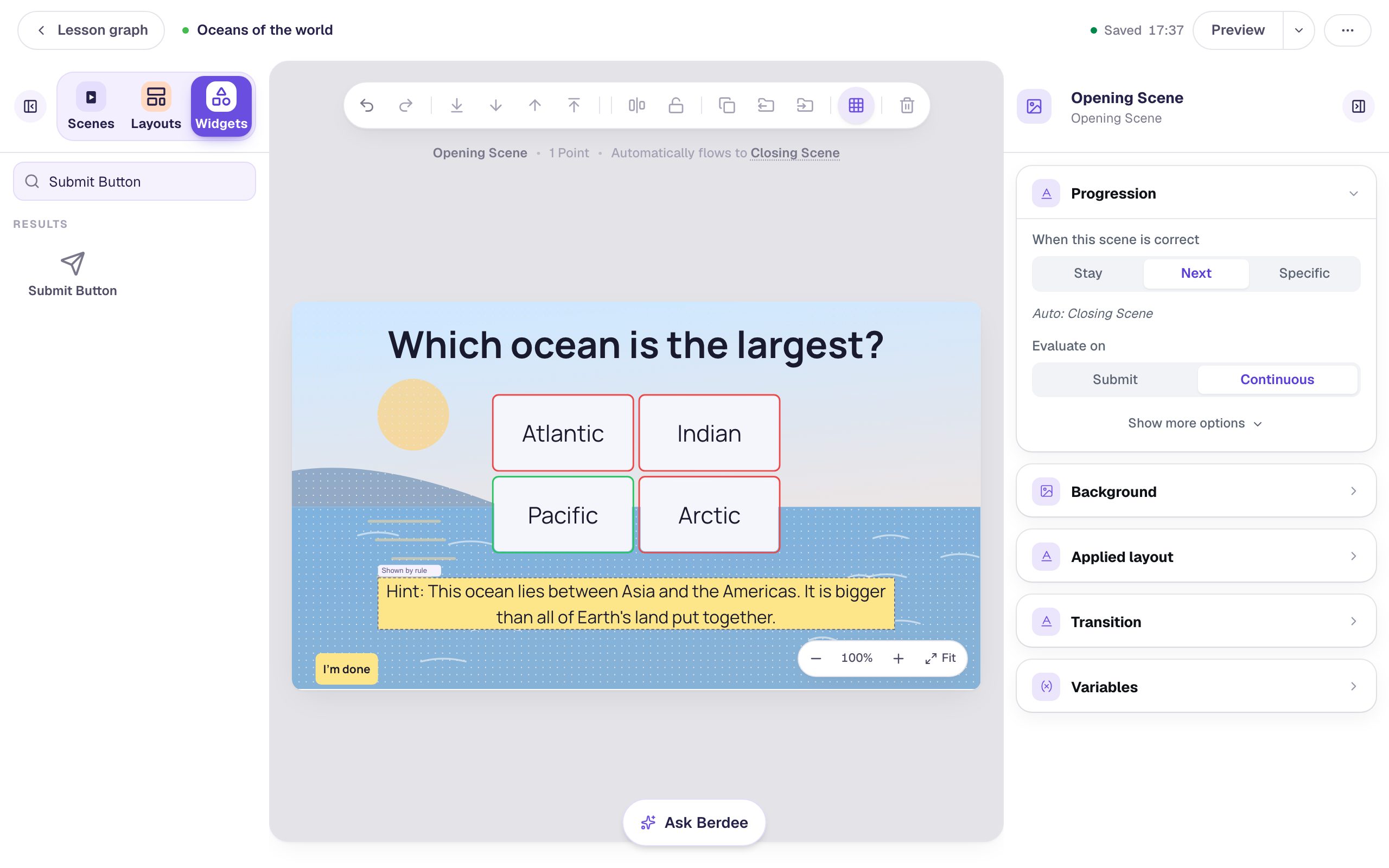
Step 7: Try it as a student
Click Preview. Answer wrong twice, then right:
The answers are shuffled for each student (Randomize Order is on by default), so they may not be in the order you typed them.
- Pick Atlantic. It's wrong, and nothing else happens yet: one wrong answer isn't enough for the hint.
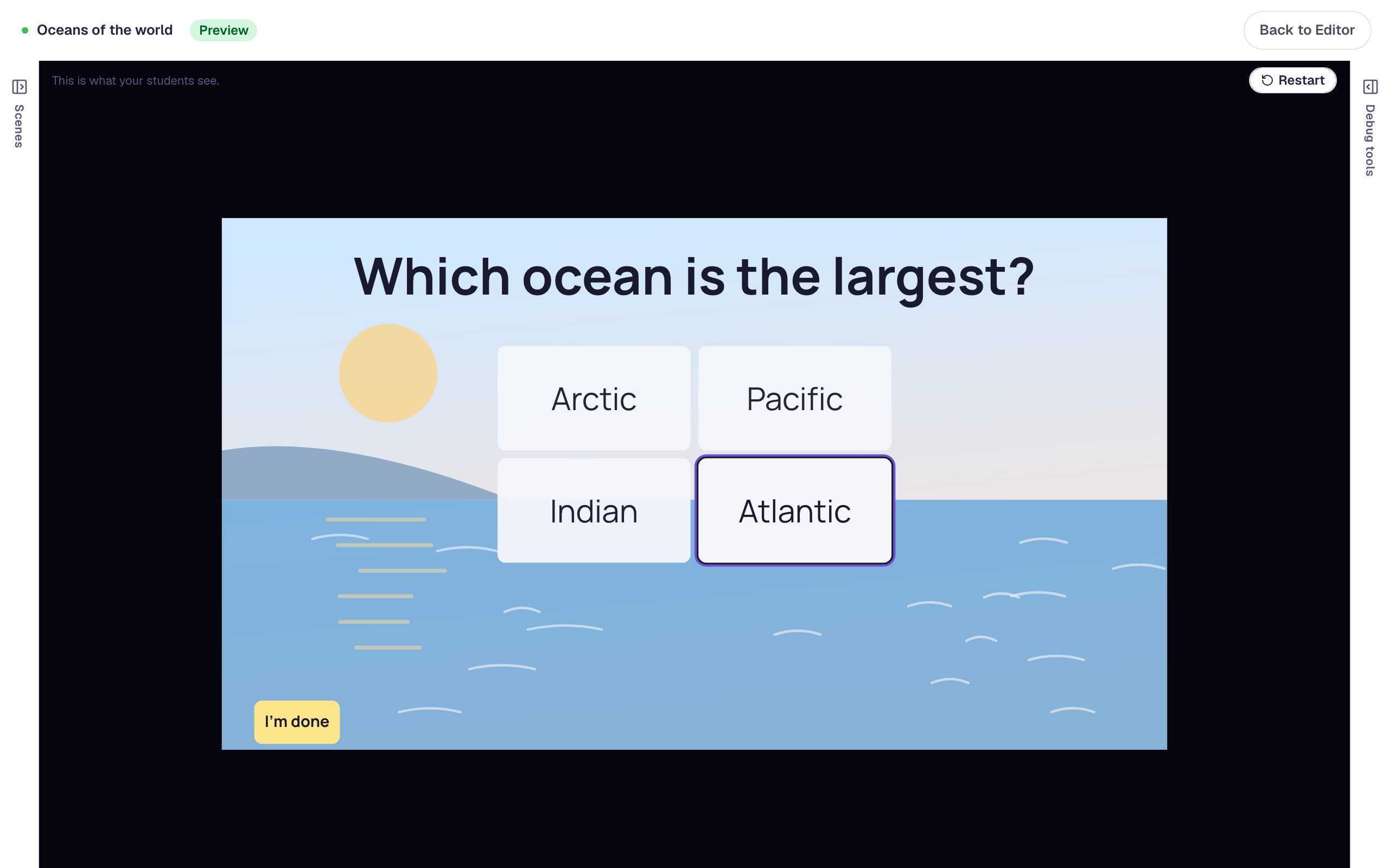
- Pick Indian. That's the second wrong answer, and the hint appears straight away.
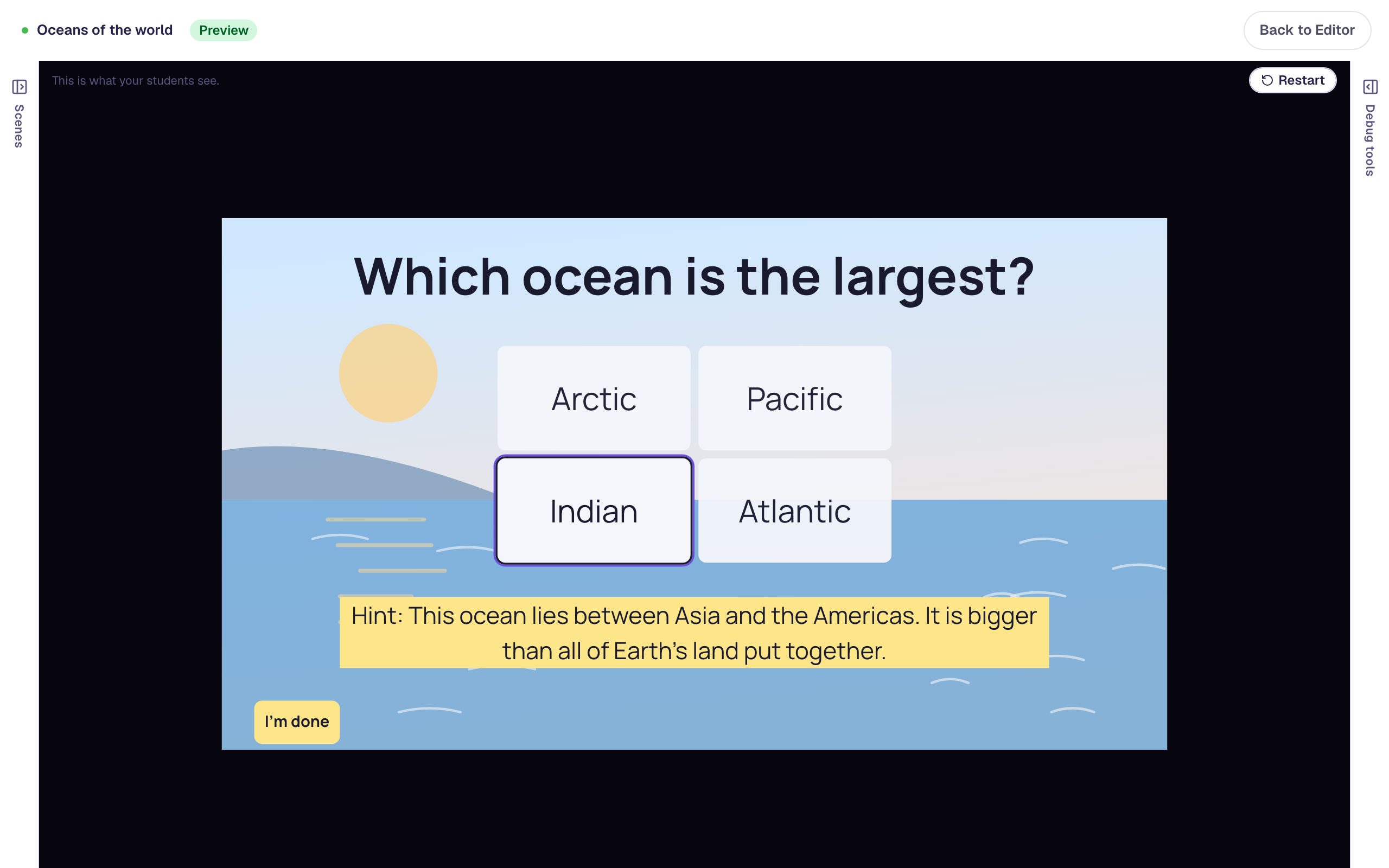
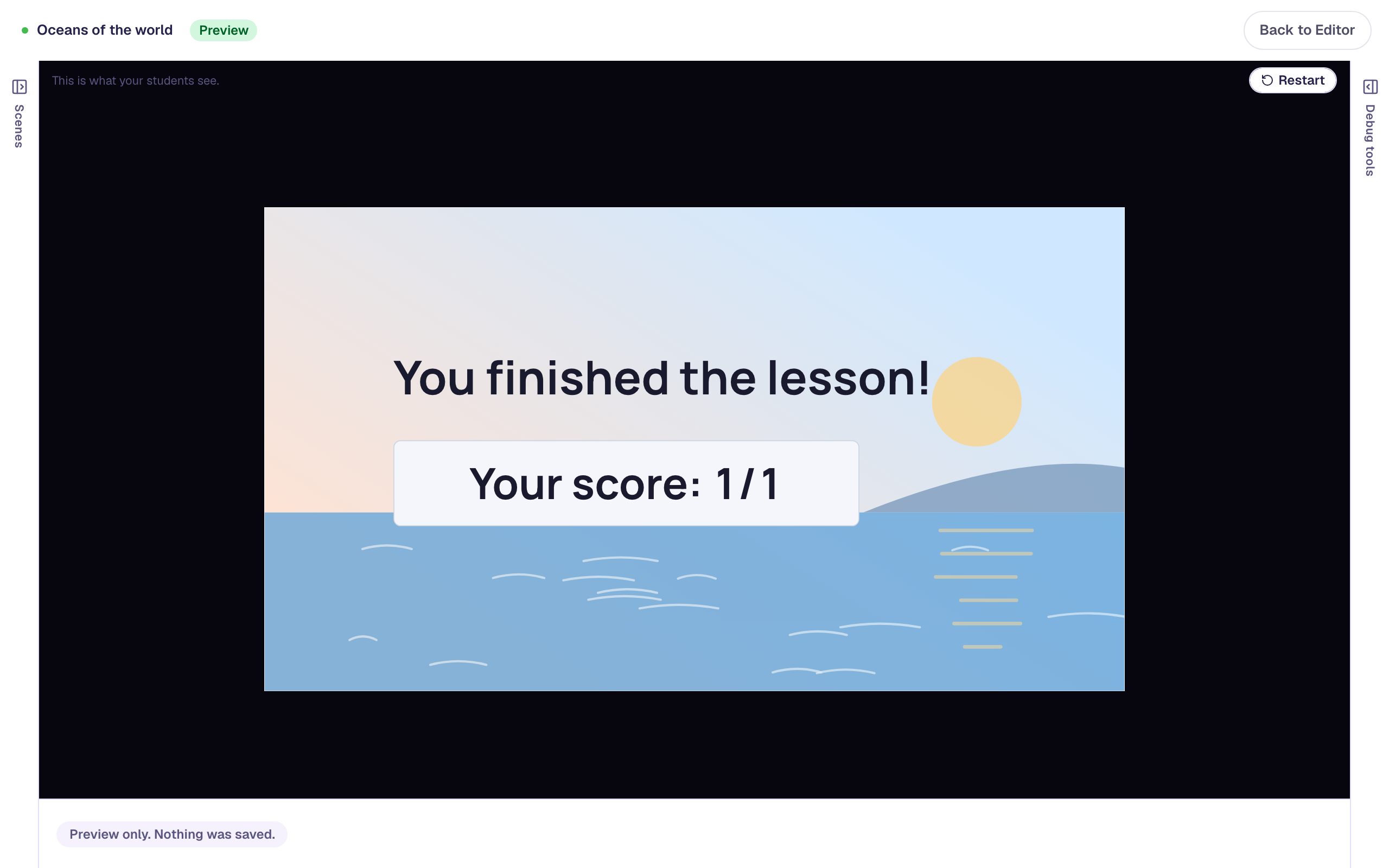
- Pick Pacific. It's right, so the lesson moves on to the ending.
To see the count yourself, click Show debug tools at the side of the preview and open the Variables tab. wrong_tries shows how many wrong answers this run recorded. Click Restart to try again from 0.
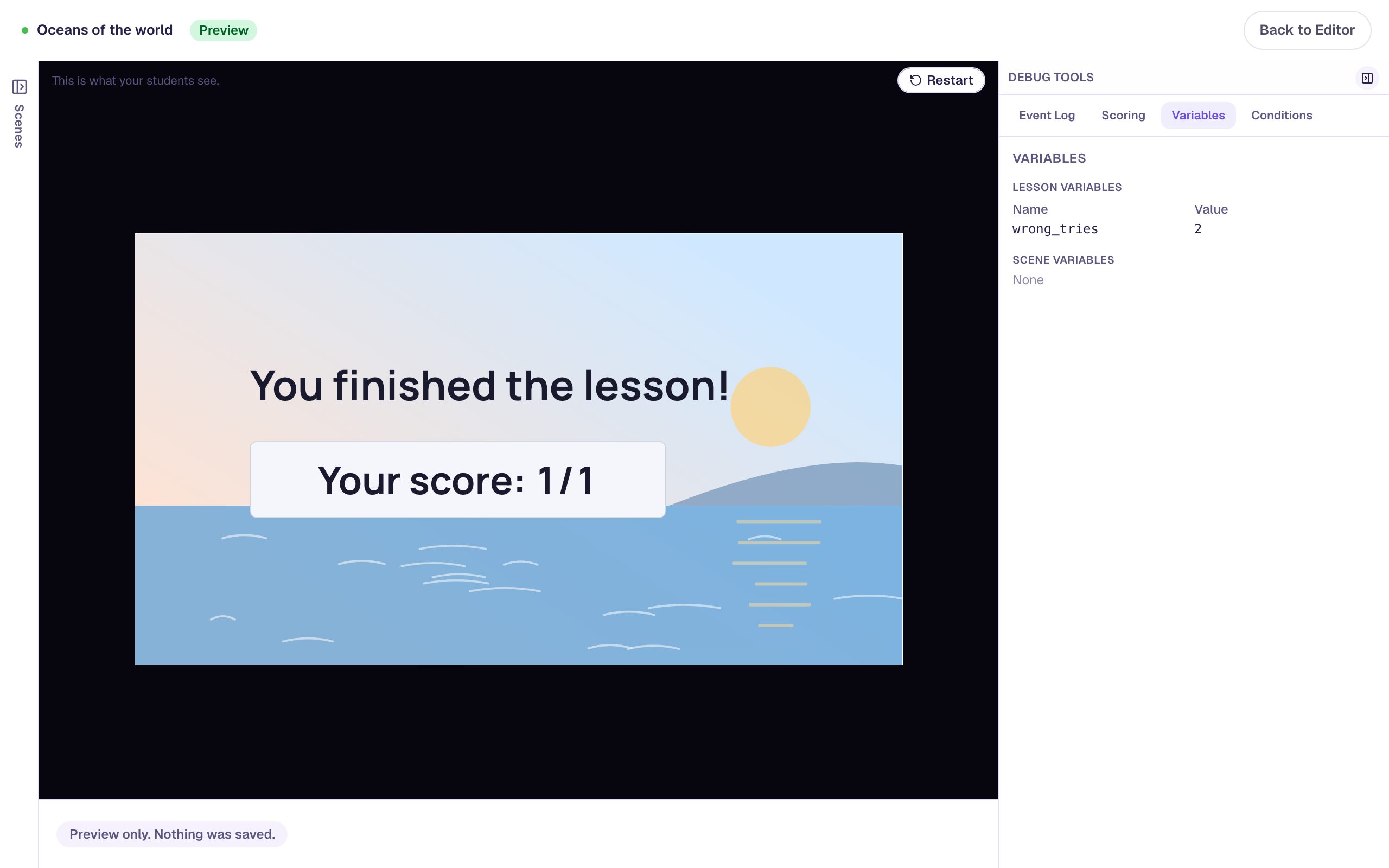
Notice that the score is still 1 out of 1, even though the student missed twice. The default Next progression only moves on after a right answer, so every student who reaches the ending through the question got it right in the end. If you want wrong tries to cost points, see Make some questions count more, and one not at all, which lets a wrong answer stick.
What you built
A question that offers help only when a student needs it:
- a number variable,
wrong_tries, starting at 0, - an On Wrong Selected behavior on the question that runs Increment Variable to add 1 for every wrong answer, and
- a hint with a Conditional visibility rule, Show when
wrong_triesis at least 2, plus a small I'm done button so the lesson can publish.
The same counter works for more than hints. Show an "Ask your teacher" note at 3, or put the count in text with {{ wrong_tries }}. With several questions on one lesson, remember that a variable belongs to the whole lesson: add a Set Variable action that puts wrong_tries back to 0 on the button that starts each new question, or give each question its own counter. Variables and Visibility and Personalization cover both.
Make this lesson yours
Add the lesson you just watched being built to your account, then change it for your class: your questions, your pictures, your colors.
Free to sign up, and you'll come straight back here. I have an account