Give a different tip for each wrong answer
Build a past-tense question where every wrong word gets its own tip. Three "They pick a wrong answer" behaviors on one dropdown each check its Selected value, so the student who writes "runned" hears something different from the one who picks "will run".
- Level
- Intermediate
- Time
- About 12 min
- Steps
- 6
- Updated
- Oct 29, 2026
A "Yesterday, my dog ___ across the park." question where runned, runs and will run each show their own tip, and ran moves on to the ending.
Get the finished lesson
Skip straight to the result, or keep it open beside the steps. Add this tutorial's lesson to your account and explore how it works in the studio.
Free to sign up, and you'll come straight back here. I have an account
Wrong answers aren't all the same mistake. A student who writes "runned" knows the sentence is in the past, and has used the rule that works for most verbs. A student who picks "will run" has missed the word "Yesterday" altogether. One "Try again" message can't help both of them.
In this tutorial you'll build one question, "Yesterday, my dog ___ across the park.", with a dropdown of four words: ran, runned, runs and will run. Each of the three wrong words gets its own tip. The trick is one setting in the Behaviors window: Only when…, which lets a behavior run only when the dropdown holds a particular word.
If you haven't added a behavior before, Label a diagram with dropdowns adds one "try again" message for every wrong pick. This tutorial splits that one message into three.
Step 1: Set up the scene
Start a blank lesson (New lesson, then Start from scratch) and name it Tricky past tense: run by clicking Untitled lesson at the top.
With nothing selected, open Background, click Choose a style, and pick the Mesh sunrise gradient. Give the Closing Scene the same background, so the ending matches.
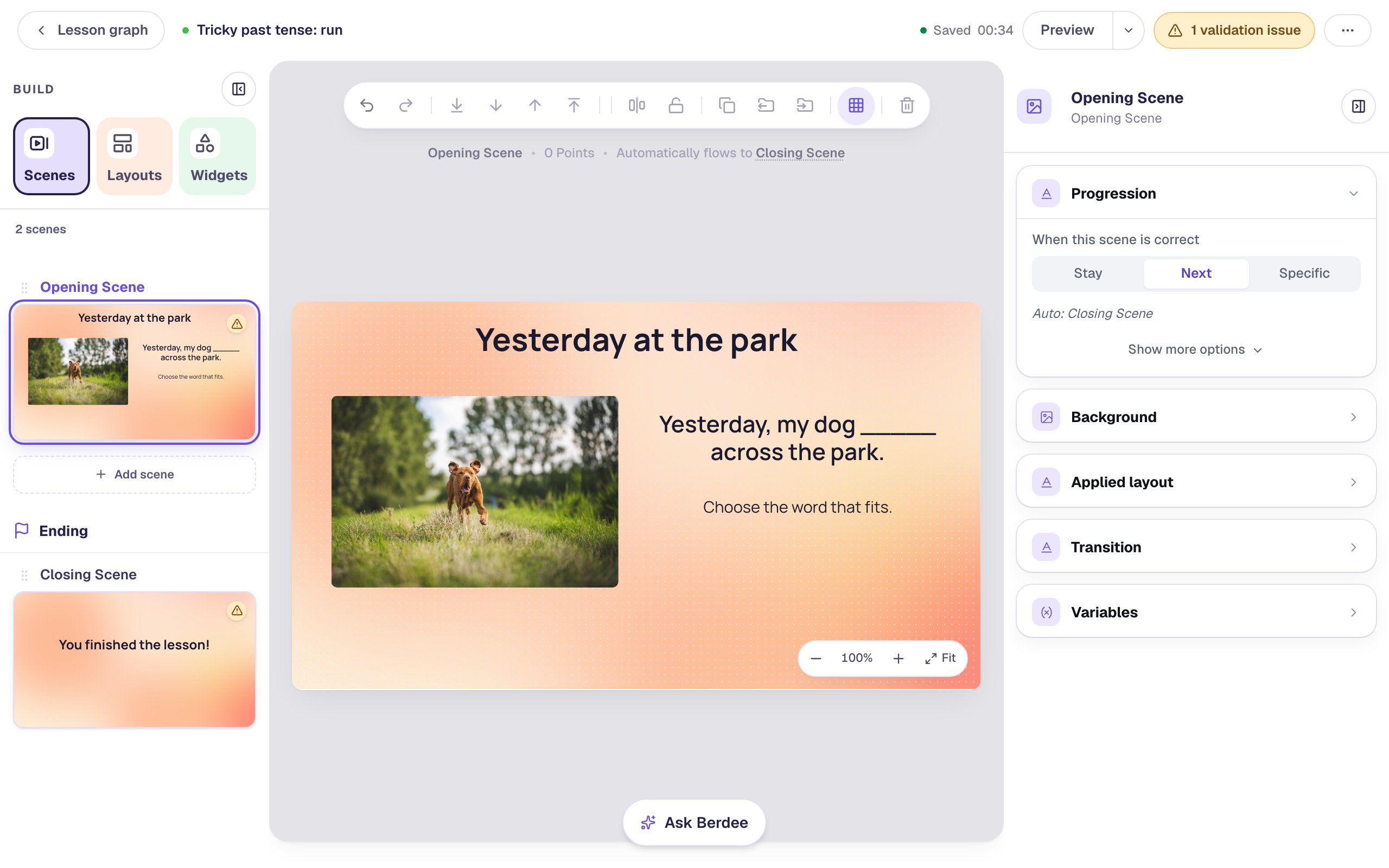
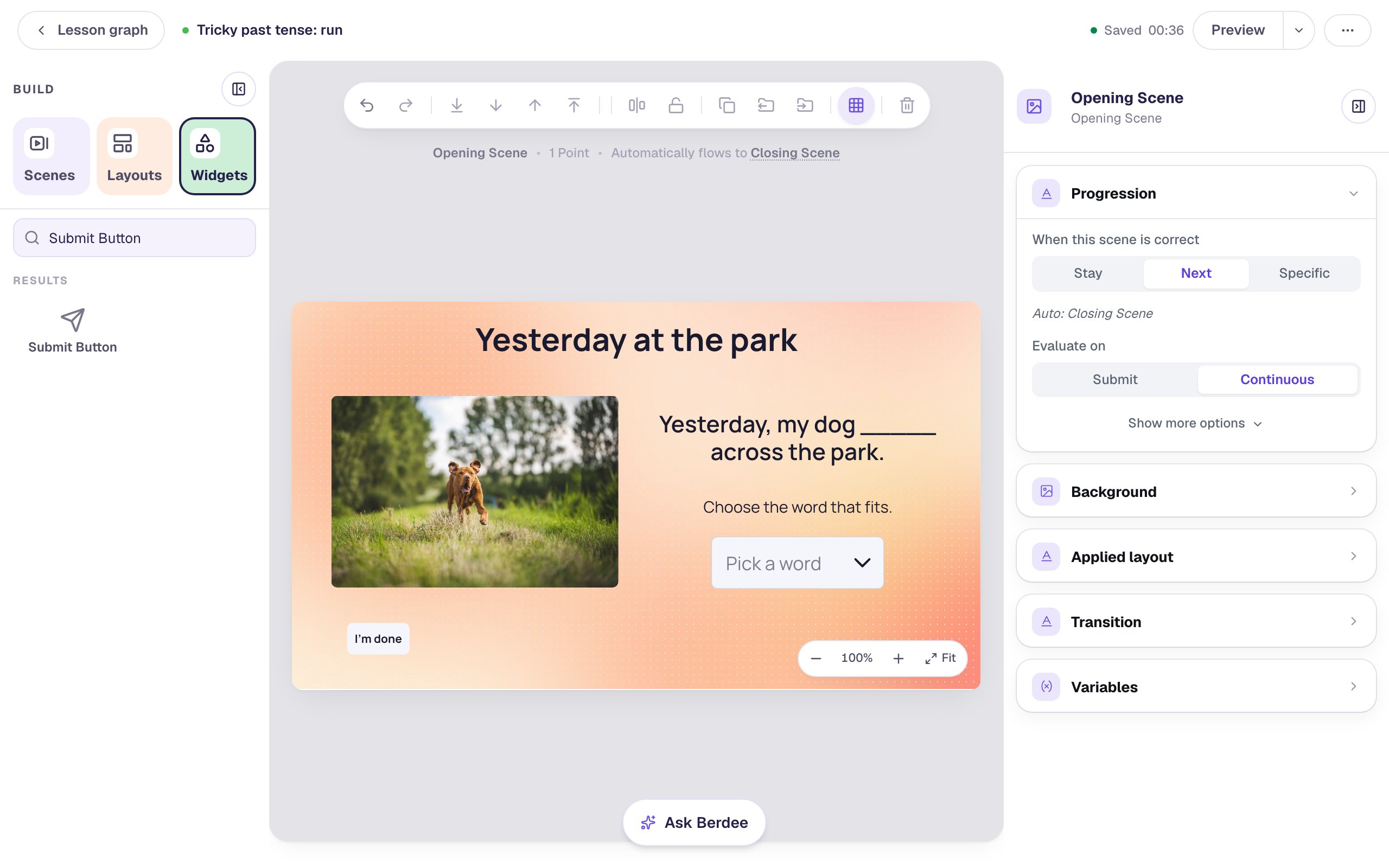
Back on the Opening Scene, add:
- A Heading:
Yesterday at the park, at about 44 px, across the top. - An Image about 400 × 270 on the left. Click Choose image, search the stock photos for
dog running on grass, and pick one. Then open Accessibility and describe the photo in Alt Text (we wroteA happy brown dog running through a green field with its ears flying). - A Subheading on the right with the sentence:
Yesterday, my dog _____ across the park.Set it to Fixed width about 400 wide in Style & Layout, so it wraps onto two lines, and make it about 32 px. - A Body under it:
Choose the word that fits.
Step 2: Add the dropdown
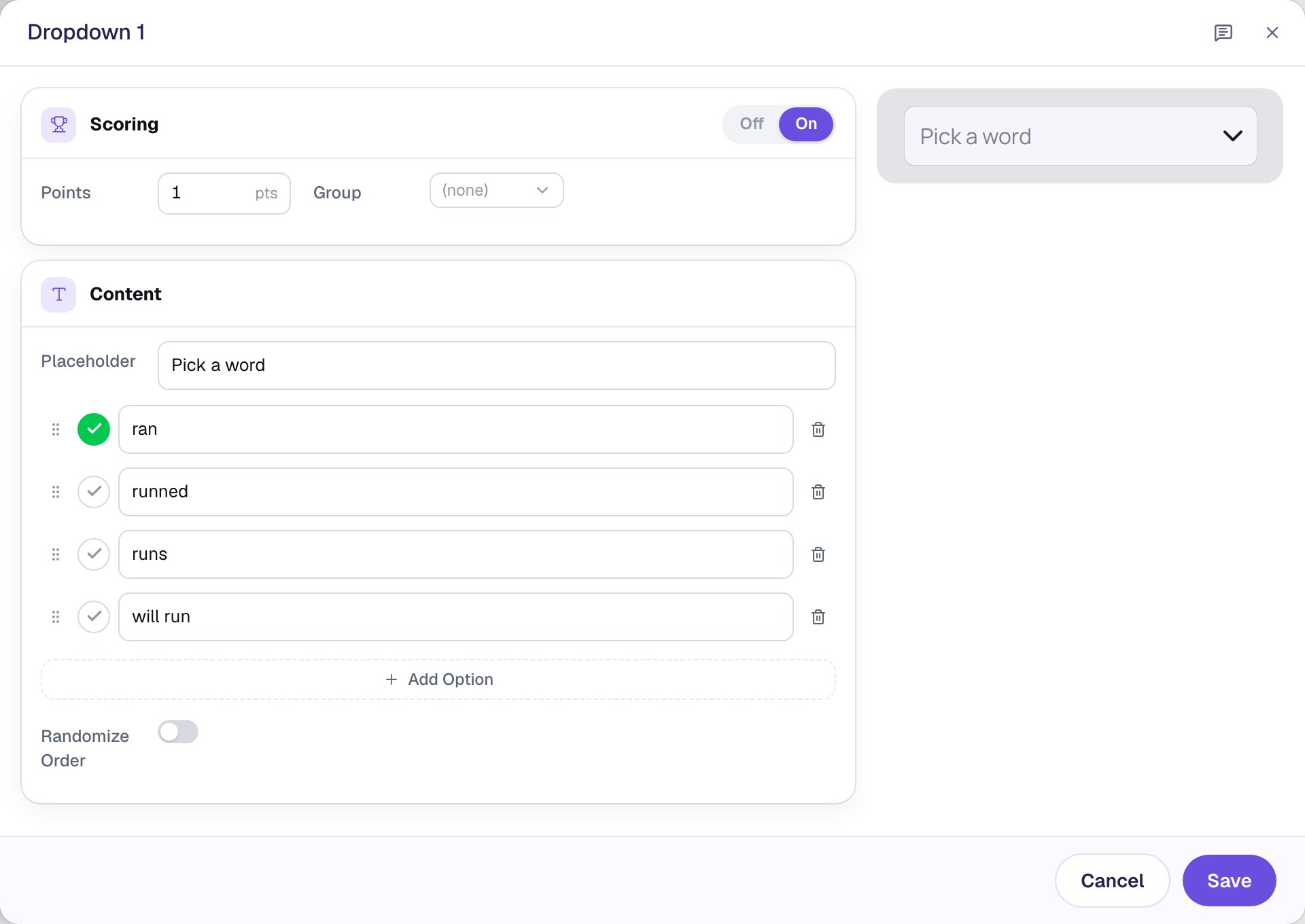
Add a Dropdown and click ⚙ Configure.
- Type
Pick a wordin Placeholder. - Click Add Option so there are four, and type the words:
ran,runned,runs,will run. - Check that only
ranhas the green tick. A new dropdown marks its first option correct, so if you typedranfirst, it's already right.
Click Save. Then, with the dropdown still selected:
- set its Font size to about 26 and its width to about 240 in Style & Layout,
- click its name at the top of the properties panel and rename it
Past tense of run, so it's easy to find in the next step, - open Accessibility and change Alt Text to
Choose the word that finishes the sentence. Screen readers read this instead of the placeholder.
Drag it under the sentence.
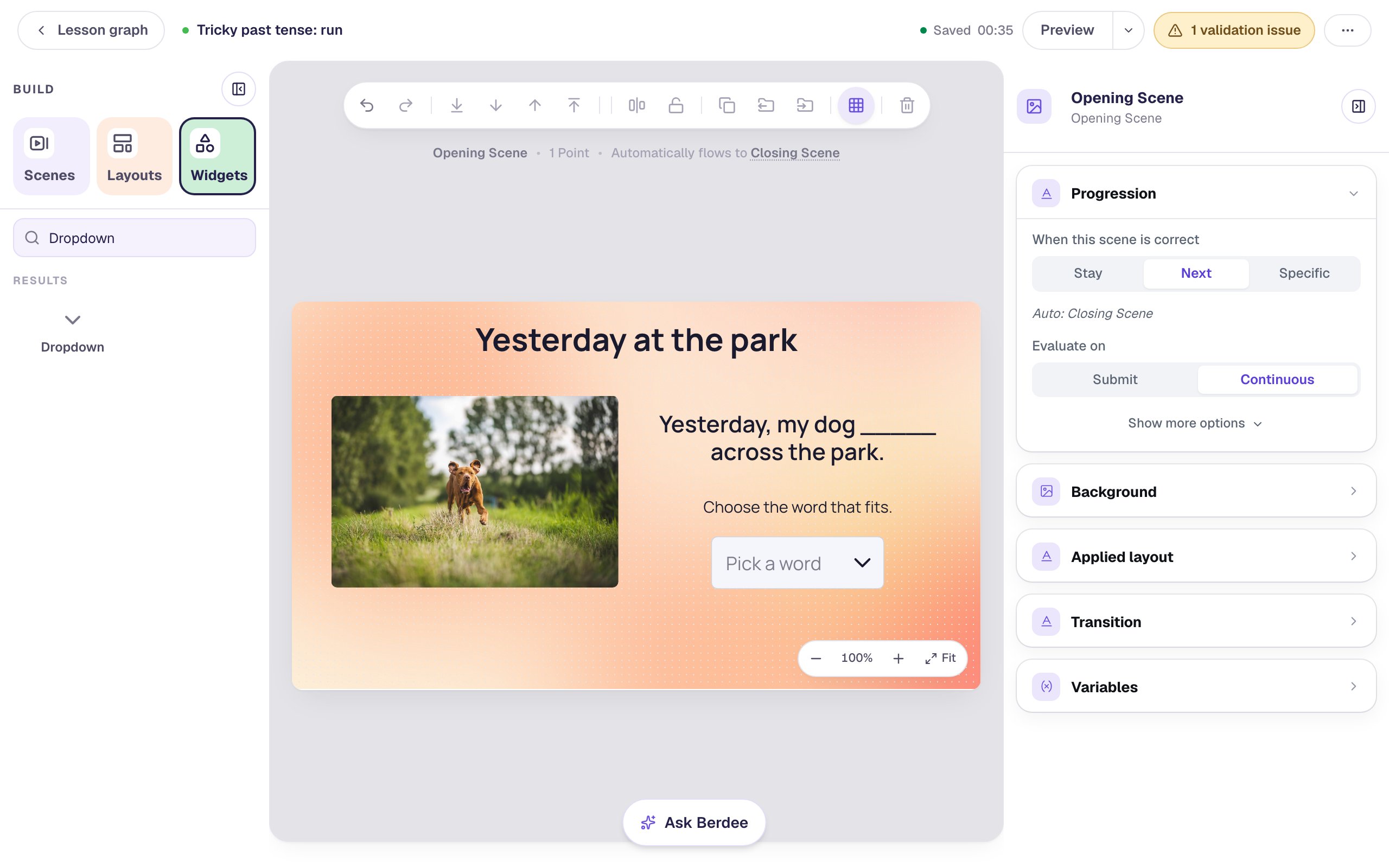
The scene is already set up to move on by itself. Its Progression is Next with Evaluate on set to Continuous, so the moment a student picks ran, the lesson goes to the ending. No button needed.
Step 3: Add the tip for "runned"
With the dropdown selected, click Behaviors in the small bar above it, then Build your own….
- Under What should happen?, choose Show a message.
- Type the tip in Message students see:
Good thinking: lots of verbs add -ed. Run is different. It changes to a new word. - Set the tone to Oops — try again, so the message shows in the "not yet" style.
- Under When?, choose They pick a wrong answer.
So far this would show the same message for every wrong word. Here's the part that makes it specific:
- Click Only in some cases? Add a condition (score, variable, answer…).
- Under Only when…, change None to Conditions.
- Set the condition to Dropdown: Past tense of run, Selected value, equals, runned.
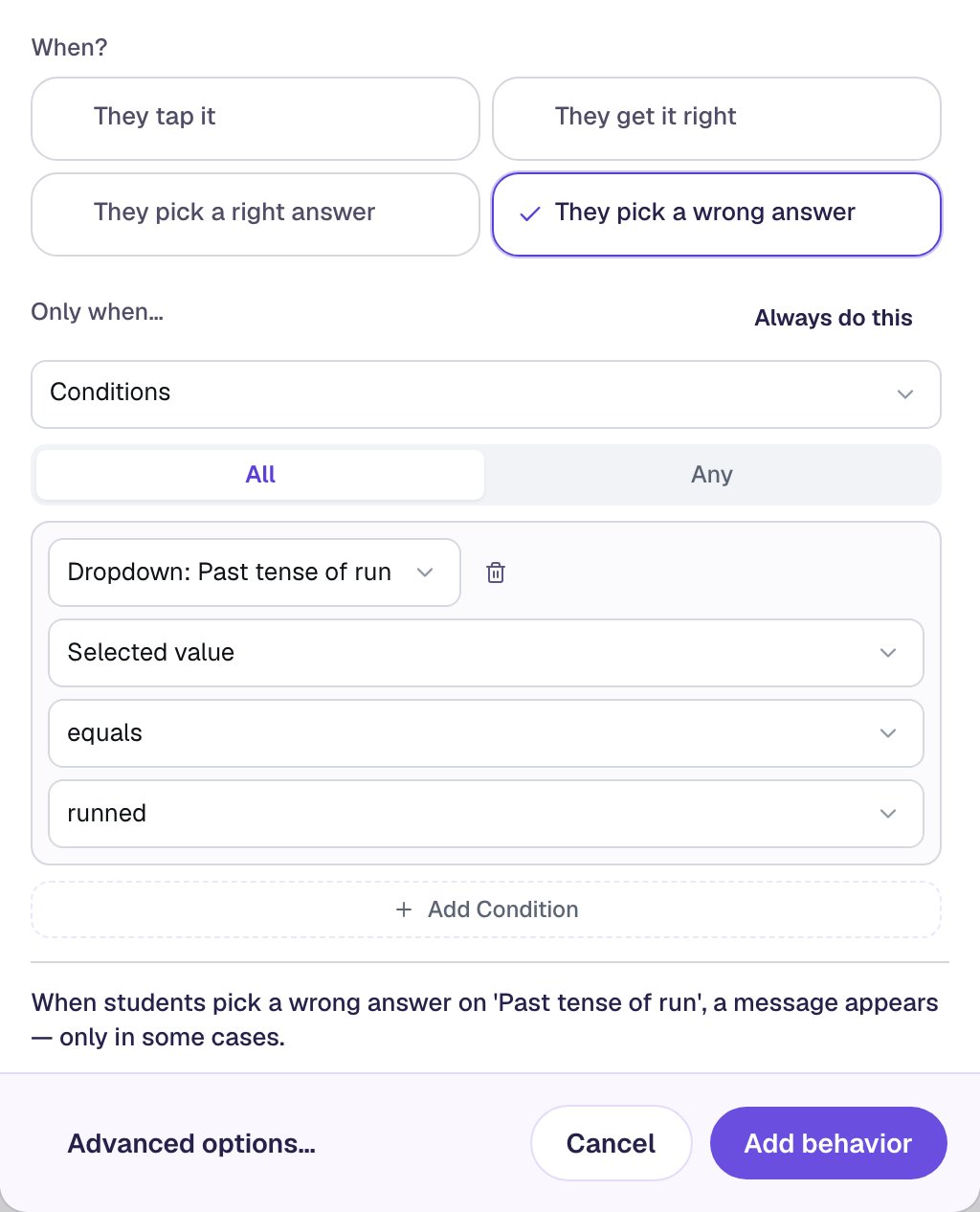
Click Add behavior.
The sentence at the bottom of the window ends in "— only in some cases". That's your sign that the condition is on.
Step 4: Add the other two tips
Repeat Step 3 twice, changing only the message and the word in the condition:
| When the student picks | Message students see |
|---|---|
runs | Runs is happening right now. Look at the first word: Yesterday. |
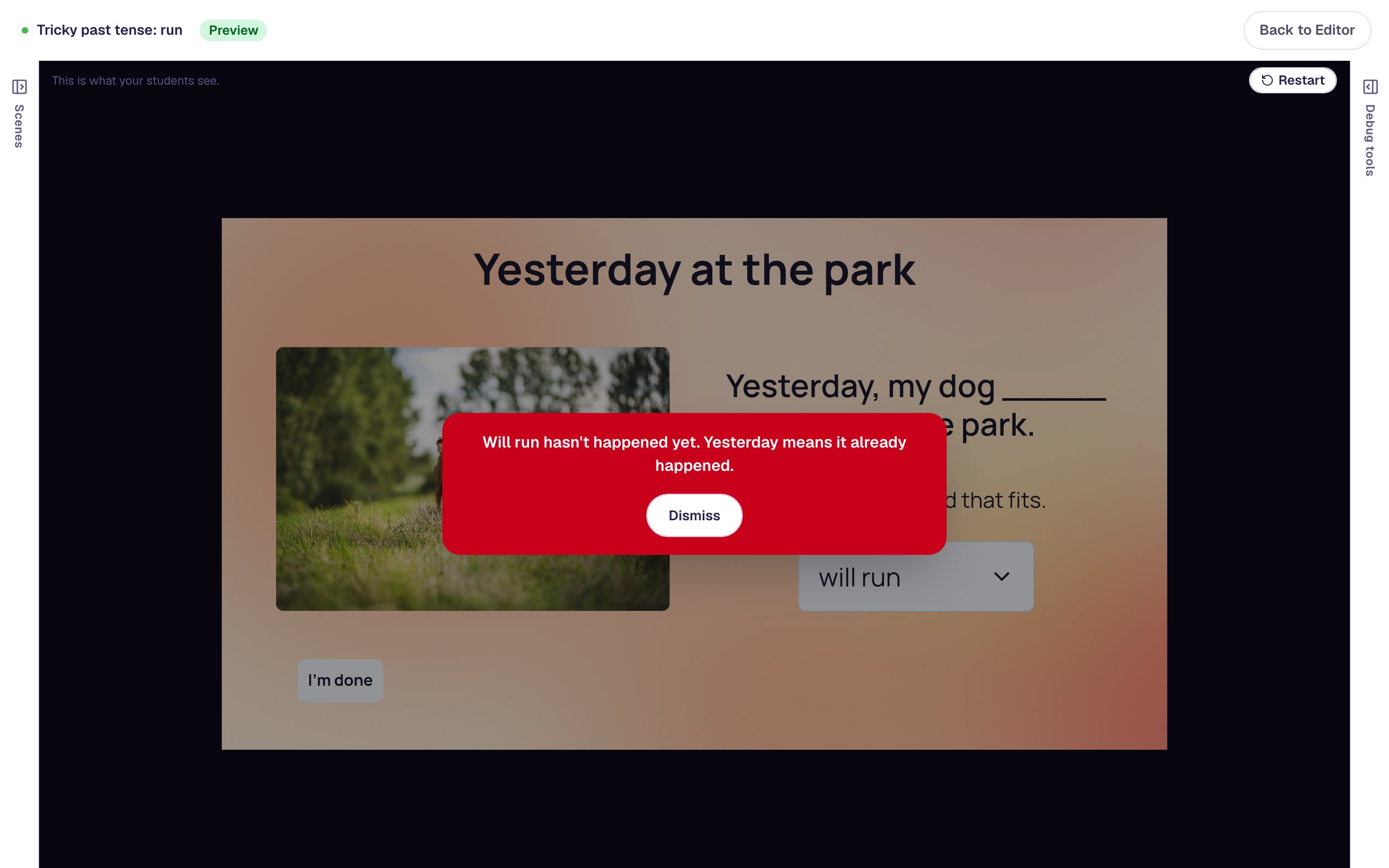
will run | Will run hasn't happened yet. Yesterday means it already happened. |
Each one is its own behavior on the same moment, They pick a wrong answer. When a student picks a wrong word, Berdee checks all three, and only the one whose word matches shows its message.
To check them, open Behaviors in the properties panel. Each behavior is listed as On Wrong Selected with its message and, under it, its own condition.
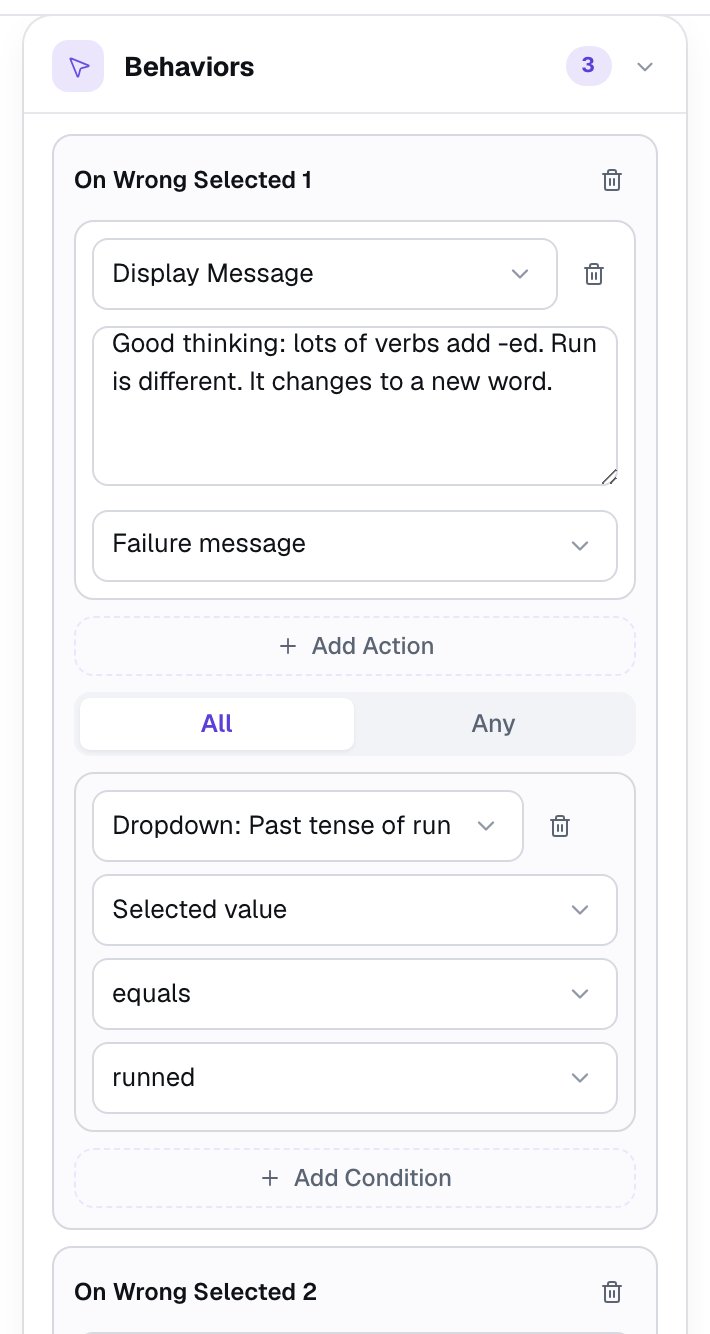
Check here rather than in the Behaviors window's Already wired list. That list cuts each sentence short at the same words, so the three tips look identical there.
A wrong word with no tip of its own shows nothing at all. If you add a fifth word later, add a tip for it too.
Step 5: Add a way to finish
Berdee asks every lesson to have a way to finish early. Add a Submit Button, change its Label to I'm done in Content, and set Submits to Lesson. Make it small (we used Font size 16) and put it in the bottom-left corner, under the photo.
Step 6: Try it in preview
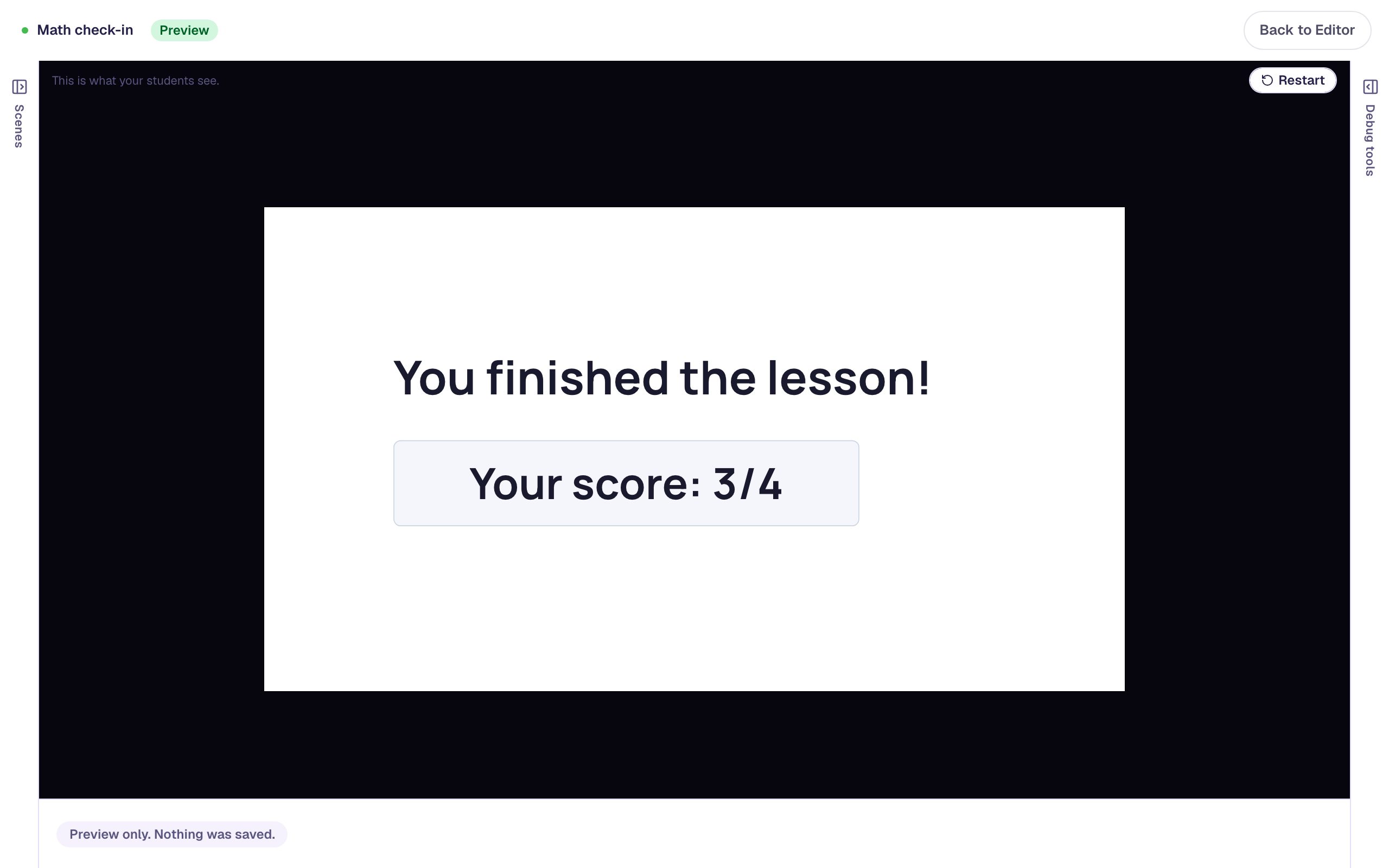
Click Preview. Pick runned first: the tip about -ed appears. Press Dismiss, then pick will run, and the tip about "Yesterday" appears instead. Dismiss it and pick ran, and the lesson moves on to the ending.
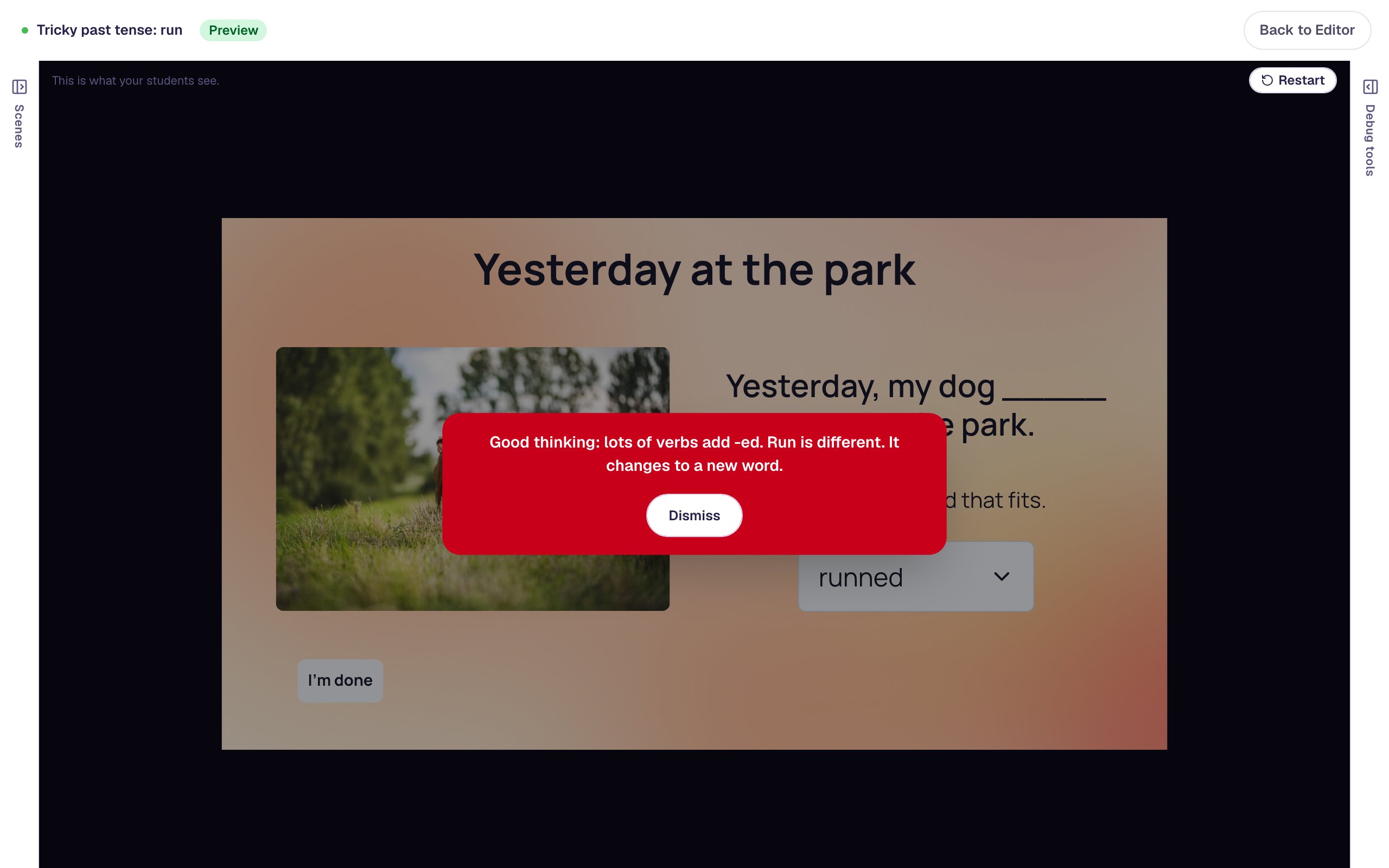
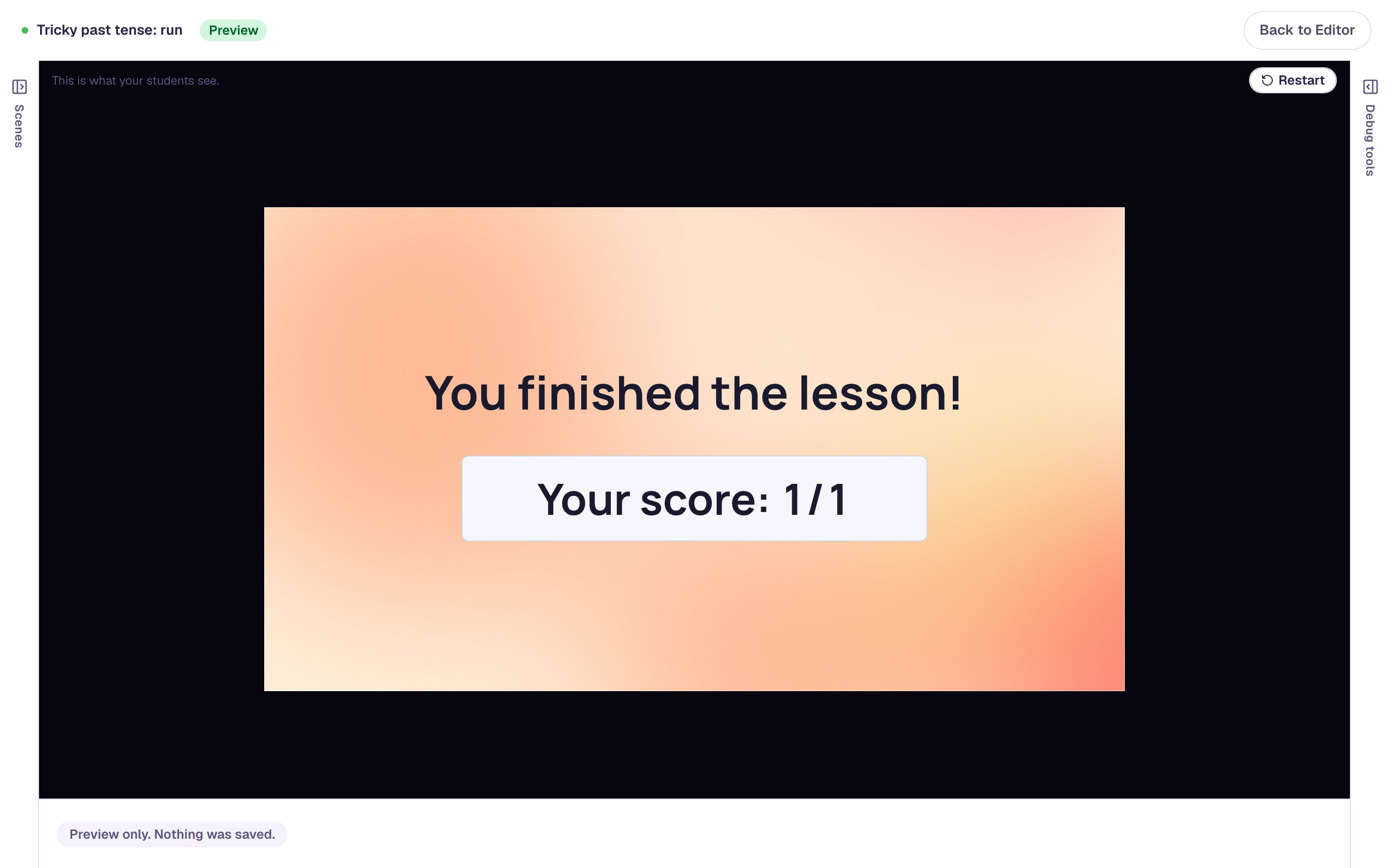
The score is 1/1 even after two wrong picks. A dropdown is graded on the word it ends up holding, so the tips are free to help without costing the student anything.
What you built
A past-tense question on one dropdown that:
- shows a different tip for each wrong word, using three They pick a wrong answer behaviors,
- gives each behavior an Only when… condition on the dropdown's Selected value, so only the matching tip appears,
- moves on to the ending by itself the moment the student picks
ran.
The same idea works for any question where wrong answers point to different mistakes: a math dropdown where 12 means the student added instead of multiplied, or a science question where "the Sun goes around the Earth" deserves its own explanation.
Next, try Show a hint after two wrong tries to hold a hint back until a student has had two goes, or Show an explanation when a student gets it wrong to send a student to a whole scene of help.
Make this lesson yours
Add the lesson you just watched being built to your account, then change it for your class: your questions, your pictures, your colors.
Free to sign up, and you'll come straight back here. I have an account