Show a tip until a student fixes a mistake
Build a "find the verbs" Highlighter where a tip pops up the moment a student highlights a word that isn't a verb, and goes away again as soon as they take it back. On Wrong Selected shows the tip, On Wrong Cleared hides it.
- Level
- Intermediate
- Time
- About 12 min
- Steps
- 8
- Updated
- Nov 3, 2026
A "Find the verbs" scene where a wrong highlight brings up a short tip, undoing it makes the tip disappear, and finding all three verbs sets off confetti and shows a Next button.
Get the finished lesson
Skip straight to the result, or keep it open beside the steps. Add this tutorial's lesson to your account and explore how it works in the studio.
Free to sign up, and you'll come straight back here. I have an account
A tip is most useful at the moment a student goes wrong, and only for as long as they're wrong. If it shows up before they've tried, it gives the answer away. If it stays on screen after they've fixed the mistake, it's clutter, and it tells them they're still wrong when they aren't.
In this tutorial you'll build a short grammar task, Find the verbs. Students read two sentences and highlight the three action words. Highlight a word that isn't a verb, and a tip appears straight away: "Can you do that? A verb is an action word. Tap it again to undo it." Take the word back, and the tip disappears. Find all three verbs, and confetti flies and a Next button appears.
Three pieces do the work:
- a tip that's Hidden when the scene starts,
- an On Wrong Selected behavior on the Highlighter that Shows the tip, and
- an On Wrong Cleared behavior that Hides it again.
If you haven't built a Highlighter question before, start with Ask students to highlight the evidence in a passage.
Step 1: Set the scene
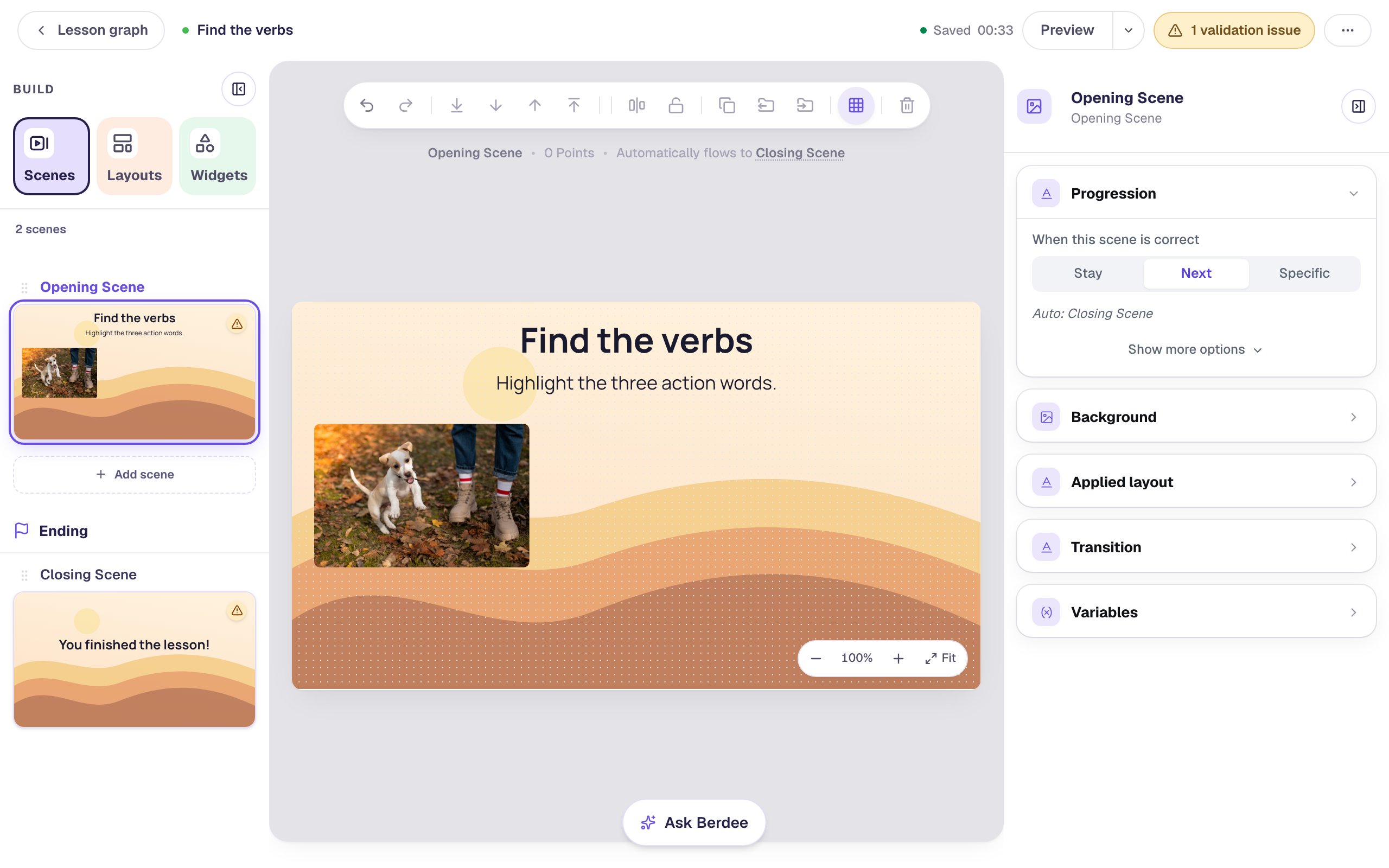
Start a blank lesson (New lesson, then Start from scratch) and name it Find the verbs by clicking Untitled lesson at the top.
With nothing selected, open Background, click Choose a style, pick Nature, then Autumn hills, and click Apply background. Give the Closing Scene the same background, so the ending matches.
Back on the Opening Scene, add:
- A Heading that says
Find the verbs, at the top. - A Body under it with the task:
Highlight the three action words.Saying how many there are tells students when they're done looking. - An Image on the left, 300 × 225. Click Choose image, search for
puppy jumping, and click Import & insert on a photo you like. Then open Accessibility and describe the photo in Alt Text, for exampleA white puppy jumping playfully on fallen autumn leaves beside a person's boots.
Step 2: Add a Highlighter and type the sentences
Search the Widgets tab for Highlighter and click it. Rename it Verbs (click its name at the top of the properties panel), so it's easy to find in behavior lists later. In Style & Layout, click Show more options and set Width to 560 and Height to 140, then drag it to the right of the photo.
Click ⚙ Configure, then Edit passage & correct ranges. Select the placeholder sentence, delete it, and type:
The puppy jumps over the log. Maya laughs and claps her hands.
Step 3: Mark the verbs
Still in the editor, select jumps and click Mark as correct. Do the same for laughs and claps.
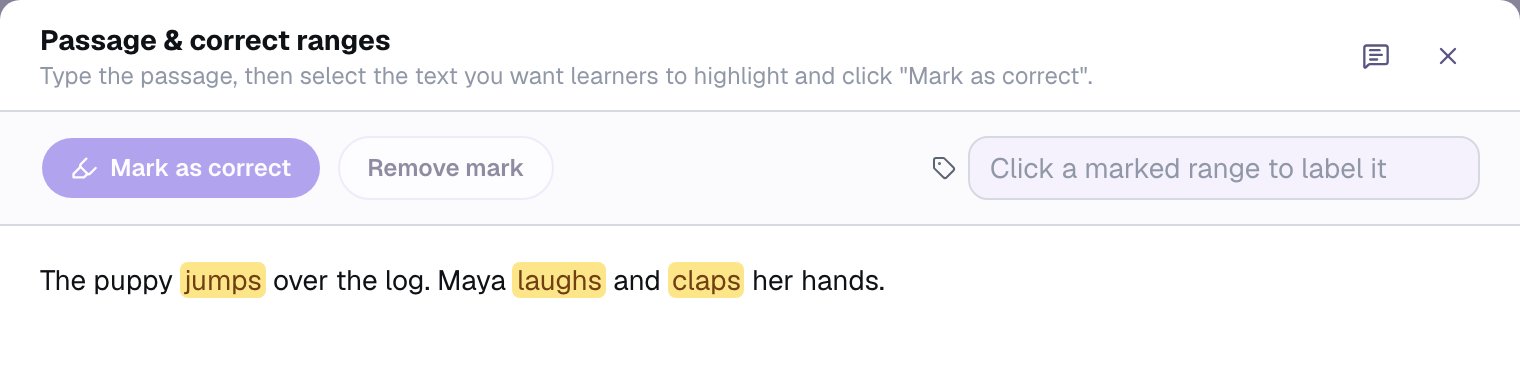
Every word outside a mark counts as a wrong answer. That's what lets Berdee notice the moment a student highlights puppy or log, and it's what the tip in the next steps reacts to.
Click Save, then Save again to close Configure. To make the words easy to tap, set the Highlighter's Font Size to 28 and its Line Height to 1.8 in Style & Layout.
Step 4: Write the tip and hide it
Click an empty spot on the scene, add a Body, and type:
Can you do that? A verb is an action word. Tap it again to undo it.
Then:
- Rename it
Verb tip. - In Style & Layout, choose Fixed width, set Width to
560and Font Size to24. - Click Background Color and pick the soft peach swatch, so the tip looks different from the yellow of a highlighted word.
- Drag it under the sentences.
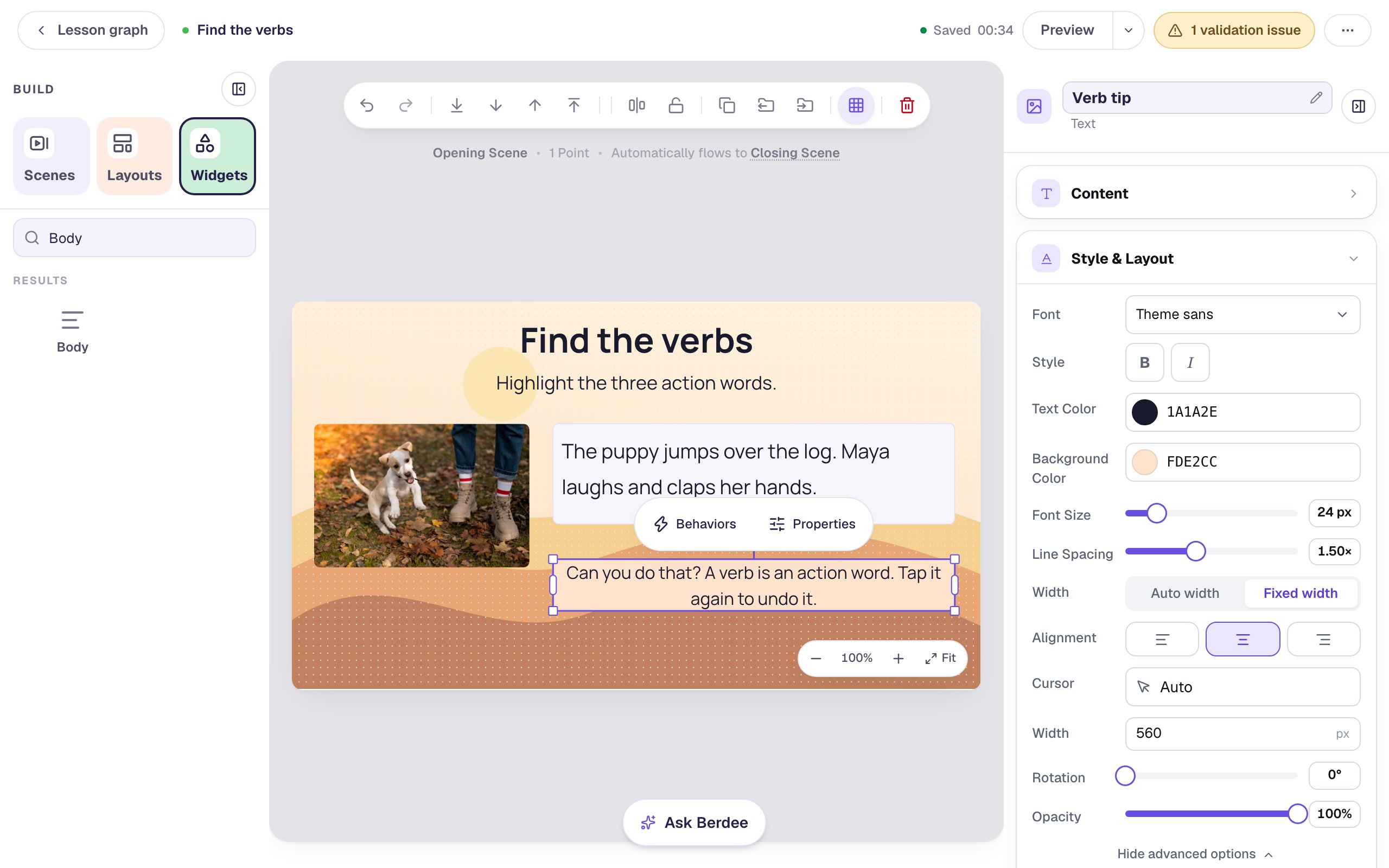
A good tip points the way without giving the answer. This one gives students a question to test a word with ("Can you do that?") and tells them how to take a wrong word back.
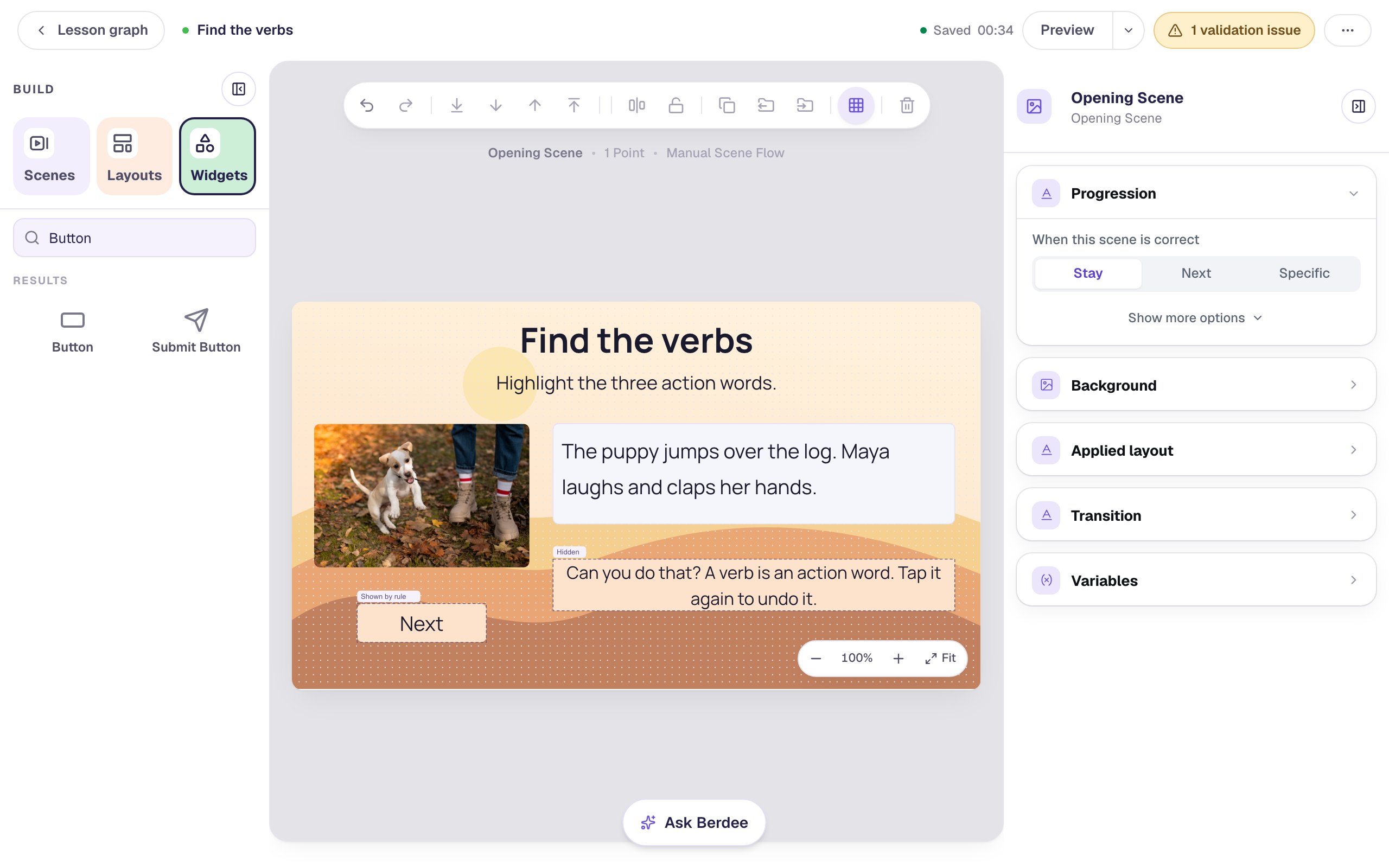
Now hide it, so students don't see it when the scene starts. Open Visibility and change Mode to Hidden.
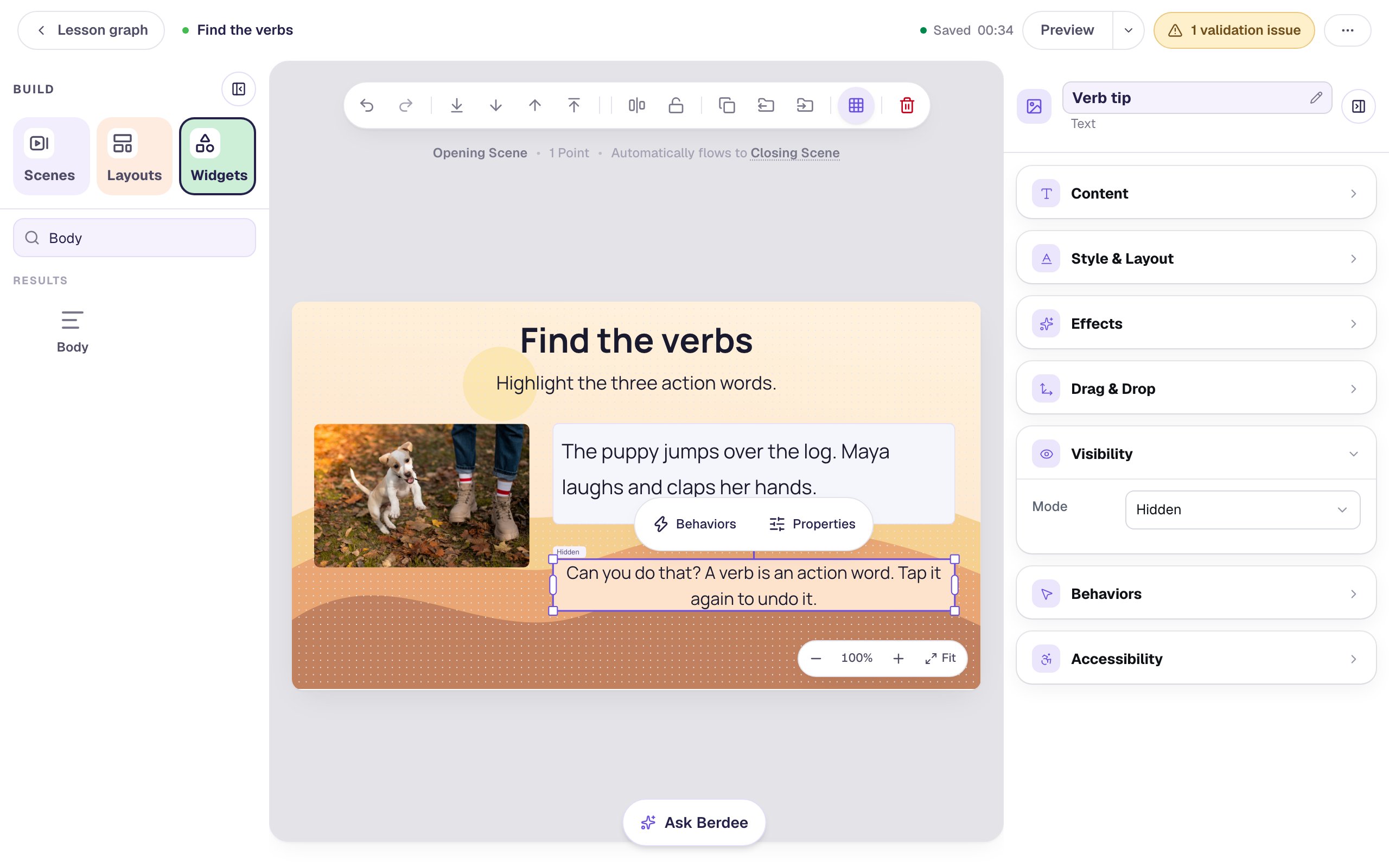
The studio still draws the tip, so you can keep editing it. The small Hidden tag above it is your reminder.
Step 5: Show the tip on a wrong word
Click the Highlighter to select it and open Behaviors in the properties panel:
- Click Add Behavior and choose On Wrong Selected. It runs each time a student highlights a word that isn't one of your marks.
- Change Display Message to Widget Method.
- In the first list, pick Text: Verb tip. In the second, pick Show.
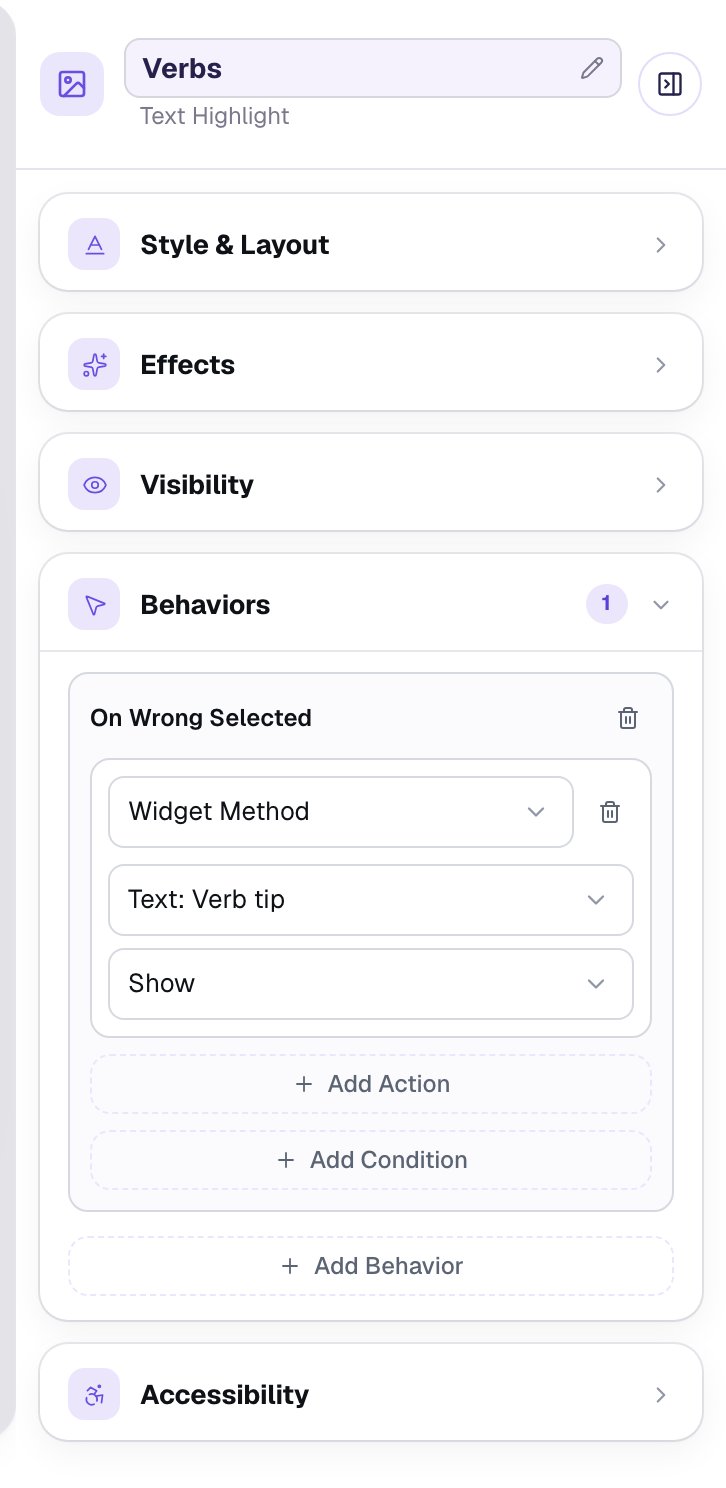
Why not Display Message? A message opens in front of the scene and waits for the student to press Dismiss. That's a lot of interruption for a small slip, and the student can't see the sentences while it's open. A tip on the scene sits beside the mistake and lets them fix it straight away.
Step 6: Hide the tip once it's fixed
With the Highlighter still selected, add a second behavior the same way, with two changes: choose On Wrong Cleared as the trigger, and Hide as the method.
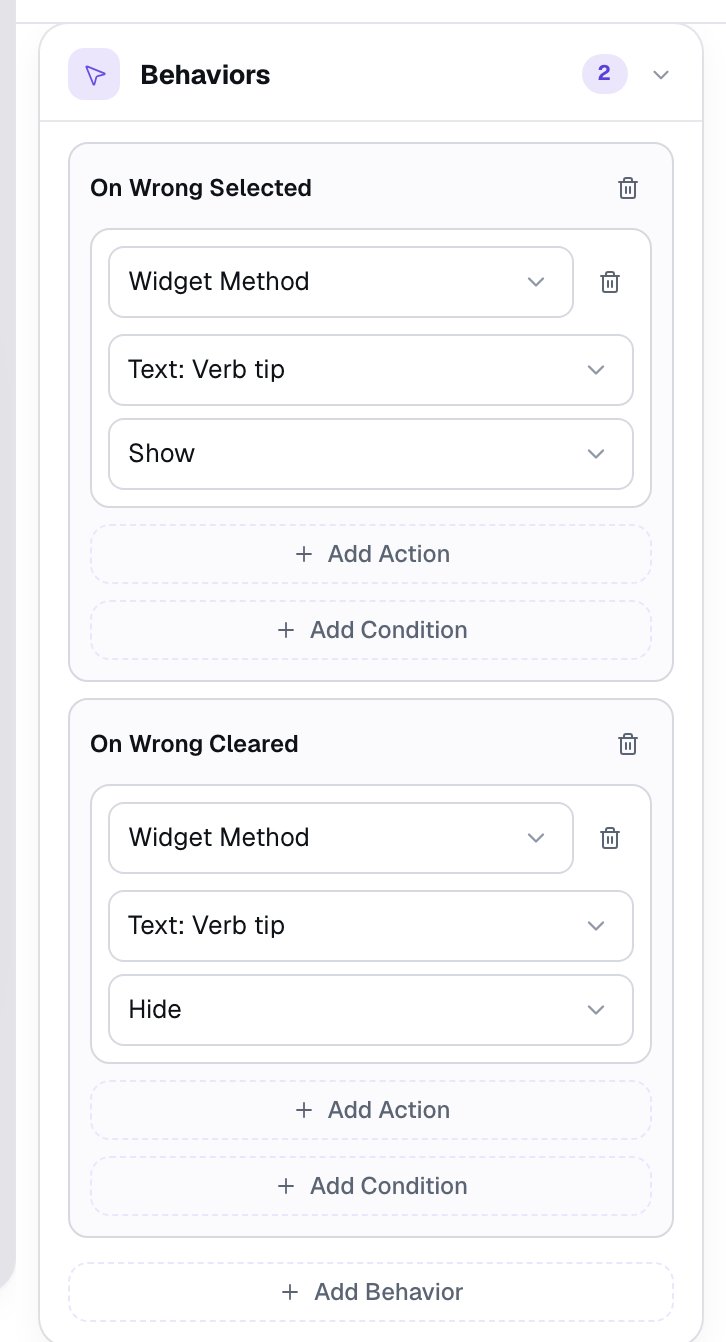
On Wrong Cleared runs when the student takes back their last wrong word, or when their highlights become exactly right. So a student who highlights two wrong words keeps the tip until both are gone. Fix one, and it's still there, because they're still wrong.
Step 7: Celebrate, then show a Next button
Click Behaviors in the pill above the Highlighter. In the ideas window, choose Celebrate the right answer, then under When? click They pick all the right answers. Leave the effect on Confetti and click Add behavior.
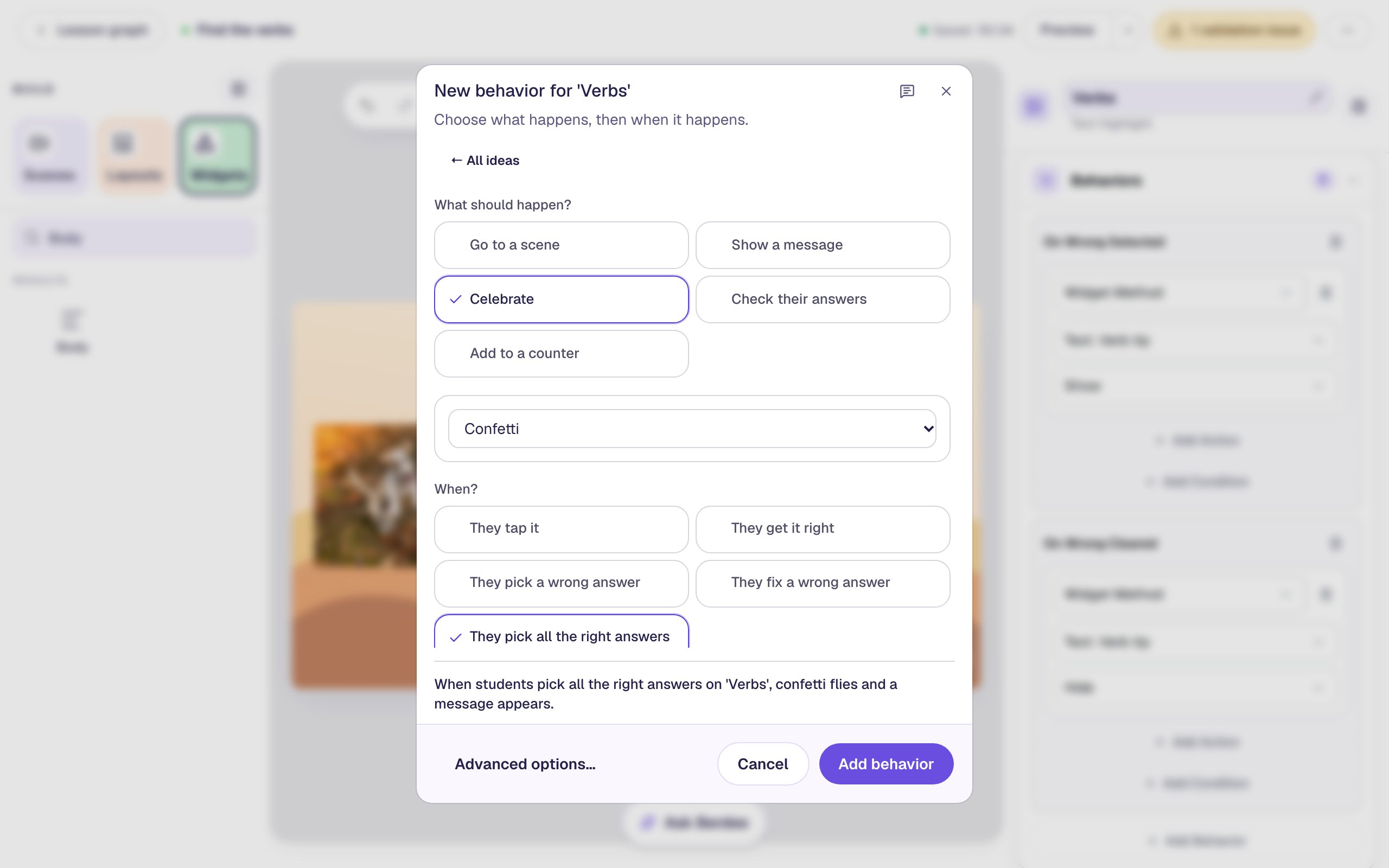
Next, keep students on the scene long enough to enjoy it. Click an empty spot, and in the scene's Progression choose Stay. With the default Next, the lesson would move on the instant the third verb was highlighted, before the confetti had landed.
So students still need a way on. Add a Button, click ⚙ Configure, change its Label to Next, and click Save. Click Behaviors in its pill, choose Make this a "Next" button, check that Goes to says Closing Scene, and click Add behavior. Rename it Next button, give it a Fixed width of 180 and a Font Size of 28, and drag it under the photo.
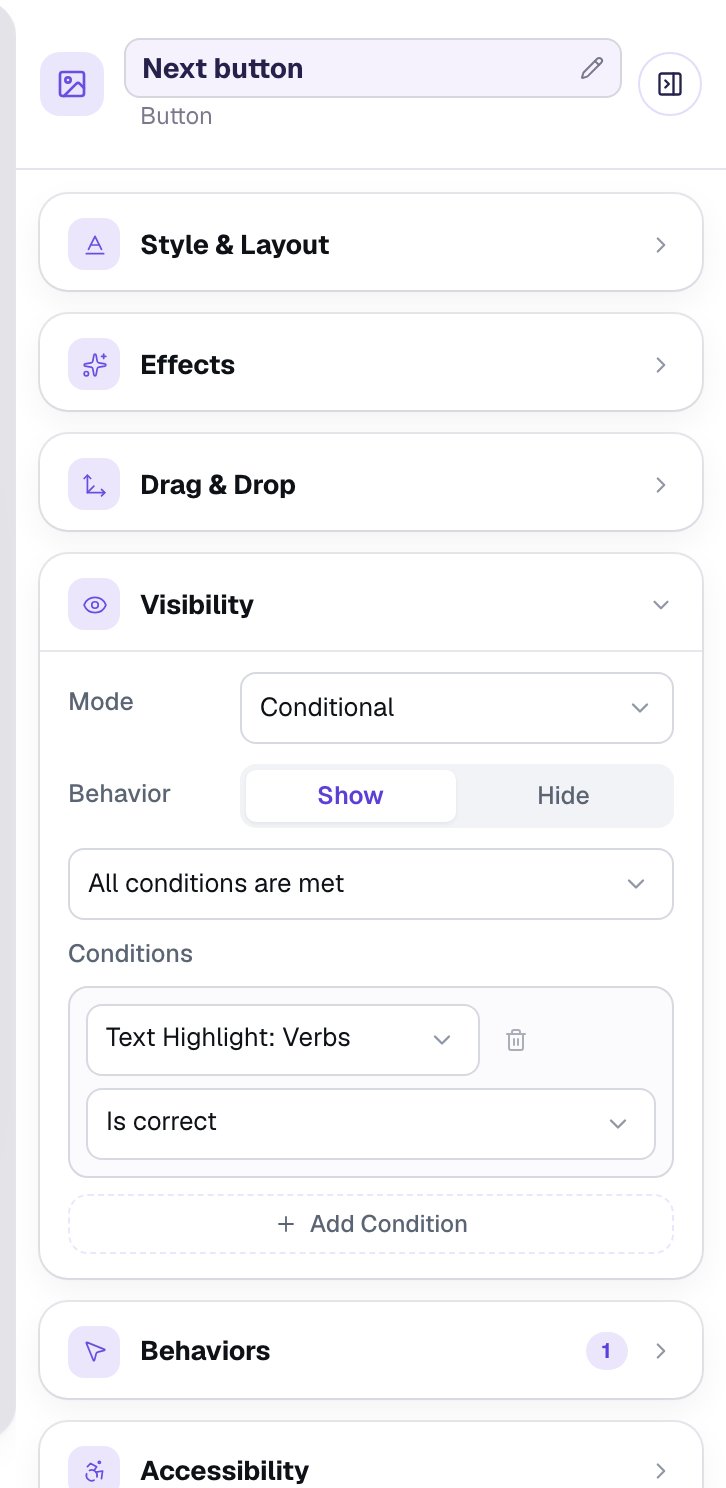
Then show it only when the verbs are found. Open Visibility, set Mode to Conditional, and build the rule Text Highlight: Verbs Is correct.
Step 8: Try it as a student
Click Preview and make a mistake on purpose.
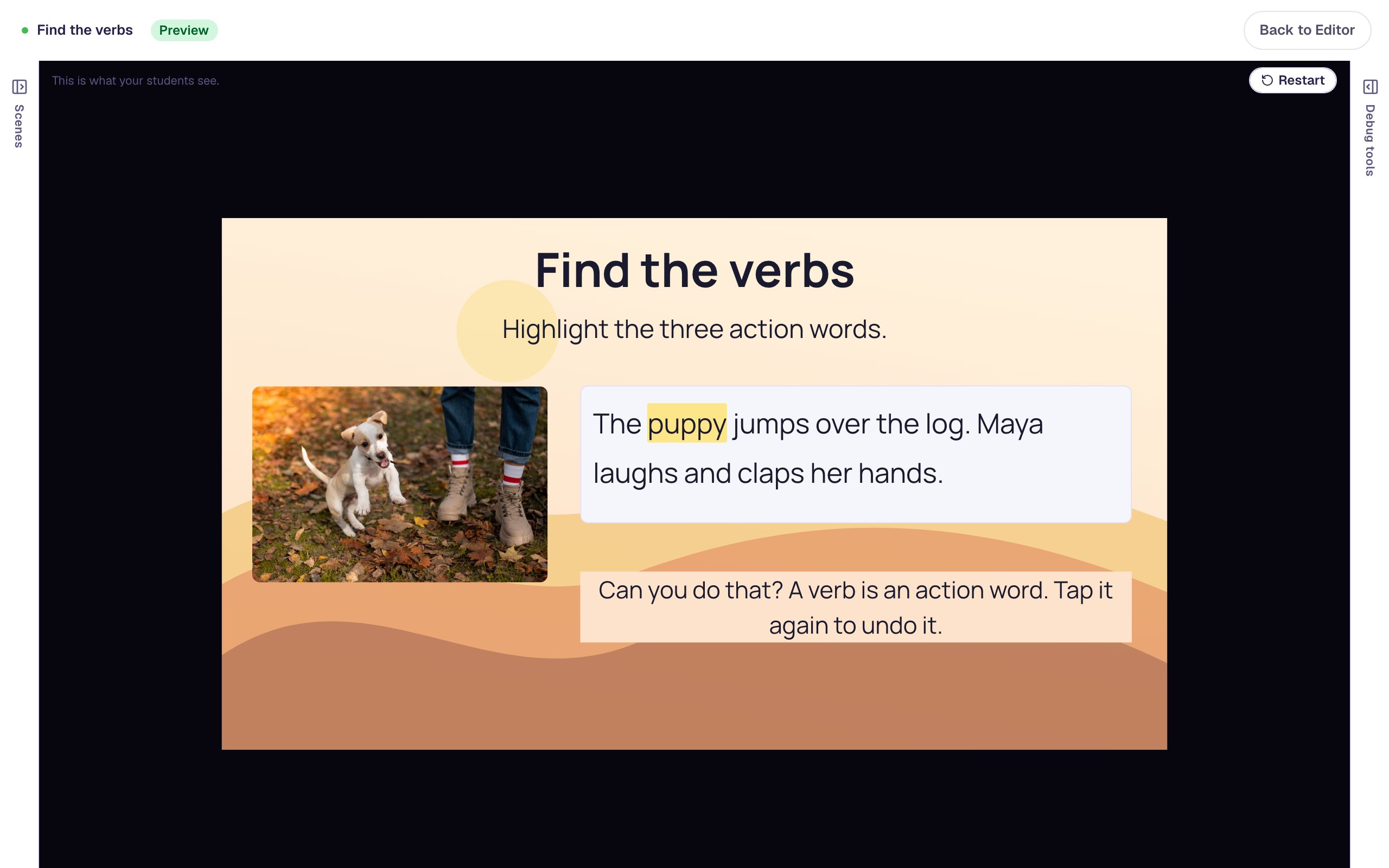
- Tap
puppy. It isn't a verb, so the tip appears under the sentences.
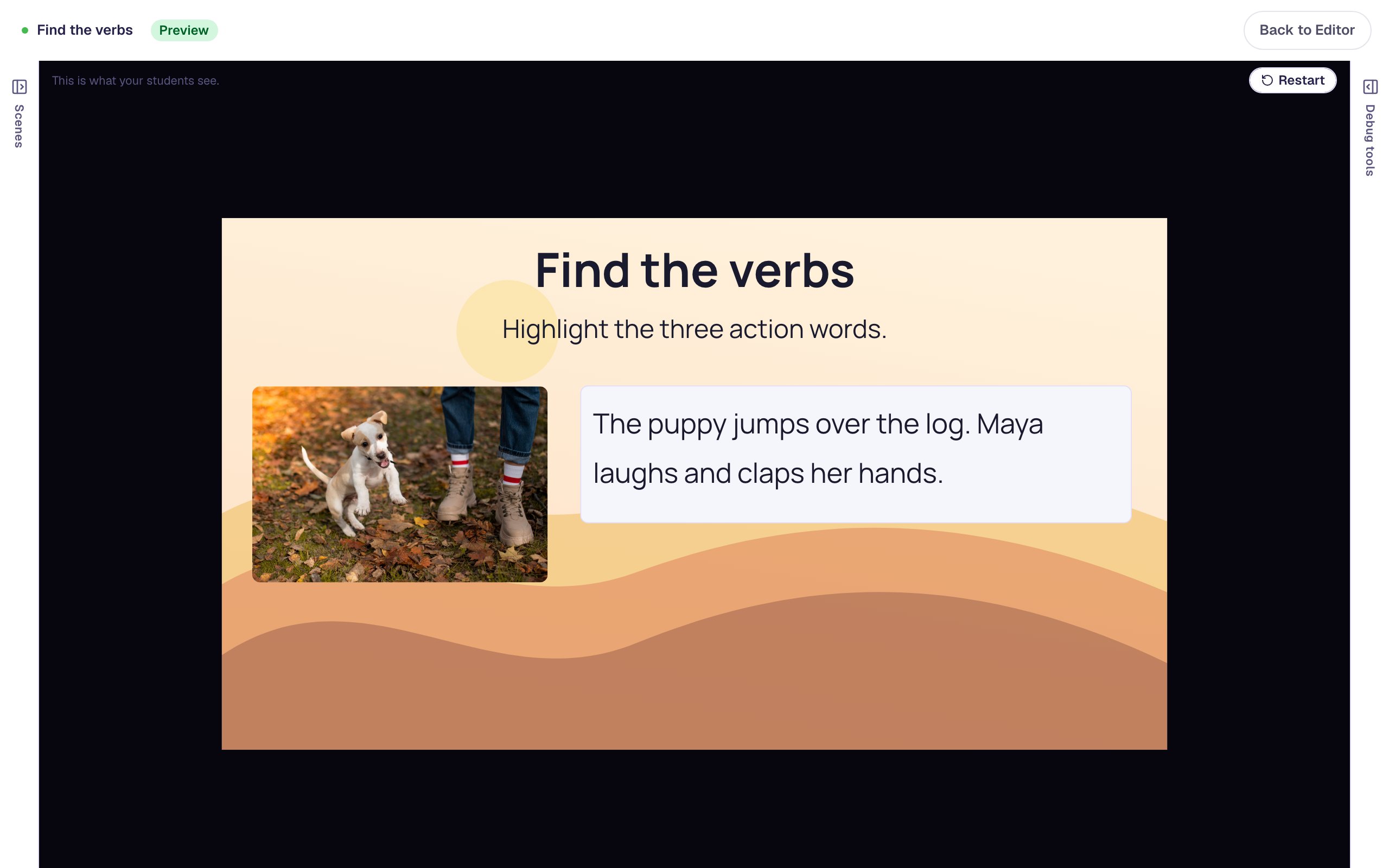
- Tap
puppyagain to take it back. The tip disappears.
- Tap
jumps,laughs, andclaps. As soon as the third one is highlighted, confetti flies and a Great job! message appears.
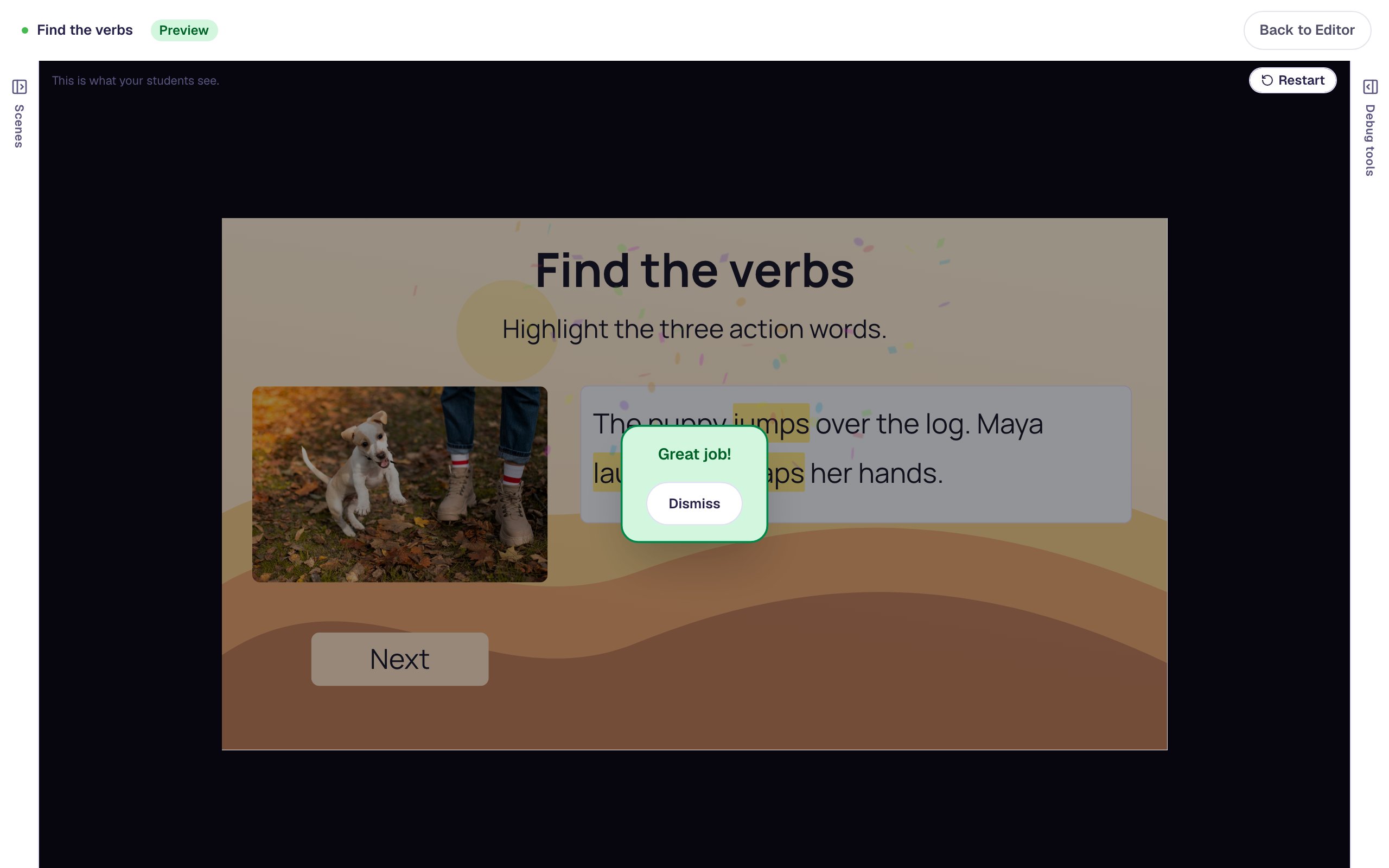
- Press Dismiss. The Next button is waiting under the photo.
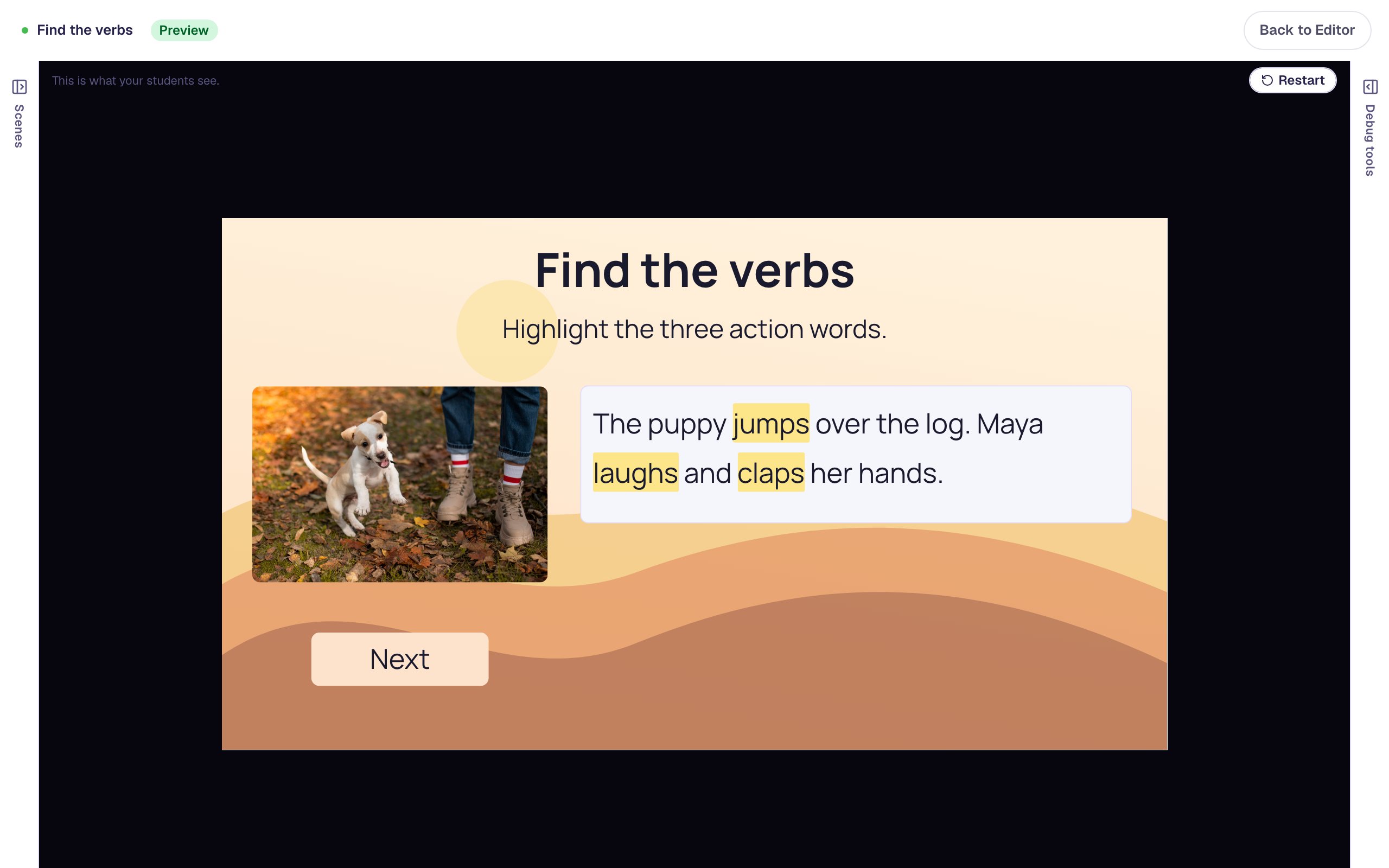
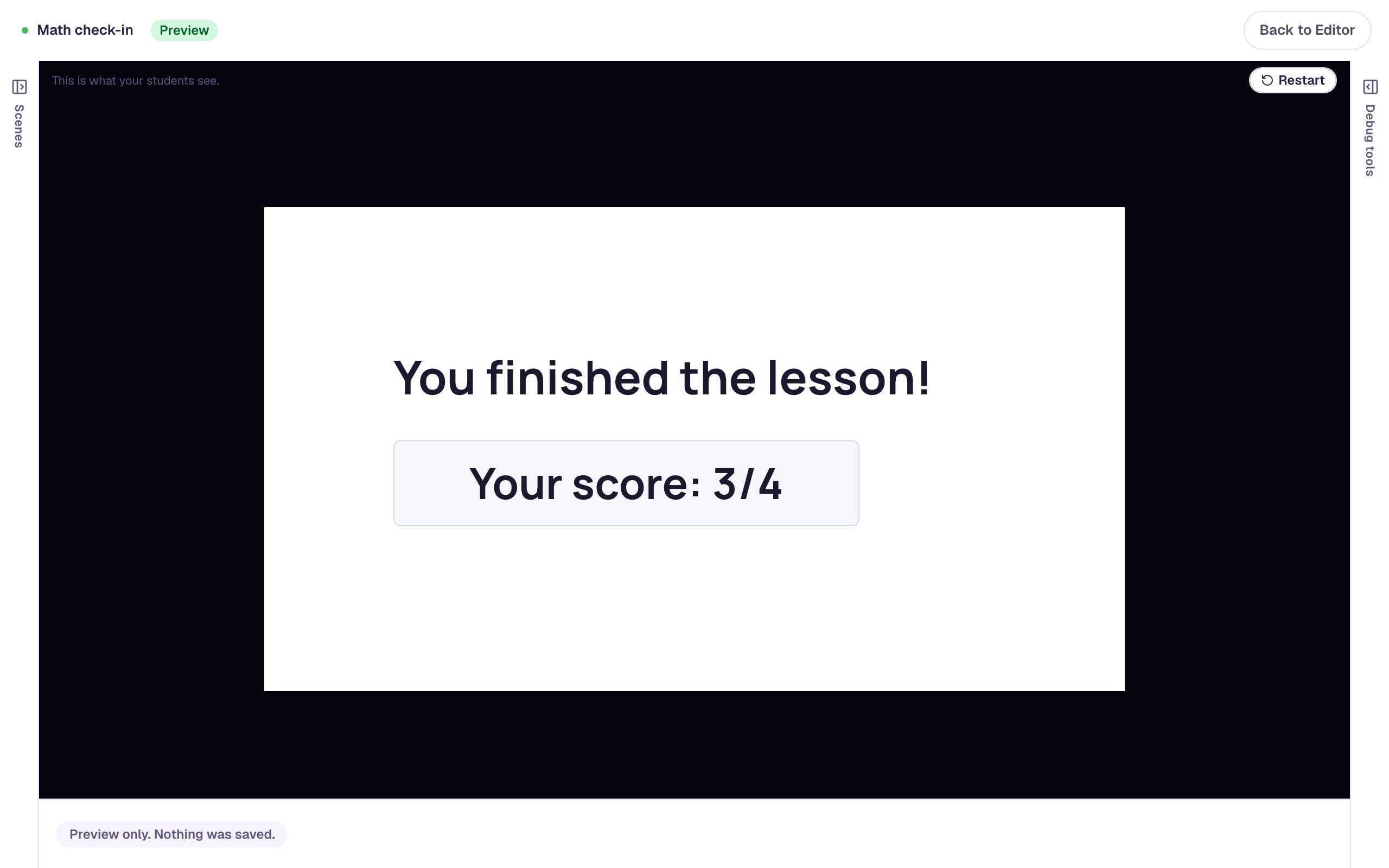
Press Next. The ending shows the score.
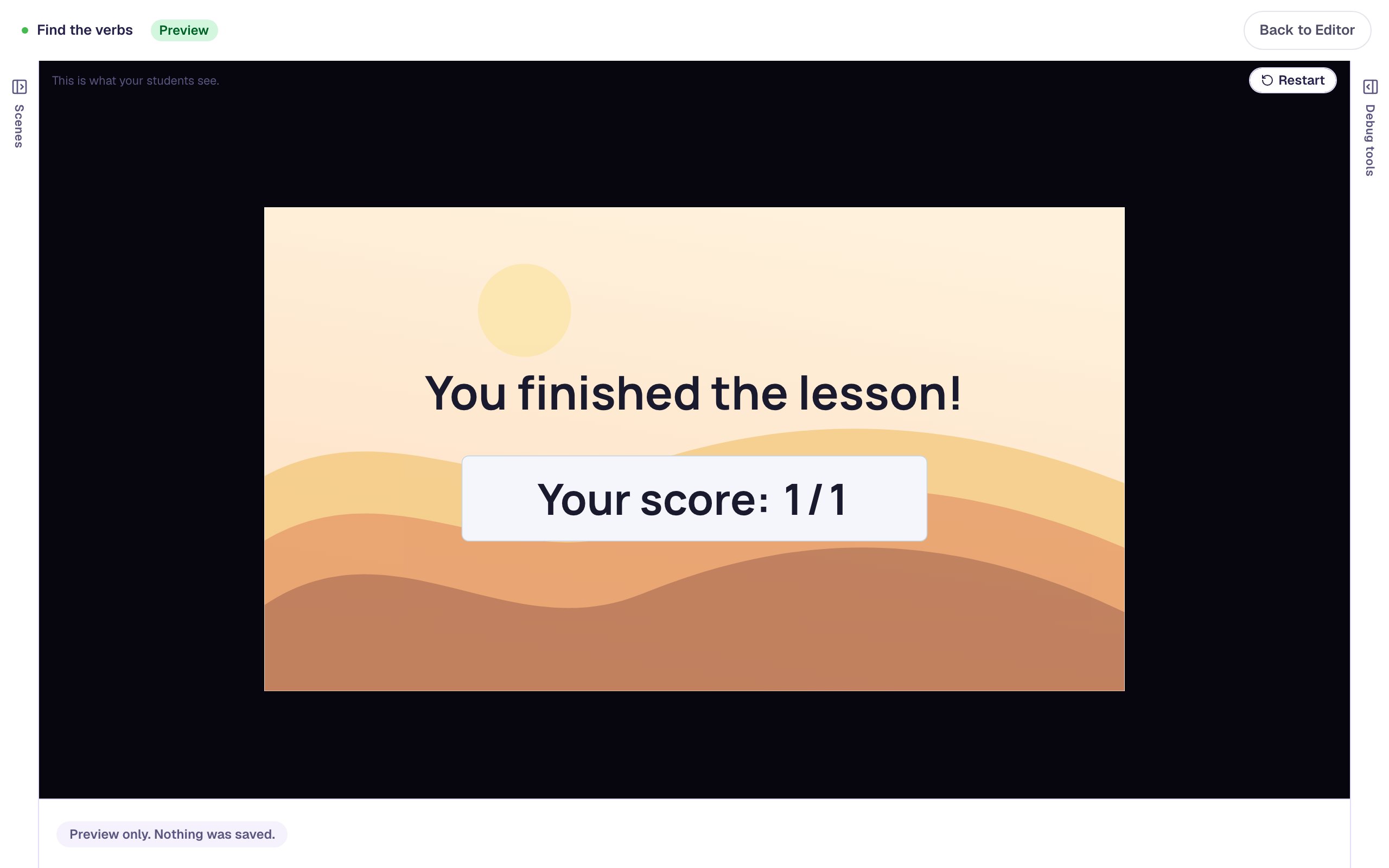
The score is 1 out of 1, even though the student made a mistake along the way. Nothing is checked until the highlights are right, so a fixed mistake costs nothing. That's the point of this kind of question: it's practice with a coach beside the student, not a test.
What you built
A grammar task that coaches students while they work:
- a Highlighter with the three verbs marked as correct,
- a tip whose Visibility is Hidden when the scene starts,
- an On Wrong Selected behavior that runs Widget Method → Show on the tip, and an On Wrong Cleared behavior that runs Hide,
- confetti when students pick all the right answers, the scene set to Stay, and a Next button that shows when the Highlighter Is correct.
Before you publish, Berdee needs a Submit button set to Lesson somewhere in the lesson; the yellow 1 validation issue pill at the top says so. Build your first quiz question shows where it goes.
The same two behaviors work on a Matching activity and a Drop Bucket: show a tip when a pair or a drop is wrong, and hide it once it's fixed. To show a hint only after a student has missed twice, see Show a hint after two wrong tries.
Make this lesson yours
Add the lesson you just watched being built to your account, then change it for your class: your questions, your pictures, your colors.
Free to sign up, and you'll come straight back here. I have an account