Let students turn picture clues on and off
Give early readers a Picture clue button that shows a photo of the question's key word, and that hides it again when pressed a second time. A yes-or-no variable remembers the choice, so a student who turns clues on gets them on every question.
- Level
- Beginner
- Time
- About 15 min
- Steps
- 7
- Updated
- Oct 20, 2026
A two-question lesson where one Picture clue button shows or hides a photo clue, and the student's choice carries from the first question to the next.
Get the finished lesson
Skip straight to the result, or keep it open beside the steps. Add this tutorial's lesson to your account and explore how it works in the studio.
Free to sign up, and you'll come straight back here. I have an account
Some students in your class read "ocean" and "desert" on sight. Others need a picture to know what the question is asking. A picture clue they can switch on helps the second group without making the first group wade through pictures they don't need, and it lets each student decide.
In this tutorial you'll build a short animal-homes quiz with a Picture clue button on every question. Pressing it shows a photo of the question's key word; pressing it again hides the photo. Behind the button is one yes-or-no variable, show_clues, and the Toggle Variable action, which flips it from No to Yes and back. Because a variable belongs to the whole lesson, a student who turns clues on for the first question still has them on for the second.
Add a hint students can open when they're stuck shows a hint with one button press on one scene. This tutorial adds the two things that one doesn't do: the same button hides the picture again, and the choice is remembered from scene to scene.
Step 1: Build the first question
Start a blank lesson (New lesson, then Start from scratch) and name it Animal homes. On the Opening Scene, add a title (Animal homes), a line that tells students about the button (Stuck on a word? Press Picture clue to see it.), and a Let's go button made with Make this a "Next" button. Then open the Scenes tab, click Add scene, and rename the new scene Ocean.
On Ocean:
- Open Background, choose Choose a style, and pick Lagoon gradient. Give the Opening Scene and the Closing Scene the same background, so no scene is plain white.
- Add a navy Heading that says
Which animal lives in the ocean?. Rename itQuestion(click its name at the top of the properties panel); you'll retype it on the copy later. - Add a Multi Choice and click ⚙ Configure. Type the four answers
Whale,Camel,OwlandSquirrel. The first answer starts marked correct, which is right here. Click Save, rename itAnimal, set its Font Size to30and its size to470×230, and drag it to the left half of the scene. - Add a small Submit Button in the bottom-left corner with Label
I'm doneand Submits set to Lesson. Every lesson needs one way to finish early, or it can't be published.
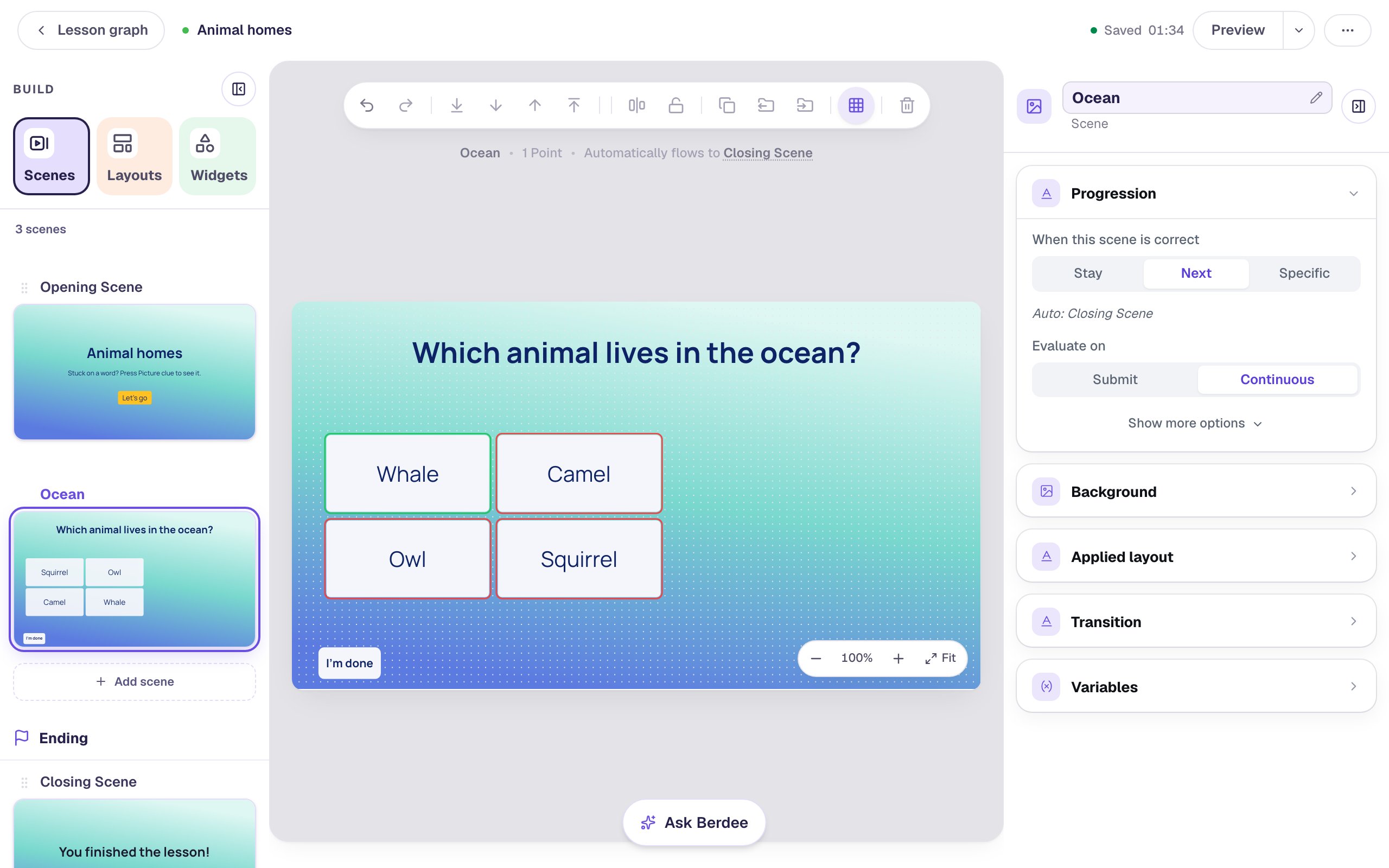
The scene's Progression is Next with Evaluate on set to Continuous, the defaults, so a right answer moves the student on by itself. Answers are shuffled in Preview, because Randomize Order starts on.
Step 2: Add the picture clue
Add an Image, rename it Clue picture, and set it to 340 × 240 in Style & Layout. Drag it into the empty right half, above where the button will go.
- Under Image Source, click Open Media Library, search the stock photos for
blue ocean waves, and pick a photo of the sea. - Set Fit to Cover so the photo fills its frame, and raise Border radius to soften the corners.
- Open Accessibility and describe the photo in Alt Text:
Turquoise ocean waves with frothy white foam. A student using a screen reader gets the clue from this description, so say what the photo shows rather than its file name.
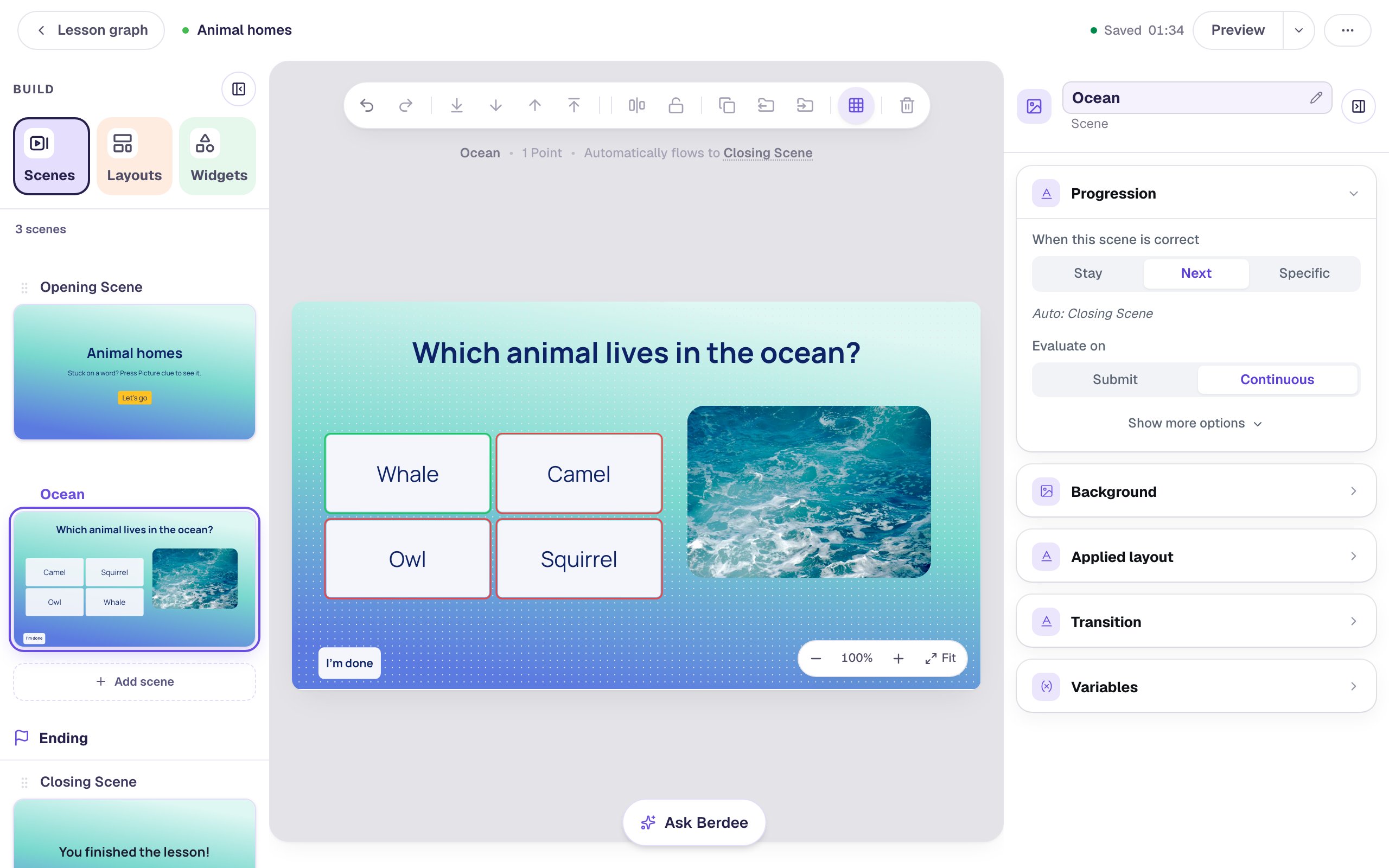
Choose a photo that shows the word, not the answer. A picture of the ocean helps a student read "ocean"; a picture of a whale would answer the question for them.
Step 3: Create a yes-or-no variable
A variable is a named place where the lesson keeps a value while a student works. This one remembers a single thing: does this student want picture clues? That's a yes-or-no question, so it gets a Yes or No variable.
- Click ⋯ (More lesson options) at the top right of the studio and choose Variables.
- Click New variable, then Yes or No.
- Leave Should it start as Yes or No? on No, so clues start hidden.
- Under What is this variable called?, type
show_clues.
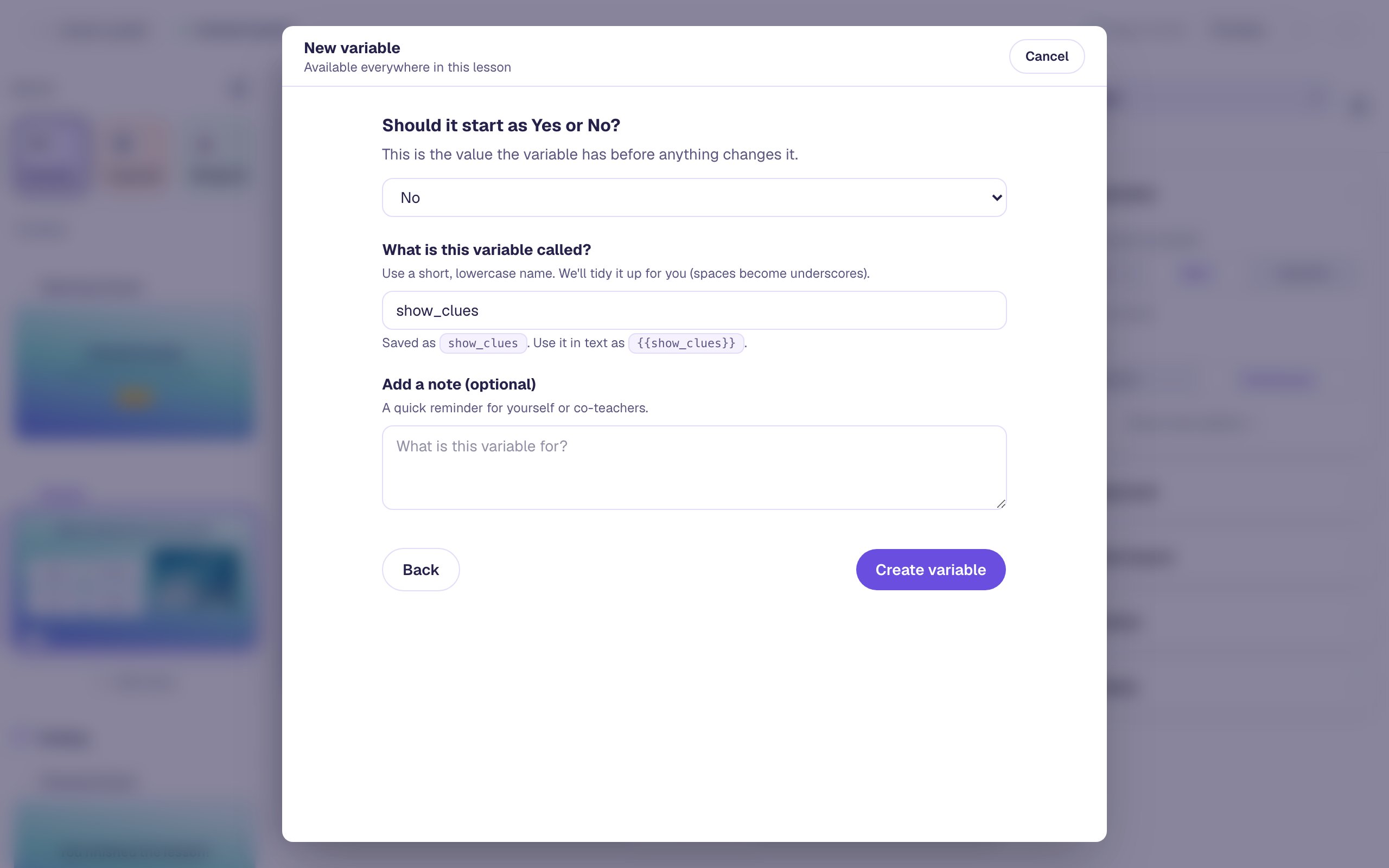
Click Create variable, then close the dialog.
If you'd rather every student starts with clues showing (in a kindergarten class, say), start it on Yes instead. Nothing else in the tutorial changes.
Step 4: Show the picture only while the variable is Yes
Now tie the photo to the variable, so it shows only for students who have switched clues on.
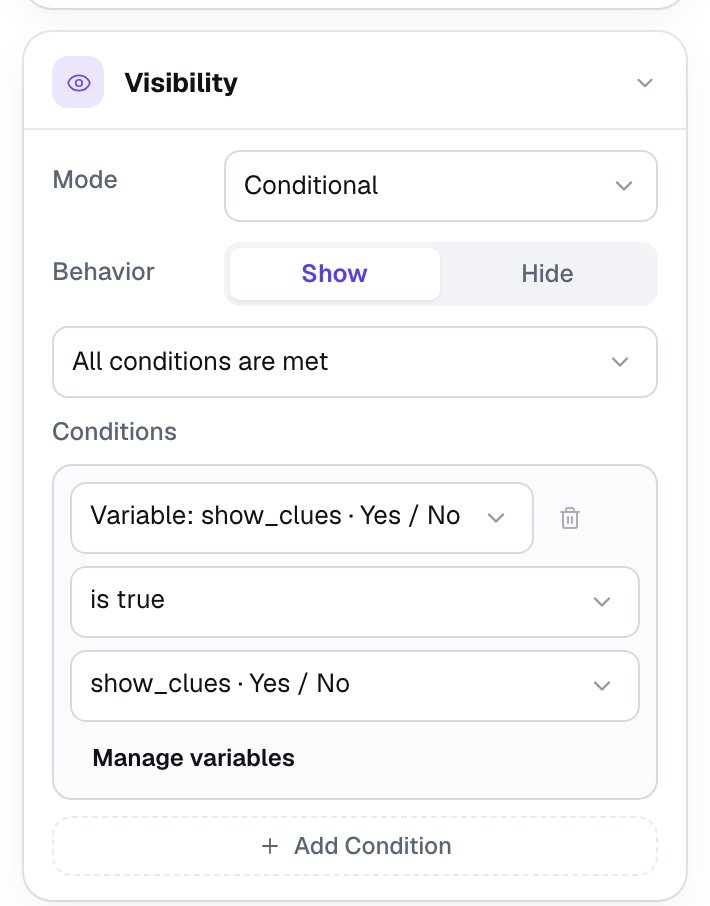
Select the photo and open Visibility:
- Change Mode to Conditional. Behavior stays on Show.
- In the condition, pick Variable: show_clues, then is true.
The box under is true names the variable again; leave it as it is.
The photo stays on the canvas in the studio, with a small Shown by rule tag, so you can still select and edit it. In Preview, and for students, it's hidden until show_clues is Yes.
Step 5: Make one button that flips it
Add a Button, click ⚙ Configure, set its Label to Picture clue, and click Save. Rename it Picture clue, give it a yellow Background with navy Text, and drag it under the photo.
With the button selected, open Behaviors, click Add Behavior, and choose On Press. Then change the action to Toggle Variable and pick show_clues.
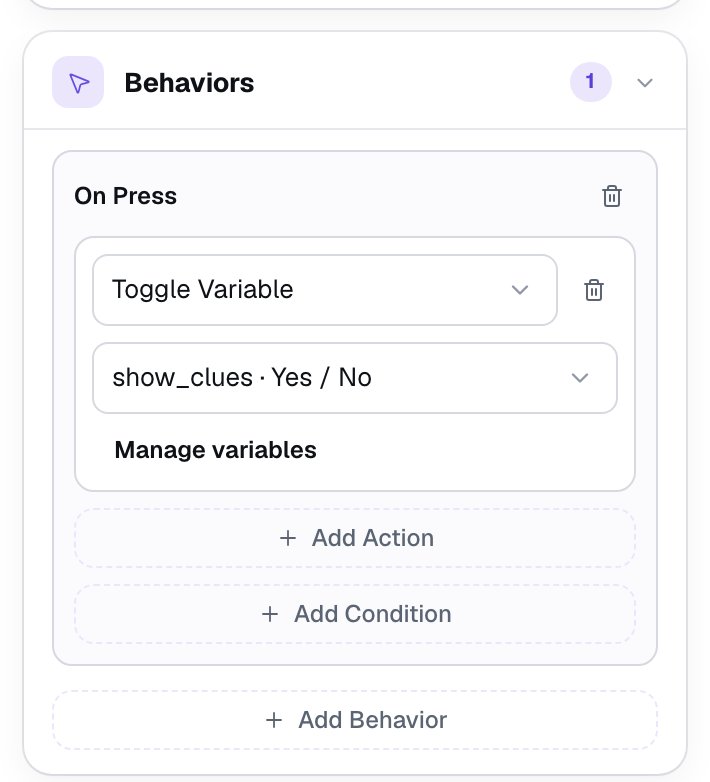
Toggle Variable turns a Yes into a No and a No into a Yes, so the first press shows the photo and the next press hides it. Set Variable to Yes would show the photo but leave no way to hide it again; toggling gives students both.
Step 6: Copy the scene for a second question
The second question is the same scene with different words, so copy it rather than building it again. In the Scenes tab, hover Ocean, click Duplicate scene, and rename the copy Desert. Then, on Desert:
- Select the heading and change it to
Which animal lives in the desert?(in the panel's Text box, or by double-clicking it on the canvas). - Select the answers, click ⚙ Configure, mark Camel correct and clear the mark on Whale, then Save.
- Select the photo and click Replace image. Search for
golden sand dunes desert blue sky, pick a photo of dunes, and set its Alt Text toGolden sand dunes in a desert under a blue sky. Replace image keeps the old picture's description, so always type a new one.
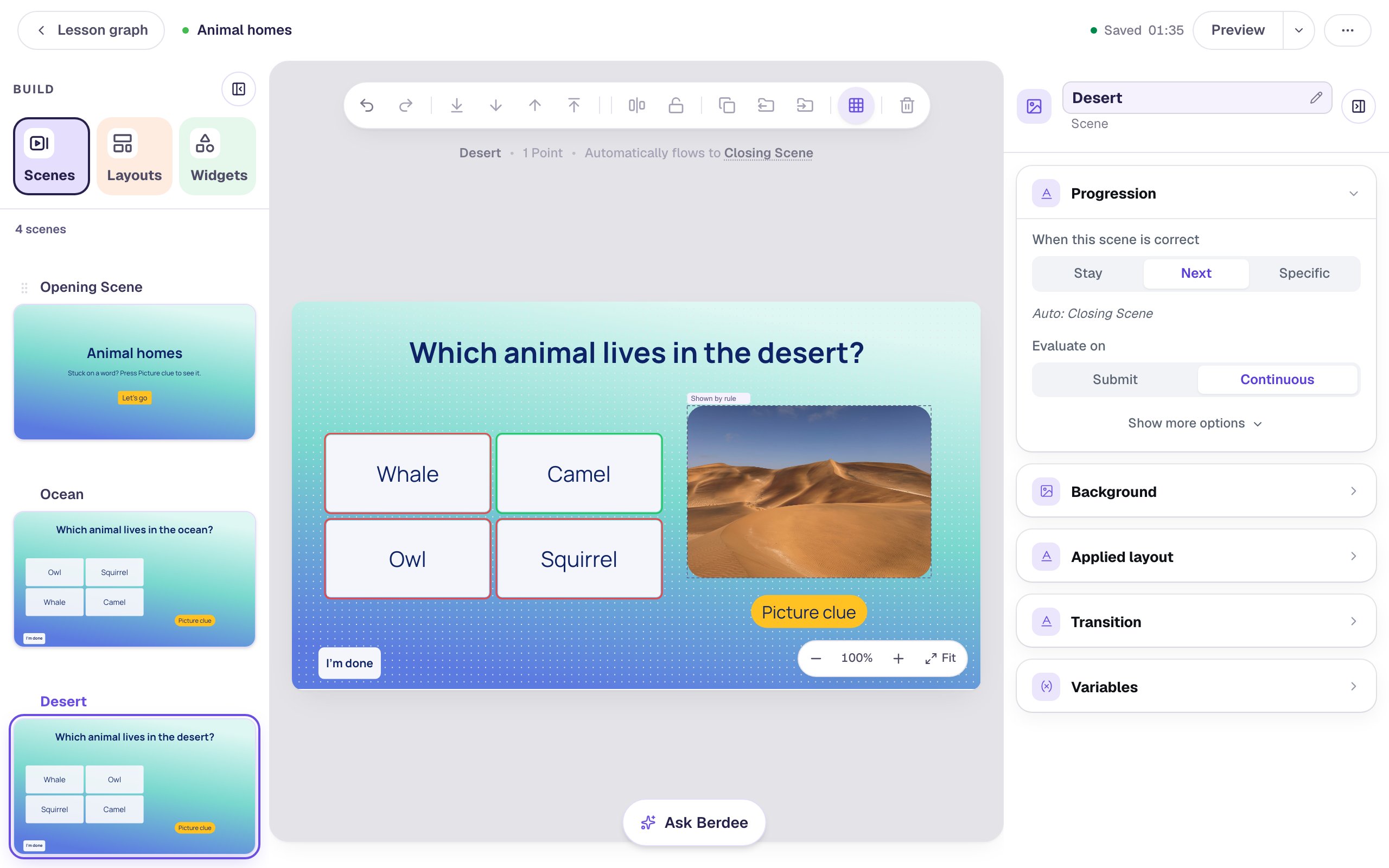
You didn't have to set anything up again. The copy kept the photo's visibility rule and the button's Toggle Variable action, and both point at the same show_clues variable. That's what makes the choice carry over: there is only one show_clues for the whole lesson.
Step 7: Try it as a student
Open the Opening Scene, since Preview starts on the scene you're editing, and click Preview. Press Let's go.
The ocean question starts with no photo, because show_clues starts on No. Press Picture clue and the photo appears:
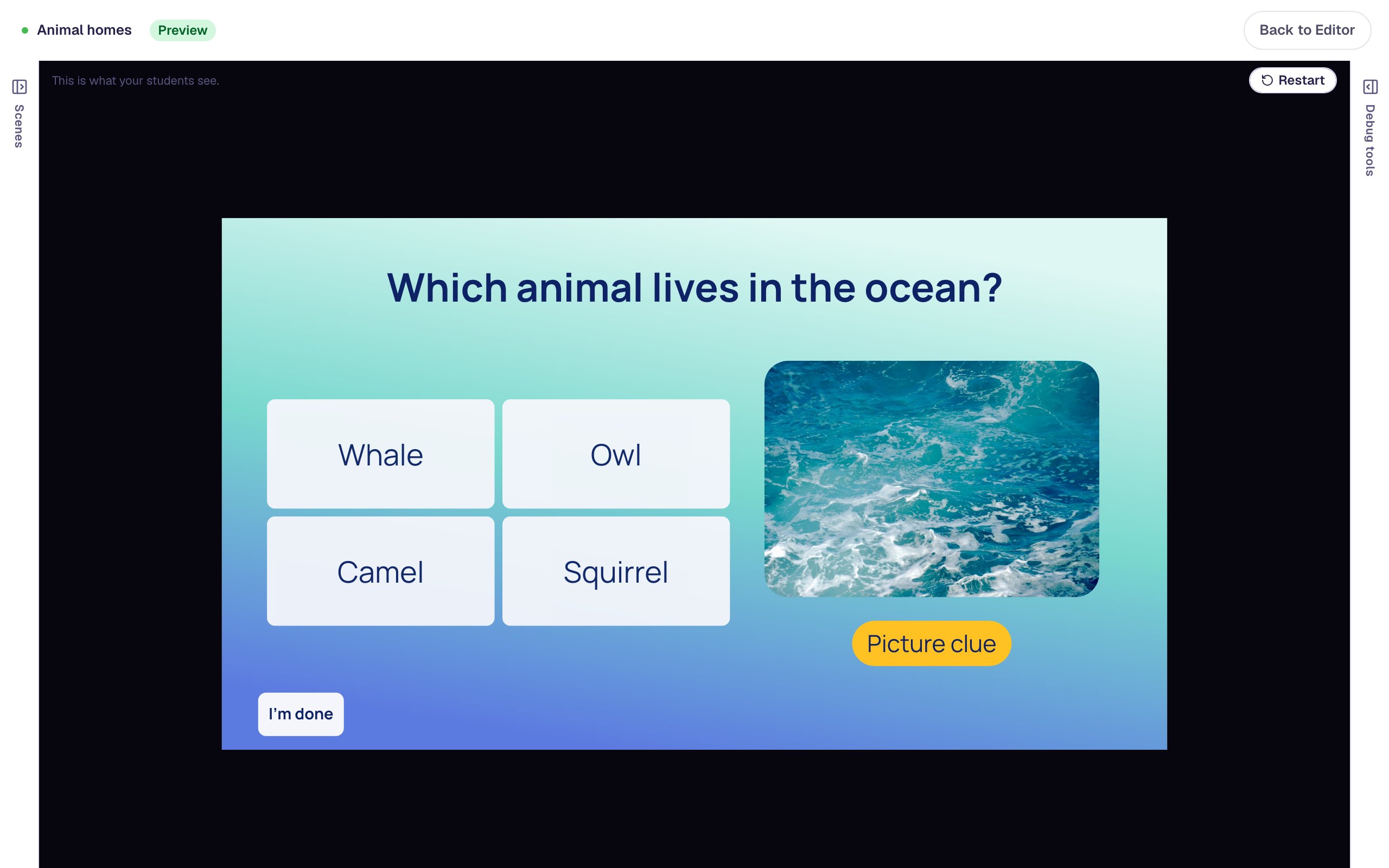
Now choose Whale. The lesson moves on to the desert question, and the clue is already showing there: the student turned clues on once, and the lesson remembered.
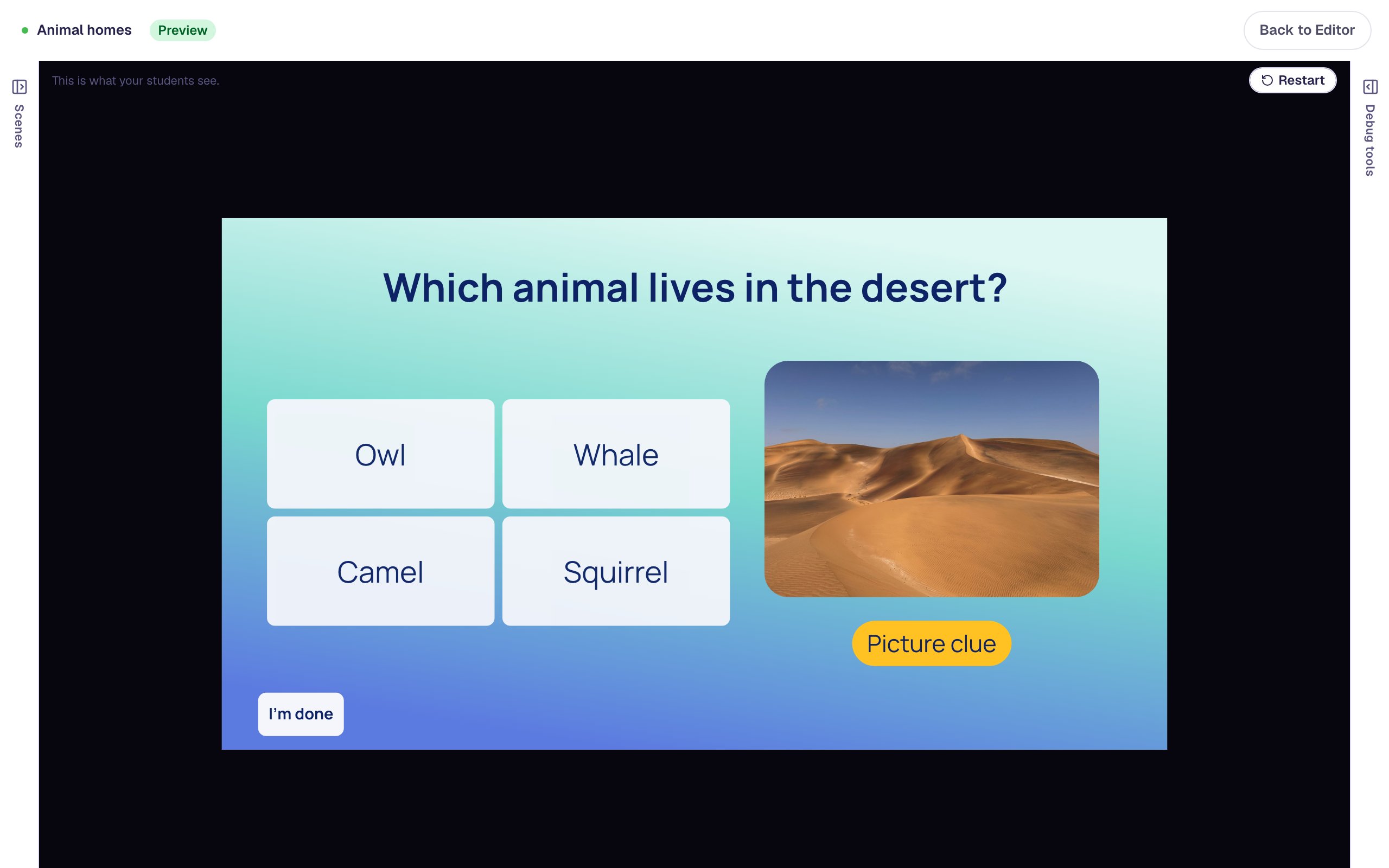
Press Picture clue again and the photo goes away:
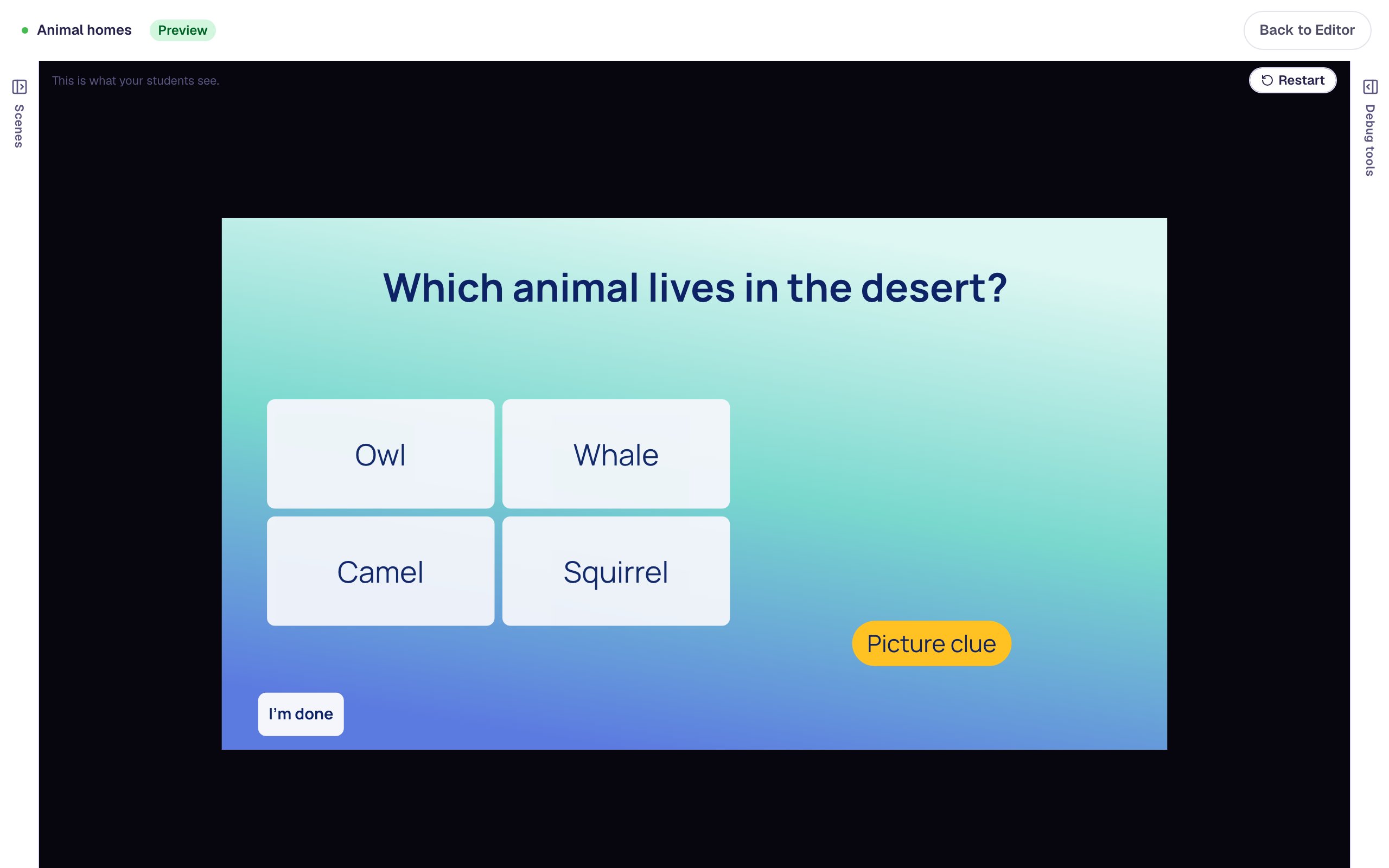
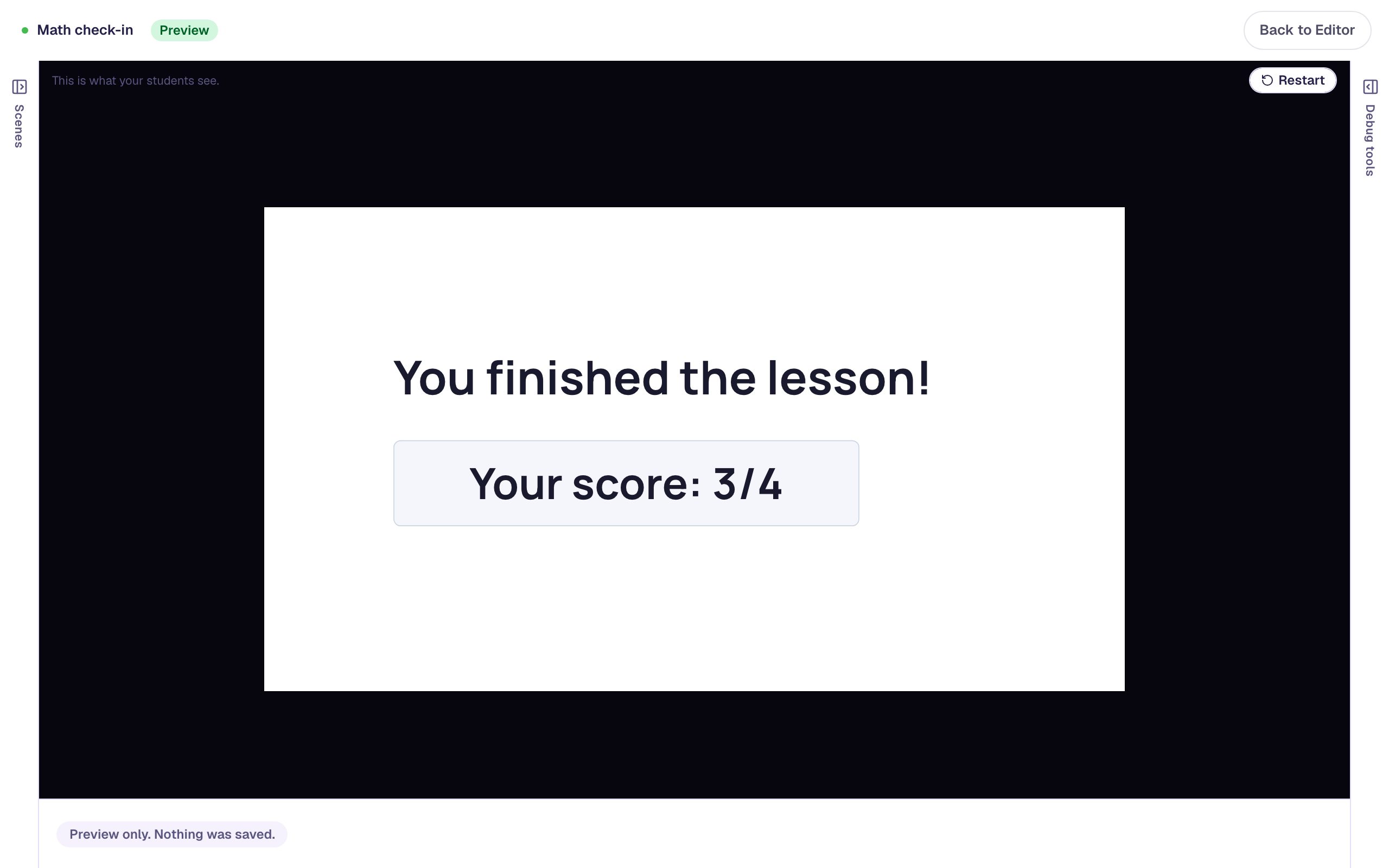
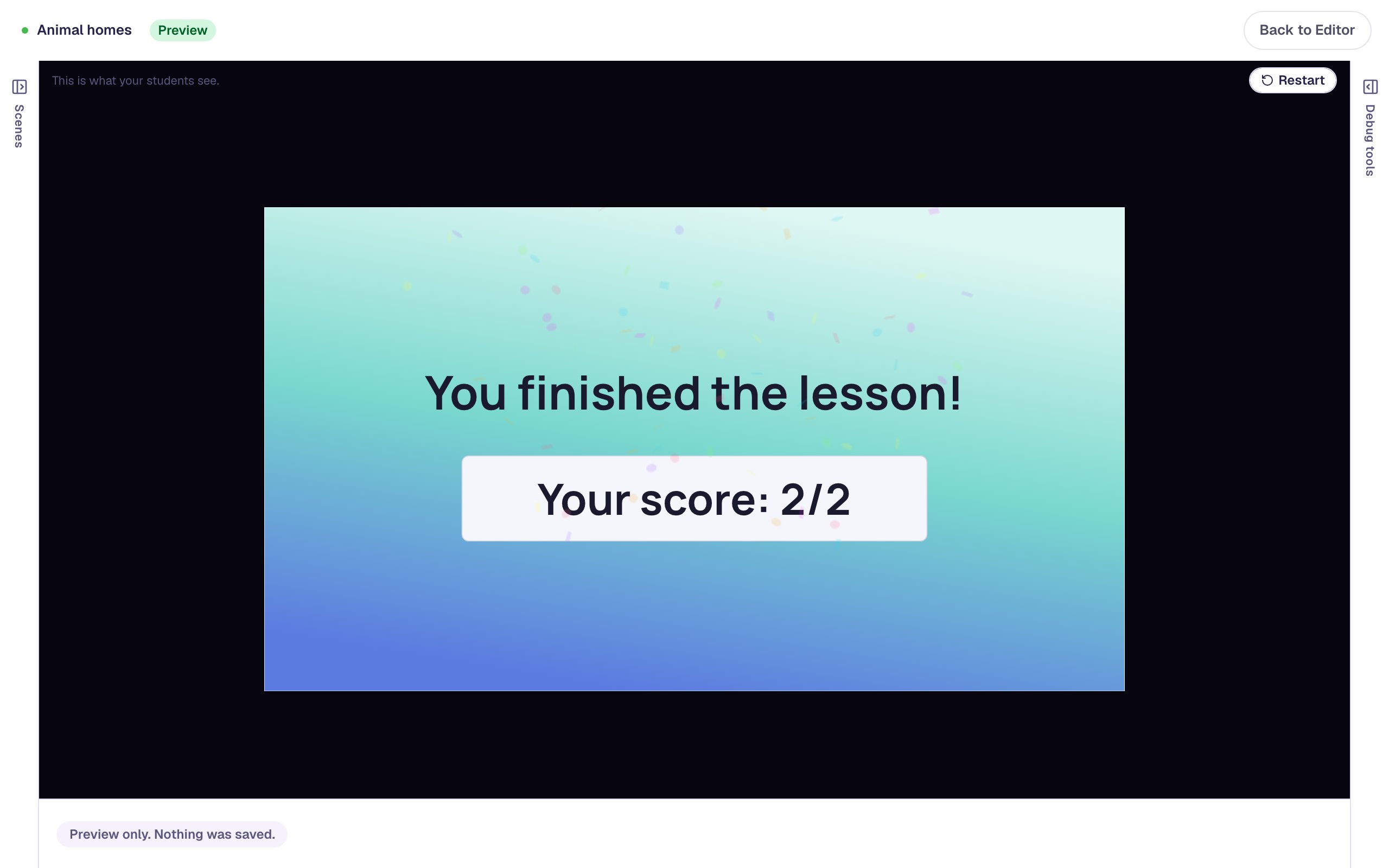
Choose Camel to finish:
If the photo doesn't appear when you press the button, check two things: the photo's condition says is true (not is false), and the button's action is Toggle Variable on show_clues. Show debug tools at the right of the preview has a Variables tab that shows whether show_clues is Yes or No right now.
What you built
An animal-homes quiz with picture support students control:
- a Yes or No variable,
show_clues, that starts on No, - a clue photo on each question with a Conditional visibility rule, Variable: show_clues is true, and alt text that describes it,
- a Picture clue button whose On Press behavior does Toggle Variable on
show_clues, so one button both shows and hides the photo, and - a second question made with Duplicate scene, which kept the rule and the behavior, so the student's choice follows them through the lesson.
The same pattern works for any support a student can switch on and off: a word bank under a fill-in-the-blank, a read-aloud player, a times table beside a math question. Give each kind of support its own variable, so turning on the word bank doesn't also turn on the pictures. To remember a choice that's more than yes or no, see Remember a student's choice and use it later.
Make this lesson yours
Add the lesson you just watched being built to your account, then change it for your class: your questions, your pictures, your colors.
Free to sign up, and you'll come straight back here. I have an account