Show students which questions they got right
Hold every answer until the end of a three-question check-in, then give the ending one line per question, a well-done line when it's right and the correct answer when it isn't, with visibility rules that read each question.
- Level
- Intermediate
- Time
- About 20 min
- Steps
- 8
- Updated
- Oct 25, 2026
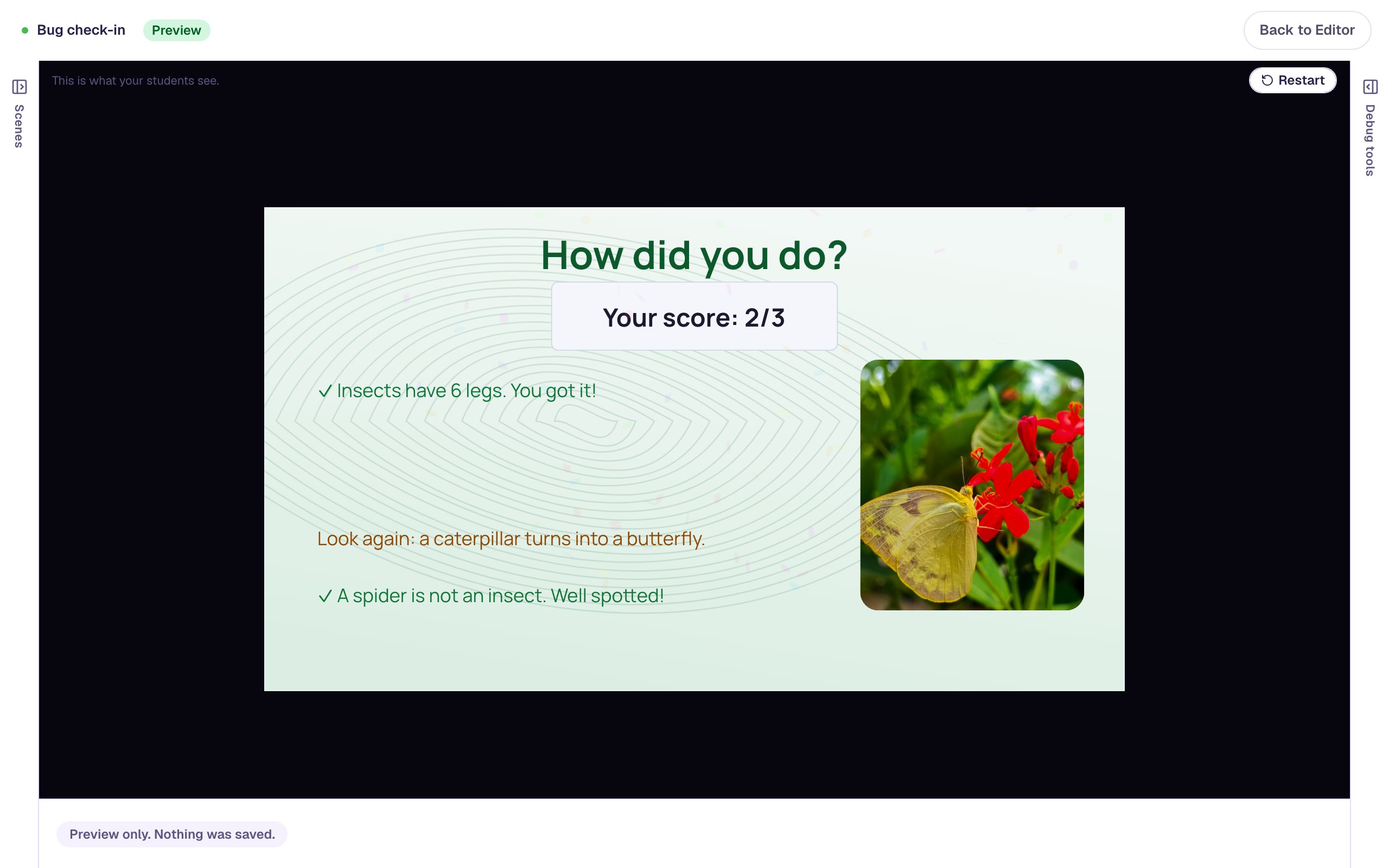
A "Bug check-in" about insects whose ending lists each of the three questions, with a tick for every right answer and the correct answer for every one a student missed or skipped.
Get the finished lesson
Skip straight to the result, or keep it open beside the steps. Add this tutorial's lesson to your account and explore how it works in the studio.
Free to sign up, and you'll come straight back here. I have an account
A score like 2/3 tells students how they did, but not what to work on. In this tutorial you'll build a three-question "Bug check-in" whose ending goes through the questions one by one: a tick and a well-done line for each one a student got right, and the right answer for each one they missed.
You'll use three things:
- question scenes set to Stay, with a Next button, so students move on whether they're right or wrong and nothing gives the answer away early,
- the ending's own score, made smaller to sit under a new headline, and
- two lines per question on the ending, each with a visibility rule that reads that question: one shown when it Is correct, one when it Is incorrect.
Step 1: Set up the title scene and the first question
Start a blank lesson (New lesson, then Start from scratch) and call it Bug check-in. On the Opening Scene, click an empty spot, open Background, click Choose a style, open Patterns and apply Quiet topography. Add a Heading Bug check-in, a butterfly photo from Open Media Library (give it the Alt Text A butterfly resting on bright garden flowers), a line of Body text, Three quick questions about insects. You'll see how you did at the end., and a Button labelled Start with an orange Background. Rename the button Start.
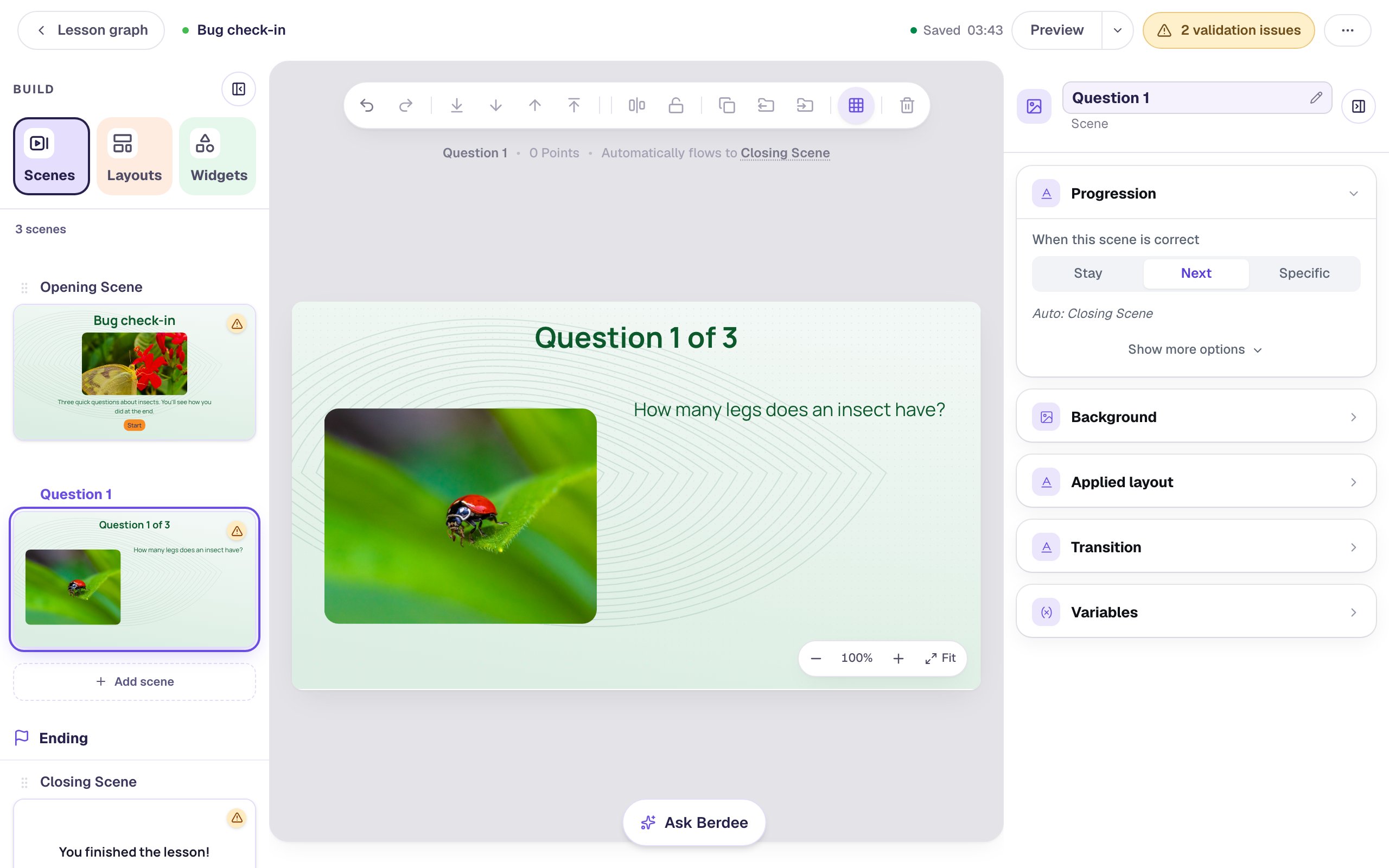
Then open Scenes, click Add scene and rename the new scene Question 1. Give it the same background and add:
- A Heading at the top:
Question 1 of 3. - An Image on the left,
380wide and300tall. Search forladybug on leaf, set Fit to Cover and Border Radius to20, and give it the Alt TextA red ladybug with black spots on a green leaf. - A Body on the right:
How many legs does an insect have?Set it to Fixed width, Width480, and Font Size26, so it fits on one line.
Step 2: Add the answers and hold them until the end
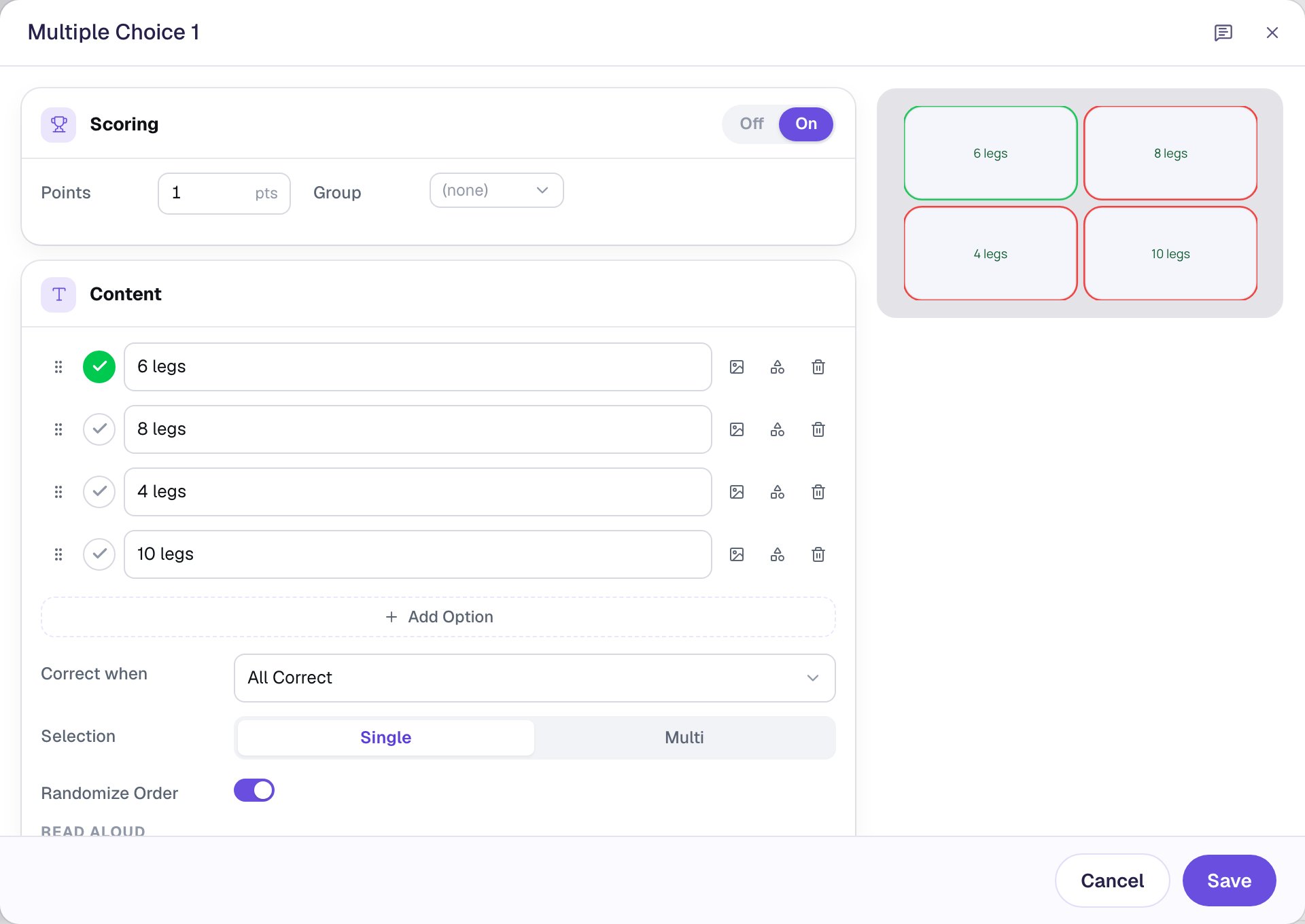
Search Widgets for Multi Choice and click it. Click ⚙ Configure above it and type the four answers: 6 legs, 8 legs, 4 legs, 10 legs. The first option starts ticked, and 6 legs is the right answer, so leave the tick where it is. Scoring is already On. Click Save.
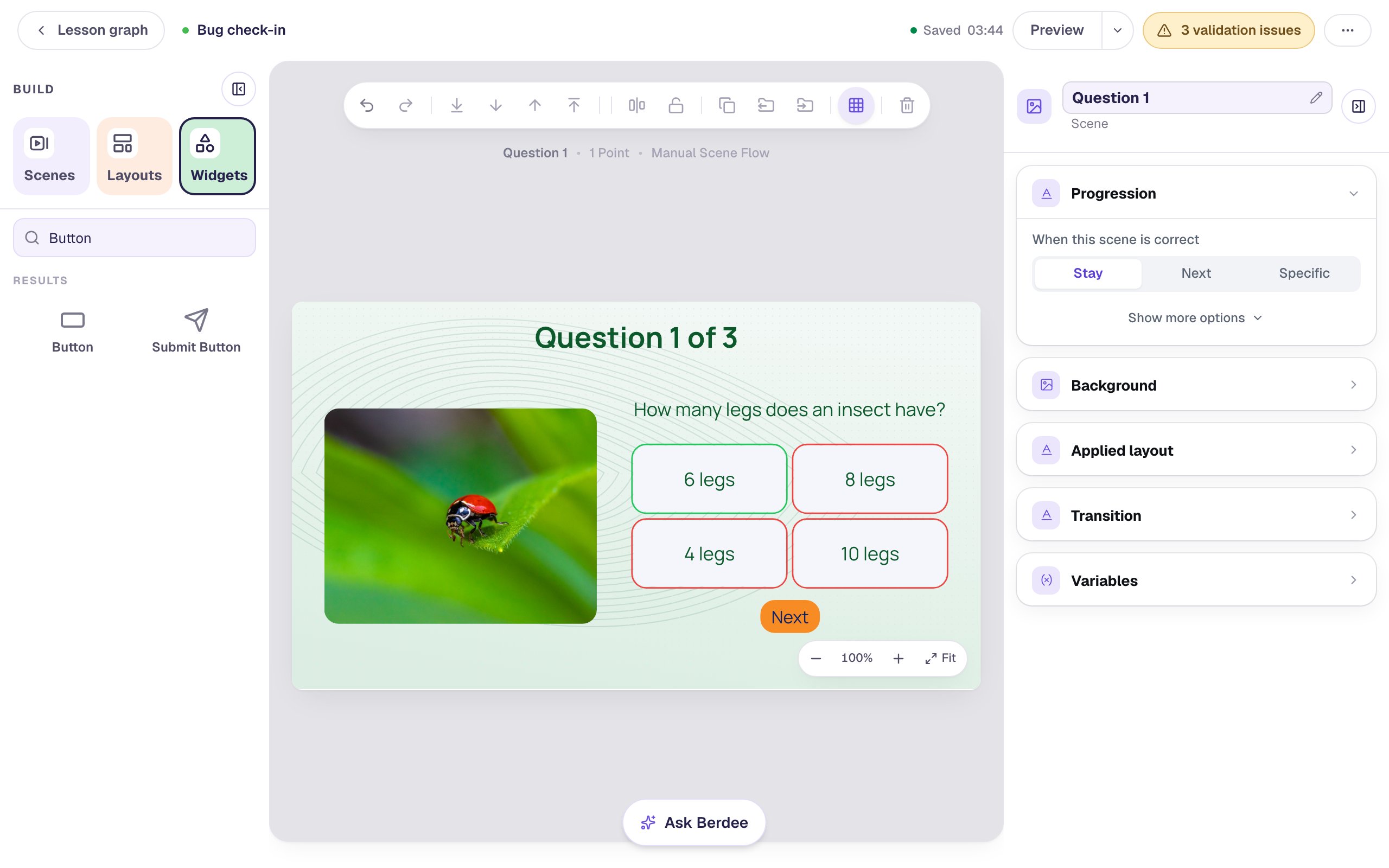
Rename the widget Legs at the top of the properties panel. The ending's rules pick each question from a list by its name, and Legs is easier to find there than Multiple Choice 1. Set its Font Size to 26, its Width to 440 and Height to 200, and drag it under the question.
Add a Button labelled Next with an orange Background under the answers, and rename it Next. You'll tell it where to go in Step 4, once the other questions exist.
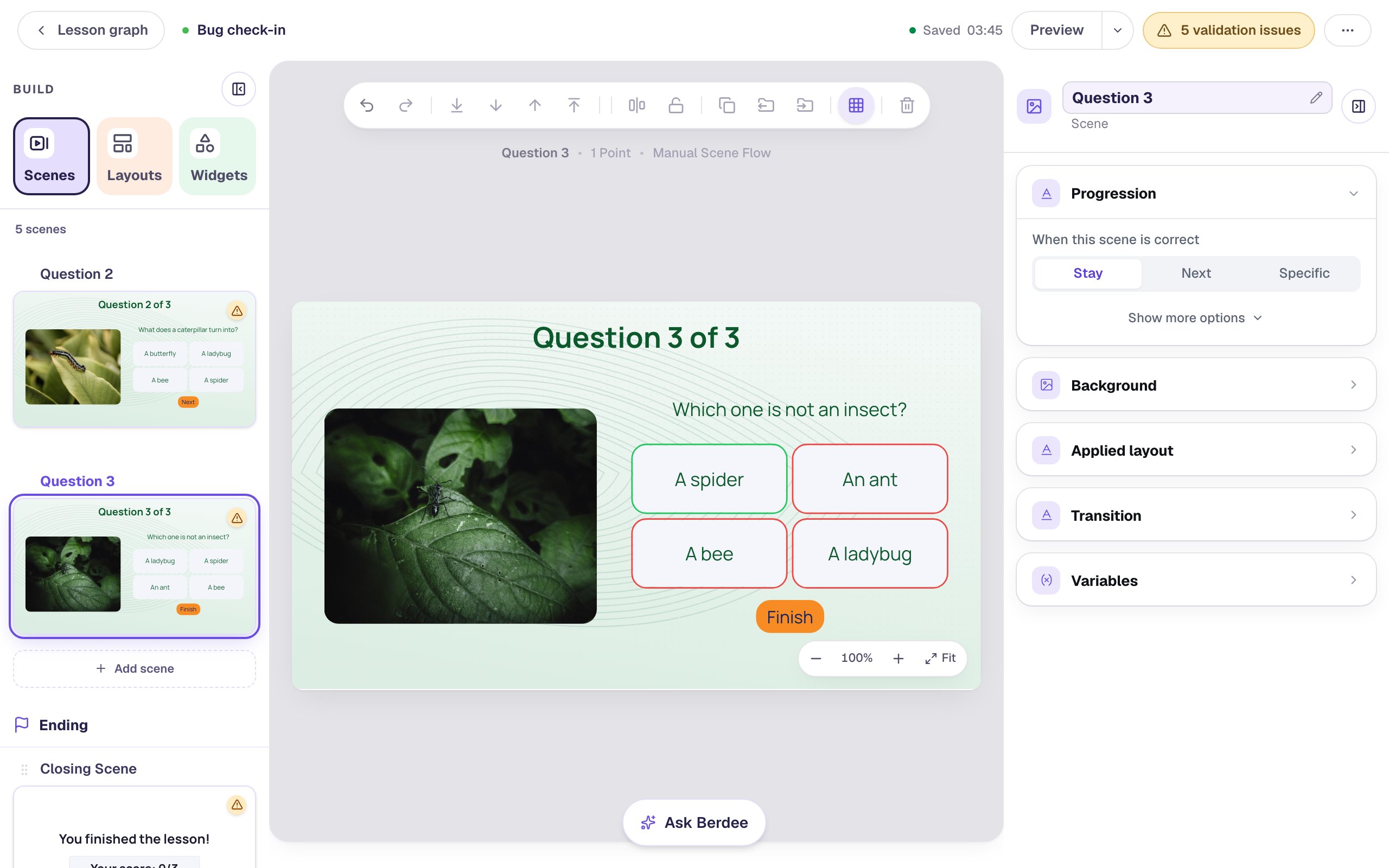
Now click an empty spot on the scene, and in Progression change When this scene is correct from Next to Stay.
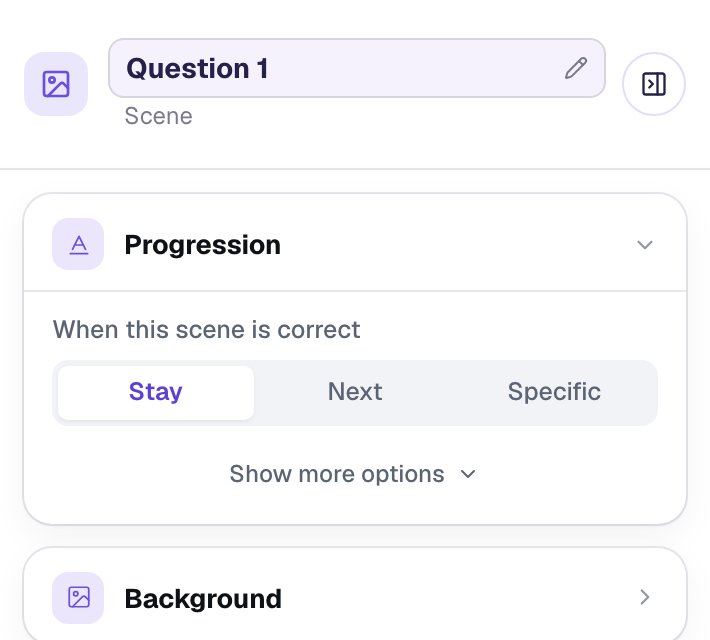
This is what keeps the answers secret. On Next, the scene moves on the moment a student picks the right answer, and waits when they pick a wrong one, so they'd know straight away which it was and could keep trying until it moved. On Stay, every student taps Next to go on, right or wrong, and finds out at the end.
Step 3: Copy the scene for questions 2 and 3
In Scenes, hover Question 1 and click Duplicate scene. The copy is called Question 2. Duplicate Question 2 the same way to make Question 3. Each copy keeps the background, the layout, Stay and the button, so you only change what the question says:
| Scene | Heading | Question | Photo search and Alt Text | Answers (first one right) | Name |
|---|---|---|---|---|---|
| Question 2 | Question 2 of 3 | What does a caterpillar turn into? | caterpillar on leaf, A caterpillar crawling along a green leaf | A butterfly, A bee, A ladybug, A spider | Caterpillar |
| Question 3 | Question 3 of 3 | Which one is not an insect? | ant on leaf, A black ant walking on a green leaf | A spider, An ant, A bee, A ladybug | Not an insect |
To change a photo, select it and click Replace image above it, then set its Alt Text again: a replaced picture keeps the old description. The copied question keeps the name Legs, so rename each one as you go.
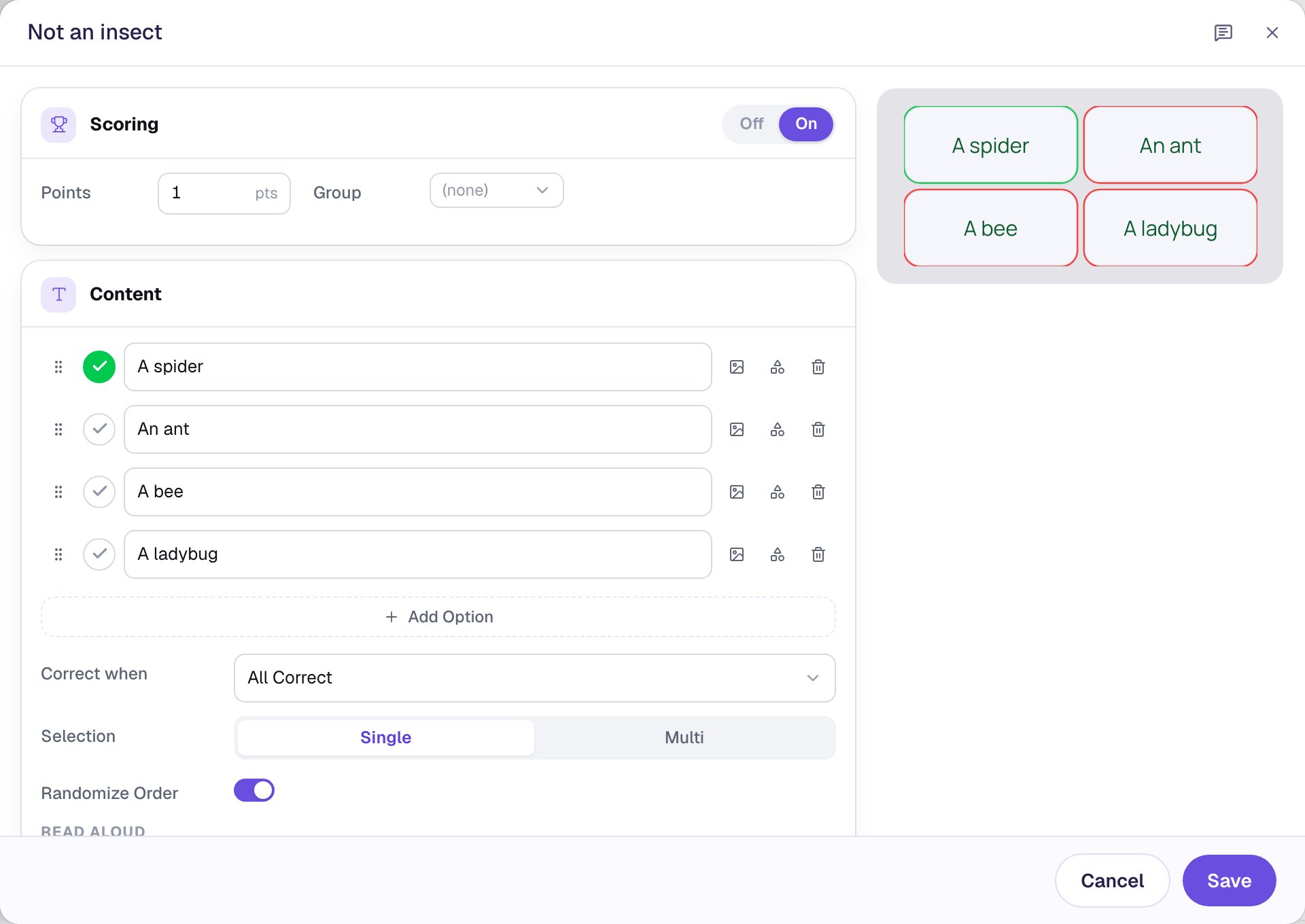
On Question 3, change the button's Label to Finish and rename it Finish: it's the last question.
Step 4: Send each button to the next scene
Now that every scene exists, point each button at the scene after it. Select the Start button on the Opening Scene, click Behaviors above it, choose Make this a "Next" button and click Add behavior. Do the same for the Next buttons on Question 1 and Question 2, and for Finish on Question 3. Each time, check Goes to before you click Add behavior:
| Button | Goes to |
|---|---|
| Start (Opening Scene) | Question 1 |
| Next (Question 1) | Question 2 |
| Next (Question 2) | Question 3 |
| Finish (Question 3) | Closing Scene |
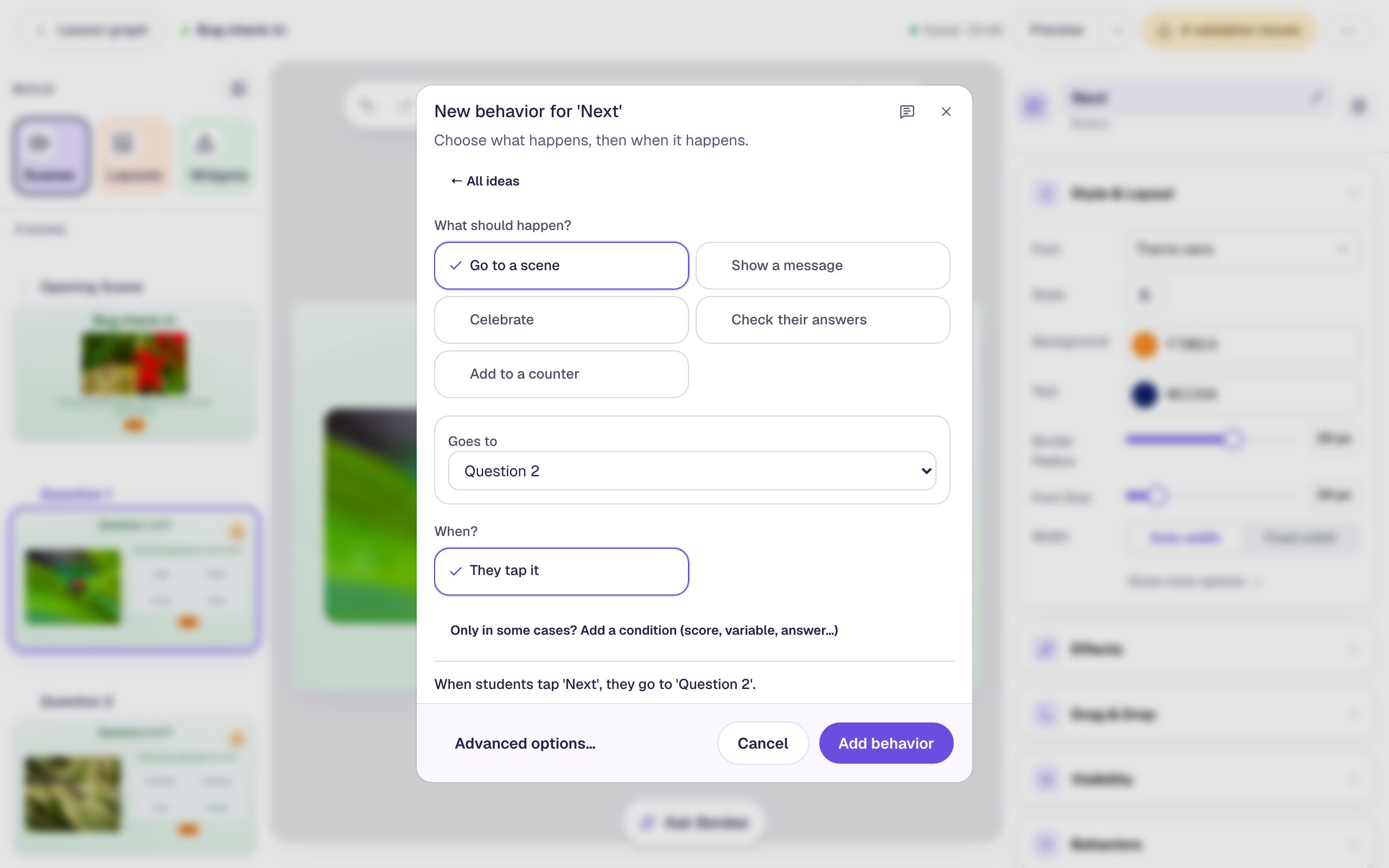
A Next button remembers the scene it points at when you make it. That's why this step comes after the copies: a button made on Question 1 before Question 2 existed would point at the ending, and so would its copies.
Step 5: Make room on the ending
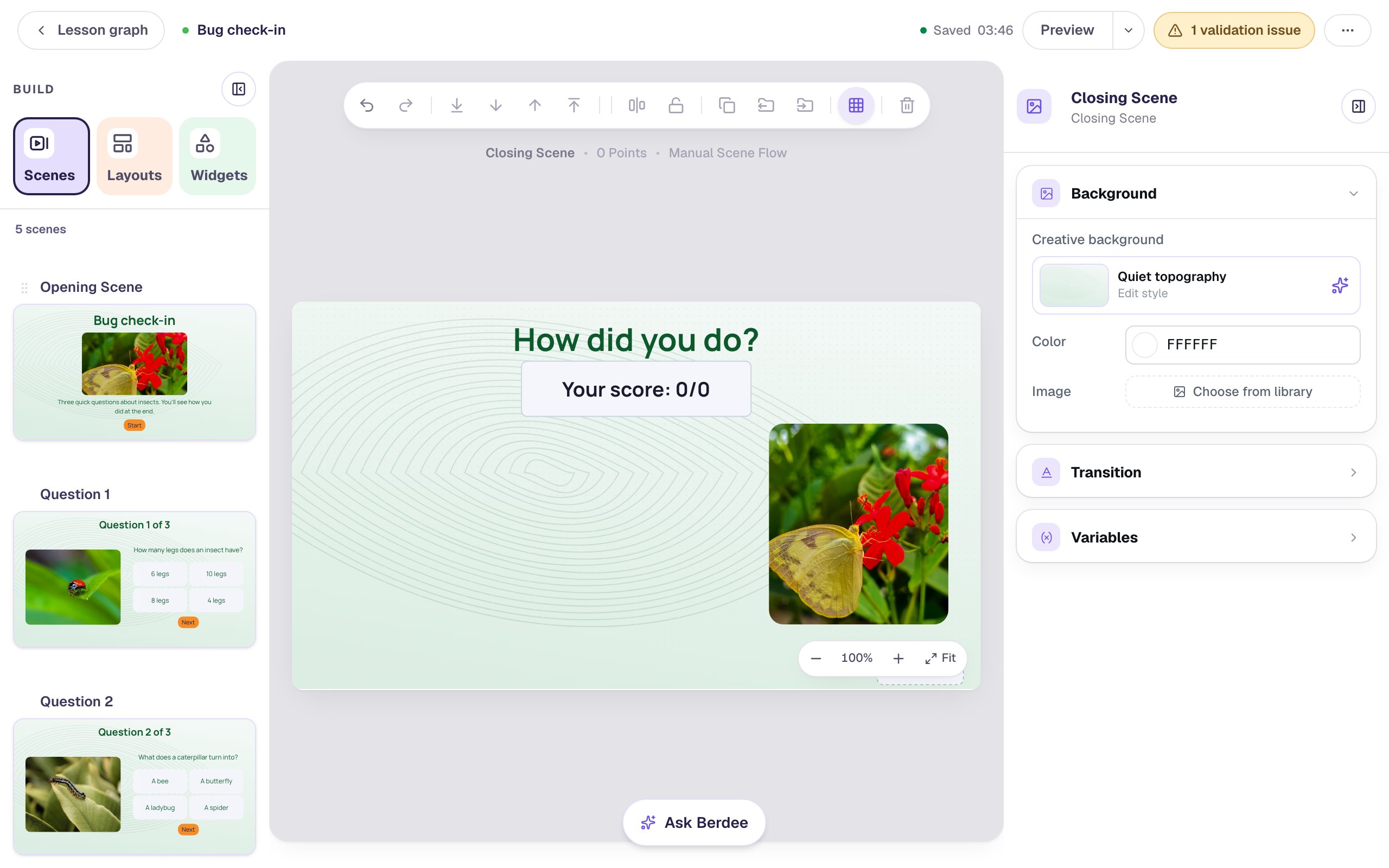
Open the Closing Scene from the Ending section of Scenes and give it the same background. Berdee already put three things on it: a headline, the student's score, and a hidden celebration timer (the dashed box). Rearrange them so the review has room:
- Double-click the headline, type
How did you do?, and drag it to the top. Set its Font Size to44. - Select the score, set its Font Size to
28and its Width to320, and drag it under the headline. It starts much larger: at that size a narrow box cutsYour score: 2/3short. - Drag the dashed celebration timer into the bottom-right corner. Students never see it, but in the studio it would sit on top of the review.
- Add the butterfly photo on the right,
250wide and280tall. Search forbutterfly on floweragain: the photo you used on the title scene comes up, already in your library.
Step 6: Add the two lines for question 1
Each question gets two lines on the ending, one above the other. Students see only one of them.
Add a Body: ✓ Insects have 6 legs. You got it! Set it to Fixed width 560, Font Size 21, Align left, and a green Text Color, and drag it under the score on the left. Then open Visibility:
- Change Mode to Conditional. Behavior stays on Show.
- In the condition, pick Multiple Choice: Legs, then Is correct.
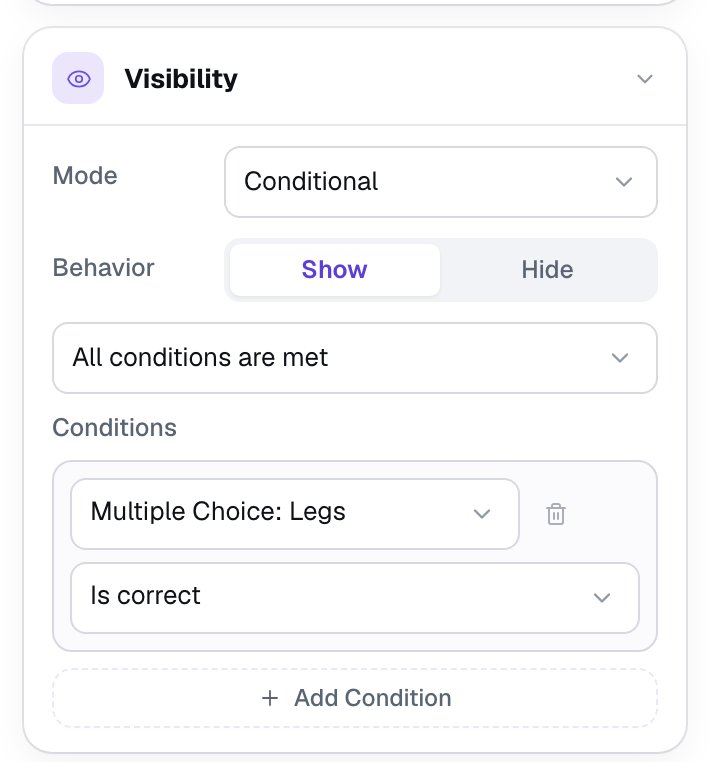
Rules can read a question on any scene, so the ending can ask about Legs even though it's on Question 1.
Add a second Body under the first, with the same settings but a brown Text Color: Look again: insects have 6 legs, 3 on each side. Give it the same rule, but choose Is incorrect. That choice appears in the list once you've picked Is correct, so pick Is correct first and then change it.
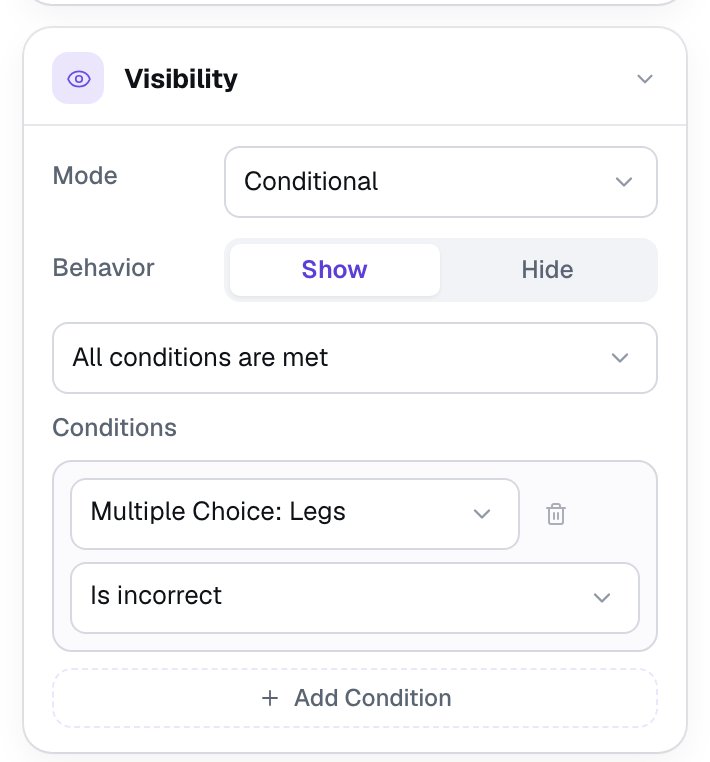
Is incorrect means "not correct", and that includes a question the student skipped by tapping Next without answering. So every student sees exactly one of the two lines.
Leave a little space between the two lines. Each one has a Shown by rule tag above it in the studio, and the tag of the lower line covers the line above if they touch.
Step 7: Do the same for questions 2 and 3
Add two more pairs of lines under the first, the same way. Use Is correct for the green line and Is incorrect for the brown one, and pick that row's question in each rule:
| Question | Green line (Is correct) | Brown line (Is incorrect) |
|---|---|---|
| Caterpillar | ✓ A caterpillar turns into a butterfly. Yes! | Look again: a caterpillar turns into a butterfly. |
| Not an insect | ✓ A spider is not an insect. Well spotted! | Look again: a spider is not an insect. It has 8 legs. |
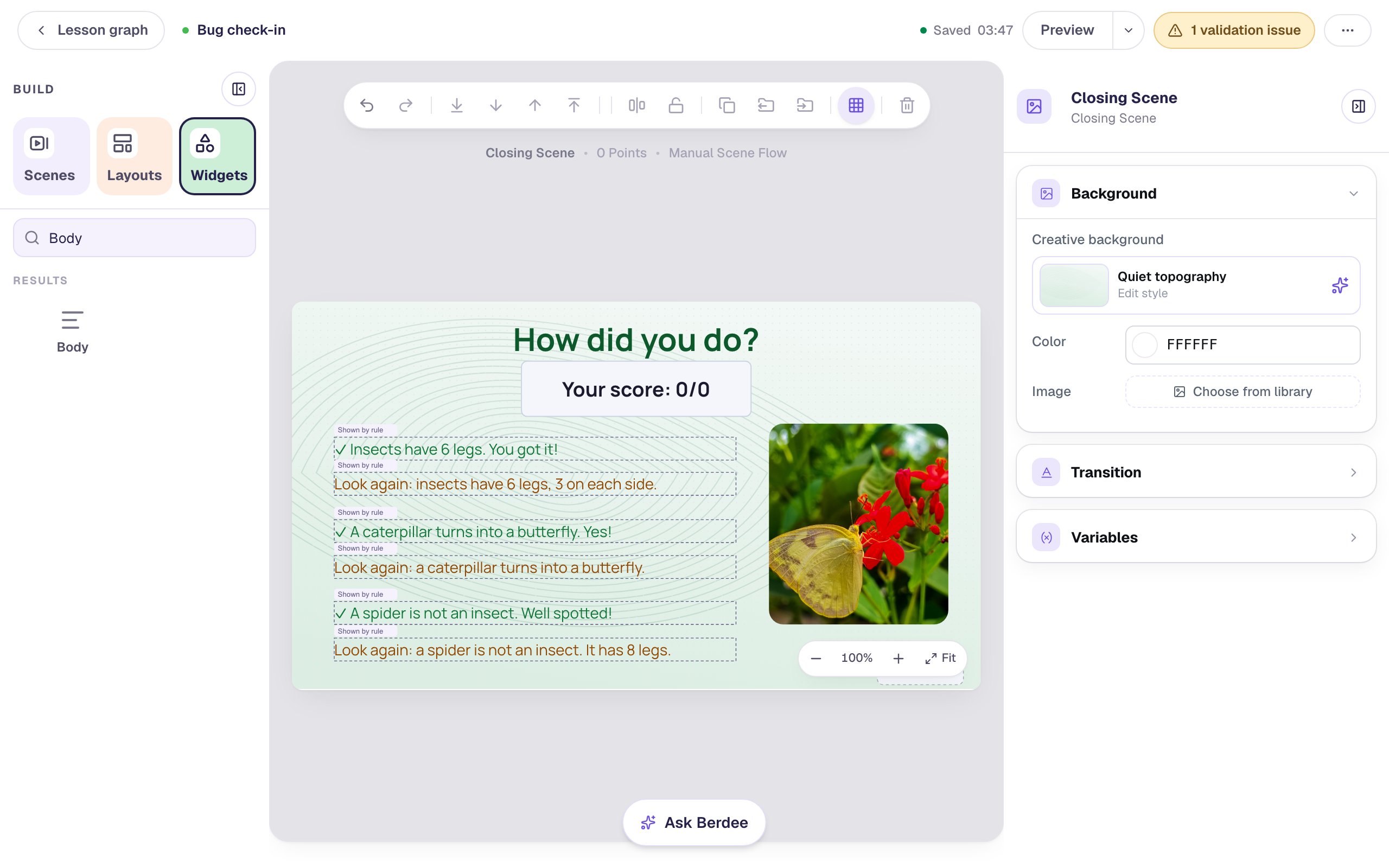
The wrong-answer line says the right answer instead of repeating the student's pick. A student who reads Look again: insects have 6 legs learns the fact; a line that only says "You got this one wrong" doesn't teach anything.
The yellow 1 validation issue pill at the top is about publishing: before you publish, Berdee needs a Submit button set to Lesson somewhere in the lesson. Build your first quiz question shows where it goes.
Step 8: Try it as a student
Go to the Opening Scene and click Preview. Press Start, then answer as a student who gets one wrong:
- On Question 1, pick 6 legs and press Next. Nothing tells you whether it was right.
- On Question 2, pick A bee and press Next.
- On Question 3, pick A spider and press Finish.
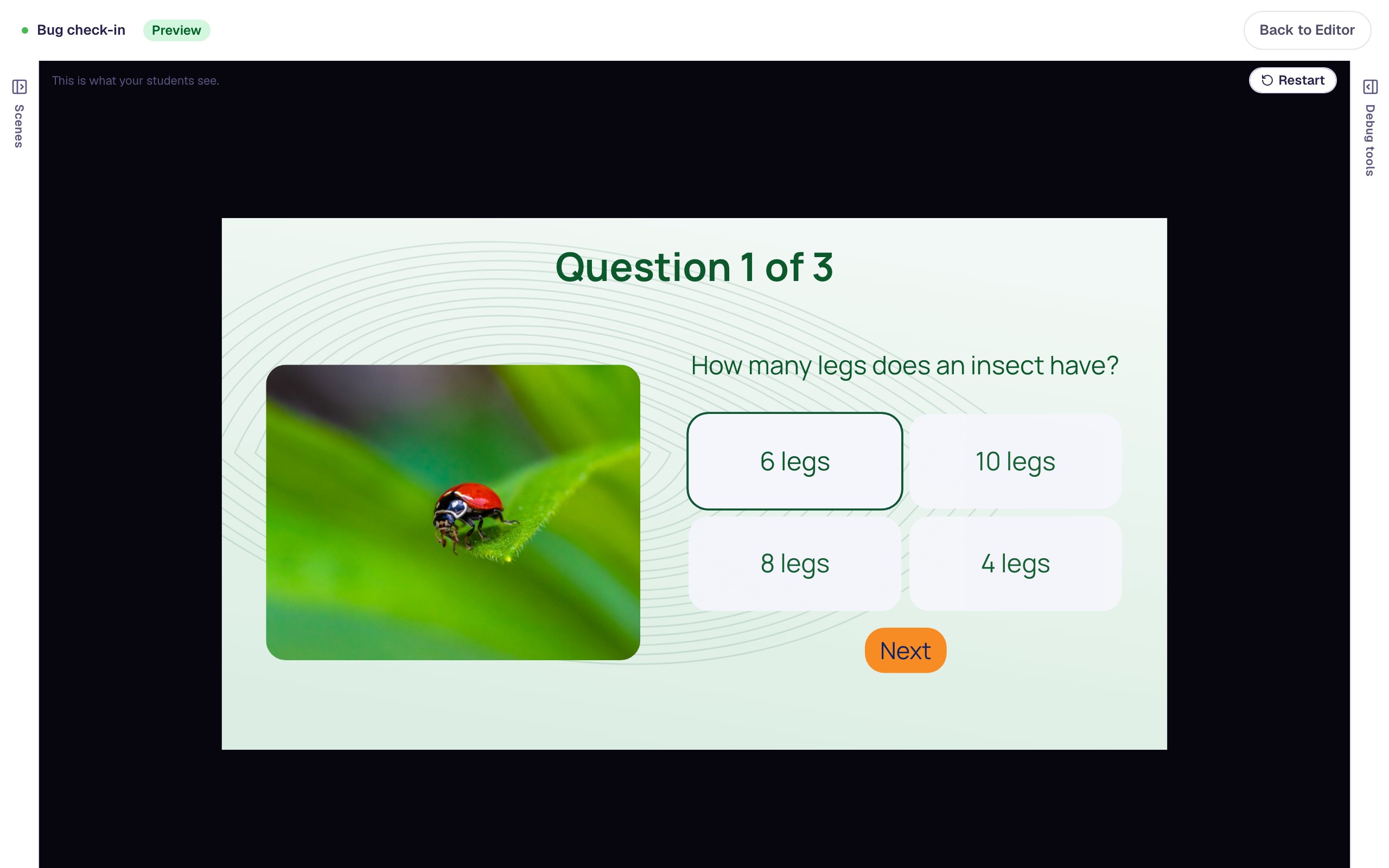
The answers can swap places between tries: a new question has Randomize Order on.
The ending shows the score and one line per question: ticks for the ladybug and spider questions, and the caterpillar answer for the one that was missed.
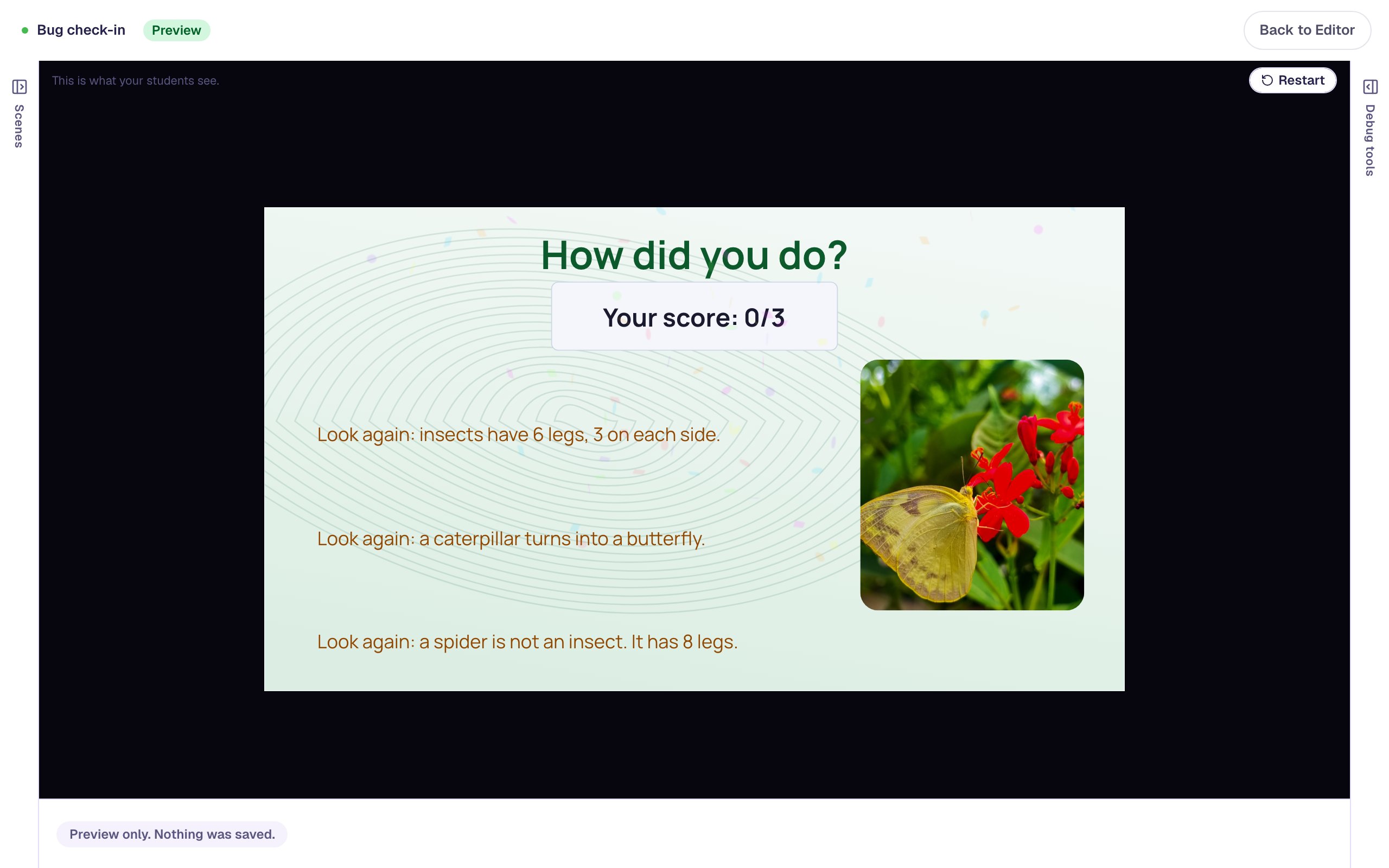
Click Restart and press Start, Next, Next and Finish without answering anything. Every question is now Is incorrect, so the ending shows all three right answers.
What you built
A three-question check-in that keeps its answers to itself until the end:
- three question scenes set to Stay, each with a Next (or Finish) button made with Make this a "Next" button, so students move on right or wrong,
- questions named Legs, Caterpillar and Not an insect, so the rules can find them, and
- an ending with the score and, for each question, a line shown when it Is correct and a line shown when it Is incorrect.
The same two lines work for any question that can be right or wrong: a number input, a fill-in-the-blank, a matching game. For a longer quiz, keep each pair short and give the ending a second column, or split the review over two ending lines per row. To make the whole ending change with the score instead, with confetti only for high scores, see Cheer a high score and encourage a low one. To review by skill rather than by question, see Score each skill separately with grading groups.
Make this lesson yours
Add the lesson you just watched being built to your account, then change it for your class: your questions, your pictures, your colors.
Free to sign up, and you'll come straight back here. I have an account