Make a character talk with a speech bubble
Give a photo of an animal a voice. Add a speech bubble from the Shape library, point its tail at the character, put the words on top, then copy the scene and switch the bubble to a thought bubble for what the character is thinking.
- Level
- Beginner
- Time
- About 10 min
- Steps
- 8
- Updated
- Oct 29, 2026
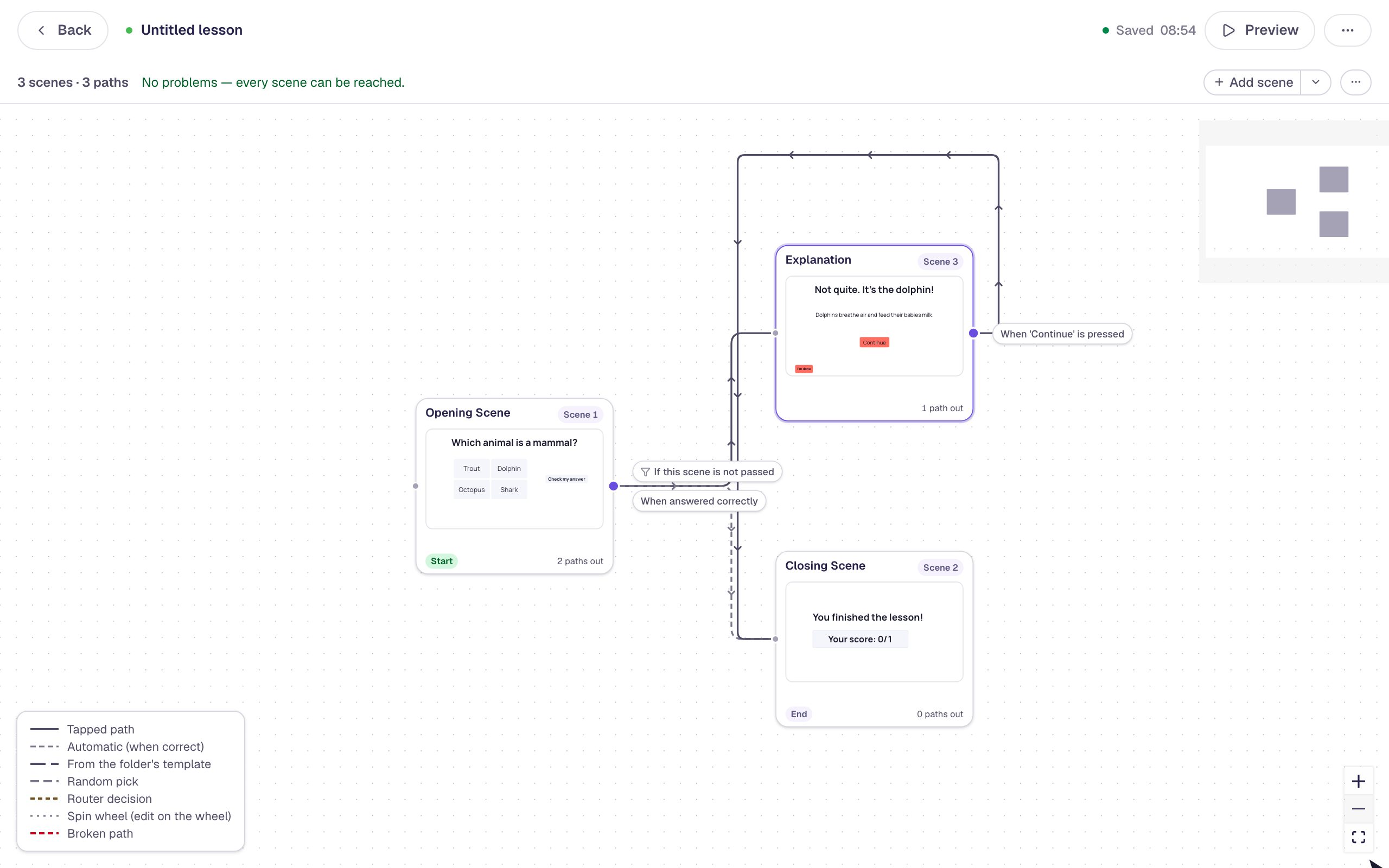
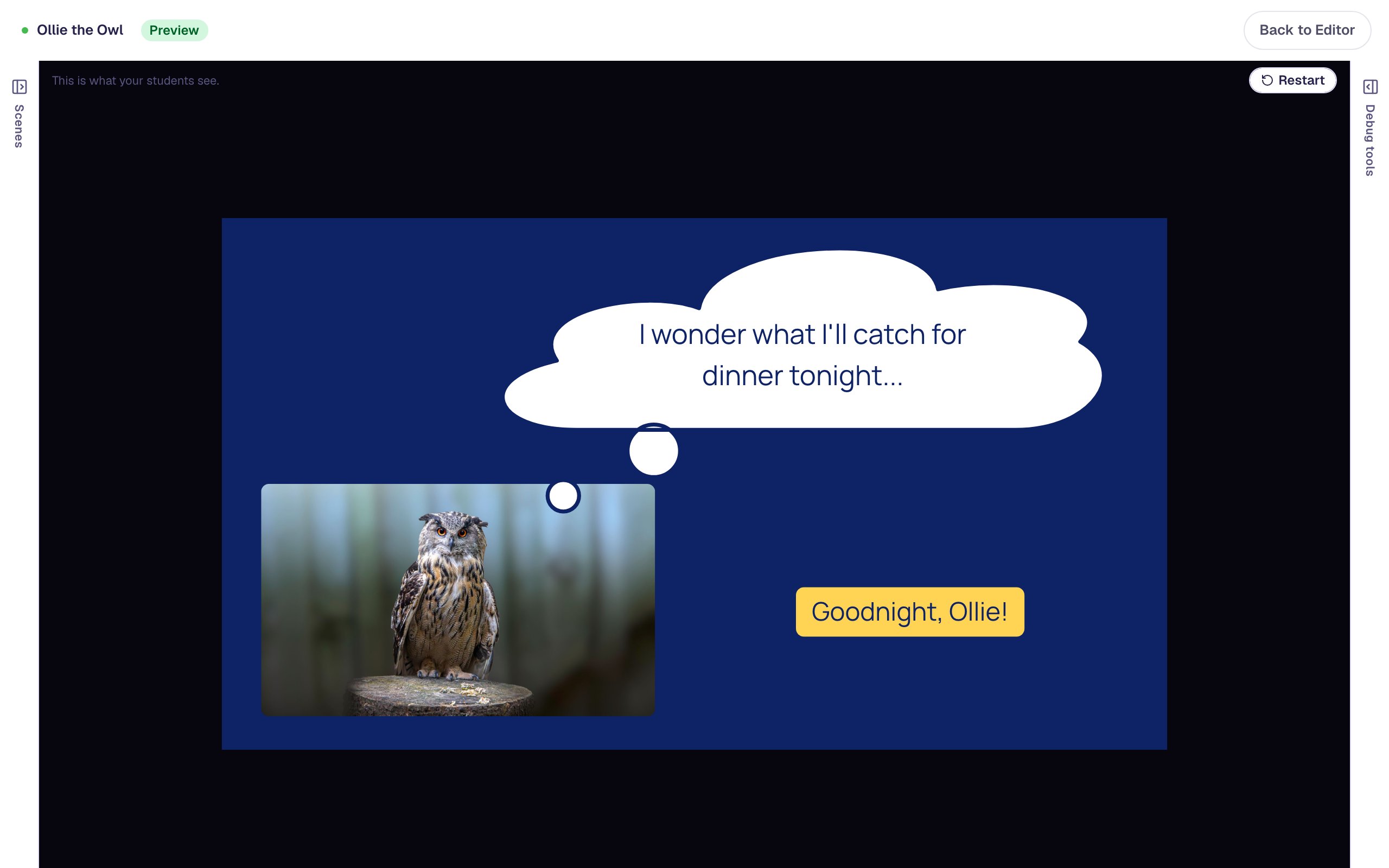
A two-scene Ollie the Owl lesson, where an owl photo says a fact in a white speech bubble on a sky-blue scene, then wonders about dinner in a thought bubble on a night-blue scene.
Get the finished lesson
Skip straight to the result, or keep it open beside the steps. Add this tutorial's lesson to your account and explore how it works in the studio.
Free to sign up, and you'll come straight back here. I have an account
Young readers pay attention when a character speaks to them. A fact in a speech bubble coming from an owl feels like a conversation, while the same fact in a plain text box feels like a worksheet. A character is also a friendly way to give instructions, a hint, or a question.
In this tutorial you'll build Ollie the Owl: an owl photo with a speech bubble that says a fun fact, and a second scene where Ollie is thinking, in a thought bubble. You'll use the Speech bubble and Thought bubble from the Shape library, a Body text on top of each bubble, and Copy to Scene.
Step 1: Put your character on the scene
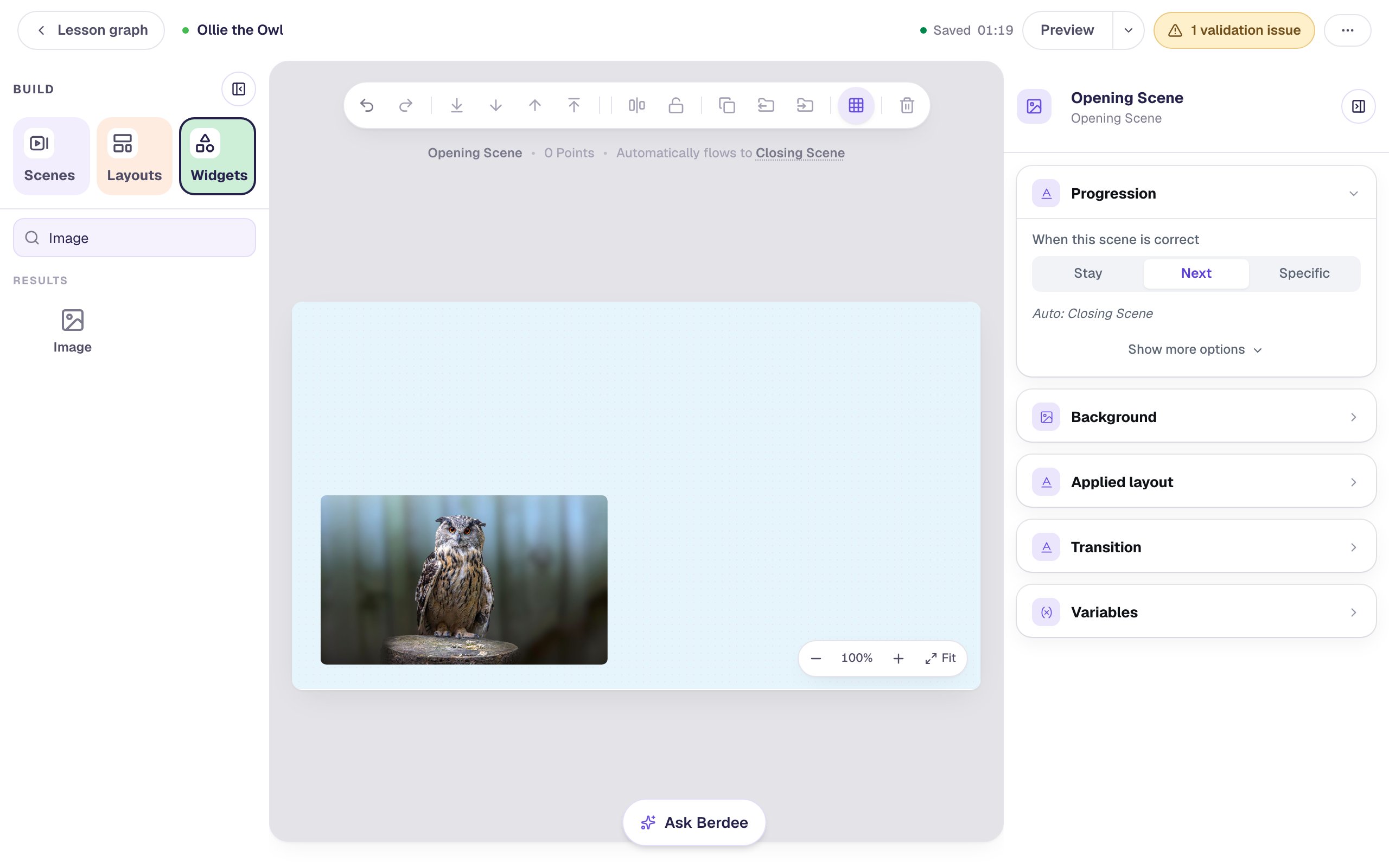
Start a new lesson from scratch, then click Untitled lesson at the top left and name it Ollie the Owl.
- Click the gray area around the scene so the scene itself is selected. On the right, open Background, click the Color field, and pick a pale sky blue.
- Click the Widgets tab on the left, search for
Image, and click it. In Style & Layout, set Width to400and Height to236, then drag the frame to the bottom-left corner of the scene. - Click Choose image, search for
owl, and insert a photo of an owl. Under Style & Layout, set the fit to Cover so the photo fills its frame. - Open Accessibility and write the photo's Alt Text, for example
An eagle owl with bright orange eyes and feathery ear tufts, perched on a tree stump in a forest. That's what a screen reader says for the picture, so describe what a student would see.
Leave the top and the right of the scene empty: that's where Ollie's words will go.
Do the same for the Closing Scene at the bottom of the Scenes tab: give it the same sky blue, so the lesson doesn't end on a bare white page.
Step 2: Add a speech bubble
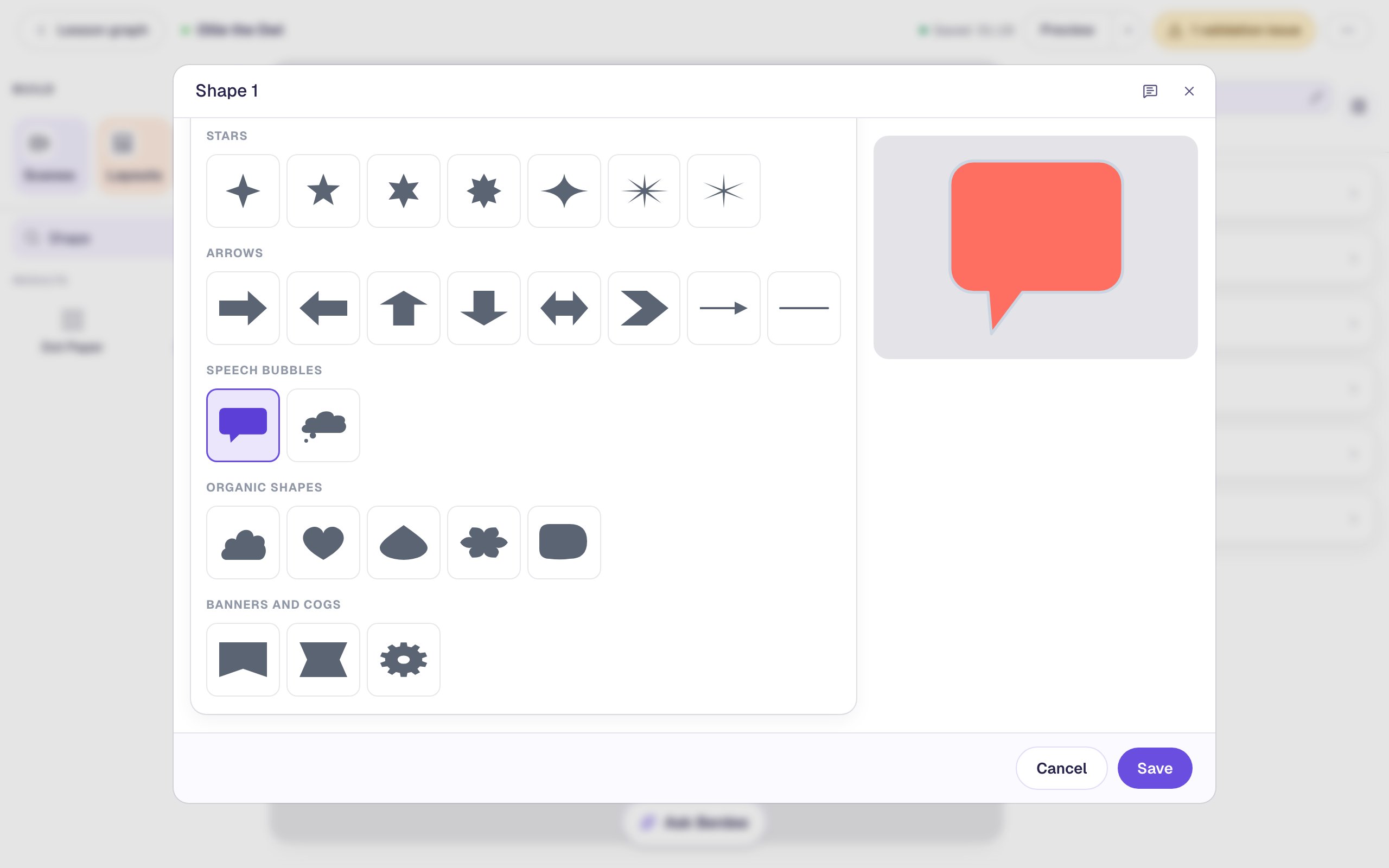
Search the Widgets tab for Shape and click it. The shape library opens straight away. Scroll to Speech bubbles and click the first one, the Speech bubble with a tail.
The preview on the right shows the bubble's shape: a rounded box with its tail on the bottom edge, near the left end. Remember where the tail is: it decides where the bubble goes in the next step. Click Save.
Step 3: Size the bubble and point its tail at the owl
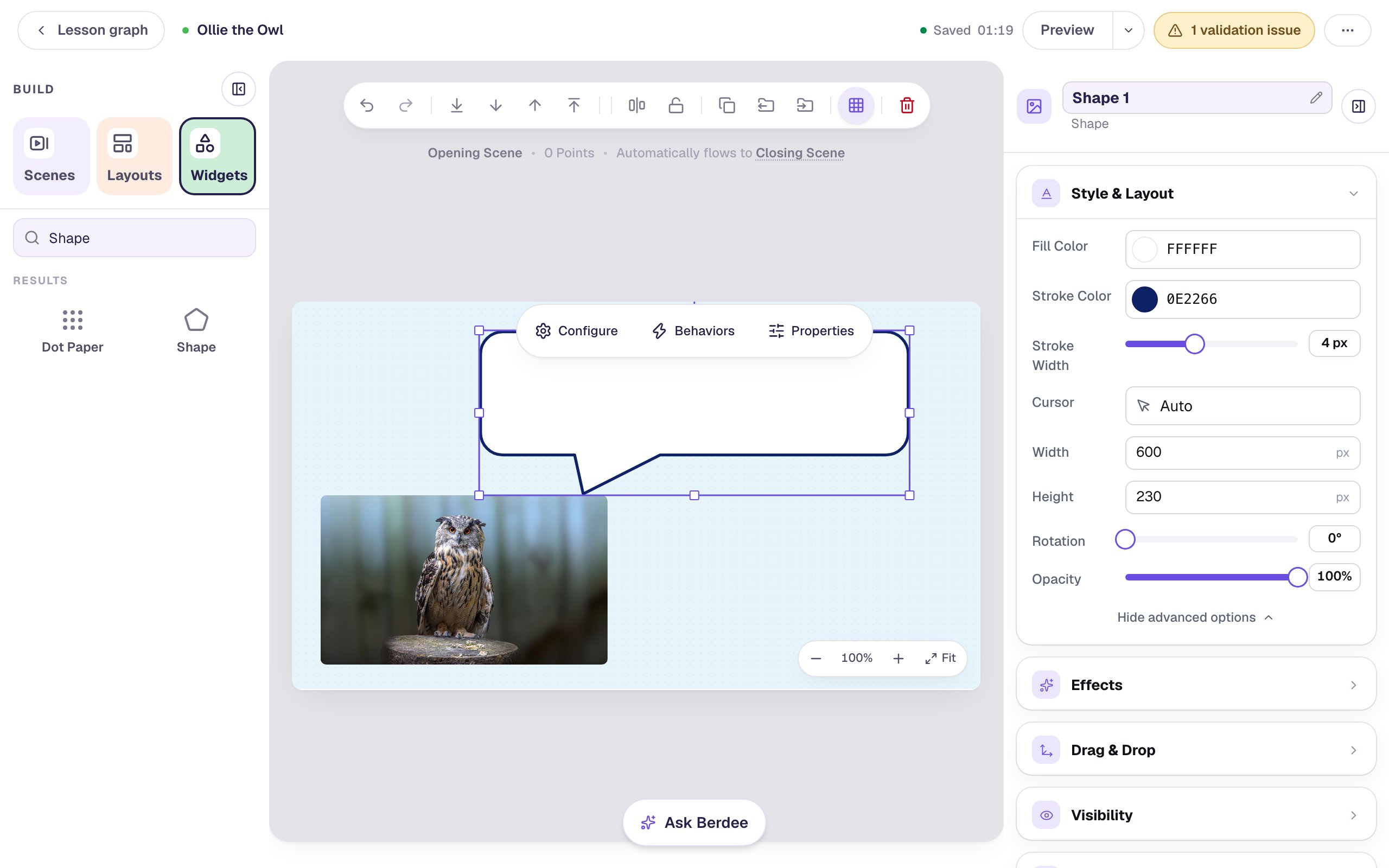
A new shape is a small coral box. Make it a bubble someone could read from across the room:
- In Style & Layout, click Show more options and set Width to
600and Height to230. - Set Fill Color to white, Stroke Color to a dark navy, and Stroke Width to
4. A dark outline keeps the bubble crisp on a pale background. - Drag the bubble above the owl, so the tip of its tail touches the top of the photo, close to the owl's head.
The tail is what tells a student who is speaking. If your character were on the right, you'd put the bubble on the right and its tail would need to point the other way, so keep the character on the left with this bubble.
Step 4: Write the words on top
The bubble is a shape, so it has no text of its own. Put a text widget on top of it:
- Search the Widgets tab for
Body, click it, and typeHoo! I'm Ollie. I can turn my head almost all the way around! - In Style & Layout, click Fixed width and set Width to
520, a little narrower than the bubble, so the words wrap before they reach its edges. - Set Font size to
30and Text Color to the same navy as the outline. - Drag the words into the middle of the bubble's box, above the tail.
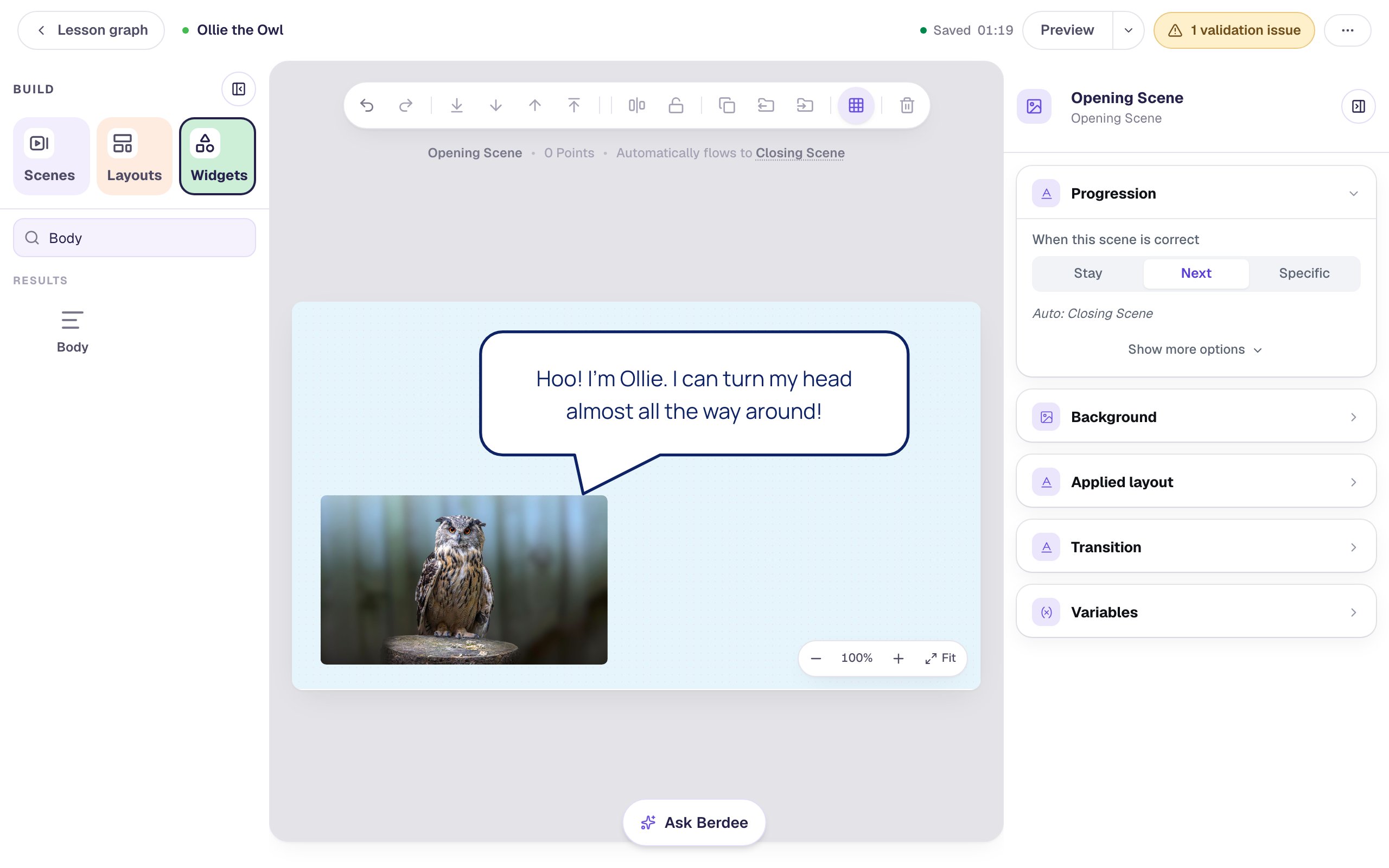
The words sit on top because you added them after the bubble: a widget added later is drawn above earlier ones. If the bubble ever covers your words, select the bubble and click To Back in the toolbar above the canvas.
A screen reader reads the words and skips the bubble, which is decoration. That's why it's worth leaving the bubble's Alt Text as Shape: a student hears Ollie's sentence, not "speech bubble".
Step 5: Copy Ollie to a second scene
On the next scene, Ollie will think instead of speak. Start from a copy of what you've built:
- Click the Scenes tab on the left and click Add scene. A new scene called Scene 1 appears before the ending. Double-click its name and rename it
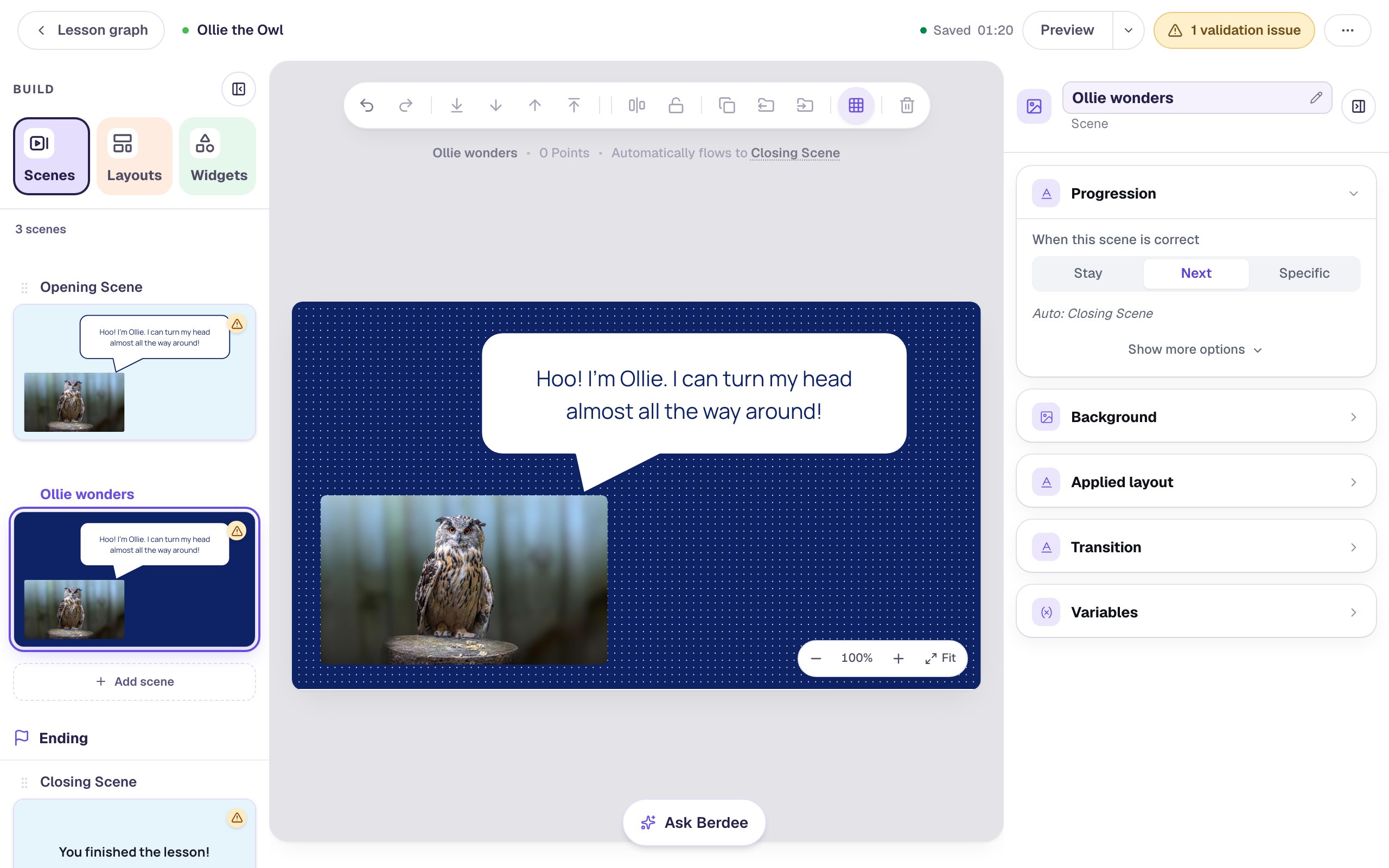
Ollie wonders. - Open Ollie wonders, click the gray area around the scene, and set its Background color to a dark night blue.
- Go back to the Opening Scene. Drag across the whole scene from an empty corner to select the owl, the bubble, and the words together. Click Copy to Scene in the toolbar and choose Ollie wonders.
The copies land in exactly the same places on Ollie wonders, now on a night-blue background.
Step 6: Switch to a thought bubble
A speech bubble means Ollie says it out loud. For something he is only thinking, change the shape: select the bubble on Ollie wonders, click ⚙ Configure, click the Thought bubble next to the speech bubble, and click Save.
The bubble keeps its size and colors, and becomes a cloud with two small puffs trailing toward Ollie. A cloud has less room inside than a speech bubble, because its edges are bumpy and the puffs take the bottom of the frame. Give it more room and shorten the lines:
- With the cloud selected, set Width to
660and Height to300, and drag it so its puffs trail down to the owl. - Select the words, open Content, and change Text to
I wonder what I'll catch for dinner tonight... - Set the words' Width to
400and Font size to28, and drag them into the middle of the cloud.
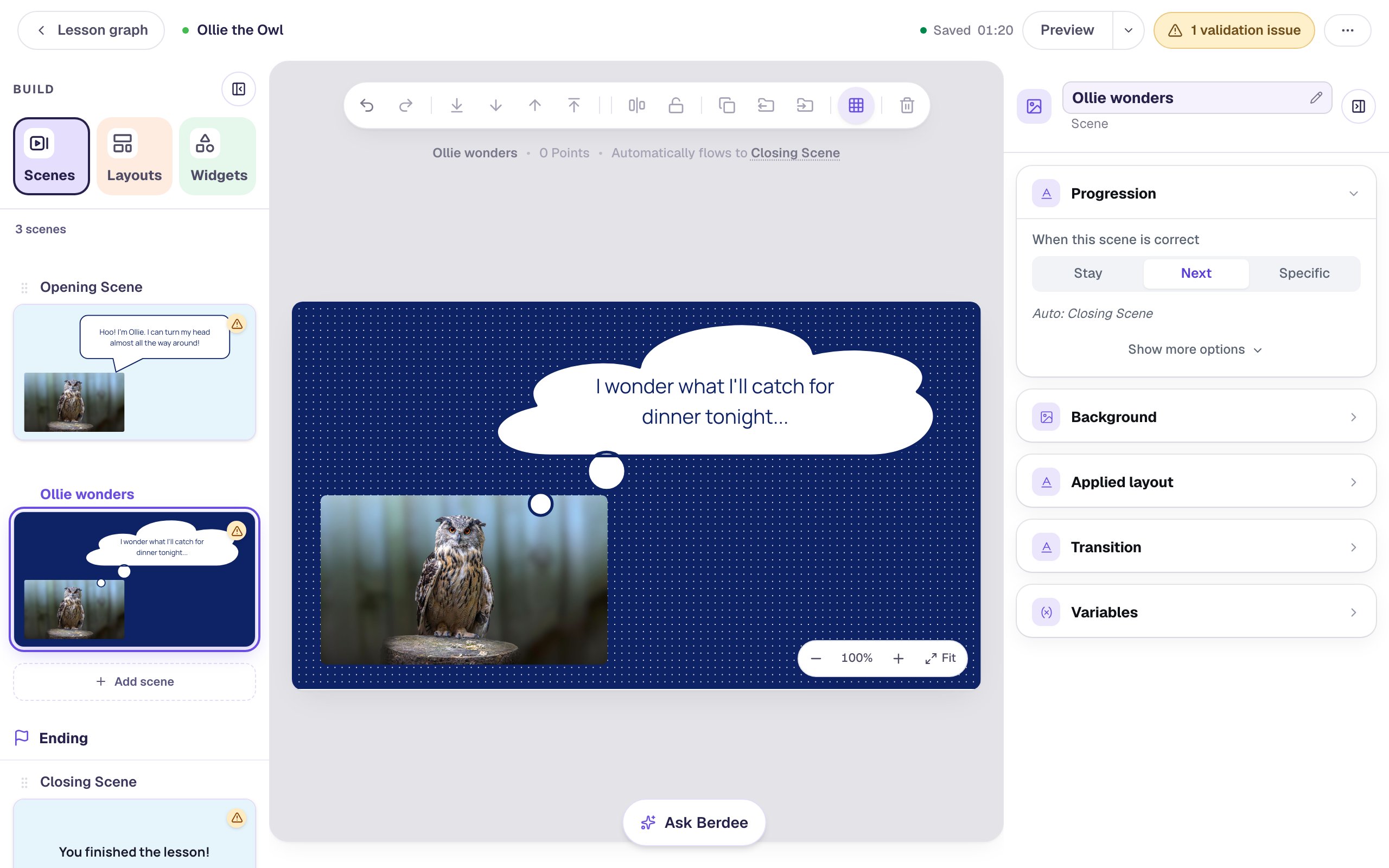
Check every letter sits on white. Navy words that run past the cloud's edge disappear into the night-blue background.
Step 7: Add a button to move on
These scenes have no question, so nothing moves the lesson on by itself. Give each scene a button:
- On Ollie wonders, add a Button. Click ⚙ Configure, set its Label to
Goodnight, Ollie!, and click Save. In Style & Layout, give it a sunny yellow Background, navy Text, and a Font size of26, and drag it to the right of the owl. - With the button selected, click Behaviors above it, click Make this a "Next" button, and click Add behavior. It now goes to the ending.
- Open the Opening Scene and do the same with a button labeled
What is Ollie thinking?, in navy with white text. It goes to Ollie wonders.
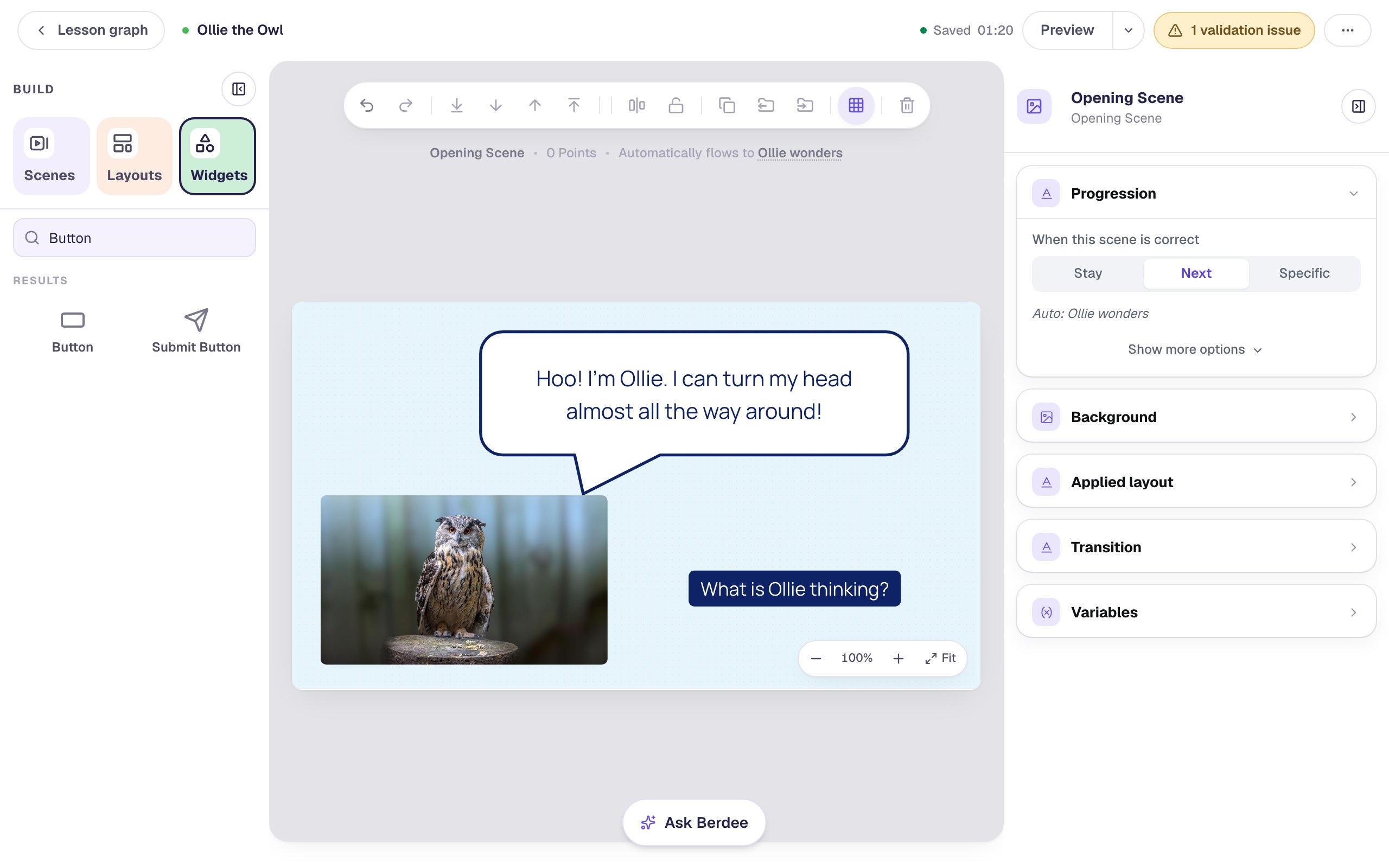
The yellow 1 validation issue pill at the top is about publishing: Berdee still asks for a Submit Button set to Lesson before a lesson can go to the marketplace or to students. It doesn't change what students see in Preview.
Step 8: Meet Ollie in preview
Make sure the Opening Scene is open, then click Preview at the top right.
Ollie tells students his fact in a speech bubble pointing at him.
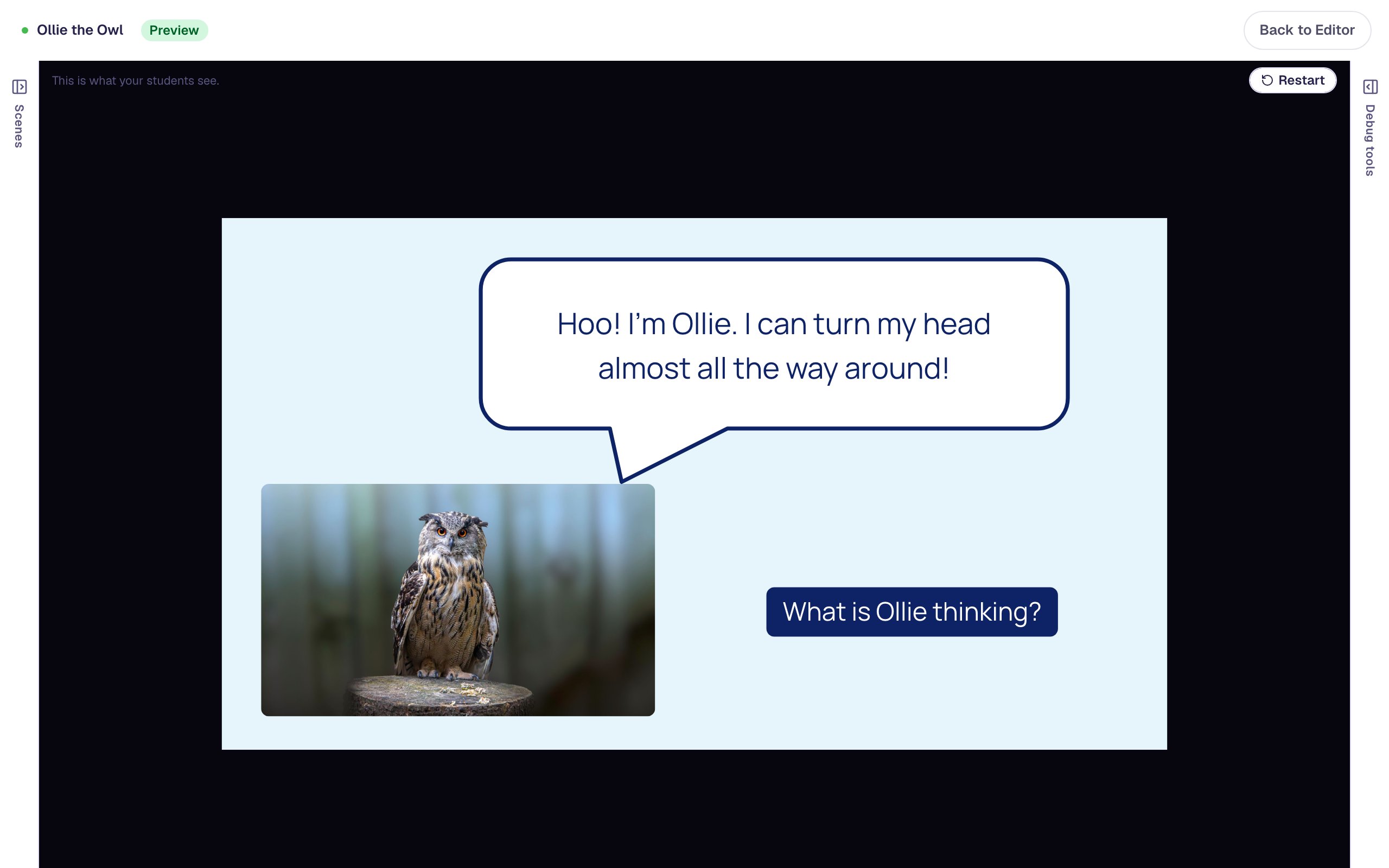
Click What is Ollie thinking? and the night-blue scene shows his thought in a cloud. Click Goodnight, Ollie! to reach the ending.
What you built
You built a two-scene lesson where a character talks to students, with:
- a Speech bubble from the Shape library, sized and colored, with its tail pointing at the character,
- a Body on top of it, at a Fixed width narrower than the bubble, so the words never touch its edges,
- the whole character copied to a second scene with Copy to Scene,
- the same shape switched to a Thought bubble, made bigger to fit its words, and
- a Next button on each scene.
Use the same character all through a lesson: Ollie can read the instructions, ask each question, and cheer on the ending. To make the bubble pop in when the scene opens, add a Zoom effect to the bubble and its words with Make a scene come alive with effects. To let students hear what Ollie says, add a read-aloud player with Read a question aloud for early readers.
Make this lesson yours
Add the lesson you just watched being built to your account, then change it for your class: your questions, your pictures, your colors.
Free to sign up, and you'll come straight back here. I have an account