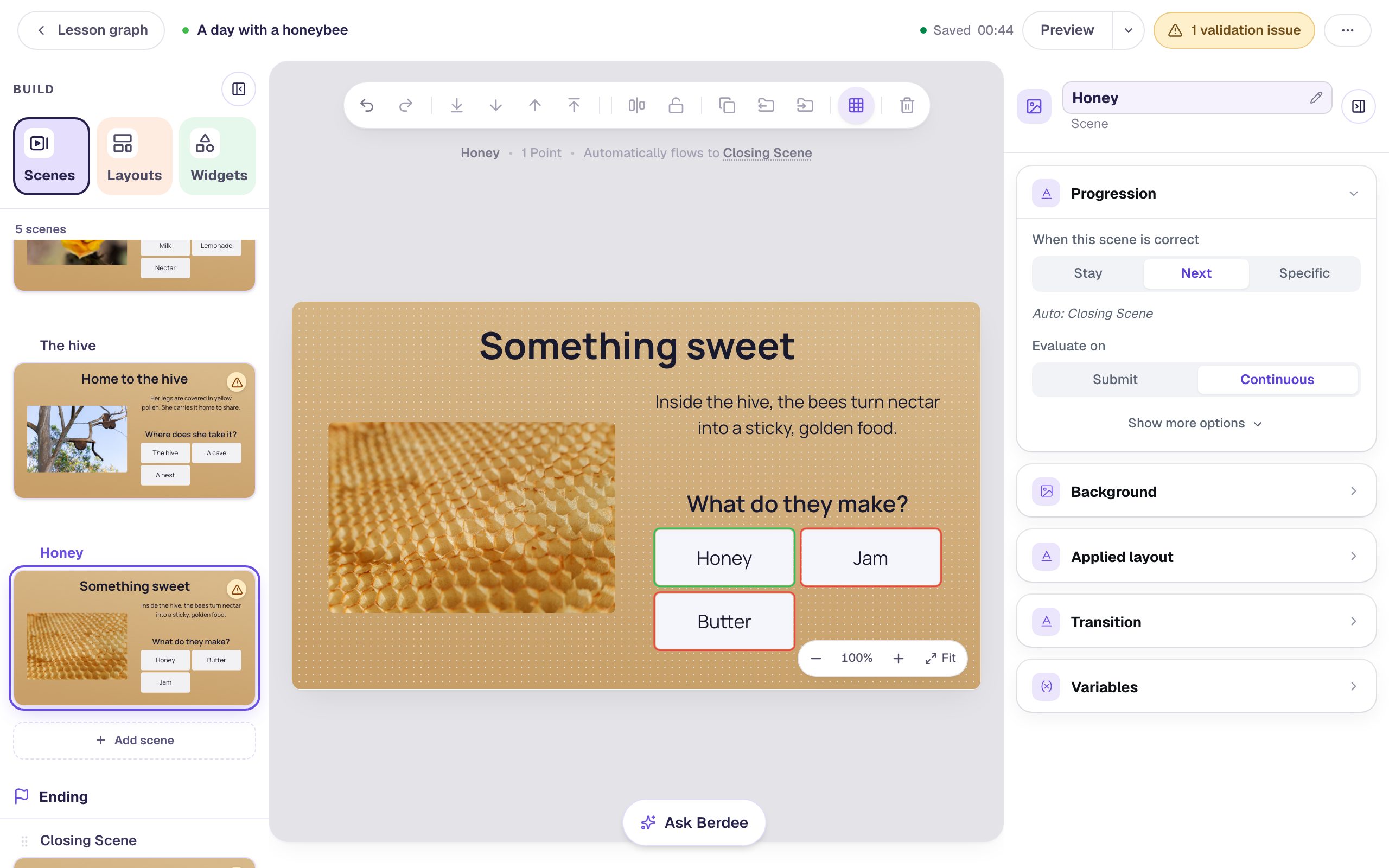
Style a question's answer buttons
Turn a Multiple Choice question's plain grey answer boxes into big, rounded, friendly buttons that match your lesson, then show right and wrong picks in colours you choose. Every setting is in Style & Layout.
- Level
- Beginner
- Time
- About 10 min
- Steps
- 7
- Updated
- Oct 29, 2026
An "Ocean animals" question whose four answers are sandy, rounded Fredoka buttons on a lagoon-blue scene, outlined in green for the right pick and red for a wrong one.
Get the finished lesson
Skip straight to the result, or keep it open beside the steps. Add this tutorial's lesson to your account and explore how it works in the studio.
Free to sign up, and you'll come straight back here. I have an account
A new Multiple Choice question works straight away, but its answers are small grey boxes with small text. On a colourful scene they look unfinished, and on a tablet they're harder for young students to read and tap. The answers are buttons, so you can style them like buttons: colour, rounded corners, font, size, and spacing.
In this tutorial you'll build one ocean question, "Which ocean animal breathes air?", and restyle its four answers to match the scene. Then you'll switch on Show correctness, so a student who taps an answer sees straight away whether it was right, in colours you pick.
Step 1: Build the question
Create a lesson from scratch and name it Ocean animals. On the Opening Scene:
- Give the scene a background. With nothing selected, open Background, click Choose a style, and pick Lagoon gradient from Gradients. Do the same on the Closing Scene, so the ending matches.
- Add a Heading that says
Which ocean animal breathes air?, with Font Size38, at the top. - Add an Image under it. Click Choose image, search the stock photos for
underwater coral reef, and pick a photo without a dolphin, shark, octopus or jellyfish in it, so the picture doesn't give the answer away. Under Accessibility, describe it in Alt Text, for exampleA colorful coral reef with small fish swimming in clear blue water. - Add a Multi Choice under the photo. Set its Width to
760and Height to84(under Style & Layout → Show more options), so the four answers sit in one row. Click ⚙ Configure, type the answersDolphin,Shark,OctopusandJellyfish, and click Save. Dolphin is the first answer, and a new question starts with its first answer marked correct, so the answer key is already right. - Add a Submit Button under the answers, set its Label to
I'm doneand its scope to Lesson. Students who pick the right answer move to the ending on their own; the button is for anyone who wants to stop.
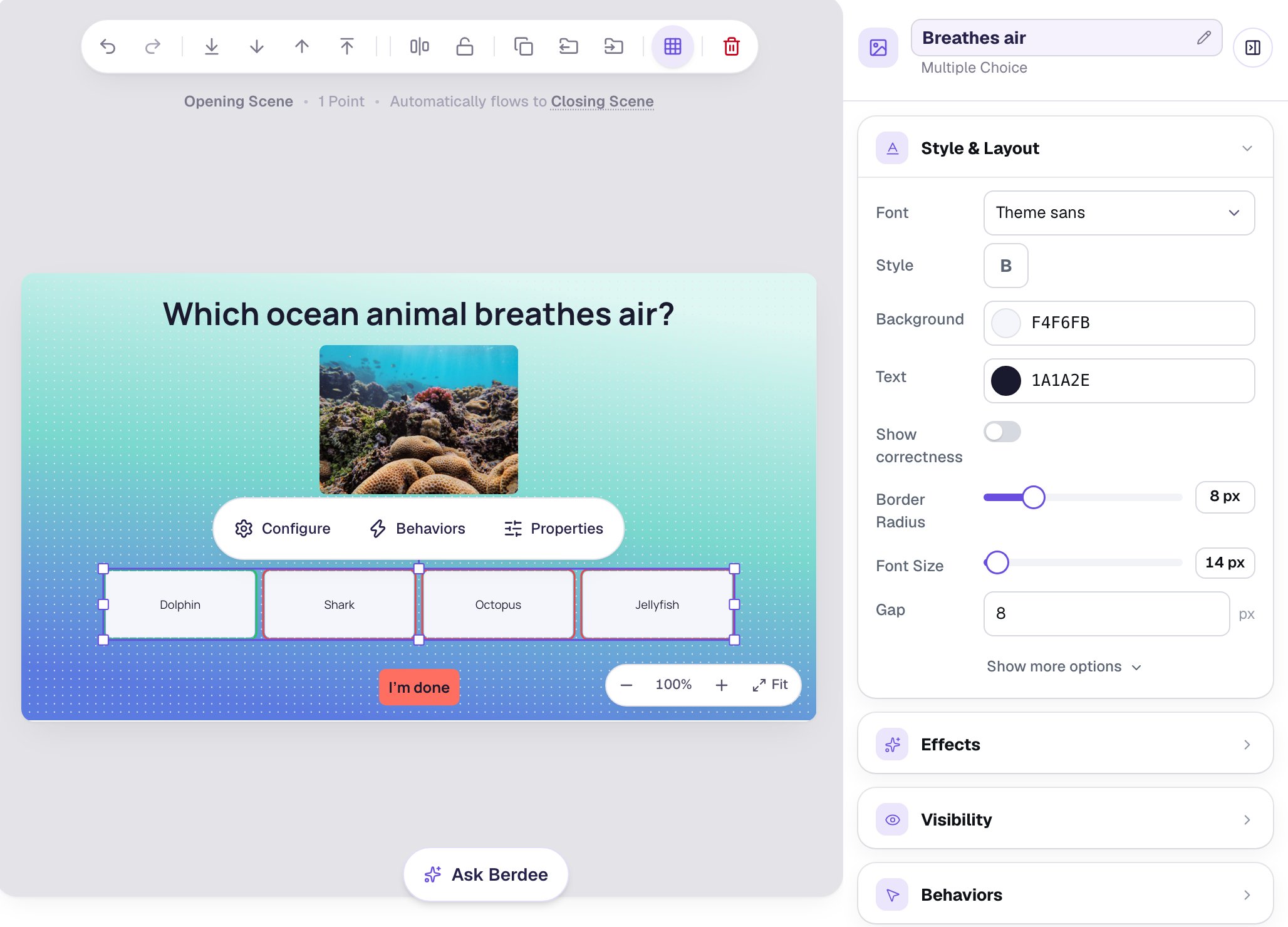
Select the question and look at Style & Layout in the properties panel. Every setting this tutorial changes is in that one section: Font, Background, Text, Show correctness, Border Radius, Font Size and Gap.
On the canvas, the right answer has a green edge and the others a red one. That's the studio showing you your answer key. Students don't see it.
Step 2: Colour the answers
With the question selected, click Background and pick a pale sand yellow (FFF1B8). Then click Text and pick a dark navy (0E2266).
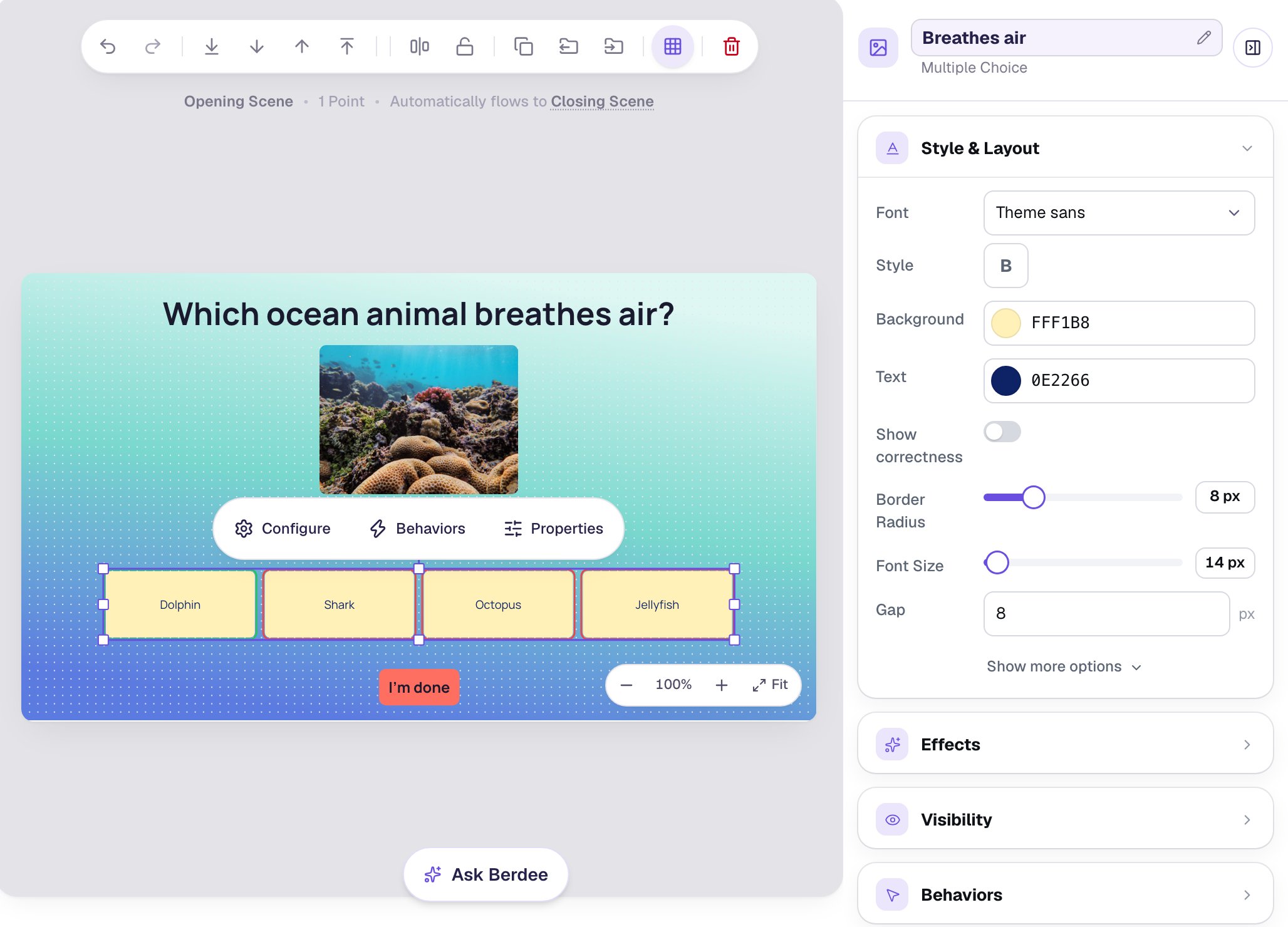
Pick colours that stand apart from the scene, so the answers read as buttons, and keep the words dark on a light button (or light on a dark one) so every student can read them. Both colours apply to all four answers at once.
Step 3: Round the corners
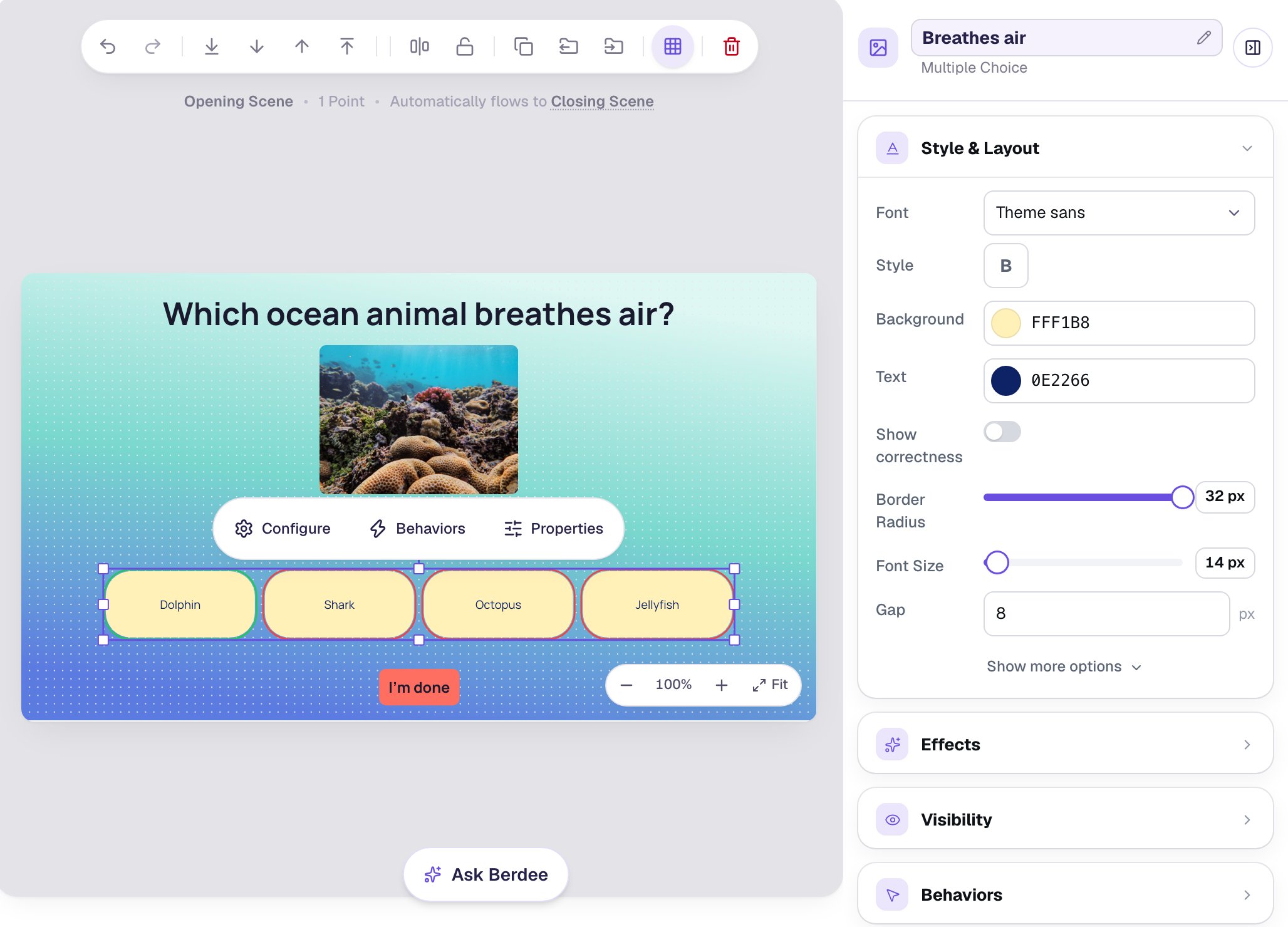
Drag Border Radius all the way to 32 px. The answers turn into soft, rounded buttons that look like something to press.
Step 4: Pick a friendly font
Click Font, type Fredoka in the search box, and click Fredoka. Its round letters suit young readers and match the soft buttons.
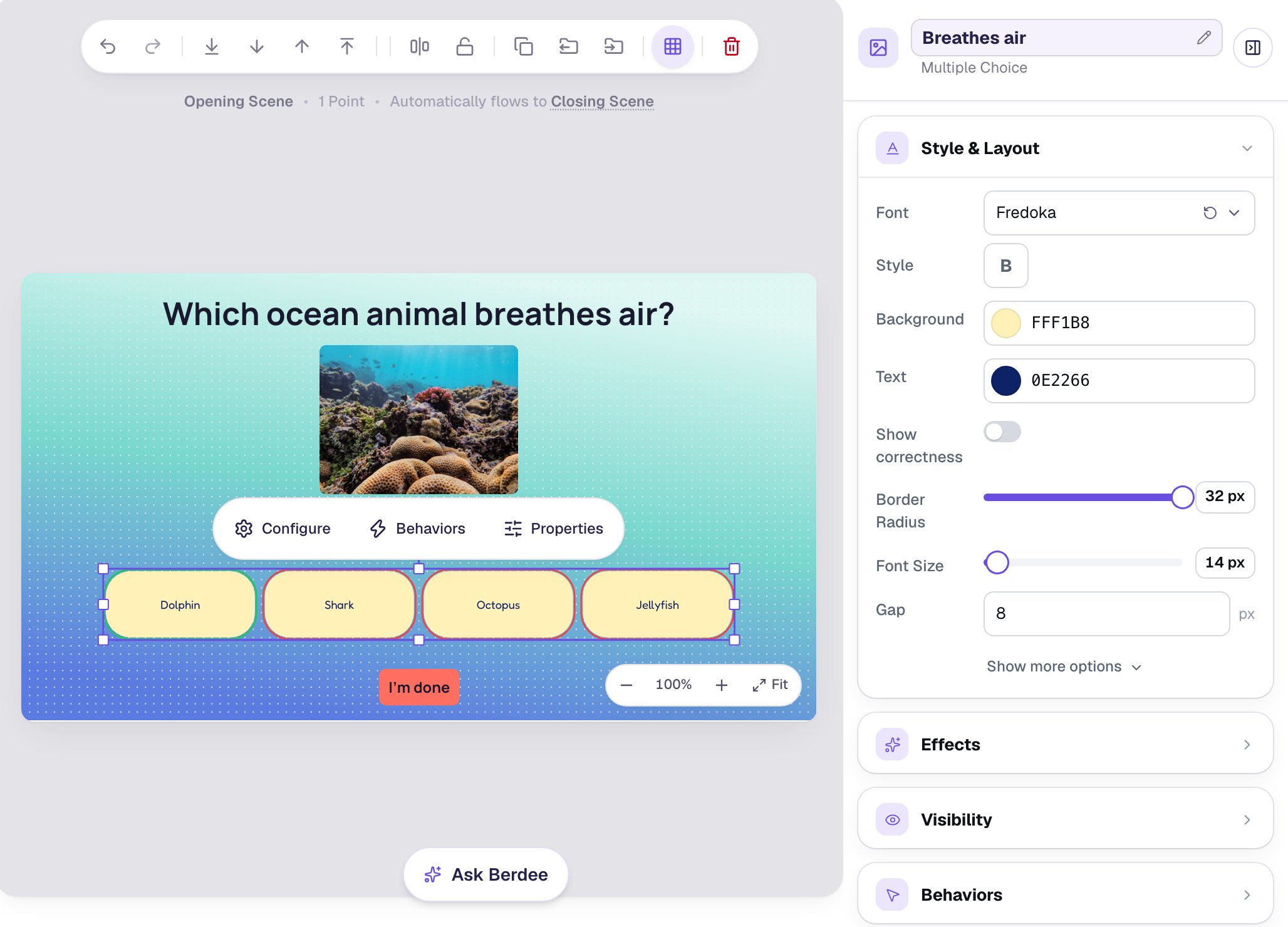
The font you choose here is for this question only. The small reset arrow beside it puts the answers back on your lesson's theme font, which is useful if you later switch the lesson's theme and want them to follow. Colours you picked by hand stay put when you switch themes.
Step 5: Make the words bigger, with room between them
Drag Font Size to 30 px, so students can read the answers from arm's length. Type 20 in Gap, so the buttons have space between them and a small finger doesn't land on two. Then set the question's Height to 96 (under Show more options), so the bigger words have room above and below.
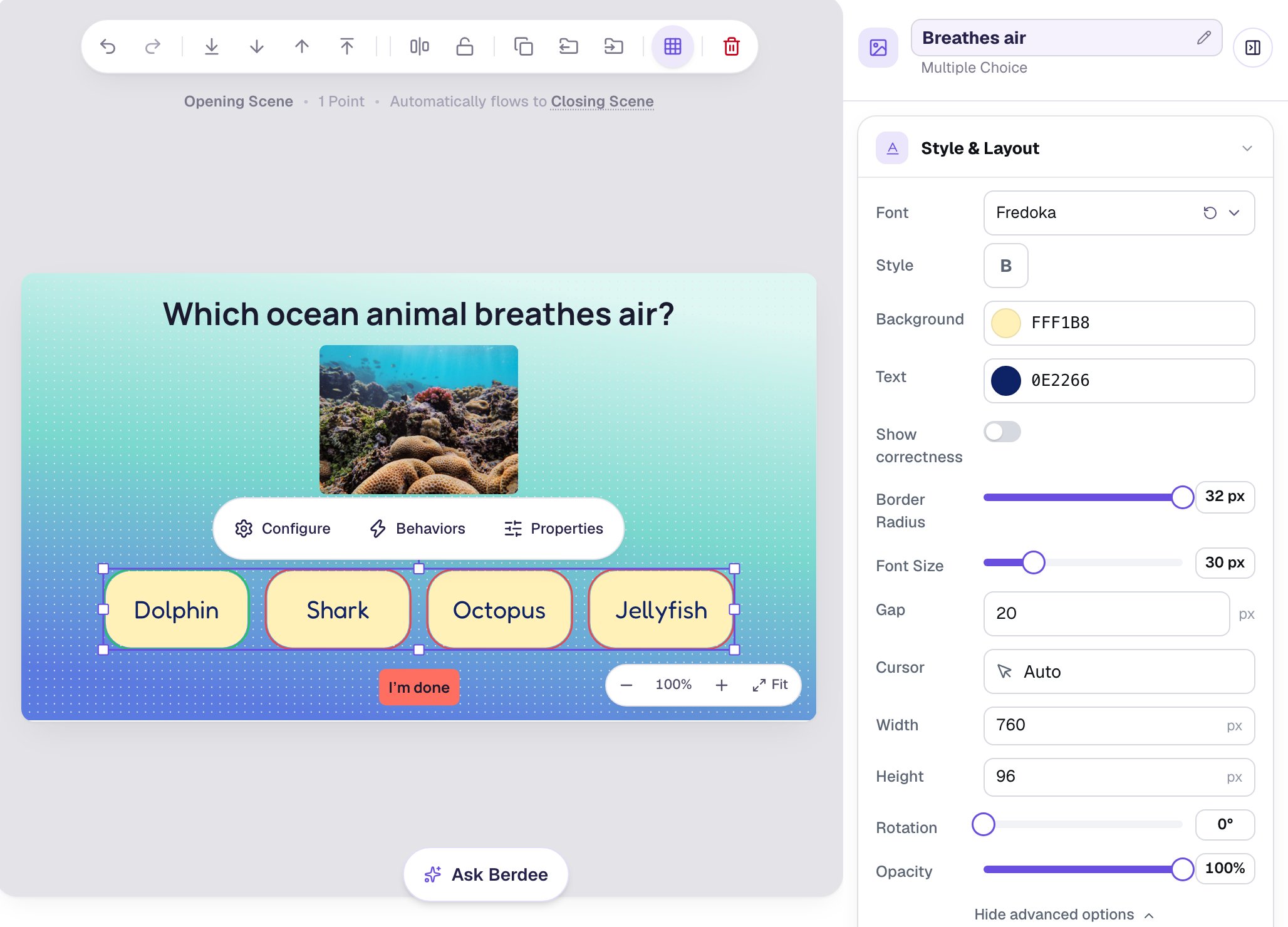
The text never spills out of a button. If a long answer doesn't fit at the size you chose, Berdee shrinks that answer's words to fit, and you can make the question wider or the font smaller instead.
Step 6: Show right and wrong in your own colours
Switch on Show correctness. Two new colours appear under it, Correct and Incorrect, starting on a bright green and red. Pick ones that suit your lesson: here a deeper green for Correct (149648), which stands out better against the sand-coloured buttons, and a clear red for Incorrect (E62020).
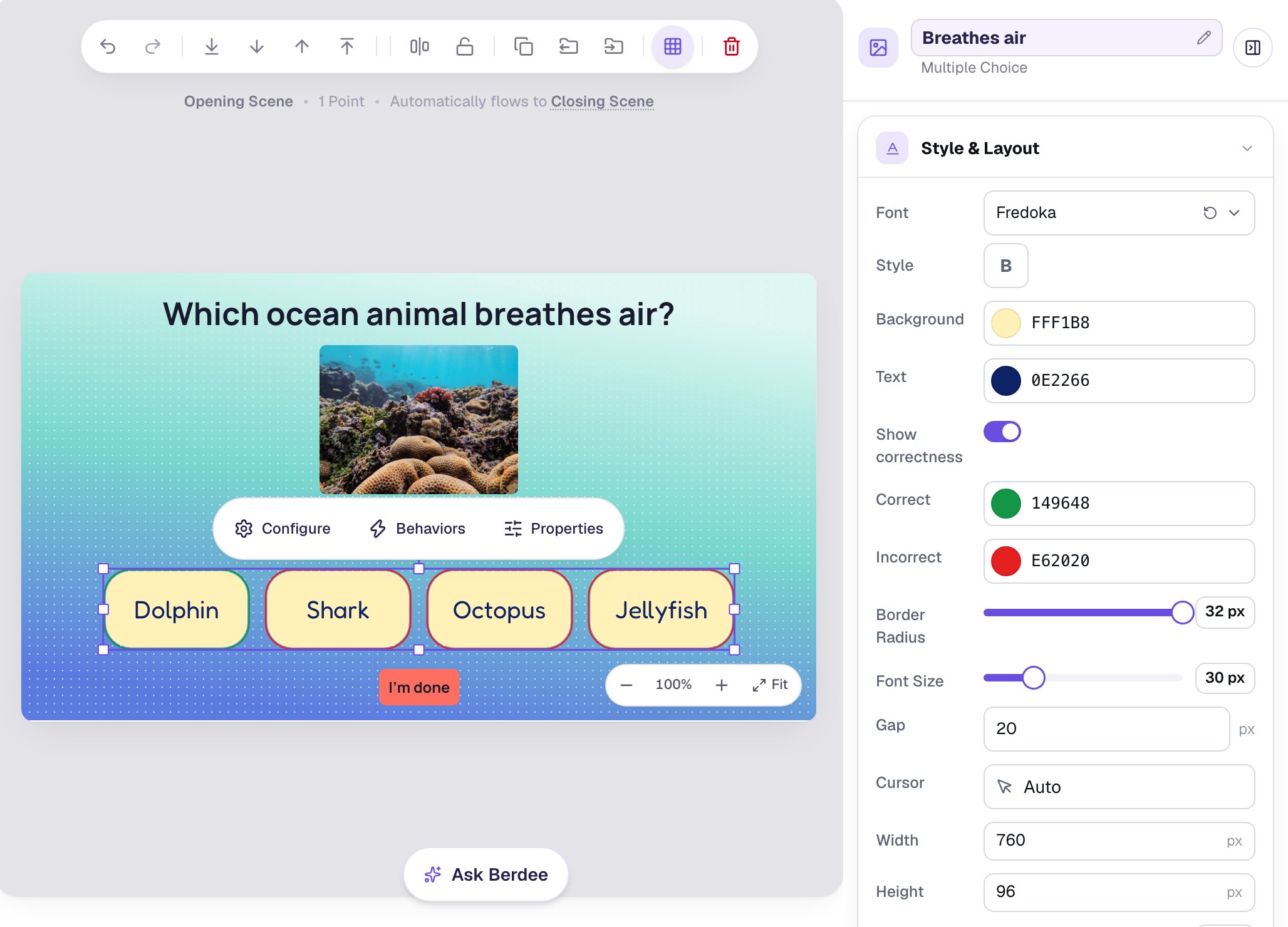
With Show correctness on, the answer a student taps gets an outline in one of these colours the moment they tap it. It's instant feedback without a separate message. Leave it off for a quiz where you don't want students to find out the answer until the end.
Step 7: Try it as a student
Click Preview. The answers come in a different order, because Randomize Order is on for new questions. Tap Shark first: it gets a red outline. Then tap Dolphin: it gets a green outline, and a moment later the lesson moves on to the ending.
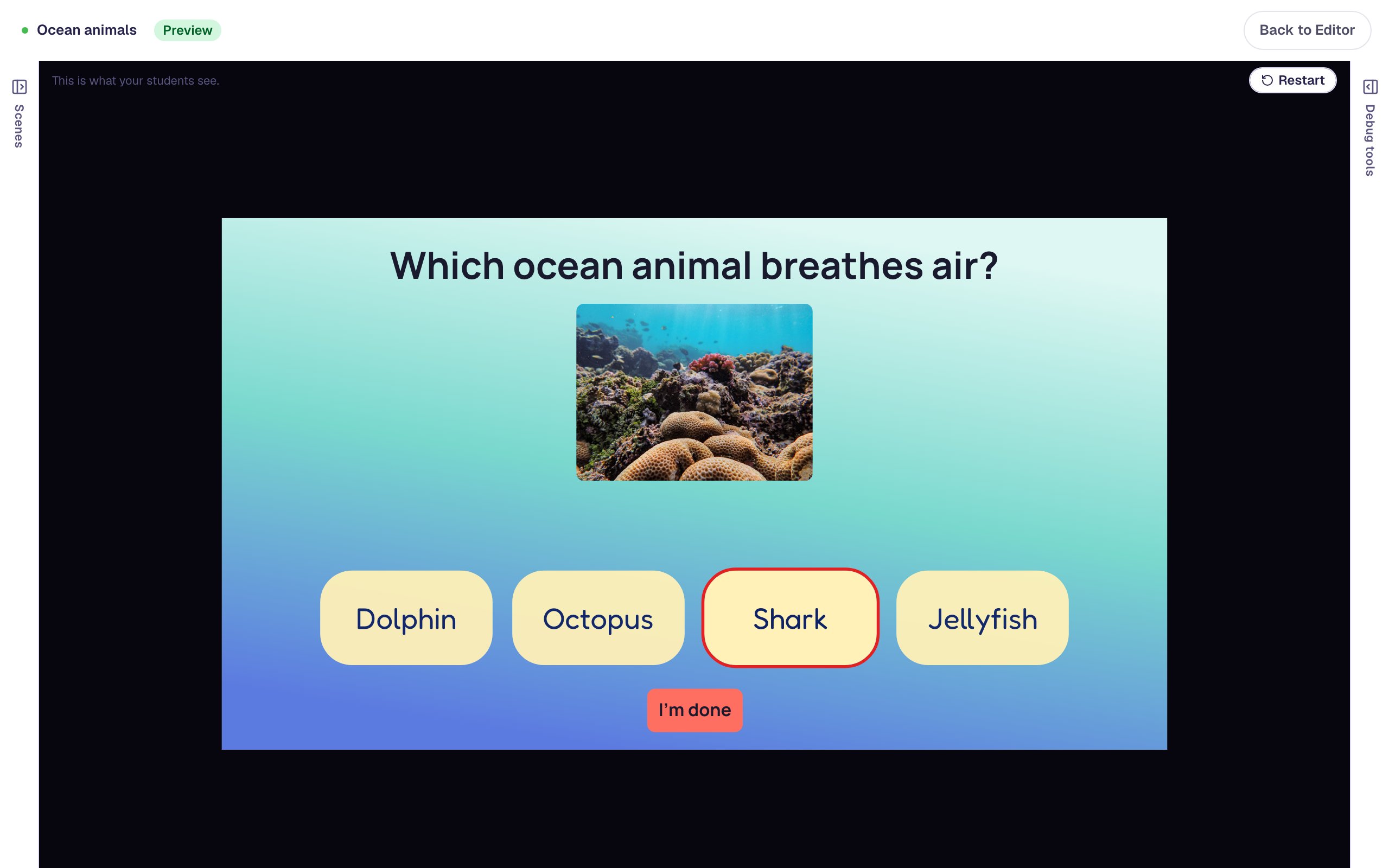
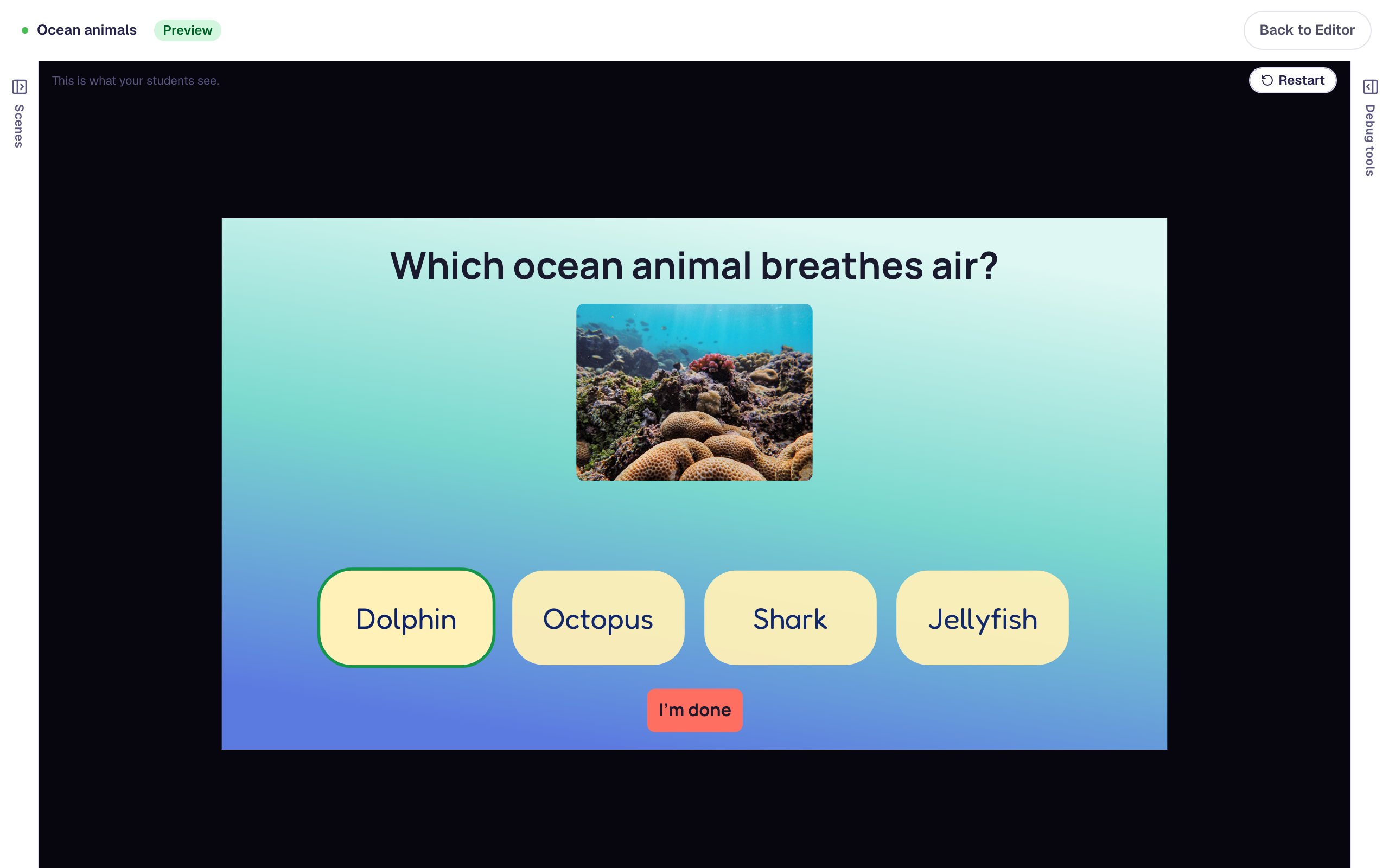
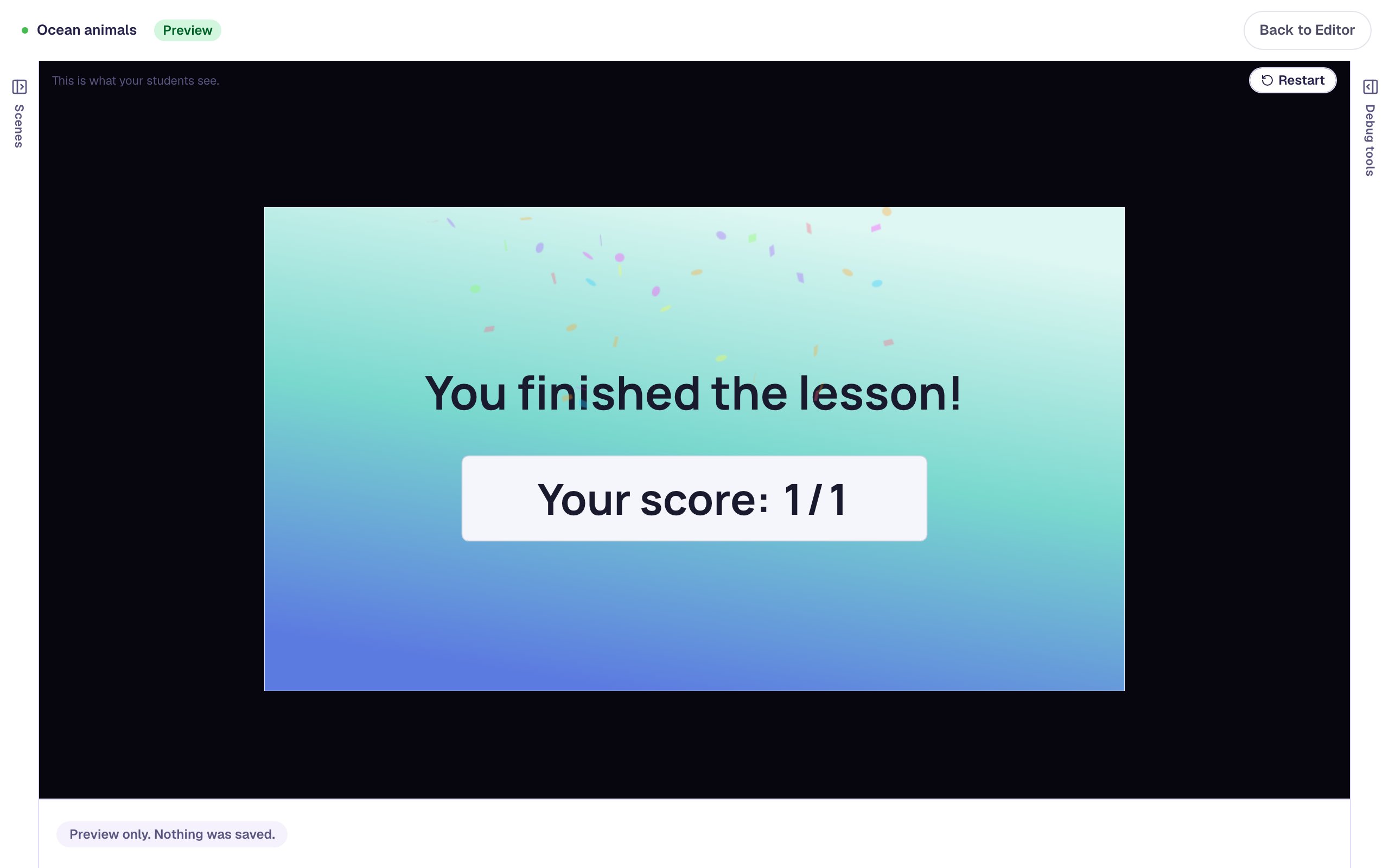
The scene moves on only after the right answer: a new scene is set to Next (auto), which carries the student on once the scene is answered correctly.
What you built
An ocean question whose answers look like they belong to the lesson: sand-coloured, rounded Fredoka buttons with big navy words and room between them, outlined in your green or red the moment a student taps one. Every setting lived in the question's Style & Layout section.
Want the same look on every question? Build one, then duplicate its scene: the copy keeps every style. See Build a three-question quiz by duplicating a scene. To give a whole lesson a new look at once, see Give a finished lesson a new look with a theme.
Make this lesson yours
Add the lesson you just watched being built to your account, then change it for your class: your questions, your pictures, your colors.
Free to sign up, and you'll come straight back here. I have an account