Update a lesson your students already have
Improve a lesson after you've assigned it, check that your class is still on the old version, and move everyone to the new one with Update students to latest.
- Level
- Beginner
- Time
- About 8 min
- Steps
- 6
- Updated
- Oct 31, 2026
A water cycle exit ticket with a new hint on its second question, pushed to the student who already has it.
Get the finished lesson
Skip straight to the result, or keep it open beside the steps. Add this tutorial's lesson to your account and explore how it works in the studio.
Free to sign up, and you'll come straight back here. I have an account
You assigned a lesson, and then you thought of a way to make it better: a clearer question, a typo fixed, a hint for the question your students keep missing. In this tutorial you'll make that change and send it to the students who already have the lesson.
It takes one extra step, on purpose. Editing a lesson never changes it for students on its own, so nobody's lesson or grade changes in the middle of class. When the change is ready, you move your students to it yourself.
Step 1: Start from an assigned lesson
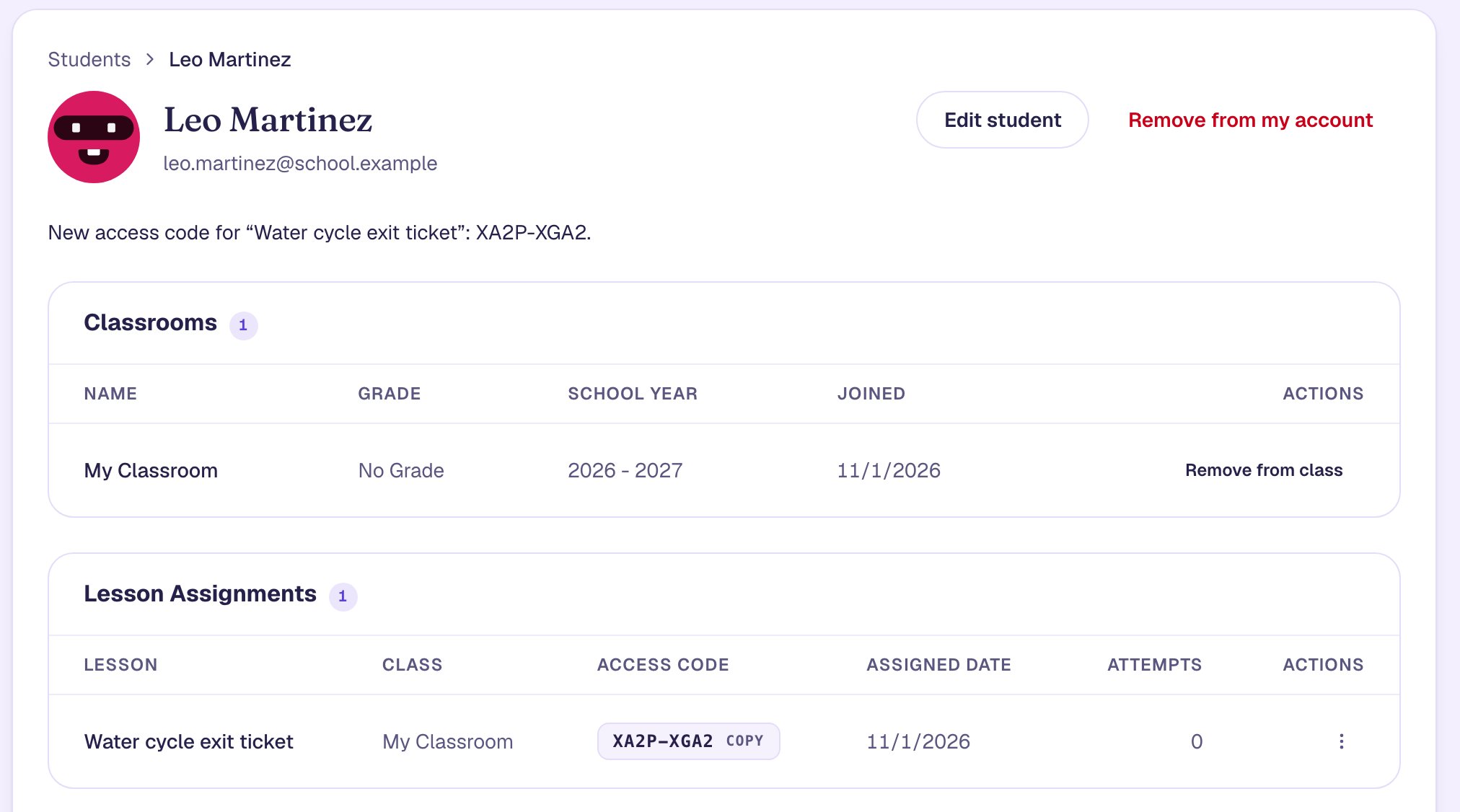
This tutorial picks up where Assign a lesson and see how a student did ends: the water cycle exit ticket, assigned to one student, Maya, in My Classroom. To follow along with the same lesson, press Add this lesson to my account on that tutorial's page, add a student, and assign it to the class as it shows. Use that copy, not the one on this page: this page's copy is the finished lesson, with the hint already in it, so there would be no change to send.
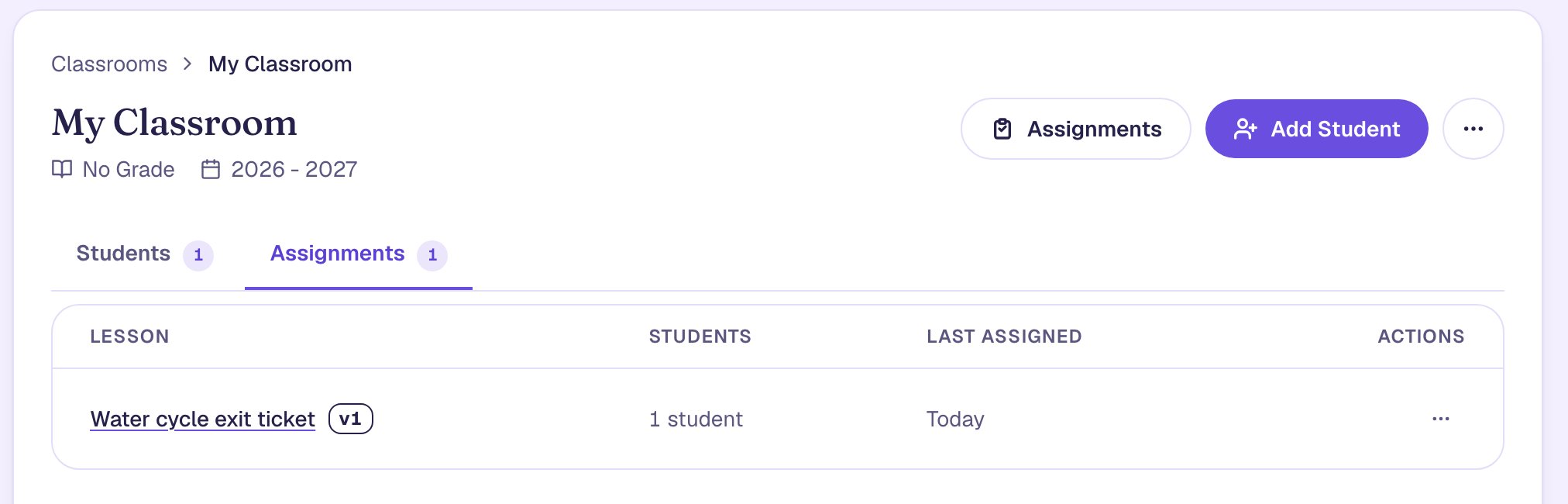
Open Classrooms in the sidebar, click View on My Classroom, and switch to the Assignments tab. Next to the lesson's name is a small version label, v1: the version your students have right now. Berdee saved it the moment you assigned the lesson.
Step 2: Make your change in the studio
In the last tutorial, Maya answered question 2 with "rain" when the answer was "clouds". A short hint will point students the right way without giving the answer away.
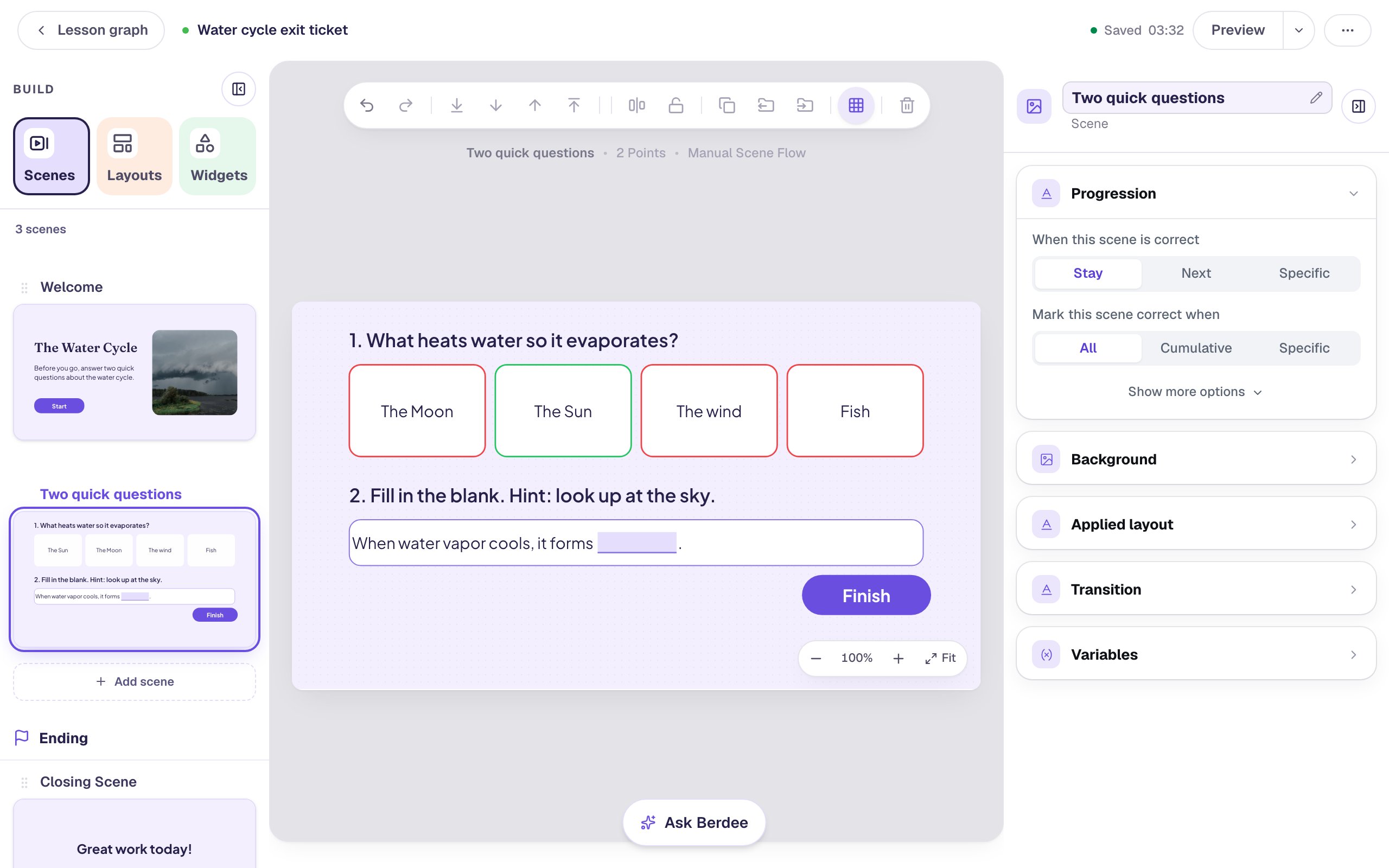
Open the lesson from Lessons and click the Two quick questions scene in the Scenes panel. Double-click the line 2. Fill in the blank. to edit it, change it to 2. Fill in the blank. Hint: look up at the sky., then press Escape and click the gray area around the scene to finish.
The studio saves on its own. When the top bar reads Saved, your change is in the lesson.
Step 3: Check what your students have
Go back to My Classroom and its Assignments tab. The label still says v1. Your edit changed the lesson, but Maya is still on the version you assigned, so if she opened it now she'd see the old question without the hint.
That's what keeps editing safe. You can fix one thing, try something, or rebuild a scene over a whole afternoon, and your students see none of it until you decide they should.
Step 4: Update your students to the latest version
On the lesson's row, click the ⋯ button under Actions and choose Update students to latest.
Before anything moves, Berdee shows what you're about to send. Under Recorded changes since v1 is a plain-language list of your edits, newest first: here, Edited the content of Question 2 prompt, the line you just changed. It can also show housekeeping lines like Starting point, which aren't changes your students will notice. If the list holds something you didn't mean to send, click Cancel and fix it first.
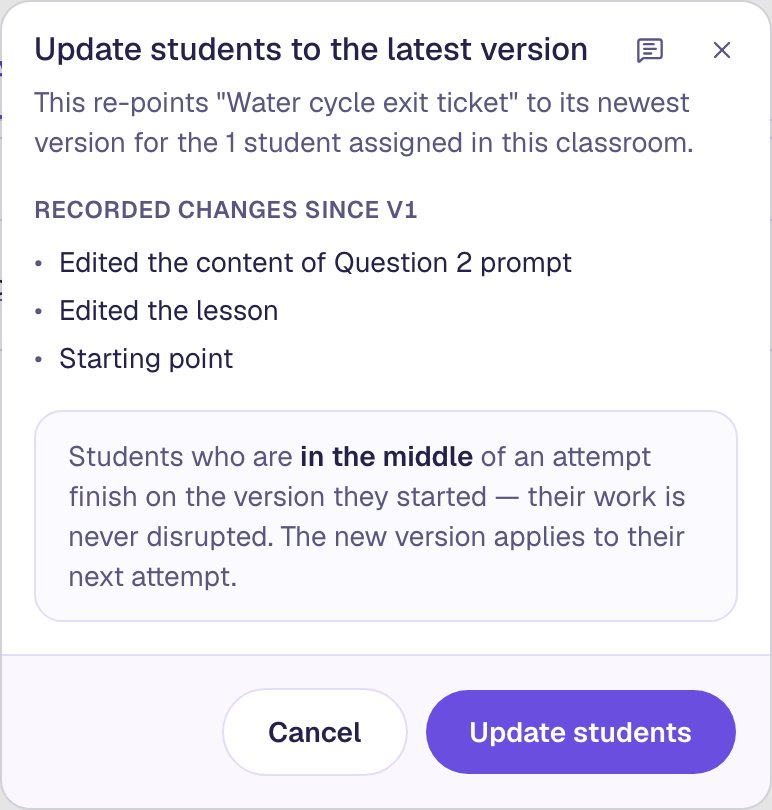
Read the note at the bottom too. A student who is partway through the lesson right now keeps the version they started, so their work is never disrupted. The new version is what they get the next time they start it.
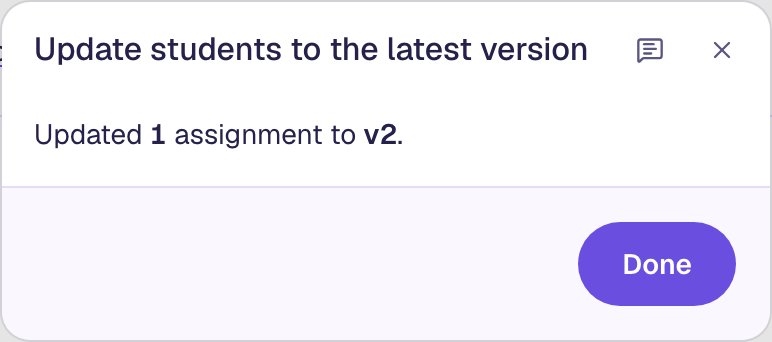
Click Update students. The dialog says how many assignments moved and to which version.
Step 5: See the new version on the Assignments tab
Click Done. The label next to the lesson now reads v2.
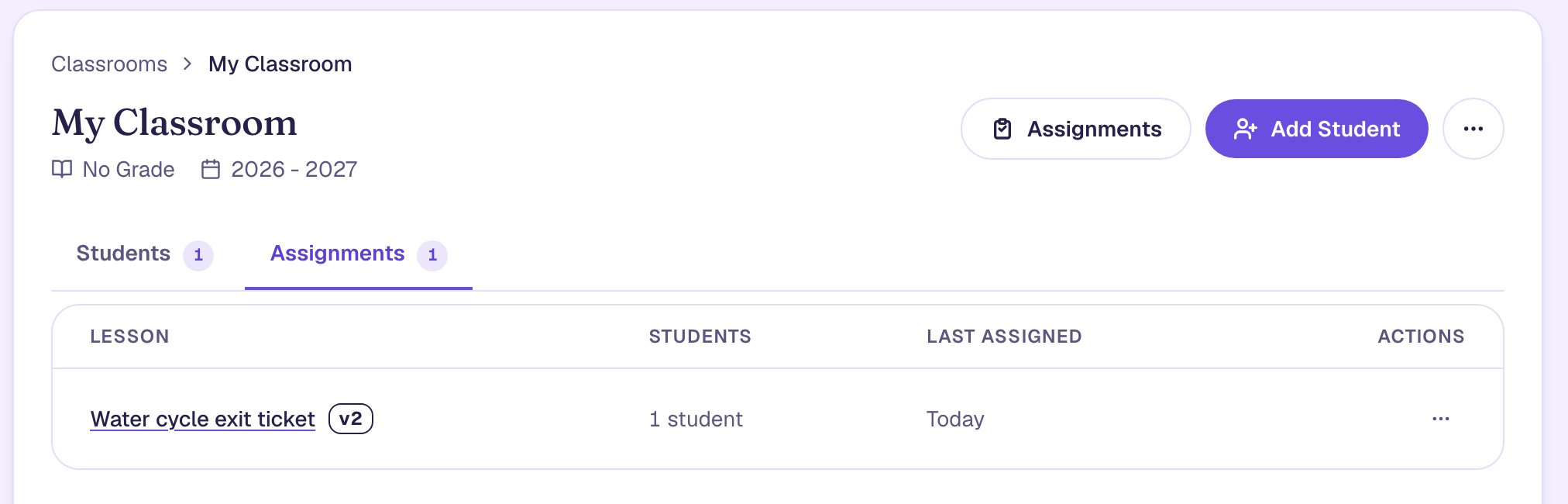
Nothing else changed: Maya keeps the same access code, and the lesson is in the same place on her list. A student added to the class later gets the newest version when you assign it to them.
Step 6: The student gets the hint
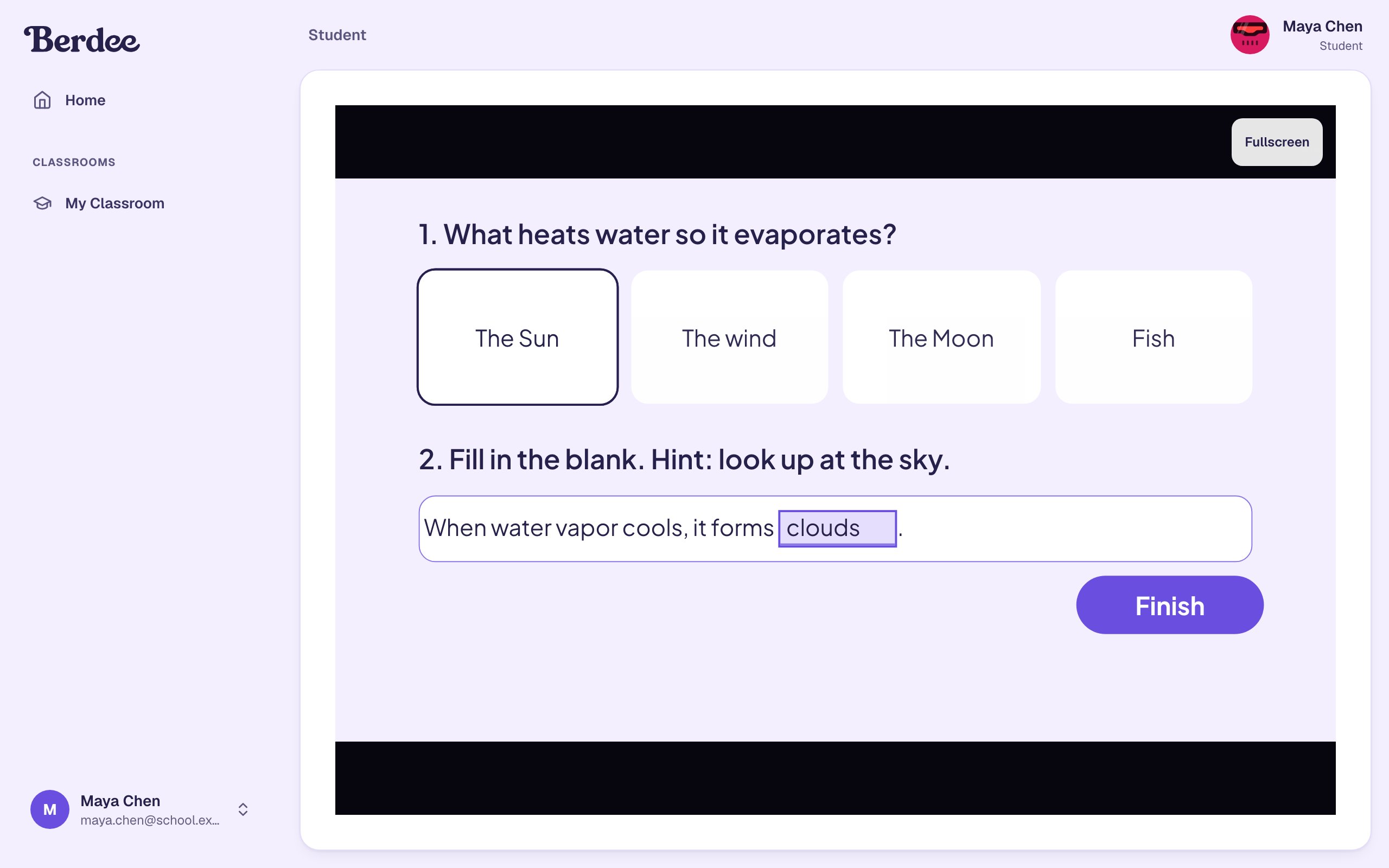
When Maya types her code at berdee.app/go and starts the lesson, question 2 has its hint. She picks The Sun, types clouds, and clicks Finish.
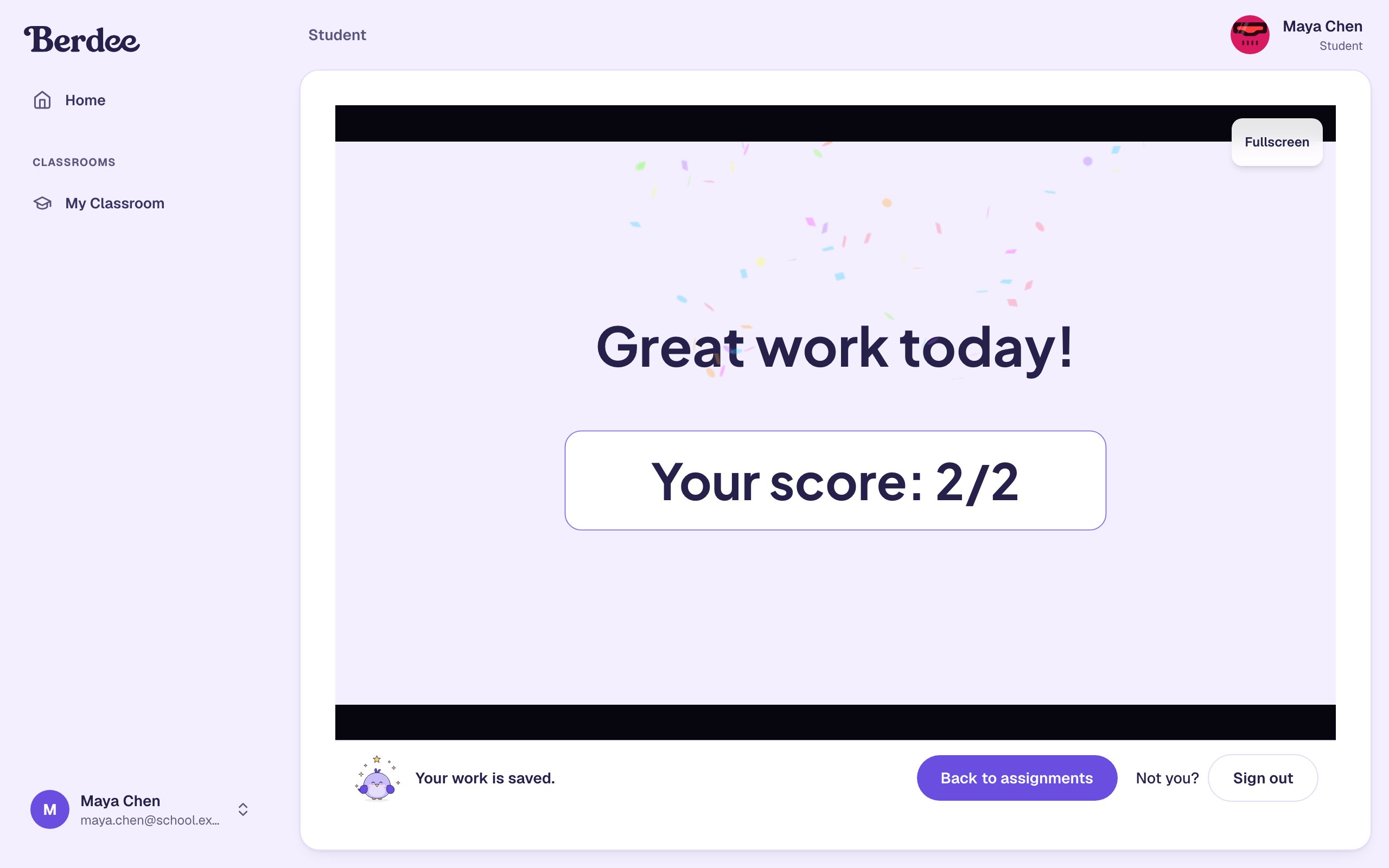
A student who had already finished the lesson keeps that attempt and its grade. If they open it again, they start a new attempt on the newest version.
What you built
The same exit ticket, a little better, in your students' hands:
- A change made in the studio without touching what your students had.
- A check on the Assignments tab, where the version label shows what the class is on.
- The update sent with Update students to latest, after reading the list of recorded changes.
- The new version on the student's screen, opened with the same access code as before.
Use it whenever you improve a lesson mid-unit. Each push moves the whole class at once, and anyone partway through finishes on the version they started.
Make this lesson yours
Add the lesson you just watched being built to your account, then change it for your class: your questions, your pictures, your colors.
Free to sign up, and you'll come straight back here. I have an account