Add two-digit numbers by making a new ten
Use Base-Ten Blocks' Add or take away mode so students put 38 and 25 together, see 13 small cubes, and trade 10 of them for a rod to reach 63, with a cheer when they make the ten and a hint if they stop too soon.
- Level
- Intermediate
- Time
- About 15 min
- Steps
- 7
- Updated
- Oct 30, 2026
A "38 + 25 lemons" scene where students join two numbers on a mat, make a new ten from the extra small cubes, and move on to the ending once the mat shows 6 tens and 3 ones.
Get the finished lesson
Skip straight to the result, or keep it open beside the steps. Add this tutorial's lesson to your account and explore how it works in the studio.
Free to sign up, and you'll come straight back here. I have an account
When second graders add 38 + 25, the hard part isn't counting. It's seeing that 8 ones and 5 ones make 13, which is too many for the ones place, so 10 of them become a new ten. Base-ten blocks let a child do that trade with their hands before they ever write a little 1 over the tens column.
In this tutorial you'll build a one-scene lesson called 38 + 25 lemons. The mat starts with 38 on one side and 25 on the other. Students tap Put together, then Make a ten to turn 10 small cubes into a rod, then Done. Making the ten gets a cheer. Tapping Done with 13 small cubes still on the mat gets a hint, so a student who stops halfway knows what to try.
If you haven't used Base-Ten Blocks before, Build a three-digit number with base-ten blocks is a gentler start.
Step 1: Set the scene
Start a blank lesson (New lesson, then Start from scratch) and name it Add 38 + 25 by making a new ten by clicking Untitled lesson at the top left.
Click an empty spot on the scene, open Background, click Choose a style, and pick Mesh sunrise. Give the Closing Scene the same background so the ending matches.
Then add the story problem:
- A Heading at the top:
38 + 25 lemons. Set its Font Size to44. - A Body under it:
Sam picked 38 lemons and Mia picked 25. Put them together. How many lemons is that?Set it to Fixed width,880wide, then set its Font Size to22. - An Image on the right,
200wide and250tall. Click Choose image, search the stock photos forlemons, and import a tall photo of lemons on a tree.
Open the picture's Accessibility section and type an Alt Text that says what's in the photo, for example Ripe yellow lemons hanging from a leafy tree branch in the sunshine.
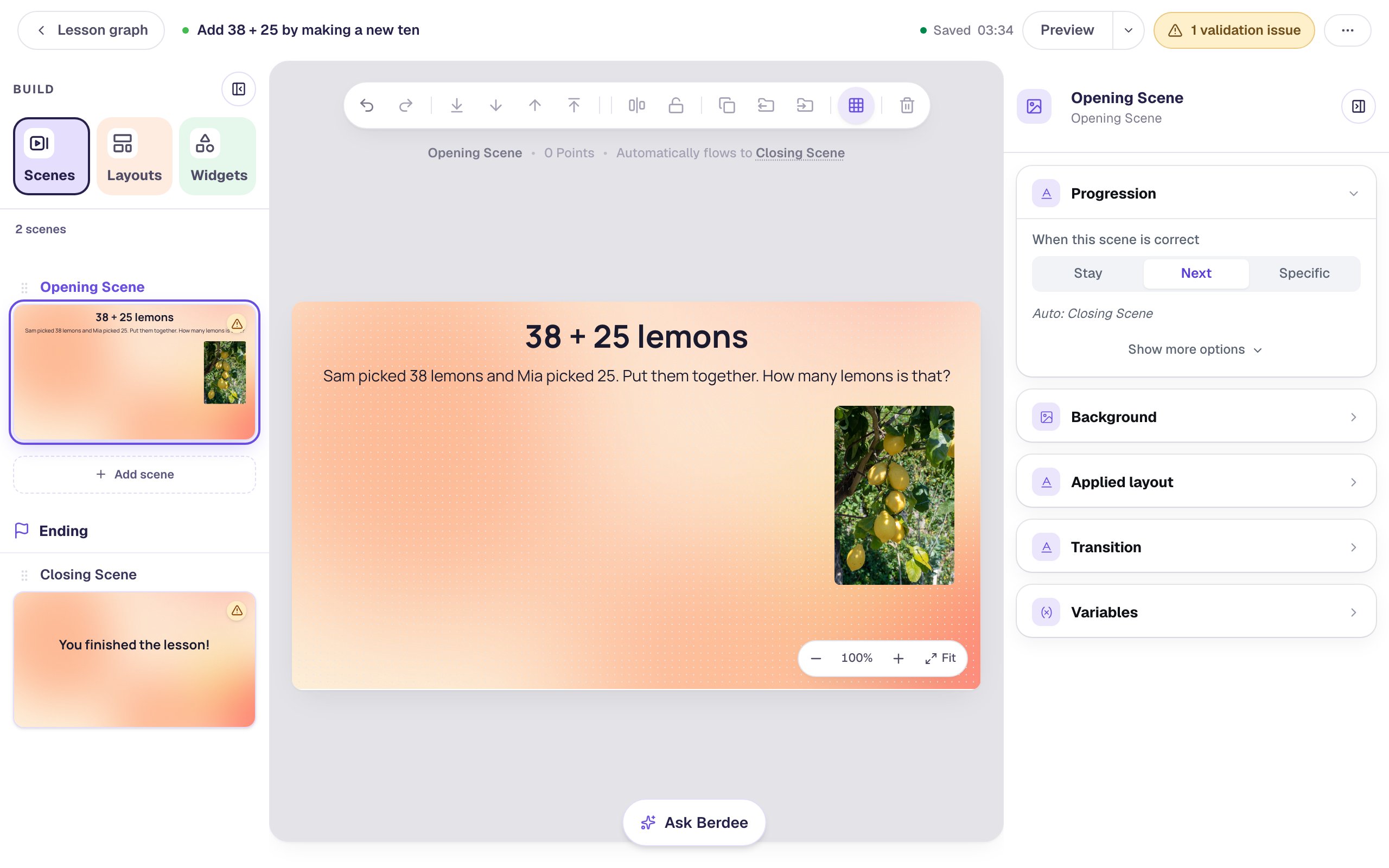
Leave the left two-thirds of the scene empty for the blocks. The 1 validation issue at the top is the missing finish button, which you'll add in Step 6.
Step 2: Add Base-Ten Blocks and choose Add or take away
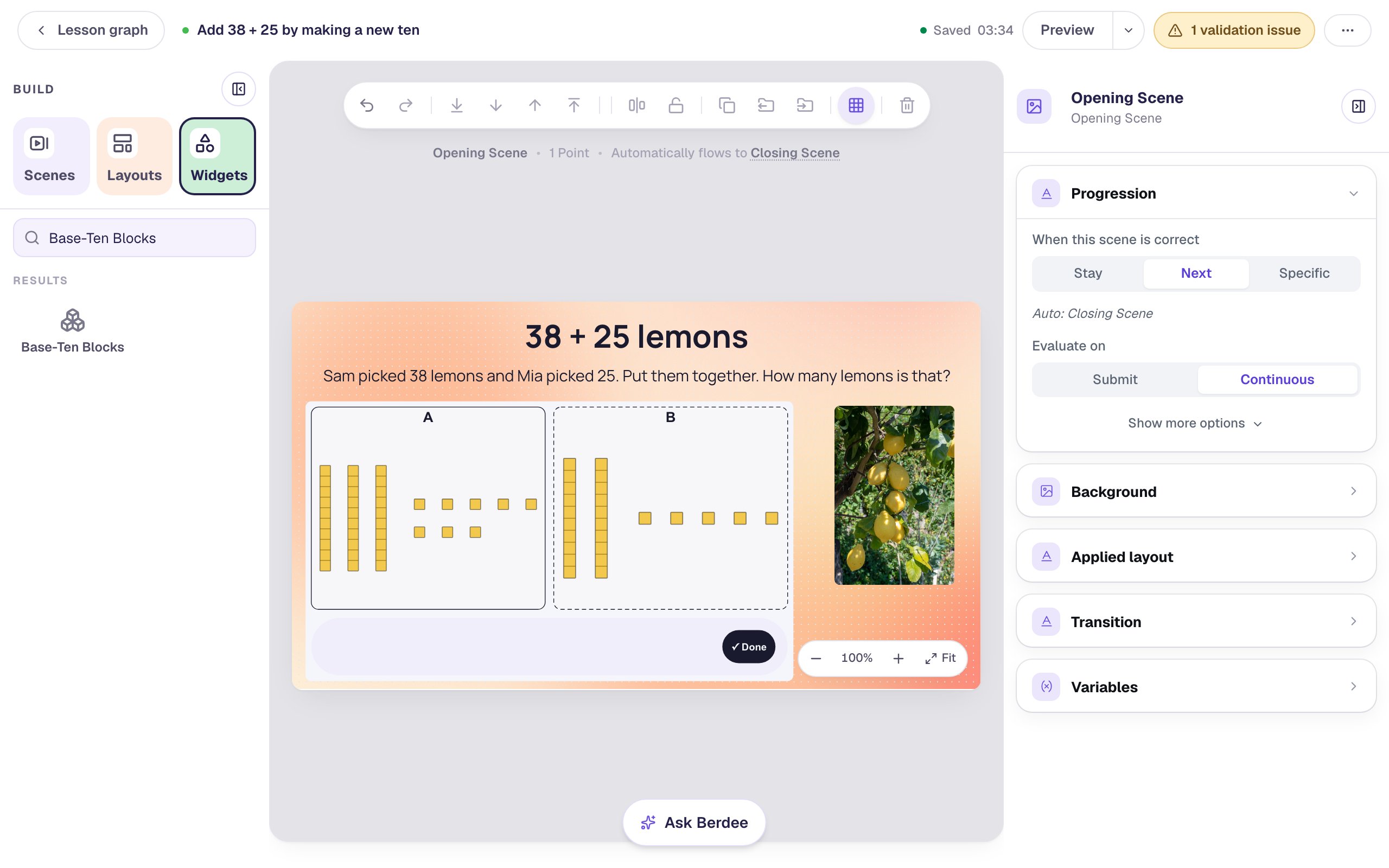
Search the Widgets tab for Base-Ten Blocks and click it. Click its name at the top of the properties panel and type Lemons. Under Style & Layout, click Show more options, set Width to 680 and Height to 390, and drag it to the left side of the scene, under the sentence.
Then click ⚙ Configure in the pill above the widget.
- Under What students do, click Add or take away.
- Under How the pieces look, set Look to Blocks (rods and small cubes) and Largest piece to Tens. Everything in this problem is under 100, so there's no need for flats.
- Under The change, set Students to Add and Start with to Two numbers.
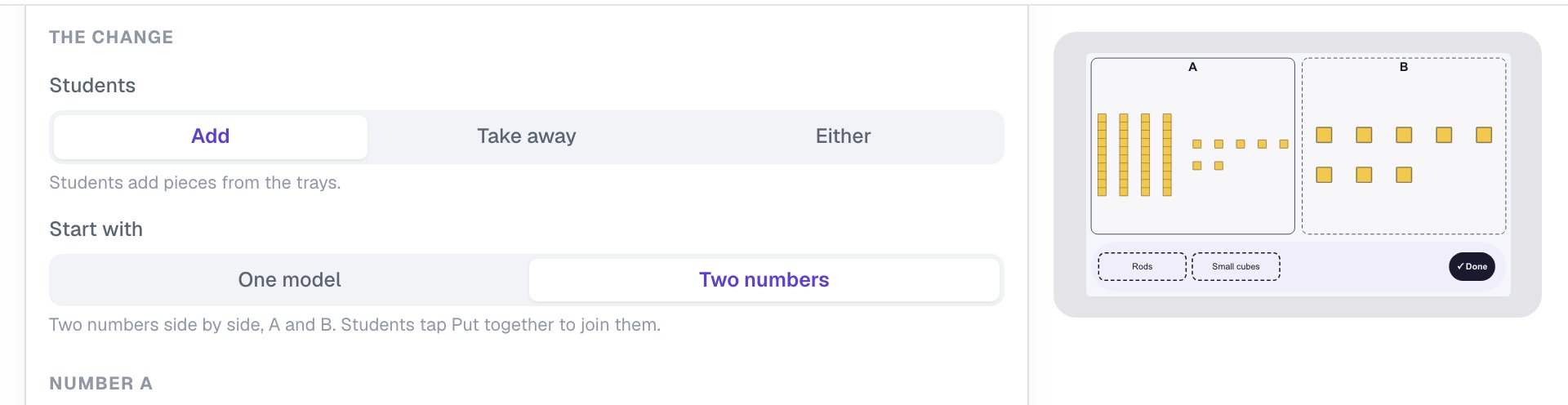
Two numbers is what makes this an addition problem rather than a building one: the addends start on the mat, and the student's job is to join them and tidy the result.
Step 3: Set the two numbers
Scroll down to Number A. It starts with the sample 47 a new widget shows. You can tap + Rod and + Small cube, but typing is faster: in the Or type boxes, type 3 tens and 8 ones. Then do the same under Number B: 2 tens and 5 ones.
The line under each mat reads the number back to you: 3 rods and 8 small cubes: 38.
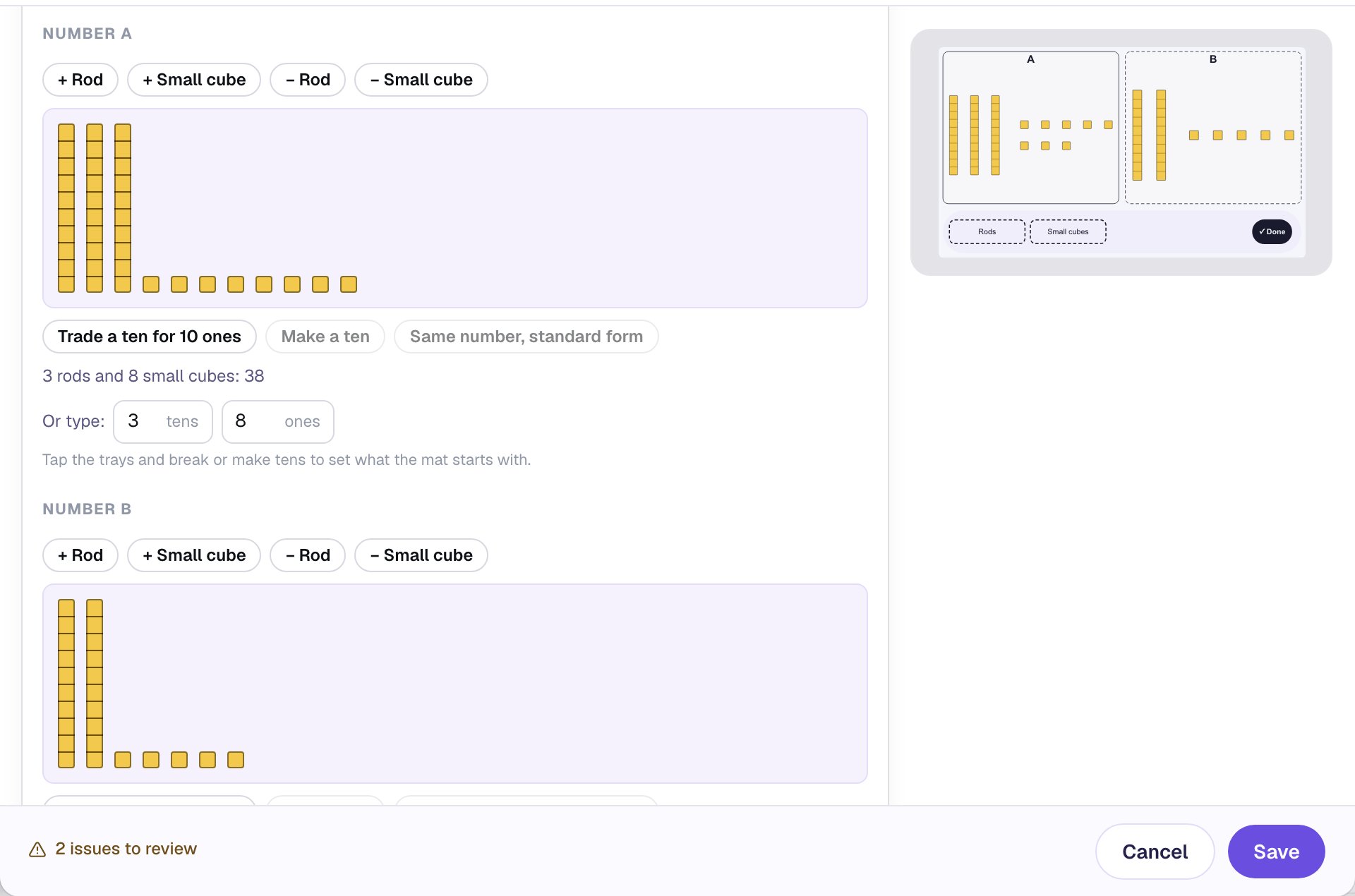
The 2 issues to review at the bottom of the window are about the target, which you set next.
Step 4: Ask for 63, with the new ten made
Scroll down to How it's checked.
- Set Target to
63. - Set In this form to Standard. The hint reads At most 9 of each piece below the largest: 6 rods and 3 small cubes.
- Under What students build with, turn off Rods tray and Small cubes tray.
- Leave Can break and make tens on, with Make a ten set to One tap.
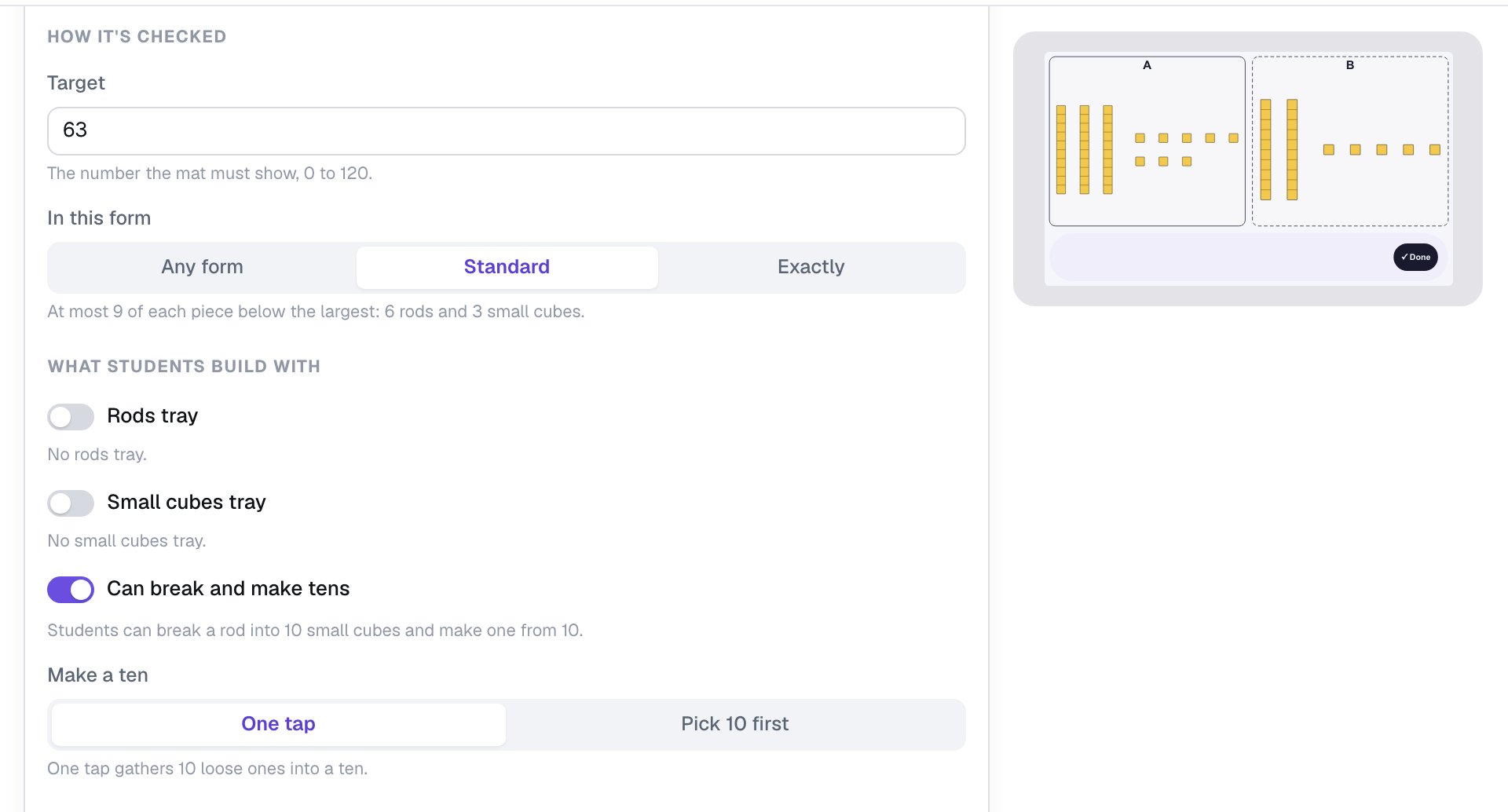
Each choice does a job:
- Standard is the whole lesson. Put together, 38 and 25 make 5 rods and 13 small cubes. That's 63, but it isn't 63 in standard form, so Any form would let a student skip the regrouping. With Standard, only 6 rods and 3 small cubes count.
- No trays means the only pieces on the mat are the 38 and the 25. A student can't reach 63 by tapping in a new rod from a tray instead of making one.
- Can break and make tens is what puts the Make a ten button under the mat. One tap gathers 10 loose small cubes into a rod at once. Choose Pick 10 first if you want students to choose the 10 cubes themselves.
Click Save. The canvas shows the two mats, 38 on A and 25 on B.
Step 5: Cheer the new ten, and hint when it's missing
The blocks don't say anything by themselves, so add two short messages. With the blocks selected, open Behaviors in the properties panel.
First, the hint:
- Click Add Behavior, then On Done. The new behavior starts with a Display Message action.
- Set its style to Failure message and type
Not yet! Count your small cubes. Can you make a new ten? - Click Add Condition. Choose Base-Ten Blocks: Lemons, then Is incorrect.
Then the cheer:
- Click Add Behavior again, then On Ten Made.
- Set the message's style to Success message and type
That's a new ten! 10 small cubes make 1 rod.
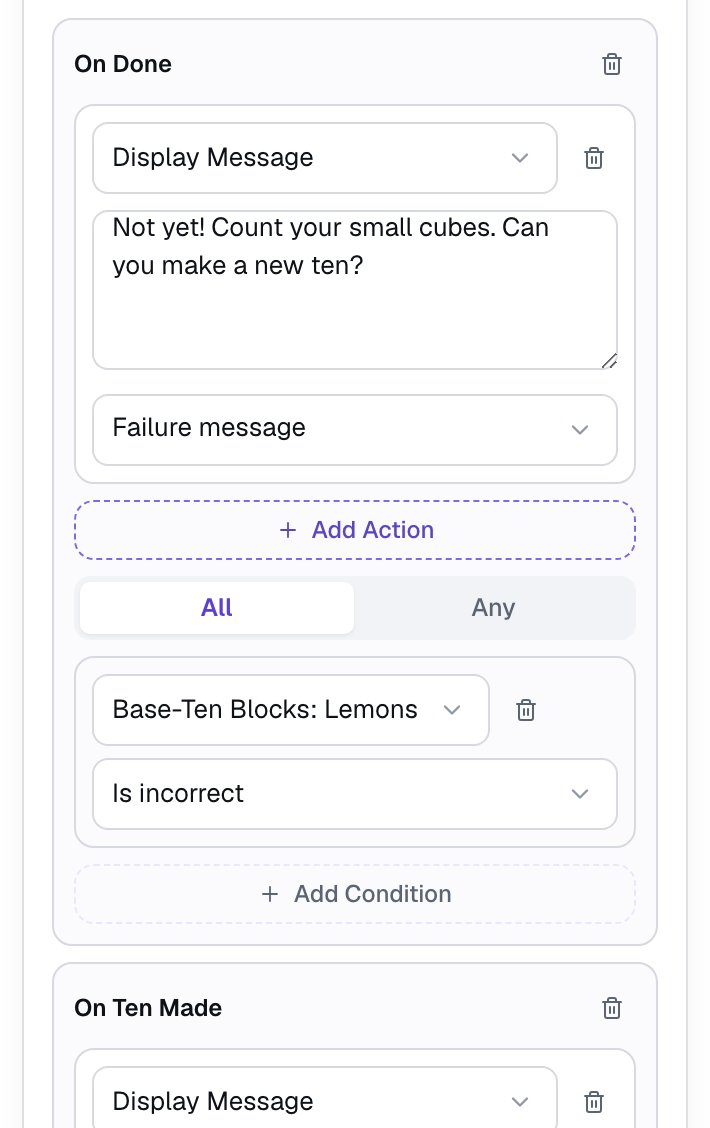
The hint's condition keeps it from showing on a right answer. The cheer needs no condition, because On Ten Made only fires when a student makes a ten. It doesn't fire for a ten you set up on the mat, and it doesn't fire when a student breaks a rod apart.
The hint names the move without giving the answer away. A student who taps Done with 13 small cubes is told to count them, not that the answer is 63.
Step 6: Give students a moment, and add "I'm done"
When the mat is right, the scene moves on by itself (the line above the canvas says Automatically flows to Closing Scene). By default it waits less than a second. Click an empty spot on the scene, open Progression, click Show more options and set Advance delay to 3000 ms, so students see their 6 rods and 3 small cubes before the ending.
Every lesson also needs a button that lets a student finish:
- Search the Widgets tab for
Submit Buttonand click it. - In Content, change Label to
I'm doneand set Submits to Lesson. - Set its Font Size to
18, give it a navy Background and white Text, and drag it under the photo.
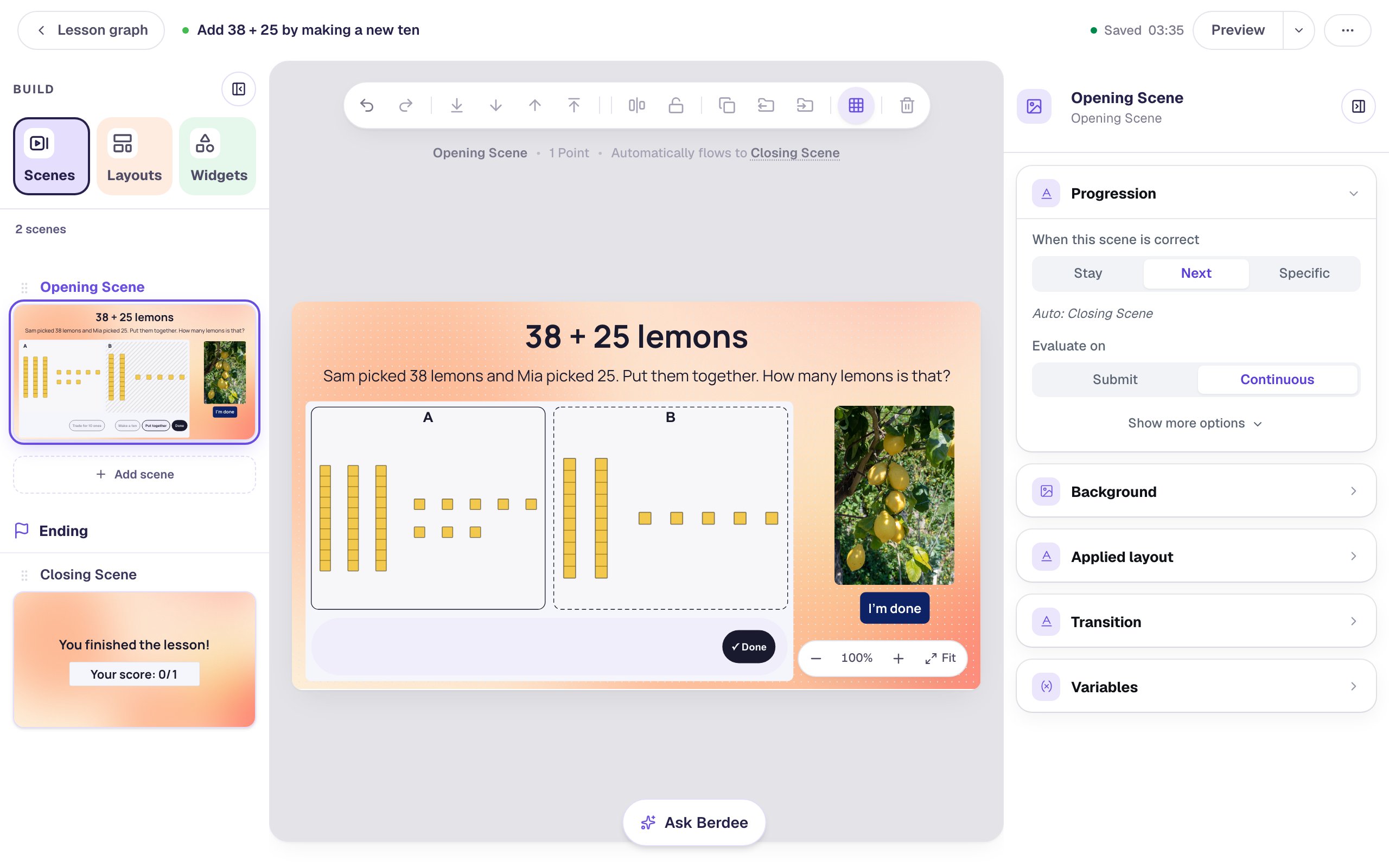
Keep I'm done away from the blocks' own Done button, so students don't tap the wrong one.
Step 7: Try it as a student
Click Preview. Tap Put together: the two mats become one, with 5 rods and 13 small cubes. Now stop too soon, the way many students will, and tap Done.
The mat is worth 63, but it shows 13 ones, so the hint appears.
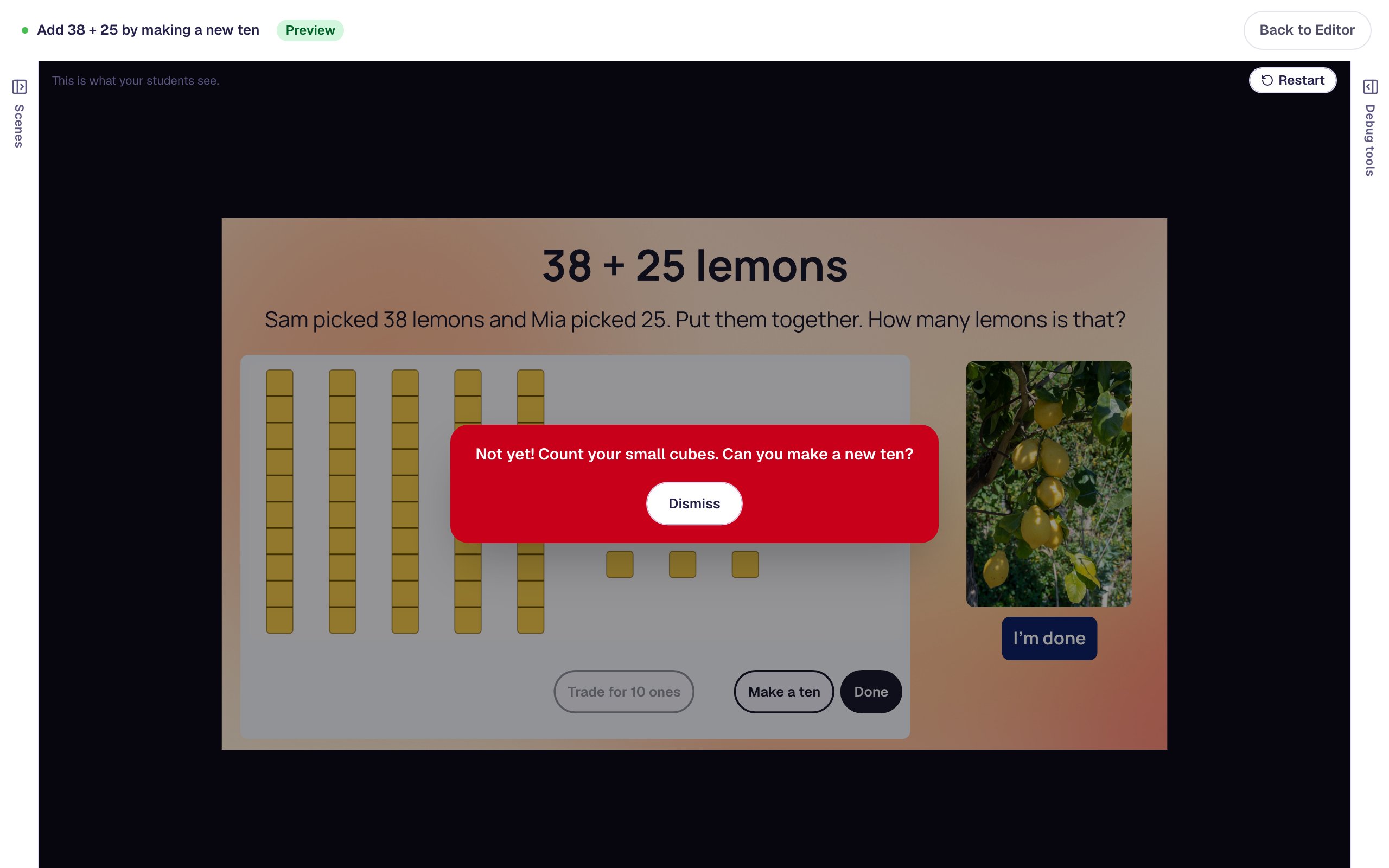
Tap Dismiss, then Make a ten. Ten small cubes gather into a sixth rod, and the cheer appears.
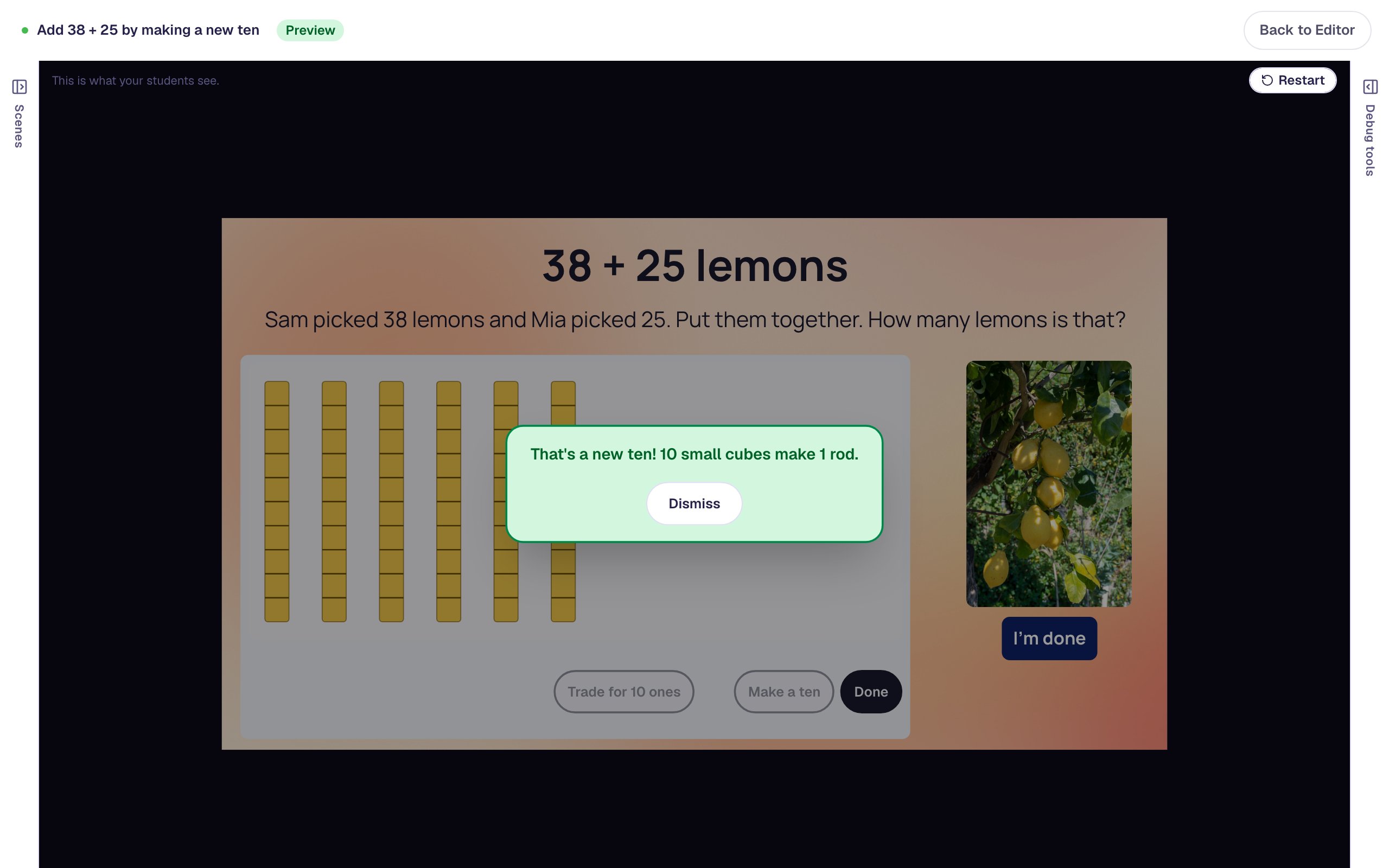
Tap Dismiss. The mat now shows 6 rods and 3 small cubes: 63 lemons.
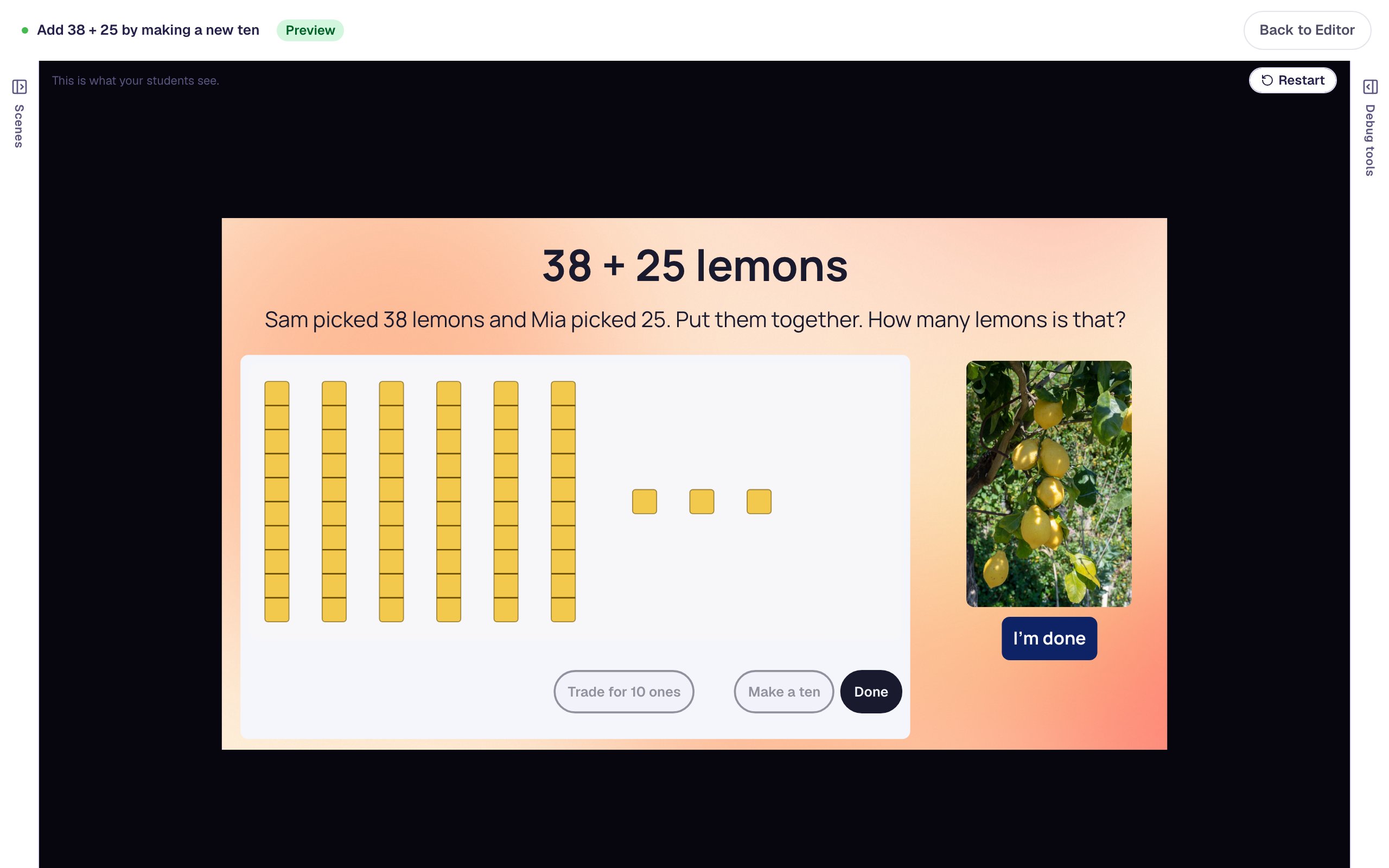
Make a ten is greyed out now, because there are only 3 small cubes left. Tap Done, and after the pause the lesson moves on.
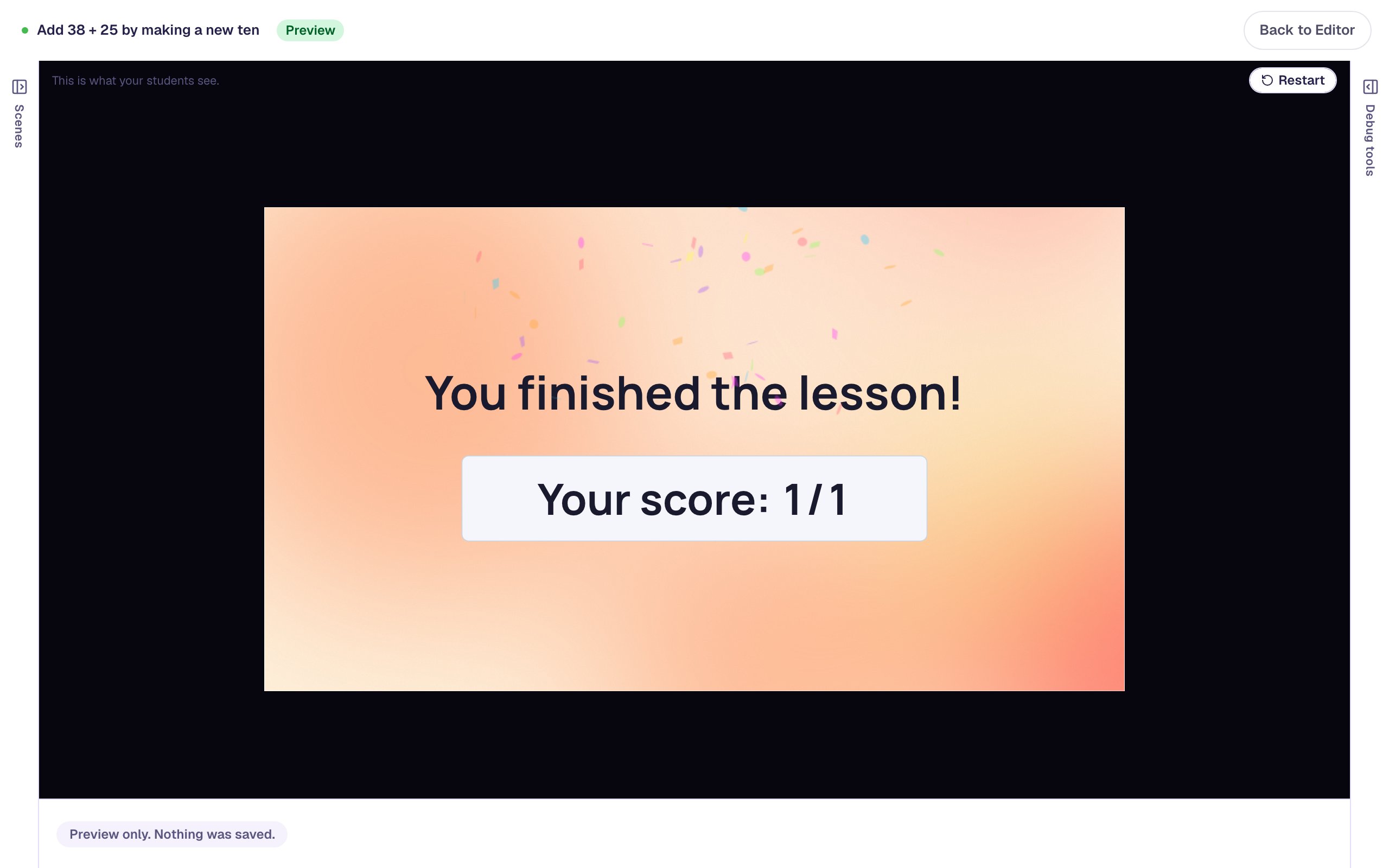
The score is 1 out of 1 even after the early Done: a wrong Done is an attempt, not a lost point. Each student's attempt page draws their mat and says how they got there, for example whether they made the new ten, so you can find the students who still need to see it.
What you built
You built a one-scene regrouping activity with:
- Base-Ten Blocks in Add or take away mode, with Add and Two numbers: 38 on mat A and 25 on mat B,
- a Target of
63in Standard form, so the 13 small cubes have to become a rod and 3, - no trays, so the new rod has to come from Make a ten,
- an On Ten Made cheer and an On Done hint that shows only when the blocks are incorrect,
- a longer Advance delay, a photo with alt text, and an I'm done button.
To practice subtraction with regrouping, duplicate the scene and change it to 82 − 9: set Students to Take away, Start with to One model, the start to 8 tens and 2 ones, and Target to 73. Students have to break a rod into 10 small cubes before they can take 9 away. Build a three-question quiz by duplicating a scene shows how to copy the scene.
Make this lesson yours
Add the lesson you just watched being built to your account, then change it for your class: your questions, your pictures, your colors.
Free to sign up, and you'll come straight back here. I have an account