Build a three-digit number with base-ten blocks
Set up Base-Ten Blocks so second graders build 243 from flats, rods and small cubes, accept only 2 hundreds, 4 tens and 3 ones, and show a hint when a student swaps the tens and ones.
- Level
- Beginner
- Time
- About 12 min
- Steps
- 7
- Updated
- Oct 30, 2026
A "Build 243" scene where students tap flats, rods and small cubes onto a mat, get a hint if their blocks show another number, and move on to the ending once the mat shows 243.
Get the finished lesson
Skip straight to the result, or keep it open beside the steps. Add this tutorial's lesson to your account and explore how it works in the studio.
Free to sign up, and you'll come straight back here. I have an account
Base-ten blocks are how second graders see what the digits in 243 mean: 2 flats of a hundred, 4 rods of ten and 3 small cubes of one. Building a number with them shows you whether a child knows which digit is which, which reading the number aloud doesn't.
In this tutorial you'll build a one-scene lesson called Build 243. Students tap the trays to put flats, rods and small cubes on a mat, then tap Done. If the mat shows 2 hundreds, 4 tens and 3 ones, the lesson moves on. If it shows something else, like 234 (the tens and ones swapped), a hint reminds them what each block is worth, and they can fix it.
Step 1: Set the scene
Start a blank lesson (New lesson, then Start from scratch) and name it Build 243 with base-ten blocks by clicking Untitled lesson at the top left.
Click an empty spot on the scene, open Background, click Choose a style, and pick Mesh sunrise. Give the Closing Scene the same background so the ending matches.
Then add what students read first:
- A Heading at the top:
Build 243. Set its Font Size to44. - A Body under it:
Our class read 243 pages this week! Show 243 with flats, rods and cubes.Set it to Fixed width,880wide, then set its Font Size to22. - An Image on the right,
200wide and260tall. Click Choose image, search the stock photos forstack of colorful books, and import a tall photo of a pile of books.
Open the picture's Accessibility section and type an Alt Text that says what's in the photo, for example A tall, tilted stack of colorful books and magazines against a brown wall. Students who use a screen reader hear that instead of a file name.
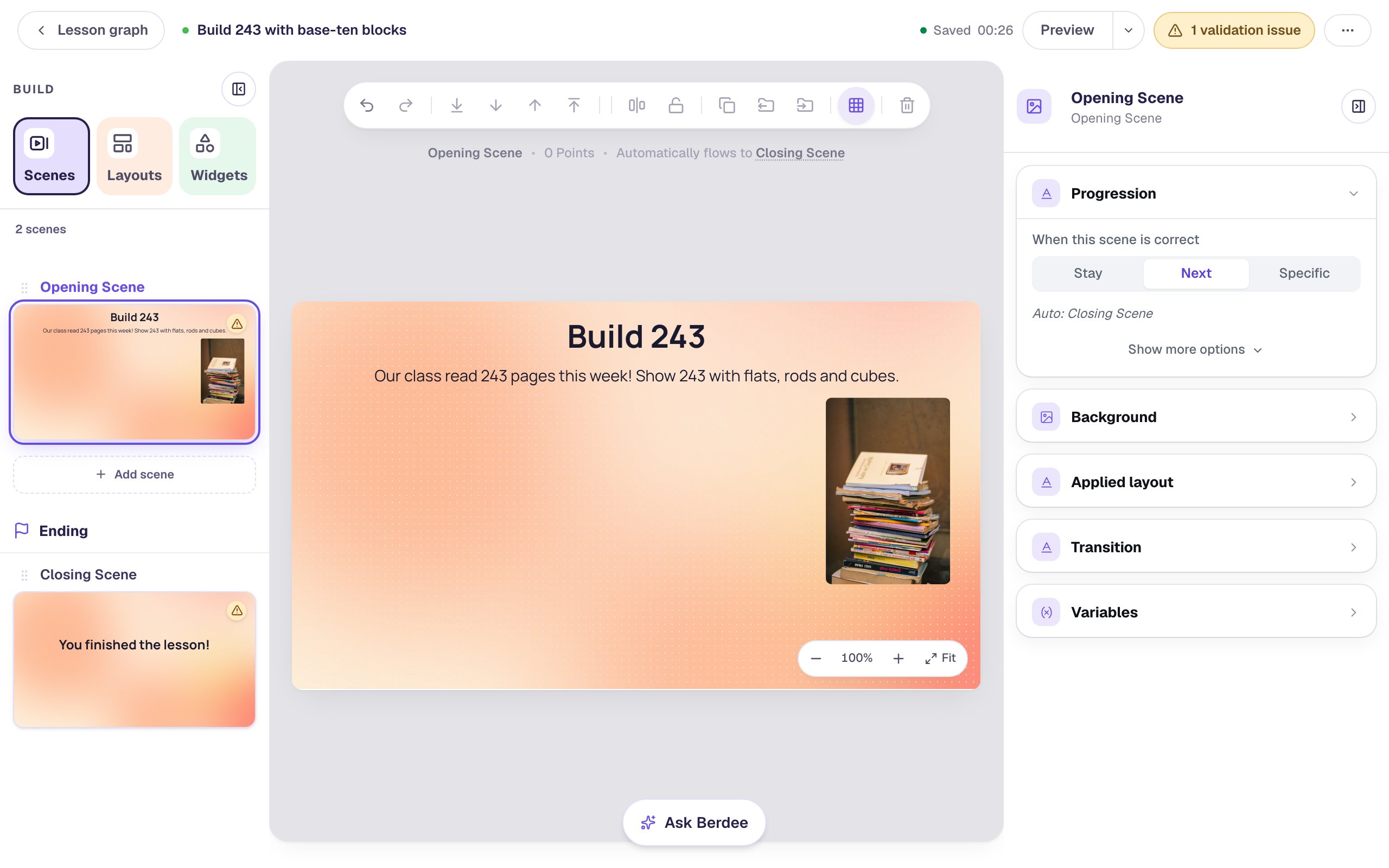
Keep the left side of the scene free: the blocks need most of the width.
Step 2: Add Base-Ten Blocks
Search the Widgets tab for Base-Ten Blocks and click it. It lands almost as wide as the scene, showing a sample model of 4 towers of ten and 7 single cubes.
Give it a name you'll recognize later: click its name at the top of the properties panel and type Pages read. Then, under Style & Layout, click Show more options and set Width to 680 and Height to 390, and drag it to the left side of the scene, under the sentence.
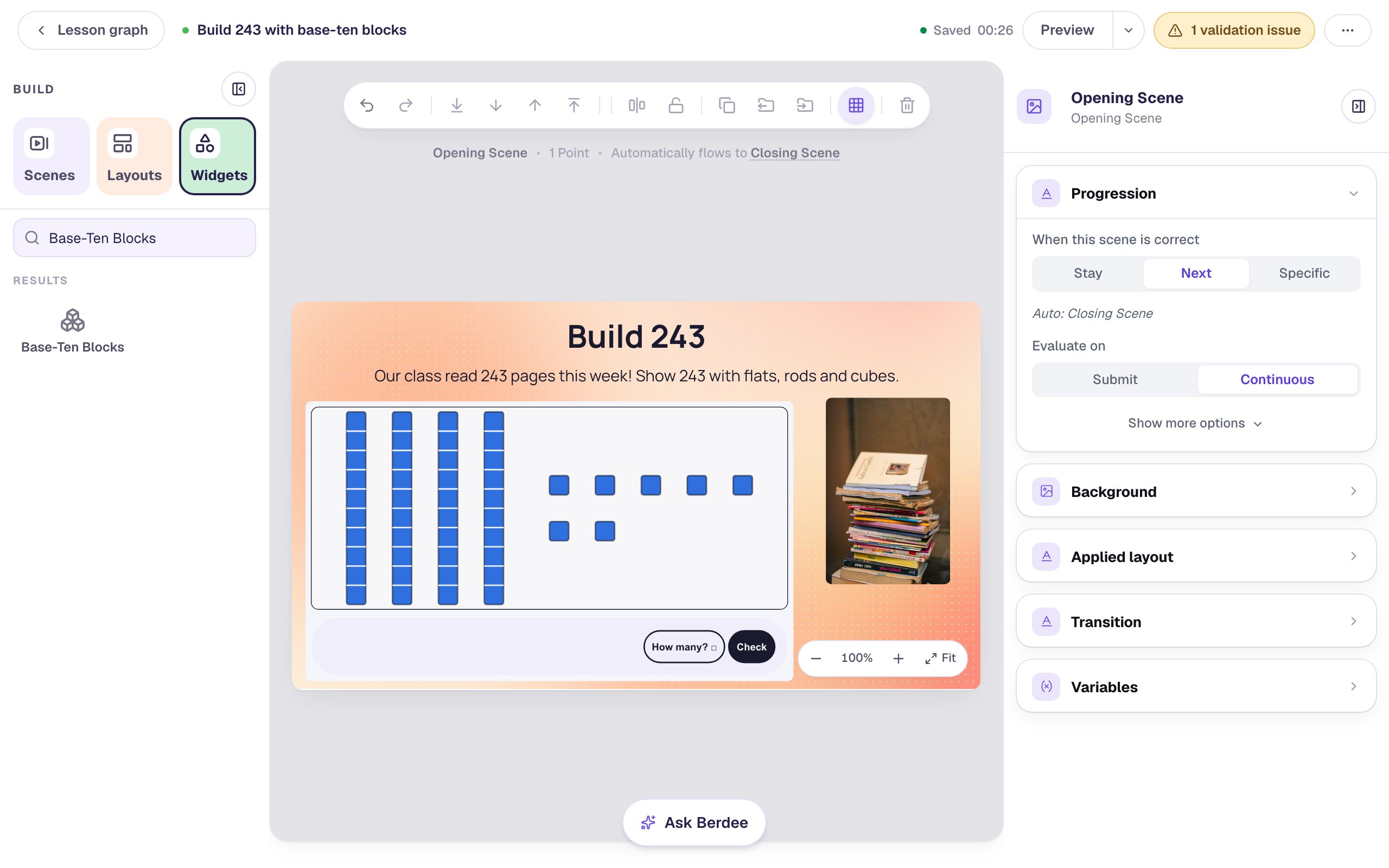
Keep the widget big. With hundreds, the trays and buttons need about 680 units of width; the Configure window warns you if the pieces get too small for young fingers.
Step 3: Choose Build, with blocks up to hundreds
Click ⚙ Configure in the pill above the widget.
- Under What students do, click Build. Students build a number from the trays, then tap Done. It's tagged Graded.
- Under How the pieces look, set Look to Blocks: rods and small cubes, the way most second-grade classrooms draw them.
- Set Largest piece to Hundreds. That adds the flat, a 10 × 10 square worth 100, so students can build up to 1,200.
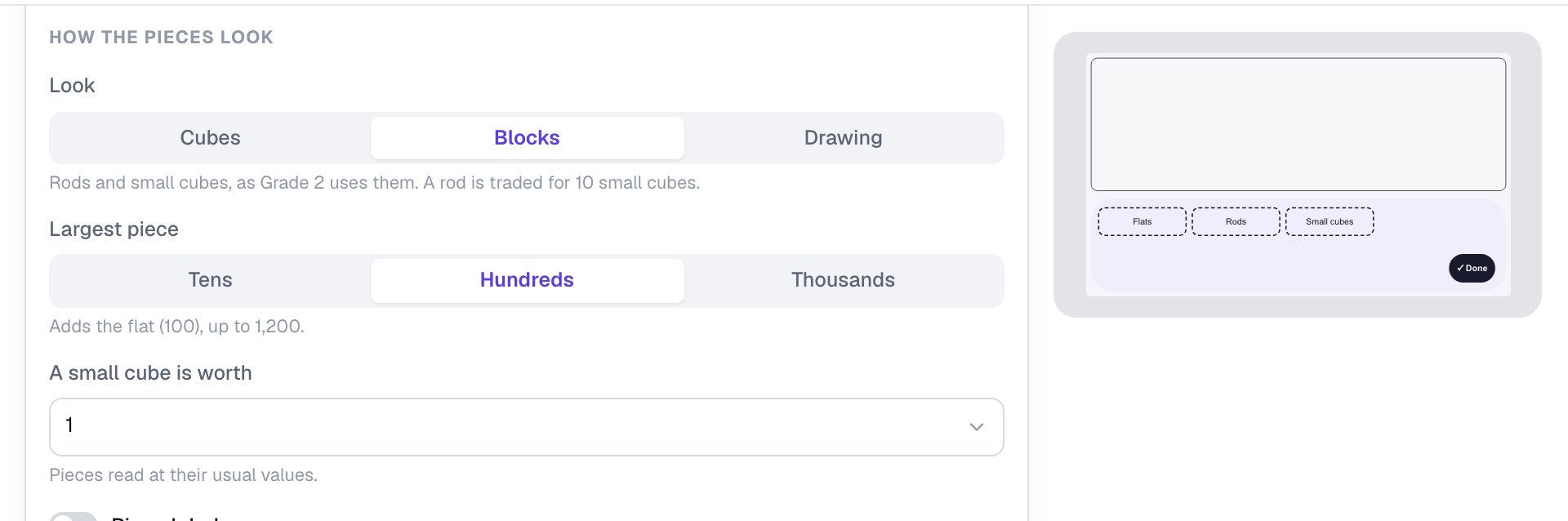
Leave A small cube is worth on 1. Change it only when you want the same blocks to stand for bigger numbers, like a small cube worth 10.
Step 4: Ask for 243 in standard form
Scroll down the same window to How it's checked.
- Set Target to
243. - Set In this form to Standard. The hint underneath now reads At most 9 of each piece below the largest: 2 flats, 4 rods and 3 small cubes.
- Under What students build with, turn off Can break and make.
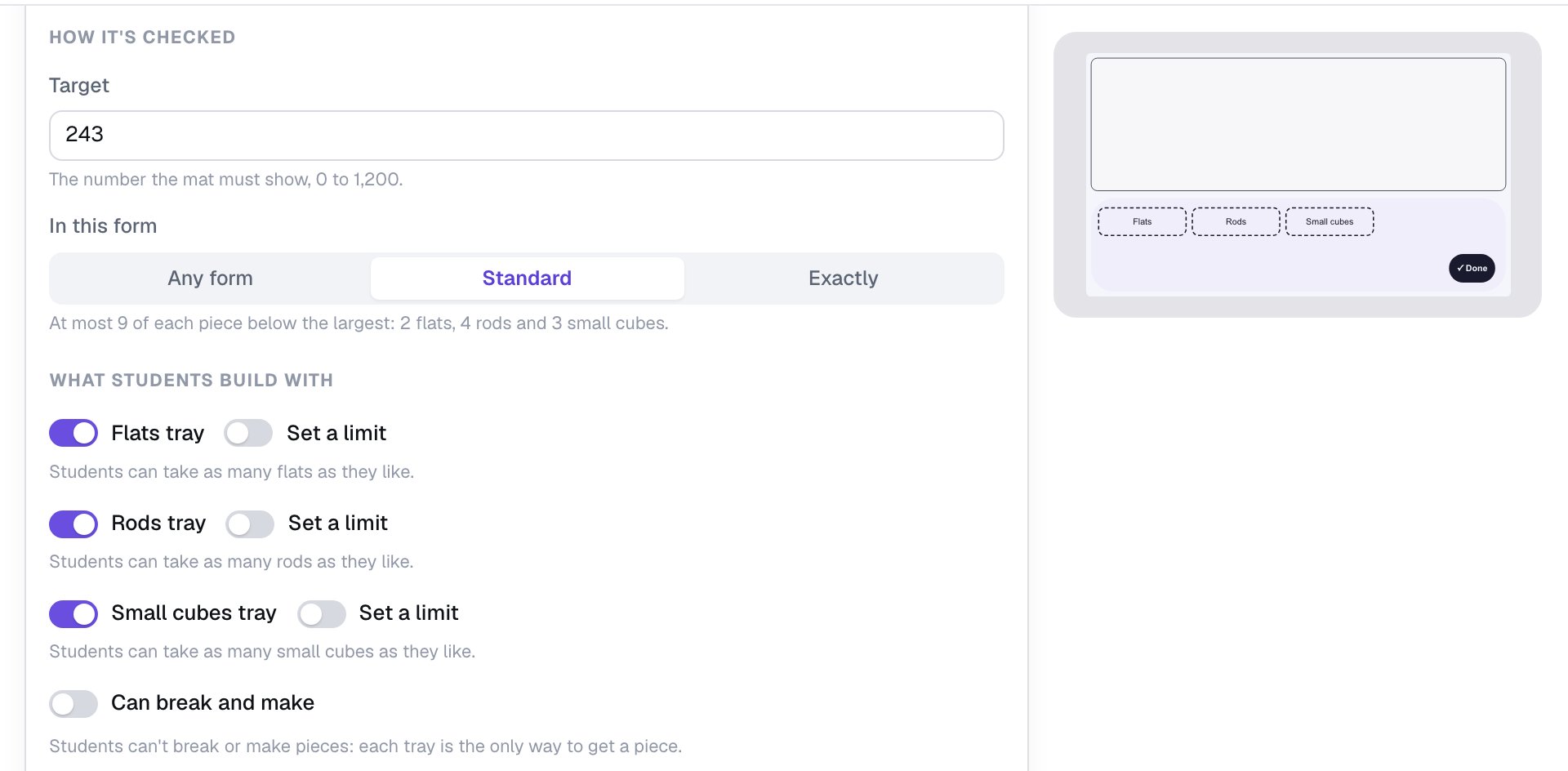
Standard is what makes this a place-value check. With Any form, 24 rods and 3 small cubes would also count, because they're worth 243 too. That's a good question on another day ("Build 243 two ways"), but today you want to see whether students put the 2 in the hundreds.
Students build 243 straight from the trays, so they never need to break a flat into rods. With Can break and make off, the buttons under the mat are just Take away, Put back, Clear and Done, which keeps the activity simple.
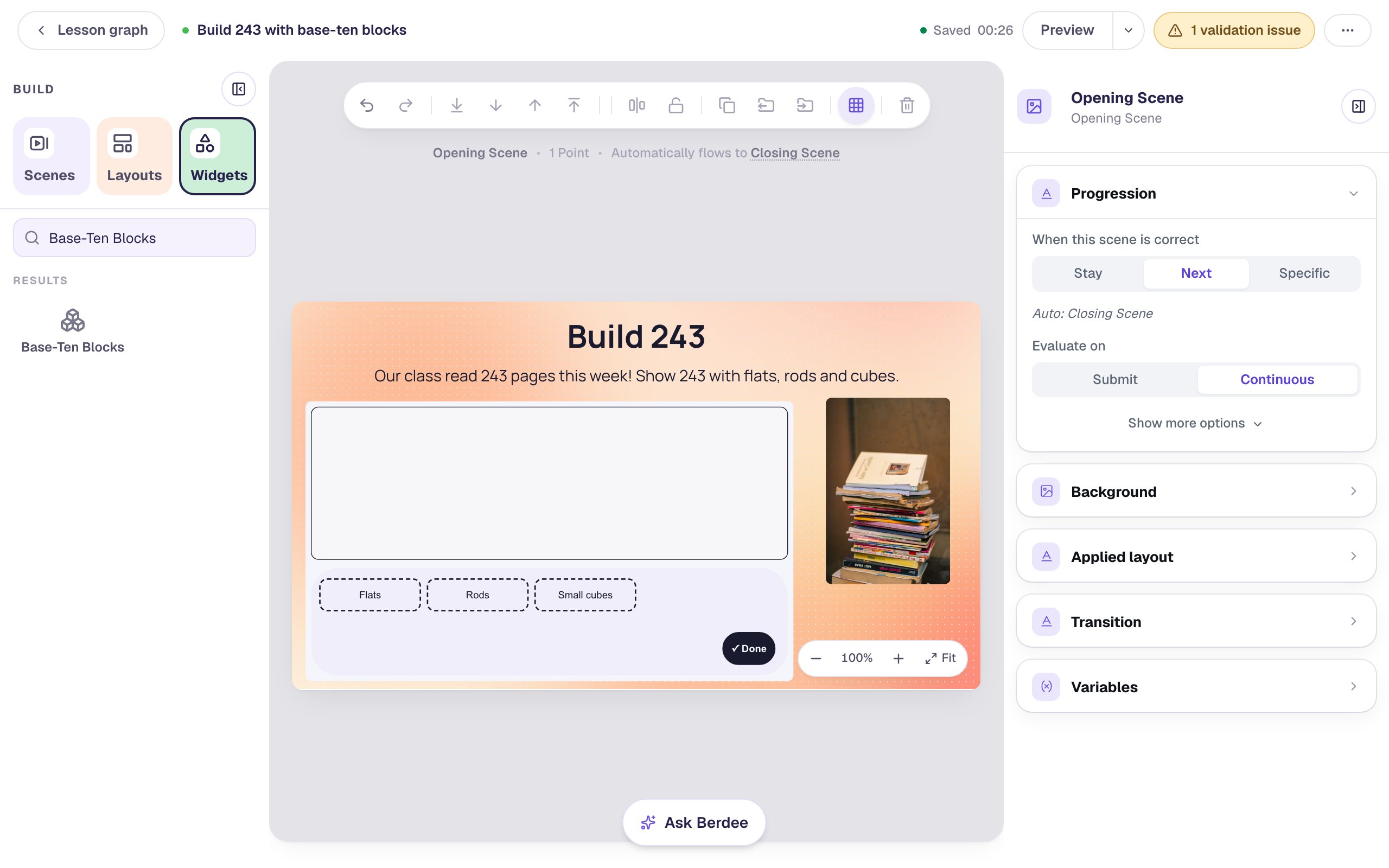
Click Save. The canvas now shows an empty mat with the three trays, which is what students start with.
Step 5: Show a hint when the blocks are wrong
Base-Ten Blocks don't say "wrong" by themselves: after a wrong Done, the mat just stays as it is. Add a short hint so a student knows to look again.
- With the blocks selected, open Behaviors in the properties panel and click Add Behavior, then On Done.
- The new behavior starts with a Display Message action. Set its style to Failure message and type
Not yet! Count again: a flat is 100, a rod is 10 and a small cube is 1. - Click Add Condition. Choose Base-Ten Blocks: Pages read, then Is incorrect.
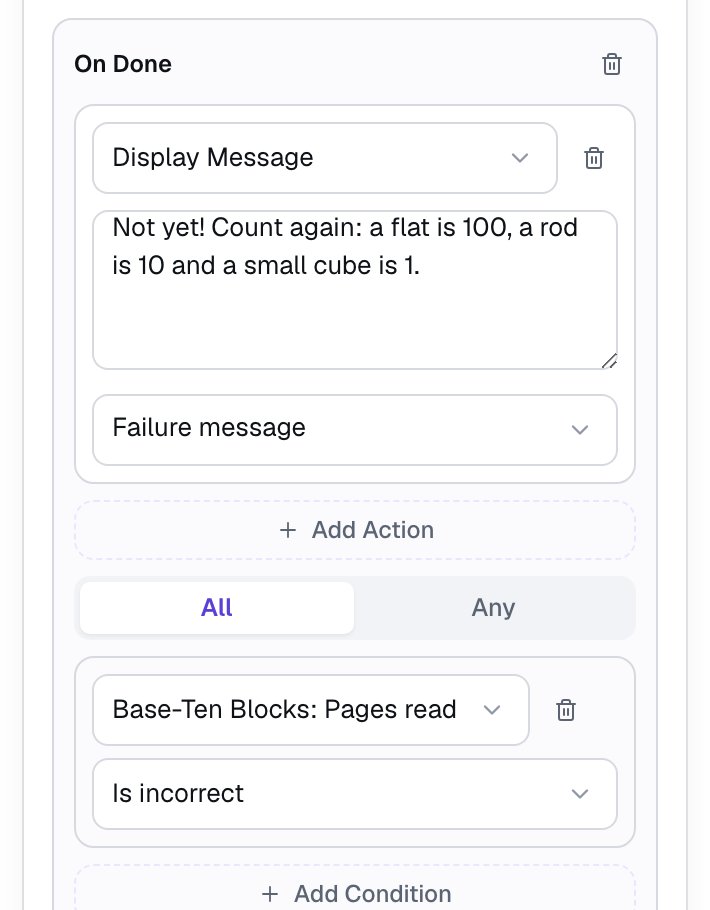
The condition matters: without it, the message would also show on a right answer, just as the lesson moves on. The hint reminds students what each block is worth without giving away the answer.
Step 6: Give students a moment, and add "I'm done"
When the mat is right, the scene moves on by itself (the line above the canvas says Automatically flows to Closing Scene). By default it waits less than a second, which is too quick for a child to see the finished model. Click an empty spot on the scene, open Progression, click Show more options and set Advance delay to 3000 ms.
Every lesson also needs one button that lets a student finish, and it's a way out for a student who gets stuck:
- Search the Widgets tab for
Submit Buttonand click it. - In Content, change Label to
I'm doneand set Submits to Lesson. - Set its Font Size to
18, give it a navy Background and white Text, and drag it under the photo.
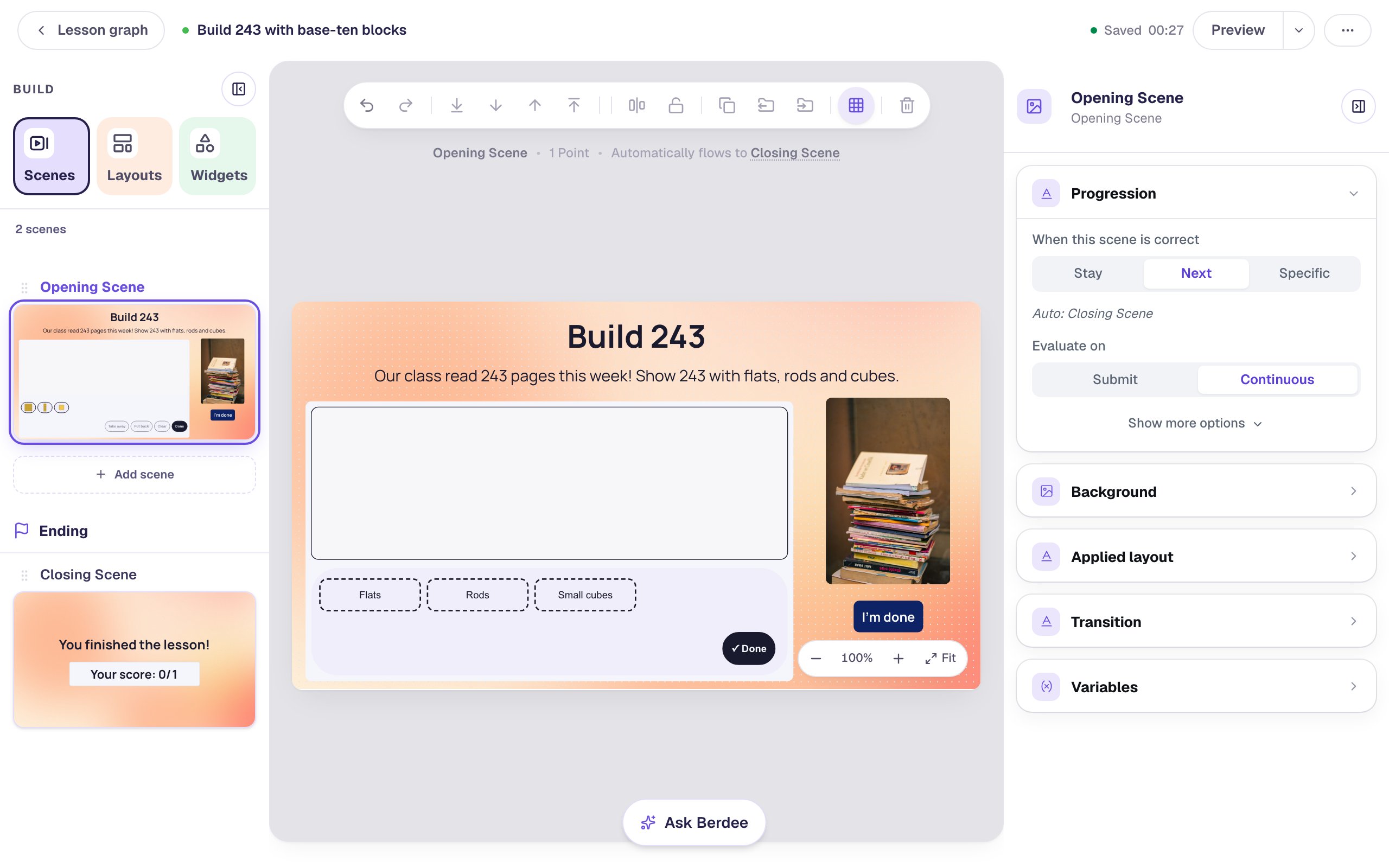
Keep I'm done away from the blocks' own Done button, so students don't tap the wrong one.
Step 7: Try it as a student
Click Preview. Make the classic mistake first: tap the flats tray twice, the rods tray three times and the small cubes tray four times, then tap Done.
The mat shows 234, so the hint appears.
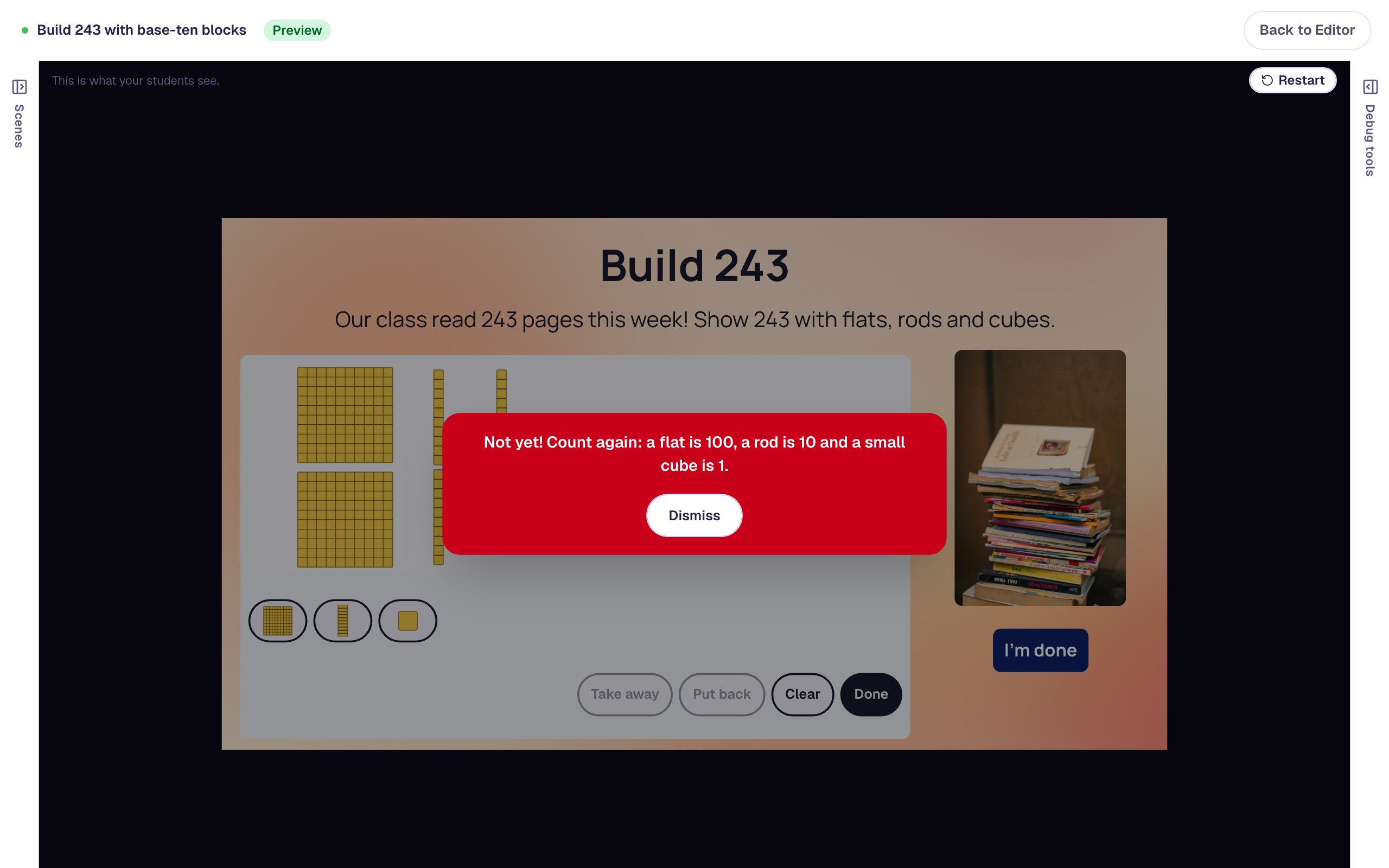
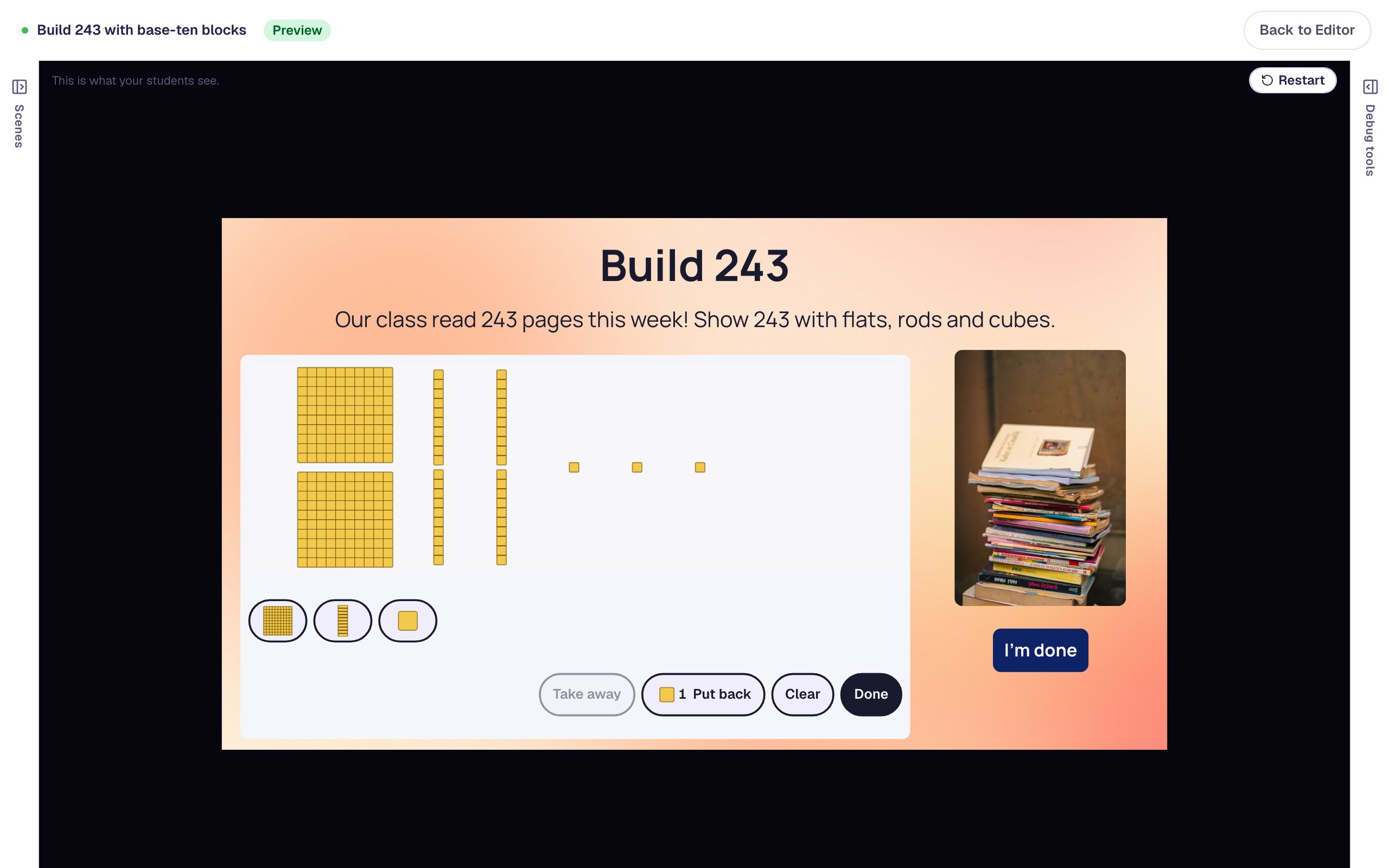
Now fix it like a student would: tap Dismiss, tap the rods tray once more, tap one small cube and tap Take away, then tap Done.
The mat now shows 2 flats, 4 rods and 3 small cubes. The cube that was taken away waits in Put back, in case it was the wrong one.
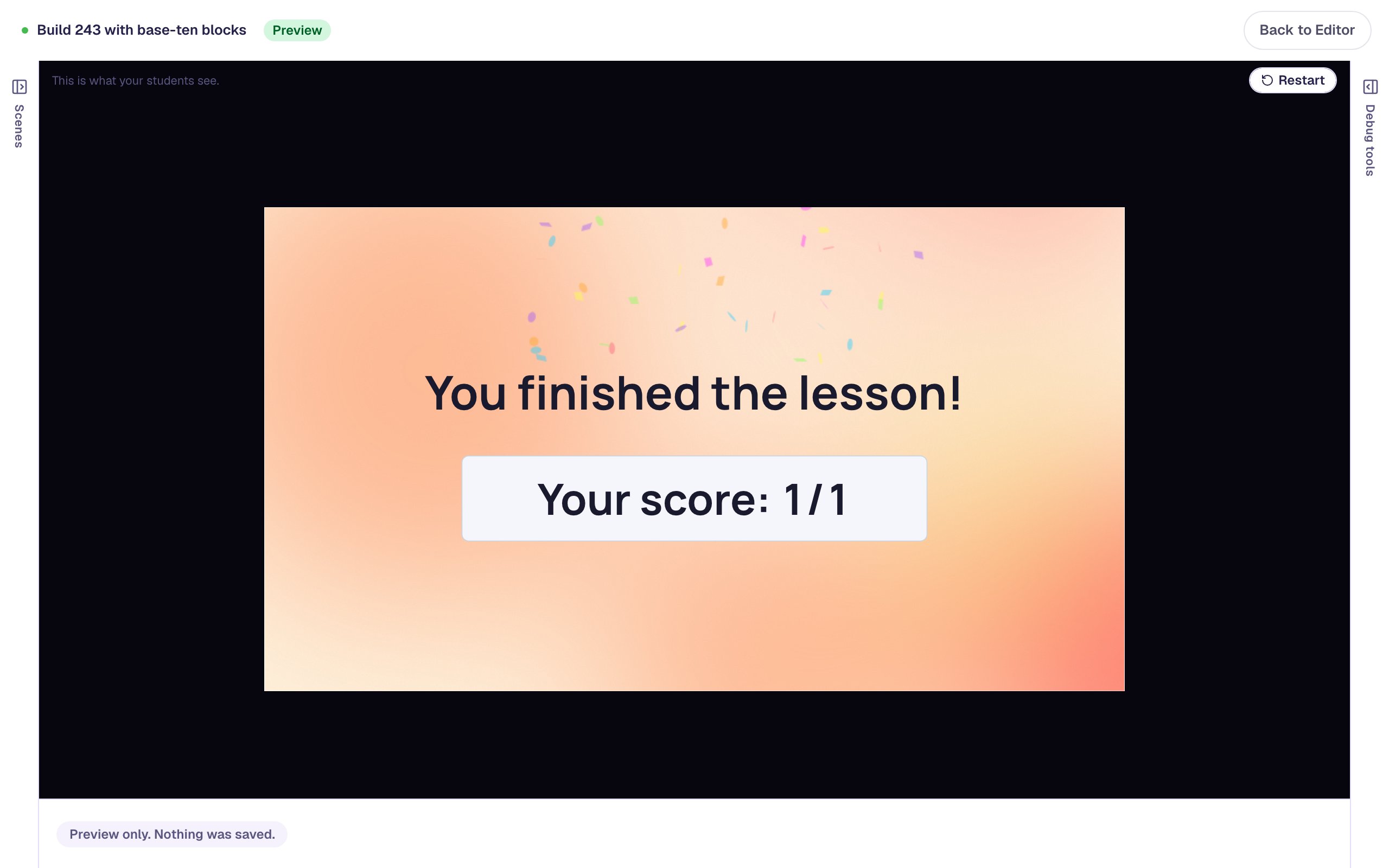
The score is still 1 out of 1 after a wrong try: a wrong Done isn't a lost point, it's an attempt. Your attempt page for each student shows how many times they tapped Done and what the mat looked like, so you can spot the students who swapped tens and ones.
What you built
You built a one-scene place-value activity with:
- Base-Ten Blocks in Build mode, drawn as Blocks with Hundreds, asking for
243, - Standard form, so only 2 flats, 4 rods and 3 small cubes count,
- an On Done hint that shows only when the blocks are incorrect,
- a longer Advance delay, a photo with alt text, and an I'm done button.
To practice more numbers, duplicate the scene and change Target on each copy: Build a three-question quiz by duplicating a scene shows how. For younger students, set Look to Cubes and Largest piece to Tens, and pair it with Build a number on a ten frame. To make students regroup, choose Any form and limit the flats tray to 1 with Set a limit: they'll have to show 243 as 1 flat, 14 rods and 3 small cubes.
Next, put two numbers together and make a new ten from the extra cubes: Add two-digit numbers by making a new ten.
Make this lesson yours
Add the lesson you just watched being built to your account, then change it for your class: your questions, your pictures, your colors.
Free to sign up, and you'll come straight back here. I have an account