Fill in the blanks from a word bank
Turn a Fill Blank question into a tap-to-place word bank, add extra words to rule out, and mix up their order so the bank doesn't give the answers away.
- Level
- Beginner
- Time
- About 10 min
- Steps
- 7
- Updated
- Oct 30, 2026
A plant-science scene where students tap water, soil and sunlight into a sentence from a bank of five words, then see their score on the ending.
Get the finished lesson
Skip straight to the result, or keep it open beside the steps. Add this tutorial's lesson to your account and explore how it works in the studio.
Free to sign up, and you'll come straight back here. I have an account
Typing is hard work for young students. A child who knows the answer can still spell it sunlite and get it marked wrong. A word bank fixes that: the missing words sit in a row under the sentence, and students tap each one into its blank. They still have to know which word goes where, but spelling can't cost them the answer. In this tutorial you'll build one about how plants grow:
Roots drink water from the soil, and leaves soak up sunlight.
Students choose from five words: the three answers plus candy and snow to rule out. Along the way you'll see how to mix up the bank so it doesn't list the answers in sentence order, and how a student fixes a word they put in the wrong place.
If you've never built a Fill Blank question, Accept more than one answer in a fill-in-the-blank covers the typed version, including hints and second spellings.
Step 1: Set the scene
Start a blank lesson (New lesson, then Start from scratch) and name it How a plant grows by clicking Untitled lesson at the top.
With nothing selected, open Background, click Choose a style, pick Nature, then Rolling hills, and click Apply background. If the sun lands behind where your title will go, click Randomize composition until it sits off to the right. Give the Closing Scene the same background, so the ending matches.
Back on the Opening Scene:
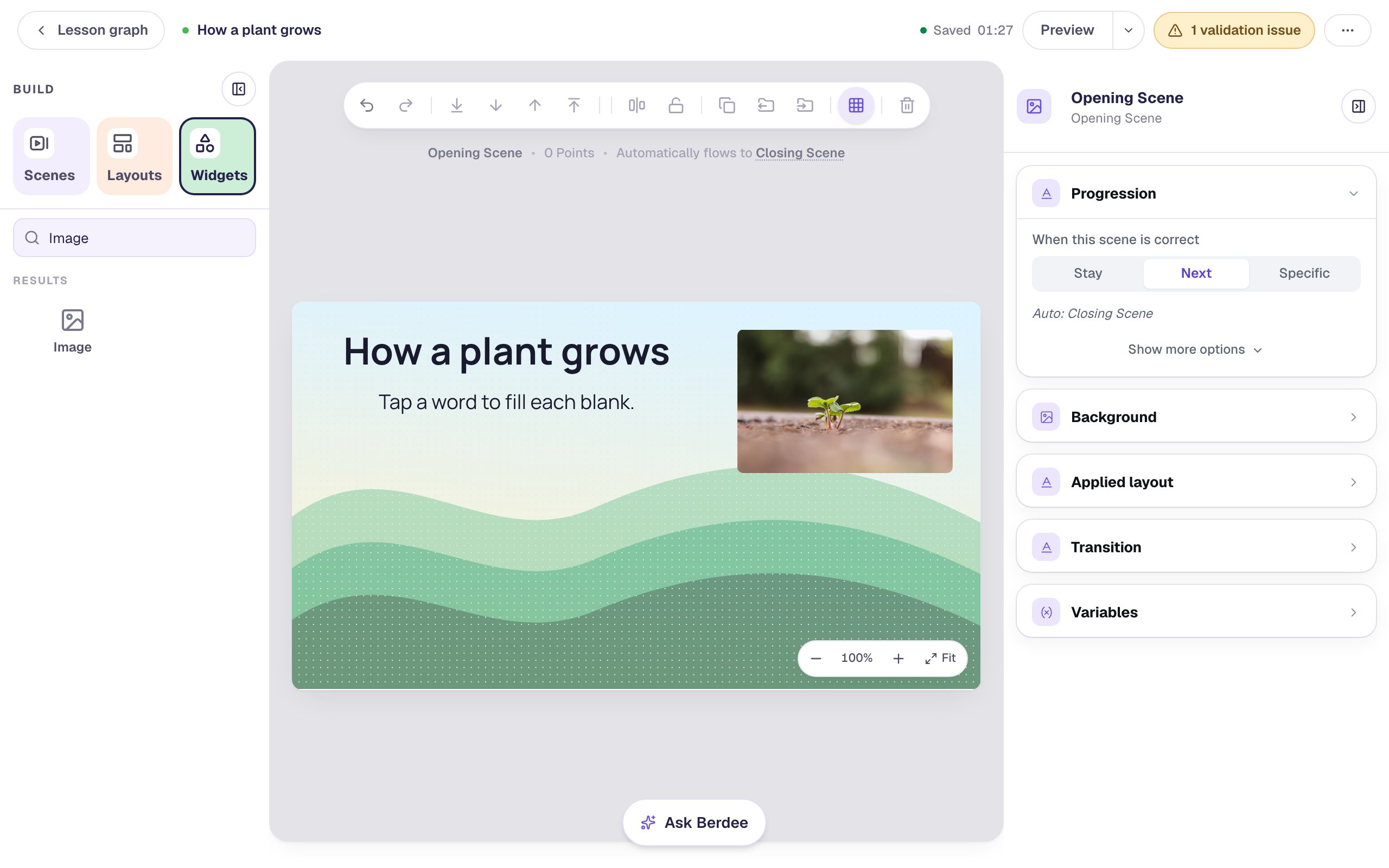
- Add a Heading that says
How a plant growsand drag it to the top left. - Add a Body under it that says
Tap a word to fill each blank.and set its Font Size to28. - Add an Image, click Open Media Library, search the stock photos for
seedling sprout soil, and pick a small sprout. In Style & Layout, set Fit to Cover, Width to300and Height to200, and drag it to the top right. - Open Accessibility and replace the photo's file name in Alt Text with what a student would see:
A tiny green seedling with a few jagged leaves on red stems, sprouting from brown soil.
Step 2: Add a Fill Blank and give it room
In Widgets, search for Fill Blank and click it. With the new widget selected, open Style & Layout:
- Set Font Size to
28. - Set Gap to
14. Gap is the padding inside the box and the space between the words in the bank. - Click Show more options and set Width to
680and Height to210.
Then drag it onto the hills, under the title.
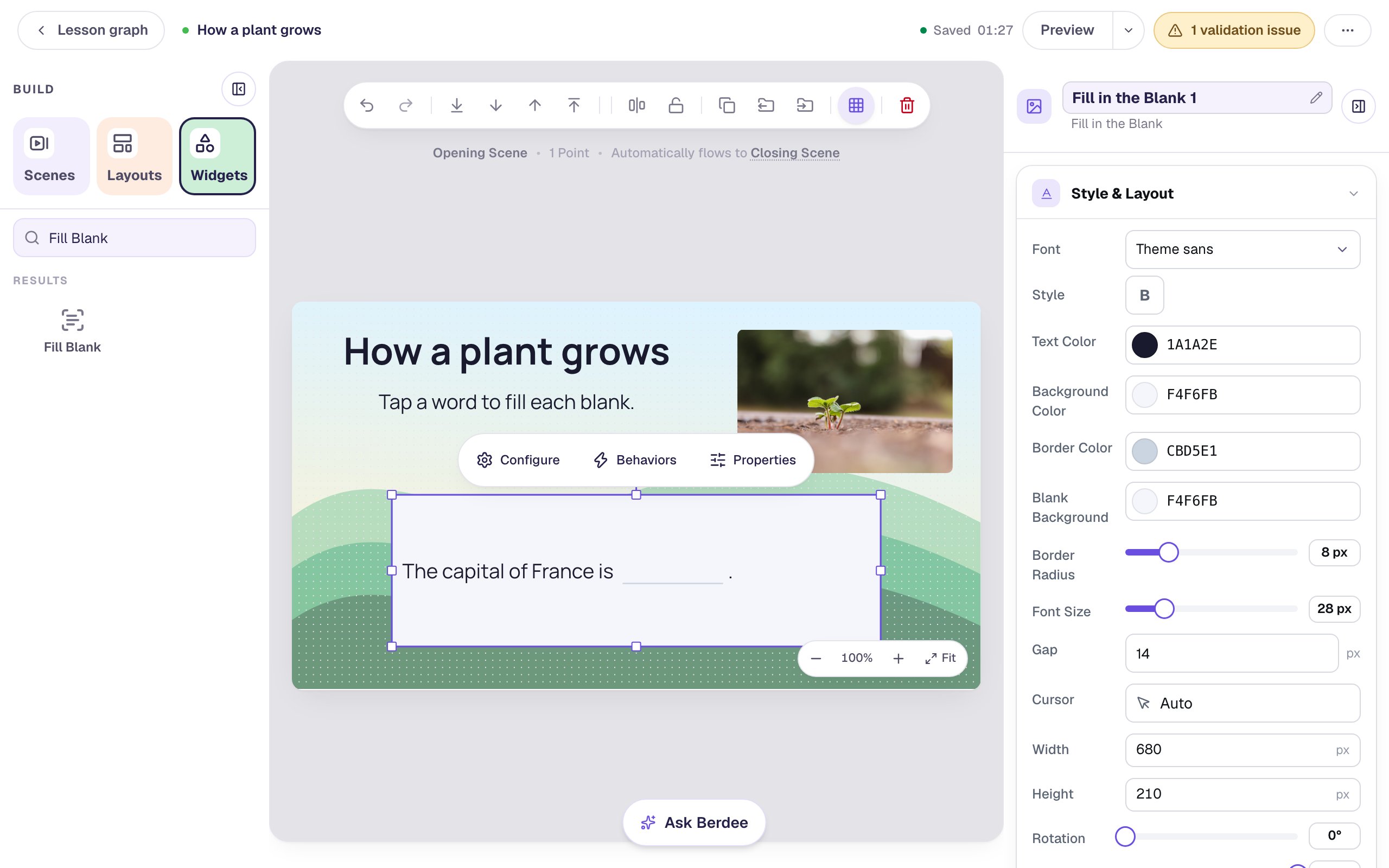
Why not the full width of the scene? At 880 wide, this sentence wraps with the single word up alone on the second line. At 680, it breaks neatly after the comma. Once the words are in, check where the sentence breaks, and change the width if a word ends up stranded.
Step 3: Write the sentence and mark the blanks
Click ⚙ Configure above the widget, then Edit sentence & blanks. Select the sample sentence and type the real one, with the answers in it:
Roots drink water from the soil, and leaves soak up sunlight.
Then double-click water and click Mark as blank. Do the same for soil and sunlight.
Each marked word gets a dashed underline and becomes that blank's answer.
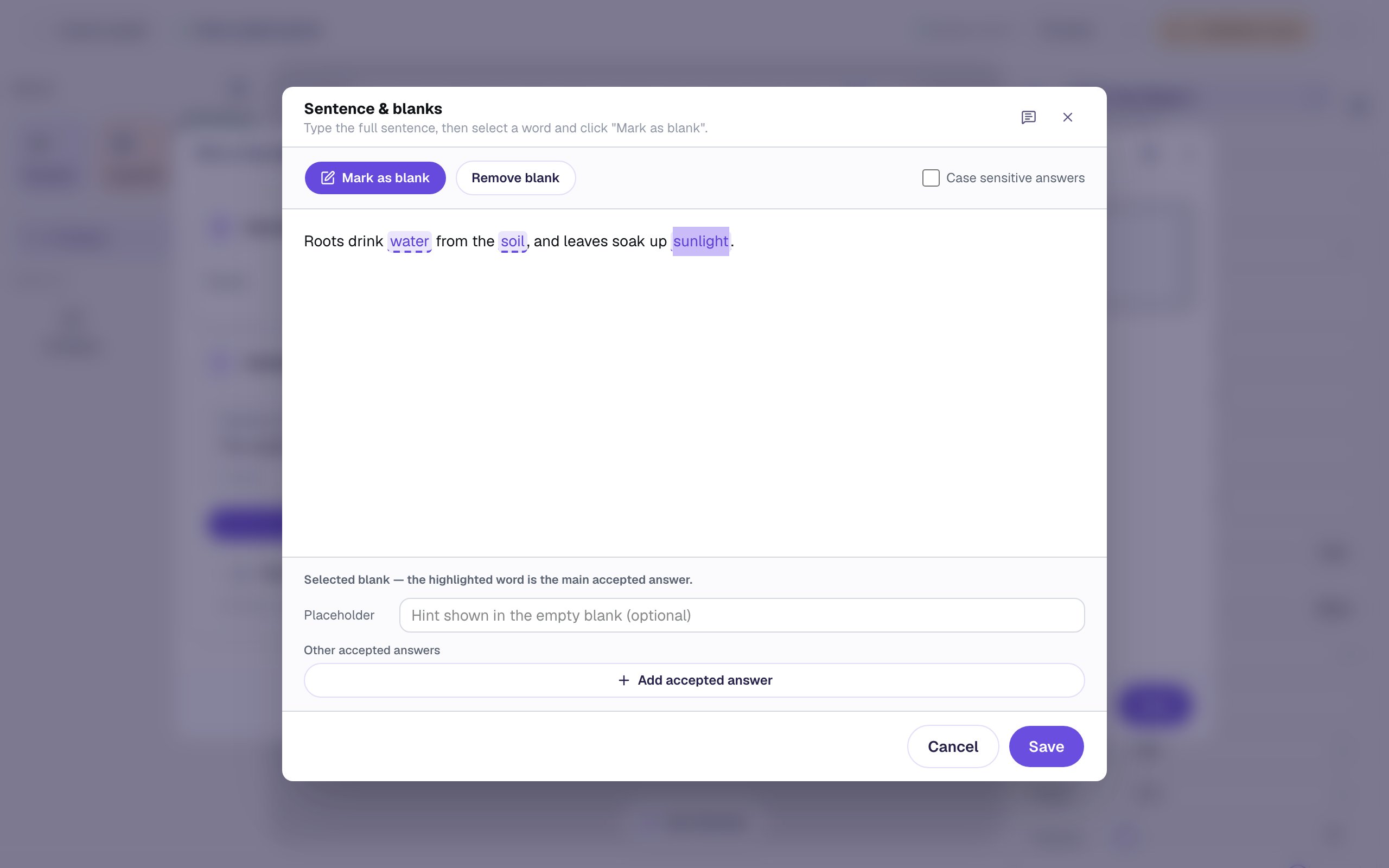
Click Save to go back to the Configure window.
Step 4: Turn on the word bank
Under Edit sentence & blanks, turn on Word bank.
The bank starts with every blank's answer, one per line under Words, and the small preview on the right shows the words as tiles under the sentence.
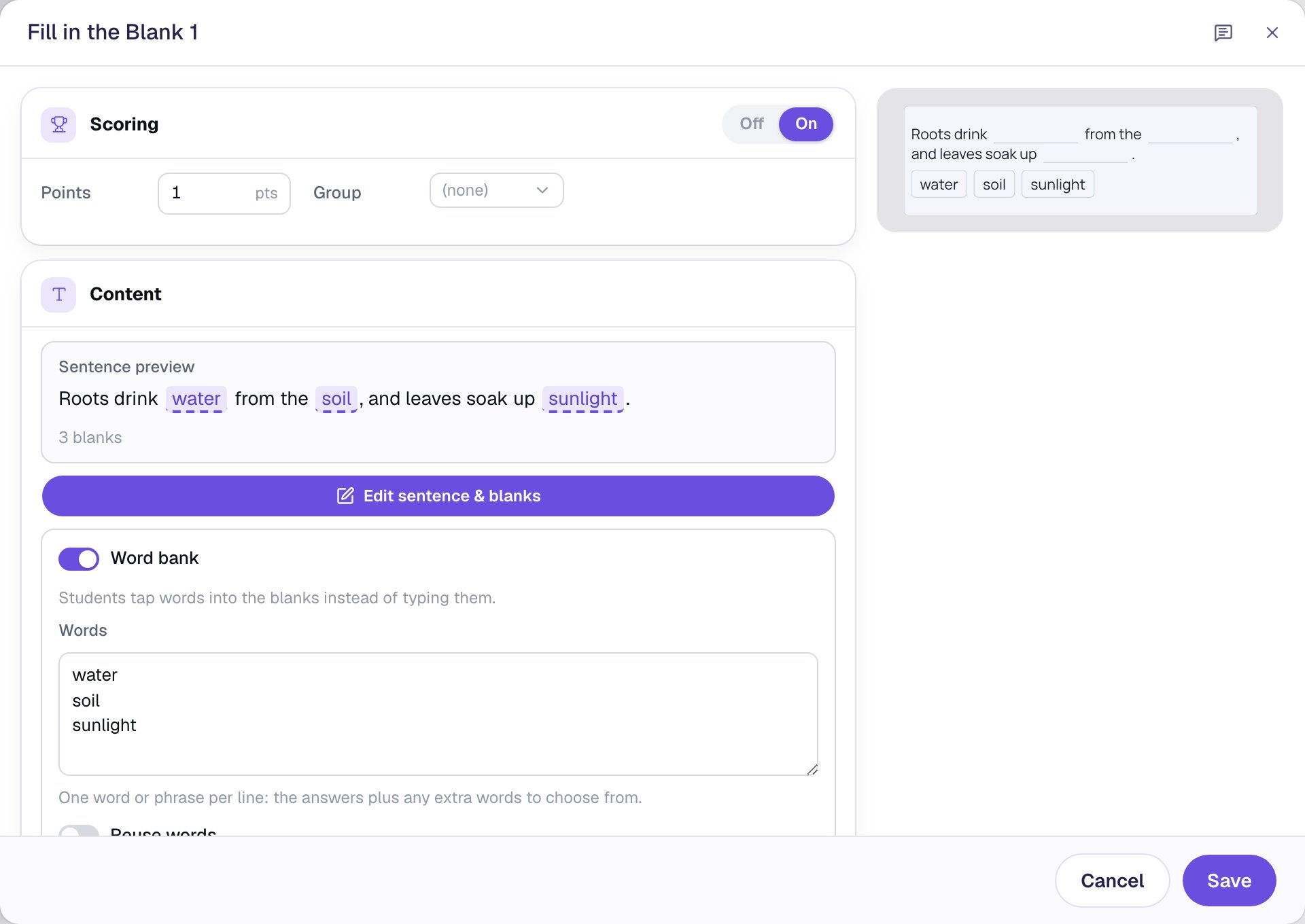
That's a problem: students see the words in the order you list them, so a bank that reads water, soil, sunlight hands them the answers left to right.
Step 5: Add extra words and mix up the order
Click in Words, select everything, and type a new list, one word per line:
sunlight
candy
water
snow
soil
Then click anywhere outside the list to save it.
candy and snow are there to be ruled out, and the answers no longer run in sentence order. Pick extra words students have to think about, not ones that obviously don't fit.
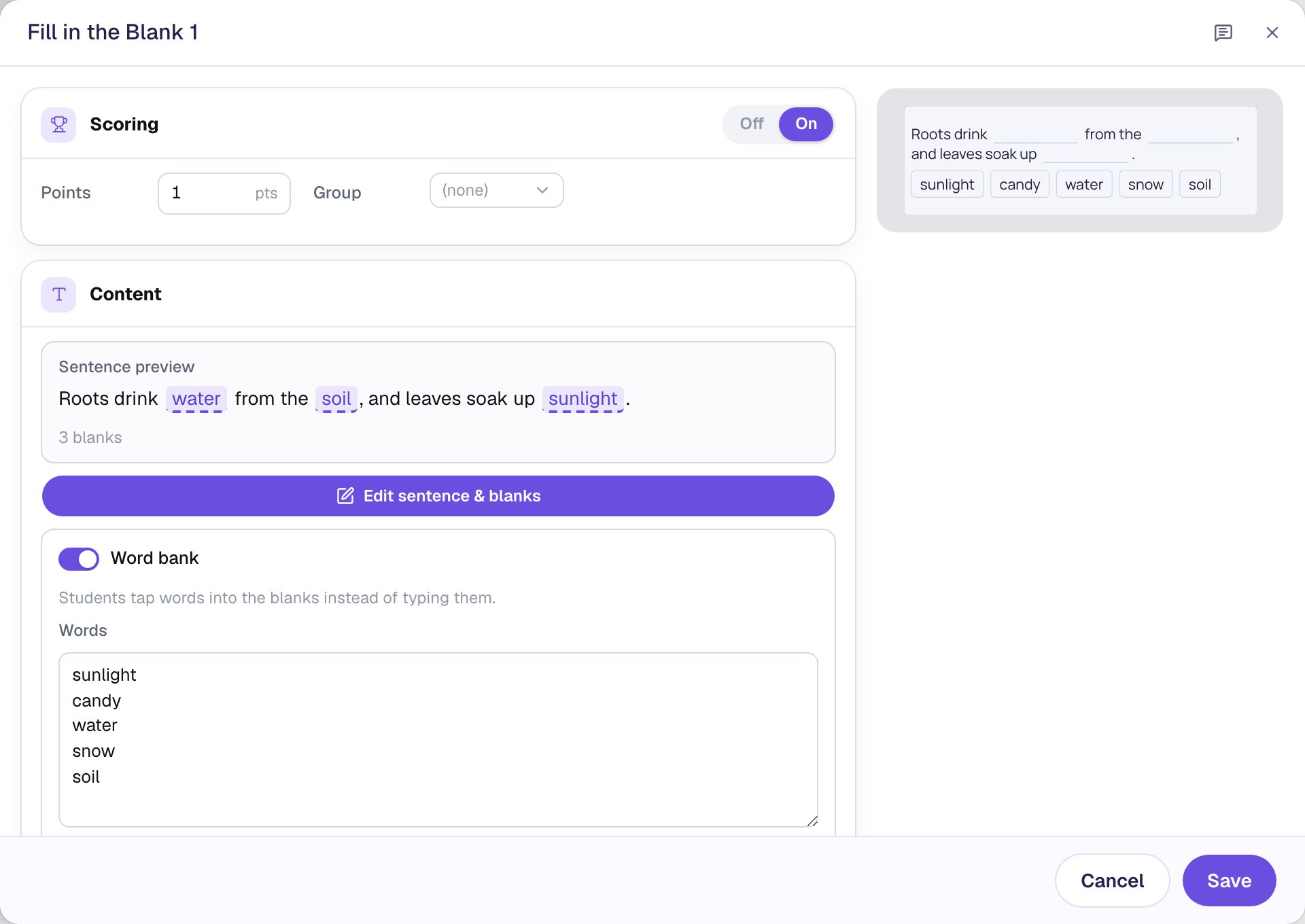
Each word can be used once. A word leaves the bank when a student places it. If two blanks need the same word, list it twice, or turn on Reuse words so every word stays in the bank. If you delete an answer from the list by accident, a warning appears with an Add missing answers button, and Berdee won't publish the lesson until every blank can be filled correctly from the bank.
Leave Scoring on. The whole sentence is worth 1 point, earned when all three blanks are right. Click Save.
Step 6: Check it on the scene
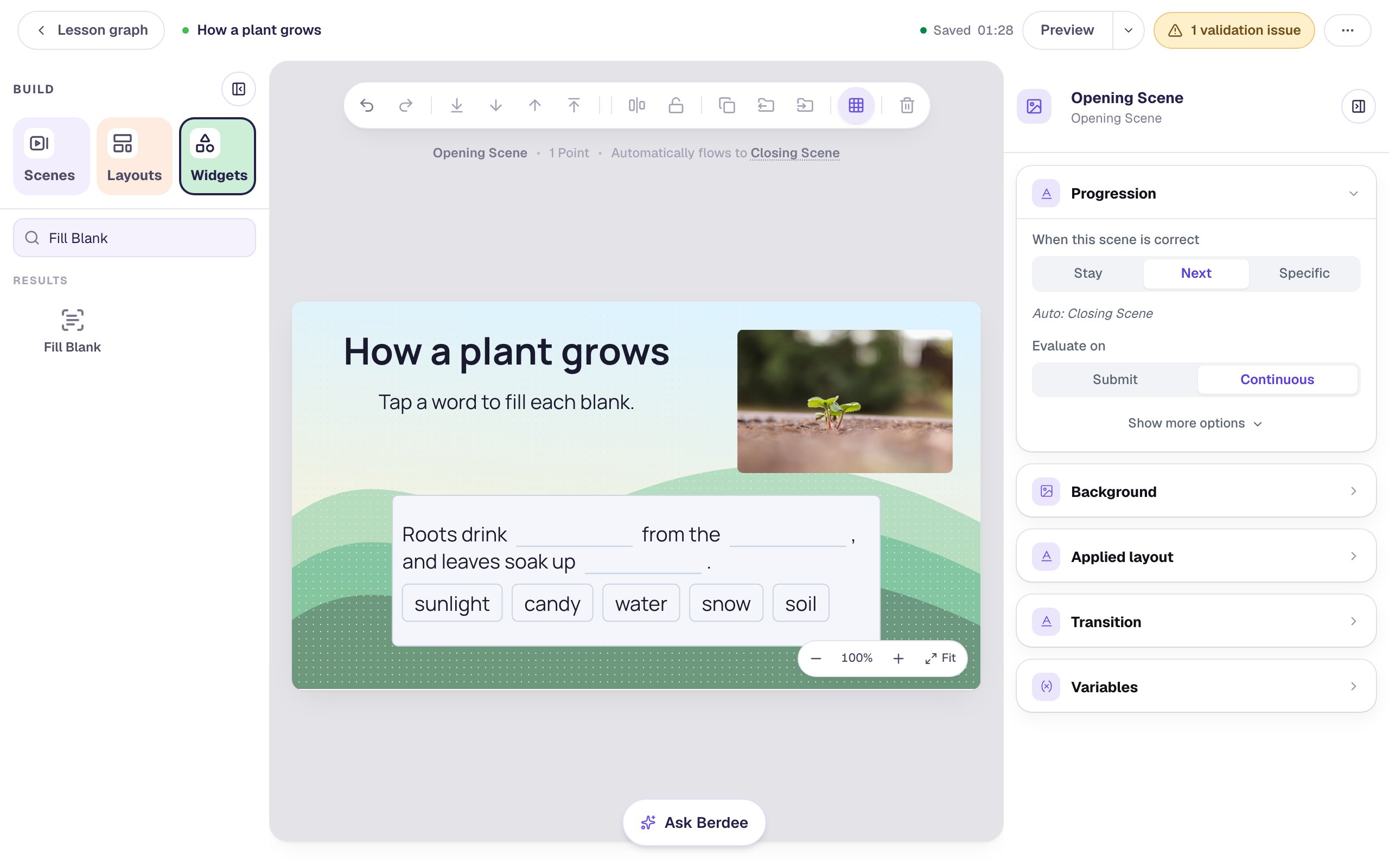
Click an empty spot so nothing is selected. The canvas shows what students see: the sentence with three empty blanks, and the bank of five words under it.
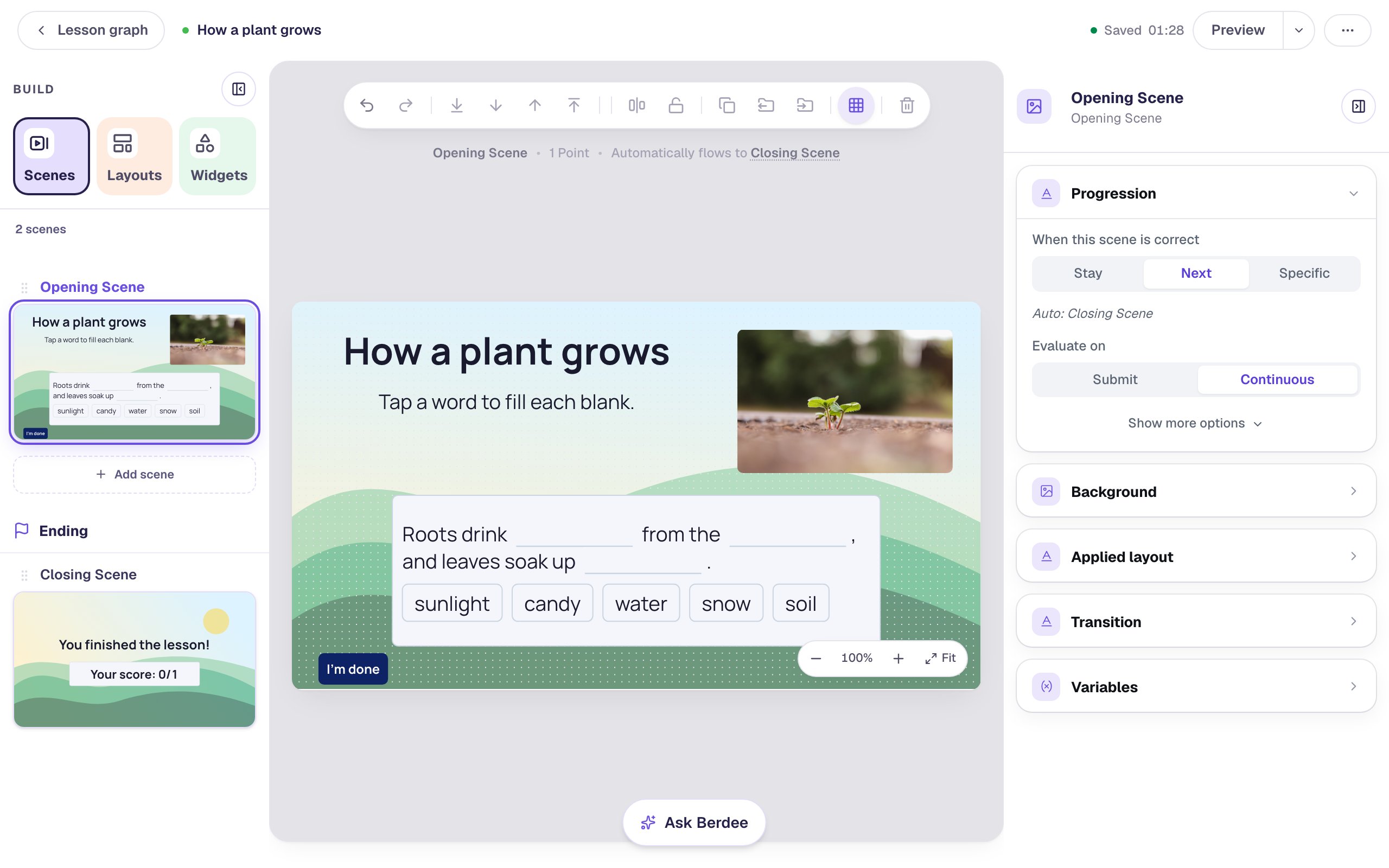
Berdee needs one button that lets a student finish the lesson before it will publish. Add a Submit Button, and in Content set its Label to I'm done and Submits to Lesson. Set its Font Size to 18, give it a dark navy Background and white Text so it stands out on the grass, and tuck it into the bottom-left corner.
Step 7: Try it as a student
Click Preview, then play it the way a student who's still unsure might:
- Tap
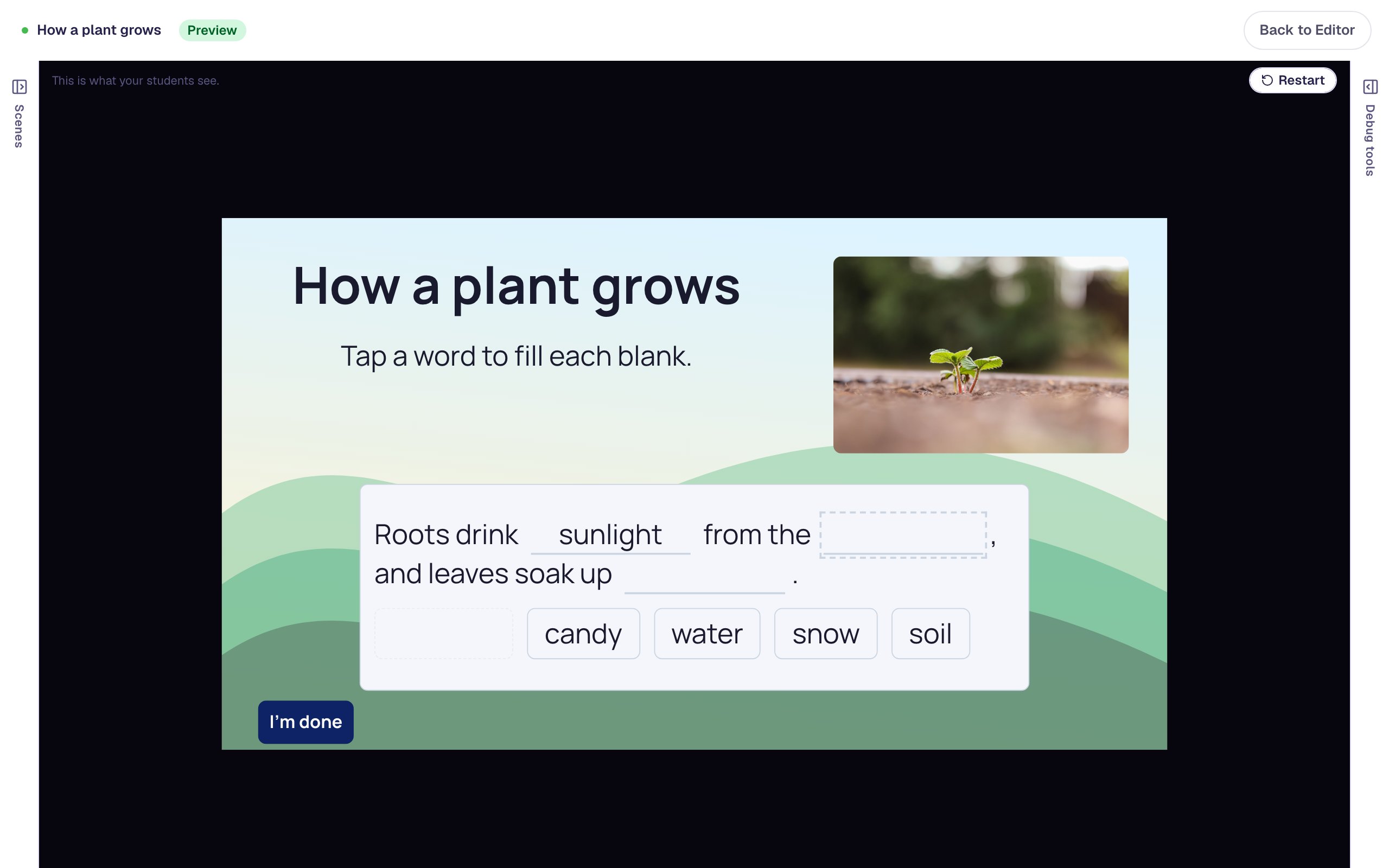
sunlightfirst. With no blank chosen, it drops into the first empty blank, so the sentence now reads "Roots drink sunlight", which is wrong. A dashed outline moves to the next empty blank, to show where the next word will go.
- Tap the word
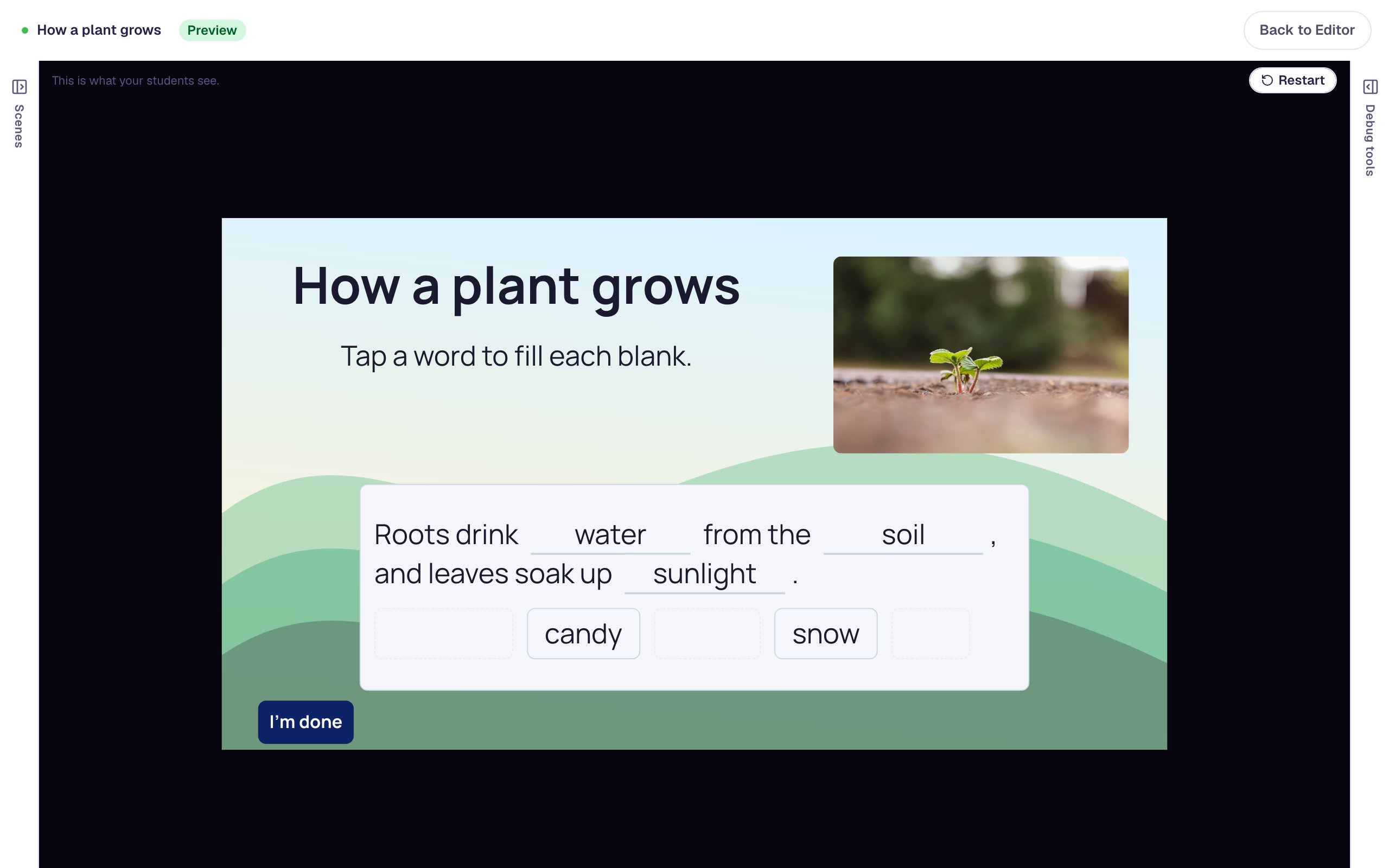
sunlightin the first blank. It goes back to the bank. - Tap the last blank to choose it, then tap
sunlight. Now it lands at the end of the sentence. - Tap
water, thensoil. Each fills the first empty blank.
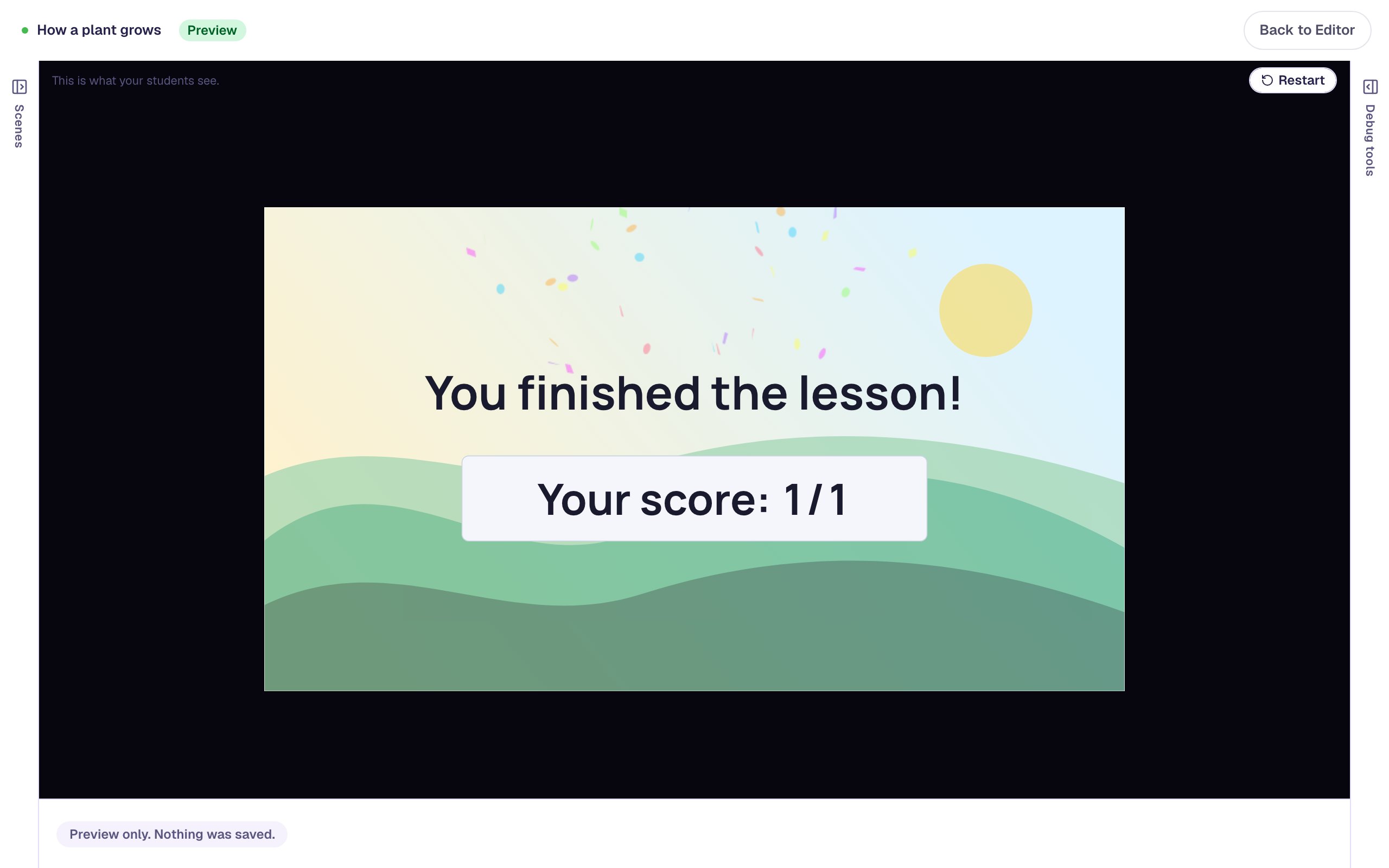
As soon as every blank is right, the scene moves on by itself and the ending shows Your score: 1/1.
Students who use a keyboard or a screen reader can do all of this too: Tab moves between the blanks and the words, and Enter taps.
Practice or check? With the scene's Progression left on Next, it only moves on once the sentence is right, so every student who gets past it scores 1/1. That suits practice. For a check where a wrong answer should count, set Progression to Stay and add a Next button, as in Accept more than one answer in a fill-in-the-blank. The score then counts the sentence however the student leaves it.
What you built
A fill-in-the-blank question about how plants grow, with:
- a sentence written out in full, with
water,soilandsunlightmarked as blanks, - a Word bank that students tap words from instead of typing them,
- two extra words,
candyandsnow, to rule out, - the bank listed out of sentence order, so it doesn't give the answers away, and
- a photo with alt text that describes it for students using screen readers.
To go further, use a word bank for grammar practice, where a student chooses between similar words like and, but, or and so, and turn on Reuse words when one word belongs in several blanks. Every Fill Blank setting is in Fill Blank Widget. For another way to put words in place, try Build a word from letter tiles.
Make this lesson yours
Add the lesson you just watched being built to your account, then change it for your class: your questions, your pictures, your colors.
Free to sign up, and you'll come straight back here. I have an account