Build a word from letter tiles
Turn Drop Buckets into letter slots and Text widgets into letter tiles, so early readers spell a word by dragging each letter into place, with an extra letter that shows red in the wrong slot.
- Level
- Beginner
- Time
- About 15 min
- Steps
- 8
- Updated
- Oct 20, 2026
A one-scene phonics activity where students drag c, a and t into three slots under a picture of a kitten, see a slot turn red when a letter doesn't belong, and move on to the ending once the word is spelled.
Get the finished lesson
Skip straight to the result, or keep it open beside the steps. Add this tutorial's lesson to your account and explore how it works in the studio.
Free to sign up, and you'll come straight back here. I have an account
Building a word from letter tiles is a staple of early phonics: students look at a picture, say the word, and put its sounds in order. In this tutorial you'll build one in Berdee. Students see a kitten, drag the tiles c, a and t into three slots, and move on once the word is spelled. An extra o tile makes them listen for the middle sound instead of just using up every tile.
The trick is to give each letter position a Drop Bucket of its own: one slot for the first letter, one for the middle, one for the last. Each slot holds exactly one right answer, so the order counts. If you haven't used Drop Buckets before, Build a drag-and-drop sorting activity covers the basics; this tutorial uses the same pieces in a new way.
Step 1: Set the scene with a picture clue
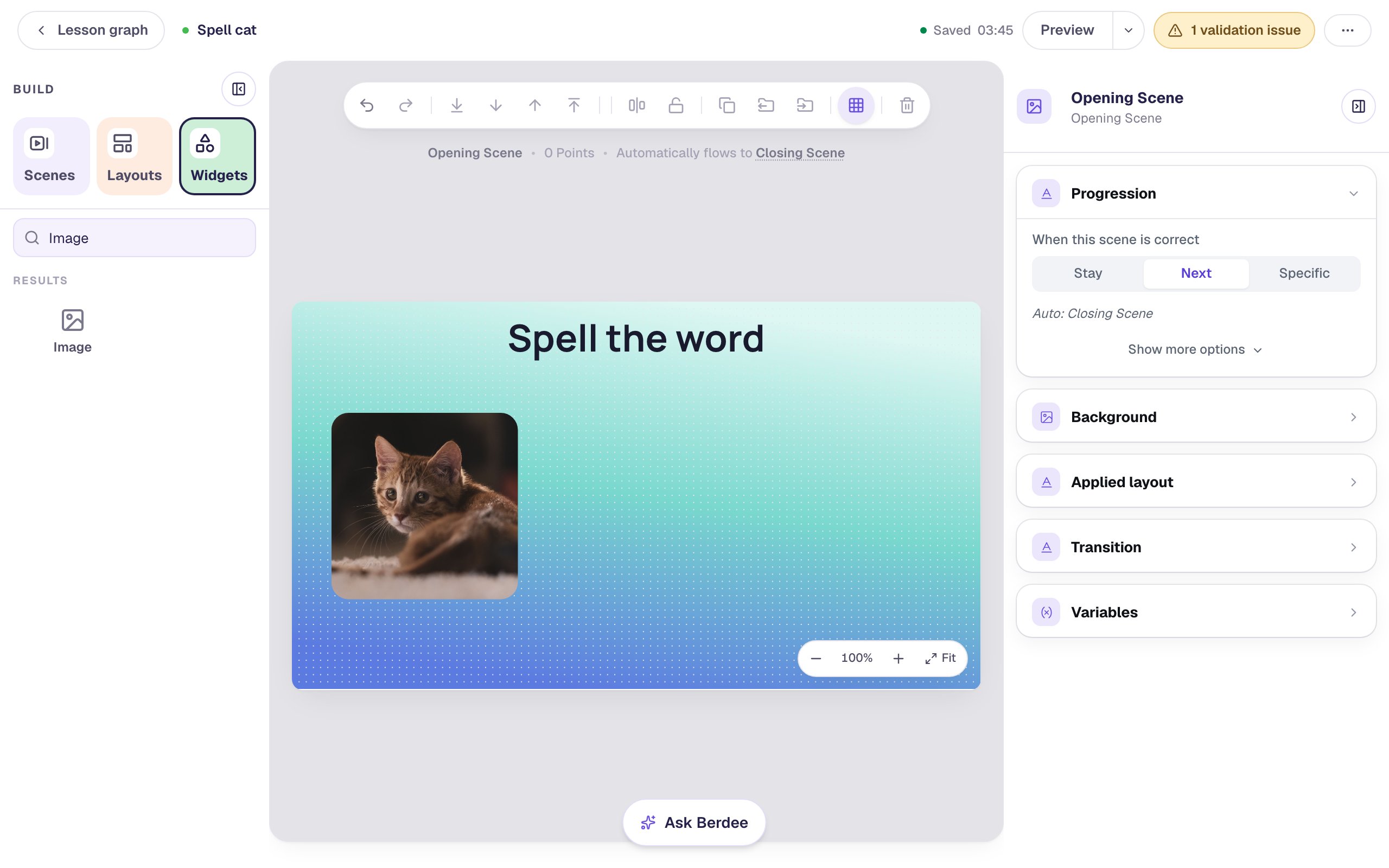
Start a blank lesson (New lesson, then Start from scratch) and name it Spell cat by clicking Untitled lesson at the top left.
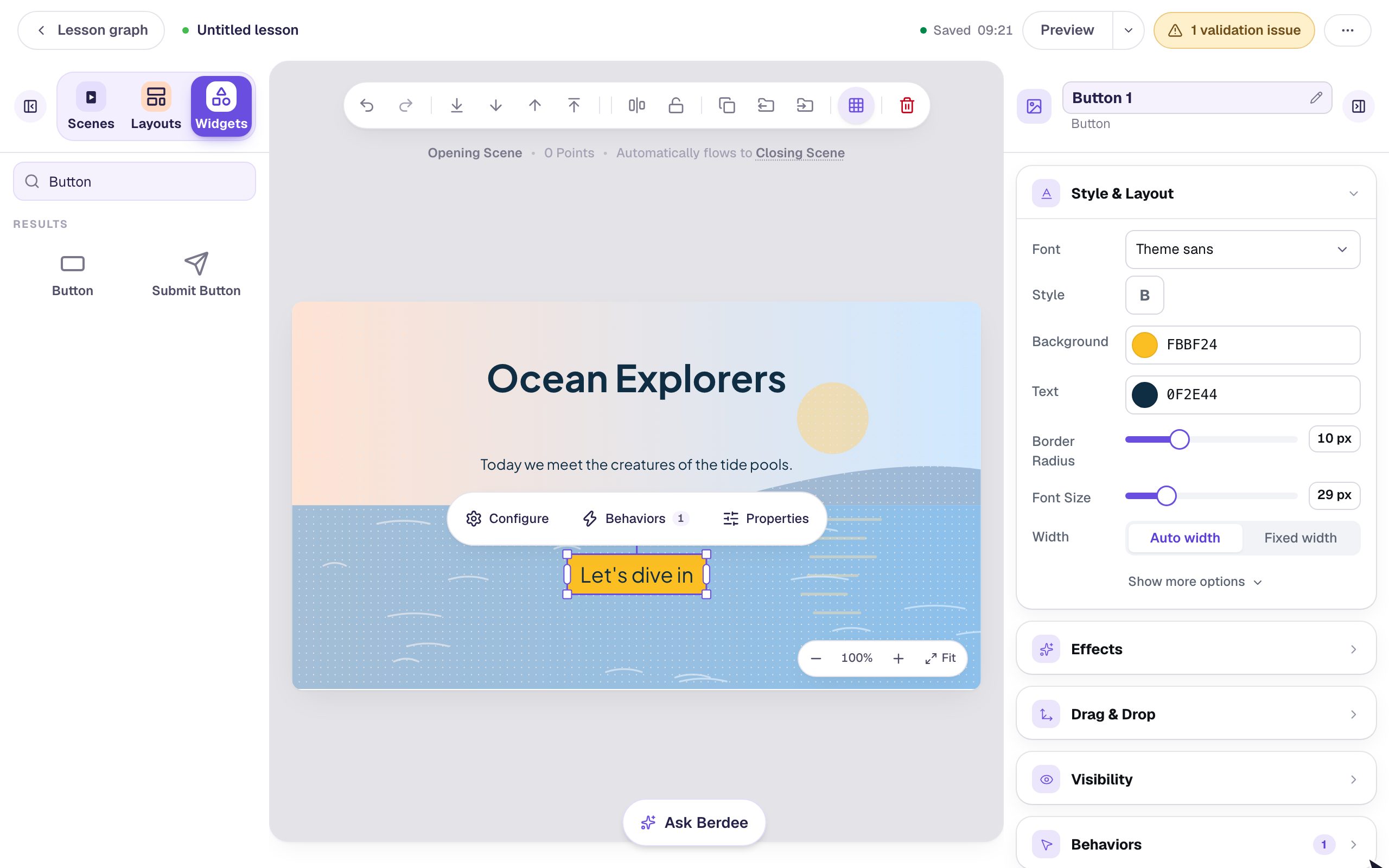
Give the Opening Scene a soft background: click an empty spot on the scene, open Background, click Choose a style, and pick Lagoon gradient. Do the same on the Closing Scene, so the ending matches.
Back on the Opening Scene:
- Add a Heading and type
Spell the word. Drag it to the top of the scene. - Add an Image. Under Style & Layout, click Show more options and set Width and Height to
260, then drag it to the left side of the scene. - In Image Source, click Open Media Library, search for
kitten, and insert a photo you like. Set Fit to Cover so the photo fills the square, and raise Border Radius to about24for soft corners. - Open Accessibility and replace the Alt Text with a description of the photo, like
A small orange tabby cat lying on a rug. The picture is the clue, so students using a screen reader need to hear what it shows.
Step 2: Add a slot for each letter
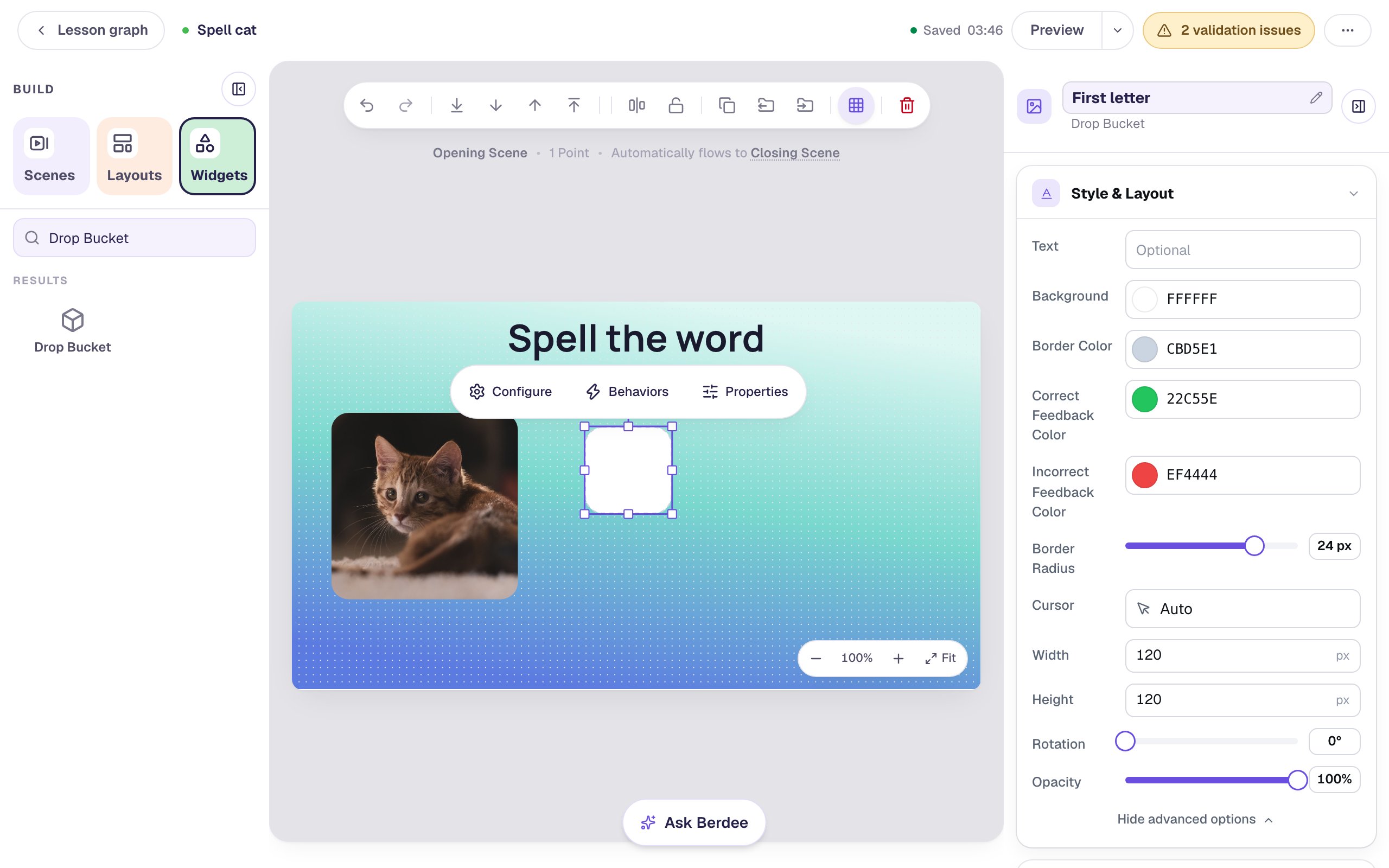
Each letter of the word gets its own Drop Bucket. Add one from the Widgets tab, then shape it like a slot:
- Under Style & Layout, click Show more options and set Width and Height to
120. - Click Background and choose white, so the empty slot stands out from the gradient.
- Drag it to the right of the picture.
Rename the slot First letter by clicking its name at the top of the properties panel. Then open Accessibility and set its Alt Text to First letter of the word, so students using a screen reader know which slot they're dropping into.
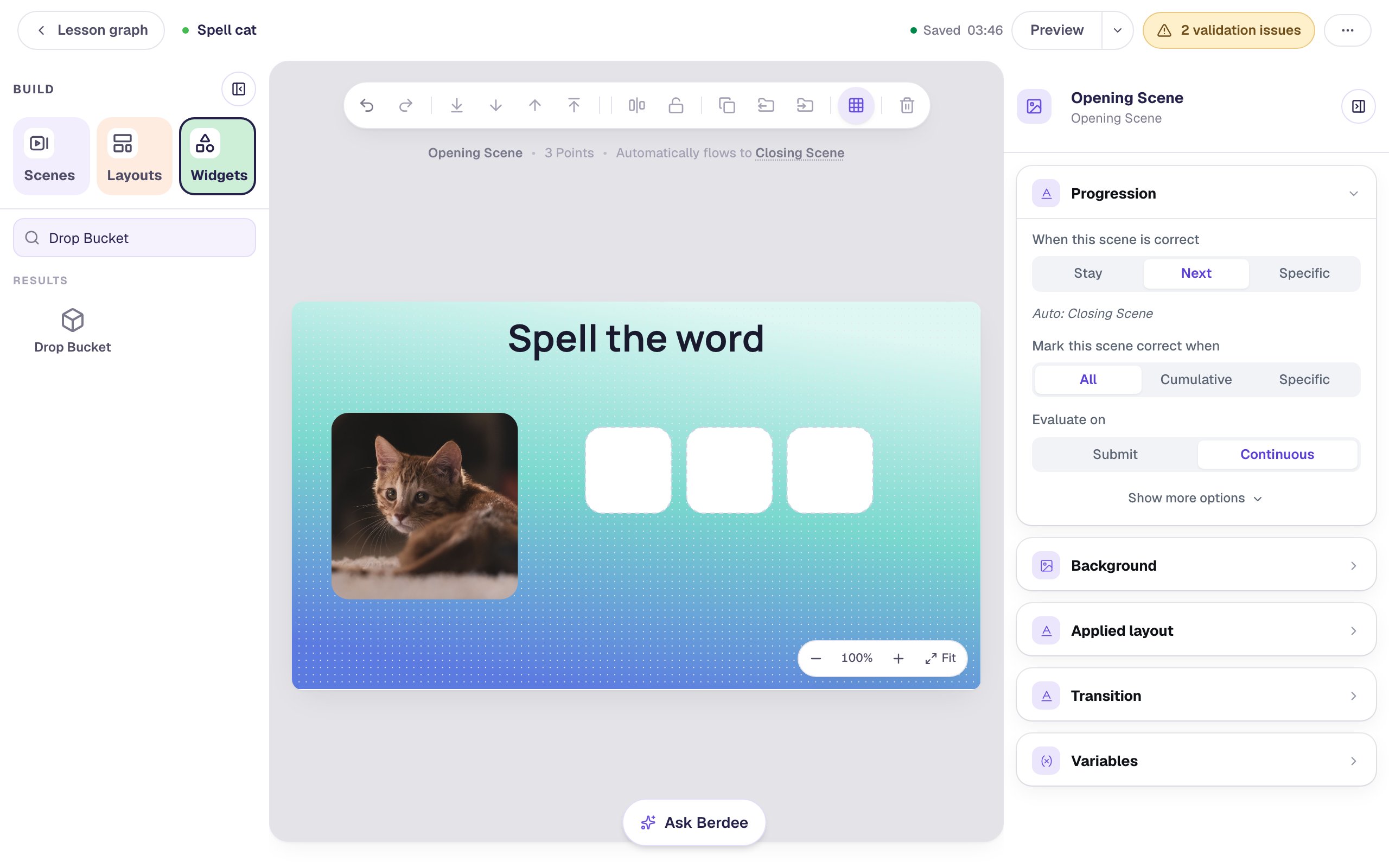
Add two more slots the same way, named Middle letter and Last letter, and line all three up in a row.
Step 3: Make the first letter tile
Add a Text widget, type t, and press Escape. Rename it Letter t. That name matters twice: it's how the slots' answer lists name the tile, and it's what a screen reader announces when a student picks the tile up.
Make it look like a tile. In Style & Layout:
- Drag Font Size up to
64, so the letter is big enough for small hands and new readers. - Click Background Color and choose the soft yellow from the Theme row.
- Set Width to Fixed width, set the Width field to
100, and click the middle Alignment button to center the letter.
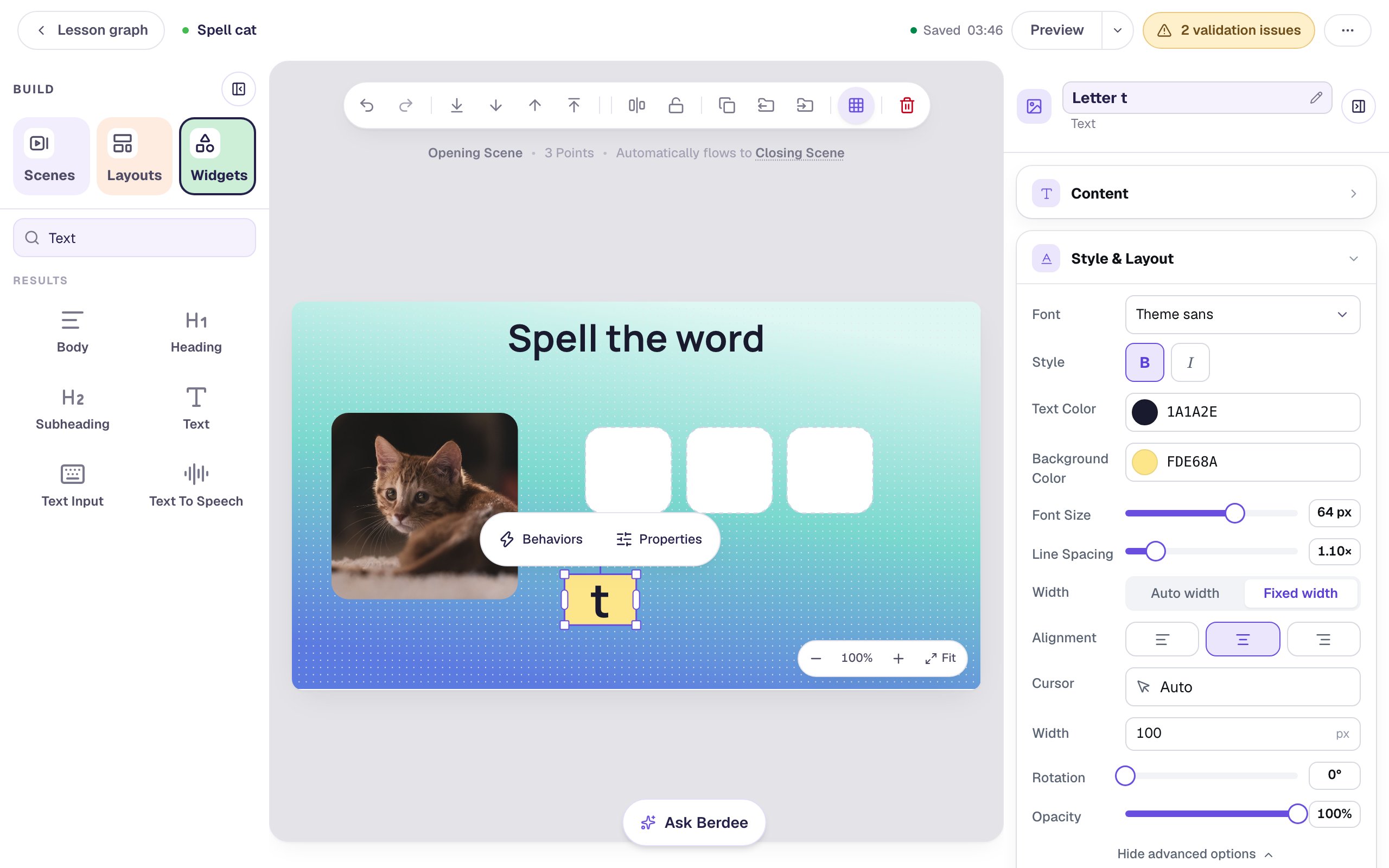
Now open Drag & Drop and set Mode to Draggable. A round link badge appears in the middle of the tile. You'll use it in Step 5.
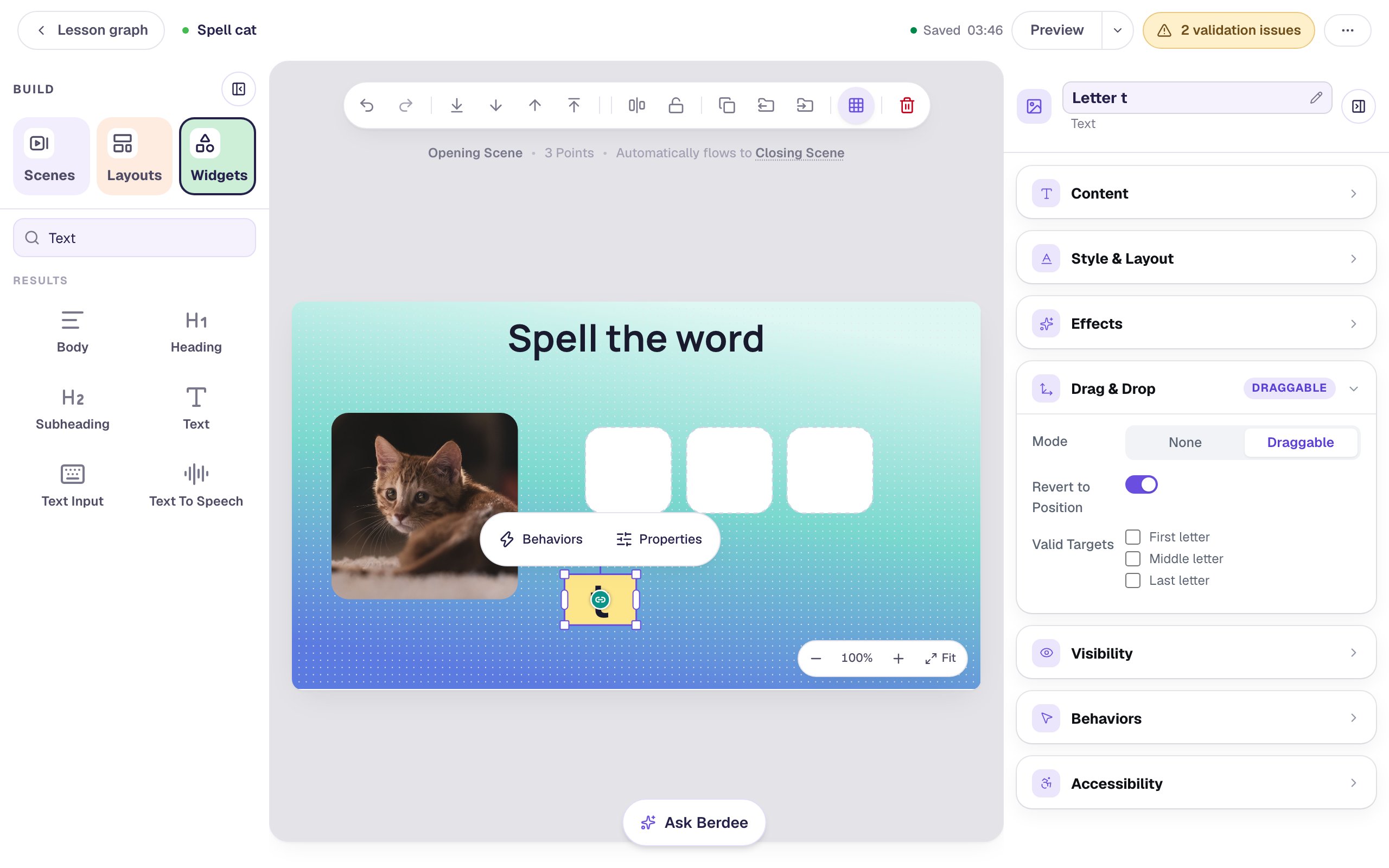
Step 4: Copy the tile for the other letters
With Letter t selected, click Duplicate in the toolbar above the canvas. The copy keeps the size, color and Draggable mode. Then:
- Drag the copy into the row beside the first tile. Grab it a little off-center: the middle of a draggable tile is its link badge, and dragging that draws a connection instead of moving the tile.
- Double-click the copy's edge to edit its letter, and type
o. - Rename it
Letter o.
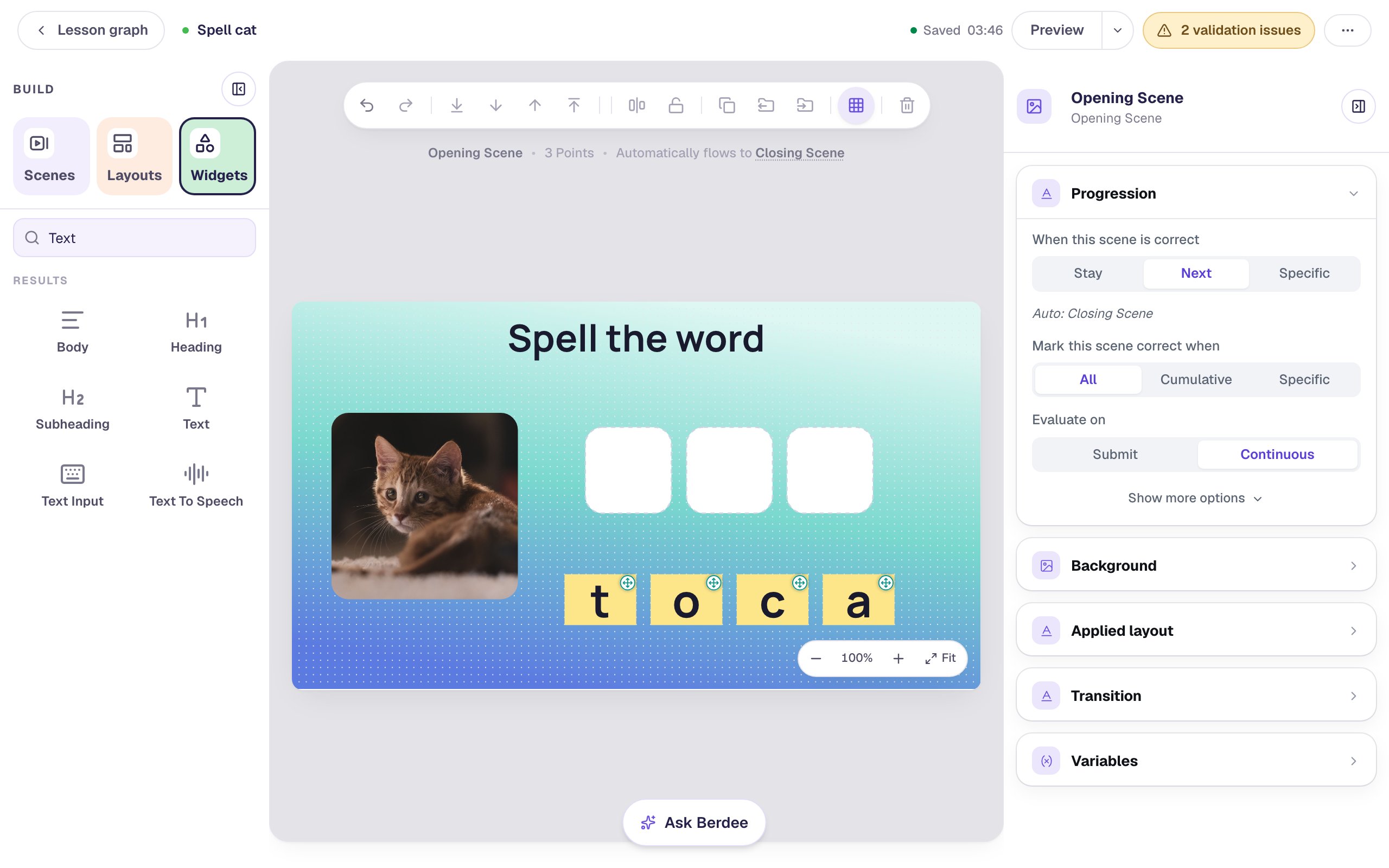
Repeat for c and a. Mix the order up (here it's t o c a), so the row doesn't spell the answer for students.
To line the tiles up exactly, Shift-click all four, click Align & distribute in the toolbar, then click Align vertical centres and Distribute horizontally.
Step 5: Connect each letter to its slot
This is the answer key, and you draw it. Click a tile to select it, then drag from the link badge in its middle onto the slot where it belongs:
- c goes to First letter.
- a goes to Middle letter.
- t goes to Last letter.
Each drag marks the tile as the right answer for that slot, and also lets the tile be dropped in every slot. Select c and look at its Valid Targets: all three slots are ticked. That way a student can put c in the wrong slot and find out, which is the point of the activity.
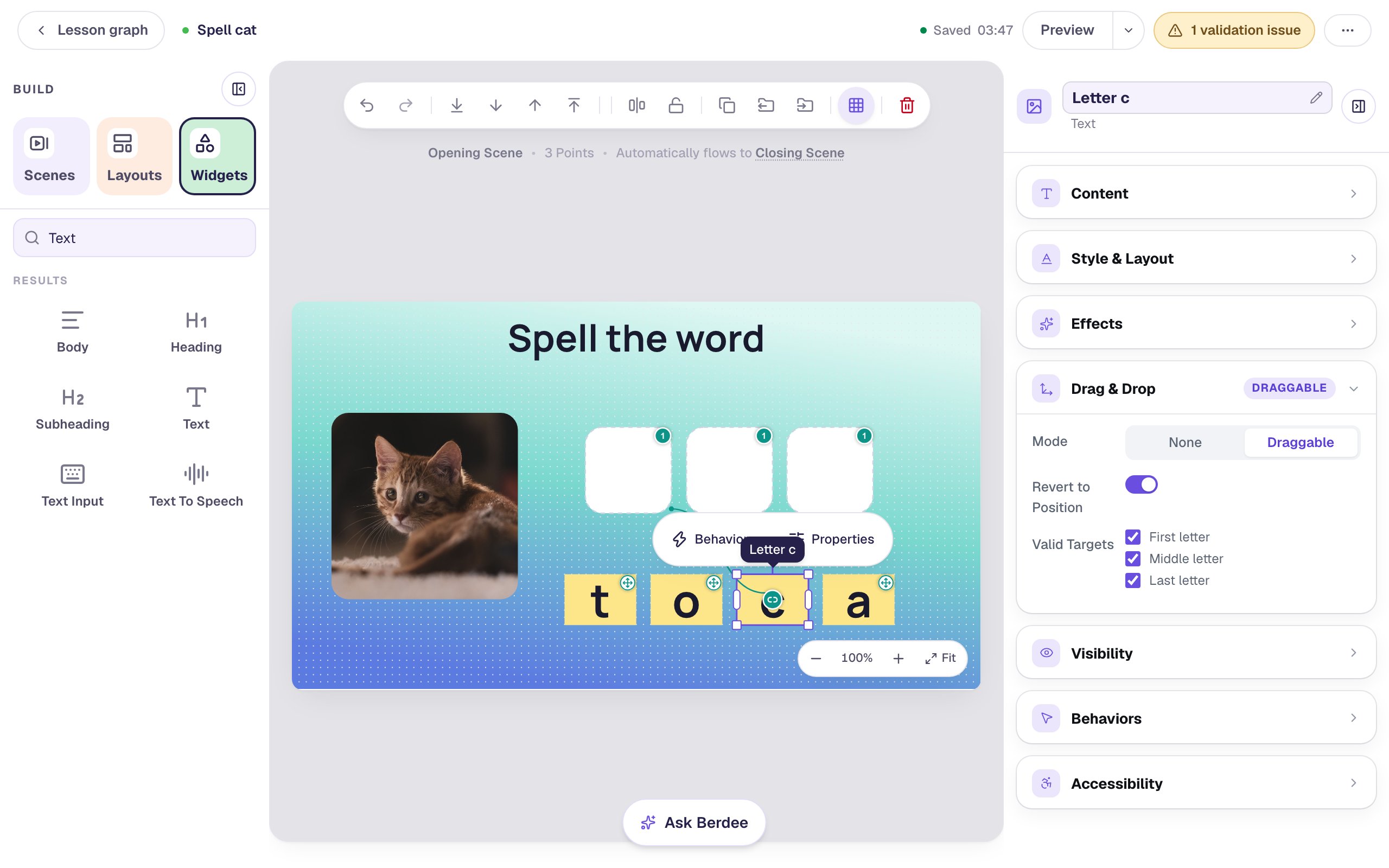
The small 1 on each slot's corner counts the tiles that belong in it. Connected the wrong tile? Drag its badge onto the same slot again to remove the line.
Step 6: Let the extra letter land anywhere
The o doesn't belong in any slot, so you didn't connect it. That leaves it with no Valid Targets at all, and a student who drops it on a slot would see it bounce straight back. That gives the answer away: only the wrong tile refuses to go in.
Make it droppable everywhere instead. Select o, open Drag & Drop, and tick all three slots under Valid Targets:
Ticking a slot here doesn't make o right there. It's still in no slot's answer key, so it counts as wrong wherever it lands.
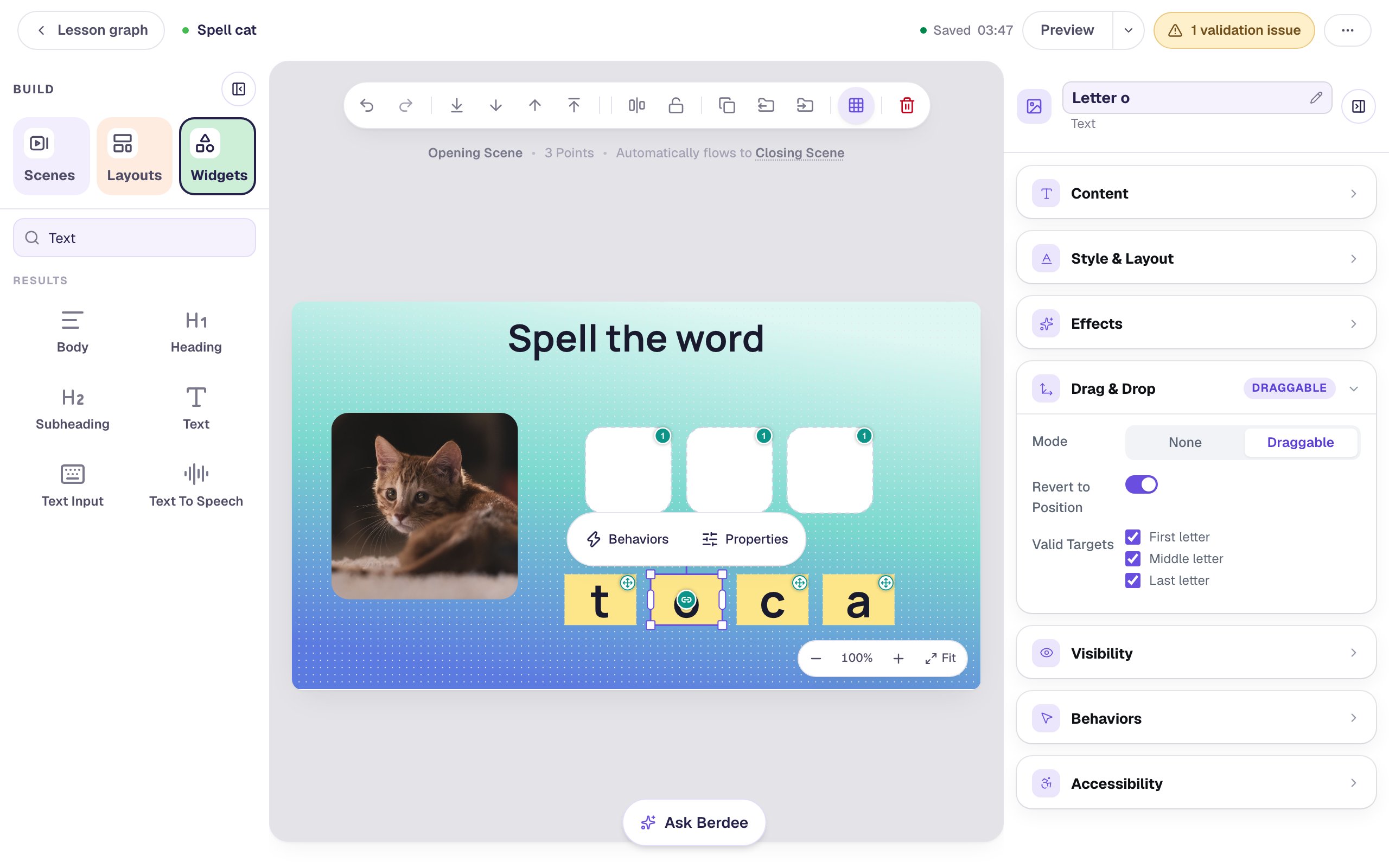
Step 7: Show right and wrong as students spell
Select the Middle letter slot and click Configure in the pill above it. Under Correct draggables, only Letter a is ticked: the answer key you drew.
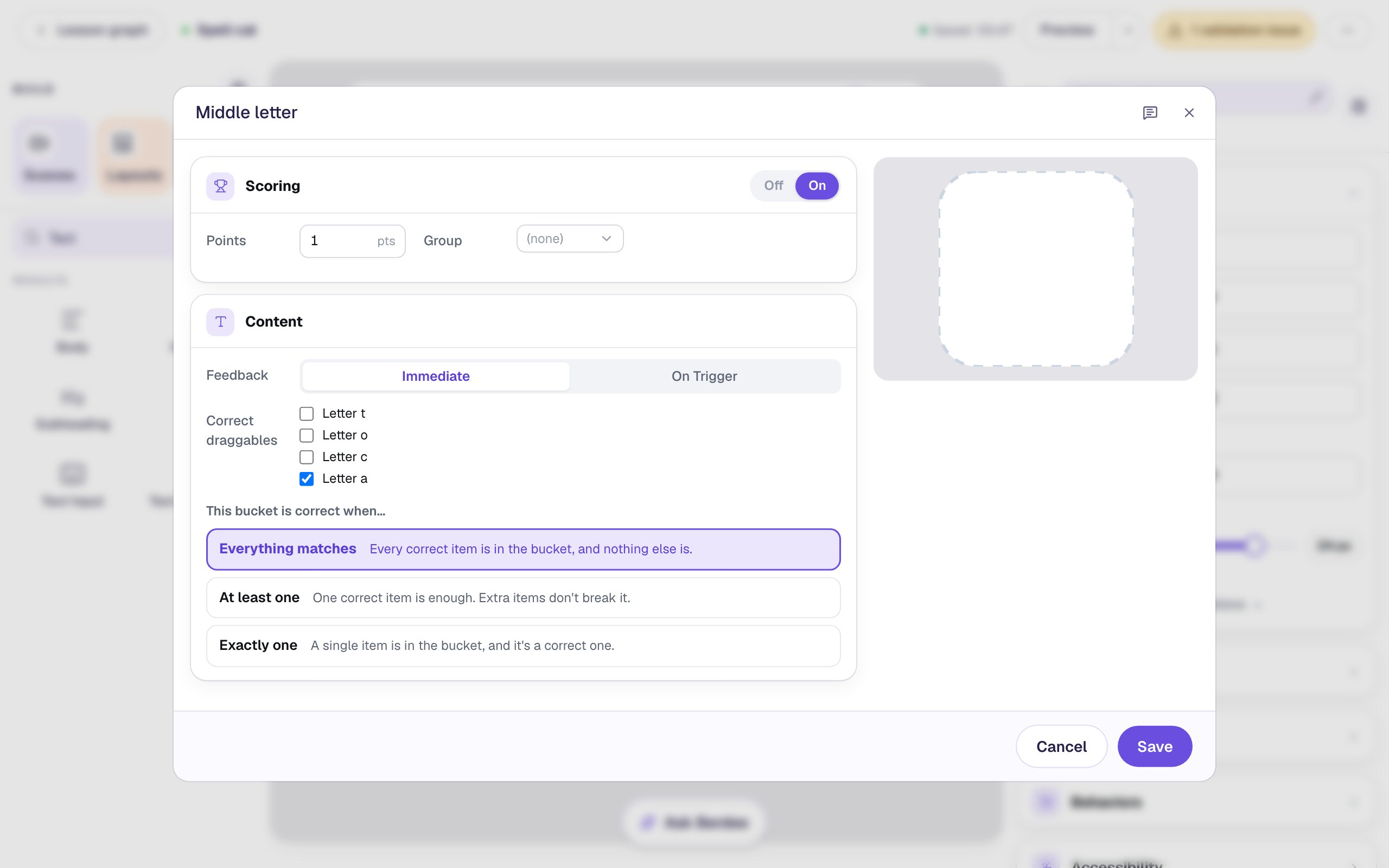
- Set Feedback to Immediate. The slot's border turns green as soon as the right letter is in it, and red when a letter that doesn't belong lands there.
- Leave This bucket is correct when… on Everything matches. The slot is right only when its letter is in it and nothing else is, so a student can't fill one slot with two tiles and hope.
Click Save, then do the same for First letter and Last letter.
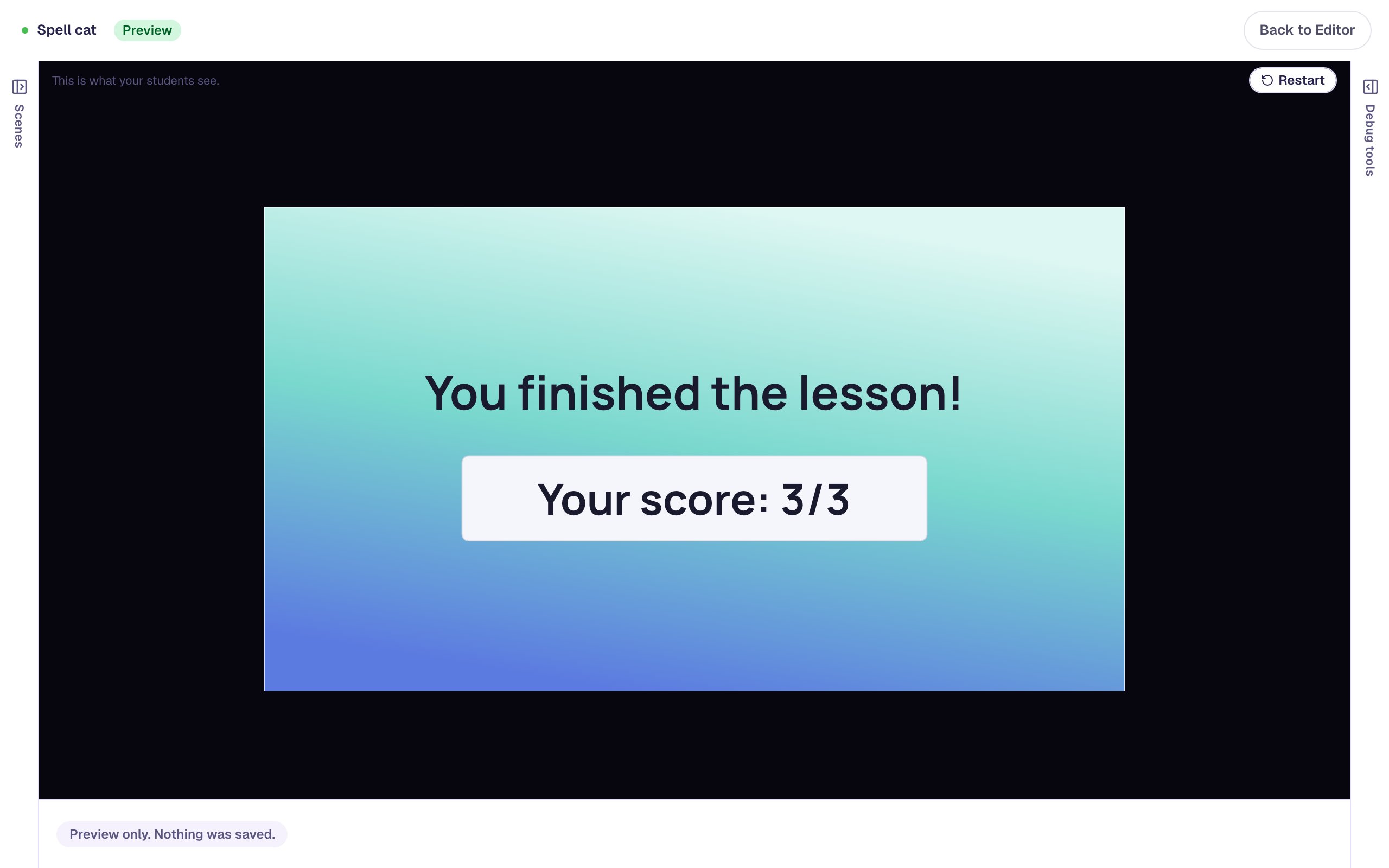
Every slot is worth 1 point, so spelling the word earns 3. You don't need a button to check it: the scene's Progression is on Continuous, so Berdee moves on to the Closing Scene the moment all three slots are right.
Finally, every lesson needs a way to finish early, or the top bar shows a No Lesson-Submit Button issue. Add a Submit Button, change its Label to I'm done, set Submits to Lesson, bring its Font Size down to about 18 px, and tuck it into the bottom-left corner.
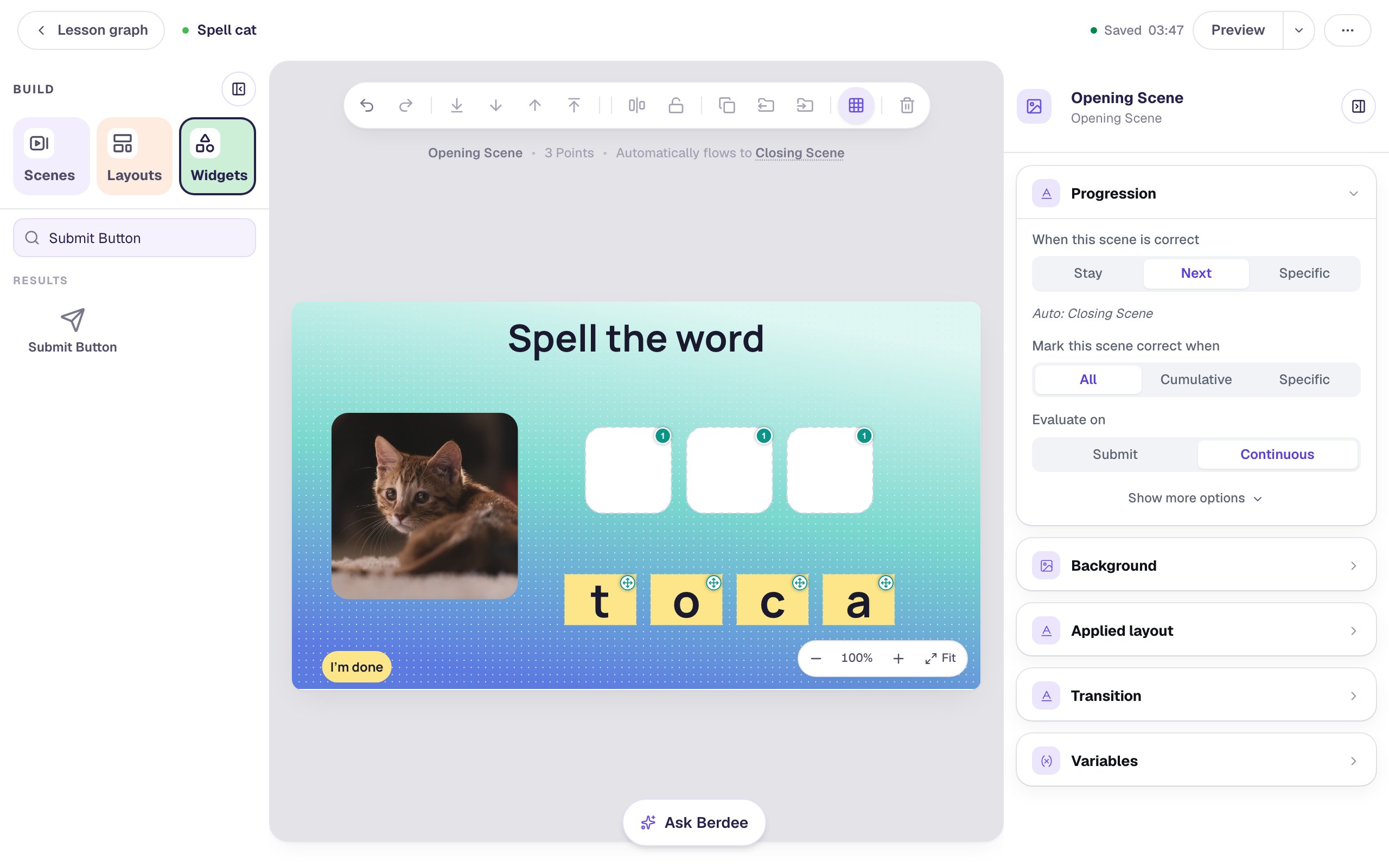
Step 8: Spell it in preview
Click Preview and play it as a student would. Start with the trap letter:
Drop o into the middle slot and its border turns red.
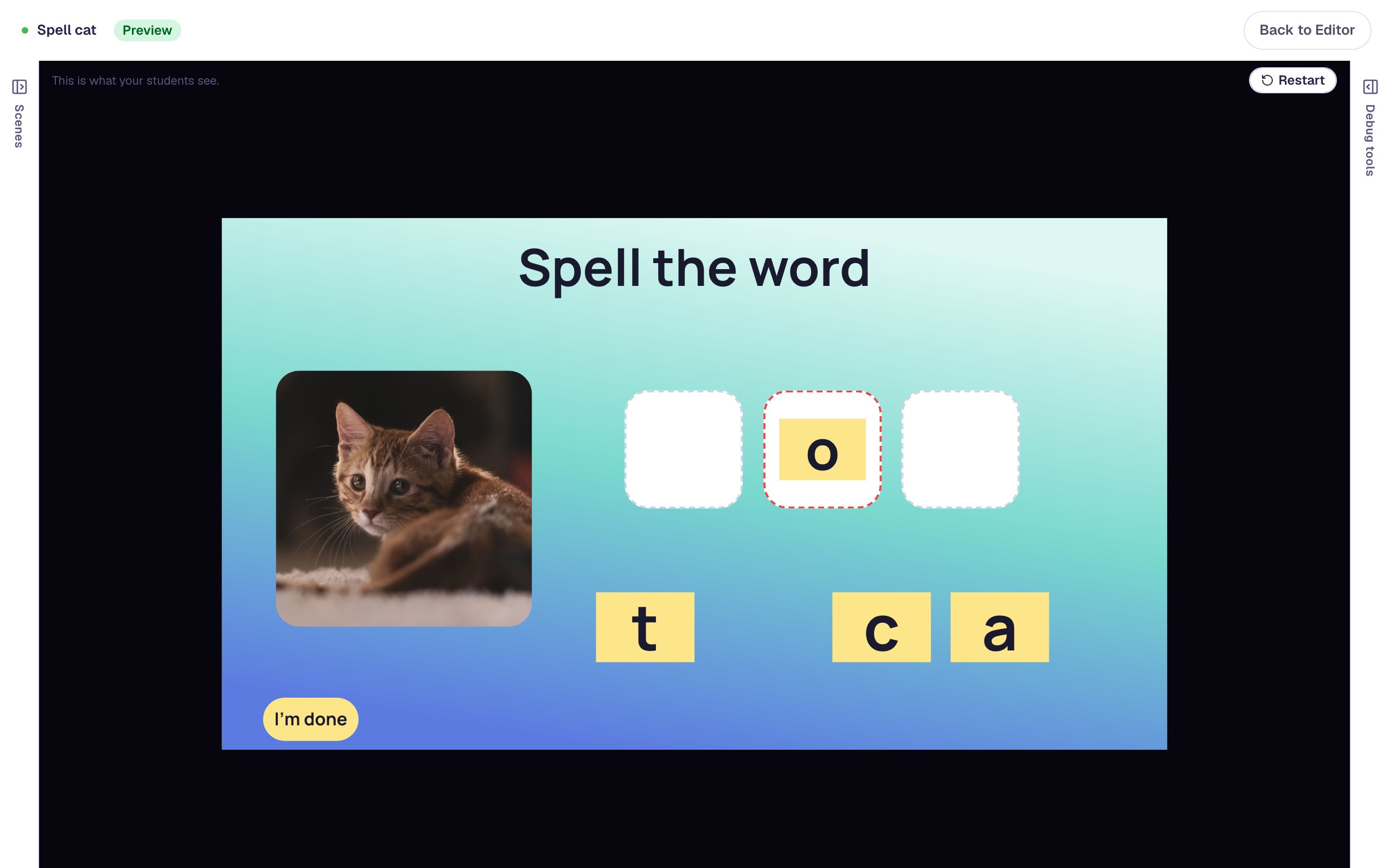
Drag o back out and let go anywhere off the slots: Revert to Position sends it back to its place in the row. Then drop c and a into the first two slots. Each turns green.
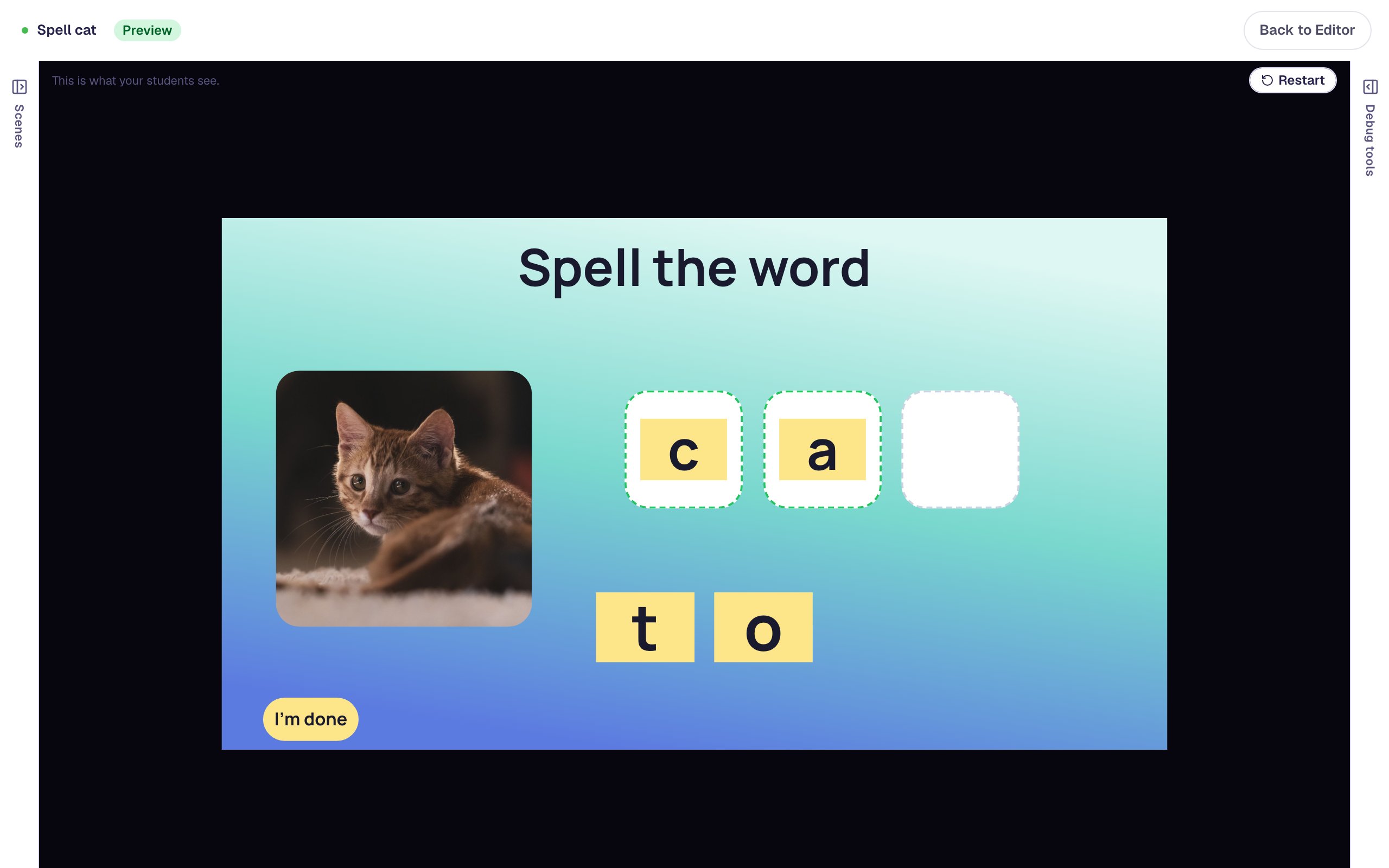
Drop t into the last slot, and the lesson moves on by itself to the Closing Scene, with a score of 3 / 3.
What you built
You turned two familiar widgets into a phonics activity:
- a picture clue with alt text that tells screen-reader users what the word is,
- three square Drop Buckets as letter slots, one per sound,
- four big Text tiles in Draggable mode, styled once and duplicated,
- an answer key that gives each slot exactly one right letter, so order counts,
- an extra letter that's allowed in every slot and correct in none,
- Immediate feedback, so a wrong letter shows up red, and
- a scene that moves on to the ending once the word is spelled.
To make a set of words, duplicate the scene in the Scenes panel and change the picture and letters on each copy; Build a three-question quiz by duplicating a scene shows how. For longer words, add a slot per letter. A word with a repeated letter, like pop, needs a tile for each copy of the letter, each connected to its own slot, because one tile can be the right answer in only one slot. For early readers who can't read the instruction yet, add a spoken prompt with Read a question aloud for early readers.
Make this lesson yours
Add the lesson you just watched being built to your account, then change it for your class: your questions, your pictures, your colors.
Free to sign up, and you'll come straight back here. I have an account