Ask how someone feels in a group chat
Show a phone-style group chat with the Message Thread widget, put the student's own messages on the right, let pre-readers hear each message, and ask a question about what they read.
- Level
- Beginner
- Time
- About 10 min
- Steps
- 7
- Updated
- Oct 31, 2026
A social-emotional reading scene where students read a soccer team's group chat, hear any message read aloud, and pick how Leo feels.
Get the finished lesson
Skip straight to the result, or keep it open beside the steps. Add this tutorial's lesson to your account and explore how it works in the studio.
Free to sign up, and you'll come straight back here. I have an account
Students read text messages every day, and a lot of what a message means isn't in its words. "Thanks. I don't really feel like talking right now." doesn't say _I'm upset_, but a good reader can tell. The Message Thread widget draws a conversation the way a phone shows it: chat bubbles, who sent each one, and when. That makes it a natural fit for reading-for-feelings, polite texting, and online-safety lessons.
In this tutorial you'll build Reading a group chat: a soccer team's chat after a lost game, with Leo blaming himself and Maya cheering him up. Students read it (or hear it), then answer How does Leo feel?
Step 1: Set the scene
Start a blank lesson (New lesson, then Start from scratch) and name it Reading a group chat by clicking Untitled lesson at the top.
With nothing selected, open Background, click Choose a style, pick Gradients, then Mesh sunrise, and click Apply background. Give the Closing Scene the same background, so the ending matches.
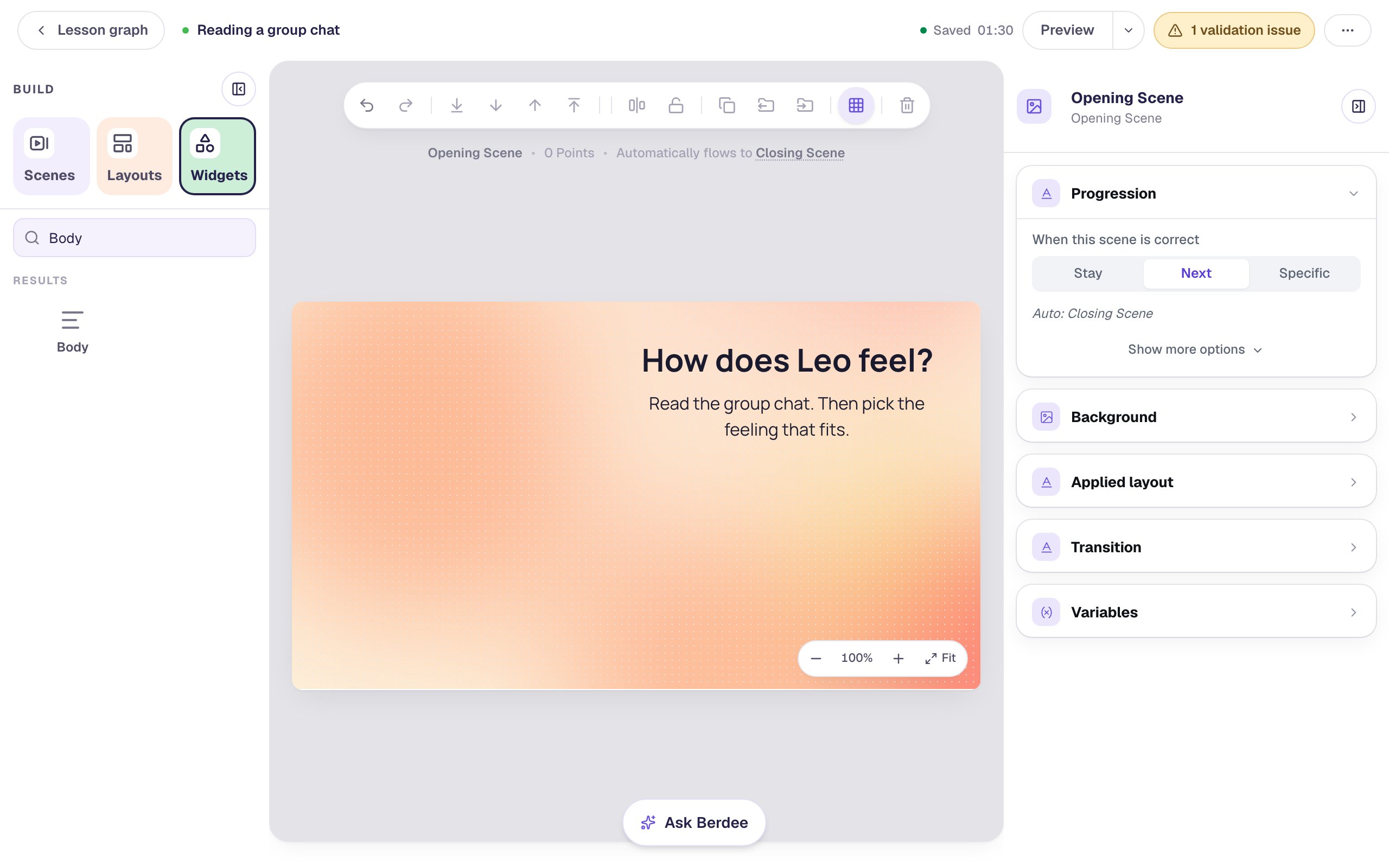
Back on the Opening Scene, leave the left half free for the chat and add two text widgets on the right:
- A Heading with the question:
How does Leo feel? - A Body with the directions, at about 24 px:
Read the group chat. Then pick the feeling that fits.
Step 2: Add a Message Thread
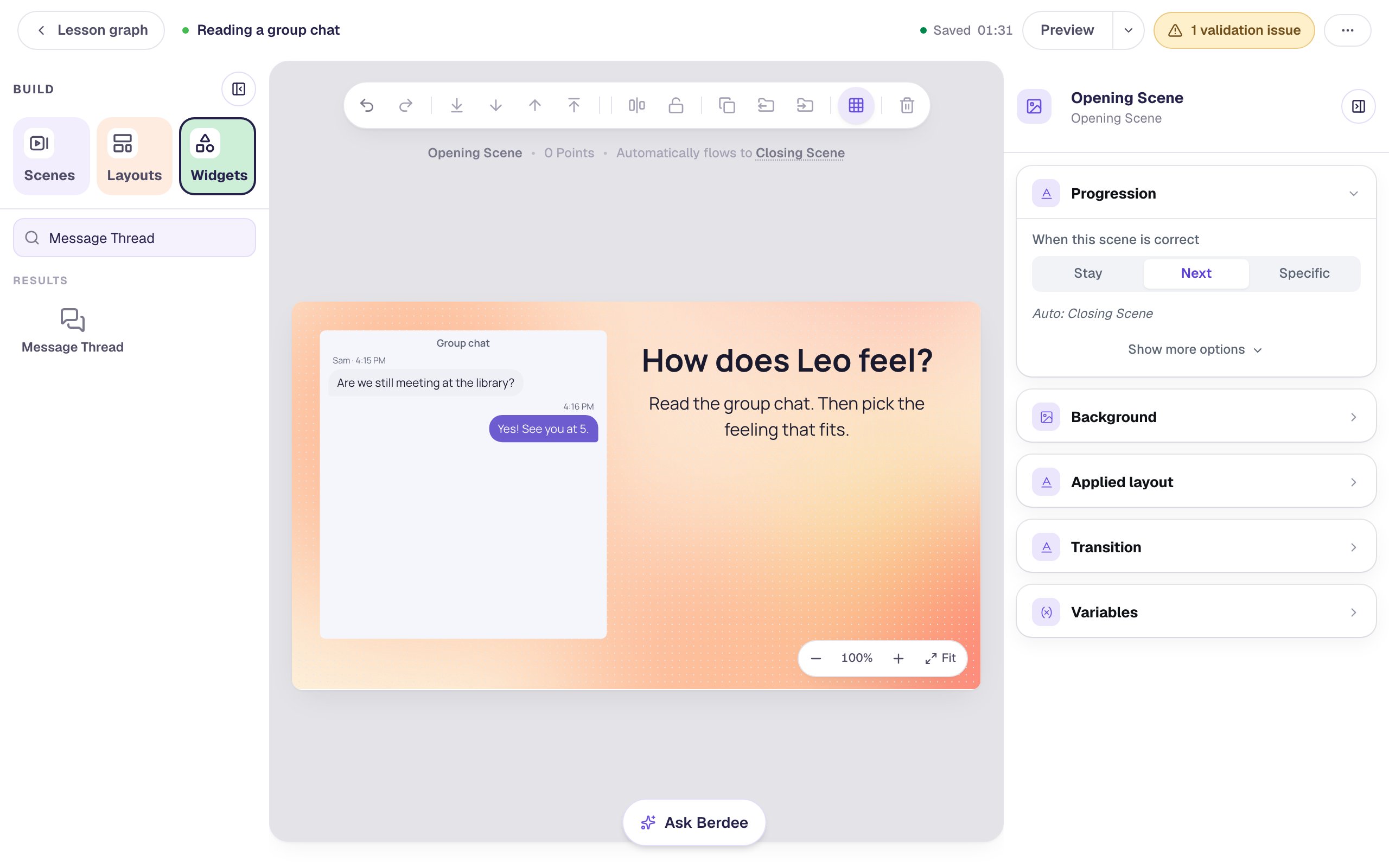
On the Widgets tab, search for Message Thread and click it. A new thread arrives with a short sample conversation between Sam and Me.
A thread grows down the page, one bubble per message, so give it a tall frame. In Style & Layout, click Show more options and set Width to 400 and Height to 430. Then drag it to the left side of the scene.
Step 3: Write the conversation
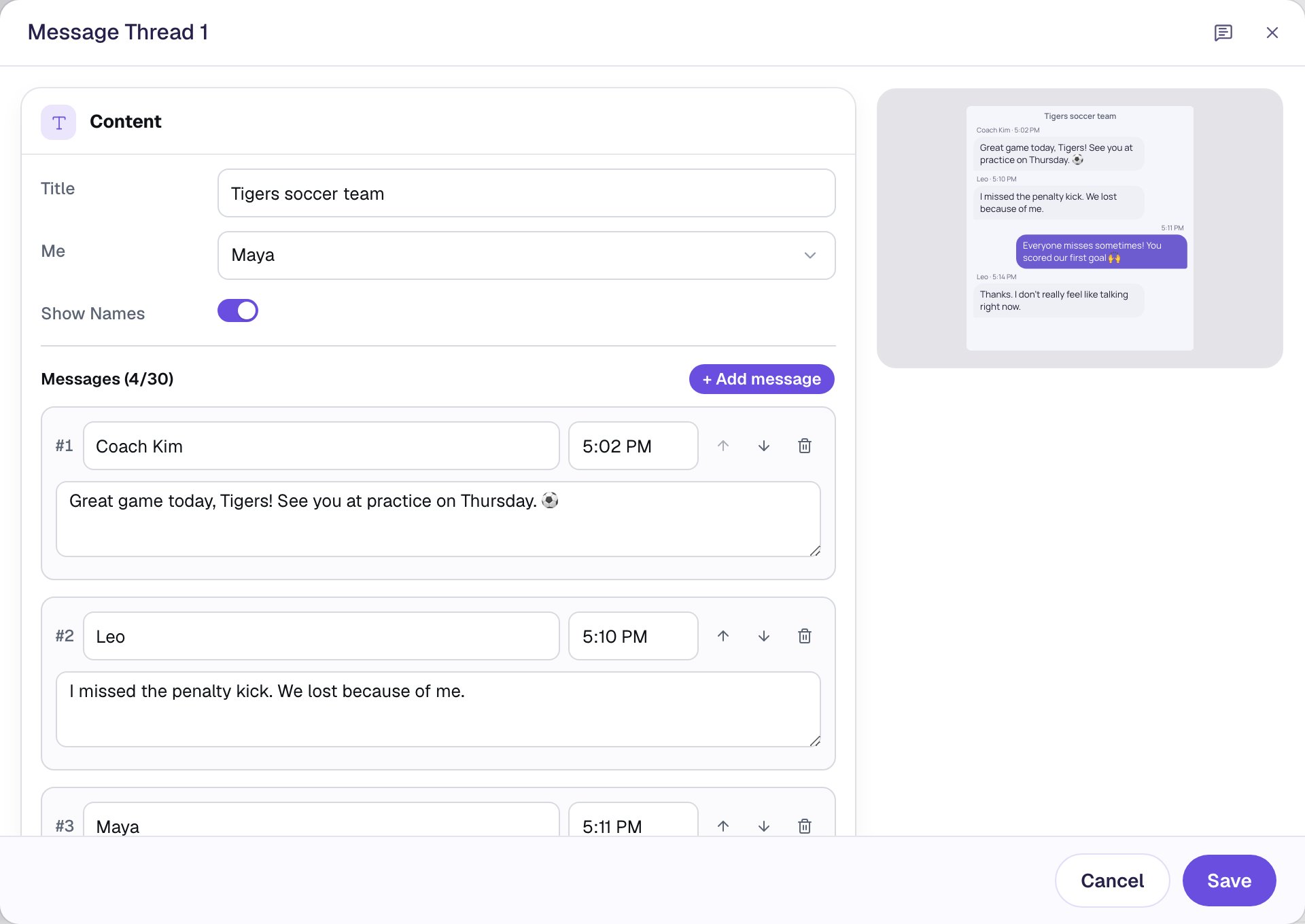
Select the thread and click ⚙ Configure on its pill. Each message has three fields: who sent it, the time, and the text.
- Set Title to
Tigers soccer team. It shows at the top of the chat, like the name of a group on a phone. - Change the two sample messages:
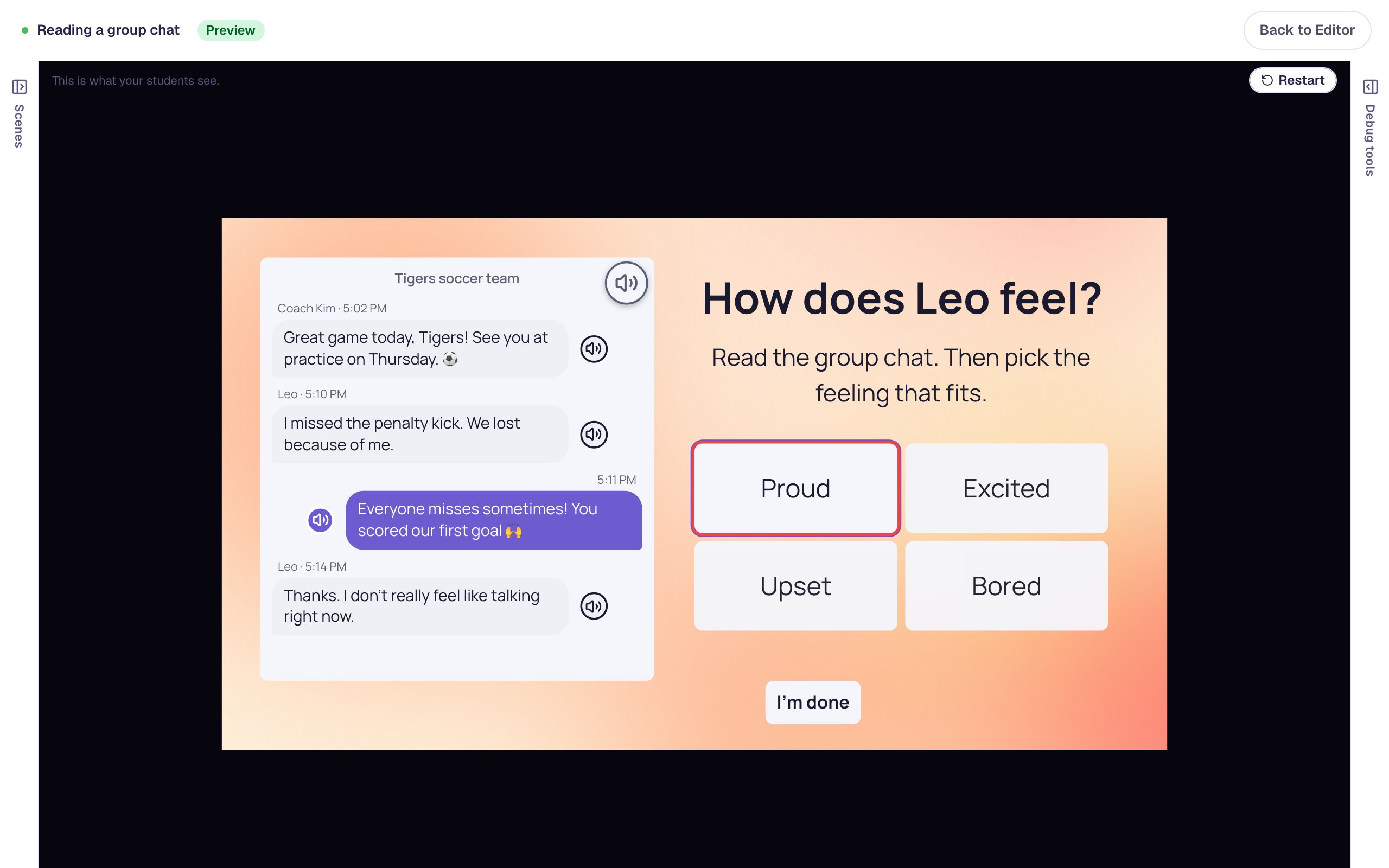
Coach Kim,5:02 PM:Great game today, Tigers! See you at practice on Thursday. ⚽Leo,5:10 PM:I missed the penalty kick. We lost because of me.
- Click + Add message twice and fill in the last two:
Maya,5:11 PM:Everyone misses sometimes! You scored our first goal 🙌Leo,5:14 PM:Thanks. I don't really feel like talking right now.
A new message starts as a reply from someone else in the chat, so you often only need to fix the name. The time is shown exactly as you type it, so 5:14 PM, Wed or Yesterday all work. Emoji go straight into the text.
Type each name the same way every time. Leo and leo count as two different people, and their messages wouldn't line up on the same side.
Step 4: Put the student on the right
On a phone, your own messages sit on the right in a colored bubble. Me picks whose messages go there. Set it to Maya, so students read the chat as if they were Maya holding the phone. Leave Show Names on, so everyone else's name shows above their bubbles.
Choose No one (all on the left) instead for a thread students only watch, like a public comment section.
Step 5: Let students hear each message
Some students can read a question but not a whole conversation. Scroll to the bottom of the dialog and turn on Read messages aloud. Each bubble gets a speaker button beside it, and the Read all button puts one more speaker at the top that reads the whole chat in order.
Under Voice, pick Device voice: the student's tablet or computer reads the words. Narration voice sounds the same on every device, but you then press Generate audio for all messages to make the recordings, and again whenever you change a message.
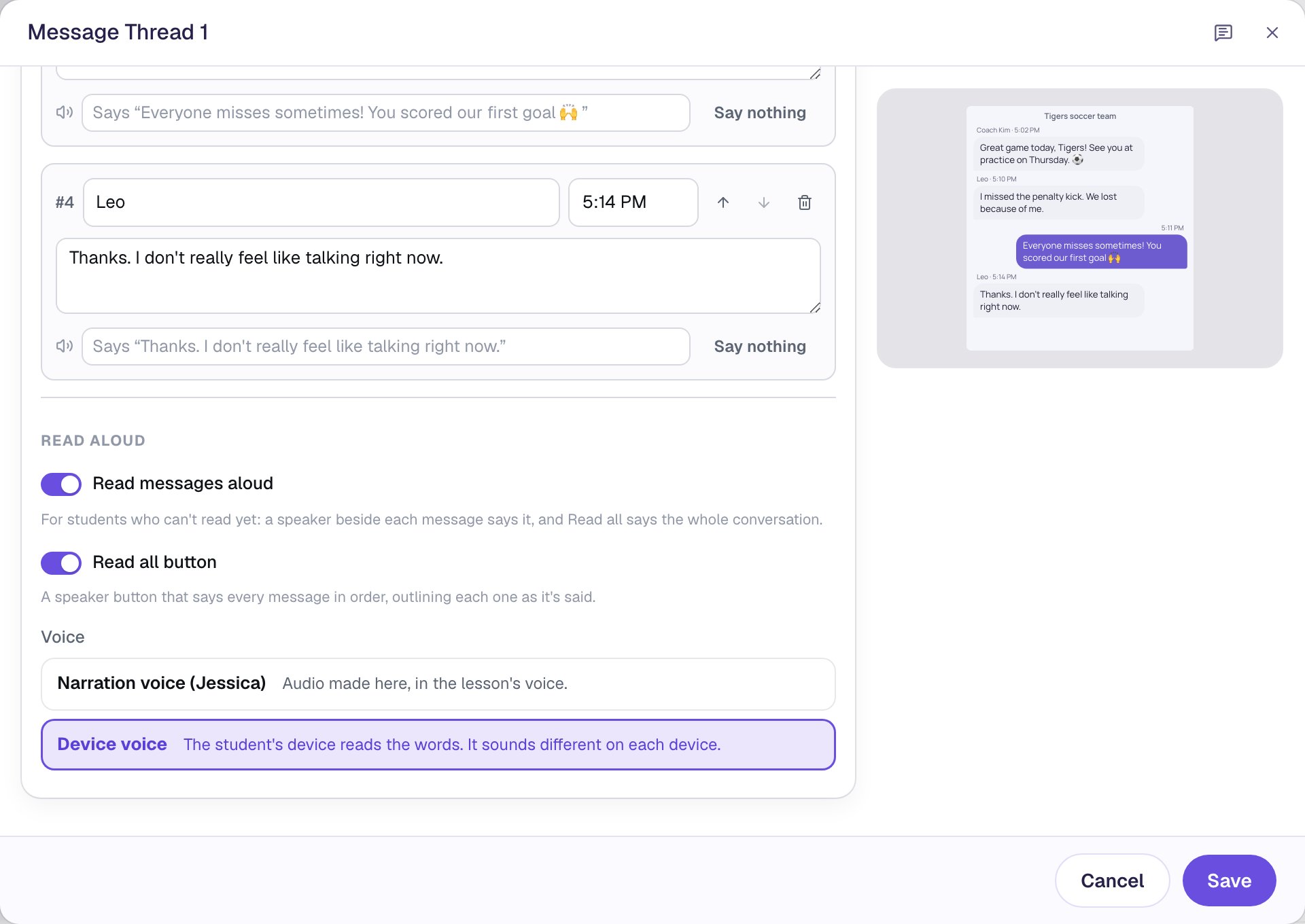
Each message reads its own text by default. To have it say who's talking, type other words in its Says box, like Leo says: Thanks. I don't really feel like talking right now.
Click Save. The chat now fills the left of the scene.
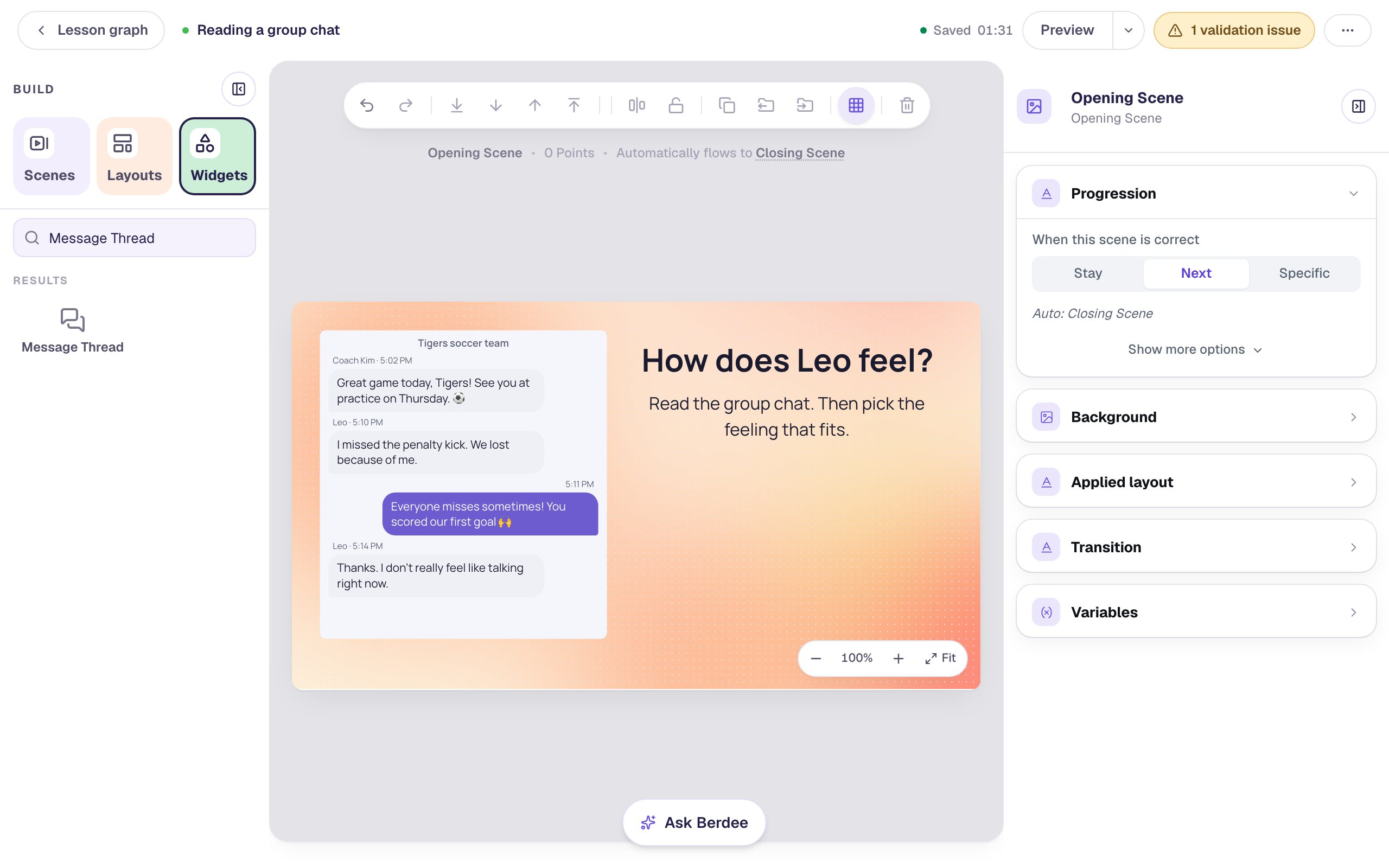
A thread is for reading, so it's never graded. The question comes next.
Step 6: Ask how Leo feels
Add a Multi Choice from the Widgets tab and click ⚙ Configure on its pill. Type the four feelings into the options: Proud, Upset, Excited and Bored. The first option starts marked correct, so click the check mark beside Upset to move it there. Click Save.
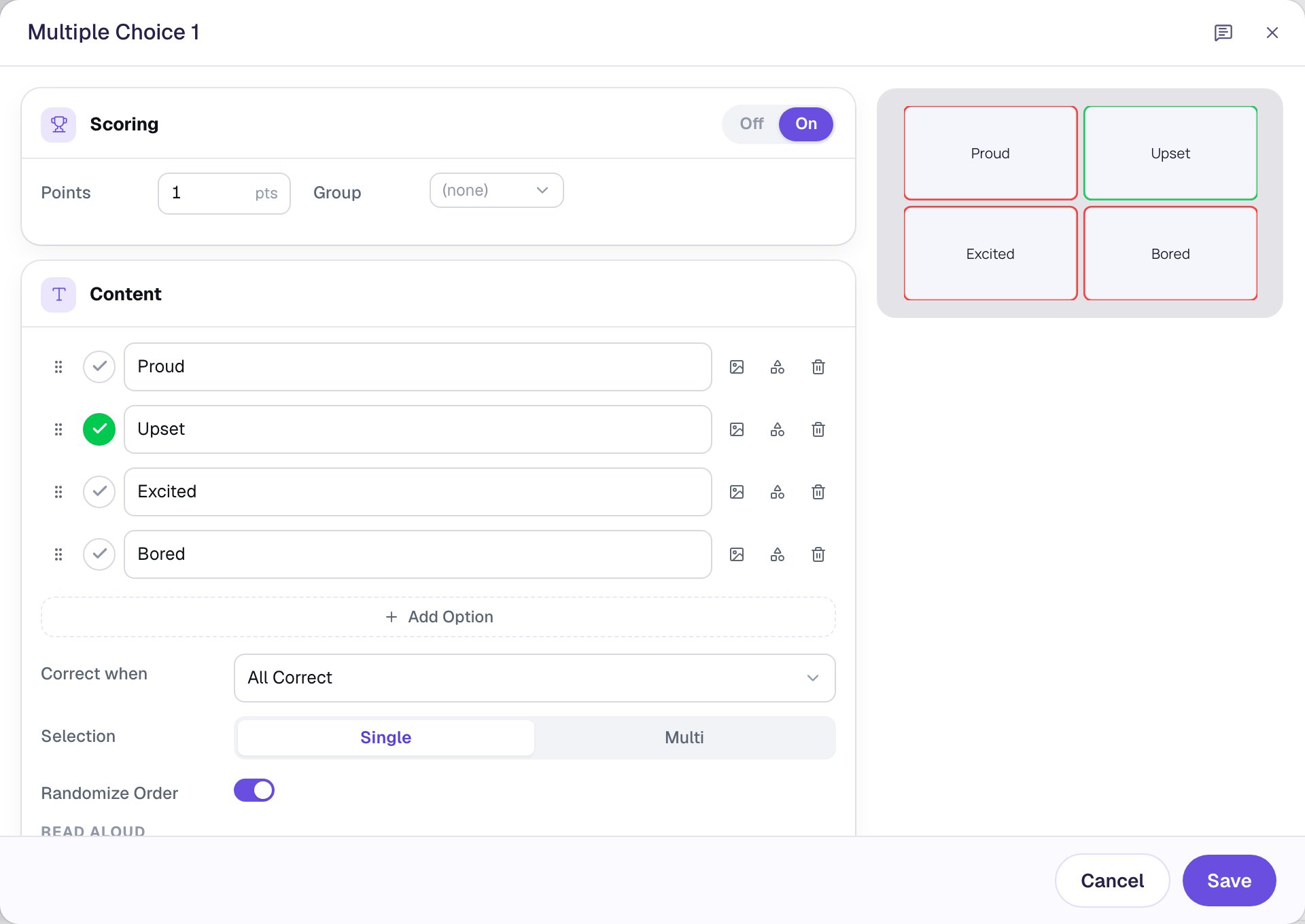
Now place it under the directions:
- In Style & Layout, set Font Size to about 26 px, and under Show more options set Width to
420and Height to190. That gives a two-by-two grid of big buttons. - Turn on Show correctness, so a pick turns green or red as soon as it's tapped.
- Drag it under the directions.
Every lesson needs a finish button before you can publish it. Add a Submit Button, set its Label to I'm done and Submits to Lesson, make it small, and put it under the answers.
Step 7: Try it as a student
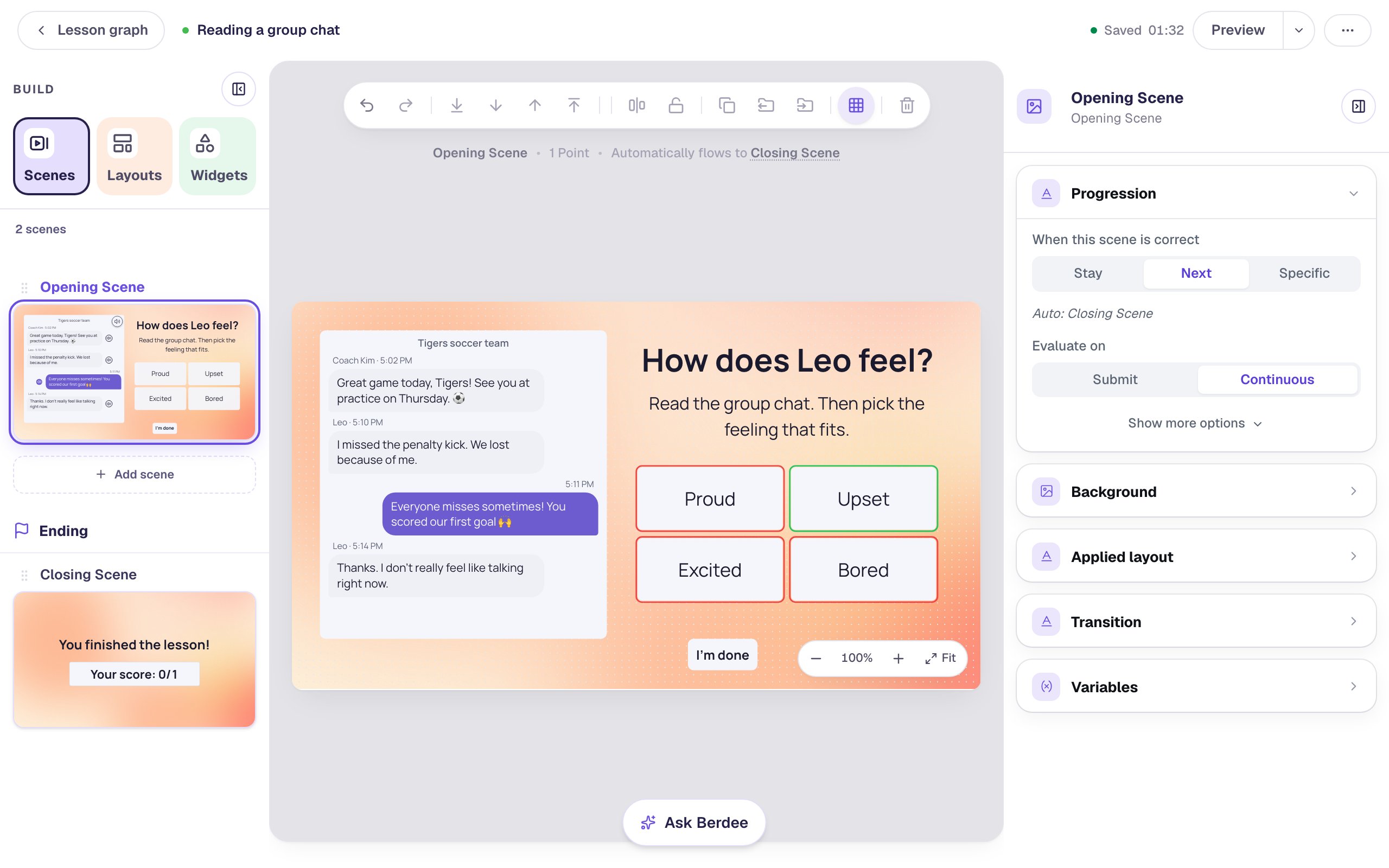
Click Preview at the top of the studio. Read down the chat, then pick a feeling. The answers are shuffled for each student, so yours may be in a different order.
Proud is outlined in red, and the student can try again. Each message has its speaker, and the one at the top of the chat reads them all.
Upset is right, so the lesson moves on to the ending.
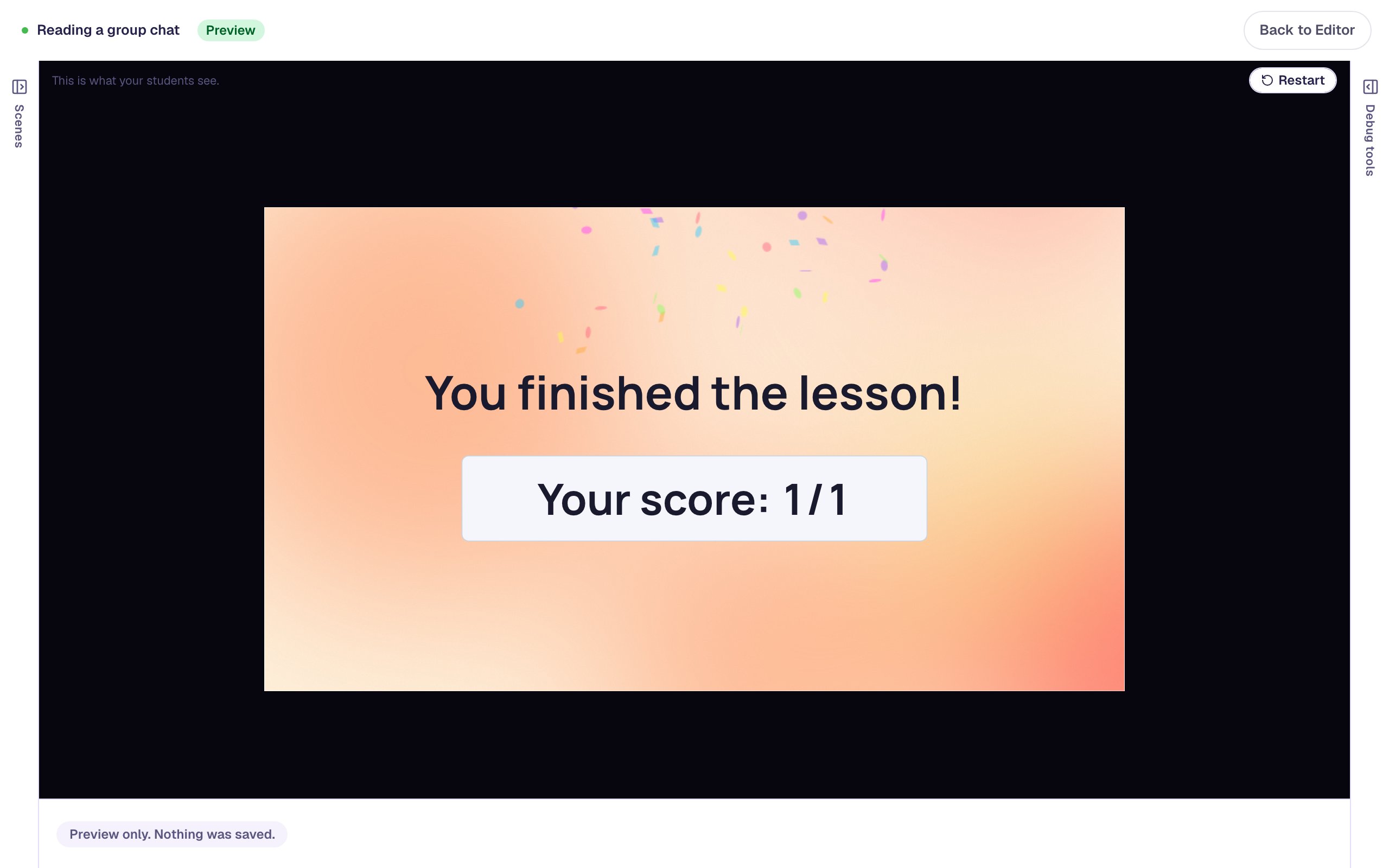
The score is 1 out of 1 even after a wrong first pick, because students can keep trying until they get it right. That suits a question about feelings, where the point is to go back and read again. If you want the first answer to count instead, Make a true-or-false question shows how to move students on after a wrong pick.
What you built
You built a reading scene where:
- a Message Thread shows a team's group chat the way a phone does, with names and times,
- the student reads it as Maya, whose messages sit on the right,
- any student can hear a message, or the whole chat, read aloud, and
- a Multiple Choice asks what the conversation shows without saying.
To build on it, duplicate the scene and ask a second question about the same chat, like What could Maya text next?. For a question students answer by hearing instead of reading, try Read a question aloud for early readers.
Make this lesson yours
Add the lesson you just watched being built to your account, then change it for your class: your questions, your pictures, your colors.
Free to sign up, and you'll come straight back here. I have an account