Make a true-or-false question
Turn a Multiple Choice into a True or False question with its two answers side by side, explain the fact after every answer with a message, and move students on after a wrong pick so their first answer is the one that counts.
- Level
- Beginner
- Time
- About 15 min
- Steps
- 9
- Updated
- Oct 25, 2026
A two-statement ocean-animals quiz where each answer gets an explanation, and each statement counts on the first try.
Get the finished lesson
Skip straight to the result, or keep it open beside the steps. Add this tutorial's lesson to your account and explore how it works in the studio.
Free to sign up, and you'll come straight back here. I have an account
True or false is the quickest check there is: one sentence, two buttons. In Berdee it's a Multiple Choice with just two answers. A few small choices make it work well:
- the two answers sit side by side and stay in the same order,
- the student learns why after answering, right or wrong, and
- the first answer is the one that counts. With only two buttons, a question students can keep retrying ends at 100% every time.
We'll build Ocean animals, a two-statement quiz: A starfish has no brain. (true) and A whale is a fish. (false).
Step 1: Make a title card and a scene for the first statement
Start a blank lesson (New lesson, then Start from scratch) and name it Ocean animals: true or false?. Give the Opening Scene a background from Background → Choose a style (we used Layered waves), and give the Closing Scene the same one.
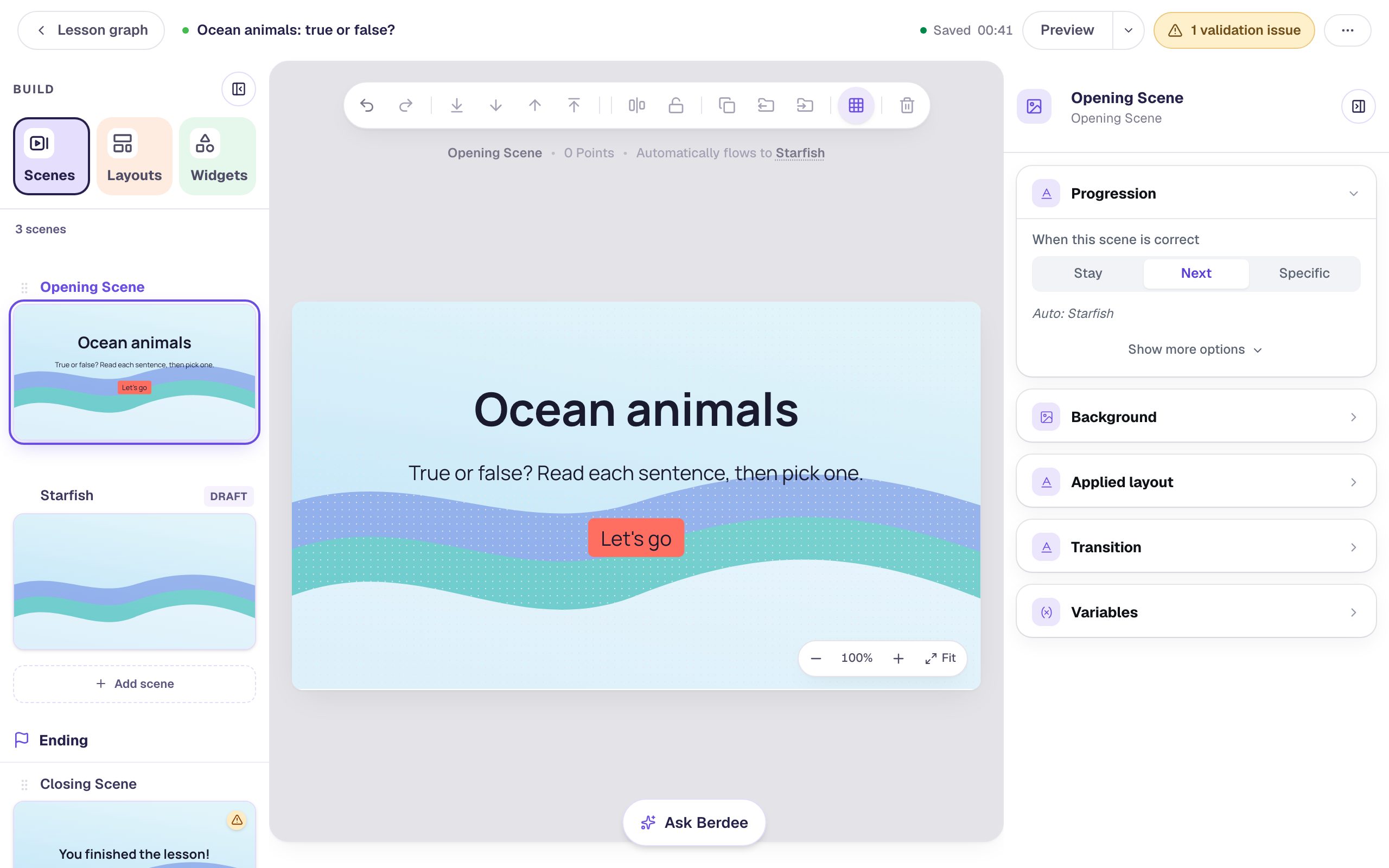
The Opening Scene is the title card. Every statement gets a scene of its own after it:
- On the Scenes tab, click Add scene. Double-click the new scene's name and call it
Starfish. Give it the same background. - Back on the Opening Scene, add a Heading (
Ocean animals) and a Body (True or false? Read each sentence, then pick one.). - Add a Button, set its Label to
Let's goin ⚙ Configure, then open Behaviors on its pill and pick Make this a "Next" button. Click Add behavior.
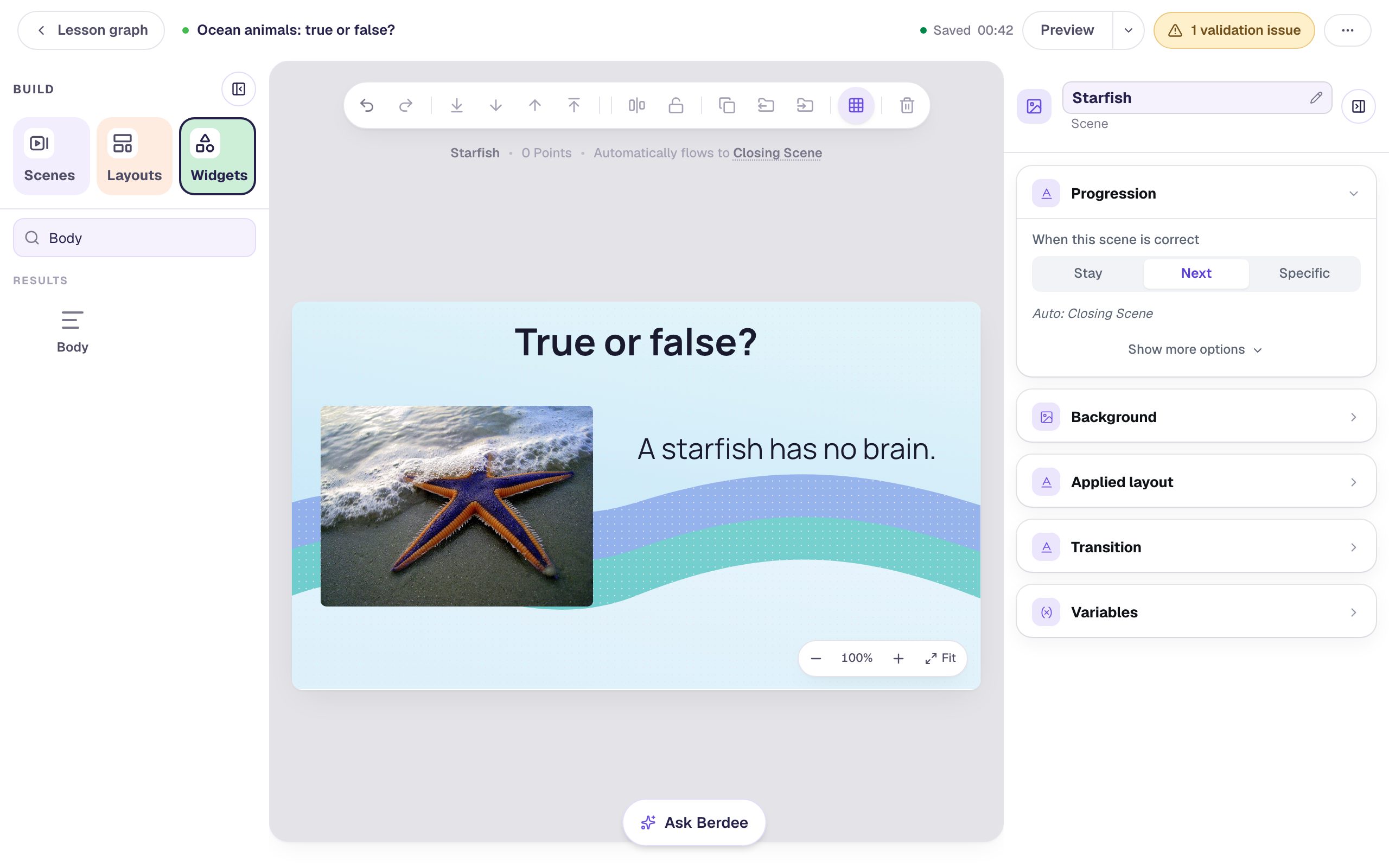
Now open the Starfish scene and set it up:
- A Heading that says
True or false?across the top. - An Image on the left. Click Choose image on its pill, search the stock photos for
starfish, and pick one. In Accessibility, describe the photo in Alt Text (A purple and orange starfish on wet sand as a wave washes in), so students using a screen reader know what's in it. - A Body on the right with the statement:
A starfish has no brain.at about 40 px.
Step 2: Add True and False as the only two answers
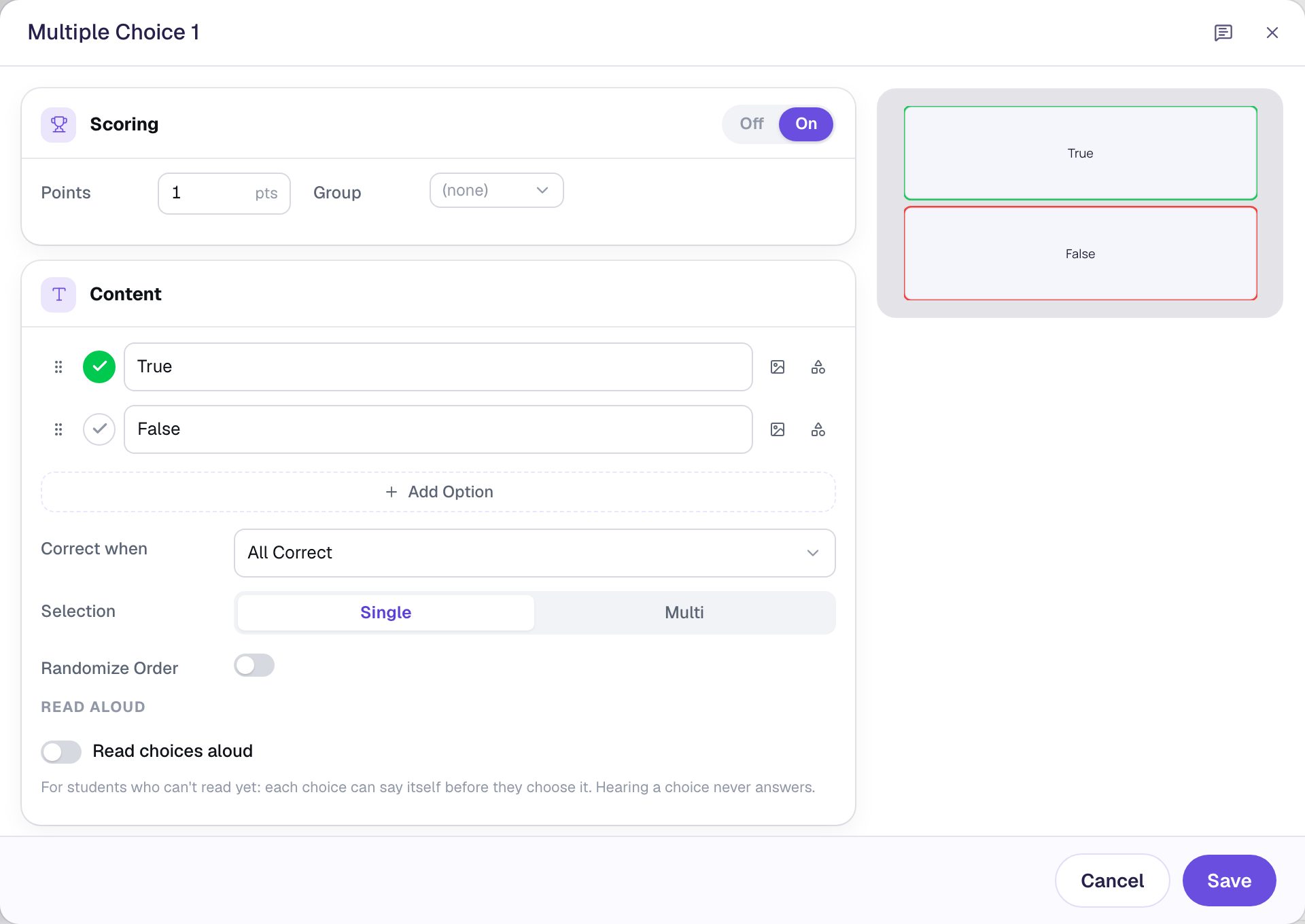
Add a Multi Choice from the Widgets tab and click ⚙ Configure on its pill:
- Type
Truein the first option andFalsein the second. - A new question has four options. Click the trash can beside the last two to remove them.
- Turn off Randomize Order. It's on for a new question, and it would show False first to some students. True first, then False, is what everyone expects.
The first option starts marked correct, which is right for the starfish: it really has no brain. Leave Scoring on, worth 1 point, and Selection on Single. Click Save.
Step 3: Put the answers side by side
A Multiple Choice arranges its answers to fit its shape, so you lay them out by sizing the widget:
- In Style & Layout, set Font Size to about 36 px.
- Click Show more options and set Width to
440and Height to110. Wide and short puts True and False in one row. - Turn on Show correctness, so a pick turns green or red the moment a student taps it.
- Drag the row under the statement.
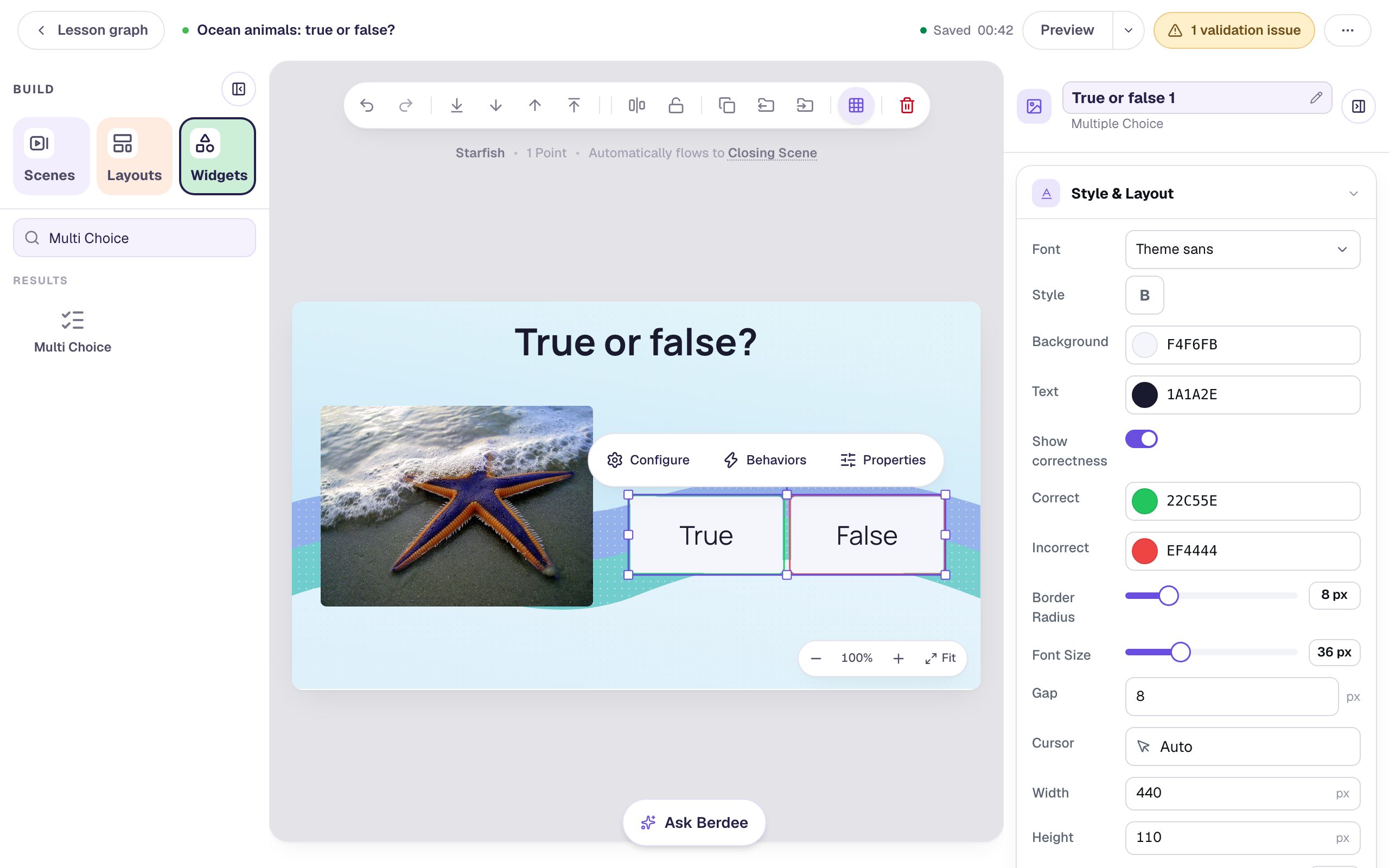
Give it a name you'll recognize in the behaviors later: click the name at the top of the properties panel and type True or false 1.
Then add the lesson's finish button. Every lesson needs one before you can publish it: add a Submit Button, set its Label to I'm done and Submits to Lesson, make it small, and put it in the bottom-left corner.
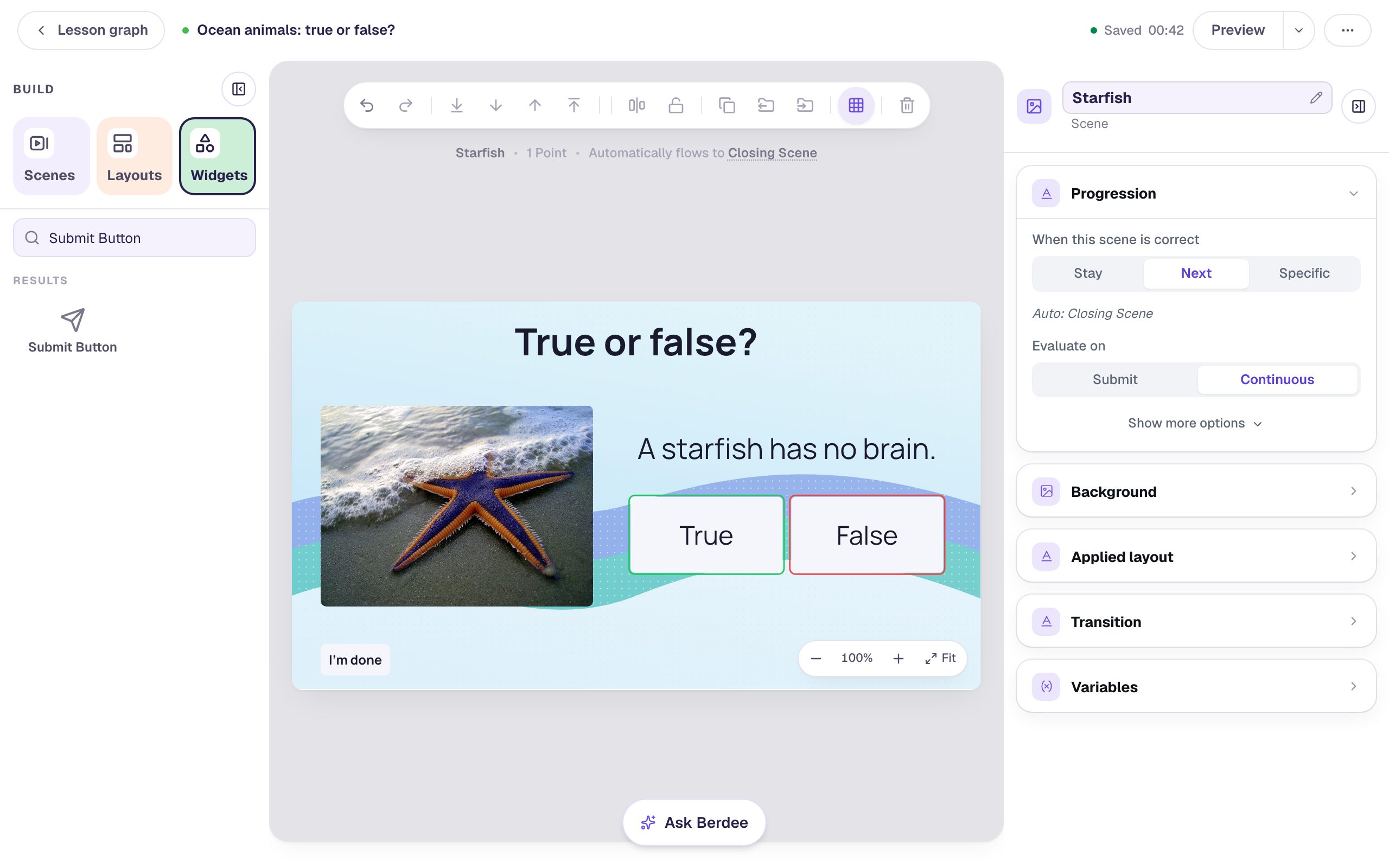
Step 4: Copy the scene for the second statement
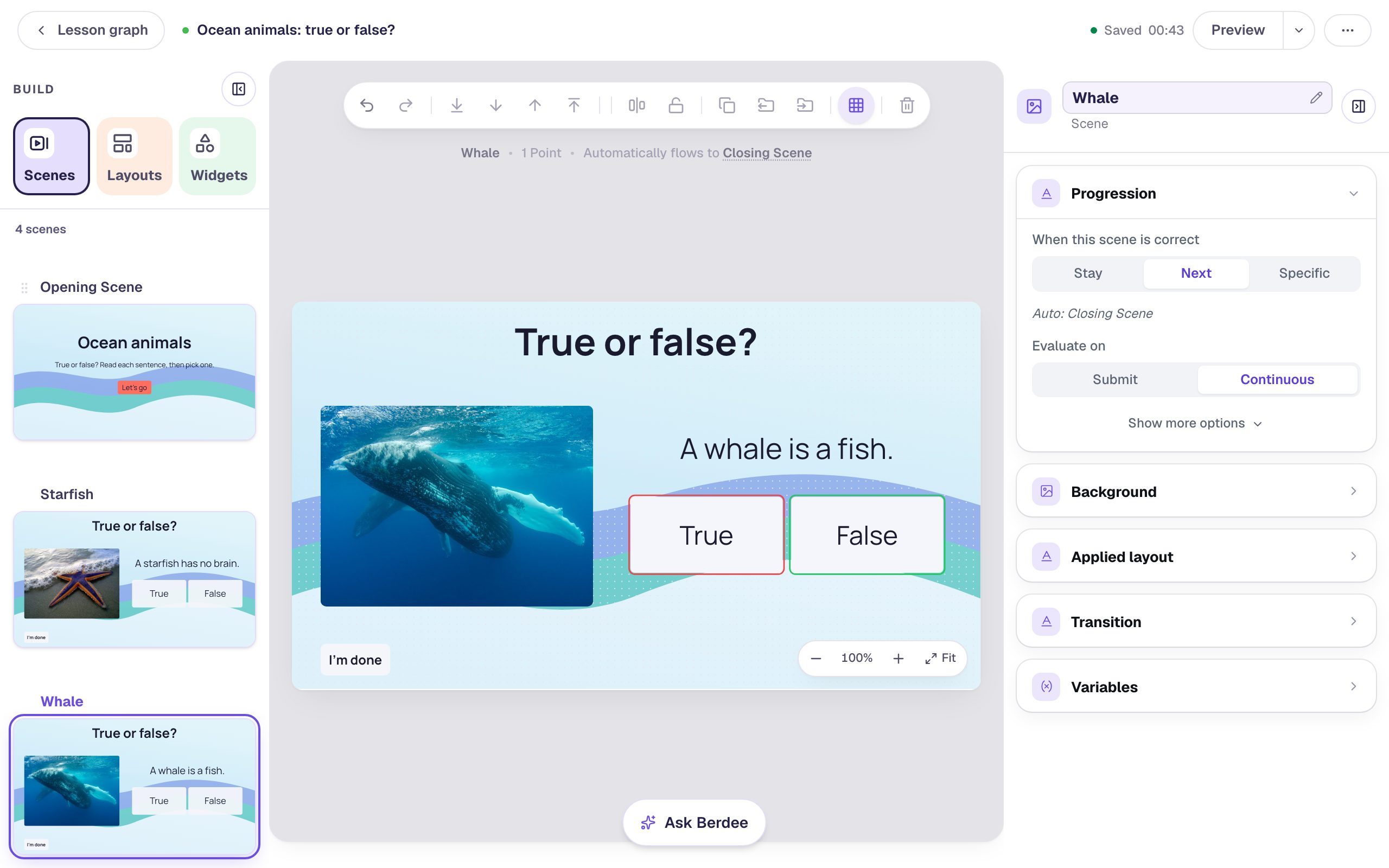
The whale gets the same layout, so copy the scene instead of building it again. On the Scenes tab, hover over Starfish, click Duplicate scene, then double-click the copy's name and call it Whale.
Step 5: Change the photo, the sentence, and the right answer
On the Whale scene, change the three things that are different:
- Select the photo, click Replace image, and pick a whale (search
humpback whale). Replace image keeps the starfish's alt text, so describe the new photo in Alt Text:A humpback whale swimming in deep blue water. - Select the statement and change its Text to
A whale is a fish. - Select the answers, open ⚙ Configure, and click the check mark beside False. In a single-answer question the mark moves, so True is no longer correct. Click Save.
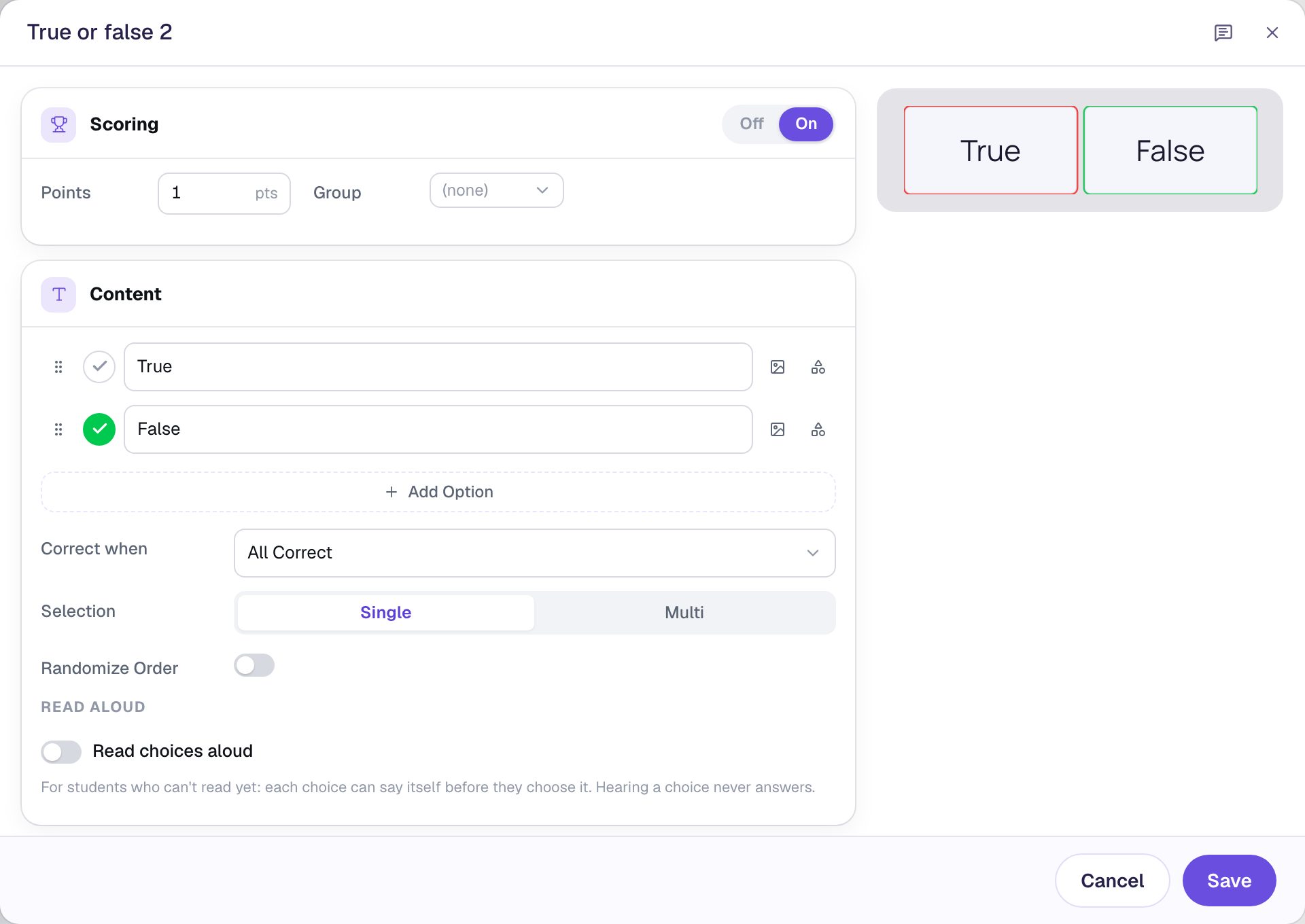
That last change is easy to forget, because the copy looks finished. A copy keeps everything, including which answer is right, so a whale question still marked True would teach the opposite of the fact.
Rename the copied question True or false 2.
Step 6: Explain the fact after a right answer
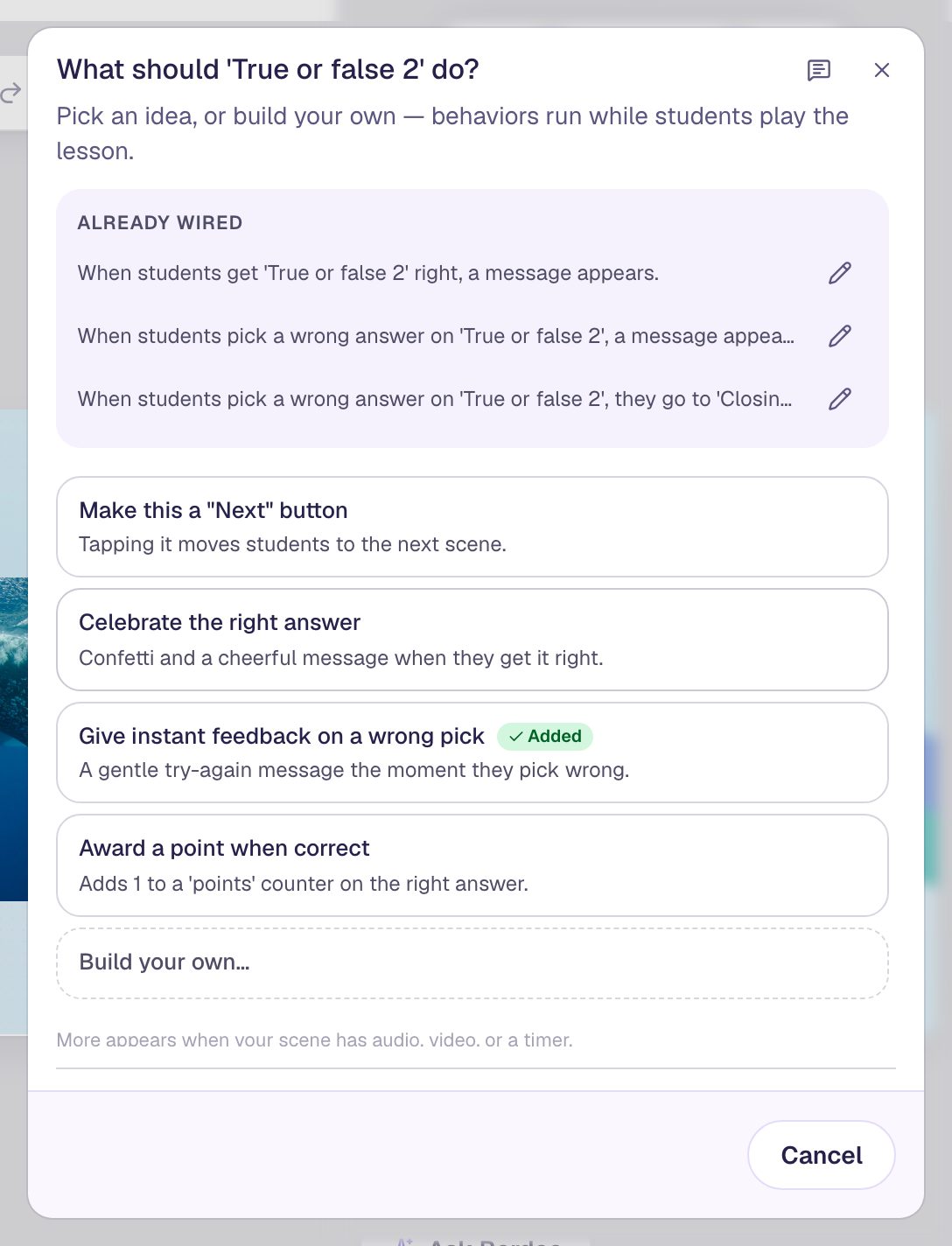
A true-or-false question teaches most when the student finds out why. Go back to the Starfish scene, select its answers, and click Behaviors on the pill. Choose Build your own…, then:
- Under What should happen?, pick Show a message.
- Type the message:
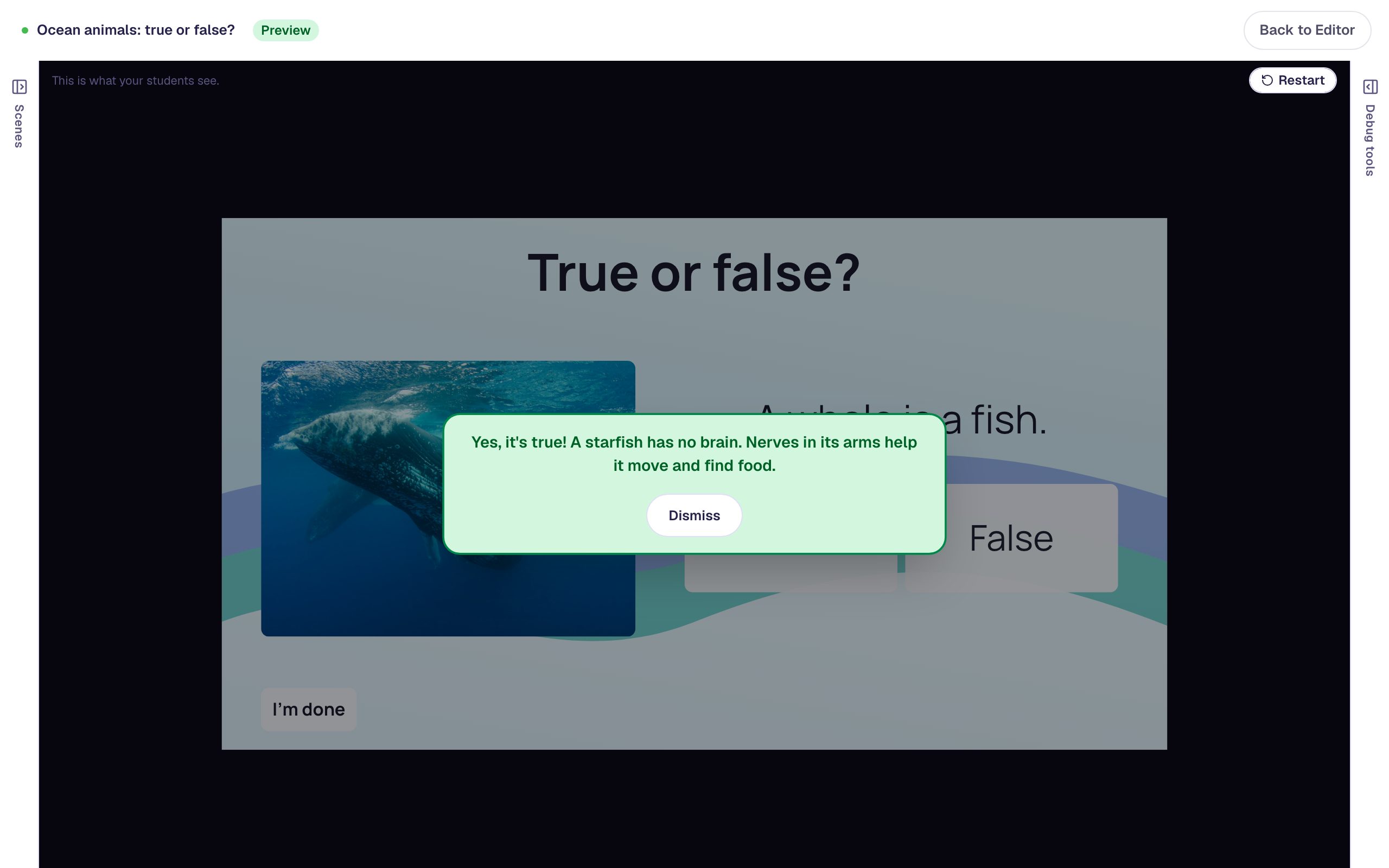
Yes, it's true! A starfish has no brain. Nerves in its arms help it move and find food. - Set the tone to Happy 🎉.
- Under When?, pick They get it right, and click Add behavior.
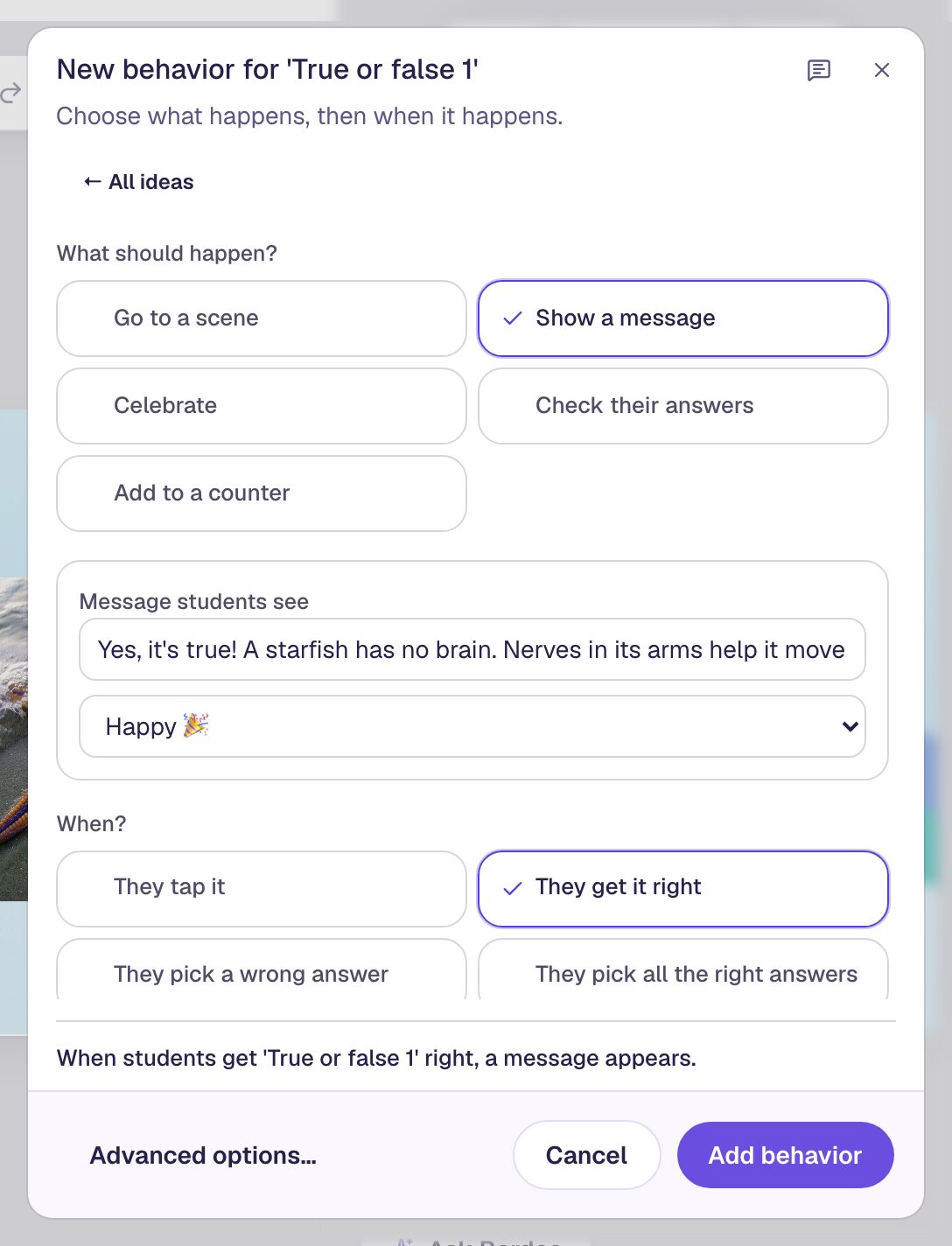
The message stays on screen until the student clicks Dismiss, so everyone gets as long as they need to read it.
Step 7: Explain a wrong answer, then move on
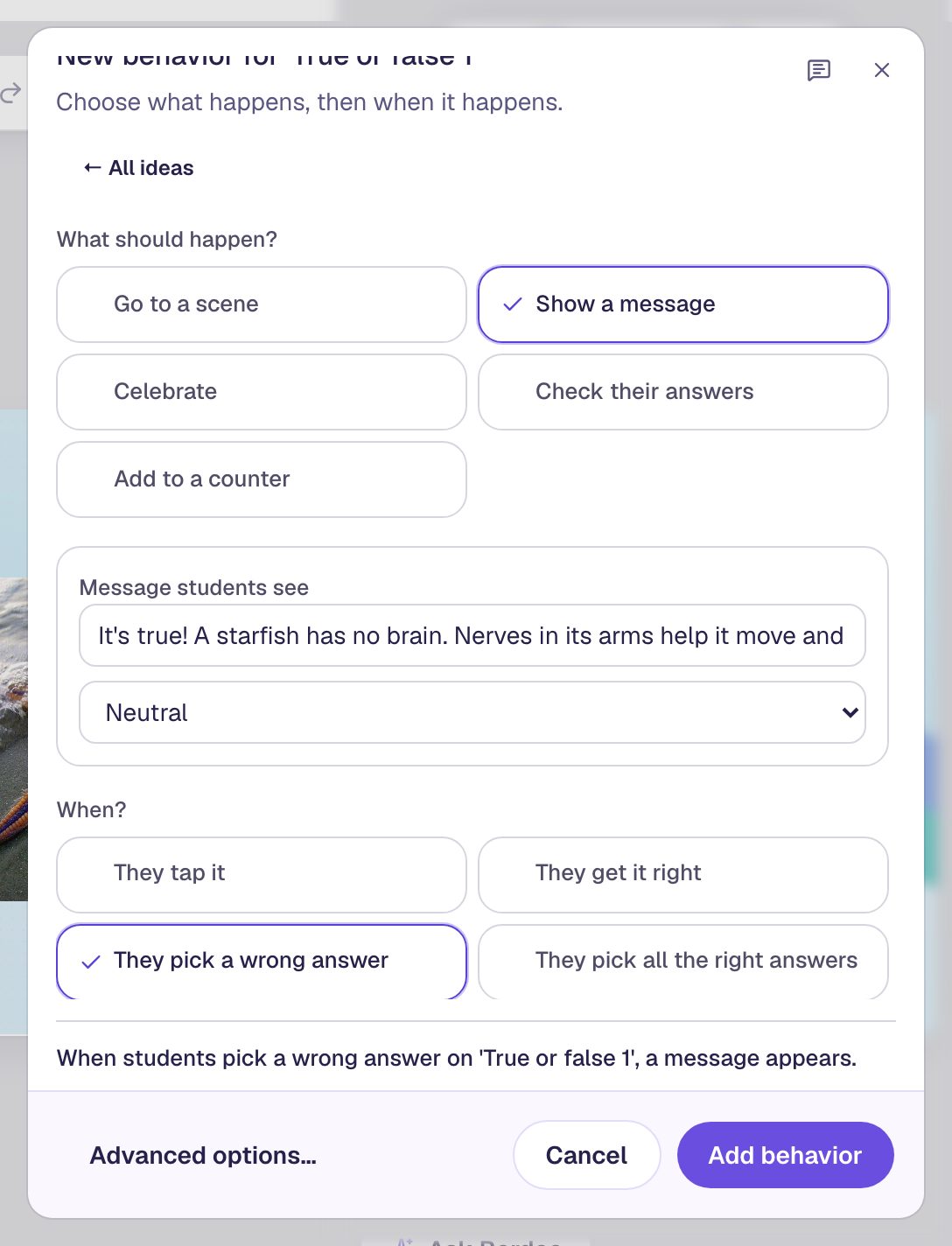
A wrong answer needs the explanation even more. Add a second behavior the same way: Show a message, the fact written for someone who picked wrong (It's true! A starfish has no brain. Nerves in its arms help it move and find food.), the Neutral tone, and They pick a wrong answer.
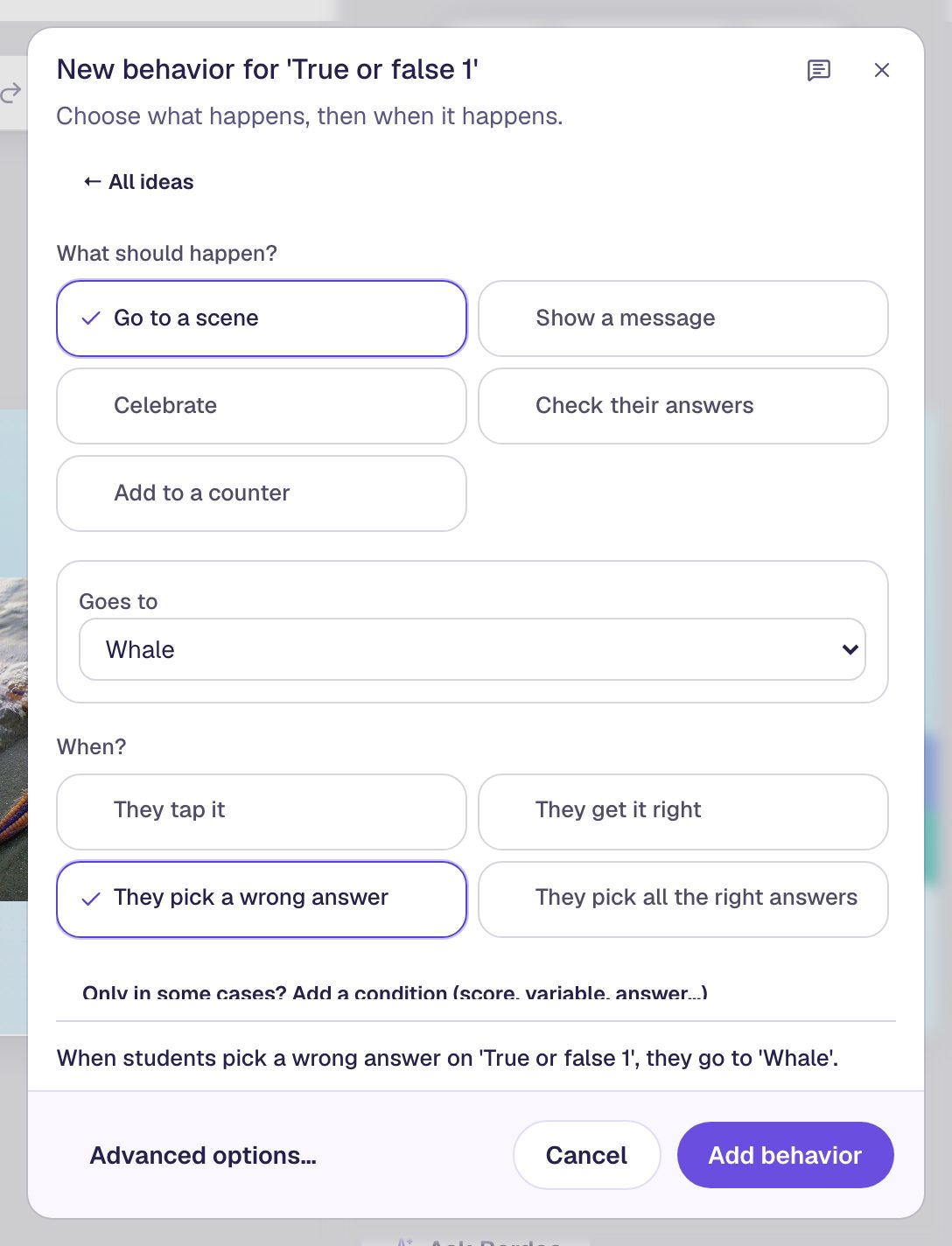
Now the step that makes the first answer count. Left as it is, a student who picks False could just tap True next, and the scene would move on with full marks. Instead, send them on as soon as they pick wrong. Add a third behavior: Go to a scene, set Goes to to Whale, and They pick a wrong answer.
Open Behaviors again to check: Already wired lists all three.
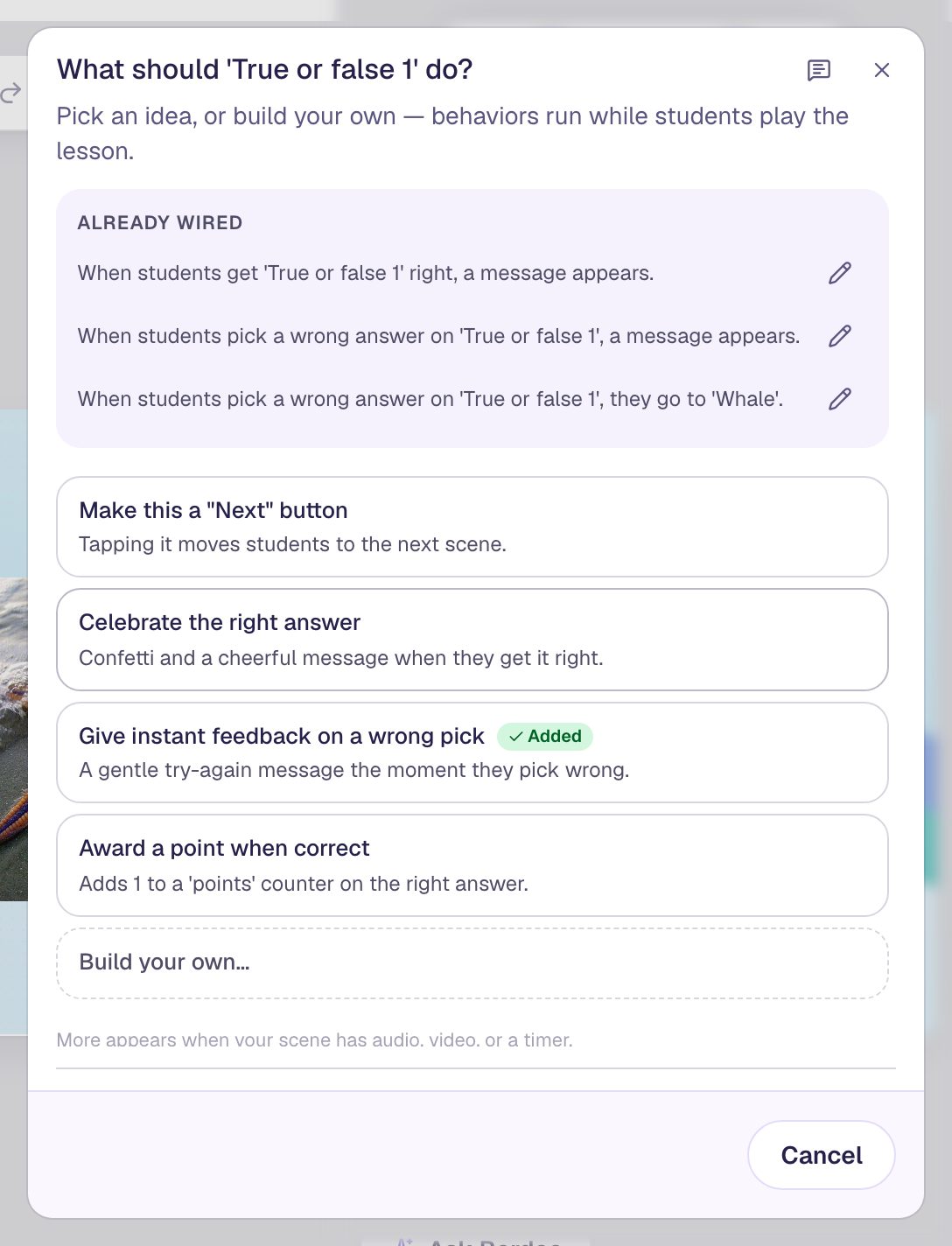
Both answers now leave the scene. A right one moves on by itself, because the scene goes to the next one when its question is answered correctly. A wrong one moves on through the behavior. The message stays up over the next scene until the student dismisses it.
Step 8: Wire the whale the same way
On the Whale scene, select the answers and add the same three behaviors with the whale's fact:
| Behavior | Message or destination | When |
|---|---|---|
| Show a message, Happy 🎉 | Yes, it's false! A whale is a mammal, not a fish. It breathes air through a blowhole. | They get it right |
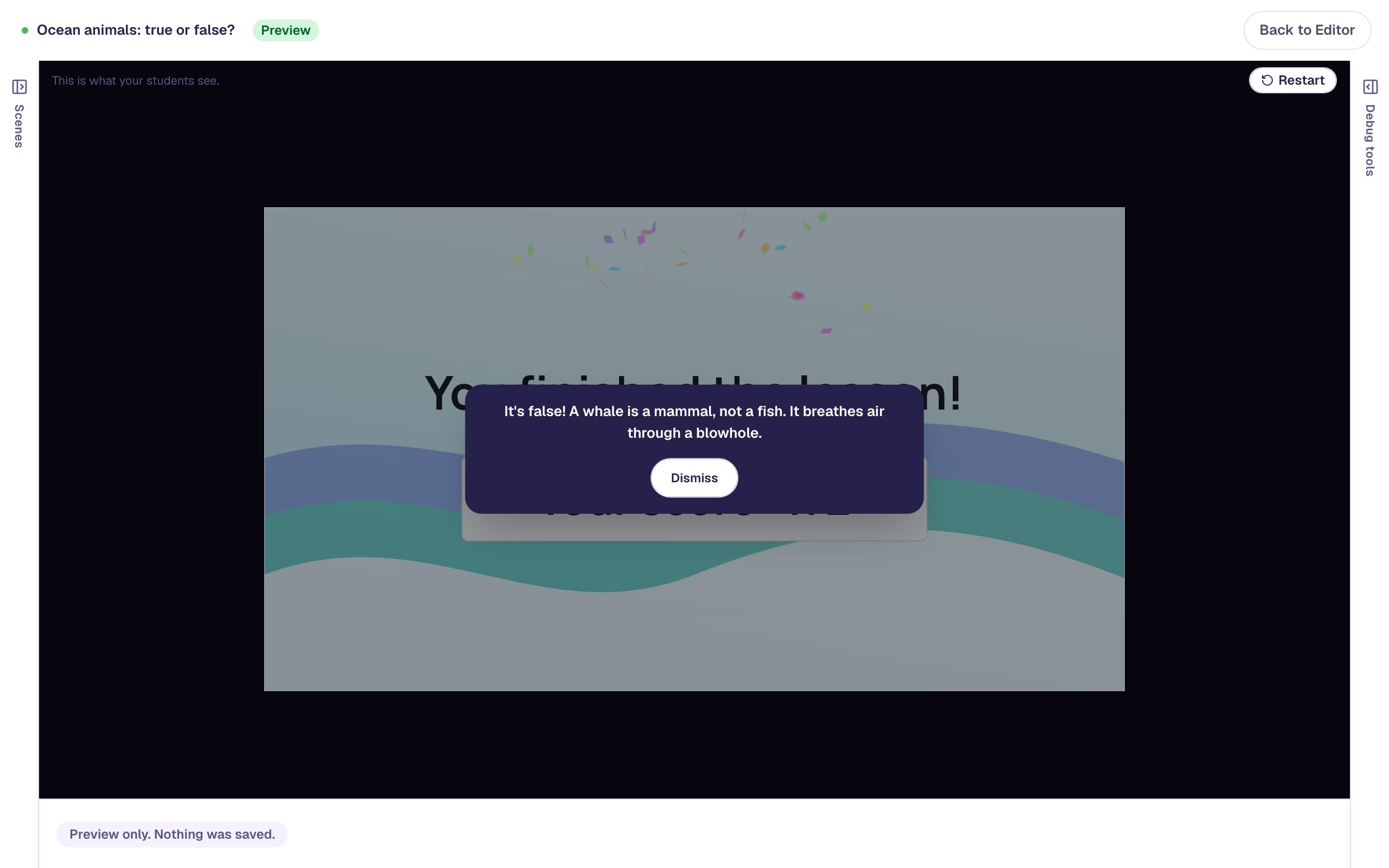
| Show a message, Neutral | It's false! A whale is a mammal, not a fish. It breathes air through a blowhole. | They pick a wrong answer |
| Go to a scene | Closing Scene | They pick a wrong answer |
The whale is the last statement, so its wrong answer goes to the Closing Scene, not to another question.
Step 9: Try it as a student
Click Preview at the top of the studio. Click Let's go, answer the starfish right and the whale wrong:
True for the starfish shows the happy message, and the whale's statement is waiting behind it.
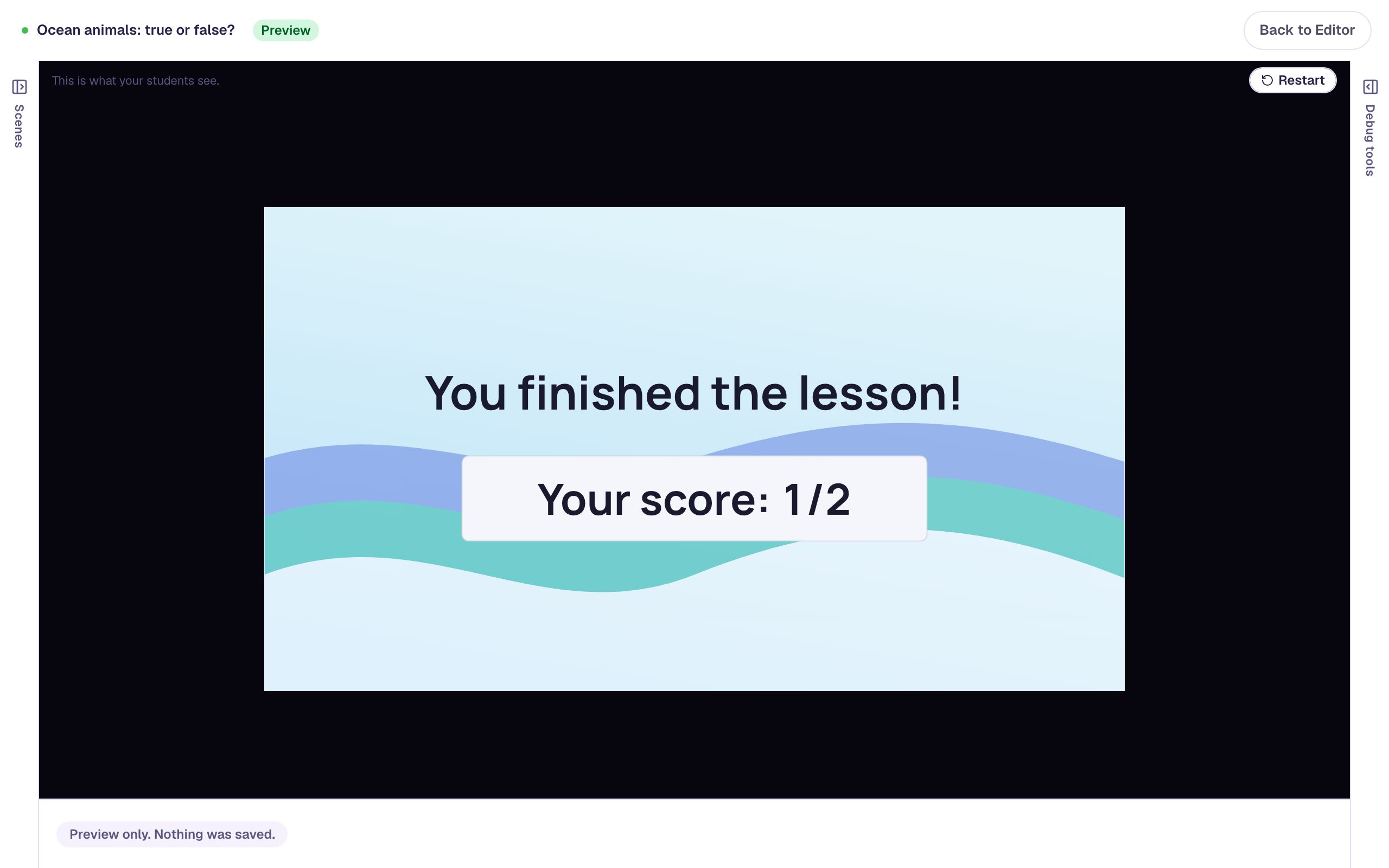
True for the whale is wrong, so the lesson moves straight to the ending, and the explanation appears over it. The student can't go back and change the answer.
What you built
You built a true-or-false quiz where:
- each statement is a Multiple Choice with only True and False, side by side, always in that order,
- every answer, right or wrong, gets a message that explains the fact,
- a wrong pick moves straight on, so the first answer is the one that counts, and
- copying a scene made the second statement quick, as long as you moved the correct mark.
To add a third statement, duplicate Whale, change it the same way, and point the whale's wrong answer at the new scene instead of the Closing Scene. To ask several true-or-false sentences at once on one scene, try Tick every true sentence with checkboxes. For a sound instead of a message, see Play a sound for right and wrong answers.
Make this lesson yours
Add the lesson you just watched being built to your account, then change it for your class: your questions, your pictures, your colors.
Free to sign up, and you'll come straight back here. I have an account