Play a cheer for a right answer and a gentle boing for a wrong one
Generate two sound effects, hide their players, and use behaviors so a question plays one sound when students get it right and another when they pick a wrong answer.
- Level
- Beginner
- Time
- About 12 min
- Steps
- 9
A space question that cheers when students pick Mars, plays a soft boing for any other planet, and waits for the cheer to finish before moving on.
Get the finished lesson
Skip straight to the result, or keep it open beside the steps. Add this tutorial's lesson to your account and explore how it works in the studio.
Free to sign up, and you'll come straight back here. I have an account
Young students often don't read a "Correct!" banner, but they always hear a cheer. In this tutorial you'll build a one-question space quiz that plays a burst of clapping when a student picks the right planet and a soft, friendly boing when they pick a wrong one, so they know straight away whether to try again.
You'll make both sounds yourself with Berdee's sound-effect generator, hide their players so students only hear them, and connect them to the question with two behaviors. Generating sound effects is an AI feature that needs the Plus or Studio Pro plan. On Free, you can upload your own clips instead, or press Add this lesson to my account to get this lesson with both sounds ready to use on any plan.
Step 1: Build the question
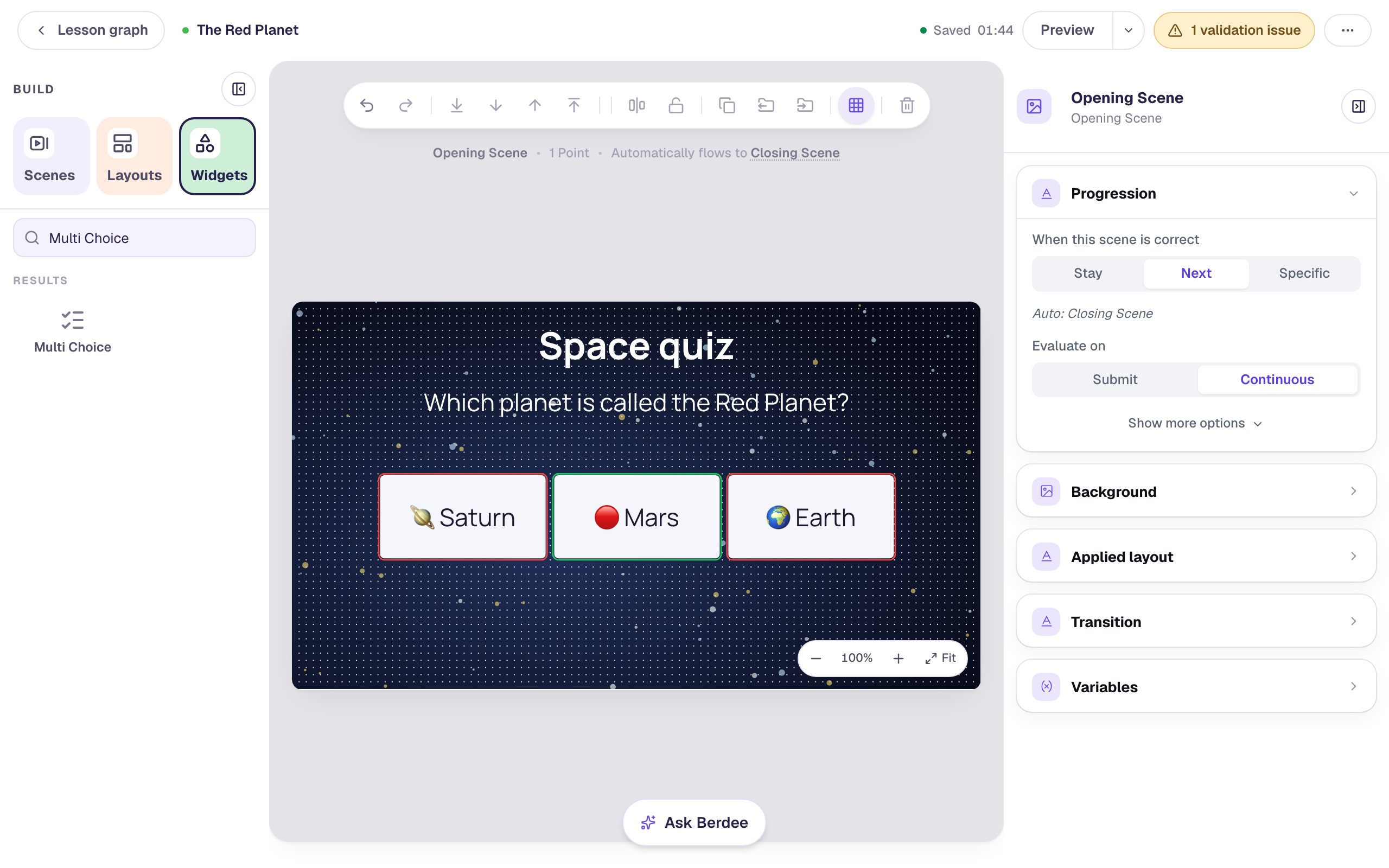
Start a blank lesson (New lesson, then Start from scratch) and name it The Red Planet. On the Opening Scene:
- Under Background, click Choose a style, open Nature, and pick Starfield.
- Add a Heading that says
Space quizand a Body that saysWhich planet is called the Red Planet?with a Font Size of about 34 px. On the dark sky, set each one's Text Color to white under Style & Layout. - Add a Multi Choice. In ⚙ Configure, type the answers
🪐 Saturn,🔴 Mars, and🌍 Earth, remove the fourth answer, and click the round check mark beside Mars so it's the only one marked correct. Set the Font Size to 34 px. - To put the three planets in one row, open Style & Layout → Show more options and set Width to
720and Height to120. A wide, short question lays its answers out side by side. - Rename the question
Planet question: click its name at the top of the properties panel, type, and press Enter. You'll pick it by this name later.
For a bright ending, open the Closing Scene and give it the Confetti background from the Playful group.
Step 2: Generate a cheer
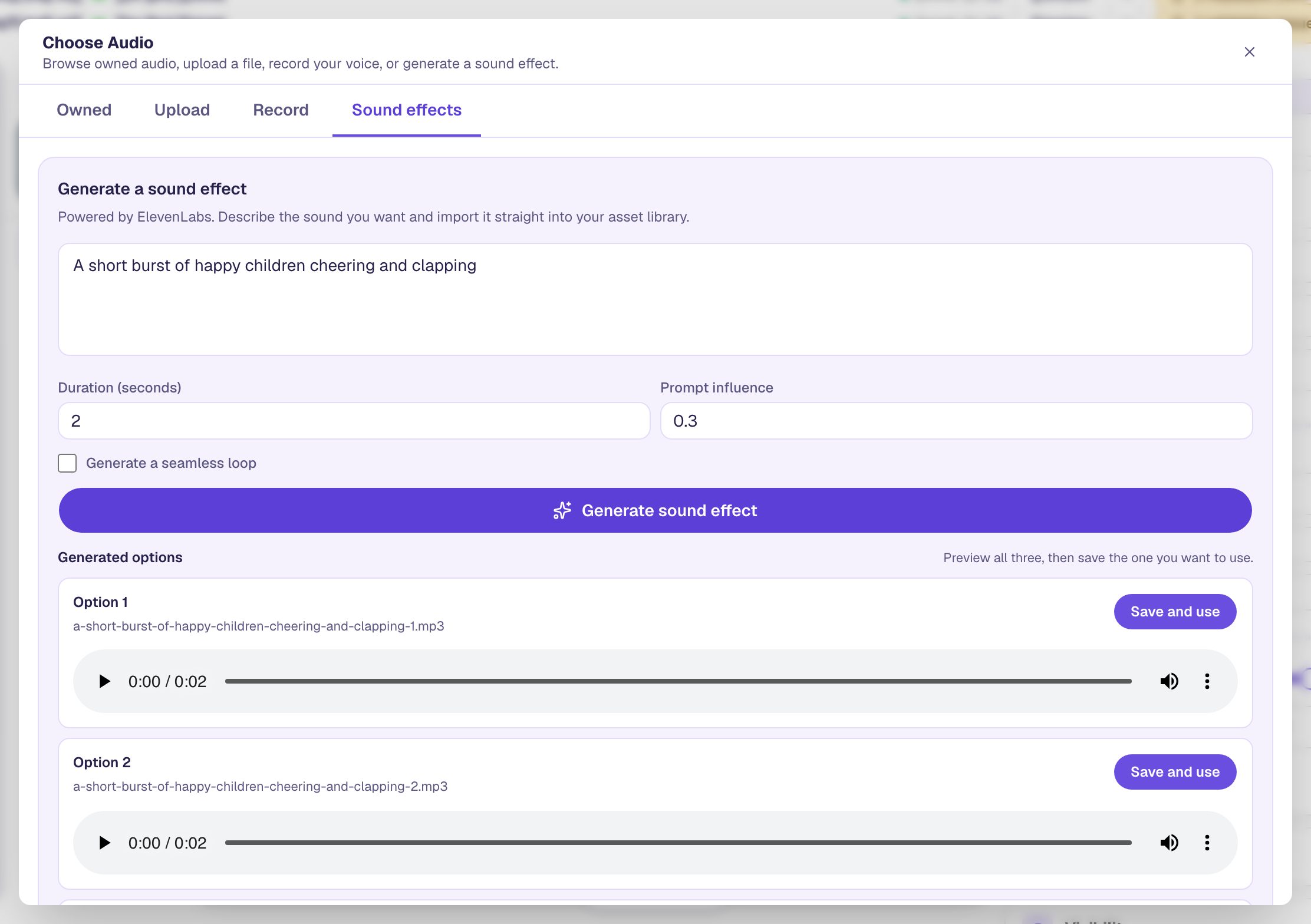
Sounds live in an Audio widget. Search the Widgets tab for Audio and click it to add one, then click ⚙ Configure in the pill above it and press Open Media Library. The Sound effects tab makes a new sound from a description:
- Describe the sound. We typed
A short burst of happy children cheering and clapping. - Set Duration (seconds) to
2. A short sound fits a quick reaction; left on Auto, the generator can make it much longer. - Click Generate sound effect.
After a few seconds you get three versions of the sound. Press play on each one and choose your favourite.
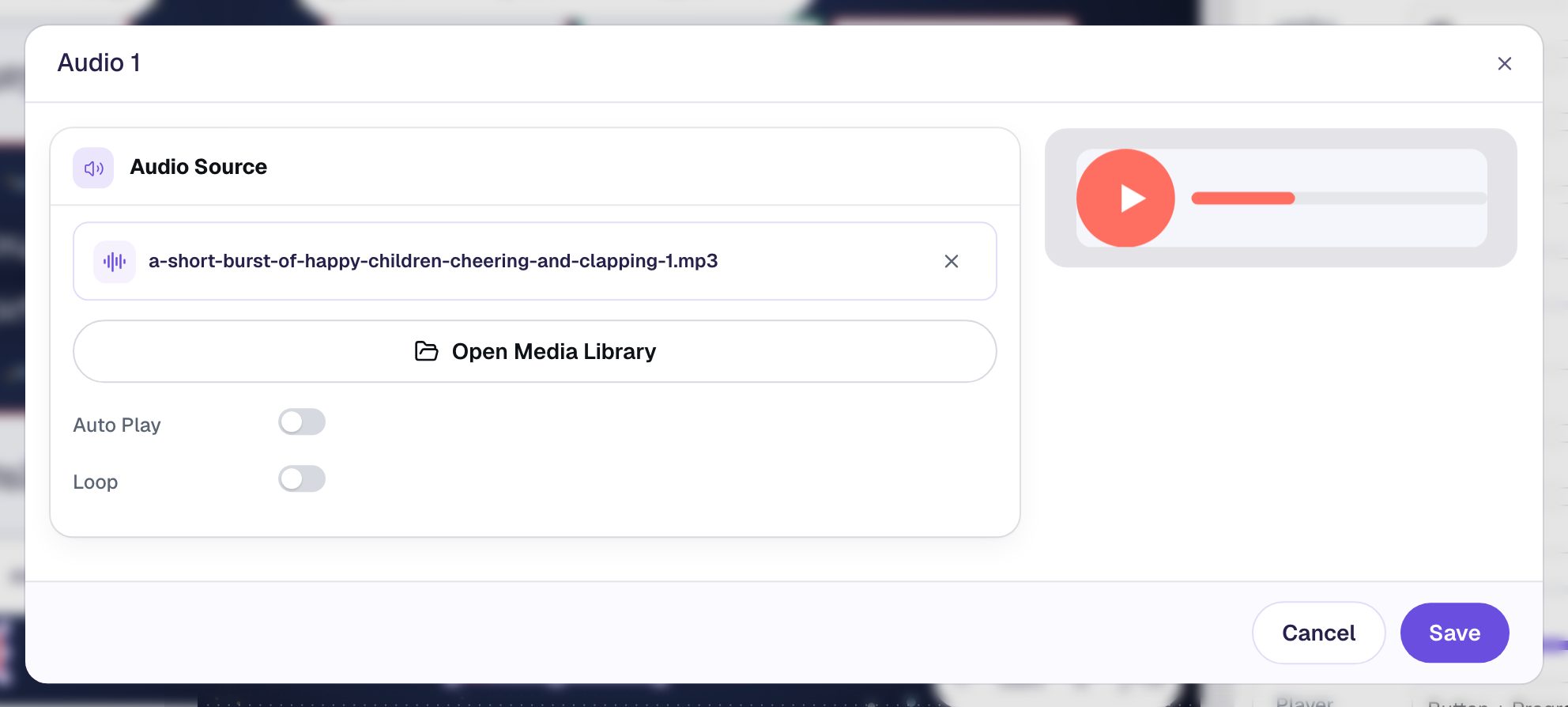
Click Save and use beside the one you like. Berdee saves it to your media library and puts it in the Audio widget. Leave Auto Play off: this sound should wait for a right answer, not play when the scene opens. Click Save.
Step 3: Hide the player and name it
Students shouldn't see a play button for the cheer, or they could play it without answering. With the Audio widget still selected:
- Rename it
Cheer(click its name at the top of the properties panel). - Open Style & Layout → Show more options and set Player Layout to Invisible.
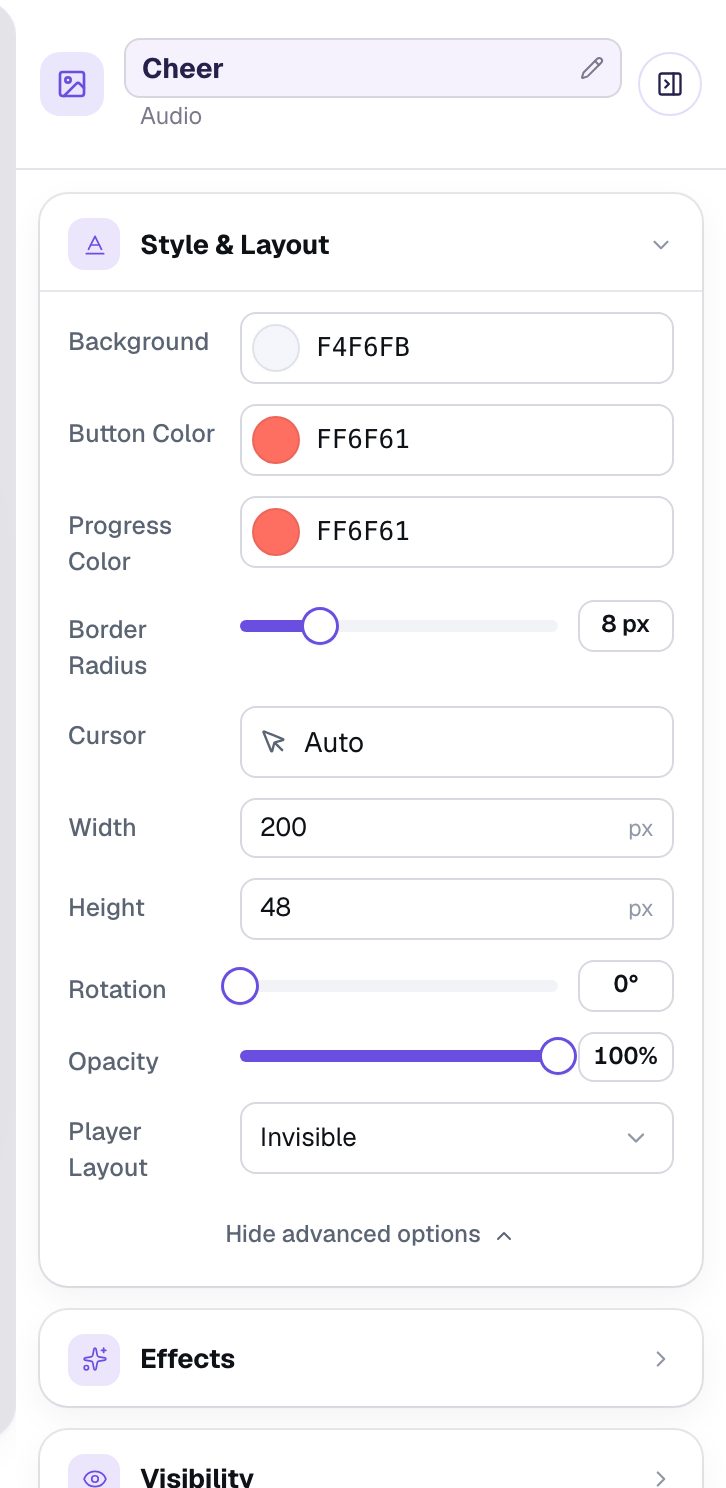
The name matters. When you connect the sound to the question in Step 5, you'll pick it from a list by name, and Cheer is easier to find than Audio 1.
Step 4: Make the boing the same way
Add a second Audio widget and repeat Steps 2 and 3 for the wrong-answer sound:
- Describe it as
A soft, friendly cartoon boing, gentle and short, with a Duration of2. A wrong answer is part of learning, so pick a sound that's playful rather than a harsh buzzer. - Rename it
Boingand set its Player Layout to Invisible.
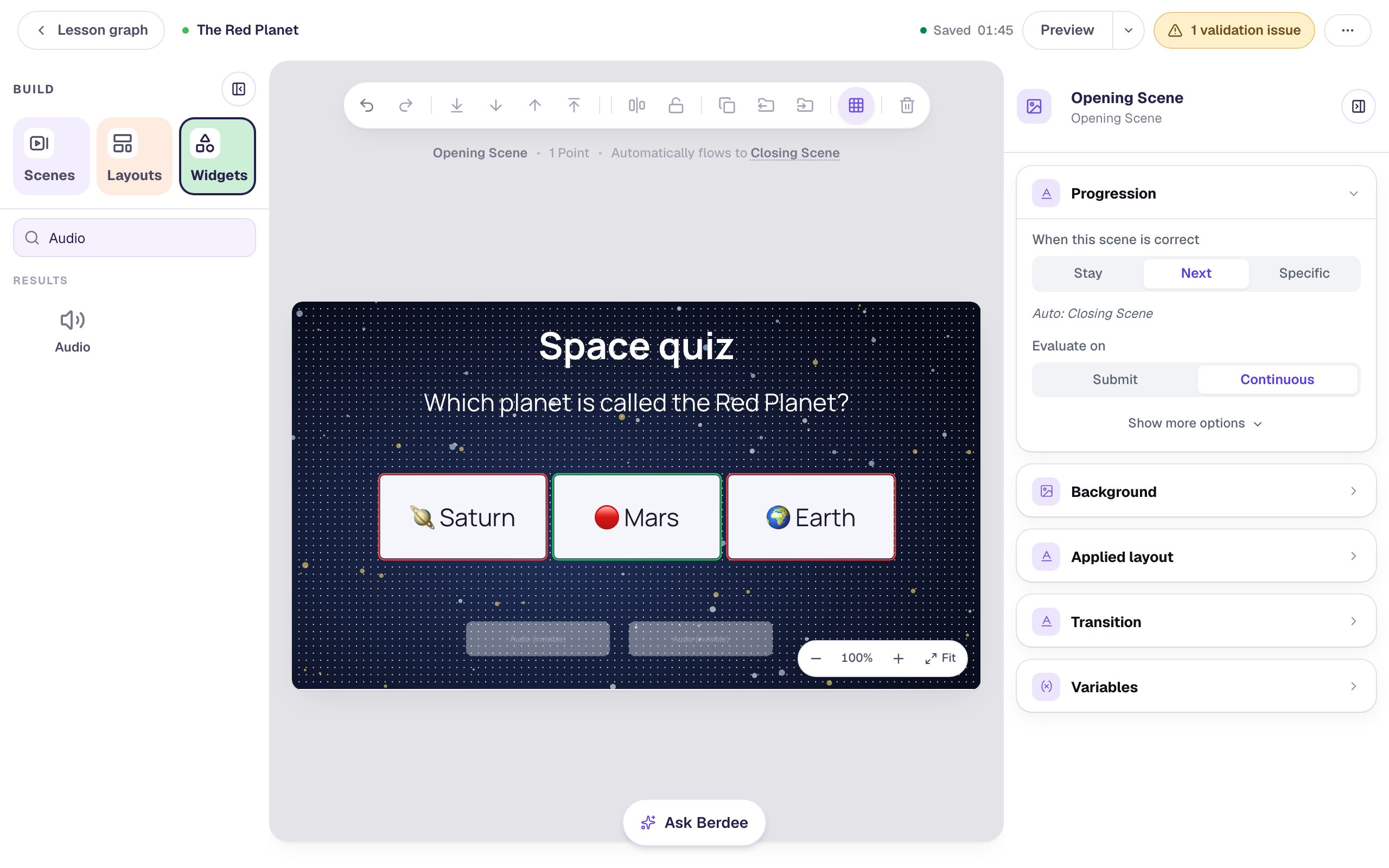
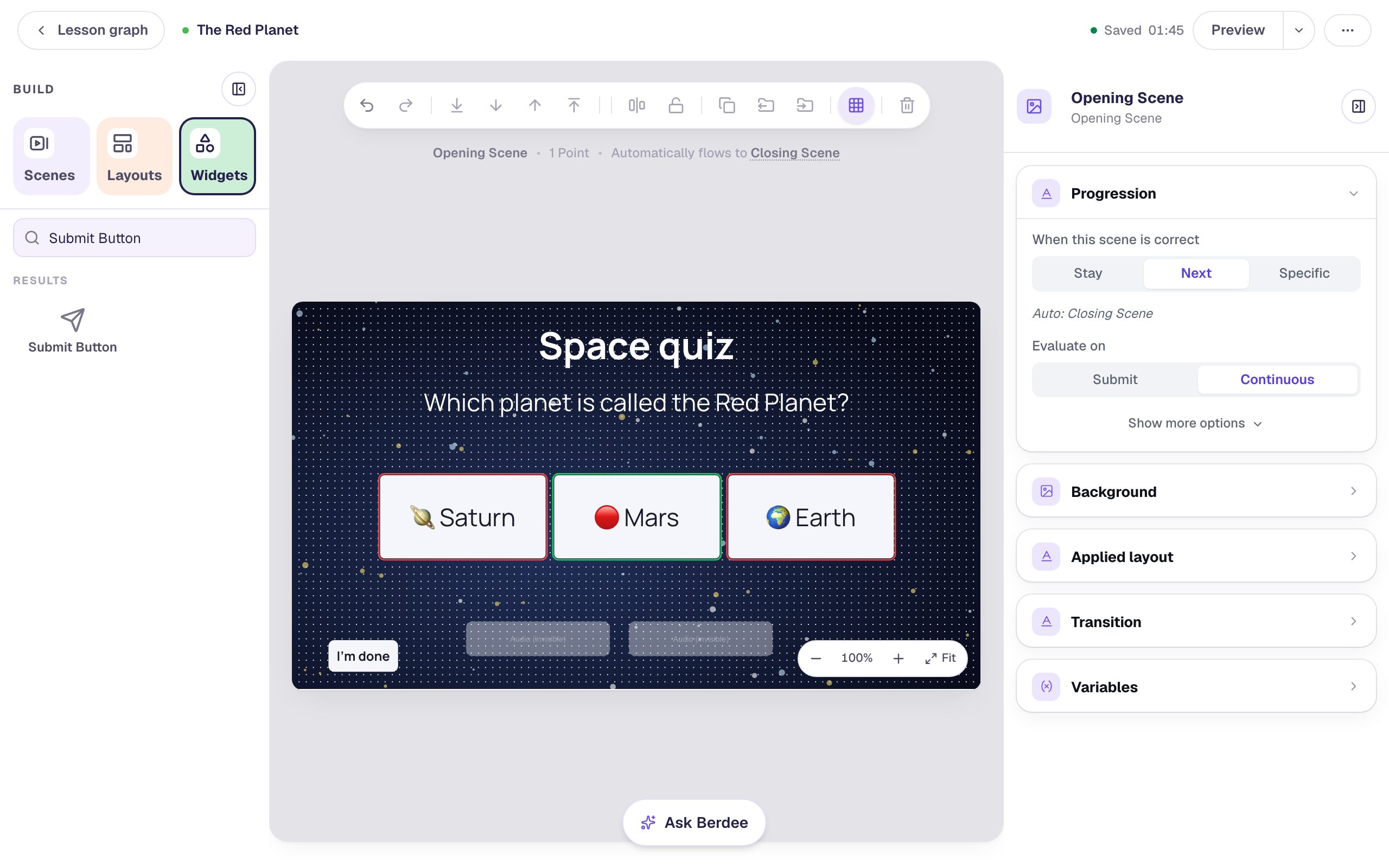
In the studio, an invisible player shows as a faint dashed box labelled Audio (invisible), so you can still find and select it. Students never see it. Drag both boxes to an empty part of the scene so they don't sit on top of the answers.
Step 5: Play the cheer when they get it right
Now connect the question to the sounds. Click the question to select it, then click Behaviors in the pill above it. Choose Build your own…:
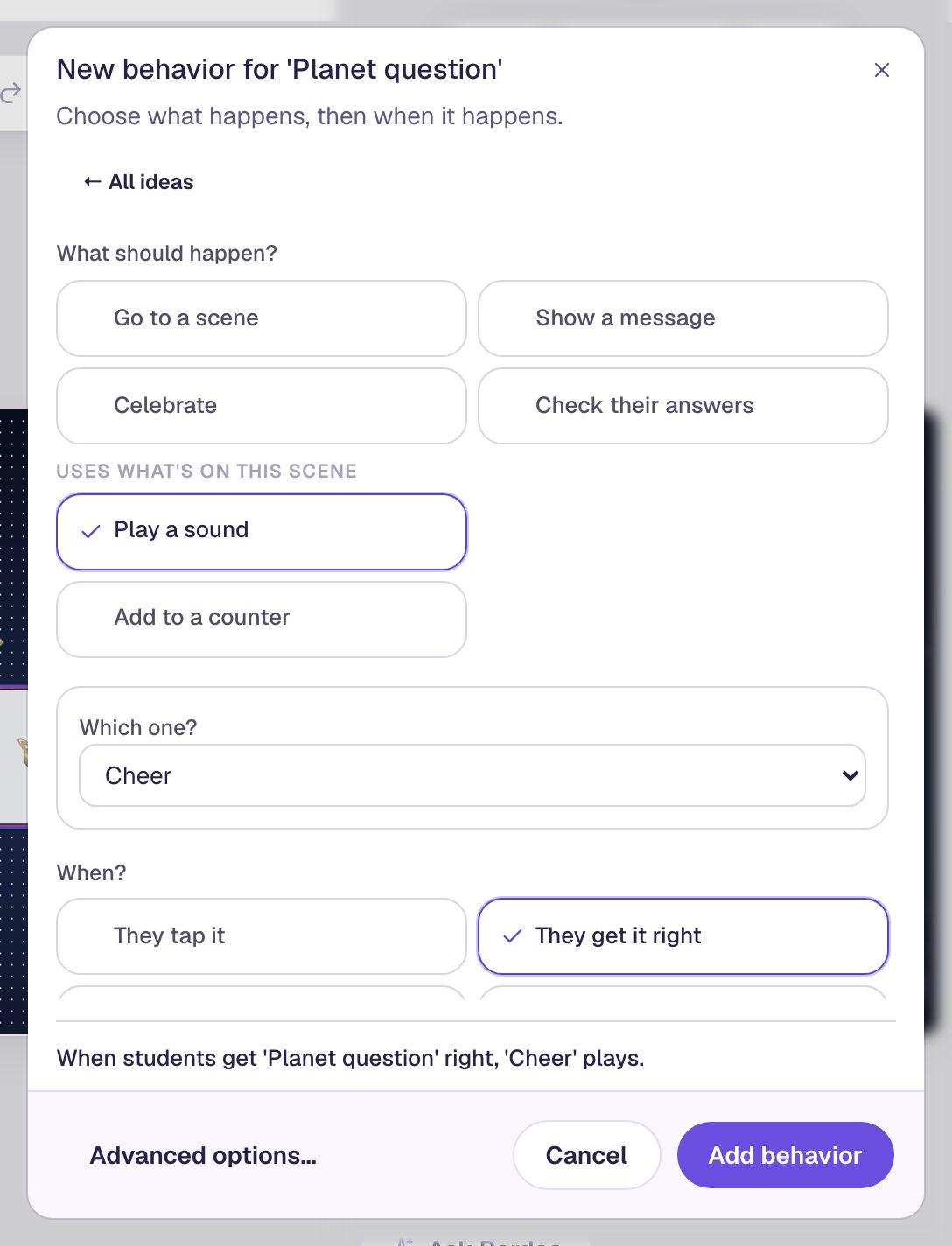
- Under What should happen?, choose Play a sound. It appears under Uses what's on this scene because the scene has Audio widgets.
- Under Which one?, pick Cheer.
- Under When?, choose They get it right.
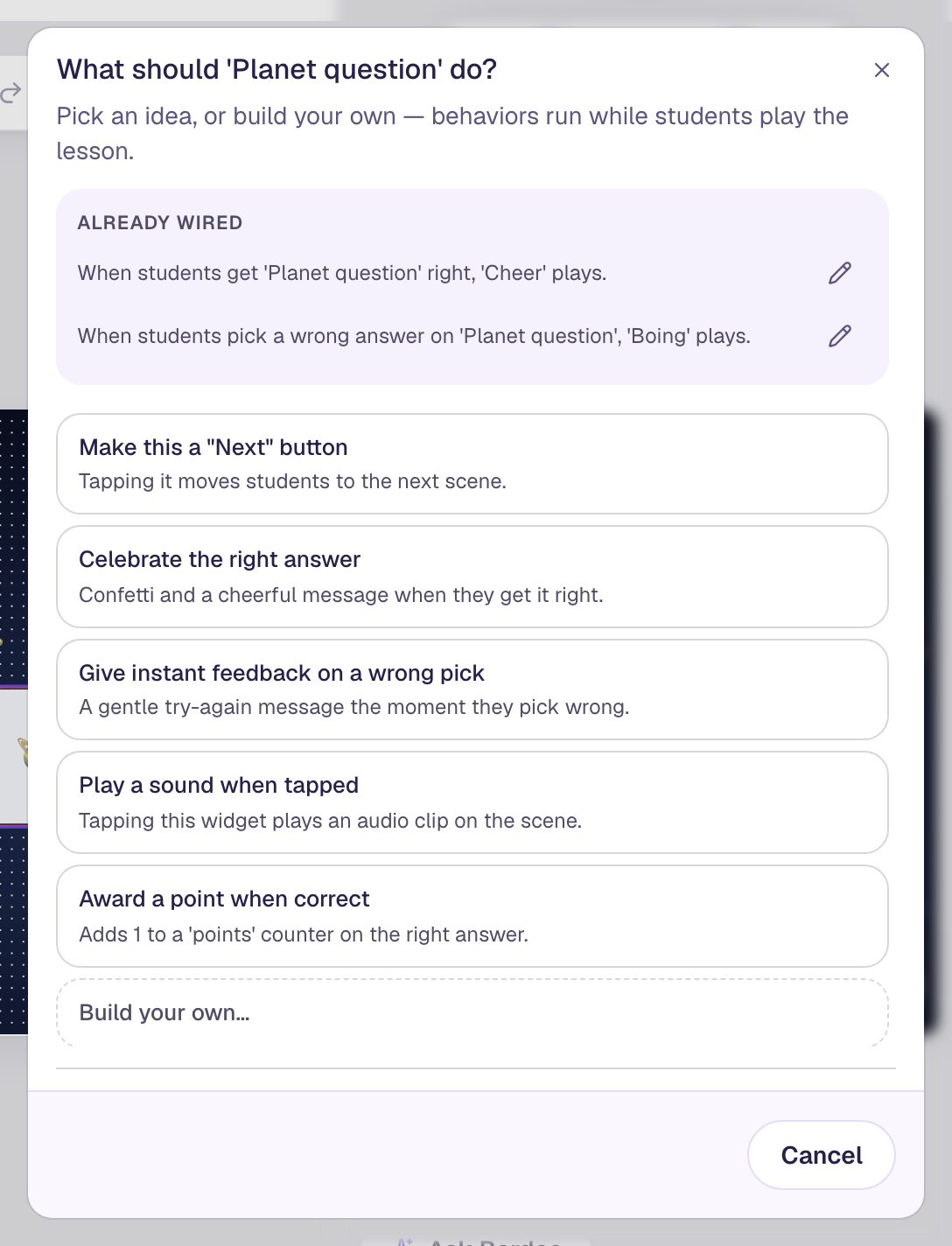
The sentence at the bottom reads the behavior back to you: When students get 'Planet question' right, 'Cheer' plays. Click Add behavior.
Step 6: Play the boing on a wrong pick
Open Behaviors again and choose Build your own… once more. This time choose Play a sound, pick Boing, and under When? choose They pick a wrong answer. Click Add behavior.
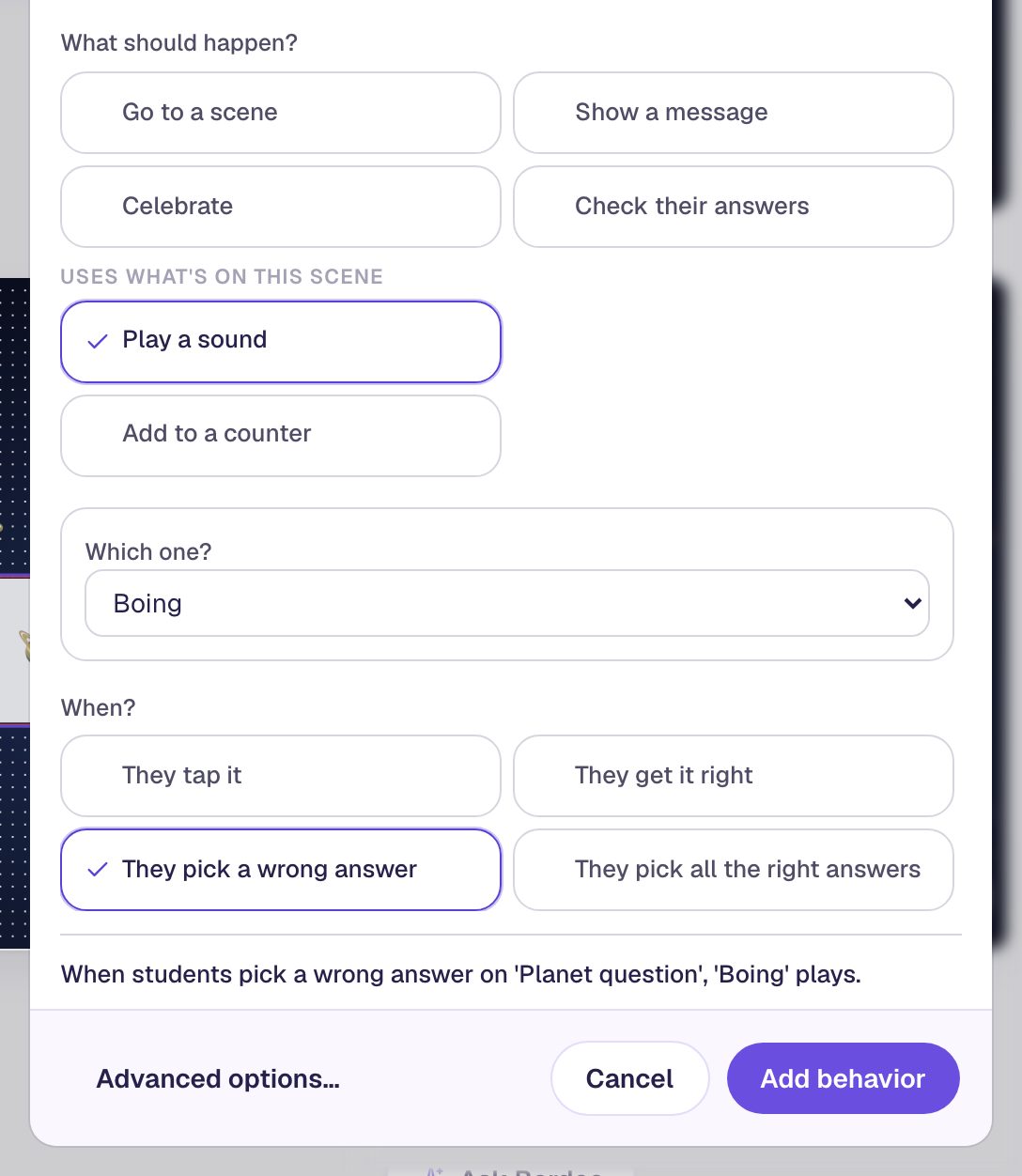
A wrong pick doesn't lock the question, so the student can hear the boing, think again, and choose another planet. Open Behaviors once more to check your work: Already wired lists both sounds.
Step 7: Give the cheer time to play
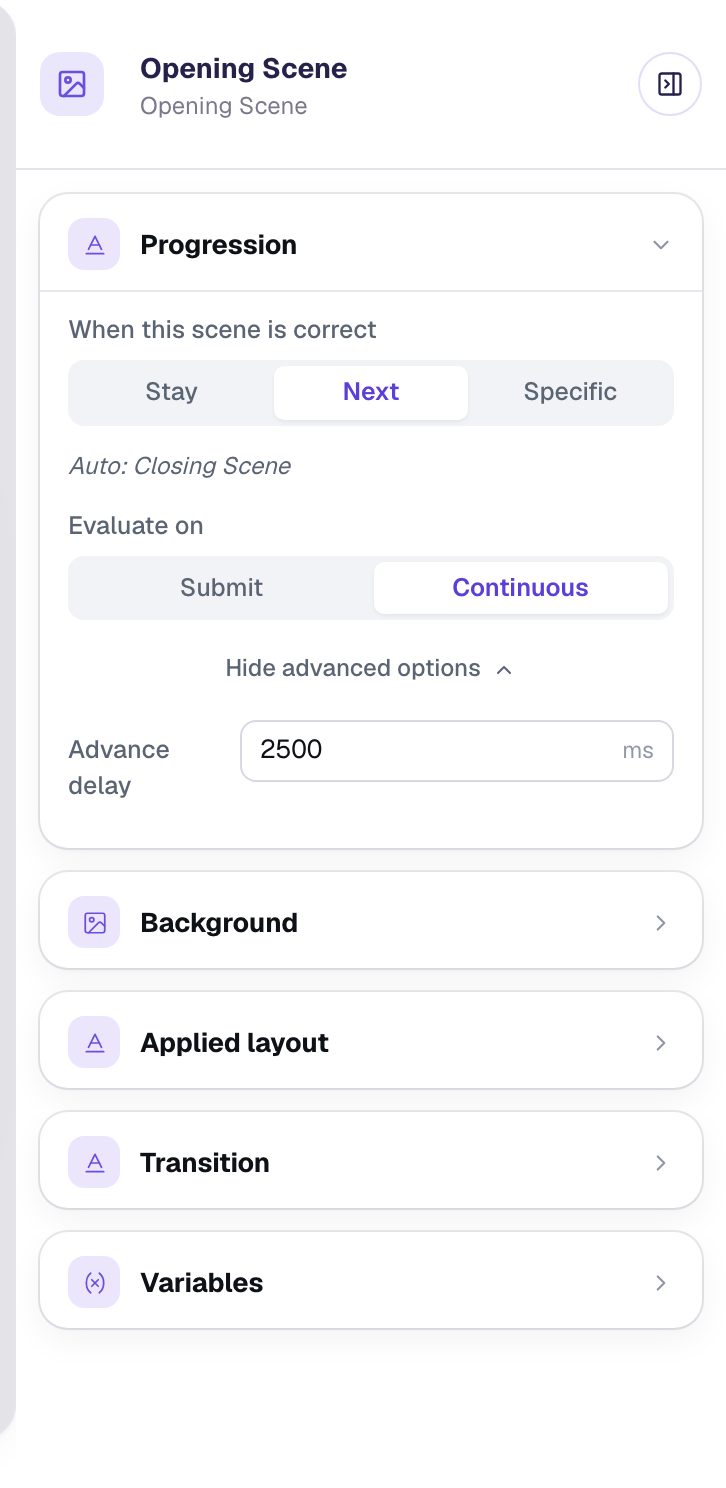
There's one catch. When the answer is right, the scene moves on to the next one after a short pause, 600 milliseconds by default. That's shorter than the cheer, so the student would hear the first half-second and then silence as the scene changes.
Click an empty part of the scene so nothing is selected. Under Progression, click Show more options and set Advance delay to 2500 ms, about the length of the cheer plus a breath.
If you generate a longer sound, raise the delay to match.
Step 8: Add the "I'm done" button
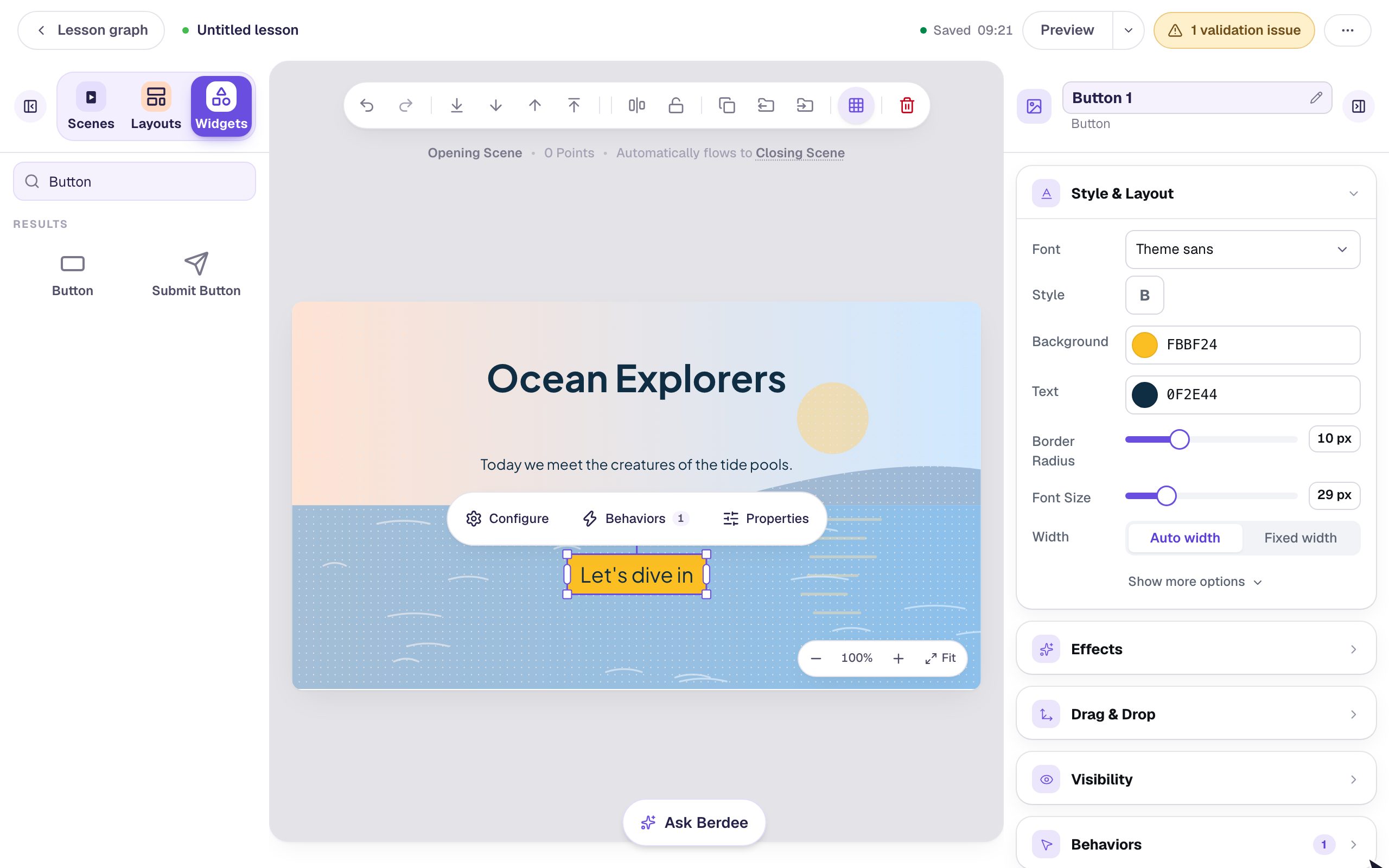
The yellow pill at the top says 1 validation issue: every lesson needs a button that lets a student finish. Add a Submit Button, set its Label to I'm done and Submits to Lesson, bring its Font Size down to about 18 px, and drag it to the bottom-left corner.
Step 9: Listen in preview
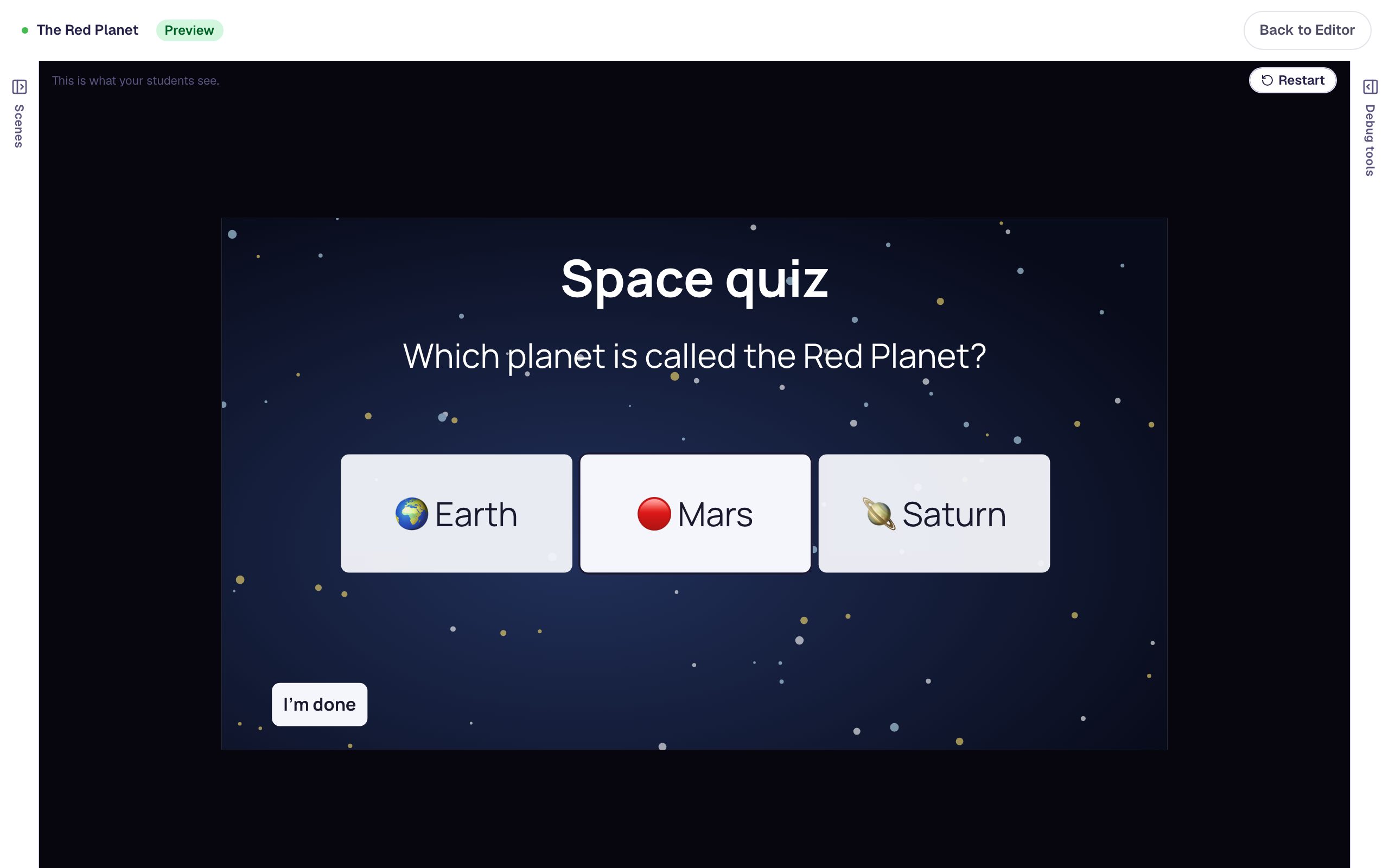
Click Preview and turn your sound up. Pick a wrong planet first, then Mars:
- Saturn or Earth: the boing plays, and the question waits for another try.
- Mars: the cheer plays, and two and a half seconds later the lesson moves on to the Closing Scene.
The answers are shuffled in preview, as they are for students, so your planets may be in a different order.
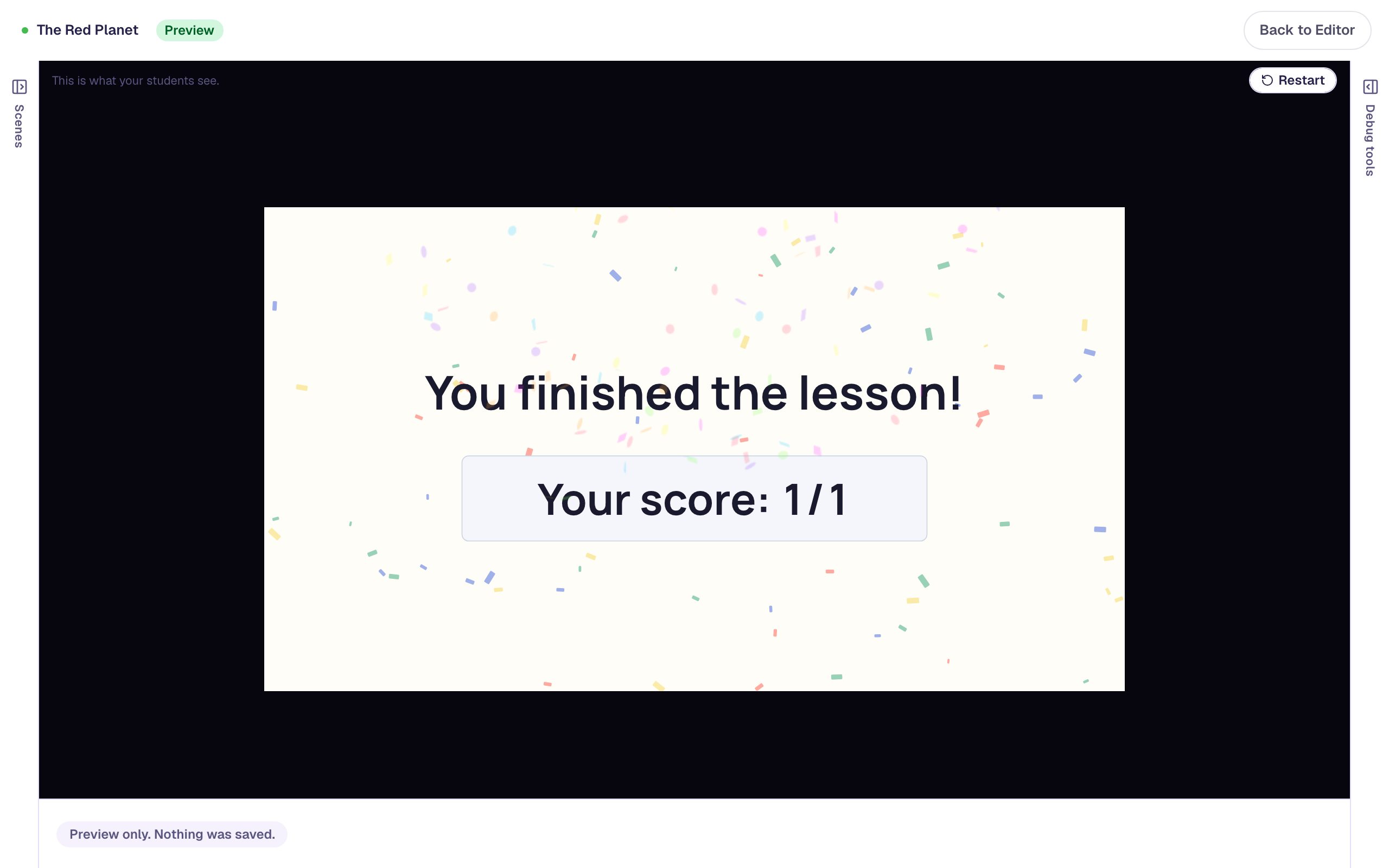
What you built
You built a question that answers back:
- two generated sound effects, kept short with Duration,
- two Audio widgets with an Invisible player layout, so students hear them but never see a button,
- a They get it right behavior that plays the cheer, and a They pick a wrong answer behavior that plays the boing, and
- an Advance delay long enough for the cheer to finish before the lesson moves on.
The same two players work for every question on the scene. Add a second question and give it the same two behaviors. For a written message alongside the sound, add a Show a message behavior on They pick a wrong answer, as Label a diagram with dropdowns does. To read a question aloud instead of playing a sound, see Read a question aloud for students who are still learning to read.
Make this lesson yours
Add the lesson you just watched being built to your account, then change it for your class: your questions, your pictures, your colors.
Free to sign up, and you'll come straight back here. I have an account