Tick every true sentence with checkboxes
Build a true-or-not check on the Moon from four graded checkboxes, where students tick the true sentences and leave the others alone. One Check button grades them all, then an answer key and a See my score button appear.
- Level
- Beginner
- Time
- About 12 min
- Steps
- 8
- Updated
- Oct 22, 2026
A one-scene science check. Students tick the true sentences about the Moon, press Check my answers, read an answer key that appears in place of the button, and see their score out of 4 on the ending.
Get the finished lesson
Skip straight to the result, or keep it open beside the steps. Add this tutorial's lesson to your account and explore how it works in the studio.
Free to sign up, and you'll come straight back here. I have an account
"Tick every sentence that is true" is a quick way to check facts. Every sentence is a small question of its own: a student who ticks a sentence that isn't true is wrong, and so is a student who leaves a true one empty. In Berdee, each sentence is a Checkbox with its own answer key, so the score counts both kinds of mistake.
You'll build True or not? The Moon, a one-scene check:
- four Checkbox widgets: two true sentences whose Correct value is Checked, and two that aren't true, whose Correct value is Unchecked,
- a Check my answers button that grades all four at once and locks them,
- an answer key and a See my score button that appear only after the check, and
- the ending, which shows the score out of 4.
If you haven't built a question before, start with Build your first quiz question: this tutorial moves quickly through the parts it covers.
Step 1: Set the scene
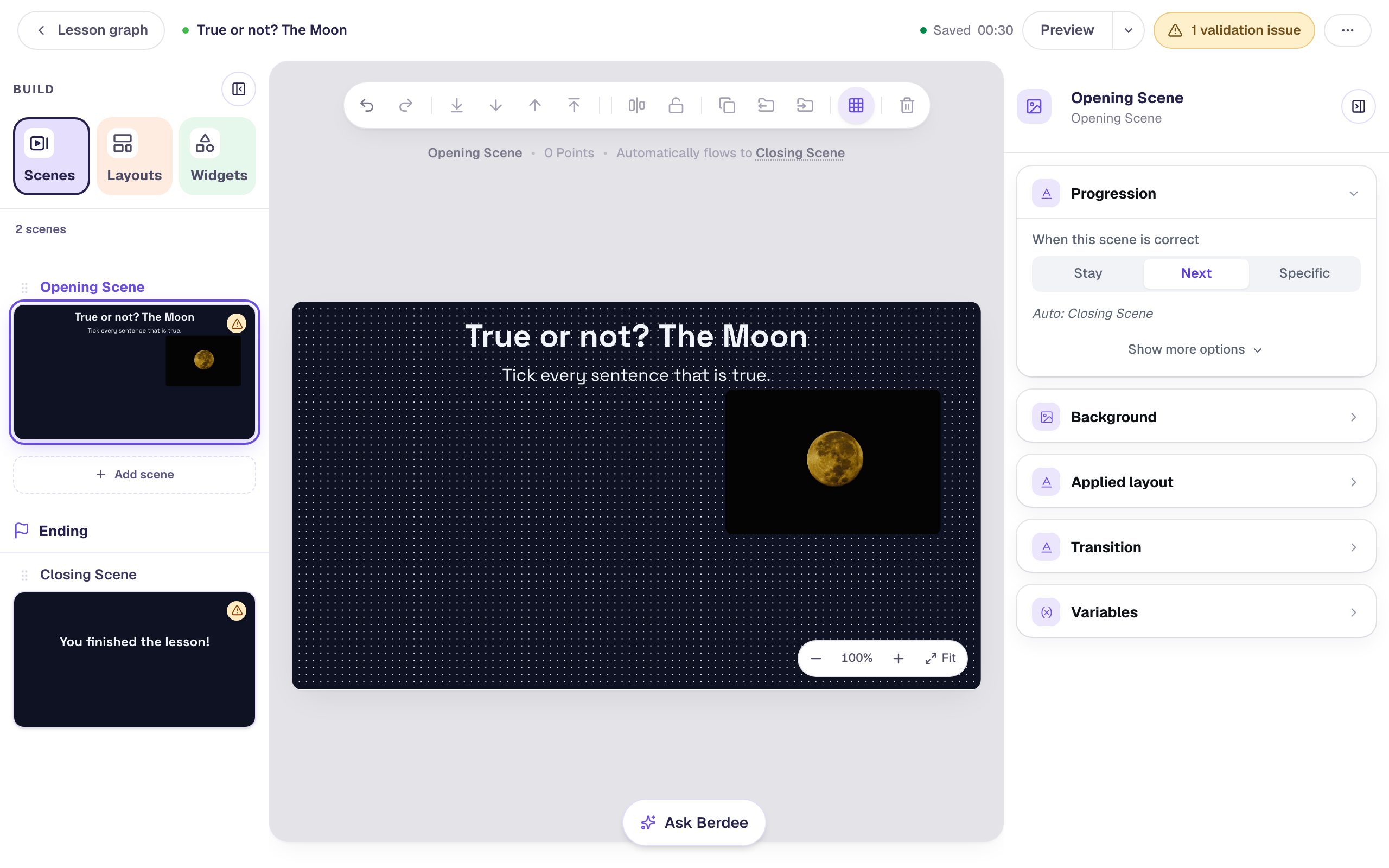
Start a blank lesson (New lesson, then Start from scratch). Click the lesson's name in the top bar to open Lesson settings, name it True or not? The Moon, and pick the Midnight theme: a dark navy scene with white text suits a lesson about the night sky. Click Save changes.
On the Opening Scene, add a Heading that says True or not? The Moon at 44 px, and under it a Body that says Tick every sentence that is true. at 24 px. Then add an Image, set its Width to 300 and Height to 225, drag it to the right half of the scene, and click Choose image to search the stock library for full moon. In its Accessibility section, describe the photo in Alt Text, for example A golden full Moon with dark craters, glowing in a black night sky.
Step 2: Add a true sentence
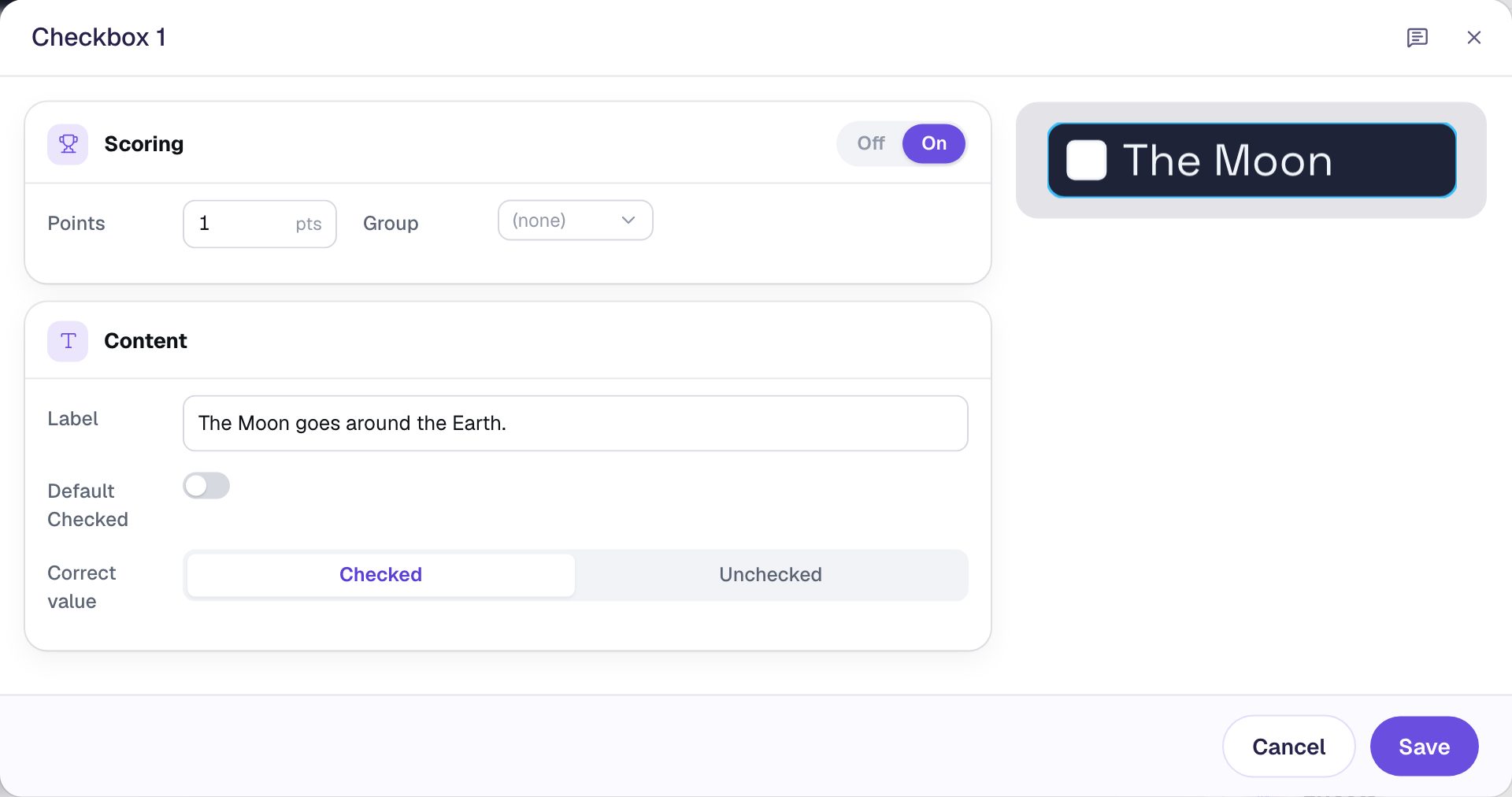
Open Widgets, search for Checkbox and click the Checkbox tile. Click ⚙ Configure on the new checkbox and type the first sentence into Label: The Moon goes around the Earth.
A checkbox is graded straight away: Scoring is On, worth 1 point. Correct value says which state is the right answer, and it starts on Checked. This sentence is true, so a student should tick it: leave Correct value on Checked, and leave Default Checked off so the box starts empty. Click Save.
Rename the widget Goes around (click its name at the top of the properties panel), so you can tell the four apart later. In Style & Layout, set the Font Size to 24, then click Show more options and set Width to 520, wide enough for the longest sentence to fit on one line. Drag it under the directions, on the left.
Step 3: Add a sentence that isn't true
With Goes around selected, press ⌘D (Ctrl+D on Windows). The copy keeps the size, the font and Scoring. Drag it under the first one and rename it Own light.
Click ⚙ Configure, set Label to The Moon makes its own light. and set Correct value to Unchecked. This sentence isn't true, so the right answer is to leave it empty. Click Save.
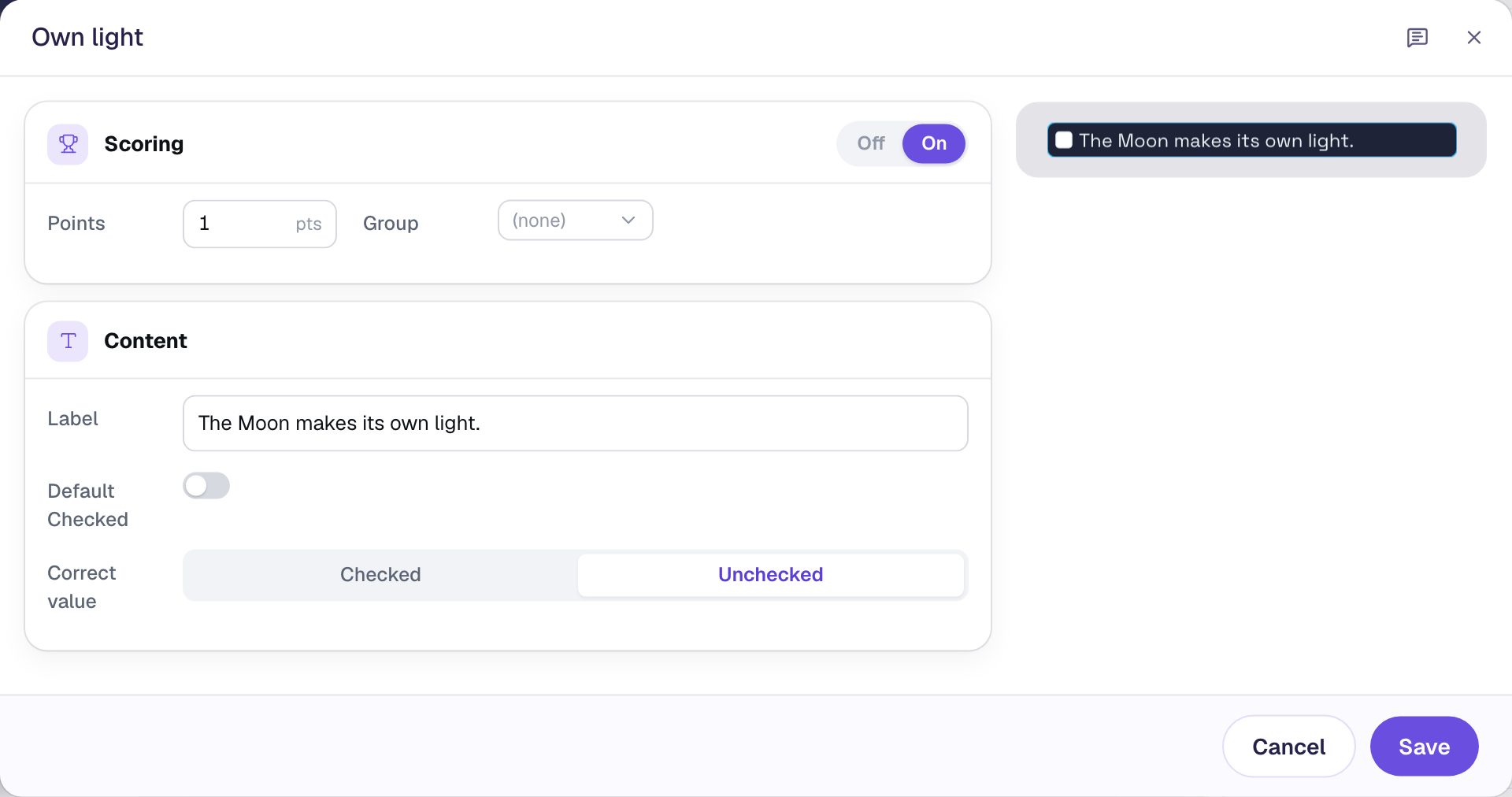
A student doesn't have to click this box to earn its point. When the scene is graded, a box nobody touched counts as it looks, empty, and empty is right here. Ticking it then unticking it scores the same as never touching it.
Step 4: Add the other two sentences
Copy once more for Astronauts have walked on the Moon., which is true: set its Correct value back to Checked and rename it Astronauts. Then copy for The Moon is bigger than the Earth., which isn't: Correct value Unchecked, named Bigger. Drag each copy under the one before.
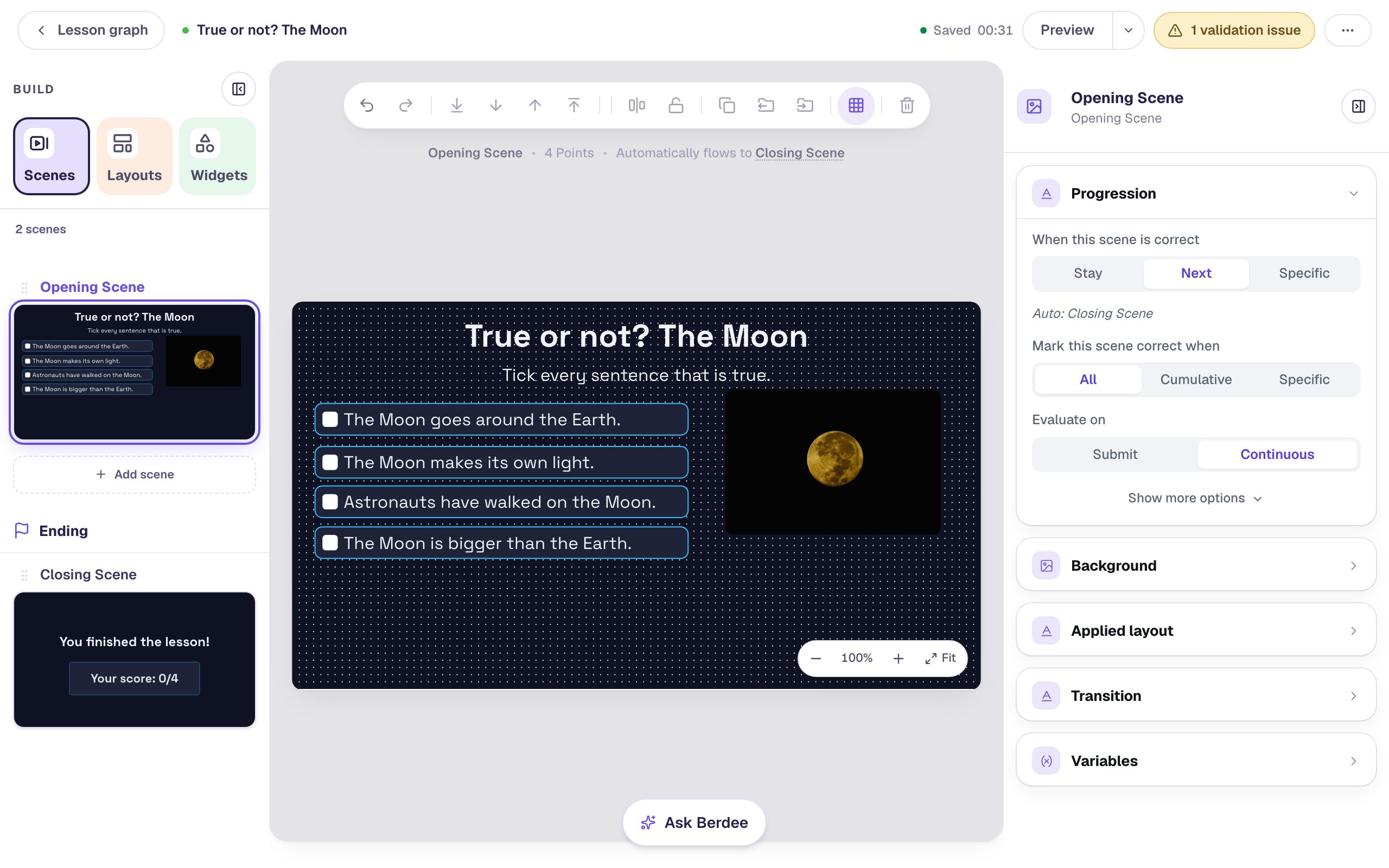
Mixing true and false sentences is what makes students think about each one. If every sentence were true, ticking everything would score full marks.
Step 5: Add a Check button, and keep the scene still
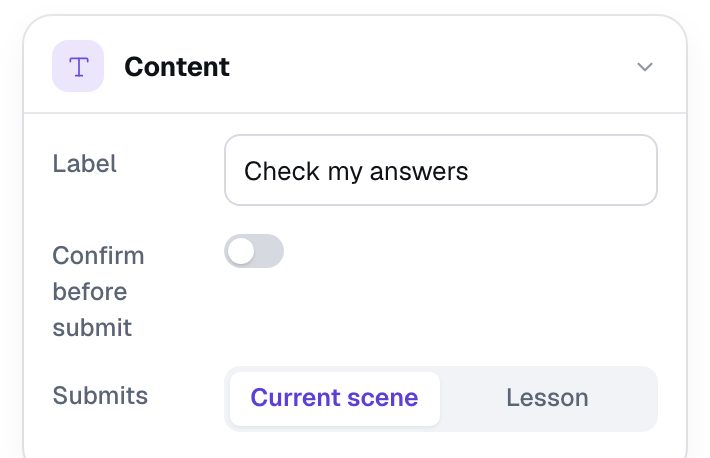
Students should tick what they think, then check every sentence at once. Add a Submit Button. In Content, change its Label to Check my answers and leave Submits on Current scene, so it grades the four checkboxes on this scene. Rename it Check. In Style & Layout, set its Font Size to 24 and its Background colour to the amber #fbbf24, with Text in the navy #0f1222, then drag it under the photo.
Now click an empty spot on the scene so nothing is selected, open Progression, and click Stay.
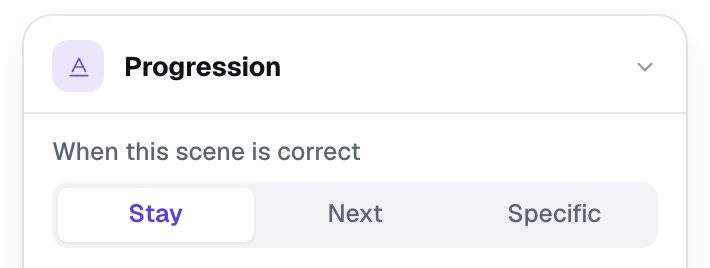
A new scene starts on Next, which moves the student on as soon as the scene is right, often before they've read why. With Stay, they stay on the scene after Check my answers and can read the answer key you add next.
Step 6: Show an answer key after the check
Add a Body with one line per sentence, in the same order (press Enter between lines):
True: the Moon goes around the Earth.
Not true: the Moon shines with light from the Sun.
True: twelve astronauts have walked on the Moon.
Not true: the Moon is much smaller than the Earth.
Rename it Answer key. In Style & Layout, set Width to 520, the Font Size to 20 and the alignment to Align left, then drag it under the sentences.
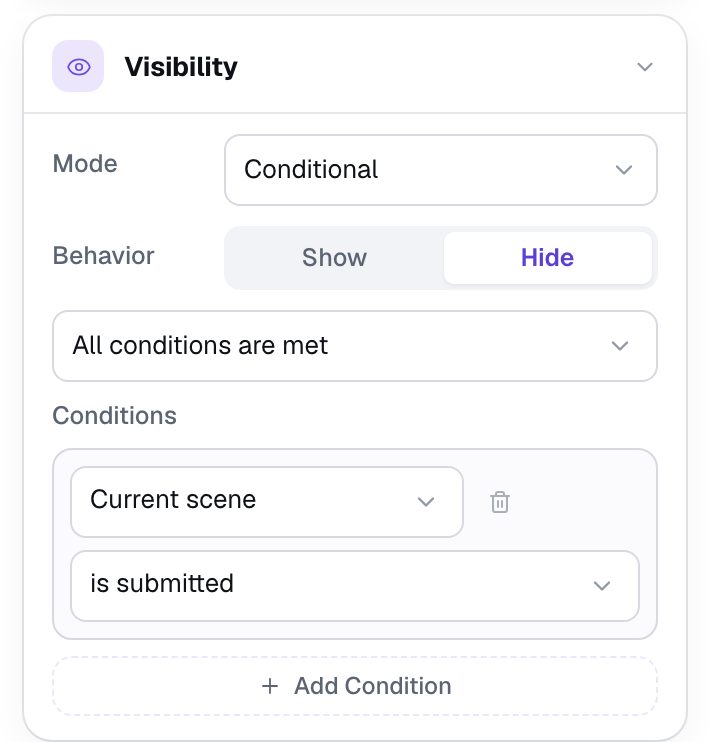
The key should stay hidden until the student has answered. Open Visibility:
- Set Mode to Conditional and leave Behavior on Show.
- In the condition, choose Current scene, then is submitted.
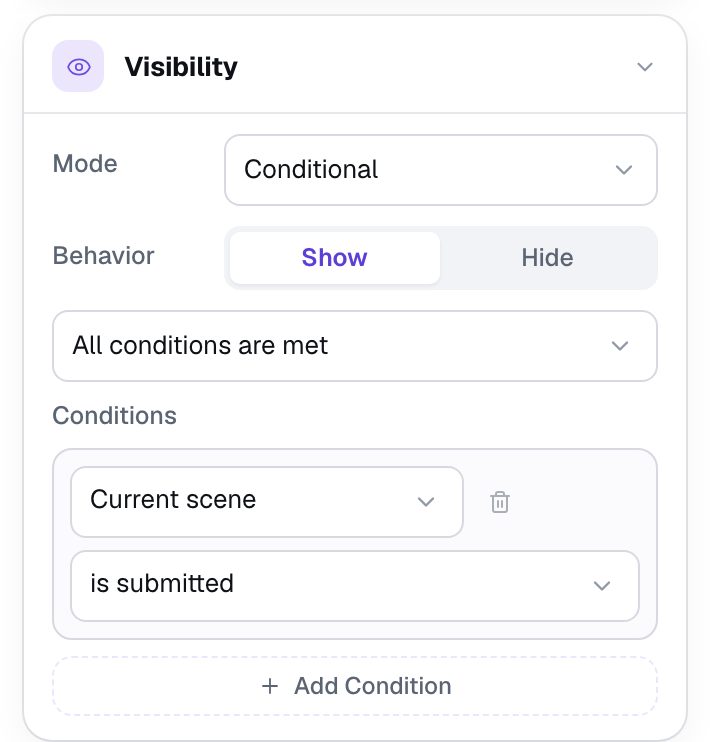
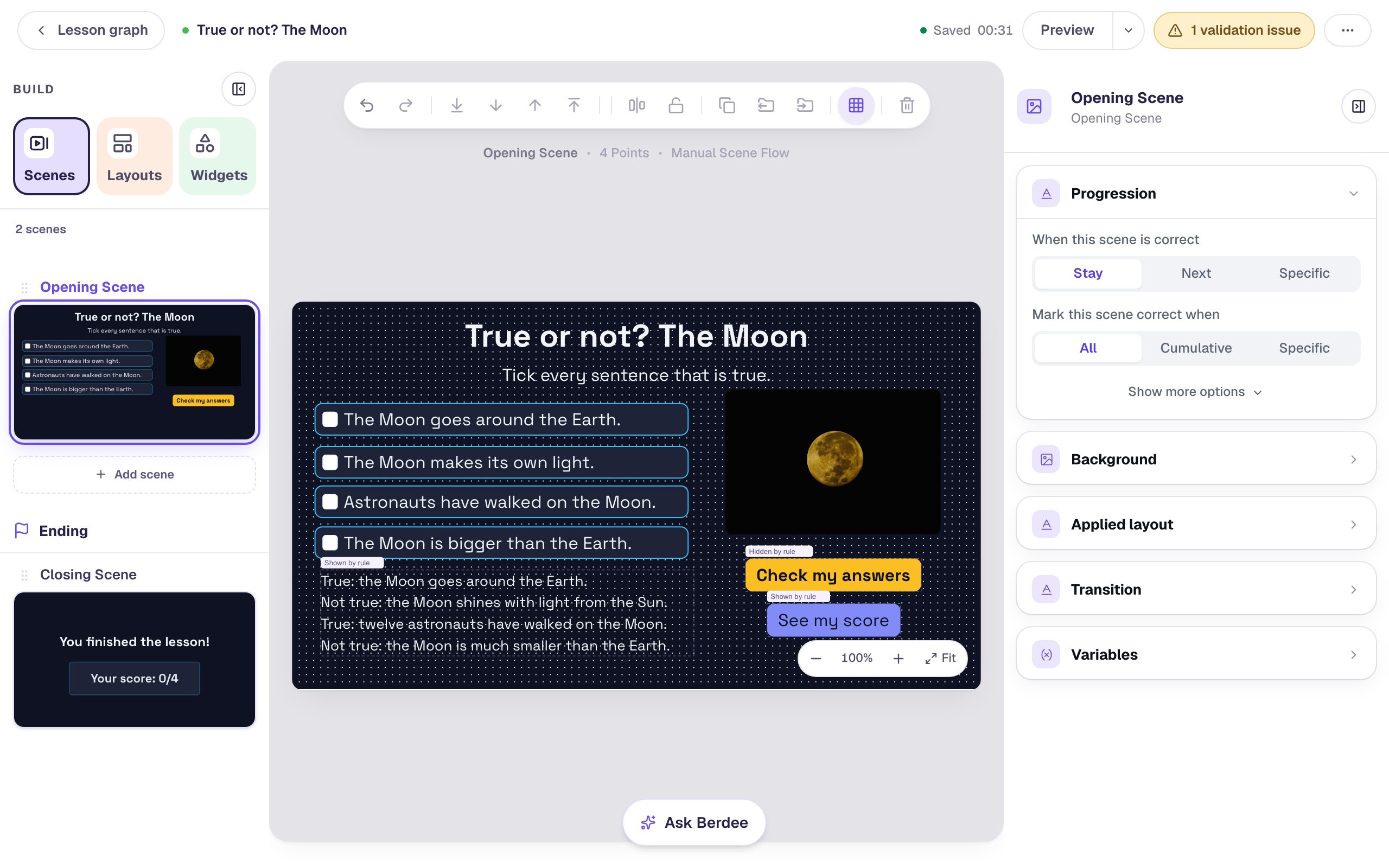
In the studio the key still shows, with a small Shown by rule tag above it, so you can keep editing it.
Step 7: Swap the Check button for See my score
Once the scene is checked, the student needs a way on, and Check my answers has done its job.
- Add a Button, click ⚙ Configure, set its Label to
See my scoreand click Save. Rename itSee my score. - Click Behaviors on its toolbar, choose Make this a "Next" button, check that Goes to says Closing Scene, and click Add behavior.
- Set its Font Size to
24and its Background to the indigo#818cf8, with navy Text, and drag it under Check my answers. - Give it the same rule as the key: Visibility, Conditional, Show, Current scene is submitted.
Then select Check my answers and give it the opposite rule: Visibility, Conditional, click Hide, and choose Current scene, then is submitted.
Step 8: Try it in Preview
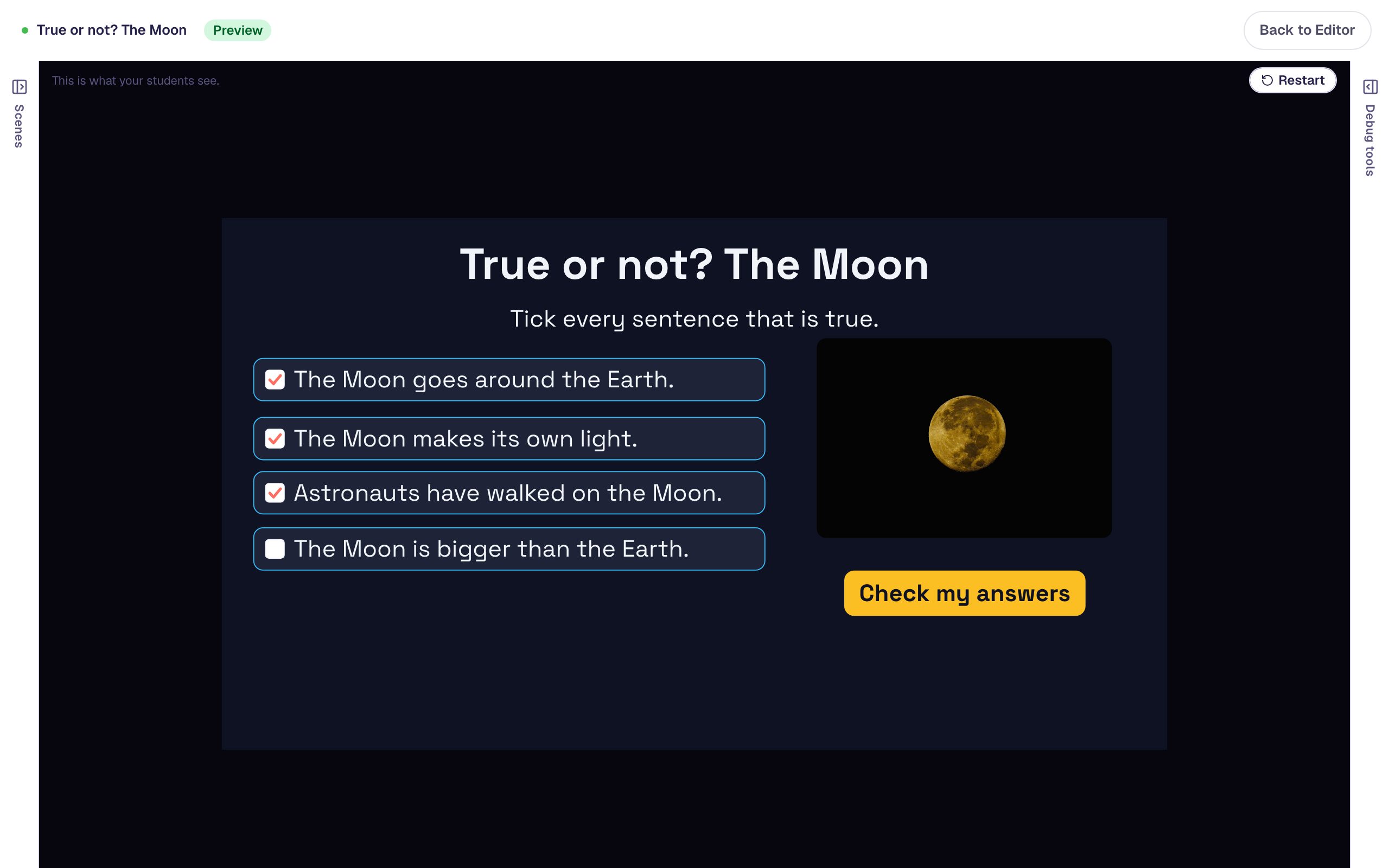
Click Preview. Tick The Moon goes around the Earth., The Moon makes its own light. and Astronauts have walked on the Moon., and leave The Moon is bigger than the Earth. empty. Then press Check my answers.
The boxes dim and lock, the key appears under them, and See my score takes the Check button's place. The student can compare each tick with the key: the Moon doesn't make its own light.
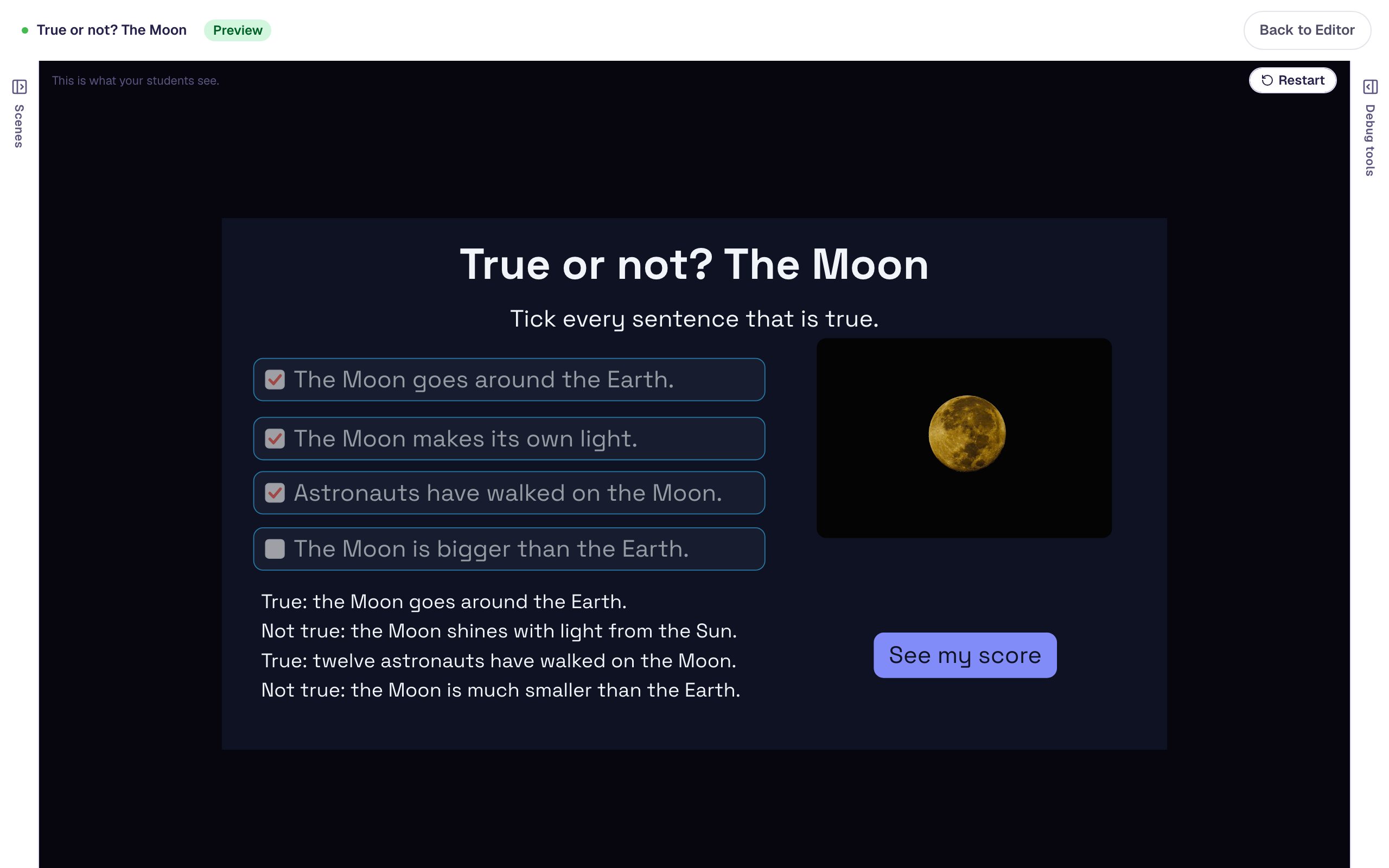
Press See my score. Three of the four are right: two true sentences ticked, and the bigger-than-the-Earth sentence left empty.
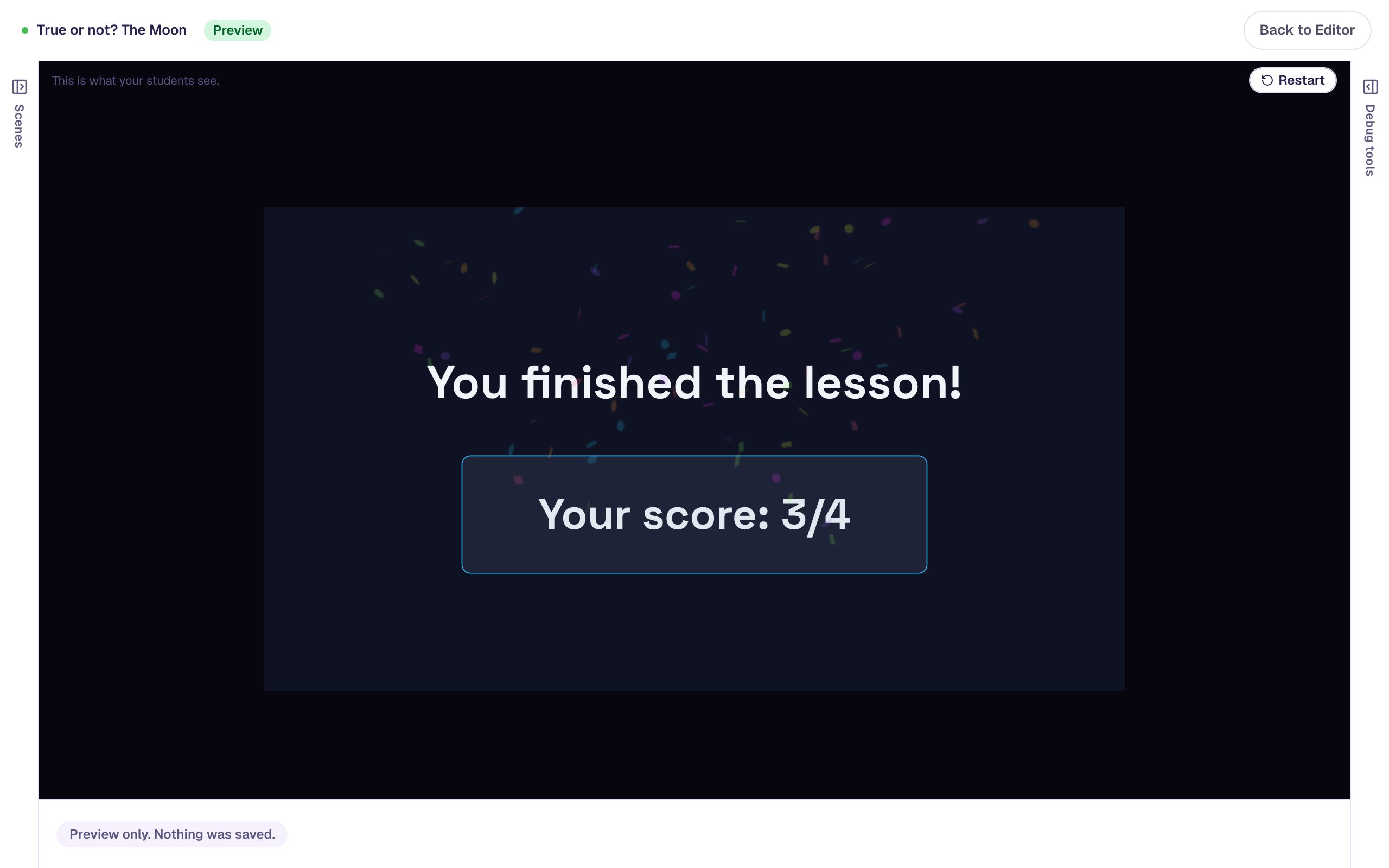
Click Restart at the top right to try other answers. Tick only the two true sentences and the score is 4/4. Press Check my answers without ticking anything and it's 2/4, because the two sentences that aren't true were right to leave empty.
What you built
A true-or-not check where every sentence is graded on its own:
- four Checkbox widgets, each worth a point: Correct value Checked for the true sentences, Unchecked for the others,
- a Check my answers Submit Button on Current scene, on a scene set to Stay,
- an answer key and a See my score button that Show when the Current scene is submitted, and a Check button that Hides then.
The same build works for any set of statements: "Which of these are mammals?", "Tick the sentences with a noun in bold", or rules for a science experiment. Keep a mix of true and false, so ticking everything never wins. To use checkboxes without grading, as a checklist that unlocks a button, see Unlock a button when every checklist box is ticked. For a "select all that apply" question with pictures instead of sentences, see Ask a "select all that apply" question with pictures.
Make this lesson yours
Add the lesson you just watched being built to your account, then change it for your class: your questions, your pictures, your colors.
Free to sign up, and you'll come straight back here. I have an account