Cross out pictures to solve a take-away story
Turn a subtraction story into an activity young learners can act out. Students cross out the ducks that fly away, say how many are left, and see a hint if their answer is wrong.
- Level
- Beginner
- Time
- About 10 min
- Steps
- 7
- Updated
- Oct 25, 2026
A "Ducks on the pond" scene where students cross out 4 of 9 ducks, tap Done crossing out, answer "How many ducks are left?", get a hint after a wrong answer, and move on to the ending when they tap 5.
Get the finished lesson
Skip straight to the result, or keep it open beside the steps. Add this tutorial's lesson to your account and explore how it works in the studio.
Free to sign up, and you'll come straight back here. I have an account
Take-away stories are how most children first meet subtraction: "9 ducks swim on the pond. 4 fly away. How many are left?" In kindergarten and first grade, children solve them by drawing the ducks and crossing out the ones that leave. Then they count what's left.
In this tutorial you'll build that drawing as a one-scene activity called Ducks on the pond. Students tap a duck to cross it out (and tap again to undo a slip), tap Done crossing out, and answer How many ducks are left? by tapping a numeral. A wrong answer shows a short hint, and the right answer moves the lesson on.
If you haven't used a Counting Collection before, Count a collection of shells, then say how many introduces it in its everyday counting mode.
Step 1: Set the scene
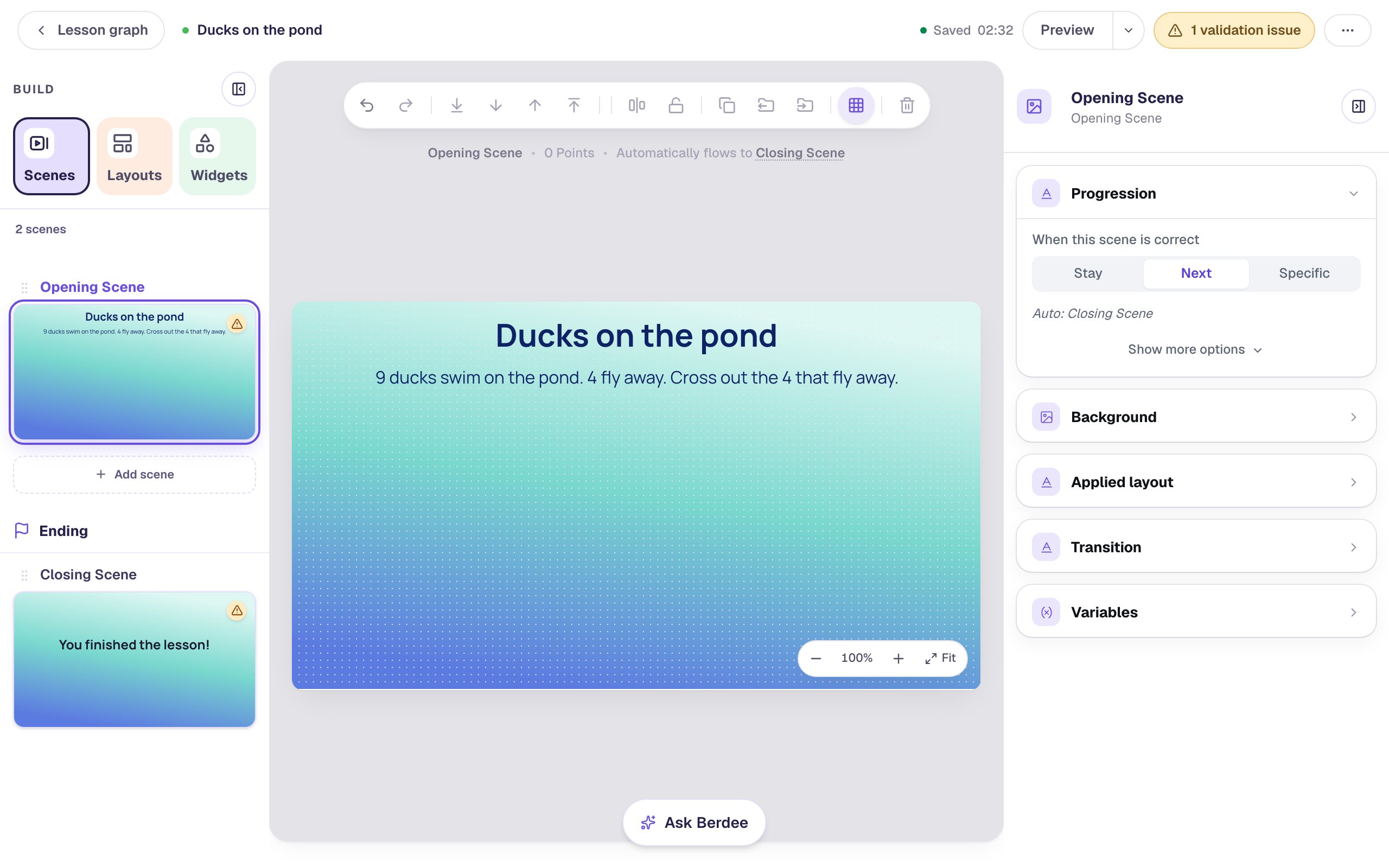
Start a blank lesson (New lesson, then Start from scratch) and name it Ducks on the pond by clicking Untitled lesson at the top left.
Give the scene a water-colored background. Click an empty spot on the scene, open Background, click Choose a style, and pick Lagoon gradient under Gradients. Give the Closing Scene the same background so the ending matches.
Then add the title and the story:
- A Heading at the top:
Ducks on the pond. Set its Font Size to44and its Text Color to dark navy. - A Body under it:
9 ducks swim on the pond. 4 fly away. Cross out the 4 that fly away.Set it to Fixed width, about880wide, then set its Font Size to24and its Text Color to the same navy.
Write the story with the numbers in it. The collection asks the question for you, so the story only needs to say what happens.
Step 2: Add a Counting Collection
Search the Widgets tab for Counting Collection and click it. Click the name at the top of the properties panel and rename it Ducks: the hint in Step 5 finds it by that name.
Under Style & Layout, click Show more options and set Width to 760 and Height to 380. Drag it to the left, under the story, which leaves a narrow column on the right for the hint and a button. Then set its Background to a pale pond blue.
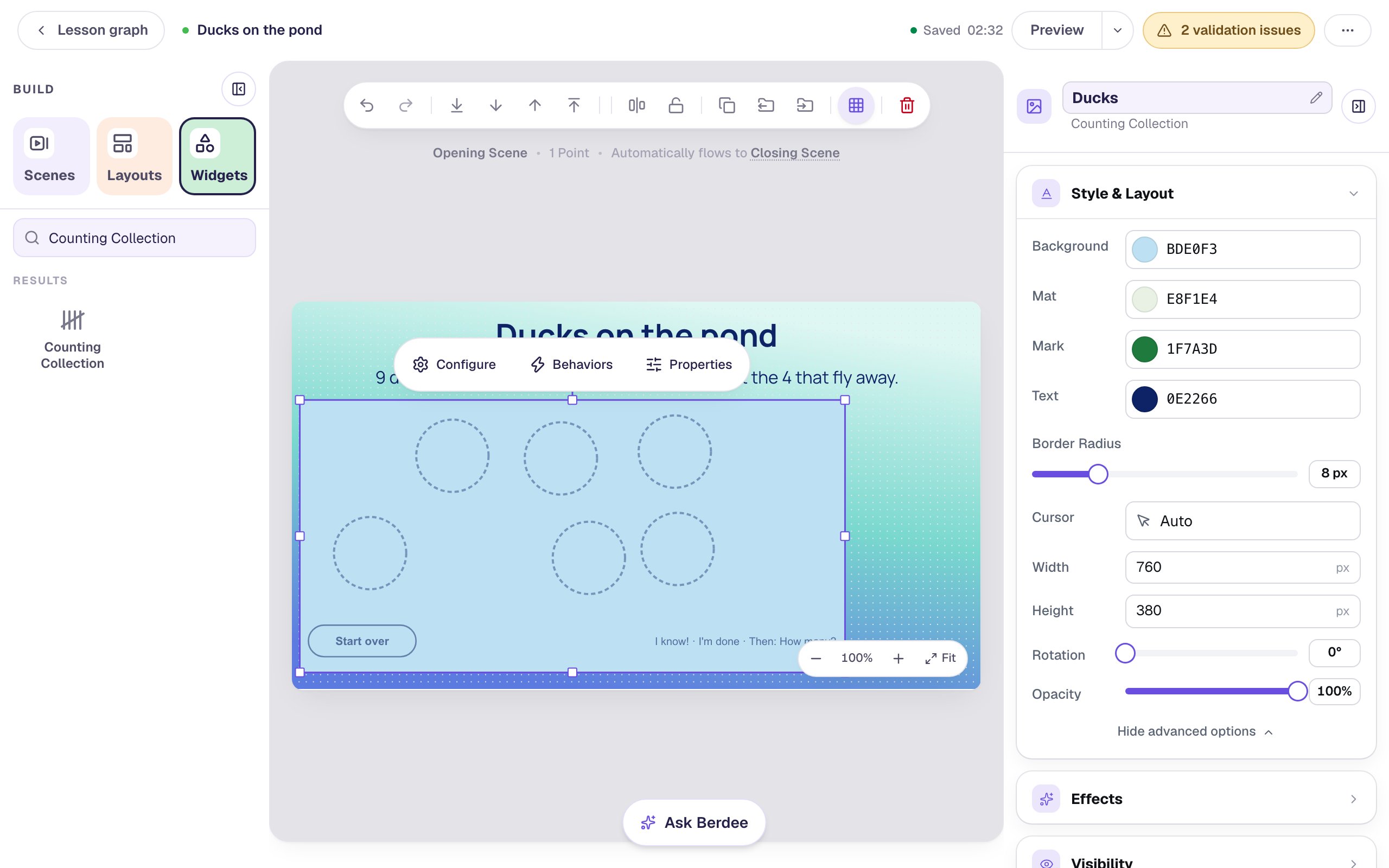
Keep the collection wide. Its bottom bar holds Start over, the question How many ducks are left? and five numerals in one row, and that needs about 760 of the scene's 960 width. In a narrower collection the numerals wrap onto a second row below the box.
Step 3: Choose Cross out and a duck
Click ⚙ Configure in the pill above the collection.
- Under What students do, click Cross out (take away): "Cross out the ones that go away, then say how many are left." The preview crosses out a couple of places to show the idea.
- Under Picture, click Choose a picture (a shell, a button, a bear…) and pick a picture of one duck. A picture with a transparent background looks best, since it's placed on the pond many times. Upload your own from the Upload tab, or pick one from your media library.
- Under Name, type
duck. The name for more than one,ducks, fills in by itself.
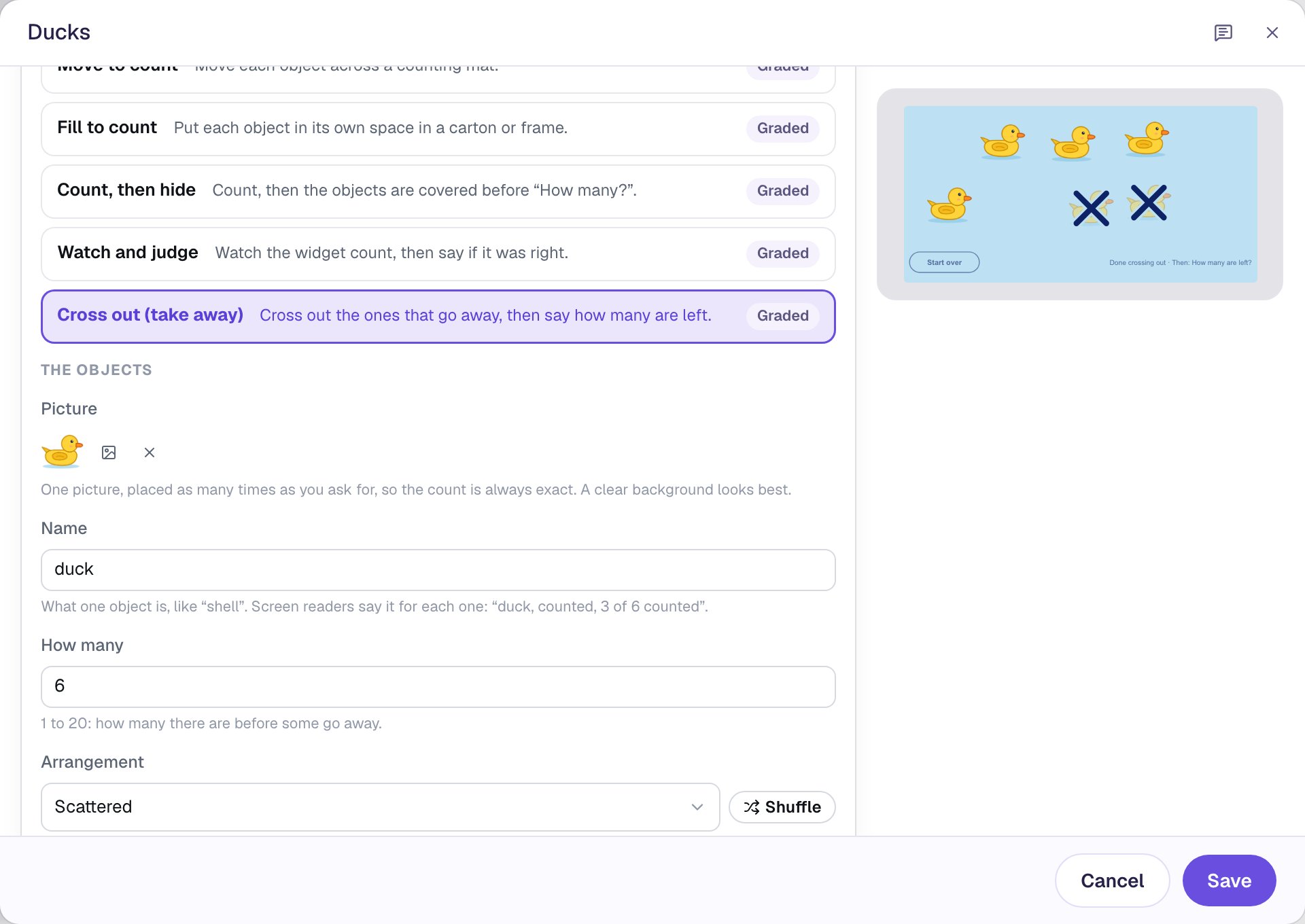
Name does two jobs. It's how a student using a screen reader hears each duck ("duck, crossed out"), so it works like alt text. It's also the word in the question students see: How many ducks are left?
Step 4: Start with 9 ducks and take 4 away
Scroll down in the same window:
- Set How many to
9. In Cross out mode, this is how many ducks there are before any fly away. - Leave Arrangement on Scattered. Press Shuffle if you'd like a different scatter. Every student sees the same layout.
- Under Taking away, set How many go away to
4. The line under it does the arithmetic for you: "Students cross out 4 and say how many are left: 9 − 4 = 5."
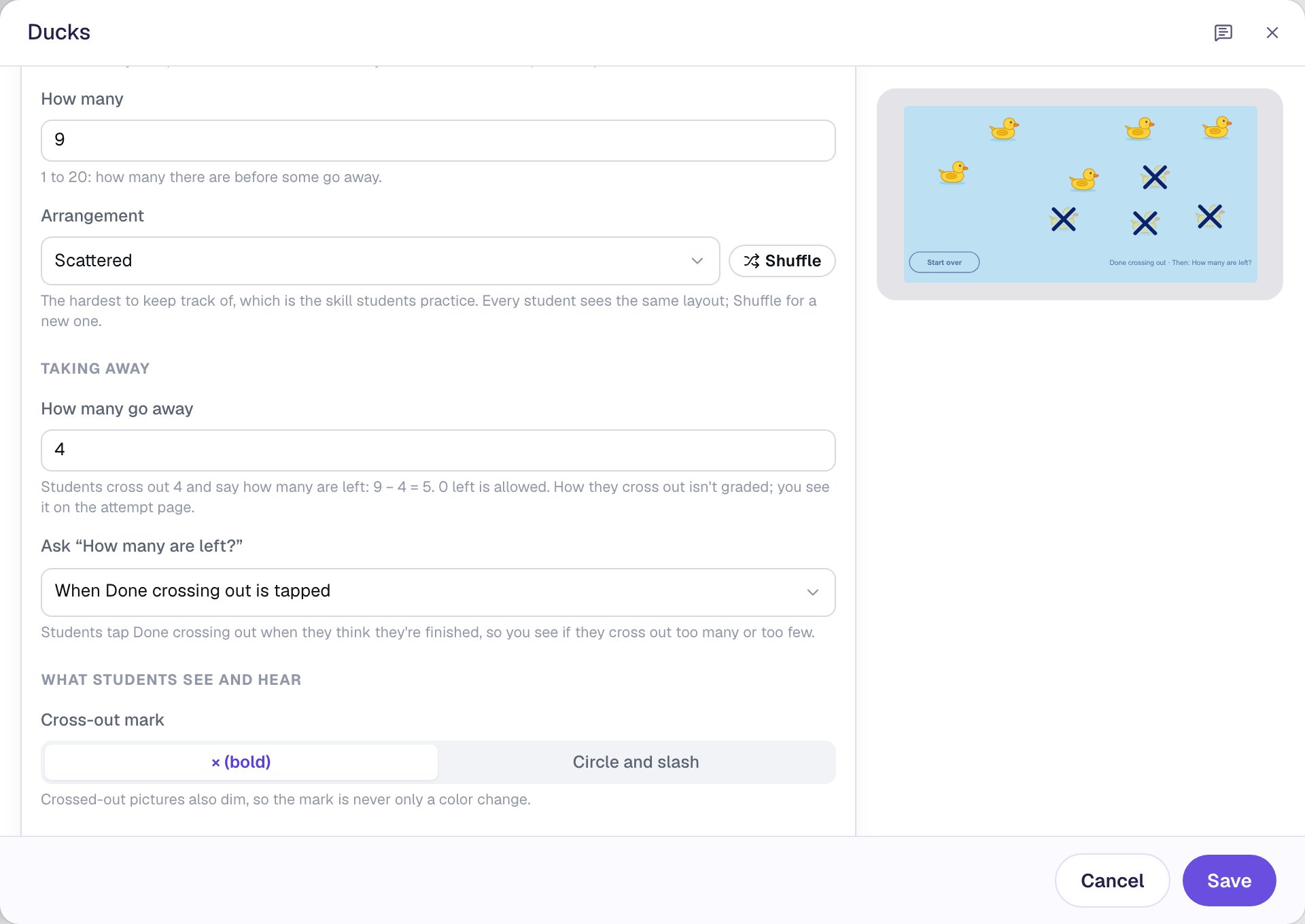
Leave Ask "How many are left?" on When Done crossing out is tapped. Students decide for themselves when they've crossed out enough, so you'll see on their attempt page if someone crossed out 3 or 5 instead of 4. The other choice, When 4 are crossed out, asks the question the moment the fourth duck is crossed out. That's gentler for a first try, but it gives the count away.
Only the answer is graded. A student who crosses out 3 ducks but answers 5 still gets it right, and the attempt page shows that they crossed out 3, so you can follow up.
Cross-out mark starts on a bold ×. Crossed-out ducks also fade, so the mark never relies on color alone. Click Save.
Step 5: Show a hint after a wrong answer
A student who answers wrong can tap another numeral, and the lesson waits for the right one. A short hint gives them somewhere to look.
- Add a Body and type
Look again! Count only the ducks with no X on them.Rename itHint. - Set it to Fixed width,
160wide, Font Size20, bold, in navy, and drag it into the column to the right of the collection. - Open its Visibility section and set Mode to Conditional. Leave Behavior on Show and the match on All conditions are met.
- Set the first condition to Counting Collection: Ducks and Is answered. Click Add Condition, and set the second to Counting Collection: Ducks and Is incorrect.
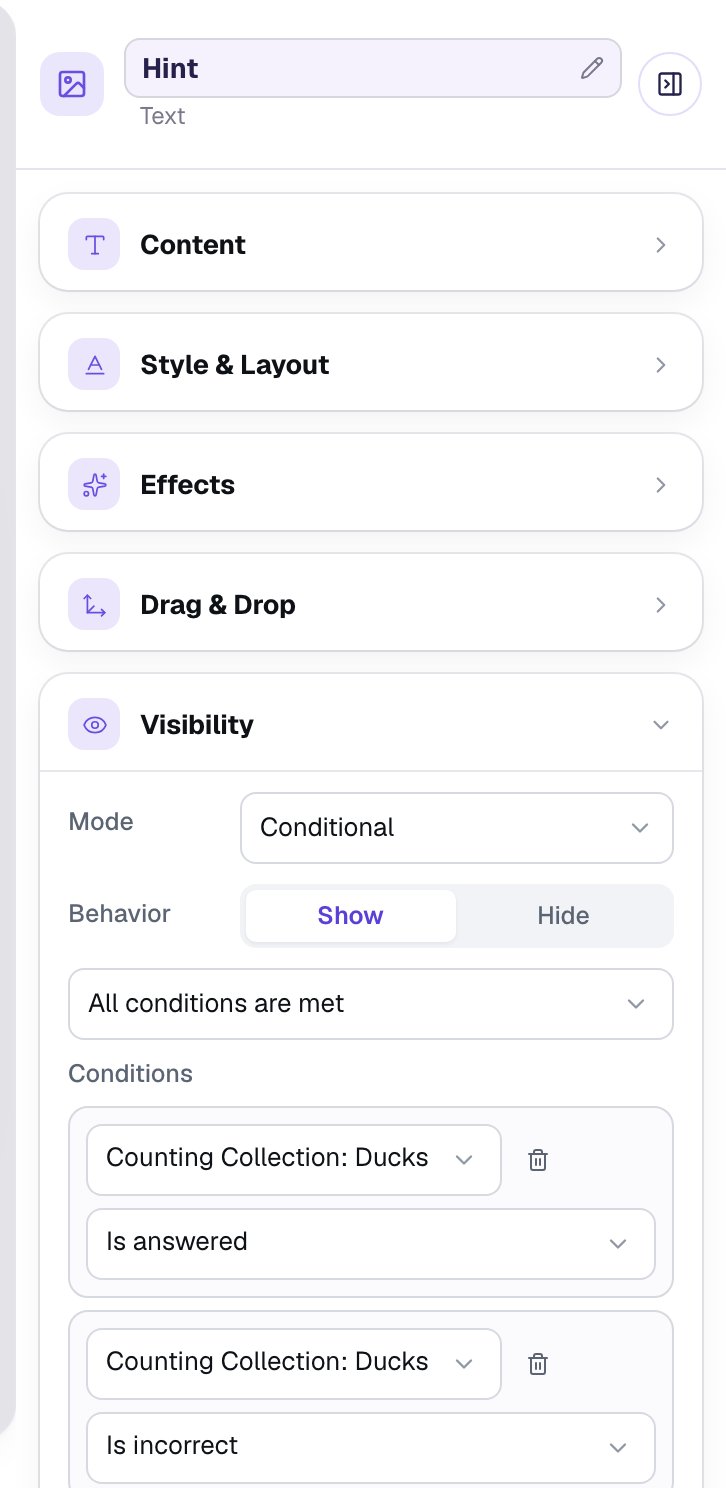
Is answered makes the hint wait until a student has picked a number, so nobody sees "Look again!" before they have tried.
Step 6: Slow down the ending and add a Finish button
The scene moves on by itself as soon as the answer is right: the line above the canvas says Automatically flows to Closing Scene. By default it waits only 0.6 seconds, so click an empty spot on the scene, open Progression, click Show more options, and set Advance delay to 2500 ms. That gives students time to see their right answer.
Every lesson also needs a button that ends it, even one that moves on by itself:
- Search the Widgets tab for
Submit Buttonand click it. - In Content, change Label to
Finishand set Submits to Lesson. - Set its Font Size to
20, give it a navy Background and white Text, and drag it under the hint.
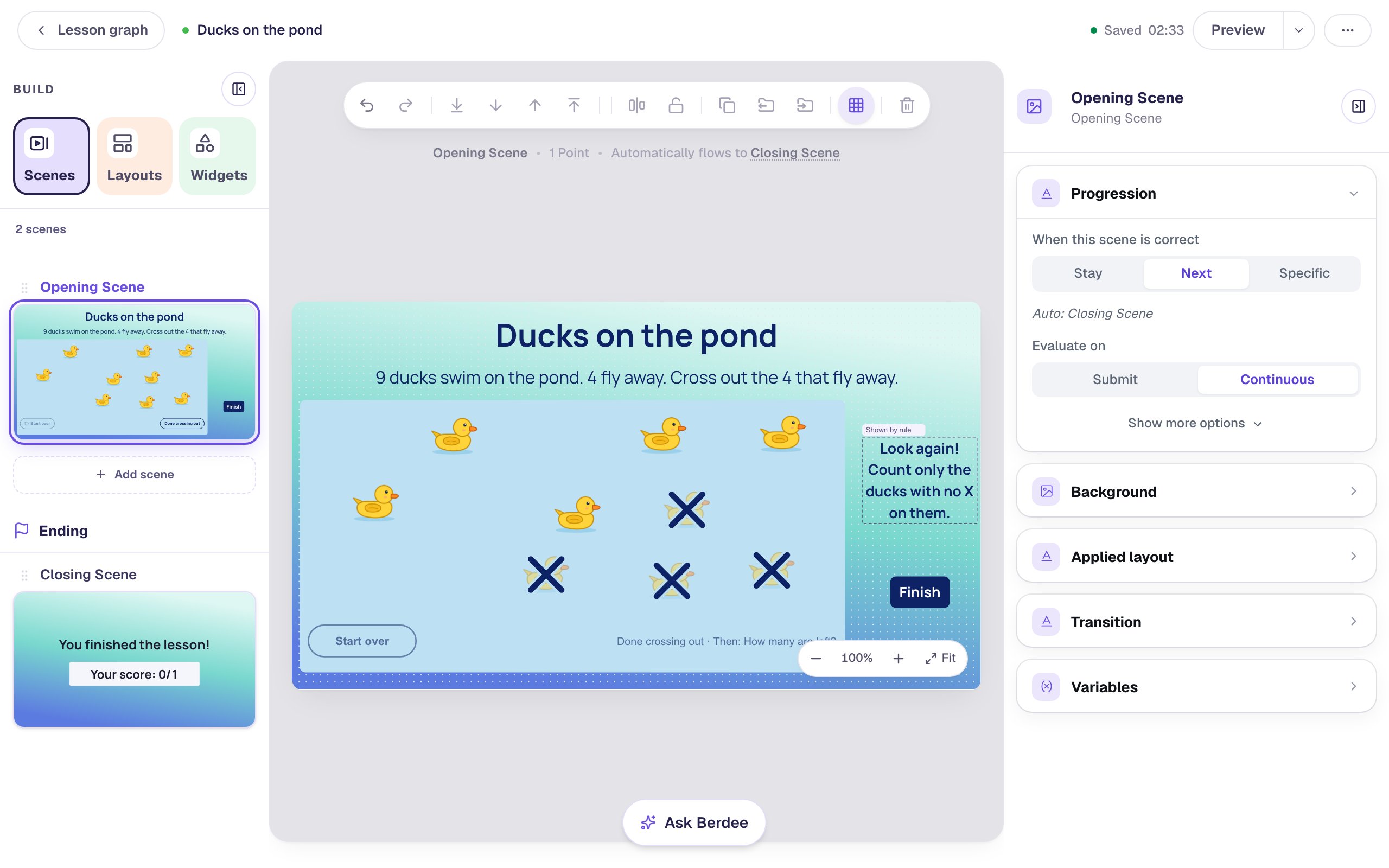
Don't label the button "I'm done". In Cross out mode the collection has its own Done crossing out button, and two "done" buttons would confuse a young reader.
Step 7: Solve the story as a student
Click Preview. Cross out four ducks, and then make the kind of slip children make: cross out a fifth duck, and tap it again to take the × back.
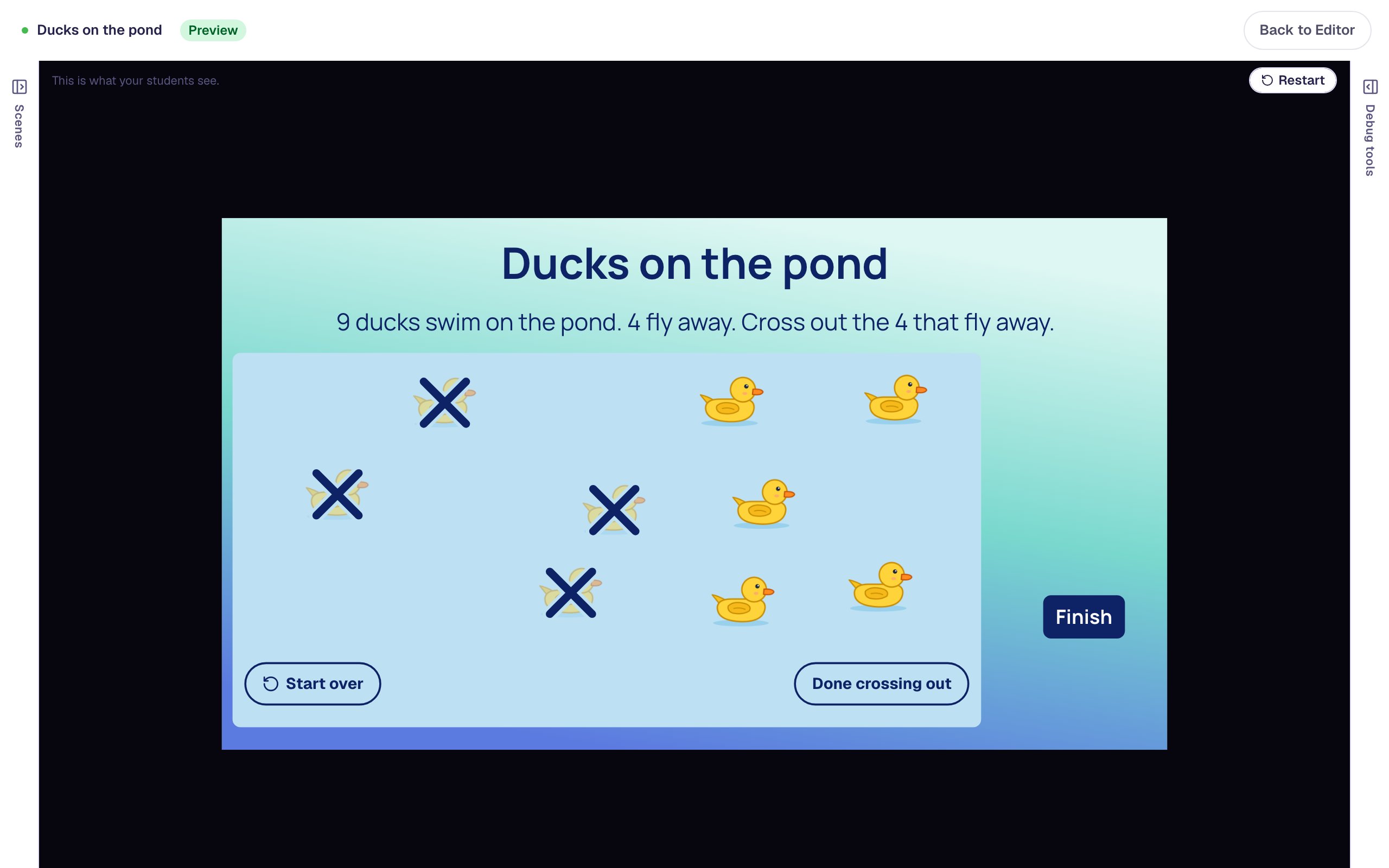
Tap Done crossing out. How many ducks are left? appears with five numerals. Tap 6, a wrong answer:
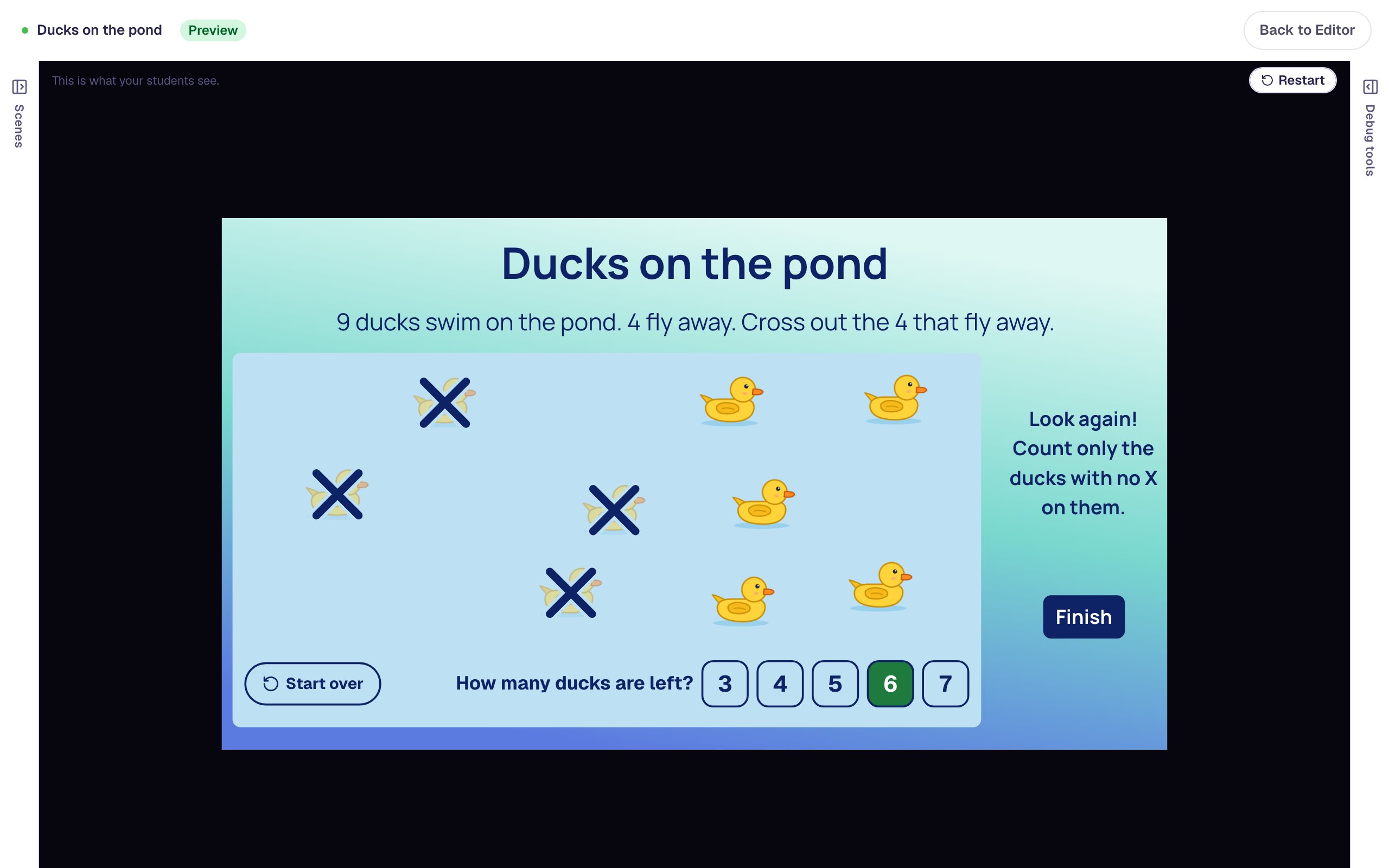
The highlighted numeral only shows the student's pick. The hint is what tells them it isn't right. Count the ducks without an × and tap 5:
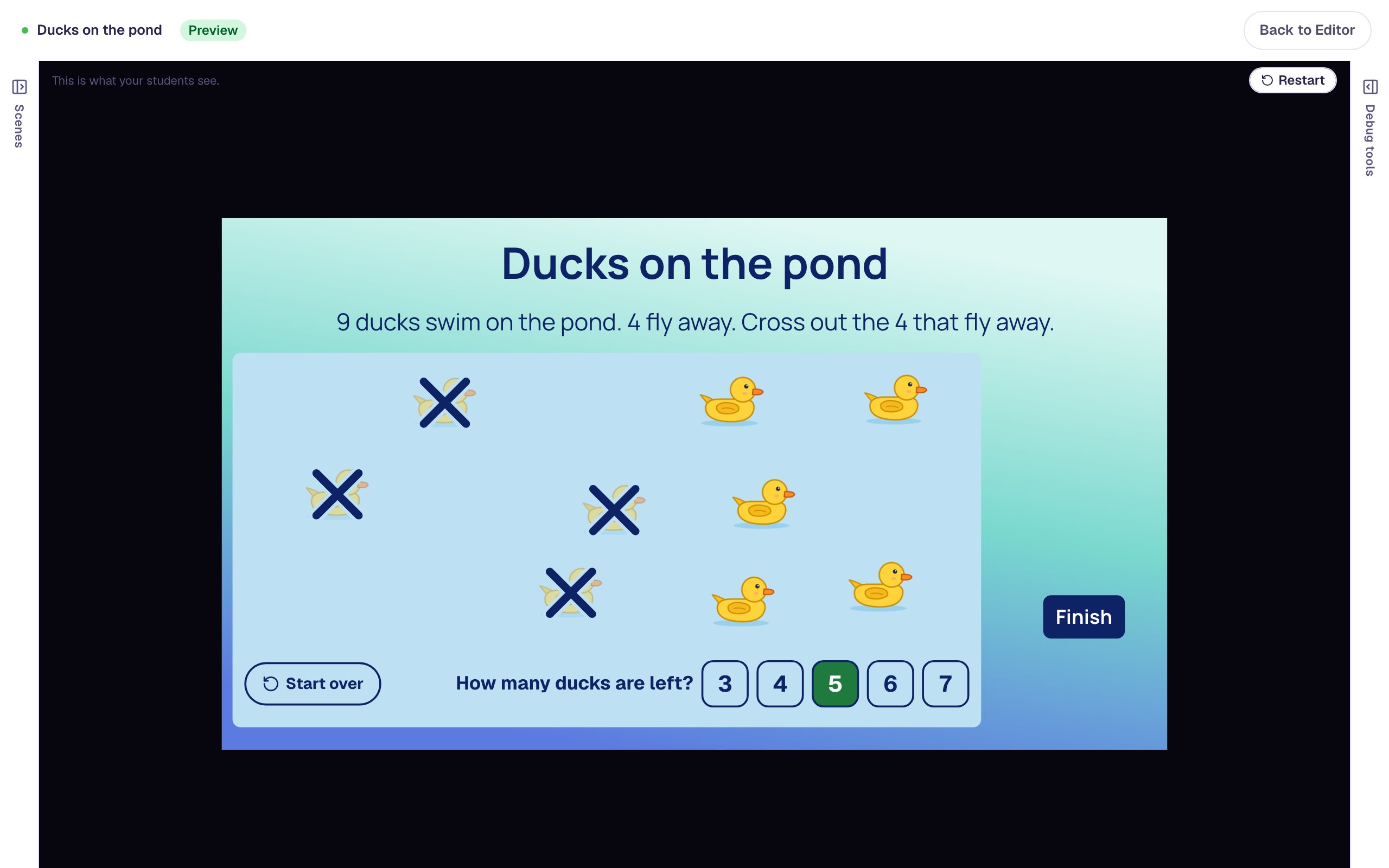
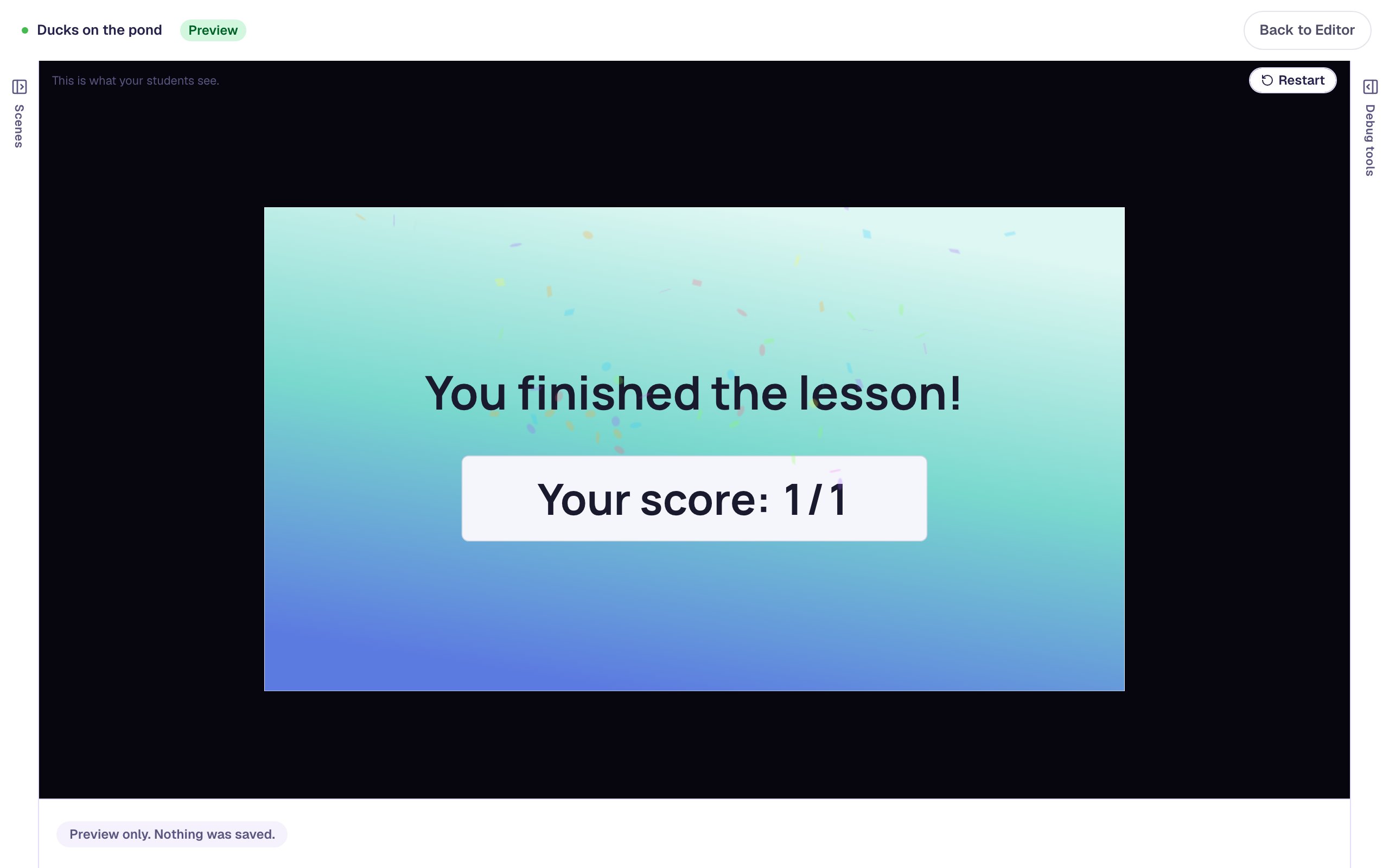
The first wrong answer doesn't cost the point: the scene waited for 5, and the score is 1 out of 1. On each student's attempt page, the collection's line shows their answer and how many ducks they crossed out, so you can spot a child who got the right number without crossing out the right ducks. Click Restart to try it again.
What you built
You built a one-scene take-away story with:
- a Counting Collection in Cross out (take away) mode, named
Ducks, with 9 scattered ducks and 4 that go away, - Name set to
duck, so screen readers name each duck and the question reads How many ducks are left?, - students deciding when they're done crossing out, so their attempt shows how they solved it,
- a Hint that shows only after a wrong answer, using two Visibility conditions,
- a longer Advance delay and a Finish button.
To make more stories, build each one on a scene of its own with new numbers in How many and How many go away (the Opening Scene can't be duplicated, but a story on any other scene can). The line under How many go away always shows the new subtraction. For counters a child takes off a frame instead, try Build a number on a ten frame.
Make this lesson yours
Add the lesson you just watched being built to your account, then change it for your class: your questions, your pictures, your colors.
Free to sign up, and you'll come straight back here. I have an account