Cut a pizza into equal shares
Use the Equal Shares widget to have students cut a pizza into 4 equal slices and shade 1, then decide whether a sandwich is cut into 2 equal parts. Berdee works out every part exactly, so a lopsided cut never passes.
- Level
- Beginner
- Time
- About 12 min
- Steps
- 8
- Updated
- Oct 24, 2026
A two-scene Grade 1 lesson where students cut a pizza into fourths and shade one slice, hear "Are all the parts the same size? Look again." for a lopsided cut, then tap No for a sandwich cut into 2 unequal parts and reach the ending.
Get the finished lesson
Skip straight to the result, or keep it open beside the steps. Add this tutorial's lesson to your account and explore how it works in the studio.
Free to sign up, and you'll come straight back here. I have an account
"Share it fairly" is how young children first meet fractions. Four friends want the same amount of pizza, so the 4 slices have to be the same size. Children often count the pieces and stop there. Four pieces are not always four fourths, and a lesson can only teach that if it can tell the difference.
The Equal Shares widget can. Students cut a circle, square or rectangle by tapping one dot on its outline, then another. Berdee works out every part exactly, so it knows how many parts there are and whether they are all the same size. You never list the right answers: any cut that makes equal parts is right, and nothing else is.
In this tutorial you'll build a two-scene lesson called Equal shares. On the first scene, students cut a pizza into 4 equal slices and shade 1. On the second, they look at a sandwich cut into 2 parts and say whether the parts are equal. A cut that misses the middle of the pizza makes 4 slices that aren't fair, and Berdee says so.
Step 1: Set the scene
Start a blank lesson (New lesson, then Start from scratch) and name it Equal shares by clicking Untitled lesson at the top left.
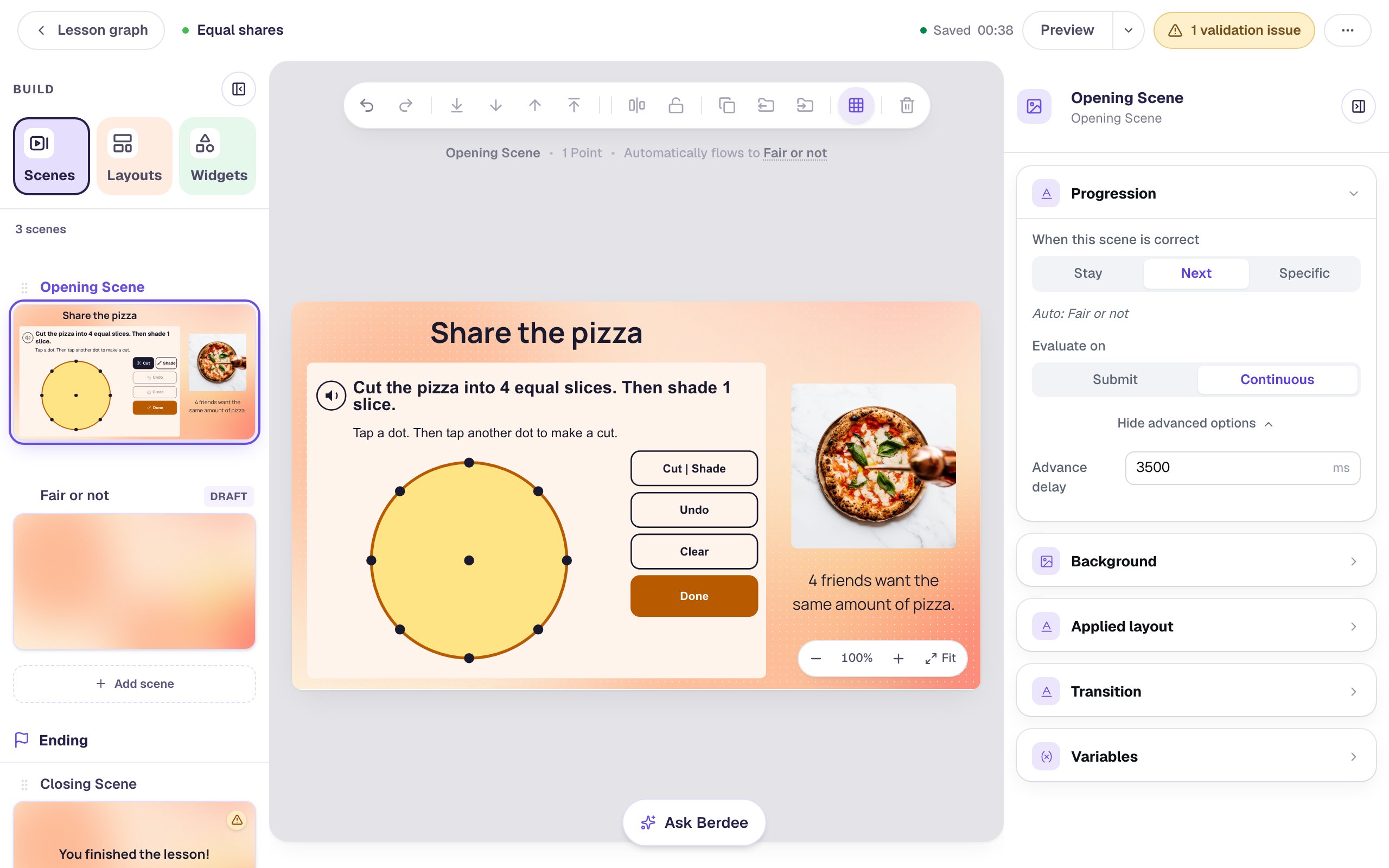
You'll need a second scene, so add it now. In the Scenes panel, click Add scene, then rename the new scene Fair or not. Give each scene a warm background: click an empty spot on the scene, open Background, click Choose a style and pick Mesh sunrise. Do the same for the Fair or not scene and the Closing Scene, so the lesson matches from start to finish.
Then, on the Opening Scene, add what students see first:
- A Heading at the top left:
Share the pizza, with Font Size40. - An Image on the right,
230by230. Click Choose image, search the stock photos formargherita pizzaand pick one seen from above. In Style & Layout, set Fit to Cover so the photo fills its square. Open Accessibility and describe the photo in Alt Text, such asA Margherita pizza with basil leaves and a pizza cutter on a marble table. - A Body under the photo:
4 friends want the same amount of pizza.Set it to Fixed width,230wide, with Font Size22.
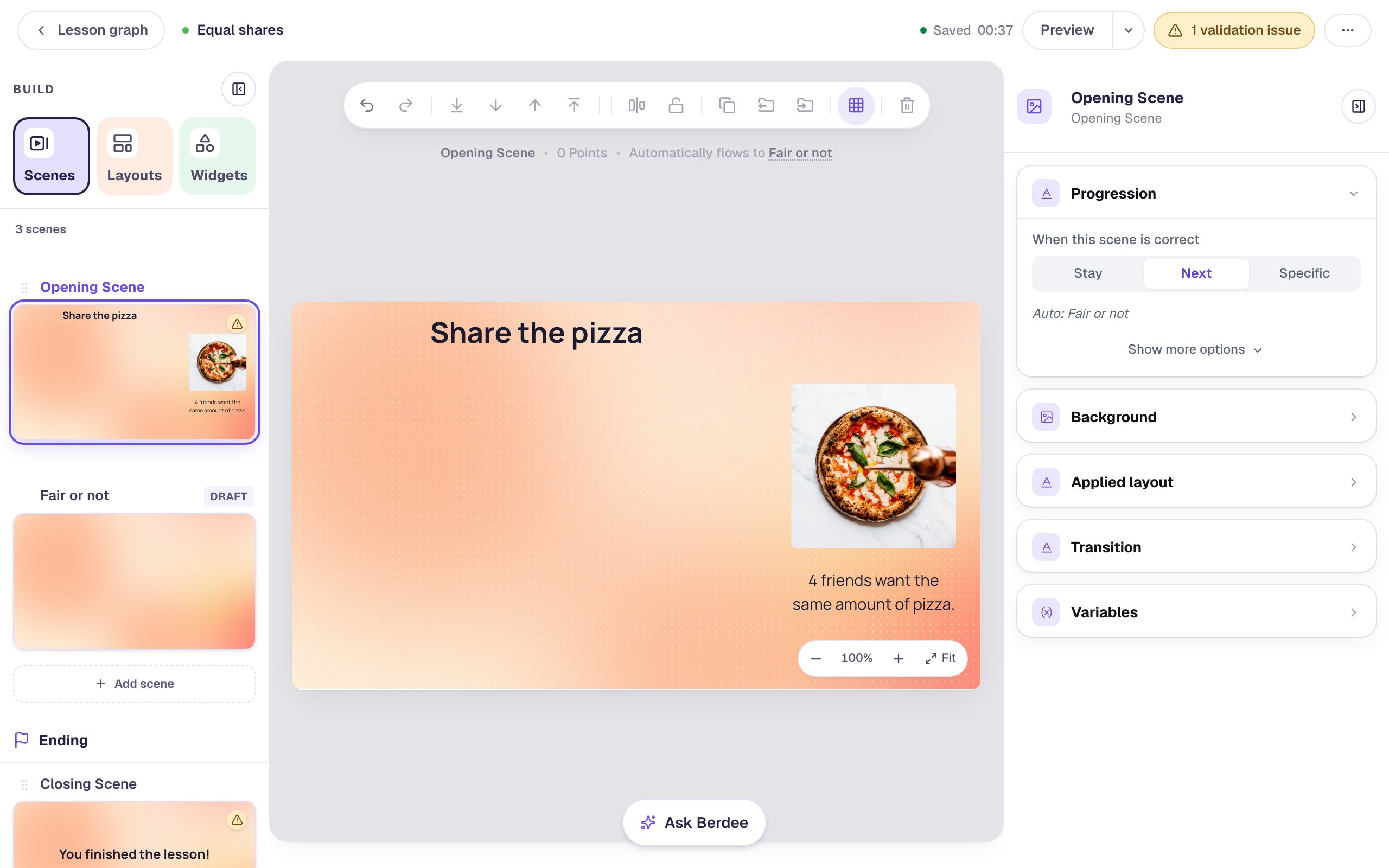
The left of the scene stays empty for now. That's where the pizza students cut will go.
Step 2: Add an Equal Shares widget and choose Split and shade
Search the Widgets tab for Equal Shares and click it. Drag the new widget to the left of the scene, under the heading. At its default size, 640 by 440, the dots are far enough apart for a young child's finger.
Select the widget and click the floating ⚙ Configure button.
- Under What students do, choose Split and shade. Students cut first, then shade.
- Under The shape, choose Circle. That's the pizza.
- Under Parts, choose 4 parts.
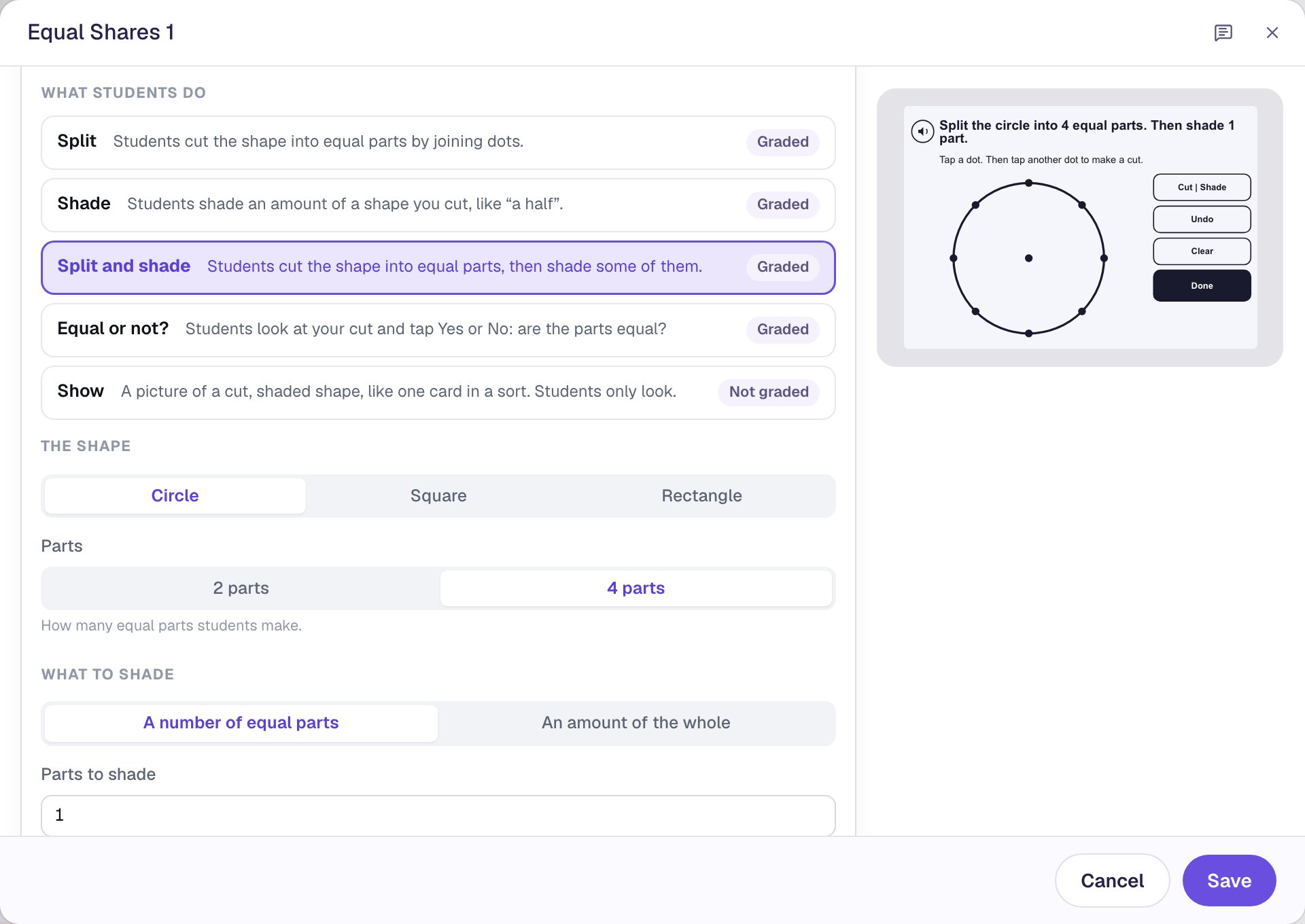
A circle has 9 dots: 8 around the rim, at the clock positions 12, 1:30, 3 and so on, and 1 in the middle. Every Graded choice turns Scoring on for you, worth 1 point.
Step 3: Say what to shade, in the lesson's own words
Under What to shade, leave A number of equal parts selected and Parts to shade at 1. As the line under it says, any one of the 4 parts counts.
Berdee writes a prompt from your choices: "Split the circle into 4 equal parts. Then shade 1 part." Students read it above the shape and can hear it again from the speaker button. Under What students see and hear, type your own words in Prompt so it talks about pizza: Cut the pizza into 4 equal slices. Then shade 1 slice.
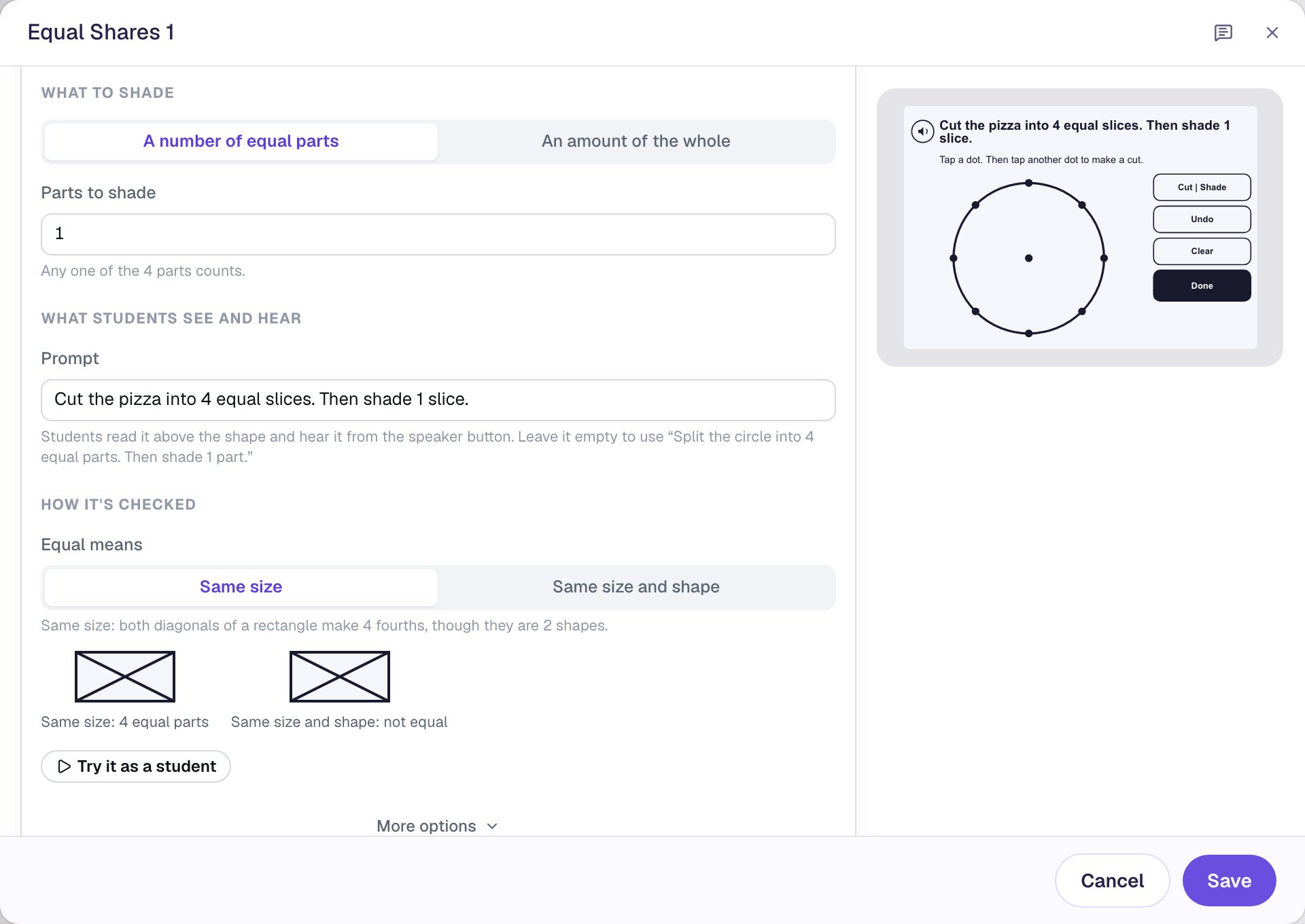
Your words don't change what Berdee accepts. The shape, Parts and What to shade do.
Leave Equal means on Same size. Every part then has to cover the same amount of the pizza, and the parts can be different shapes. That's what the Grade 1 standard asks for. The other choice, Same size and shape, is for when the parts must also match in shape.
Step 4: Try it as a student
Press Try it as a student. The real widget appears in the window, exactly as students will meet it.
Tap the dot at 12 o'clock, then the dot at 6 o'clock: a cut runs straight down the middle. Tap the dot at 9 o'clock, then the one at 3 o'clock. The pizza is now in 4 parts. Tap Shade, tap one of the parts, and tap Done.
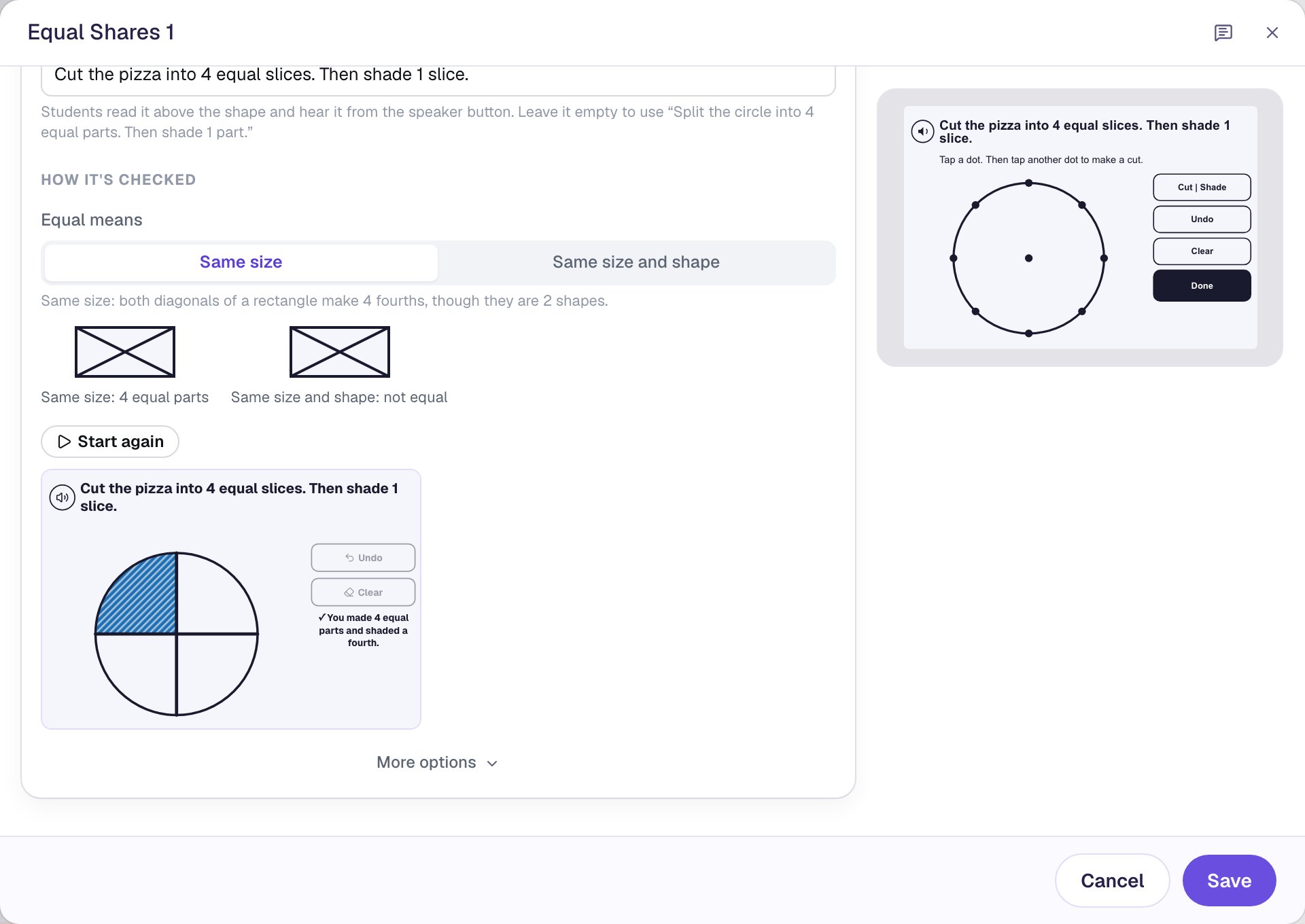
The cut doesn't have to be the one you'd draw. Two cuts corner to corner on the clock (1:30 to 7:30 and 4:30 to 10:30) make 4 equal parts too, and Berdee accepts them.
Click Save.
Step 5: Make it look like a pizza
The widget starts in pale greys. Pizza colours make the task feel real. With the widget selected, open Style & Layout:
- Click Unshaded and pick a cheese yellow. That's the pizza before anyone shades it.
- Click Shading and pick a tomato red. A shaded slice fills with it, under white stripes.
- Click Outline and pick a crust brown. The Done button takes the same colour, so the button children need most is easy to find.
Pick a red that is clearly darker than the yellow. If the Shading colour is too close to Unshaded, shaded slices would be hard to see, so Berdee draws them in its own blue instead. The sidebar doesn't warn you; the ⚙ Configure window does. A strong tomato red such as #E62020 is dark enough against a cheese yellow; a lighter coral isn't.
For a softer card behind the pizza, set Background to a pale cream and Cuts to a dark brown too. While the widget is selected, set its Alt Text under Accessibility to A pizza to cut into equal slices.
The pizza scene moves on by itself when a student gets it right. By default that happens after 0.6 seconds, too quickly for a child to read the message. Click an empty spot on the scene. In Progression, click Show more options and set Advance delay to 3500 ms.
Step 6: Ask whether a sandwich is cut fairly
The second scene turns the question around. This time you make the cut, and students decide whether the parts are equal.
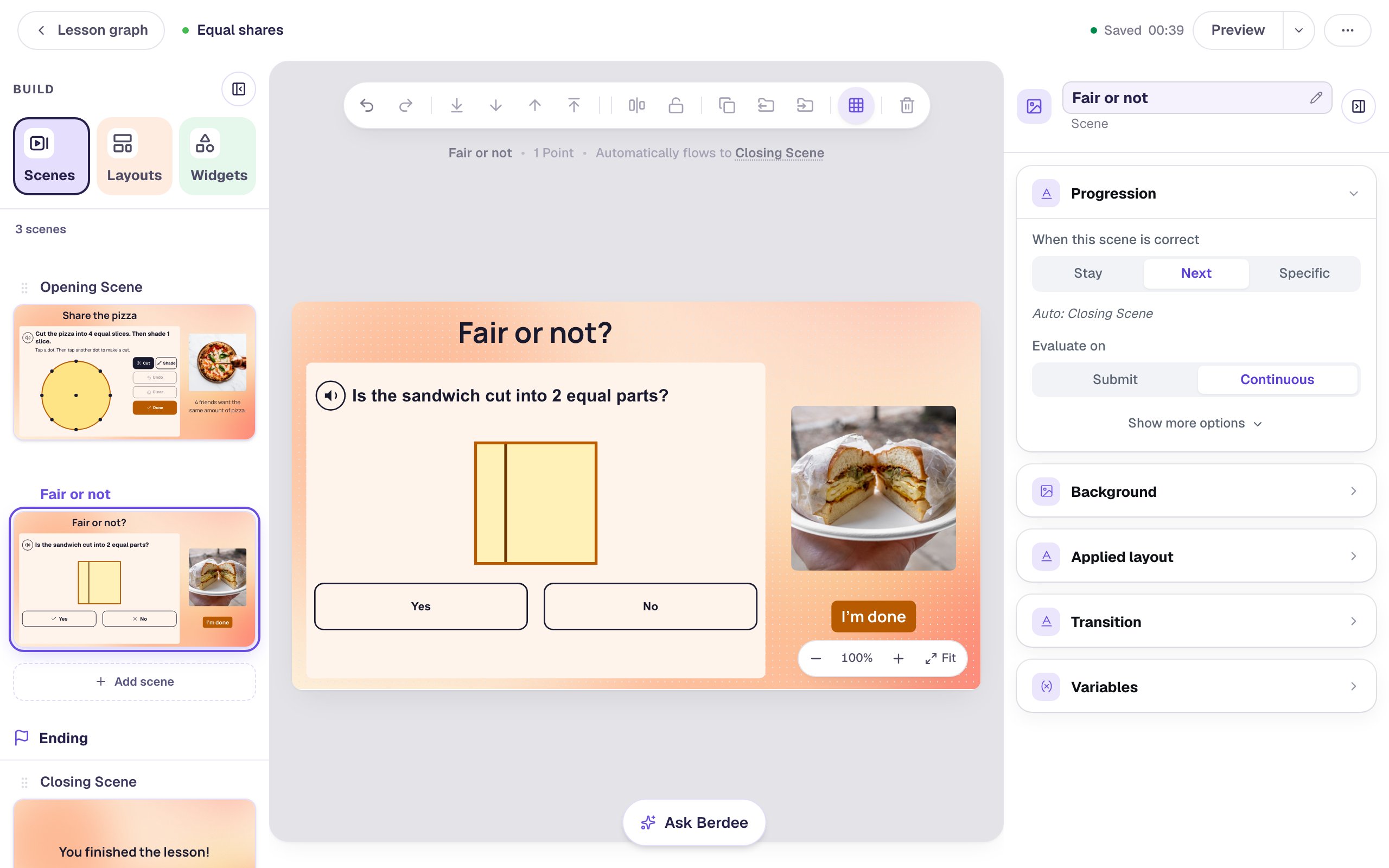
Open the Fair or not scene. Add a Heading, Fair or not?, and an Image on the right with a photo of a sandwich cut in half (search sandwich cut in half), with Fit set to Cover and its own Alt Text. Then add another Equal Shares, drag it to the left, and give it the same colours as the pizza. Set its Alt Text to A square sandwich cut into 2 parts.
Click ⚙ Configure:
- Under What students do, choose Equal or not?. Leave The shape on Square.
- Under The cut, make the cut students will judge. Tap the dot a quarter of the way along the top edge, then the dot straight below it on the bottom edge. The square is cut into a thin strip and a big piece.
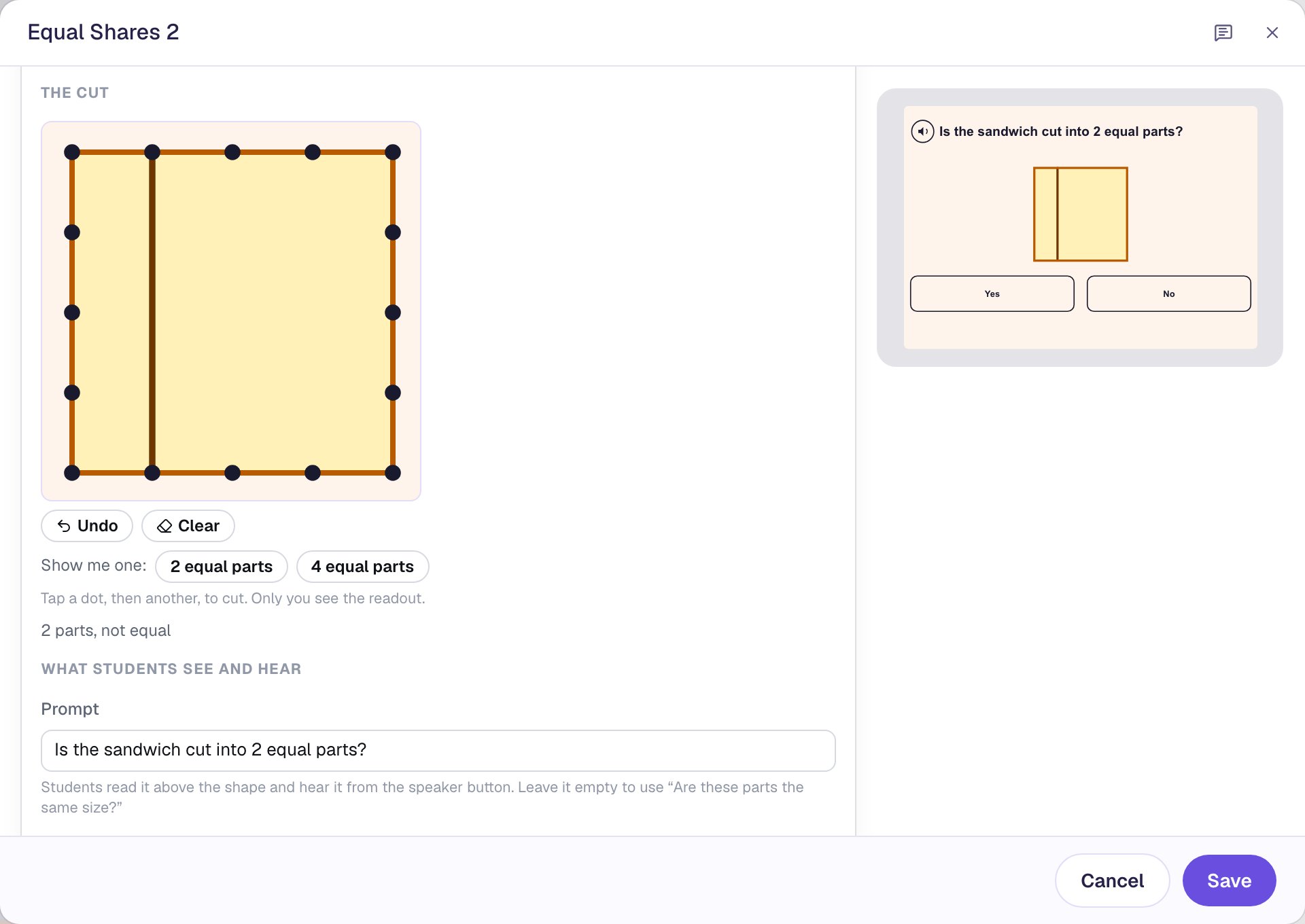
Until you make a cut, the window warns you at the bottom, because there's nothing for students to judge yet. Under the board, a line only you see says what you made: "2 parts, not equal". Show me one draws an equal cut for you, if you want a card students should say Yes to.
Type a Prompt that names the sandwich: Is the sandwich cut into 2 equal parts?. Under How it's checked, Berdee works out the right answer from your cut and tells you.
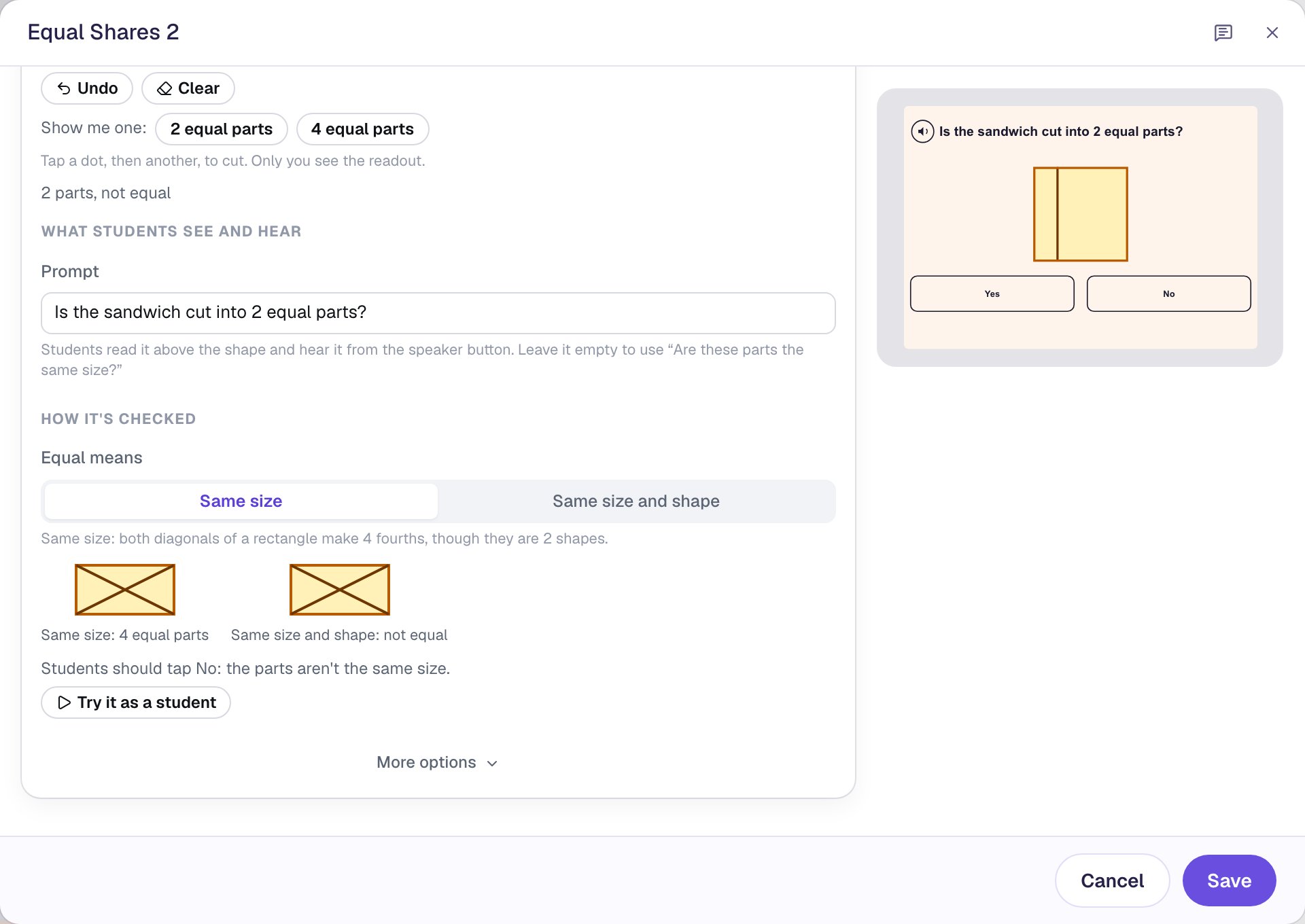
Students get one answer here, right or wrong, and then the widget is finished. Click Save, and set this scene's Advance delay to 3500 ms as well.
Step 7: Add an "I'm done" button
A student who taps Yes on the sandwich has used their one answer, so the scene never moves on by itself. They need a way to finish. Every lesson also needs one button that ends it, or the studio shows a validation warning at the top right.
- Search the Widgets tab for
Submit Buttonand click it. In Content, change Label toI'm doneand set Submits to Lesson. - Set Font Size to
22, Background to the crust brown and Text to white. Drag it under the sandwich photo. - Click Behaviors in the pill above the button, choose Make this a "Next" button, and click Add behavior. It goes to the Closing Scene.
- A behavior on a Submit Button replaces its built-in submit, so put one back. In the properties panel, open Behaviors, click Add Action, choose Submit Answers, and set it to Lesson.
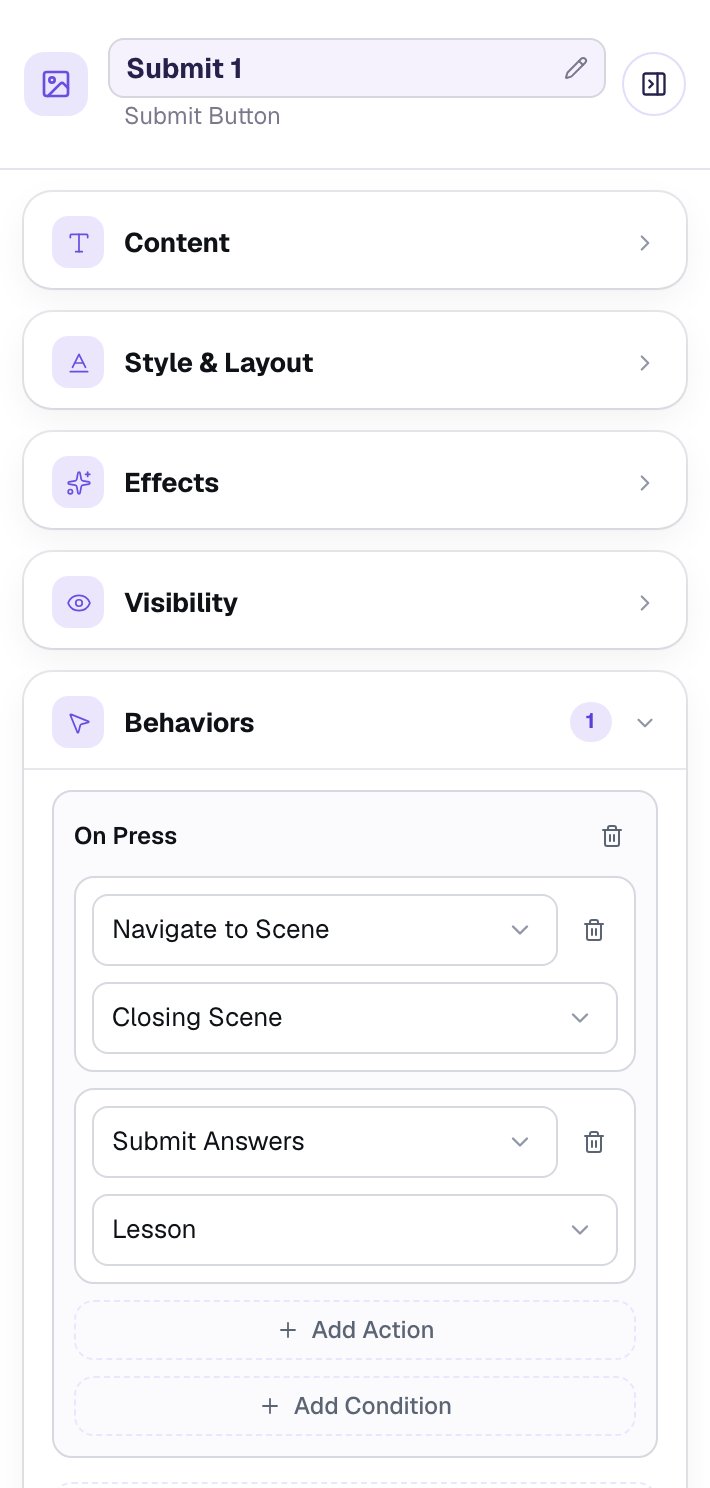
Until Submit Answers is set to Lesson, both the behavior window and the Behaviors section warn you, so you can't miss it.
Step 8: Try the lesson in Preview
Open the Opening Scene and click Preview.
First, cut the way many children do: down the middle, then across from 9 o'clock to 1:30. That's 4 pieces. Shade one and tap Done.
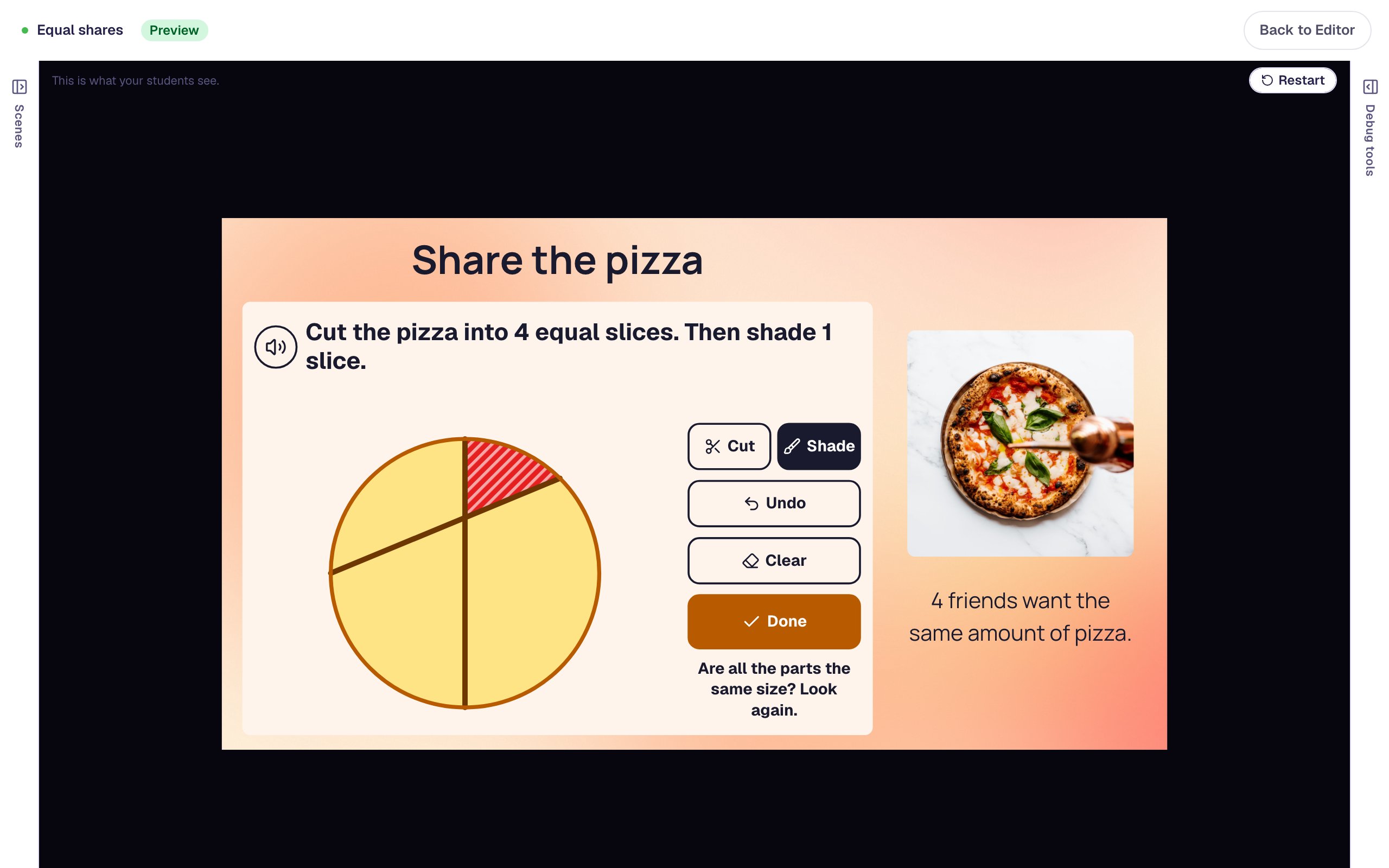
The cuts stay on the pizza so the child can look at them again. The question sends them back to the sizes, not the count. Undo takes away the last cut; Clear starts over.
Tap Clear and cut again: 12 o'clock to 6 o'clock, then 9 o'clock to 3 o'clock. Tap Shade, shade one slice, and tap Done.
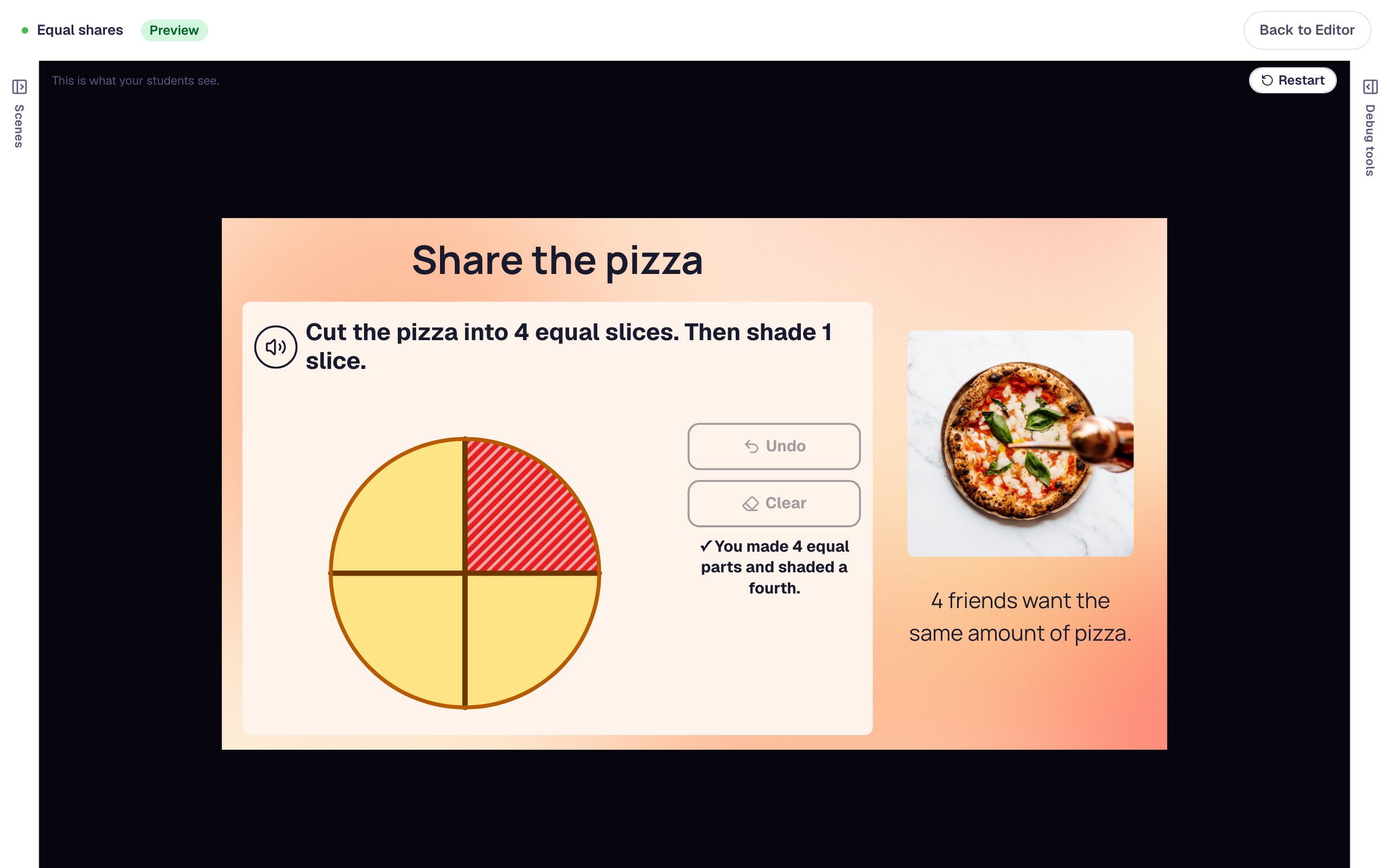
After the advance delay, the sandwich scene opens. Tap No.
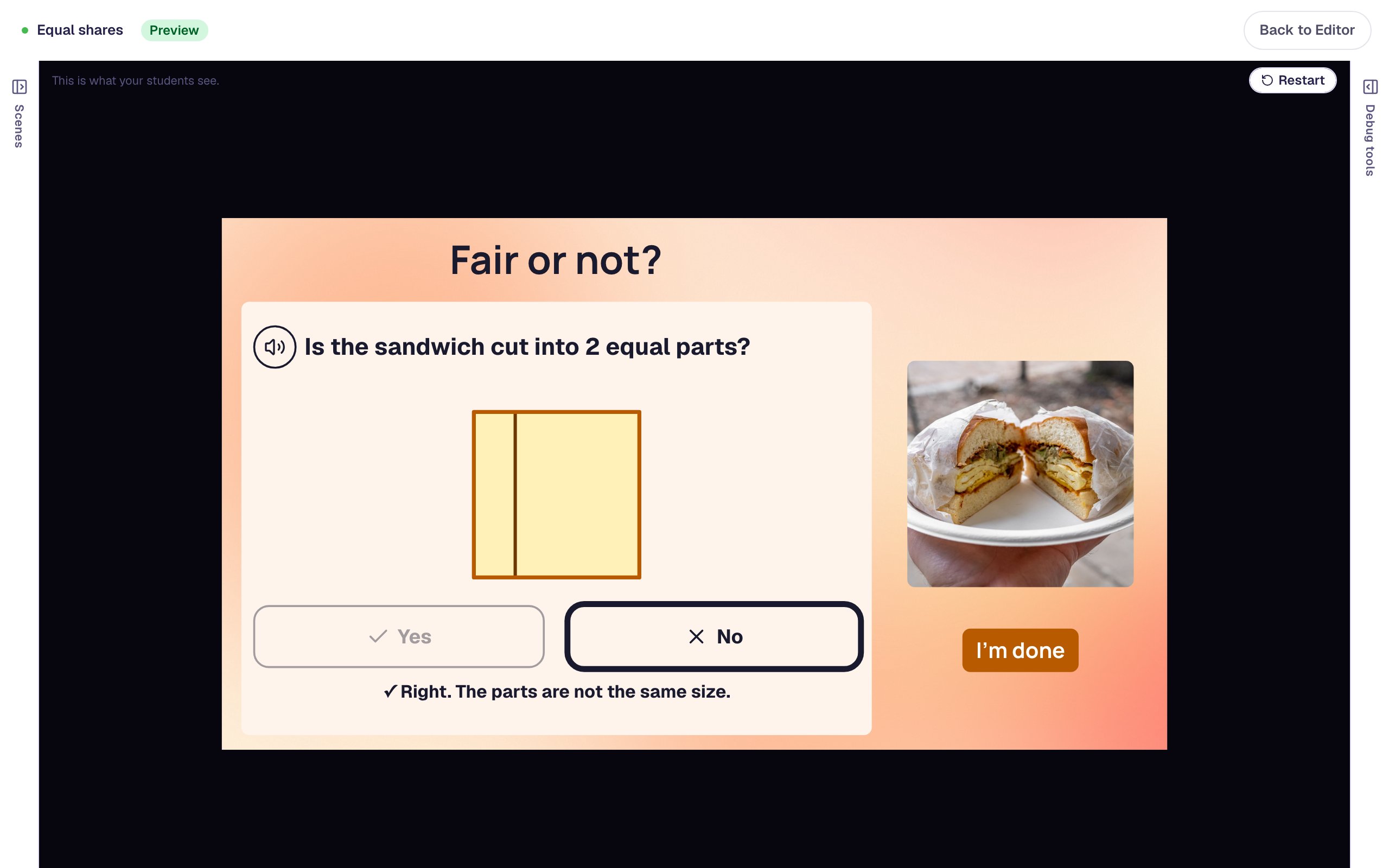
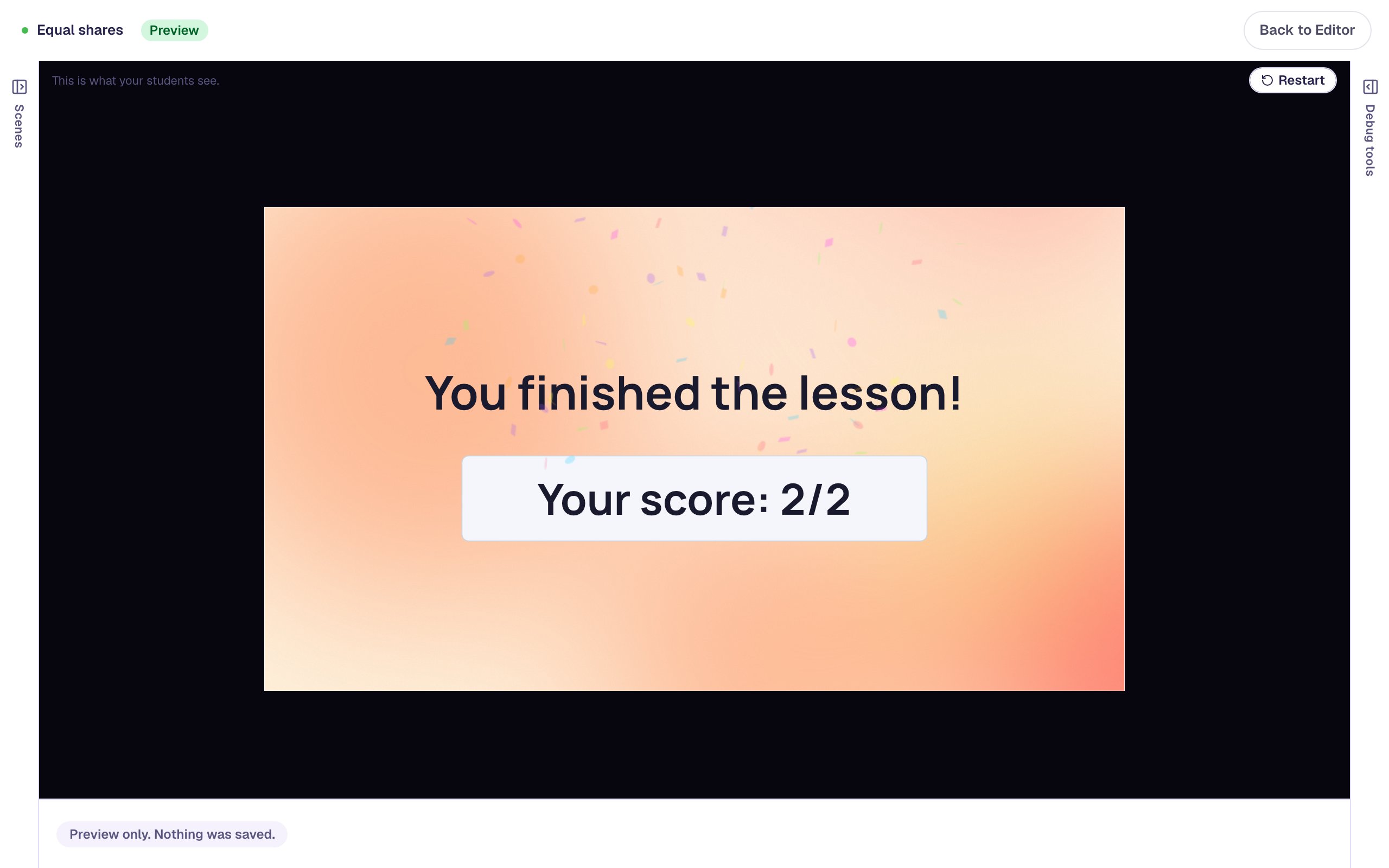
Each tap on Done, Yes or No counts as one attempt, so the pizza took 2 here. Cutting, shading, undoing and clearing never count. On each student's attempt page you'll see a line for each widget that says what the student made and whether it was right, so you can see who counted pieces and who compared their sizes.
What you built
You built a two-scene lesson on equal shares with:
- an Equal Shares widget in Split and shade, asking for 4 equal parts of a circle with 1 part shaded, in your own words,
- a check you tried yourself with Try it as a student before saving,
- pizza colours, with a shading red dark enough to stand out,
- a second Equal Shares in Equal or not?, with a cut you made and the answer Berdee worked out from it,
- an I'm done button for a student whose one answer was wrong, and a longer Advance delay so children read the message before the lesson moves on.
For the next question, add a third scene with Shade on a square cut into fourths, and set What to shade to An amount of the whole and a half. Any two fourths count, which shows children that two fourths and a half are the same amount. To have children draw shapes dot to dot instead of cutting them, follow Draw a rectangle from a clue on dot paper.
Make this lesson yours
Add the lesson you just watched being built to your account, then change it for your class: your questions, your pictures, your colors.
Free to sign up, and you'll come straight back here. I have an account