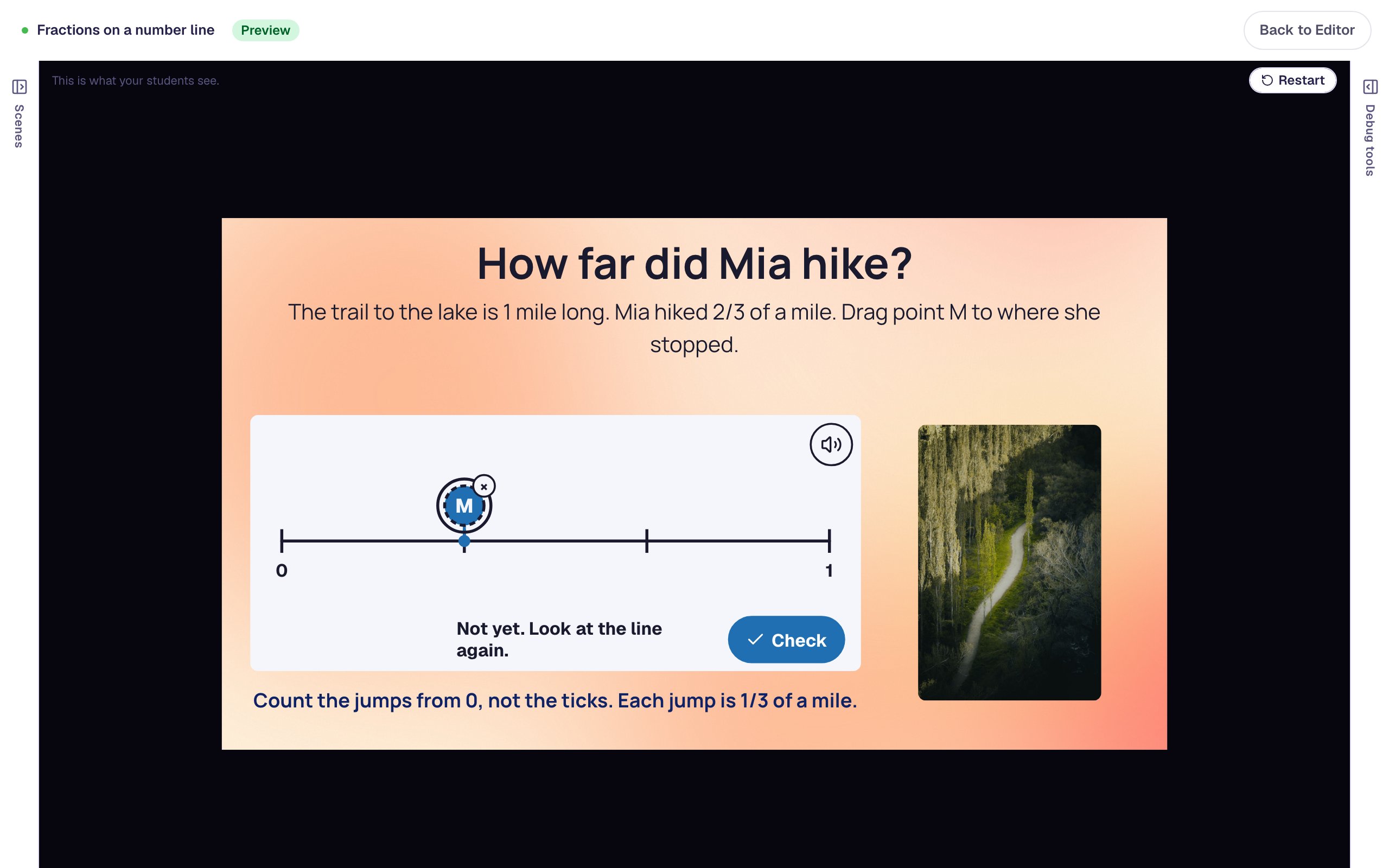
Find an equal fraction with a number sentence
Ask students to write a fraction equal to 3/4 in a Number Sentence that accepts any right answer, like 6/8, 9/12 or 15/20, and show a hint only when they make the classic mistake of adding the same number to the top and the bottom.
- Level
- Intermediate
- Time
- About 15 min
- Steps
- 7
- Updated
- Nov 6, 2026
A one-question "Equal fractions" lesson where students fill in 3/4 = □/□ with any equal fraction, and a hint appears only when they answer 5/6.
Get the finished lesson
Skip straight to the result, or keep it open beside the steps. Add this tutorial's lesson to your account and explore how it works in the studio.
Free to sign up, and you'll come straight back here. I have an account
"Write a fraction equal to 3/4" has many right answers: 6/8, 9/12, 12/16, 15/20. A good question accepts every one of them, so students who think in eighths and students who think in twelfths both get the credit they earned. It's also a question with one very common wrong answer. Many fourth graders add the same number to the top and the bottom, and write 5/6. That looks reasonable, but it's a different amount.
In this tutorial you'll build a one-question lesson called Equal fractions:
- a chocolate bar with 3/4 left, and a Number Sentence that reads
3/4 = □/□, - grading that accepts any fraction equal to 3/4, but not 3/4 itself,
- a hint that appears only when a student adds the same number to the top and the bottom.
Step 1: Set the scene
Start a blank lesson (New lesson, then Start from scratch) and name it Equal fractions by clicking Untitled lesson at the top left.
Give the scene a calm background. Click an empty spot on the scene, open Background, click Choose a style, and pick Lagoon gradient. Give the Closing Scene the same background so the ending matches.
Then add what students read and see:
- A Heading at the top:
Find an equal fraction. Set its Font Size to40. - A Body under it:
Maya has 3/4 of her chocolate bar left. Write another fraction for the same amount.Set it to Fixed width,900wide, so it stays on one line, and set its Font Size to21. - An Image on the left, about
320by203. Click Choose image, open the Upload tab, and upload a picture of a chocolate bar with a quarter of it gone.
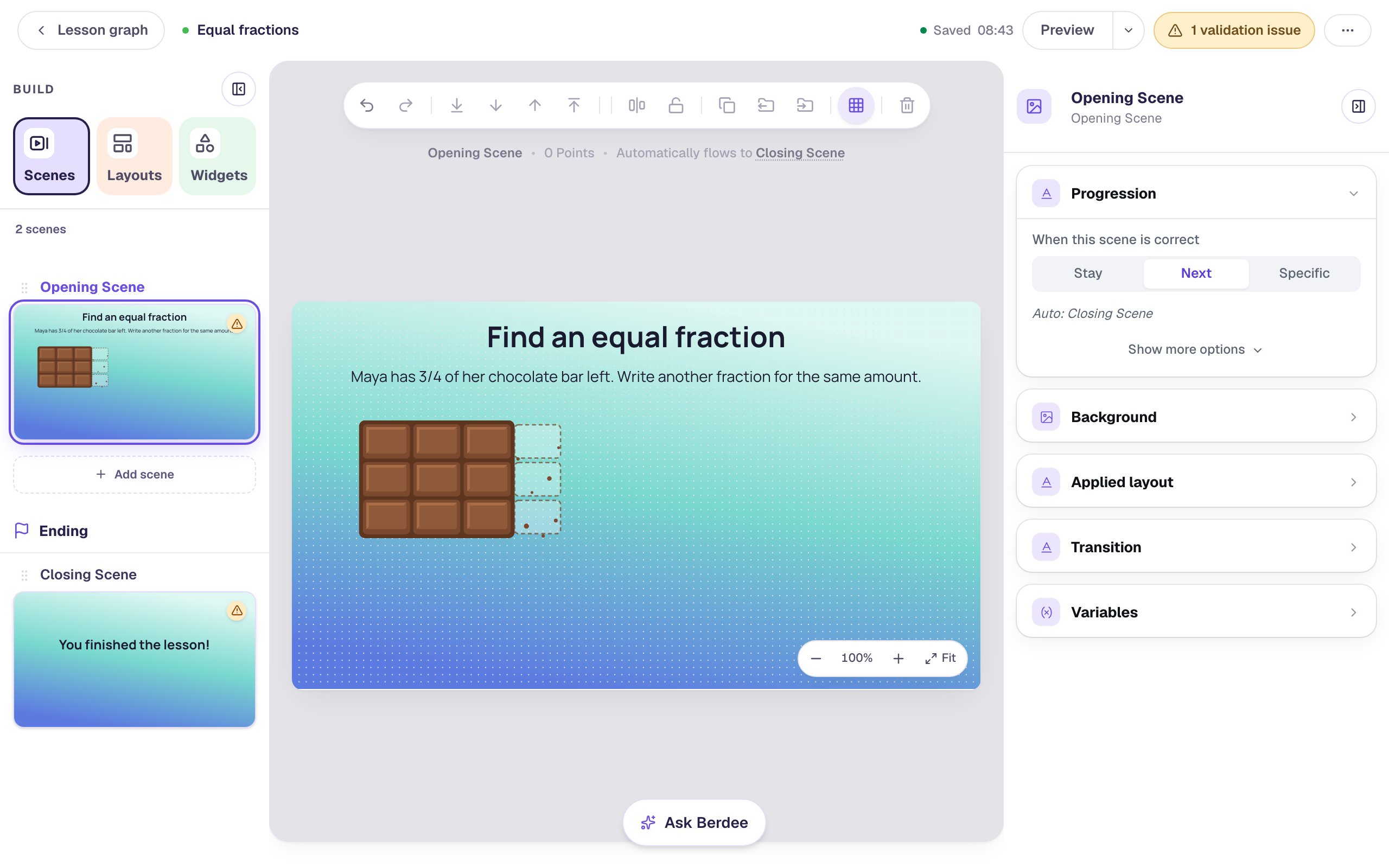
The picture is a bar of 4 columns with 3 squares in each, and one column eaten. Students can see it as 3 of 4 columns, or as 9 of 12 squares: both are right answers. A picture that can be counted two ways is a quiet hint that equal fractions exist.
Describe the picture for students who use a screen reader. With the image selected, open Accessibility and type its Alt Text: A chocolate bar of 4 columns with 3 squares in each; the last column is eaten, leaving a dashed outline and crumbs. The top bar says 1 validation issue for now: the scene has nothing to answer yet, and you fix the rest of it in Step 6.
Step 2: Add a Number Sentence and start from 3/4 = □/12
Search the Widgets tab for Number Sentence and click it. Rename it Equal fraction with the pencil at the top of the properties panel: the name is how you'll find it again in Step 5. Under Style & Layout, set Width to 440 and Height to 320, and drag it to the right of the chocolate bar.
Click ⚙ Configure. Under The sentence, find Start from and click the fraction sentence 3/4 = □/12.
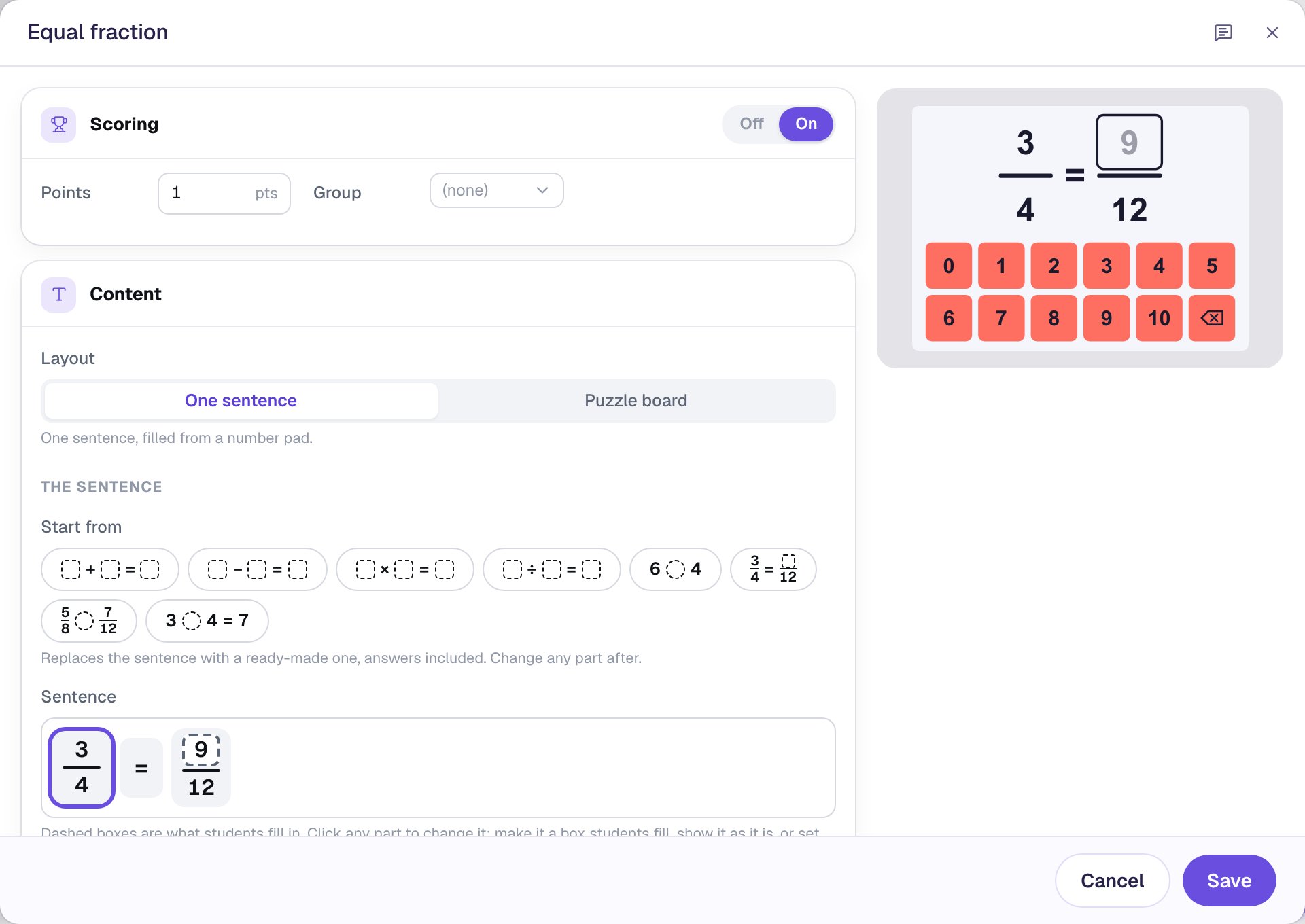
The starter asks for a missing top: 3/4 = □/12, with the answer 9. The dashed box is what students fill in. That's already a good question, but it has only one right answer. The next step opens it up.
Step 3: Let students write the whole fraction
Click the right-hand fraction in the Sentence row. Its settings open below it, with a Top and a Bottom:
- Top is already Students fill it, with the answer
9. - Under Bottom, click Students fill it and type
12as its answer.
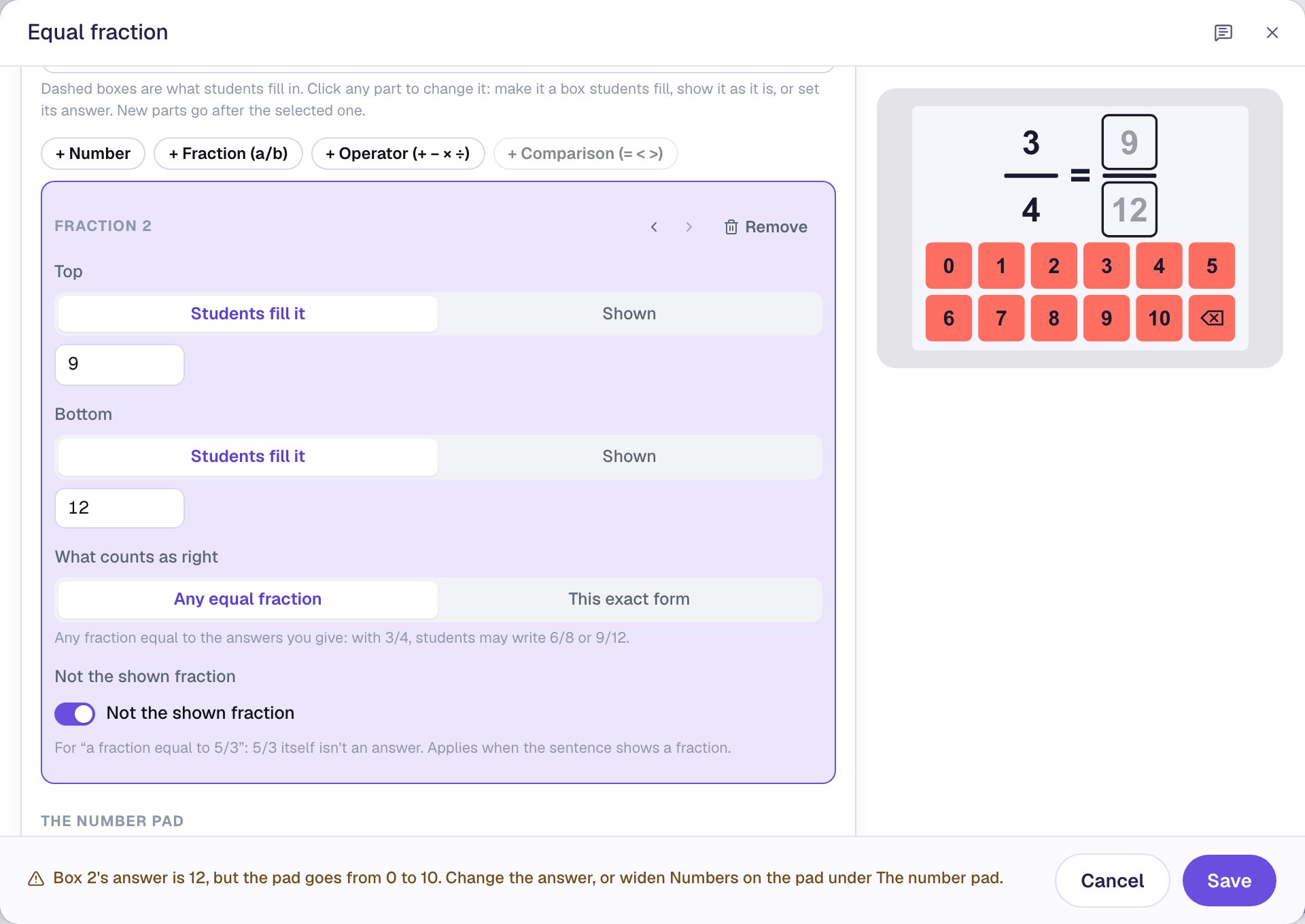
With both parts as boxes, two settings appear under them:
- What counts as right is Any equal fraction. Your answer, 9/12, is just one example: 6/8, 12/16 and 15/20 are right too. Choose This exact form only when the form is the skill, as in "write 7/10 in hundredths".
- Not the shown fraction is on. Without it, a student could copy 3/4 from the left side and be marked right.
The warning at the bottom of the window says the pad's keys only go up to 10, so no one could type 12. The next step fixes that.
Step 4: Switch to digit keys
Scroll to The number pad. Under Keys, click Digits 0–9. Students now build any number up to 9999 digit by digit, so 12, 16 and 20 are all in reach, with only twelve big keys on the pad.
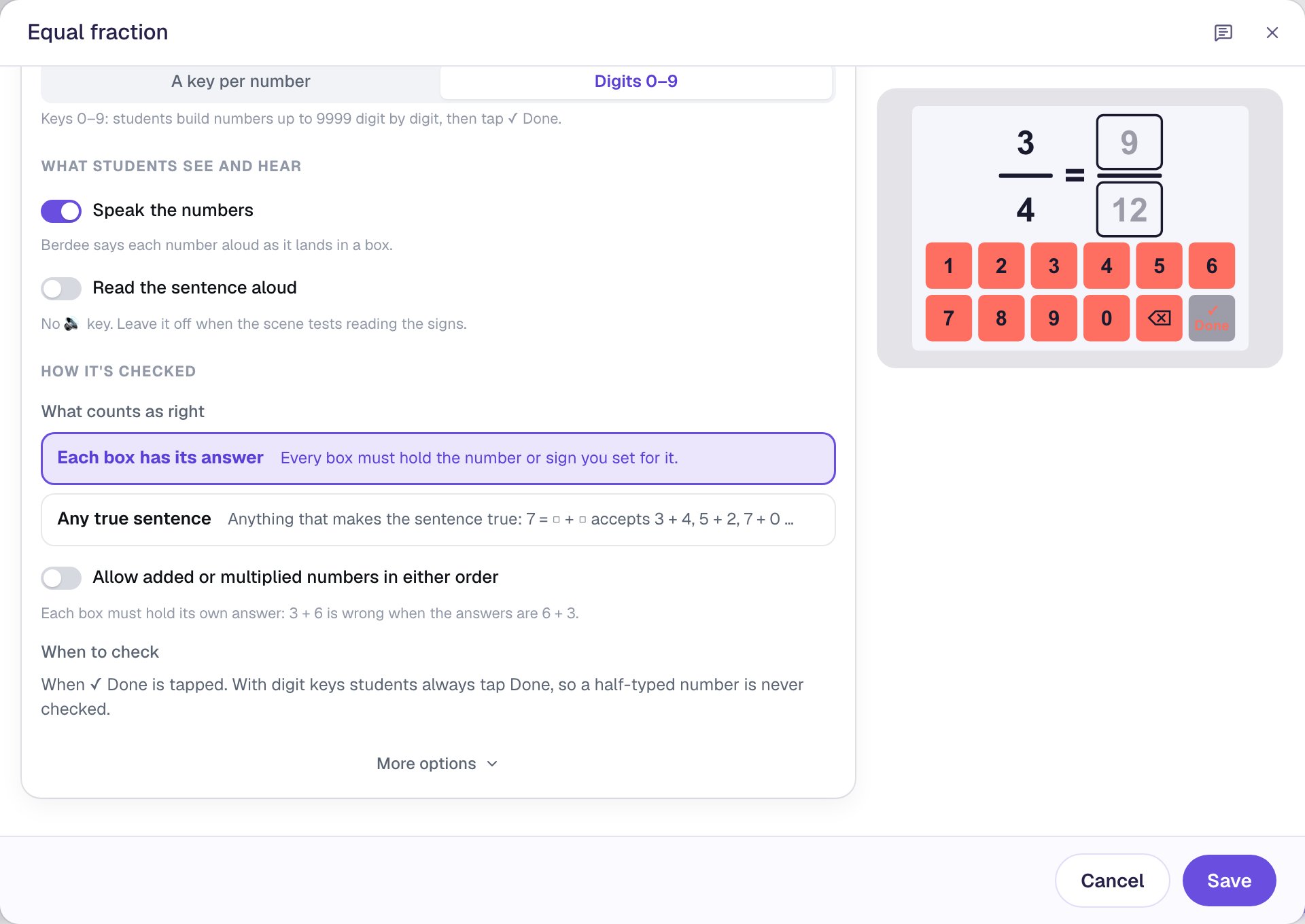
With digit keys, students always tap ✓ Done to check, so a half-typed 1 is never graded as wrong on its way to 12.
Leave What counts as right under How it's checked on Each box has its answer. That setting is for the sentence as a whole. The fraction's own Any equal fraction rule, from Step 3, decides which answers count. Click Save.
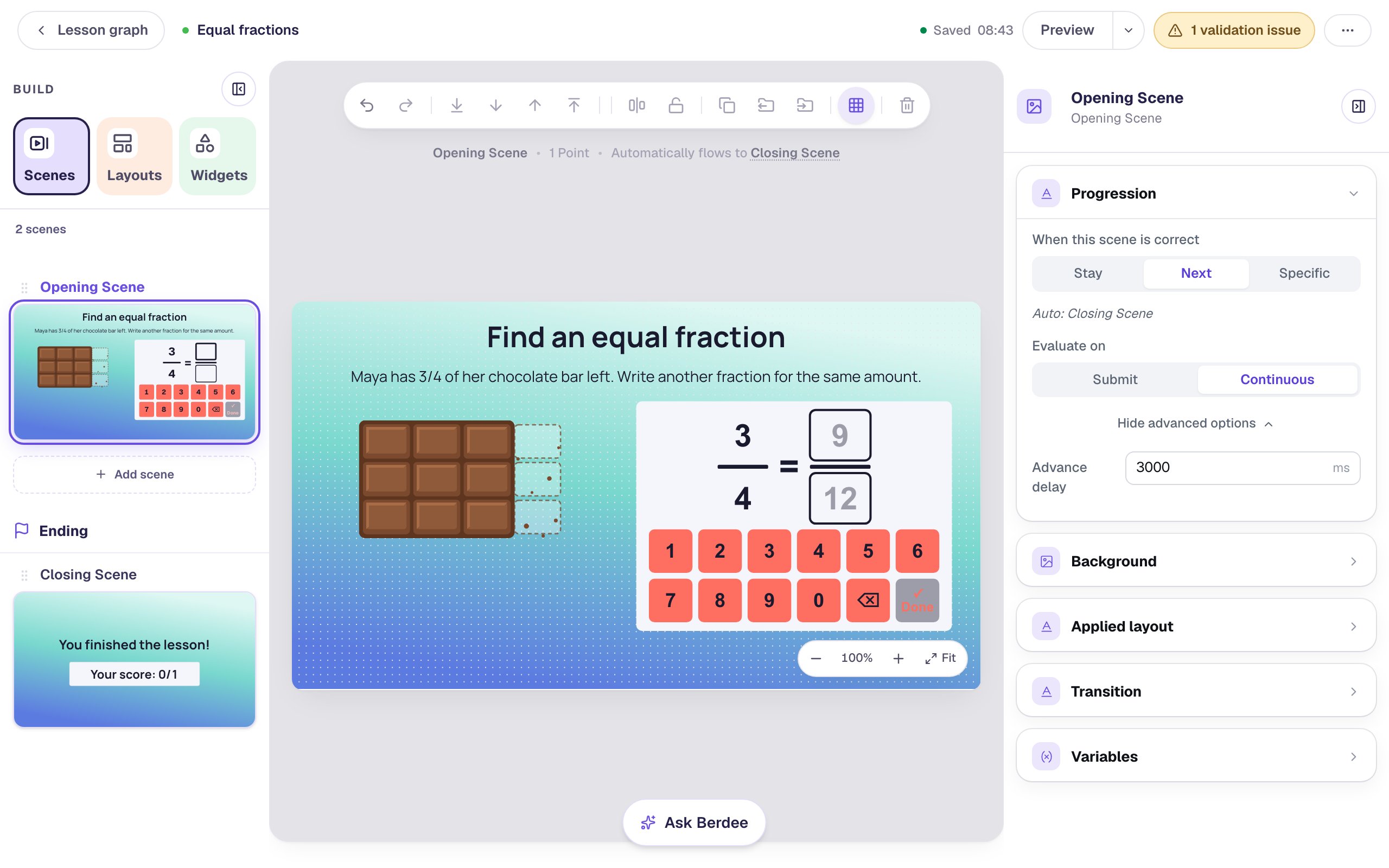
When the answer is right, the scene moves on by itself. Click an empty spot on the scene, and in Progression click Show more options and set Advance delay to 3000 ms, so students have time to see their ✓ marks.
Step 5: Show a hint for the most common mistake
Every time a student taps ✓ Done on a fraction sentence, Berdee names the mistake behind a wrong answer, if it's a common one, in the Number Sentence's Fraction mistake property. For an equal-fraction question, the value additive means "added the same number to the top and the bottom", as in 5/6. A right answer clears it.
Add a hint that shows only for that mistake:
- Add a Body with the text
Adding the same number to the top and the bottom makes a different amount. Try multiplying both by the same number.Rename itHint. - Make it Fixed width,
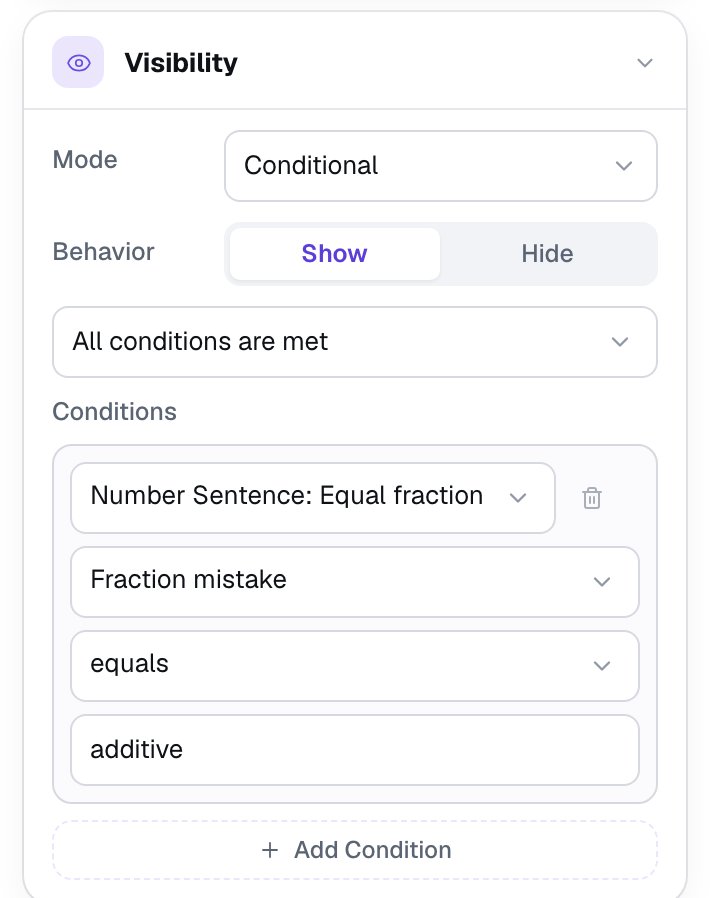
400wide, Font Size18, bold, with a dark navy Text Color, and put it under the chocolate bar. - Open its Visibility section and set Mode to Conditional. Leave Behavior on Show.
- Set the condition to Number Sentence: Equal fraction, then Fraction mistake, then equals, and type
additivein Value.
The hint is quiet for any other wrong answer, like 7/9, where there's no single mistake to name. To coach a different mistake, add another hint with its own value: one_part_scaled means only the top or only the bottom was multiplied, as in 6/4 or 3/8.
Step 6: Add an "I'm done" button
A lesson needs a way for students to finish it, or it can't be published. That's the 1 validation issue in the top bar.
- Search the Widgets tab for
Submit Buttonand click it. - In Content, change Label to
I'm doneand set Submits to Lesson. - Set its Font Size to
18and drag it under the hint.
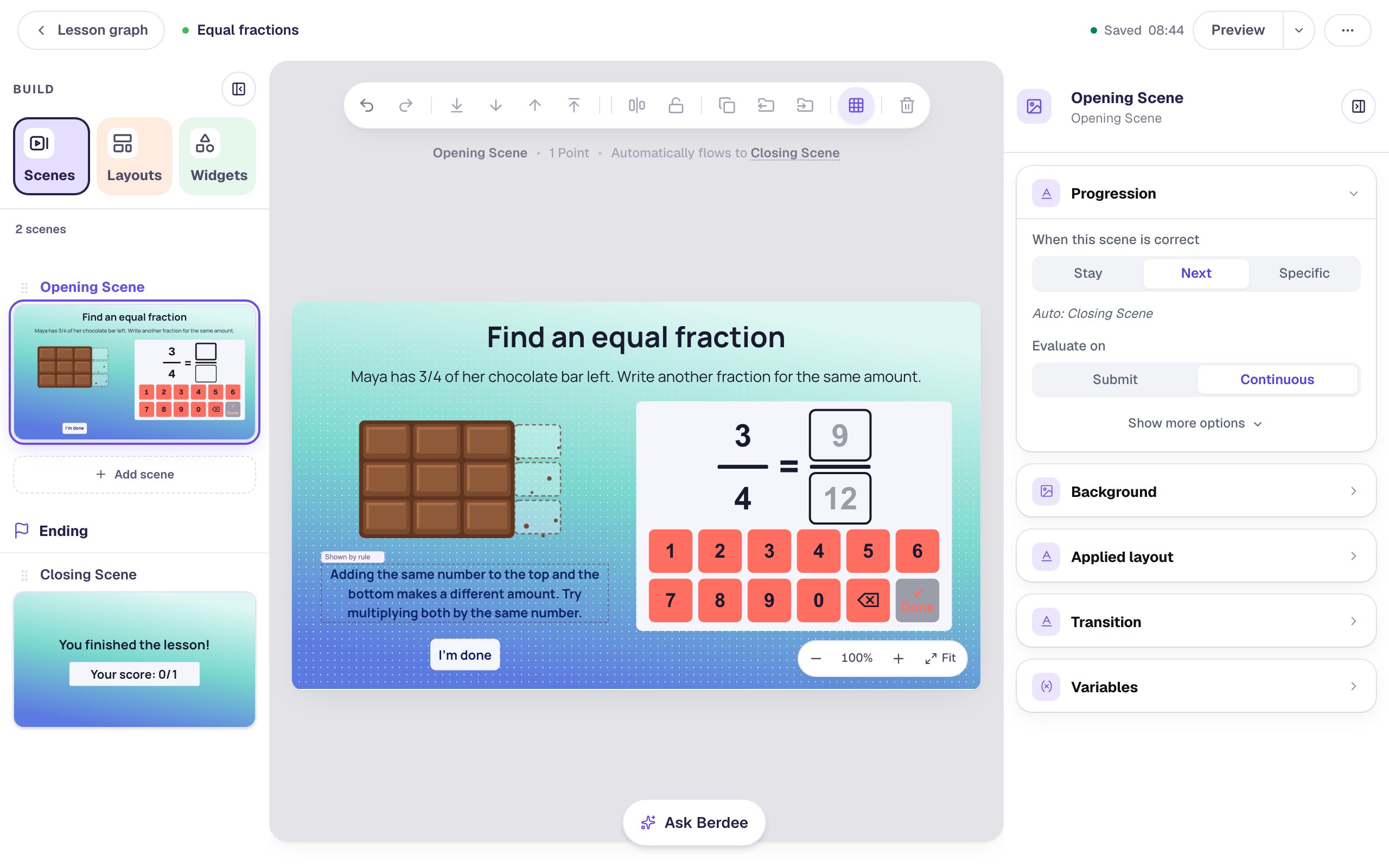
The two buttons do different things. The pad's ✓ Done checks the fraction; I'm done ends the lesson.
Step 7: Try it as a student
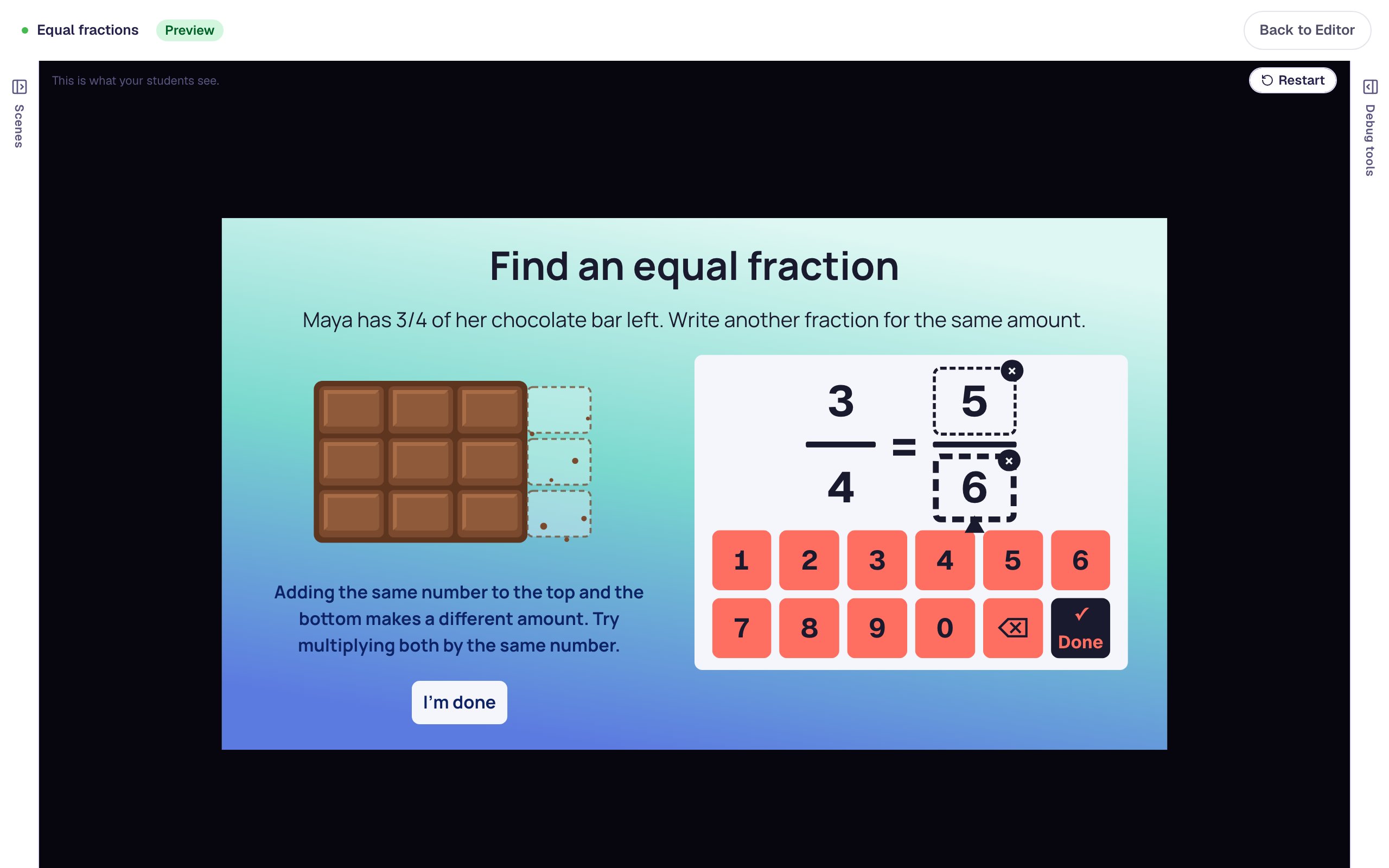
Click Preview. Make the classic mistake first: tap the top box and tap 5, tap the bottom box and tap 6, then tap ✓ Done. Both boxes get an ×, and the hint appears.
Now fix it with an answer that isn't the one you typed in Step 3. Tap the top box, tap the erase key, and tap 6. Tap the bottom box, erase, and tap 8. Then tap ✓ Done.
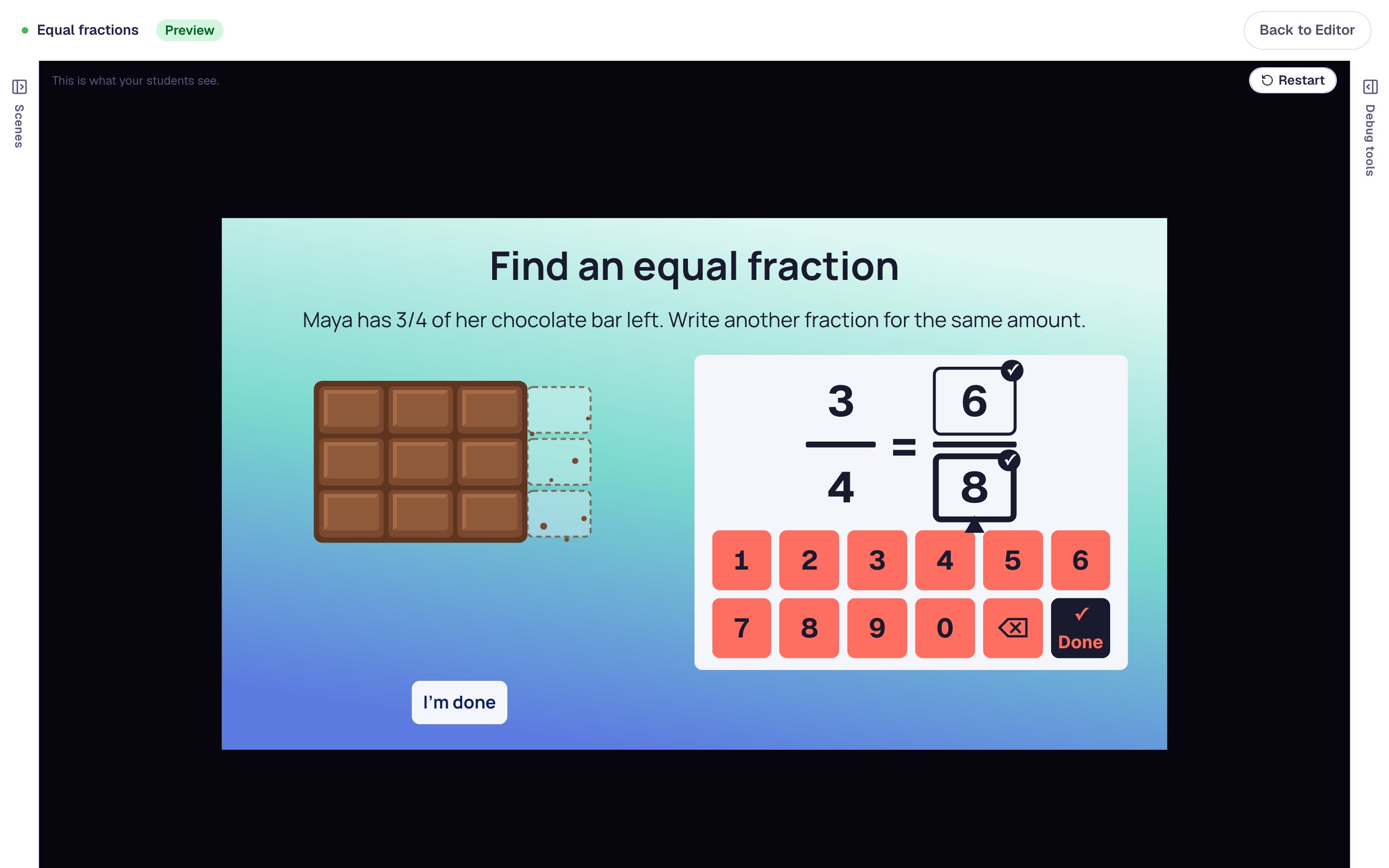
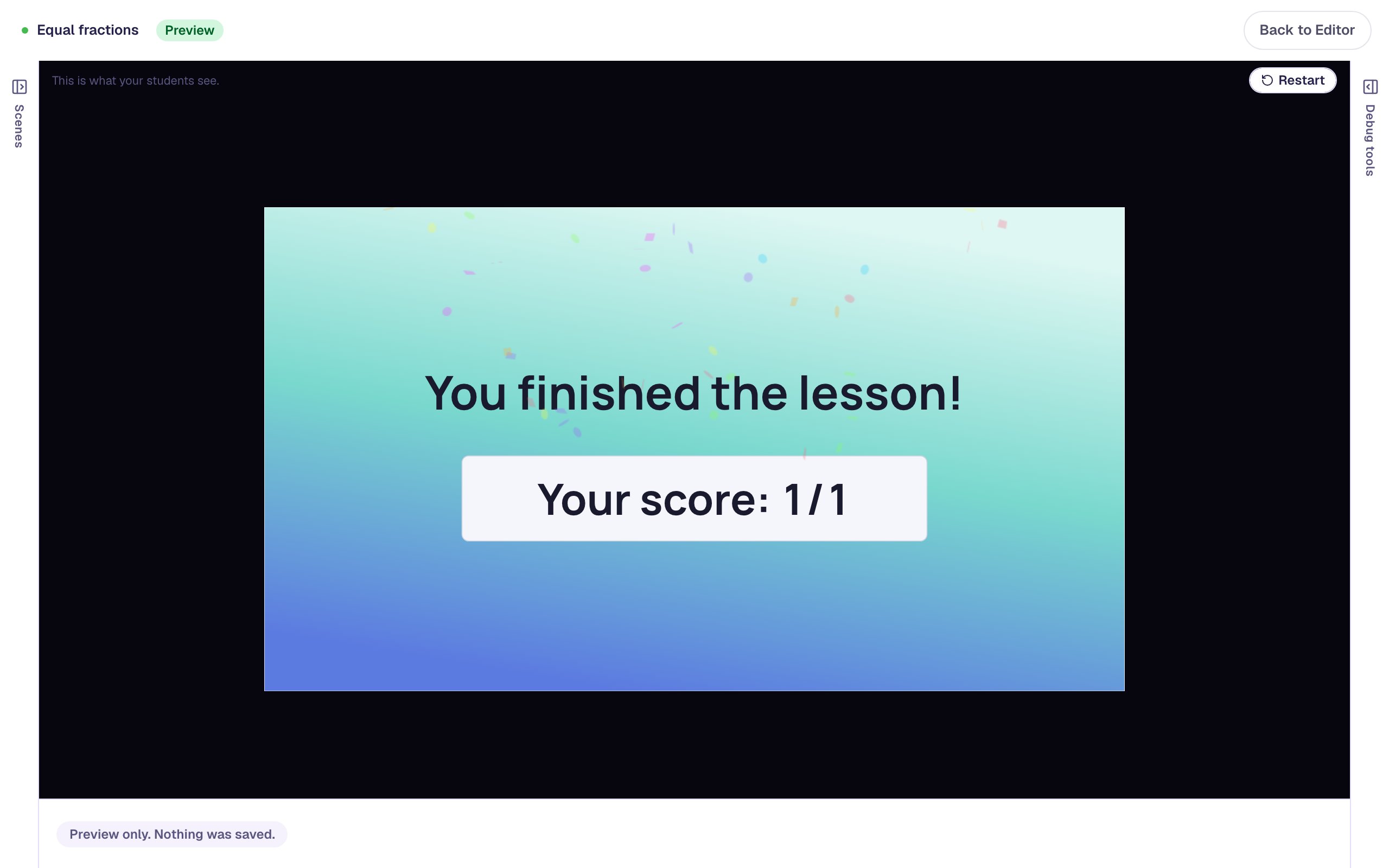
6/8 is right: Any equal fraction accepts it, though your answer was 9/12. The hint disappears, and after 3 seconds the lesson moves on to the ending.
On a student's attempt page you'll see both tries, and the first is marked with the mistake behind it.
What you built
A one-question Equal fractions lesson with:
- a picture that can be counted as 3 of 4 columns or 9 of 12 squares,
- a Number Sentence reading
3/4 = □/□, where Any equal fraction accepts 6/8, 9/12, 15/20 and every other equal fraction, and Not the shown fraction turns away a copied 3/4, - Digits 0–9 keys, so students can write two-digit tops and bottoms and tap ✓ Done when they're ready,
- a hint that shows only when Fraction mistake equals
additive, - an I'm done button, so the lesson can be published.
To compare fractions instead, start from the other fraction sentence, 5/8 ○ 7/12: students choose <, = or >, and Fraction mistake can be compared_tops, compared_bottoms or sign_reversed. For the whole-number side of the same widget, try Write an addition sentence for a ten frame. To show fractions as numbers with their own place, try Place a fraction on a number line.
Make this lesson yours
Add the lesson you just watched being built to your account, then change it for your class: your questions, your pictures, your colors.
Free to sign up, and you'll come straight back here. I have an account