Find every way to break apart a number
Set up a Ten Frame in Break apart mode so young learners find all the ways to make 6 with red and yellow counters, and decide whether 4 and 2 and 2 and 4 count as one way or two.
- Level
- Beginner
- Time
- About 10 min
- Steps
- 7
- Updated
- Oct 29, 2026
A one-scene lesson where students break 6 into a red part and a yellow part, save each way they find, hear when they repeat one, and move on once they've found all three.
Get the finished lesson
Skip straight to the result, or keep it open beside the steps. Add this tutorial's lesson to your account and explore how it works in the studio.
Free to sign up, and you'll come straight back here. I have an account
"How many ways can you make 6?" is one of the best questions in early math. There is more than one right answer, and children have to keep track of the ones they've already found. A ten frame with two-color counters makes it concrete: 6 counters, some red and some yellow, and each mix is a different way.
In this tutorial you'll build a short activity called Ways to make 6. Students put 6 counters in a ten frame, tap some to turn them yellow, and tap Save this way. Each way they find appears under the frame. If they make one they already found, the frame tells them and asks for a different one. When they have all three, the lesson moves on to the ending.
Step 1: Set the scene
Start a blank lesson (New lesson, then Start from scratch) and name it Ways to make 6 by clicking Untitled lesson at the top left.
Give the scene a warm background. Click an empty spot on the scene, open Background, click Choose a style, and pick Mesh sunrise. Give the Closing Scene the same background so the ending matches.
Then add what students read first:
- A Heading at the top:
Break apart 6. Set its Font Size to44. - A Body under it:
Put 6 counters in. Tap some to turn them yellow. Find every way!Set it to Fixed width, about900wide, then set its Font Size to22, so it fits on one line. - An Image down the left side,
210wide and300tall. Click Choose image, search the stock photos forred and yellow tulips, and import a photo of tulips.
Open the picture's Accessibility section and type an Alt Text that says what's in the photo, for example Three red tulips with yellow tips on their petals. Students who use a screen reader hear that instead of a file name.
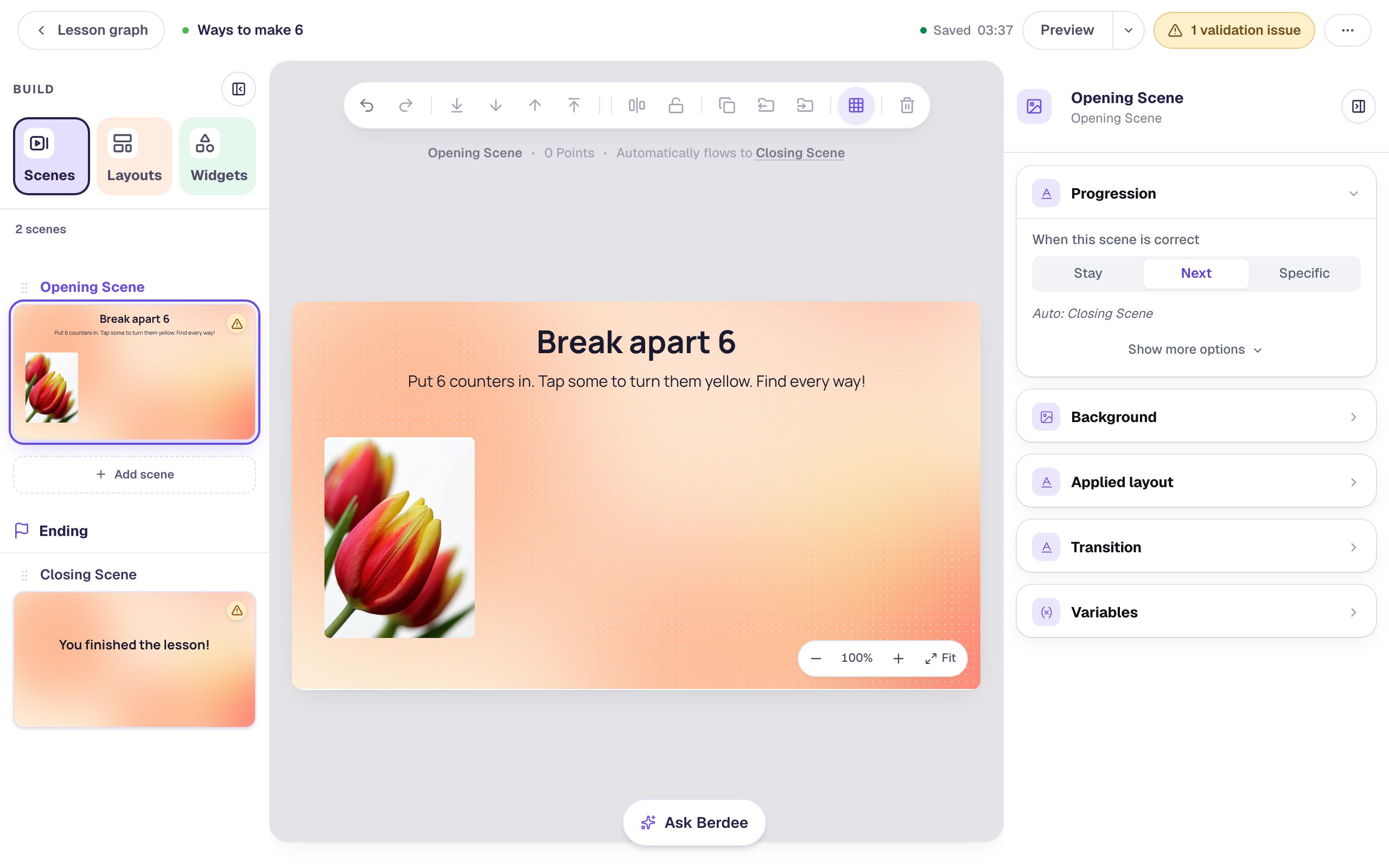
A picture in the same two colors as the counters helps young learners connect "red and yellow" to something real.
Step 2: Add a Ten Frame
Search the Widgets tab for Ten Frame and click it. Under Style & Layout, click Show more options and set Width to 560 and Height to 320, then drag the frame to the right of the photo.
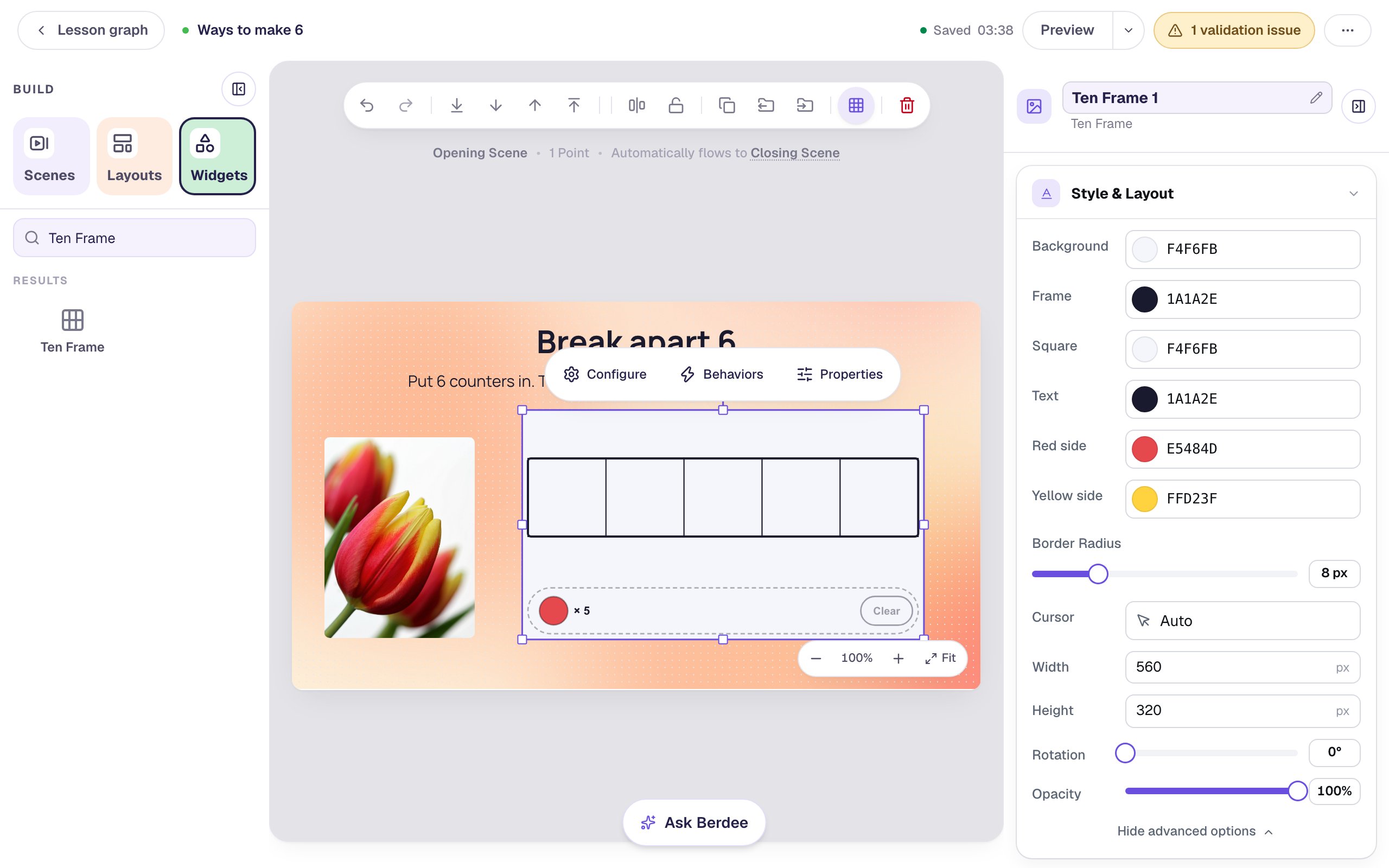
A new ten frame is a 5-frame: one row of five squares. Six counters won't fit, so the first thing to change is the frame itself.
Step 3: Ask students to break apart 6
Click ⚙ Configure in the pill above the frame. The window has every setting on the left and a live preview on the right.
- Leave What students do on Build.
- Under The frame, click 10-frame. The preview switches to two rows of five, and the tray now holds 10 counters.
- Under What students make, click Break apart.
- Set Number to break apart to
6. The hint underneath lists every way: 6 has 5 ways: 1 and 5, 2 and 4, 3 and 3, 4 and 2 or 5 and 1.
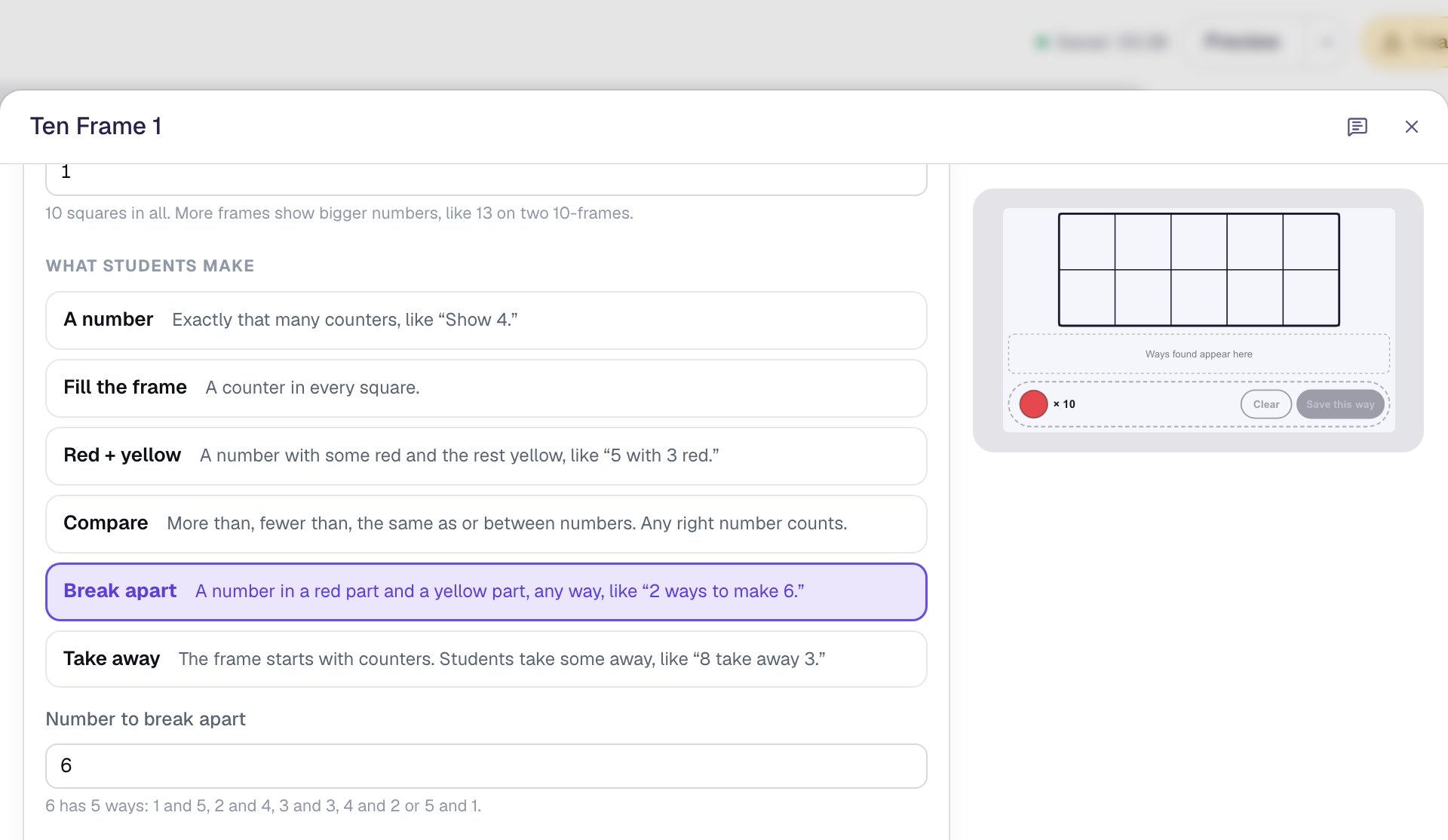
Students make the yellow part by flipping counters, so Break apart turns on two-color counters and Tap a counter to flip it red ↔ yellow for you. The tray holds 10 counters, more than the answer needs: if a student puts in 7, the frame says "That's 7. Make 6." when they tap Save this way.
Step 4: Decide what counts as a different way
Is 4 red and 2 yellow the same way as 2 red and 4 yellow? Some classes count them as two ways ("4 and 2" and "2 and 4"), and some as one ("6 is 4 and 2"). Choose the one your class uses.
Scroll down to How it's checked and turn on A swapped split is the same way. The note under it reads 3 and 4 and 4 and 3 are the same way.
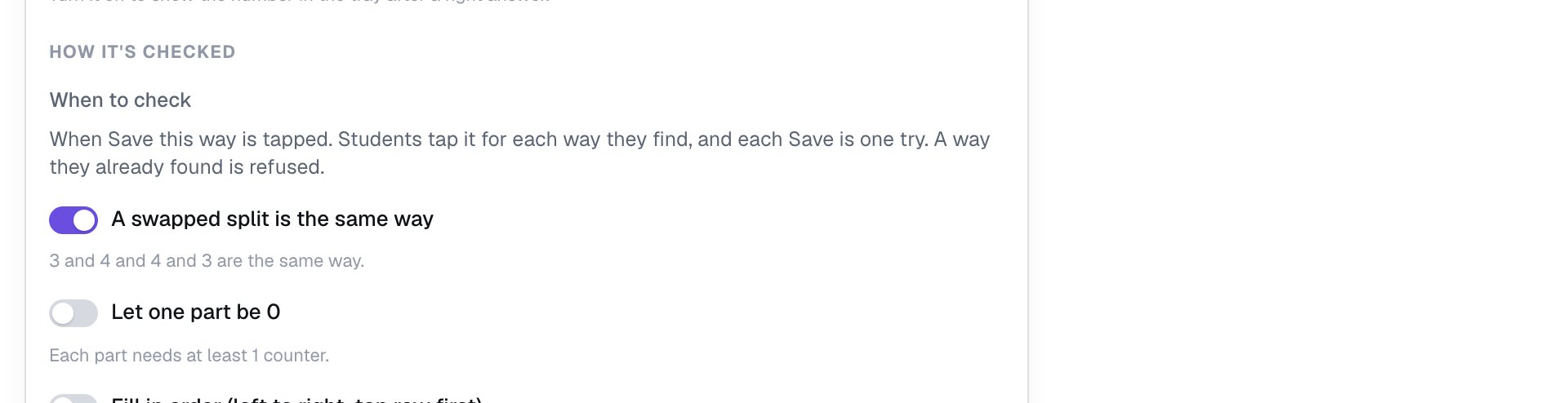
Leave Let one part be 0 off, so every way has some red and some yellow. Turn it on if your class counts "6 and 0" as a way.
Now scroll back up to Ways to find and choose All the ways. Since swapped ways now count once, 6 has just 3 ways, and the hints update to match: 6 has 3 ways: 1 and 5, 2 and 4 or 3 and 3, and Right: all 3 ways saved, each one different.
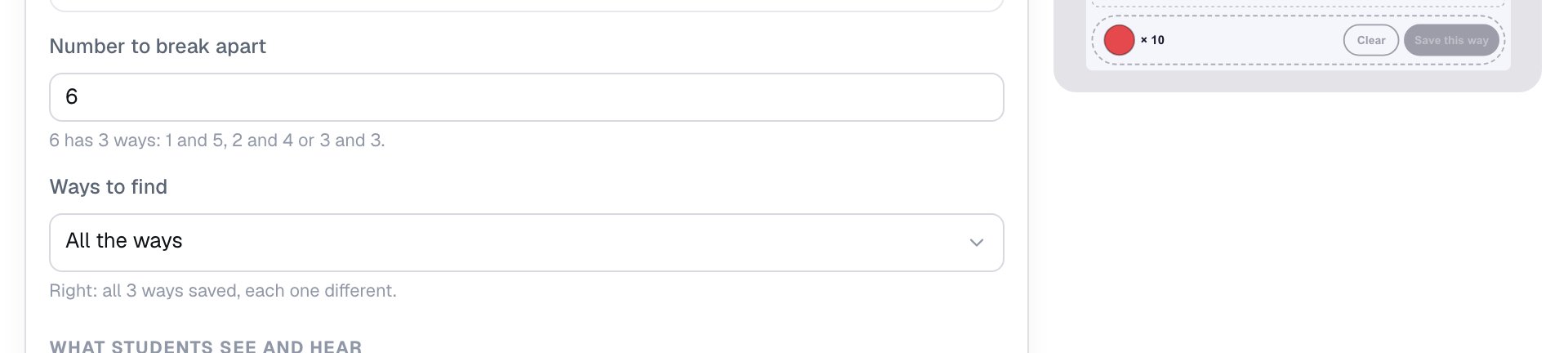
To ask for fewer, pick 2 ways instead: "Show 2 ways to break apart 6" suits children who are new to the idea.
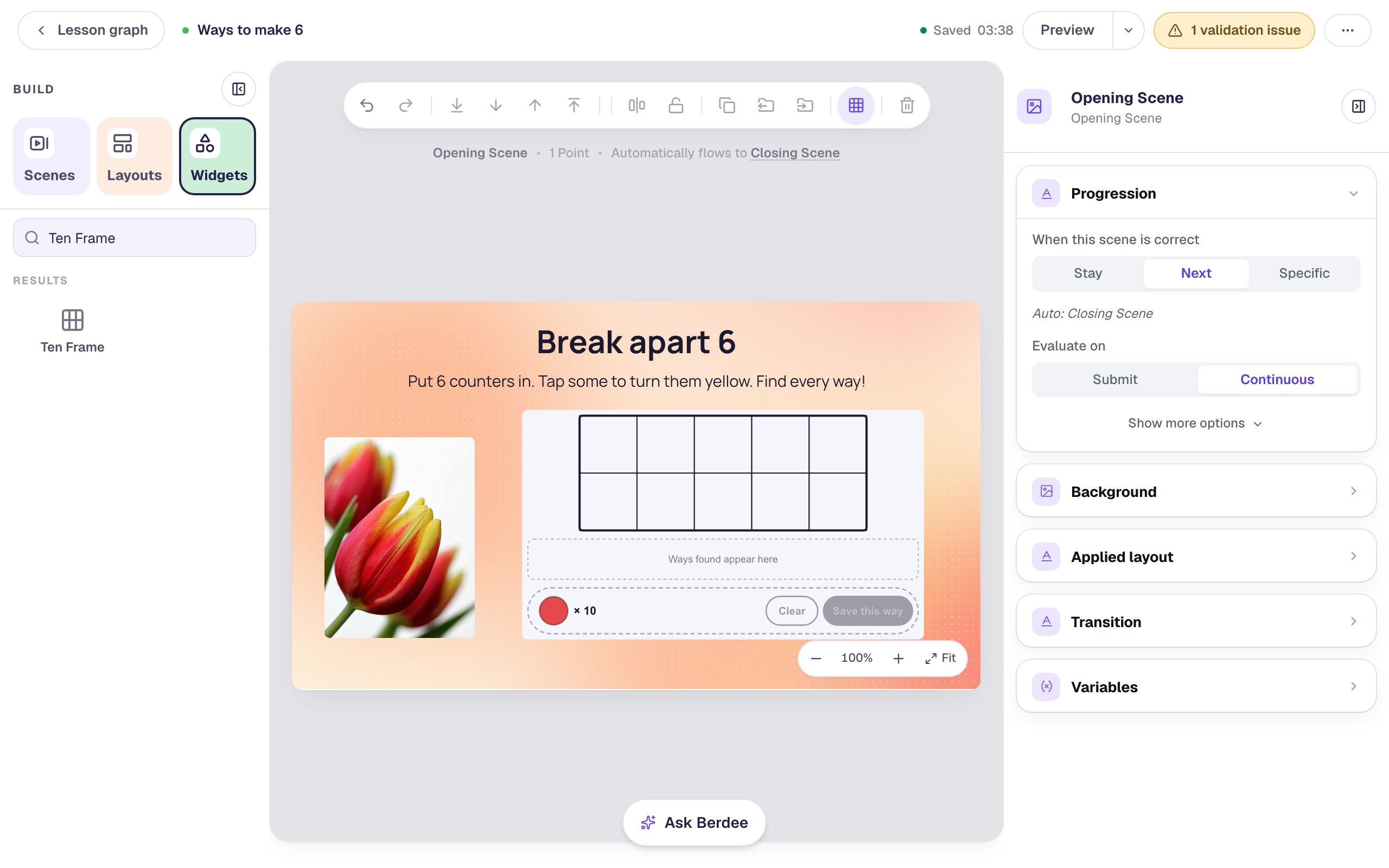
Click Save. On the canvas, the frame now shows two rows of squares and a Ways found appear here strip above the tray.
Step 5: Give students a moment to see the last way
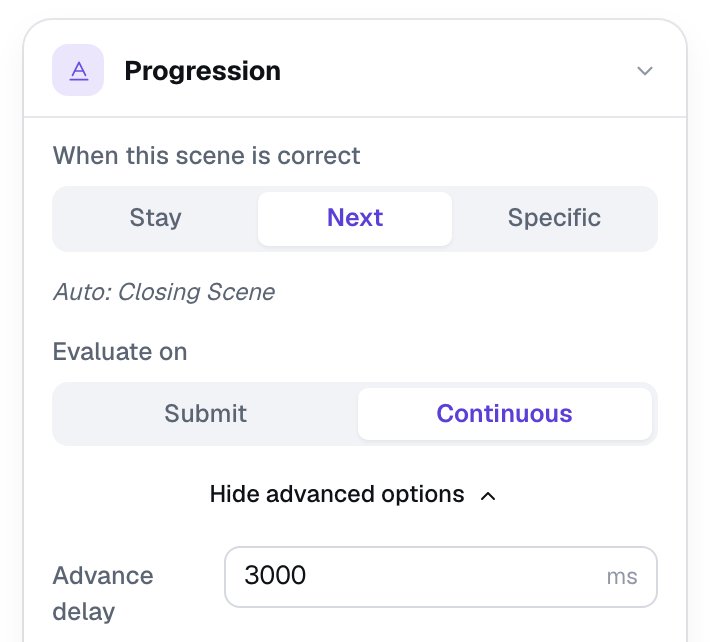
When a student saves the last way, the scene moves on by itself: the line above the canvas says Automatically flows to Closing Scene. By default it waits only 0.6 seconds, too quick for a child to see their third way join the strip.
Click an empty spot on the scene to see its settings. In Progression, click Show more options and set Advance delay to 3000 ms (three seconds).
Step 6: Add an "I'm done" button
Every lesson needs one button that lets a student finish, even a lesson that ends by itself. It's also a way out for a student who gets stuck after finding one or two ways.
- Search the Widgets tab for
Submit Buttonand click it. - In Content, change Label to
I'm doneand set Submits to Lesson. - Set its Font Size to
18and drag it under the photo, so it's there if needed but doesn't compete with the frame.
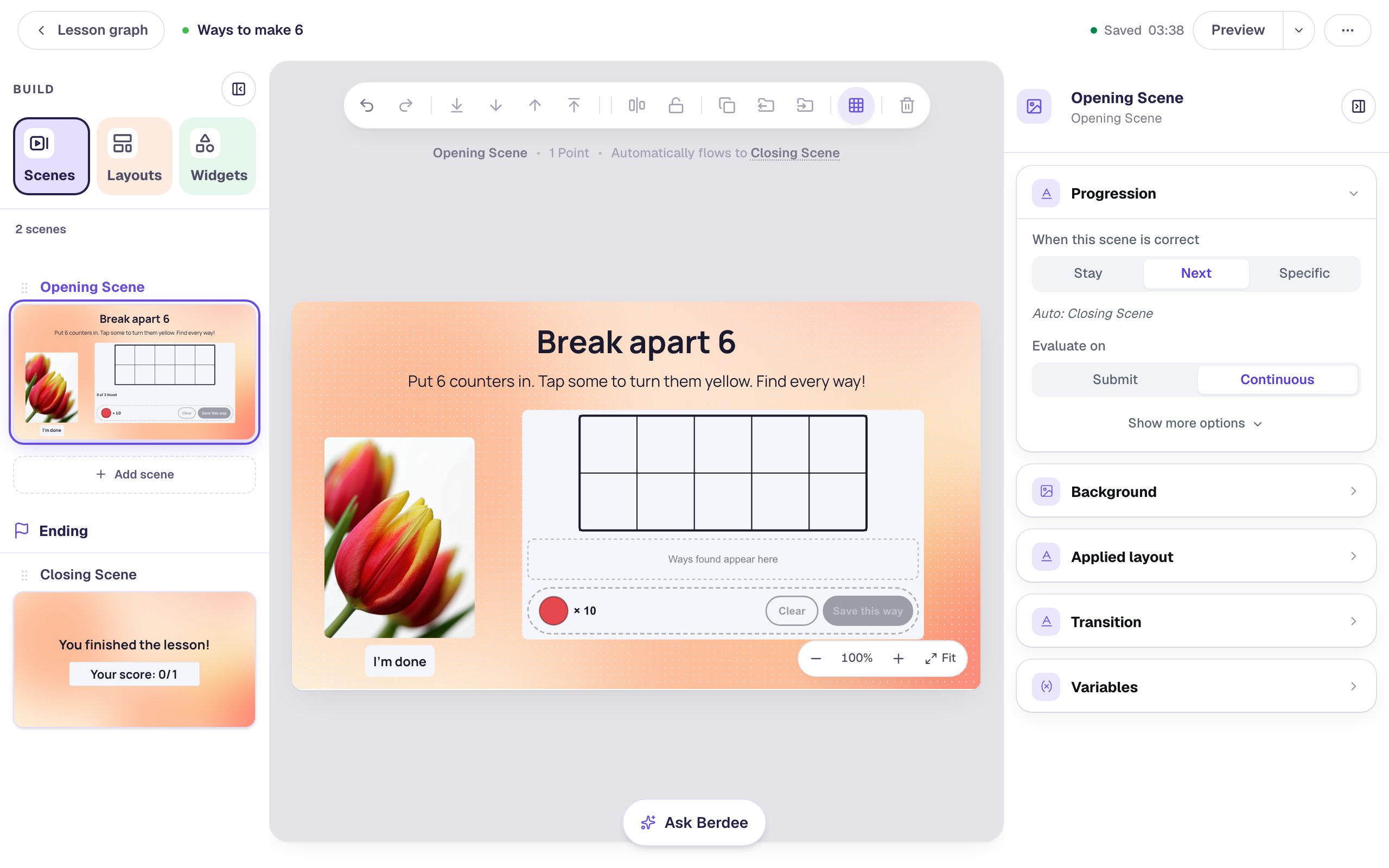
Breaking apart is all or nothing: a student who stops after 2 of 3 ways doesn't get the point. Their attempt page still shows how far they got, for example All the ways for 6: 2 of 3 (4 and 2, 3 and 3), plus any way they tried twice.
Step 7: Try it as a student
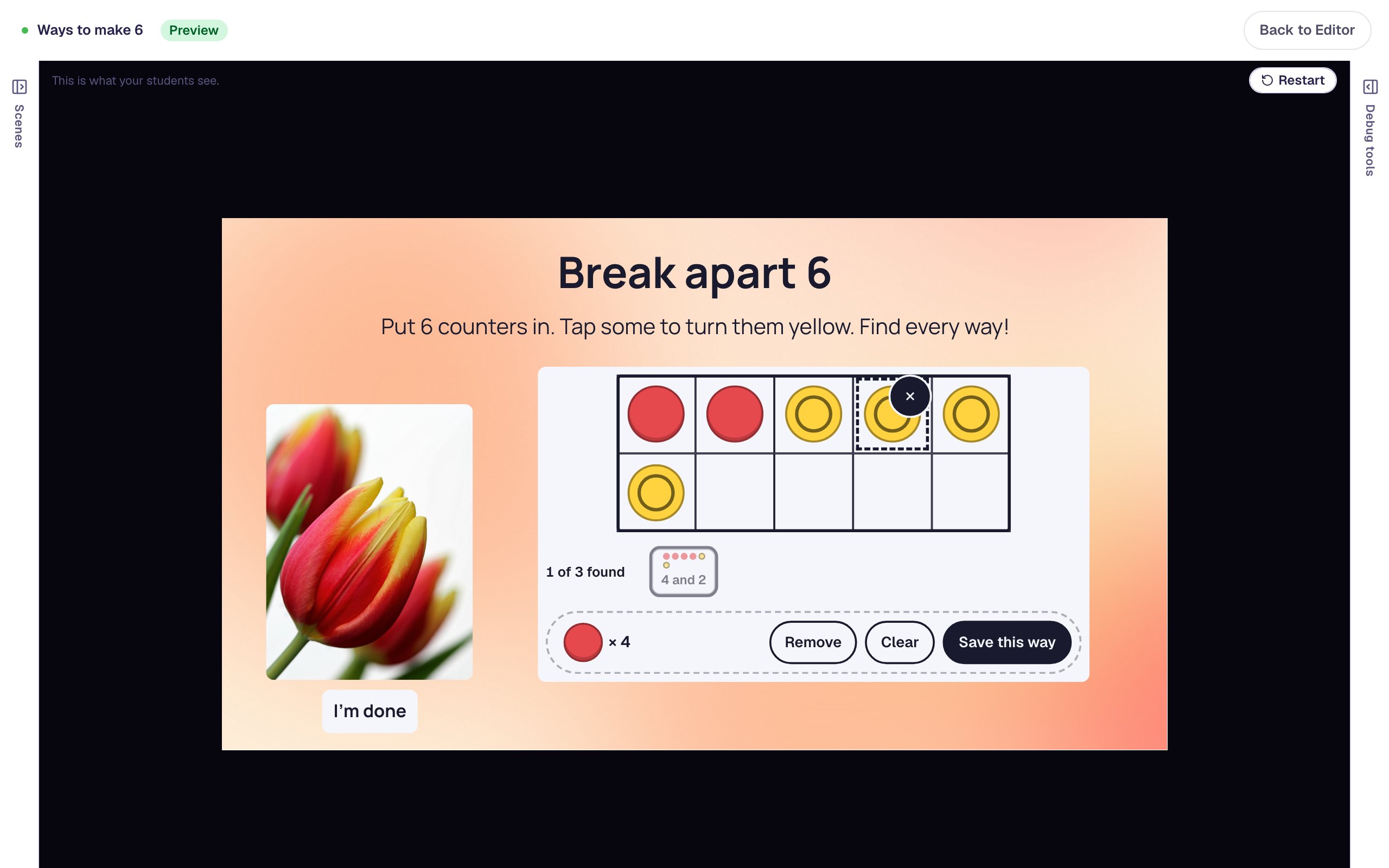
Click Preview. Tap six squares to put in 6 red counters, tap two of them to flip them yellow, and tap Save this way:
The counters stay in the frame after a save, so the next way is only a flip or two away. The dashed outline and × mark the counter tapped last; the × takes it out of the frame.
Now try the same way swapped. Flip two more counters so the frame shows 2 red and 4 yellow, and tap Save this way:
The frame refuses it: the 4 and 2 picture in the strip pulses, and the frame says out loud "You found that way already. Can you find a different way?" The count stays at 1 of 3 found, and the counters stay put, so one flip makes something new.
Flip one counter back to red for 3 and 3 and save, then flip two more for 5 and 1 and save:
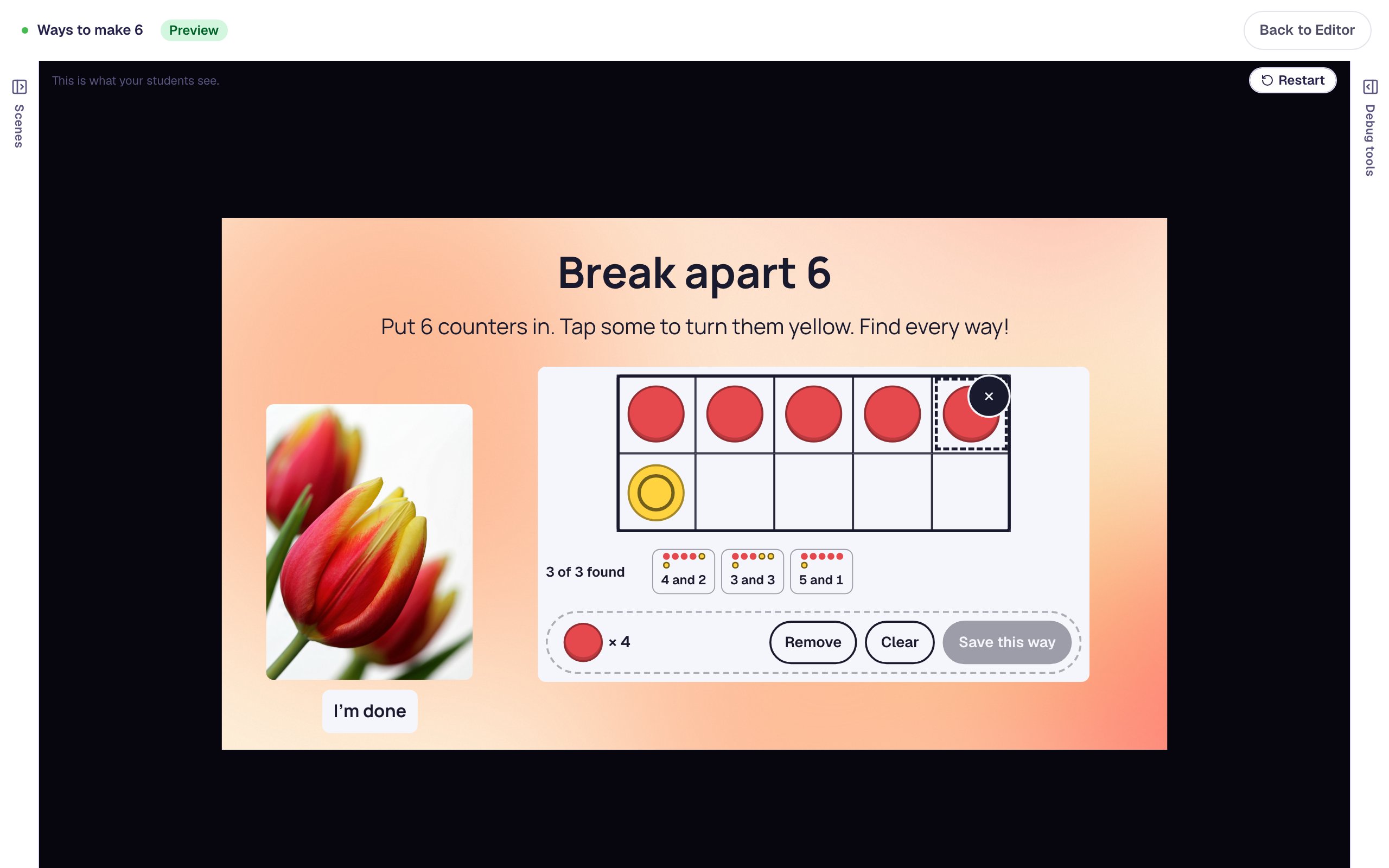
After three seconds the lesson moves on to the ending, with the full point:
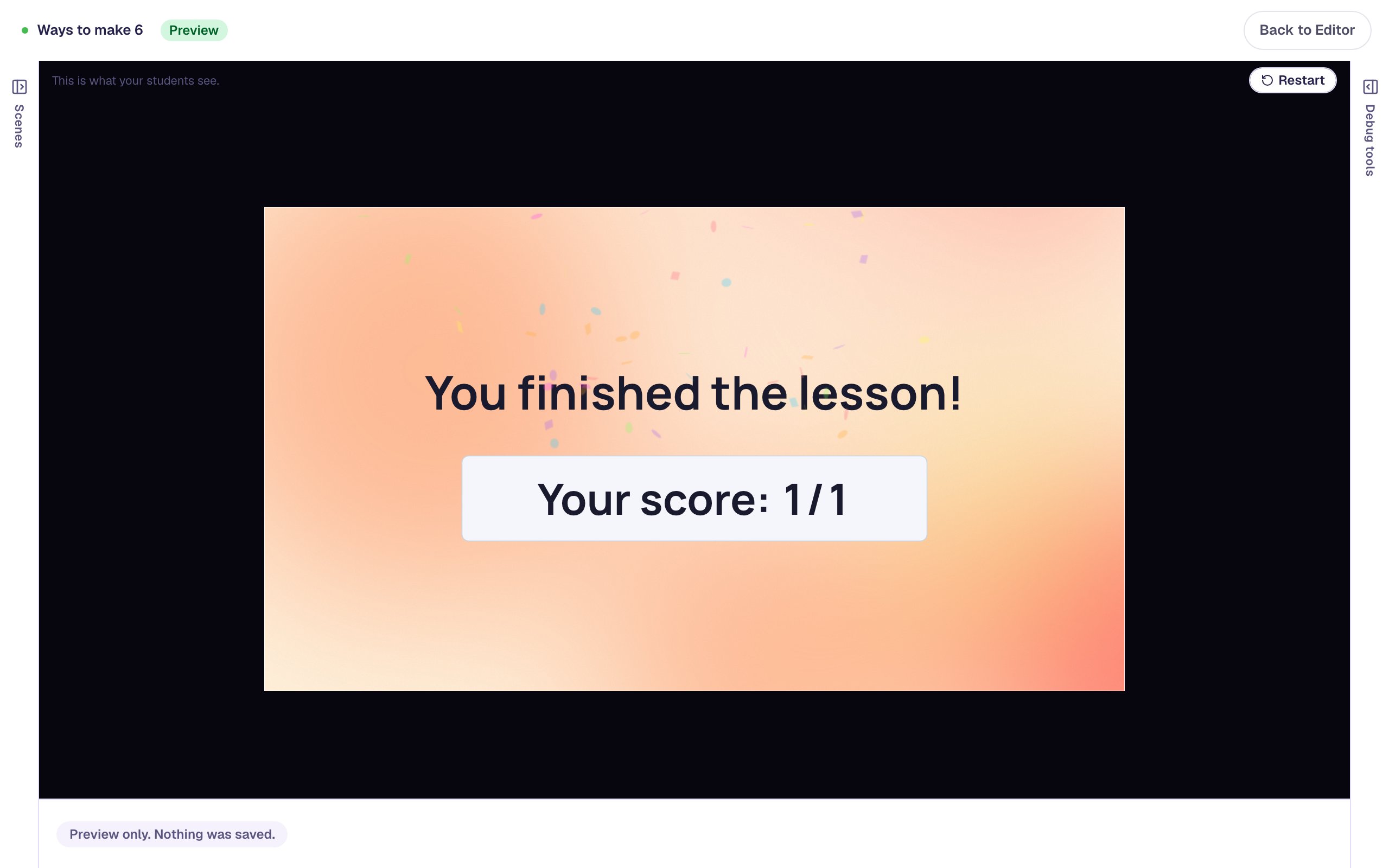
What you built
You built a one-scene math activity with:
- a Ten Frame set to a 10-frame, in Build mode with Break apart, asking for every way to make
6, - A swapped split is the same way turned on, so 4 and 2 and 2 and 4 count once and there are 3 ways to find,
- a strip under the frame that shows each way as students save it, and a longer Advance delay so they see the last one,
- a photo with alt text, and an I'm done button as a way out.
For a different number, change Number to break apart: 10 has 5 ways with swaps counted once, and 9 ways without. To have students build each way from an empty frame, set After a new way (under More options) to Clear the frame. If you're new to ten frames, start with Build a number on a ten frame, where students make one given split, 3 red and 2 yellow. To write each way as an equation, follow up with Write an addition sentence for a ten frame.
Make this lesson yours
Add the lesson you just watched being built to your account, then change it for your class: your questions, your pictures, your colors.
Free to sign up, and you'll come straight back here. I have an account