Keep number answers in order, shuffle the rest
Multiple Choice shuffles its answers for every student. Turn Randomize Order off for a question whose answers are numbers, so 2, 4, 6, 8 read in order, and leave it on where the order you typed would give the answer away.
- Level
- Beginner
- Time
- About 10 min
- Steps
- 6
- Updated
- Oct 27, 2026
A two-question spider lesson where the number answers always appear smallest to largest, and the word answers appear in a new order for every student.
Get the finished lesson
Skip straight to the result, or keep it open beside the steps. Add this tutorial's lesson to your account and explore how it works in the studio.
Free to sign up, and you'll come straight back here. I have an account
Every Multiple Choice question in Berdee shuffles its answers when a student opens the scene. That's usually what you want: most of us type the right answer first, and a student who notices "it's always the first one" stops reading the question.
Numbers are different. Students expect 2, 4, 6, 8 to run smallest to largest, the way they do on a number line, and a jumbled 8, 2, 6, 4 makes them hunt for an answer they already know. The same goes for answers like Never, Sometimes, Always, or a list that ends with All of the above.
In this tutorial you'll build a two-question lesson about spiders. The first question has number answers, so you'll switch the shuffle off. The second has word answers, so you'll leave it on.
Step 1: Ask a question with number answers
Start a blank lesson (New lesson, then Start from scratch) and name it All about spiders by clicking Untitled lesson at the top. With nothing selected, open Background, click Choose a style, and pick Lagoon gradient from Gradients. Give the Closing Scene the same background.
On the Opening Scene, add a Heading that says How many legs does a spider have? and an Image under it. Click Choose image, search the stock library for jumping spider, and insert a photo you like. Describe it in Accessibility → Alt Text, without giving the answer away: A close-up of a hairy brown jumping spider on a green leaf.
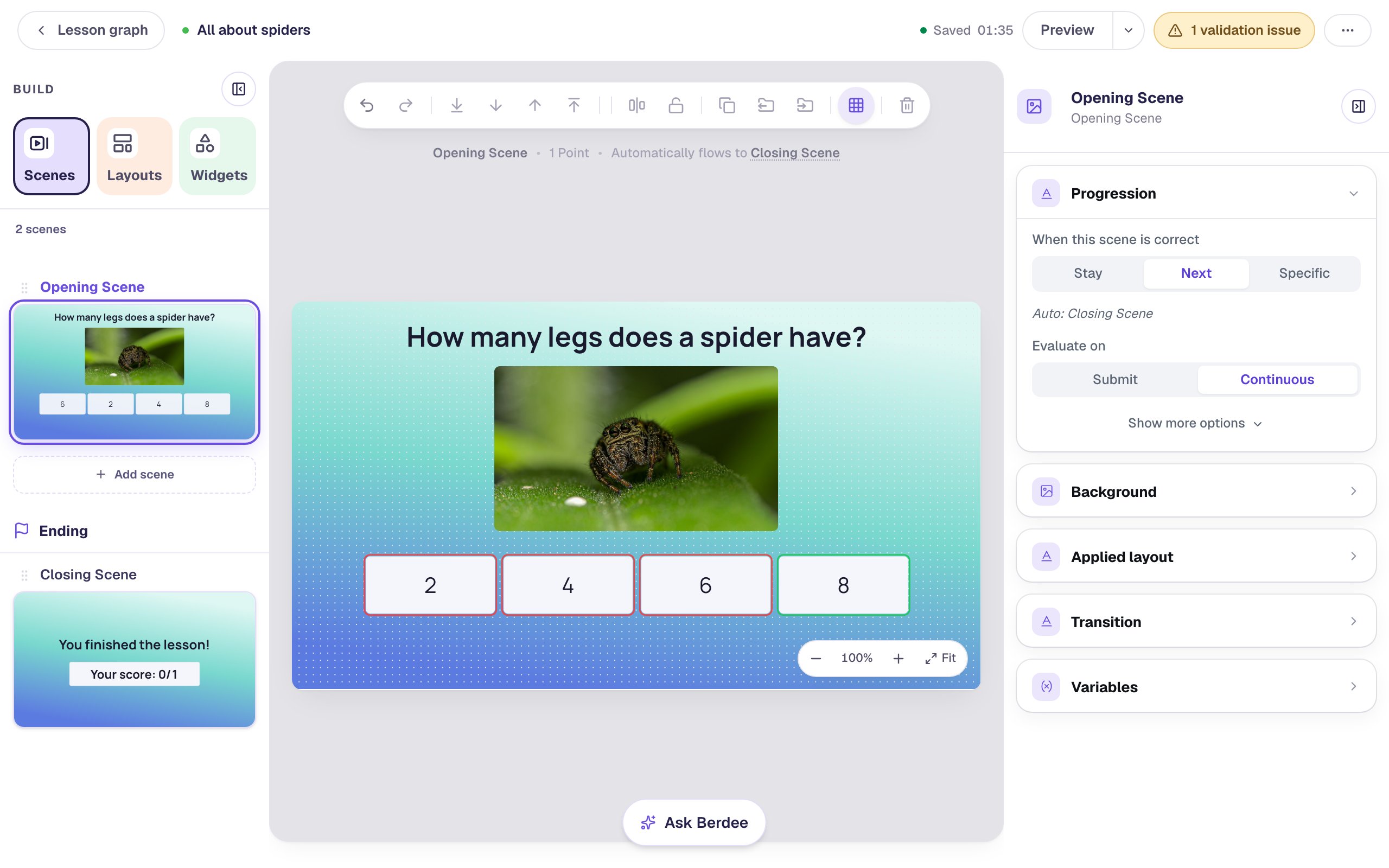
Now add a Multi Choice widget, set its Font Size to 30, and drag it wide and short under the photo so the four answers sit in one row. Click ⚙ Configure and type the answers in order: 2, 4, 6, 8. Tick the check mark beside 8 to mark it correct.
Click Save. Then rename the question Spider legs by clicking its name at the top of the properties panel, so it's easy to find later.
Step 2: See what students see
The canvas shows the answers in the order you typed them. Students don't always see that order. Click Preview.
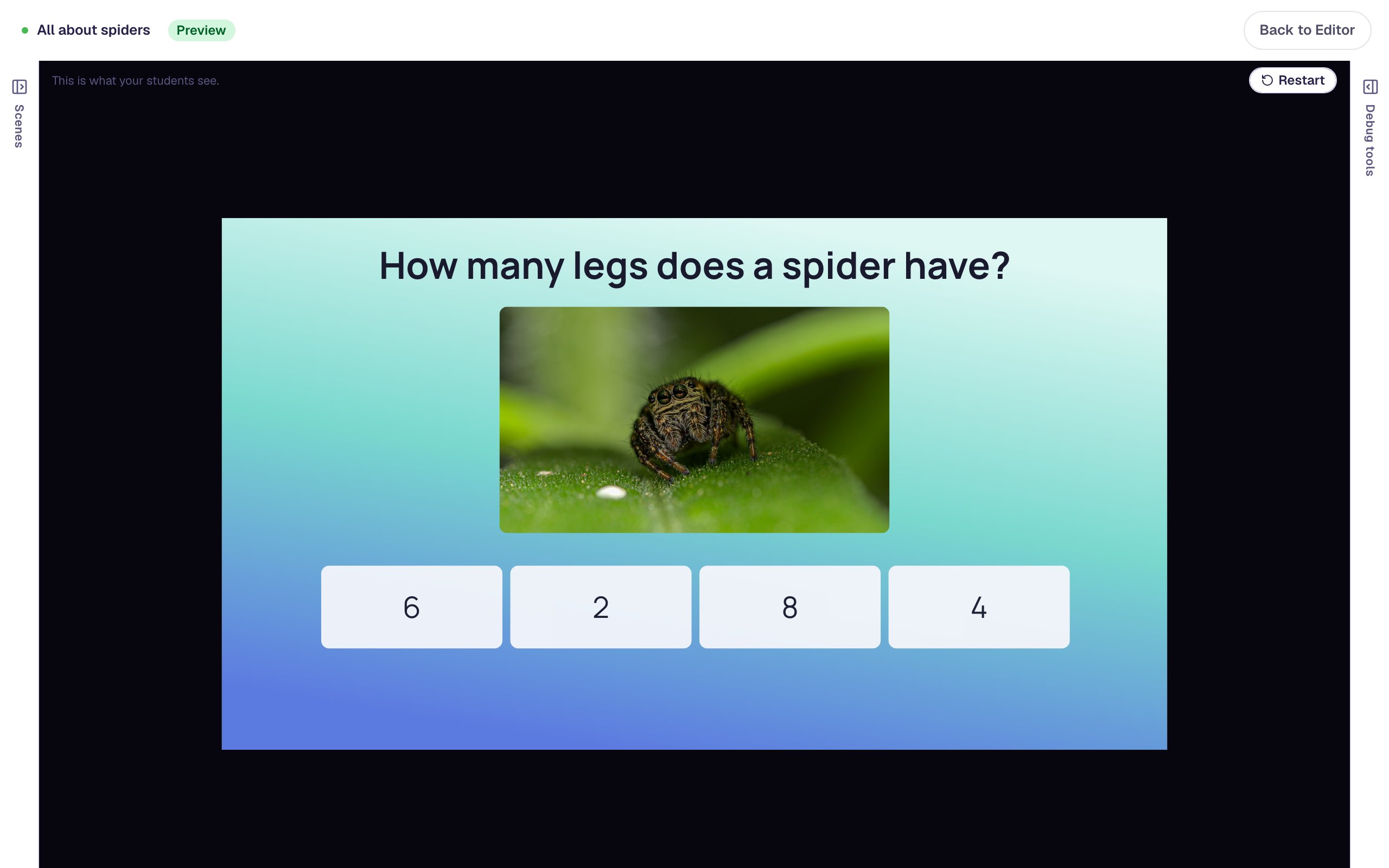
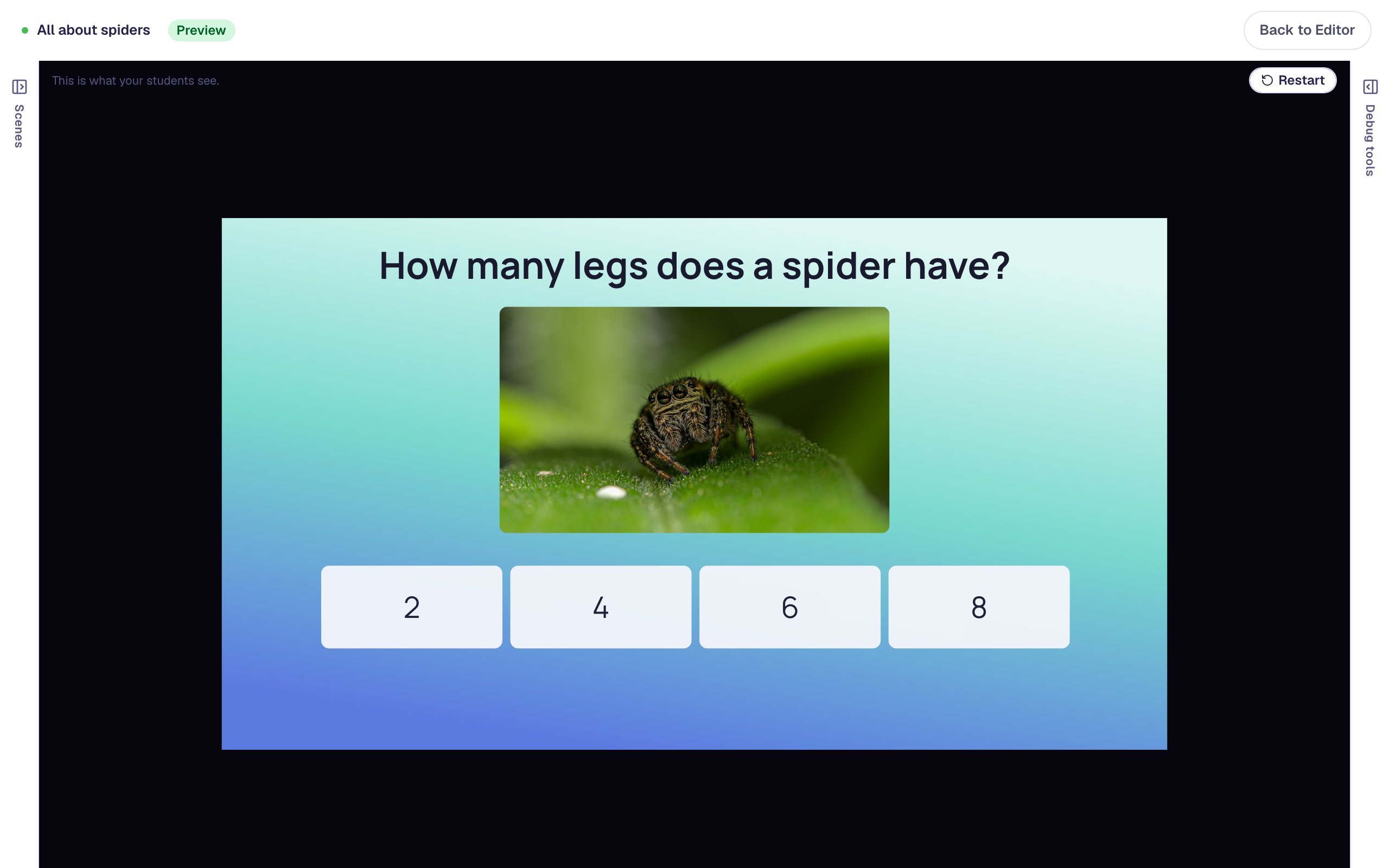
The numbers are jumbled. A new Multiple Choice has Randomize Order switched on, so every student, and every visit, gets a new order. Click Preview a few times and you'll see a different order most times. The small picture of the scene in the Scenes panel can show a shuffled order too.
Click Back to Editor.
Step 3: Turn Randomize Order off
Select the Spider legs question and click ⚙ Configure. Under Content, below the answers, Selection and Correct when, switch Randomize Order off. Then click Save.
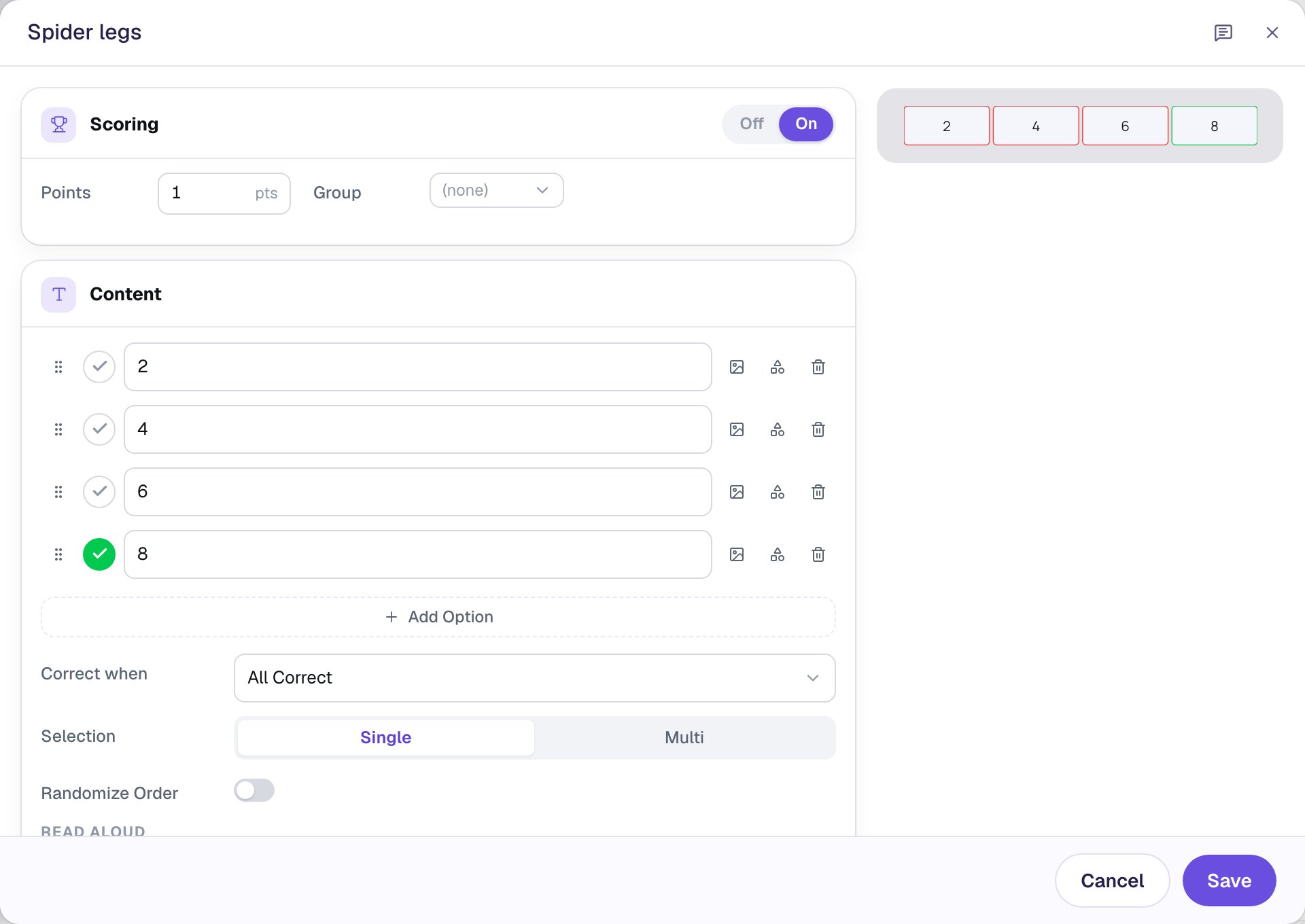
Now every student reads 2, 4, 6, 8, left to right. Turn it off only when the order helps the student: numbers, a scale, a sequence, or a last answer like All of the above that has to stay last.
Step 4: Ask a question with word answers
In the Scenes panel, click Add scene, and rename the new scene Spider webs by double-clicking its name. Give it the Lagoon gradient background too.
Build it like the first scene: a Heading that says What do spiders spin their webs from?, a photo found with spider web dew drops (Alt Text: Close-up of spider web threads strung with drops of dew), and a Multi Choice with Font Size 30 in a row under the photo. In ⚙ Configure, type Silk, Wool, Paper, String, and tick Silk.
Step 5: Leave the shuffle on for words
Look at what you typed: the right answer, Silk, is first. Typing the answer first is a habit almost everyone has. Leave Randomize Order on here, and students will find Silk in a different spot each time, so they have to read every answer.
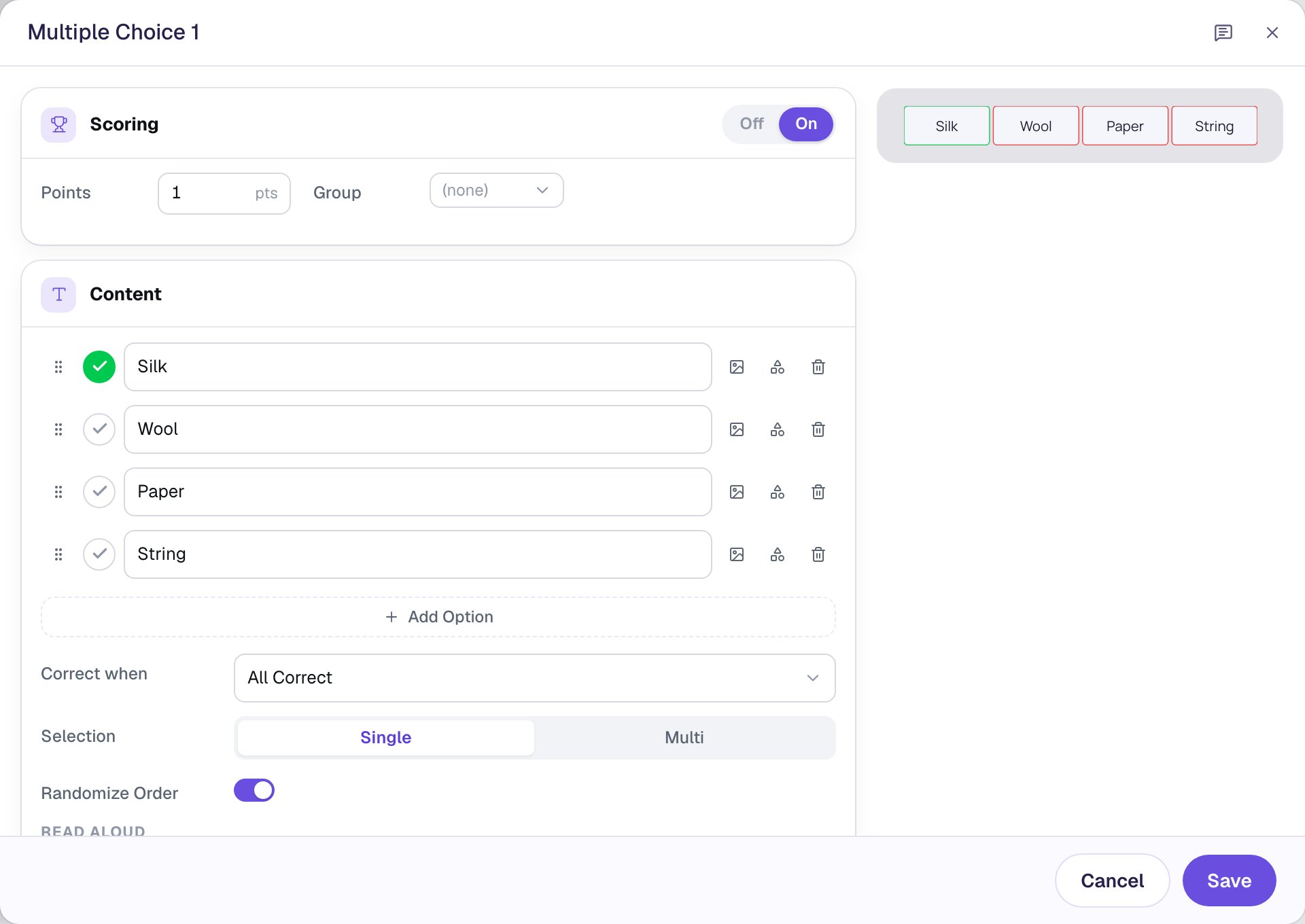
Click Save and rename the question Spider webs the same way.
Last, the lesson needs a way to finish. Add a Submit Button under the answers, set its Label to I'm done and its scope to Lesson, and make its Font Size 18. Students who pick the right answer move to the ending on their own; the button is for anyone who wants to stop.
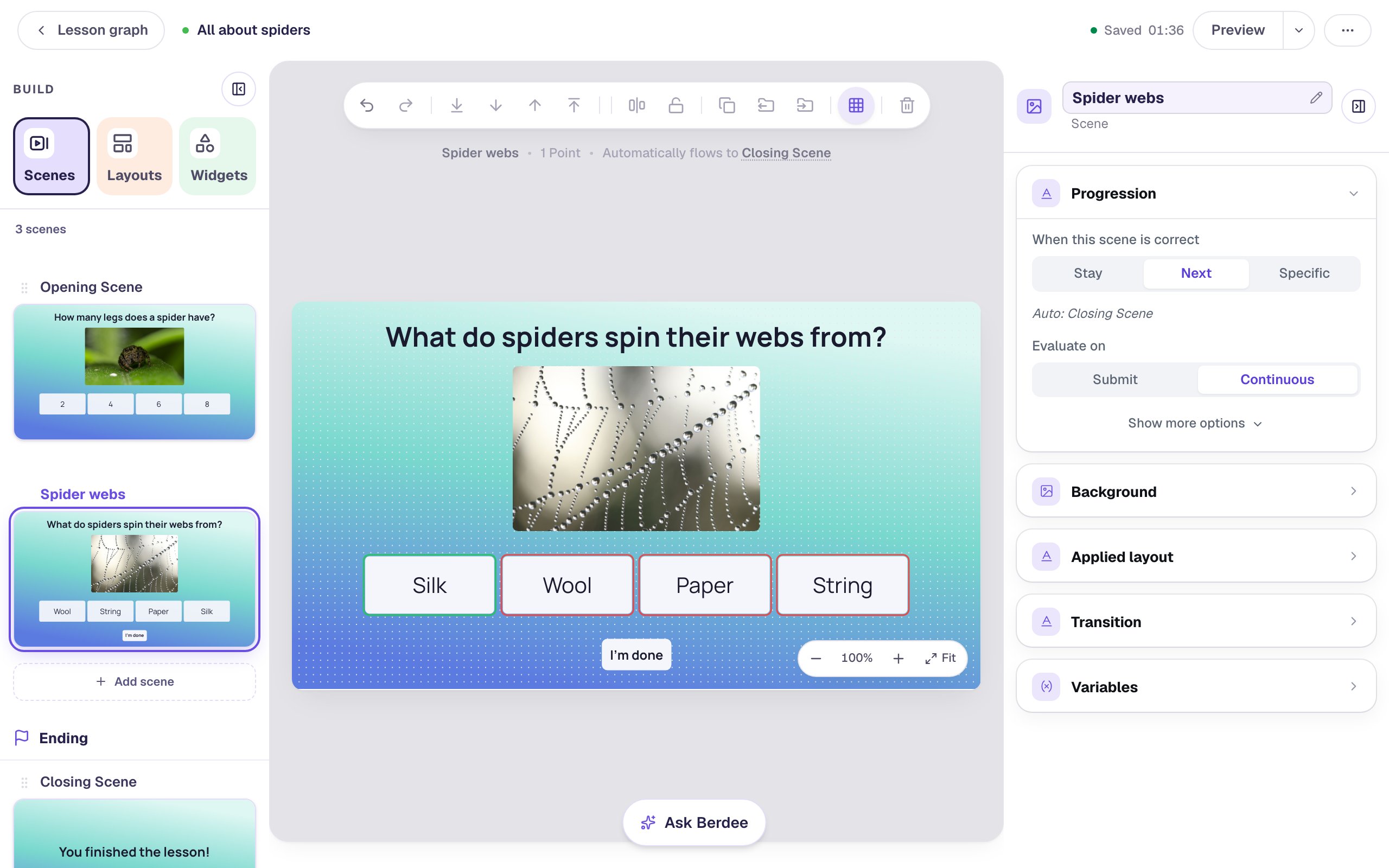
Step 6: Try it as a student
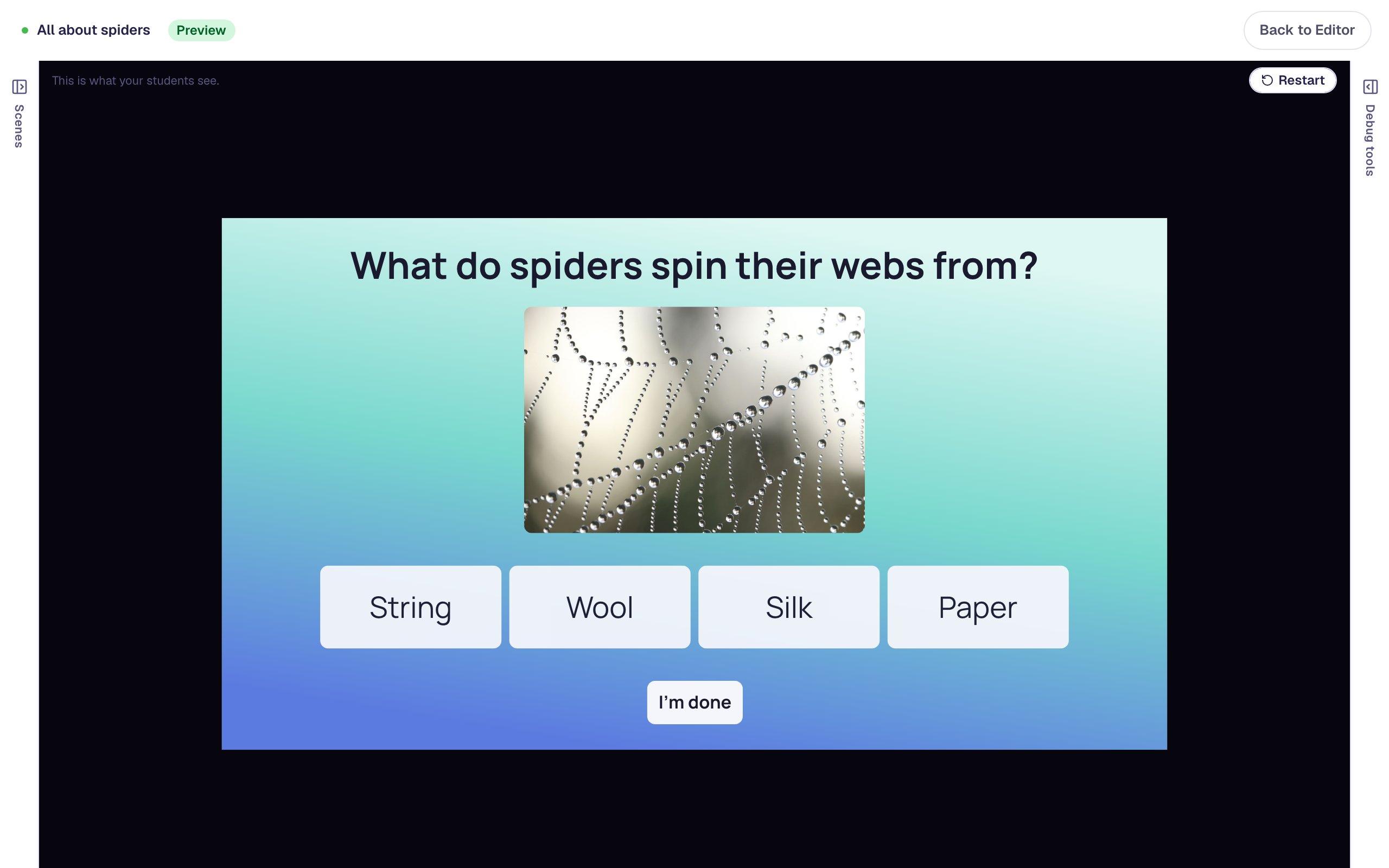
Select the Opening Scene and click Preview. Pick a wrong number first, then 8. On the second question, find Silk wherever it landed.
The numbers read in order, every time:
The words come in a new order, so Silk isn't waiting in the first spot:
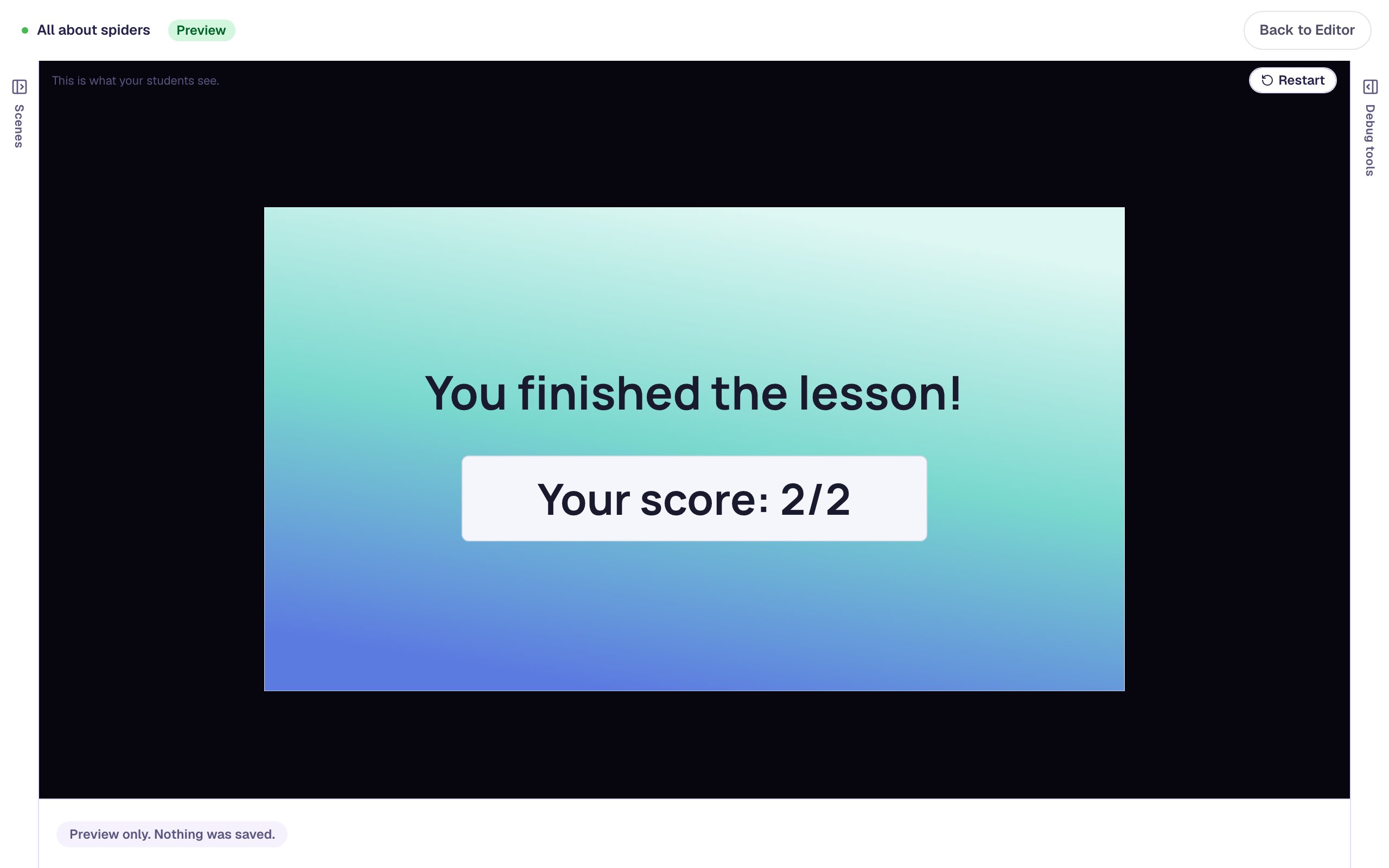
Both right answers end the lesson with a full score:
What you built
A spider lesson with two Multiple Choice questions that treat answer order on purpose:
- Number answers in order. With Randomize Order off,
2, 4, 6, 8always read smallest to largest, like a number line. - Word answers shuffled. With Randomize Order on (the starting setting), the right answer you typed first lands somewhere new for each student.
Other question types have the same choice. A Dropdown's Randomize order starts off, so its menu shows the order you typed: switch it on when you typed the right answer first (Configuring a Dropdown). A Matching activity shuffles its answer column with Randomize Matches, and a Sorting List always starts shuffled.
Make a true-or-false question uses the same switch to keep True before False.
Make this lesson yours
Add the lesson you just watched being built to your account, then change it for your class: your questions, your pictures, your colors.
Free to sign up, and you'll come straight back here. I have an account