Make a number puzzle where each card is used once
Turn a Number Sentence into a puzzle board of five equations for 5 and a tray of digit cards 0 to 9, so students have to plan which card goes where, and give a point for every true equation.
- Level
- Intermediate
- Time
- About 15 min
- Steps
- 8
- Updated
- Nov 4, 2026
A "Make 5 with cards" lesson where students place the cards 0 to 9 into five equations for 5, each card once, and tap Done to see which equations are true.
Get the finished lesson
Skip straight to the result, or keep it open beside the steps. Add this tutorial's lesson to your account and explore how it works in the studio.
Free to sign up, and you'll come straight back here. I have an account
Number puzzles are a favorite math center: a board of equations, a set of digit cards 0 to 9, and one rule, each card can be used only once. A child who knows 5 = 2 + 3 still has to think, because once the 2 and the 3 are used, 5 = 7 − 2 and 5 = 8 − 3 need another way. The puzzle turns fact practice into planning.
In this tutorial you'll build that center on screen with a Number Sentence set to Puzzle board. Students get five equations for 5:
5 = □ + □, twice5 = □ − □, twice5 = □ − 4
and a tray of ten cards. Nine boxes take nine cards, so one card is always left over. Students tap a card, then a box, and tap ✓ Done when every box is full. Every true equation gets a ✓, and each one earns a point.
Step 1: Set the scene
Start a blank lesson (New lesson, then Start from scratch) and name it Make 5 with cards by clicking Untitled lesson at the top left.
Click an empty spot on the scene, open Background, click Choose a style, and pick Mesh sunrise under Gradients. Give the Closing Scene the same background so the ending matches.
Then add what students read first, at the top left:
- A Heading:
Make 5 five ways. Set its Font Size to38. - A Body under it:
Put a card in every box. Each card can be used only once.Set its Font Size to20.
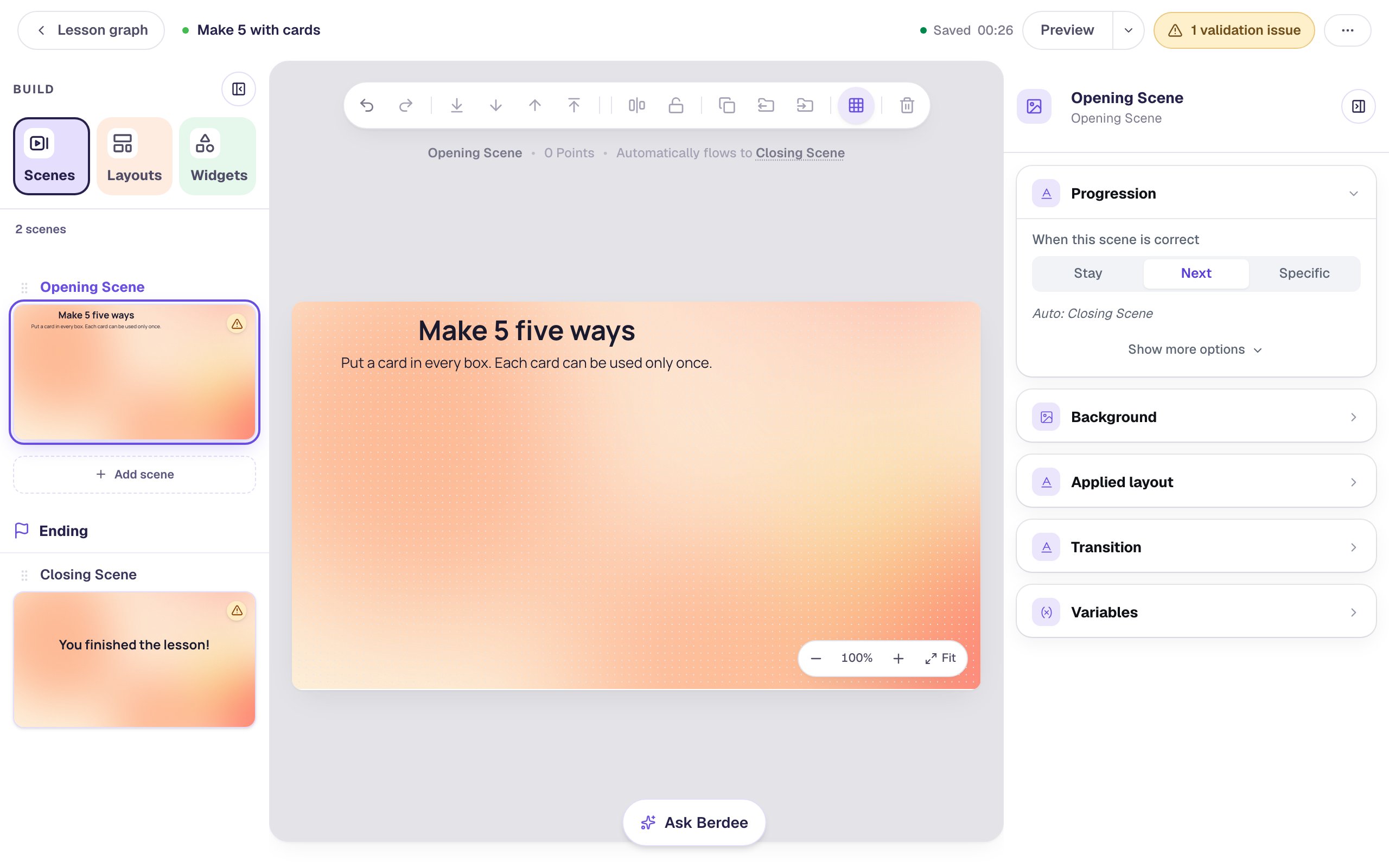
Say the rule on the scene, in words. It's the whole puzzle, and it's the first thing a student who gets stuck should read again.
Step 2: Turn a Number Sentence into a puzzle board
Search the Widgets tab for Number Sentence and click it. A new one is a single sentence, □ + □, with a number pad underneath.
Click ⚙ Configure in the pill above it. At the top of Content, Layout offers One sentence and Puzzle board. Click Puzzle board.
The widget grows to fit a board, and the preview on the right changes: an equation, 7 = □ + □, above a tray of cards 0 to 9, a ↺ (start over) and a ✓ Done key. The window now lists The equations instead of a single sentence.
Step 3: Make the first equation about 5
Under Equation 1, click the 7 and set Number to 5. The equation reads 5 = □ + □.
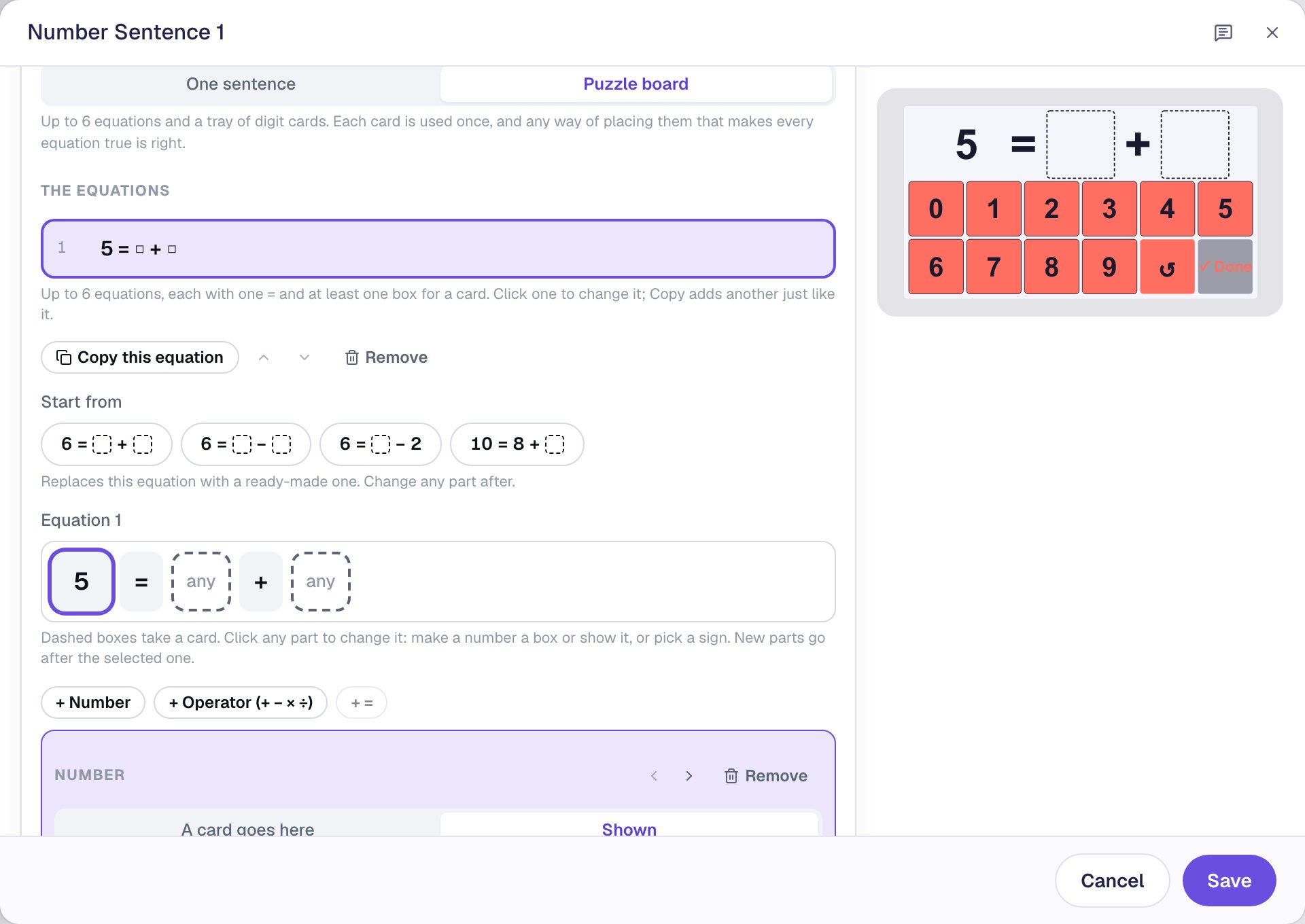
The two boxes say any: on a board, a box doesn't need its own answer. Any cards that make the equation true are right, so 0 + 5 and 5 + 0 both count. That's what makes it a puzzle rather than a fill-in.
Step 4: Copy it into five equations
Equations on a board often repeat, so you build them by copying. Copy this equation adds a copy just after the selected one and selects it:
- Click Copy this equation. There are two
5 = □ + □. - Click Copy this equation again. In the new Equation 3, click the
+and, under Sign, choose−. It reads5 = □ − □. - Click Copy this equation, so there are two subtractions.
- Click Copy this equation one last time. In Equation 5, click the second box, choose Shown, and set Number to
4. It reads5 = □ − 4.
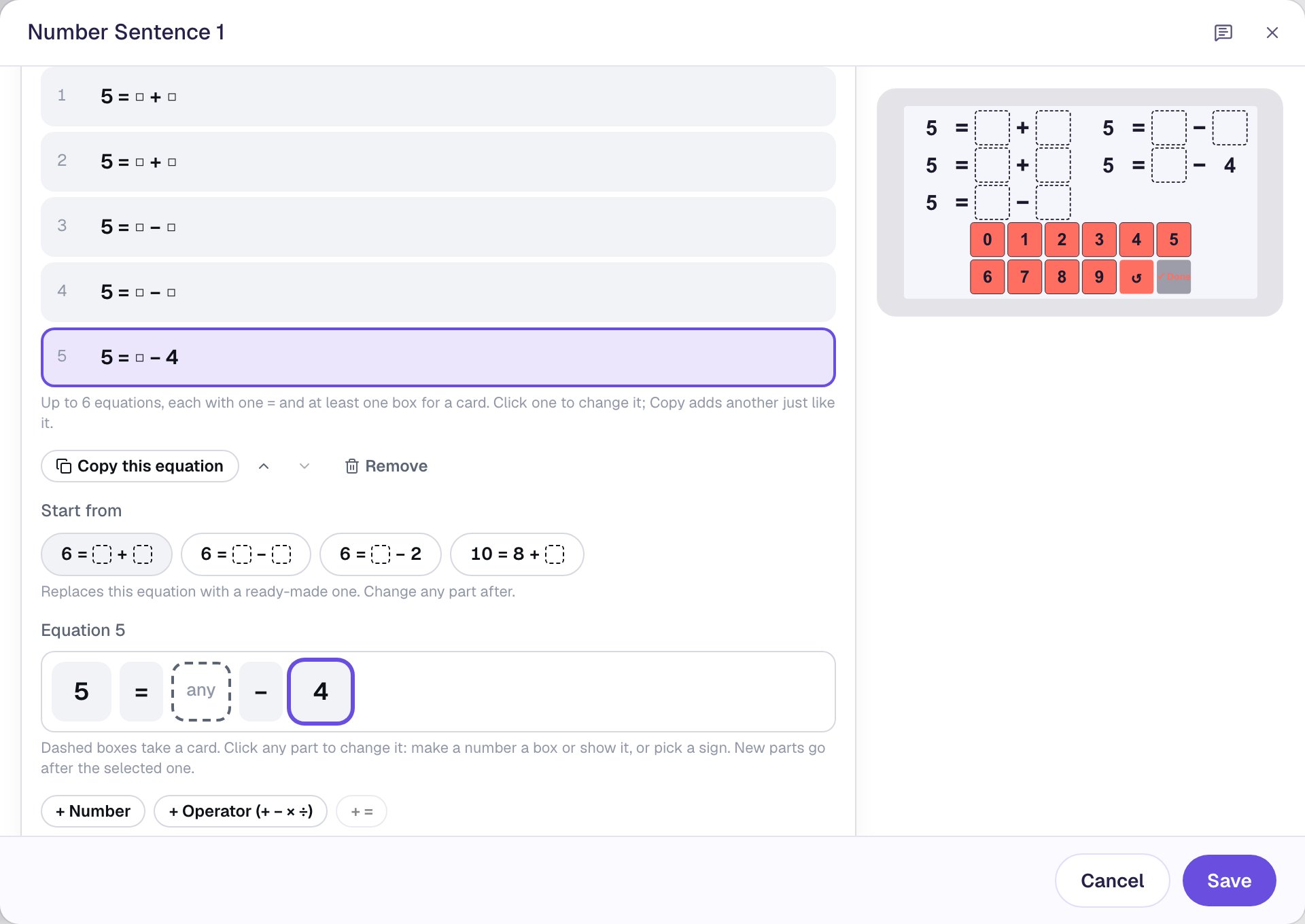
The printed 4 in the last equation isn't a card. Students only place a card in its one box, and only a 9 makes it true. That one box is the way in: a student who solves it first knows the 9 is taken.
Step 5: Check the cards and the solution count
Scroll down. Under the equations, the window works the puzzle out for you:
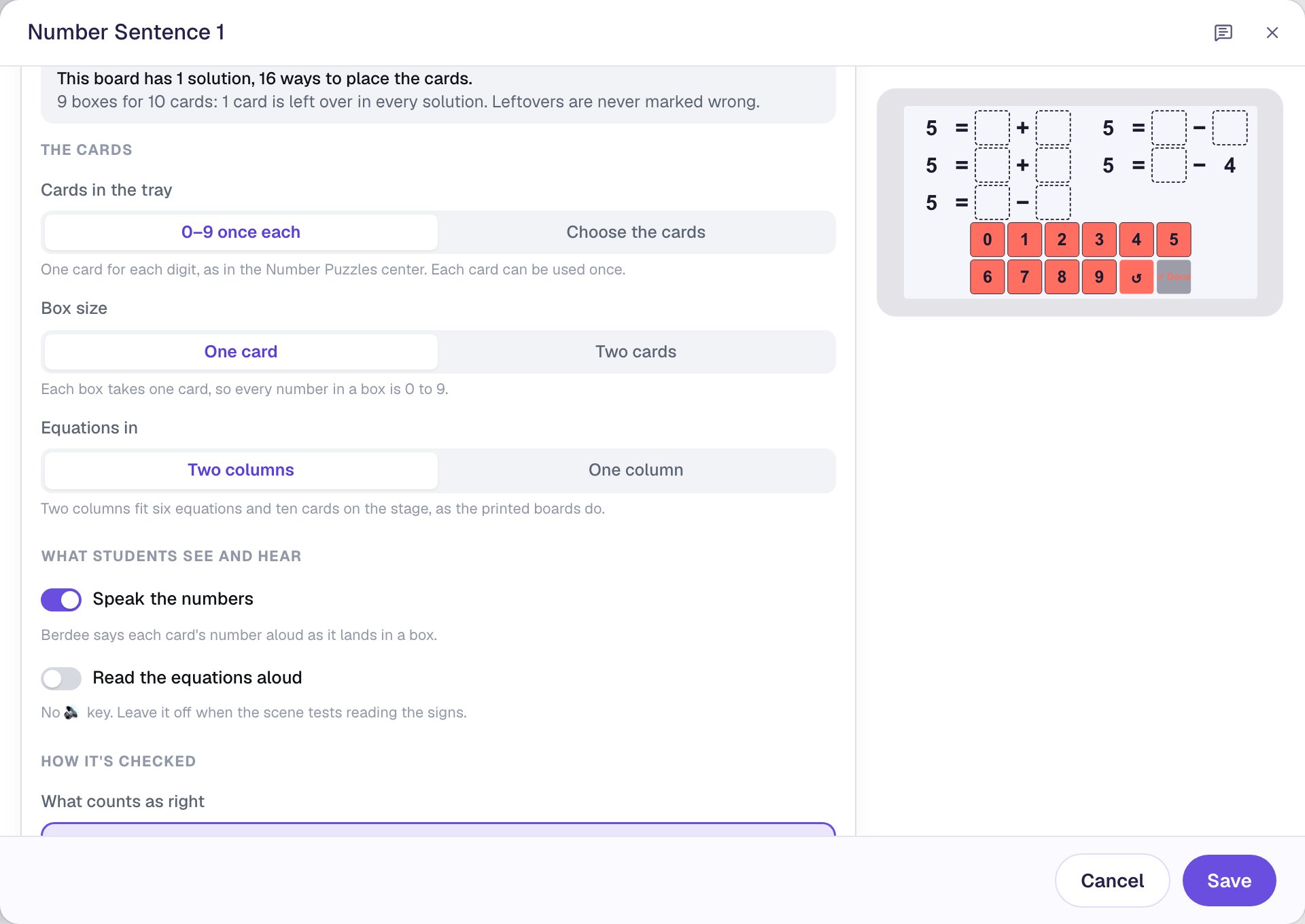
- This board has 1 solution, 16 ways to place the cards. There's only one set of equations that uses each card once:
0 + 5,1 + 4,7 − 2,8 − 3and9 − 4. Students can still write5 + 0or swap the two additions, so 16 fillings are all right. - 9 boxes for 10 cards: 1 card is left over in every solution. Here it's always the 6. A leftover card is never marked wrong.
Keep Cards in the tray on 0–9 once each, Box size on One card and Equations in on Two columns. Further down, What counts as right is Every equation true, so any filling that makes every equation true is right.
If you change an equation so that no way of placing the cards works, the window says so, and Berdee won't publish the lesson until you fix it. You can't hand students an impossible puzzle by accident.
Step 6: Give a point for each true equation
Scroll up to Scoring at the top of the window. Points for starts on Whole board: the point comes only when all five equations are true. Choose Each true equation instead.
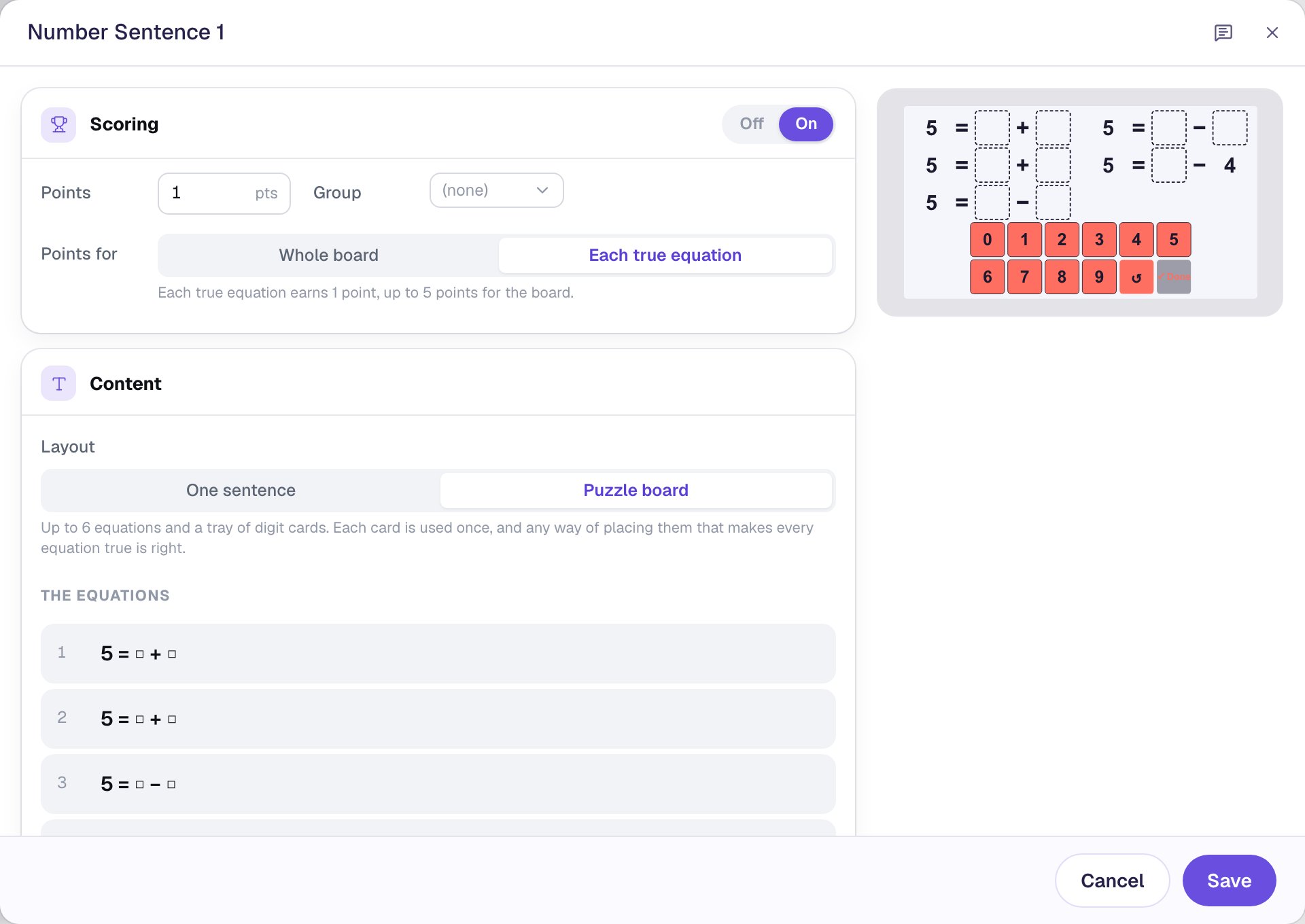
A student who gets four of the five equations true has done most of the thinking, and now their score says so: 4 of 5, not 0. Click Save.
Step 7: Fit the board and finish the scene
Select the board. Under Style & Layout, click Show more options, set Width to 860 and Height to 420, and drag it under the title. Leave the right edge of the scene a little room: the board is the whole scene, and the cards should be big enough for small fingers.
Then two finishing touches:
- Click an empty spot on the scene. In Progression, click Show more options and set Advance delay to
2500ms. When the board is solved, the scene moves on by itself, and 2.5 seconds lets a child see all five ✓ marks first. - Search the Widgets tab for
Submit Buttonand click it. In Content, change Label toI'm doneand set Submits to Lesson. Set its Font Size to18and drag it to the top right corner. It's the way out for a student who can't find the last equation.
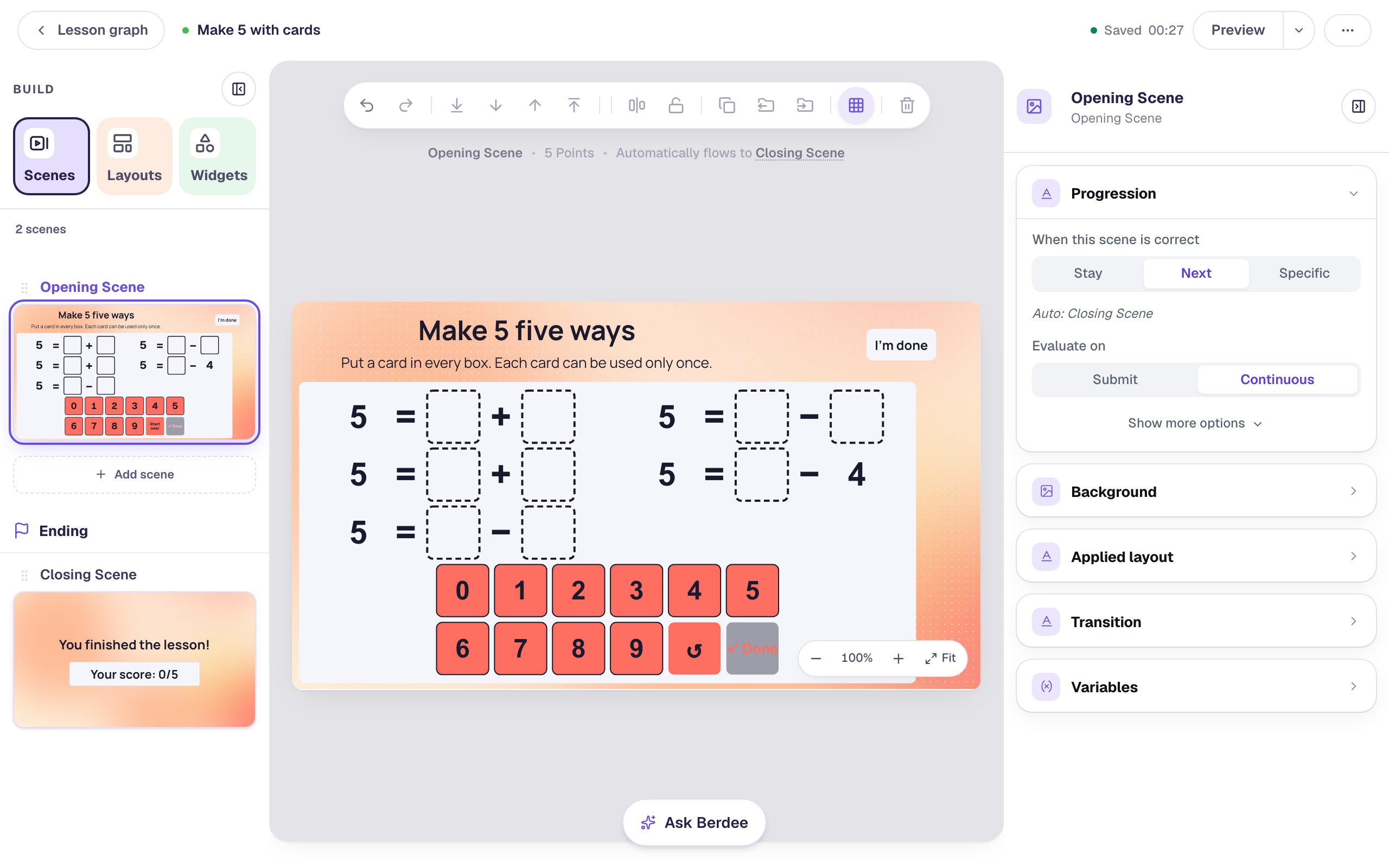
The line above the canvas says 5 Points, one for each equation.
Step 8: Try it as a student
Click Preview. Solve it the way many children start: the easy facts first. Tap a card, then a box, for 2 + 3, 1 + 4 and 5 − 0. Now try the other subtraction: the 2, 3, 1 and 0 are gone, so put 8 − 6. Put the 9 in □ − 4 and tap ✓ Done:
Each card you place leaves an empty outline in the tray, so a used card can't be placed twice. After ✓ Done, the four true equations get a ✓. 5 = 8 − 6 isn't true, so it gets an × and a dashed outline, and the cards stay where they are.
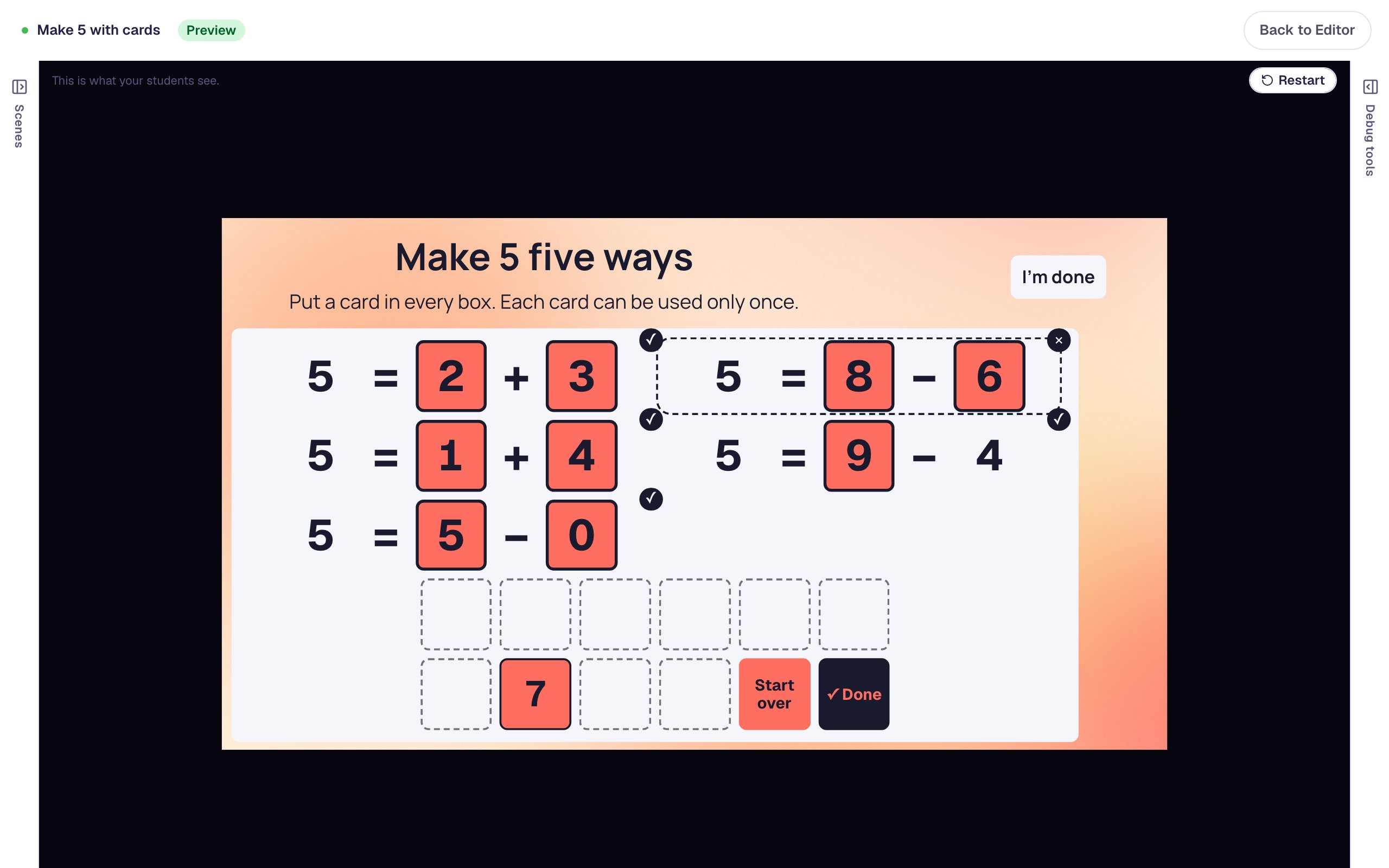
This is the moment the puzzle is for. The only card left is the 7, and 7 − 2 would work, but the 2 is already in 2 + 3. To fix it, the student has to undo an easy fact and find another way to make 5. To take one card back, a student taps its box; Start over empties the whole board.
Tap Start over and place the one solution: 0 + 5, 1 + 4, 7 − 2, 8 − 3 and 9 − 4. Tap ✓ Done.
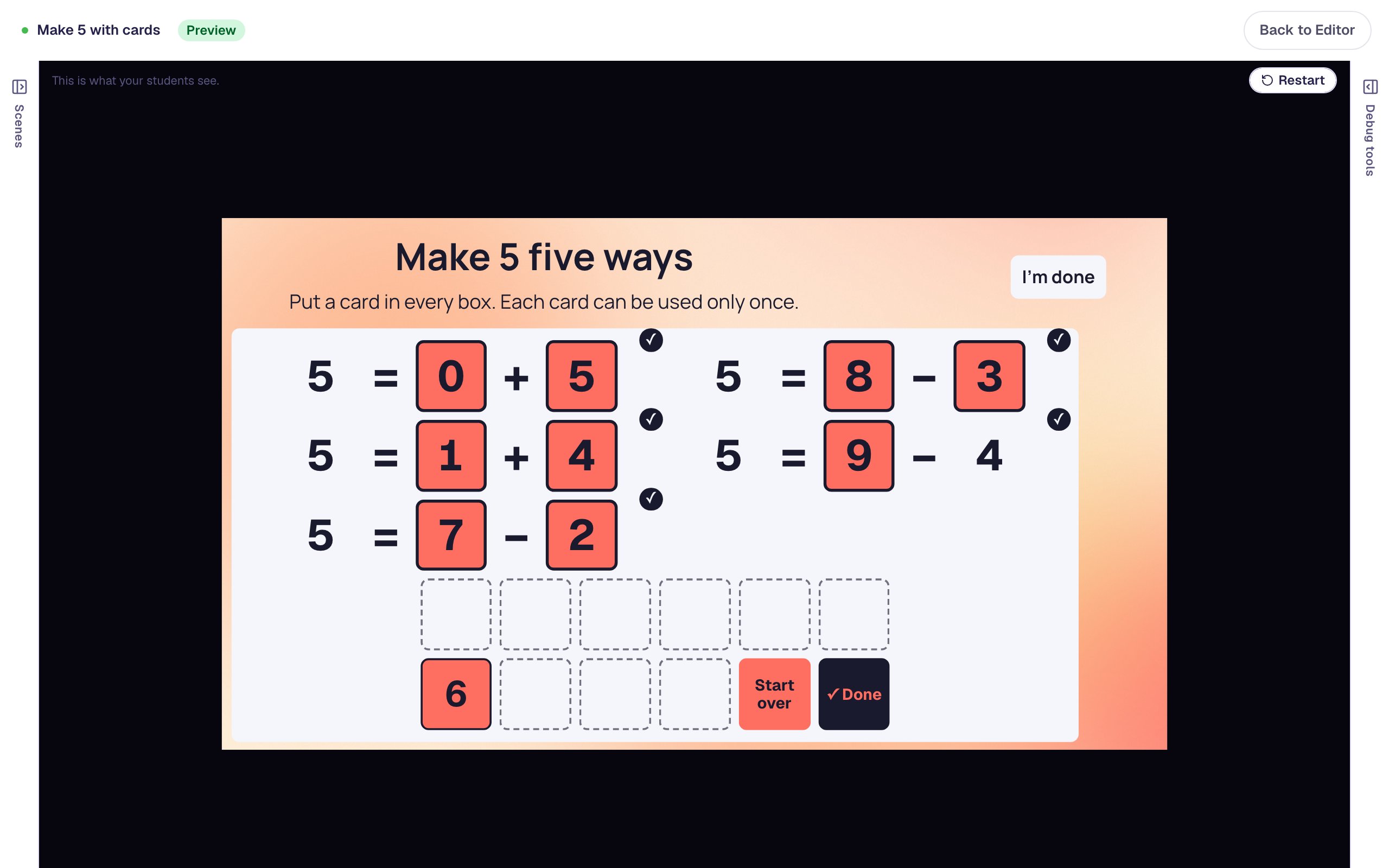
After the delay, the lesson moves on to the ending.

What you built
You built a number puzzle center with:
- a Number Sentence set to Puzzle board, with five equations for 5 built from one by Copy this equation,
- a tray of the cards 0–9 once each, where every card can be used only once and one is always left over,
- a solution count that tells you, before students ever see it, that the board has exactly one solution,
- Points for: Each true equation, so four true equations earn 4 of 5,
- a longer Advance delay so students see their ✓ marks, and an I'm done button as a way out.
For a harder board, add a sixth equation, or switch Box size to Two cards and use teen numbers, like 15 = □ + □ with two 1 cards under Choose the cards. On a student's attempt page you can see exactly how they filled the board, including their earlier tries. For number sentences with a number pad instead of cards, see Write an addition sentence for a ten frame.
Make this lesson yours
Add the lesson you just watched being built to your account, then change it for your class: your questions, your pictures, your colors.
Free to sign up, and you'll come straight back here. I have an account