Match each shape to the same shape, turned
Build a matching game where Berdee draws the shapes for you. Draw a triangle, square, rectangle and trapezoid, copy each one to the other side, and turn the copy, so students learn that a shape keeps its name when it's turned.
- Level
- Beginner
- Time
- About 10 min
- Steps
- 8
- Updated
- Oct 23, 2026
A "Same shape, turned" scene where students match four drawn shapes to the same shapes turned, hear a hint after a wrong pairing, and move on once every pair is right.
Get the finished lesson
Skip straight to the result, or keep it open beside the steps. Add this tutorial's lesson to your account and explore how it works in the studio.
Free to sign up, and you'll come straight back here. I have an account
Young learners often think a triangle that points sideways is a different shape, and that a square standing on its corner is a "diamond". A quick way to practise is a matching game: each shape on the left has a twin on the right that is the same shape, turned.
You don't need any pictures for this. A Matching widget can draw shapes itself, and Copy from makes the twin an exact copy, so the only difference between the two is the turn. In this tutorial you'll build four pairs:
- a triangle and the same triangle turned to point sideways,
- a square and the same square turned to stand on a corner,
- a rectangle and the same rectangle standing up tall,
- a trapezoid and the same trapezoid upside down.
If you haven't built a matching game before, Build a matching game with instant feedback covers the basics with words. This tutorial moves quickly through the parts it already covers.
Step 1: Set the scene
Start a blank lesson (New lesson, then Start from scratch) and name it Same shape, turned by clicking Untitled lesson at the top.
With nothing selected, open Background in the properties panel and click Choose a style. Open the Textures tab, pick Kraft paper, and click Apply background. It's warm and quiet, so the shapes stand out. Select the Closing Scene in the Scenes panel and give it the same background, so the ending matches.
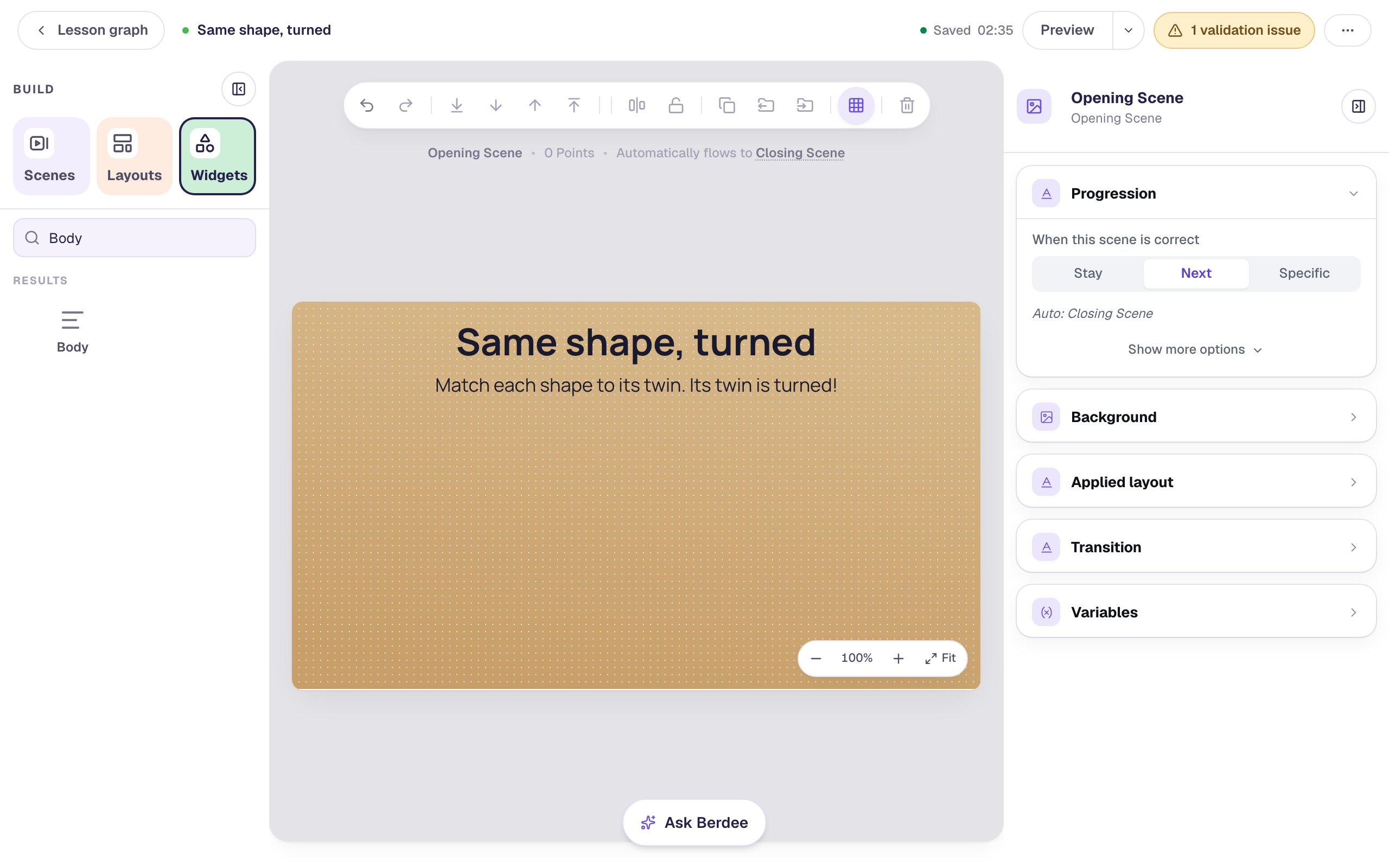
Back on the Opening Scene, add a Heading that says Same shape, turned and a Body text under it: Match each shape to its twin. Its twin is turned! Set the Body's Font Size to 26.
Step 2: Draw the first shape
In Widgets, search for Matching and click it. The new activity has three sample pairs, Left 1 to Right 3. Click ⚙ Configure above it.
Each side of a pair has two small buttons beside its text: one picks a picture, the other (the shapes icon) asks Berdee to Draw a shape. Click the shapes button beside Left 1.
The side becomes a triangle, and the shape editor opens under the pair:
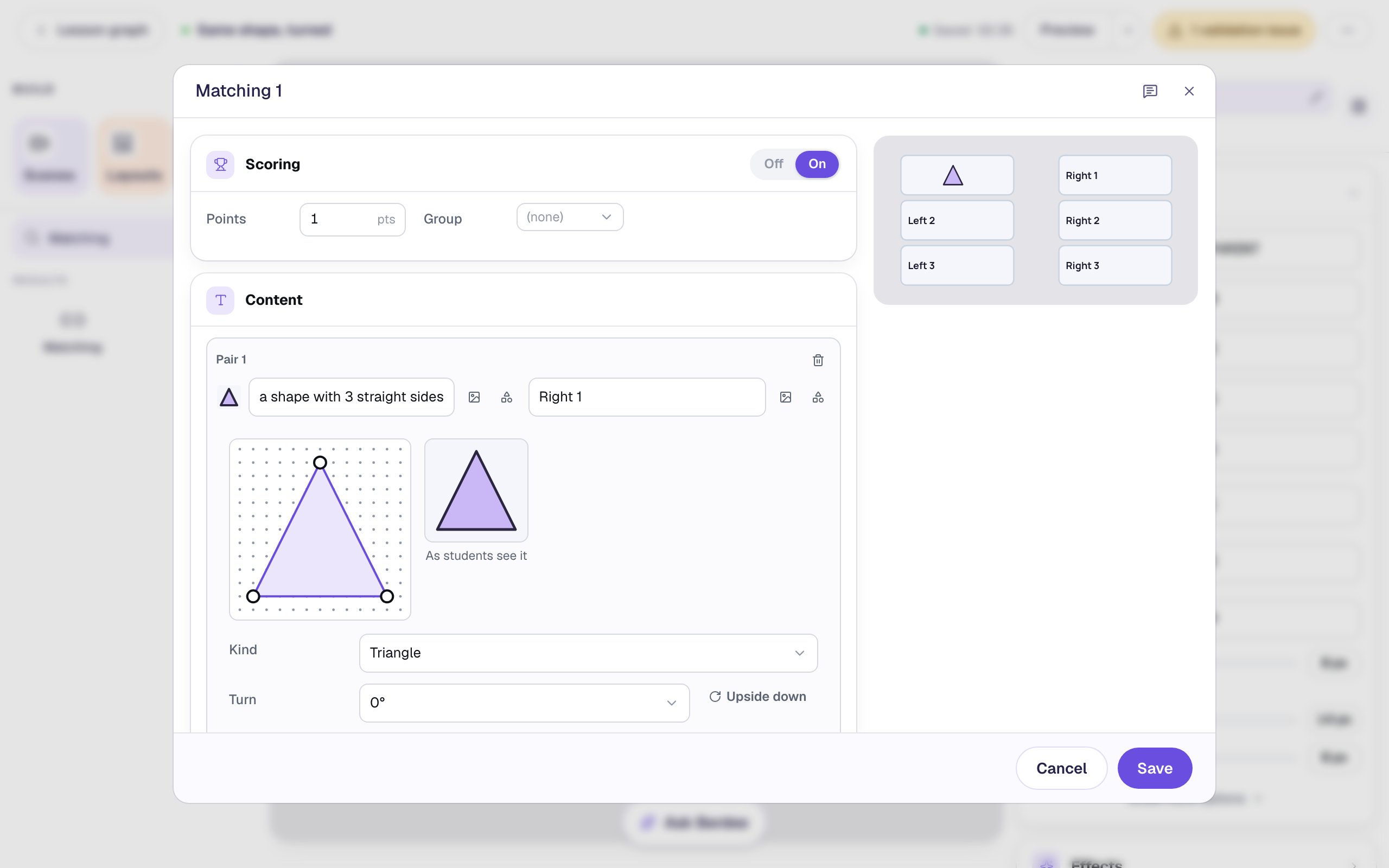
You can drag the triangle's corners on the dotted grid to make a skinnier or wider triangle, and change Kind to draw a different shape. Leave this one as it is.
The text beside the shape now reads a shape with 3 straight sides and 3 corners. Students don't see it: it's what a screen reader says for the card. Describing the shape by its sides and corners, rather than calling it "a triangle", keeps the activity about looking at the shape.
Step 3: Copy the shape and turn it
Now give the triangle its twin on the right:
- Click the shapes button beside Right 1. It gets a triangle of its own and its editor opens.
- In Copy from, choose Pair 1 prompt. The right side becomes an exact copy of the left: the same corners, size and colours.
- Set Turn to
90°.
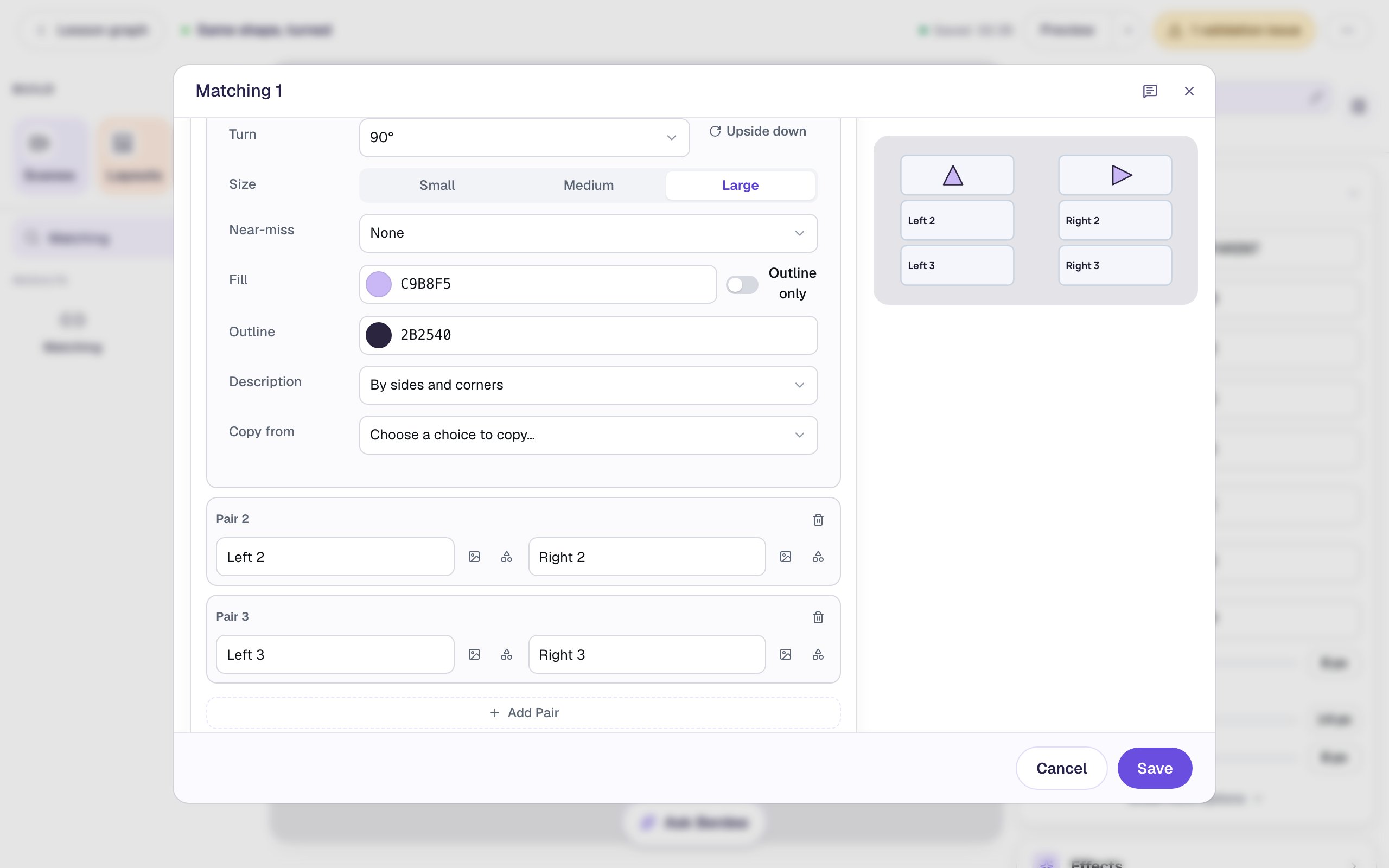
Copy from is what makes this activity fair. If you drew the twin yourself, it could end up a little bigger or a different colour, and students could match by those clues instead of by the shape. A copy only differs in the one thing you change.
Every card draws its shape in the same-sized space, so a shape and its twin are exactly the same size on the screen too. The twin's screen-reader words gain , turned (or , upside down), so they say what changed without naming the shape.
Step 4: Build three more pairs
Repeat the same three moves for the other shapes. For each pair, click the shapes button beside the left side and pick its Kind, then click the shapes button beside the right side, Copy from the left, and turn it:
| Pair | Left: Kind | Right: Copy from | Right: Turn |
|---|---|---|---|
| 2 | Square | Pair 2 prompt | 45° |
| 3 | Rectangle | Pair 3 prompt | 90° |
| 4 | Trapezoid | Pair 4 prompt | click Upside down next to Turn |
Pair 4 doesn't exist yet: click Add Pair under Pair 3 first.
Click a shape's thumbnail to close its editor when you're done with it. With all four pairs in, the window looks like this:
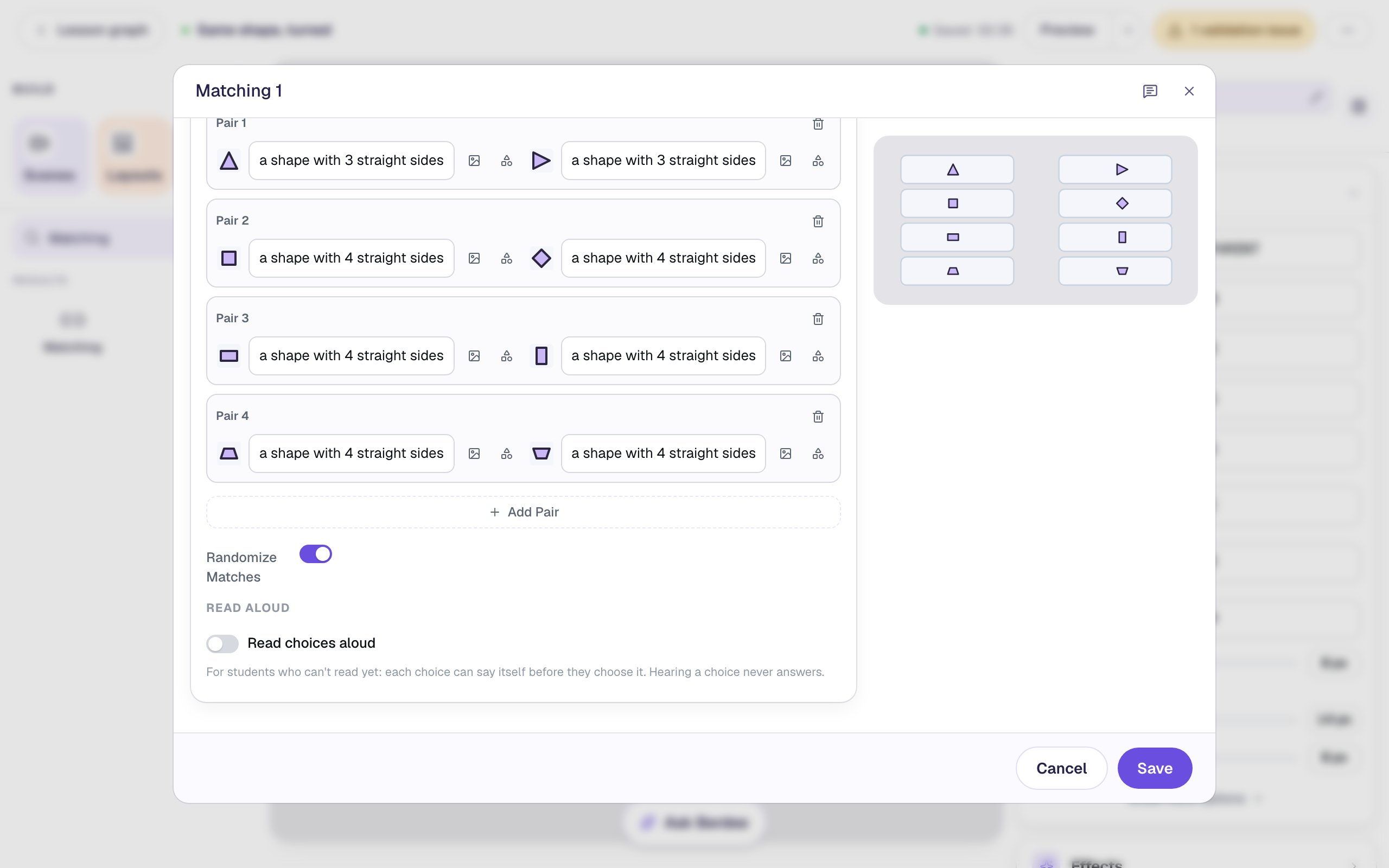
Leave Randomize Matches on, so each student sees the twins in a different order. Scoring is on at the top of the window, and the whole activity is worth 1 point, earned when every pair is right. Don't save yet.
Step 5: Give each card words a screen reader can tell apart
Look at the words beside the square, the rectangle and the trapezoid: all six read a shape with 4 straight sides and 4 corners. A student who uses a screen reader hears the same thing for every one of them, so for that student the activity can't be done. The triangle is fine, because it's the only shape with 3 sides.
Click into each of those six text boxes and type a few words of your own that describe the shape without naming it:
| Pair | Left | Right |
|---|---|---|
| 2 | 4 equal sides | 4 equal sides, on a corner |
| 3 | 2 long sides, 2 short sides | 2 long, 2 short, standing up |
| 4 | long side at the bottom | long side at the top |
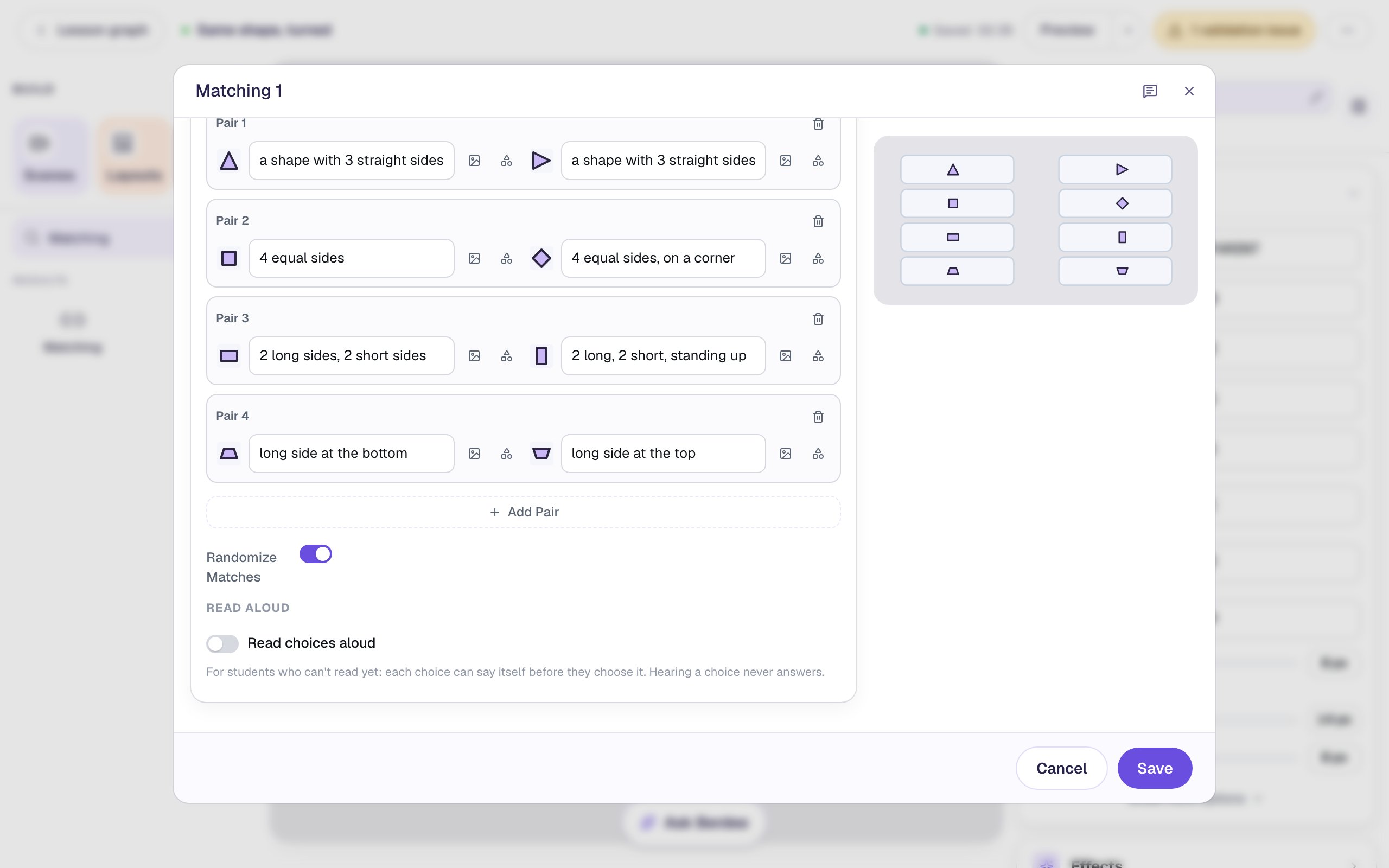
Typing over the words switches that shape's Description to My own words, so they stay put when you change the shape later. Each pair's two descriptions share their words about the shape, so a screen-reader user matches by listening the way other students match by looking. Click Save.
Step 6: Size it and add a way to finish
With the activity selected, rename it Shape twins by clicking its name at the top of the properties panel. Then open Style & Layout, click Show more options, and set Width to 500 and Height to 300. Each shape grows with its card, so a taller activity means bigger shapes. Drag it under the instructions.
Berdee needs a way for students to finish the lesson before it will publish. Search Widgets for Submit Button and add one. In Content, set its Label to I'm done and Submits to Lesson, set its Font Size to 16, and tuck it into the bottom-left corner. It's a way out for a student who is stuck, not the main way forward.
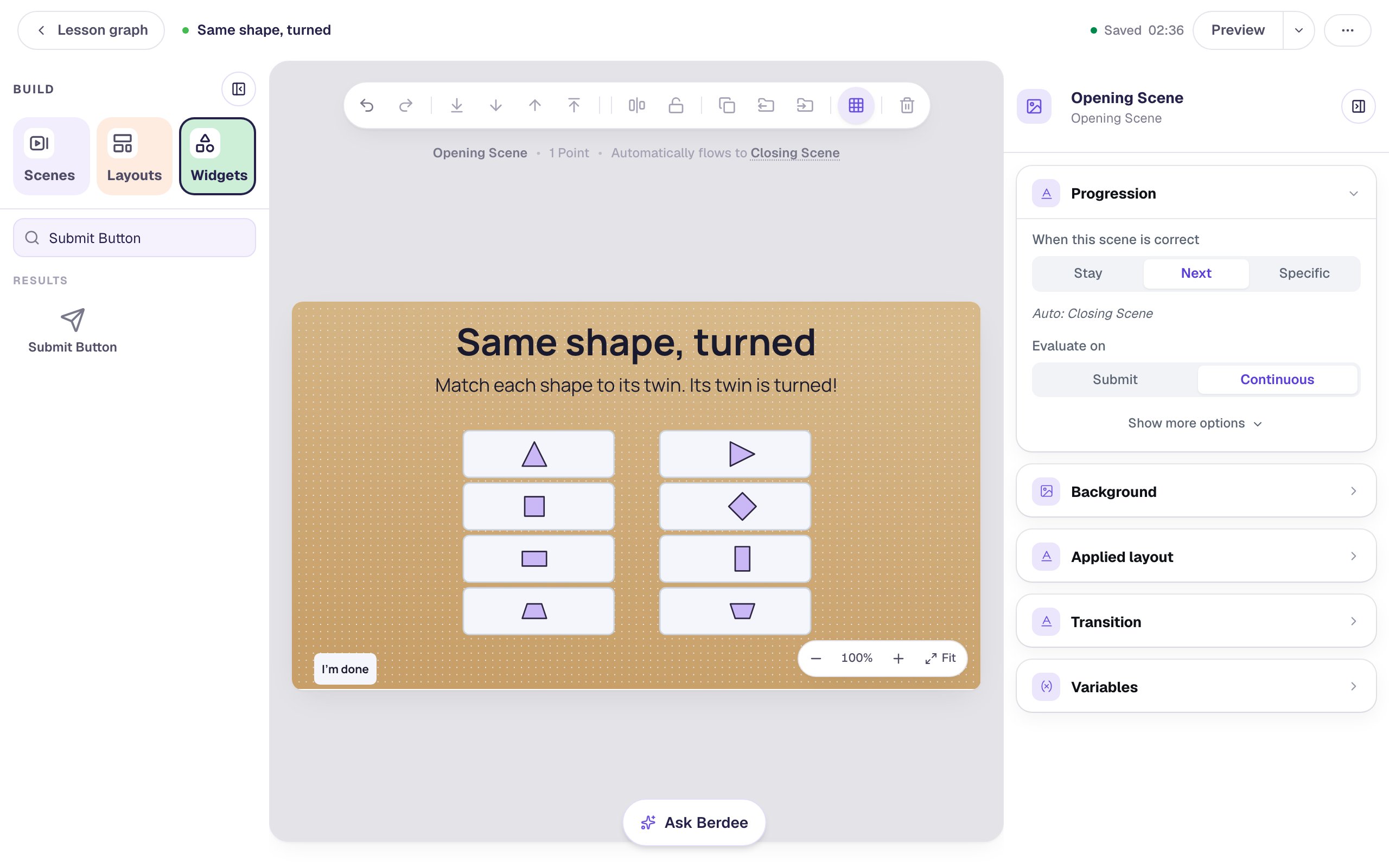
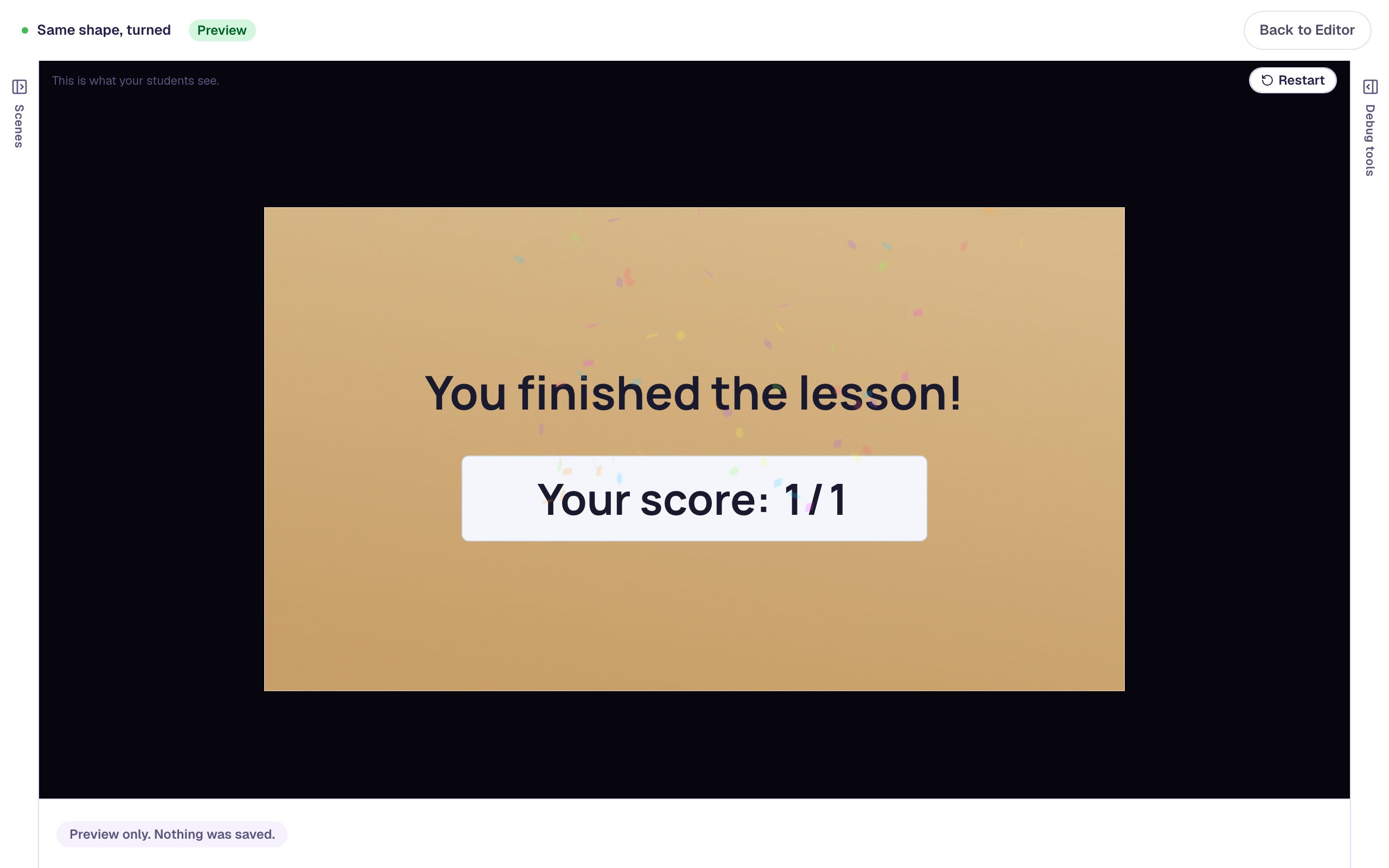
Look at Progression in the properties panel on the right: When this scene is correct is set to Next. For a matching activity, "correct" means every pair is right, so the lesson moves on to the ending by itself as soon as the last twin is matched.
Step 7: Give a hint after a wrong pairing
Mixing up the square and the rectangle is the most common mistake here, and a short hint helps more than a red line. Select the activity and click Behaviors above it. Click Give instant feedback on a wrong pick, change the message to Not quite! Turn it in your head and look again., and click Add behavior.
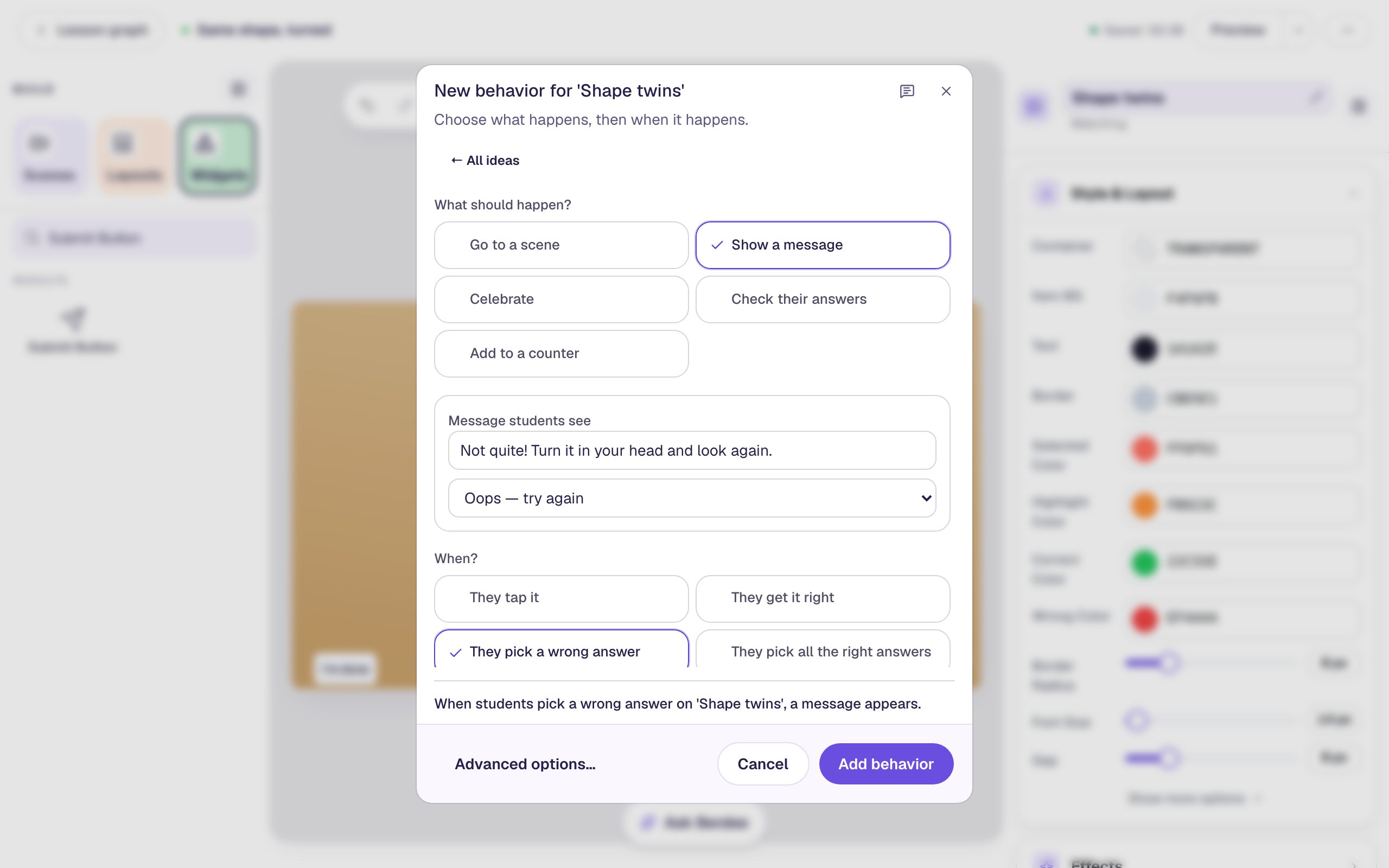
The message appears every time a student makes a wrong pairing. They dismiss it and try again: pairing the same shape with its real twin replaces the wrong line.
Step 8: Play it as a student
Click Preview. The twins on the right are shuffled. Try the common mistake first: click the square, then the tall rectangle.
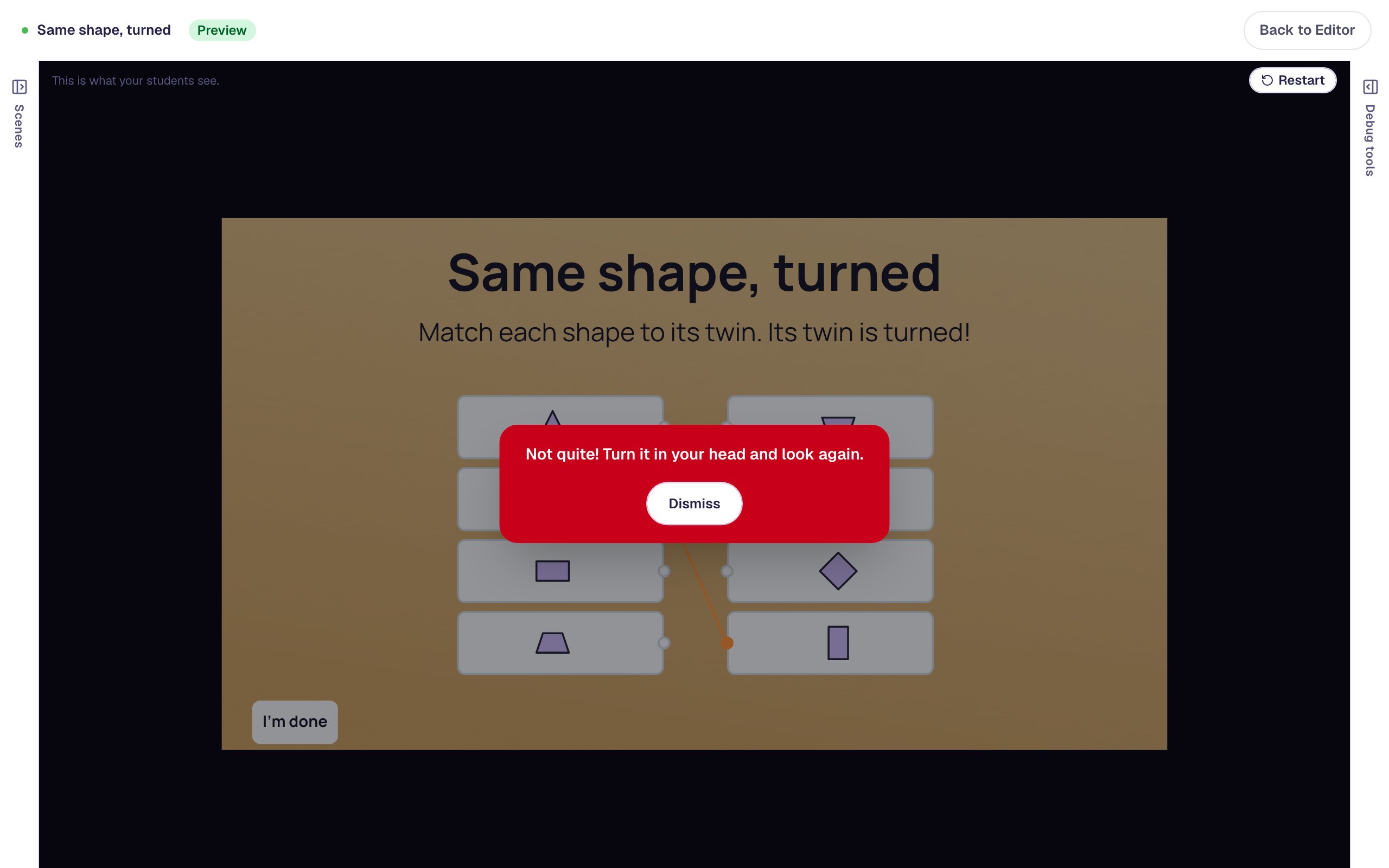
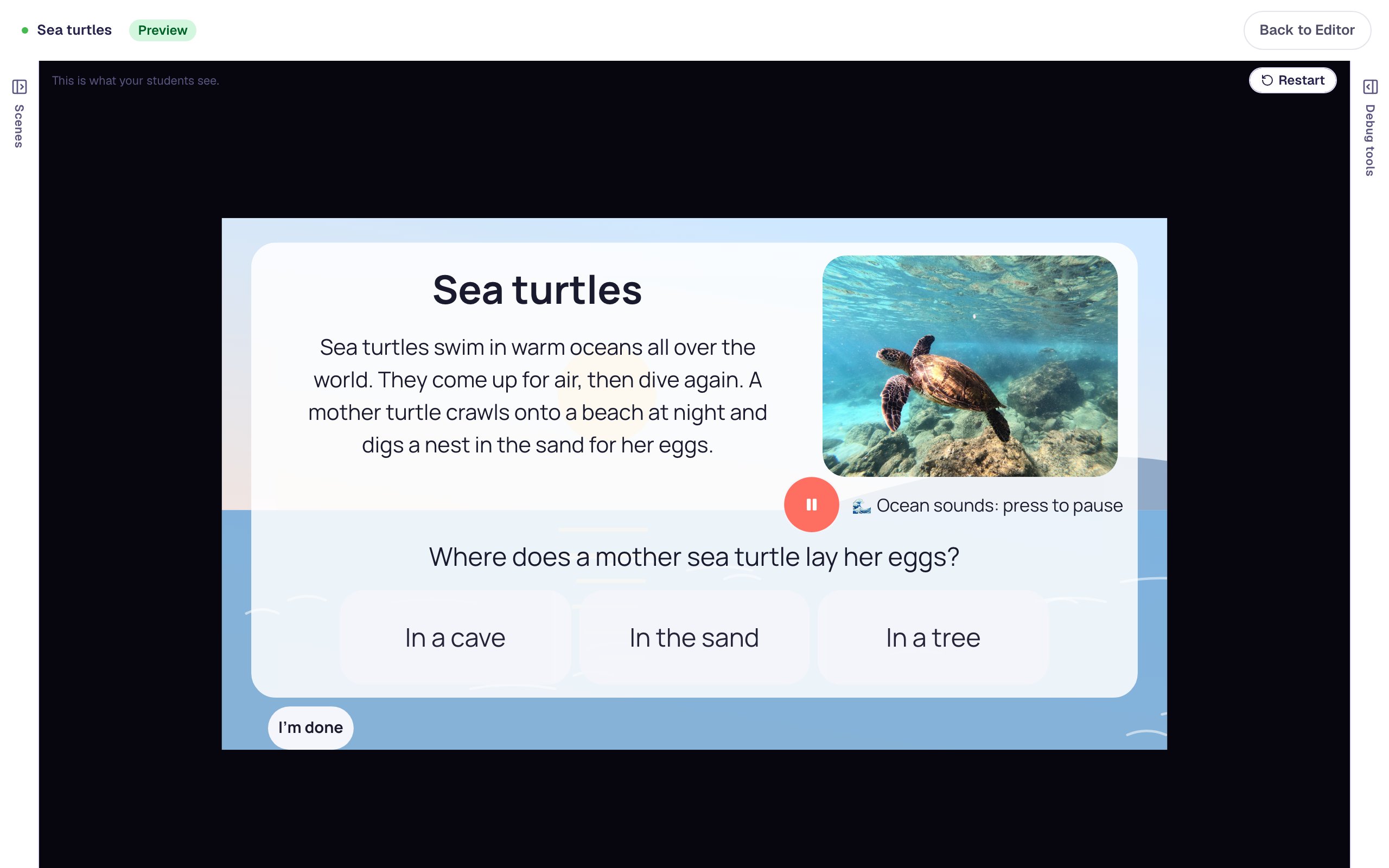
Click Dismiss, then match each shape to its twin: the upright triangle to the sideways one, the square to the square on its corner, the flat rectangle to the tall one, and the trapezoid to the upside-down trapezoid. When the last pair goes in, the lesson moves to the ending:
Click Restart to play again: the twins come back in a new order.
What you built
A "Same shape, turned" matching game with:
- four shapes that Berdee draws, so there's nothing to upload or find,
- a twin for each one made with Copy from, so a shape and its twin differ only by how they're turned,
- screen-reader words that describe each shape by its sides and corners, so every card can be told apart without naming it,
- a hint for every wrong pairing, and
- Next progression, so the lesson moves on as soon as every pair is right.
To ask students to name the shapes instead, put the shape on one side and type its name (triangle, square) on the other. To have them pick every shape of one kind from a mix of near-misses, try Ask students to tap all the triangles.
Make this lesson yours
Add the lesson you just watched being built to your account, then change it for your class: your questions, your pictures, your colors.
Free to sign up, and you'll come straight back here. I have an account