Play ocean sounds while students read
Build a sea turtle reading page with the sound of waves playing quietly behind it. Generate a seamless loop, start it with Auto Play and Loop, and give students a button to pause it.
- Level
- Beginner
- Time
- About 12 min
- Steps
- 8
- Updated
- Oct 23, 2026
A two-scene sea turtle lesson where ocean waves start when students press Start reading, loop under a short passage and a question, and can be paused with one tap.
Get the finished lesson
Skip straight to the result, or keep it open beside the steps. Add this tutorial's lesson to your account and explore how it works in the studio.
Free to sign up, and you'll come straight back here. I have an account
A little background sound can turn a reading page into a place. Waves behind a passage about sea turtles, rain behind a story about a storm, a busy market behind a lesson on trade: students settle in, and the topic feels real.
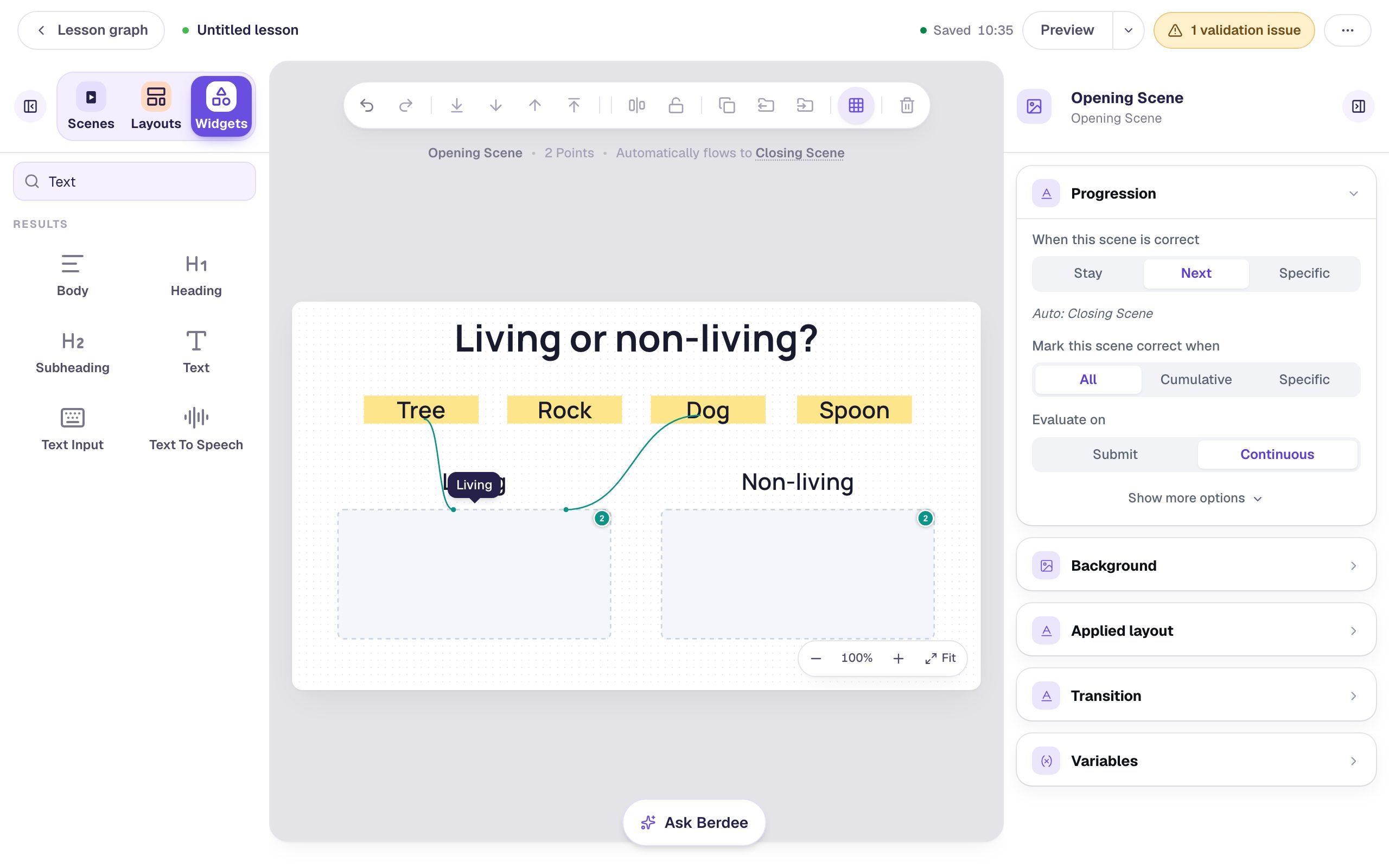
In this tutorial you'll build a short lesson called Sea turtles. A title page asks students to press Start reading. On the next page, the sound of gentle waves starts by itself and keeps going while students read a short passage and answer a question:
Where does a mother sea turtle lay her eggs?
The sound comes from an ordinary Audio player with three settings you may not have used yet: a sound effect generated as a seamless loop, Auto Play, and Loop. You'll also keep a small pause button on the page, because some students find background sound distracting and every student should be able to turn it off.
Generating the waves uses Berdee's sound effect generator, which needs Plus or above (see AI and Voice). On any plan you can upload your own clip instead, and the finished lesson from this tutorial works on any plan: add it to your account and the waves and the photo come with it.
If you haven't used the studio before, start with Build your first quiz question. This tutorial moves quickly through the parts it already covers.
Step 1: Make a title page
Start a blank lesson (New lesson, then Start from scratch) and name it Sea turtles by clicking Untitled lesson at the top.
With nothing selected, open Background, click Choose a style, pick Nature, then Ocean horizon, and click Apply background. Give the Closing Scene (in the Scenes panel) the same background.
Back on the Opening Scene, add a Heading that says Sea turtles with a Font Size of 64, and a Body that says Listen to the ocean while you read. Headphones on? Press Start reading. Then add a Button: click ⚙ Configure, set its Label to Start reading, and click Save.
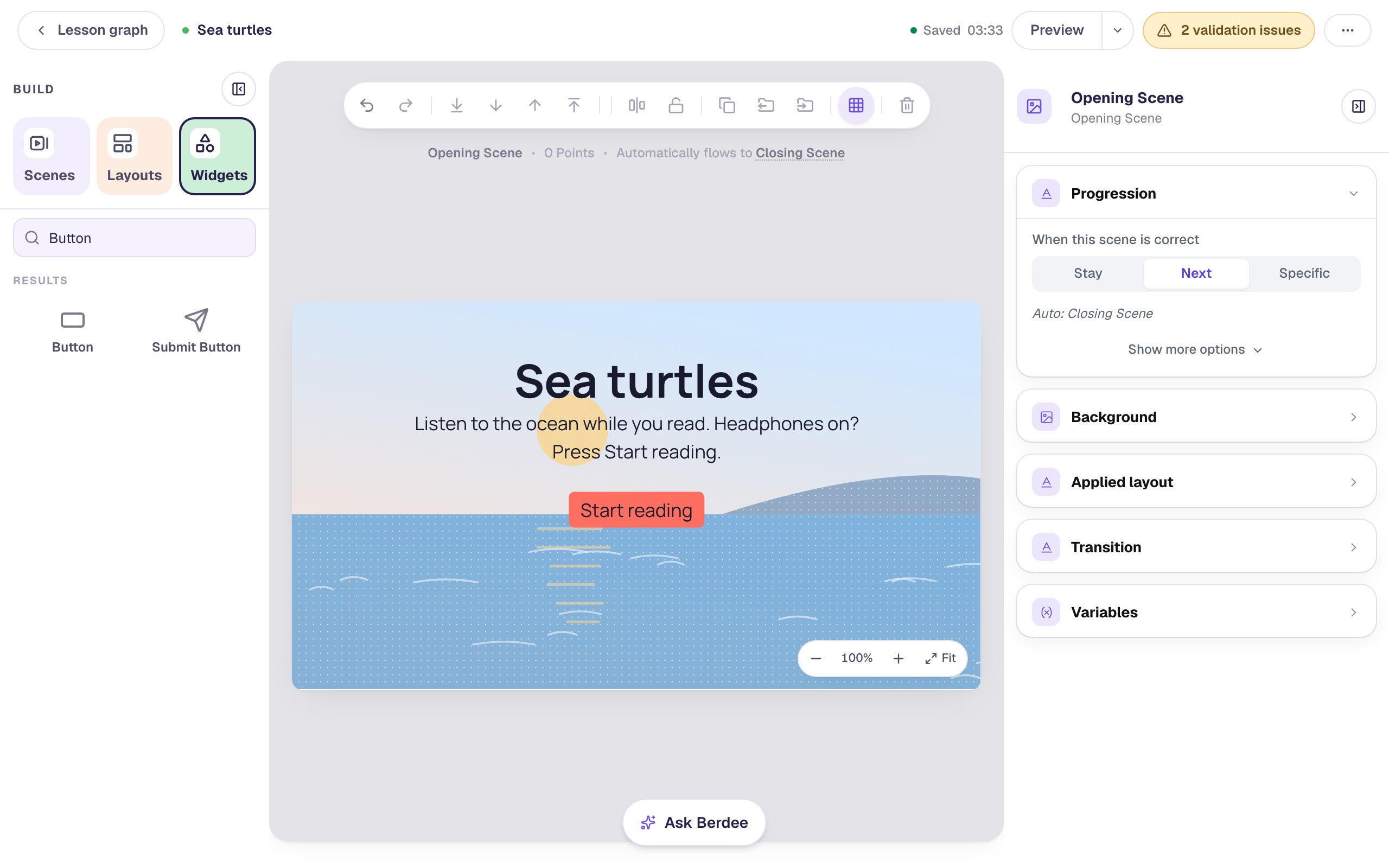
The title page isn't only decoration. Browsers often won't let a web page start sound until the person has tapped or clicked something on it, so a sound that should start by itself works best on a scene students reach by pressing a button. Start reading is that press.
Step 2: Build the reading page
Open the Scenes tab and click Add scene. Double-click the new scene's name and call it Read. Give it the Ocean horizon background too.
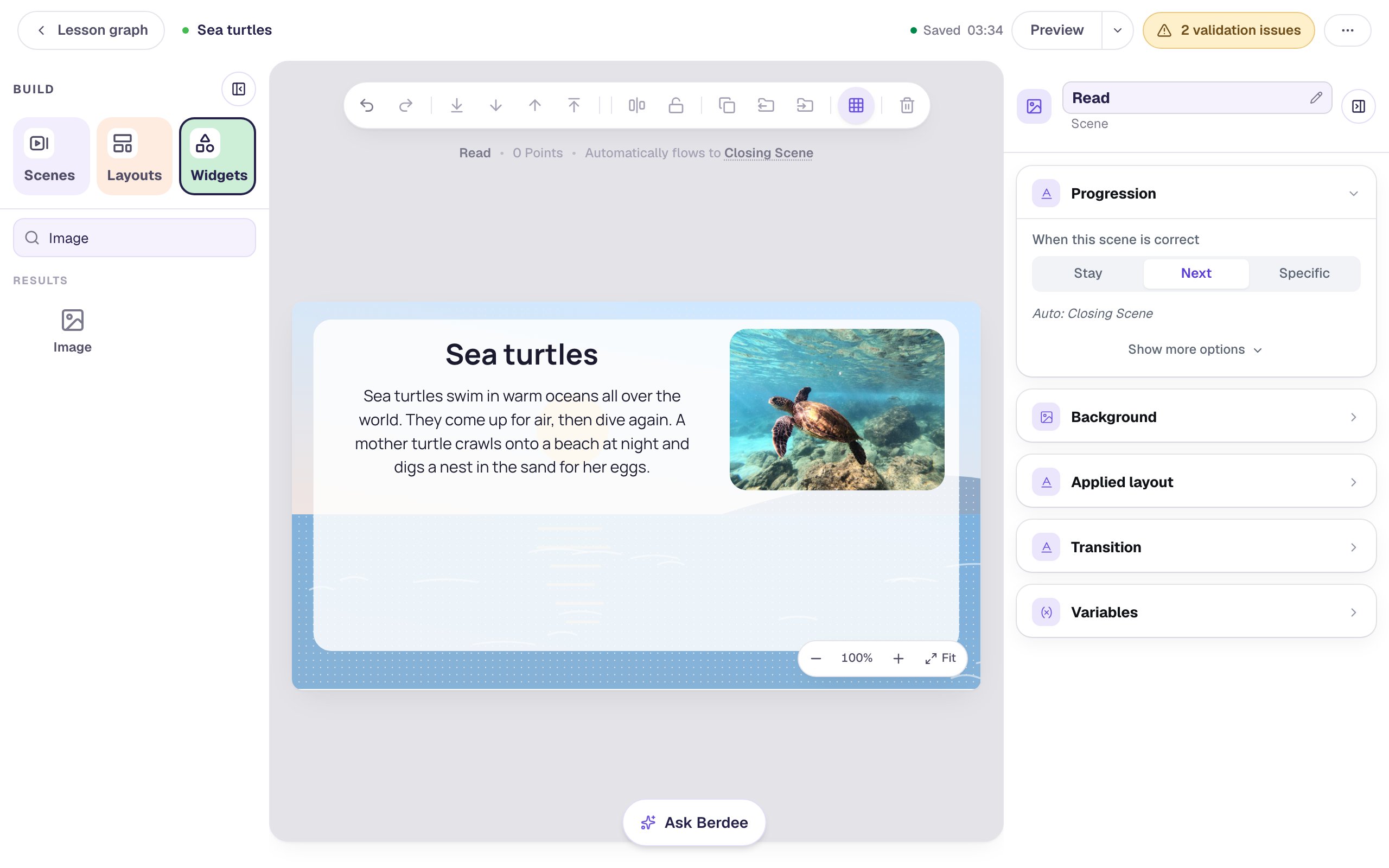
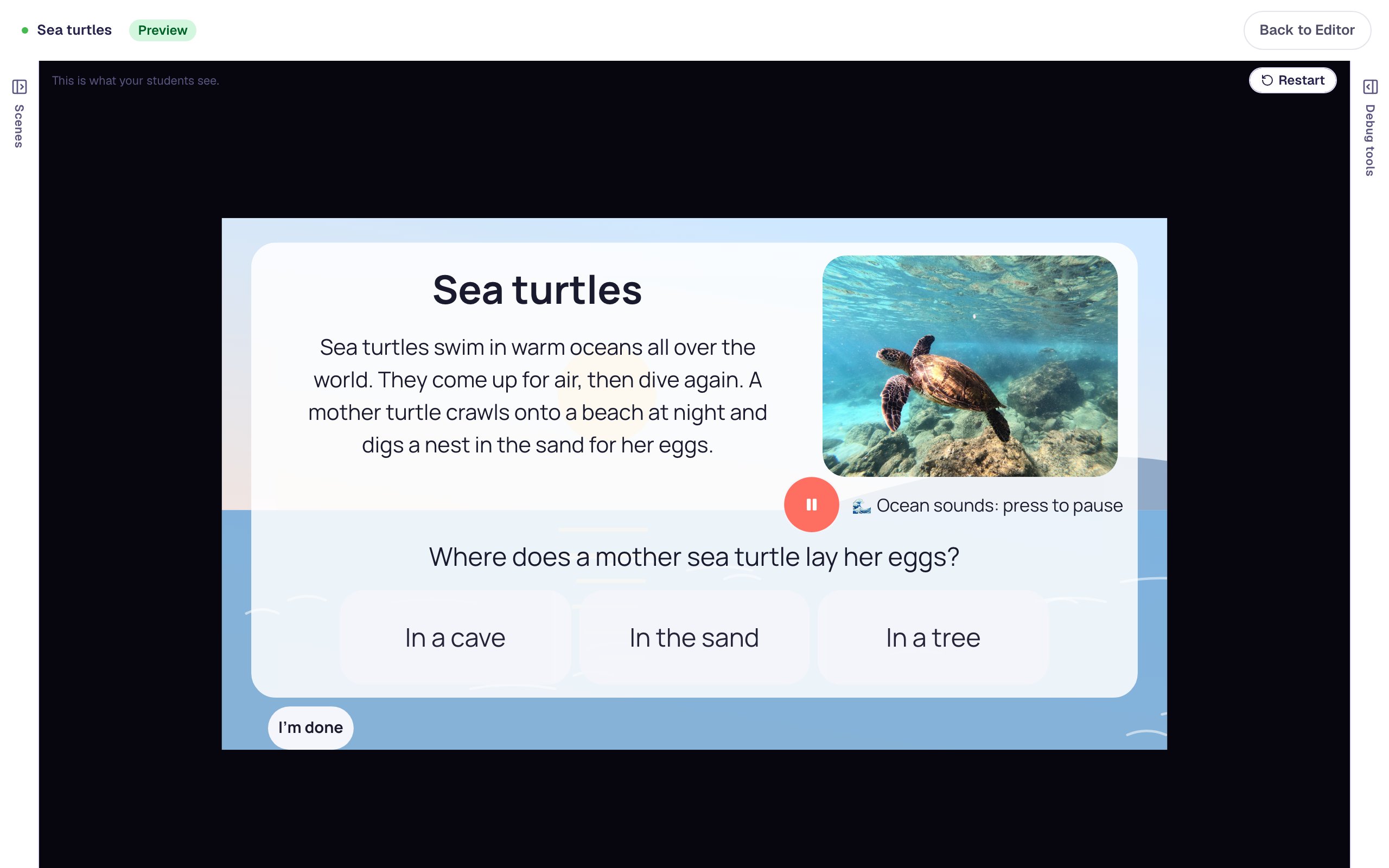
Students need a calm place to read, so put a frosted card over the sea. Add a Shape, choose Rectangle in its Configure window, and in Style & Layout set Width to 900 and Height to 462, Fill Color and Stroke Color to white, Border Radius to 24 and Opacity to about 0.85. Drag it to the middle of the scene.
On the card, add a Heading that says Sea turtles and a Body with the passage, set to a Font Size of 22 and a Fixed width of 500:
Sea turtles swim in warm oceans all over the world. They come up for air, then dive again. A mother turtle crawls onto a beach at night and digs a nest in the sand for her eggs.
Then add an Image in the top-right corner of the card. Click Choose image, search the stock photos for sea turtle, and pick a wide photo. Open Accessibility and set Alt Text to what the photo shows, like A green sea turtle swimming over a coral reef in clear blue water, so students using a screen reader get the picture too.
Step 3: Send Start reading to the reading page
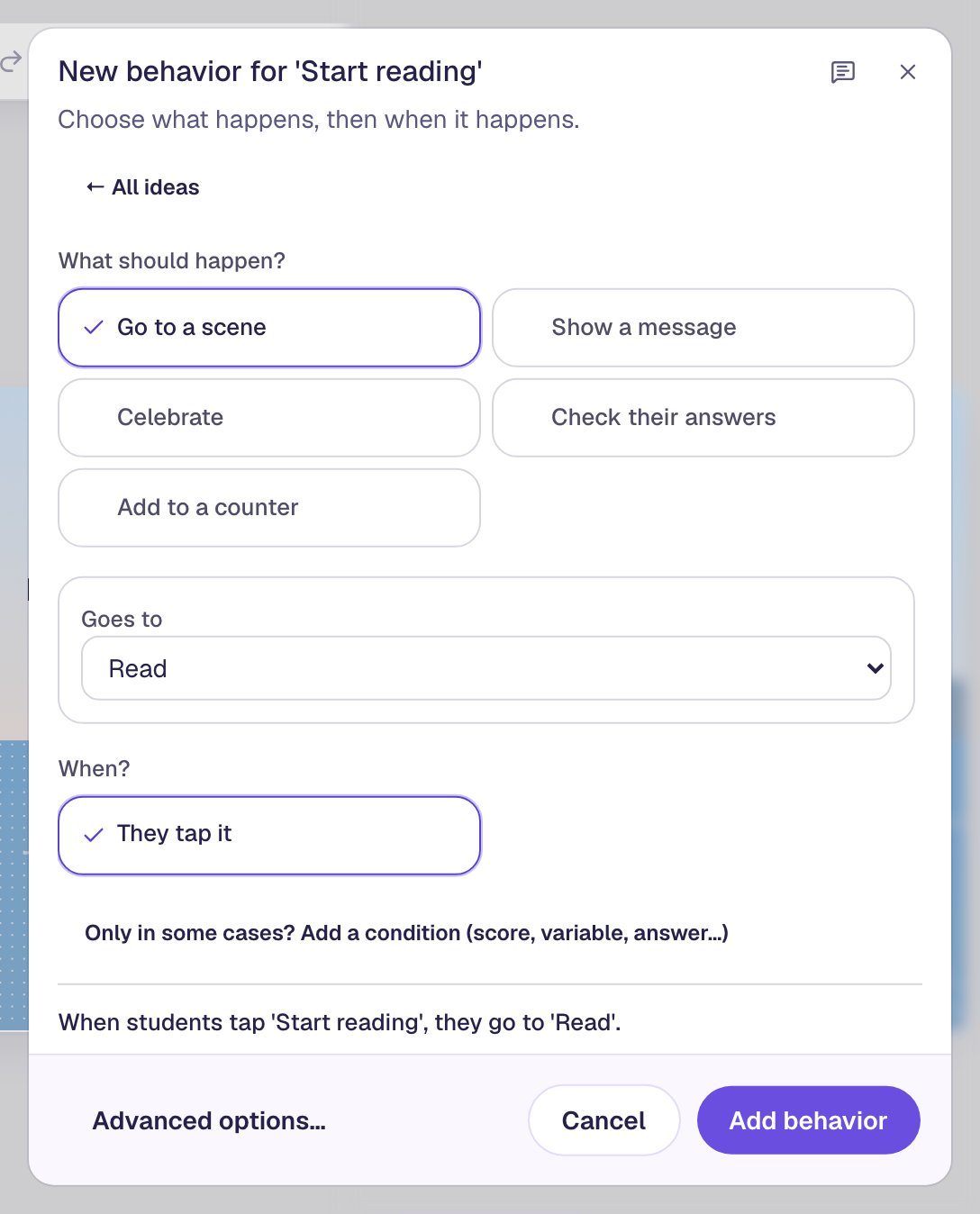
Go back to the Opening Scene and click the Start reading button. In the pill above it, click Behaviors, then Make this a "Next" button. The window fills in Go to a scene, Goes to: Read and They tap it. Click Add behavior.
Step 4: Ask the question
Open the Read scene again. Under the passage, add a Body that says Where does a mother sea turtle lay her eggs? with a Font Size of 26.
Add a Multi Choice and click ⚙ Configure. Type three answers: In the sand, In a tree and In a cave, and remove the fourth option with its bin. The first option starts marked correct (the green tick), and that's In the sand, so leave it. Leave Randomize Order on.
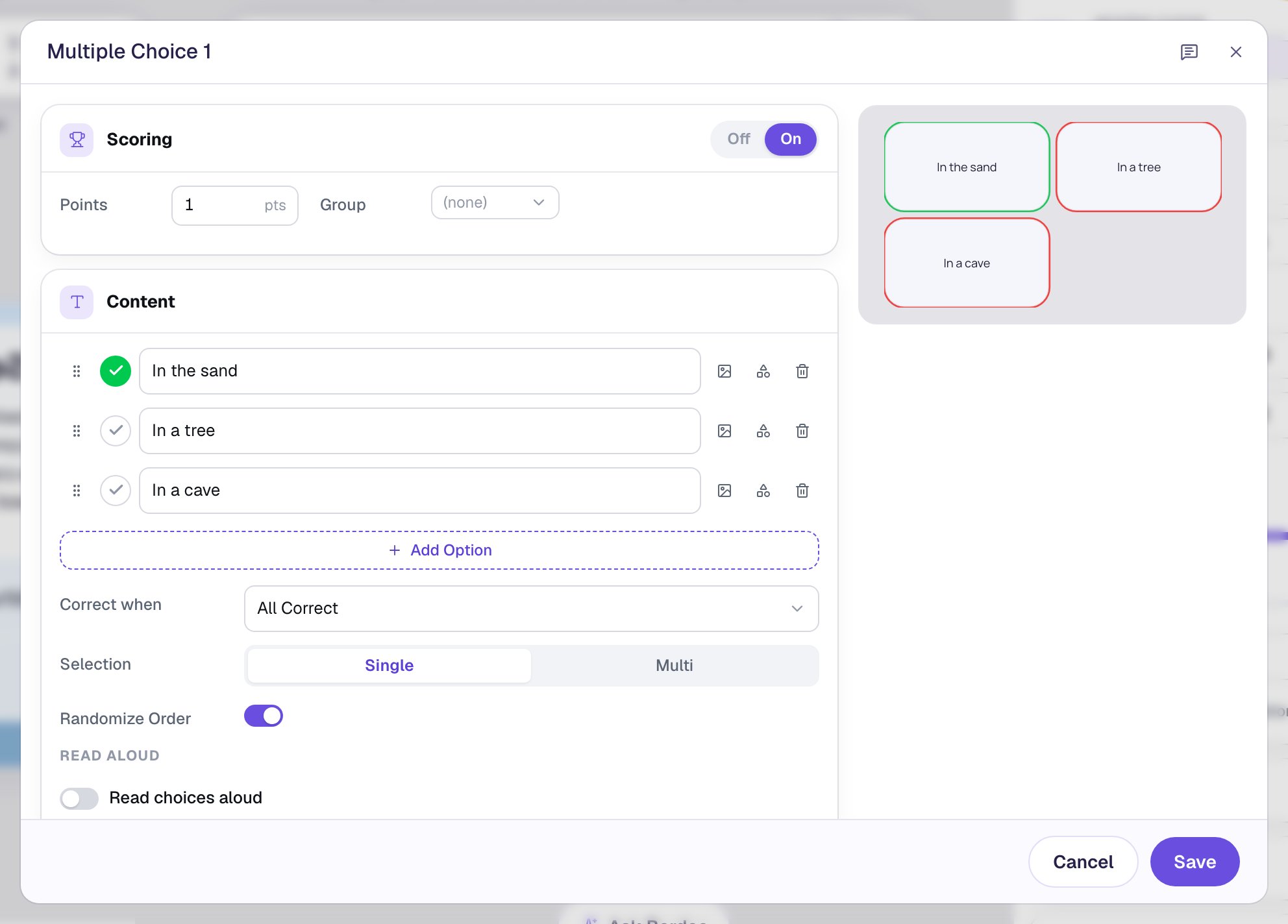
Click Save. Set the question's Font Size to 26 and, under Show more options, its Width to 720 and Height to 96, so the three answers sit in one row along the bottom of the card.
Last, a lesson needs a Submit button set to Lesson before you can publish it. Add a Submit Button, change its Label to I'm done, choose Lesson, and tuck it into the bottom-left corner.
Step 5: Generate the sound of waves as a loop
Now the sound. In Widgets, search for Audio and click it. Click ⚙ Configure in the pill above the new player, then Open Media Library, and choose the Sound effects tab.
Describe the sound you want: Gentle ocean waves rolling onto a sandy beach, calm and steady, soft background ambience, no birds, no voices. Background sound should be easy to ignore, so ask for something calm and leave out anything that would make students look up, like gulls or people talking.
Set Duration (seconds) to 15, and tick Generate a seamless loop. Then click Generate sound effect.
Generate a seamless loop is what makes this work. An ordinary clip has a beginning and an ending, so when it repeats, students hear a little jump every 15 seconds. A seamless loop is made so its end runs straight into its start, and the waves just keep rolling.
After a few seconds you get three takes. Press play on each and keep the calmest one with Save and use.
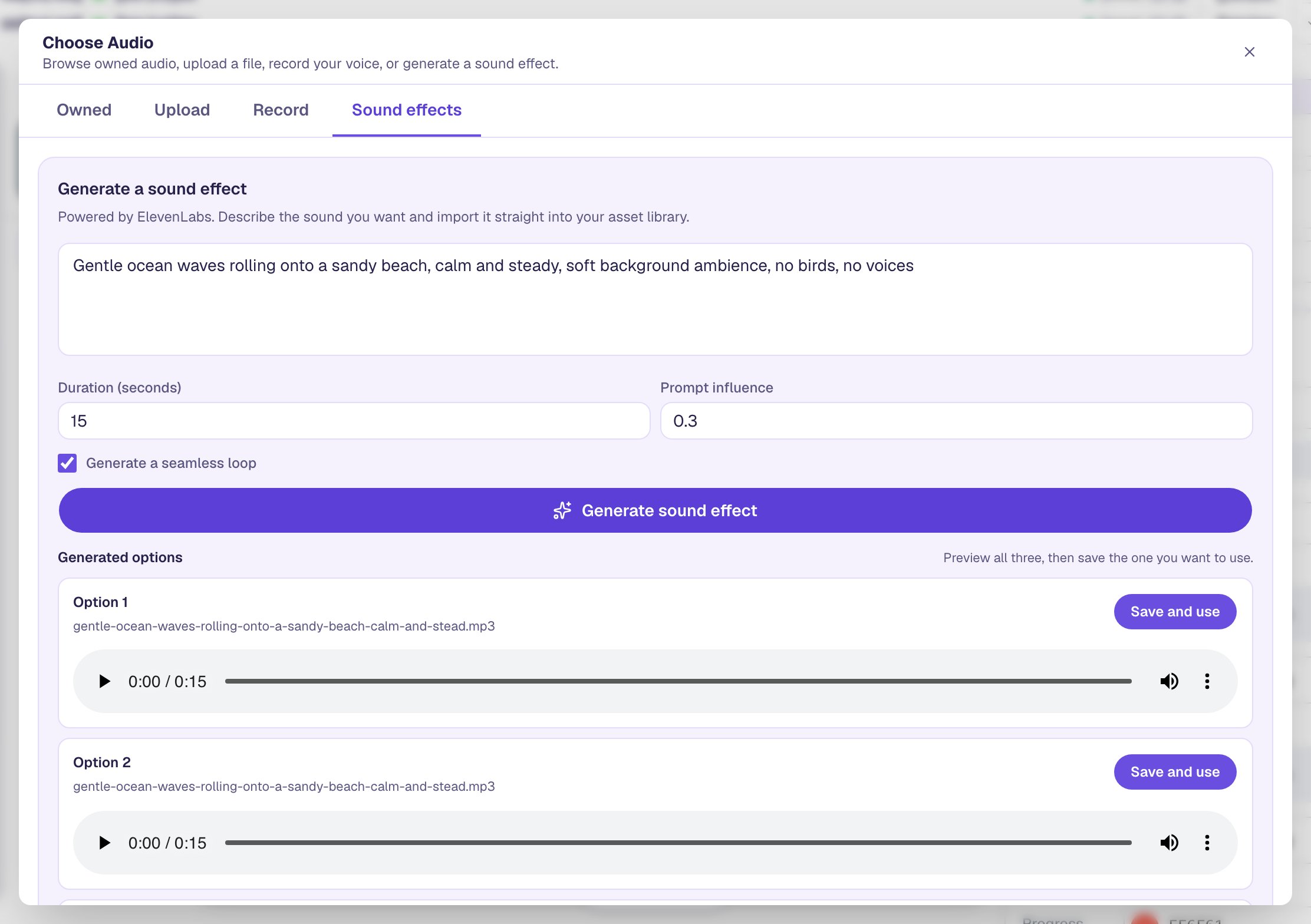
You don't have to generate the sound. On the same window you can Upload a clip you already have. Any sound works with Loop, but one that wasn't made to loop may jump where it starts again.
Step 6: Turn on Auto Play and Loop
Back in the Audio Configure window, under the clip's name, switch on both:
- Auto Play starts the waves as soon as students arrive on the Read scene, with nothing to press.
- Loop starts the clip again each time it ends, so the waves last as long as the student stays on the page, however slowly they read.
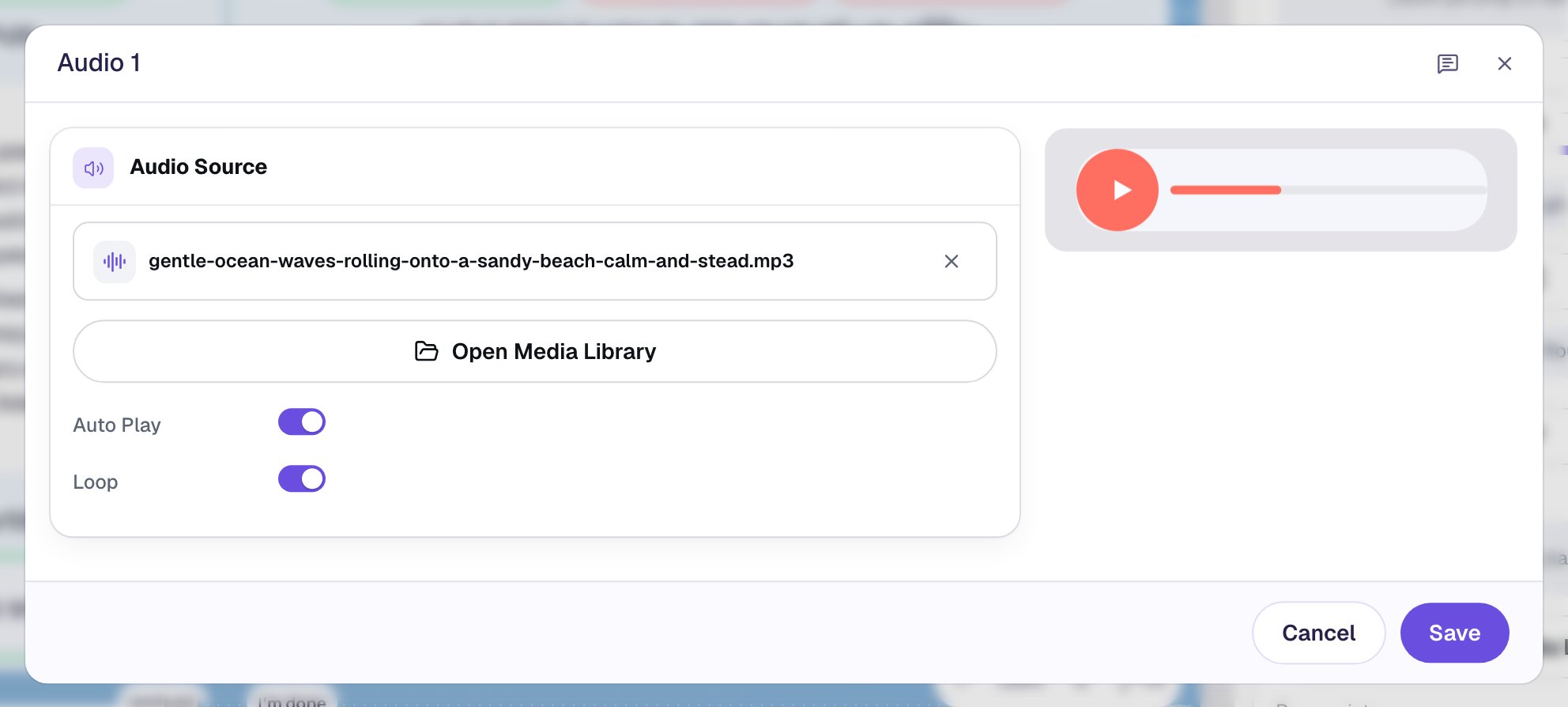
Click Save, then rename the widget Ocean sounds by clicking its name at the top of the properties panel.
Looping sound also behaves differently from other sound in a lesson. Normally, when one clip starts, any other voice stops, so students hear one thing at a time. Looping audio counts as background music: it keeps playing under a read-aloud or a narrated question instead of being stopped by it.
Step 7: Give students a pause button
Background sound that starts by itself and never ends needs an off switch. Some students can't concentrate with it on, and some are using a screen reader that the waves would talk over. So keep the player visible, just small.
With Ocean sounds selected, open Style & Layout, click Show more options, and set Player Layout to Button Only. Set Width and Height to 56 and drag it under the photo. While the waves play, the button shows a pause sign; pressing it stops them, and pressing it again starts them.
Then give the button a name a screen reader can say. Open Accessibility and set Alt Text to the ocean sounds. A screen reader now announces the button as "Pause the ocean sounds", and "Play the ocean sounds" after it's paused.
Last, tell everyone else what the button is for. Add a small Body beside it that says 🌊 Ocean sounds: press to pause, with a Font Size of 18.
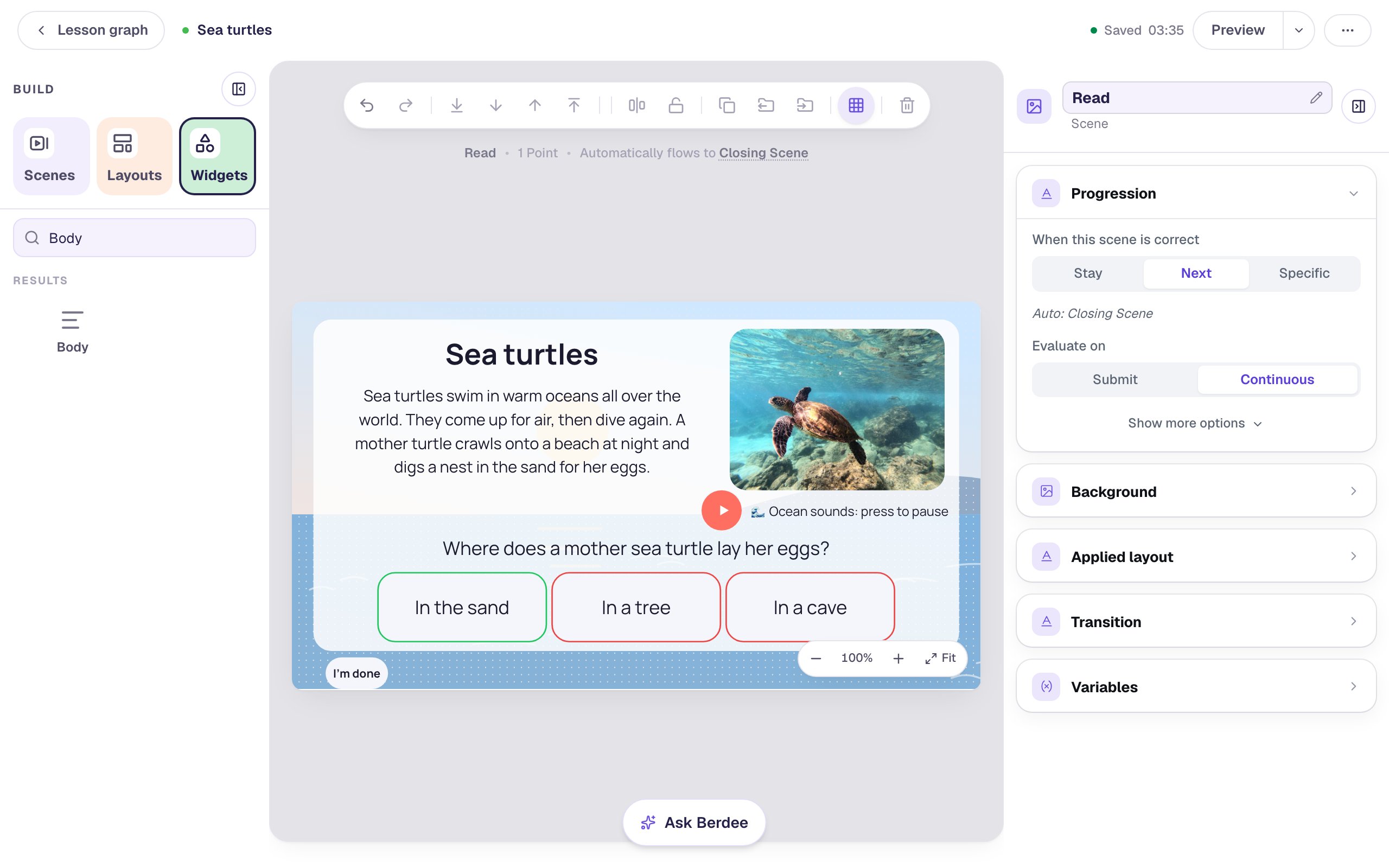
Don't use the Invisible player layout for sound that loops on its own. With nothing on the screen to press, a student who wants it to stop has no way to stop it.
Step 8: Preview it as a student
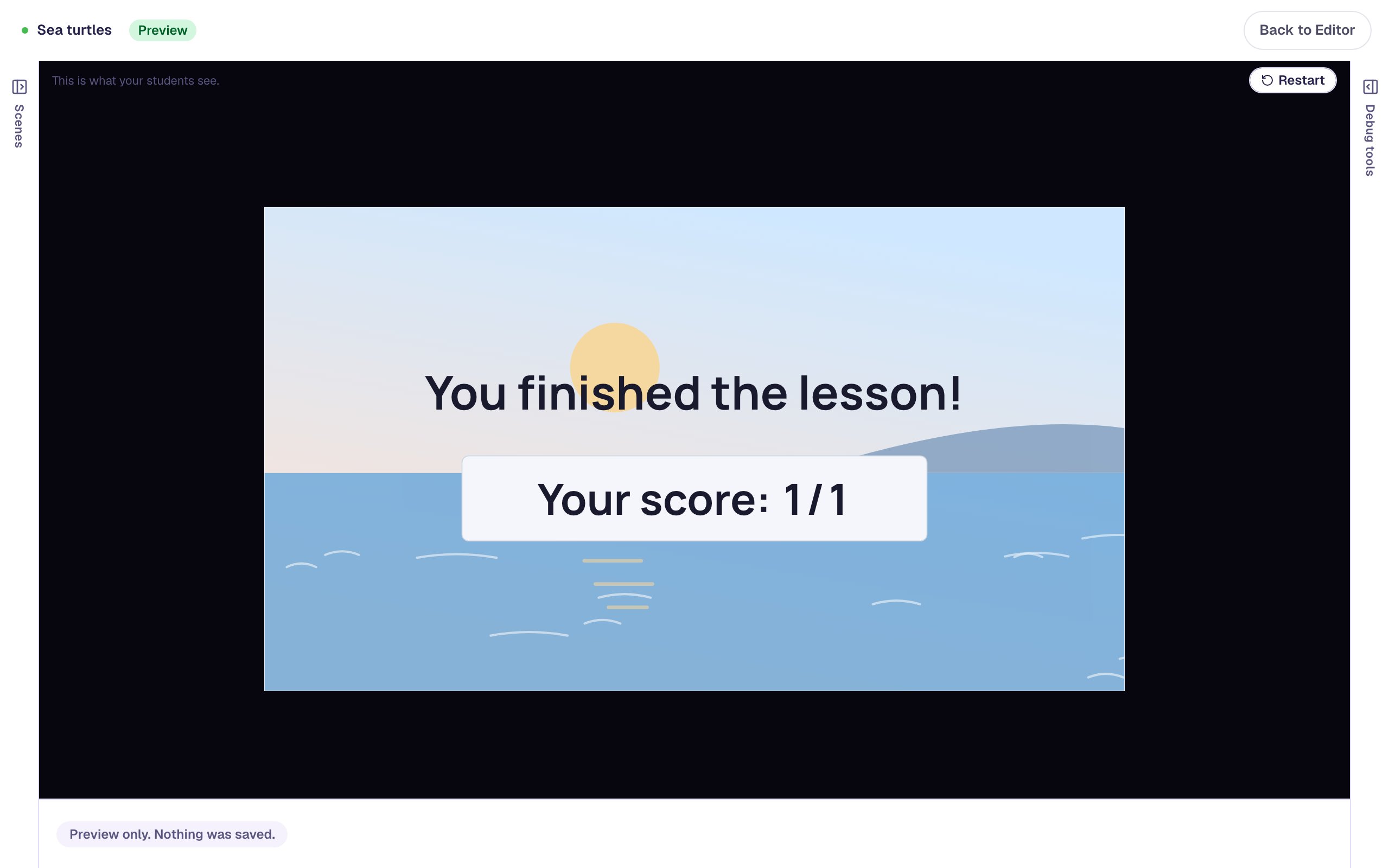
Go back to the Opening Scene and click Preview. Press Start reading and the waves start on their own. Pause them and play them again, then answer: a wrong pick first, then the right one.
The clip above is silent, but in your browser you'll hear the waves. They keep going through a wrong answer, so a student who tries again is still reading by the sea, and they stop when the lesson moves on to the ending.
What you built
A reading page with a soundtrack:
- A title page whose Start reading button gives the browser the tap it needs before sound can start.
- A generated ocean sound made as a seamless loop, so it repeats without a jump.
- An Audio player with Auto Play and Loop on, so the waves start by themselves and last as long as students read.
- A small Button Only player with alt text and a label, so every student can pause the sound.
The same recipe fits any setting: rain for a story about a storm, birdsong for a lesson on spring, a crackling fire for a camping tale. To add a sound that plays once at the right moment instead, see Play a sound for right and wrong answers. To turn the play button into a big picture, see Turn a picture into a play button for listening.
Make this lesson yours
Add the lesson you just watched being built to your account, then change it for your class: your questions, your pictures, your colors.
Free to sign up, and you'll come straight back here. I have an account