Drag labels onto the parts of a diagram
Put an empty slot at the end of each line on a diagram, turn four words into cards students can drag, and connect each word to its slot, so students label an ant's antenna, head, thorax and abdomen and see a red slot when a word is in the wrong place.
- Level
- Beginner
- Time
- About 15 min
- Steps
- 8
- Updated
- Oct 21, 2026
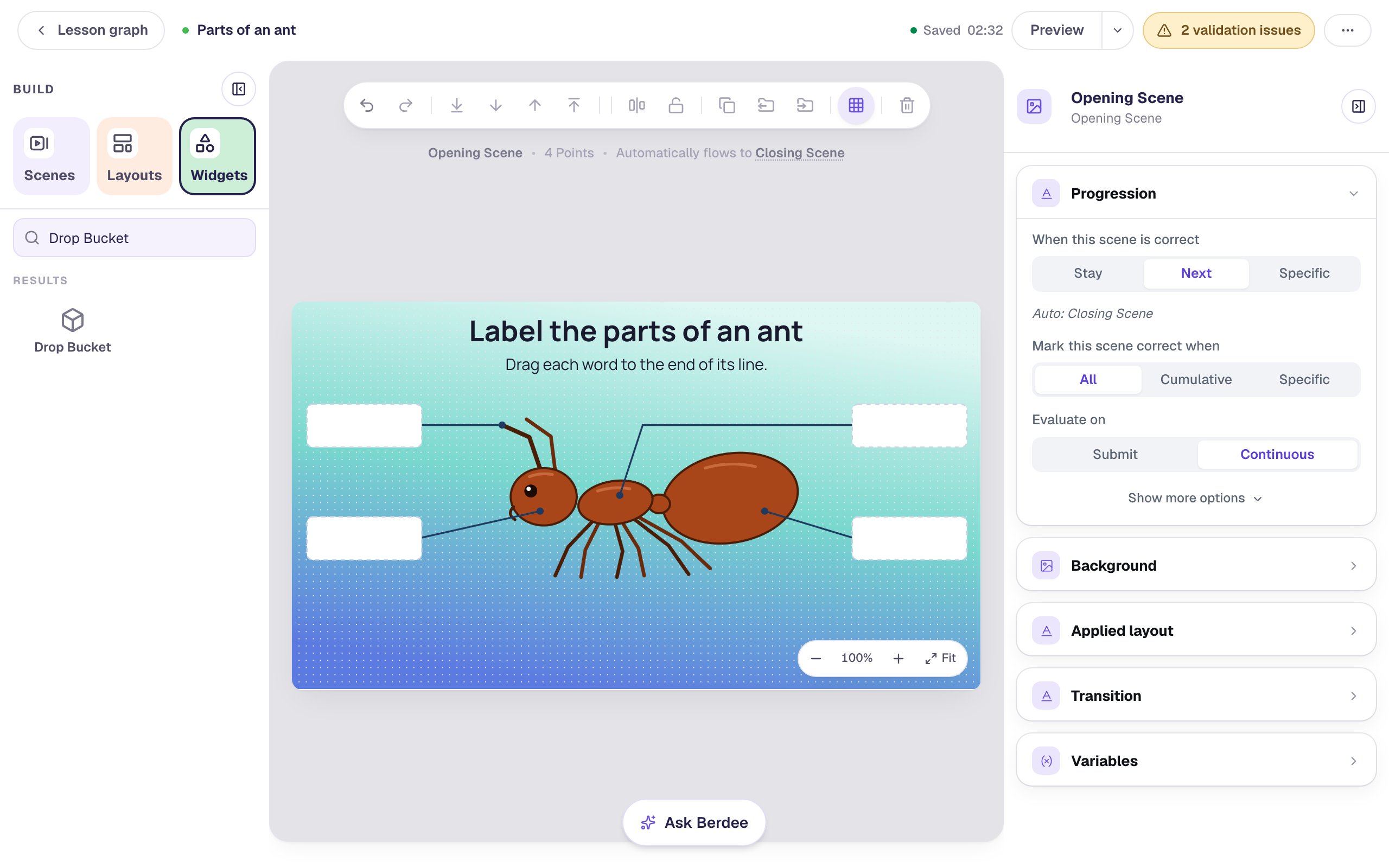
A "Parts of an ant" scene where students drag four words from a word bank onto the slots at the ends of the diagram's lines, see a slot turn red when a word doesn't belong there, and move on to the ending once every part is labelled.
Get the finished lesson
Skip straight to the result, or keep it open beside the steps. Add this tutorial's lesson to your account and explore how it works in the studio.
Free to sign up, and you'll come straight back here. I have an account
Labelling a diagram is one of the most common things teachers ask students to do: the parts of a plant, a cell, a volcano, the water cycle. In this tutorial you'll build one students do with their hands. A drawing of an ant has four lines pointing at its parts, there's an empty slot at the end of each line, and a word bank underneath holds Antenna, Head, Thorax and Abdomen. Students drag each word to the slot it belongs in.
Two widgets do the work. Each slot is a Drop Bucket, and each word is a Text card switched to Draggable. If you've built a drag-and-drop sorting activity before, this is the same idea with one word per bucket, laid out on a picture.
Step 1: Put the diagram on the scene
Start a blank lesson (New lesson, then Start from scratch) and give the scene a background from Background → Choose a style. This lesson uses Lagoon gradient.
Then add the text and the picture:
- Add a Heading and type
Label the parts of an ant. Drag it to the top of the scene. - Add a Body under it and type
Drag each word to the end of its line. - Add an Image, click Choose image, open the Upload tab, and pick your diagram. Under Style & Layout → Show more options, set Width to
600and Height to300, and drag it to the middle of the scene.
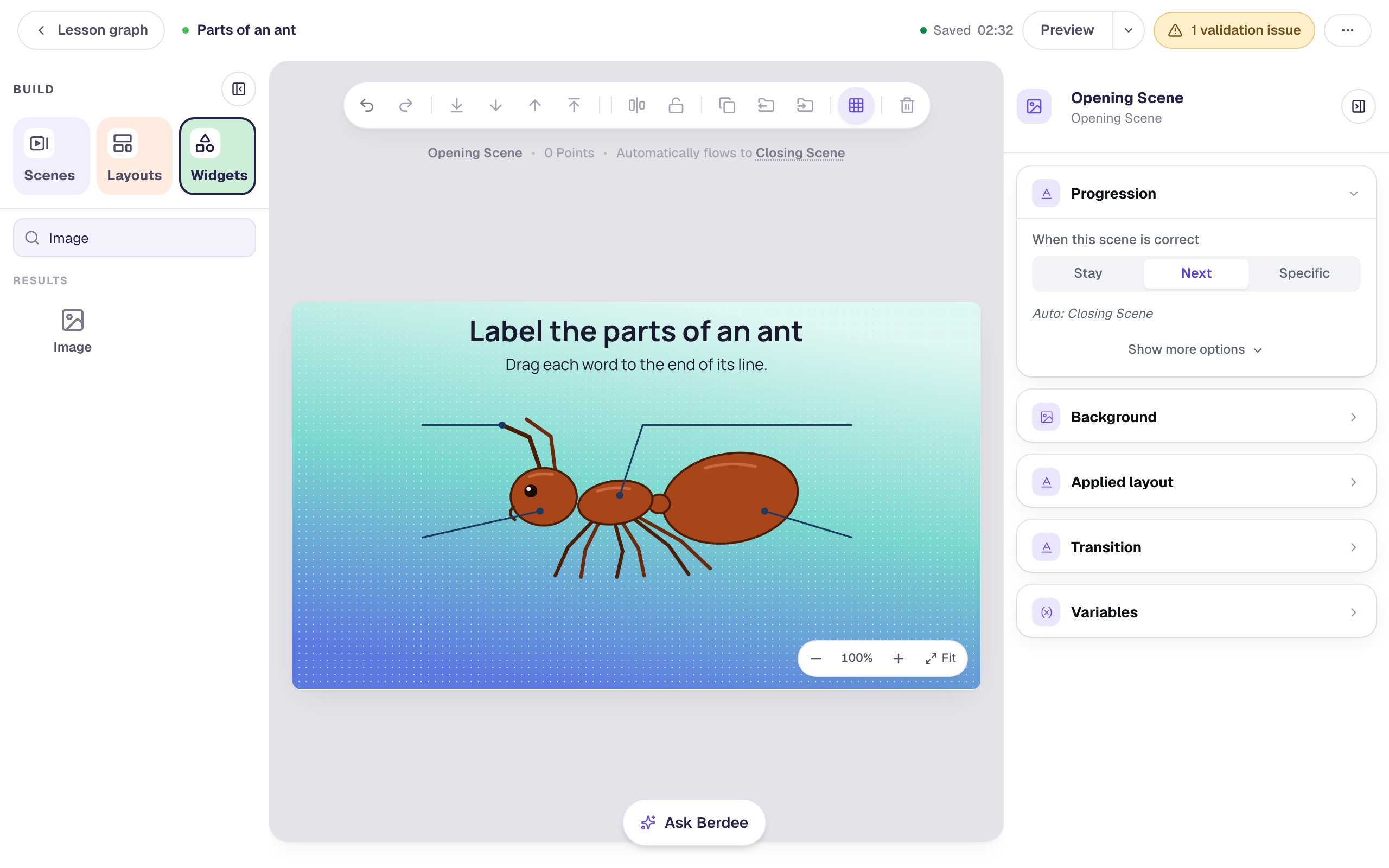
Draw the lines into the picture itself, as this one does, and leave the ends empty. A picture whose labels are already printed on it gives the answers away.
While the image is selected, open Accessibility and replace the Alt Text with a description of what students see: A drawing of a red-brown ant from the side, facing left, with four lines pointing to its antenna, head, thorax and abdomen. A student using a screen reader can't see where the lines go, so say what they point at.
Step 2: Add a slot at the end of each line
Open Widgets, search for Drop Bucket, and click it. Make it the size of a label:
- Under Style & Layout → Show more options, set Width to
160and Height to60. - Set Background to white, so the empty slot stands out against the background.
- Drag it to the end of the top-left line.
Rename it so you can tell the slots apart later: click its name at the top of the properties panel, type Top left slot, and press Enter. Name slots by where they are, not by their answer: the names appear in lists students never see, but they keep the answer key out of anything you might show.
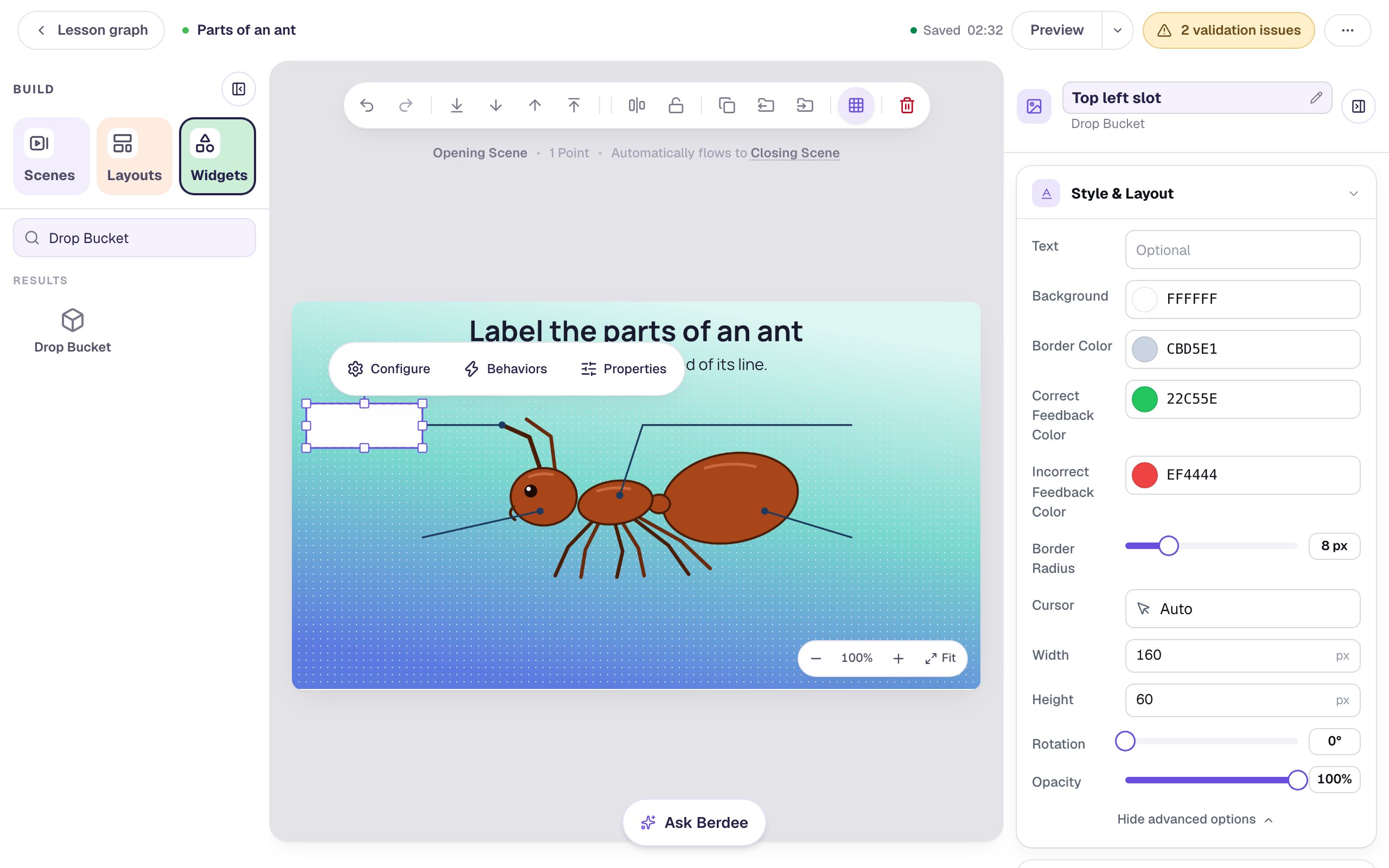
In Accessibility, change the slot's Alt Text from Drop bucket to Label for the top-left line. Screen readers announce that name, so a student using one knows which slot is which.
Add three more the same way, at the ends of the other three lines: Bottom left slot, Top right slot and Bottom right slot.
Step 3: Make the first word card
Add a Text widget, type Thorax, and press Escape. Rename it Thorax at the top of the properties panel: the slots' answer lists show the cards by name.
Make it look like a label students can pick up. In Style & Layout:
- Set Font Size to
24. - Click Background Color and choose the soft yellow from the Theme row.
- Set Width to Fixed width, then under Show more options set Width to
140, a little narrower than a slot. - Click Align center.
Drag it below the picture, where the word bank will go.
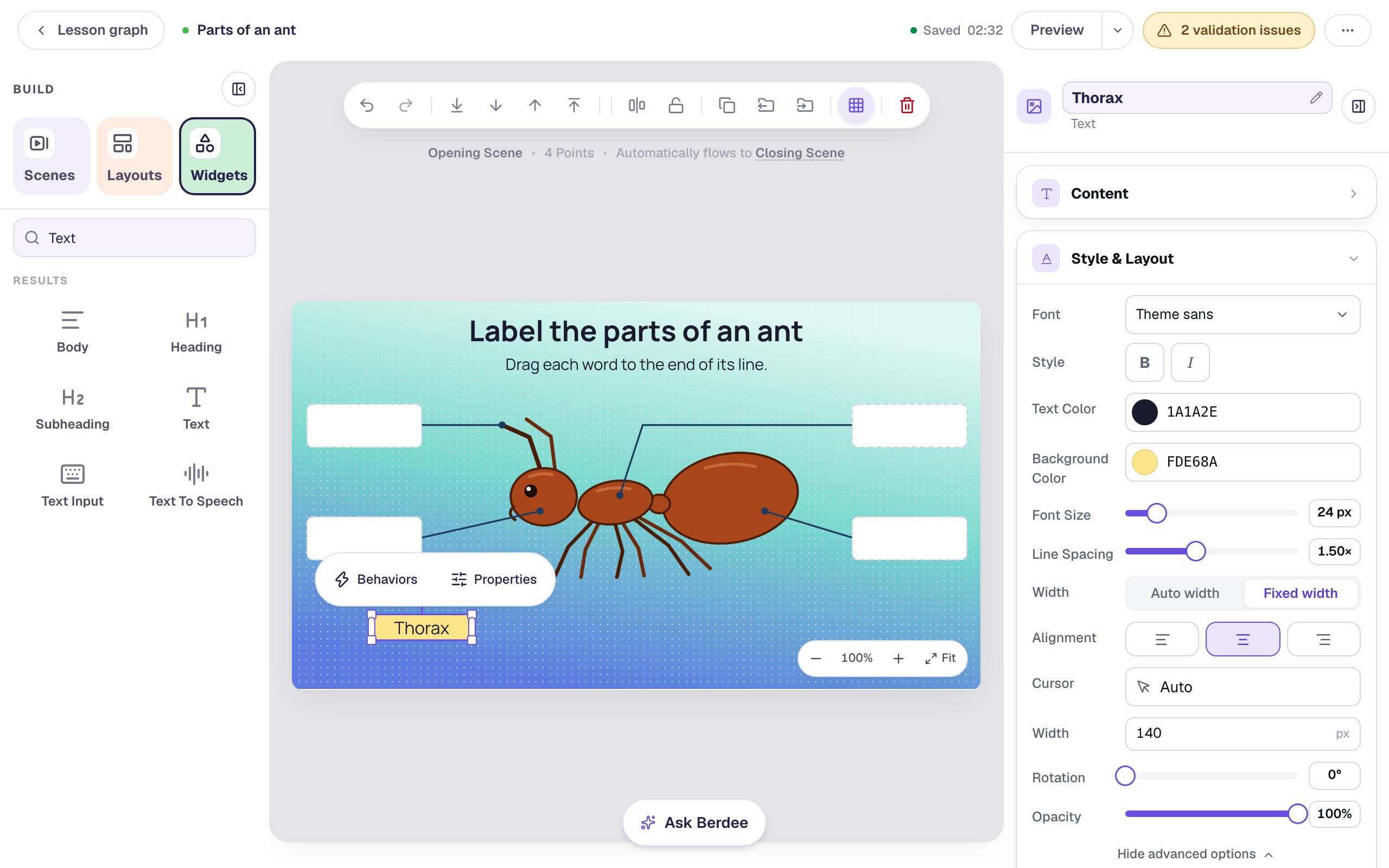
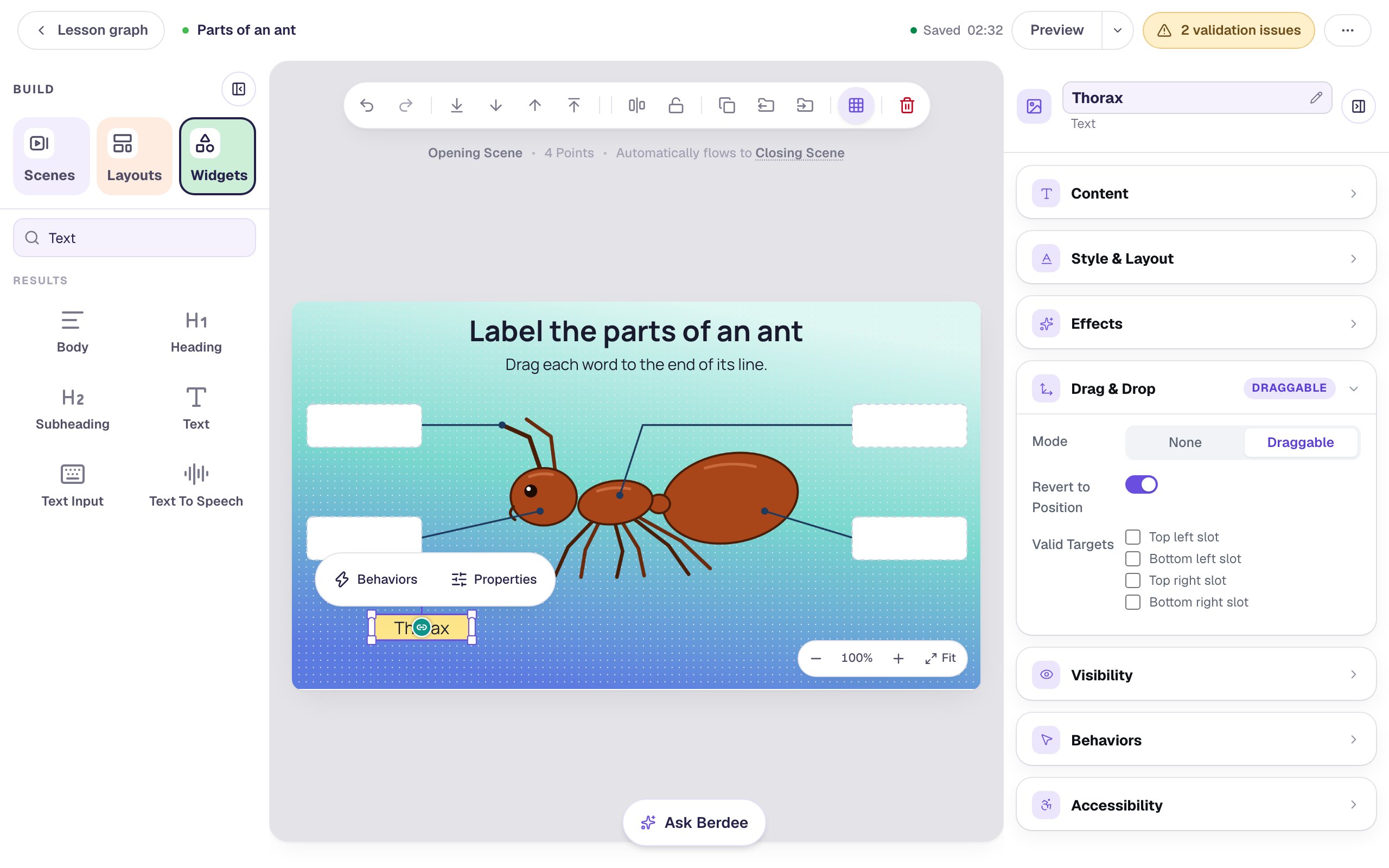
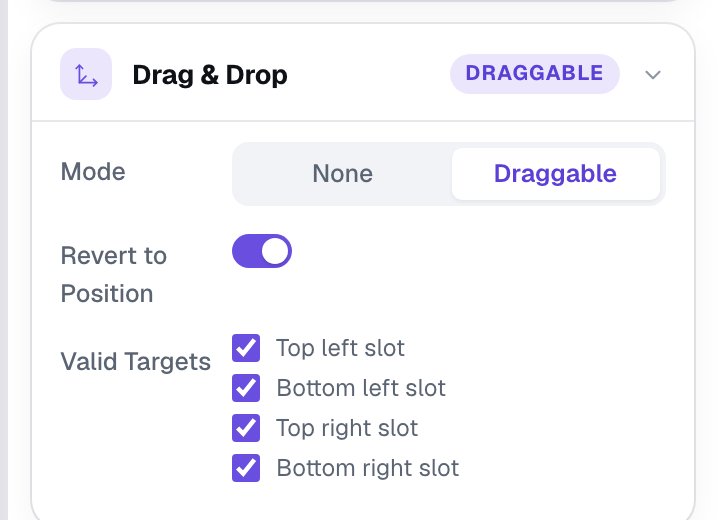
Now open Drag & Drop and set Mode to Draggable. A small round link badge appears in the middle of the card. You'll use it in Step 5.
Step 4: Copy the card for the other three words
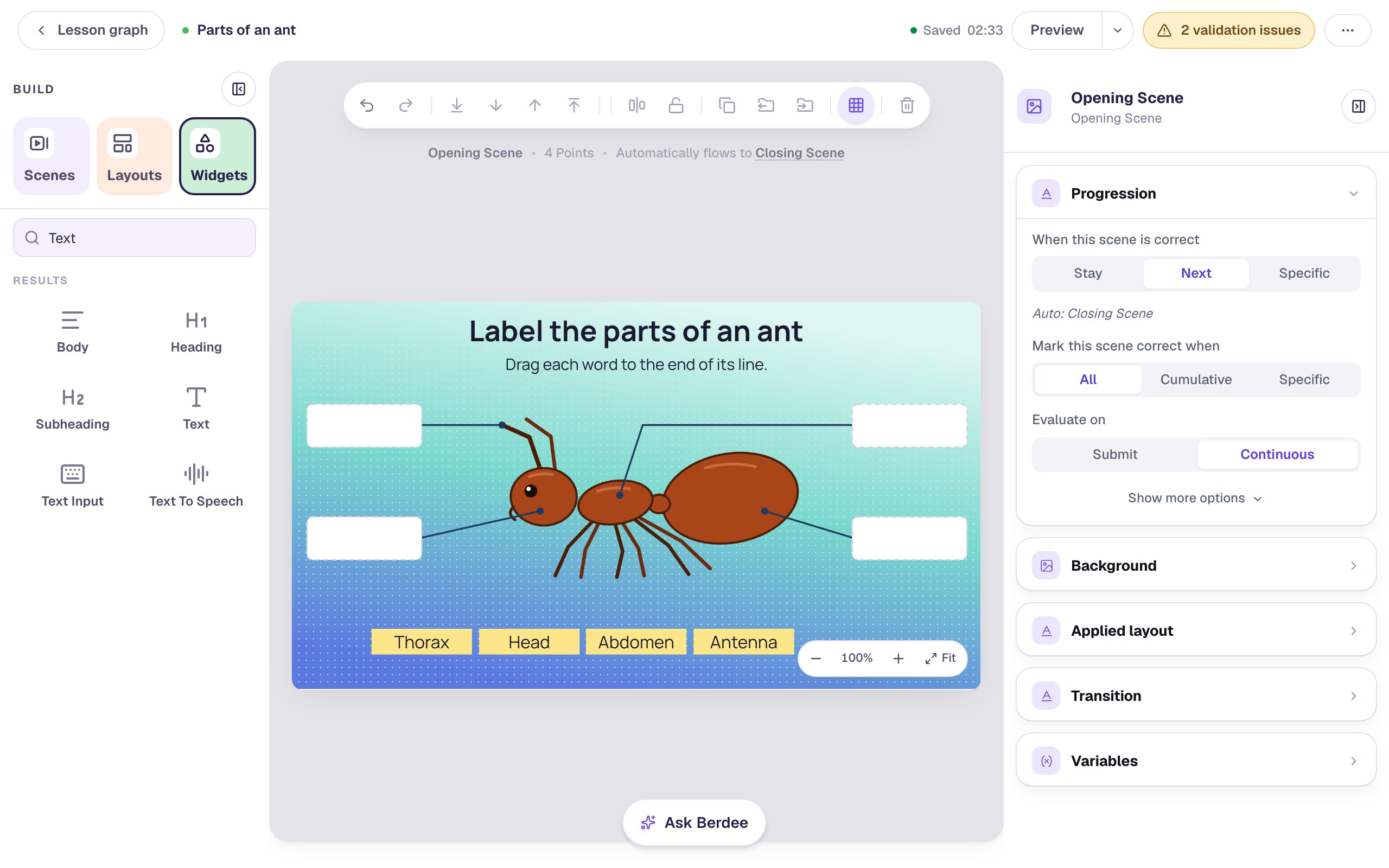
With Thorax selected, click Duplicate in the toolbar above the canvas. The copy keeps the colour, the size and Draggable. Then:
- Drag the copy into the row beside Thorax. Grab it near its edge: dragging the link badge in its middle draws a connection instead of moving it.
- Double-click the copy's edge and type
Head. - Rename it
Headin the properties panel.
Repeat for Abdomen and Antenna. Mix the order up, so the word bank doesn't read in the same order as the slots. To straighten the row, Shift-click all four cards and use Align & distribute → Align vertical centres, then Distribute horizontally.
Step 5: Connect each word to its slot
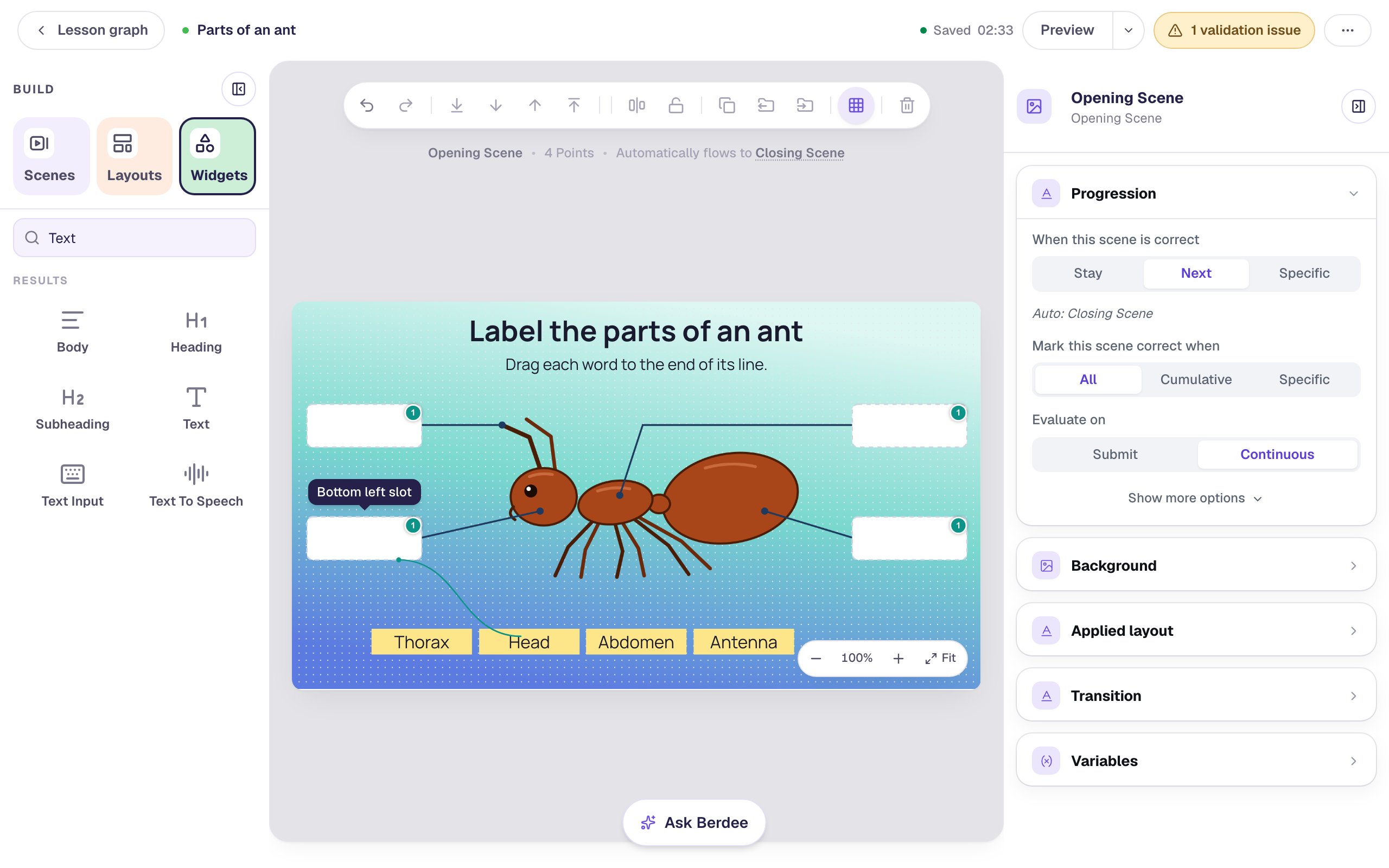
This is the answer key, and you draw it. Click a word to select it, then drag from the link badge in its middle and let go on the slot where it belongs:
- Antenna goes to the top-left slot.
- Head goes to the bottom-left slot.
- Thorax goes to the top-right slot.
- Abdomen goes to the bottom-right slot.
Each slot now shows a small 1 in its corner: one word belongs in it. To check a slot, point at it: a line appears from the word that belongs there.
Connecting a word also lets it be dropped in every slot on the scene. Select Head and look at its Valid Targets: all four slots are ticked. That's what lets a student put a word in the wrong place, which is the point of the activity.
Connected the wrong word? Drag its badge onto the same slot again to remove the line.
Step 6: Show a wrong word straight away
Select the Top left slot and click Configure in the pill above it. Its Correct draggables list shows the answer key you drew: only Antenna is ticked.
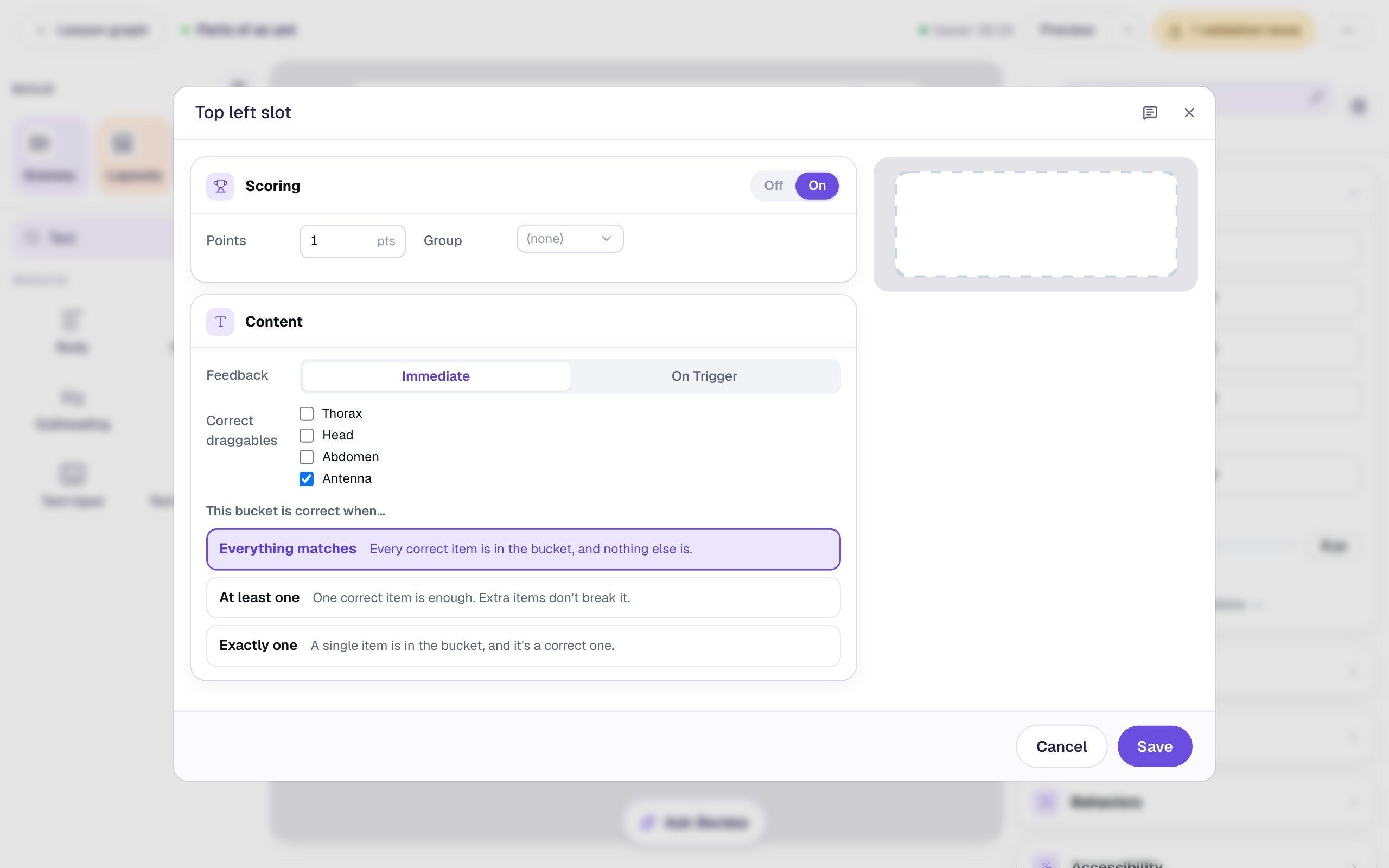
Set Feedback to Immediate, leave This bucket is correct when… on Everything matches, and click Save. With both, the slot's border turns red as soon as a word that doesn't belong lands in it, and green when the right word is there. Do the same for the other three slots.
Each slot is worth 1 point, so the diagram is out of 4. Want students to label everything before seeing what's right? Leave Feedback on On Trigger instead.
Step 7: Add a way to finish early
The validation pill at the top says Berdee needs a Lesson-Submit Button, a way out for a student who wants to stop. Add a Submit Button, change its Label to I'm done and set Submits to Lesson. In Style & Layout, bring the Font Size down to 18 px, give it a navy Background and white Text, and drag it to the top-right corner. A different colour from the word cards keeps it from looking like a fifth label.
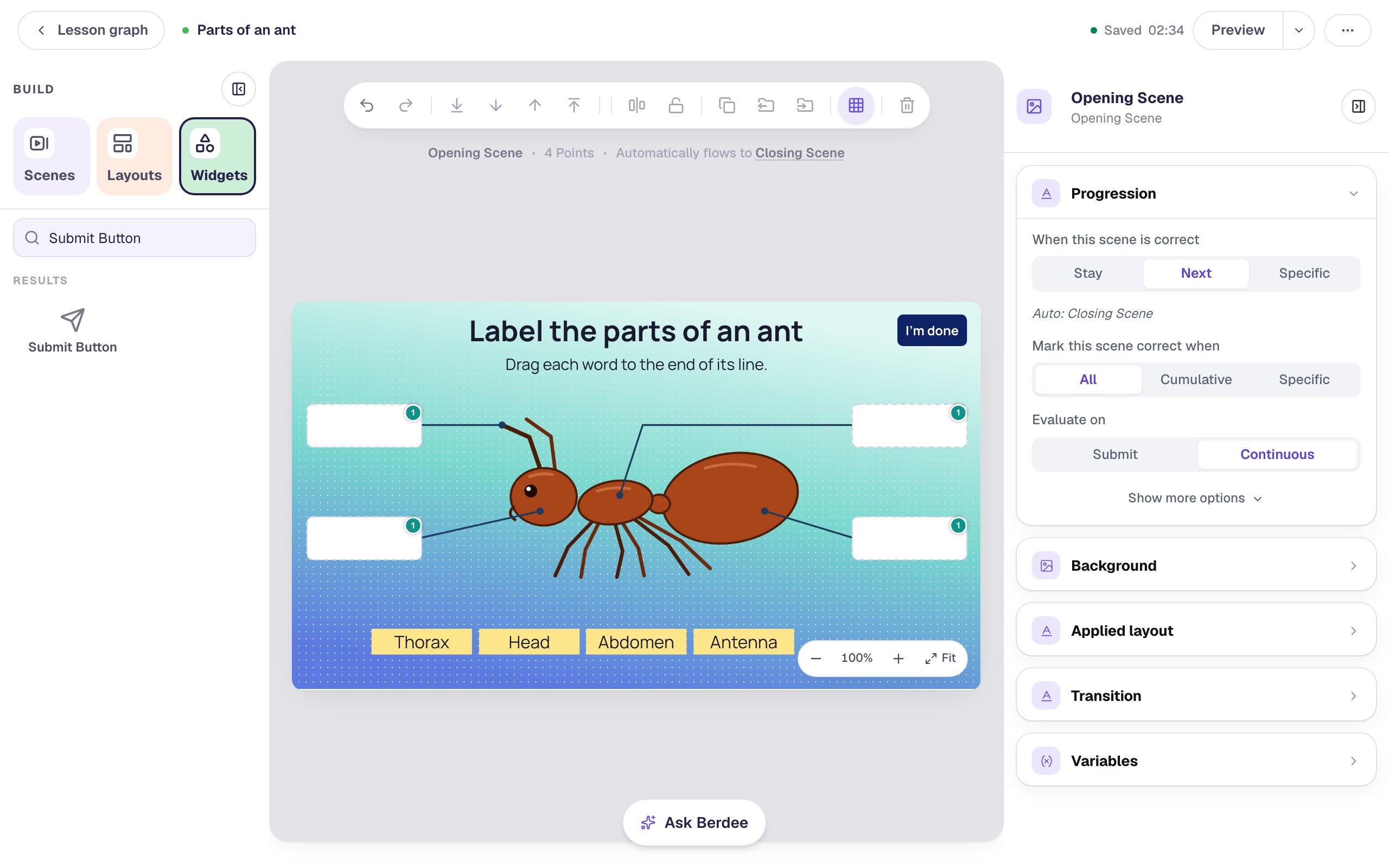
You don't need a button to check the labels. With nothing selected, the scene's Progression shows Evaluate on: Continuous: Berdee checks as students drag, and moves on to the Closing Scene the moment all four slots are right.
Step 8: Try it as a student
Click Preview and label the ant. Put one word in the wrong place on purpose:
Drop Head on the top-left line and the slot turns red: that line points at the antenna.
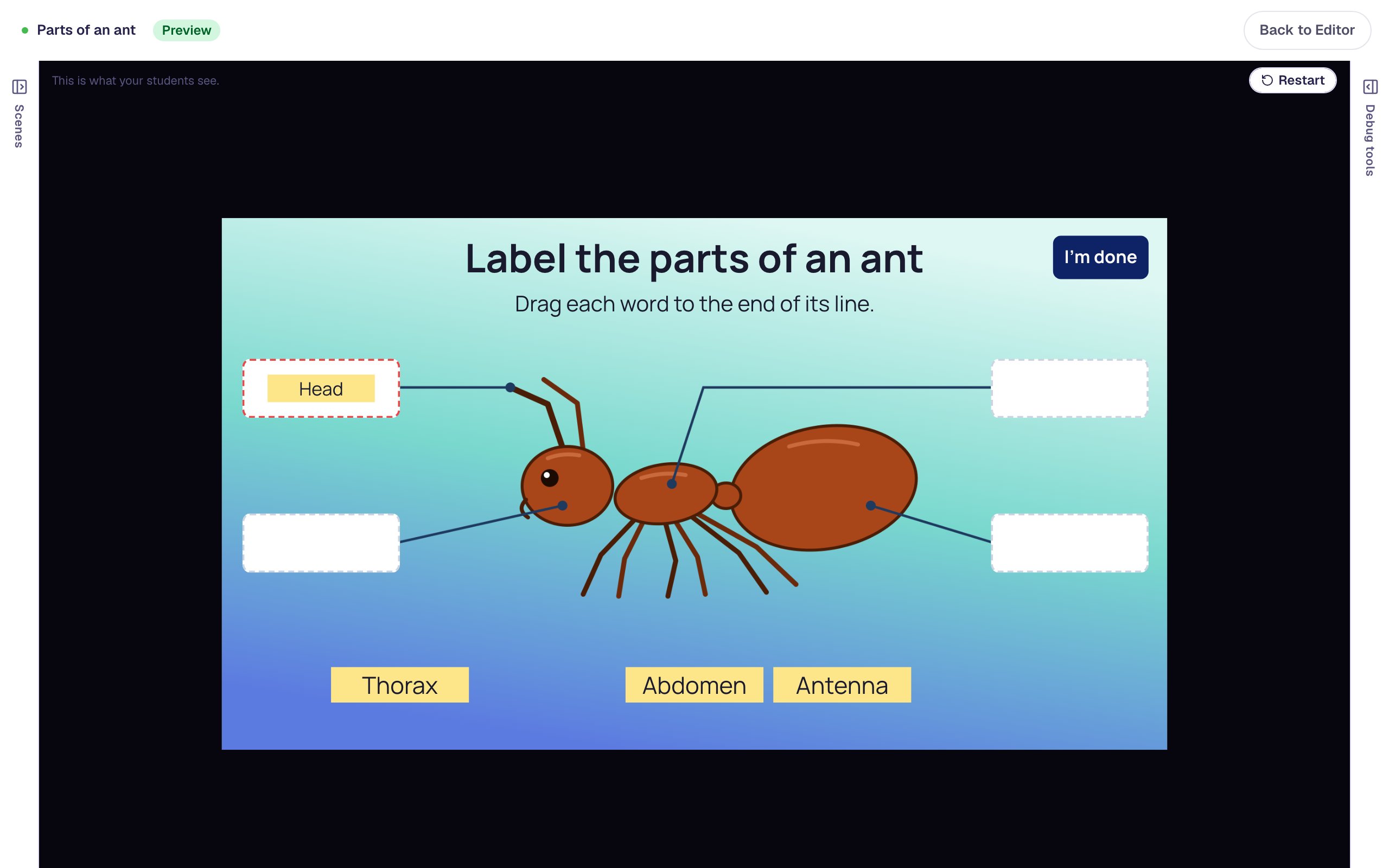
Drag it straight on to the bottom-left slot and the red goes away. A word shrinks a little to fit inside its slot, so the diagram stays tidy. Put Antenna and Thorax in their places, and each slot turns green.
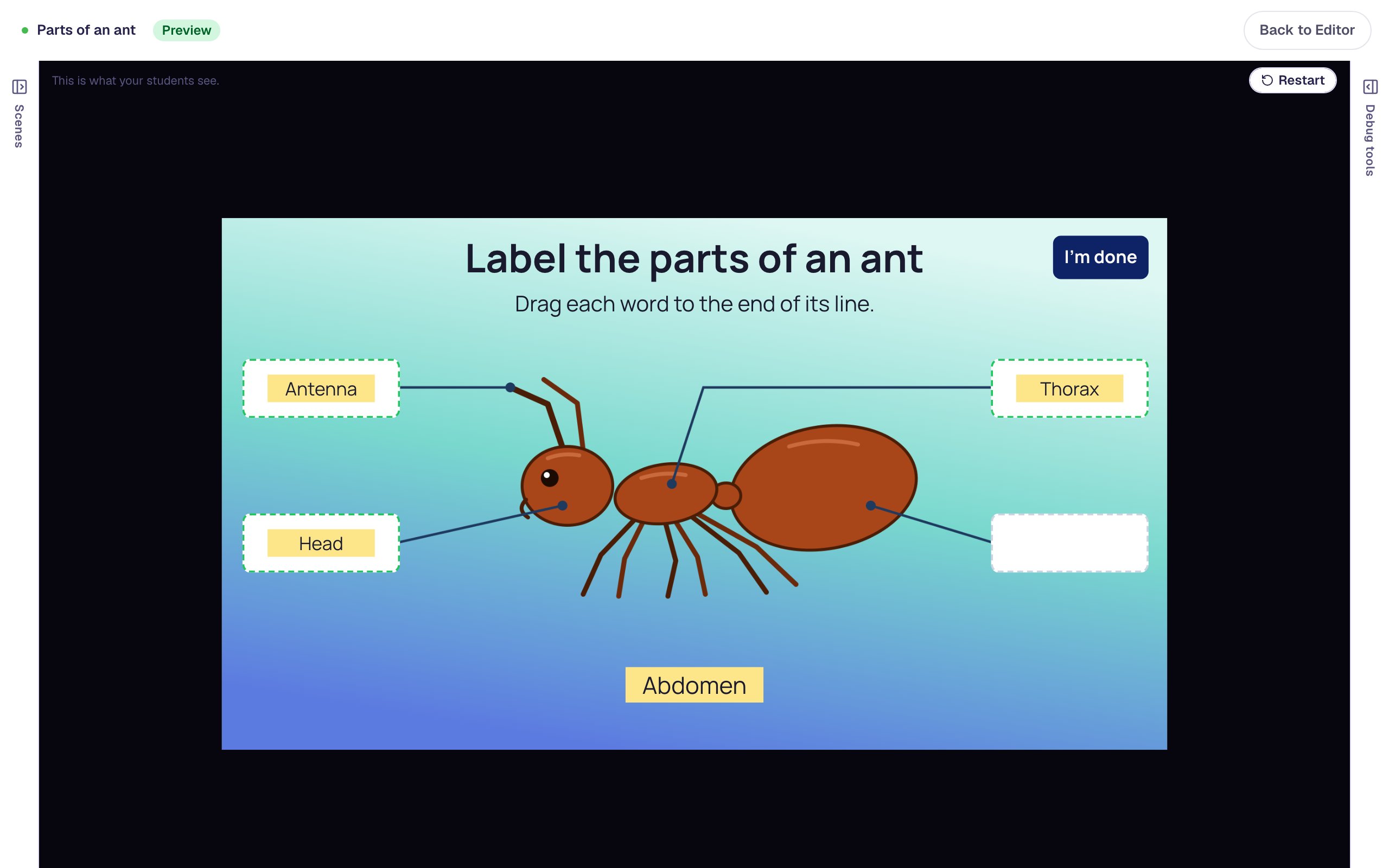
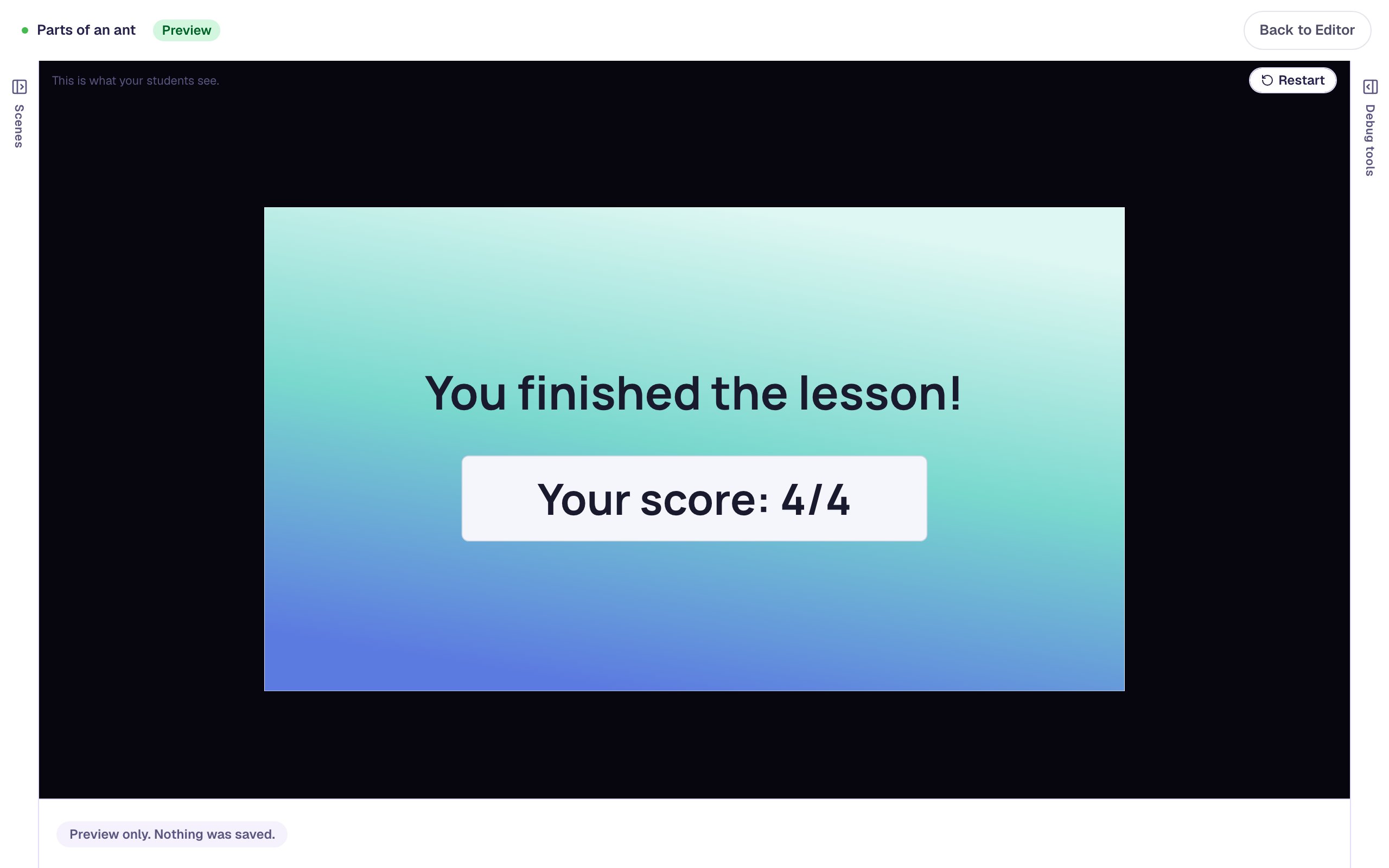
Drop Abdomen on the last slot, and the lesson moves on by itself to the Closing Scene, with a score of 4 / 4.
What you built
A diagram students label by dragging:
- a picture with empty lines drawn into it, described for screen readers,
- one small white Drop Bucket at the end of each line, named by position,
- four Text word cards in Draggable mode, styled once and duplicated,
- an answer key drawn by connecting each word to its slot,
- Immediate feedback, so a word in the wrong place turns its slot red right away, and
- a scene that moves on once every part is labelled, plus an I'm done way out.
The same build works for any diagram: draw new lines, move the slots to their ends, and retype the words. To make it harder, add a word that belongs nowhere, like Shell, and tick every slot under its Valid Targets yourself, since a word you never connect can't be dropped anywhere. Build a word from letter tiles shows that extra-card trick. To have students choose each part's name from a list instead of dragging, see Label a diagram with dropdowns.
Make this lesson yours
Add the lesson you just watched being built to your account, then change it for your class: your questions, your pictures, your colors.
Free to sign up, and you'll come straight back here. I have an account