Open a treasure chest with a secret code
Build an escape-room style puzzle where three clue answers make a secret code. A Number Input is the lock, a button explains a wrong code, and Visibility rules swap a closed chest for an open one when the code is right.
- Level
- Beginner
- Time
- About 15 min
- Steps
- 8
- Updated
- Oct 22, 2026
A one-scene puzzle where students solve three clues, type the 3-digit code, see the chest swing open when it's right (or a hint when it's wrong), and claim the treasure to finish.
Get the finished lesson
Skip straight to the result, or keep it open beside the steps. Add this tutorial's lesson to your account and explore how it works in the studio.
Free to sign up, and you'll come straight back here. I have an account
Escape-room puzzles turn ordinary practice into a mission. Instead of answering three sums one at a time, students solve all three and put the answers together into a code. A wrong digit or the right digits in the wrong order keeps the lock shut, so they have to check their work before the chest opens.
In this tutorial you'll build that puzzle on one scene:
- three clue cards whose answers, in order, make the code
781, - a Number Input that works as the lock, and a Try the code button that explains a wrong code,
- a closed chest that hides and an open chest that appears the moment the code is right, using Visibility rules, and
- a Claim the treasure button that only shows up once the chest is open.
Nothing here needs a variable: every rule reads one thing, whether the code Is correct. If you haven't used the studio before, start with Build your first quiz question: this tutorial moves quickly through the parts it already covers.
Step 1: Set the scene
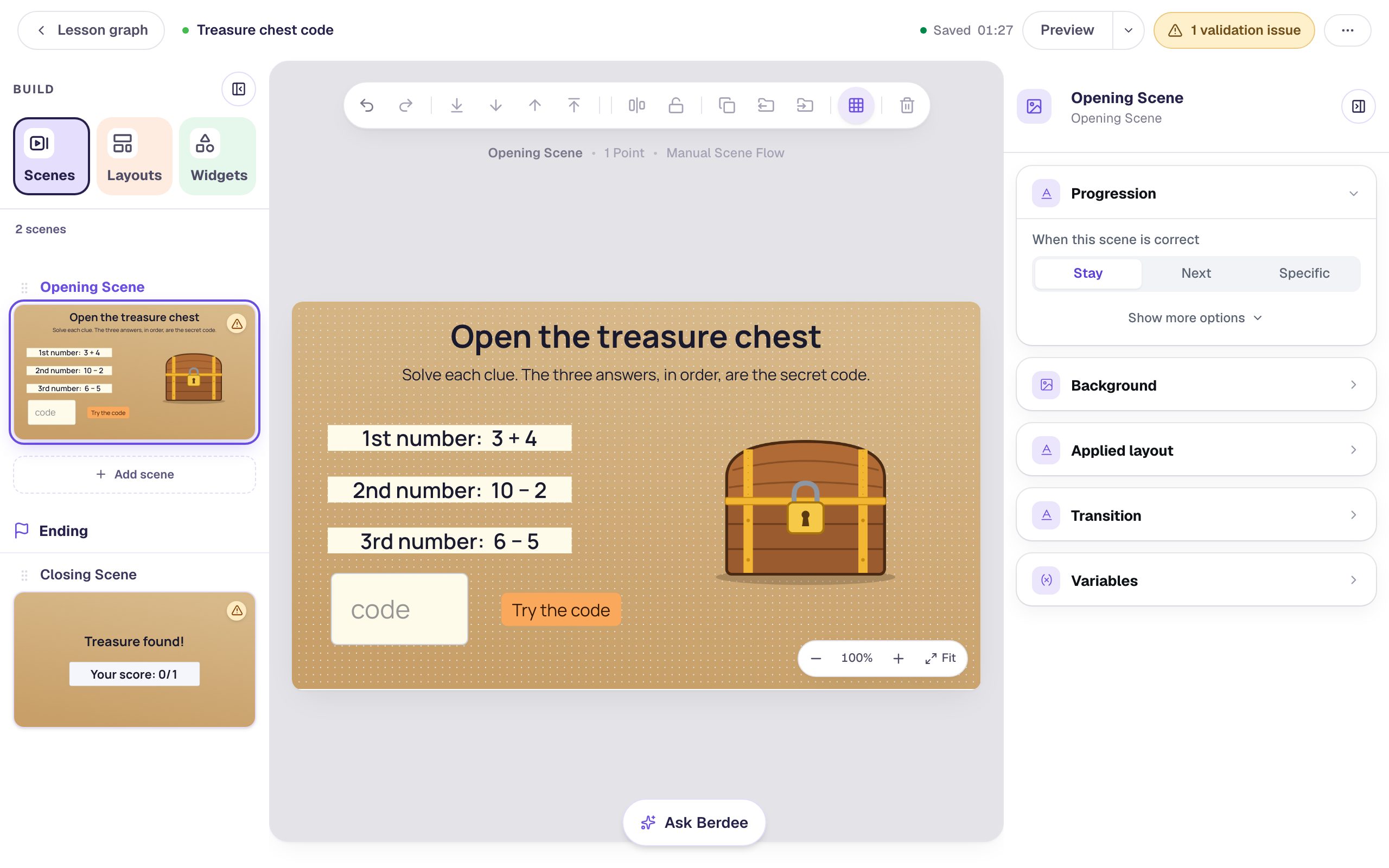
Start a blank lesson (New lesson, then Start from scratch) and name it Treasure chest code by clicking Untitled lesson at the top.
Give both scenes a treasure-map look: with nothing selected, open Background, click Choose a style, pick Textures, then Kraft paper, and click Apply background. Do it on the Opening Scene and the Closing Scene. While you're on the Closing Scene, double-click its You finished the lesson! headline and type Treasure found! instead.
Back on the Opening Scene:
- Add a Heading:
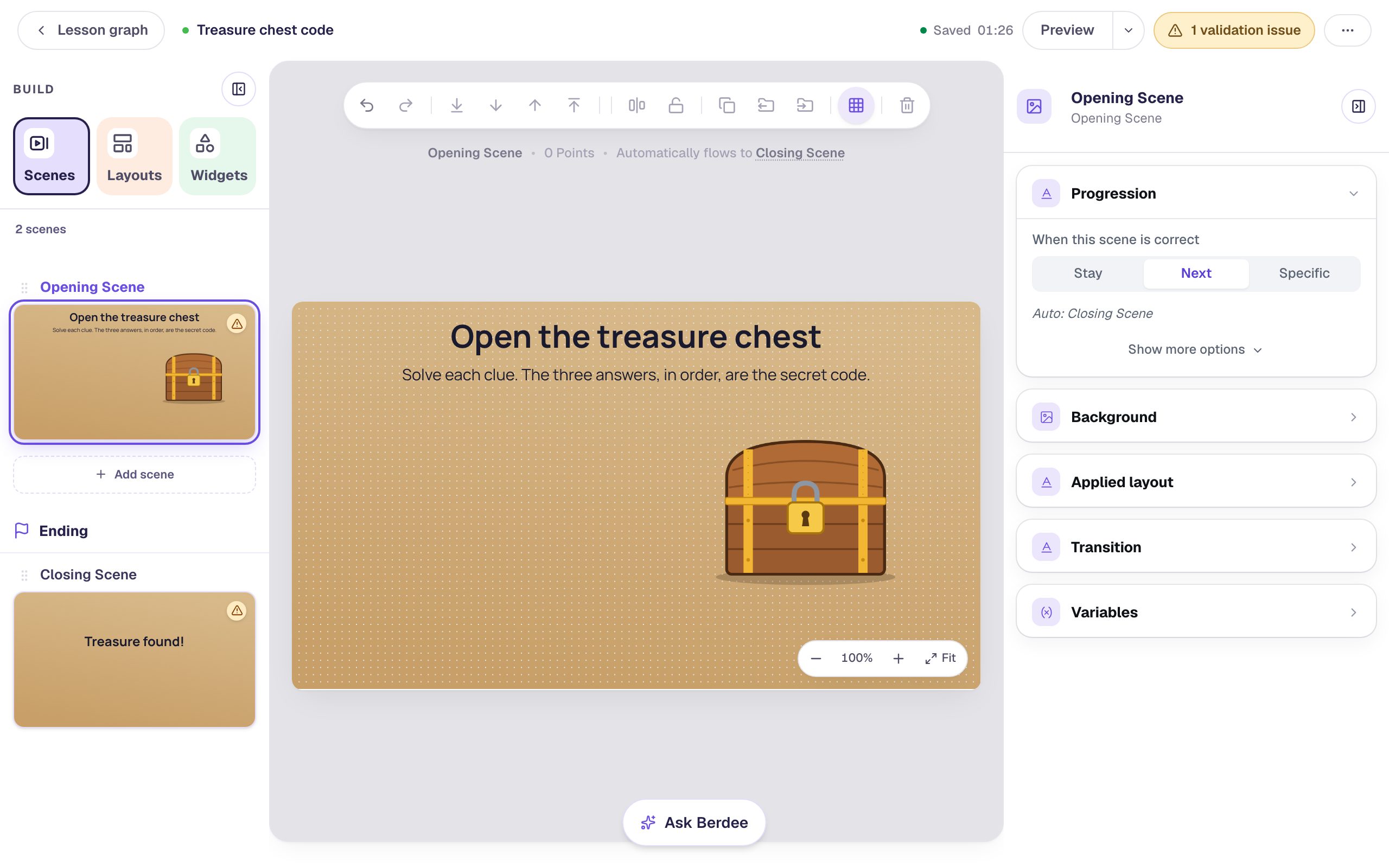
Open the treasure chest. In Style & Layout, choose Fixed width, set Width to760and Font Size to44, and drag it to the top. - Add a Body under it:
Solve each clue. The three answers, in order, are the secret code.Give it a Fixed width of860and a Font Size of22. - Add an Image and rename it
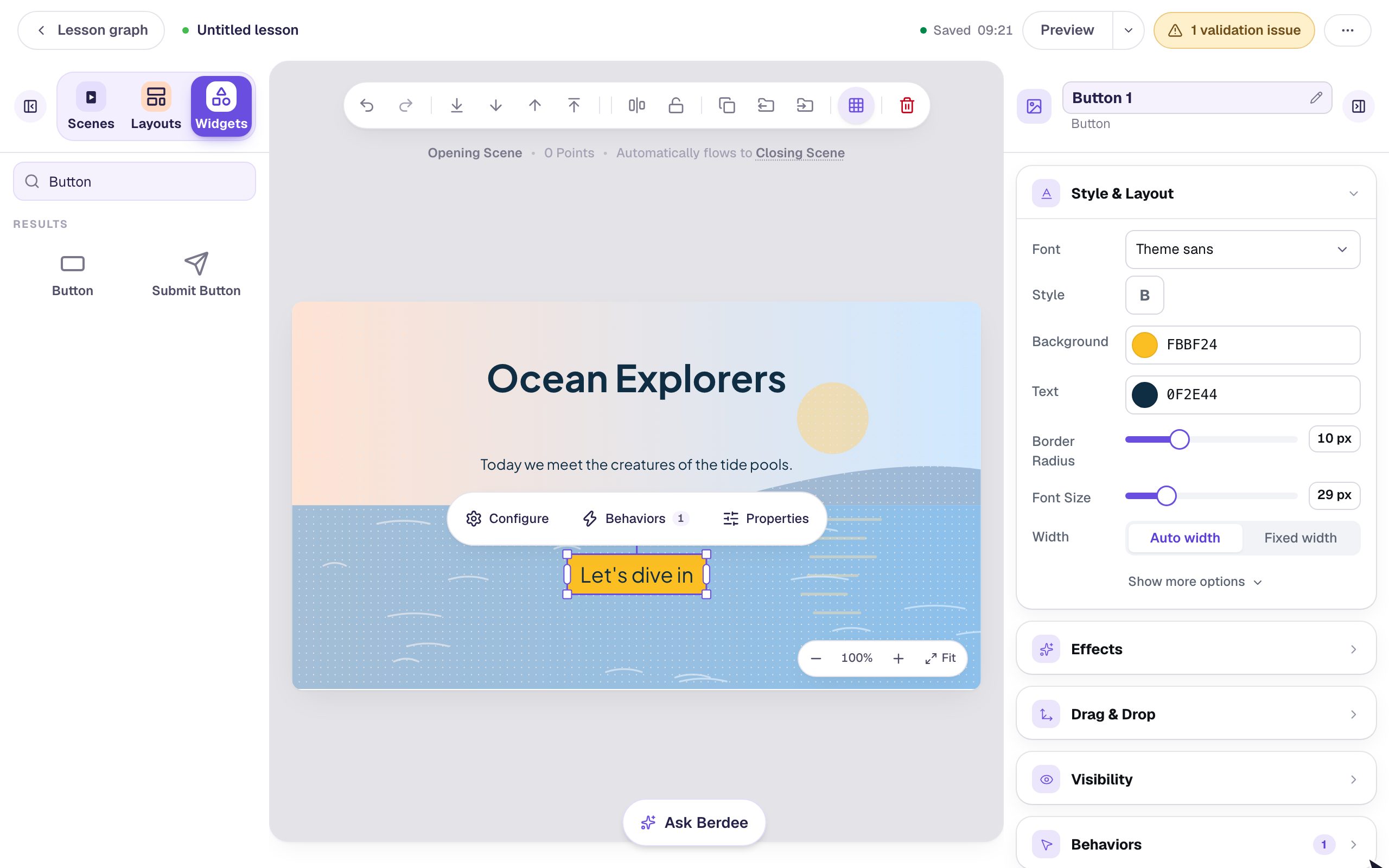
Closed chest. Set its Width to300and Height to240and drag it to the right half of the scene. Click Choose image and add a picture of a closed chest: upload your own from the Upload tab, or make one in the Generate tab. In Accessibility, set Alt Text toA closed wooden treasure chest with a gold padlock.
You'll need a second picture in Step 6: the same chest, open. The swap only looks like the lid opening if both pictures show the same chest in the same frame, so choose them as a pair. (The pictures in this tutorial come with the lesson: use Add this lesson to my account at the top of this page to get them.)
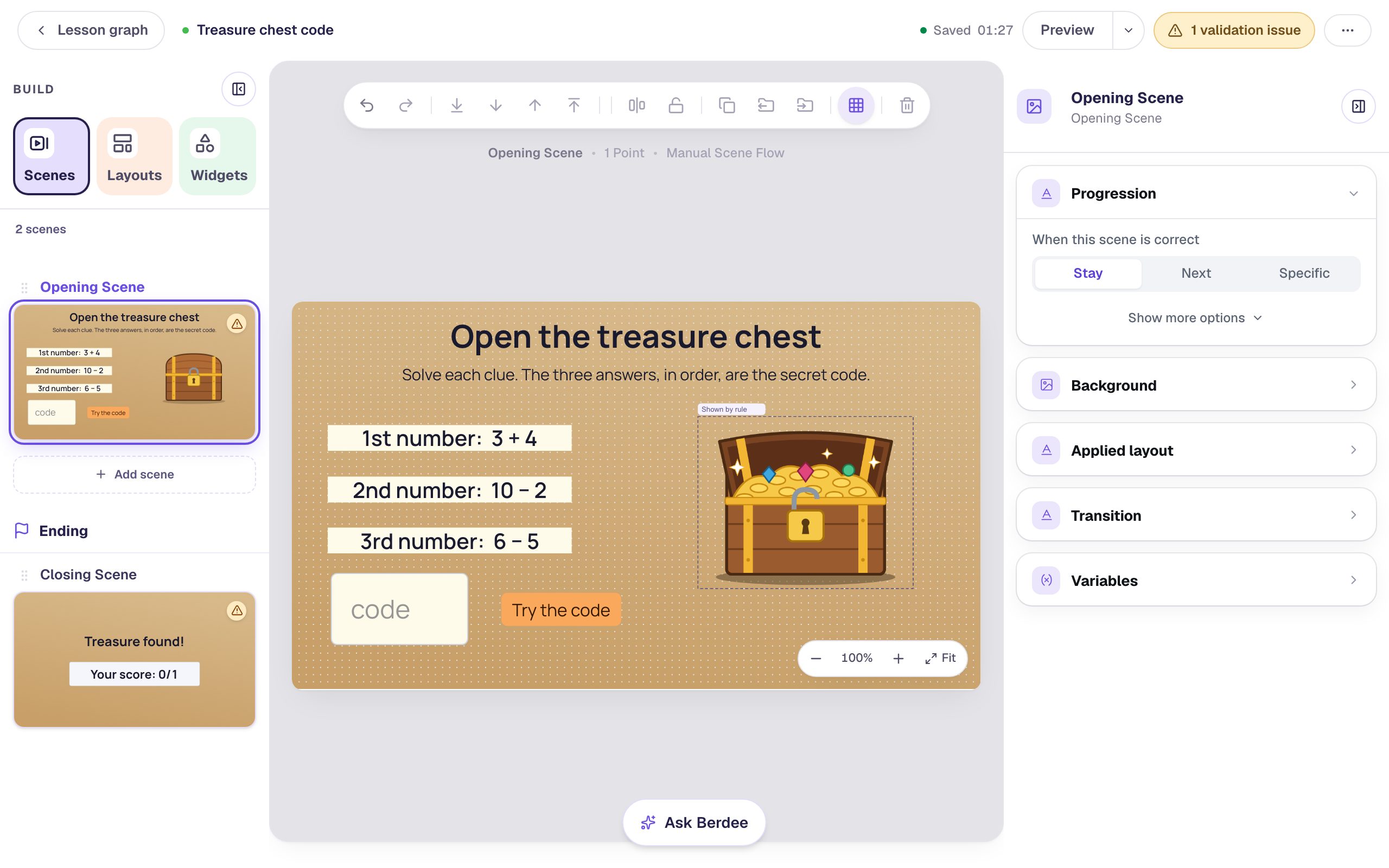
The top bar shows 1 validation issue. That's Berdee reminding you the lesson has no way to finish yet. Step 7 fixes it.
Step 2: Write the clue cards
Each clue is a Subheading on a cream card:
- Add a Subheading that says
1st number: 3 + 4. - In Style & Layout, choose Fixed width, set Width to
340and Font Size to30, and set Background Color to a pale cream. Rename itClue 1. - Drag it to the left side, under the directions.
Now press ⌘D (Ctrl+D on Windows) to copy the card. In the copy's Content section, change Text to 2nd number: 10 − 2, rename it Clue 2, and drag it under the first. Press ⌘D again for 3rd number: 6 − 5 (Clue 3).
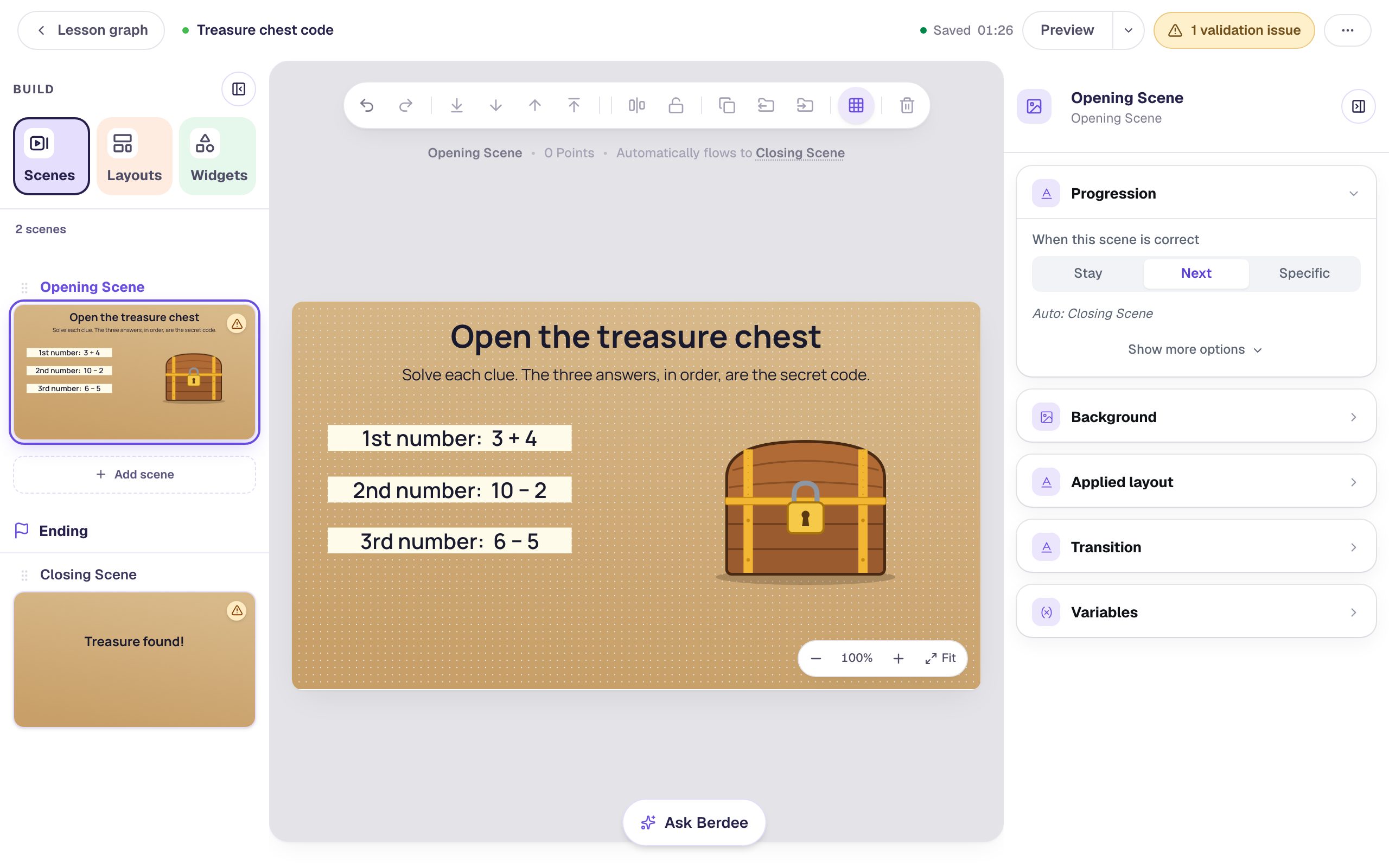
The answers are 7, 8 and 1, so the code is 781. Writing 1st, 2nd and 3rd on the cards matters: it tells students the order the digits go in, and it's what the wrong-code hint will point back to.
Step 3: Add the lock
The lock is a Number Input whose correct answer is the whole code:
- In Widgets, search for
Number Inputand click it, then click ⚙ Configure. - Set Correct Value to
781. A warning appears: a new Number Input only accepts answers up to100. - Set Largest Answer to
999, and the warning goes away. Any 3-digit code can now be typed, so a wrong code is possible too. - Turn Show Step Buttons off. Nobody should be able to click + until the lock opens.
- Set Placeholder to
code, so the empty box says what goes in it.
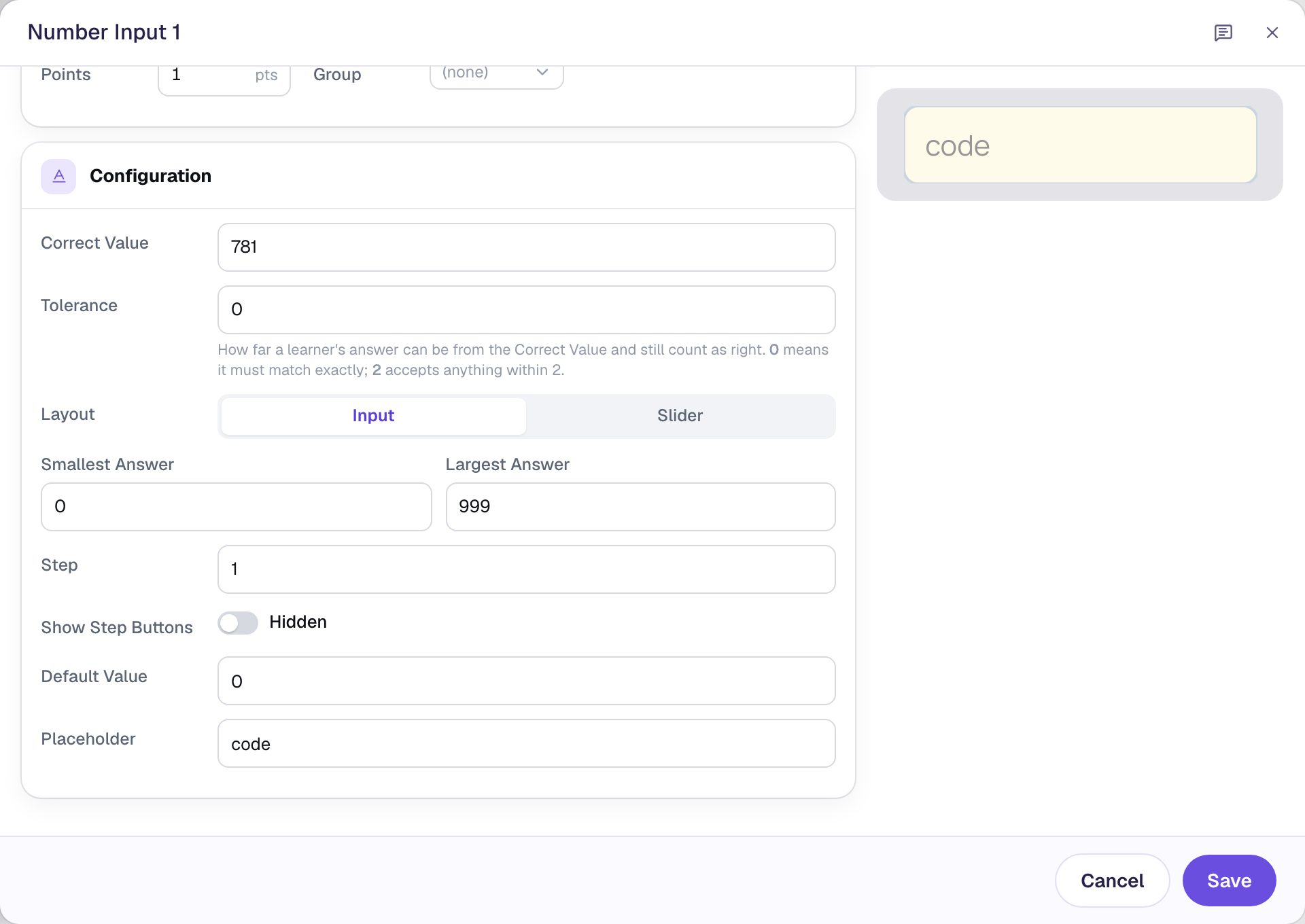
Click Save. Rename the widget Secret code by clicking its name at the top of the properties panel: every rule in the next steps picks it by that name. Set its Font Size to 36 and Width to 190, and drag it under the clue cards. In Accessibility, set Alt Text to Secret code too, so a screen reader names the box.
Step 4: Explain a wrong code
Students need something to press when they think they've cracked it, and a hint when they haven't.
Add a Button, click ⚙ Configure, set its Label to Try the code, and click Save. Rename it Try button, give it an orange Background, dark brown Text and a Font Size of 24, and drag it beside the code box. Then:
- Open Behaviors, click Add Behavior, and choose On Press. It starts with a Display Message action.
- Type the message:
The lock won't open. Check each clue again, and type the numbers in order: 1st, 2nd, 3rd. - Change Normal message to Failure message, so it shows in red.
- Click Add Condition. In the first list pick Number Input: Secret code. In the second, choose Is correct first, then change it to Is incorrect, which only appears in the list once a true-or-false property is picked.
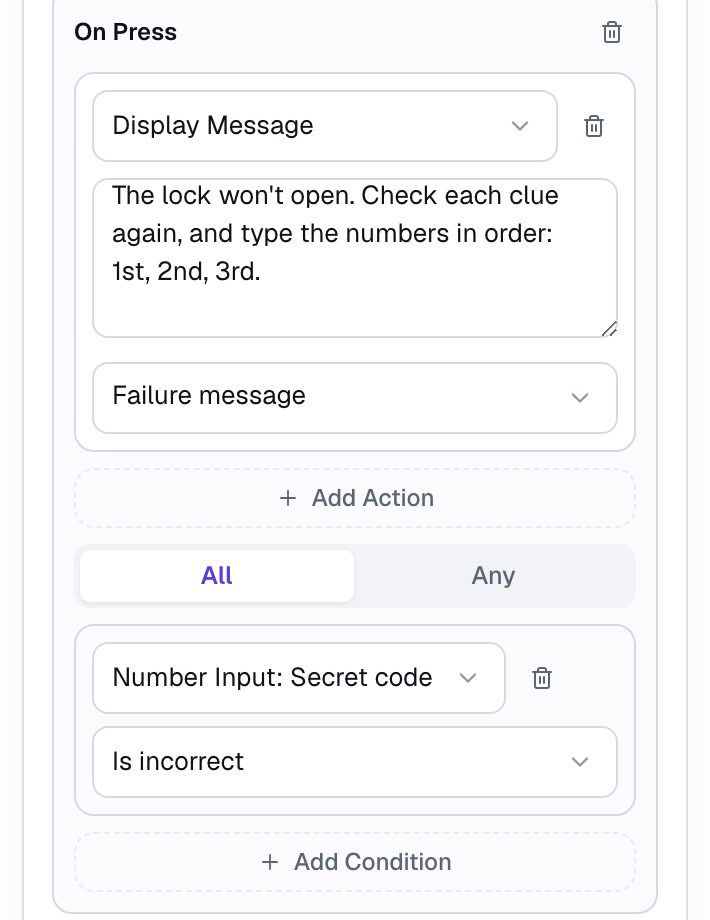
The button needs no behavior for a right code: the code box checks itself the moment the student clicks away from it, which pressing Try the code does. A right code opens the chest (Steps 5 and 6), and this behavior's condition is false, so no message.
Last, keep students on the scene. Click an empty spot on the scene, and in Progression change When this scene is correct from Next to Stay. With Next, the right code would send students straight to the ending, and they'd never see the chest open.
Step 5: Hide the closed chest when the code is right
Click the closed chest and open its Visibility section:
- Set Mode to Conditional.
- Set Behavior to Hide.
- In the condition, pick Number Input: Secret code, then Is correct.
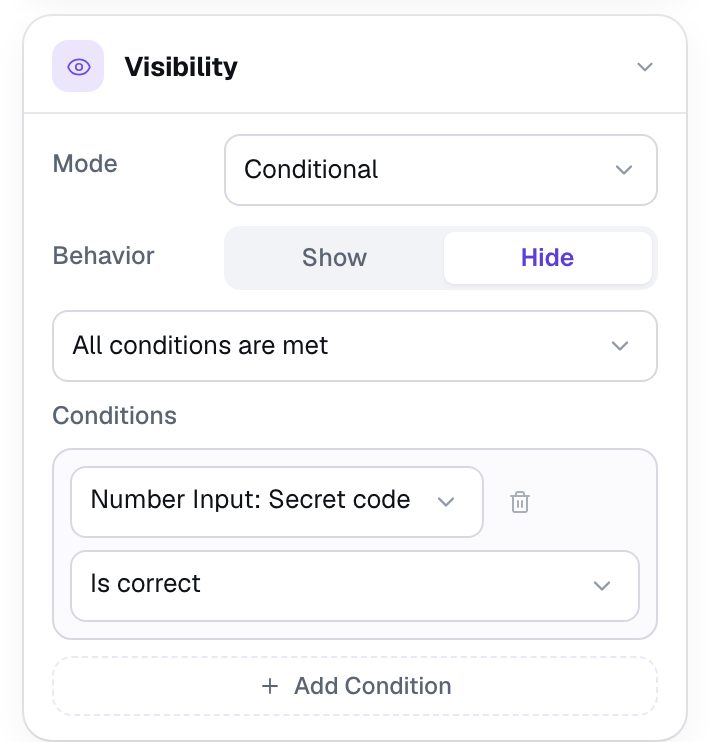
Until the code is right, the rule is false and the closed chest stays where it is.
Step 6: Put the open chest on top
Add a second Image and rename it Open chest. Give it the same Width (300) and Height (240) as the closed chest, and drag it exactly over it. Choose the open-chest picture, and set its Alt Text to An open treasure chest full of gold coins and jewels.
Now give it the opposite rule:
- Set Mode to Conditional.
- Leave Behavior on Show.
- Pick Number Input: Secret code, then Is correct.
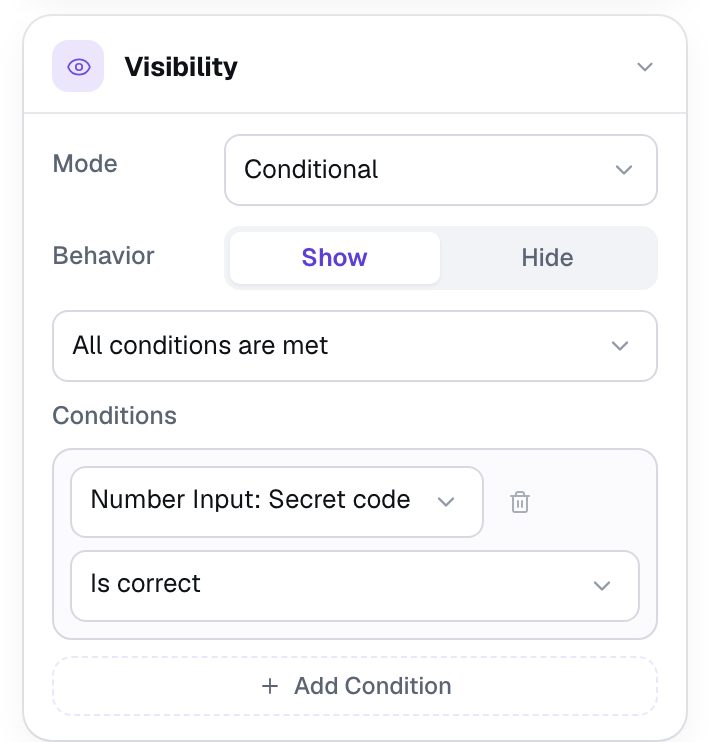
The two rules are mirror images, so students always see exactly one chest: closed while the code is wrong or empty, open once it's right.
The studio canvas draws every widget, hidden or not, so you'll see the open chest sitting on top with a Shown by rule tag above it. That's only the editor's view. Students start with the closed one.
Step 7: Let students claim the treasure
The lesson still needs a way to finish, and it should only appear once the chest is open.
- Add a Submit Button. In Content, set Label to
Claim the treasureand Submits to Lesson. Rename itClaim button, give it a gold Background, dark brown Text and a Font Size of26, and drag it under the chest. - Click Behaviors, choose Make this a "Next" button, check that Goes to says Closing Scene, and click Add behavior.
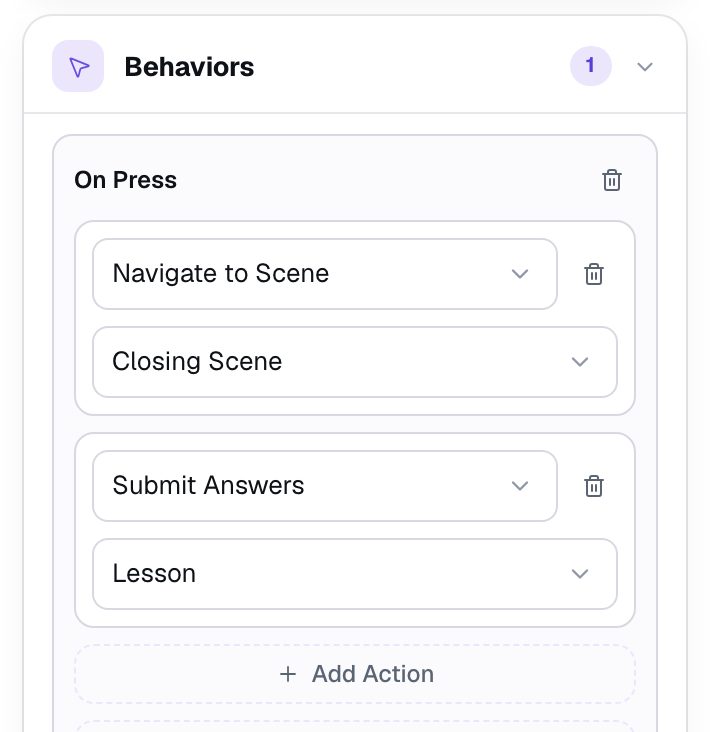
- Behaviors that move to a scene replace a Submit Button's own submitting, so add it back: in the panel's Behaviors, click Add Action, change Log to Console to Submit Answers, and pick Lesson.
- Give it the same Visibility rule as the open chest: Conditional, Show, Number Input: Secret code Is correct.
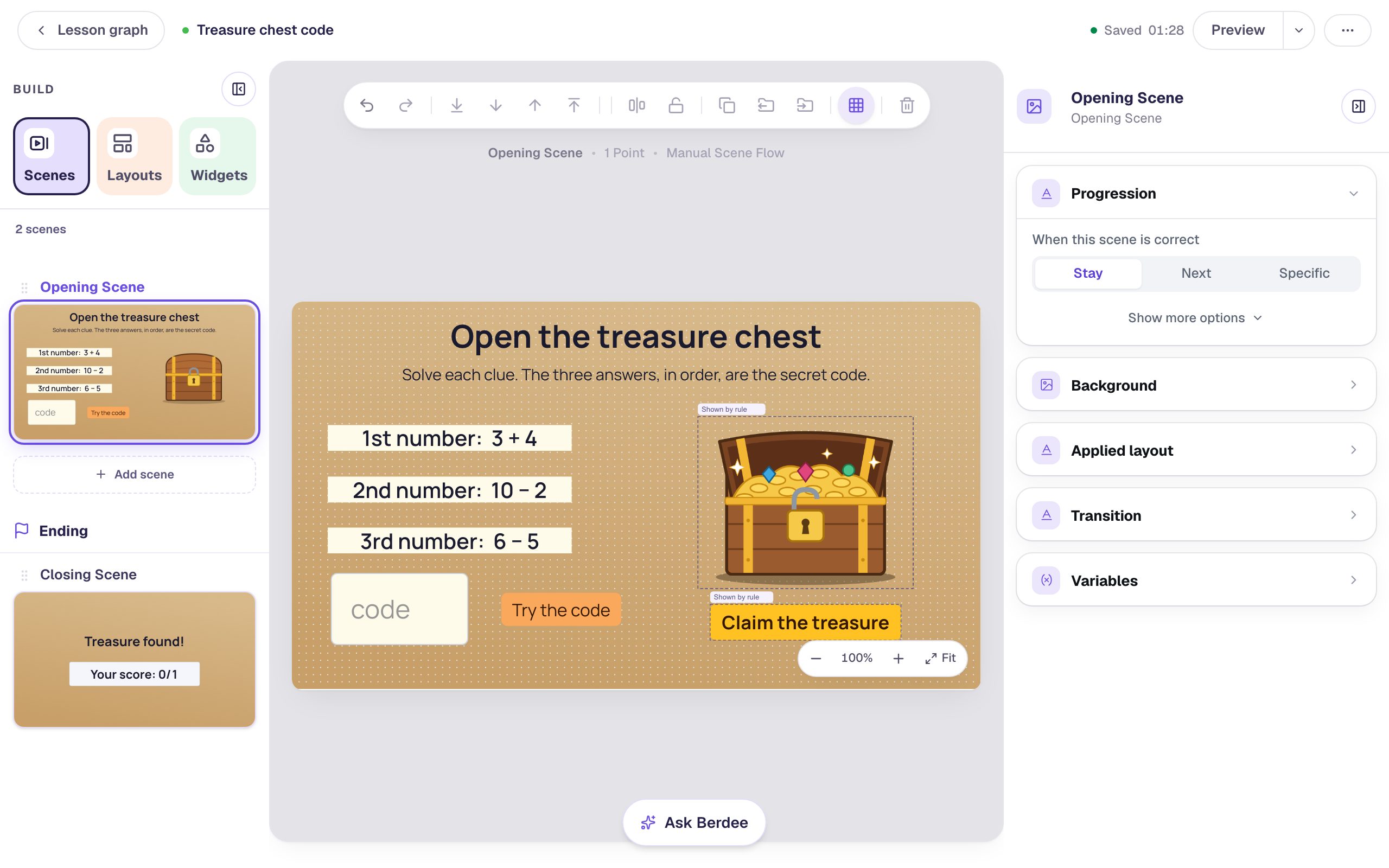
The 1 validation issue pill is gone: the lesson now has a button that finishes it.
Step 8: Crack the code in Preview
Click Preview and play it like a student who mixes up the order:
- Type
718and press Try the code. The digits are right but in the wrong order, so the lock stays shut and the red message appears.
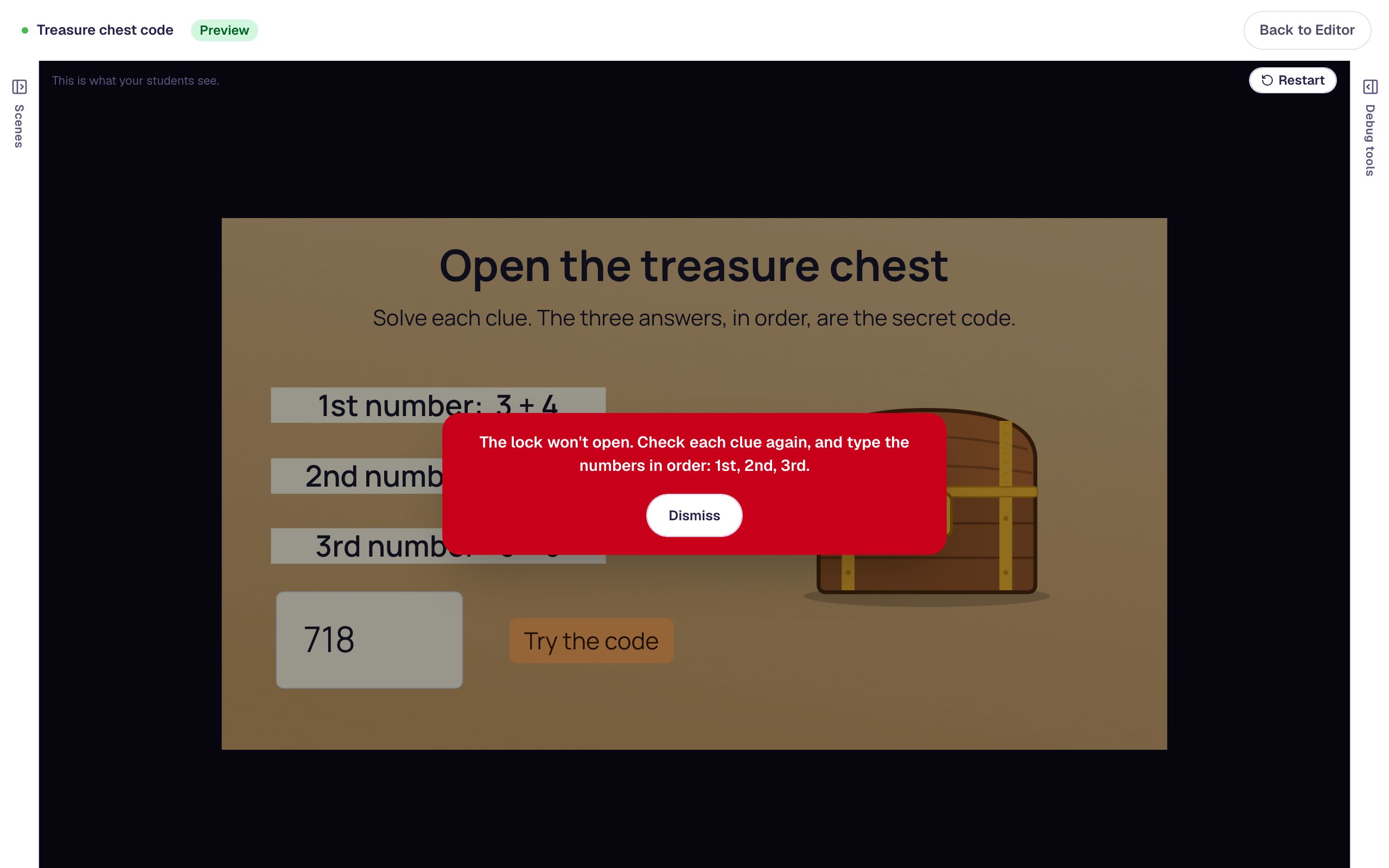
- Press Dismiss, change the code to
781, and press Try the code again. The closed chest disappears, the open chest takes its place, and Claim the treasure appears.
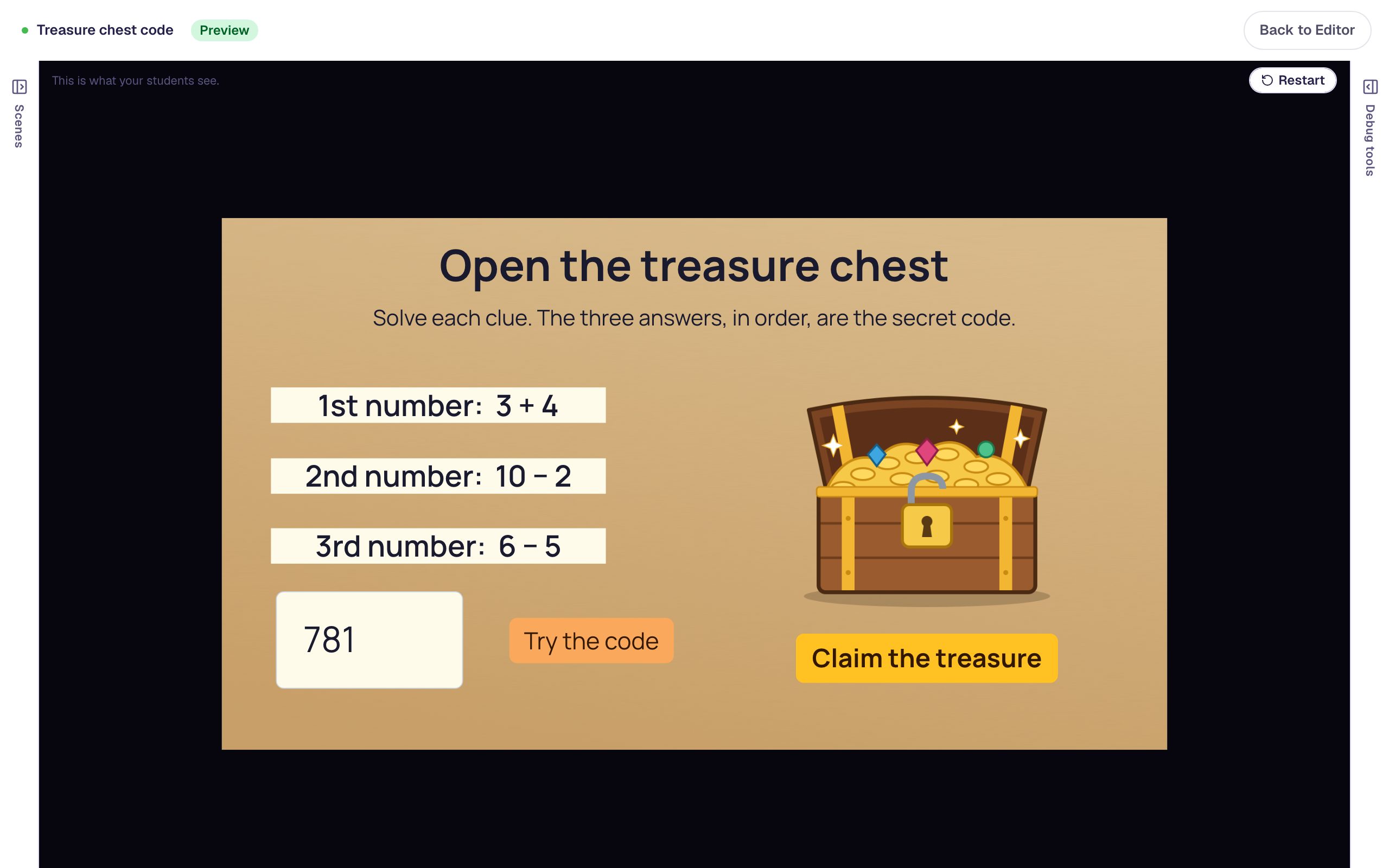
- Press Claim the treasure. The ending says Treasure found! with Your score: 1/1.
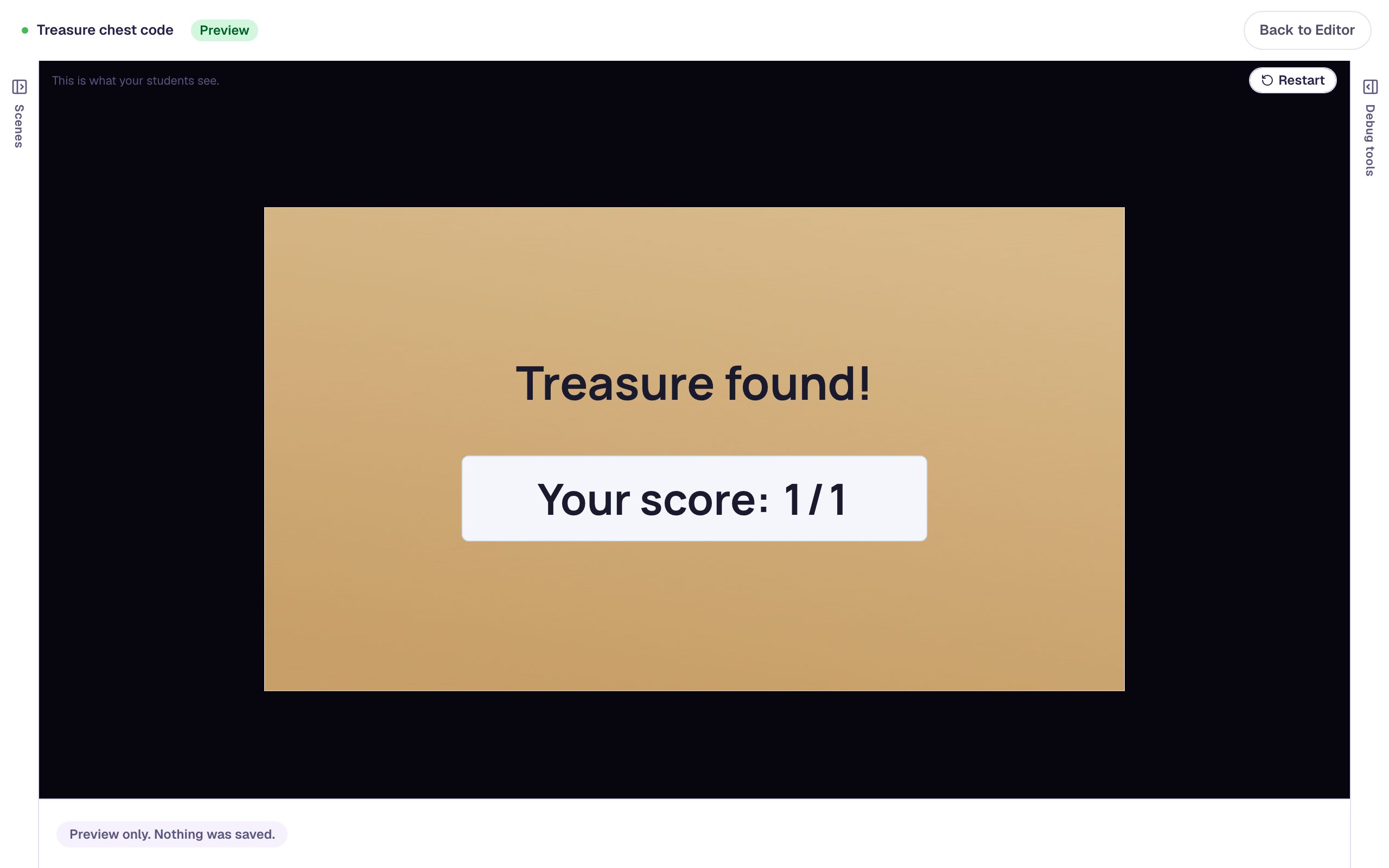
A student can try as many codes as they like: nothing is locked until they press Claim the treasure, and that only appears once the code is right.
What you built
A one-scene escape-room puzzle:
- three clue cards (copied with ⌘D) whose answers, in order, make the code
781, - a Number Input lock with Correct Value
781, a Largest Answer of999, no step buttons, and Stay progression so the scene waits, - a Try the code button whose On Press shows a hint only when the code Is incorrect,
- two pictures in the same spot with mirror-image Visibility rules, Hide and Show on Is correct, so the chest swaps from closed to open, and
- a Claim the treasure Submit Button that appears with the open chest and takes students to the ending.
To make a longer escape room, add a scene for each lock. On every lock but the last, use a plain Button with Make this a "Next" button in place of Claim the treasure, so only the final chest finishes the lesson. Clues don't have to be sums: the digits can come from counting objects in a picture, reading a clock, or answering a riddle. For a practice sheet that checks several answers at once, see Let students check their work and start over. To reveal something only after an answer is in, see Ask students to predict before you reveal.
Make this lesson yours
Add the lesson you just watched being built to your account, then change it for your class: your questions, your pictures, your colors.
Free to sign up, and you'll come straight back here. I have an account