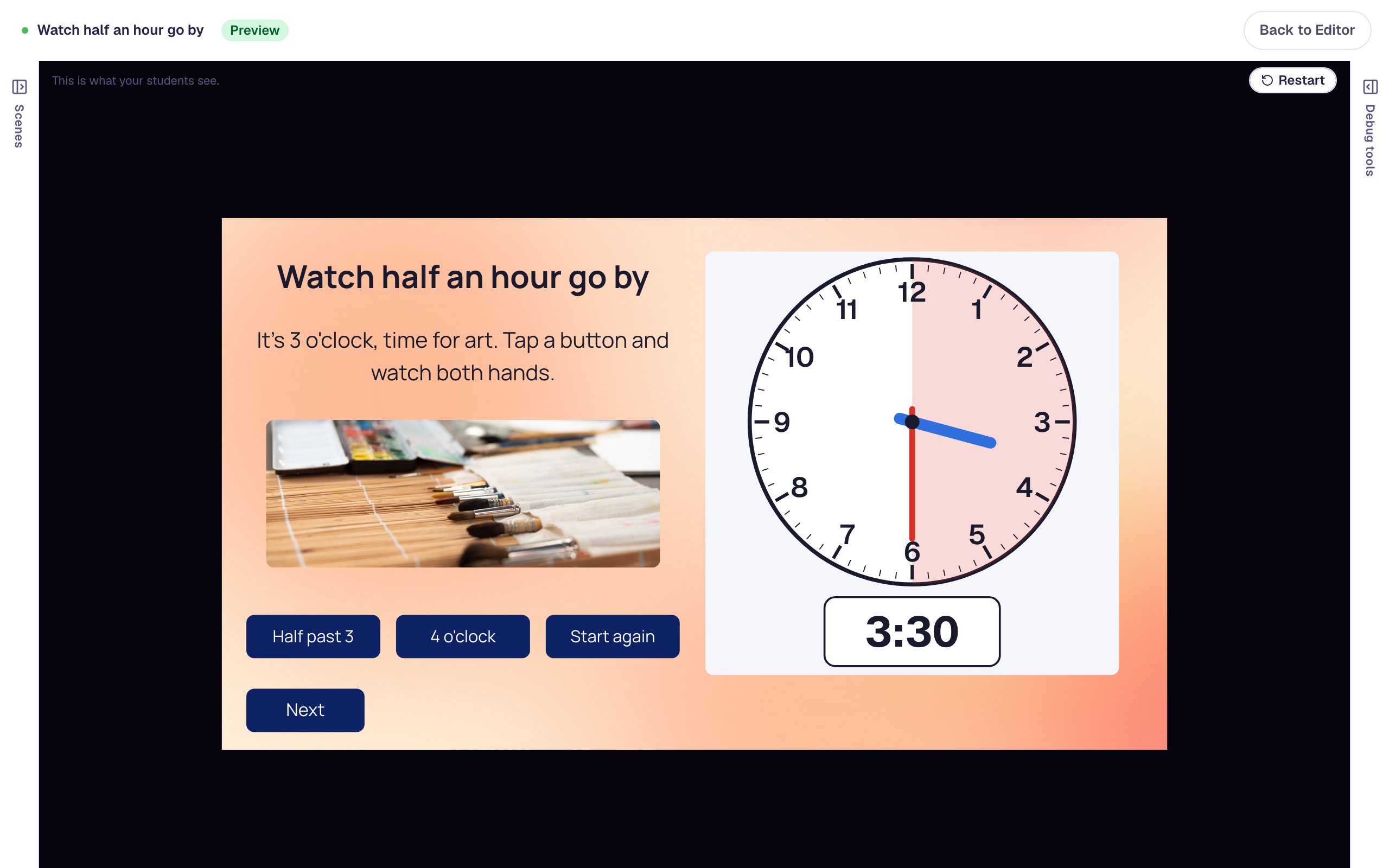
React to each drop in a drag-and-drop game
Build a feed-the-bunny game where every drop gets an answer right away, with an emoji burst for a right food, a gentle message for a wrong one, and praise when the student fixes it.
- Level
- Intermediate
- Time
- About 20 min
- Steps
- 8
- Updated
- Nov 2, 2026
A one-scene drag-and-drop game where students feed a bunny its vegetables, see an emoji burst on every right drop, are told why a sweet doesn't belong, are praised when they drag it back out, and move on to the ending once all three vegetables are in the bowl.
Get the finished lesson
Skip straight to the result, or keep it open beside the steps. Add this tutorial's lesson to your account and explore how it works in the studio.
Free to sign up, and you'll come straight back here. I have an account
A drop bucket that turns green or red tells a student whether they're right. It doesn't tell them why, and it doesn't cheer when they get it. In this tutorial you'll build a small game, Feed the bunny, that answers every single drop: a burst of emoji when a vegetable lands in the bowl, a short message when a sweet does, and praise the moment the student drags the sweet back out.
You'll use the same Drop Bucket and draggable Image cards as Sort animal pictures into their habitats, plus the ⚡ Behaviors window, which has moments made for drag and drop.
Step 1: Set the scene
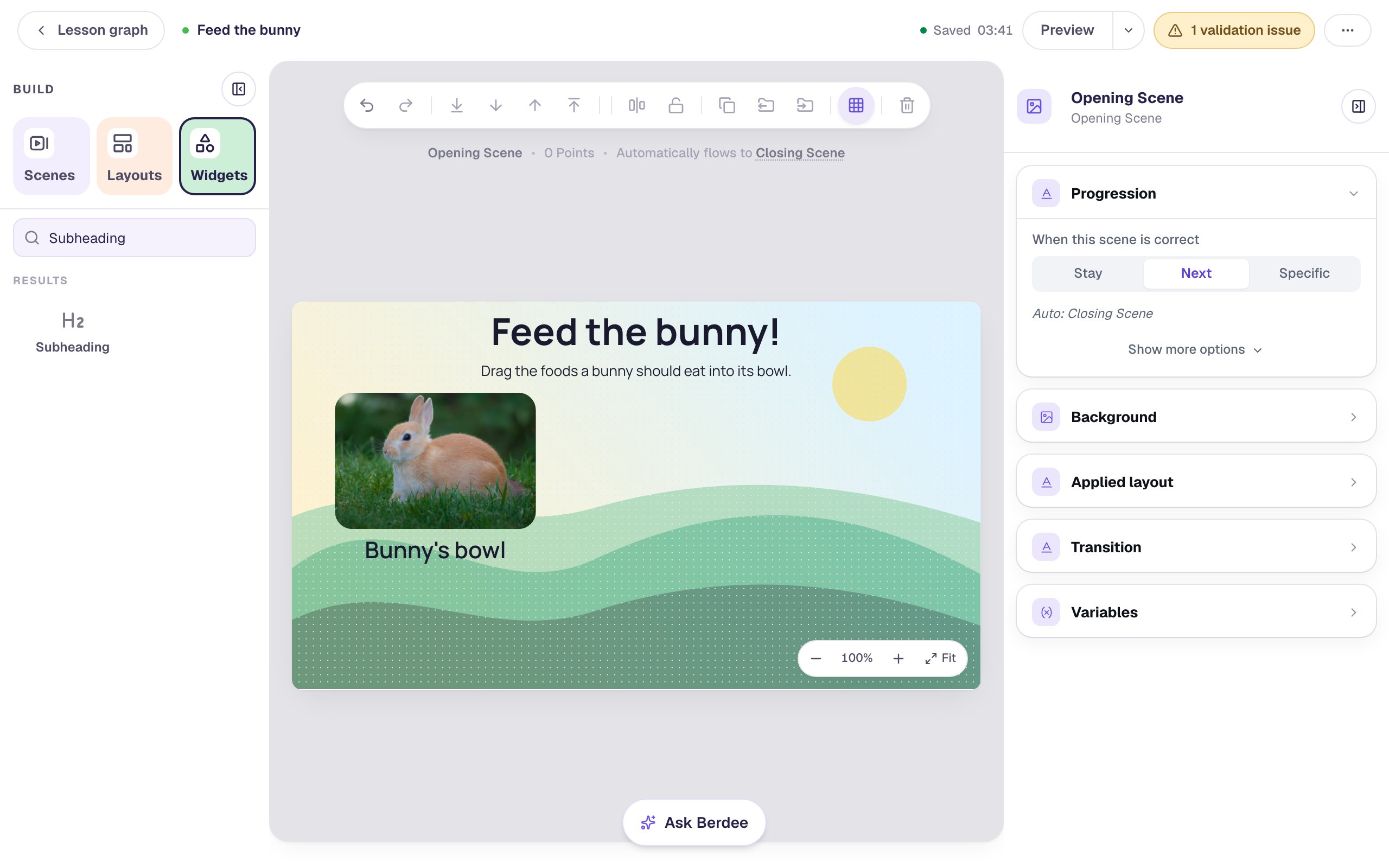
Start a blank lesson (New lesson, then Start from scratch). Click the lesson's name at the top left and call it Feed the bunny.
Give the scene a meadow: click an empty spot on the scene, open Background, click Choose a style, pick Rolling hills and click Apply background. If the sun lands where your text will go, click Randomize composition until it sits off to one side. Open the Closing Scene from Scenes and give it the same background, so the ending matches.
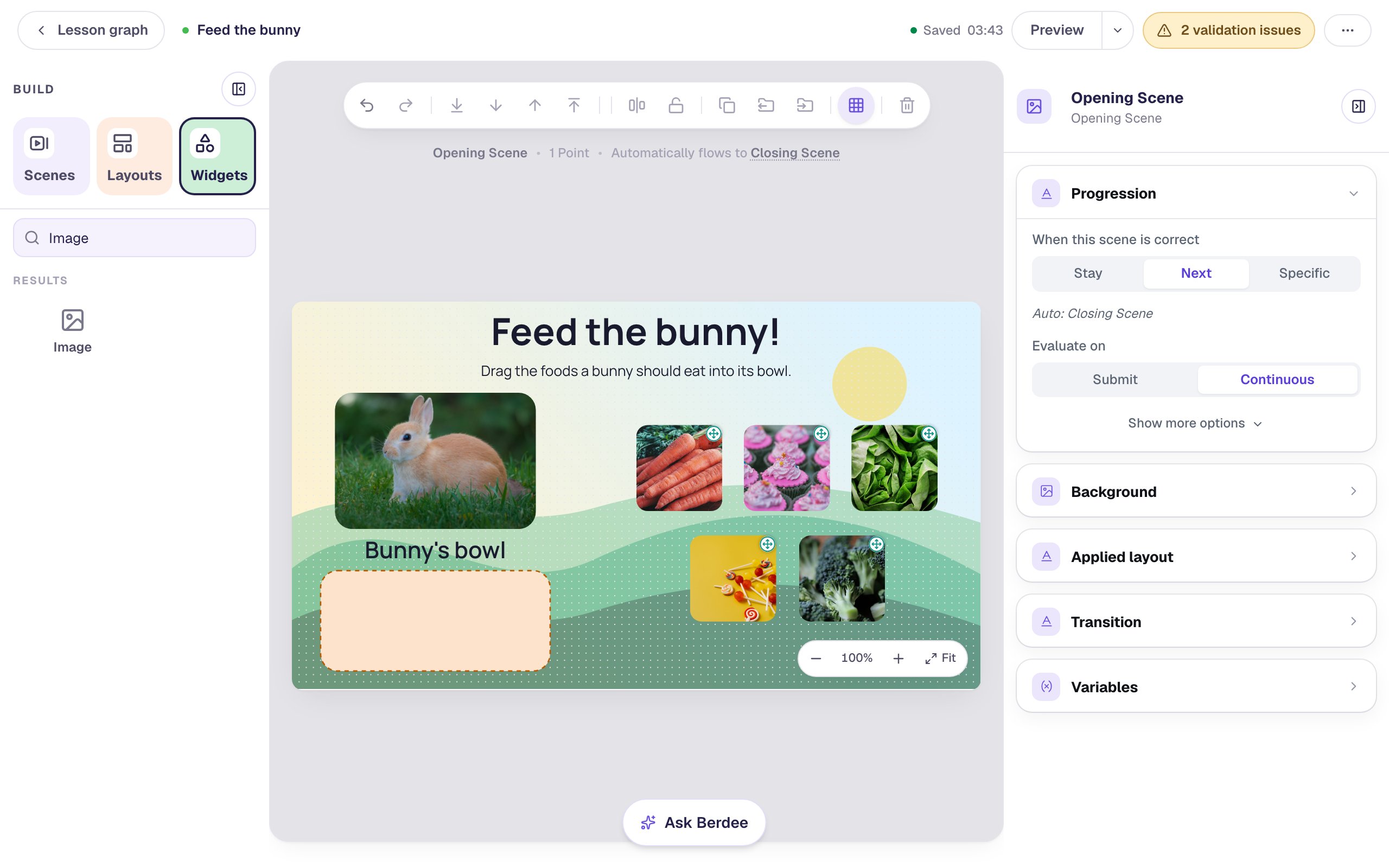
Back on the Opening Scene, add a Heading that says Feed the bunny! and a Body text under it: Drag the foods a bunny should eat into its bowl.
Then add an Image widget on the left for the bunny. Under Style & Layout, click Show more options and set Width to 280 and Height to 190. Open Image Source, click Open Media Library, search for rabbit, pick a photo and click Import & insert. Set Fit to Cover, raise Border Radius to 24, and in Accessibility write an Alt Text a student would understand: A brown and white rabbit sitting on the grass.
Last, add a Subheading under the photo that says Bunny's bowl.
Step 2: Add the bowl
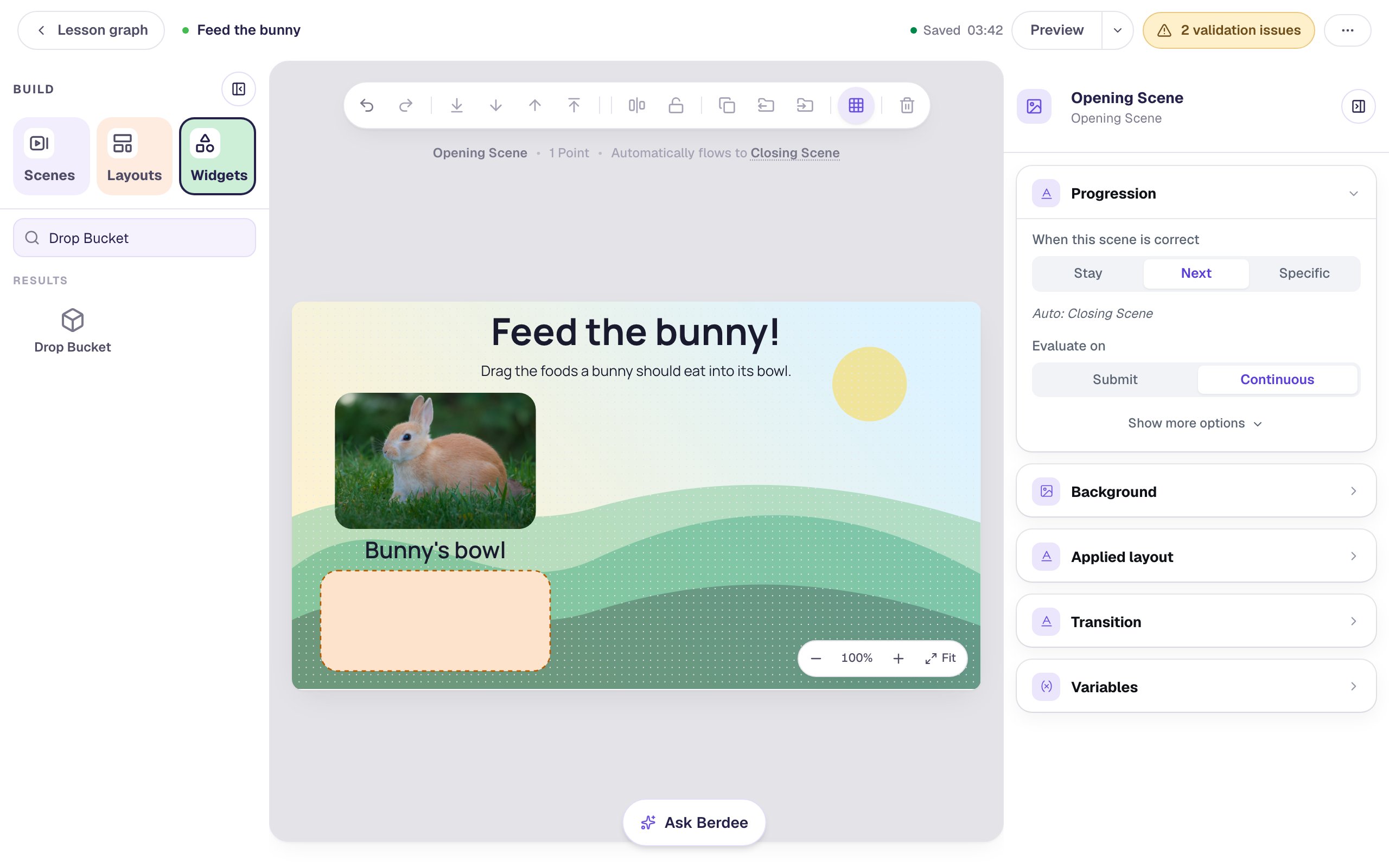
The bowl is a Drop Bucket: the only widget a student can drop something into. Add one from Widgets, set it to 320 by 140, and drag it under the Bunny's bowl label.
Make it look like a bowl rather than a box: set its Background to a warm peach (#fde2cc), its Border Color to a deep orange (#b85a00), and its Border Radius to 24.
Rename it Bowl at the top of the properties panel. That name is what you'll pick from lists in the next steps. Then give it an Alt Text too, The bunny's bowl: drop food here, so a screen reader can say where things go.
Step 3: Make the first food card
Each food is an Image widget that students can pick up. Add an Image, set it to 120 by 120, and put it to the right of the bunny. Search the media library for carrot, insert a photo, set Fit to Cover and Border Radius to 16. Rename it Carrots and set its Alt Text to A bunch of orange carrots with their green tops.
Now open Drag & Drop, choose Draggable, and tick Bowl under Valid Targets.
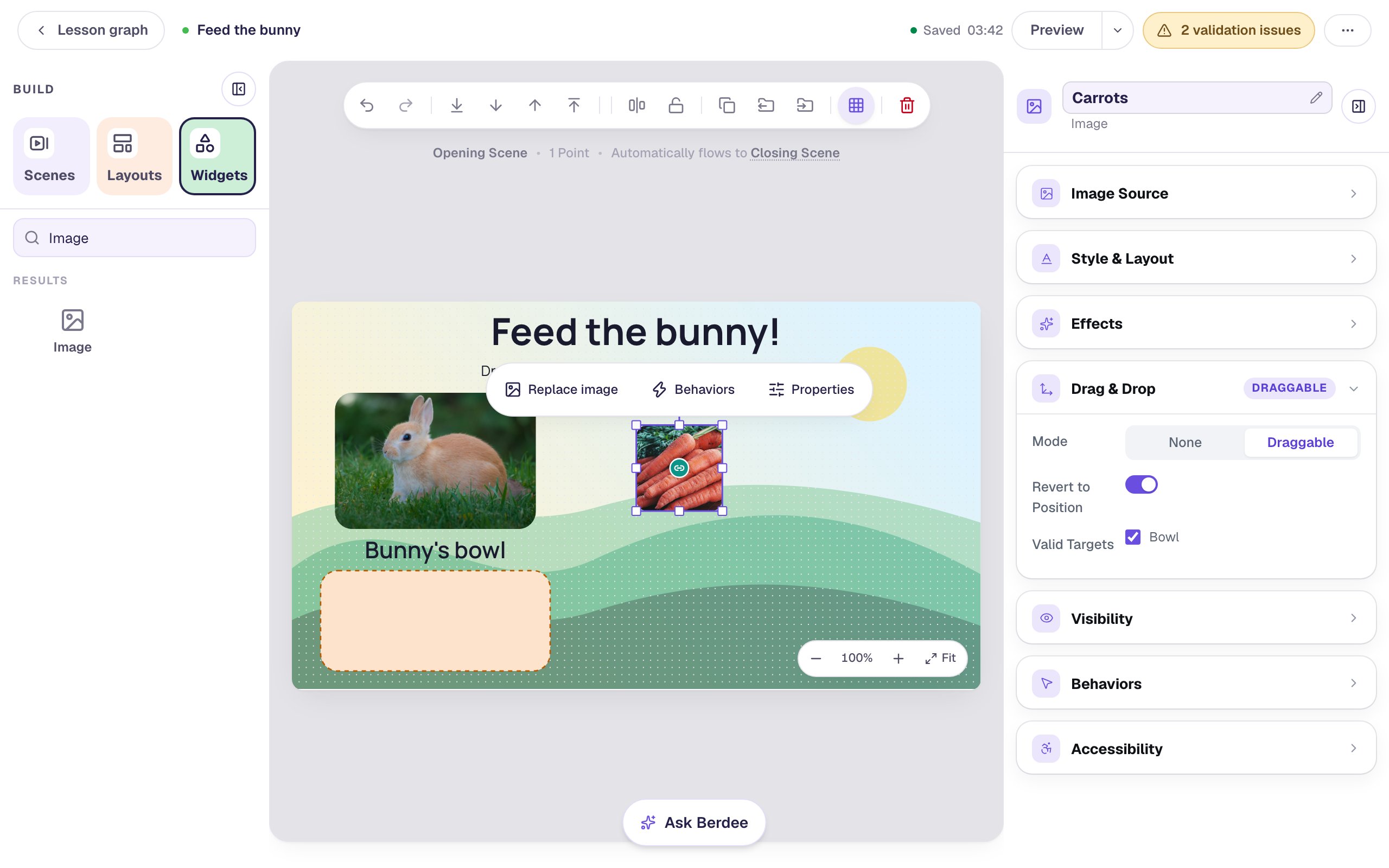
That tick matters more than usual here. Valid Targets decides where a card may land at all, and you want the sweets to land in the bowl too, so students can make the mistake and see what happens. A card with no valid target simply slides back when it's dropped, and no behavior ever runs.
Step 4: Copy the card for four more foods
Build the other cards from this one, so they all share its size, corners, drag setting and valid target. With the carrots selected, click Duplicate in the toolbar, drag the copy into place, and click Replace image to pick a new photo. Rename the copy and give it a new Alt Text: Replace image keeps the old picture's description.
Make five cards in all: three a bunny should eat and two it shouldn't.
| Card | Search for | Alt Text |
|---|---|---|
| Cupcakes | cupcake | Pink cupcakes with colorful sprinkles |
| Lettuce | lettuce | Crisp green lettuce leaves |
| Lollipops | lollipop | Colorful lollipops scattered on a yellow table |
| Broccoli | broccoli | Fresh green broccoli |
Step 5: Tell the bowl which foods belong
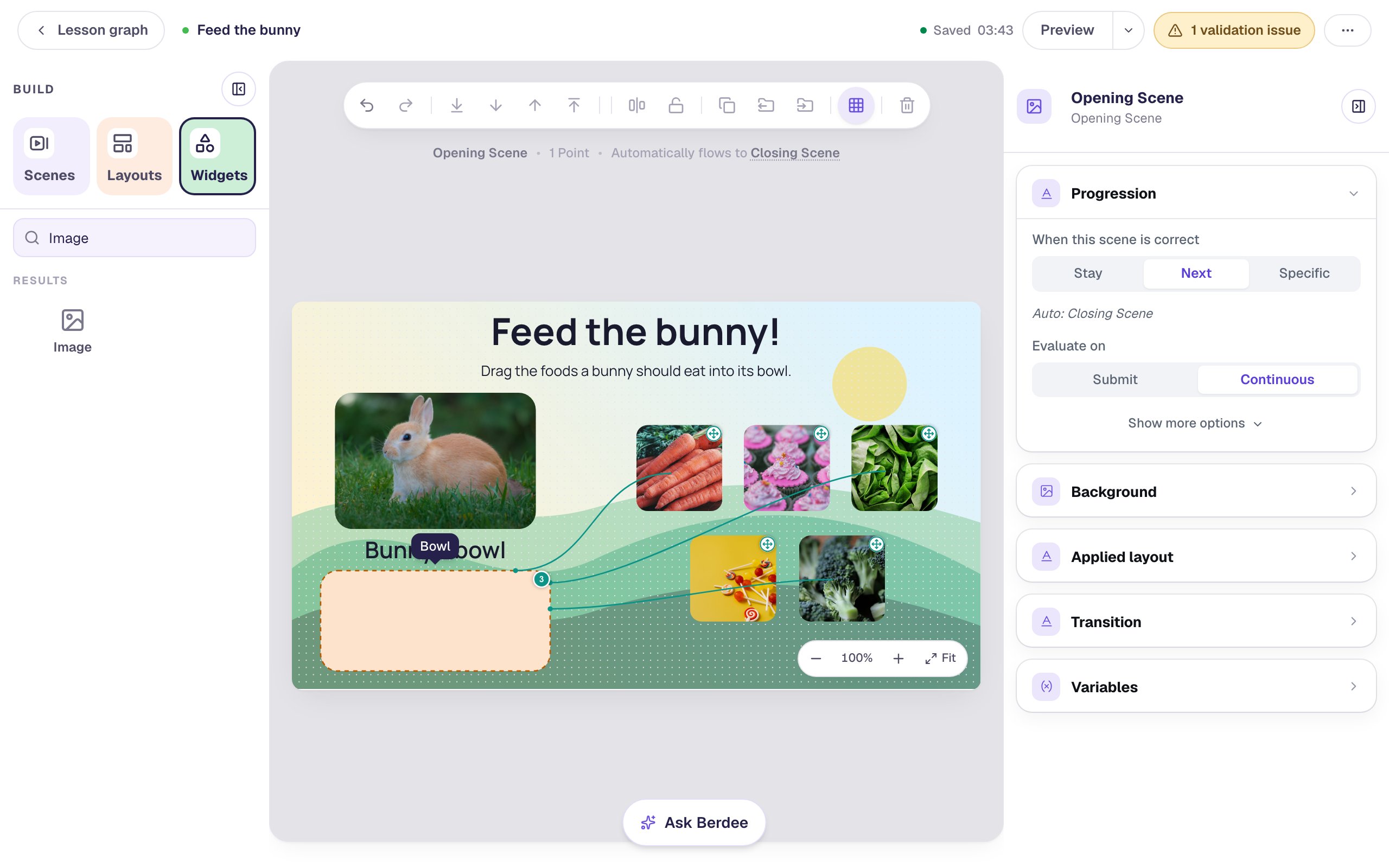
Select the carrots and drag from the violet link badge in the middle of the card onto the bowl. A line joins them: the carrots are now a right answer for the bowl. Do the same for the lettuce and the broccoli. Leave the cupcakes and lollipops unconnected.
Hover the bowl to check your work: a line runs from each food that belongs in it, and the small badge on its corner counts them.
Step 6: Celebrate every right drop
The bowl turns green only when everything in it is right, which for this bowl means all three vegetables. Younger students need a cheer sooner than that, so give each vegetable its own.
Select the carrots and click ⚡ Behaviors above the card. Click Build your own…, choose Celebrate, and set Celebration effect to Emoji burst (the Party emoji set is fine). Under When?, pick They drop it in the right place. Read the sentence at the bottom, then click Add behavior.
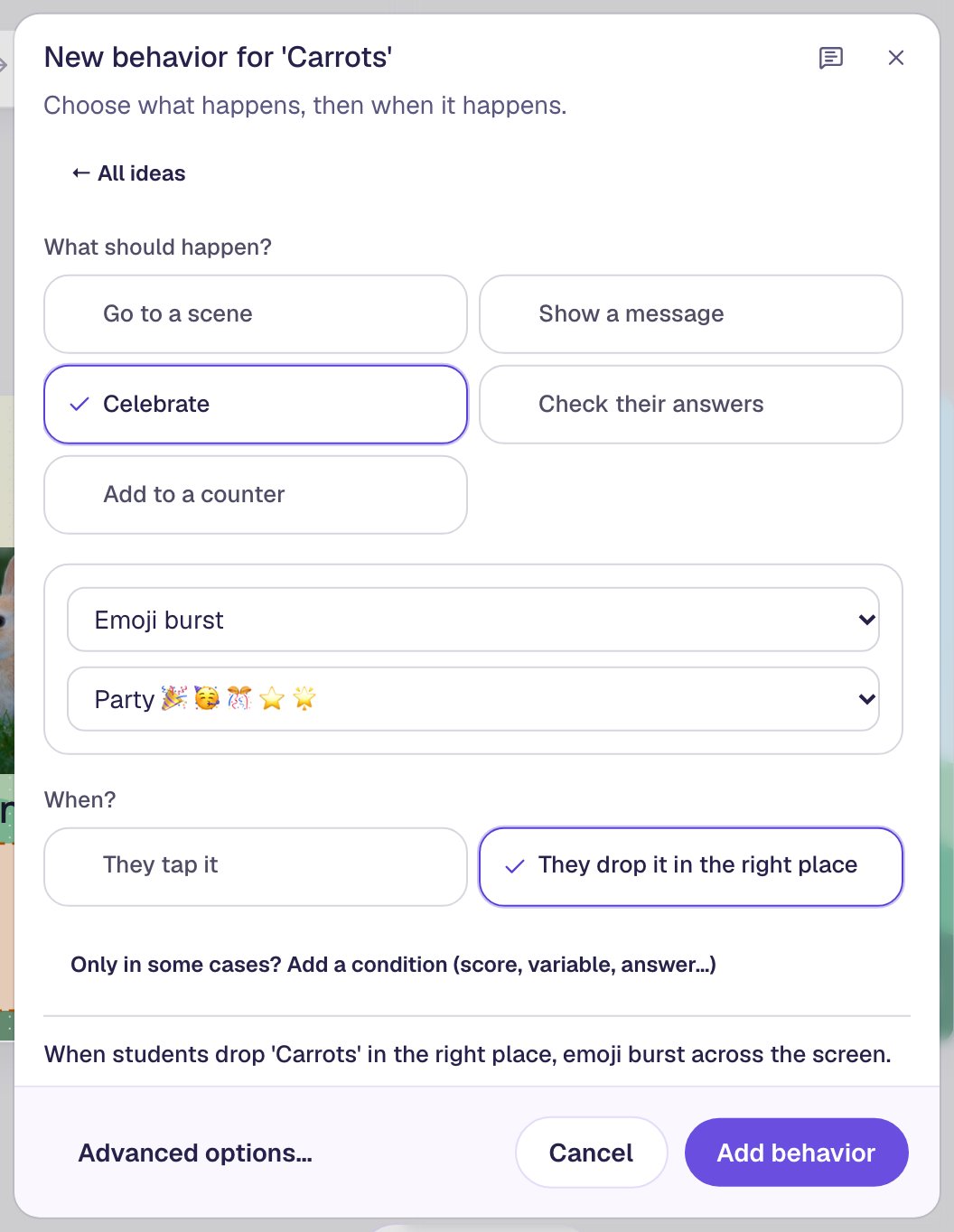
Do the same for the lettuce and the broccoli. Don't add one to the sweets: They drop it in the right place only runs when a card lands in a bucket it's connected to, and the sweets aren't connected to anything.
Step 7: Coach a wrong drop, and cheer the fix
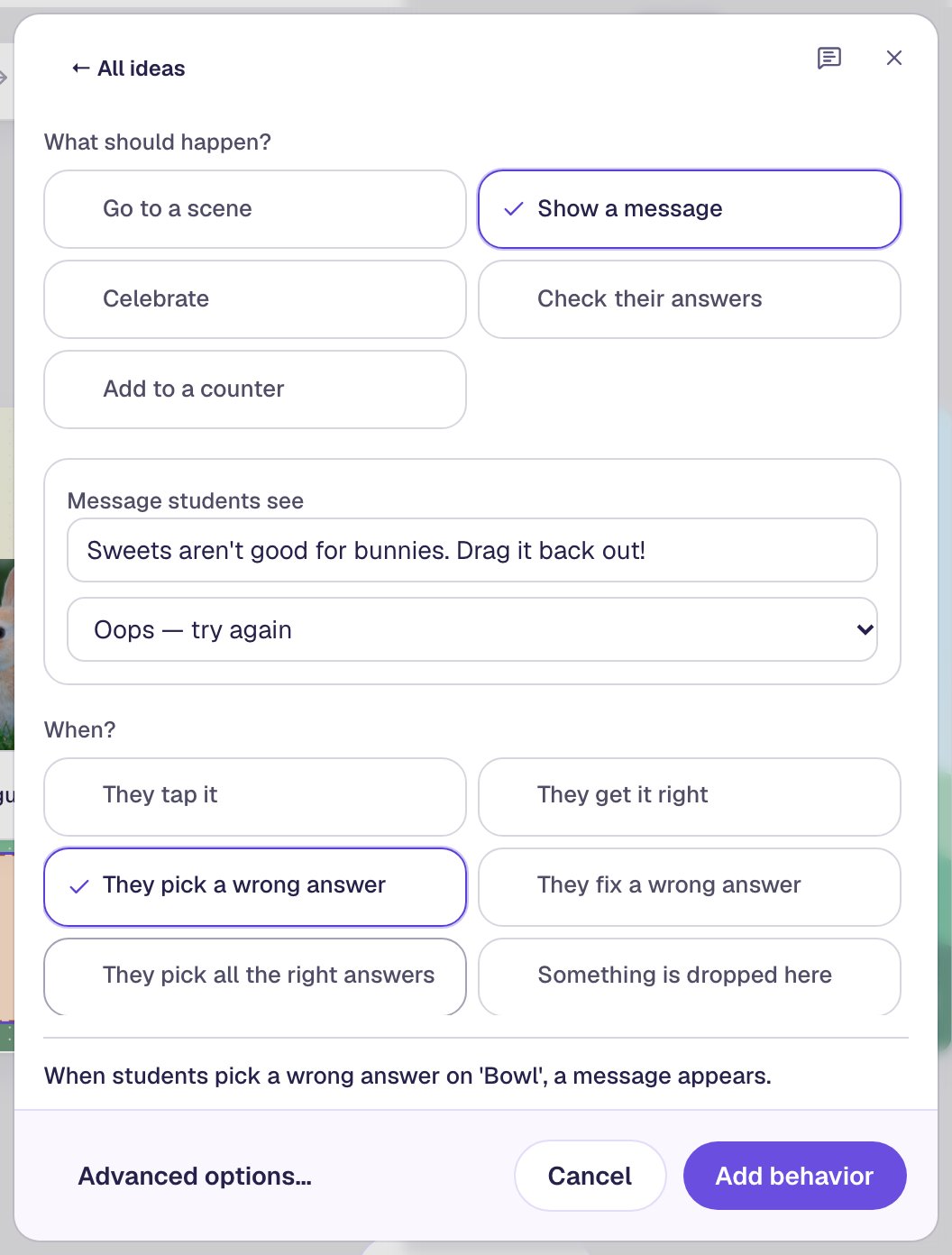
The bowl itself knows when something wrong lands in it, and when that mistake goes away. Select the bowl, click ⚡ Behaviors, then Build your own…:
- Choose Show a message, type
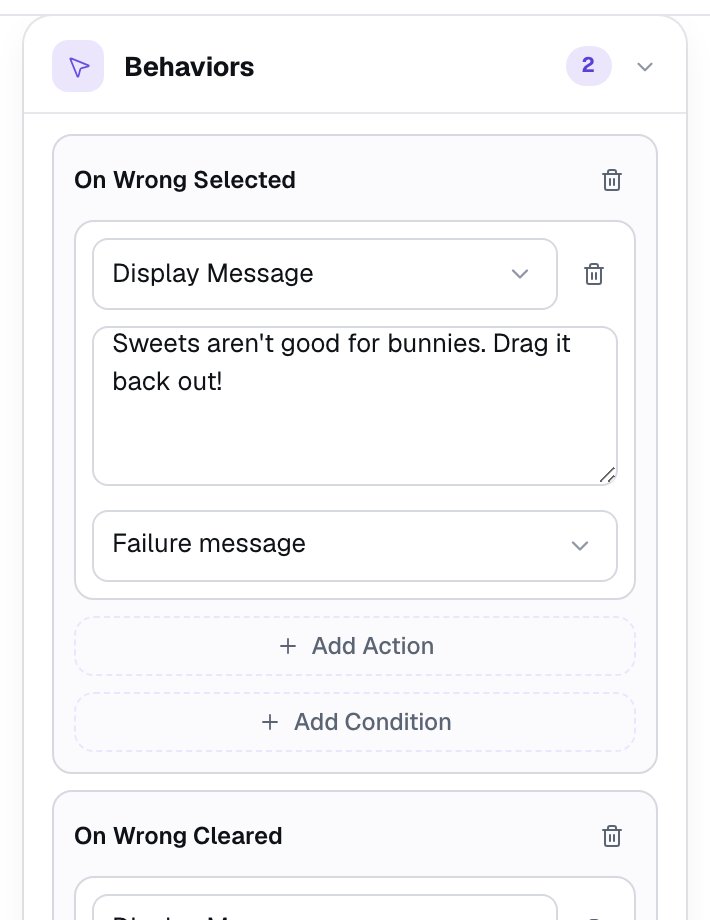
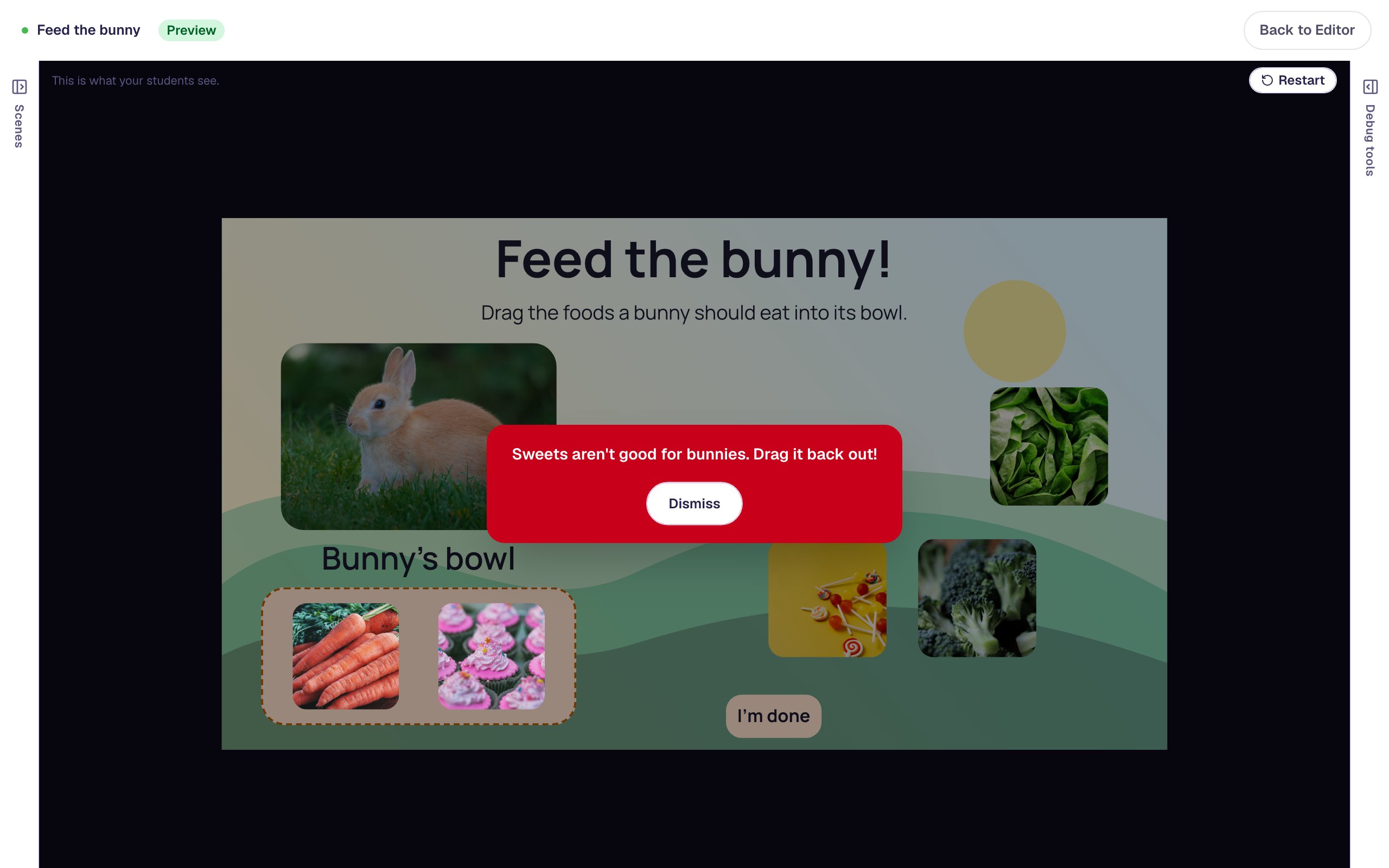
Sweets aren't good for bunnies. Drag it back out!, and set Message tone to Oops — try again. - Under When?, pick They pick a wrong answer, then click Add behavior.
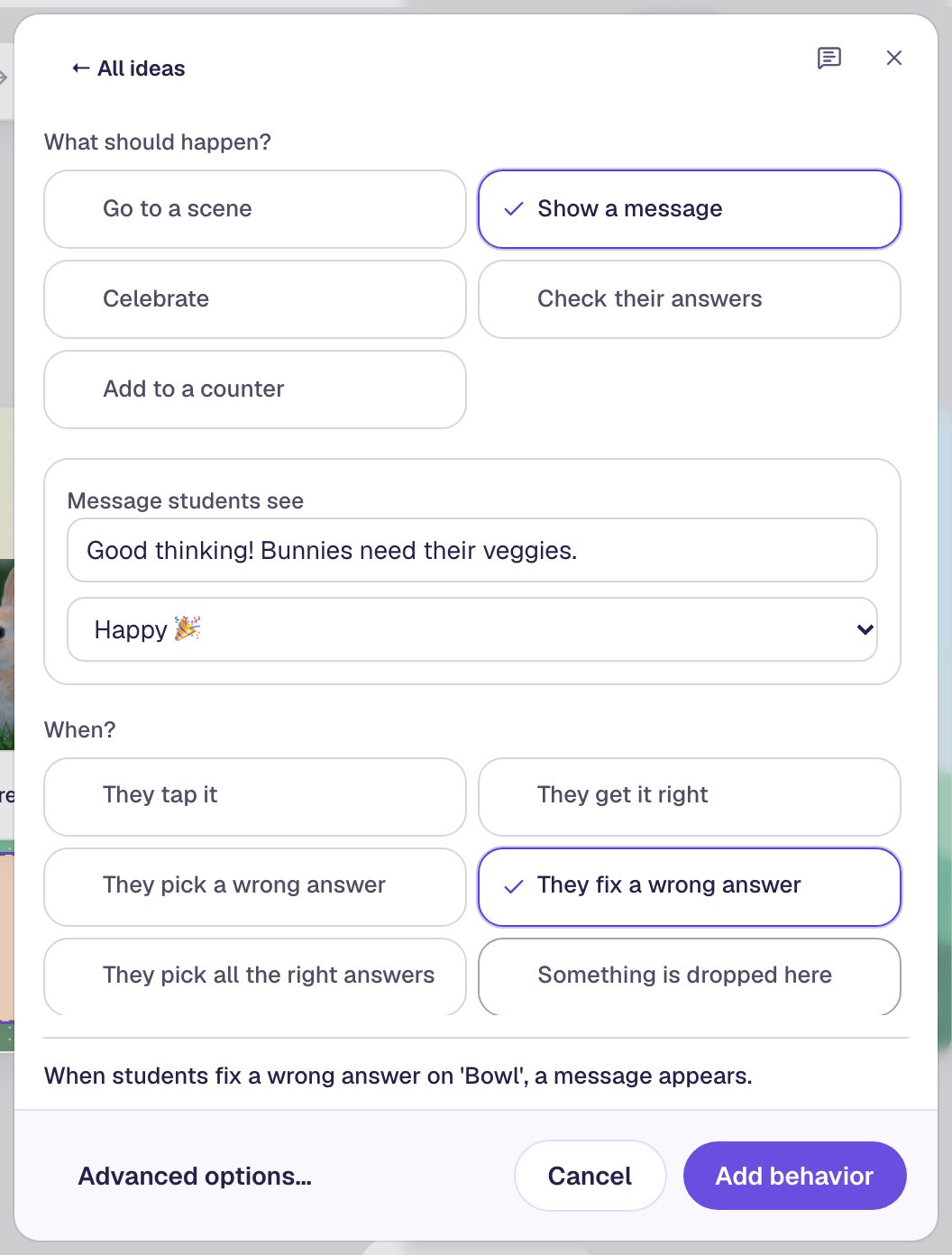
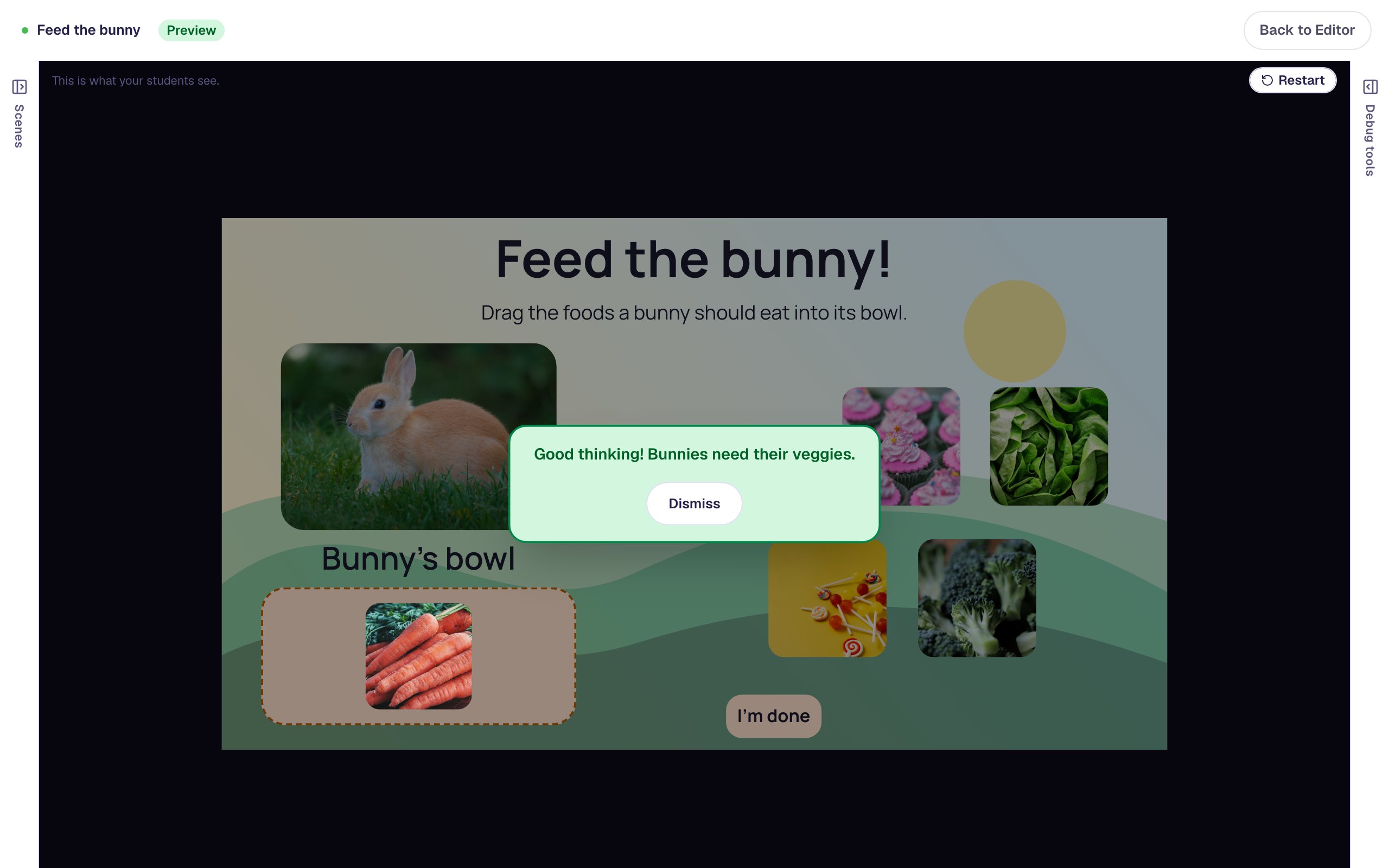
Open ⚡ Behaviors on the bowl again and build one more: Show a message saying Good thinking! Bunnies need their veggies. in the Happy 🎉 tone, on They fix a wrong answer. That moment runs when the student drags the sweet back out, so the fix gets as much attention as the mistake.
Both behaviors now appear in the bowl's Behaviors section in the properties panel, which is where you'd go to fine-tune them later.
A message stays on screen until the student presses Dismiss, which is why the right drops get a quick emoji burst instead: a pop-up after every good drop would slow the game down.
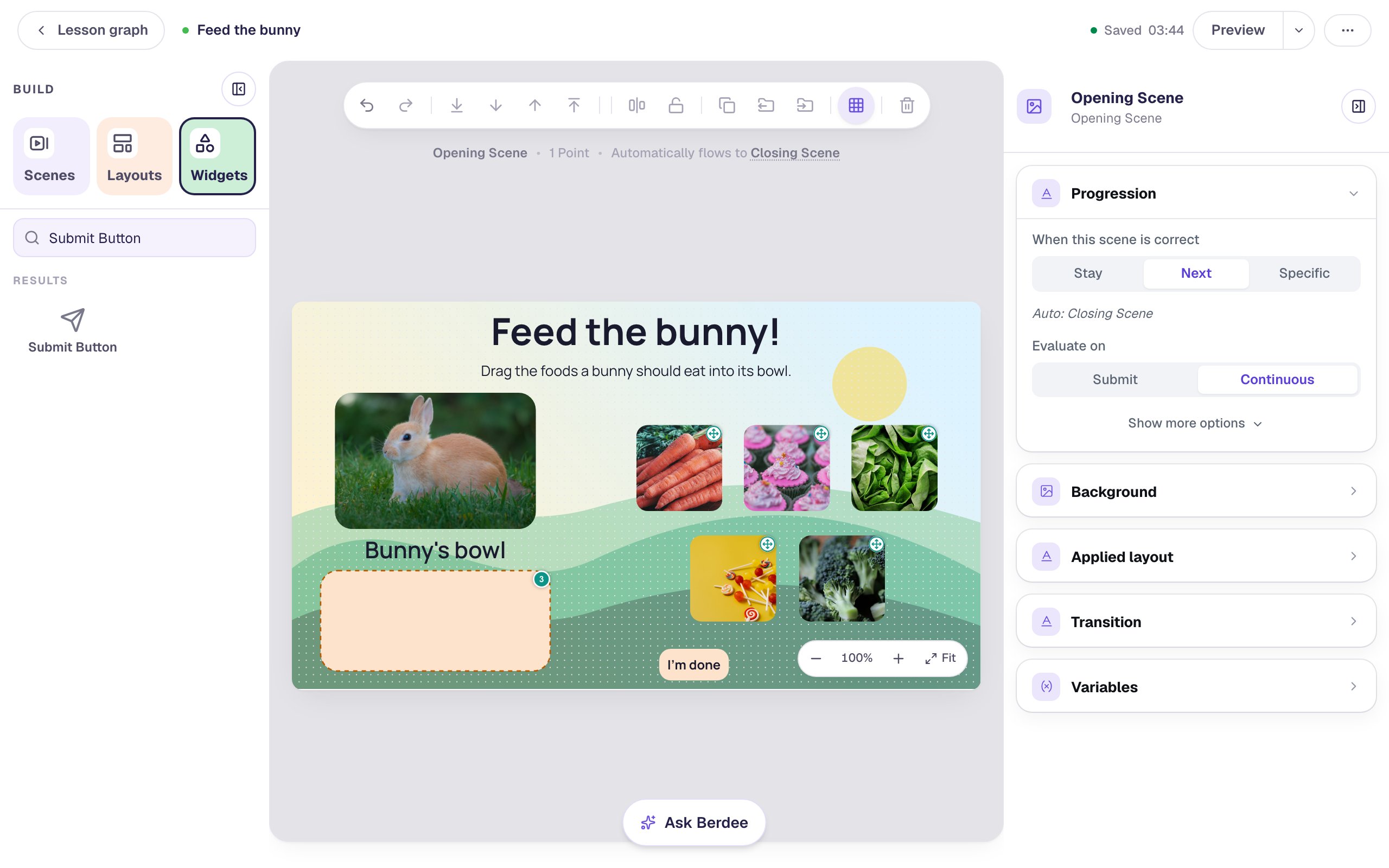
Last, the yellow pill at the top asks for a way to finish early (No Lesson-Submit Button). Add a Submit Button, change its Label to I'm done, set Submits to Lesson, lower its Font Size to about 18 px, and put it low in the middle of the scene.
Step 8: Preview it as a student
Click Preview and play it the way a student might.
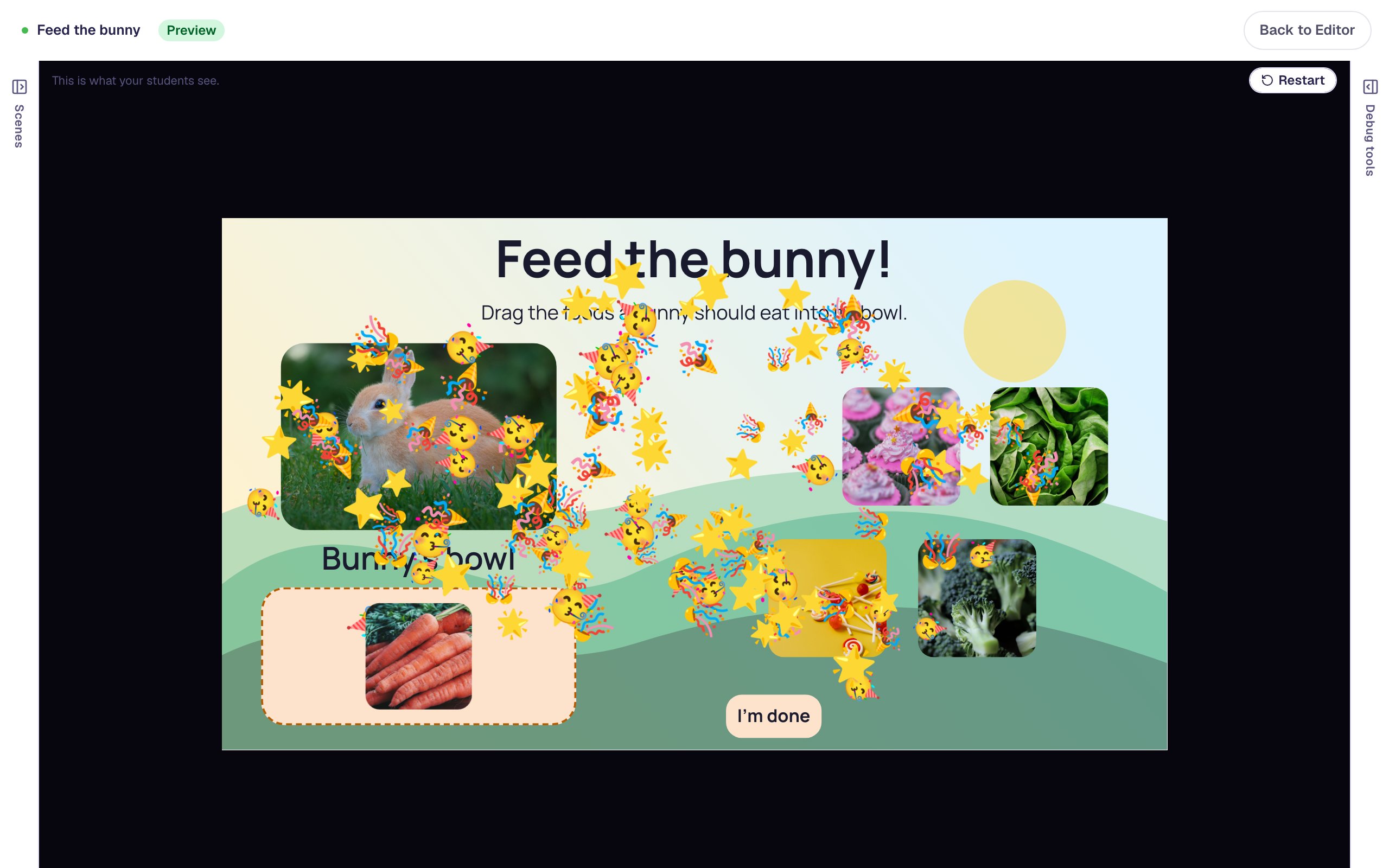
Drop the carrots into the bowl, and emoji burst out of it.
Now drop the cupcakes in. The message explains what went wrong and what to do.
Press Dismiss and drag the cupcakes back out. The bowl notices the fix straight away.
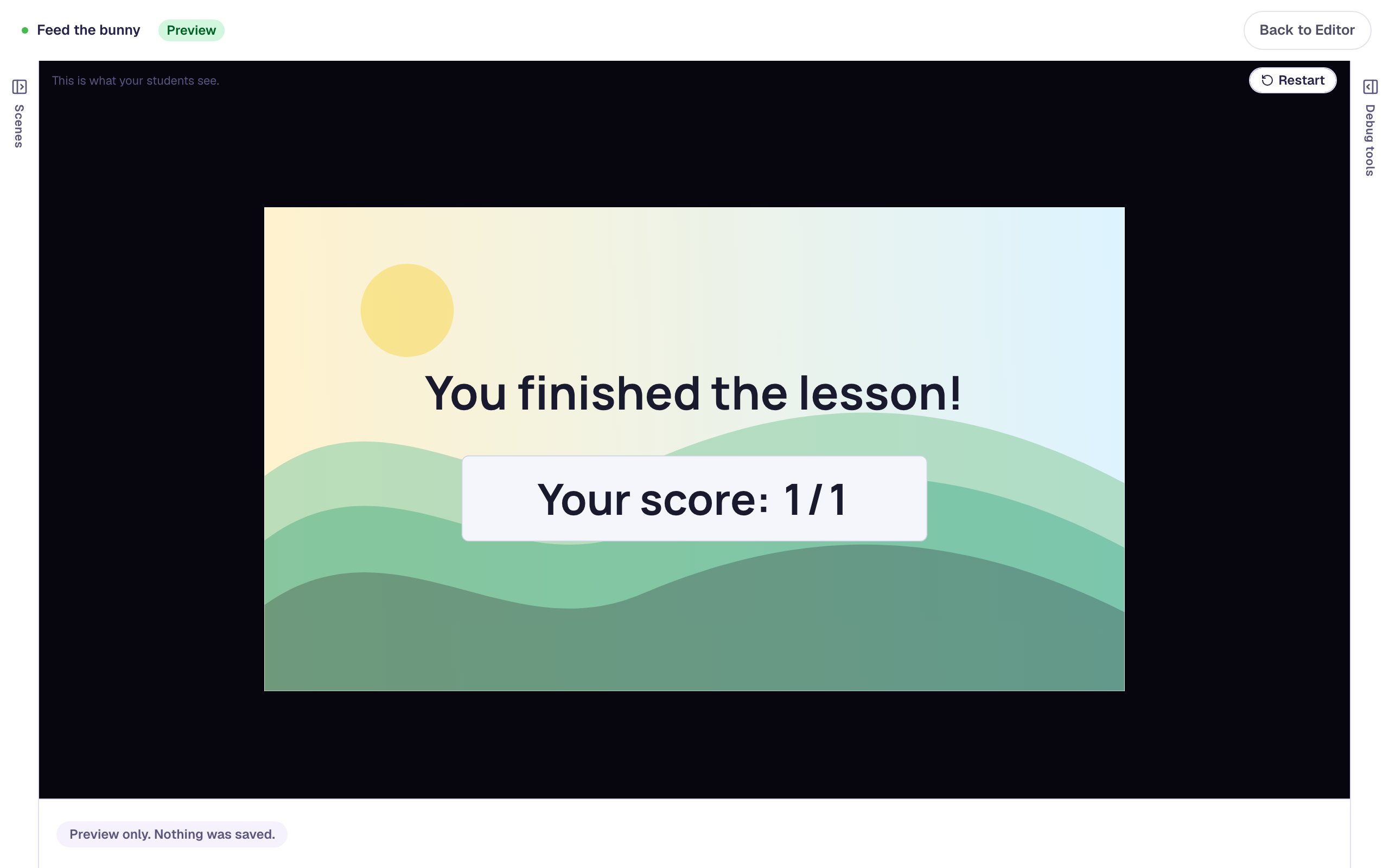
Feed the bunny its lettuce and broccoli, and the lesson moves on by itself to the Closing Scene.
What you built
You built a drag-and-drop game that answers every drop, not just the last one:
- a styled Drop Bucket as the bowl, with five draggable photo cards that all may land in it,
- a right answer drawn by connecting each vegetable to the bowl,
- an Emoji burst on each vegetable for They drop it in the right place,
- a message on the bowl for They pick a wrong answer that says why and what to do, and
- praise on the bowl for They fix a wrong answer, so correcting a mistake feels good too.
The bowl has one more moment you didn't use, They pick all the right answers, which runs once the bowl's contents are right. It's a good spot for a bigger celebration, or for a message before the lesson moves on. Every moment works the same way on any bucket, so a sort with several buckets can coach each one differently. See Drop Bucket Widget for how a bucket decides what's right.
Make this lesson yours
Add the lesson you just watched being built to your account, then change it for your class: your questions, your pictures, your colors.
Free to sign up, and you'll come straight back here. I have an account