Sort rectangles from shapes that aren't
Draw six exact shapes with the Shape widget, make each one a draggable card, and let students sort them into Rectangles and Not rectangles. A square and a tilted rectangle belong with the rectangles; a rhombus and a trapezoid don't.
- Level
- Beginner
- Time
- About 15 min
- Steps
- 9
- Updated
- Oct 26, 2026
A one-scene geometry sort where students drag six drawn shapes into Rectangles or Not rectangles, see a bucket turn red when a shape doesn't belong, and move on to the ending once every shape is sorted.
Get the finished lesson
Skip straight to the result, or keep it open beside the steps. Add this tutorial's lesson to your account and explore how it works in the studio.
Free to sign up, and you'll come straight back here. I have an account
Ask young students what a rectangle is and many will describe a long box lying flat. Show them a square, or a rectangle turned on a slant, and they'll often say it isn't one. A sort fixes that: students have to check each shape against the rule, 4 straight sides and 4 square corners, instead of against how it looks.
In this tutorial you'll build Is it a rectangle?: six shape cards that students drag into Rectangles or Not rectangles. Berdee draws the shapes for you, exactly, so a turned rectangle really is a rectangle and a rhombus really has no square corners. The sorting itself uses the same Drop Bucket setup as Sort animal pictures into their habitats, with shapes where the photos were.
Step 1: Set the scene
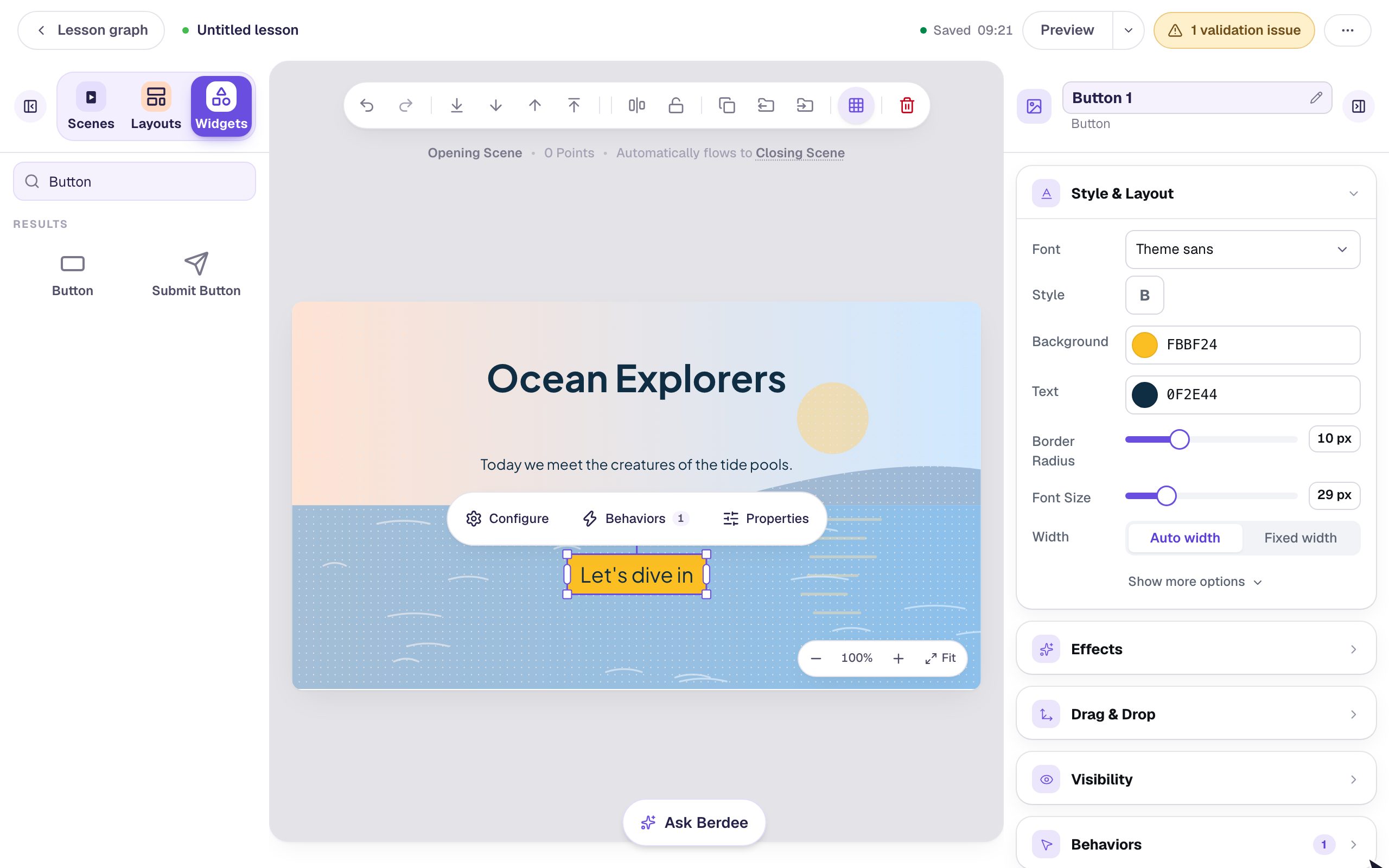
Start a blank lesson (New lesson, then Start from scratch). Click the lesson's name at the top left and call it Is it a rectangle?.
Click an empty spot on the scene, open Background, click Choose a style, open Textures, pick Notebook paper and click Apply background. Open the Closing Scene from Scenes and give it the same background.
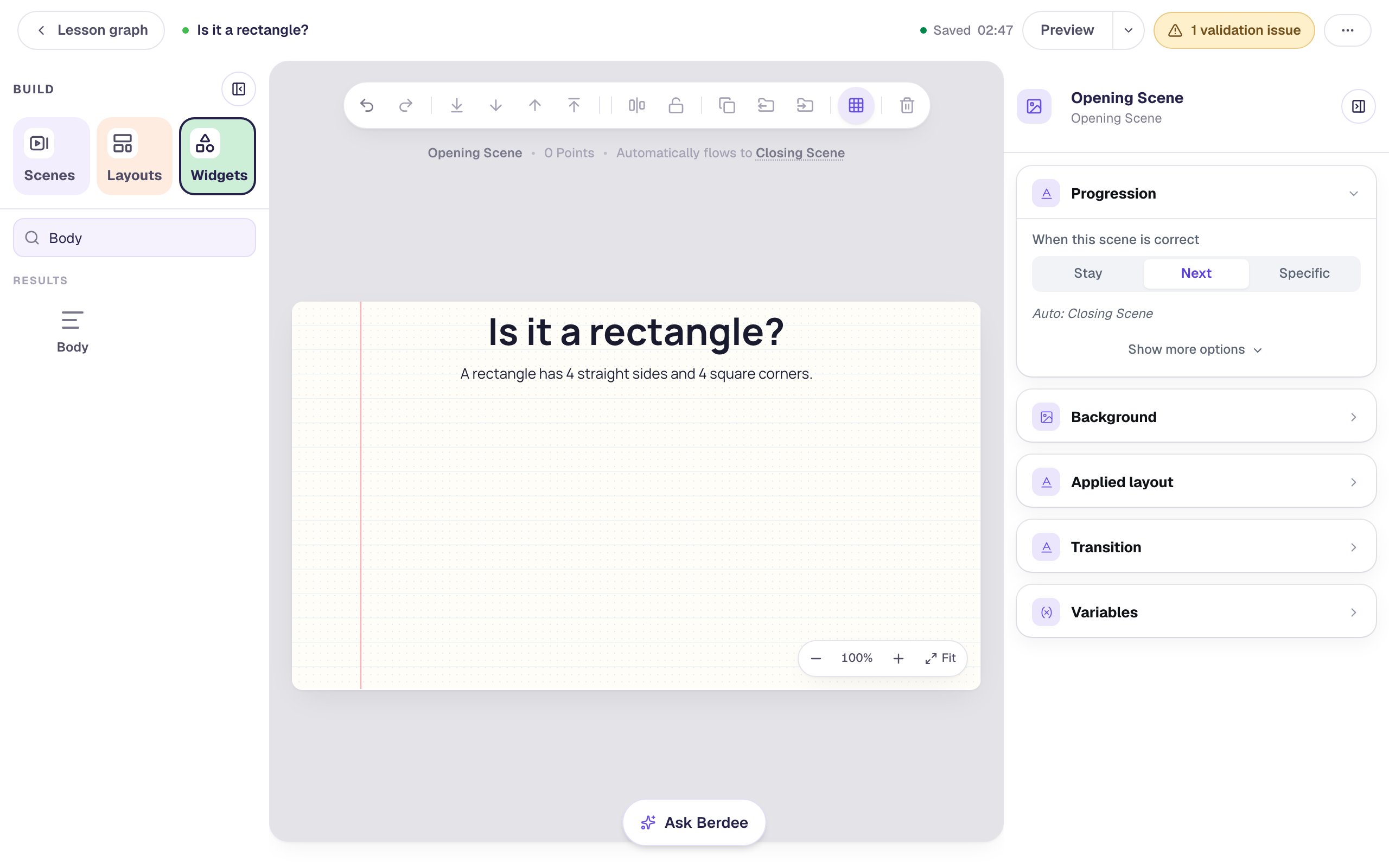
Back on the Opening Scene, add a Heading and type Is it a rectangle?. Under it, add a Body and type the rule students will sort by: A rectangle has 4 straight sides and 4 square corners.
Step 2: Draw an exact rectangle
Add a Shape from Widgets. Its Configure window opens straight away with the shape library. Scroll past the basic shapes and polygons to Exact shapes and click Custom: exact corners.
An Exact shape editor appears below the library. Set Kind to Rectangle.
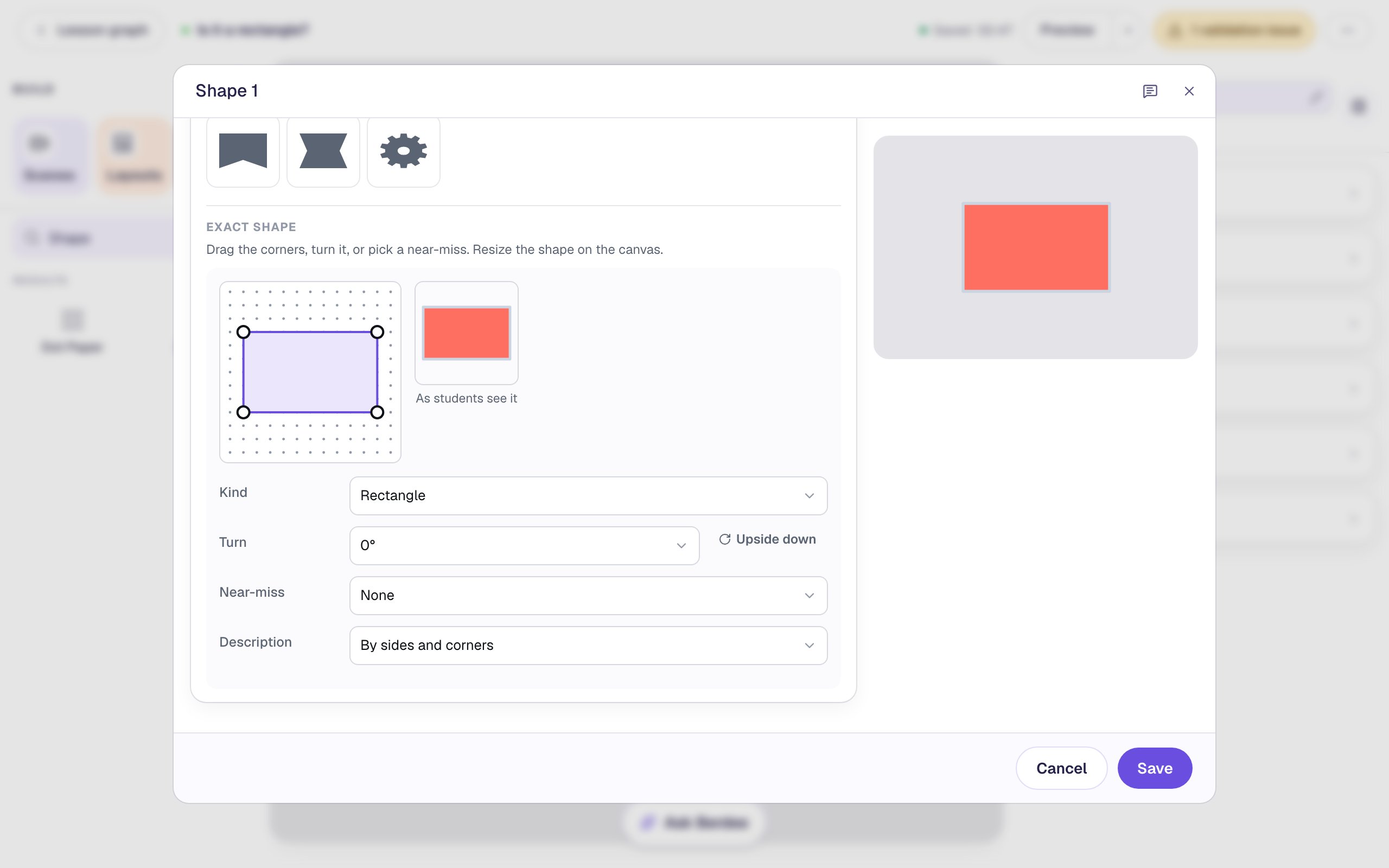
Why not the plain Rectangle from Basic shapes? A basic shape stretches to whatever size you drag it to, so it's only a picture of a rectangle. An exact shape is drawn from its corners on a grid. Berdee knows how many sides and corners it has, which matters in Step 5. Click Save.
Step 3: Turn it into a card
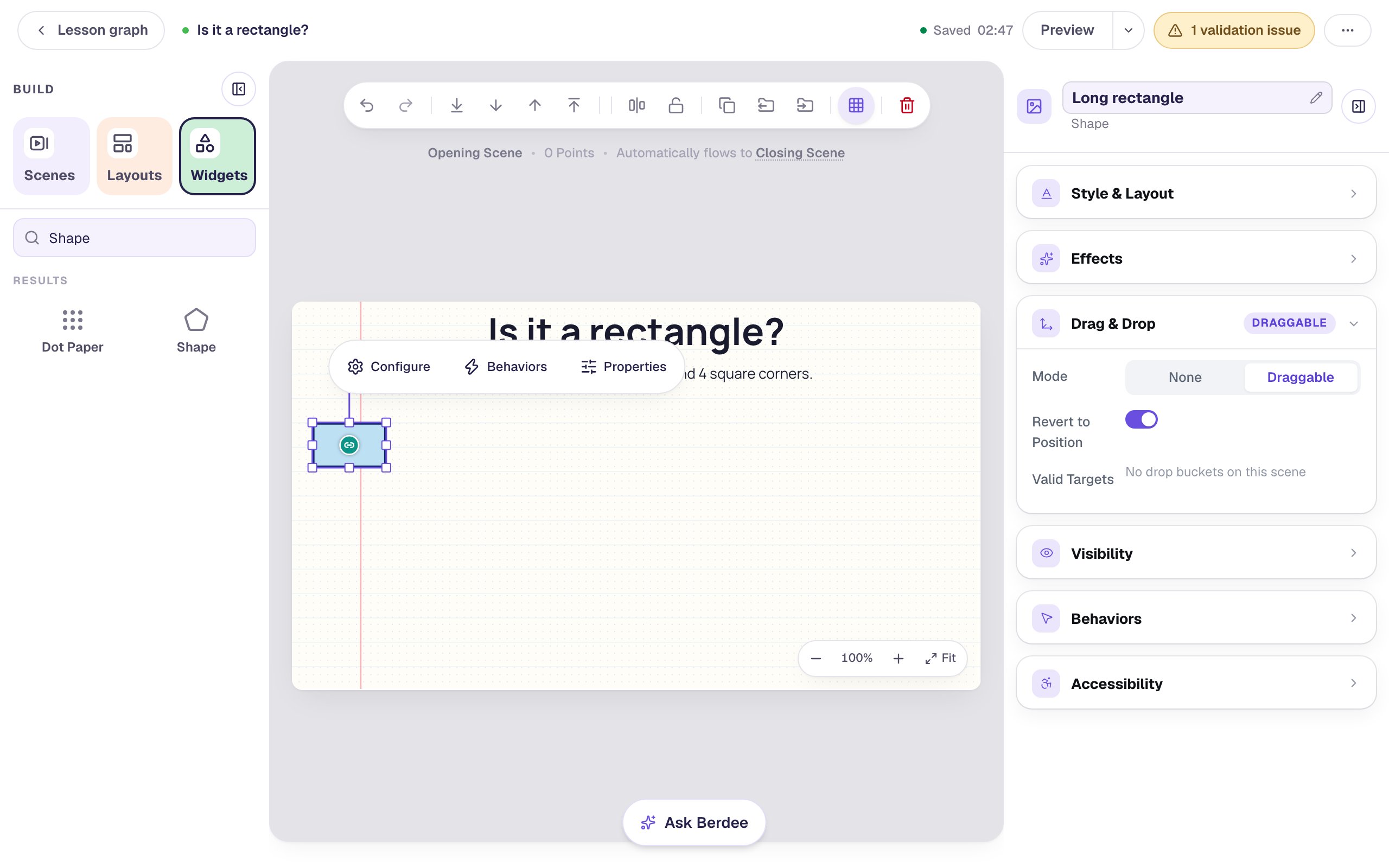
With the rectangle selected, click its name at the top of the properties panel and call it Long rectangle. Then, in the properties panel:
- Under Style & Layout, click Show more options and set Width to
140and Height to120. Every card gets the same frame, and the shape keeps its own proportions inside it. - Set Fill Color to a soft blue and Stroke Color to dark navy, and raise Stroke width to
3, so the edges and corners are easy to see. - Open Drag & Drop and set Mode to Draggable.
Drag it to the left end of the scene, under the rule.
Step 4: Duplicate it into five more shapes
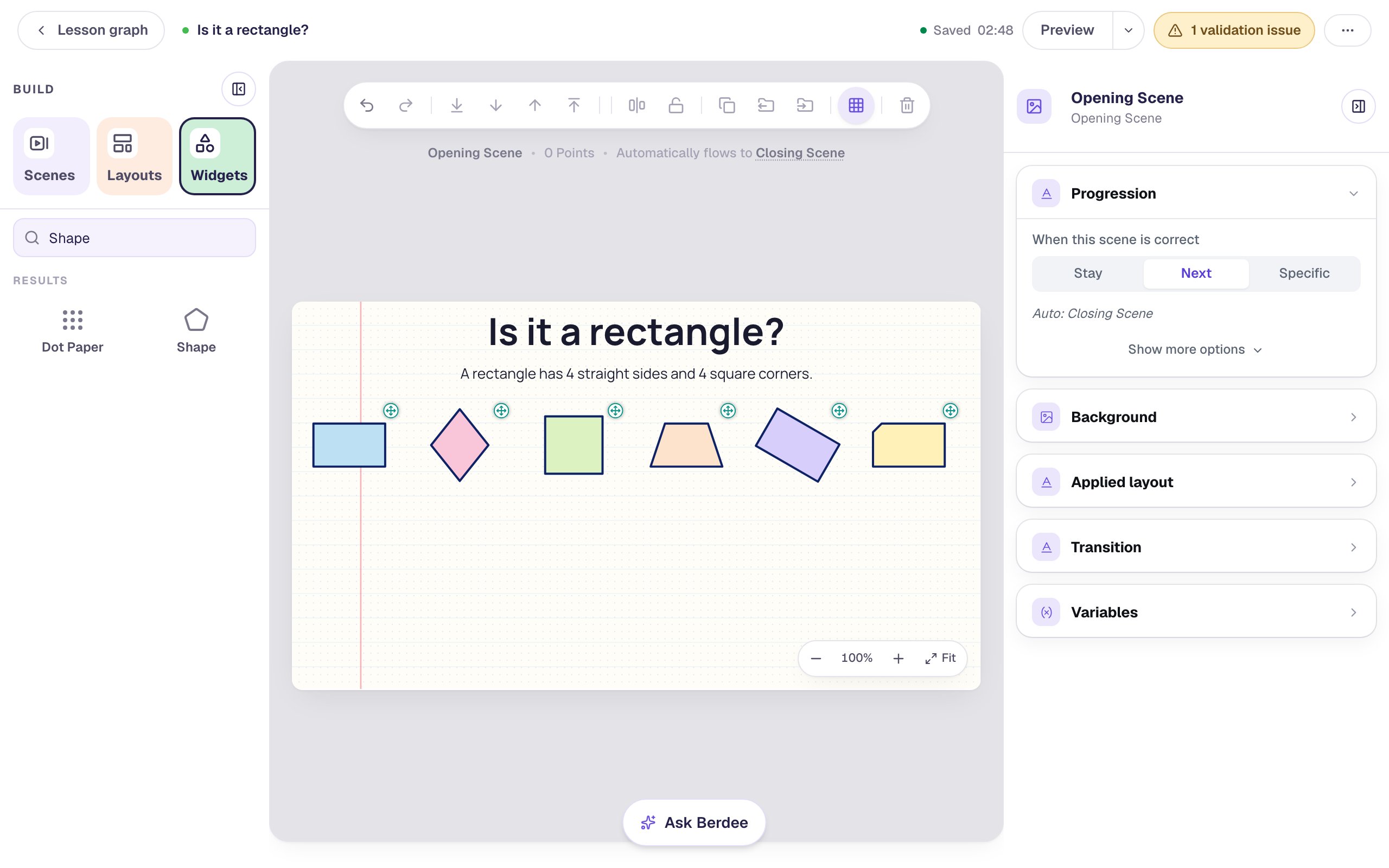
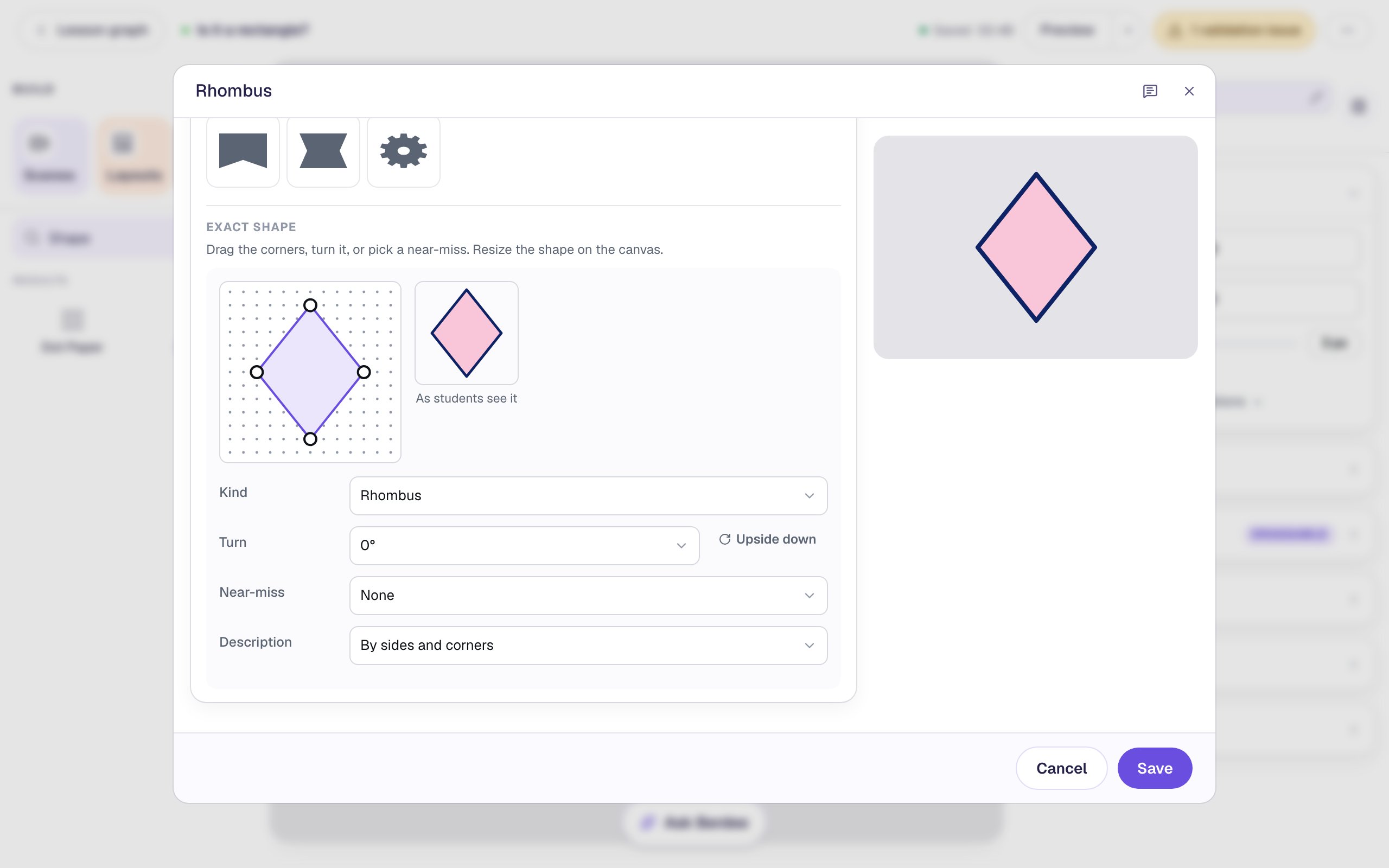
Copying the card keeps its size, outline and Draggable setting, so you only change the shape and its colour. With the long rectangle selected, click Duplicate in the toolbar and drag the copy to the right. Click Configure, scroll to the Exact shape editor and set Kind to Rhombus. Click Save, then change its Fill Color to pink and rename it Rhombus.
Make four more the same way, each copied from the one before it, along the row:
| Name | Kind | Also change |
|---|---|---|
Square | Square | green fill |
Trapezoid | Trapezoid | orange fill |
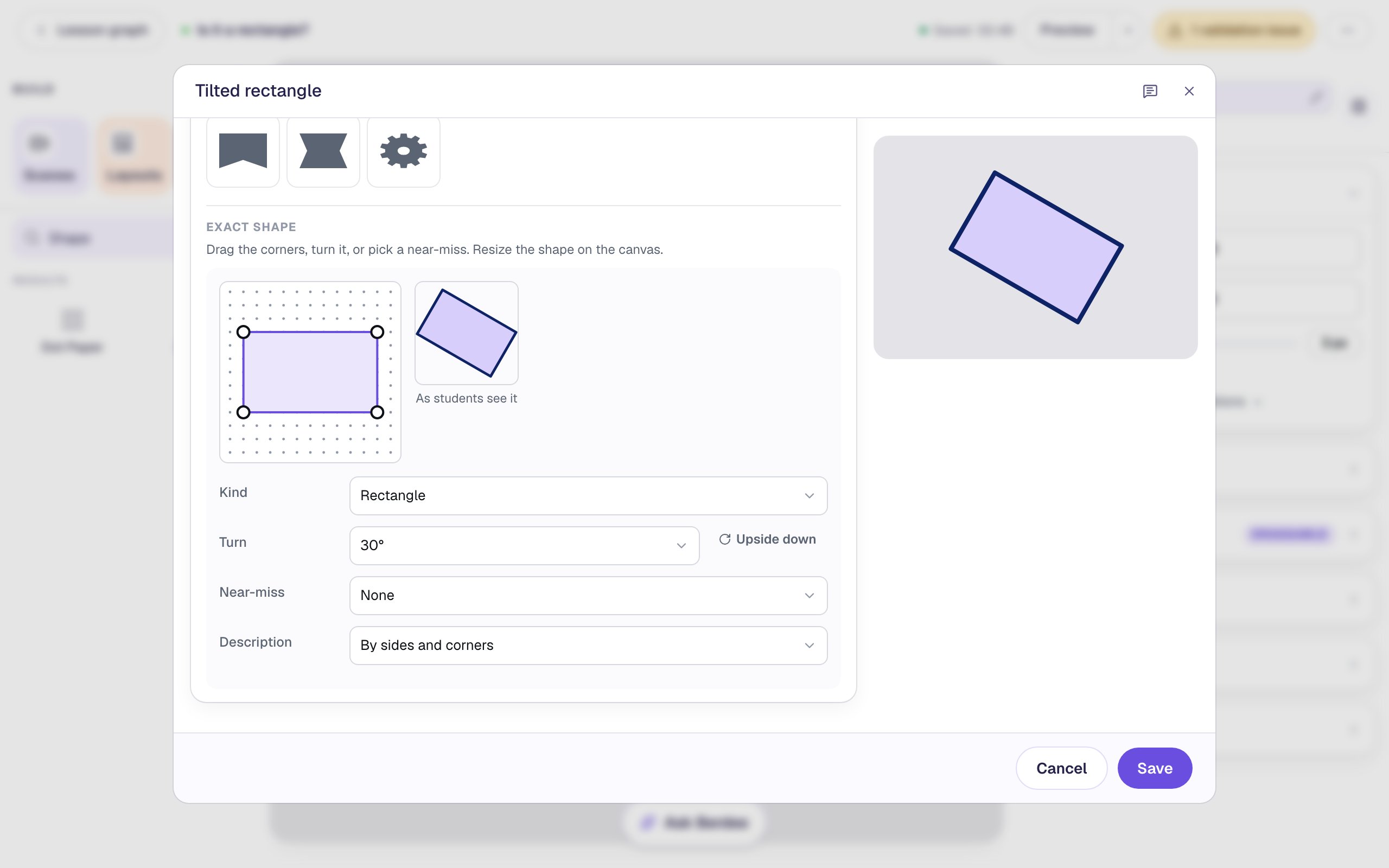
Tilted rectangle | Rectangle | Turn 30°, lilac fill |
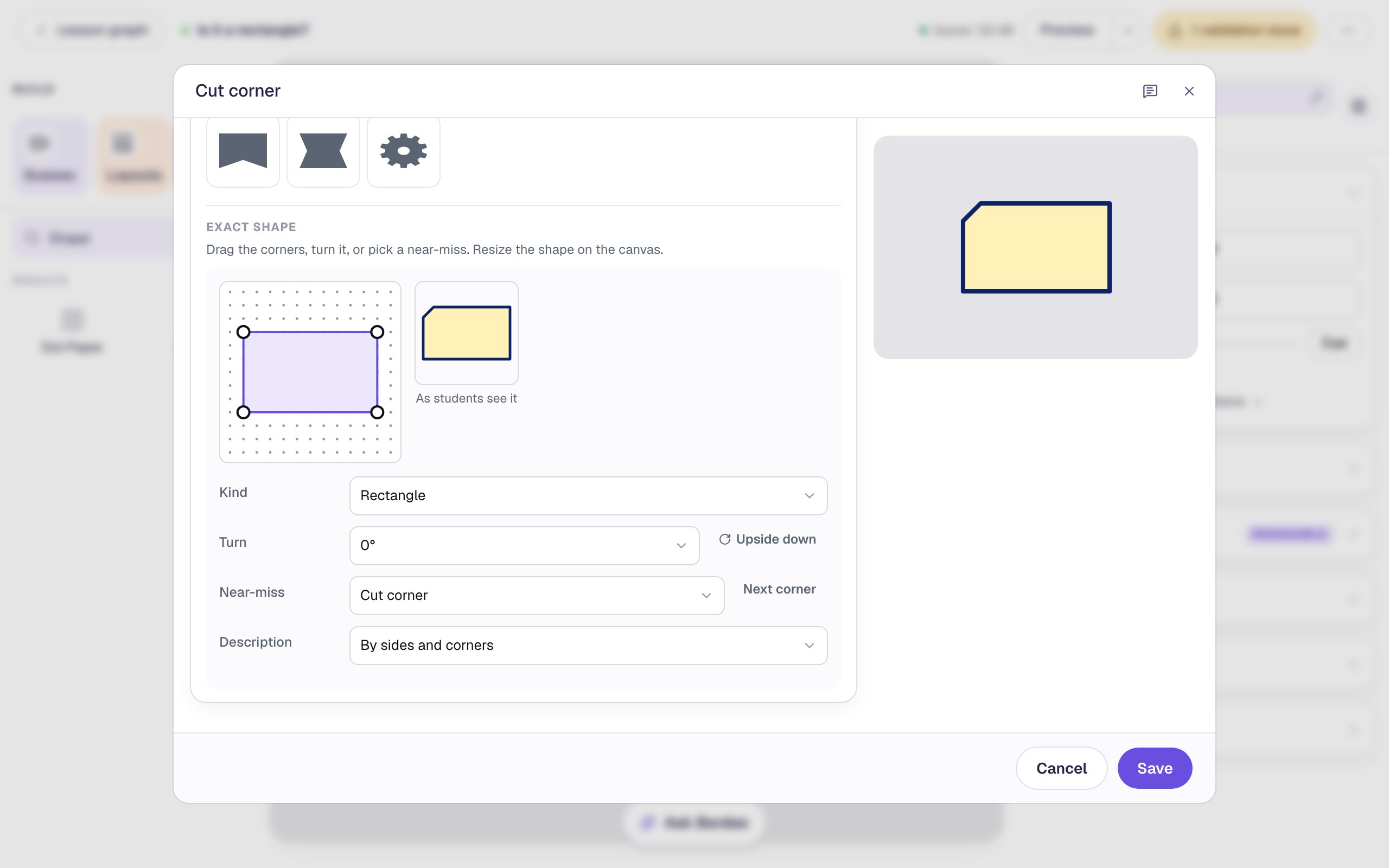
Cut corner | Rectangle | Turn back to 0°, Near-miss Cut corner, yellow fill |
Turn spins the shape without changing it: the tilted rectangle still has 4 square corners. That's the card students most often put in the wrong bucket, and the one that teaches the most.
A Near-miss is a shape that looks almost right but breaks the rule. Cut corner snips one corner off the rectangle, so it has 5 sides and 5 corners: it looks like a rectangle at a glance and isn't one.
Use a different colour on every card. If all the rectangles were blue, students could sort by colour instead of by corners.
Step 5: Describe each card for screen readers
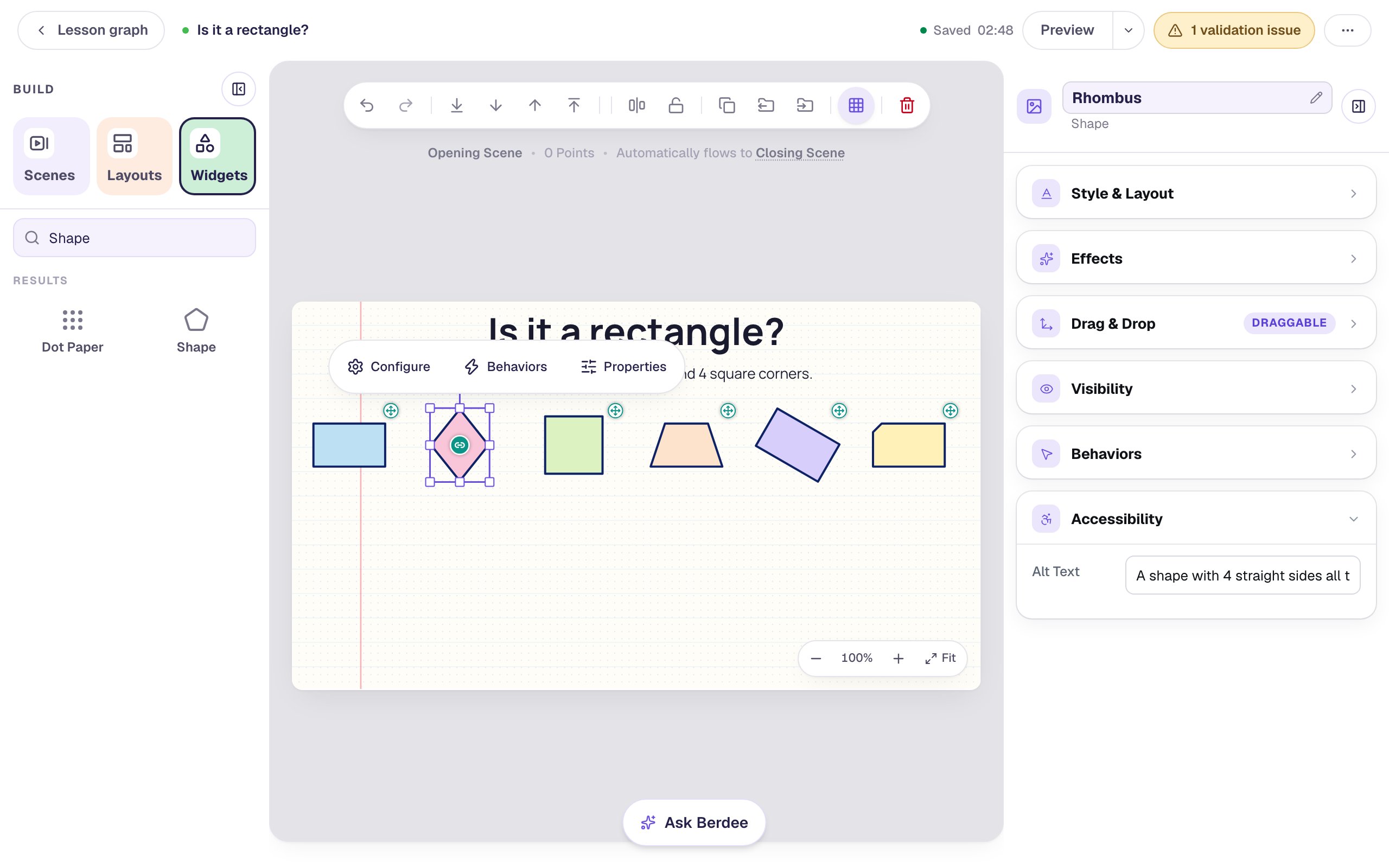
A student using a screen reader hears each card's description instead of seeing it. Open Configure on the rhombus and look at Description: it's By sides and corners, so Berdee reads it as "a shape with 4 straight sides and 4 corners". That never gives the answer away, which is right for a "Which one is a triangle?" question. Here it's a problem: the long rectangle and the trapezoid are described the same way, because the description doesn't say whether the corners are square. A student listening can't sort them.
So write each card's description yourself. Close the window, open Accessibility in the properties panel and type it in Alt Text, which takes the place of the generated description. Say what a student needs to apply the rule, and never the shape's name:
- Long rectangle:
A shape with 4 straight sides and 4 square corners, 2 sides long and 2 short - Rhombus:
A shape with 4 straight sides all the same length and no square corners - Square:
A shape with 4 straight sides all the same length and 4 square corners - Trapezoid:
A shape with 4 straight sides and no square corners, narrower at the top - Tilted rectangle:
A tilted shape with 4 straight sides and 4 square corners - Cut corner:
A shape with 5 straight sides and 5 corners
Step 6: Add the two buckets
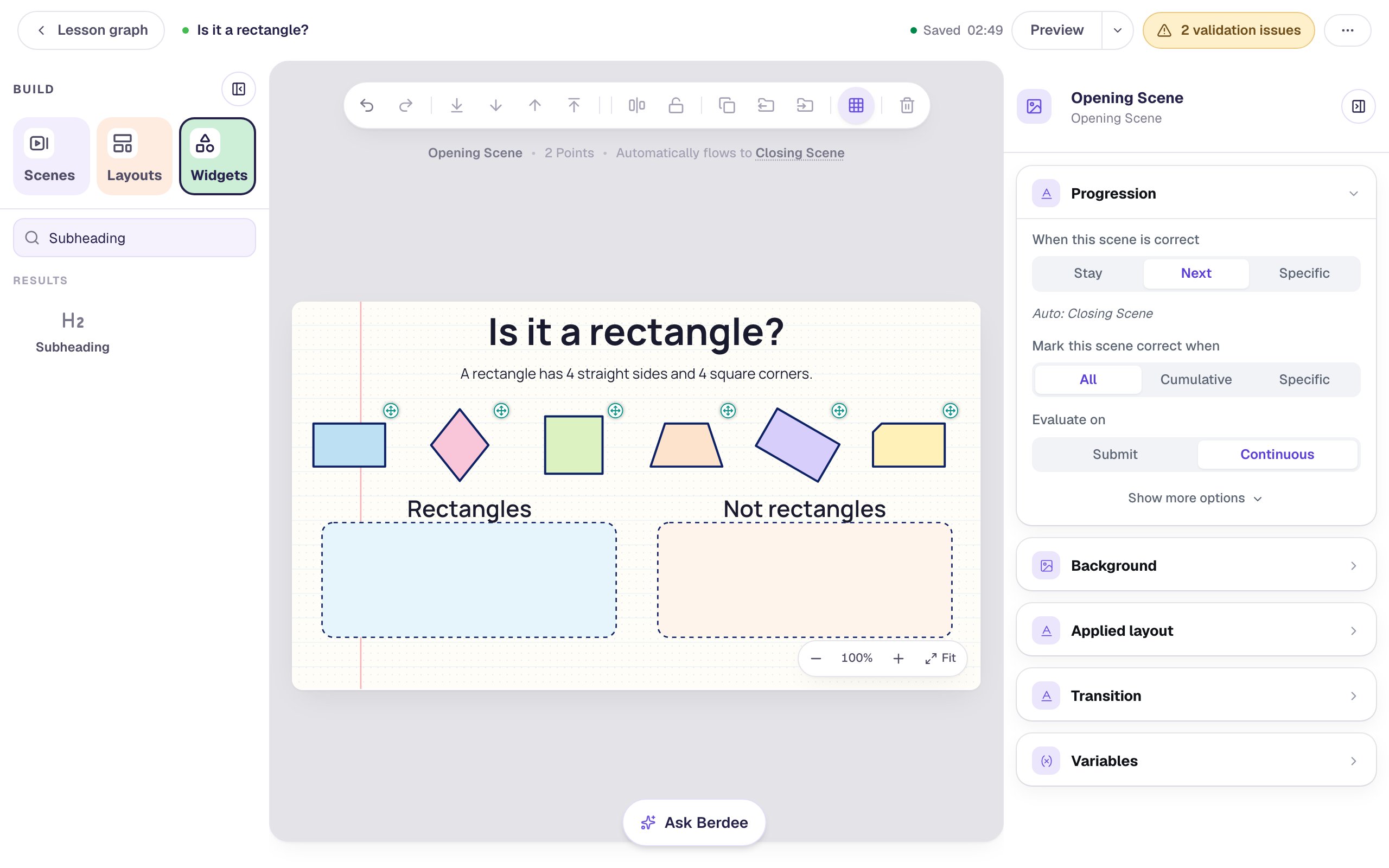
Add a Drop Bucket from Widgets. Under Style & Layout, set Width to 410 and Height to 160 and drag it to the lower left. Set its Background to a pale blue, its Border Color to the same navy as the cards, and Border Radius to 16. Rename it Rectangles, and give it the Alt Text Rectangles go here.
Add a second bucket the same way on the right, with a pale peach background, named Not rectangles with the Alt Text Not rectangles go here. Then put a Subheading above each bucket and type Rectangles and Not rectangles. A bucket's own label is small and disappears once a card is in it, so the Subheadings are what students read.
Step 7: Connect each card to its bucket
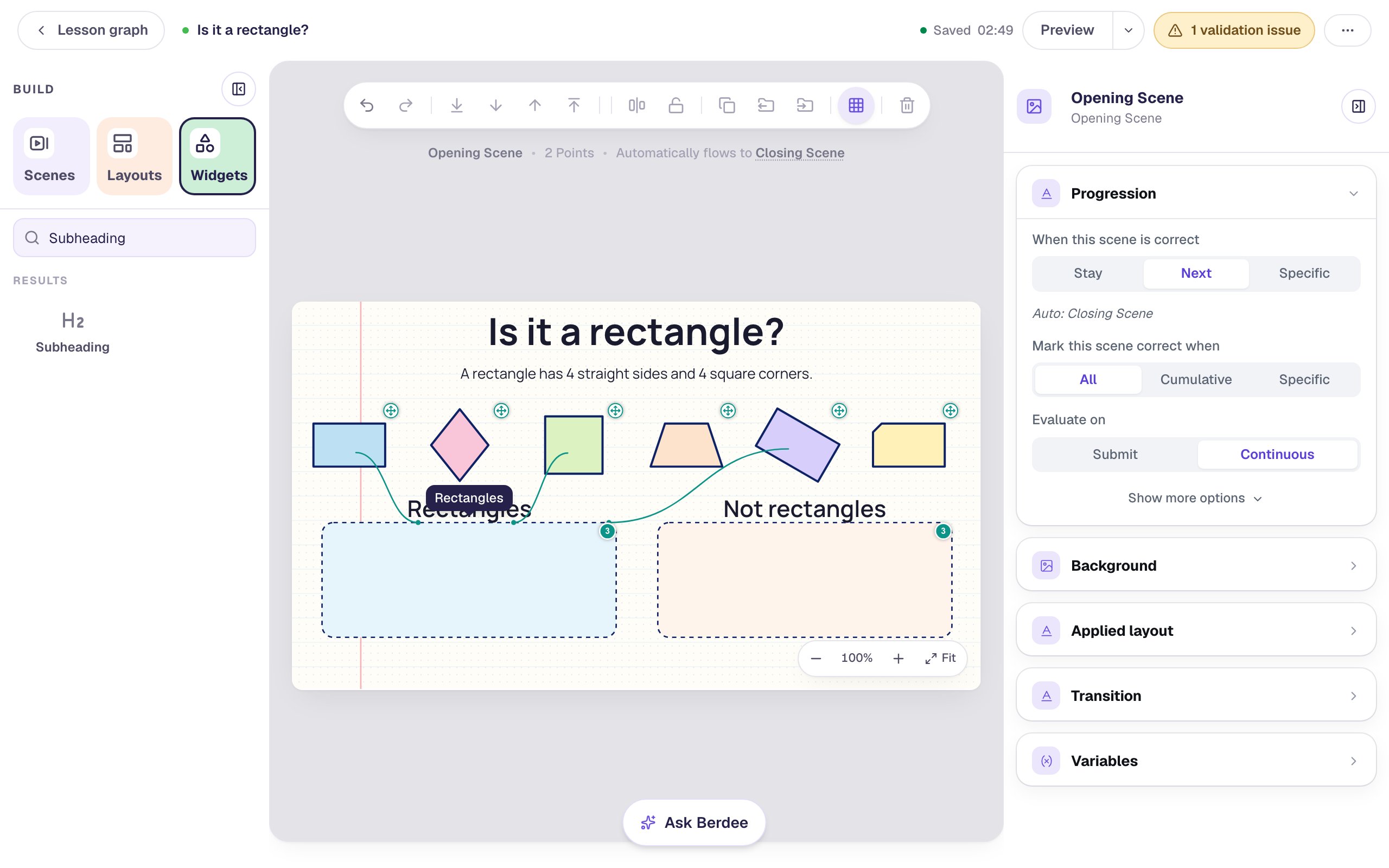
Now tell Berdee where each card belongs. Click a card to select it, then drag the round link badge in its middle onto the right bucket. A line follows your pointer and snaps to the bucket.
Connect the long rectangle, the square and the tilted rectangle to Rectangles, and the rhombus, the trapezoid and the cut corner to Not rectangles. Each bucket's corner badge counts the cards that belong in it, so both should read 3. Hover over a bucket to see lines from its cards.
The square belongs with the rectangles. It has 4 straight sides and 4 square corners, which is all the rule asks for. It's a special rectangle whose sides happen to be the same length.
Step 8: Show right and wrong as students drop
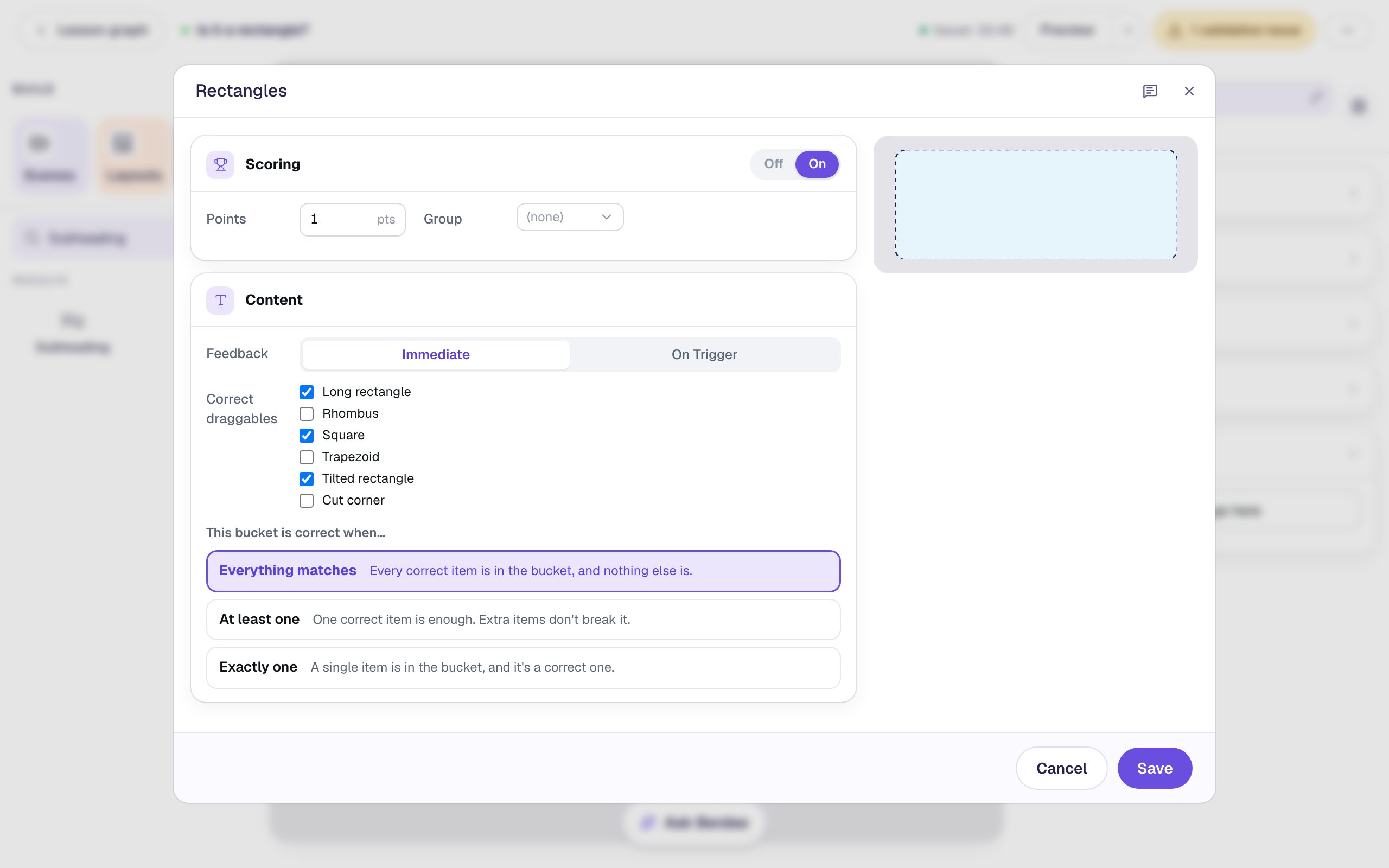
Select the Rectangles bucket and click Configure. Correct draggables lists the three cards you connected, ticked. Set Feedback to Immediate, so the bucket turns red the moment a shape that doesn't belong lands in it. Leave This bucket is correct when… on Everything matches: all three rectangles in, nothing else. Click Save, and do the same for Not rectangles.
Last, the yellow pill at the top asks for a way to finish early (No Lesson-Submit Button). Add a Submit Button, change its Label to I'm done, set Submits to Lesson, lower its Font Size to about 18 px, and put it in the bottom-left corner.
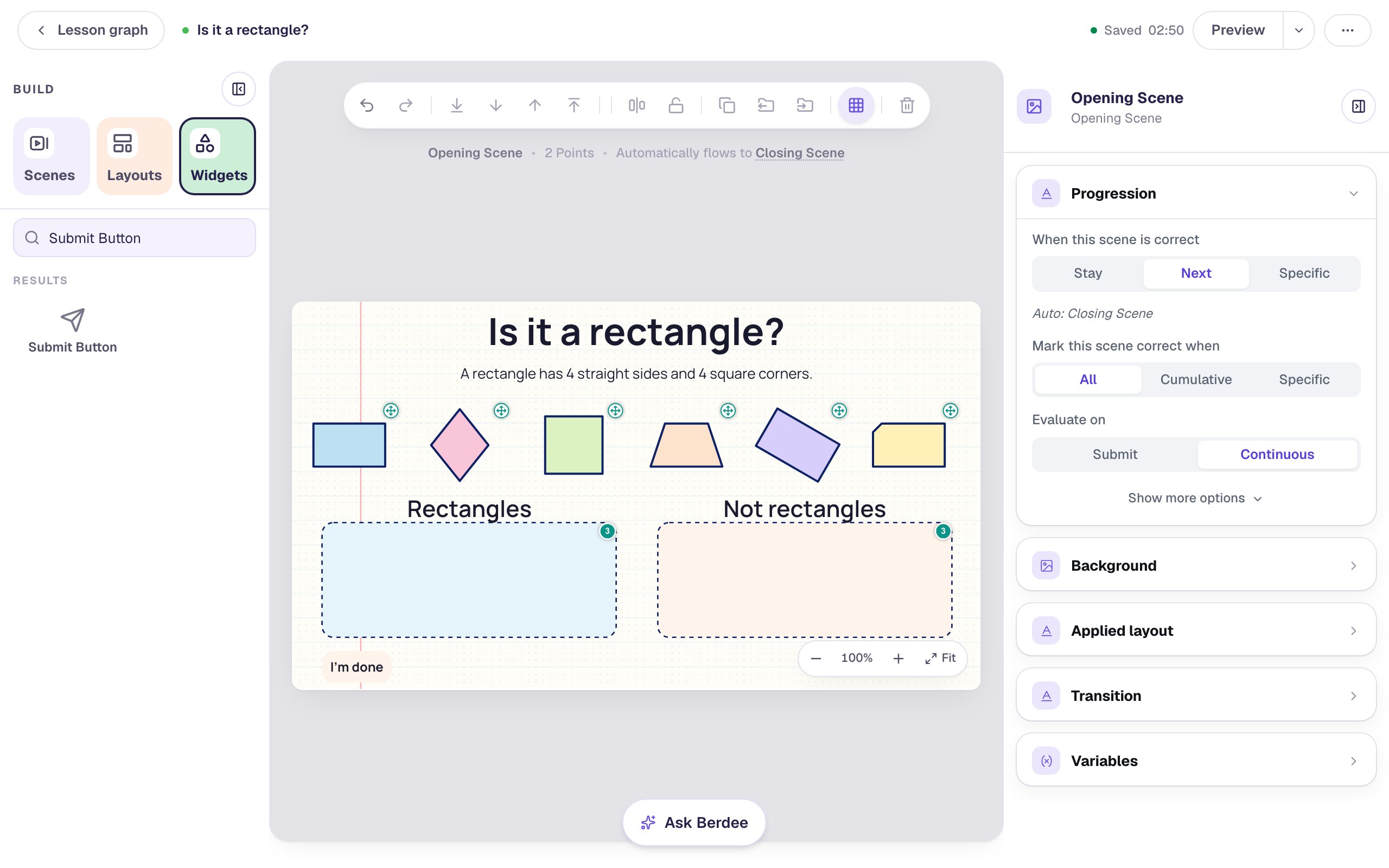
You don't need a Check button. The scene's Progression is Next, checked Continuously, so the moment both buckets are right, Berdee moves the student on to the Closing Scene.
Step 9: Sort them in preview
Click Preview and sort the shapes the way a student would. Try the mistake students make most: drop the rhombus into Rectangles. It has 4 equal sides, but no square corners.
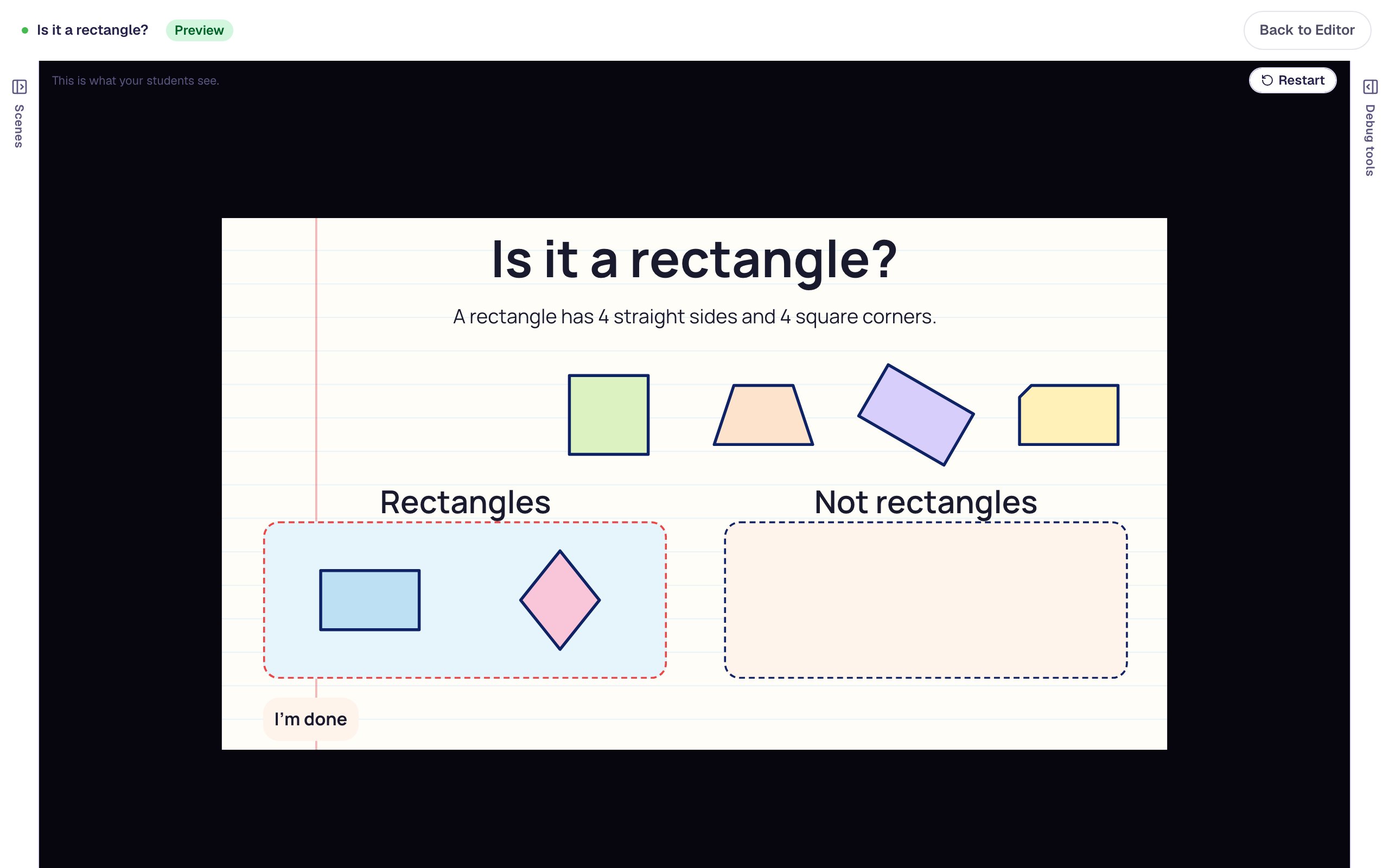
Drag the rhombus over to Not rectangles and the red goes away. Sort the square, the trapezoid and the cut corner, and Not rectangles turns green: all three of its shapes are in.
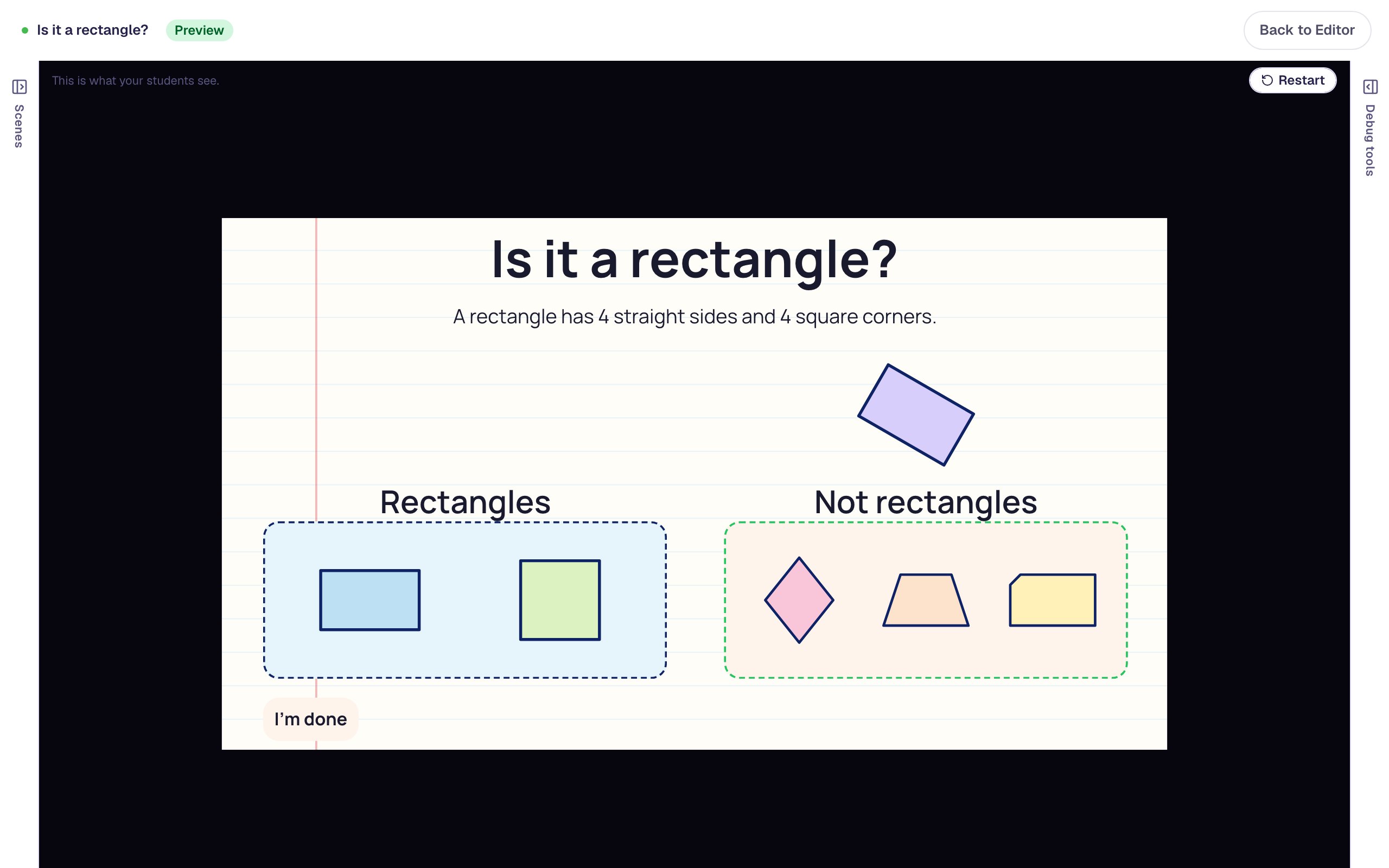
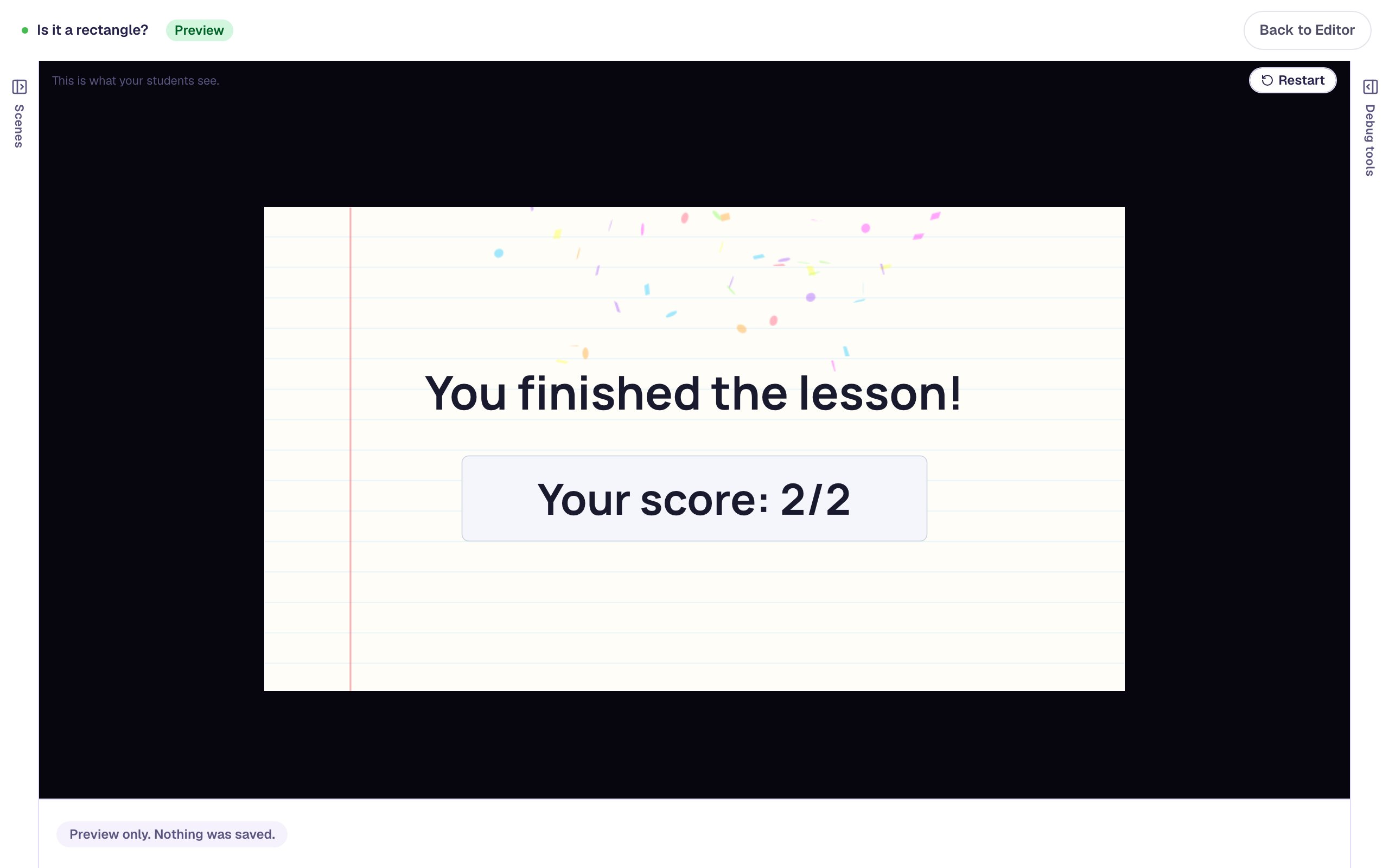
Drop the tilted rectangle into Rectangles and the lesson moves on to the ending, with a score of 2 out of 2: one point for each bucket.
What you built
A shape sort where students practise the rule, not the picture:
- Exact shapes (Custom: exact corners), so every rectangle has truly square corners and every non-example truly breaks the rule.
- Turn and Near-miss to make the cards students get wrong: a tilted rectangle that still counts, and a cut corner that doesn't.
- Alt Text on every card that names its square corners, because the generated description only counts sides and corners.
- Two Drop Buckets with Immediate feedback and a connection from every card, and a lesson that finishes on its own once both are right.
To ask about one shape at a time instead of sorting, build the same rule into a question with Ask students to tap all the triangles, which uses shape answers in a Multiple Choice. To have students draw a rectangle themselves, follow Draw a rectangle from a clue on dot paper.
Make this lesson yours
Add the lesson you just watched being built to your account, then change it for your class: your questions, your pictures, your colors.
Free to sign up, and you'll come straight back here. I have an account