Let students go back and reread the story
Put a Read the story again button on every question, and use a router so the story always sends students back to the question they left.
- Level
- Intermediate
- Time
- About 15 min
- Steps
- 7
- Updated
- Oct 22, 2026
A "The Lion and the Mouse" lesson with a story and two questions, where students can reread the story from either question and land right back where they were.
Get the finished lesson
Skip straight to the result, or keep it open beside the steps. Add this tutorial's lesson to your account and explore how it works in the studio.
Free to sign up, and you'll come straight back here. I have an account
Good readers look back at the text when they answer a question about it. A reading lesson should let them: a student who isn't sure why the lion let the mouse go should be able to check the story, then carry on.
In this tutorial you'll build The Lion and the Mouse: a story, then two questions about it. Every question has a 📖 Read the story again button. The tricky part is the way back. The story has one button, but a student might have come from either question. A router solves it: it checks which questions the student has already reached and sends them back to the right one.
You'll use the Lesson Graph and a router. If you haven't built a router before, Finish only after students explore every part introduces them.
Step 1: Write the story
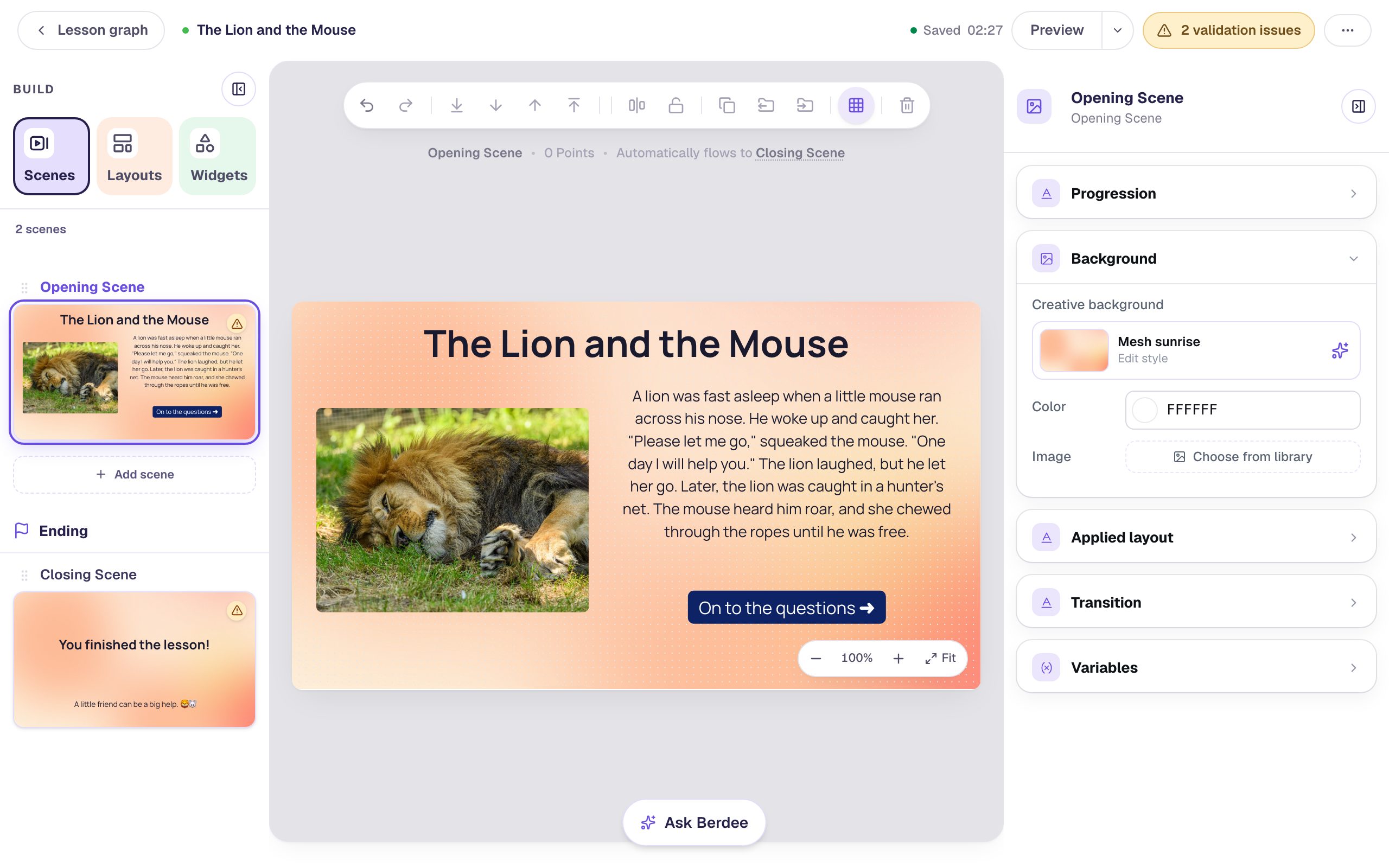
Start a blank lesson (New lesson, then Start from scratch) and name it The Lion and the Mouse. On the Opening Scene:
- Give the scene a background: with nothing selected, open Background, click Choose a style, and pick Mesh sunrise under Gradients.
- Add a Heading that says
The Lion and the Mouse. - Add an Image, set its size to
380×285under Style & Layout, and drag it to the left. Click Choose image, search the stock photos forlion resting grass, and pick one. Then describe the photo in Alt Text, for students who use a screen reader:A lion with a shaggy mane, fast asleep in the grass. - Add a Body text to the right of the picture with the story:
A lion was fast asleep when a little mouse ran across his nose. He woke up and caught her. "Please let me go," squeaked the mouse. "One day I will help you." The lion laughed, but he let her go. Later, the lion was caught in a hunter's net. The mouse heard him roar, and she chewed through the ropes until he was free.
Make it Fixed width at 470, with Font Size 21.
- Add a Button under the story. Click ⚙ Configure, set its Label to
On to the questions ➜, and give it a navy Background with white Text. Rename itTo the questions: click the pencil next to its name at the top of the properties panel, type, and press Enter. The Lesson Graph lists buttons by name, so you'll find it there later.
Give the Closing Scene the same background, and add a Body under the score: A little friend can be a big help. 🦁🐭.
Step 2: Ask the first question
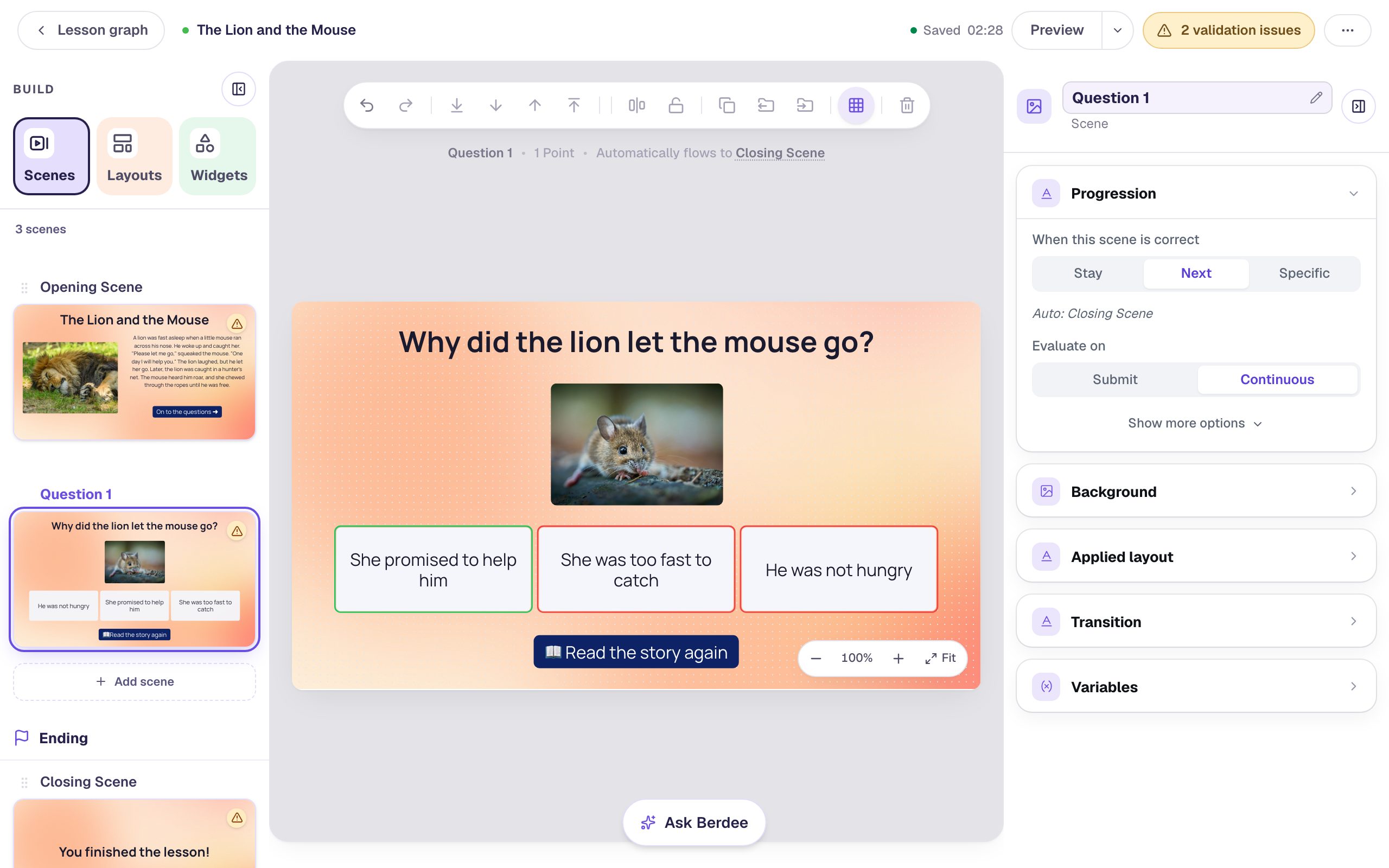
In the Scenes panel, click Add scene and rename the new scene Question 1 (double-click its name). Give it the Mesh sunrise background too, then build it:
- Add a Heading at Font Size
40:Why did the lion let the mouse go? - Add an Image at
240×170under the heading. Search forsmall mouse, and set its Alt Text to describe the photo you picked, likeA small brown mouse with big round ears and long whiskers. - Add a Multi Choice and click ⚙ Configure. A new question has four answers: remove the last one, then type
She promised to help him,She was too fast to catchandHe was not hungry. The first answer is already marked correct. Click Save. - With the question selected, set Font Size to
24and its size to840×120, so the three answers sit side by side. Turn on Show correctness, so a wrong pick turns red.
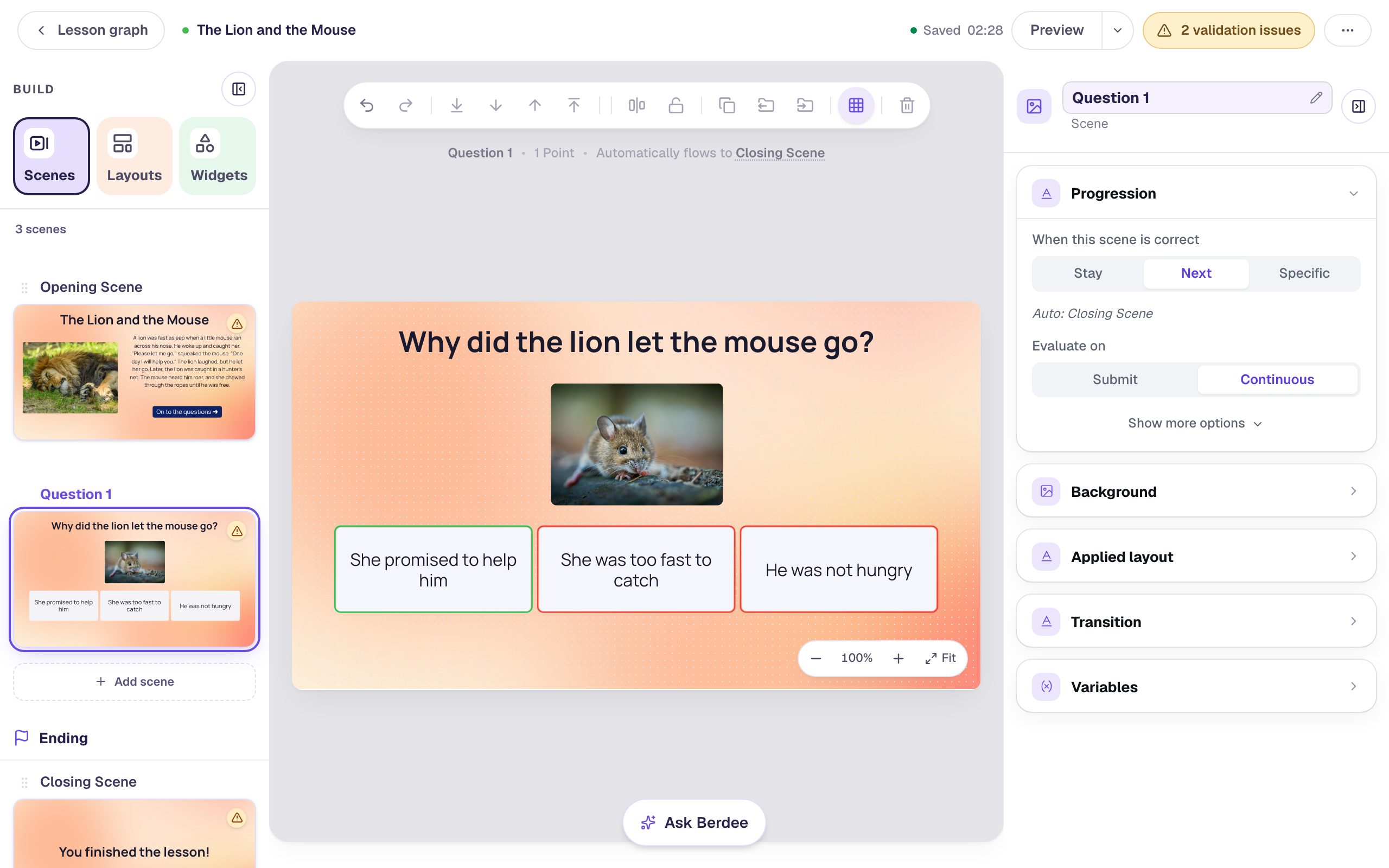
Look at Progression in the properties panel: it's on Next. A right answer moves the student on by itself, so this scene needs no Next button. Students answer in their own time, and nothing locks until they get it right.
Step 3: Add a Read the story again button
Add a Button under the answers. Set its Label to 📖 Read the story again, give it the same navy colors, and rename it Reread.
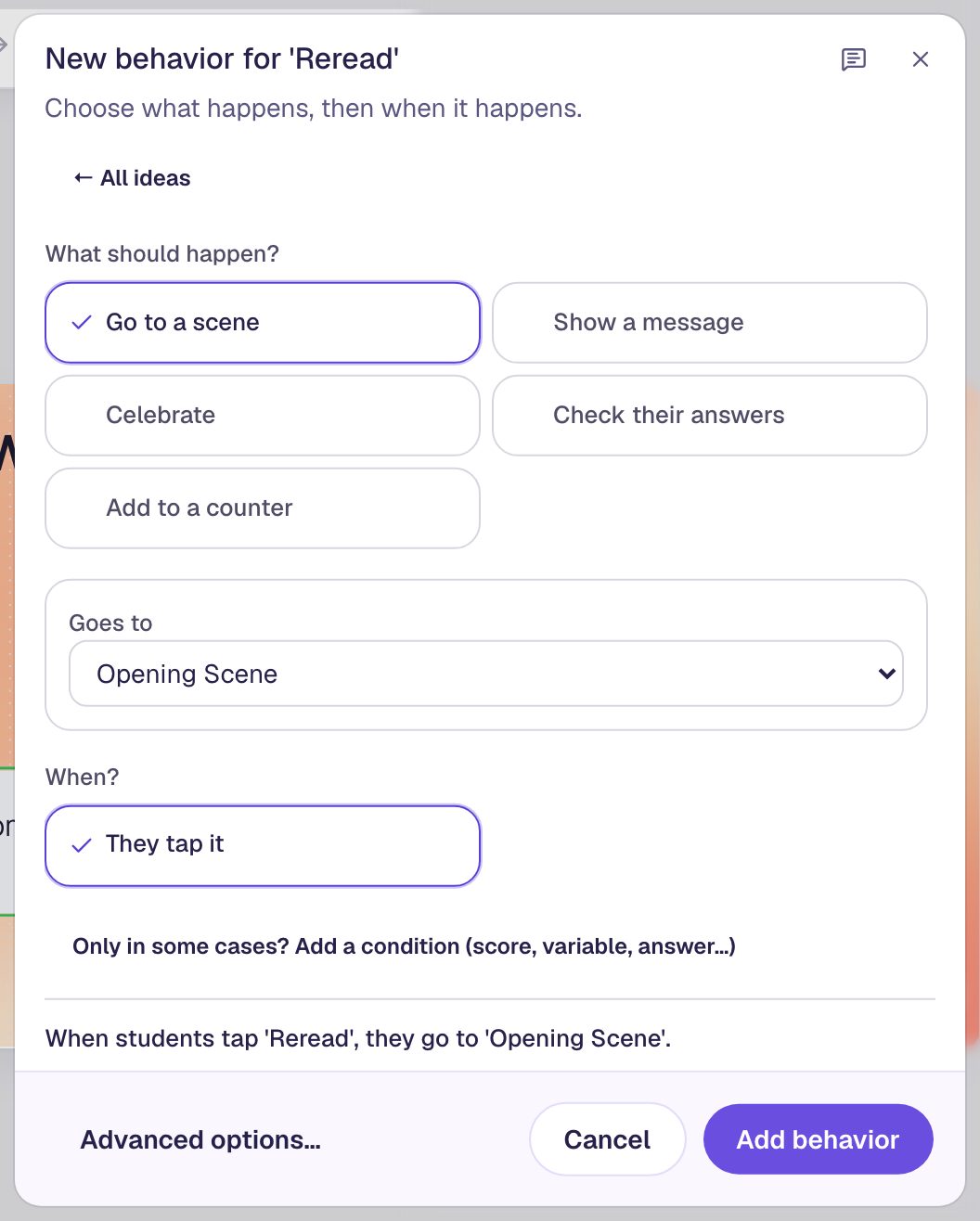
Now send it back to the story. With the button selected, click Behaviors in the floating bar above it:
- Click Build your own….
- Under What should happen?, choose Go to a scene.
- Set Goes to to Opening Scene, where the story is. When? is already They tap it.
- Click Add behavior.
Why the Behaviors window and not a path drawn on the Lesson Graph? A tapped path drawn on the graph turns off the scene's automatic Next, and then a right answer would go nowhere. A behavior only adds what the button does, so the question still moves on by itself after a right answer.
Step 4: Copy the scene for the second question
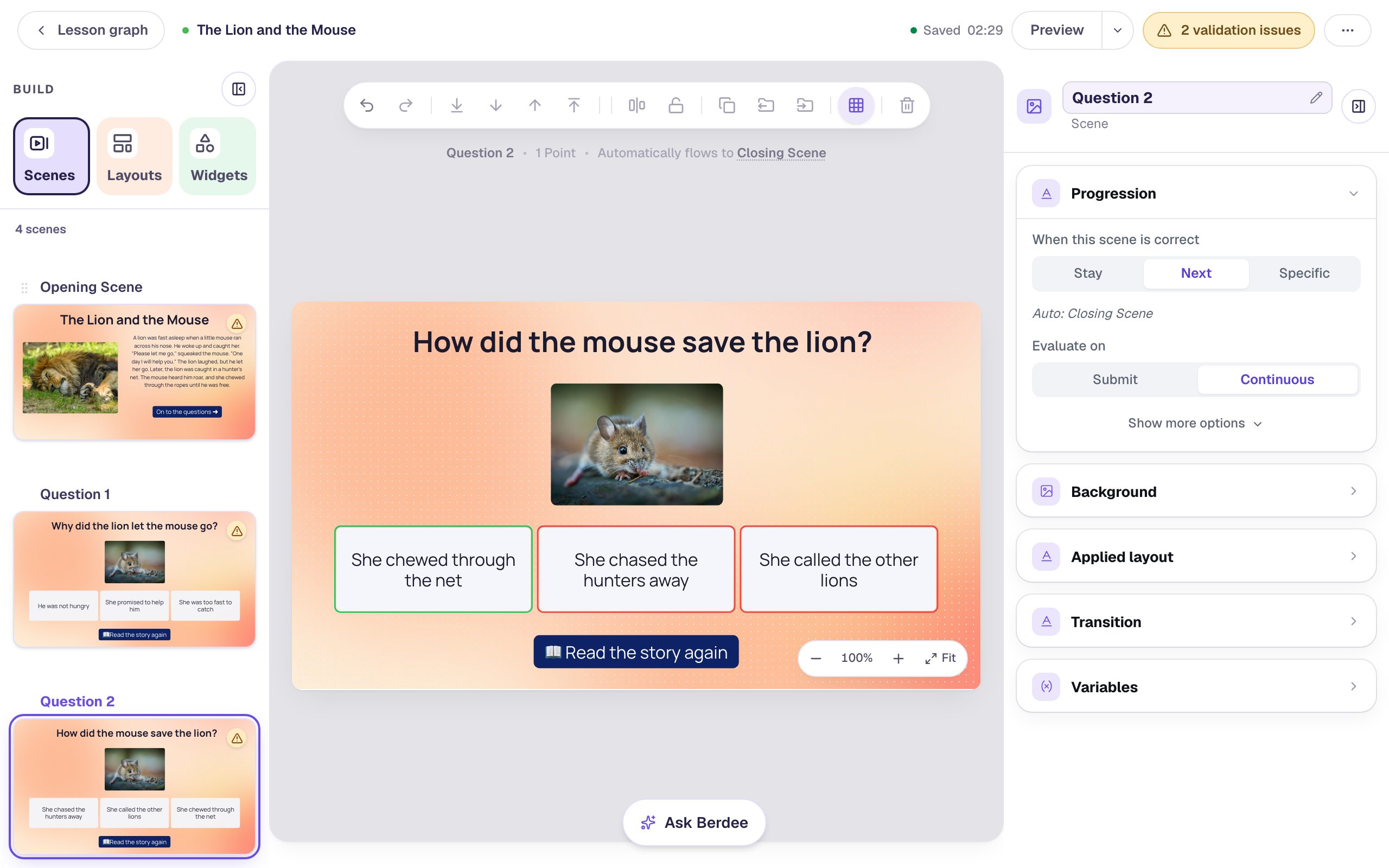
The second question needs the same picture, the same answer layout and the same Reread button. Copy the scene instead of building it again. In the Scenes panel, hover over Question 1 and click Duplicate scene. The copy is named Question 2 for you, because the original's name ends in a number.
On the copy:
- Click the heading and retype it in the Text field:
How did the mouse save the lion? - Select the question, click ⚙ Configure, and retype the answers:
She chewed through the net,She chased the hunters awayandShe called the other lions. Click Save.
You don't need to touch the button. The copy's 📖 Read the story again already goes to the Opening Scene.
Step 5: See the problem on the map
Click Lesson graph at the top left. Both questions send a right answer onward and the Reread button back to the story. But the story's On to the questions button doesn't lead anywhere, so the strip at the top says the questions and the ending can't be reached:
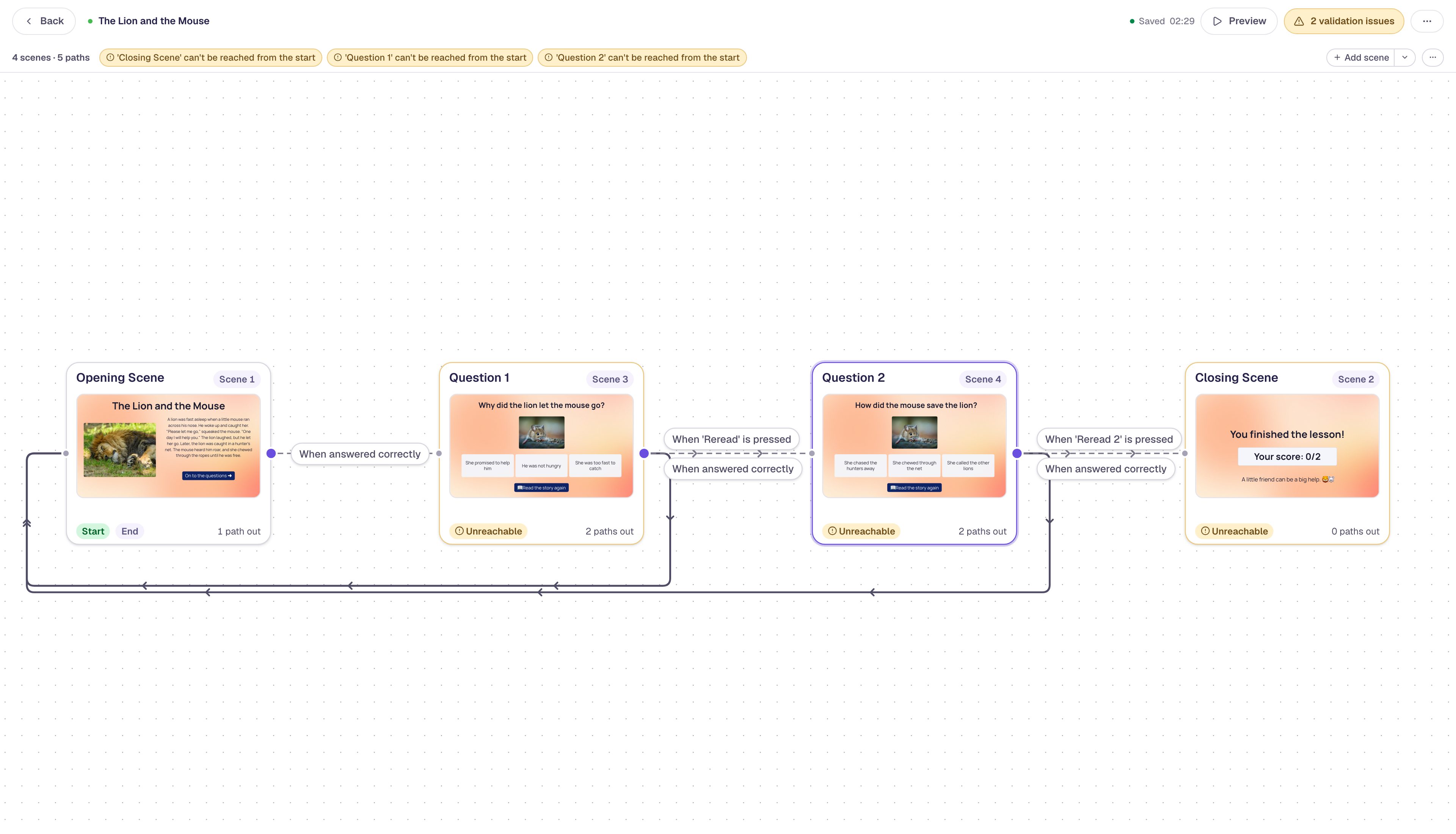
You can't point the story's button at Question 1. A student who rereads from Question 2 would land on Question 1 again, after already getting it right. You can't point it at Question 2 either: a first-time reader would skip Question 1. Where the button goes depends on where the student has been, and that's a router's job.
Step 6: Add a router that remembers where students were
Hover over the Opening Scene card and click the dot on its right edge:
- Choose A router and click Next.
- Choose They tap something, set Student taps to To the questions, and click Next.
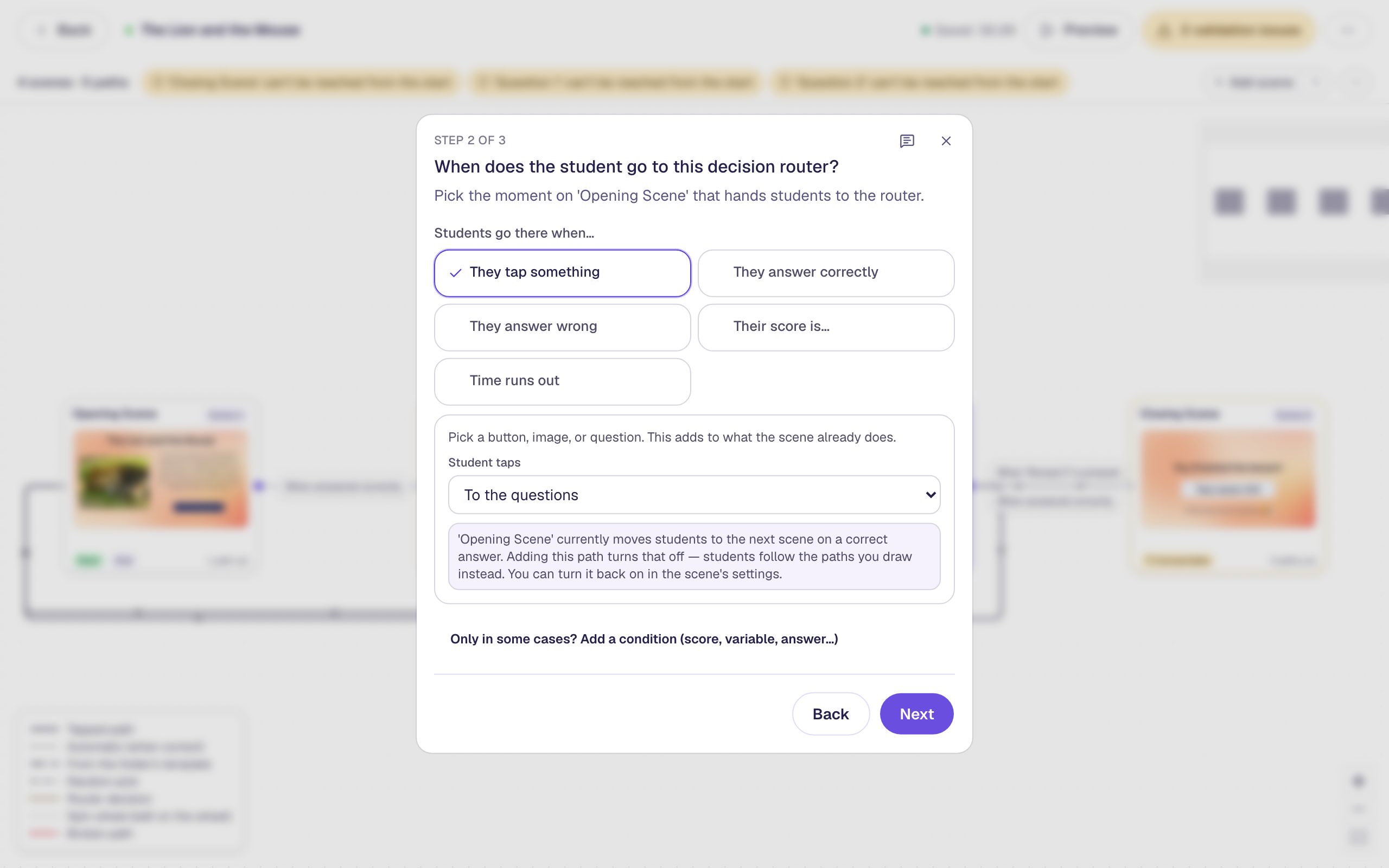
The note in the window says the story will stop moving on by itself. That's fine: the story has no question, so its button is the only way forward.
The last step is the router itself:
- Name the router
Back to my question. - Click Add rule, then Add Condition, and choose Visits: Question 2. It starts on has been visited, which is what you want.
- Set the rule's Go to to Question 2.
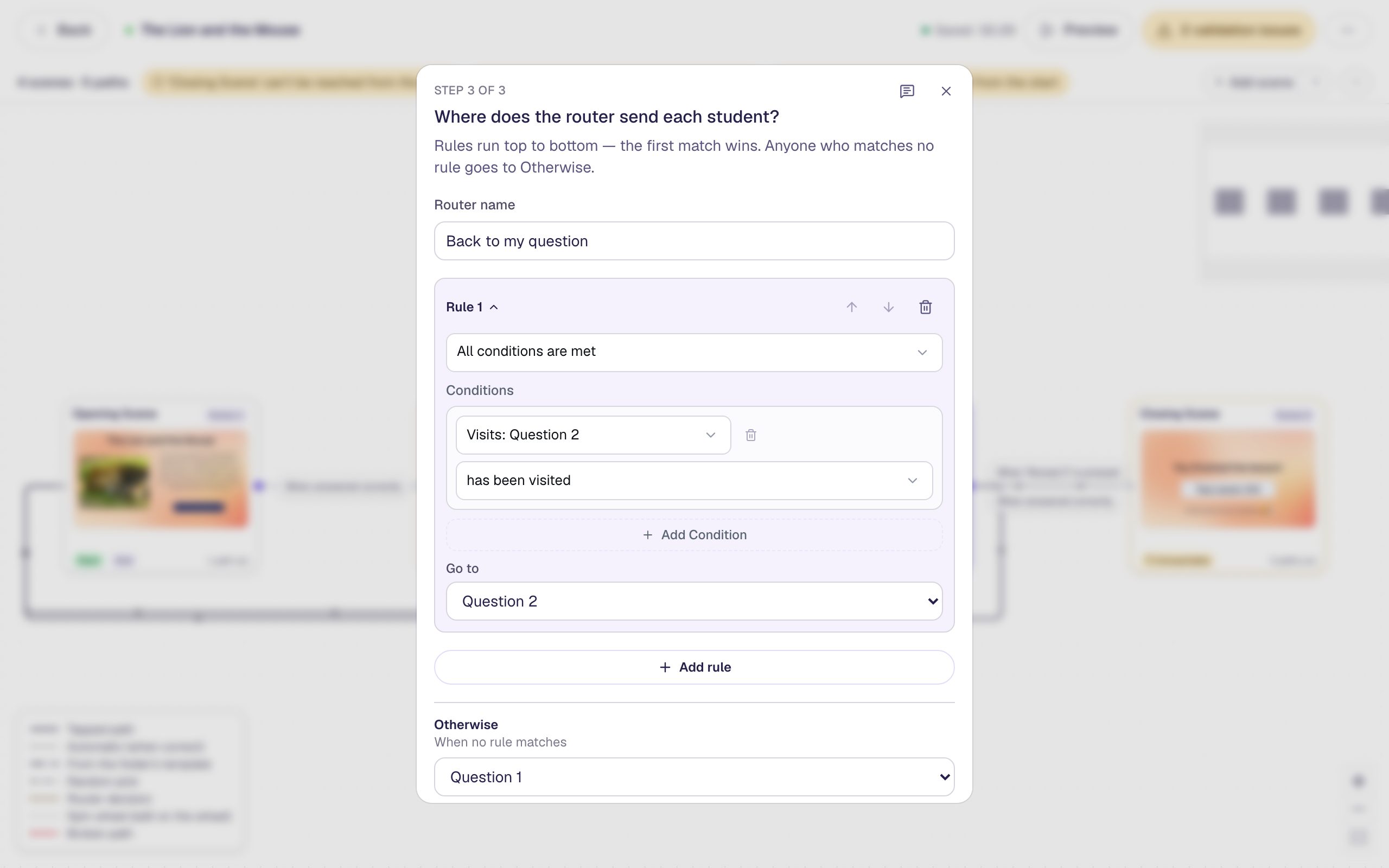
- Set Otherwise to Question 1. This is where everyone else goes, including every student reading the story for the first time.
- Click Add router.
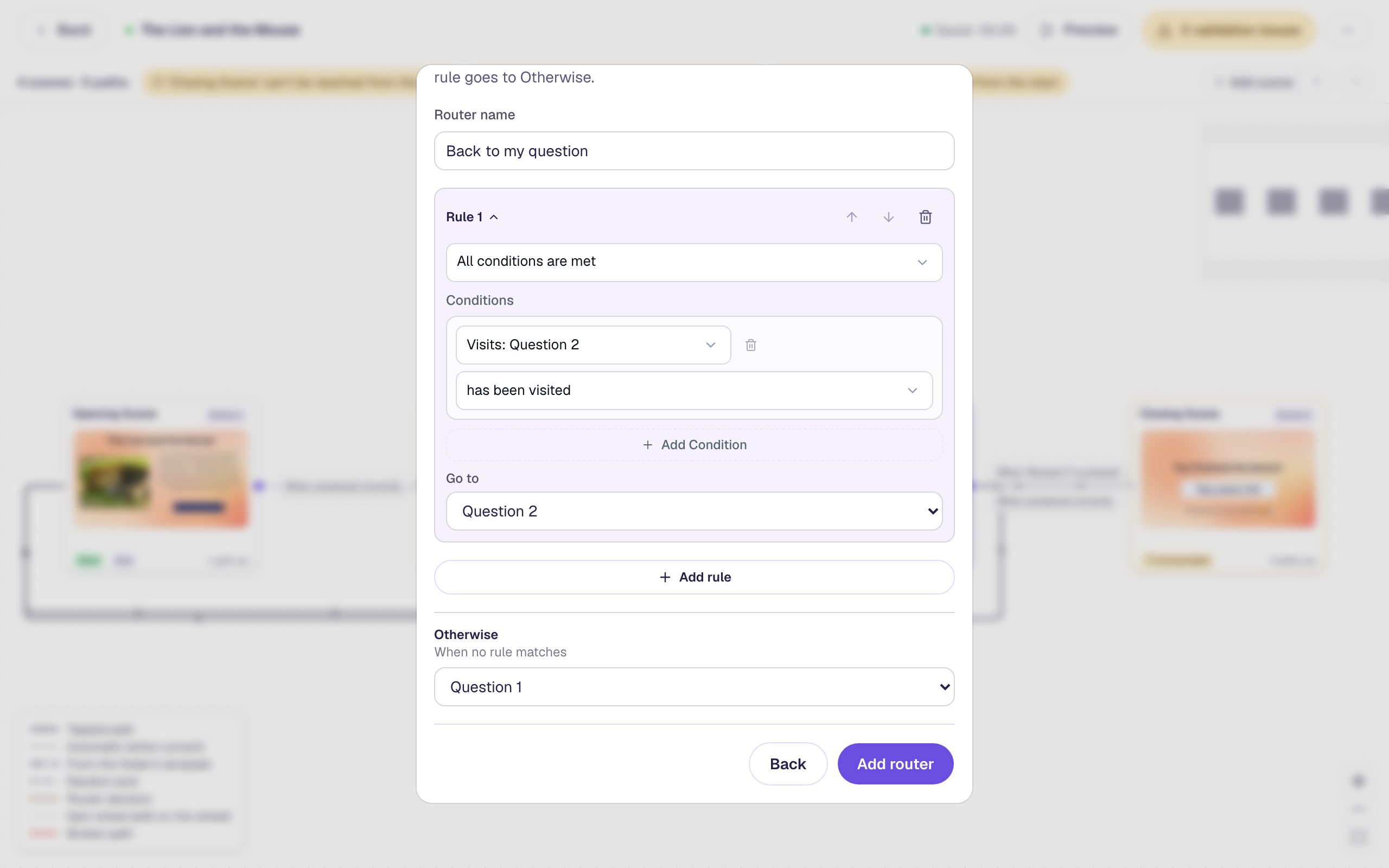
Here's why it works. A student only reaches Question 2 by getting Question 1 right. So once they've visited Question 2, Question 1 is done, and Question 2 is the one they were working on. Before that, they're on Question 1, or haven't started yet.
The map now shows the router as an amber card between the story and the questions, and the strip at the top says every scene can be reached:
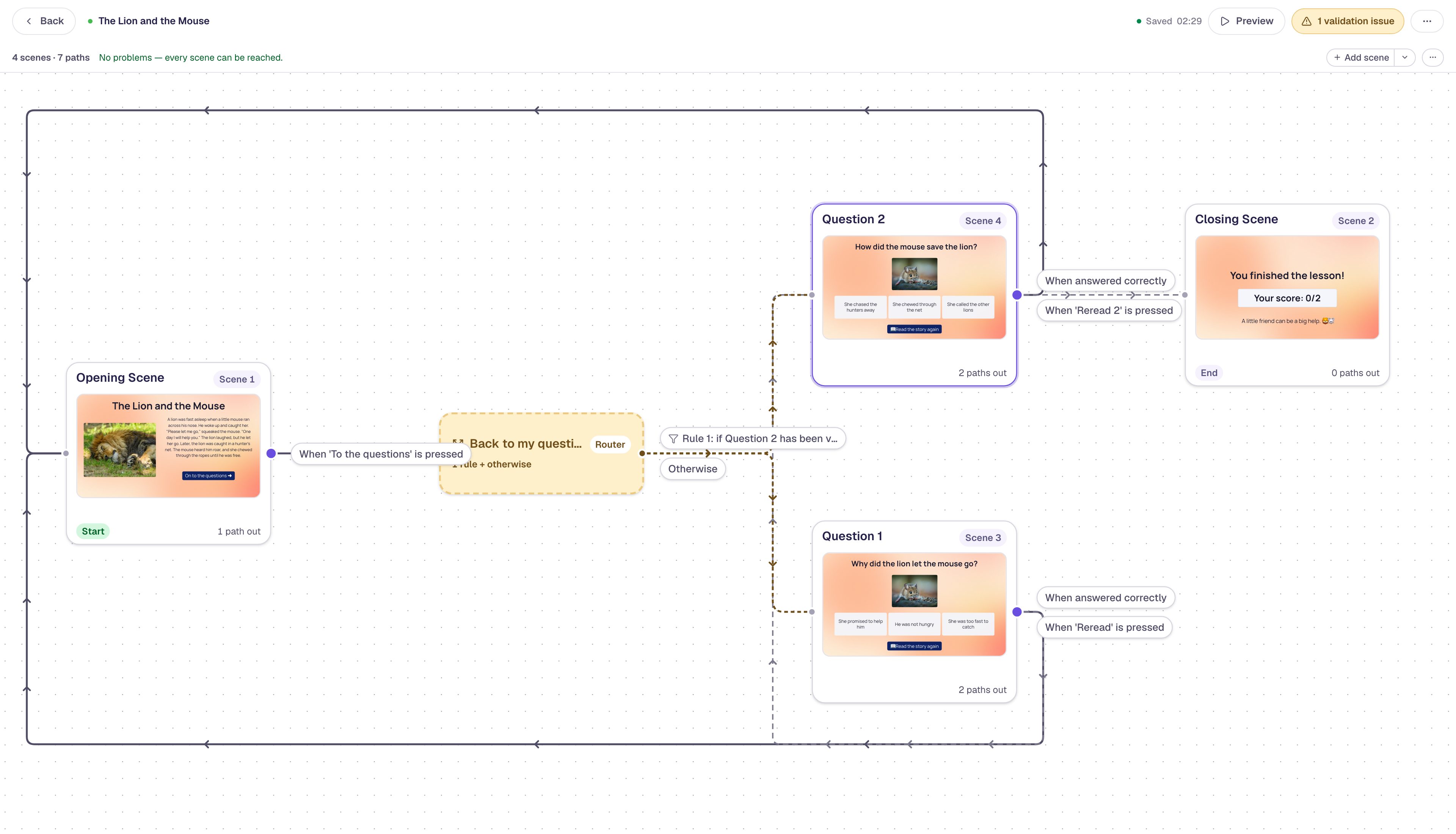
The yellow pill at the top still shows 1 validation issue. Before you publish, Berdee wants a Submit Button set to Lesson somewhere in the lesson. You don't need one to preview. Build your first quiz question shows how to add one.
Step 7: Reread it as a student
Click Preview at the top of the graph. It starts on the story. Press On to the questions ➜: no one has visited Question 2 yet, so the router uses Otherwise and opens Question 1. Pick a wrong answer, reread the story, and come back:
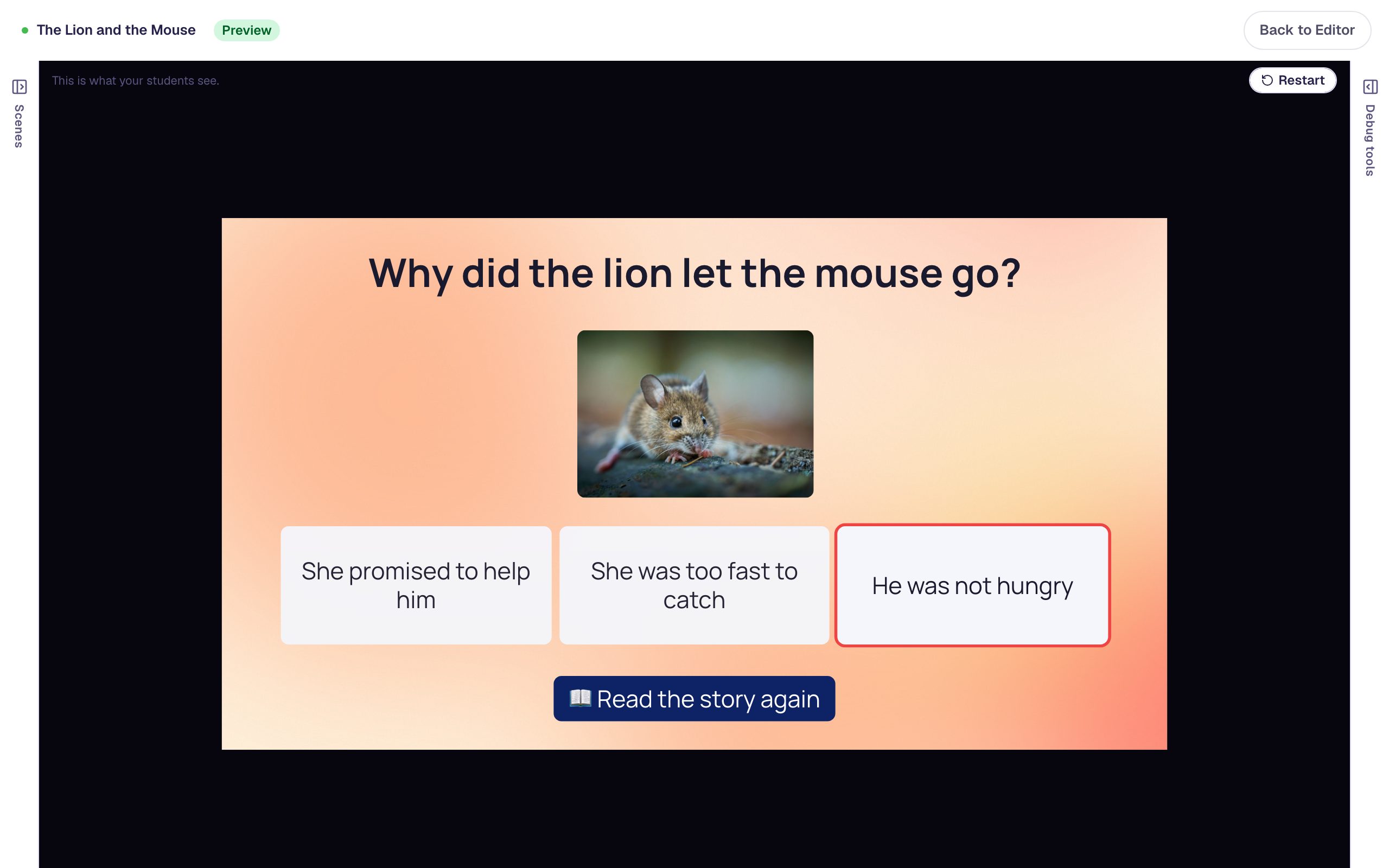
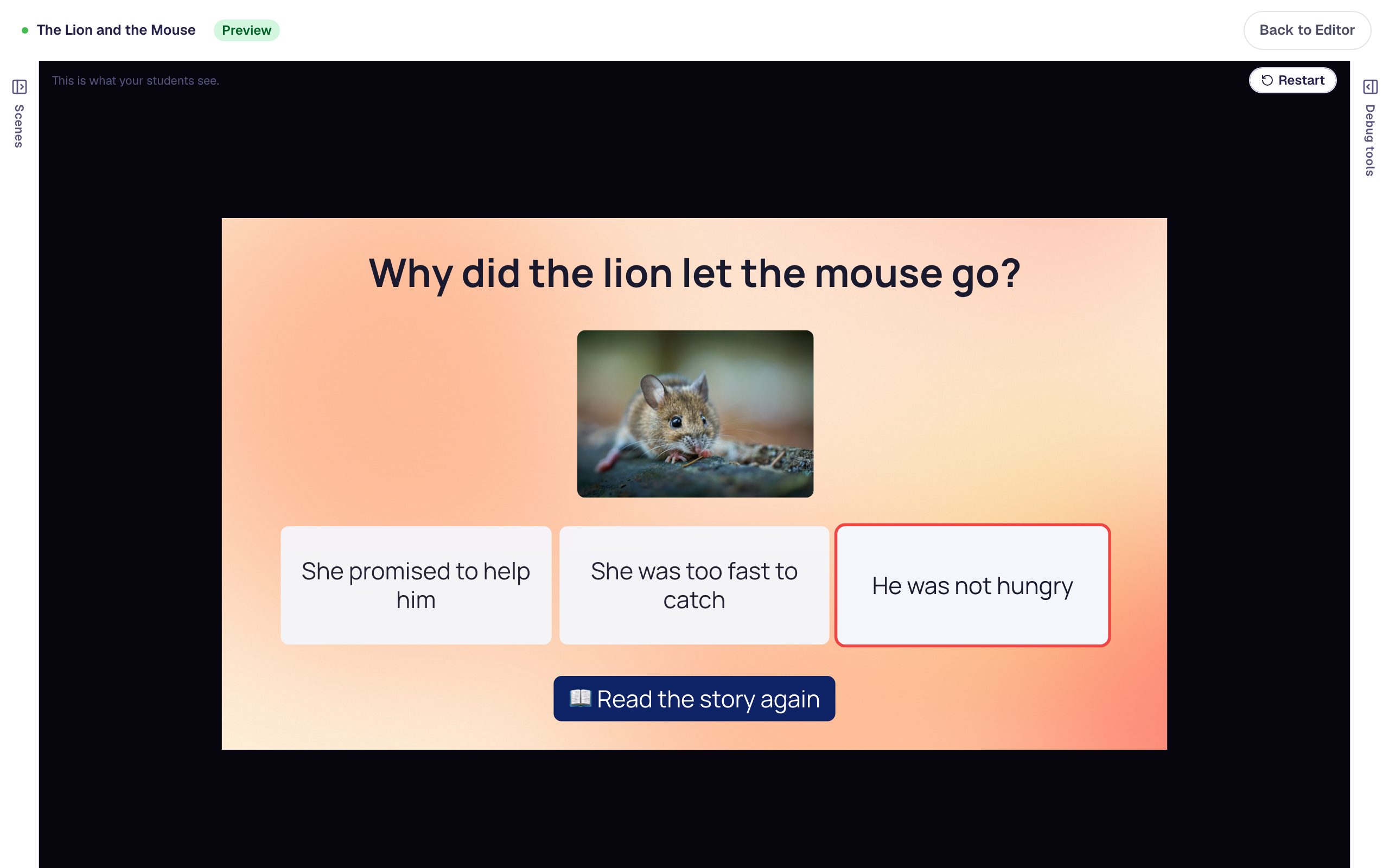
The answers come back in a new order each time the scene opens, because Randomize Order is on for every new Multiple Choice. Pick She promised to help him, and Question 2 opens.
Now try the same thing from Question 2. This time the router finds that Question 2 has been visited, so On to the questions leads straight back to it, not to Question 1:
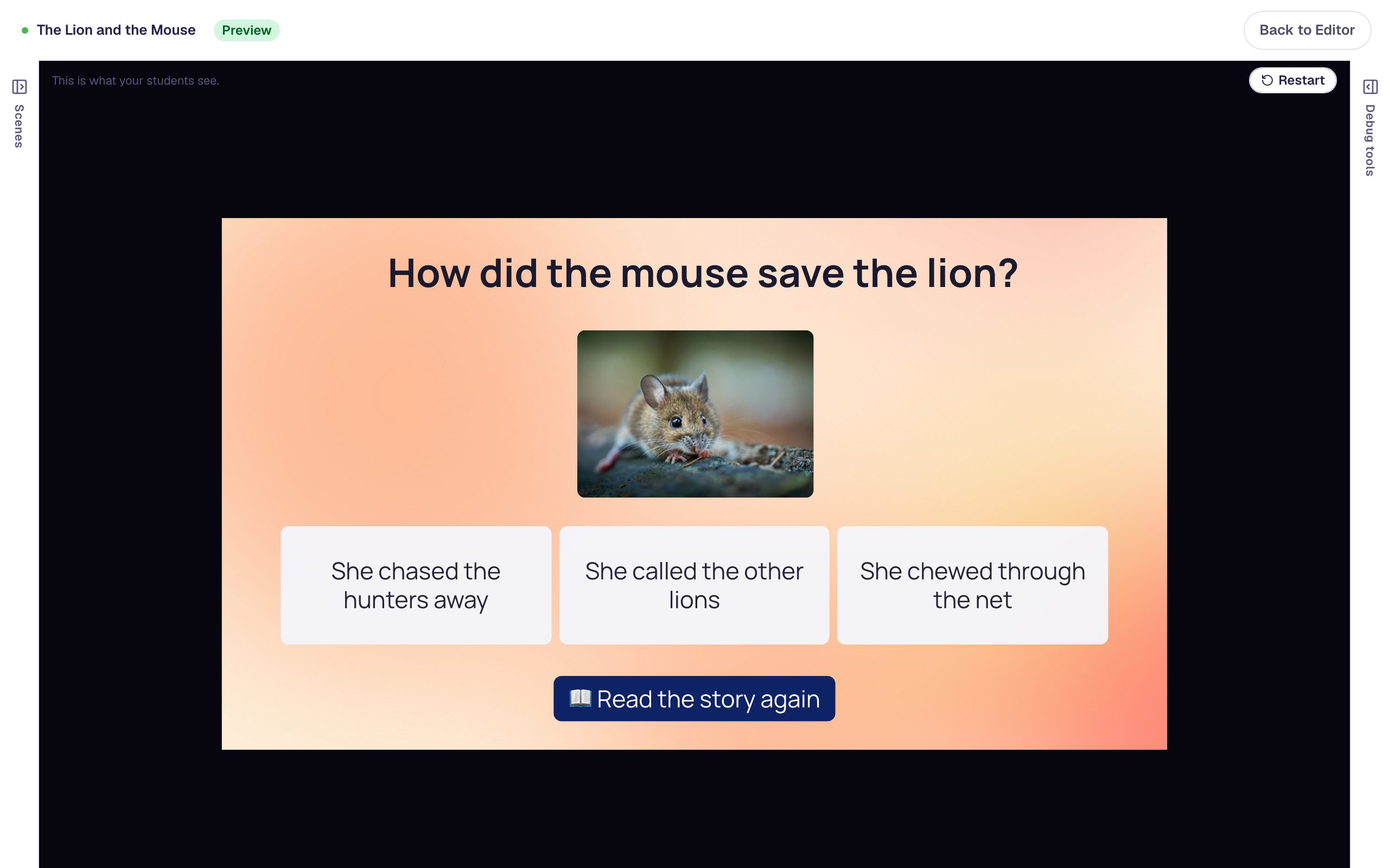
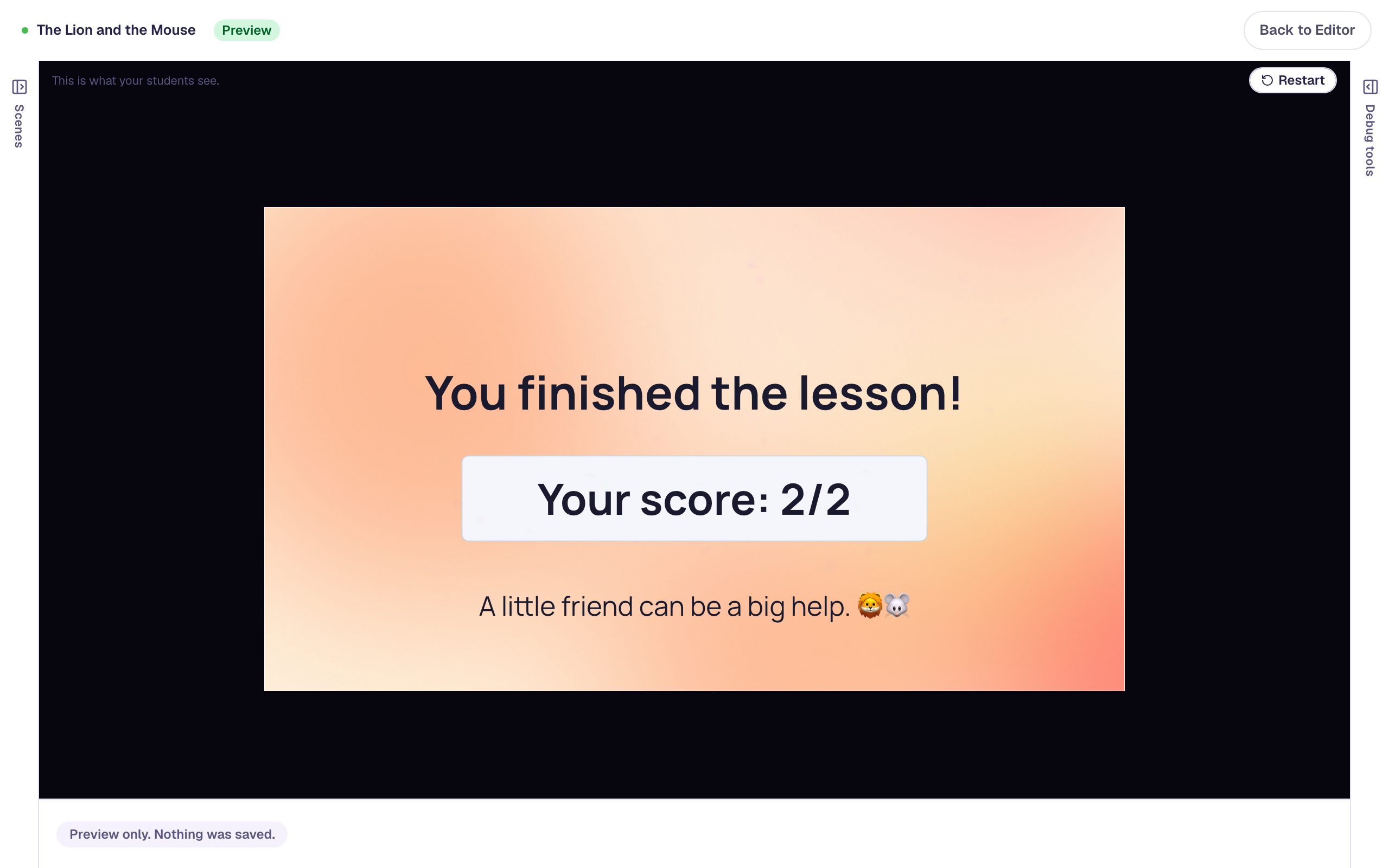
What you built
You built a reading lesson where students can look back at the text from any question and pick up where they left off:
- a story on the Opening Scene, with an On to the questions button,
- two questions that move on by themselves after a right answer,
- a 📖 Read the story again button on each question, wired with the Behaviors window so the questions keep their automatic Next,
- and a router,
Back to my question, with one Visits rule that sends a student who has reached Question 2 back there, and Otherwise to Question 1.
To add a third question, duplicate Question 2 (the copy is named Question 3), then add a rule to the router above the existing one: Visits: Question 3 has been visited → Question 3. Rules are checked from the top and the first match wins, so the latest question always comes first. Keep the questions free of a Submit Button set to Current scene: a submitted question locks its answers, and a student sent back to it couldn't change them. To show students an explanation after a wrong answer instead, see Show an explanation when a student gets it wrong.
Make this lesson yours
Add the lesson you just watched being built to your account, then change it for your class: your questions, your pictures, your colors.
Free to sign up, and you'll come straight back here. I have an account