Spin a wheel to pick a random challenge
Build three challenge scenes and a Spin Wheel whose segments each lead to one of them, so every student spins and lands on a surprise question before the lesson ends.
- Level
- Intermediate
- Time
- About 15 min
- Steps
- 9
- Updated
- Oct 22, 2026
A math warm-up where students spin a wheel of Add, Count and Shapes, land on that challenge's question, and finish at the ending once they get it right.
Get the finished lesson
Skip straight to the result, or keep it open beside the steps. Add this tutorial's lesson to your account and explore how it works in the studio.
Free to sign up, and you'll come straight back here. I have an account
A warm-up feels like a game when nobody knows what's coming. In this tutorial students spin a wheel, and wherever it lands decides which challenge they get. Each segment of the wheel leads to its own scene, so one lesson holds three different questions and every student sees one of them.
You'll build a five-scene math warm-up:
- an Opening Scene with a Spin Wheel of three segments, Add, Count and Shapes,
- three challenge scenes, each with one multiple-choice question, and
- the Closing Scene, where every challenge ends once the student gets it right.
The wheel does the routing: each segment has a Navigate to Scene action that runs the moment the wheel lands on it. If you haven't used a Spin Wheel before, Spin a wheel to pick a story starter sets one up step by step. You don't need it first.
Step 1: Set the scene
Start a blank lesson (New lesson, then Start from scratch) and name it Mystery math challenge (click Untitled lesson at the top left).
Give it a background before anything else. Click the gray margin around the scene so nothing is selected, open Background in the properties panel, and click Choose a style. Pick Mesh sunrise under Gradients and click Apply background. Do the same on the Closing Scene, so the ending matches.
Back on the Opening Scene:
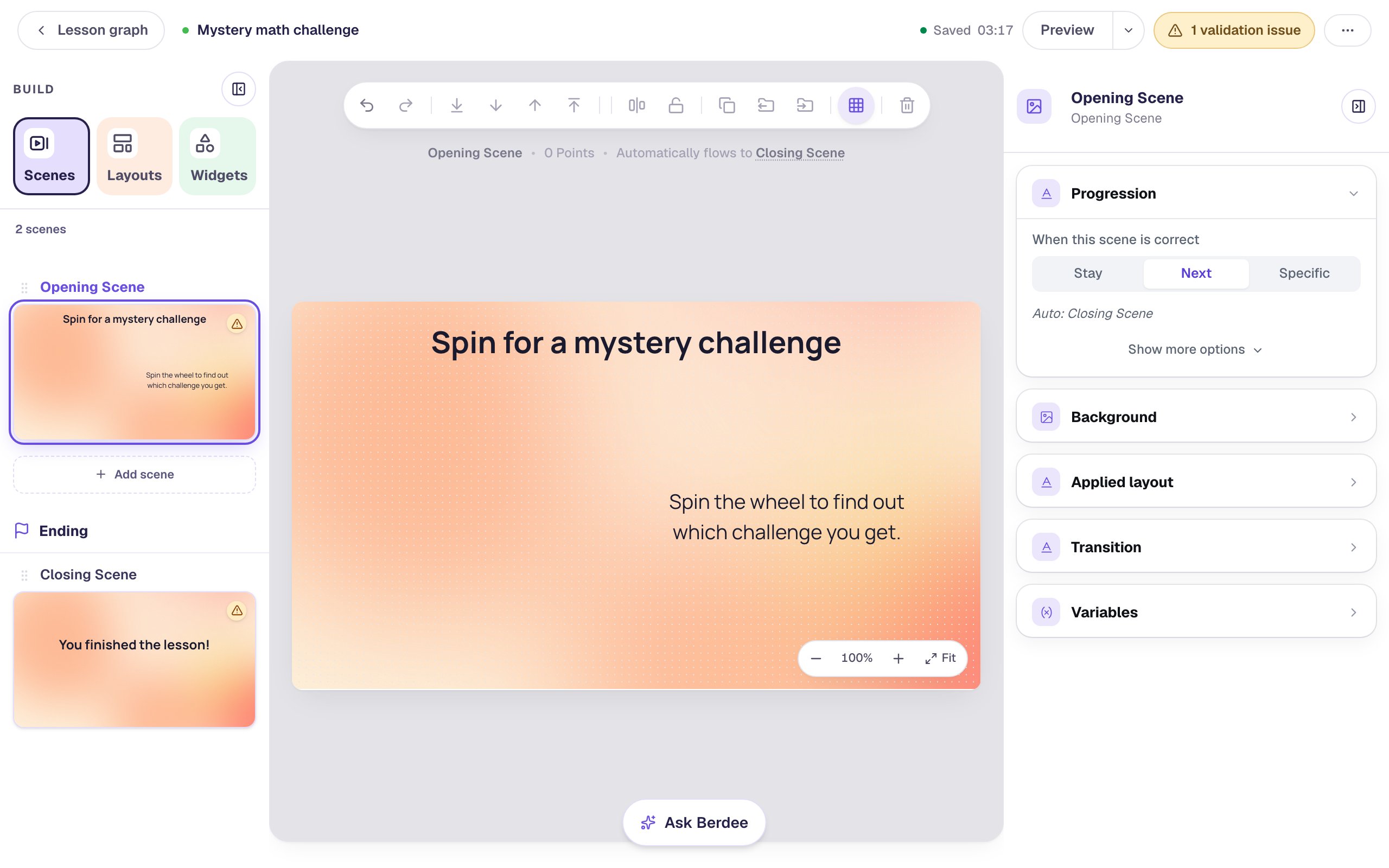
- Add a Heading that says
Spin for a mystery challenge, set its Font Size to42, and drag it to the top. - Add a Body text that says
Spin the wheel to find out which challenge you get.Set its Font Size to28. Under Style & Layout, choose Fixed width and set Width to380so it wraps onto two lines, then drag it to the right half of the scene.
Step 2: Build the first challenge
Build the challenges before the wheel: a segment can only lead to a scene that already exists.
In the Scenes panel, click Add scene. Double-click the new scene's name, Scene 1, and rename it Add challenge. Give it the same Mesh sunrise background, then add a Heading that asks What is 7 + 5? at 44 px near the top.
Now the question. Add a Multi Choice from the Widgets tab and click ⚙ Configure above it:
- Type the four answers:
11,12,13and14. - Click the tick beside 12 to mark it correct. A new question starts with its first answer marked, and in Single selection, marking another one moves the mark.
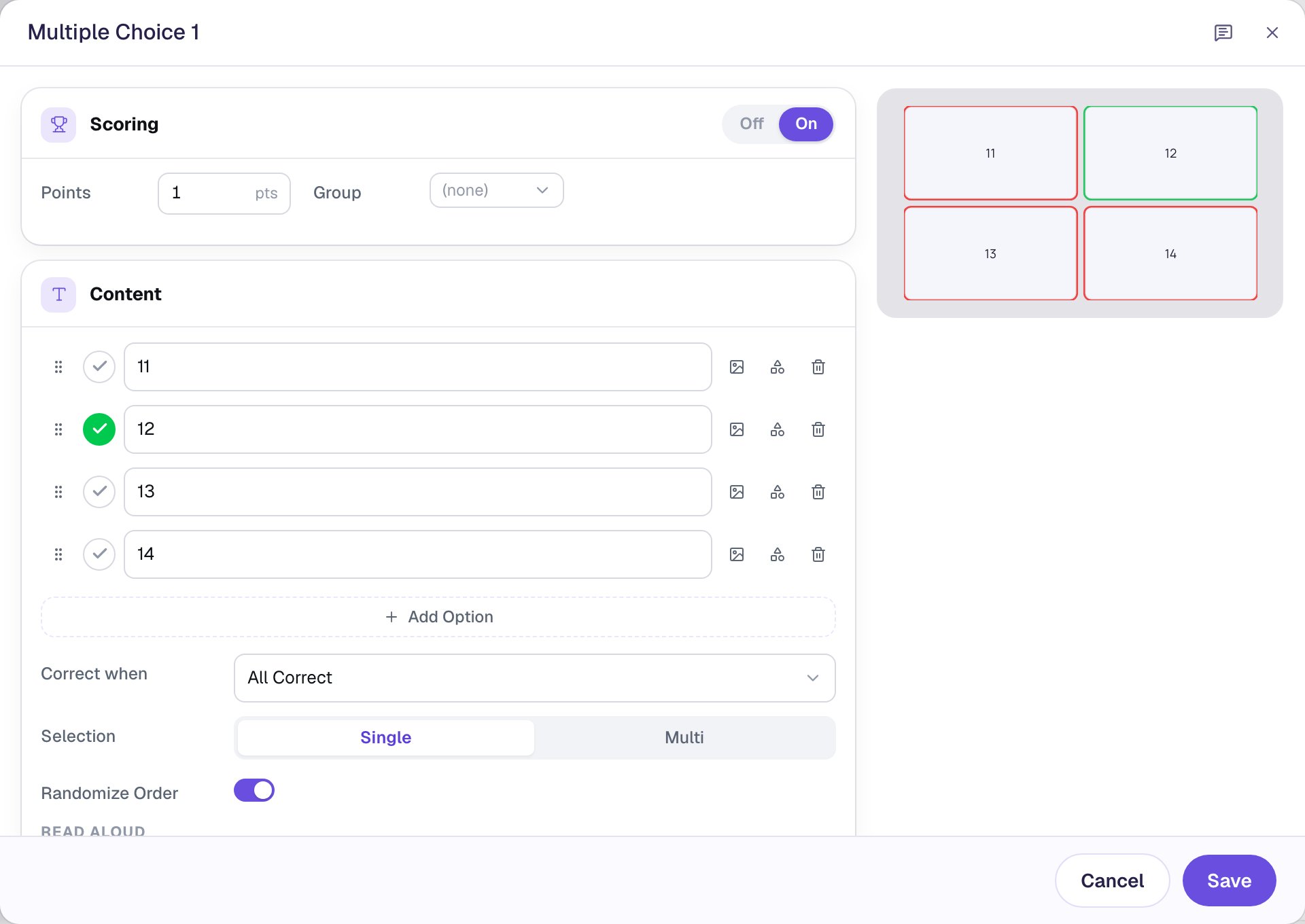
Click Save, set the question's Font Size to 36 so the numbers are easy to read, and drag it under the heading.
Step 3: Send a right answer to the ending
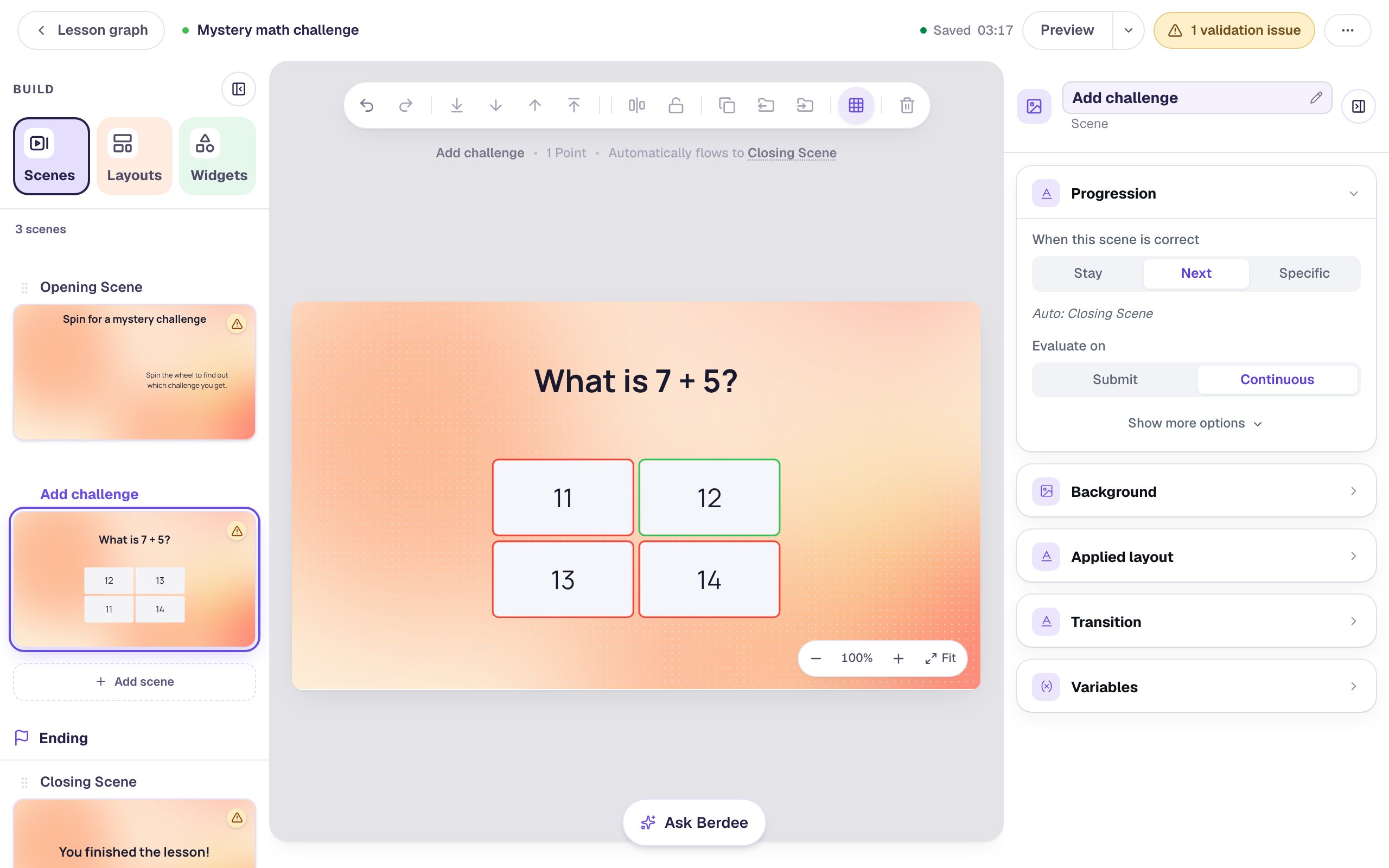
A question scene moves on by itself as soon as the answer is right. Where it goes is the scene's Progression, and it starts on Next: the scene below it in the list. Here that would carry a student from one challenge into the next, so they'd answer two questions instead of one.
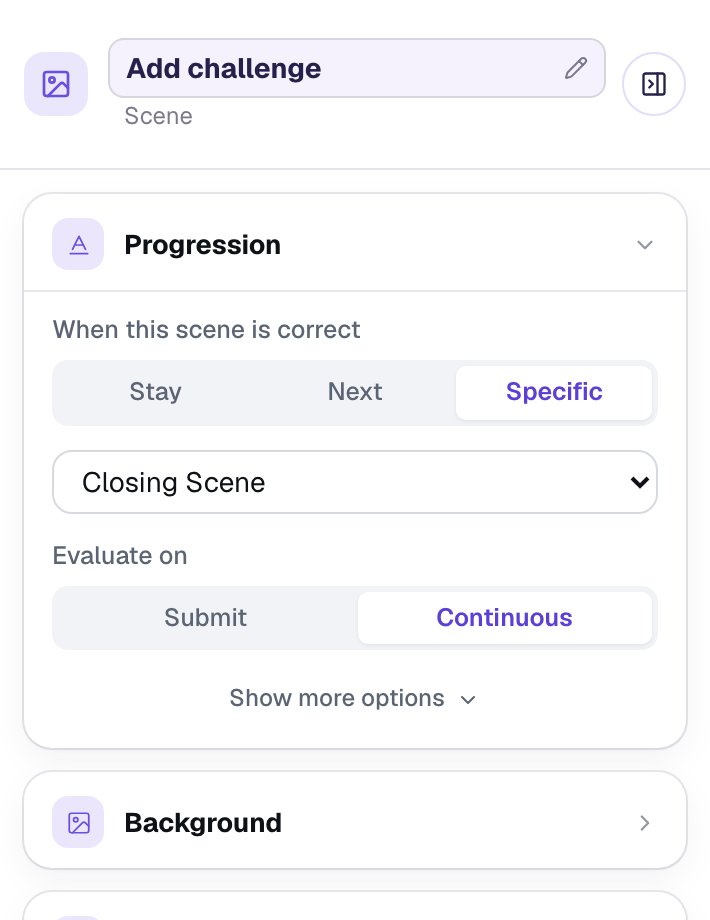
With nothing selected on the Add challenge scene, open Progression in the properties panel:
- Under When this scene is correct, click Specific.
- In the list that appears, pick Closing Scene.
A wrong pick doesn't move the student anywhere: it stays selected, and they can choose again until they find the right answer. To also outline a wrong pick in red, turn on Show correctness under the question's Style & Layout, as Build your first quiz question does.
Step 4: Copy it for two more challenges
The other two challenges have the same look and the same Progression, so copy the first one rather than starting again.
- Hover over Add challenge in the Scenes panel and click Duplicate scene. Rename the copy
Count challenge. - On the copy, select the heading and change its Text (under Content) to
How many legs do 2 dogs have? - Select the question, open ⚙ Configure, type the answers
4,6,8and10, mark 8 correct, and click Save.
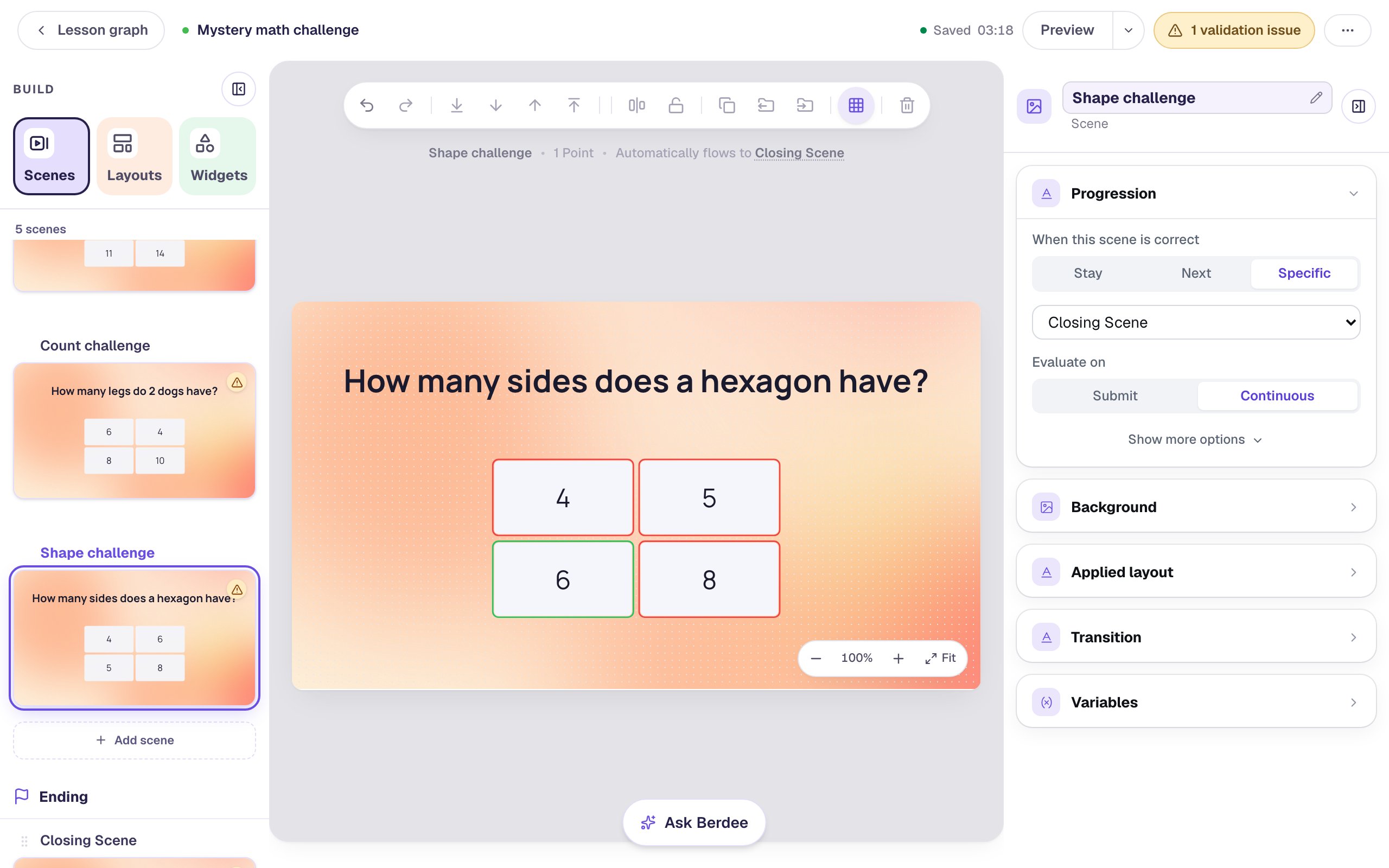
Then duplicate Count challenge the same way, rename the copy Shape challenge, and give it the question How many sides does a hexagon have? with the answers 4, 5, 6 and 8, marking 6 correct.
Step 5: Add the wheel
Go back to the Opening Scene and add a Spin Wheel from the Widgets tab. Under Style & Layout, open Show more options and set Width and Height to 380, so it stays a circle. Set its Font Size to 22 and drag it to the left half of the scene.
Click ⚙ Configure above the wheel:
- A new wheel has four segments. Click the bin beside the fourth to delete it.
- Rename the other three
Add,CountandShapes. - At the top, switch Scoring to Off. The spin isn't a question with a right answer, so it shouldn't count toward the score.
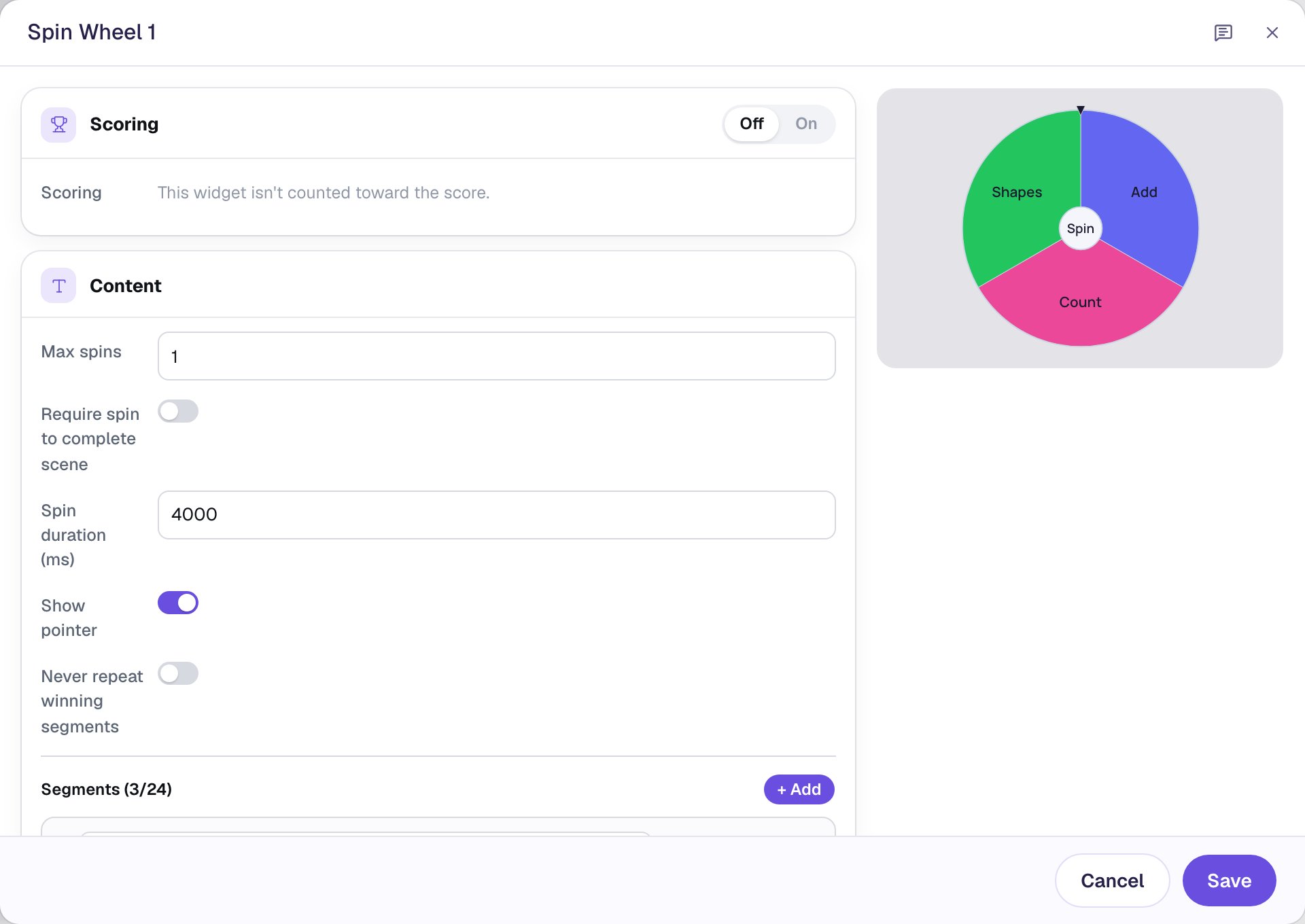
Leave Max spins at 1. Each segment's Weight is 1, so every challenge is equally likely; give one segment a 2 to make it come up twice as often.
Step 6: Send each segment to its challenge
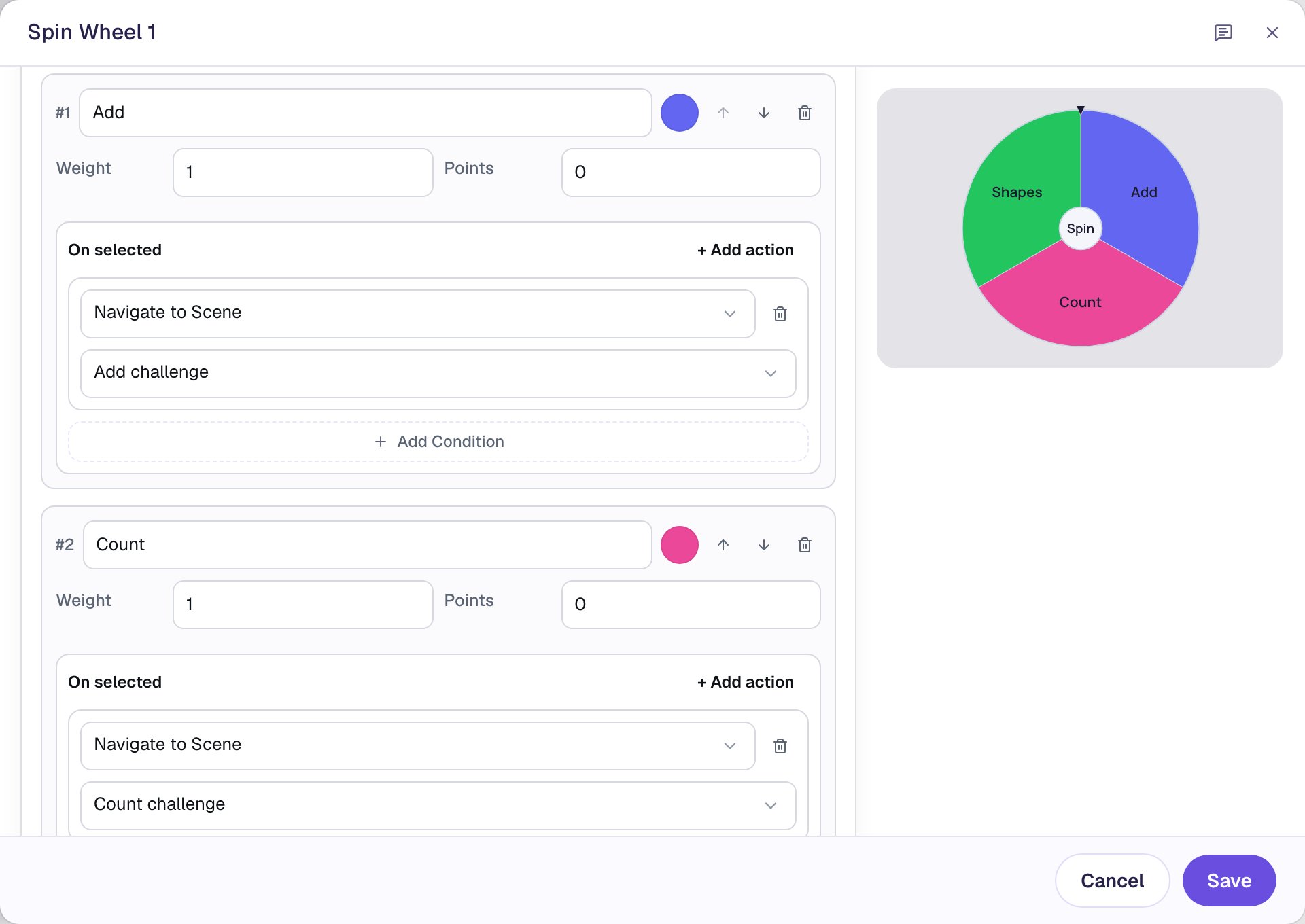
Scroll down to the Segments list. Under each segment, an On selected list holds the actions that run when the wheel lands on it.
Under Add, click + Add action. The new action starts as Navigate to Scene, which is the one you want, so just pick Add challenge in the scene list below it.
Do the same for the other two: Count goes to Count challenge, and Shapes goes to Shape challenge. Then click Save.
Step 7: Keep the opening scene still, and add a safety net
Two last touches on the Opening Scene:
- Add a Submit Button. In Content, change its Label to
I'm doneand set Submits to Lesson. Bring its Font Size down to18and drag it to the bottom-left corner. Every lesson needs a button set to Lesson before it can be published; without one, the studio lists No Lesson-Submit Button in its validation issues. - With nothing selected, open Progression and click Stay. The wheel is what moves students on, so the scene itself shouldn't have a way out of its own. On Next, the Lesson Graph would also draw an extra path to Add challenge that students never take.
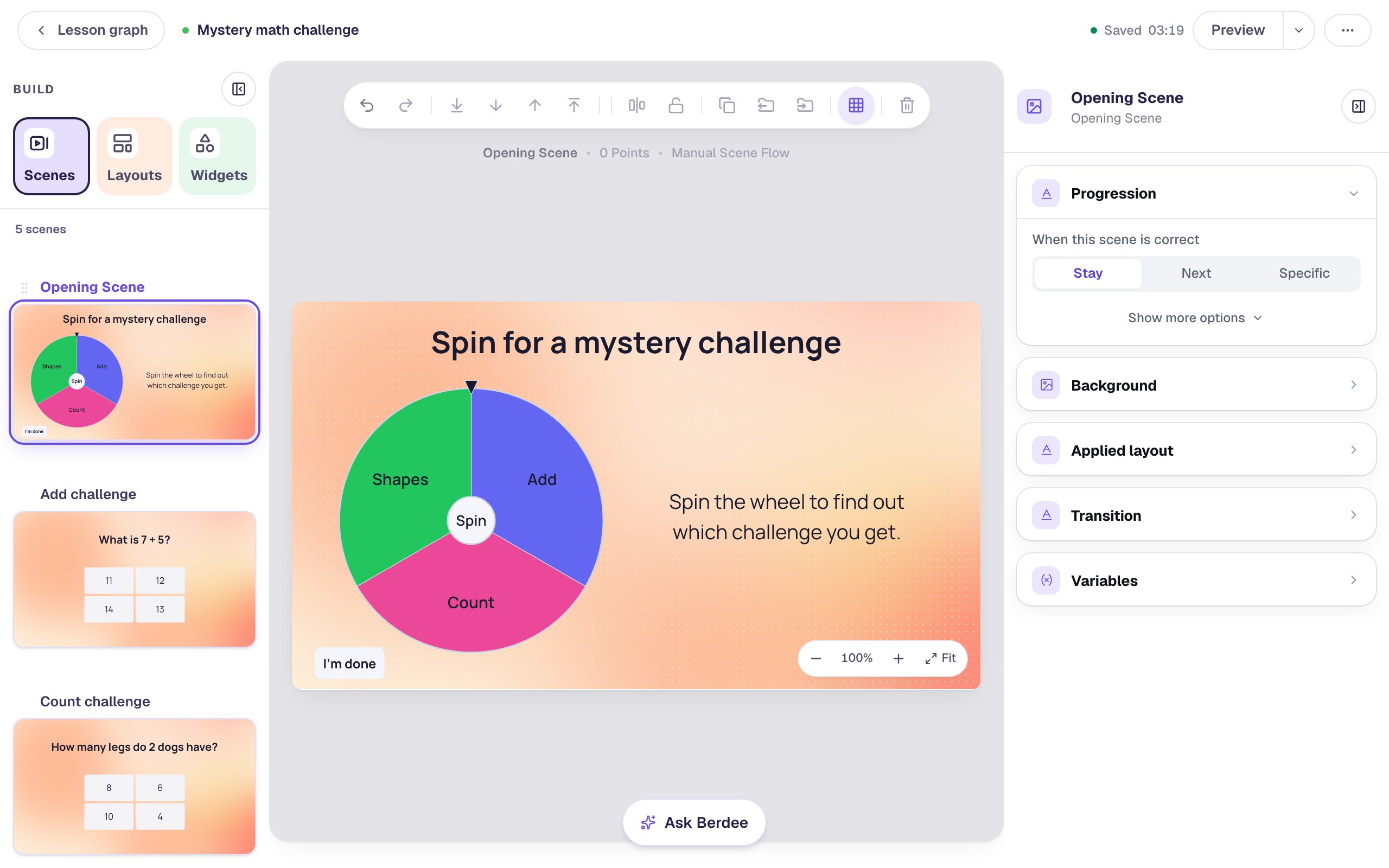
Step 8: Check the map
Click Lesson graph at the top left. Each segment of the wheel is a dotted Spin wheel path from the Opening Scene to its challenge, and each challenge has one When answered correctly path to the Closing Scene.
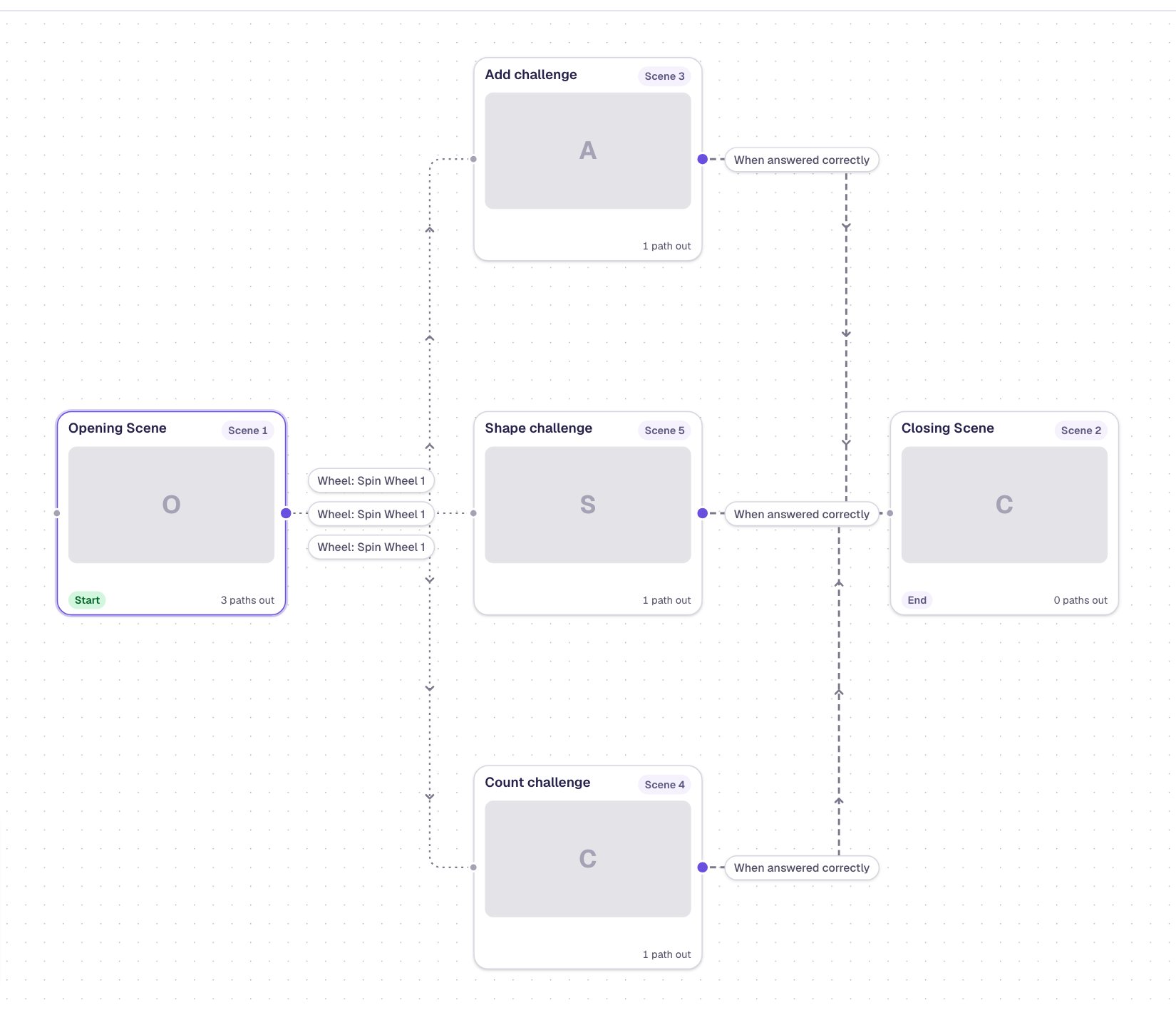
The banner above the map says No problems — every scene can be reached. You can't edit a wheel's paths on the map: they live on the wheel, so change them in its ⚙ Configure window.
Step 9: Try it as a student
Open the Opening Scene, click Preview, and spin:
The wheel turns for four seconds, stops with one segment under the pointer, and the lesson moves to that challenge:
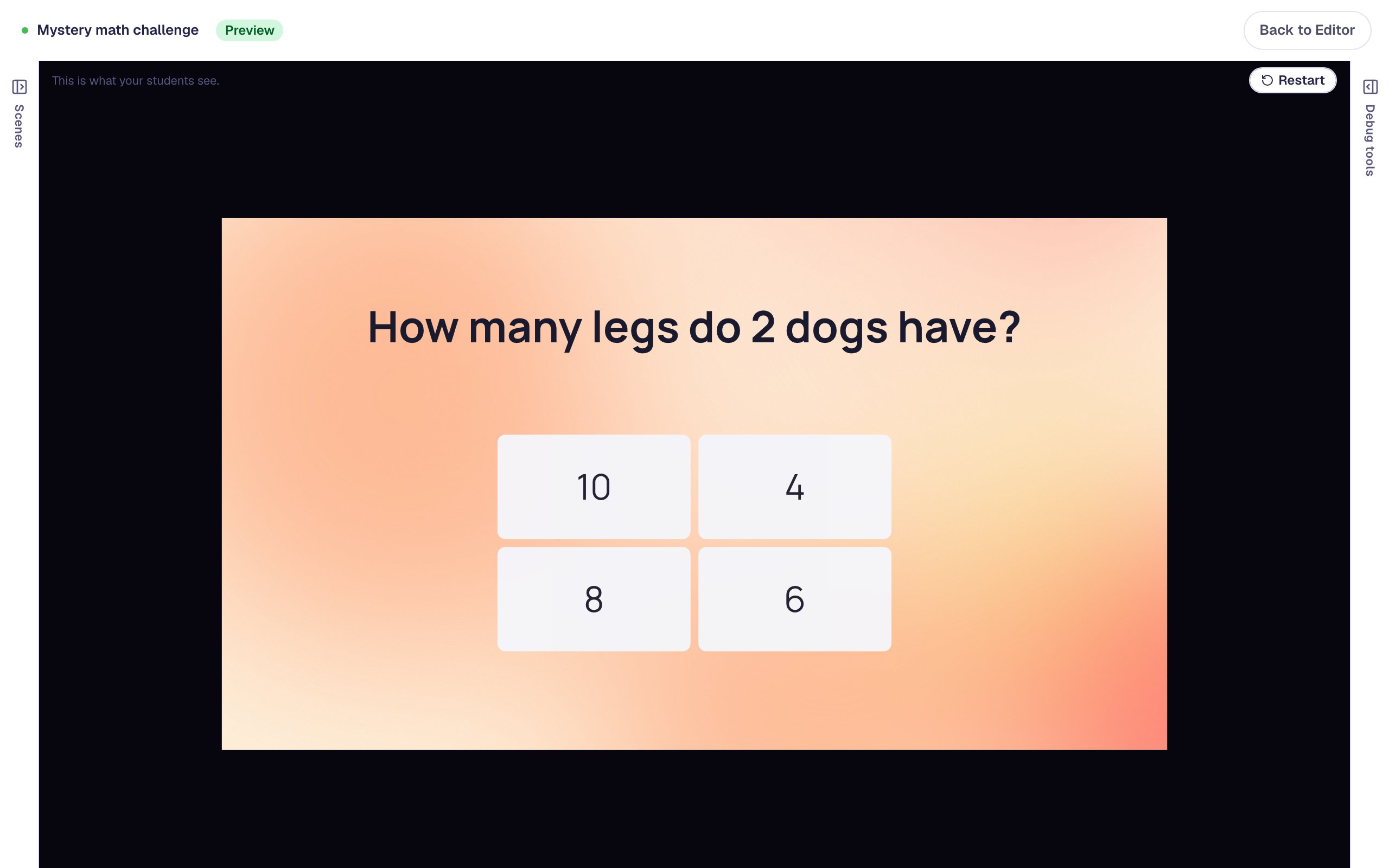
Your preview may land on a different challenge than these pictures; that's the point of a wheel. Answer it wrong once, then right:
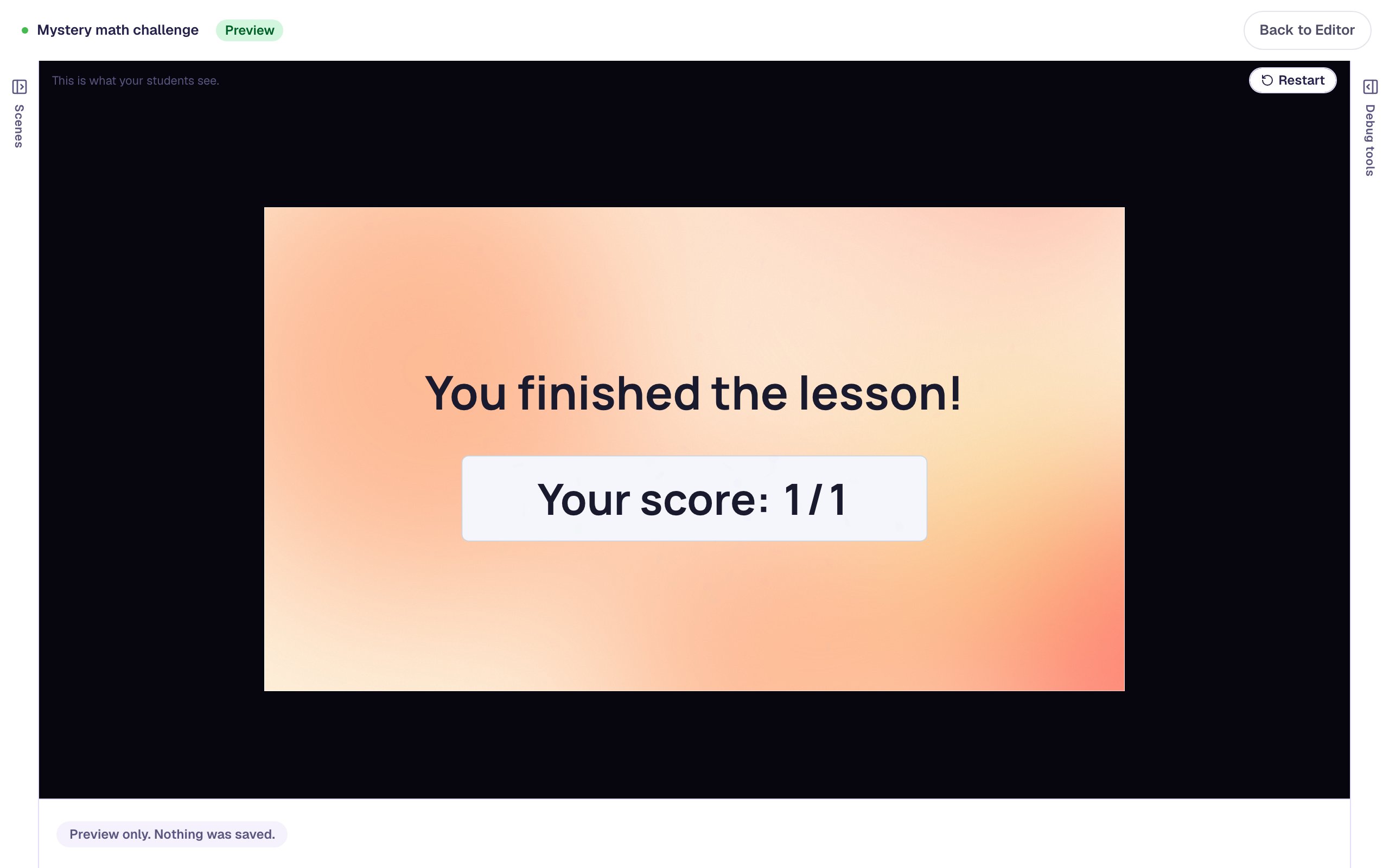
The score is out of 1, not 3: a lesson score counts only the scenes a student reaches, so the two challenges they didn't land on don't count against them. Click Restart a few times to land on the other challenges.
What you built
A warm-up that hands each student a surprise challenge:
- three challenge scenes, copied from one, each with a multiple-choice question whose Progression goes straight to the Closing Scene,
- a Spin Wheel with Scoring off, one spin, and a Navigate to Scene action on each segment, and
- an Opening Scene set to Stay, so only the wheel moves students on.
The same pattern works for any "luck of the draw" activity: a wheel of reading passages, of brain breaks, or of review topics before a test. To keep a student working until they've done every challenge, see Finish only after students explore every part.
Make this lesson yours
Add the lesson you just watched being built to your account, then change it for your class: your questions, your pictures, your colors.
Free to sign up, and you'll come straight back here. I have an account