Add quiz questions to a lesson with Ask Berdee
Build a title scene yourself, then ask Ask Berdee, the chat in the studio, to plan and build three graded question scenes, tidy them up, and fix the last validation issue, checking its work as you go.
- Level
- Beginner
- Time
- About 15 min
- Steps
- 9
- Updated
- Oct 21, 2026
A four-scene water cycle check with a title scene you made and three graded multiple-choice questions Berdee built, all in one style, ending on the student's score.
Get the finished lesson
Skip straight to the result, or keep it open beside the steps. Add this tutorial's lesson to your account and explore how it works in the studio.
Free to sign up, and you'll come straight back here. I have an account
Writing good questions takes time. Laying out the same question scene three times over takes even more. Ask Berdee, the chat at the bottom of the studio, can do the laying out for you: describe the questions you want, check its plan, and it adds finished question scenes to the lesson you have open.
In this tutorial you'll build a title scene for a water cycle lesson yourself, then ask Berdee for three graded questions, on evaporation, condensation and precipitation. You'll read its plan before it builds anything, check every scene it makes, ask it to tidy up, and finish the lesson. Berdee drafts; you stay the teacher.
Ask Berdee is an AI feature, so it needs the Plus or Studio Pro plan, and each message you send uses one AI action from your monthly allowance. This tutorial sends four. On the Free plan you can still follow along by building the questions yourself as in Build a three-question quiz by duplicating a scene, or press Add this lesson to my account to get the finished lesson.
Step 1: Name the lesson and give it a grade
Start a blank lesson (New lesson, then Start from scratch). Click Untitled lesson at the top left to open Lesson settings:
- Set Name to
The water cycle. - Open Grades and choose 2nd Grade.
- Click Save changes.
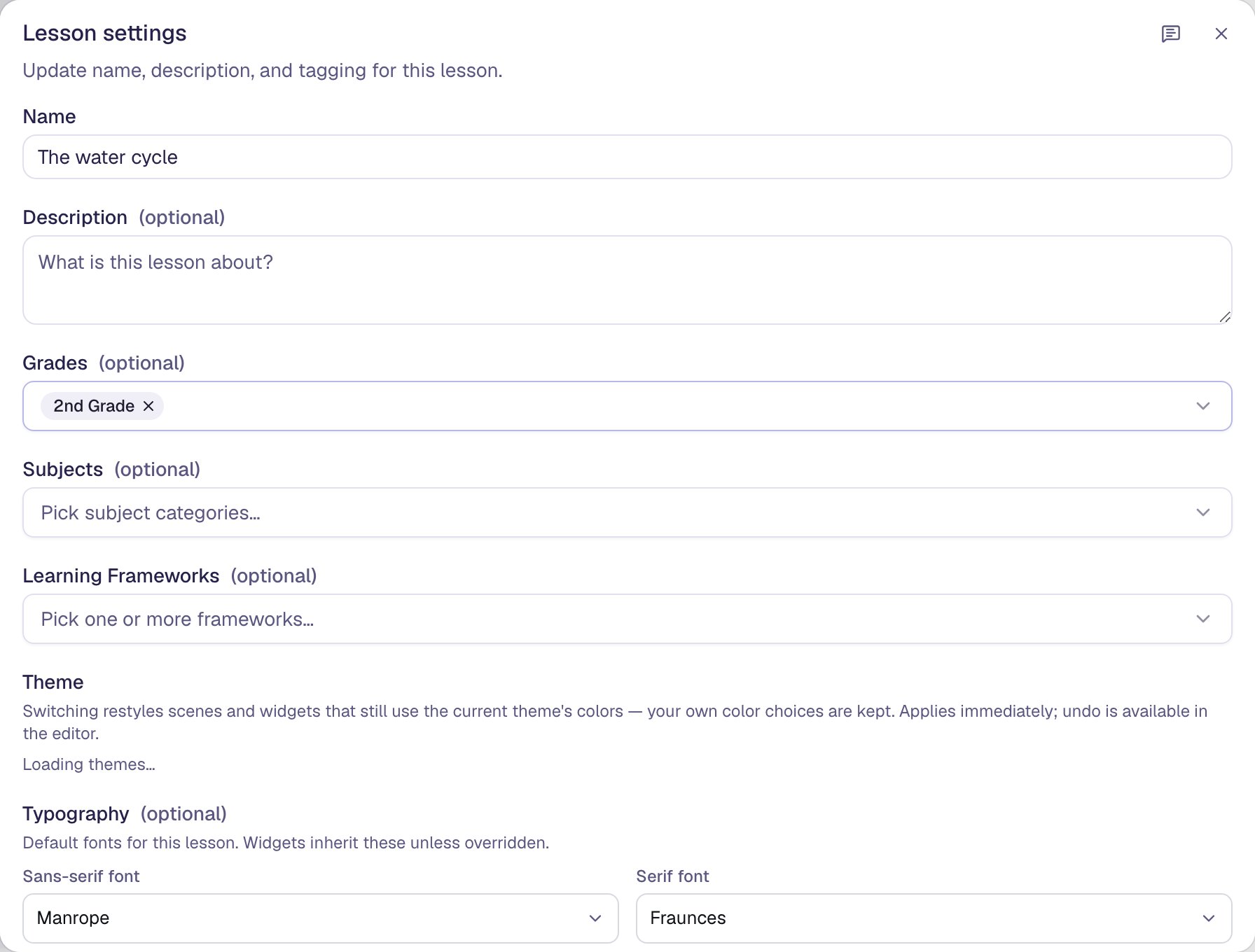
The grade matters more than it looks. Ask Berdee pitches its questions at the grade in the lesson's settings, so second graders get second-grade wording. If the lesson has no grade, Berdee stops to ask you for one before it plans anything.
Step 2: Build the title scene
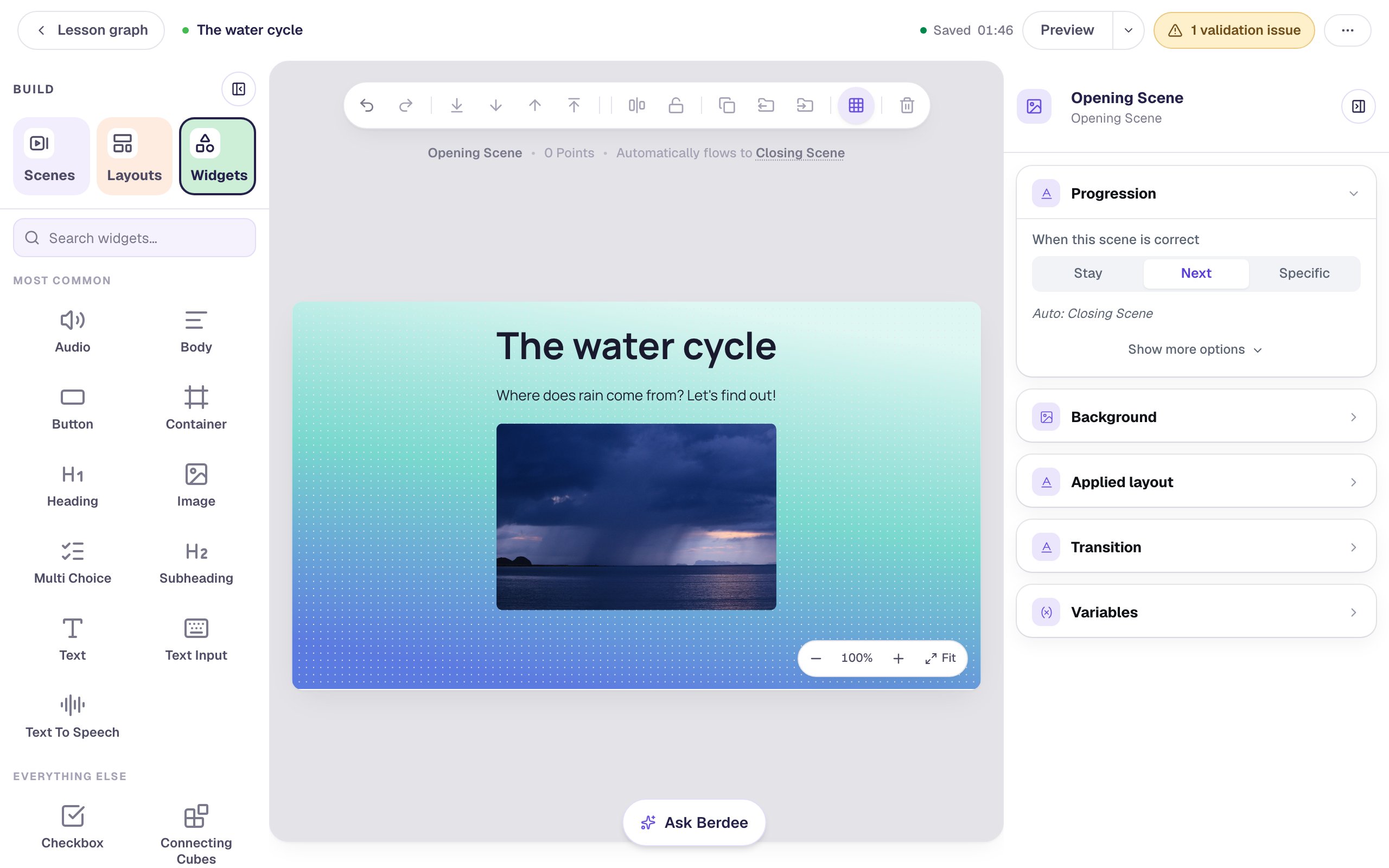
Berdee builds new scenes in the lesson's own style, so give it something to match. On the Opening Scene:
- Click an empty spot on the scene, open Background, click Choose a style, pick Lagoon gradient and click Apply background.
- Add a Heading that says
The water cycleand a Body that saysWhere does rain come from? Let's find out!, and drag them to the top of the scene. - Add an Image. Under Style & Layout → Show more options, set Width to
420and Height to260. In Image Source, click Open Media Library, search forrain clouds over the sea, and import a photo you like. - Describe the photo for students who use a screen reader: open Accessibility and type the Alt Text
Dark rain clouds over the sea, with rain falling in grey streaks.
Step 3: Ask for the questions
Click Ask Berdee at the bottom of the studio. The chat opens over the canvas; drag it by its top bar if it's in your way. Type what you want and press Enter:
Add three graded multiple-choice questions about the water cycle, one per scene: evaporation, condensation and precipitation. Each scene needs only a title, the question, four answers and a Submit button.
Be specific. Naming the three topics, saying graded, and listing what goes on each scene gets you scenes you can use as they are. A loose request like add some water cycle questions works too, but Berdee has to guess more.
Step 4: Read the plan, then build
Berdee doesn't build straight away. First it sends a short plan: the grade, whether the scenes are graded, and one line per scene. Read it. If something is off, click Change something and say what to change. When it's right, click Build them.
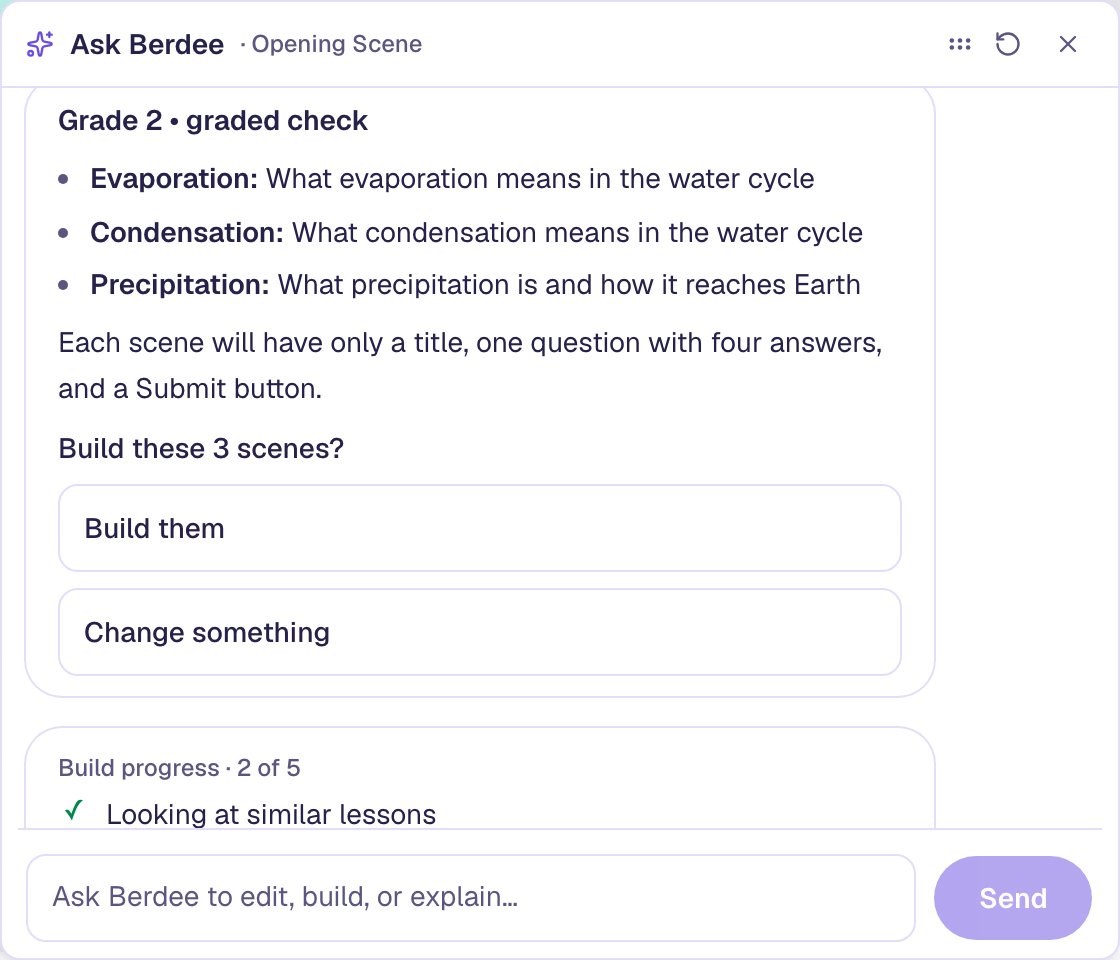
Your plan's wording will differ from ours: Berdee writes each plan fresh. Now and then it shows the plan without the two buttons. Reply Yes, build them. instead.
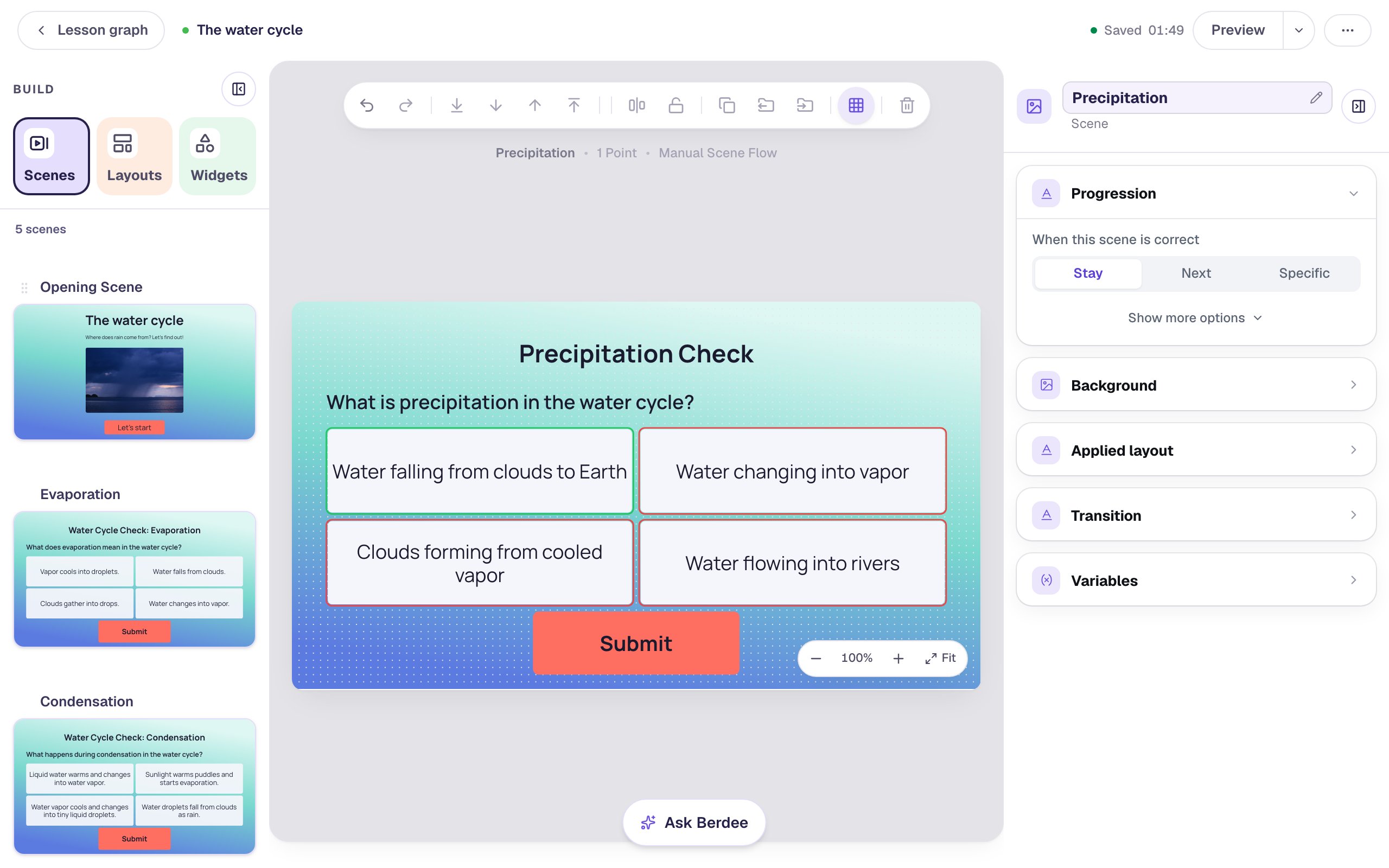
Building takes a minute or two, and the Build progress list ticks off each scene as it's written. Then a green receipt lists the scenes Berdee added, right after the scene you were on, and the Scenes tab shows them in order.
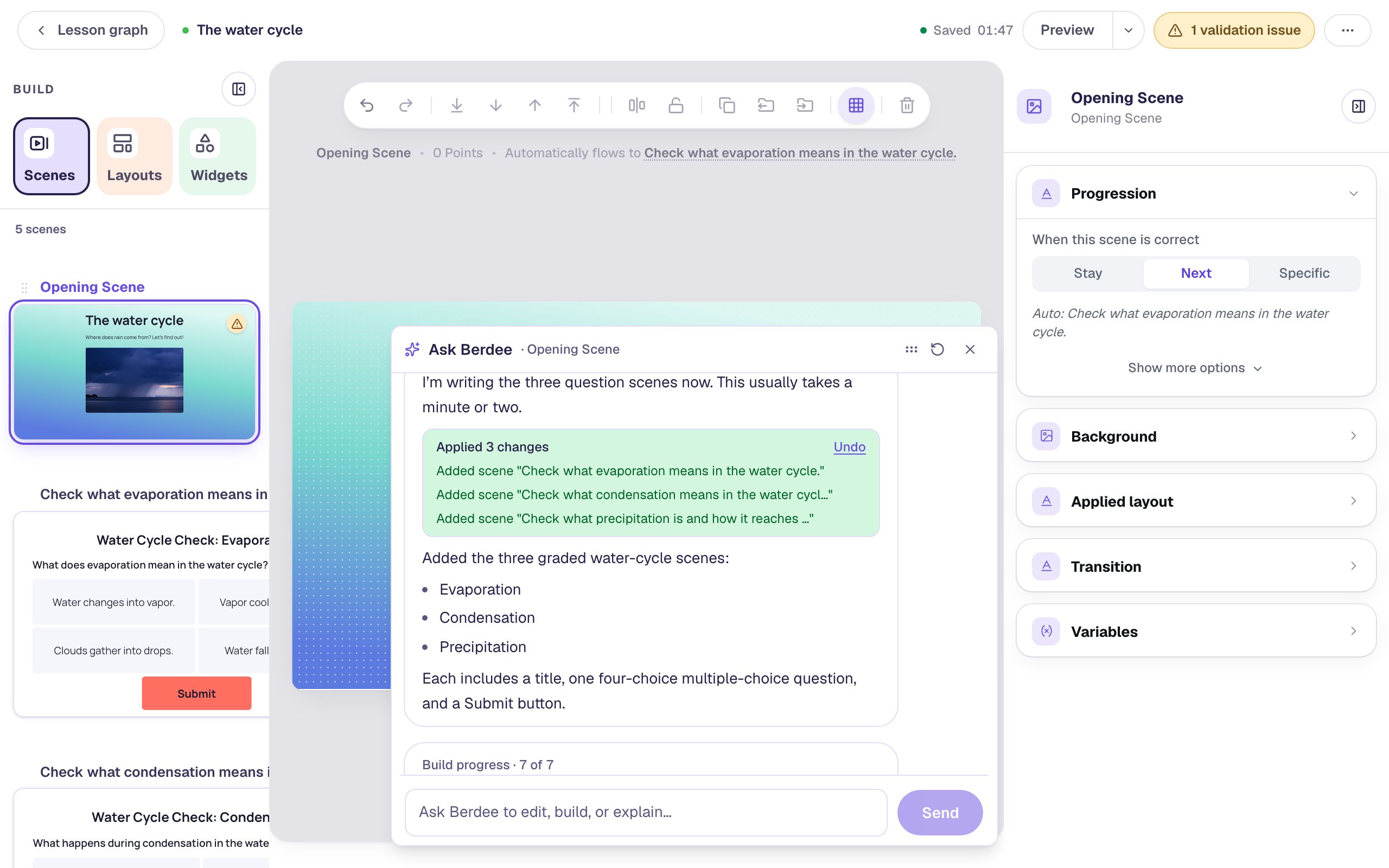
The Undo link on a receipt reverses everything in it in one click. Use it if a build isn't what you wanted, then ask again.
Step 5: Check every scene Berdee built
Close the chat with the × in its top bar and open each new scene from the Scenes tab. For each one, check:
- The question and every answer. Is the right answer marked correct (the green outline)? Are the wrong answers clearly wrong for a second grader? Change any wording you don't like right on the canvas, as you would in any scene.
- The layout. Nothing should overlap or run off the scene.
- The look. Our scenes came out plain white, and their names are long notes Berdee wrote to itself ("Check what evaporation means in the water cycle.").
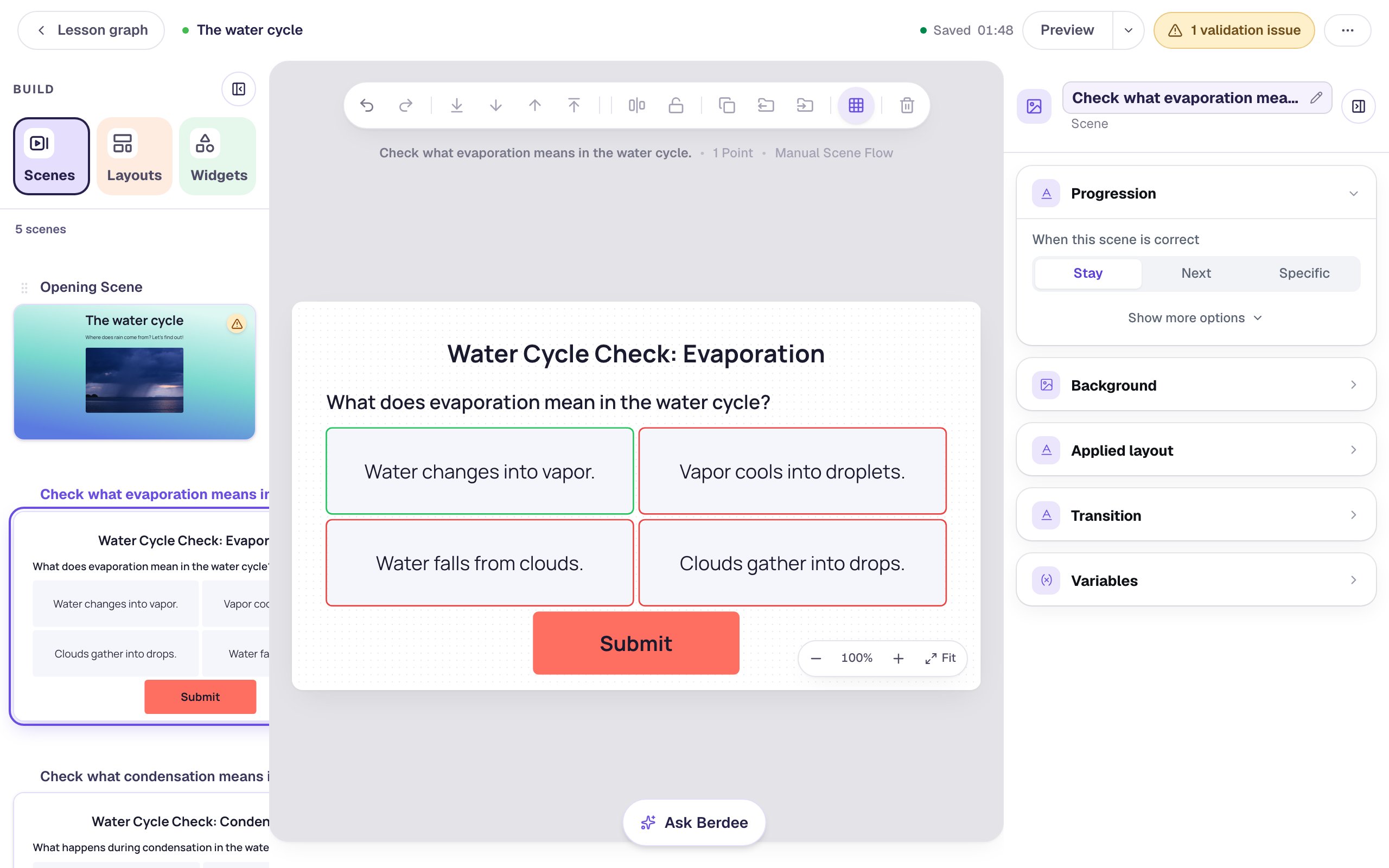
The questions are a draft, so give them the same read you'd give a worksheet a colleague handed you.
Step 6: Ask for the finishing touches
Fixing the names and backgrounds of three scenes by hand means a dozen clicks. Ask Berdee instead. Open the chat again and send:
Rename the three new scenes Evaporation, Condensation and Precipitation, and give them and the Closing Scene the same background as the Opening Scene.
Berdee makes the change in one step and shows a receipt of exactly what it changed, with its own Undo.
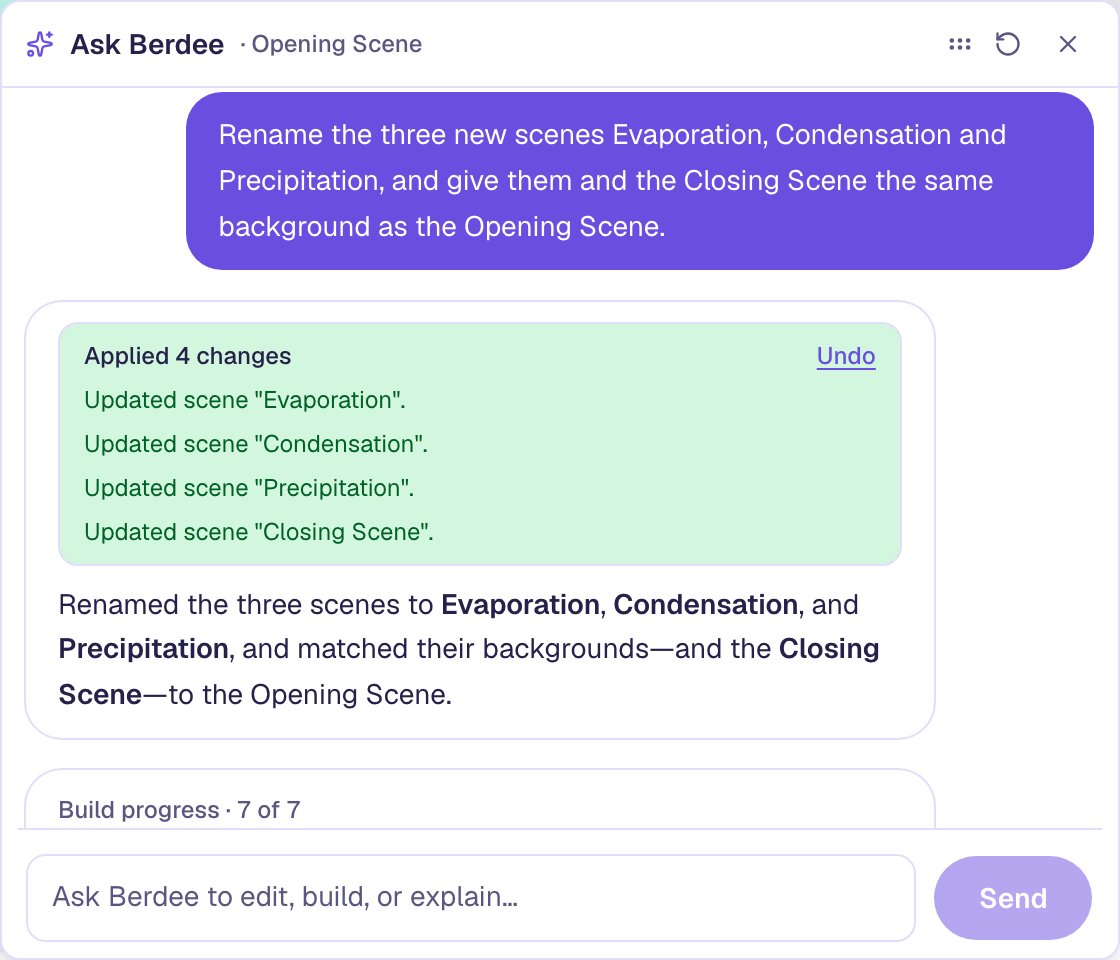
Check the result on the canvas, not only in the chat: the scenes now have short names and the same lagoon background as your title scene.
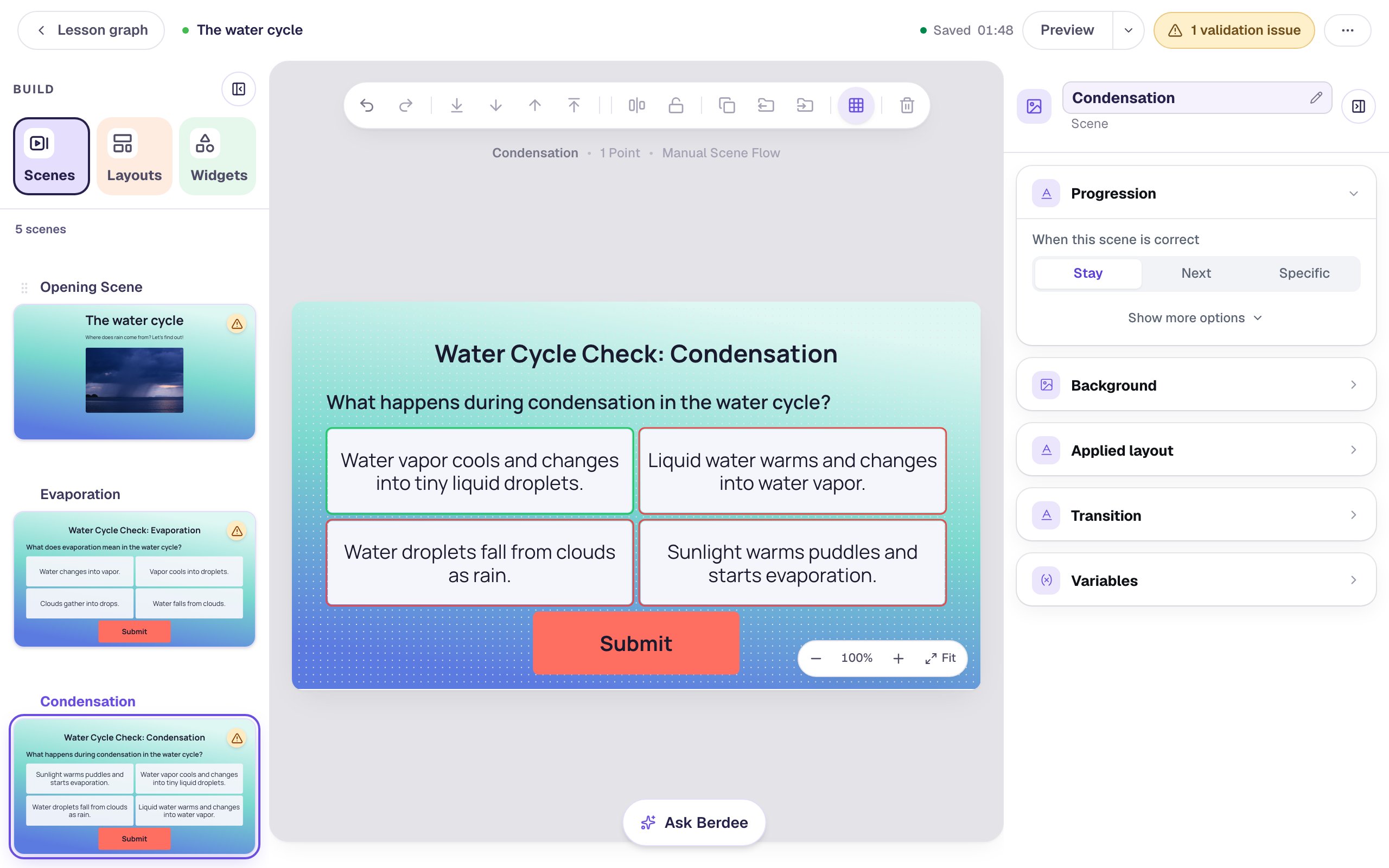
Ask Berdee can change any scene in the lesson, not only the one you're on: name the scene, and the widget if there's more than one, so it knows exactly what you mean.
Step 7: Add a start button yourself
The title scene has nothing for students to answer, so it never moves on by itself. It needs a button. A single button is quicker to make yourself than to describe:
- Open the Opening Scene and add a Button. Click ⚙ Configure, set its Label to
Let's startand click Save. - Rename it
Start button(click its name at the top of the properties panel), so it's easy to find later. - Drag it under the photo.
- Click Behaviors in the pill above it and choose Make this a "Next" button. It's already set to go to Evaporation. Click Add behavior.
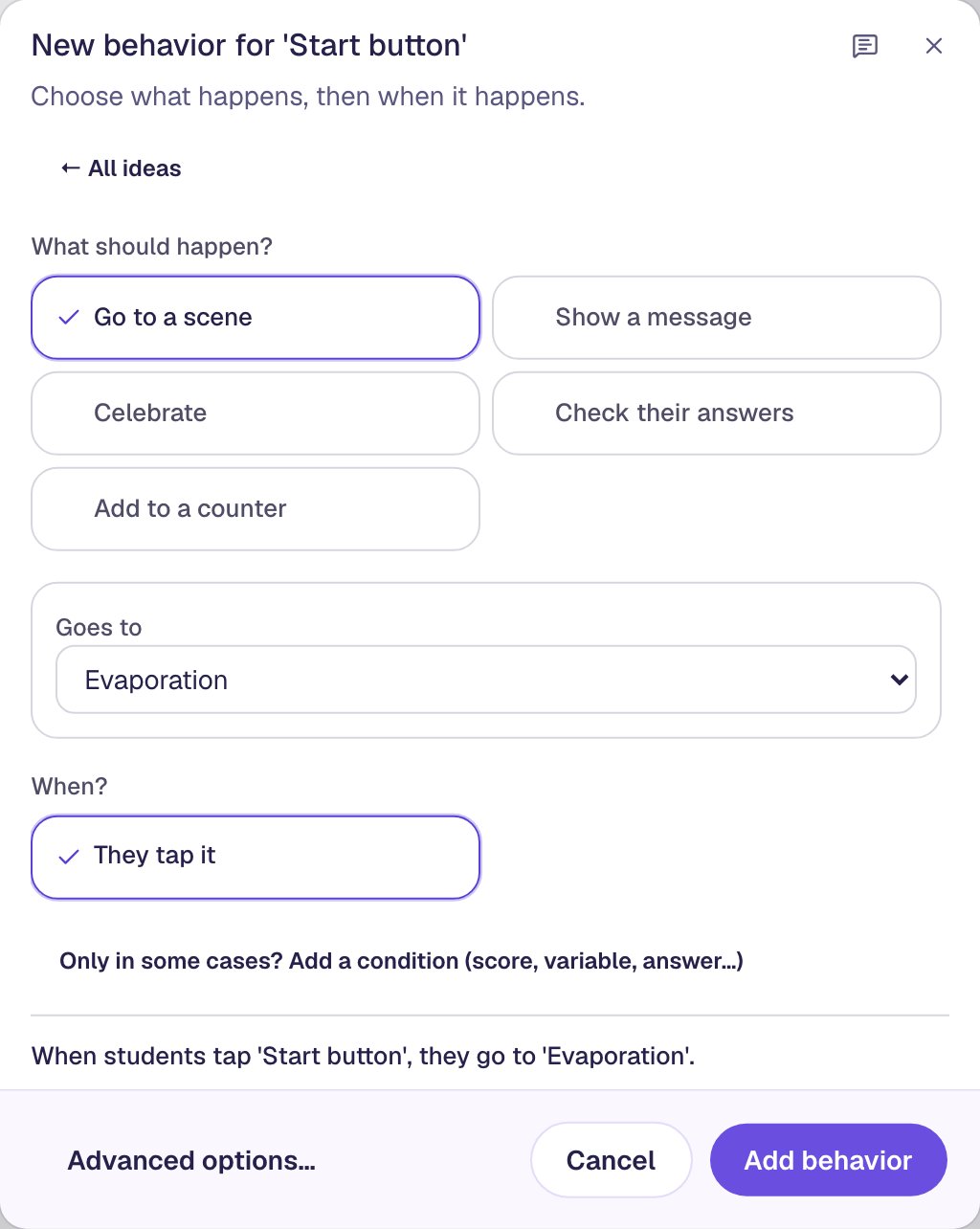
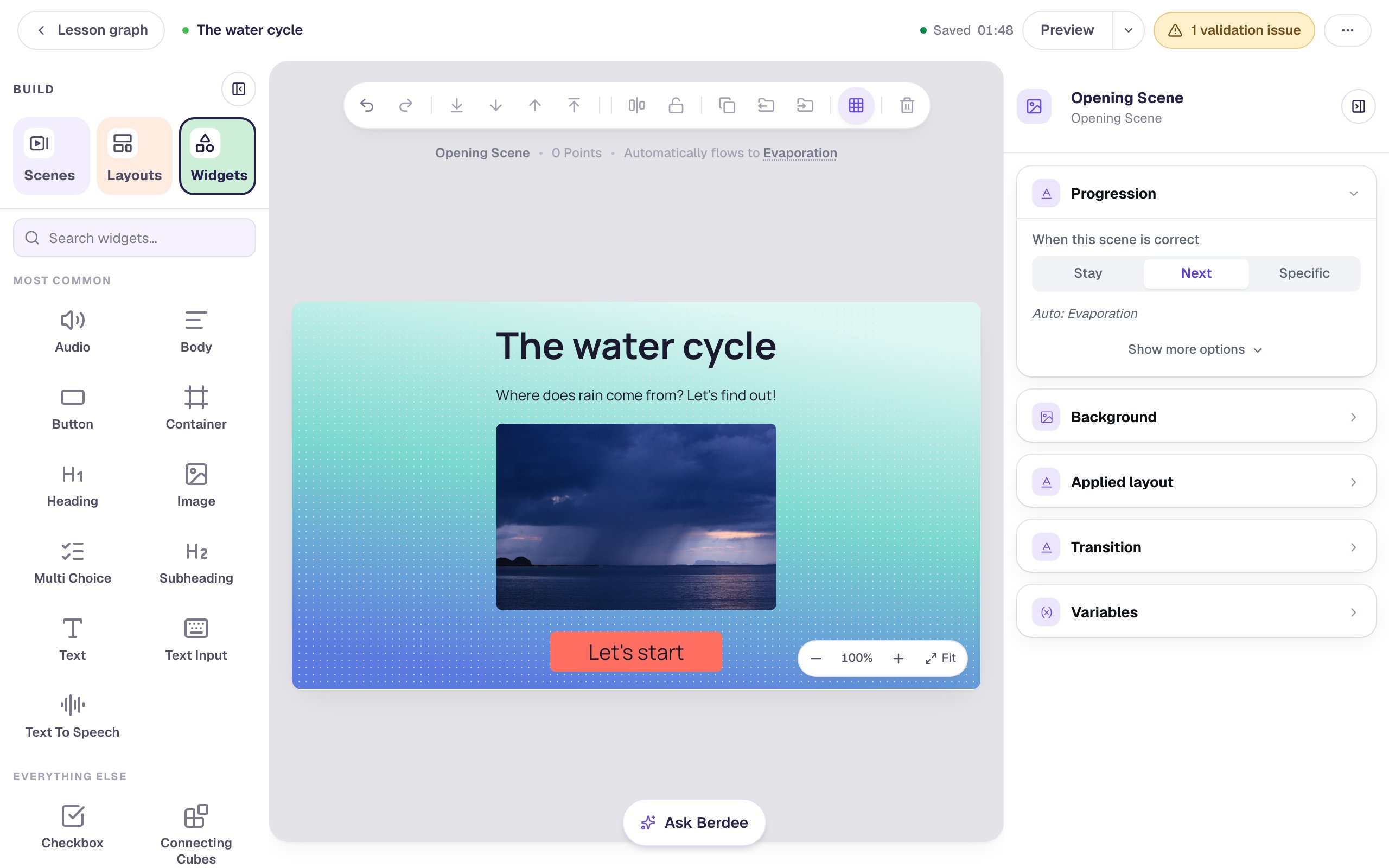
Use Ask Berdee where it saves you real work, like a batch of scenes or a change across several of them, and make small, one-off changes yourself. Whichever you do, check the canvas: when we asked Berdee for this button, its receipt said the button went to the next scene, but the button it made did nothing yet.
Step 8: Ask Berdee to fix the last validation issue
One thing is left: the yellow pill at the top says 1 validation issue. Click it and you'll see No Lesson-Submit Button. Every lesson needs one button that finishes it, and Berdee gave each question a Submit that only checks its own scene.
The last question's Submit is the natural place to finish, but it needs two things changed: what it submits, and where it goes after. Ask Berdee:
The validation list says No Lesson-Submit Button. Make the Submit button on the Precipitation scene submit the whole lesson, then go to the Closing Scene.
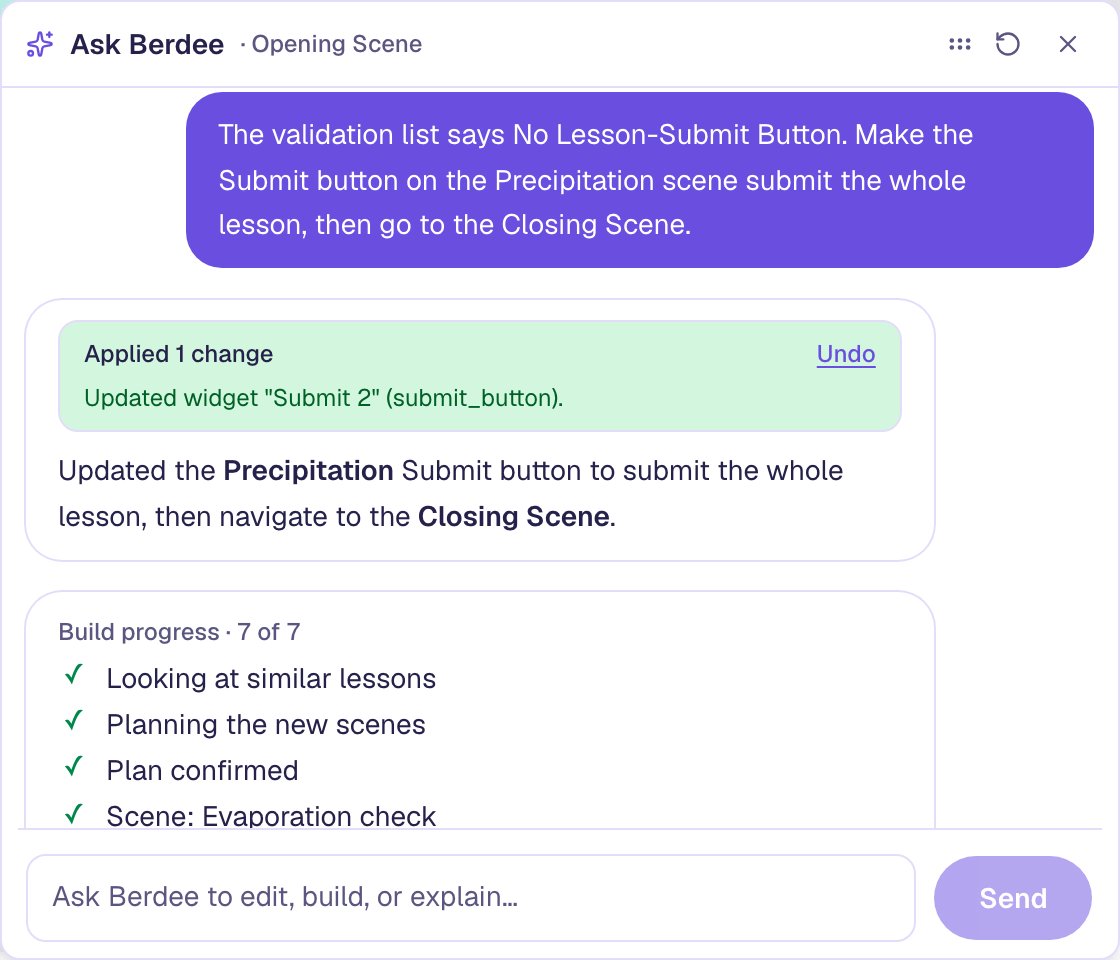
The validation pill disappears. The lesson is ready to try.
Step 9: Play it as a student
Open the Opening Scene and click Preview. Press Let's start, answer each question and press Submit:
Each Submit grades its question and moves on, right or wrong, and the last one finishes the lesson. The answers are shuffled in Preview, as they are for students, so yours may be in a different order. Try a wrong answer too: the score on the ending goes down by one.
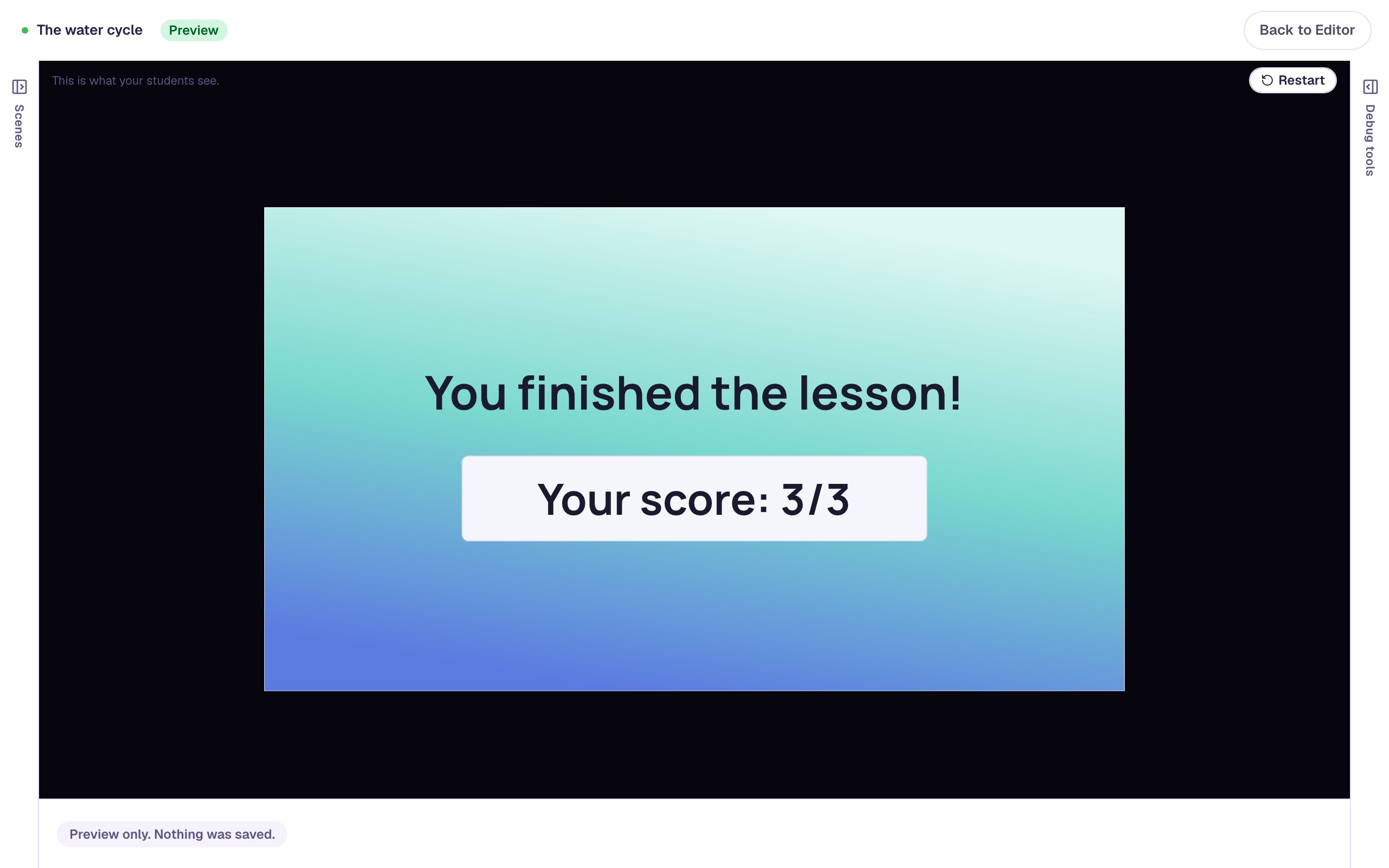
What you built
You built a four-scene water cycle lesson with help from Ask Berdee:
- a title scene you made yourself, with a grade in Lesson settings so Berdee pitched the questions right,
- three graded question scenes Berdee planned and built after you approved its plan,
- one request that renamed and restyled four scenes at once, with an Undo on every receipt,
- a start button you added yourself, and a last Submit that finishes the lesson.
Ask Berdee works best when you say exactly what you want, read what it plans, and check what it builds. Next, try asking it for a different kind of practice on the same topic, or make each question count for more in Make some questions count more, and one not at all.
Make this lesson yours
Add the lesson you just watched being built to your account, then change it for your class: your questions, your pictures, your colors.
Free to sign up, and you'll come straight back here. I have an account